Auto Quad Filler Pro Blender Addon
1 month of Skillshare
Available with PurchaseFree
All memberships will be billed automatically on a recurring basis until canceled. If eligible for a free trial, cancel before the trial ends to avoid being charged. Offer only valid for new paid subscribers. See full terms of service here.
About this product

Junaid Alam
3D Artist
The problem: merging uneven edge loops always ends in bad topology
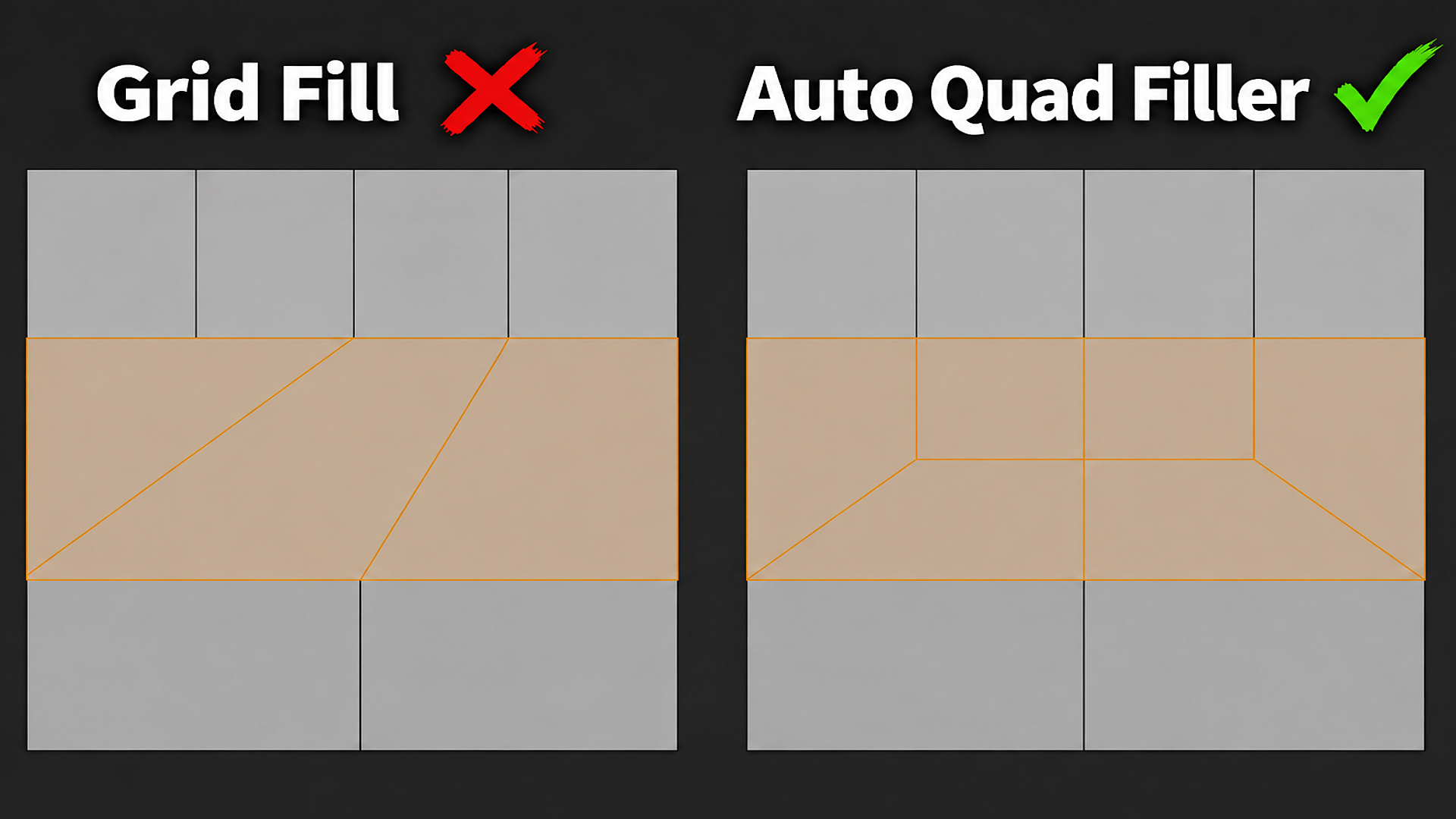
Every Blender modeler hits this wall. You have four edge loops on one side of a surface and only two on the other. Maybe it's a character's torso narrowing into an arm, a hard-surface panel stepping down, or two separately modeled parts that need to join. Blender's Grid Fill and manual Bridge Edge Loops can technically close that gap, but they do it with long diagonal edges cutting across the surface. Those diagonals turn into stretched triangles or n-gons the moment you subdivide, and they break your edge flow.
The usual fix is manual: place a pole, cut in extra edges by hand, merge vertices, clean up triangles, check the normals, and hope the flow still reads correctly after a Subdivision Surface modifier. On a simple panel that's a few minutes. Repeated across a whole character or hard-surface kit, it is hours of repetitive, error-prone work.
What Auto Quad Filler Pro actually does
Auto Quad Filler Pro is a Blender add-on that automates exactly this step. In Edit Mode, select two separate open edge chains with a different number of edges — for example a 4-edge loop and a 1-edge loop — and run the Fill operator. The add-on builds a proper quad-first topology transition between them, using the same reference-style pole patterns experienced topology artists use by hand: three or four quads feeding into one lower support face, instead of one giant fan of triangles.
It is not a general remesher and it does not touch the rest of your mesh. It only replaces the exact gap between your two selected chains. Your original boundary edges are never moved, split, or deleted — the add-on works on a temporary copy of the mesh and only commits the result if the entire transition passes validation.

How it fits your workflow
Select two open boundary edge chains in Edit Mode (the two loop ends you want connected).
Check the N-panel: it reads your selection live and shows the exact ratio, e.g. "Ready: 4 → 1".
Press Shift+F, click Fill, or right-click and choose Quad Filler from the context menu.
The transition is generated, selected, and ready for further editing or a Subdivision Surface modifier.
If the two chains have different edge-count parity (an odd difference, like 5 → 2), the add-on adds a single supporting vertex on one side automatically so the result still closes as clean quads — you do not have to work out the parity fix yourself.
Built for predictable, subdivision-ready results
Every supported ratio has a known, fixed face breakdown, so you always know what you are getting:
4 → 1: 4 quads + 1 five-sided face
3 → 2: 2 quads + 1 triangle
3 → 1: 4 quads
2 → 1: 3 quads + 1 triangle
Larger and uneven ratios (5 → 3, 6 → 2, 4 → 2, and so on) are handled by the same strip-reduction logic, splitting the difference into individual two-strip reduction points along the loop instead of one wide fan.
Every generated patch is checked against its expected quad/triangle/n-gon count before it is written to your mesh. If a candidate does not validate, the add-on rejects it and leaves your mesh exactly as it was — you get a clear error message in the status bar instead of a broken result to clean up.

Options that respect your original geometry
Preserve Symmetry — on mirrored parts (like a symmetrical character or prop), the add-on favors placing the transition so both sides land in matching positions.
Relax Internal Vertices — smooths the newly created internal points for a nicer surface flow without ever moving your selected boundary vertices.
Debug Mode — highlights the generated transition faces with a dedicated debug material and writes the full candidate scoring breakdown to a text block, useful when you want to see exactly why a particular layout was chosen.
Who this is for
Character and creature modelers building clean, subdivision-ready quad topology for rigging and deformation.
Hard-surface and game asset artists closing loop-count mismatches on panels, greebles, and mechanical parts.
Retopology artists merging loop counts from different parts of a base mesh.
Anyone tired of manually placing poles and cleaning up Grid Fill triangles every time two edge loops do not match.
Why it beats the manual workflow
Grid Fill gives you a flat fan of diagonal edges across the whole gap — one operation, one topology shape, no options. Auto Quad Filler Pro instead builds the transition the way a topology-aware artist would place it by hand: quads on the outside, a controlled pole or small n-gon only where the math requires it, and a supporting horizontal edge that keeps the surface reading correctly under subdivision. What used to take manual edge cuts, vertex merges, and cleanup now takes one selection and one keypress — and it is undo-safe, because nothing is committed until the result passes validation.


FAQs
What are digital products?
Digital products at Skillshare are expertly crafted tools, resources, and templates developed by top creatives that are available to you for purchase. With a wide range of resources to suit every creative need, they are actionable, making your learning experience real and unforgettable.
How can I purchase a digital product?
Anyone can purchase a digital product on Skillshare — click Buy now to enter your payment information and complete your purchase. Once payment is complete, all files will be available for download instantly from this page. You'll also receive an email with a link to download your digital product after purchase.
Is there a limit to how many times I can download a digital product?
No, there is no limit to how many times you can download a digital product. Even if a product is removed by the creator, you can still access the download page in most cases by logging in to your Skillshare account.
Can I get a refund or cancel my digital product purchase?
Digital products are non-refundable and cannot be returned or canceled. To learn more, see our refund policy in the Skillshare Help Center.
Can I make and sell my own digital products?
Absolutely! Visit How can I sell a digital product on Skillshare? to learn how you can create, list and sell your own digital products on Skillshare.