Programming using Python Flask
Programming using Python Flask
CREATED: Tue 29th April 2025 20:36 AM GMT
UPDATED: Tue 30th April 2025 14:12 PM GMT
PROGRAMMING LANGUAGE: Python 3
FRAMEWORK: Flask
COMPUTER: Home based PC
OPERATING SYSTEM: Linux Mint OS
EDITOR: Nano
-----
INTRODUCTION
Getting started -(especially, for people who are 'beginners')- is by far the hardest part of learning programming.
So, my first project shows an example of how to get 'started' building your first Python3/Flask web page...that outputs a simple welcome message.
-----
NOTE: CONCERNING THIS LESSON STRUCTURE
I've structured this file so that readers can have access to:
- source code (without needing to go write everything out yourself...just use: 'copy & paste')
- screen shot printout (so, if for example the .html code isn't showing up properly inside of Skillshare editor...you can still see exactly what the source code looks like by referring directly to the screenshot)
- GitHub source code (as an alternative...you also have access to the source code from on my GitHub a/c.; where you can also go to use 'copy and paste'.)
-----------------------------
GITHUB SOURCE CODE
Further example Flask programs/source codes can be found by going along to visit seeing my GitHub page:
- https://github.com/pramnora/python/blob/master/frameworks/flask/courses/skillshare/Programming%20using%20Python%20Flask/README.md
------------------------------
PROJECT 1 : Render a simple homepage
Screenshots...
Screen: 1.1 - homepage.py
Screen: 1.2 - index.html
Screen: 1.3 - terminal
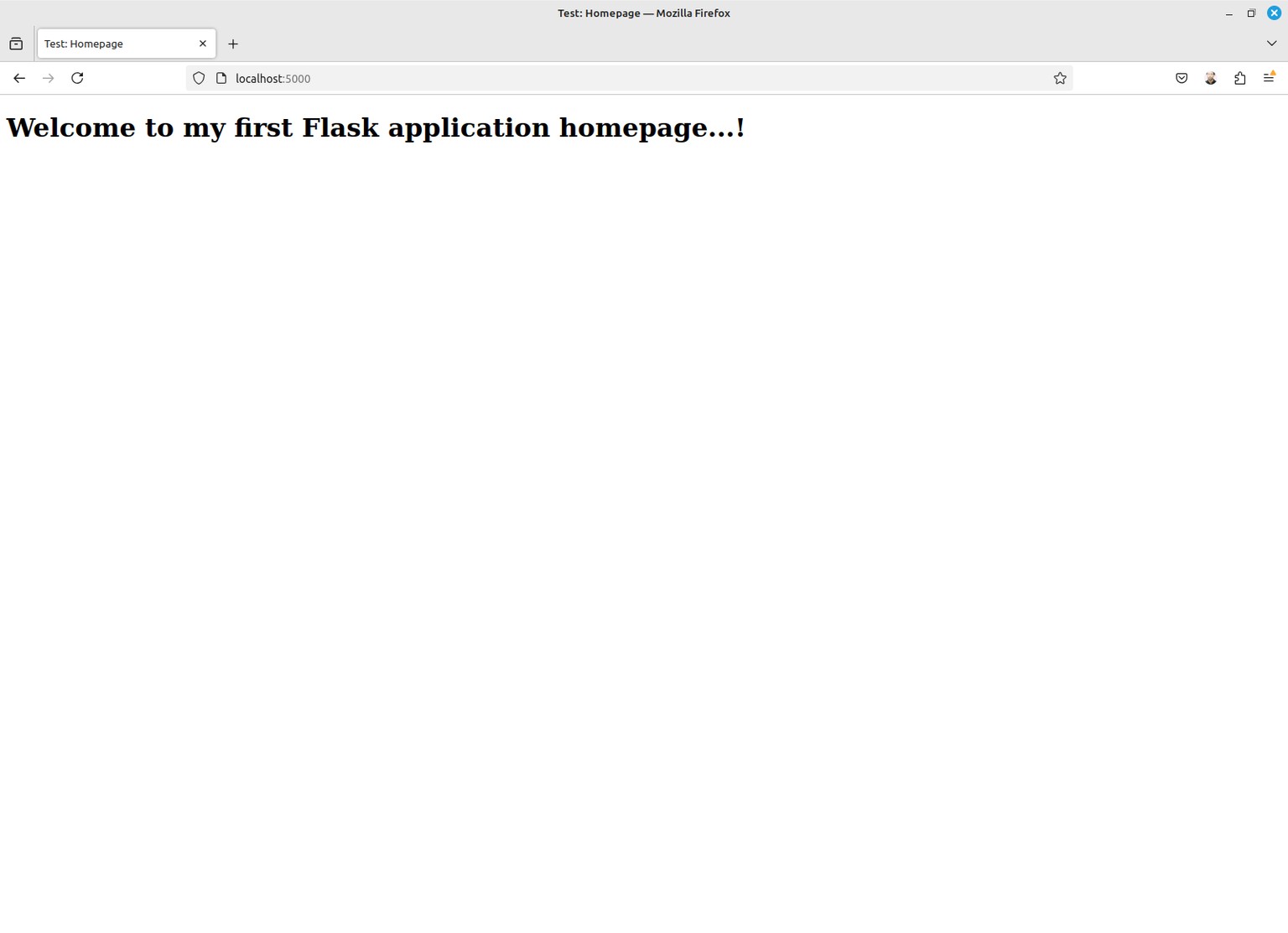
Screen: 1.4 - web browser
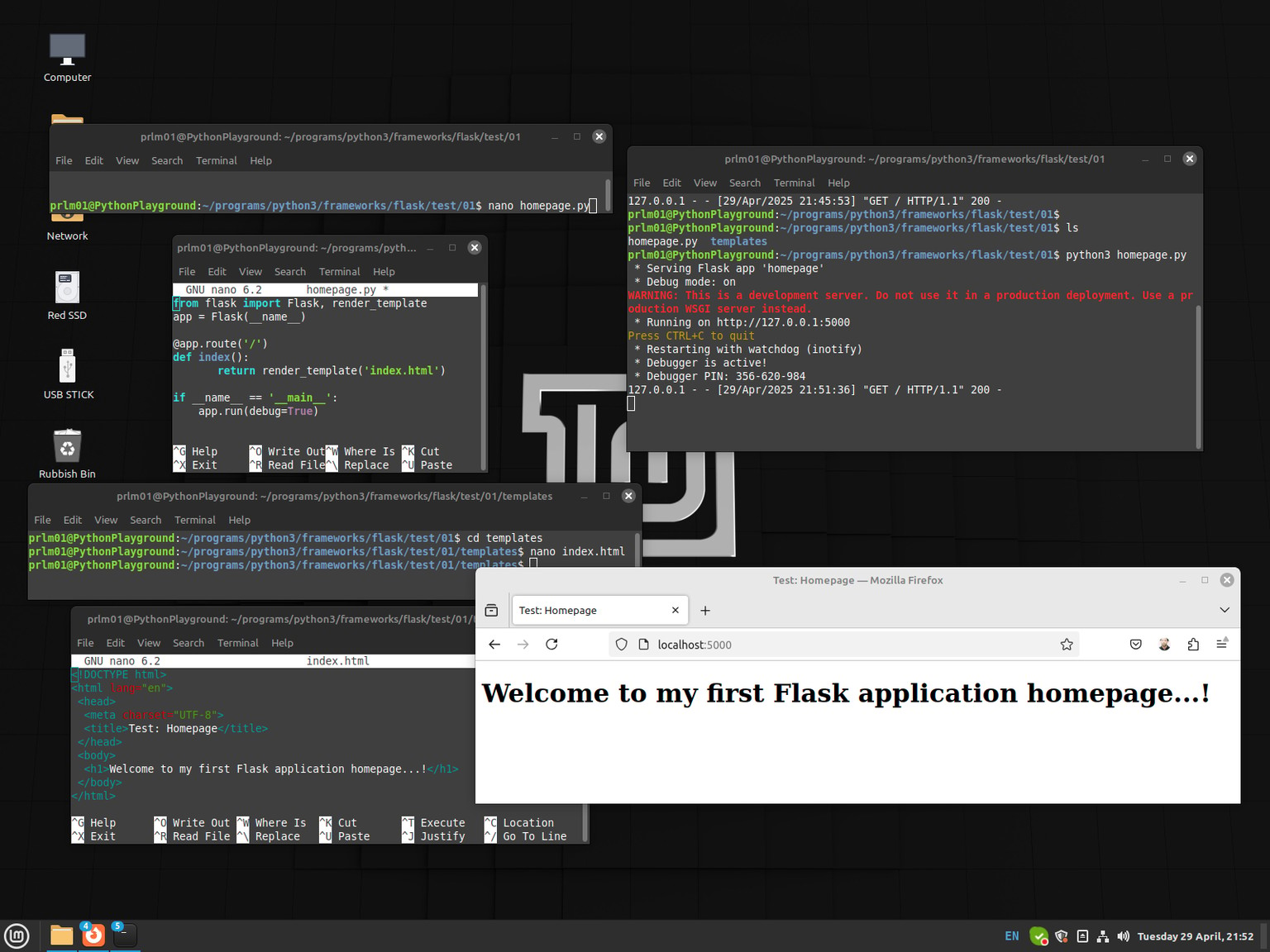
Screen: 1.5 - web page creation process windows
--------------------------
PROJECT 1: Render a simple homepage
--------------------------
Filename 1:
homepage.py
Python3: Source code...
>>>
from flask import Flask, render_template
app = Flask(__name__)
@app.route('/')
def index():
return render_template('index.html')
if __name__ == '__main__':
app.run(debug=True)
<<<
Screen: 1.1
homepage.py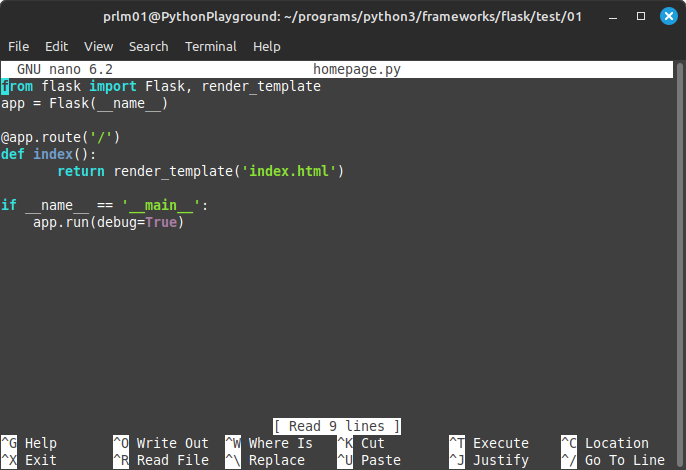
GitHub source code: [homepage.py]
- https://github.com/pramnora/python/blob/master/frameworks/flask/courses/skillshare/Programming%20using%20Python%20Flask/01/homepage.py
-----------------------------------------------------------------------------------
Filename 2:
index.html
HTML Code
>>>
<!DOCTYPE HTML>
<html lang="en">
<head>
<meta charset="UTF-8">
<title>Test: Homepage</title>
</head>
<body>
<h1>Welcome to my first Flask application home page...!</h1>
</body>
</html>
<<<
Screen 1.2:
index.html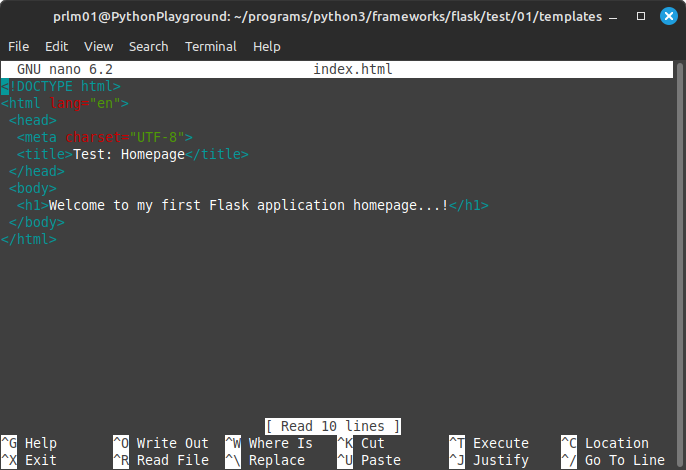
GitHub source code: [index.html]
- https://github.com/pramnora/python/blob/master/frameworks/flask/courses/skillshare/Programming%20using%20Python%20Flask/01/templates/index.html
-----------------------------------------------------------------------------------
Screen 1.3: The terminal application window showing 'all' files having been listed using 'ls' command:
- including the main file: homepage.py/
- plus, the sub-directory folder: templates/
- plus, what is contained inside of the sub-directory folder: templates: index.html
- It also shows the command to run the application: 'python3 homepage.py'; after which you press the [Enter] key...; and, then, the server starts running.
- And, the use of [CTRL]+[C] used to 'stop' server running.
Screen: 1.3
terminal
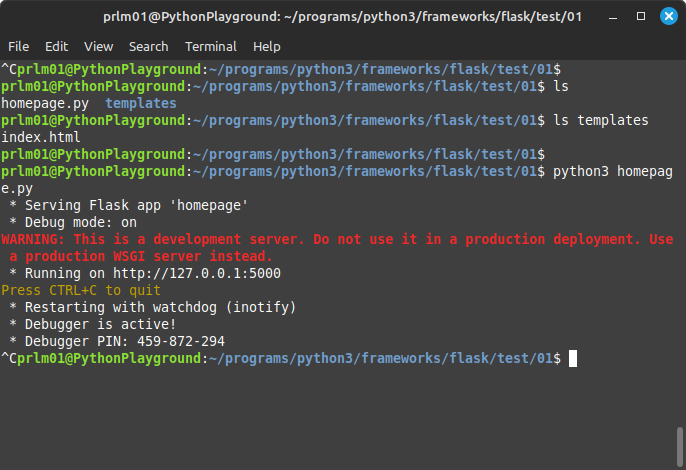
Here is the server running...
(NOTE: Pressing [CTRL]+[C] 'stops' the server running.)
NOTE: The main app program called: [homepage.py];
should have a sub-directory folder called: [templates];
into which one stores the web page(s): [index.html] to be rendered.
Finally, you to to where the main file is stored...;
at the top of the directory folder: [templates]...;
and, type in at the terminal the command to run the program.
> python3 homepage.py
...instructions should appear...telling you the URL address to go to to view the web page output.
- https://127.0.0.1:5000
...or, alternatively, you can type...
- https://localhost:5000
When you go over to your web browser software...; and, type in the above URL address...; the web page: [index.html] should appear showing the text:
Welcome to my 1st Flask application homepage...!
NOTE: When you wish to 'stop' the server running...;
then, go over to the terminal window...and, type in keyboard shortcut command:
> [CTRL]+[C]
...this will, instanlty, 'stop' the server running.
(So, when you try refreshing your web browser window...; it will say: File not found.)
-----------------------------------------------------------------------------------
Next, move over to your web browser software...;
and, type in as directed above the URL address: http://127.0.0.1:5000
-(or, alternatively, you could type in, instead: http://localhost:5000)-
and, the web page output should appear as:
Screen: 1.4
Web browser
-----------------------------------------------------------------------------------
Screen: 1.5 - Finally, here is what the overall application looks like inside of Linux Mint OS...as I went and created it.