Transcripts
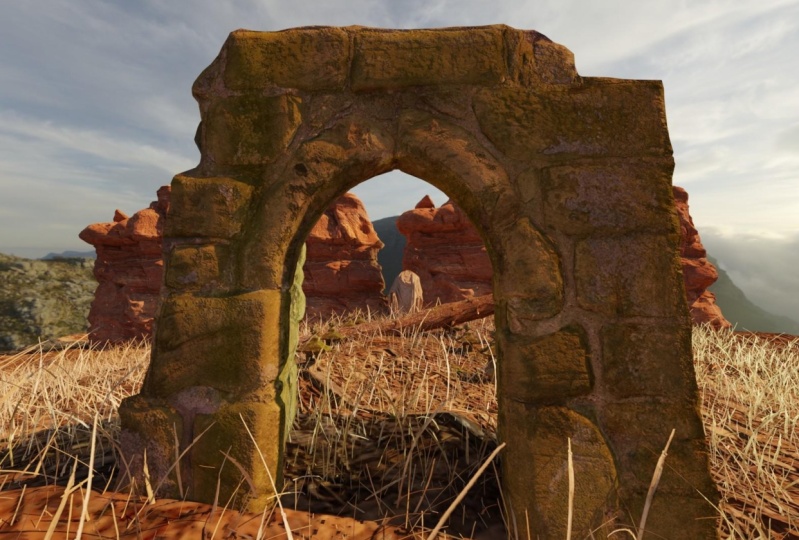
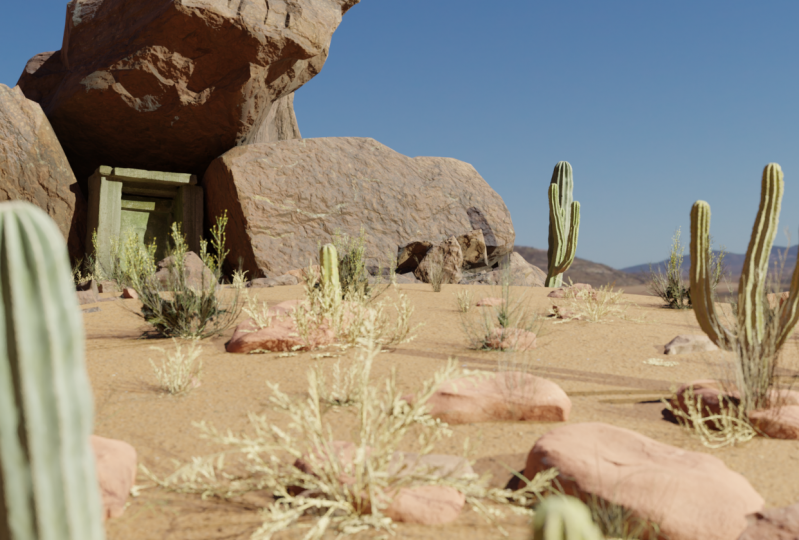
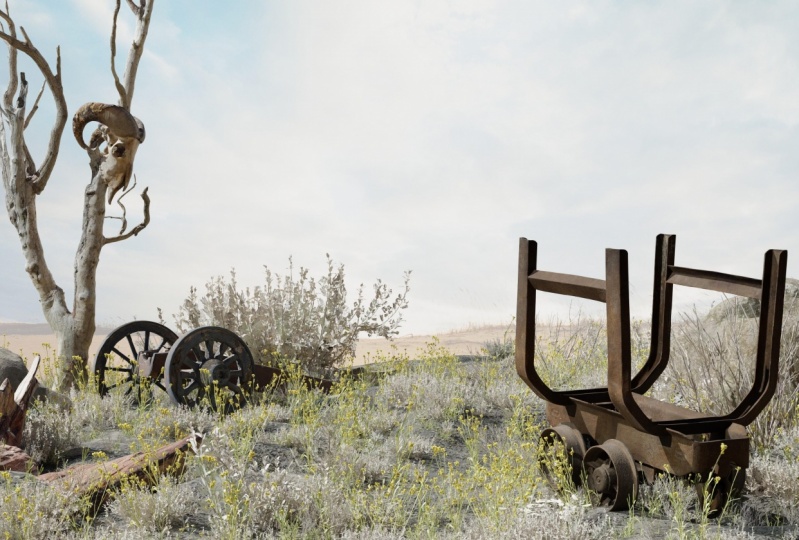
1. Introduction: Hello everybody, and thank you for joining me in this clause on you'll first render inside Blender. So rendering inside Blender can be pretty intimidating at first, there are a lot of settings. You have to learn about composition, lighting, even modelling sometimes texts during UV unwrapping. But I've created this coals in such a way that you'll be able to easily start getting into the process of creating your world and setting up a camera, and then building opponent and ending up with a pretty cool result. So we'll be covering a few things like importing from quakes, omega scans, setting up lights and cameras in the scene, and even tackling some of the more intimidating things like the node graph inside Glenda. So as my render dramatically reveals, hopefully join me in making a pretty cool render. And hopefully your output will be something cool like this render that I've created during the class. I hope you enjoyed it. Thanks guys.
2. Setting Up: In this lesson, we're just going to be setting up a few things so that will be able to get stuck into making our blend the retina. Take that rolls off the tongue less. So. So we're going to be leveraging and mega scans library. And what that is is a bunch of pre-made Furda real assets that are actually scan from the real-world. So they exist in real life and they've scanned them and put them into this program called quick so bridge. And what quirks or bridge can do is it can instantly take the asset from the library and put it into Blender. And you don't have to set up any materials or textures and stuff like that. So you can just find a nice asset we like and put it in there nice and seamlessly so that we can just focus on the fun things like lighting, composition and just building out our scene. So all you'll need to do is download quick. So bridge. So if you just look up quick, so bridge, you should find this and you can sign in. If you have an Epic Games account already. If not, you can just make one. And this is free to use as well. If you think it's free to use in general, but I know it is definitely free to use if you use Epic Games, he can't because I partnered with Unreal. This is quick, so bridge, as you can see, they have a giant library of assets. When you've downloaded for the first time, you probably be greeted with a window that looks something like this. So if it asks you to pick a library policies where all the actual assets is saved on your machine. If you're saving a lot, you probably want to pick a pretty large drive, especially if you want to go for those full K to eight K textures, I'll be pretty large. The other thing is if you don't get this popup already, just click on Edit, go to Export Settings. And you'll have your export target. And you want to click on blend and make sure that blend that isn't open. Um, and then e should have a button here to install the plugin. Now this isn't pull it. And at the time of recording this, the blender plugged in doesn't work for the absolute latest version, which at this time is 2.9.2. But it does work the 2.9.1. But for the purposes of what we're doing to 0.1, to 0.9.1 is going to get the job done. Absolutely. So if you just hover over the blender, which is free as well, if you don't have version 2.9.1, that's the one that I'm going to be using. Just head over there and download that. They've got all the previous versions available for download site should be nice and quick. Alright, so we'll be able to test if our plugin is working correctly. Just if you open up Blender and I'll just press a X and delete everything. If we open up Blend and then we go to bridge, we can just pick something we like say, you want to go to 3D assets? Let's just go with this massive and Nordic coastal cliffs. And then if we download it, and then once that's finished downloading, we can export it. And you can see it's instantly set it up in Blender and it looks like it doesn't have any materials on Edit the moment, right? But if we just go into al looked at a view like that and lovely, set up coastal cliff. And just add a light in here. And we do that. It's like we're looking at the real world already. All right, So if you are able to successfully set all that up, if you need a hand or feel free to post a problem in the discussion and maybe posting the image as well. They really help me troubleshoot your problems. But once you have all that setup, we can actually get to making our scene, doing the exciting stuff. All right, so with that, I'll see you in the next lesson.
3. Ground Plane and Lighting: Hello everybody and welcome to the second lesson where we're actually going to get started making our lovely render. So you just notice I'm in blend 2.91. Blended 2.8 should be fine as well. Just make sure you note in blended 2.92 unless when you do this lesson quick. So bridge has updated their program to support that. So in this lesson, since we're making like a little landscape scene with some, some rocks and some grass, um, which are quite common. You'll find when you make these renders, we're going to start by making our plane and then setting up a basic HDRI so that we have something to VSAT. And so just getting the foundation of our scene, we might even call it a landscape material that we can use. Okay, so we've got our St open. First thing I usually do. If you're not familiar with Glenda, if this is your first time using it, I'll give you a quick rundown of how to navigate the viewport. But I have my what I'm pressing live displayed down here. So middle click Is everything. Say middle click, rotates, shift middle click pans. And you can scroll through Zoom. So I'm just going to press a to select everything x and the leet. Okay, So now with everything deleted, we can press Shift a mesh and go into plane. And I'm just going to scale that up by 50. So you have quite a large area to work with. And then I'm going to press tab, right-click on it and subdivide it and then don't press anything just yet. I'm just going to go down to this menu down here. And we can set this number of cuts to like 50. So why are we doing this? A few reasons. So the reason we need a lot of polygons here is sorry that for one, we can actually like to form our lands so that it is undulating a bit. Because it's very rare that you would see a completely perfectly flat plane of Grosse just in the wild. So we need some geometry for our displacement to look into so that I can undulate around. And we can pull the polygons up and down and move them around as we see fit. The other reason is that when we add our grass in late, we need the disease. Because we're going to actually paint where the graphs will be visible and where certain foliage would be visible, inset pots of the st. So we have a plane here and I'm just going to get started by undulating a little bit. So the way we do that is if we just exit edit mode, we can go into modifies tab, add one, and then we can add displace. You can see it's just lifted it up a little bit. And that's just because we're not inputting any data for it to, to work from. So if we click on New here for a new texture, and then we go over to our textures panel here. You can see it's just black. And what black is doing is it's pushing the polygons, doubt. And lighter values push the polygons up and the mid gray doesn't do anything to the polygons. So if you had something like a clouds here, you can see that it's got plenty of black and white inflammation. And it's making up plain go up and down. And we can even change the size. So that kinda trippy so that we get some less extreme variations. I like smaller, smaller noise would be very spiky lodge and noise it is sort of sloping and gradual. And then in actual modify, if we just click on the Modify tab, hey, we can change the strength. Say that it's a bit more subtle. Nice. So the other thing you wanna do, you'll, you'll notice when the strength is high that you can actually see all the individual polygons. So if you just press Tab and then a and Control F, you want to go down to shade smooth and that shapes your face is smooth. So now you'll notice we don't actually have any of those individual polygons poking out. Alright? So we have a basic undulating plane. Lovely. Love to say it. Next. I'll just add a material on here, and then I'll add a HDRI and a basic sunlight, so that will be out to see the material at work. So open up pixel bridge. And what we're going to try and find is a basic grassy sort of material. So if you just come up here and you search grass and see that there's a few options that we have here. So when you're looking for, look for ones that like just a sphere. So these will be actual assets that you bring in. And these fears just materials. So this might be good, but it also looks rather lush. Not true if we want to go for something that lush. This is also interesting. So I want to, I want something we'd like a mixture of debt and grass in it. All right. So I found when I like you can see it's pretty basic. It's just got some grass patches and this patches where the browser doesn't shine through and you get some of these brands and it's pretty, it's not very noisy and it's not very outstanding. Like we're going to cover this with actual grass meshes. So this is going to just act as the glue. So to tie it all together, Ailey, so I'm just going to download this on and then import it and I'll show you how we can set that up. All right, so once you get the notification that's been successfully imported to blend, what you want to do is with your plane selected, go down to this bowl, this beach ball looking thing, and that's the materials tab. So we've inputted a material, so we can click on this and we can see it appear here. So we get the wild grass material. So if we click on that, nothing happens. Why? Well, we're in OWL flat shaded view. So everything is just going to appear gray. And whilst we're actually making renders, what I like to do benefit of blenders. You can just drag windows around willy nilly. So if you just come up to this right in the colon here, click and drag across. We can double up on Windows. And then we can go into l shading view. And it's very dark because we don't have a light in the scene. But if we go to Outlook W, you can see material is placed on hand nicely and we can scale it up and down. And I'll show you how to do that too. So if you think you'll material looks a bit too big, just come down here and lift this up. And instead of being the timeline, we want to go to our shader editor. And this is going to look intimidating at first. But don't worry. I'll show you how you can actually use this information. Making a bit more space so we can have a look a little bit doing. So basically, what's happening here, right? So we have our shader and we have our output. And then we have all our inputs that are going into the shader and turning into our final output. So inputs are like our albedo, which is the color of our combat, which is the color of L material, A0, which is like ambient occlusion. We have our roughness, which determines the roughness of the material. And we have a normal map which is like, as you can see this like little undulations like up and down in the material and that's what that defines. So what we need to do is scale these all up and down at the same time for tiled them. And in doing that, we'll be able to increase and decrease in material that will. So the way that I do this is first thing first you want to go up to Edit Preferences and go into adams. It make sure you have the Node Wrangler enabled. So I just click on that and then we can close this. Next, you want to select all your inputs. So these are all of these orange nodes here. And then you want to press Control T. And we have, now we're mapping. So we only really need one of these. So we can delete these. So we really need one. And if we plug this into all of these nodes here, into this vector slot. So now this is affecting all of these inputs. And if we change the scale, so let's say we wanted Al texture to be bit smaller on the same entitled bit more. So we can set this to two. And you can see, look. Now we have a material that tile is a bit more and you can set it to whatever you like. The other way of doing things is scaling the UV maps of the plane. But if you don't know how to do that, we're going to be spending most of like we'll be using the shader graph further on in this tutorial anyway. So it might be good to just get familiar with it. And just try and understand a little bit like I can look intimidating well, the spiderweb lines going everywhere, but don't worry too much, It's not that bad. Okay? So now with OWL plane in the same, we're just going to set up the HDRI and I'll sunlight so that we have something to work with, so that we have a view in our render. And then once that's done, we'll probably call it for this lesson. And then next lesson we will look into adding grass and maybe some of the stones and things. So speaking of the shader graph, you notice where an object mode here. So we want to click on this and go to World surging. Say we just have this world output and we have this background thing. So what we want to do is first, so now what we're doing is we're adding our HDRI. And our HDRI is going to be out a ambient light. So it was pretty much so what that means is it's going to use that data from the HDRI and it's going to blas that onto our plane. So if you don't have any HDRI is ready, you can go to HDRI Haven and they'll actually have free HDRI that you can use. So you can see that these are like spherical images here. And they will influence the saint in different ways. So we probably want something like this or like this because that is going to be similar to an actual environment that we're creating. So I like the dynamicism of this one. Let's go to a bit going on. So I'm just going to download this one. So I'm just clicking on it. We don't really need it to be too large. I'm just going with the 2k one. All right, so once you have that downloaded, just head on over back to blend and we can add that in. So if you still have your node graphite pen and we'd gone to weld. This is where you'll add that in. So if you press Shift a and you go to texture and ego to n environment texture. So this is where you can input the HDRI. And we just click on that, put it somewhere over here, and we arpanet and Open and then find where you saved the HDRI and click on that. All right, so we've imported this. Now we're just going to drag this over to the Kala. And you'll notice nothing's really happened. But what we want to do is go to our actual rendered view. So we just looked at you. This is like material preview is just is just basically a preview of how your scene might look with the material is added. But this rendered view actually takes into account the lighting and the HDRI is affecting the lighting. So we click on this. You can see we have our HDRI in the Seine and it's affecting our plan. So you can say it's looking like it's being lit from this side. And that's because the sun in the, in the actual HDRI is being lit from this side. And again, if you would like to rotate this around because you don't like the angle it's coming from with Node Wrangler, you just select this guy, press Control T, and then E can change your rotation. So if we just change the rotation on the z, you can see it changes and outlining will update. So if I liked the lighting from here, I can do that. And then if we boost this with our actual sunlight. So if we go into our scene here, press Shift a and then we go into light and go to some. And then press G and Z and just bring that up so that we can have a look at it. And then press R and y so that we rotated on the y axis. And then we can press R and Z and sort of align it with our Sun in the same, something like that. We can boost the strength of this too. So people often like to go for something like 10 or 20, even in some instances, we'll keep it low is for now. So maybe we'll just go with three, will keep it like that. But everything's looking pretty good so far. So also, if you'd like to get rid of this grid, what you can do in your rendered stain is actually click on this button up here and that is show overlays. So if we close this, we'll just have a completely rendered scene. So now that we have an HDRI setup, we have a ground material. You know, little bit about. Shade is a, it was quite a lot to learn and actually so congrats, if you made it this far. What we're going to be doing next time is actually maybe adding a few of the large assets, like some, some stones and things like that before we add in the grass. And then we'll actually add in our camera as well and make our composition before we go and go crazy with all the, the rendering that we're doing. All right, so hopefully you enjoyed this lesson. I'll see you in the next one.
4. Figuring out the Composition: Hello everyone and welcome back. In this lesson, we're just going to pick up where we left off and we're going to add a few of the large assets into the same side. I might just add a couple rocks in. And then we'll set up our camera so that we can actually have a so to stab it, static place to work from. And I'll show you some of the camera settings that we'll use. All right, So first things first, I want to figure out my composition a little bit. So what I'm thinking is we'll have like a pretty low shot like this. And we might have like a comb the side here, like a little ledge and then a smaller one on this side. And then maybe we can put something on top of the rock. I, I haven't decided yet. Alright, so first, need to find a little bit of a rock asset. So if we head over to quick so bridge, we can find one of those two side of it, a 3D assets. Good nature. And then go to a rock and then we can just have a look. All right, so I've exploited a couple assets. I've got this giant cliff, and I've also got this small bolded here. So I'm just going to place these around and see if I can get something going on that I like. So I'm pressing R to rotate my asset and then pressing zed to lock it on the axis. And I'm just going to scale it and place it around until I find something that I think looks pretty good. So what I've done is I've basically, I didn't really like the feeling of that other asset that we put inside of this deleted it. Beauty of working in 3D, you can just completely just rearrange things, can't then delete what you don't like. So what I'm thinking is we have these sort of spouse rocks going off in the distance. And then I want this to be like some sort of legend will have the ground up here. And then maybe we can put some funky up there, like a chair or something interesting. But you can say like we don't have any ground up here. So we'll have to move our plane a little bit to accommodate that. One way of doing this is actually going into sculpt mode. And then we can click and sculpt out plane up and we'll just keep an eye on the hill. And you can see as we sculpt around, it lifts the plane up. We lift the polygons out, basically sculpting. So this brush is just like a dry brush. It just drags the polygons up. So what I did, I just clicked on, hey, went to sculpt mode. And easy as that, you can just start clicking around. Until you're happy with the way that the ground is looking. So I want to add some over here as well because I want to add some girls up here. So I need some way to put the grass. And I think that's looking pretty days. I think we'll build this side up it just a tad as well. You can also press Shift and click to a smooth it out. And they got, I think that's looking pretty good. All right, so now that that's looking pretty good, we can add a camera to our scene. So we want to do is press Shift a at a camera and then we can press 0 to sort of look through the camera. So if we press N to bring either owl toolbar, we can click this button and that he's camera to view. So this sort of walks the camera view. Now you'll notice we have this sort of box here. And this is what the camera actually sees. And this DACA outline is, is what is blocked out. It's not in the camera's field of view, but this box is quite small. So what we can do to correct that is if can press M on the keyboard, and that will actually fill the Trying to the addView. So now we should be able to line up the way that we like. If you hold Control and middle click, you'll be able to slowly zoom out as well. Then I guess I think that's looking pretty decent. So one thing to note is that this will be rendering a 1920 by 1080 dimension. We can change that here. So if you wanted to square render or poetry or trendy can change that in the settings where it looks like a little printer and that's the output properties. I'm just going to leave it like this for now. I think 1920 by 1080 is fine. You can always change it later. Okay, so we've got our foundations pretty much in. We've got a camera, we've got a basic lighting setup. We've got a plane that will be able to add some grass on. So that is actually what we'll be doing in the next lesson. We'll be adding in some grass. And I'll show you how to set up the particle system disposing the grass on the plane. And that sounds complicated, but it's really quite easy. All right, so thanks for watching. Hopefully everything's making sense so far if it's not post a comment and I'll get to helping you. But hopefully you're enjoying and I'll see you in the next one.
5. Using Particles to Scatter Foliage: Hello everyone and welcome back. In this lesson, we're going to be looking at getting some foliage into the same. So we've got our ground in, we've got some rocks gallon. But we don't have any foliage. And when you start to have the foliage in, things really start to come together. So I'm going to be looking at adding some Grosse in. And so first things first, you're going to have to help it to bridge and find some graphs that you'd like to import. So you can import a few styles if you like. I'm just going to start with this simple sort of like a wild grass. So I'm just going to click on that, Export it. And once that's in, you'll see we've got it here and we've got 20 meshes underneath this group. So when we actually want to do is because particle systems, they can place a bunch of these random assets just all over the place. And, and the way that they can select them is through the use of a collection. So what we want to do is once I click up, click this button up here is I just de-select everything. And then click on this to make a new collection. We've got collection to you and we can call this wild grass. And then we want to open this on all of these. So just click on the first one, shift, click to the last one, and we want to add it. So I'm just clicking and dragging into this collection hit. And then we can click on this guy and delete that. Now we have a collection of wild grass with all of our lovely girls in there. So next thing we want to do is add the actual particle system so that the particle system will do is it will just use the plain and place the grouse all over the plane based on whatever settings you input into the particle system. So if I just click on this guy on the plane, gravity and modifies, add a modifier, and add a particle system. So one thing that's important is the actual order of your modifies. So if we add the particle settings after the displacement, I'm not sure if it will actually bind to the displaced geometry. So we may actually need to drag this up, but what we'll see center-right. Next thing you wanna do is go over to yo Object tab. Sorry, go over TO particle step. And then here you'll particle settings. So first thing you want to do is change from emitter and go over to head because they're not emitting particles. And the type hair just basically means you're going to have a bunch of particles just chilling out on the asset. So it does look like it has conform to the displacement. So that's good. So as you can see, we've just got a bunch of strands coming out and that is hair, but we're going to replace this hair with actual object. So one thing you wanna do is just click on Advanced and then you'll add, have this velocity and rotation because we want to add random rotation to our plants. Then next thing we want to do is go to. Brenda, and then instead of render is going to render as we'll go render as collection actually goes oh, about objects that are in the collection. Now when we switch it to render as collection, we have this option here to click on a collections and we click on here, go to wild grass. And then we want to do pick random. And then it will pick a bunch of random crosses from the collection. As you can see, it has scattered a bunch around, but that very tiny. So I'm just going to change this scale to one. You can see we've got some grass and it looks like the material for our graphs actually isn't working as intended. So if I just switch this over to you, the material view and I come in here, you can go. You can see that the grass is not taking into account the opacity. So this happens sometimes I'm not sure why with the mega scans plant assets. So one thing you might have to do is over here, if we just click back into object, it's good practice anyway. And then you just want to click on one of your wild grass assets and there you go. So now we have our touching grass material and we want to find the opacity map. So here you can see we've got this code to k opacity. And so the color of this opacity map is actually going into emissions strength, which is not where we want it to go. We want to say go into opacity. So we just want to click this and drag it into the Alpha. So the Alpha is basically the capacity of the object. So when we drag that in, it'll compile. And now you can see our grass is actually transparent and that's what we want. So next, if we go back into a particle, click on the play and go into a particle settings. Our grass is not very dense. So what we wanna do up the density. So in the number here we can increase that. Let's try 5000. And we can even try like 15 thousand. But be aware of that. The higher you go. Be aware that the higher you go, the more intense it's going to be in the computer to render all of this. So one handy tip is if you notice we have a very specific angle. And what we can do is actually specify using weight painting, where this grass is actually going to live on the plane. So we don't need it anywhere behind the camera. We don't need it over here. We don't need it over here. So how do we do that? They go to object mode and we go to weight paint mode. What we can do is paint. So when I click and drag, you can see this color. So I might just turn this particle system of so I can see what I'm doing. So this is painting. Either way you want to exclude the grass where you want to habit so you can invert it in the actual particle settings. So I'm going to paint where we don't want the grass. So I'm going to paint up here. I'm going to paint over here. I'm just going to fill this in. So we don't want any of this. And I don't think we'll want any of that either. So that should be okay. And then in your particle settings, if we just go back to object mode, sorry, I'll, I'll type my screen casts keys back on so you might be able to see what I'm doing a little better. Go back into object mode and 10. Now, particle system back on. You'll notice that it hasn't adhered to our painting. So how did we get it to do that? Well, we go to Vertex groups and then the density. We can click on this and go to group. And that this is going to be the new group that we made. And you can see here it's excluding everything that we've done. But what you can do is click on this little switch and it will in the, So now all of that girls is in this little area. So you can see I've messed up a little because there's some graphs here that there is some graphs that should be here in the foreground that I've painted out. So if I just get back into weight paint mode, I can paint that back in. So it began to weight paint mode. And you want to know like how to change the tool settings of the actual bras if you just hit N and bring up is this toolbar here you have the weight and the strength. So if I change it to a way to 0 and then I start drawing, it will remove. Instead of add. Now we go. So we've got a bunch of graphs here and now seen looking good. But you'll notice it's all pretty much oriented the same way and there's not a lot of variation in the scale. As far as what you wanna do is go into object mode. So I just get out of weight paint mode because your settings will be different. I'll be here if you're in weight paint mode and then click on your camera, go to your camera settings. And what I wanna do is go to the poll, this by Ramp these positive two, which is this faded area. And I just wanna make that completely black so I can see well scenes actually looking like. So I might want to move our camera around the widow. Okay, so now I'm going to add a bit more variation at the graphs here. So there are a few ways of doing that. One is to add more different kinds of graphs and just use layering particle systems. You can add flowers and things like that and we can do that. And the other way is. And to make sure that your current grass has some actual variation in the orientation and the size of it. So we click back on a plane, go to a particle settings. In rotation. We want to have a random phase. The orientation should be the object zed. And so that will be pointing. Zed in Blender is the vertical axis, so r into the vertical axis, and then we have a random phase. It will just start randomly orient them and you can see it looks a lot more wild here. So one thing I'm also just noticing is that it looks like we have a bit of an error here. So I think I'll geometry is poking above out to rain so the grass is not really covering it. The geometry about brock say a, you can see here. Now terrains not really covering here. So we get this weird harsh line. So we want to do is fix that by helping back into sculpting mode and just fixing that. So actually just accidentally sculpted al actual rock mass or don't wanna do that, make sure you click on your plane. There we go. So that's nice and fixed. So then the next thing we wanna do is add some size variation. So there's already some variation because we have multiple assets in the collection. But we can't even further that by adding some size variation in the individual meshes. So one way that we can do that is we go down to textures here and we click on New. And we have this texture one here. So now if we go into textual 1 and we, so in here, if we click on drop down and we go to our particle settings, it'll switch the texture one and we don't want to use clouds for this instance. You want to use something like a voronoi. And this is a little business kind of similar to clouds, but it is a bit more harsh. It's in its contrast. All right, so once we've switched the divine or we just want to scroll down and we can click on influence here. So this is actually what the texture is influencing it within the political system. So we dishonored select general time we can select size, will actually done set at a size two. So just uncheck that, set it to the head length. So now you can see we have a lot more variation in the size. And some like you can visualize a little bit if we go up here, let me just go back to object mode. So if we go up here and we edit the size of our Voronoi patent, you can see the how it's really affecting our grass. And so it looks like we might want to increase the general size of our grass to accommodate for that and maybe increase out density as well. So I just hope ever to products system and do just that. So another thing to note is you can also change how much it's really influencing. So you can see the head length if we drag it down, it'll influence it less and less until WebEx and oval. So I just want to take it once it a little bit to just get some of that variation. So now that was quite a lot. The next thing we want to do, which will be in the next lesson, I will add a few more variants. So it'll be a bit of similar stuff. So adding a few more variants of Grassia, we might add some flowers at, in a few weeds and things like that. Now we might talk a few more prompts in there. Get a background plane go and edit, add lighting, so it's a bit more cinematic and nice. Maybe even get some atmospheric fog in that. And then we'll be laughing. So hopefully you enjoyed that lesson and I'll see you in the next one. Is.
6. Refining the Scene: Hello everyone. In this lesson we're going to be adding a touch more variation to our graph, since it is the hero of the show. It is really bringing everything together. So what I wanna do is I just want to add a few weeds and sort of flowery things. And what that will do is add a bit more color variation to the same. So it's not all of this brownish green and it'll add a bit more interest. So the one that I would like to import is this one. So I've just downloaded it. It's a little wheat flour and we're going to export it into Blender. And for much of the same process as we did in setting up the grass. Before we export this, what you want to make sure is that you have your initial collection selected because if we import it into this collection, then our particle system, we'll be using everything inside this collection and it will place it with the same settings in the grass. And we sort of want the control to make it a bit more sparse, largest mall, etc. Then the grass, I will put it in its own collection. So I just put, put it in this default collection at first. And so we'll click on that, go into Bridge and exploit it. And now we have our grass here. And then we want to make a new collection. And we'll call this weeds. And same thing. We want to grab all of that lovely assets, drag them into weeds, and then we can delete this. So now same thing as before. Click on your plane, modifies at another particle system. And you can actually name these two. So this one's called particle settings. We can call this grass system. And we can call this one weeds system just to keep things a little organized. So if we go into a particle settings, doesn't look like it's renamed them. Whatever. I guess. This might be the instance of our alpha particle settings. Anyway. So regardless, the new one will be 001. And we just basically want to do the same thing. So I'll speed through it a little bit, go to hair down, render it as a collection, and then click on wild weeds. And then we want to render, we're going to pick random. And then in our scale go to one. You can see we've got some weeds popping up looking nice. And that's already looking pretty decent. So we can actually use the same density map that we did for the other one. So that it stays localized within like where we want it to be. And it's looking pretty good in terms of how dense it is. I might just add a bit more randomness in this scale. So this weren't be using a texture map this is just using, is just randomly picking what scale like is randomly picking what instance of the particle to scale. Rather than using the texture map to sort of do it in a bit more of an organized manner. So I like that. That's looking pretty simple, It's looking pretty cool. So next thing I want to do is actually add a custom background image that'll sort of make it look like Gaussian is extending into the environment and this one already sold it, does it, but it is pretty, it's pretty low reds because we only downloaded the HDRI at 2k. But we can actually just put a flat image plane just somewhere in the background. And we could use that as a how a sort of background image. So to do that, what you wanna do is just go and you're saying, hey, press Shift a, go to Image and then go to background and select a background image that you want for your scene. So maybe it's just a nice sky, maybe it's some hills. So one thing to note here is that once you actually employ image, if I scale this up, you'll notice that it has imported at the angle of my current camera. So when the input it, make sure you press 0 on the numpad and then employ image and it'll line up with this view. So now we'll scale this up. And you notice he can't really see it in this, in this image. So what you wanna do for that is you want to go into Edit Preferences and enable add-ons. You want to make sure you have this particular ad on, on, which is Import Images as Planes. So you click on this one. And then you'll for the seal 0.5 billion, pull it through that again. So if we just go up to our Md, hey, which is what I've imported as want to delete that, shift a image and implement it again, I'll click on Images as Planes here. Alright, so now that's imported, we can place it again, g, y to move it backwards and forwards. So I'm wanting to move it back a little bit. All right, So we've added in a plane, but you can see that it's actually pretty dark. And the reason for that is it is an object in the same being lit by the lights in the scene, right? But we want to emulate that this is a larger environment and it would be like emitting light of its own. So the way that we do this, if we just click on plain, make sure that way an object settings in the shader graph, we want to drag this color into the emission of our shade. So if I just line this up here, I click on Color and I drag it into a mission. Now we've got a nice bright sky. So I'm just going to move this around a little thing can something along these lines just so it's nice and simple. You can even blow this a bit if you wanted. I might even go with some depth of field and the camera to focus on the foreground in these rocks. So there we go. We've got a custom sky and got some hills in the background looking lovely. Okay, So now without sky and we'll just add a little bit of depth of field to our camera, make it a little bit fancy. So if we just go to our camera here and we can check on depth of field. So then in the depth of field settings we actually have a object that we can focus on. So let's try and just selecting our rock. All right, so once that set, the main thing you want to do is just decrease your f-stop bread. And so that blood has what is in the ground. So I'm gonna do a little bit subtly. And then we go. Now we do have a pretty scenic render already. But I might see what it looks like if we just add a few more natural assets, I'm going to look into adding some some wood, maybe a tree stump 0, something like that. And we'll just see how it looks like K. So I've just added in this little tree stump here. Well, so one thing you want to make sure to do is hide these assets that are in the actual particle system or just move them off camera. Because these are just what the particle system is deriving from. So if we just leave them there and I'll actually just show up in the render. Look a little weird and flight and say fight is pressing G and X. I can drag that off to the side and we are lagging a little bit because of the grass. So if you want to work a little bit quick, uh, you can just go into your plane and hide the grass, but it should be fine. I'm actually just do that so it's a bit more clean for the recording. So we can just hide the grouse. And now we're back to fully FPS, selecting all this GX and moving them off to the sides. And now we have our tree stumps that I've added in. So I don't think this one's working out. We can try adding a few other things and see how we get it. Right. So exploit a couple of things. I've got this dead tree, this sort of Ben history. I think this might frame the composition a bit nicer than the stump. Now we go, so we've got that in, took a little bit of placing them. That's all right. The other thing we add it in, it was a log say let's see if we can get that place nicely. And then we've got, it's got a bit of nice variation. So with just about getting ready to render our scene, the last thing we'll do is tweak the lighting and then actually render out our image and see how it's looking. So, so that's what we'll be doing in the next lesson. Hopefully this has all been good and you've been able to follow along, follow along. I know that rendering and V effects quite intimidating to get into, but hopefully this is broken down some of these barriers of entry foia, say yet next, we'll probably finish up our actual render and we'll, we'll see how things are looking. All right, so I'll see you the next one.
7. Rendering the Scene: Hello everyone and welcome back. So in this lesson, we'll try and finish off our render, will modify the lining a bit and have a look at some of the render settings that we can use. So first things first, you'll notice that if we head over to this tab here, which is the scene settings rendering engine has been EV so far. And what AVI is, is that is a real-time renderer, meaning that it renders the image in real time. So on the fly. However, to capture an actual image will be hopping down and using cycles. So cycles is a path tracing render and it is like the traditional way that you would render it. So if we click on that, you'll probably hear your computer wearing up and it will slowly generate the image. Now this will actually look a bit different from E v because it is a different rendering engine altogether. So the growl, so look a bit more in depth and part of the same because the light is bouncing around in the air and adding some ambient occlusion. And the lighting is bouncing off the tree and lodging the rock and the rock is bouncing sunlight onto the grass across these bouncing around and to the rock in it. Thus generally have the lighting works. It's a bunch of like line traces that hit an object, bounce to another object. And then based on how ever many bounces you set it too. It'll bounce around your scene until you're saying is lit. And you can see slowly over time, the image becomes sharper and sharper. So for ease of use, that is why I was sticking with EV. And what I want to do inside EV is mess with our lighting and then hop into cycles where we can bake it in and see how it looks. So the things that I want to change a mainly the intensity and the color. So with the strength, Let's just try cranking it up a little bit. Maybe let's just start high and then bring it down as we go. So 20 is quiet strong. Let's try 10. And then let's try adding a slight orange tint to it to match Alice Guy. Just us also one. And then we go. And then we can hop into cycles and see how that might be looking. So in walls this is rendering out in terms of your render, if you want to increase, the detail, can increase your max bounces here. And this will change as I was talking about before, how the light bounces around and lights things up. You can change the maximum bounces here, and that will significantly increase your render times, but it will increase your quality as well. I'm quite liking how this is looking, just the general via the vibe of it. And so when you're ready to try out a render of the image, you can change your resolution here. Maybe you wanted to square image. Maybe you don't. You can choose your output am in this section. So what you want to save it, file extension and all that as well. And also your metadata case. I just select a path and then we can try running the manifest image. So I've just selected a path. And then we can go up to render and then go run the image. And it brings up this window here, and it will start rendering out your image. All right, sorry, I retina has just completed. And so if we zoom in a little, you'd be able to see that there is some noise going on. And so if you're finding that to you that this is common thing when you're rendering things. So if we just hop back in, if we just minimize this, actually, by the way, if you want to save this render, you can just go to Image and then say does, like I said, with the noise that you find. And so I'm talking about this, this sort of a pixelated stuff, especially in the darker areas. So to generally fix that, so you'd have to head into your render properties and then go into your sampling here and increase this by a fair amount. So some people like for, especially for indoor renders this phase is that the problem a lot. They would set it to something like a 1000. And then when you render it, it will obviously take a much longer time. So if you would like your rent it to be bit more high-quality, just bump this up and render it again. But of course you'll just have to wait for that to complete. Anyway. Please post up your final renders and I'll give them a look. And if, of course, the effects, there's tons of things that can go wrong as you go down the line. So downfield to dishonored if you mess up and have a look on Google and if you can't find a thing there, of course, feel free to reach out, send a message in the discussions, and I'll be sure to try and help you out best I can. Anyway, hope you enjoyed this lesson. Yeah, I'll see you in the next one, which is.
 Tom Hanssens, Professional Technical Artist