Transcripts
1. Introduction video: Hello, and welcome
to Windows 11, from beginner to advanced. My name is Mark and
I'm a full-time at course creator and marketer. What I would like to do
in this video is give you a brief overview of what
this class is all about. So you know what
to expect and what skills you'll walk
away with as well. So there's two main points
I'd like to start with. To do this class,
all you need is a Windows operating system
and you'll be good to go. My second, this class covers the various features and functionality that
Windows 11 has to offer. And it also covers basic
computer optimization. So when those 11 has the
best platform to run on. So if you complete this
class, what will you learn? Well, of course,
you'll learn about the many great new features
that Windows 11 has to offer. This would include handy
keyboard shortcuts, memory optimization, personalizing windows to
your taste and or needs. Compute optimization to unlock your computers full potential, Managing startup applications, event reminders, and much more. Throughout the class, there are a number of exercises for you to complete and upload to
the project gallery. And this will help to reinforce the various things you'll
learn throughout this class. They're also downloadable
resources for you to download and use
however you like. And all of this is located within the project
description area. Once you complete this class, what we walk away with, you'll walk away with a
set of skills that will set you above the
average Windows 11 user. With these skills being
highly relevant for at least the next
five to ten years or for however long
you use Windows 11. The skills can
also be applied to other versions of
Windows as well. So having the skill set on your resume really
can stand out. And finally, what do I need from you as an enrolled student? All I need from you
is 100 per cent. And as they say, if
you put 100% in, Surely you will get
100 per cent out. So anyway, I hope you enjoy this class and I'll see
you in the first tutorial.
2. Use these shortcuts to improve your Windows 11 experience: So as the title suggests, this is all about improving
your Windows 11 experience. So the features,
functionality and shortcuts I'm going to introduce you to are worth memorizing. I don't just mean
from this tutorial, but of course, throughout
the whole course as well, you can save or maybe
thousands of hours just by spending a little time memorizing
a few dozen shortcuts. And I literally mean
thousands of hours time that can be spent with family, friends, and maybe
advancing your career. Now if you've used
Windows before, then it's good chance
you will already know some of these shortcuts, but some of them could
very well be new. So anyway, let's get started. The first shortcut I'm going
to show you is probably the most useful shortcut you could ever use on
a Windows computer. It's a shortcut I've
used for many years. And basically what it does
is it just allows you to jump between the
current application you have open and the last application
you also have open. So you can just jump between
those two applications just by using this one shortcut. So in order for this to work, you have to have at least two applications open
on your computer. On my system, I
have Chrome open, and I also have
illustrator open here. Let's say I wanted to
quickly jump over to Illustrator while
all I'd have to do is hold down the Alt key and
then press the Tab key once. And as you can see,
it jumps right over. And I'll do that again. And I don't know if
you can see this, but as I'm doing this, you can see there's
a sort of in-between window that shows
up very briefly. And that's basically
this window here. Now to get this up and running, what you have to do is
you have to hold down Alt Control and then
press the Tab key. Then let go of all of the keys. Here you can just
get this overview of all of the applications that
are open on your computer. To select any of these, you can just use
your directional arrows and then press Enter. Or you can use your
mouse, of course, or you can use the Tab key. But once again, the
most useful shortcut is just to hold down
Alt and quickly press the Tab key to quickly jump back and forth between
the two latest applications. Now let's say you
wants to take a look at something that's behind, maybe your browser or any application that you
have open or you can do is you can hold
down the Windows key and press the down arrow once. And then once again. Take a look at what
you need to look at. But just keep in mind
that my finger is down on the Windows key
the whole time. Now I can press the up arrow and then I'll press
it once again. That reattaches the
application in front of me. Now if I were to do this, hold on the Windows
key and press down on my keyboard and down once again. Then let go of the Windows key. Then press the Windows
key once again. Then press up to maybe try
and bring back the browser. As you can see, what
is being affected now is Adobe Illustrator. So once you let go
of that Windows key, it disengages the connection with that particular
application. Now I have another two
shortcuts which allows you to kind of just shut down
things straight away. But I've decided
not to show you in this tutorial because I know
exactly what will happen. You'll probably use
those shortcuts and then close down
this tutorial. But what I've done is
I've just included those two shortcuts within the downloadable resource that you can download
after this tutorial. So what I'm gonna
do now is I'm just gonna hold down the
Windows key and press down and down once again
to expose my desktop. I'll let go of the Windows key. And what I'm gonna do
now is I'm just going to right-click go to View, and I will show
my desktop icons. Now quite a common
functionality that I use quite a lot and
it basically works. And I would say pretty much most applications is
just to hold down the Control button and scroll forward with the
roller on your mouse. And as you can see, it
makes things larger. If you scroll forwards. And then if you
scroll backwards, it makes them smaller. And of course it works in your
Internet browser as well. Like I said, it works in
many different applications. If you're not using a mouse
or you have to do is just put your two fingers
on the mouse pad. Hold down control and
move your fingers upwards to zoom in or down to zoom out. Now if you find it hard to see something on your computer and you need to zoom in very quickly just to
take a closer look. There was a shortcut to do that. And all you have to
do is just hold down the Windows key and press the
plus icon on your keyboard. And then this happens. So you zoom right in. Now to zoom back
out, you can hit these plus and minus
icons if you wanted to. But you can also hold down
the Windows key and press the plus and minus button
on your keyboard. Now if you really
are hard of site, there is this functionality here where you can click
on this option here. And anything you click on, on your desktop or anywhere
else on your computer. Windows 11 will sound off
or tell you what it is. So I'm sure you heard that. Let's go for this one here. Captures L of G RD volume. Now to get rid of this, you
can just come to the X here. And the normal view
will be restored. When I first open
up my computer, typically I go to my
browser and it's not that difficult just to
double-click on Chrome here on my taskbar, or maybe here on the desktop. But there's an easier
way of doing this. All of these applications
here starting from, I think it was this one here. So 12345678. All of these applications
starting from the store have a number
that corresponds to it. So my browser number
is number five. So to open this up
with the shortcuts, I can hold down the Windows key and press five on my keyboard. You can see the
browser opens up. And then I can also do the
same with Adobe Illustrator. So something like that. Now let's say I
don't actually have Adobe Illustrator
attached to my task bar. What I can do is I
can find the actual. Let's go for now. We'll use the Adobe Illustrator. I can right-click, come
down to Show More Options. And then I'm going to
click on Pin to taskbar. Now these two applications
here are only temporary. But once these disappear, Adobe Illustrator will be, I suppose, where this
black application is, which is my Mojave Video Suite. But right now where it is, the corresponding
number is 12345678. So that's the Windows
key plus number eight. And as you can see, it opens up. And finally the
last two shortcuts. If you hold down Control, Shift and press N, you can create a new folder
on your desktop. And then also,
let's say if you're working in an office environment or any environment where you need to lock your
computer straightaway, all you have to do
is just hold down the Windows key and press L and U will be logged
out of Windows. So typically when I share my office space with these other people that
I don't know that well, when I leave my computer, I tend just to hit that shortcut so that I
logged out of windows, which means my system is safe so long as they don't actually take
the whole computer. But I am logged out of Windows. So those are the only shortcut someone show you
in this tutorial. And as you probably
already know, there is a resource you can download afterwards with all of these shortcuts that
I've mentioned.
3. Access this course using a batch file: One thing you might find quite useful on a Windows computer, and in particular Windows 11 is how to create and
use batch files. So there's two tutorials
on this topic. But in this first tutorial, I'm going to show you
how you can open up certain websites
with a batch file. Now you might be thinking, okay, well, what is a batch file? While a batch file allows
you to open up batches of things like maybe
websites within a Chrome browser and,
or applications. So the first batch file
we're going to create, which is one that will
allow you to access this course straight
from your desktop. Now you don't have to use it. Strictly speaking,
just for this course, you can create the batch file
with any websites you want. But just in this
particular instance, we're going to link the batch
file to this actual course. So first of all, I'm just
going to right-click on my desktop because I've
had in my icons away. Welcome to View.
And then I'll click on Show Desktop Icons. And as you can see, I already
have two batch files here. So this is what they look like. They have these sort of
gears in the middle. So first and foremost, what you need to do is you
need to come to the Chrome browser or whatever
browser you're using. And then basically
you should have something that looks like this. Maybe not exactly
the same because I'm still creating the
course at the moment, but the principles will
still be the same. All you have to do is go and
get the URL for this course. So just click on the URL bar up here, right-click and copy. And we use this in a second. You can just
minimize the window. And then what you need
to do is you need to open up the Notepad. So come to the magnifying glass, comes to search, type in
Notepad and open that. Now there's a little
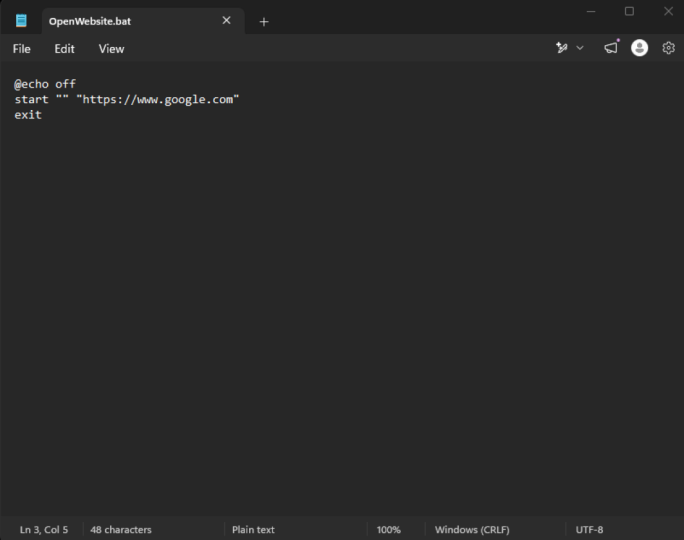
bit of code to write, but there isn't that much. Starts off with the at symbol. Then type echo space, and then type off. Press Enter to go down
one line, type and start. In this particular instance,
I'm starting Chrome, but you can just type
in whatever browser you use and put it
in double quotes. In-between those two quotes, hold down Control and press V to paste in the URL
for the course. Now we need to save this as a batch file and not
as a text document. So you can come to File, come down to Save As, and then you can place it on your desktop or
wherever you like. You can call it
whatever you like. But maybe windows course is probably the most relevant name. So once you've
typed in your name, put in a full stop
and type in bat, which stands for patch off. You've done that, you can
come to this drop down here, click on all files because this is the type
we need to save it as. And then click Save. Now you can just x
the notepad itself. So here we have the
batch file itself. And if I were to
double-click on this, now, you can see that
the course opens up. So pretty handy stuff, but let's say you wanted to
also include another website. Let's just go for Wikipedia, their main landing page. I'll copy the URL control
plus C once I've selected it. And I'll go back
to my batch file. And what I want to do
is right-click on it, come down to Show More Options
and then come to edit. I'll put it in another
two double quotes. And I'll paste in my URL. I'll hold down Control
and press S to save because it's still
registered as a batch file. So I don't have to go
through all of that and add the dot bat extension
or anything like that. I can just save it by holding down Control and pressing S. I can now get rid of this. And what I'll do is
for good practice, I'll get rid of
this here as well. And I'll double-click here. You can see Wikipedia
is opened up. And then also my course as well. Now it's actually
landed on this page. This is the sort of the
course creators page. But when you use this URL, you will actually be taken
to the curriculum itself. That's how you
create a batch file. It's really useful to
have, especially if, let's say you're quite a
heavy user with regard to opening up various websites
and maybe applications, which is something I'll show
you later on down the line. All you would have to
do is just double-click on that batch file. And then all of
those websites and applications would
open up in one go. Of course, there's something
to be aware of here, and that is the processing
power of your computer. If you ask it to do
too much in one go, it might crash your computer. So just be careful about the
amount of websites you're asking your batch file
to open up for you. Okay, So we'll move on now.
4. Snap layouts: With Windows 11, there is this new feature
called snap layout, and you may have
already heard about it. So what this allows you
to do is just place certain applications
on your screen in a sort of a more
controlled manner. So for instance, with, let's say Windows ten, maybe you wanted to have one application take up half
the screen on the left, and another
application to take up the other half of the screen. Now you were able to
do that in Windows ten and also in Windows seven. But it was a little
bit difficult to use. But now we have this
inbuilt feature, like I just mentioned, the snap layout feature. So on my PC right now, I have several
applications that are open and I want to view all
of them at the same time. So I think I'm going
to take advantage of the snap layout feature. Now to use this feature, all you have to do is just to go to one of
your applications. So let's just go for this here where I have this
video ready to play. I want to have this
at the top left. So all I have to do is just
come to this option here. And here we have four options. So first of all, I'm going
to go for this option here and have this video
play on the left. Okay, so now that
I've clicked on that, Windows has detected that there are these
other applications, which are these applications
here that will also open. So it's asking, okay, what other ones do you
want on the right? So I think what I'll go
for is the Chrome browser. So I'll click on that. And now I can have this
video play on the left and I can surf the web if that's what tastes
they'll say these days. However, if I wanted
to have four of these applications open in
front of me at the same time. What I could do is I can just come to this option once again. And I'm going to put
this at the top left. Now you might think
to yourself, okay, well you just click on the
top-left wise or not here. To be honest with you,
this is the Windows 11 inside a program
version of Windows 11. So maybe this is just a small bug that Windows
11 has at the moment. But needless to say, once I click on one of these options, it will show at the top-left. So what I'm going to do
is I'm going to click on my file explorer here. And I'm gonna put this up
here at the top right. And then I'm going
to put my photos here at the bottom left. And as you can see, the video
is actually appeared now. And I'm going to put
Wikipedia within Google Chrome here
at the bottom right. You can see how easy it
is to actually use this. Now as you can see what
the Chrome browser, it is just a little bit too. While I would say compacts. And even though I'm
doing this course and a, quite a large screen,
I'm actually doing this on a 65 inch screen TV. And I can see this quite
easily if you're on a laptop or maybe just
a normal sized monitor, then you might struggle to see
some of the finer details, let's say within your
internet browser and these other applications. But with some of
the applications, if you just hover your mouse
over that application, hold down the Control key and scroll forward
with your mouse. You can zoom in a
little bit like this. I think I've already
shown you this in one of the first tutorials. Now it doesn't work in
all of the applications. So for instance,
it won't work with a video and a boat work with, or actually maybe it
will list just try out. Try this out. Okay,
It does work with the photos and I do know it
works with a File Explorer. So as you can see, I can
change the size by holding the Control button and
scrolling back and forth with the
wheel on my mouse. If you're not using a mouse, you can just hold down
the Control button and put two fingers on the mouse pad on your laptop
and push upwards and down. And you should get
the same effect. And then finally, if you
remember the shortcuts, you can hold down
the Windows key and press the plus
icon on your keyboard. And this effects will happen
where you zoom in like this, you can just move
your cursor around. So like I said, you should
remember this from one of the first tutorials
in this course. And you can just adjust the
view here within this panel. So anyway, that is the
snap layout feature, pretty handy stuff. I think it really was a good idea in the past with Windows
ten and Windows seven. This is the kind of thing I
wanted and this is probably the reason why they've actually
implemented it this time. Because it is really
handy to have.
5. Record your computer screen: With Windows 11, there is an inclusive software that allows you to record
your computer screen. Now strictly speaking, it is designed to record a
gaming on your PC, but you can use it for
other things as well. So for instance, you can record certain activities
within your browser. So maybe a YouTube video or a Zoom meeting or
something like that. You can also use it for some of the other Microsoft
applications. So for instance, I
was able to record a tutorial within Microsoft
Excel using the software. But anyway, I've
got these two clips of what the software can record. So I'll quickly show
you the first clip. Now. Here's the second
clip of a game. So I'll show you that now. So as you can see,
it is pretty handy. So when it comes to do's and
don'ts with the software. While actually I
suppose it would be called the do's and cons. Some things you can do and
some things you cannot. So for instance, you cannot
record your desktop. So what you see right
now in front of you. So what I'll do
is I'll just show my icons so that it looks
like a real desk top. You cannot record this here, and you cannot record
your File Explorer. So this here, you're
limited to this. Now, as you already know, you can record your
browser like this, but if at any point you
minimize your browser, and so same with games as well. And you expose your desk top, the recording will just stop and won't even tell
you that it stopped. It will just stop. So just be aware of that. When you record
with the software, it's nice to know where these clips are actually
being saved to. Now strictly speaking, the folder is only
a few clicks away. But what I'd like to
do is have the folder on the desktop itself so that I can just
click on it and have access to those
clips straightaway. So what we're gonna do
is we're going to move that folder and put
it onto the desktop. So to get that folder, what we have to do
is we have to hold down the Windows
key and press I. And this will open up
the windows settings. And you have to come to gaming. Then come to captures. Then this is the
folder we want here. So I'm going to click
on Open Folder. And I'm going to take a
look at the path here. So it says it's this
PC videos captures. This is where this folder is. I'm going to click
on this PC here. In fact, I didn't have to click all the way back, But it's okay. I'll click on videos. And I'll click on the
captures for them. And I'm going to hold
down Control and press C on my keyboard to copy it. Minimize this, and I'll
get rid of this here. Control plus V to paste
it on my desktop. So here's the captures folder. And as you can see,
I already have some screen captures in here. The next thing is setting
up your microphone. Now, if you're using a laptop, then more than
likely you will have some type of
in-built microphone. However, if you're
using a desktop PC, then more than
likely you will not have an in-built microphone. Well, I mean, some of them do, but typically they don't. And you have to use some
type of external microphone. But with regard to actually
recording yourself, like what I'm doing now, you have to go to the sound
settings to set that up. So just come to the little
magnifying glass here. Come up to the search bar, type in sound, and then
click on sound settings. And then just scroll down
a little bit and you'll see the microphone that I'm
using is registered here. So if you're on a laptop and you have an external
microphone plugged in, you should have the option of two microphones to choose from. And you can just choose
whichever one you want. There's also another thing here, which is the volume
of the microphone. If you're recording a new
microphone is really low, then you need to
come to this area here and just turn
up the microphone. Once your microphone
is all set up, you can get rid of
these settings here. And now we can open up the screen recording
software itself. Now, I tried to do this
earlier, but unfortunately, my screen recording software was clashing with the Windows
screen recording software. So what I had to do
was I had to compile a whole load of screenshots
and put them into PowerPoint. Now let's get your screen
recorder up and running. You have to hold
down the Windows key and press G on your keyboard. And this will show up. Now to get rid of it, all
you have to do is just press Escape on your keyboard
and it will shut down. So I'm just going to
run through a few of the settings with
the screen recorder. But I think a few of
them are pretty obvious. To start recording, you can hit this button here and it
will start recording. Oh, and by the way, when
you start recording, it won't actually see what we're actually
seeing on the screen. It will just see what's
in the background. But yeah, you hit this
button to start recording. And there's also this here,
the microphone setting. You can turn this
on or off if you want to record yourself
on a microphone. So that's pretty
straightforward. Then there's this
middle module here. And here at the top we
have these widgets. Now if you wanted
to add widgets, and there aren't
that many of them, you can just come to this icon
here and add some widgets. Now as you already know, we've already added a Captures
folder to the desktop where we can get a hold of
our captures straight away. But if you really wanted to, you can hold down
the Windows key and press G to come to
this window here. And you can just click on
gallery here once it's been added to the toolbar and you'll gain access
to those clips. But I just prefer to have the captures folder
on the desktop. Then there's this icon here, and this is very similar to the Processes tab within
the Task Manager. And basically it just tells you what programs
are running right now or what applications are
running in the background. So that I suppose before
you start your game, you might want to shut
some of them down so that your computer has as much
processing power as possible. So with regards to this window, to get the real-time
information, you can just hold down Control, Shift and press Escape. The Task Manager will open up. And then you just want to
navigate to the processes tab. And basically they
should be identical. So whatever you see
in this window here should be identical to what
you're seeing in here. In this particular instance. They're not identical because these screenshots
are from yesterday, but basically they
should be identical. So before you shut
anything down, just make sure that you
know what you're shutting down because it might
be a critical program. So just be careful
with regard to that. Then finally, we have
the settings here. And there's just two main areas. I want to take a look at this, the capturing section, which
is the audio to record. And this gives you the option to record the game
and enabled Mike, we have the all
option here or not. Choose whatever option
suits you best. And then there's the
shortcuts themselves. So we already know the
Windows key plus g brings up the screen
recorder itself. But the other one to remember is going to be this one here. The Windows key
plus Alt plus r to start recording and
stop recording. If you can't be bothered
to click this icon here. Like I said before,
to get rid of this, all you have to do is press
Escape and it will disappear. So this is one last thing I
want to go through with you. We need to go back to
the Windows settings. So hold down the Windows key and press I on your keyboard. Then come to gaming. Then come to captures. And just scroll
down a little bit. We have these settings here. So the main wants to take
a look at, I suppose, would be maybe the
max recording length. Because sometimes
you might forget to turn off the recorder, in which case you
don't want it to eat up all of the memory
on your computer. So you might want to set
this to whatever you want. Capture the audio when
recording the game. That's an important one. And there's also the
video frame rate. So at the moment it's set to 30 frames per second,
which is recommended. And that's fine
with me considering Hollywood only uses 24
frames per seconds. So if 24 frames per second is
good enough for Hollywood, 30 frames per second
is good enough for me. Then there's the video quality. And depending on how
powerful your computer is and how much memory
you have as well. Because the higher video quality is obviously going
to use more memory. You might want to choose
high or just standard. So whichever one you prefer, you can just turn
this option off here to have the cursor
within your game. It's totally up to
you. Once you're done, you can just exit that. And we're all done that. Once you've finished
recording, remember, you can just navigate
to your captures folder on the desktop and it
should be in here. So the one thing to
take away from this is just to remember you cannot
record the desk top. You can not record
the File Explorer, but there are other things as well you need to be aware of. So for instance, if I
was to go to YouTube and watch a video and put
that video in full screen. You may find that the screen
recorder will stop working. So I noticed this
within Windows 11. It didn't happen
with Windows ten, but it happens in Windows 11. So that's just something
to be aware of. So you just have to
test, test, test, just to find out what the software is
actually capable of. Okay, we're gonna move
on to the next tutorial now where I'm going to
quickly introduce you to the software that
I use just in case you're interested
in doing what I do.
6. Disk cleanup: What we're going to
take a look at now is something called
the disc cleanup. So what did this cleanup
can do for you is it can help to free up space
on your hard disk. And this in turn can also improve your system performance. With the disc cleanup process. It basically searches
your desk and shows you the temporary
files on your system. So the likes of
internet cache files, unnecessary program
files, and it deletes them in terms of
unnecessary Program Files. This would also include the contents within
your Recyclebank. If you've got anything
in the recycle bin that you're having
second thoughts about? I'd recommend that you go
into the recycle bin and take those items out because this
process will delete them. Yes. So go to the recycle bin, open it up, Take a look in here. If there's anything
you want to keep, just make sure you click hold
and drag and pull them onto the desk top or use whatever
arrangement you like. Now if you've never done this
before with your computer, this process can take
quite a long time to do. I remember one such case, one of my friends, that this process and
he'd never done it before and actually took I think it was upwards
of around six hours to do a disc cleanup
on his system. But something else that
was really slowing down the process was
the facts that is, computer was using
a hard disk drive. If you're using a
solid-state drive, this process should be a lot faster than a hard
disk drive system. But if you're not
sure what type of drive your computer
actually uses, we can quickly identify
that in the File Explorer. So to open up the file explorer, hold down the Windows key and
press E on your keyboard. And that is a very
handy shortcut because how often do you use
the File Explorer? I would say more than likely because you're using
a Windows computer, you visit the File
Explorer quite a lot. So that is the
Windows key plus e. It's definitely one of
those shortcuts that's worth remembering
and using as well. So in the File Explorer and
just scroll down to this PC. And just before we move on, just make a mental note of how much free space there
is on your local desk. Because after the disc cleanup, you should see a
little bit more space open up on the hard disk. Okay, so to see what
your system runs on, you can just right-click
on the local disk, come to properties that
navigates to Tools, and then come down to optimize. And here you can
see on my system, I have a solid state drive. Yours will say solid-state
drive for the C drive, or it might say the
hard disk drive. Now, if you are on a hard
disk system, like I said, it could take a lot
longer for you to, to carry out this process. If so, you may have
to put this tutorial on pause or whatever
you want to do, but yeah, just keep in
mind that it might take a long time to carry
out this process. Okay, so once you've identified the type of
driver that you use, you can just get rid
of these windows here. I'll just press the
Windows key to bring up my task bar here. And what you wanna
do is just click on this magnifying glass and starts to type in the word desk. And straightaway we have
disc cleanup show up. Now if it doesn't show up,
just make sure you type in the whole two words
disc cleanup. And once we click on this icon, the process will start. I'm gonna go ahead
and do this now. Now I don't know
if you saw that, but there's this first
little pop-up that shows up. And it's basically just
a little progress bar telling you that it's
looking at your system. Typically that only shows
up for a few seconds. And then it moves to
this window here. So at the moment it's telling
me that I can free up to just under one gigabytes of
disk space on my C drive. But what I can do is I
can also check these here to delete these
temporary files as well. As you can see, we have
the recycle bin here. Checks oh, actually,
before I move on, you could keep this
unchecks if you want. If you don't want to delete
what's in neuroscience. But in this particular instance, I'm going to keep it
checked because I do want to delete it. And at this point
you can just click on cleanup system files. And it's actually
moving quite fast. So that's pretty good. If this processes is
slow at any point, I'm just going to edit it to
make it a little bit faster. Okay, so now it's
saying you can use disc cleanup to free up to
33 gigabytes of disk space, which is actually
quite impressive. I didn't realize it
was gonna be so high. So what I can do is I can start to just check these boxes here. Now with regard to the
space where freeing up, you'll always find that there is more space to be freed up every time you
do it this cleanup, there is always space
to be cleaned up, even if you do a disc cleanup. And then directly afterwards
do another disc cleanup, There's always files or
space that can be freed up. So just keep that in mind. What I think is happening
here is some of these temporary files or just being restored almost instantly. And it begs the question, why does windows let you delete these temporary files if it's just going to restore some of them as soon
as you delete them. So I suppose that is the
question of the day. So once you have selected
all of these options here, you can click Okay. And we'll ask if you want to permanently delete these files, and I'm quite happy with that. So I'll click on delete files. And this is probably the
longer of the processes. I'm not sure how long
it's going to take. But like I said, I will
probably just edit the video just to make
it a lot more faster. But just looking at
the progress bar now it's actually quite fast, So I think we'll be okay. Okay, so that's that
process finished. Once that progress bar has
finished, it just disappears. And there's no windows saying, well done, you've just
done a disc cleanup. You can now move
on with your life. It just stops and that's pretty much the
end of the process. Okay, so I'm just going to right-click on
the desktop here, come to view and I'm going to
come to show desktop items. As you can see, my
recycle bin has been emptied and something
else I wanna do is just come down to this PC. Now it says I have 58.9
gigabytes free on my system. Now, like I said, that figure was quite high and
this is probably because I haven't done
a disc cleanup on this computer in a
very, very long time. But needless to say, I'm pretty happy that I gained an extra, I think it was
around 33 gigabytes of free space on my computer. And hopefully when
you do this process, you'll end up with a whole load of extra free-space yourself. So that is the disc
cleanup process.
7. Personalizing Windows 11: So what I'm gonna do in this tutorial is
go through some of the basic settings to personalize Windows 11
to your preference. Now I'm not gonna go
into too much detail here because there
are lots of settings. But rather I'm going to visit the basic settings because the tutorial would end up
being half an hour long. So starting with
the first thing. Now, typically when
I am on Windows, I don't usually have the task bar exposed
like I do here now. I've just kept it exposed for
the stakes of the course. Typically what I like It's
to do is just to drop down out of sight when I'm doing other
things on my computer. And this is just a personal
preference of mine. We'll take a look
at that setting and a few other settings as well. With regards to the taskbar, see the settings, you
can just come down to the taskbar itself. Right-click, come to
task bar settings. We just come straight
down to the bottom to taskbar behaviors. And here we have automatically
hide the task bar. So with this selected, you can see the task
bar disappears. And like I said, this is just a personal
preference of mine. So you might want to
use this yourself, but basically this is how
you can turn it on and off. Then we have the taskbar
corner overflow. And that is gonna
be this area down here at the bottom right. Now if I open up these settings, we have these kind of widgets that you could
turn on and off. So let's just take a look
at Nvidia Container. I'll turn that on and you
can see the icon shows up. And then we have team viewer. You can see that icon
shows up as well. So you can just tailor
this to your preference. Then we have this area here, the pen menu, touch keyboard
and virtual touchpad. Now, to be honest with you,
this is a desktop computer, and I think virtual touchpad has something to do with
laptops quite possibly. But in any case, I
don't actually know. But one thing I do know is the touch keyboard and I have this turned
on at the moment. So with that turned on,
it shows up down here. And if you click on this, you're presented with
this keyboard here. But basically you can
turn it on from here. Now, just clicking on
personalization up here. Well, actually before
I move on, we have these settings here,
the task view. So if I turn this off, you can see that option
disappears from the taskbar. And then we have widgets, and then we have chat as well. So I'm just going to
click on personalization. We end up with these
settings here. Now if you're wondering
how to get you, you can on the desktop just right-click and come
down to personalize. So firstly, we have
the background and I think this
is pretty obvious. This just deals with
the background picture on your desktop. And we have three options here. We have pictures, solid
color and slideshow. So solid color allows you to choose obviously a solid color. And then we have picture which
is what it's set to now. And then this slideshow. Now if you click on slideshow, what would happen is
the pictures would obviously change
every now and again. You can specify how often you want those changes
to take place. We can do that with
these settings here in the Change Picture, every option or
setting I should say. So we have one minute,
ten minutes and so on. So you can choose that. So with regard to this
being a slideshow, they don't actually
slide in and out, but rather they just
fade in and out. I'm just going to
leave this on picture. I'll just click on personalization
once again to go back. And I'm not going to
go to colors because while I cannot go into too much detail with all of
these settings, because it would just be,
it would take too long. But rather I'm just going to
jump straight into themes. And this is quite
an interesting one. You can just choose
from these various themes that are available. So let's go for glow. You can see how it changes. Then we have this one here, which is one I kind of like. So what I'll do is I'll
just leave it on this. So you can just choose from
whatever option you want. Now we have under
related settings, contrasted, contrast themes. So I'll click on this. And what you can do is here
you can just choose from these four options from
this drop-down here. So let's just go for desert. And then click Apply. Then it just takes a few seconds
for it to take effect. And then you end up with a
look that looks like this. Now I do like this look, but I don't like it as
much as the original lock, but maybe you would
like to go through some of these options. And who knows, you might find
one that you really like. But to put it back to
its default setting, you can come back to this drop-down and then
click on None, and then click on Apply. And I'm just going to click on personalization once again. And I'm going to come
down to only two more. We're going to take a look
at, we're going to take a look at lock screen first. So here we have the window
spotlight option selected. So when you turn
on your computer, you may have noticed that
you have this picture in the background that every
now and again changes. And this is whatever
Microsoft specifies. So I'm quite happy just
leaving it on this. But if you want to, you can
choose picture or slideshow. Then we have the
screen timeout option. And now if you're on a laptop, you might want to
take a look at this and just find out how long it takes for your screen to turn off or to turn off
when plugged in. And then you have some
sleep options here as well. So you just come to
these drop-downs and specify what you want. Okay, so that's all I want
to take a look at that. Claim back to personalization. Actually, before
I go any further, I just wonder where it is. There was actually a screensaver
that you can turn on. I think it's under Themes. Let's just take a look. No, it's not here. Actually, it would be
under lock screens. Let's just take a
look here. Oh, yeah. Okay. No problem. I kind of just star denotes set. So under lock screen,
you have screensaver. Now, if you live through the eighties and
the early 2000s, there was a time when
screensavers were all the rage. Now I can't remember
if they were available in Windows ten, but they are available
in Windows 11. Income to the setting
here and click on it. You'll be presented
with this window here. And don't worry about
the aspect ratio here you can see it's, it's squared, which is the
old aspect ratio for Windows. But in any case, you can
come to the drop-down here and you can choose the type
of screensaver you want, certain moment minus sets, two ribbons, but you can
choose whatever one you want. And there's also 3D text. Now if you choose 3D text, you can come to settings. You can choose what you
want the text to say. Then you have the
resolution, the size, the rotation speed, and also the type of
animation as well. Then just click Okay
once you're done. And if you want, you
can just click on Preview. Let's take a look. Now with regard to
my screen recorder, I'm not sure if this is
actually going to record this. So while this just take a
look and see if it works. So at the moment, I don't
know if that actually works because I need to take a
look back at the video. But hopefully it did work. But if it didn't, don't worry, the preview is in
here in this monitor. And then you just have
this option here to choose how long you
want the computer to wait for before it's
tones on the screen saver. So once you're done here,
you can just click Apply. Then get rid of this here. And you're all done. Now onto the last two things. If you aren't quite a heavy
computer user, like I am, you might want to turn on the
night lights before you go to bed or some hours
before you go to bed. Because as you know, when
it comes to blue light, which is what the screen emits, it can mess around with
your sleeping pattern. So you might want to
take advantage of the night light before
you actually go to bed. So come up to the search bar
up here at the top-left. Type in night light or just type in night and
select Night Lights. Now mine is actually
turned on at the moment. I think I need to reset my computer because
for some reason, every time I turn it
up and then back down, it doesn't seem to be
working for some reason. Yeah, I think I need to restart my computer or maybe
update my windows. But basically you
have the strength here you can choose from, and obviously you can choose
to turn it on and off. But then you also have this
drop-down here where you can schedule the night light and you can turn on the night
light at this time here and have it turn
off at this time here. Then finally we have this here. If you hold down
the Windows key and press W on your keyboard, you end up with the
side panel here. And basically this
gives you access to basic information,
obviously the weather. And here we have some stock
market reports and so on. But if you want to add
some other widgets, you can just click
on Add widgets. We have some more options
here you can choose from. Then just press Escape
to get rid of that. So you'll notice this
picture in the background. It does look quite nice. Now, you might recall at the beginning I showed
you that you can choose a slideshow that will change the picture according to
whatever interval you specified. But with regard to these
picture backgrounds, these default
picture backgrounds, I've noticed that they
change automatically anyway. I'm not sure what
the intervals are, but I've just noticed every
time I've gone to my browser, then come back to the desktop, I've found that maybe the sun is in a different
position in the sky, or maybe the trees
on here anymore or the whole picture
is just changed. So I think that is pretty cool. So the last thing I want
to show you now is with the icons on your desktop. So as you can see, if I drag
this over to the right here, it doesn't allow me to do that, but rather it just goes
back into place here. And this is just
something I prefer to keep it all nice and neat. Now, to adjust this, you can
just right-click go to View. And then you can un-check
auto, arrange icons. Which means you can
just move them around freely and they'll
stay where they are. Then you have align
icons to grid. And I suppose I can
see how this works. You can't actually
put it in between. It has to be within a
column or within a row. So the rows are this
way or the columns are the vertical lines. Okay, so that's all
I wanted to show you with regard to personalization. We'll move on now to
the next tutorial.
8. Setting event reminders: If you're anything like me, then every now and again, you will forget about some type of event
that's coming up. Well, the good news
is within Windows 11, you can get notified of certain events
that are coming up. And this can all be done
within Outlook calendar. To get to the Outlook calendar, you can just come down to the search magnifying glass here. Then even though it
says calendar here, and even though it
says calendar here, it's only here because I just
searched for it recently. You can type in calendar here. And here is the application. And you can just click on this. When you first open this, if you've never
opened it before, Microsoft might ask if you want to synchronize your
email account. And you can go through
those various simple steps of synchronizing
your e-mail account. If you do that, then you will find that certain emails will input an event into your
calendar automatically. So for instance, I had these
two flights to the UK on the 15th of December and
returning on the 7th of January. And these were put into my
calendar automatically. I've also got these
two package deliveries from Amazon as well. So it is handy having
your e-mail account synchronized to your
Outlook calendar. Okay, so first of all, what I need you to do is just make sure you're
in the month view. So just click on month. And as you scroll
through this calendar with your mouse roller or your up and down arrows on your computer when you're elsewhere in the
calendar and you think, actually I want to go
back to today's dates. I can quite easily be done
just by clicking on today. Then we have these
different views here, we have the day view. And this can be broken down into different days and
weeks as well. And this can be broken down
into work week and week. And then the month
view at the end. So how do you input an event? While Let's just
say hypothetically, I have a birthday tomorrow on the 15th of January,
which is a Saturday. And I wanted to set
myself a reminder. What I can do is I can come
to the day option here. I'll come to this drop-down.
I'm just going to select two day or two days. And if I really wanted to,
I can scroll along with these two arrows
here, back-and-forth. But let's say my birthday
party is at 09:00 PM. I can just scroll down. And within the 15th of January, I can just click on
the nine PM slot. You'll be presented
with this window here. And typically it's a good
idea just to click on More details because you do
get more options to click on. Give her events her name,
choose your location. You can check this to have it as an all day event or uncheck
it and choose a time. So I went full nine
PM and let's just say My birthday is going
to finish at 1030. And if he really wants to have this event run over
multiple days. So you can come to an end date here and you can go
further into the future. And then you can
put a message in here and this message will be presented to you when you
get your notification. Then we have the
reminder up here, which is quite important. Now of course, if it's a flight that you want to be reminded of them quite possibly
you'd want one days notice. But for my birthday party, I'm just going to go
for one hour's notice. So I should get a notification
at 08:00 PM tomorrow, provided I leave this
event as active. Now, we have this invite
people area here on the right. Now you may think, okay, well maybe if you want to
invite people to your birthday, you'd want to send
them an email and email invite using this tool. But to be honest with
you, this is just linked to an online meeting. Because as you can tell, if I were to put a fake
email address in here. And then just click on
this to use this address. You can see the online meeting
button has turned gray. So now this event thinks it's some type
of online meeting. So it's not necessarily
an invite to my event or my birthday party. It's an invite to
an online meeting. And that's not
what I want to do. So I'm just going to x
this fictitious person here and leave it at that. Okay, So my events
is now ready to go. All I have to do is
just click on Save. We'll come back to the
calendar automatically. And here's my event. And what I can do is I
can just click on month. And I can see my event is here and it's telling me
that it's at 09:00 PM, signified simply by the nine p. And that's pretty much it. So I should get my notification tomorrow for my birthday party. Now if you want to
alter this event here, you can click on it just once and then click
on the event itself. You'll come back to this window. You can change
whatever you want. Or if you wanted to, you can delete
from here as well. You can delete this event. You can also delete
the event from here by right-clicking and
then coming to delete. There's a few other things
just to take a look at here. When I click on
the event itself, just once I'm presented with this red shape here on the left. And I can change the
shape to signify whats the event is about
and the color as well. I can do that just
by right-clicking. And we have show as what I can do is I can choose
one of these shapes here. So let's just go for
working elsewhere. And I'm going to change
the shape color. Two, Let's just go for
a yellow color. Now. I can come, now I can
click on the event itself. Now we have a yellow color
with the shape that I chose. And I suppose that just
makes things easier when it comes to identifying what
an event is all about. Okay, so once your
event is set up, you should be notified
of the event. And here's just a
quick snapshot, a screenshot of a test events
that I set up earlier. So no matter where you
are on your computer, you'll get this
notification as a reminder. And also one other thing. If you use the Outlook
calendar app on your phone, more than likely you will
get the notification on your phone as well. So if you are particularly busy, that it may be worth downloading the Outlook email app
and using that as well. And with regard to
the bigger events, the likes of flights and quite possibly packages that are
being delivered to you. He may be notified
via e-mail as well.
9. Send items via email QUICKLY!: If you've used a computer
for any amount of time, at some point you've probably
sent something via email. So some type of attachment,
like some pictures. So Microsoft documents
or whatever it is. I think this is quite
common practice. Now to do this, the steps are quite straightforward
and simple. You would open up your browser, navigate to your email account, and you may have to login, setup the e-mail,
attach the attachments, and send the e-mail off. So yeah, really simple, but there's just a
few, too many steps. Well, the good news is you
can actually do this right from within the desktop
of your computer. So you can cut out loads
of unnecessary steps. So that's something I'm
going to show you how to do in this tutorial. Now you may already
know that when it comes to sending things via email, there was a certain
size or limit. So for instance, you cannot send a video that is one
gigabytes in size. Most, if not all, email service providers just don't allow for
that kind of thing. But for smaller file sizes, the likes of pictures
and Microsoft documents, this is fine. You can use this type of service not to send
larger file sizes. There are quite a few services
out there you can use. I suppose one of the
more common services would be Google Drive. But one service that I
use quite often and is a favorite of mine
is WeTransfer.com. I find their services
quite convenient. Now you may already
know about WeTransfer. And if you do, then just feel free to skip this
part of the tutorial. But basically, you can send up to two gigabytes for free,
which is pretty good. And the sign-up process is
pretty straightforward. And once you're in, we transfer all you have to have as the
recipient's email address. Then you put in your own email. And then I think it's optional
for a title or a message. Then you can just
click Transfer. And at this point, they
will just ask you to confirm your e-mail address
with a six-figure code. And then these
files will get sent off and they will
stay active for, I think up to about seven days. Okay, So sending things
from here in the desktop. So sometimes there's more than one item
that needs to be sent. If this is the
case, all you have to do is just click on the item. I should say the first
item, hold down Control, click on the second item, and then go for however many
items you want to send. So in this case, we're
just gonna do too. And I can just right-click
and I can click on the Share button
here, the Share icon. And this will start the process. So that's how you do that. But in this particular example, I just want to send one item. So all we have to do is just
right-click on the item, come to the Share icon here. This will start the process. Now when it comes to
sending emails to someone, you do have to have an
e-mail address yourself. I think that's pretty
straightforward and obvious. Now if you're doing this
for the first time, you will have to set up your e-mail account
with Microsoft Outlook. And that can quite easily be done just by clicking
on this icon here. And that will start the process. Now I'd say that
more than likely because you are
using Windows 11, you do have an Outlook account. If you don't have
an Outlook account, you may have to go off to outlook.com and create
an Outlook account. Once you're done with that, you would have to
set it up here. And you can do that
just by clicking on this icon, just like I said. And then we'll just
ask you to put in your email address,
your password, and then I think you just click Okay or
something like that. But as far as I remember, the whole process is really
quite straightforward. Then the email composition
templates will open up. Once you're finished
with that process, this will open up straight away and you can
send off your email. So under normal conditions, once you set up, all you would do is
just right-click on the item you want to send. Comes to the Share icon, comes to the mail icon here,
then that would be it. And you just add the
e-mail address here, and then click send. And you'd be done. So it's pretty straightforward
and pretty easy. So as you can see, there's quite a few
steps that I was able to eradicate or get rid of when it came to sending
someone an email. Now, I am constantly sending people little files
here and there. And this is the primary
method that I use. I almost never,
ever navigates to my e-mail service
provider within my browser because that's
just way too many steps. I'm always sending people things right from within my desktop. So really convenient stuff.
10. Google lens : When you are online, what is also referred
to as surfing the web. At some point you may come
across an image that you like. And within that image, there is something
that catches your eye. So it could be an item
of products or a person. And you want to find
out more about it. But it's hard to pinpoint
and get details on it. Well, this is where Google
Lens comes in handy. So here on the right I have
this picture of this kitchen. And let's say you
are looking for some type of bar stools
for your kitchen. And these bars tools here, these three bars tools catch
your eye and you think, I think that's exactly
what I'm looking for. But how do you isolate these pictures from
within this image here? Or this bar stool, or bar stools from within
this picture here. Once this where Google
Lens comes in handy. So all you'd have to do
is just right-click on the image itself and then come down to search image
with Google Lens. This window will open up. And what we can do now
as well by default, we have the circles
that have shown up. If I were to click
on the circle here, you see we have
this little search that takes place and it shows us plants that are
associated with this image here. So straight away, I
know that this is a, however this is pronounced. And it's giving me more details on this particular
breed of plant. And then we can also
click on the circle here. And it's going to come up with some gray kitchen drawers similar to the one
in the picture. But more importantly, I
want to take a look at these bar stools here,
these kitchen stools. So I'll just click
on this image. And I think that this is the
one we're looking for here. This is a pretty much a replica. And it could be the actual
one in this photo here. So as you can see, that's
quite easy to use. Now what I could do
is I can also just move this around and
put it elsewhere. So let's go for
something like this. So now we have these
lampshades and as you can see, the ones that Google is found
for us are pretty similar. So I'm pretty sure you
can see how this works. Let's do this just
with one more image. Let's go to this image here
of this Formula One car. In fact, let's go
for this image here. Let's say I wanted to find out what racing team
this car belong to, R belongs to this
white car here. So I can right-click, come to the search
image with Google Lens. I'll just move this around
over the white car here. Okay, so cool. It's telling me that this
is the Salvatore a t 01 and it's a Formula One car. Obviously. That's pretty good. So as you can see, it's quite
a convenient tool to use. So we're just gonna do
one more example here. I'm going to come to Udemy, where you are doing
this course currently. And here we have this
lady sat on this chair. And I'm going to
right-click and I'll click on Google Lens. And straightaway It's showing these sort of tight
fitting brown dresses. And if I really wanted
to, I can also just narrow this down to
this plant here. Okay. It's also registering
the table as well. So I'll just move this up
to something like this. And there we go.
So you can see how accurate this says in that, in this selection here, the plant is over to the right. So Google is also
showing us plants, are plants that are over, well, in this case
over to the left. So it's also taking the
position into account. I think that's pretty cool. So with this last image, I just wanted to show you that
it pretty much works with ninety-nine percent of all
images within your browser. I should rather say your
Google Chrome browser. So hopefully you will find a use for this sometime in the future. Every now and again,
I do use it myself. If something catches my eye and I want to find
out what it is.
11. Managing startup applications and more: When you turn on your computer, there are applications that
start and run automatically. And you probably are
already aware of this. But there are
applications that don't, strictly speaking, need to run. And as you progress with your
ownership of your computer, you will have more and more
of these applications and or programs that will
start running when you start your computer and they
will run in the background. Now obviously, this will impact the performance
of your computer. And it's a good idea to know how to manage these applications. So that's why you're gonna
be doing in this tutorial, we are going to be Managing
startup applications. And this is all
done in something called the Task Manager. Now you might already be
aware of the Task Manager. When a program
refuses to shut down, you may want to go there to force the program to shut down. One of the more well-known
roots when it comes to getting to the task manager is to hold down Control
Alt, and press Delete. This is quite common knowledge, but there's a few other ways of getting to the task manager. You can, if you want. Just come to the task bar here, comes to the magnifying
glass and type in task. And you'll be presented
with a task manager here. But the shortcuts that I use
is Control Shift Escape. This is what I use pretty
much every single time. So starting with the
startup applications, just come to this tab here. And actually just before
we go any further, when you come to
the task manager, if this window is like this, if it looks really
small like this, all you have to do
is just click on More details and it
will open up like this. Yes, So first of all, just come to the startup tab. Here's a list of
all of the programs that start when I turn
on my own computer. Now some of them have already
been disabled by myself. But basically this
is the list and I'm pretty sure your list will
look different to mine. So what you have to do
with this list is just go through each of
these applications. And if you find one that
you don't really know about and you don't
like the looks of it, then you may want to just Google it or something
like that just to find out exactly what it is. But some of these
applications on my computer are actually
quite straightforward. So for instance, Microsoft Edge. I think everyone knows that
this is an Internet browser. And as you can see, I've
disabled it on my computer. So what I did with
this was I just clicked on it and
I went to disable. So let me just do this. To do this the
opposite way round. You can see it's enabled here. I can click on it here and
then just click on Disable. And that means it will not start up when I turn on my computer. So yeah, you can go through
this list and just find programs that you don't want running when you turn
on your computer. And if you're not
quite sure whether to leave it running or not, something you can
do is just to look at the startup impact. So what I can do is
I can just click at the top of the column here to sort the higher startup
impacts to the top, I put the lowest at the bottom, or I should rather say none. And I can see, okay, these five applications here have the highest
startup impacts. And I can go through them
and just decide whether I want to enable or disable them. And of course I
can go through the rest of the list as well. So you can do that with
your own computer. And you might find some
applications that have a very high startup impacts or just the high
startup impacts. And you don't actually
need it to run. So it's just slowing your
computer down for no reason. So that's how you manage
startup applications. There's quite a few other
tabs up here, as you can see. I would say that for
the general computer, use them, you're probably not
going to use most of them. So for instance,
Services, details, AP history, quite
possibly users, and maybe even performance. The main ones you'll
probably going to visit is startup and processes. And like I said,
maybe performance. As you can see, the
computer system is broken down into these
different areas. We have our central
processing unit, the memory, the Random
Access Memory, the desk. And the desk removable, which is actually a USB drive. I just have plugged into
my computer at the moment. Then we have the
Internet connection and the graphics processing unit. I suppose the most
useful would be the Ethernet option
because you'll be able to see what your Internet
speed is when it's actually being
active, when it's active. Then finally we
have the processes. Now, just like with
the Performance tab, we have a breakdown of
the computer system. Again, we have a CPU, memory, disk, network, and GPU. And depending on
the application, each application takes
certain resources from a certain part
of your computer. So for instance, my
screen recorder, which is this here with
Abby video suites. This takes up quite a
lot of memory and also quite a lot of my
graphics processing unit. It's quite a heavy
user of those two. Now what you can do is
with these columns, you can actually click
just on the top of the column to sort
largest to smallest. So I can click on memory and I can sort largest to smallest. As I suspected, my recorder
is almost at the top, but my Google Chrome browser
is at the top because I have quite a few tabs open
within my Chrome browser. So you can do this with
all of the columns here. You can do it with CPU. You can see what's taking
up most of the CPU. Then of course, the desk, the network, and GPU. Now if you run into
any problems with a program that does
not want to shut down, all you'd have to do is just
select it in this list. I've just selected
Google Chrome here. Then you can just come
to end task that will end that program slash
application for you. Okay, So that's pretty much
all I wanted to show you. There's just one last thing. With regard to browsers, the likes of Google Chrome, and I think it might be the same with the likes of Mozilla, Firefox and Microsoft Edge. If you come to this drop-down, you see we have all of
these Google Chrome's open. This is just the tabs. This is just the
way Chrome works. So when you open up multiple tabs within
your Chrome browser, you will have these multiple
Google Chrome's open within the main
Google Chrome itself. Even though I only have
about five or six tabs open within Google Chrome, they implement the
other ones as well, which act as backups just in case you lose one
of your tabs by accident. And I won't go into detail there because I literally can't. I'm not really sure exactly
why they have to do that, but that's just the system
that they implement. So you can expect to see quite
a lot of Google Chrome's open within just your
single main Google Chrome. Alright, so that's everything
I wanted to cover there. But the main thing is just visiting the startup tab just to see what is enabled
and what is disabled.
12. Creating and using batch files (Part 2): You may recall at the
beginning of the course, I briefly introduced
to batch files. This is when you
clicked on an icon on your desktop and your
browser opened up with the corresponding
websites or websites you specified within
the batch file itself. But what I would like
to do now is to go into a little bit more detail
with batch files. And I'd like to show
you how you can start applications with a batch
file on your computer. Now once we've created
this batch file, I'll show you how you can
get this batch file to start automatically when you
start your computer. Okay, so like I said,
I want to start applications with a patch file. To do this, you have to get
the target information. So what I'm going to do
is I'm just going to show my icons on my desktop. And the application I
want my batch file to start is going to be Photoshop. But I can see, I don't
think I actually have a shortcut on my desktop. So what I'm gonna do is I'm just gonna go to the
magnifying glass here. I'm just right-click
on Photoshop here. I'll open its file location. I'm just going to
right-click on it. I'm just going to
create a shortcut. Okay, So just recommending, I put it on the desktop, so I'll just say yes to that. And I think I'm also going to do this with Illustrator as well. Another program that
I use quite a lot. So I'll come to
show more options. I'll create another shortcut
and I'll just click on. Yes. Okay, So here's
Illustrator and Photoshop. So like I said, you need
the target information. So you can just right-click
on the application. Go to Properties. And it's this information here. So I'll just click
inside of there and hold down control and a, to select all of it. I'll right-click and
then click on copy. And I can just get rid of this. Next thing now is to
open up the Notepad. So it goes to magnifying glass. And I'll open up my notepad. Now, just like in the first
batch file we created, the code is pretty
much the same. There's just a few differences. In fact, I think
there's only one difference that we have to make. It starts with an echo. Then typeof, start. And this is the big
difference here. You put in to double-quotes, move along, put in to
double-quotes again. Then in-between these two quotes is where the target
information goes. So I'll just hold down
Control and press V. And I can see I've ended
up with too many quotes yet. So I'll just get rid
of the extra ones. Then I'll go to File, Save As. And I'm going to
go to my desktop. And just remember
that you have to give the notepad extension and
set this to all files. And then click Save. So now I'll get rid of this. And if I were to
double-click on this now, hopefully Photoshop
should start up. Okay, so that works. Okay, so
I'll just get rid of this. Now, if I wanted to add
Illustrator as well, I could just right-click
go to properties. And this is already selected, so I'll just right-click. Go to Copy, get
rid of this here. I'll go to my application, sorry, my batch file. And I'll go to
Show More Options. And I'll click on Edit. Now, unlike when we created
the batch file to open up the various websites within
your Chrome browser. You can't just put another
two quotes and here at the end and then add your
other targets information. But rather you have to go
underneath type in, start. Put another two quotes in. And I'm just gonna go ahead
and hit control plus V Because I remember
the last time that double-quotes were
already there. I'll hold down Control
and press S to save this. And remember it's already
saved as a batch file. So we already have
that dot extension. I can get rid of this now. If I double-click on this, Photoshop and Illustrator
should start. Now one thing to
be aware of with this is you don't want to
overload your computer. So for instance, Photoshop
and Illustrator are quite heavy programs in terms of the amount of
processing power they use. But my computer's quite
up-to-date so it can handle it. But that's definitely something
you want to be aware of. All right, so the next thing now is to show you how you can get this batch file to start automatically when you
turn on your computer. Now one thing to
be aware of here, and I've just touched
on it a second ago. This type of batch file can use quite a lot of processing power. And when you first
turn on your computer, it already has quite a few
things to think about. Now. Usually, Windows has got quite a good
management system. And it just does things well, I suppose one step at a time. But you will find that your
boots up will be quite slow. If you're asking it
to open up maybe various batch files with different websites and
applications and things like that. So it's good to just
be aware of that. Alright, so how do we do this? Well, to be honest with you,
it's really straightforward. You can hold down
the Windows key and press R on your keyboard. And this will open
up the run command. You can also just go to
the magnifying glass here and then go
to Search and type in Run command, or just run. But this is already open. And all you want to do is
just type in shell, colon, startup, and then click Okay, this will open up and all you
have to do is just select the batch file you want
startup to open for you. Right-click and we'll copy it. And then just paste
it into here. Now, you could do the
exact same thing with the batch file that opens up the various websites
with new Chrome browser. But with regard to using shell startup to
start applications, there's no point in actually
creating a batch file. All you would have to do, just go to the
application, right-click, go to copy, and just paste
it in the application here. That's all you have to do to get these applications to start up. But I don't need
Photoshop startup when I turn on my computer. So I'm going to press Delete. Okay, so that's all
I wanted to show you with regard to batch files. Just two things to
take away from this. Just remember if you want
to edit your batch file, you can just go to the
batch file itself, right-click, go to Show More
Options and then go to Edit. And also the other thing was, if you're not particularly
good at remembering your code or what
is known as syntax. Then just keep these
two batch files on your computer for future use.
13. Unlock Ultimate performance mode and Disabling background Apps: What we're gonna do now
is unlock something called ultimate
performance mode. Because you're
doing this course, I take it that you
do have Windows 11. And if you do have Windows 11, that it means your computer
is pretty much well, quite up to date. So you should have a
pretty good processor, maybe even a pretty good
graphics processing units. But more importantly, your CPU, your central processing unit, should be quite up-to-date. Which means you should have quite a lot of processing
power that you can take advantage of by unlocking the ultimate
performance mode. I'll just let you
know when you unlock this particular mode. And there's another three
modes you can choose from, and we'll look at
those in a second. But when you use the
ultimate performance mode, your PC or your laptop
will use more power. On average, I think it's around an extra two or nine per cent, but in return, you do get
more processing power. So why would you want to use
alphabet performance mode? That's totally up to you. Maybe you're into video
editing or photo editing. Maybe you're into
gaming and you need that extra cake just to get
that extra performance. So before this
tutorial, there was some text I asked you to copy and you will need that text now to unlock the ultimate
performance mode. So let's go ahead
and get started. So first and foremost, come to this search
magnifying glass. What you want to type in
is Windows Power Shell. And this is what we want here. So click it. And then the
text I asked you to copy, just paste it in here. So hold down Control and press V. That will go in
and press Enter. Okay, So we're all done here. So now I can get rid
of the PowerShell. Now, come to the magnifying
glass and type in Control Panel until it shows up. And here it is. Select this. And then in the search, type in power, and
click on power options. Okay, So the output
performance mode is while it's here
and it's here. Now the thing is when you put in the code into the PowerShell
on multiple occasions, like for instance, I've
just put it in twice, you end up with two
ultimate performance modes. Now, do you remember
in Windows ten, when you duplicate them, you were able to delete them. But on Windows 11, I can't actually see
that option here. And maybe it's hidden away
something or something. Maybe I just need to find it, but basically you are
able to delete them. But anyway, if you keep
putting in that code, you will end up with loads of different ultimate
performance modes. When I say different, when in reality they're all the same. Now if you did not put
in that code that I showed you into the PowerShell, then this would not show here. The only options you
would have would be power saver, high performance. The balanced option. By default, you'll find it'll probably
be on the balanced option. So now what we can
do is we can just select ultimate
performance mode. And all we have to
do now is exit this. And to be honest with you,
I'm not really sure at this point whether you need
to restart your computer. But you could just
for good measure, just to make sure that those
settings are activated. And now you are in
ultimate performance mode. If you're not happy with
ultimate performance mode, or maybe you're
finished using it. Just remember how to get back
to where we were before. Come back to the
magnifying glass. And why don't need to type
in Control Panel again because it's within
my recent area here. So I'll click on Control Panel, type in power, power options, then just choose
a different plan. So with regard to performance
on your computer, there's one thing that will
really slow your system down. And that is just quite simply
having too many things running in the background
or too many applications. So this is a big issue
that I think a lot of PC users experience. And it's quite simple to manage these background
applications. Now of course, if you have loads of applications
open, so for instance, you have Photoshop open, video editing, your
browser, your email. While then all I could
say is your computer is limited to how much
processing power it has. And all you have to
do is just close down some of these programs. But what I really
want to attack now, our background applications, applications that run
in the background, but they're not
actually visible. So these are the types
of applications you should know how to manage. How do we take a look? Well, all you have to
do is use the shortcut, hold down Control,
Shift and press escape. The Task Manager will open up. Here within the Processes tab, you can see what's actually
running on your computer. Now you can see I'm using
quite a lot of memory here, and most of it is
being dedicated towards my MOV video suite. And that is obviously because I'm recording my
screen at the moment. But what you could do is if you don't know what's taking
up most of the memory, or the CPU, or the desk, or even the network. You can click at the
top of the column. And very briefly, you
should have all of the programs slash applications that are using the most memory. And the same with the CPU. Like I said, you can just choose from any
of these columns. So I clicked on CPU there, and we have the top
figures at the top. So just sorts the
largest to smallest. So once you've identified
what is taking up the most memory or
the most CPU or desk, you can just select it. Let's go for Nevada Video Suite. But I'm not actually
going to end the task because I'm using the program. You can select it and then
just come to end task. Now, just be aware that some of these programs need to
run in the background. They are critical components
to Windows running. And I suppose if
you were to try and end these certain tasks, windows with suddenly stop
working and who knows, you'd have to reset your
computer or something like that. So just be aware about what
you're trying to stop. Now if you see
something and you don't really like what it looks like. So for instance, this one here, anti-malware
service executable. You could go to Google and
just Google that name. And then Google
will tell you, yep, it's a friendly program or maybe it's malicious or
something like that. I do know that this one I've
selected is just my windows 11 antivirus,
antivirus software. So I'm quite happy to
have this running. And basically this
is always running. And then finally, one
tab you definitely want to visit is the startup tab
here in the Task Manager. So when you start your computer, there are applications
that start automatically. And basically they're listed
here within the startup tap. So all you have to do is just
go through the list here, find what you do not
want to start selected. So for instance, Cortana, which is something I never use. You can select it and then
just click on Disable. Now with regard to these
different applications, they do have a different
startup impacts. So you can look at
the startup impacts. And if you do come
across a program, you're not sure whether you
want to stop it or not. Just look at the startup
impacts and think to yourself, okay, if it's none, then I'm just going
to leave it as it is. However, if it's
something that's quite high like this here, which is my, which has something to do with Adobe Creative Cloud. If it's quite high, quite possibly you might
want to select it and then just disable that
particular program. And as you can see, I've
already disabled this one here because the startup
impact is quite high. So you can just go
through this list on your own computer
and decide what you want to disable or enable.
14. Windows 11 video editor crash course. Part 1: What we're going to
take a look at now is Windows 11 video editor. Now it's not the most complex
of video editing software, but for quick videos,
it is perfect. Let's just go ahead and
open up the video editor. So come to the search
magnifying glass here and just type in video editor. And here it is. I will open this. Now there's a few projects
here I've already worked on, but I'm not going to
open any of these. What I need you to do is open
up a new video projects. And at this point you
can name your project. So you can give it
any name you want. But I'm going to
call it the ocean and I'm going to have to
call it the ocean number three because I
think I already have another two projects called the ocean or something like that. But you can call it
whatever you like. And then click, Okay. Now I don't actually
like this dark theme. So what I'm gonna do is I'm
just going to minimize this. And I'm going to go to
right-click personalize. Just have the brighter theme. So let's just go
for this one here. I think that's much better. Okay, so back in
the video editor. Now before this tutorial, there was an article that allowed you to
download a video. And what I wanna do with that
video is really shorten it down to a video less
than 30 seconds long. And I've got a quick preview of what we're going to create. Now it's quite a simple
video in its nature. There's nothing
complex about it. But by the end of this tutorial, you should have a
good understanding of how to use this editor. So let's just quickly take
a look at this video. Okay, so the first
thing to do is to put the video in this area
here, the project library. So I'll go to Add and
I'll go to, from this PC. Well, you'll have to
do is you have to go locate that video
that you downloaded. It might be in your
downloads folder, which will be here. But as for me, the video
itself is right here. So I'll select it and I'll click Open. And now we're good to go. So with regard to
this area here, there's only a few
tools you have the general layout of what you want your files to look at, and there's only two
options to choose from. There's the smaller icons
and then the larger ones. In fact, I don't think
they're called icons, maybe thumbnails or
something like that. I prefer the smaller ones. And then there's delete and then there is placed in storyboard. But what I can do is just click hold and drag down onto
the first square here, which is exactly the same as placing it in the storyboard. Alright, so we have the
video fully loaded now. Now, one tool I'm
going to show you, but we're not actually going
to use it to build the video itself is going to
be the split tool. So I'll quickly introduce you to this tool and how it works. It is pretty straightforward. So with our video in
our timeline here, also known as the storyboard, I can select it and
I'll go to Split. And what we're gonna
be doing here is splitting the video into. So I'm going to split the
video at about the 22nd mark. So roughly around here. And it tells me, okay, clip one will be over 20
seconds or around 20 seconds, and clip two will
be three minutes long. So I'll click Done. Now we've ended up with two
clips in our storyboard. We have the 20-second clip and this clip that is just
over three minutes. So don't if you could
see what happened there, we actually subtracted 20
seconds from the original clip. Because as you can see
with the original clip, it's actually three minutes
and 21 seconds long. So let's just do
that one more time. So you understand it. I'll select it. I'll come
to split. This time. I'm going to split the video
at the one-minute mark. And that should leave
us with one clip of a, which is one minute long. And then the second
clip is two minutes. So now our clip, our main video, which is this video here, has been split in three places. Now if I really wanted to, I could click hold
and drag this onto our storyboard and carry
on cutting it. As I wish. I should rather
say splitting it. But I'm not gonna do that
because I don't want to push my my computer too far. I think it's already
struggling a little bit. Okay. So that's how
the split tool works. But like I said, we're
going to focus mostly on the trim tool to
make this video. To get rid of these video clips, you can select them and
then just go to Delete. Once again, I'm going
to click hold and drag the video into
the storyboard. Before we go any further with regard to editing
this video clip here, I'm going to add a title card. Now I can see it's actually
struggling a little bit here to load the video
like at the beginning. So what I'm going to do is
I'm just going to delete it and drag it back in. And this sometimes works. There you go. So it worked. So I forget my train
of thoughts now. Okay, So what we're gonna
do is we're going to add a title card before we actually
move on to trimming this video itself and
making the video. So I'm going to click
on add title card. We end up with this
sort of pink slide. Now you'll notice when I
click on the video itself, we have all of these
options show up. But when I click on
the pink slide itself, we only have a few options. Now with regards
to the title card, it's more about text
than anything else, and you can choose the
duration of your title card. So if I click on this, I can have these
times settings here, or I can choose my
own time setting. I can add another title card. You can also add a background. So you have these
different color themes. And you have a color
picker here as well. So let's just go for
maybe this color here. I'll click Okay, and
I'll click Done. Now I'm going to come to text. And I've just got to
make sure that this is actually selected. I'll come to text. And now what I'm going to do
is I'm just going to type in the word today. And now I'm going to choose
the animated style itself. And the one I used in the original video
is this one here. Once you've done that, you
can choose the layout, how it's actually
going to be laid out in the clip itself. So there's a few options, but the one I've chosen the
video is this one here. Now, with this slide
down at the bottom, you can choose when you want this animated texts
to actually come in. So we have a 3 second clip, as you can see here. If I move the slider
to about halfway, it means that this
animation will show at about the
1.5 second mark. But what I wanna do is have the animation shows straightaway
the text animation. So I'll click Done. Sorry, I want the
text animation to show right the way
through the whole clip. So I'll click done
at this point. Just remember again, you
can come to duration. And if you really wanted
to, you can change this to maybe five seconds
or something like that. And if I come back to texts now, you can see we have
this extra two seconds. So I'd have to
edit this and drag it out so that the whole
thing covers five seconds. But what I wanna do is just
keep it at around this. The 3 second mark. I'm just going to keep
this at three seconds. I don't want any more than that. I'll just double-check to make sure that this
is all the way. Okay, That's fine. Actually, what did I do there? Okay, That's better. Now
if I were to click play. So I'll click on the
first clip here. You see we have
the animation for three seconds and then we
move into the larger video. Okay, so let's take care
of the larger video. So like I said before, we're not going to
be using split, we're going to be
using mostly trimmed. So with this clip selected,
I'll come to trim. And what I'm going to
do is I'm just going to have this first clip here where it's the boat or whatever it is
moving along the water, along the oceans edge there. And all I want us
to have the sorry, the first five
seconds of this clip. So roughly around five seconds. And you can see
as I move around, we do have a timer
here telling us how long the duration is.
So I'll click done. And now we have a 5 second
clip of this boat moving along the water and filming the cliff side here.
So there you go. In this clip is
about five seconds. Okay, that's perfect. Now what I'm going
to do is because I need more material to trim. I'm gonna go get the
clip once again, the larger clip, and drag
it into my storyboard. I'll select it and come to trim. And with these
drag handles here, I'm looking for my second view, which I know is the sort of, sort of bird's eye
view right here. And all I want is just to have this for about seven seconds. So looking at that timer
in-between my drag handles here, I think that's perfect. So now I can click Done. And now I have this clip here. And once again, without even looking at it and
wait to click in our sorry click hold and drag the clip back into
my storyboard. I'll select it and
I'll come to trim. I think it was this rock on the ocean side right
here that I want, and I only want this
for about five seconds. So again, looking
at those figures, I want it for about
five seconds. They go, I'll click Done. That clip is done. And then finally the
last one is going to be, I think it was this sort
of this camera moving up, looking down on this big
rock or something like that. So anyway, I'll select the clip, I'll come to trim. And I'm going to just
look for that clip. But here it is, right here.
15. Windows 11 video editor crash course. Part 2: I'm not going to make it perfect because I think that'd be an all day trying to match this with the music that
will put it in a minute. But basically I just want around ten seconds of this clip. Now I'll click Done. And now what I wanna do, and this is in the
original clip. There is some text, so it's a plane
heading over overhead. There is some texts that
shows up in this video at around the 5 second
mark in this clip. So I'll select this. I'll go to not add title card. This time we need
to come to text. We can add text to the clip. So type the text
you want itself, and you can choose
the animation style. And then also where
you want to place it, similar to the title
card settings. Now we're going to choose, okay, at what point do you want
this animation to show? I want to show this at around, maybe run the 4 second mark
or something like that. So roughly speaking,
it's around here. And I'll click Done. Now we actually have a
full video ready to watch. So just click Play. Then we go to this
second clip here, and then this one here with
the rock on the ocean side. And then finally this one
here with the big rock below. And then the animation shows
at around the 5 second mark. So pretty much that's
the video done. Now if I really want to, and this is not included
in the extra video, I can just select
this clip here. And a way to come to text. And what you can
do is you can just experiment with some
of these options. So let's just go for
the simple option. In fact, I think I need to
put some texts and first, we call this a big day out. And you can just choose where you want to
place the text itself. Now, preferably I'd rather have the text at the
bottom left here because that's the more
conventional place where text is placed. So I don't know why that's
not actually available. In fact, you can see it just goes up
here for some reason. I, I prefer it to be down here. But unfortunately these the only two options that are available. And now with this
slider I can choose, Okay, what points do
I want this to show? I'm going to show it
relatively early on. So maybe at around the 2 second mark or
something like that. Now I'll click Done, and
now I will just select. So I click on this clip here. I don't have to have
it selected browser, click on it, and
I'll click Play. You can see this text comes in. The video is all edited. Now the next thing to
do is to add music. Now there is some
inclusive music that comes with Windows 11. It's here on the
background music. And all I have to do is
just select one of these. So the music I used for the video itself was
this one called amplified. I'll select it and
I'll click done. Oh, actually you do have the
volume for the music itself. I'm just going to
leave it at 100. And it says sync your video
with the music's beats. But in my experience, it doesn't really
work very well, but I'll just select it
anyway. And I'll click Done. Now, I'll go back
to the beginning of the video and
I'll click Play. Now on my screen record, I don't know if
I've actually set the recorder to
record system sounds, but I'm sure you can hear
it through the microphone, but the sound is there. So the video, sorry, the music itself is only
about 30 seconds long, so it's perfect for the
length of the video. But basically that's how you add background music to
your video itself. Now with regards to these clips, you can just click
hold and drag and move them around like this
within your storyboard. So if I really wanted
to, I can bring this here and put it at spot number four or put it back here in its first place,
its original place. So you can do that. When you select these clips, you can see there's quite a few options here to choose from. You have text, you have motion
which will click on it, click on it and quickly
take a look very quickly so you can zoom in and zoom out and things like that. You have, you have 3D effects. Your computer needs to be pretty fast to run the 3D effects. And it doesn't work very well. I'll click on it anyway. But basically you can
add things like that. So let's just add
this animation here. And I'll click, actually, let me just make it run
all the way through. I'll click Done. Actually what I'll do is I'll just
make it quite large. Let's go for
something like this. I'll click done.
I'll press play. I mean, that's pretty
cool, I guess. So. You could just use
that if you want. And there are many
other options to choose from, from 3D effects. So you can just take a look. You can come to effects here. And here are these other effects that you can choose from. Like I said, they're
a little bit sort of temperamental
and hard to use. But I think when
I first started, I started when I first
downloaded them or this one in particular
wasn't working very well. Maybe it was just my
Internet connection or didn't download properly
or something like that. But it seems to work well. Now, there's also
the 3D library. We have these 3D
models that you can also input into your video. Alright, so I'm just going
to start to bring this to an end now because I don't want this tutorial to be too long. It's already at 20 minutes, but just the Polish sharp, you can just go through the
rest of these settings. I mean, that's the speed
settings which are quite straightforward
and filters. And then there's custom audio. Now if I were to click
on this, in fact, what I'd have to do is come to background music and click on none to cancel the
current background music. If you come to custom audio, you can add your
own audio tracks. So I'm going to click
on add audio file. And I have this song here. And I'll select it
and I'll click open. And I'll click Done. Actually, I'll get
rid of this here. And I'll click done. And hopefully it
should work because in the past didn't
work very well. Okay, so now I have some
custom music within my video. You could do
something like that. So once you're done
with your video and you're ready to export it. What you can do is you can
just click on Finish video. But before I do that, I'm
going to come back to custom audio and just get rid of this song here. It's still here. I'll click that and that. Okay. I'm just going to
add the original song, which was the song called
amplified. And I'll click Done. Once you're done, you
can just click on Finish video and then
click on Export. And I'm just going
to place it on the desktop and I'm going
to call it ocean test. Then I'll click Export. And depending on how
powerful your computer is, this could take while, maybe not so long or
maybe a long time. But my computer
is pretty decent, so it doesn't take too long. Then once it's
finished exporting, it will just give you a
quick preview of the video. This video is saved on my desktop so I don't
need to navigate there. I know where it is. So that's a general overview of how
the video editor works. I really want to do this just to break it down a bit
because like I said, it's not your conventional
video editing software. And I suppose once
you get used to it, it's actually quite
simple to use. But generally speaking, just for a nice short
little videos or maybe it maybe a
holiday you've gone on or maybe something at work. It's easy to put something
together pretty quickly. Now it's just two more
things I want to show you. Now with regards to
the video that you downloaded to do this tutorial, if you're wondering how to
get videos off of YouTube, because you can't
actually download them when you're
on your computer. Where you can do is you can
copy the URL like this. Control plus C come to something called a
YouTube converter. So all you have to do is just
type in YouTube converter. And this is the one I
prefer to use. Y t MP3. It should be on the
first page and just paste in your URL here. And then change it to mp4
so that you get the video. Or if you just want the sound, choose MP3, and then
click Download MP4. And this will download
the video itself. Then to find the video comes
to your File Explorer, then come to downloads. And it should be the
first one on the left. I mean, that's pretty handy to use both regards to this
website as far as I know, it's quite safe, but just
use it at your own risk. And then finally,
in terms of music, if you wanted to
get your hands on a big library of music, what you could do is
you can just type in YouTube Music Library into Google or whatever
search engine you use. And then come to
the first option, the studio.youtube.com. And as far as I know, you will have to have a YouTube account, which is basically
just a Google account. And here we have a whole list of songs you can choose from, and you can choose your genre, mood and things from
this drop-down here. And once you've
press play on the, on the song itself just to hear what it is
and how it sounds. And you're happy with it. You can just come to download. And then once it's downloaded, you can come to
the File Explorer again and you will find
it under Downloads. Okay, so that was a bit of
a long-winded tutorials. It's probably been
the longest so far. I'm not sure what I'll do,
whether I'll break it down into two tutorials or
something like that. But generally speaking, that
is an overview of how to use the Windows 11 video editor. And in all honesty,
I was never going to be a short tutorial anyway, because there's just so many
things you can do with this.
 Warrick Klimaytys