Transcripts
1. Introduction: These are a double edged sword, and the edge of distraction is getting sharper by the day with companies literally paying to interrupt us and our
friends and family, who we love doing
it by accident. Now, we all want
to get stuff done, and our iPhones play a huge
role in our productivity. But the best that any one
of us can seem to do is to throw in another room when we're trying to get
some focused work in. Now, to me, that's
like we're losing out on so much upside
because we're too scared to get cut by
the distraction that we miss out on the
potential of productivity. So the question becomes,
how can I create a focused life without getting
rid of this amazing tool? And that's what
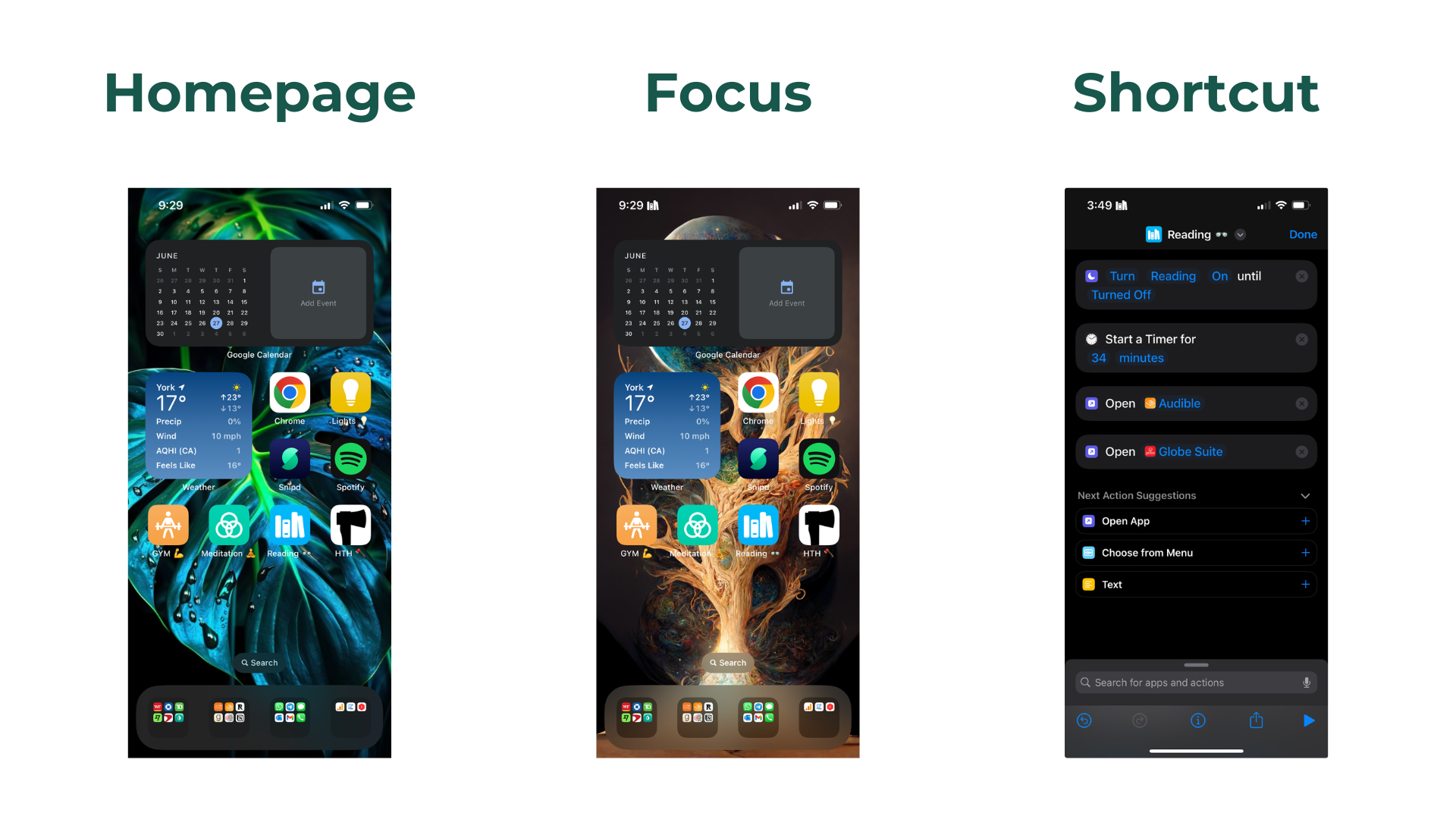
we're going to learn today in three quick modules. First, we're going to reduce overwem by simplifying
your home page. Think of this like spring
cleaning for your digital home. So hundreds ofhaps read across multiple pages down to
a single home page. I can feel your
shoulders relaxing. Next, we'll design what
I call a digital room. This is what Apple
refers to as a focus. So in the same way that you
might have a home office for working or go to
the gym to exercise, we'll create a digital room that will tailor to a
specific behavior. And third, we need a
doorway to enter this room, so we'll create what's
called a shortcut. And it not only opens the
door to that digital room, but it also automates a bunch of other pieces to that
bigger behavior, whether that's turning
on the lights, getting the music
going, launching airplay to your TV
for your workout. All sorts of things can be accomplished with
this single click. And the icon is going
to live right on your homepage for easy access. Now, I want to take
a step back because the whole point
of this course is about more than just
changing our phone. It's about taking the
right daily actions that you know deep down your
ideal self is taking. And if I've learned anything
throughout the last decade, working with people on their
habits, context is king. Made this course because I
found myself more and more in these last few years teaching these phone skills
to my students, or as we call each
other, habit teammates, because we're all on
this path, right? For me, a big and
beautiful part of life is this ongoing self
development journey, of which our phones are a part. Now, they're not
the only part, but they're a part
worth focusing on. And my hope is that when you're done going through this course, you're going to feel so good about your new relationship with your phone and how it's actually helping you instead
of holding you back, that you feel compelled
to share what you've learned with
your teammates, in whatever capacity
that might be, So if that sounds like
something worth doing, then let's go get your phone on your team by simplifying
your homepage, creating focuses and leveraging
shortcuts so that you can create a focused life without getting
rid of your phone. You ready? Me too.
Let's dive in.
2. Class Project: Let's jump into
our class project. We're about to go through
these three modules with an onscreen demonstration. So I'll have a screen
recording right here for every single
change we're about to make, as well as a downloadable PDF, you can use to check
things off as we go. All you have to do is follow
along, make the changes. And as far as I'm concerned, you'll have completed
the class project. Now, of course, you can
submit a screenshot if you'd like and show off
your beautiful new phone. But in reality, what
matters is that you take action in your phone as we're
going through this course. So I suggest watching
it on a laptop or monitor so that you can easily make the changes in your phone. Now, you can pause at any time. And I encourage you to do so multiple times
throughout the course, because I don't want
you to feel rushed. Okay? The point is
that you do the work. You make the changes
in your phone, because knowledge
itself is not power. Contrary to popular belief, Knowledge is pre power. Action is how we
achieve benefit. Now, I hope you agree,
because that's what we're about to go do in our
first module as we create your ideal homepage
together. Let's go do it.
3. 1.1 Simplify Your Homepage (Intro): We confront thousands
of choices a day. A lot of which are
on our phones, and that can be mentally
exhausting, right? So let's not do that. We can beat, at least some of this cognitive clutter by
creating a single home page. Now, right off the bat,
if for whatever reason, you love having your
multiple pages, that's okay. This is not a copy and paste everything I'm doing
type of course. Okay? The point is that we're redesigning our
phones to best suit. The principles are what matter. We want to avoid clutter and be visually intentional so that we reduce overwhelm and create better choices for
ourselves in our phones. And for Ease, I'm
going to refer to one essential homepage as the example in this module,
but you get the idea. Reduce, overwhelm,
create clarity. Now, here's the issue and why most of us haven't
already achieved this, because narrowing
down our apps seems daunting with all the clicking
and dragging and slow, tedious movements that are
required, it's a nightmare. But we're going to fix
that. So, come join me in the next lesson
for a crash course on some beautiful iPhone mechanics that will show you how easy it really is to redesign your
phone. Let's go see how.
4. 1.2 Crash Course on iPhone Mechanics: Declutter our apps
in a few ways. We can delete them, remove
them, or hide them. And deleting is just
what it sounds like. You'd have to re download it
in order to use it again, so we're going to avoid that
altogether and play it safe. Removing an app is probably what you're
most familiar with. It just means that the
visual of the app is gone. So it still lives in
your app library, and it's easily accessible. But our apps can add up
pretty quickly because removing them one at a time
is super annoying, right? So here's a better
way. We can work with our apps in bulk using
a simple method, I like to call the hold N TAP. If for all of you who get that reference, I
hope it was worth it. All we have to do
is press and hold one app until they're all
moving around, right? They're doing their
wiggle, doing their thing. And then, as we're still
holding down that app, you can start to tap other apps, and that will create a stack. Once you've got that stack, you can then drag it around and do all sorts
of things with it. You can put them in
a folder altogether. You can move them to another
page in this single group. And you can also remove them from your home page all at once, just by dragging and dropping that stack into the app library. Now, you can take this approach, but there's also an easier
and even lower risk way to accomplish the same thing. We can hide entire pages. Now, what this means for us practically is
that we can create a blank canvas for our new home page in just
a couple of seconds, all the while, keeping
what we currently have intact so that we can easily bring it back
if we so choose. Now, I doubt you're going
to want to because you'll probably love having
a singular home page. But in my experience,
knowing that this option is here makes it really easy
to just give it a go. If you don't like it, no
bigging, just undo it. Alright, so let's get a
quick practice rep of hiding pages right now before we do it for
real and a few lessons. Go ahead and tap and
hold your homescreen, press the dots on the
bottom of the page. And then as all
the pages come up, you just need to click and uncheck the pages
you want to hide. So the check pages
will remain visible, and the unchecked pages
will become hidden. And just to reiterate, we're not deleting here, okay? This is just making
the pages dormant. We can reactivate them the same way we're
doing right now. Okay, that concludes
our crash course on iPhone mechanics. Hopefully, that leaves you feeling like this is going to be really easy to redesign your
home page from scratch, because that's
where the value is, the fresh start effect, if you're familiar
with Katie Milkman. And before we do it
with your phone, I'm going to go ahead
and walk you through my home page to show you
what I've got so that you can mimic anything you
find useful and understand where I'm coming from when I walk you through creating yours. So let's go see what
I'm working with.
5. 1.3 Homepage Walkthrough: We're about to go from
this chaotic mess of multiple pages and hundreds
of apps to this clear, essential home page. Chaos to Clarity. And just to reiterate, this is a walk
through of my phone. We'll design yours together
in the following lessons. So for now, just
sit back and take mental notes of what you want
to mimic with your phone. Now, most of us are
starting out with a bunch of apps, like I am here. But we're going to
reduce that, okay? We're going to use these
visual spots or the ones below as well on your homepage to clarify what you
really care about. And we're going to start
by using categories. Okay, so already, I hope you're feeling a
little bit better. Hundreds of apps,
a couple of icons, and even fewer categories. So what are these categories? First, we're going to start
with some top level visuals. This is going to be widgets. Info ata glans, very quick
top level stuff like that. You need to do is
look at it, and you've got the
information you need. Okay okay? No need to click into it
or anything like that. This could take the
form of reminders, calendars, weather, tasks,
all that type of stuff. Now, I personally have the
calendar and weather widgets here because this is
all I need to know. It's like, what
am I doing today? And do I need to wear a
jacket when I go out or not? That's it. So you get to decide what widgets you use.
These are just mine. Next category is the
most common apps we use. So this is really an
opportunity for us to help our ideal selves have the right
choices in front of them. You might have noticed that
I put the W to in gray here to emphasize that we're trying to shift
towards our ideal. Sometimes we don't want
to click Instagram, so let's not put it
on our homepage. What do we want to
click the most? Let's put it here. You choose from the options
in front of you. Let's give ourselves good
options to choose from. This could include messaging,
camera, photos, music. I use Internet, the
lights on my balcony, my podcast app, and music. This third category
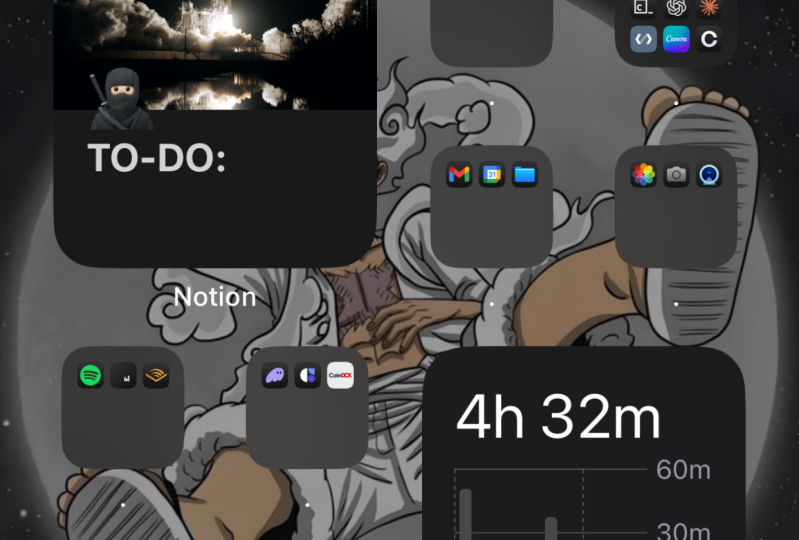
is main categories. So this is going to be folders. This is the most space
saving mechanism there is. I personally love folders. But again, if these
aren't your jam, feel free to stick
to multiple pages or just have fewer apps overall. You don't have to use folders
if you don't want to. Now, if you do, I
would suggest using six folders or less because
of our working memory. We want to keep this small. So these could be anything. Finances, messaging,
creative, health, whatever is worth grouping
together for you. Personally, I have
finances, learning, all my messaging, and then I
have my business category. They're all right
there at the bottom. And here's a little caveat. If you want to reduce overwhelm, but still want to categorize, you can put all your
essential apps here, like this one, for example. I have another six
finance apps behind this. So when I open that up, there's all my finance apps right there, but I only see those six
visually on the front. So this is just another way
to reduce visual overwhelm, but help you categorize
all the same. Now, category four
is our daily habits. These are going to take
the form of shortcuts, which you're going to learn
how to make in Module three. As a reminder,
shortcuts are basically the doorways you use to enter
your digital focus rooms, and they really
kickstart your habits. All that is to say, save
some real estate on your home page so
that you can add these shortcuts once
we've made them. And category number five
is some empty space. What? There's nothing there. Yeah, I did that on purpose because visual clutter
overwhelms me. I'm sure, like many of you. So it reduces visual overwhelm. If you keep it nice and clean, you'll be calm because of that. It's very nice and
visual, right? Negative space is a crucial
element to good art. Just something to keep
in mind. Okay, a recap. We've got our five categories, top level visuals, common apps, main categories or folders, our daily habits or shortcuts, and some negative space. Beautiful. Look at how nice it is compared
to what we had. Okay, now that you've got an idea of how I've
organized my phone, it's time first to start
that process with you. So stick with me in the
next lesson as we create your blank canvas together.
I'll see you there.
6. 1.4 Create Your Blank Canvas: The time for theory
is coming to a close. In this lesson, we're
going to create your blank Canvas
so that you can be really intentional
with what apps, widgets, and folders, you end up putting on your home
screen in the next lesson. So let's get that fresh slate by hiding our existing pages. Now, Apple makes it so
that you have to keep at least one visible page at all times and at least
one icon on that page. So all we have to
do is move an app, widget or folder
to that new page, and then we can hide the rest.
Let's do it together now. Go ahead and unlock your phone, drag an icon that you know you're going to
want on your home page, whether it's music or camera, and then drop it on
that new blank page. If you have a bunch of folders, chances are, you're going
to want those here as well. So even though this won't technically be a
blank canvas anymore, if you want to keep your
hard earned folders, you're more than
welcome to do so. So go ahead and drag them and drop them on this new page now. And that actually reminds me
we should do the same for the icons on our bottom bar
before we hide our pages. So you can either
drag and drop them to what will be an old
page, or, again, let's be honest with ourselves, move them to your new, yet, I suppose, not so
blank anymore Canvas. Okay. And the last step. Let's make sure all
our apps are still wiggling and press the
bottom dots on the screen. Uncheck all of your old pages so that the only one
checked is your new one. And then we'll click
Done in the upper right, and voila, we got
our blank Canvas. Now, just a reminder, go ahead
and pause as you need to. Rewind, watch it again. Take your time with this, okay? I'm not going anywhere. All you got to do is follow the steps, and then you can move on. That's how you're
going to benefit. Okay, beautiful. Sprink
cleaning is in full effect. Now that you've got
your blank canvas, everything is out
of the cupboards, as it were, we can start deliberately designing
your new home page. So let's go figure out what
apps, widgets, and folders, make the cut to
your digital home in the next lesson.
I'll see you there.
7. 1.5 Design Your Digital Home: To design your
digital environment, so that it helps you do what
you want to do and keeps you from doing what you don't
want to do consciously. We interact with our phones mindlessly all the time, right? So it's best to create
healthy choices for ourselves just like
in the real world. We're less likely to
eat the cookies if they're in the cupboard as
opposed to out on the counter, and even less likely if we don't buy them in the store
in the first place. So as the parallel goes, don't put junk apps on your home screen that you're going to have to
see all the time, because in a face off
between willpower and environment,
environment wins, even in the digital context, and maybe especially in
the digital context. So we've got a blank Canvas. Now it's time to essentialze. And there's actually one more
phone hack that I want to share with you to make this
process a little easier. We can use the same hold and tap technique that
you learned in the crash course to add
apps to our homepage. You just go to the App library, tap and hold on an app that
you want on your home screen. It will automatically shoot
you out to the home page. All you do is drag it
back to the App library, and then you can start
tapping other apps here, create your stack, and then drag it over to
your new homepage. Okay, now it's time to start
adding our essential apps, widgets, and folders
to our homepage. Now, if you're ready to
do this on your own, by all means, have add it. This is your process. I don't
want to get in the way. But if you're looking
for a bit of guidance, here are some suggestions
you might find helpful. Start by thinking in
categories instead of apps. You can follow the
same five categories we went over in the walk
through, if you'd like. Widgets, most common apps, folders, shortcuts,
and empty space. Now, maybe you want
to break it up in a different way or shift
these categories around. It's all good. This
is your process. Okay? Design your digital
home, how you want to. Now, when you're
finalizing your folders, I suggest choosing
the apps that are essential within that category. And if you want to, you can
do the same thing I did with my finance folder and put the non essentials
on the second page, so that it's all still together, but they don't
overwhelm you visually. Here's some clarifying questions I found helpful to ask when deciding whether or not an app was worthy of being
on my homepage. First, is the ease of access of this app worth the cost
of the attentional tug? It's always a trade off, right? So it's up to us to decide whether or not it's
going to be worth it. Personally, I do not put
games on my phone because I know that that tug on my
attention is way too strong. It's not worth
fighting that current. For you, that might
be social apps, or maybe it's the news. Everyone's different. You just
have to know yourself and be honest here. Next question. If I don't have it
on my homepage, will it be annoying to search for it every time
I want to use it? If it will annoy
you to search, say, message in order to
text your friend back, then maybe it's worth putting
that on your home screen. And as a quick reminder here, sometimes we want apps to
be annoying to access, like social media and games. If they don't help us live into our ideals and put us off track, then let's make them
harder to access. That's how we use friction to our advantage. Next question. What action does
this app lead to? I want to do more or
less of that action? If it's more, put it
on your homepage. If it's less, don't. We're creating the
structure of our phone for our ideal self to engage
with to choose from. So how can we set
ourselves up for success? And to me, success is behaving
the way you intend to. So how can we help ourselves
behave the way we intend to by setting up our phone in a way that keeps us on track? And before I leave you to
design your home page, one more reminder to save some space on that screen
for your shortcuts. These are the most
important icons you can have on your homepage,
or so I believe. So when in doubt,
leave it doubt. Essential is not
built with maybes. Now, go ahead and
create your homepage. Get your categories,
move things around, try out different combinations, locations, mess around with
it until it feels right. And I'll leave these
five categories up on screen here
for inspiration. So go ahead and pause until you're done setting
up your apps, widgets, and folders
just the way you want. And then we're going to
make one last change before heading to
the next module.
8. 1.6 Update Your Wallpaper: Other changes we're
making in our phone. Now is a great time to
switch up our wallpaper. Now, I know it might
not seem like much, but we're very visual creatures, and this little change
can go a long way. Now, you probably already
have a wallpaper you like. So just consider this a little reminder if you want
to update it or maybe use it a little bit
more intentionally to help you create the relationship you want with your phone. Go ahead and switch it now. You just go to settings, drag down the search
bar from the top, type in wallpaper,
click that Blue Flower, and then tap Add new wallpaper. And you can do all
sorts of things here. I like to keep it simple and just choose an
image that I like, but feel free to go nuts here. My partner loves the emoji
ones for her digital rooms, because they're really easy to customize and be specific with. But up to you, take your
time with it, play around. And when you're
done, I'll see you in the next module on Focuses, where we'll create
your digital room to help you do what
you want to do. And I couldn't help myself. But I've got one
more tip for you. If you're really looking for a full rehaul with this thing, I might consider getting
a new phone case. This course is about transforming our
digital environment. Yes, but we can't
forget that our phones are physical things
that we interact with. And our physical context creates the grooves
for our actions. Our brains are masters
of association. So if we want to
break old patterns, and really leverage the
fresh start effect. We can do so by getting
a new phone case. This is a fantastic and
relatively low cost way for you to switch up your
association with your phone. Just food for thought.
Consider getting a new phone case if you
want a full rehall. Okay, back to Scheduled program. I'll see you in the next module.
9. 2.1 Design Your Digital Room (Intro): Let's come back to
the question we ask ourselves in the
introduction of this course. How do we find focus in this chaotic digital world
without ditching our phones? It all starts with an incredible
feature called a focus. Think of it like a
customizable, do not disturb. But instead of a basic
block everything filter, there's some nuance to it. So we get to decide
which apps are visible to us. Who
can reach us or not? What notifications pop up, and even what background
we choose to display. All sorts of cool
things like that. We can really make it its own specific room in
our bigger home. Now, typically with
customizability comes overwhelmed. But it's okay. I've already gone through all of that so
that you don't have to. Because the way I use focuses, it's actually really simple, and it only takes a couple
of minutes to set up. So before you psych
yourself out, let's go get a quick practice
rep in the next lesson as we set up your first focus
together. I'll see there.
10. 2.2 Create Your First Focus (Practice): Learn how to create a focus by actually doing it.
What a concept. So here we're going to pull down our Control center from the
upper right of our screen. We'll click focus. And then at the bottom, we're
going to go ahead and click New focus at the top,
we'll click custom. And now we'll go ahead and
choose a color and an icon. These are irrelevant right now. We're just getting
the rep. And then let's title it First
focus Practice. Click next at the bottom, and again, customize
focus at the bottom. And then we're
really just going to focus on these three categories. Choose people, choose apps, and choose screens.
Let's start with people. First thing we're going to do is deselect all of these
suggestions, right? We don't want notifications. That's the whole point
of this. So click Next. Now here is where I suggest having favorites
selected because you'll be able to
use this same group of favorites for each focus. Everybody doesn't
actually filter anything. The allowed people is what we
have on this previous page. And then contacts only is still an absurd
amount of people. So let's just keep it simple
and stick with favorites. And we're done with people.
Now let's go to Apps. Same thing here. We're
going to deselect all of the apps to
avoid notifications. Now, if you have some apps that you need notifications for, we'll go over that
in the next lesson when we get a little
bit more granular. For now, we'll keep it simple. Okay, and we're done with apps. Now let's go ahead and
click Customized screens. Doesn't actually
really matter what image you choose for now. Again, we'll figure this
out in the next lesson. So go ahead and just click
one, and we're done. Right? That was super
quick, super simple. Just a couple minutes, and we already have our first focus. Now, just a little heads up, the wallpaper might take a
few minutes to register. That's okay. Give it a
second. It will come through. Alright, so that's
all we need to do. If you ever want to
edit it or delete it, you just come to the
focus settings here. You can scroll all
the way down to delete it or edit it
however you'd like. The smart activation and filters will go over
in the next lesson. Alright, I hope that
proved to you through your action how
easy it really is. I know sometimes it
can take the pressure off by getting a quick
practice rep like this, which is why we did it, so that now when it comes
to making the real one, you feel much more confident. So go ahead and
start thinking about what behavior you
want to start doing more of so that we can design your digital room intentionally. Let's go do that in
the next lesson.
11. 2.3 Create A Focus (For Real): Now that you've set up a focus, we can take your time with this next one and be more
deliberate with it. So if you want, you can delete
the first focus we made, or you can use it as the basis for this real one
we're making now. First thing is first, in order to create an effective focus, we need to ask ourselves, what do I want out
of this focus? Am I trying to use it to
help me exercise more or get more productive
time with my side hustle, or maybe you want to schedule some relaxation time for games
or guilt free scrolling? That's up to you. The point
is we want to identify the specific behavior
we're trying to promote so that we can tailor this digital room
directly to it. Behavior can be very
context dependent. So if we're deliberate
with this pairing, it can help us do
what we want to do. Here's a mantra from
the habit space. One behavior, one environment. Think of gyms and
libraries here. When you're there, you know what you're
supposed to be doing. We're trying to accomplish the same thing with
the digital realm. So take a second to think of that activity you want
to create this room for. I'm going to use reading as an example to walk you through. So go ahead and pause until you have that specific
behavior in mind. And I'll put a few on screen
here for you to think about. Alright, awesome. Now
let's design the focus. Just like last time,
we're going to pull down the control center from the
upper right of your screen. Tap focus, tap,
new focus, custom. Now name it. And
in my experience, clear is better
than clever here. And I prefer to be deliberate with the color and icon as well. This is all creating part
of our personal narrative. It's going to become
an ongoing cue for us to do the
behavior we want to. So it's really worth
taking the time right now to be
intentional with it. Now, hit next, customized focus. And then we're going to go
through the same three. People, apps, and screens. Let's start with people.
Again, this is all up to you, but I'm just going
to uncheck all of these and then hit next. Check favorites,
which is where I keep all my important people,
my apartment buzzer. So that way, I don't have
to worry about it, right? If it's an emergency,
people typically call. And, by the way, I
should mention here, there's a pretty cool built in feature that Apple
made with focuses. So if someone calls twice within a relatively
short amount of time, then the second call
will go through even passenger do not disturb or whatever focus
parameters you've set up, because that's
typically what someone will do in an emergency. So we can relax and know that if someone
really needs to reach us, they Okay, once you've
finished with that, hit Done, now onto the apps. Again, up to you here, maybe you want to make sure that Slack comes through if
this is a work focus, or maybe you want to get
your Instagram notifications to pop up if you're doing
some scrolling time. For my reading example, we don't need any notifications, so again, I'm going to uncheck all of these and then hit Done. Now, before we go
onto the screens, we're going to tap
options right here. This is just a bit
more customizability. Now, here's how I
typically use it, which I'm pretty
sure is the default. The one that catches my eye
is the Dim lock screen. I've played around
with it a bit. Doesn't have too big of an
impact, if I'm being honest. But again, if you want to change any of these,
please make it your own. The only one I will double
suggest here is making sure that the hide notification
badges is checked. Because, again, if
we're trying to focus, then we don't want
to get notices, at least from the apps
that we aren't going to be using or that
won't be helpful to us. Okay, once you've got it,
how you like it, it back. Now we'll customize screens. Again, just like the
icon and the color, this visual will have an
impact on your actions. So the question I like to
think of is what wallpaper will make my desired
behavior feel natural? This visual reminder is going to help us remember what
we're supposed to be doing. It's that ongoing
digital context that's gonna be promoting the
behavior that we want to do. To me, the cooler that
you can make this room, to your own vibe, the more
likely you are to enjoy it. And that's a great quality when it comes to gaining habits. So, again, take your time here. This is non trivial. Pick a clear and cool to you background image for
your desired behavior. And when you're done there,
go ahead and hit Done again, and now comes a crucial part that you haven't
learned quite yet. So here's where your hidden
pages can come alive. So in this focus, we get to decide which home page to use. Here's my take. I
like to keep it to my normal home page because it's already essentilized, one. And two, I know where
everything is, right? Instead of using a
separate room that I would have to waste mental bandwidth on figuring
out where things are, I don't have to
keep that in mind. I already know where things
are in one spot all the time, and I have gotten rid of the
crap that gets in my way. Again, this is for you to
decide and use at your leisure. So if you want a digital
room specific for, let's say a creative room or a specific doom scrolling
dungeon, if you will. You can create
those digital rooms as pages that you hide
on your every day, but then when you
come in this focus, that will be your home page. It is a pretty cool function. I am just a lazy guy and don't want to have to remember
where different apps are and all that stuff. So, feel free to
pause here and go create a digital room that
you might want to use. And then hide that page, come back and make it your
background for your focus. Try it out, and
see how it feels. It's super easy
to switch back to your normal home page
within this focus. Right? All you do is come
here and hit settings and make this edit as
you are right now. Just because I don't prefer it doesn't mean that you won't. So give it a shot.
Okay. Great job. I know this one's a bit longer, but we're almost done. Only two more things to go over. Let's go over smart
activation really quick. This is where you can
have your phone turn on this focus automatically based on your usage with your phone, your location, and so on. Now, I don't bother
here because one, it's erratic, I've
tried it before. And two, it's actually
creepy if it gets it right. It never really has for me. But if it starts to, that
gives me the Heba GBs. I don't want my tech knowing
what I do more than I do, even though it
probably already does. So, it's a no thank you for me. But again, do what you will. Now, if you tap
Ad schedule here, this is where you
can set up yours to activate based on time,
location, or app. This can be pretty cool
if you want to make your gym focus turn on when you get to your gym
or something like that. But again, I'm a simple guy.
I don't use any of these. I prefer to just
click a button on my home screen when I'm ready
to enter that digital room. And last but not least, sorry, I should say, and last,
but least focus filters. This is a pretty limited and, to be honest,
unnecessary function. So if you want,
take a peek around, but I have not found
much value from it. Okay, you are done. How does that feel?
You just created your first real
functional focus. So let's see how it turned
out. Go ahead and turn it on. Go to your Control center, tap focus, and then click
the one you just made. Awesome. I hope you're proud
of yourself because you just made a new room
in your digital home. Now, the only problem
here is that using the control center every
time gets a bit clunky. So let's go learn
how to activate it and set a few other
things in motion with one click in the next module on shortcuts.
I'll see you there.
12. 3.1 Create Your Doorway (Intro): Okay, the time has come. We're about to learn how
to make what I think are the most important icons
for our home page. Shortcuts, which are these
four icons right here. So I hope you save some
space on your home screen, and if you didn't,
you're probably going to want to make
some after you see this. Here's what a shortcut
looks like in action. Let's click my reading one. So Audible opens up. My light app turns on,
where I can turn them on. Head over to
Audible, press play. And it will also have started
a timer in the background, as well as activated
my reading focus. So four things happen
with just one click, and it not only puts me in
my digital reading room, but it also sets me up to
read the way I like to, with a timer, some
nice lighting, and the audio in the
background as well. And this is just
one version of what you can accomplish
with shortcuts, right? I know the options are
absolutely endless. So let's go learn the
basics so that you can create a shortcut for your
new habit on your homepage.
13. 3.2 Shortcuts Walkthrough: Let me show you how to
do that. Pull down, type in shortcuts, and
here is the reading one. So I can show you a quick
overview of what it looks like, and then we can build this
from scratch as well. So to walk you through
this real quick, we have the first part here, which is turning the
actual focus on. This is the do not disturb icon. This is the actual
focus that we're turning on and until turned off. Again, we can go
over each of these. I have it start a timer for
myself so that I know how long I want to do that behavior for and when I should stop. And then here, open this
app, open this app. And the order you have these
in, we'll actually do it. So let me delete this one. Click and hold. Delete shortcut. Now I'll come up here. We'll
come to the plus icon. We'll do new shortcut. Rename it. I'll call it reading. And then I like to have Emojis with mine completely up to you. But these are just little
visuals that help me. Now we're going to select done. Now we're going to
click the icon, make it whatever you want. You can search
through all of these. And here, I'm just
going to type in books because I know that's
what I want it to be. Click done. First
thing we're going to do is add action
in the search bar. All we're going
to type is focus, so we'll do set focus here. We can choose from all of the focuses that are
available to us, including the ones we've made, which is reading, and we're going to change this
to on until turned off. You can use these
conditional things. Like to have it as
a manual turnoff, which can also be turned off when you
turn another one on. These right here are
suggestions for you, but this is really where you're going to
search what you want to do. I'll type in Tier Tier four. Right now, I'm using 34 minutes as my reading
time. Click Done. Now we do. Open App. Here we go. And then we click
what app we want. In my case, it's audible first. And then I will go here again. Open App again. And I
will click Global Suite, I want to say. The Globe Suite. Cool. So this should
open those up, and then now, I'll click
add to Home Screen. This is where you can if you
want change what's here. In some cases, you'll want to make this icon very specific, like I have my logo for my
business, so I put that there. This is just a generic icon, but you can fully customize
these if you so choose. So click Add. Now, Boom. Here it is. This one I can get rid of because it
doesn't work anymore, and let me just
show you this one. Now activates the shortcut. Again, I'm too far away for this to register properly,
but that should work. Okay, cool. So,
voila, we've done it. We made a shortcut. Again, it's really
simple, right? We don't have to
overthink any of this. The whole point of
creating the focuses was so that the digital rooms
look different, right? It's my meditation one. This is my reading one. This is my business one.
They all look different. So I know whenever
I pick up my phone, this is the room I'm in. Granted, the furniture in the room is all
the same because I don't want to have to
waste cognitive bandwidth on where's my spotify, you know, or where are
my social media at? Like, none of that
is moving around. It's just the
wallpaper. Very simple. And then the doorways, I have right here,
front and center, easy to press, easy to maintain, and that's all I need it to do. So you can do all
sorts of things, but really, at its base, all you need to do is if you
have this one and this one, that's all you really
need to do is turn on that specific focus and
then set a timer for it. It's pretty simple when
it comes down to it. And this comes more to having what's called
an upper limit because sometimes
what keeps us from starting is that we bite
off more than we can chew, or it's an indefinite
amount of time or effort, and when things are
indefinite or boundless, they seem like they're
going to be so much. So when we can give ourselves, now we suggest starting smaller, but when we can give
ourselves 34 minutes, for example, or if you're
just starting out, maybe even 10 minutes, right? Starting with 10 minutes is a beautiful way to
make some progress. In that way you're
not overwhelmed by it, you can actually do it. And then just think here, what are the accompanying
apps that I'm going to use during
this behavior? Look at this. This
is all I need. Turn on Do not disturb and
open up my podcast app. It's very simple, because it doesn't need to be
overcomplicated. Yet, when we come back
to our main page, From here, to here. Oh, well, I'm already
pretty much set up. I just go, boom, play, and I'm ready to
start working out. Done with that,
click meditation. Boom. Oh, it doesn't open up an app because I'm not going to be using my phone during this. Done with that.
Oh, hey, reading. Oh, I love to have my
balcony lights on. Turn those on. I'm
too far away again. And then you can just
use that bottom swipe, right? The bottom swipe. Go to the next app,
press play right there. Start listening to my audio
book while I'm reading. Oh, I'm done with that.
Et's click the next one. Right. So as you can see, we've kept it really simple. I know it looks complex, and it for sure can be. But in order to get
the most benefit, all we need to do
are a few things. Turn on the focus, get some
relevant apps involved, and maybe start a timer so that you can actually
start small with it. And again, feel free
to watch this as many times as you need. We're
not going anywhere. Consult the worksheet. Take your time to get it right, because you'll reap the
benefits on an ongoing basis, and you only have
to do this once. And when you're done
with it, I'll see you in the final lesson
as we wrap things up.
14. Conclusion: You made it. Well done. I hope you're feeling
good because we just got your phone on your team
in some amazing ways. Now that alone should have a big impact on your
actions moving forward. But let's take a
note from Feinman. And be careful not
to trick ourselves. This is just one
part of our life, and behavior is a slippery
beast to say the least. As I love to say, if you
want to make it happen, make it a habit
because the just do it approach doesn't work for
everything or for everyone, which is why I specialize in helping people create habits. That is how we behave the
way we intend to reliably. So if you want to
keep this progress going and get your
habits on your team, too, book a call with me today,
and let's make it happen. Again, my name is Chris. I'm the CEO and founder
of Hackat Habit, where I help people
like you create the habits and life you want. So when you're ready,
I'll see you there.
15. Sharing Is Caring: Little call to the community. If you are also inclined, it would be awesome
if you shared your screenshots of
either your new homepage, your focus, or these steps that you have in your shortcut. Maybe even a screen recording of what happens in your phone. I would love to see
that, and I'm sure many of you would like to see
what each other are doing. I had no idea that
airplay could be an automatic thing until my girlfriend did it for
her workout routine. So the more that we share here, I think the more that we're all going to be able to learn. And if you share something
novel or super unique, then I'll go ahead
and make a bonus module for everyone to look at. This will be examples from all over that allow us to do pretty cool things
with our phones. So if you're so inclined, go ahead and share a screenshot or a screen recording with me, and I will make sure to put it in this bonus lesson. Chairs.
 Chris Greene, The Habit Guy