Transcripts
1. INTRO: Hi and welcome to DCL. This video I'll be
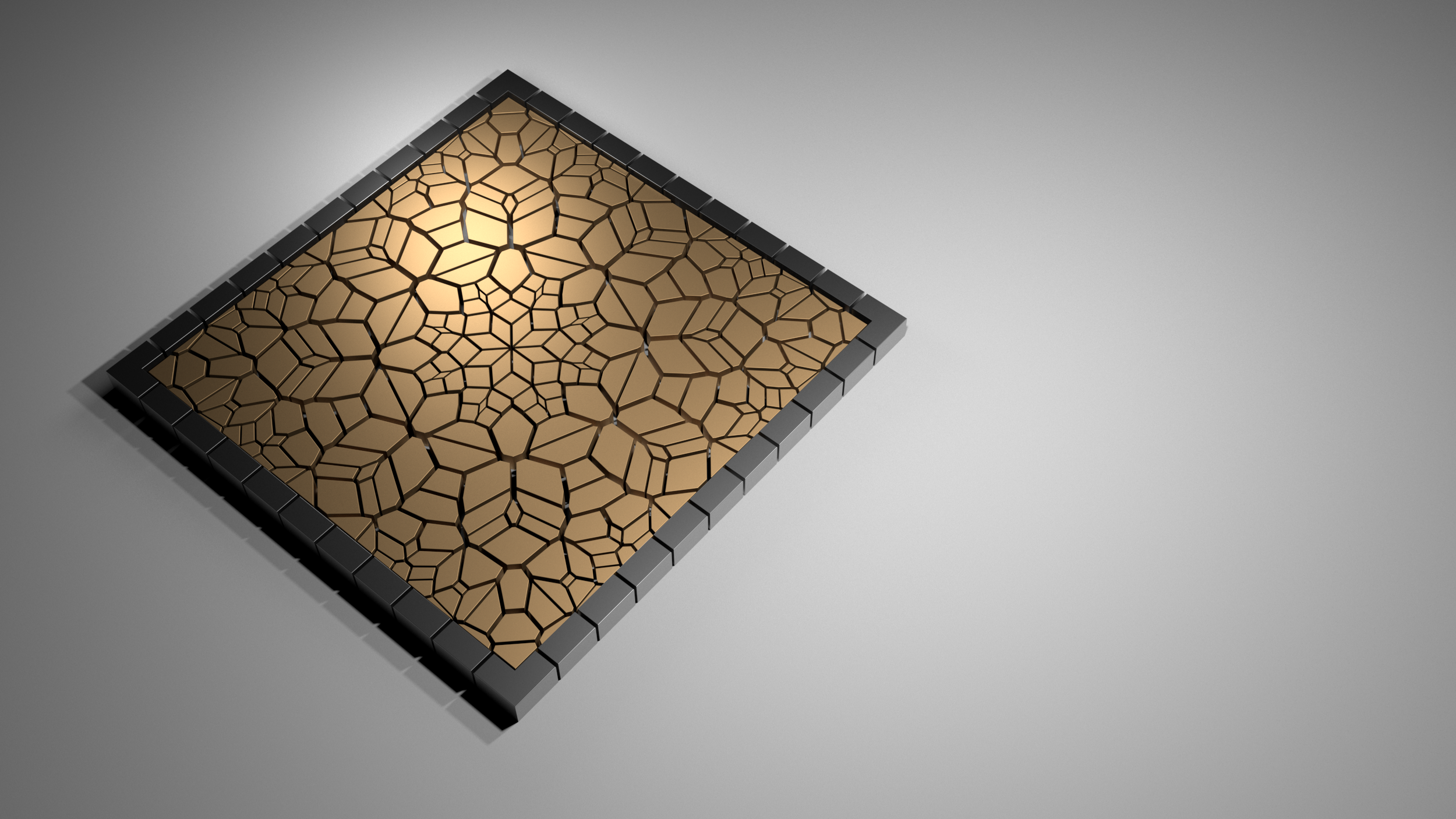
showing how to create this subdivided
floor pattern using a few steps will be starting
with the overall geometry, offsetting a band
than on the inside, creating a pattern
using circles. Then from there, creating the details for the ground line, and then creating
what you see here. So I'll be going over all of the steps and Let's
jump right in. I'll be sharing how the
program works by walking through all of the
steps in detail. This way you can understand
how it all functions. The program is a little
bit intimidating at first if you've
never used it. But once you get
used to it, you'll see how important it is to understand it and how you can
use it to your advantage. I'll also be sharing the
script so you have it by your side as we move
through the exercise. This way you can always reference
back to what I'm doing. Hopefully you're excited about getting started
with Grasshopper. And let's jump right in.
2. BOERDER AND SUBDIVISIONS: Alright, so to get started, first thing we'll do
is bring in a point. It will go here to construct point and then plug
that into a component. This way we can move
this location at any moment by creating a point here in Rhino and
then setting a point. And now here we can start
creating a rectangle. So this will also be a base, the base curve that everything
will be created with. Let's give this a
pretty good size, will go 20 by 20. Now, we can use this as the base geometry for
creating our design. So I'll plug this into a
curve component this way, we can also change the curve into a different
polyline if we want to. Now, let's move on. Insert creating the design. That's gonna go on
the inside of this. And the next thing
we'll do is take this line and will offset it. So we'll go here
to offset curve. Then we'll offset
this base curve. Now it does offset
it to the outside. So if that's okay with you, then you can kinda leave it. But I am going to offset
it to the inside. So I will create a negative and then offset
it to the inside. So I'll go 1.500. This way it actually
gives me a slider That's from 0 to ten, and it gives me two
decimal points. This is going to be the outer band and we are just starting with
the base geometry, so creating the outer band. And then on the inside, we can also subdivided
in different ways. But for that we are going to
use a particular design on the outside will just
be creating a buying a band that has subdivisions
on the outside. For that, we'll need to create a surface here and then
a surface on the inside. So let's go here to
boundary surfaces and plug in both the
outside and inside one, holding down Shift to add another one and then
we'll flatten the input. This way. We have
that outer band and it creates a surplus
between those two lines. Next thing we'll do is
we'll take the inside line. We'll copy this
down here and plug in the polyline into
boundary surfaces. And we don't have to
flatten this one. But that creates that surface. So basically we created this
parametric overall shape. And we can also plug in a different polyline and
it will do that also. What's useful for
this is let's say you have a floor plan
design or something and you want to create a nice entry with a end up like a cool
display interior floor. That's kinda what
we're going for here. So used to having
the outside band, what we're going to do is take this inside
mine and we're going to divide it using divide curve. The other thing is we
actually need to explode it because if we
plug that in here, you'll see that it's
not even like it. They don't always
land in the corner, and we do want them to
land in the corner. So we need to explode this curve using the
explode curve component. Explode. Let's see, Yep, the
exploit component. And now we have the
segments here that we can plug into the curve. As you can see, we have it's subdivided and it does
subdivided evenly. So there will be some differences in the way
that this gets subdivided. So we'll just keep that in mind that the subdivisions
are going to look a bit different and that's going to be in the way
that will subdivide this, will take these points. And if you visualize that
this curve got divided by ten points here in the
count, we can change that. So it'd be visualized
that we have subdivided this line and also this line into six points. Well, what happens
is that we'll have, and we'll have redundant want here is we will have two points, two vertices on each corner. And we don't want that. So the way to fix that
is going to be here. When we have the point output, we're going to have to plug
that into a cold duplicates. And that will get rid of the duplicate points
which will be at the end. And you'll see that now we
have 24 points rather than 28. So with that, we can
actually use the Voronoi, a man to subdivide
those points like this. And therefore,
using those cells, we can then split
what we want here. So we can either
take these cells and split the B-Raf where we
can extract the geometry. So there's two ways to do this. And let me show you those
two different ways. When you have these cells, we can technically just go here to this surface and go to Split. We'll go here to split,
be rep, multiple. And so we'll take this surface and we'll plug in those
cells as the cutters. Now you'll see here that
we have 24 trimmed values. So we can disable preview here. And you'll see that now we have those subdivisions
showing up here. And it's just due to us
dividing it evenly by a number. So that is one way of doing it. The other way is
going to be where these cells intersect
this surface. We can extract those lines. So we can go here to
intersect B rep curve. And now we can intersect
this P wrap with the cells that are
technically lines or curves. Now we can extract
those lines and then from those lines
we can then split it. So it would basically
do the same thing, but that's two
different ways that we can extract that geometry. Here. I'll actually delete
this one and then disable the preview
on all of this. Now I don't really need that. All I care about is that I
have this output and this is going to be ended
that outer brain. The other thing is
that technically we don't have this split down the corner and
sometimes you do want that. Let's say if you want
to create a tau, this is, this would be a
difficult child to cut. One way to fix that will be to take the outside
and inside curve. And rather than creating a boundary surface
between the two, will actually create a loft
between the outside line. Then again the outside line. So the top one and
then the inside one. Holding down Shift,
which is this one. Now I'll flatten the input
and it will actually, so let's disable the
previous analysis that just to kind of
show you that will actually create this
diagonal it now this is actually what we could use
as the B-Raf to be split. So now it actually creates here. Now it actually creates
it with that subdivision. And I think that looks better
in terms of construction. So with that, we have the base geometry for
the outer border, which is a detail that for
the most part is kinda critical when you want to create a nice entryway or like
a nice detailed floor. So now with that, we'll go to the inside surface and
see if it's this one. Yep. But now with this, we'll use this as the base geometry to
create the next pattern. So the next pattern will also be using the Voronoi subdivision, which is this one. But we'll be creating a, an intricate pattern
in here using circles. And you'll see how intricate, intricate you can get
using just simple circles in the intersections,
using points.
3. CREATING THE PATTERN: So with this base geometry, one of the things that before
I move forward too much, I just want to move it around
a little bit just to show you some of the things
that it can create an, obviously if we created as a, as a perfect square, it's going to create the
perfect subdivision. So maybe that's how
we'll keep it for now. But in reality, let's
say the room might be a different size one
way rather than the other. And maybe that's something
that could be, we can fix. But for now we'll move forward and create the pattern in here. So with this one, we'll bring in the central point, so
we'll get an area. The next thing we'll do is now that we have this center point, we're going to create a circle. We'll go to circle and go plug-in the centroid
into the plane. And the radius will
use a number. So 150. That's a little bit too big. So maybe we can lower
the limit here, say 100. So this is going
to work as well. We're going to focus
just on creating the pattern using this
circle and this point. Now we'll create a division divided curve. And we'll plug in this circle
into the divide curve. Now we'll create a
subdivision amount. So we'll go here to slider and
I'll go to less than nine. I want to go too crazy. In this way, we have
created this subdivision of points around that circle. Now we can create
a line segment, line, the line component, and we'll bring in from the
centroid to the outer points. Next, we'll take those lines
and we'll divide them again. I can take this, slide it here, tap Alt and plug-in that
curve into the division. Now, this one, I do
want it to be less. We'll go here to
something like three. Now, the next thing is
going to be to create some circles that will be
based from those points. Will take these circles. I'll actually create
a new one here. So I'll create a new slider and a new circle component
it into those points. Plug those points
into the circle. And now we'll go here
to something like 5.50. And of course, these can always change because the most part, it's going to depend on the area of what you are creating. Now this is getting
into some like sacred geometrical stuff like Medtronic's cube and
stuff like this. But all it is is we're subdividing
a circle using points, connecting it, then subdividing it again and using
circles again. And so ear will change
the upper limit to 20. Now let's move this
around a little bit. Next, we'll take these circles and plug them into a
component that will give us all of the points that
were the curves intersect. So here we'll go to
multi multiple curves. And that when we plug that
in and flatten the input, it gives us all the
points that intersect. Those points are
then going to be extracted and placed
on a Voronoi. What I am seeing
is that there are at some point, so let's disable the preview on everything
except for the points. We can see the pattern that it's basically
going to create. But there are some
places in which it does mess up a little bit. So we'll keep an eye
on that and we'll take this and plug that into
the Voronoi component. Inborn oil, all it does is it takes a set of points
and it creates the most efficient subdivision according to the set of points. And so that's kinda what it's
used for also in nature. So we'll plug in the
points in here and we'll see that when I flattened input, we're getting now the like, some weird pattern that's starting to look
very geometrical. So let's disable the
preview on this. Now let's take a look
at the patterns. Here. We can start by basically increasing the overall
size of the base circle. Let's see if we have that. We can visualize
the overall area. Now here we can start
playing with the circles. And let's change
the slider here. And I think the larger we
make the original circle, the issues with the pattern started happening
more on the outside. Here we're playing with the
amount of subdivisions. So these are eight. So we can go down
to a lower number, something like maybe six. Then here, this is going to get into more
intricate patterns. So the more subdivisions
in this way we have, the more intricate
it's going to be. So we'll go here to three. We'll keep it fairly simple. We can always pull the slider and get it going kinda crazy. So having those
subdivisions, 36, we're flattening this
one on the outside. And then let's see if we could do all duplicates to
remove duplicates. So let's see if we have here 768 and then
here we have 400. What's happening is
sometimes we have redundant geometry
or redundant points, and that's actually
probably messing up some of our output here. Now, also that we don't
have redundant points, we're seeing that the component, it's no longer like orange. So now this is working for us. So that's also something to
keep an eye on on. Here. Let's go through and play
around with some of this stuff. So we're just pulling
on this lighters and I'm trying to get a pattern here that I can then use
to sub-divide the floor. Sometimes for me, it's hard to visualize when you
see all the points. Let's move this. I'm just going to keep going here until I get a cool pattern. So I'm going to need to
subdivided maybe by six. Or then let's move this around. Last time. It take here
we'll get a cool pattern.
4. SUBDIVIDE SURFACE: There, okay, Now here, we're going to do the same
thing that we did to this one, which was sub-divide or
use the multiple B-Raf. We're going to
cut, unplug these, so before that messes us up. And sometimes that could be an issue because
when you plug it in, then sometimes it
does a component, it does a run say command that's really long and sometimes
gets a computer stuck. And that's happened to me
in the middle of tutorials where I'll be almost done. And then one last thing
kinda throws everything off. Now, let's go here to our B-Raf and you'll
see it will take a little bit of time
for it to calculate. When it does, it will
give us that result. Now, I learned this trick, which is going to be the way to see what it's going to look like
before we run the command. This way you can
actually do the sliders smooth without it bugging down. Because now that we've
plugged this in, as soon as I move this slider, you'll see that it's 42.48. I'll just go to 43. And
you'll see that it's going to then have to recalculate
everything once again. And that's not what
you want to do. So one way to fix that, if it brings me back
grasshopper here, hidden. Okay. So as you can see now, this is the pattern and it
took a little bit longer. So one of the things that
would be important to do in this case is going to be to use
this in-between. But we'll use the
intersect curve with the rep, wasn't it? The rep and curve. And we'll use these
cells as the curve. And then the B-Raf is
going to be the surface. I can technically
double-click in here to bring in
a relay and then use that relay to plug
into the burette. So it's calculating again. And now when I plug it in here, we get this pattern. So one of the things to
do is to unplug cutters. So holding down control like
an unplugged the cells, I can visualize what it's going to look like and
move the sliders freely here. Because when you're just intersecting geometry
is not as heavy as splitting an
entire directory. So what I'm doing now is here, we're going to use a
dam or a data dam. And this way we, when
the information goes through here and through
into the cutters, now I can visualize
what it looks like. And when I finally say, okay, that's the
pattern I want to use. Well then I click here on, on that, and then we'll have
to flatten the input here. And now it's going
to, here's the thing. It has to go through the cells. So that's on flattened here. And let's press play. Now we have our result. And now when we
change the slider, this is going to change. And then it's going to ask us to refresh whenever we
want to do it again. And we'll just have to
preview it using this. That's hopefully
that made sense. And that's a way to optimize your script so it
doesn't bog you down and you can actually
visualize your data and what you output
is gonna be before you actually calculate it. This up. Okay, So we basically
subdivided that geometry, both the outer band and the
inner pattern patterns. So we'll go here to
be rep and then plug in those the reps
or those segments. And then we'll plug the cell. So we'll just bring
them out here and have them ready to view. Now here, we're going to
apply some materials. We'll go here to custom preview. Okay, so now that I've plugged in a color swatch into this one, it just gives it a little bit of a different color so
we can visualize it. Then here, we can also play around with
some of this stuff. The next thing is, they are technically
technically here. Everything is super
watertight in terms of it being All right up
next to each other. So if I extrude, this is
actually going to extrude it. And you're not going
to see the difference. So let's see if we
can try a trickier.
5. EXTRUDE TO POINT REMAP NUMBERS: So I'll unplug the preview and I'll take this and I'll
bring in an area component. So every one of those
has a different area. This has a small area
that has a bigger area. This has a bigger area
that has a smaller area. So visualizing it
in those terms, we can plug those into here and get all the different areas. So one is 51, is 126, and so on. But they're all tied to
that specific geometry. So what we can do is bring in an extrude component and we're going to be
extruding it up. Of course, in the z-direction. I thought about something
better. We're not going to even be extruding it. We're going to be moving. I mean, we could extrude it. Of course, if we're
moving something, we can also extrude it. But I'm thinking now
when I look at it, I think the thing that
I'm going to do might look better, but possibly not. So let's go to the centroid. We're going to move
that up by the area. And it's too extreme. So this is where we can divide the area or we
can remap the numbers. So there's two ways of doing it, remapping the numbers
so we can be really subtle. That might be better. So we'll take the area component and we'll remap the numbers. This way we can pick exactly the smallest one
where it's gonna be. The biggest one where
it's going to be. Now let's go here
to re-map numbers. So when you remap numbers, we bring in three
different components. This is also on my
free resource tab on my website to download
the remapping numbers. But I'll show you
here. You bring in three components
at the same time, you bring in re-map numbers, you bring in bounds, and you bring in
construct domain. So I, every time I remap numbers, this
is what I bring in. And those are the three
that I always bring in. So the reason why I tell
you that is because sometimes people go like, oh,
how do you know which one? It's like no, I always
bring in the same ones and you have to remember
what therefore, this is going to
remap the numbers. So we have to plug in
the original values into the values. Source is gonna be what's the biggest and smallest number. So when we plug in the area into bounds, which is this one, this will actually give us
the smallest number is 0.06, and the biggest number is 33. So we'll plug in that
into the source. Next. We're going to tell it how
big do you want it to be? Because right now it's not
mapping them any different. We need to change the
smallest number to be. Let's say, we'll
go here 1.50000. So we have a lot of decimal
points and we'll go to a small number and a big number. And as long as you
have these two values here for the start, and then we can remap the
numbers between 0.22. Now I can disable the
preview on everything here. And I can say, okay,
the, the smallest one. Let's bring back the pattern. The small ones get
this small value. The big ones get the big value. And just thinking
like if this is going to be a floor material
than possibly this might not be the
best idea in terms of is going to be bumped up. But maybe that could be
part of the tile design. So now that we have
those points that vary depending on the area, and we have remap them
to be fairly low. Otherwise it would be
kinda crazy because they are kinda up, way up here. And now we can do
extrude two points. We have these
points. These points are going to be what
we extrude two. Then we're going to be
using these be reps. Then, as you can see, it extruded
those out to the point. And it further creates
this other truncation, I guess you would call it, where if you go to the
midpoint and you extrude, you actually create more. Geometrical subdivisions. So that in itself further complicates or
exaggerates the pattern. I feel like that's also a cool, neat feature that we
came out with here. And so let's bring
in the geometry, or the display, or
the custom preview. And let's take a look at
what that looks like here. Let's move some of these
sliders around, right? Because this is
fully parametric, so we can always come back here and play around with those. The thing is, we want to display this to see what pattern
it's going to be eventually. Here I'll disable
the preview on this. And we can see this
is what it's going to look like again or
now on the new one. If I change this around, is based off of five now and I find a cool pattern and
let's say that one. Then I'll click here
on the plus sign. It's going to calculate. And now I can go back here
and preview it again, and it will calculate
it using that pattern. Ultimately, if this is just
going to be, let's say, a floor tile design, we would actually take
a different approach. So we'll call this an option. Maybe this could be like a wall or something that
could be more of a display. And we'll unplug this
only down control. And here now we'll be
creating some grout lines. So offsetting this
to the inside, possibly just by using a scale. And then we will have a cool pattern that then
we can use as a tile, and it will be way
more obvious this way. We can also change subdivisions because here
we have it at five and before we had it at six
and I feel like that actually looks really cool. Let's move this around again. There it is. Okay. I'll use this one. Now we can disable
the preview on this and take a look at what
that looks like at the end. Now we can use this pattern
and we can scale it down.
6. FINALIZE PATTERN AND SCRIPT: Take those or this spirit. Oh, group this and
move it to the side. Now here with this one, I'll bring in the
area component, the once again, the mid point. Now we'll be using
scale. Plug-in. The geometry. We're going to be
scaling it relative to each in one of
those center points. And just enough that it leaves
a gap between everything. So we'll go 0.999. Disabled preview on
everything else. Now, let's move
this down a little. Here's the thing that
creates uneven gaps. And so maybe that's
not the best way to do it. The best way to do it. It's gonna be to do this. So it's a little bit tedious, but I feel like it's
gonna give us the best, the best thing here. And some of these things do are a little bit
tedious in terms of it takes a while for it
to be exactly what you want. So if I want this to be, have a perfect spacing in-between, then I have to do certain things like I
have to join this B-Raf. This way. It's all one and we don't
have overlapping lines here. We only have one segment. Now I could do the B-Raf edges because I can extract the
inside and outside lines. So with that, I
can do multi pipe. So this is a bit of a trick here to do the interior lines because that's really
what matters here. Caps. We'll go here to round and we'll change
the size of it. So I'll go 1.500. And if you guys have
seen my videos before, I typically multiply
two numbers to create the proportions for
the multipath here. So I'll go here to
multiplication. And I'll multiply
these two numbers. And that's to keep the
proportions between the two. And so this goes into the
outsides, end and offset. And this then goes
into stress size. Now we can decrease this value and this one takes
care of the connection. Now that we have this
entire sub D pipe, and it's all one because we only have one line segment and it
creates a really clean here. We're going to go
to intersect B rap. With this. The sub D pipe is going
to go into this B-Raf. Now it's not a B-Raf, it's a sub d. So that
might give us an issue. But here at the end, I'll go to boundary
surfaces just for the outside surface and
intersect it with that. So now this becomes
the line work. And it's evenly everywhere and you can actually
play around. And this is where we also would
do a data dam to do this. Because it's taking, it's
going to take awhile. Like if I change
this a little bit, it's going to take
awhile for it too, for these connections to update. And you can see that
also on my cursor. This is where we can create
a data dam in terms of it. Here. Before it
goes into this one, we can take a look at what
it's gonna look like. Then if that's what we want, then we press the Play button. I'll disable the
preview on that. Next, we need to
do is take this. And let's see here. Go to boundary surfaces. So it creates it for that one. And then Region difference
between the overall offset, this one, this region. Then this, if it
works at this one, it's not letting us do it. So let's go here to
boundary surfaces, see it apparently
surface that will work. Or if then. So if that's the case, then
I do have to go in here into this one and go to
deconstruct or explode, and then join them again
as individual segments. All of these then do
boundary surfaces. Let's see if that works. It creates a boundary
surfaces for all of these separate segments. It does. Okay? So that is a
different way of doing it. Now, as you can see, after it, it's a very heavy, intense calculation to come down to creating
kinda like the grout, the tile. We don't need that. And now we don't
need to preview any. So we have this. So we'll use this one, the top, and then these are the bottom. We'll have to use two
different colors. So we have this one. Now I'll extrude
that a little bit. So we'll go here in
the z-direction. This as that input. Then we'll do the same
thing, extruded up. Now, using this
will be extruding. And do you sing a
different color? So as long as we extrude this
one out a little bit more. So we'll say this would be 1.5 and then we'll do minus 25. This one. If we want the
difference between the two, not be so much more
than we go 0.1. And if that's the
grout thickness will, then will make the extrusion for the outer band the
same as before. So hopefully you
found that useful. For the most part, the
cool thing is creating these custom patterns using circles and then extracting it. And from there we can
add more details. We added the grout
line, we added the subdivisions
and the outer band. We extruded it up. Here at the end, I'll be
doing more than anything. Cleanup here of the script and a few renders
to kinda presented. So thank you very much for
being here and for watching, and I hope to see you next time.
 DCO Graphicstudio