Transcripts
1. Introduction: Welcome to Stills to Motion. I'm Rob Davidson, and I've been a commercial still photographer
for quite a while. And one of the things that
I always promised myself, I knew this for sure, is that I would ever get
into shooting video. I love still images and video
just didn't interest me. And then a funny thing happened. My wife and partner, Nadia and I were in New York, and we went to the Union
Square Farmers Market, and we just loved all the produce and the
beautiful things there. So we decided to shoot
some still images of them. And while we were taking
turns shooting stills, we also pulled our phones out of our pockets and
started shooting some little video clips of
ourselves shooting the food. And then a funny thing happened. Next thing, you know,
we'd cut together a little video and started
a YouTube channel. And the YouTube channel, Nadia and Rob is
all about our love of food and cooking and
cuisine and all of this stuff. So, all of a sudden, we
became videographers, that started a big
long learning curve of all the things you
need to do that are different shooting
video than stills. That's what this
class is all about. This class will distill all of the things that we had
to learn and give you an opportunity to learn
from our experiences and transition in a smooth way from shooting stills to
shooting motion and video. In this class, you're going to gain an understanding of some of the visual and
storytelling aspects of shooting video that are
different than shooting stills, as well as some of the technical issues that you have to deal with
shooting video, different settings
for your camera and different frame rates and resolutions and
things that are quite different for video
than from stills. But you'll have a good
understanding of what all those settings are and how to get started
with all of them. You'll learn about some of the
tools needed for capturing audio because
that's a new aspect when you're shooting video. Sound is very important. We never had to worry
about that for stills. We'll cover some
of the tools and techniques for capturing
good quality audio. You'll also get some
insight into some of the gear and equipment
requirements for shooting video that are
also different from stills. So if you've been shooting still images for a while
and you've been thinking. Maybe I should move into video, but it seems overwhelming and there's a lot of
information you don't know. Well, this class will
give you all of that, and you're going to have a good solid understanding of what you need to do to move
from stills to motion. And I think you're
going to enjoy it.
2. Your Class Project for Stills to Motion: Your project for this
class is to take your first steps on your journey from shooting
stills to shooting motion. So what you'll have to do
is take your camera and go through the lessons on the basic settings and find those settings
in your camera. You'll probably have to dig down through some menus and
find a few things, maybe look them up online, but get your camera set up for shooting video
motion images. Think about what your sound recording is going
to sound like. How are you going
to capture sound? Then Get out. Start shooting. Capture some fun
little video clips. Don't feel like you have to create your great
masterpiece cinema. Just capture some
preliminary clips, explore shooting motion
and what's involved, and enjoy the start
of your process. Now, remember, to
post some of the, the ones that you're
happy with to the projects tab for this class. That way, other students can be inspired by what you've done, and also I can give you some feedback so you can
continue on the journey. I think you're going
to really enjoy this, have fun and I look forward
to seeing your work.
3. Camera Features to Consider for Video: Hi. I want to talk a little bit about some of the camera
features that are more specific to shooting video that you may want
to consider if you're thinking about a new
camera or camera system or deciding whether
your current system is suitable for what
you want to do. So the first feature is
resolution and frame rate. So right now, ten 80, which is 1080 pixels
across and four k, approximately 4,000 pixels are pretty standard resolutions for sort of video oriented cameras, whether it's a DSLR
that can shoot video or one of the newer mirror
less hybrid cameras. Now, there are cameras that shoot even higher resolutions, six k and some cameras
are shooting eight k, and that's possibly
a great feature to have, but bear in mind, that means much larger files and a lot more demand in terms
of editing computers. 10804 k are pretty much
the standard resolutions, and I would say a
video oriented camera should have those two options. Higher resolutions are nice
to have but not necessary. Now, in terms of
frame rate, 24 30, 60 frames per second, very standard in four k, and that seems to be where
things are right now. Some cameras are capable
of shooting one 20 or even two 40 frames
per second in four K. Which means that you can
shoot four k footage at either five times or
ten times slow motion. So you shoot at 1:20 frames per second and
then playback at 24, and it's approximately
five times slow motion or ten times slow motion. And those are depending on the subject matter
you're shooting, those can be very nice to have. We use 1204 k a lot with our food photography
because it makes for very nice close up B rolls
of food being cooked. So that's a feature that
you do want to consider. The other feature that's quite important for video is
image stabilization. When we're shooting stills, image stabilization is handy
because it lets you shoot at a slower shutter speed and
still capture the image. But for video where we're
actually moving the camera and panning or possibly moving in or following
our subjects, that image stabilization
is extremely critical. And you can have
image stabilization built into the body
of the camera. You can also have image
stabilized lenses. If you have a system
that has both in body BS in body image stabilization
and stabilized lenses, and they can work together, that's a great feature to
have because it allows you to handhold and move the
camera quite easily, and the footage will
be nice and smooth and will look a lot
more professional. Auto focus that's suited for video is also a nice
feature to have. A lot of video is shot
with manual focus because people want to control exactly what's in
focus in the shot. We shoot a lot of
our videos in focus. But a lot of video
shooters also use some of the great new
auto focus features, like the ability to
lock onto a face or even one eye and follow
that subject matter. Or you can have systems
that will lock onto dogs or cats or a passing plane or a bird or a car
and follow those. And depending on what
your subject matter is, that might be perfectly suited because when you're using
auto focus for video, you can't have the camera
sort of pulling in and out of focus because that
looks terrible on video. So you need to
have an auto focus that's capable of
sort of locking onto the subject and then following that subject without
losing track of them. And the autofocus
features in our cameras are getting better and better
with every generation. So that's becoming a great
video feature to work with. One of the other
features to consider for video is the ports
built into your camera, the in outports One thing you'll definitely want to
have is an HDMI outport. It can be either a mini
HDMI or a full size HDMI, and that enables you to plug in an external monitor
so that you can see what you're capturing on a larger screen than the little LCD on the
back of the camera, and that can be
mounted to your camera or it can be completely
separate from the camera, and it's a great feature to
have win shooting video. The other thing is a microphone
port for your camera, a place where you can plug in an external microphone
because you won't want to use the microphone that's built into your camera and you
don't necessarily want or have to record on
a separate device because then you have to
synchronize the sound. So if you can plug in
an external microphone, it could be a little shotgun
microphone that attaches to your camera or one that sits on a desk or is
boomed in from above, and you can plug
that directly into the audio in port
in your camera. That way, you can record
higher quality audio directly into your video footage
so that everything is synchronized and it's a
really good feature to have. Now, some cameras also have a headphone port so that if you have a cameraman who's
recording your video, they can hear the
audio as it's being recorded and make sure that
the levels are set properly. Some cameras have two way port that you plug in
with an adapter. One is the microphone inport, one is the headphones out port, and a lot of cameras now have separate ports for
those two features, and I think that's a
nice thing to have. The other port that's
handy for video, depending on your
shooting situation is a US usually USB C port that allows the camera to
run on external power. Because with video, of course, you're shooting possibly
longer term clips and longer pieces of video, and you don't want to run out of power right in the
middle of a clip. So with a USBC import, you can plug into either a power source or
battery power source. And that way, you don't have to be changing
batteries all the time. You can shoot longer
pieces of video without having to worry
about running out of power. And then with video, you have a few things
about the sort of ergonomics of the camera and also it's weather resistance because you might well be shooting a little
bit more outdoors, in which case, you want to worry about the weather ceiling, but also with video, you're going to be handling
the camera quite a bit and sort of
shooting while moving. So your ability
to sort of manage the camera physically really
comes into play in video. So the ergonomics of the camera are really
worth considering. And then there's the sort of overall what I call
the camera ecosystem, and that includes the
lenses that are available, but also the sort of video oriented accessories that are available for
that camera system, whether it's a cage that mounts to the camera
and allows you to add microphones and
video monitors and all kinds of additional
accessories to the camera. Those can be very handy
and work well for video. So you want to look at the overall range of accessories and lenses
that are available for the camera system
that you're contemplating that are more video
oriented than just sills. Those are some of
the factors that you want to consider in terms of a camera system specifically for shooting video
as well as stills.
4. Frame Rate: What it means for Video: Okay. So, now I want
to run you through the basic settings and setup
for shooting video with your DSLR or mirrorless
hybrid camera. Now, I'm going to go through
a whole bunch of settings, and there's a whole bunch of
acronyms and definitions, and I'm really sorry. There's a lot more stuff involved in video than
there is in stills, if you've got more
things happening, So I apologize in advance. This is going to be
a lot to take in, but you do have notes for this. And I've detailed everything that I'm talking
about in the notes. And by the way, your camera, if it's not a Fuj XT four, is going to look very
different in the menus. Every manufacturer and different cameras
within manufacturers, they call these
different things. So what I'm trying to do
is just familiarize you with all the variables
we need to deal with. And I would advise that
once you've watched this, sit down with your camera and maybe with the video or
the notes and go through your camera and find where
all of these settings are and how to adjust them because it's a lot
to take in, believe me. And believe it or not. I'm just covering
the basics today. So the first thing we have
to look at is the issue of resolution and frame
speed or shooting speed, which is measured in
frames per second. Resolution is measured
in pixels, right? So They're sort of linked
to each other because most cameras can shoot their
maximum resolution at say, 24 frames per second. But if you want to go higher, you may have to lower
the resolution, depending on the
camera you have. The higher end cameras can shoot higher speeds at
higher resolutions. That's why they're
higher end cameras. So let's talk first
about frame rate. So the standard frame rate, and it goes back to the days of film shooting film on film
is 24 frames per second. And that's the speed at which
things tend to play back. So if you shoot at 24 frames per second and you play at
24 frames per second, then your motion
looks normal speed. I'll throw in the wrinkle now. There's 24 frames per second. And there's also 23.98
frames per second. And in video, we actually
use 23.98 frames per second. It has to do with how the
frames go into a full second. It's sort of complicated
and technical, but you're going to
set your camera for 23.98 frames per second. There's also 30 frames per second and you can play it
back at 30 frames per second. And when video cameras like
video capture in general, first came on, it was shot at 30 shot and played back
at 30 frames per second. And it creates a slightly
crisper look to the images. If you think like
daytime TV soap operas, that kind of crisp look to them, they're shot in 30
frames per second. And most videographers prefer a slightly more cinematic
feel to their footage. So going for 24, 23.98 frames per second, your shutter speed becomes
a little bit slower. So there's a little bit
more blur in the frame, and it creates basically a more cinematic look
to your footage. So most people opt to shoot their regular speed film at
23.98 frames per second. So, Then there's also
60 frames per second, which is double the speed
so half speed slo mo. And in fact, it'll be like 59 point something frames per second that you'll
want to shoot in. And then there's what Fuji
calls high speed mode, which is 1205 Slom or two 40, which is ten x Slom. Now, we use one 20,
like all the time. Not for everything we shoot. But when we're shooting
what's called B roll? Like when we're doing a recipe, we have a camera overhead that's shooting the whole recipe and the ingredients
and everything. That's set for 23.98
frames per second. But our B roll camera, which has a macro lens on it, and I'm coming in close
and moving through the bubbling pot of food and capturing the
smoke rising up. We shoot that at 1:20. Right, frames per second, so that we can slow It can be slowed down and look
really sensual. And it looks really nice. We find that speed works
well for what we shoot. 240 makes it a little bit too
slow for what we're doing. But if you wanted to say
shoot a splash of olive oil, for instance, or somebody
jumping in the air, and you want to
really slow it down, two 40 frames per second
would be great for that. So it just depends on
what you're shooting and what you want to,
you know, use it for. So that's the frames per
second, the shooting speed.
5. Resolution: FHD, 4K, 6k, 8k... Which One?: Now, the other issue
is resolution. Now, you're familiar with resolution measured
in mega pixels. And, you know, the sort of general rule is the more
mega pixels in your camera, the better, the more detail. Same thing sort of applies
to video. All right? But It's not measured
in mega pixels. It's measured in what's
called HD four K, eight K, six K. And what those
stand for is 4,000 pixels. But it's 4,000 pixels across. And then it's 69 format. Oh, I'm sorry, there's a
lot of stuff to unpack, but stick with it,
you'll catch on. So the basic
resolution that people shoot with our current
crop of cameras is HD, our FHD, full HD, which is ten 80
by ten 20 pixels. 1080 by 1,920 pixels, right? That is 16 by nine format, which is the standard right now. And it's HD quality. What you're watching right
now is HD quality, right? I'm recording an HD,
and that's great. But as cameras have advanced, they've built in
higher resolutions, because I know I'm
sure if you've shopped for TVs recently, there's like four K TVs and
now there's eight K TVs. Everybody wants more
and more resolution. It's more detail. And nowadays, YouTube
favors four K footage. Because they want people
to use YouTube as their entertainment source and watch it on their big screen TV. So you really want
to have four K, if you're going to look
at it on a big screen. So YouTube has said we're
going to, you know, favor videos that are
shot and delivered in four K. So we've switched
to shooting mostly four K, and that's why we bought the xh2s because
it shoots four K 120 the XT four
only shoots HD 120, so we had to sort of
raise it up a little bit. So there's regular HD, which is 10804 k is 38 40 wide. I've got these
numbers written down, so I don't mess them up
because there's six k, which is 61 44. So that's 61 44 by 31 60. And then there's eight k, which is 76 80 by 43 20. It's a lot of numbers. You don't need to know what
the actual numbers are. You just know that HD is
10804 k is 4,006 k8k. That's all you
really need to know. They're all in landscape
format in the cameras. So you have to bear in mind, if you want to shoot for, you know, Instagram
reels and Facebook, you got to turn your
camera to vertical because that's how
those platforms are putting the videos out, and you don't want to have
blank space top and bottom. So when we shoot for when
we shoot for ourselves, we basically shoot for YouTube. So we shoot horizontal. When we shoot for clients, they want to be able to
use it in all media. So we have to shoot things horizontal
then turn the camera, grab some vertical footage, and it's a lot of complication. But you don't need
to worry about that. You just need to know about recording speed and resolution.
6. Setting up Frame Rate and Resolution: First thing you want to do, obviously is switch your camera to video or movie mode, right? Because on the Fuji, that gives you access to
all the video settings. If you're on stills, you
don't see the video settings, and different cameras
handle that differently. But you want to make sure
you're in movie mode. And if you have a DSLR, you'll hear the mirror
flip out of the way, and then you'll be in what you're used to being live view. So you're seeing
the picture live in motion on the back of the camera or through
the view finder. No, sorry, not through
the viewfinder, are you seeing it just live on the LCD on the
back of the camera? The mirror will block the
viewfinder, so it'll be black. So on a mirror less camera. You can see it
either on the LCD, on the back of the camera
or through the viewfinder, because that's just a little
electronic viewfinder. So that's one of
the differences. But here we are, we have got
ov setting menu on the Fuji. And there's a ton there's three pages full of settings.
There's a lot to do. So I'm really just going
to walk you through the basic settings
that you need to know about in order to
start shooting video. So here we are. We start off with movie
mode. But here we are. This is movie mode, and I'm going to hit
the right arrow. And now, I find this
window very confusing. On the left are all
your options for resolution and
frame shape, right? Because they give you the
option of 17 nine and 16 nine. So we don't use it. We just stay with 16 nine. So you have a choice
of either FHD, 16 nine or four K,
16 nine, right? And it looks like a longer list because it just sort
of scrolls through. But that's, you know,
basically your choice. Now, if I'm shooting something
for skill share, right? I shoot that in FHD, because I want to be
able to edit it quickly, and, you know, HD is
sufficient for their platform, so I keep it simple. When we're shooting for YouTube, we shoot in four K. So, you know, I would suggest that when
you're starting out, shoot in HD, the files
are a lot smaller. They're easier to process. They won't clog
up your computer. And until you're familiar
with what you're doing, you may as well just shoot in HD and you'll be good, right? So Let's set that for HD. And there's your frame rates. At the top here, there's 24. There's 25 P stands
for progressive. Don't need to worry about
that. So there's 24. Let's stick to standards. There's 23 98, which is actually what you're going to
use for 24 frames a second. There's also the option
of 60 frames per second, which is 59 94. So those are the two settings that you're going to opt
for one of those two. I mean, there is 29.97, which is 30 frames per second. But most people these
days, as I said, they like a cinematic
look so you can shoot in 24 or 23 98. So we'll set that. And then the last column here
is megabytes per second, which is telling the camera how much data you're allowing
the camera to record. Now, normally, the
amount of data, the more data you record, the better, but it also makes
your file sizes really big. And we haven't noticed
a real big difference. So we shoot at 200
megabytes/second. You have an option of
shooting 100 or 50. But we stick with 200. There are some settings that you can use 400 megabytes/second, but we stick with 200
seems to be working. We're getting beautiful quality. And so that's setting your frame rate and
your resolution, right? So right now we're set for FHD, which is ten 80 at 23 98, which is 24 frames per second. That's a good starting place. A.
7. File Format: MOV or MP4 Which one is Best?: Now, your file format
is this is sort of It's a little bit like JP versus R. It's basically you're setting
a quality setting, right? And there's two basic options. There's MP four and MOV. Now, the MP four files are
basically they're like a Jpeg. They're already cooked
with a color look to them. And we'll talk about
that in a little bit. The MOV files have a
longer tonal range. They're not as compressed. So larger file sizes, but more tonal
range to work with. So the basic thing is, if you're just shooting content to quickly
posted online, right? Maybe you want to
make a few cuts, but you don't want to go
into color grading and all of the stuff. Shoot MP four. If you're going to
do post production, if you're going to bring it
into an editing program like Divinci or Premier or
any of the other ones, then you can shoot MOV, and you'll have a
little bit more to work with in terms of color
and tonal range. So That's not
everything, though. So we'll look at
file format here. And some manufacturers call
this movie recording quality. Everybody wants to call
things different things. So if we click on here. So at the bottom, we
have MP four H 2604. H 264 is what's called a codec, which is short for
code and decode. It's the way the
signal is encoded. And there's a gazillon
different codex, but your camera will just give you the options
that it can do. And then the AAC refers
to the sound quality. You don't get a choice on this. So you know, depending
on whether you want MP four or MOV, that's your choice. So if you want to just shoot simple footage to be
able to cut it together, apply a film look
to it away you go. MOV, we actually have two different codex
available on this camera. There's H 264 and H 265. H 264 has been around
for a long time. It was a standard
for quite a while. And then recently,
H 265 came in. It's better quality compression. The files are smaller, but they look better. Things are constantly
progressing. So we shoot in H 265. But we are using De vinci resolve to do
the editing, right? And it handles H 265 Kodak. No problem. Some applications don't handle 2605,
they prefer 2604. So that's one thing you
have to sort of check out, depending on how
you're editing it. But we'll keep it simple and
just keep it in MP four. And that's again,
this is a good, simple choice to get started with MP four is
pretty universal. You can upload it directly. You can edit it in pretty
much any application. And until you really dig
into the post production, stick with MP four
and you're good. Okay. Then the next setting, it seems like there's a lot of settings for the same things, and a lot of it has to do
with the fact that, you know, video is a whole series
of individual pictures. Whereas when you're shooting stills, you're taking, you know, one at a time, and you're making settings for one
image with video. I mean, you know, if you shot say a full raw image for
every frame of video, 24 frames per second, you'd have unbelievably
large files. So a lot of these
settings have to do with keeping your file
sizes manageable so that you can edit them and
view them on a computer without them stuttering
and a lot of nasty things. So there's movie compression. And there's basically
two choices here. There's Lg Gap and
all intra, So, bearing in mind that you're
compressing individual you're compressing 24 frames in a seconds worth of
footage, right? So you're taking 24
pictures in 1 second. So you have this whole stream of individual pictels of
individual pictures. Now, all intra, the
way it works is it compresses each individual
frame on its own. Goes frame by frame and
compresses each one into sort of a Jpeg
like image, right? Very effective works very well. Each frame is
compressed separately. Um, Long Gap takes long
group of pictures. And what it does
is it just tracks the changes between
one frame and another. So, you know, if
you're looking at me, everything behind
me doesn't move. So it just keeps that steady, and it just compresses the
changes between files. I'm not totally sure how
the algorithm works. I'm not an imaging engineer. But you know they used to say that if you have
a lot of changing action, if things are really
moving, use all intra. And then if you're
shooting things that are if you're
shooting on a tripod, steady, use Long gop. We've played with both, we don't notice the difference, and we have a lot of things
moving in our frame. We've stayed with Long
Gap because it tends to produce a slightly
smaller file size. And you know, a lot of these things when the
technology comes in, there's a drastic
difference, right? But then things get
better and better until the differences between one
and the other are minuscule. So we use Long Gap compression, and I would recommend
you do the same. If your camera gives
you the choice, do the same. Okay.
8. Log vs Film Look.. More Choices!: Yeah. Let me explain this one. F log stands for Fuji log, log stands for
logarithmic scale. Now, logarithmic
scale footage is similar to raw
footage. All right. And so if you were to see
log footage like log video, without any color correction, it looks very gray and flat with no contrast or
not much color in it. But the trick. The thing is, it has a very long tonal range. The color is there. It's
just flattened down. It's low saturation, right? But what that does is it
allows you to capture a very long tonal range and really good range of colors because you're recording
things desaturated, and then you're going to
up the saturation in post. So shooting log footage means you are definitely
going to have to take that into an editing program and app you can apply
what's called a lot, which is sort of
like a preset in light room that creates
a look for your footage, or you can go in and
manually, you know, bring up the contrast and bring up the colors
and do all that. But if you're not if you don't want to get into that
level of editing, You can shoot something
called film simulations. Fuji calls it film simulations. Now, film simulations is like when you shoot a JPEG, right? And you have your
camera set for say, landscape or portrait
or you know, cameras have different
setting neutral. It applies that look to the JPEG and basically
bakes it in. Right. And different
cameras have different looks,
Nikons and cannons, and Fuji has a big range of built in looks based on film stocks that they
have made over the years. So they have eterna
and they have pro NAG. And when you shoot on a Fuji, you have access to all of
those different looks that can be applied to your footage
if you're not shooting log. If you're shooting log, The file comes out very
flat and desaturated, and you have to apply a look
that you want to it, right? If you shoot with
film simulations, then your footage will
have a look applied to it, and you're ready to sort of go. So given that we're, you know, we've sort of set ourselves up for simple shooting, right? Let's go in and look
at the film setting. Here we are our F log. And if you're shooting
on a Sony, it's S log. If you're shooting on a cannon, I think it's C log, and Fuji just came out
with a new F log two, which is a better version of
things constantly changing. But let's keep things simple. So now, this little window on the left hand the left hand
column is what's going to be recorded on your SD
card in the camera. Now, the other column is
what's put out by HDMI, because some people use external recorders
for their cameras. So you can plug in monitors
that also record onto cards so that you can see on a larger monitor and you
also record on the monitor. But you're not going to do that. So all you need to worry
about is the SD card. And right now, you'll notice
the SD card is set to F log. And we want to keep
things simple. Let's just have a nice
look applied to it. So we'll go up to the SD card. That symbol is
supposed to represent a like a film cartridge or a piece of film
sticking out of it. That's the film simulations. That's how Fuji indicates that. So that's what you
want to set that for you don't need to shoot log footage right
now. Keep it simple. Now, on the FujisF some reason, I don't understand
why you don't choose the film simulation you want
right here in this menu, but they don't do it that way. So when you want to choose
your film simulation, you go over here and
down to image quality. And then you go to film
simulation, and if you go over, there's a whole list of different films that can be
applied to your footage. So there's, you know, classic Nag, P Nag
standard, P Nag high. Classic Chrome Astea Soft. These are all film stocks that Fuji has made
over the years, or standard PVA standard. Now, I have tried a number of these and I have
found, Oh, by the way, down at the bottom, there's
also Across and monochrome. Across is a Fuji
black and white film. So you can shoot your footage in black and white, if you want. It's actually quite beautiful. But I actually like the
eterna cinema setting. I find it's a great, natural looking color, gives good skin
tones, and, you know, that's what I shoot
when I'm shooting for when I'm shooting footage
for say, skill share, and I just want to, you know, have it shot, looking good, and edit it together. I use the eterna film setting. Or film simulation. Those are the main sort of
menu items that you need to find on your camera and visit and get those set up to
settings that you want. I think I've given you sort
of basic ones to start with, so it doesn't get
too complicated.
9. Other Settings for Video: A couple of other
things to consider. First off, if you tend to if you shoot with auto white
balance on your camera, do not do that in video. That will give you horrible looking footage because
the problem with auto white balance is every time the color of the objects in your
frame changes, your white balance is going
to try and compensate for it. So your color
balance is going to be sliding all over the
place all the time. So you must set your white balance to your
light source, basically. You match whatever light
you're shooting in. So if you're shooting
outdoors by window light, if you have a daylight
balance light source, then you put the
camera on daylight. If you're shooting indoors with tungsten light, then, you know, like chandeliers or
residential lighting that's not daylight balanced, that's warm that's
like warm color light, then you would set it
for Tungsten setting. But you basically set the
color On your camera, don't try and shoot with automatic automatic
white balance. It just doesn't work in video. You can make it work in
steals. I prefer not to. But you know, you're okay in steals because you can
color correct in post. Color correcting in video
can be really tedious, especially if it's changing, you know, if somebody
in a red shirt walks into the scene, and the camera, all of a
sudden goes, Oh, it's red. Let's change the color balance. You don't want that happening. So Now, your camera needs to be in
manual exposure mode as well. Video shooting is a lot more sort of manual
control than stills. You can get away with a lot of automatic settings in stills that you don't want
to do in video. So put it on manual
exposure, right, I'll. Well, the reason is, if your light changes, right, you don't
want your camera changing the exposure, right? Or if you move and something
bright enters the frame, the camera will try and
compensate and darken it down, and your footage will be
varying in terms of brightness. So if you want to
experiment, right, turn on auto white balance
and auto exposure and go and shoot some footage
in changing situations, and you'll see what happens. It's not pretty. So set your
camera for manual exposure. And controlling the exposure in video is a little
different than in stills, because The rule is if you're shooting at 24 frames
per second, right? You shutter speed needs to be at least double the frame rate. So your shutter
speed needs to be like if your camera has
50 or 60th of a second. Right. And generally, you
leave it at that shutter speed because you want to have the lowest shutter speed that
works for your frame rate. Basically. So at 24
frames per second, your lowest shutter speed
is like a 50th of a second. Our cameras, we can
adjust them to 48, but we actually we
shoot at 50, mostly. If for some reason, you want to shoot 30
frames per second, 60th of a second. So that's set, right? And when you go to the
high speed shooting, As long as now you're
up into faster frames. As long as your shutter speed is faster than your frame rate. So if you're shooting one 20, then you need to be at
least one 25th of a second, 125th of a second. If you're shooting two 40, you need to be at a two
50th of a second, right? That means you're going to
need more light, by the way. That's why we don't
shoot sometimes at 2:40 because now we're up
to a two 50th of a second, and it's going to take a
lot of light to light that. So your shutter
speeds are sort of controlled by your frame rate. All right. So if
you're shooting 24, you're at a 50th or
a 60th of a second. If you're shooting one 20, you're at a one 25th. You're shooting two 40, you're at a two 50th. Shutter speed is
pretty much locked. So the way you can control your exposure is by
using ISO and aperture. That's it. Now, fortunately, with the quality of
cameras these days, the ISO can go up quite high. You know, it's not unusual for us to shoot at like 10,000 ISO, and the footage
still looks amazing. You can do noise
reduction in Da vinci, and it looks like incredible. So those are the things that you use to
control your exposure. Now, it's very important
judging your exposure because your exposure in video
is critical, right? You don't have a lot of
room to play with it. You have to avoid blowing out your highlights because if
you blow out the highlights, they look terrible in video. Right? So the way
that we work is we keep the histogram on at all times when
we're shooting. And a lot of that is because, you know, as still shooters, we're very used to looking at the histogram and judging
our exposure using it, and we tend to try
and get the histogram towards the middle ish
of the frame. Right? Not at the darker, not at the left side of the
frame or the dark side. We tend to get it
in the middle or slightly high of middle,
most of the tones. But very careful not to overexpose or blow
out the highlights. As still shooters, we
use the histogram, and it's on all the time
when we're shooting. Because if the light changes, we need to make adjustments. We can adjust the ISO. If we want to keep the
same depth of field, we'll just dial the ISO up or down to compensate for
the light changing. Now, in the
cinematography business, cinematographers use
what are called zebras. And what those are is on
your actual preview screen, you see little zebra
lines in certain areas. And if you want to try that, what you do is you go to
the zebra settings in your camera and they're
in the film settings, and you can set the
zebras for 85% or 90%, and that's like 90% of the
way to being blown out. So, most cinematographers
recommend setting them for, like, 85%. And then when the
bright parts of your scene start to
show zebra lines in it, you know you're
getting really close to overexposing and blowing
out those highlights. So either lower your exposure
a little bit or be really, really careful that
they don't blow out. So, we like the histogram, but it's largely because
that's what we're used to. Cinematographers
have had zebra lines for a long time, right? So that's what they're
used to looking at. And what's happened is the
zebras have sort of been brought over from
the cinema world, from the video world,
into our hybrid cameras. So it's there available
as an option. So that's our exposure control. So your shutter speed is
pretty much locked, right? And you're going
to use aperture, and that's going to control
your depth of field. So if you want shallow
depth of field, you open up the aperture, you know, smaller numbers, and then basically, you're
going to dial in the ISO that gives you the
exposure that you want. Another setting that's
really handy that sort of migrated over from
the video world is called focus peaking. And what it does is when things come into
focus on the camera, the edges of things have this bright
colored line on them. All right, which is it's a little distracting
to get used to. But once you get used to it, it actually makes
sort of pulling the focus through a scene
really easy because you can see the scene sort
of lining up with this sort of red edge to things as
you pull the focus through. So it's pretty cool.
Experiment with that. We tend to use we work
with manual focus mostly. And we use the touch focus touch screen
focus all the time. So when we're shooting, we have the touch
focus turned on. So wherever we want
the cameras to focus, we just touch where we
want that, and it focuses. And we're shooting
in manual focus, but we can just touch the screen where we want, and it zips in. And with the focus peaking, we can confirm that
that area is in focus. So that's the method we use. I know a lot of videographers use various auto focus methods, whether it's face detection
or eye detection, depending on what
you're shooting. So if you have, you know, a bride coming down the aisle, you're not going to be
able to follow focus her. So you turn on, say y detection, and that you know, the camera will do a good job
of following her through. And different cameras do auto
focus slightly differently, better or less better. It all depends on what you're
shooting and what kind of action you're trying
to follow along. Autofocus just keeps getting better and better and
better all the time.
10. Audio Quality: So Important for Video!: Hi. One of the things that as still photographers
moving into shooting video, we really need to get a
handle on is sound audio. Because first of all, we've never dealt with it
before as still photographers. And if you don't have
good sound in your video, people will tune out. If they can't hear the voices or if there's too much
background noise, it really is very distracting and people
will stop watching. Okay. Now, there
are all kinds of different kinds of
microphones that you can find on the Internet
and it's very confusing. There's condensers and dynamics, and this and a lot
of different things. What I want to do is
give you some simple, fairly economic options to improve the quality of your
audio right off the bat. So of thing that's tempting is our any camera that has video options in it usually has a microphone
built into it. I don't recommend using it because the problem is
it's right on the camera and it'll pick up
all the noise of you handling the camera and your straps hitting the
camera and everything. It's not good quality sound. So I would advise against using the microphone
that's on your camera. You can get away with using
the microphone on your phone. But there's ways to
improve that as well. Let me show you one of the simplest and most
straightforward ways of improving your audio. That is a nice little small
scale video microphone. This is the video
micro from road. It's under $100 and it's a
more directional microphone. It's called a
shotgun microphone. And the reason it's called
that is because it tends to be focused in
front of the camera. So you mount this on your camera and then
it picks up sound mostly from in front and less so from the
side. All right. And it's a much higher
quality microphone than what's built
into your camera. So right off the bat, it's going to sound better. So This just mounts right onto the hot
shoe of your camera. This is the simplest
way of using it, and then you plug in here
and into the microphone, Jack on your camera. Okay. And then you're
all set to go. Now the nice thing about this is the sound is recorded
directly into the camera, so it's automatically
synchronized to your video. So if I'm talking and you're recording
directly into the camera, my lips are moving at the same time as the
audio is picking up. So it's automatically synced. So that's very convenient. Okay. And so this
little teeny microphone will drastically improve
the sound of your video. And this one comes with this funny little device
called a dead cat. And what dead cats do and you see these
all over the place, is it slips over the
microphone like that. And basically what
it's meant to do is minimize the sound of wind
hitting the microphone. It doesn't interfere with
the pickup of the audio, but it does prevent
wind noise from hitting the microphone or it doesn't prevent it,
it minimizes it. That represents a drastic
improvement and you'll see these in YouTube videos and all kinds of
different things. This is a nice,
inexpensive version. As you gain a little
more experience, and maybe you want to improve your audio a little bit more. There are more expensive and higher quality
shotgun microphones that can go up to over
thousands of dollars. But this one is a nice one. Again, by road, it's
the video Mc NTG. As you can see, it's
a longer shotgun mic, so it's a little
more directional. This is its little wind screen, which it comes with,
and it does the same. It mounts to the hot shoe
of your camera and plugs in And provides the same
kind of results, a little bit higher quality
and a few more controls. There's gain control and cut offs and things that you
have to learn about. So this is a great option
when you're just starting out and you just want to take one step to improve
your audio quality. This one, as you get a
little more involved in audio and you want to have a few more
settings to play with. This is an excellent choice
and it's still under $500, so it's not massive. Now, the third option
that I want to show you. And we use this all the time. In fact, I'm using this
setup right now to record this video is what's
called a Lav mic. And that's this little guy here or this little guy, right? These are they're
called a a mic, which is short for ver, which means it's
meant to be pinned to the collar of your clothing
or something like that. Um, commonly known as av mics. And you clip them in I've got clipped right down
here. Sorry about that. The great thing about the
av mics is they're very close to the mouth of your subject of the
person who's speaking. So it picks up the
spoken word very clearly and tends to not get
as much background noise. Now, you can use
a wired lav mic, which plugs directly into your
camera or into your phone. Depending on the length of your wire, that's
your limitation. Or what we're using here is called a wireless AV mic setup. It basically involves
the AB mic which is plugged into a
transmitter like this, and this is the road setup. And this plugs in here, and then this receiver
goes into the hot shoe of the camera and plugs in just
like the other microphones, into your microphone
jack on your camera. And so what happens is, the lab mic picks up my voice, goes to this transmitter, which transmits the sound to
this receiver on the camera, and then it goes
straight in and is recorded right along
with the video. Again, everything is
synced to the video. So it's very easy when it comes to editing and
doing things like that. And we use this
setup quite a bit. It's great anytime
you have you know, if you're doing a talking video. These are really simple. The wireless setup gives you
the ability to move around and always have
the microphone in the right place no matter
where the camera is. So that's the wireless mic is not an
inexpensive purchase. I think it's over 500. But there are less
expensive options out there and the prices keep coming down and the quality
keeps coming up. So it's a worthwhile thing to think about if
you're going to be doing a lot of talking based
videos like this class. So there's three simple options for improving the audio
quality of your video. So you've got an inexpensive
little shotgun mic, a sort of mid priced shotgun or a lav mic with a wireless transmitter
receiver system on it. And these work really well. Now, other things just to think about in terms of audio quality, the biggest one is
background noise, right? Things going on in
the background. A lot of them, you can't get
you know, you can't control. You can't stop
traffic when you're shooting or stop the construction
site next door to us. But there are certain
things you can do. One of the things that
we do is we always turn off the heating and
air conditioning system, because in our space, that creates a lot of hum
and noise in the background. So you just take some steps. Before you start recording, listen to what's around you, and if there's anything
you can turn off to avoid background noise
that really helps. And then if you're shooting in an echoe space like this
has a fair bit of reverb. You can do things like putting soft furnishings in
the space or carpets. Sometimes we use inexpensive
packing blankets. If we're shooting on a hard floor and it's not
going to be in the shot, we can put packing
blankets on the floor, and that just stops
the sound from reflecting off of
that hard surface. So those are some simple
things that you can do and some gear choices
that you can make to drastically improve the audio
quality in your videos. So enjoy and I'll see
you in the next lesson.
11. Thinking About Video: One of the things
that I found most challenging in terms
of moving from shooting stills to video is the basic philosophy
behind telling the story. In still photography, you're trying to take
an experience and distill it down to one single image that
tells the whole story. But in video, you're
using multiple images, different clips and sound
and possibly music to create a flow of imagery that tells a story through
narrative and through flow. And what that means is, when we shoot as a
still photographer, we sort of go out and we
set everything up and we get down to that one perfect
image, and then we haven't. But in video, you have to
build up multiple takes or shots that
you're going to put together in an edit
to tell a narrative. And I think that
was probably one of the harder things for
me to sort of grasp. Videographers and
filmmakers talk about the idea of
a role and B role. And a role is sort of the
sort of overall narrative. Maybe it's, you know, a sort of viewpoint that tells
the whole story of M and it will tell the overall flow and
will encompass everything. But then there's the B role, which is little details or
different perspectives or maybe slow motion images or
little pans or background, little details, maybe even
a close up of a face that add texture and variety to the
overall flow of the video. Because just having
one perspective that's showing an action can
get very tedious. So you need those
additional perspectives and little extra
bits that go into the video to round out the story and give
it richness and, you know, sort of a nice flow. So you have to think through all the clips that
you're going to need to effectively
tell the story, and you want to plan ahead because it's important
that you capture those clips in the
moment because you can't necessarily go
back and reshoot. So I find for video, there's a lot more pre planning and organizing so that you make sure that
when you're shooting, you get all the bits and
pieces that you need. Okay. So I find we
often make shot lists of what shots are going to tell the overall story,
the sort of a role, and then what little details or close ups or
atmospheric shots that will capture for the
B role that can be edited in to create a nice flow. So there's a lot
more pre planning. We make shot lists, and I know a lot of videographers actually
create story boards. And you want to be sure
that on the day that you're shooting that you
capture all of those elements, because often, it's
hard to go back and recapture them
so they'll match. So you have to think through, plan and think
about your A role, your main narrative, and then the extra elements
you're going to need for variety
to tell the story.
12. Shooting with Motion: Okay. One of the other aspects of shooting for
video that's very different for us stills
photographers is the whole idea of
motion in a shot. We've been totally focused on holding our cameras
steady and rock solid. But in video, you
actually want to have a bit of motion
to your shots, whether it's just
a little bit of a pan or a moving camera. It just adds a sense of flow to the video because
a video made up of a bunch of locked on still
images can get very tedious. You want to introduce
motion to your shots. And there's all kinds of
complex devices to do that. But I've come across a couple
of simple things that I use that without being
crazy expensive, allow me to add good quality
motion to the image. Now, the first thing
is a nice fluid head. Now, a fluid head is
specifically for shooting video, and rather than
locking the camera, it actually has a fluid
capsule in the head and in the panning mechanism so that you can move
the camera smoothly. And it is a fluid system that allows you to move
either a pan or a tilt without jerking the camera and make it a
very nice smooth motion, and you can control
how easily that flows. This is a very nice, relatively inexpensive head for Manfroto that works very nicely for our smaller hybrid cameras to add a little bit
of motion to a shot. The nice thing about
this one is it also goes from horizontal
to vertical. So if you're shooting for
both horizontal format and you want to
switch to vertical for social media,
you can do that. Then the other little
trick that I've picked up, and this is really handy because you don't
always want to be shooting from a tripod is to
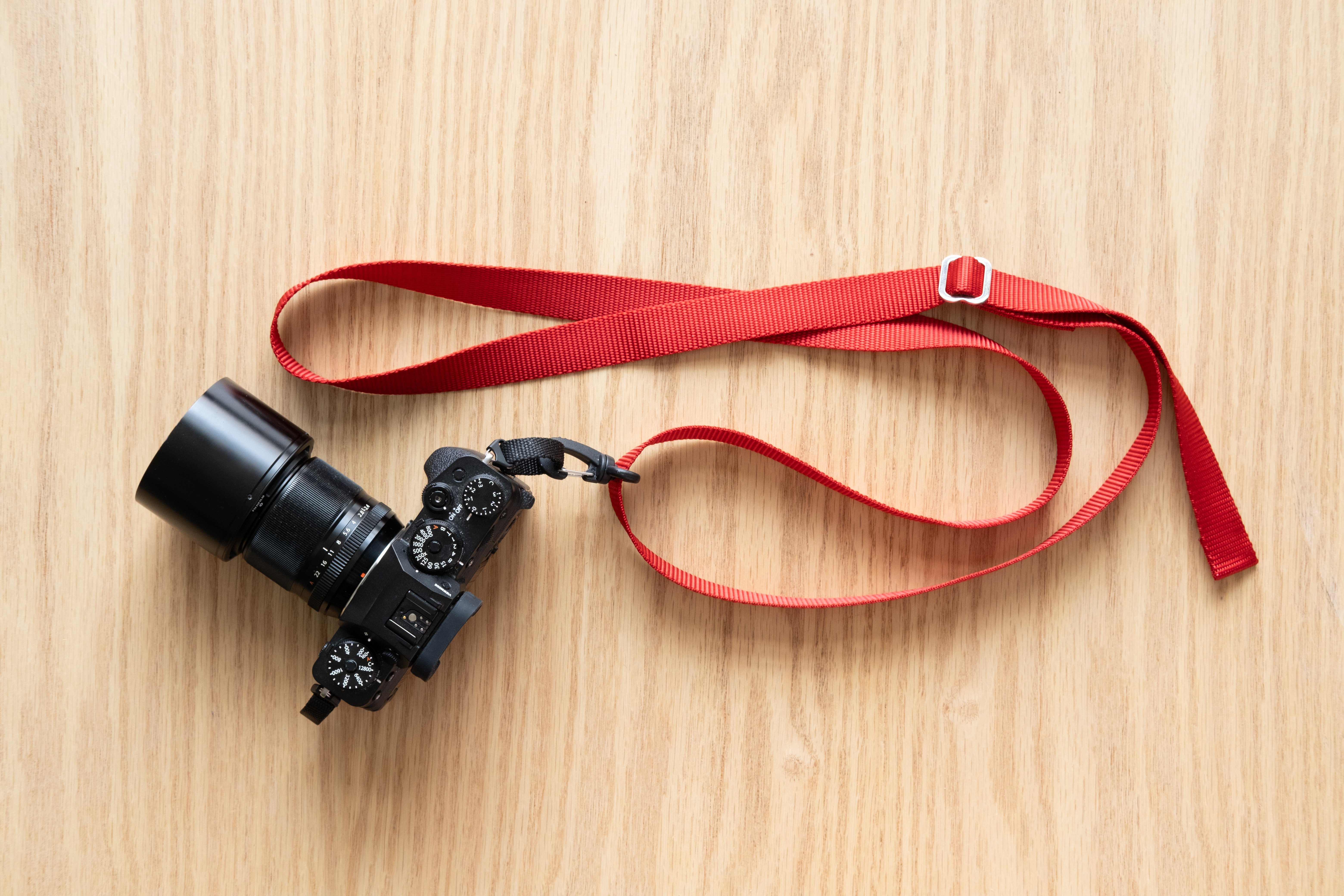
simply take the strap from your camera and shorten it up so that it's a little shorter and when it goes
around your neck, you can easily just press the strap against
the back of your neck and you can see the LCD on your camera and with it
pushed against your neck, it's relatively easy to
move nice and steady. Just rotate your whole
body and you can go up or down in
a steady motion, much more than trying to support the camera and move
it at the same time. So just pressing that
against the back of your neck really helps
make a smooth motion, and it's something you've
got on your camera anyway. So That really helps. The other thing that
I found I had to really think about is when
you're making a motion, say a pounding motion, you
really have to pre plan where you're going to start
and finish the motion. You need to be steady
at the beginning, and then you need to come
to the end and stop. And if you haven't
quite figured it out, it's really hard to know
where to stop, right? So you have to think
that through in advance and then execute it. But both the fluid head and the shortened up
camera strap are nice, easy ways to add some motion to your video
without breaking the bank.
13. Conclusion: Hi. Congratulations
on completing this class from Sills to motion and starting
your new adventure. I want to apologize
right now for all the technical
stuff and some of the jargon and acronyms that we've had to
cover in this class. It is a little bit
overwhelming at first, but stay with it and you
will get used to it. After all, I did. So what I would
suggest you do at this point is take
your camera and go back through the lessons on basic settings and find all
the settings in your camera. They may be under
different menus and they may be called
slightly different things. Now's the time to find
them all and set them up according to the basic
settings that I've given you, get the camera ready
to shoot video. Then think a little bit about how you're going
to capture audio, whether you use a
little microphone or whatever you're going to do, and then practice some
of the shooting tips. You're going to be
shooting on manual focus, use the strap or a
fluid head tripod, some of the tricks that we
discussed in that lesson, and then go out and start
capturing some video. Start seeing the world in
terms of its motion and how you can go about capturing it. This is going to be fun. Also, if you could post
some of those clips. You don't need to edit
them or do anything, just post the clips to the
projects tab for this class. That way, other students can be inspired by
what you've done. I can give you some feedback and you can start
this new adventure. Most of all, enjoy the process. This is a really fun
new exploration, and once you get going, you're going to end up
enjoying it as much as I have. So have some fun and enjoy your new adventure
in motion and video.
 Rob Davidson, Food Photographer and Videographer