Transcripts
1. Course Goals: Hello and welcome to this slag tutoria in which I'm going to
show you step by step, how you can use slag. Paired with some best practices
from my own experience. Also paired with some
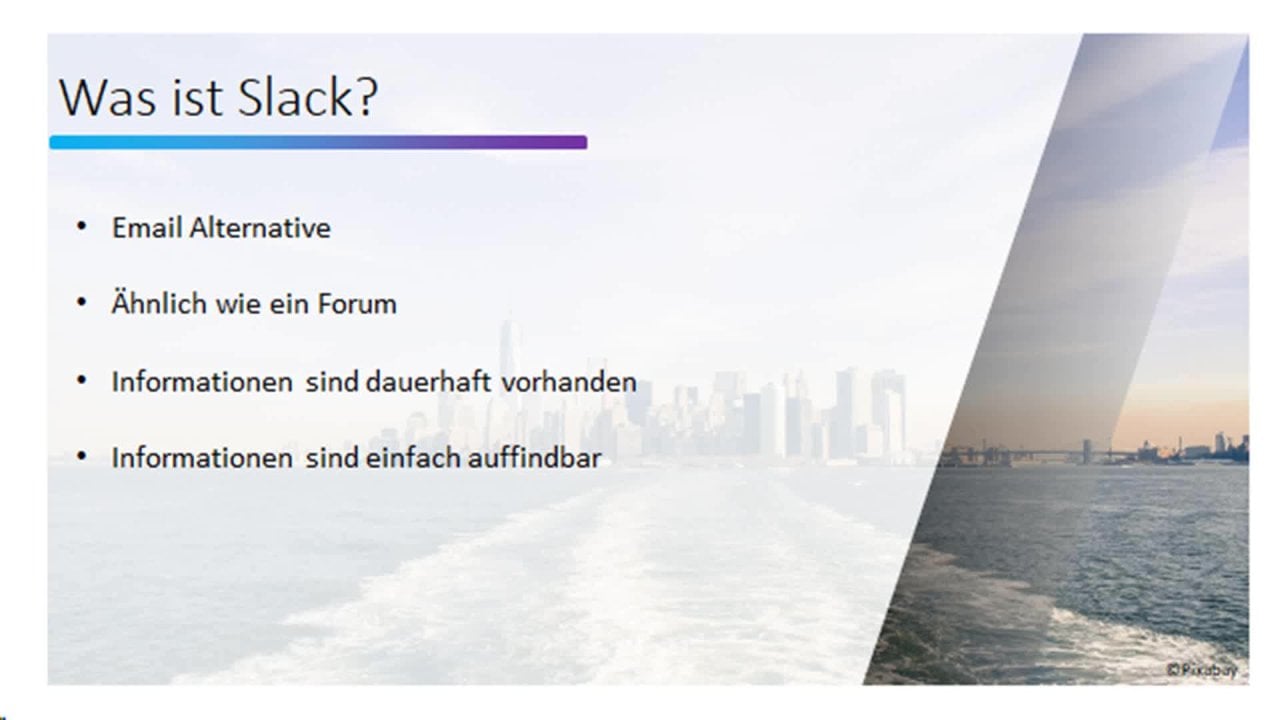
productivity hacks. First of all, what is slack? Slack is basically
a platform on which you can replace e mails. It's a collaborative tool where your entire company or
your team can communicate with in threads similar to a forum like Read
It, for example. Where there are
certain participants talking about a specific topic. In threads where the
information stays, just think of how you use,
for example, read it. Sometimes you are searching
for solution to problems. So you go to the Internet, you search it, and you find
the information you see. Also the evolving
discussion behind maybe then not the last post, but somewhere in between, You find a solution
from where you can derive your solution.
This is slack. Slack is basically
an enclosed space. Obviously not everyone on
planet Earth has access to it. But it's enclosed space
where only your team or your company has
access to and you can organize yourself in
different threads, which is beautiful in terms of you have the entire
discussion history, we have multiple search tools. Information stays there
can be edited later on. So if you see, for example, that a specific message
was super important, you refine it, you can pin
this into a specific channel. Potentially, you can use that information to onboard
others into the channel, into the topic, or
into your team. By that, it's just a successful and also efficient alternative. For example, to Outlook, or to mail to whatever E
mail client you're using. In order to make the
most out of this, out of these features, I want to show you basically
all the functions, all the features of slag
in detail in the course. In this lecture,
we're going to talk about basically
the entire system. We talk about workspace, we talk about channels, the threads in which you
organize information. I will show you how to create
and react to messages. I will show you all
the settings that you can do on your personal account, but also as an administrator of the entire slack count
in your company. I will show you how you can also replace tools like Zoom tool, Skype for example, to make voice calls or to
have group calls. Group chats. And
I'm also going to show you automations such as chat bots where you
can make slag work for you to reply to frequently
asked questions. For example, I will also show
you how I use workflows. I will show you also how you can integrate
your legacy application, for example, Outlook, Azara, many.com or Google Drive
into slag so that you can, for example, shift
information around. I mean, it's of course unrealistic that from
one moment to the other, from 1 second to the other, unless your corporation already uses slag to an
extensive amount, you're going to replace
e mails with slack. You're going to have two
sources of communication. You will have other
tools in which you specifically
manage information. I want to show you how you can transform the
information and synchronize the
information between those tools in app integrations. Of course, I'm giving you
tips and tricks along the way how you can best make use
of all the slack features. This course is built in a story line which means you
can learn at your own pace. We start from scratch and
add with every lecture more functionality towards your slack competency.
Add new features. By that you're entirely free
in how to use the course. You can either go
straight from zero to the end to 100% of this
course and then try out, you can just try out your
own skills with slack and then look certain
things up in, um, you have your lifetime
access to all the resources, which means basically
you are free to refer back to any of the resources
later on at your own pace. Without further,
let's just start and jump directly into
it. Have fun and enjoy.
2. What is slack?: I know you're now impatiently waiting to learn about slack. But first of all, let's
just stick a pole on the ground to see what slack can do for you when you
use it properly. I just want to give you a
quick high level update based on what I just told you and what
you're going to learn. How does it look actually
in the reality as I showed you explained you already is that
slack is organized. Read for example, an
enclosed space in which you can share topic
wise the information. The way you do that is
basically in channels. Channels are your threads where you have the information
organized around the topic. There are basically
like two channels. There are public channels, like public in terms of
your entire workspace, so everyone in your company
can access these channels. Or you have enclosed
ones, for example, for your team internal
communication or any communication that
is not suited for public. For example, if you have
any data privacy things, you need to discuss
any HR topics, then you can do that in
these enclosed topics. You, of course, have
also the option to do some direct messaging
with other team members. You can include
applications into your workflow where you can transform information or shift information between
different tools. You also have the
option to, for example, make a call with a
group like everyone who is subject to a channel can participate in a team call. But you can also
do direct calls in your direct messages
with your peers. This is what's
great about slack. Another great feature
is that whenever you join a new project
or a new channel, see the entire history
of the channel. So you can read
through it, you can search for certain information. In particular, if you're
the channel owner and think there's information that you are frequently asked about, you think this is worth
for everyone reading it, you can pin that into the
channel so that for example, then everyone who comes into the channel needs to go
through the pinned information first to understand how
the channel operates or where the most basic
information is, where it's located
and how to find it. This is just a snapshot, a glimpse of what
slack can do and what makes it for me is super
valuable tool where I save hours and hours every week using slack
instead of e mails. Because the
information is there. Because anyone can
go in here and search for the information
that they need. In this lecture, I
just want to give you this inspiration on
where we are heading, what you're going to learn, and what value this tool we're bringing to you once
you apply all of that. In the next lectures,
we're going to drill down onto the
individual functions, what we do here,
and how we do it.
3. Quick start Guide!: The most important feature of slack is obviously
the communication. I want to kick it off by helping you to set up
your first channel. And your first message that you know that right from the beginning
how to do that. In order to access slack, you need to go on
the slag website, which is Slag.com Then you need to sign
into your account, provided you have already one. If you don't have one yet, then you can sign up for one. And the top right, use your corporate account if your corporation
already uses it. So that Slack recognizes your corporate E
mail address and can assign you to the
right workspace. If not, if you just
want to test it out, feel free to use any of the private e mail addresses
that you might have. I personally always use Google because it's the most
convenient to sign in. So I'm going to sign in
right now as I have already an account and I also have
two workspaces already. If you have not yet a
workspace, just create one. I will tell you the details
of workspace later on. Just imagine you
have either created one or there is already one. What can you do inside Slack? It's launching and
you can of course, also open Slack in your
desktop app if you want to, if you prefer that instead of an online software
as a service tool, now we are in slack. I'm going to open up a new
thread, a new channel. I can either now browse a new channel or
create a new channel. But I want to create
a new channel. I will call this just
fun. It's a fun channel. Can do that. I will
give a description. Fun only, we can
describe it here. I don't want to make
it private for now. It's just a public
channels. Click on Create. I can invite people from
my workspace already, but I just want to
use it for my own. I skip it for now. This is
where I am in my new channel. In order to send a new message, I just click here, down
here in the message board. And I click or send
high, obviously. Now I'm the only person
in this channel. No one will respond to me, but anyone who's
joining after me will see the entire
history of what we wrote, of what information is in here. This is it for the
first lecture. I just wanted to show
you how to access slag, how to create your
first channel, and how to get your first
information out there.
4. Navigation and Overview: After having pressed fast
forward for a little bit, where we jump
directly into what is a channel and how you
create your first message. You might now wonder what all the terminology is about and how you actually use leg. This is what this lecture
will be about and also the consecutive lectures
later on will be about. There will be detailed
step by step, what the individual sections do. We will kick it off by
giving a little bit of overview on how you
use slag in slack. You have actually
two main areas. Main area number one is
where all reaction happens. Here is your messaging board
where you write messages, where you reply to messages
where you react to messages. On the left hand side, you have your navigation pane where you navigate through the
different areas. We take it off at the top left, where you see in which
workspace you're in. Workspace is the
work environment enclosed space in
which you work, where all your colleagues
are in the highest level of. Here we see our workspace domain under which you can
reach your workspace. You can invite people,
you can create a channel. Channel is like a
thread in which you organize your information on
a topic based on a topic. You can change your preferences. You have your settings. You can here, manage your
settings around the workspace. You can customize
your workspace. You can add your
workspace details. You have your tools in here. You can build, for
example, your workflow where Slack is doing
based on input perimeter, like it's an if then recipe. If you want to, based on an input parameter,
something should happen. This is what you can build here. You also have an analytics
page where you can optimize the way your
team is using slag. Just imagine you have
bought 100 seats, but there's actually
just 50 seats active. Then you can decide either
to reduce 50 seats, or you can think of how you can drive
engagement with slag. Might it be training or might it be another company policy? This is up to you,
but this is what you can use the analytics part for. You can of course, add workspaces
and switch work ******. We have the option
to open and download the desktop app and also
to get the mobile app. You can of course,
sign out from here. Below that you have different threats that
you might be part of. You can be part of
various channels, but under threats you will see those parts where you
are actively part of. Because you were asked for something or like we were
mentioned for example, you were tagged or because
you wrote a message. Here you can see literally all the different parts and slag that you were part
of, that you were part of. You can specifically check out your mentions and reactions. This is where you were mentioned or you wrote something
and you got a reaction. This is a bit more limited
to the specific messages. Whereas the thread really
builds or gives you the entire history of where
you were part of the. You also have your drafts, like whenever you start
writing a message, it's getting saved as a draft. You have saved items. You can also save, for example, messages to your account. For example, if you
want to read them later or if you want to be
reminded of them later, You have Connect options. Connect is basically when
you want to work with others outside of your company. Of course, you cannot demand
anyone who's working with the company to create a slag account and pay for
it if you're the only one. Working with Slag Connect
gives you the option to build a data channel through which an external party
may be a customer, a business partners, or can get access to specific
communication that you involve them into. It's like a partner's account
they don't have to pay for, and that you're not
getting charged extra for. It's a win win situation. You do not need to
change back to Outlook, for example, to communicate
with those business partners. Then of course, you
have your expanded menu where you can check out all the unread messages
or direct messages. You can check out the
channel browser where you go through all the channels
available to your space. You can see the file browser
where all the files are stored or where all the
files are sent visible. You also have the
people and user groups. Like user groups is
the team organization, whereas the workspace
might be, for example, the company or the organization. The user groups
are, for example, you smaller team or your wider
team, like, I don't know, 101520 people however, or
whatever your team is about. And you can easily add
these user groups to your channels instead of
writing or adding each, each and every individual. You can also integrate
apps to slack. You can transform information and communicate
between applications. For example, Asana, Outlook.com without
managing tasks twice, which is a great feature. Then obviously you
have your channels. You have public channels which is marked
with this hashtag. Or you have enclosed channels which are marked with this log. Just to show that this is
a locked enclosed area where only maybe 231015
people are into, for example, your team, whereas the public ones are free for everyone in
the workspace to join. Then you have your
direct messages. The slack bot might not
yet be visible to you, which is because
you've not used it, but we are talking
about this later. In the direct messages
you can do guess what? The direct messaging
between others or directly. As a first tip, I recommend
to use direct messages really just very limited for unrelated work stuff
like maybe not projects. Because the actual idea of
slack is of course to push as much information
into channels as possible so that
anyone can search on it. Whenever there is something you communicate in a direct message that is relevant for all I recommend to
answer in a channel. Then you can see
also here the apps, where you can basically interact with other
external applications. On the top, you have
the search bar, which is super important
because slack can help you to find stuff if you lost it or if you're
searching for stuff. See your history, where you see all the areas that
you have accessed in the past and
what you've done. On the right hand side, in turn, you have your personal account or your profile
with your status. You can set a specific status, you can pause notifications, you can go into your
profile settings, you can check out your
preferences and you can sign out of your workspace. This is a quick and
dry overview run. In this lecture, you
have learned where you can find what on
a high level in slag, and we are now going to
discuss the areas in detail.
5. All you need to know about Workspaces: We kick it off by detailing
what a workspace is about. When you registered
yourself for slack. You might wonder why you've
seen this screen where it may recognizes workspace for you or it does not give
you any work space. And you might ask yourself,
what is even a workspace? Workspace is the
work environment in which you will use Slack. Workspace can be as large or small as you
would want it to be. It can be equal to the
size of your company. It can be equal to the
size of a sub team, a sub organization, or
it can be just one team. It really depends on how large the team or the company is that you would want
to display in slack. If you have, for
example, a company or work in a company
with 30, 40 people, you need to ask yourself,
will the information that we share at scale be relevant
for everyone in my workspace? Everyone in my company. The answer for 30, 40, 50 people might be yes. The company is small enough so that everyone wants to know what's going on in the company. But if the company is
5610000 people of a size, then you might want to use workspaces, multiple
workspace instead, where you slice down the overall size of your
company into smaller areas. Why that? Because whenever
you create a new channel, new thread, you want to
start a new communication. Slack will ask you whether
Slack should invite, by default, all people
in your workspace. Just imagine from 2000
people in your workspace, the information will only be
relevant for 1,000 people. Then it might be a
bit of a burden. Labor intends to
manually select the 1,000 people this
is relevant for. This is why it's so important to select the right size
of your workspace. You can also organize your team in sub teams and user groups. We're going to go into detail
more about this later on. But as far as it comes
to the workspace, you really should think of how you want to work
with information and what reach this information should have in
your organization. How do we create
a new workspace? As I mentioned, when you
start off using slag, you are greeted with
one of two options. Like either what you see
right now where you have a work ****** and can
create a new workspace. Or where there is no
workspace at all at the moment and you have to
create a new workspace. Let's create a new
workspace together. Click Create another workspace. We need to confirm which e mail address we're going to
use for that workspace. We might want to use
a different one. We need to give
again our approvals for Google to use all of that. Then we can create
a new workspace. When clicking on Create
a New workspace, I have now to inform about
or name the work space. It can be either the
company or the team. Really depends,
but I just call it now Fun. Click on Next. Now the question
is what the team, what the workspaces
predominantly working for. You can define, You
can give a bit of information and give
again, just fun. Now I can invite
other team members, but I can also skip this step. I will skip this
step. There we go. We have our new workspace. What you might notice is we
have here the fun workspace. Fun workspace is
in enclosed area. It's not mixing up with
any of the data from other workspaces I'm
actually part of. It's like really an
own environment. If I would want to
change my workspace, then I would have to really
log into my other workspace. It's not really like
a different account, but it's different environment. What can I do with
this workspace? Now I can click on the workspace
name and the top left. And then I can go
to at Work space, I can sign into
another workspace. I can again create
a new workspace. This is how you
create a workspace from within a workspace. I can also find workspaces. If I click Find Workspace again, I should log in. Then I see what other
workspaces are available to me. Hence, I could look
into these workspaces as well in a separate window because it's a
separate environment. But I could also switch to other workspaces by clicking
on Switch workspaces, click on Switch
workspaces Therewith, I change the environment
to my other workspace. In this lecture, you now
learned how to use workspaces, How to create a new one. You learned about
what's important in determining the
size of the workspace. And why it is relevant to adjust the size of
your workspace.
6. What is a Channel?: In this lecture, I want to
spend a little bit of time to expand on the channels which
we talked about before. Channels you will find
on the left hand side, channels are basically
comparable to threads in. For example, read it. Whenever you have
a topic you want to inform about because
you're working on it, you need to give updates. Because you want to
discuss something, you need feedback or whatever. You can create a channel. Channels really replace the
legacy e mail functionality, like you want to reach
out to bigger audience. Do not use e mails,
use channels. Why? Because to channels you
can invite people actively. And those who are invited can then actively
search for information, which is rarely
possible with e mails. Because with e mails, the
information is only with those persons who have been involved in this e mail threat. And potentially you
have forwarded, you have deleted stuff, no one has really
the full picture. Aside from those people
who were involved in the email threat
the entire time, which is the biggest
advantage of channels, you have basically two
different types of channels. One public ones, those
marked with a hash tag, and you have the locked
ones, the private ones. Whereas you can always move from a public channel to
private channel, you need to make
sure that when you select a private
channel upfront, so you create a new
channel that is private, that you will be never, ever able to put that
into public one. Why? Because Slack
wants to guarantee a certain privacy whenever you're invited into
an enclosed space, an enclosed communication,
like a private channel, you need to rest assured that this information stays private. That's not out of the
sudden publicly available. Just imagine you
have a channel where you discuss H R stuff with, for example, your HR
business partner. This information
should of course, stay within the limits
of this channel and should not be
published anytime soon because someone comes
across the idea that it might be great if everyone has access
to the information. That is the warning from my end that whenever
you create a new channel, just be aware of how you
would want to use it. Let's now do that. Let's create a new channel. We click on the Plus next to the channels and
create one here. We now have the option to
either browse channels. There, we can see all
the available channels. For example, if there's
already a channel that we would want
to join into here, you can see what
channels are there, especially for the locked ones. You could just ask for
permission to join, but for the public ones,
you can just join. In this case, we want to
create a new channel. We don't need to browse
the existing ones. And we click again on the Plus, then click on Created Channel. Now we need to give
it a good name, a catching name that
identifies the channel. If you wonder, yes, you can only write
without capital letters. All the channels are
written in small letters. Let's just name it, for example, We want to call it
sales, but jet. And whenever you press space, there will be a
connector in the middle. Then you have the option,
you don't need to. It's not mandatory to give it a fancy catchy
description so that others browsing
through the channels know what this channel is about. And I would highly
recommend to give it a little handy description
what it is about. In this case, I
would say it's about the sales annual planning. This is the option then
to market as private. When we market as private,
as I just mentioned, just be sure that it should
stay forever as private. We have no option to make it out of the sudden a public channel, but you can make a public
channel at any time, a private channel
that is possible. Then you might wonder what
share outside test means. What this little
checkbox here means. Share outside test in this
case is my workspace. The way I name my
workspace means basically you're
making use of connect. You invite or you give the
option to invite people outside of your workspace
into this channel. Which does not mean that anyone has access the moment
you take this. But it means any part of the channel is able to share
the channel with outsiders, with people outside
of your channel. And I'm just going to show
you how that looks like. We click on Share Outside
Test, click on Next. Now it asked me whether
I would want to add all the three members of my
workspace to this channel. I don't want to. But this is
why I put so much emphasis on select the right
size of your workspace because if your workspace
has 2000 people. It really relevant
for 2000 people so that you would want them
to go into this channel. Or is it like this information is just for 1020
people, whatever? In this case, I want to
add specific person. This specific person is outside of my company. I click Add. Now Slag recognizes that this is a different email domain
than the one I was using. Slag is asking me is the person from another company
or a colleague of mine? If I now click from another
company and would have not selected that I want to invite others outside
my workspace, then I would get
an error message. So slag is protecting me from sharing this
information accidentally. I click now on Next,
I invite them. I'm just saying it's
part of my team. I click on Finished. Now I have my new channel. What can I do in my channel? In my channel, I can
click on my channel. I can rename it. I can select a
topic if I want to. I can give it
another description, and I see who and when was
creating this channel. I could leave the
channel if I want to, but then the channel
is of course not closed, it's still there. I can add files, or I could see files that
are in here on members. I see the amount of members
that are clearly in here. I could also check out the
integrations they work in. Like for example, any workflows or any applications
that I'm using here. I can also, for example, send e mails to this channel. I could also send e mails to this channel that are
generated as a post. We will talk about
this later on. I also have the channel
settings in here. I could check out the
connect settings. I can check out huddle. Huddle is a form
of communication. We're going to talk
about this later on. We can change to
private channel, we can archive the
channel for everyone. That means it's
becoming inactive, but it's still there.
Can delete it. Deleting needs, literally
it's going away. Then we can market
as a favorite, if it's a channel that
we are frequently using, we can market, we can
enable notification. Whenever there's an update
inside the channel, we get a notification
or can start a call inside the channel. Going to talk about
this later on as well. Then on the right hand side, of course I also see my
members of this channel then, which is a very
great function is you can add bookmarks
to your channel. You can add, for example,
very important links that are part of your team
project towards. I'm just going to add Google, in this case Google.com
Press Enter. You can add. There you go. You have a link inside your channel that opens
up if I click on it. But I can also of course, organize by bookmarks in folders so I can make
a folder structure. In this lecture, you learned about how to create a channel. What different channel
types there are, what you need to watch out
for if you create a channel, and how you change
the channel settings and create bookmarks
inside your channels.
7. How to write a Message?: In this lecture, I want
to talk about how to write a message and how you
can format your message. Or specifically in
which different ways you can send a message
inside your channel. You have the message box down here where you can
write something, unlike an e mail slack
is a bit more informal. You don't need to write a very, very formal address, you just
get quicker to the point. And you write your
stuff as usual. You write in here. And then you have tools
to format your message. For example, you can
write stuff Bolt, You can use italic. You can use strike through. You want to show, for example, that something was already
done or is complete. You can use links. You can embed links in
your message that you just tag the part of the message that you want
to make a link out of it. Click on this link button, and there you post your
link, for example, Google.com Save it, and
there you make it a link, and you get also
a little preview of what your link will show. Pressing Enter will send
your message automatically. You can also switch
the lines by pressing out and Enter on your keyboard. By that you just
getting one line down. You also can use, for example, the order list to create items. For example, if you want to showcase what needs to be done, then you can say, for example, one, we need to
create a project. Second, we need a
document and whatnot. By pressing Old and Enter, you're getting into
a new line and thereby a new number
format starts. You can also choose
to make it a bullet point list instead of
numbered order list. You can also use, for
example, block quotes. If you say this is a block
that you're referring to, then you can use
the block quotes. You also have the option
to use or to embed code. If you want to showcase
that specific code is defective or
you're suggesting something like this,
you can use it. You can also write a code block. What else can you do here? You can of course,
update or upload files. You can attach files
to your message. For example, if
you want to send, instead of sending an e mail with the file attached to it, you can attach it from
your computer or from the recent files that are
already on slack with apps, you can also pull information
or data from apps directly, for example, Google Drive, but we are talking about
this in a separate lecture. We also have the option
to record a video clip, which might be super helpful if, for example, you want to show a glitch in a user interface. Or you want to show
a process that, for example, is not working, that you run into an error. In such cases, it might be
an advantage to just record a clip detailing
what the problem is about rather than
writing out the problem. You could also record
in all your clips. Just as like for example, when you communicate
in what's app, you could simply
make an audio clip. For example, if
you're on the go, if you have your
smartphone with you, you could record what
needs to be done or you can share your
thought process. You also have your
emerges in here, which is a gimmick. However, it's a big part
of slag because you can communicate with emojis
in a very efficient way. For example, if you accept something or just want to share that you find
something good, then you make your thumbs up. Or if you want to share,
do not agree to something, you can do your thumbs down. As I said, this is a big
part integral part of slag to use emojis everywhere. I'm going to talk
more about this when we talk about
the reactions, the region on a message. Else you can also
mention someone. You can mention
either a channel, you can mention a user group, or you can also mention
individuals if you want, for example, an
update by someone. Then you can, for example, in this case, tag a
person with an ad. By doing that, the
person who you will get notification that
there's something to do, that there's something
to react on. In this case, the select says, I mentioned a person
who is not yet part of the channel and is asking me whether I want to invite
them now or whether I want to do that later or
whether I want to do nothing. I want to invite her just to
make sure that she's part of the channel now Slack has
editor to the channel, which is a great tool. Then you can also of course, your height, your formatting. If you want to have
more space for writing the message,
you write a message. You can either send it right
away by pressing Enter, or you can click, of course, on the Send button at
another option. You can also choose
to send it later. For example, maybe you want to prepare something
at the evening, but you don't want to push the
information right now into the channel because
you don't want your team to be
online after hours. Then you can schedule it
for tomorrow morning so that your team sees it
upon start to work. This is a great function
if you want to make use of it to send it to
publish information later on. What else can you do
with your messages? You can also add your message. If you say you have
done a mistake, you can go into it,
change your message, click on Safe, and
thereby, for example, if you forgot something
or if you made an error, you can just correct it. You see it down here with the edited symbol that this message has been
modified accordingly. Apart from editing previous
messages that I've sent, I can also delete my
own messages if I, for example, say, okay, I sent this message by
mistake to the wrong group, or the message is not
relevant anymore. Instead of using email
and for example, Outlook to recall
a message where I, then I have to wait
until I see whether my recall was successful
or not successful. Creating churn with others, I can slack directly, delete my message,
which is again a difference to e mails.
How do I do that? I click on the three buttons and then I click
on Delete Message. Need to confirm that I want
to delete it and then it's gone simple and full
control at your fingertips. In this lecture, you learned
now how to write message, how to format messages, what features come along with
the sending of messages, and how you also can edit
your message later on.
8. Communicate effectively with Reactions: In this lecture, I want
to show you the beauty of reacting to messages in slag. Just imagine were on vacation. You see tons of communication
in your e mail box, In your legacy email inbox. You want to reply back
to an e mail that was written like four
or five days ago. In the meantime, the
communication has evolved though, and others have answered. The topic is far more developed than what you've
read four days ago. But you still want to
clarify that one point. What can you do? You
can reply on that. Then you're confusing
everyone because you're replying to a specific
point in time, whereas the communication
has evolved. In the meantime,
everyone is confused. What are you referring to? Have you read the other things before which just creates
confusion and churn. The beauty here is in slack. Of course can always agree, disagree or you can write a
reply whenever you want to. You can write a reply
and press Enter. But you can also scroll
back or scroll up, basically reply to
specific message. And you can do that by saying, I want to reply to this thread. What Slack is then doing is Slack is creating
a sub thread in this specific message
without interfering with the entire message
flow I can now. And you see on the
right hand side, the thread is opening up. I can reply here and
write something. Then you see if you
scroll back up, that the message
has two replies. You click on those two replies
and you see them here, rather than there is a new
communication going on down here where you refer back to something that has happened
like four days ago, which is a great feature indeed. And also the person who
wrote it then says, okay, there's a question,
I can just reply to it. And if the person sees
it's super important, the person can pin it basically to the
thread, to the channel. Imagine this communication
is now a year old and you're searching
through it because it contains the information, the answer that you need. Or you have a
question, you just go into here and reply to it. What else can you do
if you see a message? You can reply with
your quick emerges. And I just told you
that emojis play a big integral part in slack because it's part of
efficient communication. Just imagine you're
texting back and forth in whatsapp telegram
or wherever. You don't want to write that,
you agree to something, you just write a thumbs up or you just write the checkmark, the complete mark. Same
way you can do it here. You can, for example, write your colleague and say, is that complete the task? Instead of her
answering yes complete, she could simply say it's complete by pushing
the check mark. Or you can say, if
you get a question, if no one wants to reply, instead of saying yes complete, you can just say
looking into it. Or she can celebrate
a success by saying, nicely done by these
short answers. In terms of emojis, you can really upload something. You can react on this
super efficiently. You can, of course, use any other reaction
that you want to. Those three predefined emojis are defined by the
workspace administrators. If you want to see
other images here, then just reach out to your
workspace administrator. But I will show you how
this works also later on. What else can you do
with the message? You can also share the
message with others. You can, for example, give here a little intro why this
message matters to others. You can then either copy
link to the message. Anyone who has access to
the workspace is then able to access
also this message. Or you can share this message
by clicking on Share. Then you pull the information or the message
from, I don't know, 234 weeks back to the bottom to the current state
of the conversation. You can also save a message, if that is relevant to you, you can click on Safe. By clicking on Safe,
it just ends up in your saved items where
you then can refer back. It's like your own curated posts that you find
relevant, for example, text solution or a
shortcut or whatever, or an explanation that you
want to save for later. Else you can also
use more actions. You can turn off
notifications for reply, so then you're not disturbed by any notifications from
a specific thread. You can mark something unread, which is also great, right? If you want to read it later,
you just mark it read. Or you can also remind yourself on a specific topic to reply, which is also great
functionality. Because how often do
you, for example, mark yourself an e mail
unread to work later on it? And here you can just
remind yourself on this, but you can also, for example, pin a message to the channel, and by that it's getting
pinned on the top here. For example, answers
that helped, information that helped a lot, you get the most frequently
asked questions. You can just pin
them to the channel. And then persons can refer
to it, they can click on it. And then they are guided through the right message down here. And they could even open up the thread if that is
important to them. In the same way, you can also unpin the message from channels. By that, I showed you how you can properly
react to messages, why emojis are important, how you can bookmark
yourself messages, how you can create a sub thread, and how all of this
saves yourself time.
9. Who needs Zoom, if you can make Calls in Slack?: In this lecture,
you will learn how you can replace
additional tools, for example, like Skype, Microsoft Teams, or Zoom. With Slack, you have built in team communication
platform in Slack. You can take calls, you
can make direct calls, you can make group calls, it can even make informal calls. This is what I want to
show you in this lecture. Basically, you have
two different ways to communicate with your
peers in a call format. Number one is you can go to, for example, your
direct messages. Or you can add a team member to, for example, start the call. Inside your direct messaging, you see in the top right, this little call icon there, you can literally
call your peer. If I click on call, it opens up a new window. What you see now is
that we call Max. And inside this interface, we have here the option to, for example, mute
ourselves to put on video, to share our screen, to
share reaction for example. We can also interact
here with our Emo. We can say that we
like what was said. Or we can also use the
keyboard to type a message. Just type cool. You see on the right hand side, there was a chat bubble. We can either call
directly, but as I said, we can also informally in form of a so called
huddle. What is the huddle? Huddle in slack should replace informal
conversations that you would have otherwise in the office, in the
coffee kitchen. A huddle basically is a platform
that you can join into. I just switch to on,
I'm now in the huddle. Within the huddle,
Max can join at any time without
directly calling. It's not ringing. On the other hand side, seeing that there's a
huddle, can just join. And we can also share
our screen here. We can invite others here. We can also mute
ourselves and we can leave the huddle or by shifting this to the left
whenever you're on a call. Do you see that?
There's like a symbol appearing right to your name. It shows you as a status that you're occupied
at the moment. How can you do the
same in your channels? And by that it doesn't
matter whether it's a public channel
or private channel. You click on the channel that
you want to go into here. You also have the
option to do a huddle. As a huddle, for
example, if you have office hours or so for your
project in particular, you have a public channel. You can offer office hours. And then you just
join the huddle and you see if someone
else is joining. You can ask questions super
informal way to communicate. But if you want to directly call the entire project
team, for example, you leave the huddle, Click on your project name and then you say you want
to start a call. It's asking you whether
it should start the call with all
the project members. You say yes, then
you join a call, just as it looks like
in a direct call. But here you're just
waiting for other, you're now waiting in the lobby until someone else
is joining here. Obviously you have
a dedicated window where you're talking into
where you arrange a call in, rather than a huddle where
you simply just press the availability button and
then anyone can join here, it will ring for all the
project participants. That's the main difference. As you can see, you basically have all the functionalities of, or your dedicated
communication tools that are already
built into slack. There's no need to
have additional tools because you have it
already in slack. In this lecture, you learn about the different call tiles you
have available in slack. How you can take them, how
it's going to be protocol, how you can join a huddle, and also how you can make
direct calls and team calls.
10. Manage Usergroups: Within the workspace discussion, I explained or teaser that there is a way to
manage your sub team. Imagine you have
a workspace that is about 100, 200 members large. And you want to
manage your own team, like your own department team in a sub organization
below that work space. Then you can do that.
How you do that, you click on More
under your workspace. There you have the option
of people and user groups. Then people and user groups. You see, obviously all
the people that are assigned to the workspace, but you can also
manage user groups. User group can be as large
as you want it to be. Same as the workspace. I personally recommend
you to have a user group that mix the size
of your department, that you really can
quickly manage your teams. And the beauty of user
groups basically, is that you don't have to add every user individually
to, for example, a channel that might be of interest to your
entire department, But you can manage your
users in the user group, and then you just need to add the user group to a channel. This has the obvious
advantage of just adding one user group to a channel instead of 1020 different users. But it also has the
beauty that if there is an internal change and one person is switching
teams, for example, you don't need to
kick this one person off all the channels that
this person is part of, but you just switch
the user groups switching from one department team to another department team, which is of course,
less manual work. How do we create
a new user group? We created a new user group
at the right, in the top. And there we can give it a name. For example, I can say
this is sales department. We can give it a fancy name so that anyone can
potentially take us. We take ourselves,
sales should be all lower case without any space, we can
give it a purpose. We can say, for example, we handle all sales matters. And by that it's simply a
distinction functionality. Whenever someone is
browsing user groups and checking which user
group might be of interest, then this purpose
helps to determine, especially if you
have subgroups, a person can of course be
part of multiple user groups. You might also want to create
project driven user groups. Then it might help
to just detail in the purpose what this user
group is specifically for. Then you can also
determine if, for example, a specific user group should by default go into
specific channels, which is also great tool. For example, if you onboard someone into the
sales department, if there's a new team member, then you just add them into the user group and the person is then assigned to all
the different channels that you defined here as
default user channel. As a next step, I need to add team members
that I want to. I want obviously myself
to be part of it, but I also want to be
to have Max in my team. Now I create the user group. What you can see now is
on the right hand side, you see the sales
department user group, where you can edit the members. You can kick them out by
simply clicking on the X, or you can add new users
by writing their name. You can also see what channels the user group is assigned to. You can edit the
user group details if you want to change them, or you can also delete
and deactivate the group in this lecture now you learned about the advantage
of user groups. You learned about how to
create one, how to manage, how to add user groups, and how to deactivate them.
11. Slack Connect: In this lecture,
we're going to talk about connect. What is connect? Connect is the option to involve other persons
outside of your workspace, outside of your company,
even into slack. Just imagine you have
a running business. You are dependent
on your customers, you are dependent on your business partners and suppliers. You have chosen slag
to be the one and the only tool to
replace 99% of emails. Of course, you need
some emails to just communicate with others, but how do you get the
last 1% onboarded to slag? Because it's still inefficient
to manage two tools. Obviously, you cannot of course, demand that your customers or your suppliers are buying themselves a license
also to go on slag. Maybe they live in an entire
other world environment in which they use legacy e
mail or prefer legacy email. How can you bring
them on board or slag without the need to use
two different systems? This is where Slant
comes into the game. Slant gives a channel that
can be used by outsiders, as I call suppliers and customers without them needing to pay for a known license, without you need to pay
for another license. It's already an included
onboard feature in which you select who should
have access to what. Obviously, if you onboard
someone or connect, you want to avoid that they have the access to all the
different channels. You don't want them
to see what's going on in your channels
or in your workspace. You want to make
dedicated ****** available to those people. Let's explore how you do that. You click on Connect
and then you're guided to either
start a new channel, create a new channel, or to start a DM. This is
also what you can do. You can also send direct
messages to s, connect accounts. But we want to first,
the channel basically is the same interface as we used to have when we
created a default channel. It's everything the same like I will just type
something in here. The only difference
here is that I take the box of sharing outside test, and test is my workspace. In order to do that
I click on Next. Then I'm asked
whether I want to add all the team members
of my workspace or just specific persons. Now I'm going to onboard someone outside my
work environment. This E mail address,
it's obviously outside of my reach
of my workspace. And now I click on a here
Slack already recognizes that this E mail address
leaves the pattern of my E mail address
domain of my company. Now I have to decide whether
or not this person is from another company or one of my colleagues inside my company. In this case, I click
from another company. Now it's super important
that we have ticked the box or saying
share outside company. Why? Because if we're
not ticking that box, slack will not allow to on board someone from external parties. Just imagine a legacy
channel that you want to protect from being accessed
from outside there. You need to make sure
whenever you create a channel that you
unmark the box of sharing outside because
then no one is able to on board that person from
outside to your channel. That is super important
that you take the box, then click on next. Now slag recognizes, okay, we need to slack
connect for that. We say got it. Now we need to say what this person
should be able to do. Should they only be able to
post something or should they also be able to
involve other persons, other people from
their organization? In this case, I just want
them to post something. Click on next. Now I can
write an invite message. Hey, please join our message board our select
channel in order to work on project ABC or to receive your customer
orders or whatever. But I can also of
course skip that. Now I can send the message when I want to see the
status of my invite. Now an invite has gone out which the recipient needs
to accept, obviously. Now I can click on
Connect and check on the sent tab I send
when an invite here. I can also revoke
that if I just come across that I don't want them to have to be part of
my select channel. Just click on Revoke and there with the
invitation is expired. I can also start to
direct message with someone from external,
send an invite. Then again, the person
needs to accept this invite for a direct
message in this case. And by that, the person can
communicate directly with you if you have a legacy
channel and you want to add someone from your company, and the channel is
already public, so that you can share the channel
outside of your company. Then you click on
the channel name. Click on Settings under Connect. You can then add People
or share the link. The ad people is
the same way as you just invite someone
to a new channel. You click on Settings,
and there you can add another person via a people. Or you can share the link if
you want to, for example, involve someone who you
send already an invite to. In this lecture, you
learned about how to involve people from
outside of your company, for example customers
or business partners. And how to create dedicated
select channels for them. How to invite them to
legacy select channels. But also how to start a direct message or
to revoke an invite.
12. Most effective search strategy: In this lecture, I
want to talk with you about the search
functionality in slack because this is one of
the greatest distinctions to legacy E mail lines. Because from my experience, when I was searching for
something in my email line, I was happy if the
email line returned somehow related finding that had in the subject line
what I was searching for. But beyond that, difficult, and this is the
greatest difference, to slack slack,
searching everything, searching for channel
for messages, for people, for fires,
for emojis even. And by that let's
just try it out. And click on the search bar, which is prominently located in the top middle of our interface. If I just open it, you see already what
you can look for. So as I said, you can look for the different attributes or
the different categories. You can also search
for recent surges. You see all the recent surges. Let's just search for something. Let's search fun. When I search fun,
you see previews. You see that it can search for simply the
word fun everywhere. It can search in the
specific channel where there's already fun. Or it can search in
the fun channel. There you see also the
preview of that they found a channel court
fun and also supporting material like resources as well as a fire that might
contain also fun. What happens if I just
press Fun and click Search? Everything? It will search
literally everything. And what we can do now is we can see here the messages
where fun is included. We can also see the
related channel. We can slice down, we can say, okay, we want to just see results from a specific person or
in a specific channel, or with a specific person, like a person was named in
it or at a specific date, or we want to see anything
with a specific reaction. We really have here the option to take all the filters
that we need to. We can also say the
message fire has a link, has an action, or
the message is a D, M was safe, was pin
is in a thread. By that you have really tons of possibilities to filter down. If you may not remember
the exact message, but you remember some
properties of the message, then you can filter down here. You can also, if you want
to search for messages, for channels, for files, or for people, the same you
can do with the result. You can also do it right
away in the search. You can click on the
filter bar there. You can also apply the exact same filters as we just showed, just one side node. Sometimes, especially if you sit in the office and
you communicate with your colleagues and
you want to help someone to search
and find something, then you type in the same thing as your
colleague might search for, but you don't see
the same result. And the reason for
that is because every one of you is part
of different channels, is part of different
direct messages, is part of different
conversations because of that result. When you type in the search, even if it's the name or the very same term that
you're searching for, generate individual
results that you cannot compare to
someone else's result. This is just important
to know that, yeah, you really cannot compare that and can forward then a link
to that specific message. But the result
list, for example, you cannot say like for me
it's the second from the top, because it will just look
differently across the board. In this lecture, you
now learned about the powerful function
of search engine. How to filter your results, to filter your search. And how to find the right
thing that you're looking for.
13. Manage Files: In this lecture, we want to talk about how you deal
with attachments with files across the
board in slag with a file, you can, for example,
attach it to a message. How you do that? You
click on the plus button. There you have the
option to either upload from your computer, you can also search recent files that are already in slag, or you can attach something, for example, from a cloud. But for that, we need to add
the application to slag. We will talk about
that later on. Let's focus on uploading
from a computer. If you click on that,
the file explorer will open up and you need to
select the rightful file. But you can also drag and drop your file directly
into the message. As soon as you
selected your file, you see that there
is like a preview. It's just displayed as a file. Now I can just write down, have a look into the file, press Enter, send it. And there you see it already, giving you a preview
of the file. What can you do with that?
You can either download it, you can share it with others. You can also expand
and open the file. In a new tab, you can
see the file details. For example, if you want to, you see who added it when it was added to which
thread it was added. You can save it for yourself. You can create an external
link with the link. You can then forward to
others who are part of this. Select. If they have no
access to the channel, then they will also not have
access to the document. You as a creator can also delete the file if you
don't need it anymore. Over the course of time, you're getting involved
into multiple channels, into thousands of messages. How do you maintain
the overview of your important documents that
you want to save for you? On the one hand, if
there's important thread, you can of course pin it. Or you can save it for yourself. You can pin it to the channel
clicking on more actions, And pin it to the channel if
it's relevant for everyone. If it's just important to
you, you can just save it. You can do the same
just with the file. If you don't need the thread
or the answer itself, then you can click
on to saved items. By that you click on saved
items and there you see that you saved this file to
your personal items. But there's also another
way to check out all the different files
that you were involved in by clicking on more
on the left hand side. And there you see
the file browser. On the file browser, you
see all the different files that you had access to in the past and you can of
course, search for it. You can use slack
search engine search it so that you maintain
the overview on your files the same way
you can also interact, for example, in direct messages, it's the same methodology. Basically, you add your file, upload it from a computer, and you can also interact
with it in the same way. It's also stored then
in your file browser. In this lecture, you
learned about how to manage files in your overview
in your file browser. You also learned
about how to add files to your message,
how to retrieve them, how to react on them,
and also how to save them for later if you want to give it a read later on.
14. Get your personal settings right: In this lecture, we're going to talk about how to personalize the experience of slack because everyone has
different preferences. Hence we need to
individualize our settings. How do we do that? We click on our avatar on the top right. If we open up this, we
see that I'm currently active and I can
update my status. I can, for example, give an information on
what I do right now. For example, say
right now a meeting, it takes 1 hour or I'm
working remotely or whatever these statuses are set from the administrator
of the workspace. And we're going to
talk about this later on when we talk about
the workspace settings. Yeah, you can either
choose one of these, but you can of course,
also set your own status. If you select one of these, for example, in a
meeting for 1 hour, it will already give you
the clear after 1 hour. But you can also change that. You can say don't clear clear
today or clear this week. Or select individual date in time when you should clear that or when
this should be clear. You can also change
the text in here. But of course, if there's
a workspace setting where everyone is expected to use this setting just
for consistency reasons, it makes sense to stick to that. You can also check the
Pause Notifications button. If you, for example,
don't want to be notified about anything during
that time, select this. Otherwise, just click on Safe. What you then see is that
there is an icon next to your name that says
that you're currently in a meeting until
a specific time. The same you see on top here. In addition to
that, you can also say you're just at the moment away by that this green circle
is clearing out to gray, visualizing for everyone that you're at the moment not active. Apart from that, we also have
here our profile settings. In our profile settings, we can then see, for example, our name. We can also select the title. We can add our status, but we also can add our profile. Let's click on
that. Here we have the option to change our name. We can also change
our display name. For example, here it
could be our full name. For example, Meyer called Max. Max, which is the
nickname or whatever, how you want to display
your name inside of slack. Then you can define what you do, like what is your
job description. Maybe you can add
your phone number. You can add your time zone
or add your time zone. You can remove your photo and
you can upload your photo. Once done, you can
click on Safe, and then your profile
is up to date. In addition to this, you
can also click on again, your avatar and then
select Preferences. In the preferences, you change all the settings surrounding
just your account. So there's no impact on
the workspace itself, it's just your account here. You can say, for example, whether or not you want
to enable notifications. So you want to get
notifications, what kind of notification, specific keywords you
want to be notified. You want to set up
a specific schedule when you want to
receive notification is particularly
important when you, for example, have an
international team that works across
different time zones. You, of course, don't want to get notifications
during night time. If, for example,
you have slack on your work phone or
your private phone, then you want to turn that off. You can also change the
sound and appearance. You can also select,
for example, when you want to be not active, then you can also
customize the sidebar. Basically, this here
you can say what kind of different things you want to have shown in your side bar. Maybe the saved items are
more relevant to you, then for example, the fibers. Then you can select
or deselect this. You can also see or check out what conversations
you want to see. Do you want to only see unread communications?
All communications. You can also select how
you want to, by default, get your sortation by
alphabet or by priority. You can select different themes. You can select whether you
want to have the dark theme, the light theme, the color
theme that you want to have. In here, you can have p***ty
of selection options. You can check out your settings
for message and media. You can select whether
you want to have a clean message theme or
compact message theme like this with just the name and then the message rather
than with the icon. You can select if you want to see the full name and
the display name, or just the display name, or you can select the emojis
that you want to use. You can also bring your e
mail forwarding into slag, but we're going to talk
about this at a later stage. You can also select the
language in region. The language is just
the display language of the context menus. It's not changing the language
inside the workspace. All of this will be subject to the main workspace setting. You can also check out
your keyboard layout, a bunch of accessibility
tools where you can make it easier for you to consume the information based on
what your preferences are. You can check out when slack should set your
messages as read. You can check out the
ion video settings, for example, to
change by default the webcam or the
microphone or the speaker. You can also check out
any connected accounts. You have some privacy and
visibility settings if you want to set them or to
limit your visibility. You have some advanced
settings which are just like search
options, input options, you have also other
options to set up slack in the way
you need to use it. I encourage you to
give it a look at it. In particular, the notifications should be set up
in the right way because otherwise
you're just flooded by notifications and yeah, just unnecessary thrown at you. Check that out and
customize your experience. In this lecture, you
learned now how to set up slack in a way that
suits your preferences. How to change your
profile settings. How you change your
preference settings in order to customize
it to your needs.
15. Productivity Hack - sync your mails!: In this lecture, I want to
show your productivity, heck, how you can get
your E mails from email clients directly
into your slack account. It's quite unrealistic
of course, that from scratch you're
just switching over. You pull the platform e mails and you switch over to slag. Because you still have
business partners, customers that work on your
email clients and they don't want to maybe switch over to slag and not even to
select connections. What do you do with
them for that? There is a function in S, build in how you
can forward emails to slack and add it
to specific channels. And this is what I want
to show you right now. We click for that on
our channel name, and then we go on integrations. And there you see send e
mails to this channel. You click on that, you say
get me an e mail address, and then you get an e mail
address to this channel. Whenever you're formatting, forwarding an e mail to
this e mail address, it will be inside your channel. You can customize the
e mail appearance so you can check out
the default icon. You can give it emoji, or you can give
it an image file. You can select the e mail name, like how it should be displayed inside of your select channel. And this is how it
would look like, right? We see the icon, We see the
e mail, the e mail address. Now we close it and let's have a look how it's displayed
in our channel. In this case, I send a message from an email to this channel. You see there is like
an e mail icon that there is an email with a test
subject and a test message. This is what I wrote here and
we have an attachment here. We can interact
with this message. Now, we can share it internally, We can discuss it as
you're used to do that. You can do the same
in a direct message. You can go auto a direct
message and click on the message name or to
the name of the person. You can click on Integrations, and you can generate
an e mail address to this direct message
if you want to. Same way, you can also
delete the address. If you don't need it anymore, then you close the loop, and then of course, no new
message can be received. This is how it looks like. Then we have received an
email. We see the icon. We see the email. We can
display the email address. We see the test subject,
the test message. And we see our attachment
that's directly in here. We can do the very same
thing with also our DMs. We can expand on the
direct message name. We can click on our integrations
and generate ourselves an e mail address where we can forward something
to a direct message, can copy that one, close it, and send an e mail to
this conversation. But if we don't need this
e mail address anymore, then we can click
on Delete Address. And by that we close
that intake channel. By that, no E mail
will be received anymore in this
direct message board. Apart from a channel
wise or DM wise. E mail intake also create
a general email intake. Let's have a look at this one. Click on View Preferences, then on Messages and Media, scroll down to the very end. Here we have an e mail address. And either it's already
activated or not, if we have no e mail address,
it will look like this. We can get a forward
e mail address. This is our very
personal E mail address. What will happen if we
send a message here? It's not directly going into a channel or
a direct message. It will appear
inside the S board. The Sl board will forward
you the message, say, hey, we have received a new email. What do you want to do with it? And then you can
decide whether you can stay with the message inside the slight board or you
want to assign it to a specific channel or to a
specific direct message. Using this e mail integration helps you to get rid
of e mails at all. You can, for example, set
up an e mail rule saying like any e mail that I received should be forwarded to slag. Then you're step by step integrating the emails
into your slack. And you're not
actively sending out emails anymore,
you're communicating. Random slack, for example, could be a way to
integrate or to drive participation on slag. In this lecture, I showed
you how to integrate e mails actively and how to bring
them into your channels. How to bring them in the DMs. Or how to generate a
general e mail address that you can forward
your messages to.
16. Account Settings: In this lecture, we want to talk about the account settings and the administration settings for the entire workspace.
Where do you find them? Click on top of the right side of your Slack
interface on your Profile, and then on your
Profile Settings, Under your Profile Settings, and the more you see
the Account Settings. If you click on the
Account Settings and new tab will open, see a lot of different settings
on the left hand side, depending on your
status in slack, you will see some
different settings or options to change
your settings. What you will most likely always see are the account settings. It's affecting your
personal account settings, but has no influence on the overall team experience
on whenever you are the workspace administrator or the overall administrator or manager of slag accounts
of the corporate accounts. Then you also have the
administration tab, where you set the basic options
for your team experience. It's affecting all the accounts. Scale it off by looking into your personal account settings by clicking on the Home tab. The Home tab is
basically a landing page that determines to which
areas you have access to. We can jump from the
homepage directly into the account and profile settings that determine how
you use your account. Basically, you can
change your password, you can check out the two
factor authentication. You can change your
E mail address, your time zone, you can
personalize the language. You can also sign out
from all other sessions. And you can also deactivate
if you want that. Some of this is redundant to the preferences
that you could set up in the lecture
I showed you before. But this is a central place
where you manage all of this. Here you can manage all
your notifications. You can check out when you want to get what kind
of notification. You can check out the
email preferences, the updates that you
want to receive, and also the sign in notifications if that
is relevant for you. You also have the
profile settings here by clinging on that you're launching
again your workspace. And we are there in
the profile settings that I just showed you. Let's just jump back into
the account settings. Apart from this, you also
have the access logs there. You can check out
in which location someone log into your account. You also have the option here
to configure applications. There's an app
marketplace that you can select from more to
that at a later stage. You also have the
option to check out your analytics or the analytics of the accounts that
are using slack. The analytics part is quite interesting because
there you literally can check and chal***ge how many of your accounts actually use
slack on a frequent basis. This helps you to
determine either to see whether you are using too
many accounts or if you have, for example, bought
too many seats. Just 50% of the seats are on
a regular basis occupied. You then can decide on whether you want to
decrease the amount of seats or whether
you want to drive participation or
engagement in slack. For example, through trainings
or through office hours. If there's, for example,
lack of participation. Here really can see how
many seats you have, how many seats are claimed, How many are active
on a weekly basis, How many active members you
have in the organization. How many interactions in
terms of communications, how many files are uploaded. Also interesting to see
if you, for example, want to decrease the amount of data you're storing in slag. You can also see how
many channels there are, how many messages there
are in these channels. And potentially also, if you
archive or delete channels, this is where you can see
the analytics behind. You can also export this
as a CSV, for example, so that you can do your
metrics On top of that, you can have a look at the
members that are active. You can see what
account type they have, like if they have, for example, a connect account, like
an invited member, or if there's a primary
workspace owner. And all of this, this is what you can do in the
analytics part. Now in the customized part, as long as you have the
permission to do that, you can customize
your workspace. That means you're changing
the experience for everyone. But this is not, by default,
available to everyone. You need to have the
permission for it. And what you can do here,
basically you can check out what the one click
reaction should look like. As you might remember, you can react on
every message with some predefined reactions
from predefined emogies. This is a place where
you can define them. You can also, for example, take your own emojis if
you have developed on. You can check out
your slack board, more to that at a later stage. But simply you can define
where slack is going to respond for you on your
behalf to others in a channel. You can define, for example, the profile settings in case
you want certain fields, certain information,
profile level as personal information
always be updated. Then you can define that here. You can, for example, create custom fields if you want
to have the birthdays, for example, updated
or the Facebook pages. Or if you want to have
the managers picked, then you can define that. But you can also select
from existing fields. For example, if you want to have the direct reports or the
address, if that is relevant, you can add it to the
profile settings so that the information is always
standardized and available. You can change workspace icons instead of having the T here
on a specific background. You can also upload your
own icon if you want to visualize the differences
between different workspaces. You can set the default
statuses for your profiles. You can, for example,
set yourself being away on vacation
or in a meeting. This is where you can
set these as a default. You can also set
channel prefixes. In the channel prefixes, you can organize the channels in a specific
terminology in case all your sales channels
should start off with saying it's sales and then the topic that you're discussing about. Then you can add this
as a prefix in here. Finally, you have the
option to check out about this workspace tab where you can see the subscription
type, the date created. You can see who's the
administrator, who is the owner. And you can see what
the retention of your data is and how many exports have
been done in the part. In this lecture, you learned about your personal
account settings, but also about the
workspace settings, how to personalize
your experience.
17. Admin Settings: In this lecture, I want
to guide you through the administration settings
that you can set inside slag. It's another level
on which you can set or adjust the options
that everyone has available. Because you might not see the administration settings
on the left hand side, which might be due to the fact that you don't
have administrator rights. If you don't see
them, don't worry. It's just a section that is
relevant for administrator. What does administration mean? Because we have been talking about settings now in
two other lectures, we have talked about
profile settings. We have talked about
account settings, we talked about
workspace settings. And all of this is just
another granularity level. Your profile settings
are just taking care of your own
profile environment. How do you want to use
slack in your personal use? Then you have the
account settings and the workspace settings, which are majorly
determining how you can interact with
specific workspace. And then you have the
administration settings that are on another
level that are the guard rates for all the
different workspaces that are existing and connected
to the slack environment. In this administration tab, you really set out the
flexibility and you limit the flexibility that every user has or every workspace
administrator has. For example, just to
give you an idea, we have here the Settings tab. We have the permission
step, we have the authentication tab. In the settings, you determine how people will interact
with workspaces. For example, what are
defour channels that people will be added once
they join a workspace? You can change the language. You can change the
look and feel of the profiles on
workspace wide level. It's not determining what
the specific workspace look, but what all workspaces under
your account look like. Yeah, this is where
you set the standard, where you set the standard on. For example, retention
policies of data, of messages who can make calls, whether there should
be notifications for people joining or
leaving a channel. This is what you all can
set in the settings. Now in the permission step, you determine who can do what. For example, you can set was able to use
the tech at everyone, where literally
everyone in a channel or in a space getting notified. You can limit that here. Who
is able to give invitations? Who is able to join? You can define whether you want to have slack connect channels. You can change
whether you want to have connect for
direct messages. You can select who is able
to create user groups. Basically you're setting
here who is able to do what. And of course the settings
that you're taking here influence the amount of options that everyone has in
their account settings, as well as the
workspace settings as well as their own
profile settings. This is where you really standardize and where
you have the option to integrate slack settings in
your corporate standard. In your corporate safety layer, you can select the method of
two factor authentication. You can change the
session duration. You can force the password
reset to someone. For example, forget
their account login. You can check out the
attachment settings of your account as well in here. What else can you do
with administration? Of course. You can also
manage your members. You can check who
is part of slack, who is part of what workspace, and you can of course,
withdraw access. You can check out the
user groups that we have, like what user
groups are existing. You can delete old user
groups if they're, for example, not
relevant anymore. You can check out who
sends out invites. What invites are still pending? You can check out the
Select Connect connection so you'll see who else, apart from all the employees
in your corporation, have access to certain
Select channels. You can check out the billing. You can change the plan. You can change the billing contact. You can change the
billing address. You can check out the
authentication methods that are currently in use, which looks back to the
settings and permissions. You can see upcoming
deprecation, for example, if there's any app
that you cannot use anymore in the future, then it will be
announced in here. You see which apps will be at risk to find yourself
a workaround. You see here the transport
layer security settings to integrate slag in your
corporate security environment. In this lecture, you learned now the difference between
administration settings, account settings, and
profile settings, and you learned about
what you can set as administrator inside
your slag experience.
18. Connect any Cloud with Slack: After having talked for a while now on how to use
Slack properly, let's now take a deeper
look into productivity. How do we achieve
more with less? And how do we make full use of the slack capabilities
for that purpose. We are now going to talk
about applications. Slack has built a way which you can combine multiple
tools with each other. Which means there's no need
to maintain information into databases and manually copy and pasting from one
database to another one. But there are channels
where you can retrieve information from or push information
into other apps. One of these apps I would
like to talk about now is the opportunity to make use of cloud services in
combination with slag. How do we add an
application in slag? We have at the bottom left
tab called Applications. If you don't see it, just
check out the more tab. Or scroll down to the very end where
you see applications. Then we click on a Apps
under Ad Applications. You're now seeing
application browser under which they list you all the applications
that are possible. However, we right now just
see the recommended ones, but there's also an app
directory if we click on that, we're just forwarded to
another page where you see all the different
applications that we have categorized in here as
per the topic of use. What we want to do now is we
want to use Cloud services. Basically, the
methodology, like how you integrate the application
is always the same. We will start off
with Google Drive, but it would be the
same as for Dropbox. As for, for example, one drive or box, whatever your preference is. If we want to add an
application, we click on app. It opens up a new window, new tap, in which we see all the details
surrounding this app. Here we see the description on what the app can do for us. We also see the pricing
if there is a price. And there are apps that are free and their apps that cost money. We see the support languages. We see the permissions that
we need to give this app. Certain apps need to have
a certain permission to retrieve data, to
push data into it. And we can see the security
and compliance settings if that is of interest to us. Once we are okay
with all of these, we click on App to slack. By clicking on Slack, we see all the permissions
that we need to give this integration,
this app integration. We click on Allow. Then you see that Google Drive is now ready
to be used, open in slack. Now this is where we can
jump back into slack. I'm clicking on slack. And there you see we have a
new application. If I click on this new
application that is left inside. And you see that
the chat board of Google Drive has sent
us various messages. We see an introduction and
we also see the question, how does Google Drive work? And this is our question, right? We click on that, you again see what you can do
with Google Drive. You can also check out
the configuration, where you can go back to the directory where you
can also choose the name. The customer is the name of your application and
you see the user guide, how you're going to use that. The way you're
using Google Drive is basically you can
click on any channel. This also works for
any direct message where you click on the message, you can click on the plus
to add an attachment. There you see you can create a document with Google Drive. Let's click on this. We
need to give it a title. I give it the title,
for example, test. We can give a message
if we want to. And then we click Create. You can see a new
window pops up and we can start writing
our document. As we are using Google Drive and we are using Google Docs. The document can be seen
by anyone who has access to the channel at any time and can be commented by anyone. And it is getting
saved instantly. So we can close it, basically. And then you see inside
of our document, inside of our channel, that we have a new document in this document, we
can add this document. You can open this document and we can react on this document. And persons can work on this simultaneously when
you work on it. It also tells us that
the document is, at the moment, not
visible for everyone. So we can check
out the rights to view it and to edit
it when we share it. So I can now click
Allow to add it. By that we made the right setting so that
everyone has access to it. Of course, our document
is also now in our document in
our file browser. There you see new document where we can have access to it. Of course, we can also add
document, for example, from Google Drive directly
by clicking on the plus, and then we can search
for from Google Drive. If you click on that,
you see a preview of all the different files you have in your file
directory in Google Drive. You can select one click, Select therewith the document is attached and we
click on Enter, thereby you're posting
the document again. We need to select who
can have access to it. We need to decide
on that in here. By that your settings
are correctly adjusted. If you don't need the
application anymore, you can either hide it. But if you click on this X, the application is not gone. In order to delete
it, we need to click on About the Configuration, on the configuration tab. You see the removed tab. When you click on
that, your application is being removed from slack. In this lecture, you
learn now how to add a cloud drive to slack. How to in with it, how to install it and how to remove it. We made it at hand of the
example Google Drive, but the concept is the
same for Dropbox and for any other Cloud service
that you might be using.
19. Manage Outlook Calendar in Slack: Another great
application that is of great value is Outlook. What can you do with the
Outlook application? You can, on the one hand, transfer e mails directly
from Outlook to slack. That means you don't need to manually update and manually
upload the e mail content, but you can send it directly
from Outlook to slag. Number two is you can
schedule events in slag that are then
synchronized with Outlook. This is what we
want to talk about. In this case, we click on
Ad Applications There. You see already number one here, which is Outlook Ca***dar, and number two is
slag for Outlook. Let's start off with
the Outlook Ca***dar. We click on Ad. Of course, we need to add the application
as usual to slag. By that, we need to
give our permission. Again, we need to log into our preferred Microsoft account, the account that we, of course, want to synchronize, and then we are forwarded
back to slack. As you can see, we have here
our Outlook ca***dar app. And you see directly
that you're getting the question whether you want to see all notifications
automatically. Of course, then you
have a meeting. You want to be notified. Let's click on Turn
On. What can we do with Outlook now if
we are in a channel, we can click on the Plus, and we can see all
the Browse shortcuts. Here you can see
your Outlook tab. On the Outlook Ca***dar tab, you're able to create an event. If you click on it, we can set up an event
for this channel, because all the guests, which are optional, are invited
from the channel already. You can give it the
title and title. You can select the date
when it should occur. You can select the duration, the time when it
should take place. And you can give it description. You can share the meeting with any channel that you
would want if we created. You see that, then there
is a new ca***dar invite. It will synchronize
automatically with your Outlook ca***dar, which erases the need to
manage ca***dar invites twice, once in Slack and
once in Outlook. What else can we do with if you click on our
Outlook ca***dar, you then see also
another interface on where you see all the
upcoming meetings or the upcoming events. But you can, of
course, also create a new event from here by
clicking on Creative Event. You can also message all
the attendees of a meeting, for example, if you're
delayed or not. This is how you can organize your meetings inside Slack and directly synchronize
them with Outlook. The other great feature
that you can do with the Slack Outlook
integration is to share messages from
Outlook to Slack. Click on this feature, and then we need to add
our function to slack. But we also need to enable slack in Outlook.
Click on Get It Now. Now asking us which count we should use when
you are an Outlook. Then you click on any
message that you would like to forward to slack. Click on the three
dots and then on Slack for Outlook there you need to establish the connection
also from Outlook to slag, it's a bidirectional connection. There you see notification that you need to set
up your account first. It detects already work space, but I need to sign in first, I need to accept it, then allow again
the permissions. Once set up, I see no
the available persons as well as the direct messages and channels that I
can send this mail. I select project team, I can add a message. For example, Test can
decide to send it to slack. I do, it's now sent. And if I go back to slack, you see that in the
project team channel, you have a new message
received from Outlook. This is great to
transfer messages to an entire channel
or workspace. I will show you later
on another method, how you can share messages from any e mail client to
your slight channels. But this is, I would say, the most convenient, fastest
way to share messages. In this lecture, you
now learned about how to use the Outlook function, the Outlook app for ca***dar, and for email forwarding.
20. Connect Asana and Monday.com with Slack: In this lecture, I want
to share with you how you can integrate productivity
apps into slack. For example, Asana, Monday.com But if you're using another
project management tool or another process too, it does not really matter
the way these programs, the way these applications work, are more or less
always the same. In order to add such
an application, we click on a apps, and then we search for
Asana, click on A. And again, to slack, we need to allow and
give permissions. We need to again allow also from Asana and potentially also log in if you're
not yet locked in. Now you have successfully
connected Asana and Slack in the same way we would do it for Monday.com We select Monday, click on Add to Slack. Need to allow permissions. Okay, once installed, we see both apps appearing
here. What can we do? We can add, for example, a task directly to Azande.com in any of the channels or in the
direct messaging boards, we click on the Plus
and then we can click on Browse or Shortcuts. There you see you
have the Asana tab where you can click
on Create a Task. There you can simply add
your task as you want to. You can select the task, name the assign the project
that date in the description. By that, you can
click on Create. You get the message that
the task has been created. You can share that with your
channel if you want to, so that it gets visible to everyone this task was created. Do you have the
option then to select the project in which this
task should go into, for example, product launch. And there you see now the information that
this task was created. There you have more
actions. You can change any of the
parameters around it. You can manage to
make every posts, either task comment of a task, or create a task in Asana out of any post,
you can create a task. To do that, you need to connect your Asana account to
a specific channel. You click add this app
to a specific channel. Then you add your channel that
you would want to appear. That then you have these
options around the task. You can do the same
with Money.com Let's add it to
specific channel. In this case, we
want to add it to the project team
and click on at. What we can do here
is the very same as we can do with Asana. We can create, for example, a new task directly
from our shortcuts. We click on Monday.com and there we can either
create a new item or can create an chem update which works the
same way as Asana. By that, we can literally
create tasks directly in Asana from slack or
in Monday from slack. In this lecture now,
you learned about how to integrate slack
with Asana and Slack with Monday.com
to synchronize tasks between Slack and these
project management tools.
21. Create your own slackbot: In this lecture, I want to talk with you about slack bots. What is a slack bot? Just imagine you have a
channel with 100 persons and you keep on receiving all over the place
the same questions. Wouldn't it be great
if someone else would pick up the ball and
simply answer for you? This is exactly what
a chat board does. A chat board gets triggered by specific words or
specific order of words. Sends out a predefined answer, for example, to a question. Just imagine you
have a big group, a big project going
on in the project. All the participants
are asking questions, for example, contact details, or they want to know
specific locations on where data is stored or how they
can retrieve reports. Of course, you can
pinpoint everything in here or you can bookmark
certain links on the top here. But it will not prevent people from asking
before they read. In order to decrease
the amount of manual and human
interaction that you need to answer
those questions, and to save yourself
crazy amounts of time, you can design a slag board. How do you do that? You click on the top right of your avatar. You click on Profile, and then you navigate via the More button on
your account settings. As usual, a new window opens up in there on the
customized button, you can click on
the Slack board. Don't worry if you cannot see the Sl board or if you cannot
see the customized tab, then please contact
your administrator, your count administrator. Because as I explained in
the administration settings, the administrator sets
the guard rails on what someone can do in slag and how you can
customize your slag. It might be that they disabled your slag board and if
you're really in need of, then there's no harm
in simply asking whether they can enable
you with the slag board. In the slag board, you can simply click on a new response. You can now say, a trigger
word might be search. I'm searching for something. The reply should be Google. Now you save it. As you can see, I created another one where I asked for link. The
trigger word is Link. And let's check out
what it will do for us. Whenever someone asks search, then our slag board returns
the reply as per Google D, which is the predefined,
predefined response. As I mentioned, this is just an example,
very simple example. But the opportunity that slight gives you
here is of course, that you build an
extensive directory of different replies
and answers. The best way to tackle
the best strategy to tackle this is
just check out for yourself how many questions are repeatedly or you
receive repeatedly. Just collect them. Check out what trigger words
they have in common, these questions have
in common and how you could answer this
in a simple way. For example, I get it
usually asked like, where is this in that data
located? Where is it stored? Where can I find the
internal wiki page which lock in credentials? We use this in that program. Personally, I use extensively the chat bot because it
saves me so much time to automate the frequently
asked questions all over the
different workspaces. If you want to get rid of one of your answers you've
given or designed, just click on the X. If you want to add a reply, then click here on the pencil
to refine your response. When you make extensive
use of the chat board, of course, then this
gets quite cluttered. You can use the search feared to search for these entries
that you want to change. In this lecture, you learn
now what a slight board is, what it can do for you,
how you change it, how you set it up, and
how you delete it.
22. Create and manage Workflows: If you operate a large
department or several groups, or you operate for
example process or you need to collect data on a frequent basis
from other peers, then it might be very daunting
to follow up with each and everyone to specific time to get the data, to
get these updates. Wouldn't it be great if
Slack can do that for you? The great answer
about this is yes, it can do stuff for you
with slag workflows, which is what this
lecture is about. Workflow basically does
exactly what I mentioned. Imagine you run a project and
you want by every morning, 10:00 A.M. you want
to have an update. Then slag can remind everyone to give these updates
as a stand up meeting. Off line data meeting. You can also collect
information or you can trigger actions based on a
button that you can create. Let's just start off by
clicking on our work space, then on Tools and on the
Workflow Builder in a new tab. You can now design
your workflow. For example, you can
just create a new one. Can give it a name. For example, stand up, click on Next. Now you need to
design your trigger. What should be the
trigger action that starts off your workflow? It can be either a shortcut, which means you're literally
creating a button. When you click on it,
something should happen. It can be someone new joints. It can be someone reacts
with a specific emoji, or it can be scheduled
time and date. I personally make a lot
use of scheduled time and date because there I can
say what the start date is, I can say what time. I can also say what
the frequency is. In my case, I want to have a
daily update click on next. Now you're prompted into
what should happen. You can either send a
message to, for example, channel or gender DM, or you can send a form. These are the two build
in mechanisms that you can make use of in slack. But you can of course, also
combine it with applications. There are tons of application
that you can combine, for example, via Zep, an automation tool
that you can connect here and that can
trigger stuff based on, for example, a specific time, a specific action,
or specific reply. In this case, I want a reminder to be sent out to my group. I can now select my
channel, for example, I can select individual person, but I can also select a channel. This channel I say, please update your stuff by 09:00 A.M. I could also include a button. If I have a multi step process, then someone can skip this process step by
clicking on the button. I don't need it for the moment. I can simply click on Safe. What will happen now
is that next morning, 09:00 A.M. it will send a
message to project team saying please update
your stuff by 09:00 A.M. Super helpful. I could also of course, now initiate another message. Or it could initiate a form which we are going
to talk about now. A form can be anything. It can be used for feedback, it can be used for
also a report. Some companies you
need, for example, to file a security report if there's an
incident happening. Or you can file a
personal injury report. Whatever you need, you
can design it here. Let's imagine you want to create a personal injury report. Let's call it P, I
report. Click on next. What do I want to do? I want
to create it by clicking on a button. Which channel? I want to have it in
one specific channel. I want to request help. I click on Next,
click on a Step. Now I want to collect the form, because I want to know
what help they need. Then a new form opens up, like the form builder here,
I can give it the title. For example, I want to
need specification. And then I can ask the question, for example, do you
need a contact? And then I can say yes
or no. I can save that. Then I need to click on Publish. Once it's public, I can
click on the plus here, and I see my workflow. Click on Help. As you can see, then a new form opens up. I can give an answer
here, click, and Submit. As you can see, my
select board provides me a new input data. What can happen now is I
could link that reply, for example, with a chat board. So the reply can be
an input parameter for my chat board
to become active, to ask follow up questions, or to do whatever I need to do. If you combine this in a
good way, then you can also, for example, create
this a buck reporting. Whenever you have, for
example, running a pro, running a process, there's a box where they need
support or assistance. Then you could
create such a form, collect the information
that you need. Because in the form you can
also add more questions. You can also add another
question, such as, for example, short answer, long answer can select a person or
select a channel. Or D M that you have
a question for. By that you can, in a
very structured way, collect data with this data, you can then act on it. Since it's so built
into your channels, these workflows do
not really get lost. They are just part of your
communication routine. And whoever has a
question can easily file such a report in your select
channel without calling, without writing another message. Just encourage you to make extensive use of the
forms and the workflows. This lecture you learned about the benefits of
workflows and forms, how you set them up, and how they look like
in the front end.
23. Create Polls: In this lecture, I
want to show you the most simple poll and
feedback loop that you can potentially
think of in slack. For example, you can make use of writing a message and
asking for feedback. This saves to drive
commitment and engagement amongst
your other colleagues. But it also helps you
because it's super simple. You don't need to set up a specific approval routine or a doodle request or whatever. Can simply write a
question, something like, is everyone okay with the draft being presented to the
managing director? Press thumbs up for yes, press thumbs down for
no, we just send it. What the colleagues
can do now is simply reply with their voting. So they can simply press thumbs up or they could
press thumbs down. Since we have a little
counter down here, you see then how many
votes were given. What the majority wants to
do with this little poll, we use it extensively. For example, if we plan
something with the team, if we are asking the
team for their opinion. If we asked whether everyone has read and understood a message, this is super easy
to, as I said, drive commitment,
drive engagement across the team. And to get quick feedback loop back, because all someone needs to do is to create a reaction,
a quick reaction. In this lecture, we learned
about how to super quickly, super easily build a poll and how to collect feedback
from your colleagues.
24. Wrapup: Congratulations for
concluding this course and for gaining a new skill set. In terms of slack usage, thank you very much for
taking this course. I hope you enjoyed it as
much as I did teaching it in these lectures. In the entire course,
you learn now about how to set up slack, how to use slack efficiently. And you also learned about some productivity hacks that help yourself to reclaim time. If you enjoyed this course, I would be happy if you
could give me a review. If you're also a fan of
lifelong learning and would like to extend or expand your knowledge
on other courses, then just stay tuned
until the next lecture. I want to give you
a little bonus for concluding this course. I hope we see each other again in another
course quite soon. Until then, I wish
you the very best. Stay safe and have a
great time. Cheers.
 Fred B, Online Teacher / Productivity Nerd