Transcripts
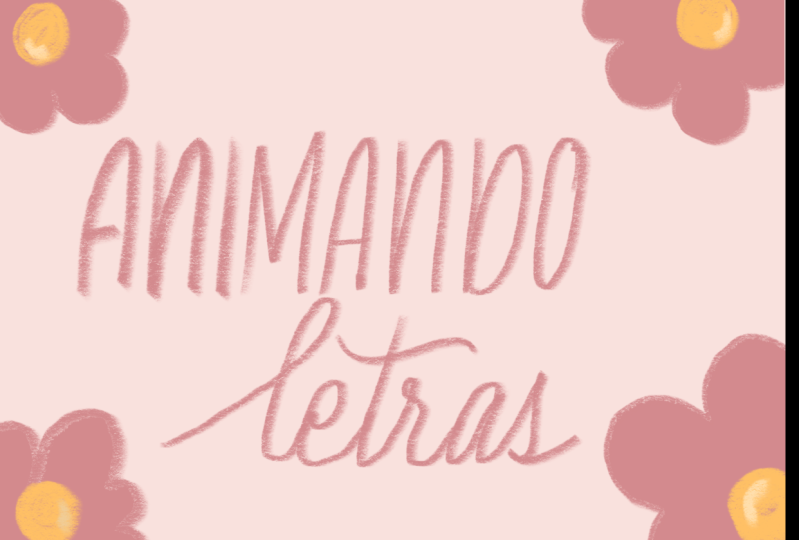
1. Intro: Hi there, creative friends. Welcome to class. I'm Sarah. I'm an artist and designer. And in this class, I'll show you my
process for creating simple animated lettering
in the Procreate app. Motion graphics and videos
have become more and more used and are starting
to be seen everywhere, such as in social apps, web graphics, marketing, and
messaging to name a few. We'll start with an
animation exercise to get an understanding on how
animation works in Procreate. Then We'll move on to creating three types of eye-catching
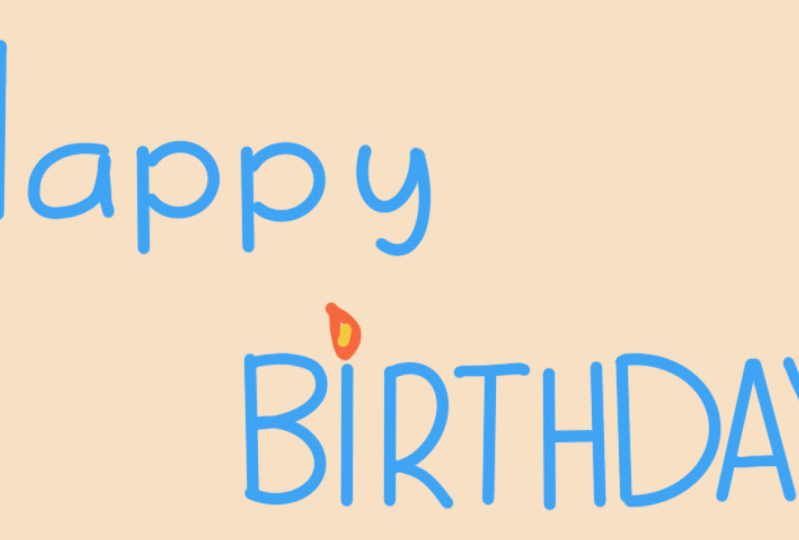
lettering, animation effects. By the end of this class, you will have three fun animated
projects you can share. In addition to having a good understanding on how
animation works in Procreate, all you'll need for this
class is an iPad, a stylus. I'll be using my
Apple Pencil and the procreate app.
Are you ready? Let's get started.
2. Class Project & Download: For your class project, create one or all of the animated lettering effects
demonstrated in class. Try different words or
phrases and play with color palettes to create some fun eye-catching
animations. To upload a class project. We will go right
below this video. Make sure we are on the
projects and resources tab. Then we can click
on Create Project. And this is where we will
upload our class projects. So we can give our
project a cover image. You will add a project title. And then right here we will
tap on images to upload our projects from
our photo library. You can add as many
as you'd like. If you want, you can add a project description
that's totally up to you. Once you have everything set, we can hit Publish. And your projects
should appear in the project gallery
right under the class. Now I will show you how to
download the class resource. And something important to note is that you
will need to be on a web browser and
not the Skillshare app to access the download. I'm using Google Chrome
as my web browser. So I've included a color
palette for this class, but feel free to use any
color palette you'd like. We will go right
below this video, make sure we're on the
projects and resources tab. Right here you will see
a Dots Swatches file. And that is our Procreate
color palette file. We will click on that. And it will open in
a brand new tab. And you can see the
file down here. We will click on download
and then open in. And we will select
our procreate. And your color palette will automatically download
into the Procreate app. And you can find it in
your palettes panel. And it always places the new downloaded color
palette at the very bottom. We can just move that up
all the way to the top. Now, you are ready to use
your brand new color palette.
3. Animation Exercise: We're going to start off with a fun exercise so that we can get comfortable with how animation works in
the Procreate app. And that way I can go over
all the settings with you. We'll start with a
brand new canvas. Just tap the plus sign up here. And I have found that 1,000 by 1,000 pixels is a
great starting point. We can always adjust
our canvas size later, or you can make it
any size you want. I'll start with 1,000
by 1,000 pixels. So I'll make sure I'm on pixels. And then I will just
type in 1,000 by 1,000. And then I'll make
sure I'm at 300 DPI. For the color profile. I'll be going with
RGB for this class. Now I can tap on Crete. Throughout the entire class. I'll be using the
mono line brush that comes with
the Procreate app. And you can find that by
tapping on your brush library. And if you go to calligraphy, you will find the
mono line brush. So for this first exercise, I am not going to add
a background color. So I'll make sure I'm
on a blank layer. And I'm going to be
animating a bouncy ball. So I will just draw a circle. And this will represent
our bouncy ball. So now I can turn on
my animation assist. And you will go to your actions and make sure you're on Canvas. And right here you'll see
it says Animation Assist. We will turn that on. And you can see this
little menu pops up. And this is for all your
animation settings are. So I'll start off with showing
you how to add new frames. So keep in mind anytime we add a new frame from
the menu down here, it will give us a blank frame, so it's, nothing's on it. As you can see, the frames
correlate to the layers. So every new frame
is a new layer. If you want to add blank frames, you would just add a new frame for your next frame from
down here on the menu. Or I'm going to delete these. We can add a new frame from
the layers panel as well. And you'll see it adds a
new frame to our animation. Little like timeline down here. Or if we wanted to duplicate
of the bouncy ball, we would just swipe left
and click on duplicate. And it would give us a
brand new duplicated layer, which would be a brand new
frame with our bouncy ball. I'll just delete that for now. Now. We tap here on Settings. You can see we
have a few things. The first will be our loop, ping pong and one shot, and this is how our
animations will move. And I'll show you that once
we create an animation, it'll all make sense. These are gonna be your
frames per seconds. So the higher up you
have your frames, the faster the
animation will go. And the lower you
have your frames, the slower the
animation will go. Now we have onion skin frame. And let me show you
how that works. So if we duplicate this
layer and we move it up, you can see there's a lighter
version of our bouncy ball. And that's a great reference. So you know exactly where your bottom frame is
or your bottom layer. So you know exactly
where to place your next element or your
next illustrated element. So if we go back the
onion frames here, I like to put it at
max because that means it will show
every single frame. But you can limit it
to maybe you just want one frame
underneath showing through or maybe
just for I like to see all my frames at once. So I put it on max. Then this is the opacity of your onion skin.
As you can see. It gets lighter or darker depending on
where you'd like it. I usually leave it around 35. I just wanted to be a light
layer underneath as a guide. Then this is just
how it will blend. Know if you can see it, how the blending of the
onion frame will be. So you can see your
onion frame coming through your solid layer
that you're working with. Or you can turn it
off and you will only see it lightly underneath, but nothing will be
showing through your Frame that you're working with. That's what blending blend
primary frame means. And then of course,
you can change the color of your onion skin, which is this lighter layer. I usually just leave
it on the default that it is this
light grayish color. Those are the settings
for animation assist. They're very straightforward
and simple to use. And we'll be going over them as we illustrate it
will all make a lot of sense once we start
creating some animations. So I'm gonna go back to
my layers panel and I'm going to delete this duplicated
layer I created earlier. We have our original
bouncy ball. And I'm going to just
center that up right now. So I'll just click right here
on this little arrow icon. And where to snapping. I'm gonna make sure
my snapping and magnetics are turned on. Now I can just center
my little bouncy ball. And I want my bouncy
ball to go down, up and down and up and down. So I'll just make sure it's in the center and
toward the bottom. That's perfect. So now I'll be
adding a new frame. I don't want a blank
frame like this. I don't want to redraw
my bouncy ball, I just want to make it go up. So in this case, I will just delete that extra added blink frame and I will duplicate my
original bouncy ball. I want to use the same ball. I just wanted to go up a bit, so I will click on Duplicate. And then again, I
will click here on my little arrow icon. And I can move it up slightly. And as you can see, the nice thing with the
onion frame is I can see exactly where my
bottom layer is. So I know roughly where to move it and I kinda want
it like halfway up. Now we're going to do
the exact same thing. I'm gonna duplicate now, my new layer because I want
it to go slightly up again. And then I can just bring it up. And you can see, you can start seeing
all your onion skins. And that's why I like
to leave it on max because I don't want to just
see the one underneath it. I want to see all my onion skins at one so I know
exactly where to place my bouncy ball and it
gives me an idea how my animation will look
before I test it out. I'm going to keep duplicating
the little bouncy ball. And that will be the
layer at the very top. And it can have, we'll just move it up slightly. And we can do that till we're happy with about
how high we want it to be. I don't want it to go
way, way up on top. Oh, maybe one more. I think that's good. Now we can test out our
animation to see if we need to add more layers or take out layers
or adjust anything. Right here, we'll tap on play. And you can see it's going slow. So we're gonna wanna fix
the frames per second. So I'll go to my settings. This is where we can play with how fast or
slow we wanted to go. And as you can see,
if you put it up, it goes really fast. And if you go down, it's going to go really slow because there'll be one
frame for every second. So this is preference
depending on how fast you want your
animation to go. I think five looks pretty good. Then this is for, we'll
play with these settings. So loop is just going to go all the way once and
then back to the start, all the way through
and back to the start. Ping-pong will go back and
forth and back and forth. And for the purposes
of this bouncy ball, we will go with ping-pong
because we want it to look as if it's bouncing up
and down and up and down. One-shot only goes
through it once. So we'll stop after
it gets to the end. So we know for sure
we will be going with ping-pong for this animation. Click on play and all that. I see it on ping pong. I think I wanted to
go a little faster. So I will tap on Settings and I will increase my
frames per second. I think I liked the way eight x. That is the basics of
animation in Procreate. And if you want to stop
it will just pause it, or you can just
play it like that. I'll pause it for now. That's how Animation Assist
works in the Procreate app. And I'll go over exporting
and saving at the end. Once we have animated
all our texts defects, play with the settings. Try doing this little
bouncy ball effects. You can get comfortable with
how Animation Assist works. And now we'll move on to our very first
lettering animation. I'll see you in the next lesson.
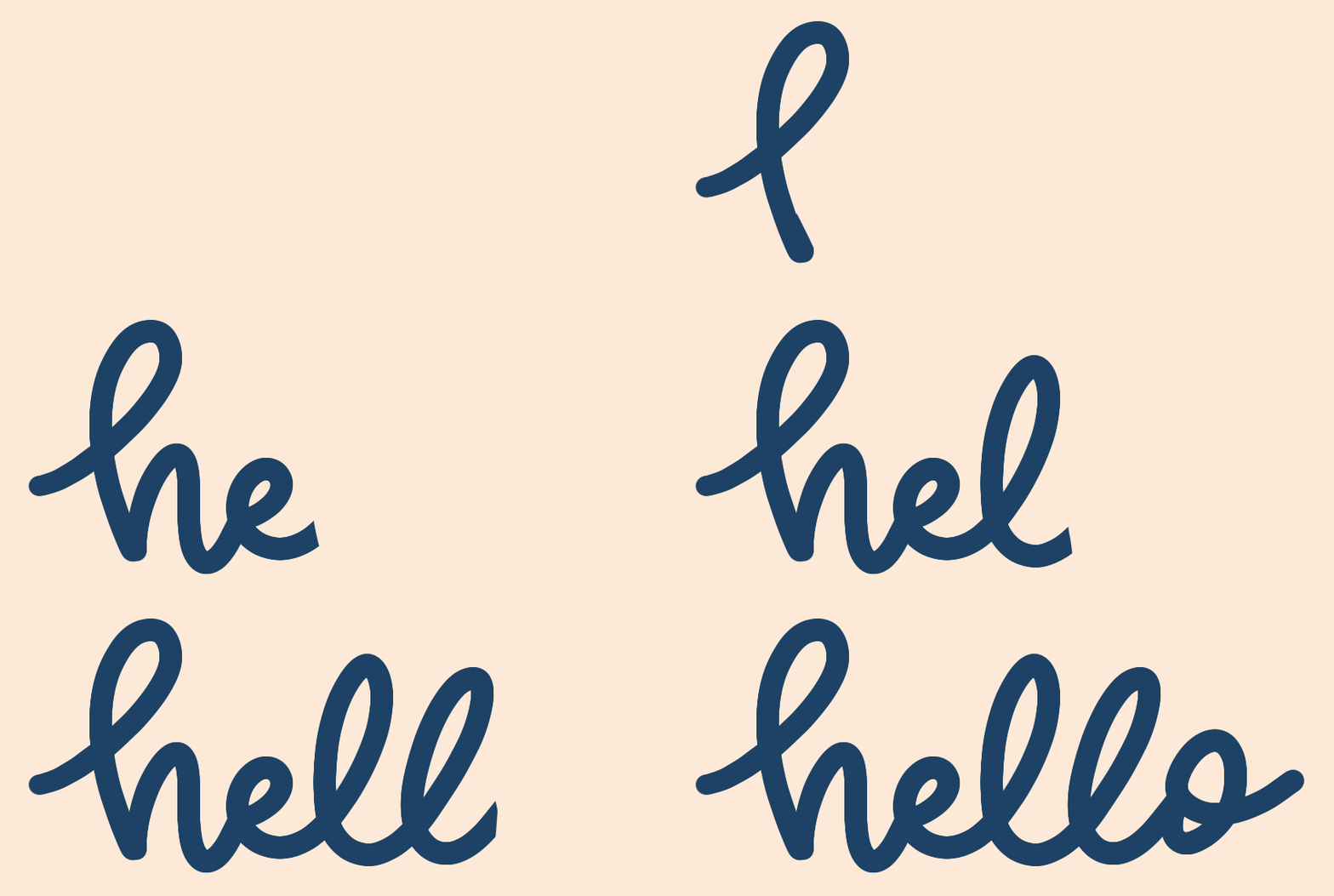
4. Handwritten Effect: For our first project, we're going to
create this sort of handwritten cursive
lettering effect. So I will show you how to create this animation effect
where it looks as if we're writing
the word Hello. We will just go back
to our gallery. We will create a new Canvas. And again, we'll
be using 1,000 by 1,000 pixels at 300 DPI. And our color
profile will be RGB. Now we can tap on Create. For this project, we will be
using a background color. So we'll go to our layers panel and tap on the layer that
says background color. And I'll just grab
this light pink color. And now I will
write out my text, my base texts layer. So we'll make sure we're on
a brand new blank layer. We'll grab our dark blue color. And again, we'll just be using the mono line brush
for this project. And since I'm doing
some lettering, I'm going to turn
on some guides just so I can stay consistent
with my lettering. I will tap on my actions panel, turn on Drawing Guide, and we don't need
to adjust them. They're just there for us to make sure we
stay consistent. I can adjust the brush size. We don't want it too
thick or too thin. You can play with that and see what size you
like for your lettering. I'm going to go in the middle and have my
brush be era about a 45%. So I'm going to just let
her out the word hello in just a kind of cursive style. Nothing fancy,
nothing complicated. Just write out the
word hello in a kind of cursive style lettering. Just take your time and leave some space in
between the letters. You don't want them all
smushed up because we're gonna be deleting each
letter individually. So we want to give it a little
bit of space in between. So now that we have
our word written out, if we see any little like
adjustments we want to make, this is the time we will
make them because this is going to be our base layer. So I see a few things
I want to smooth out. So I'm going to just
lower my brush size. I'm going to smooth out the 0 in this little piece right here. And the l right here. Right here a little bit. Let's see. I think that looks good. Now I'm going to center
my word to the Canvas. So will tap right here
on my little arrow icon. Make sure snapping and
magnetics are turned on. And I can just center
the word to the canvas. You'll see these little yellow
cross hairs come on when you place your word right in
the middle of the canvas. Now we can de-select
and we can now get rid of our drawing guide since we won't be needing
those anymore. So now we have our
base text layer. Now we can turn on
our Animation Assist. So again, we'll go
to our actions panel and turn on animation assist. We have our base text layer and we are just going to
duplicate that layer. And this is where we'll start erasing each individual letter. So it looks like we hand lettered it like it's
being handwritten. So I will go to my new layer. I'm going to grab my eraser, and I'm going to delete this
first little bit right here. Now, we will duplicate that
layer that we just deleted, erase this little piece
and duplicate that. And I won't be erasing the
letters to the next one. So right, where the
L meets the false, we will erase the OH, like that. Now we can duplicate that layer and we'll
delete the L Next. Make sure we get all
the little bits. Because sometimes if you
go too fast like this, you might skip little bits. We want to make sure all the
little bits are deleted. There's no straggly
little pieces when we have our animation completed. So just take your
time and make sure you get all the little bits. We will erase it to
our next letter. Now we can duplicate that layer and erase
our next letter. Make sure we get all
the little pieces. We will duplicate that. Now we will replace the e. Sure all the pieces are deleted. We will duplicate that layer. And I'm going to delete
the h and I'm going to leave this last little bit. I get up close to make sure
I get all the blue area of my age like that. And see, this is what I mean. You don't want to leave any
little pieces like that. So make sure you have all
your little bits deleted. Get up close to make sure. That looks good. Now
our last little bit, this little tail right here, so we'll just
duplicate that and we will delete this little
piece right here. Now that we got our
entire word finished, we deleted all each
individual letter. We can test it out. So I will just tap on Play. And it's going a bit fast. So let's just, for our
frames per second. C, probably around four. Let's try that. That looks good. The only thing is it is going backwards instead of a four. And I'll show you how to
fix that so it looks good. But we want our word
to look as if it's going from left to right. So we'll just pause it at. And what we're
going to have to do is swap everything solo. This layer become our
first layer down here. And this first layer will become our last layer up on top. So we'll just tap on our
layer at the very top. And we will just bring
it down underneath all our layers to
become our first layer. I like to leave it selected, swipe over to bring
my next layer. So now I will go to my
layer at the very top hold and bring it up right
above that layer. So I'll tap on this so I
can know where to bring. My next layer will go right
above their top one here. I bring this one
right above here. Tap on that one.
Bring this one right above that one. Tap on it. Now I'll bring this one up
above that one and tap it. The same thing for each one. I think we got them all, so let's test it out. That's much better now, as you can see, it's
going from left to right. So it looks like it's
being written out to, but I think it needs to go
just a little bit faster. Let's try five
frames per second. I think that looks really good. It looks like we are
handwriting out our word. Hello. That's how you do the
handwritten lettering effect. She just go slowly each letter, we delete each
letter and then we just arrange the layers to bring our first layer to the top and our last
layer to the bottom. So it looks as if it's
going from left to right. For our next project, we will work on our
weekly lettering effects.
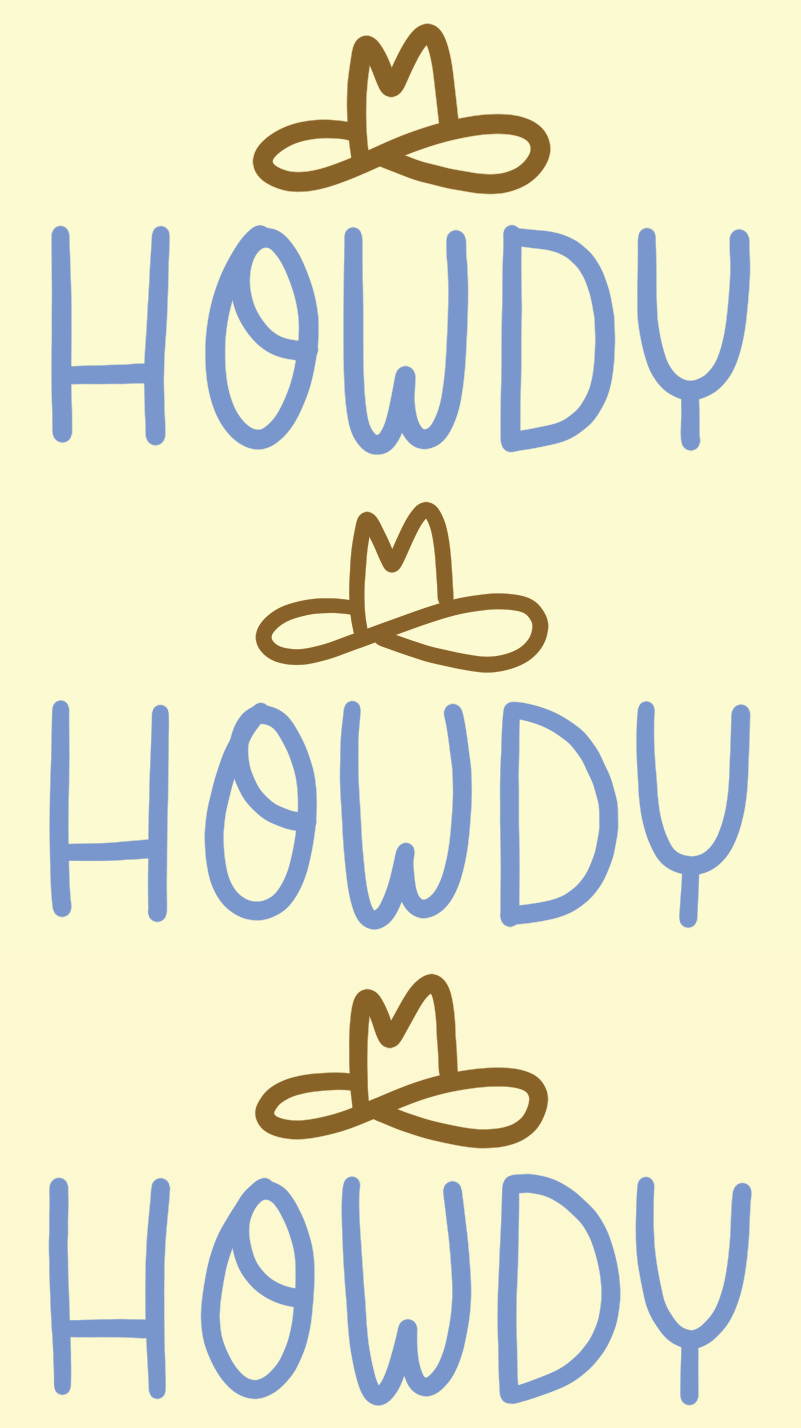
5. Wiggly Effect: For our next project, we will create this
wiggly text effect. And I'll show you how to create this animation style right here. So we will go back
to our gallery. And again, we'll just
be using our Canvas, 1,000, 1,000 pixels. And we will add a background
color for this project. We will go to our layers panel. And again, we will tap on
the background color layer. And I will select this light yellow color
as our background color. Now we will make sure we
are on a blank layer, and this will be
our texts layer. Again, I'll just be using our
monoline brush for my text. I want to use this
lighter blue color. I will select that. And since we're doing text, I'm going to turn on
my drawing guides to help me stay consistent
with my lettering. So I will go to
my actions panel, make sure we're on Canvas and
turn on our drawing guides. Now for this text, I want it slightly thicker. So let's see. I think I will keep my
brush at around 50%. And now I will just
let her in my word. I'll be writing the word howdy, but feel free to use any
word you'd like to write it. This is just gonna be
a handwriting style, nothing fancy or complicated. So I'll be using my
grid as a guide for my lettering and the
spacing between my letters. So I can just begin
by writing my word. I will just write in
my word right here. Just like that. And now is the time to adjust
anything and I'm going to adjust the spacing
in-between my letters. This is our base text layer, so we wanna make sure we get
it exactly how we want it. I will just fix the spacing
in-between my letters and then I can center
my word to the canvas. So again, I'll make sure my
snapping is turned on and I can just send her my word to the countless just like that. And that looks good. So now that I have
my text layer, I can create my
illustration layer with the little cowboy hat. So I will go to my Layers panel and create a brand new
layer above my text layer. And I'm going to grab this
brown color from my palate. And then I can just draw a little cowboy hat
above this word. Nothing fancy. We're just going to draw a
simple little cowboy hat above our text. Just like that. Now
we can center it to the canvas and adjust
it with our text. And that looks perfect. So now we want to
combine the two layers. So we will just pinch both of those layers together
to create one layer. Now that we have R1 base layer, we're going to center our
graphic to the canvas. So again, I'll click
on my arrow icon, make sure my snapping is turned
on and layer my graphic. You'll see the yellow
cross hairs come on when my graphic is
centered to the cow. That's perfect. Now that we have our text and illustration base layer done, we can turn off our guides. I will just turn off
my drawing guides. And now we're ready to
animate our graphic. I will get, again, go to my actions panel and turn
on animation assist. So how you will get a wiggle
effect is we will just be tracing over this base
layer very slightly, very softly, just
so we can create a small variation above it to create that very
slight weakly effect. So we will want to create a brand new blank layer
above my base layer. So you can add a new frame
from the menu down here, or you can add a new frame from your
layers panel up here. Now I'll grab my text
color, this blue color. Make sure I'm on my
new blank layer. And I will just
trace over my word. And you want to just, you don't want to go
too extreme like this. You want to go as close as possible to your
letter underneath, but you don't want it
to be exactly the same. That's what will give that
slight kind of weekly effect. We will just trace over
our lettering underneath. Will do that to each letter. Now that I have my texts done, I will do the exact same thing. To the illustration. I will grab my cowboy
hat color is brown. And again, I'm on the exact
same layer as my text. And I will just trace
over my cowboy hat. And you can see how there's
just a slight difference between my base layer and my current layer
that I'm working on. And that's exactly how
we want it to look. Now that we finished that layer, we're going to add
one more frame or layer from the layers panel. I will just add a
new blank frame and do the exact same thing. I'll start with my text, I'll grab my blue color. And again, I will just
trace over my word. Now I'll grab my brown
color for my hat. That looks good. So now that we have all
of our layers completed, we can test out our animation. So I will just press
on play down here. And that looks good,
but it is a bit fast, so we're going to lower
our frames per second, so we'll tap on Settings. And it's at 15 frames
per second right now. So I'm going to bring it down, see how five frames
per second looks. And this is preference
depending on how fast you want
your animation to go. And that looks good. You can also play with
the settings right here and see if you
prefer loop or ping pong. And I think I prefer loop, but you can go with
whichever one you prefer. So that is how you
create this sort of weekly texts effect with
a illustrated elements. For our next and final project, I will show you how to create
a bouncy lettering effect.
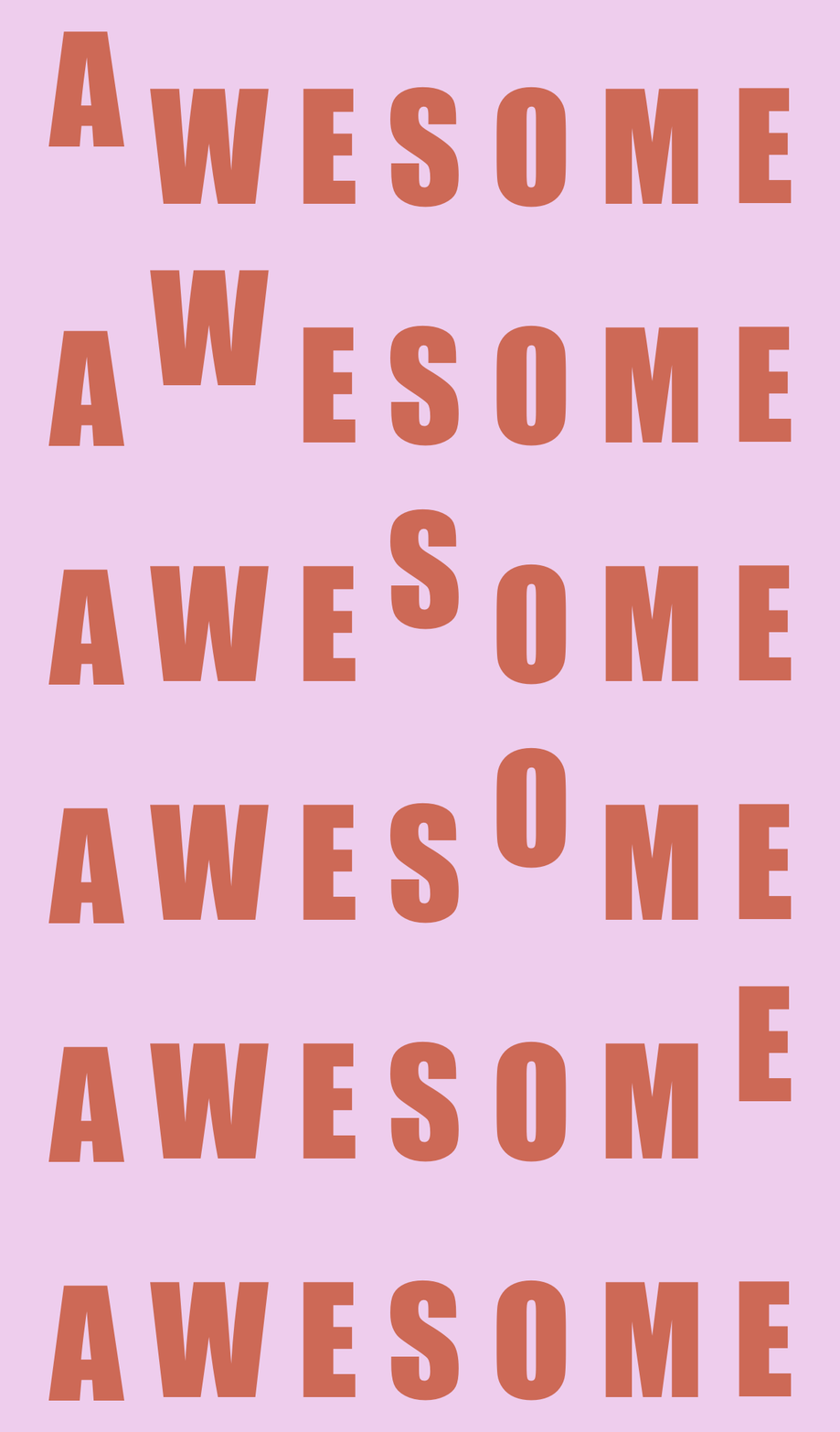
6. Bouncing Effect: For our final project, I will show you how to create this super fun bouncy
letter effect. So we will go to our gallery and we will
create a new canvas, 1,000 by 1,000 pixels. And again, we'll pick a background color
for this project. So we'll go to our Layers panel, tap on the background
color layer, and I will pick this
light pink color. Now for this project we
will be using a font. So I will make sure to select my font color before I
start using my font. So I want this
darker pink color. Now I will go to
my actions panel. I will tap on Add, and then I will tap on Add text. Now I can write in my Word, you can write in whatever
work you'd like. I'm going to type in
the word awesome. Now I can select it because I want to make
some adjustments. I want to use a thicker font. So I will be using this
font called impact, and it comes with
the Procreate app. And I know I want
all my letters to be capitalised so I can turn that on and we will make this
whole thing larger. I want to give some space
in-between my letters, so I will play with the kerning a little bit of
room in between the letters. So I have it at 13.6% for the kerning and 43.8
for the lettering size. And I liked that. I
will tap on Done. Now that I see I loved
the way it looks. I love the size and the spacing. I can rasterize this layer. I will tap on my layers, and I will tap on my text
layer and tap on rosters. So it is no longer an
editable text layer. It is now in illustrated
elements in my layers panel. So I can center it to
my Canvas and we'll do the same thing we did with
our other animations. Make sure my snapping
is turned on and just center my word to the cow. And that is perfect. So I will go to my Layers panel always gives
us an extra layer home. We're adding a text
or font layer. So I will just
delete this layer. I don't need it. Now I have my base texts
layer and that's perfect. So I will now need to duplicate this base layer seven times in addition to this
base layer that I have. So that will be a total of eight layers and
it will all make sense when we are working
on our animation. But basically it's a
layer per each letter. So I will duplicate
this several more times for a total of eight layers. Here's 1,234,567.8. We should have eight layers. You always want to duplicate
as many layers as there are letters plus one
extra as a base layer. Now that we have all of that, we're ready to begin
animating our effect. I will go to my actions panel, tap on Canvas, and turn
on my animation assist. And I'm also going to
turn on my drawing guides because we're gonna be making our letters bounds up. And we want them all to hit the same area when they
go up for consistency. So I will start with
my bottom layer, which is my first layer. And we will begin with our
a and we'll make it go up. So I'm going to tap on
this little S symbol and make sure it's on freehand. None of these other
settings should be on just the free hand. And it should be on the blue. Blue on the plus symbol. I will just draw around my age. I will bring it up to
this line right here. And that's why I have
my guides turned on. So we know that all
our letters will hit this line right here. Now I can deselect it. So we're finished
with that layer. So now we will go to our next layer and do
the same thing to the W. So again, we'll just
draw around our header, bring it up at the
same height as the a. And I can deselect it. Now we will go to
our next layer, the exact same thing with the E, and we will do that to
each one of our letters. Will do that to the S. Now the 0, M, and finally the E. And then you will
have one layer at the very top that
nothing is done to it. It is exactly as we typed
it in at the beginning. So your layer should look like this and you can see
where each one of our letters bounces
up and then our solid base layer of texts that
has not been edited at all. So now let's test out our animation and we
will tap on play. And that looks really good. It's just going super fast. So we're going to lower
our frames per second. So go into our settings
and let's just lower this. Again, it's preference,
how you want to, how fast you want it to be. Let's see. I think I like it
at six frames per second. And again, you can see
if you like ping pong, which will go forward and backwards and forward
and backwards. But I like loop, I like for it to start and go straight ones and
then start again at the beginning and
go straight through. So now that we have that we can get rid of our lettering guides, all these guides
in the background. So I'll just turn off
my drawing guides. Now. I will play it to see if I am happy with the final results. I think it looks great. That's just perfect. For our next lesson, I will show you
how to export and save all of our
animated projects.
7. Exporting & Saving: In this lesson, I
will show you how to save and export our projects. And I will also show you how to share and use our animations. Here, our original projects that we created in
our previous lessons. And I'm going to
duplicate each one of our documents because I
want to have a master copy. If I make any edits or
crop the canvas size, I want to make sure I can go
back to my original files. So I will swipe left, then tap on duplicate. And as you can see, it gives me a duplicated file of
my original project. So I'm going to do that to
each one of our projects. Now that we have a copy of
each one, we can, we can, we can begin editing and
sharing our animations. So I will tap on our duplicated of first
handwritten effect project. And I want to crop the size of the canvas to make it
really close to my word. I will tap on my actions panel and we'll
make sure we're on Canvas. And right here where it
says Crop and Resize, we will tap on that. Right now we are at our original file size
of 1,000, 1,000 pixels. So I'm going to bring down my canvas size right
close to my lettering. I'm not going to have any exact
measurements or anything. I'm just going to
bring it in real close to my word Hello. So that looks really good. So now I will tap on done. And as you can see, this is why we created a duplicated file. So we can always go back to
our original file if we need to change something
or reference it. So now that I have
my Canvas resized, I'm ready to export as a GIF. And I will first show you
how to export as a GIF, and then I will show you how to export as a short video, e.g. Instagram Reels. So we have all our layers that we created earlier
and our background color. Now for the gifts, I like to create them
without a background color, so I can use them as stickers for my stories or web graphics. I can just turn off my
background color right here. And as you can see, it
is just my word hello, on a transparent background. Now I will tap on my actions panel again
and tap on Share. And as you can see right
here at the bottom, this is where we will save for our motion graphics
if we have options. And I'm just going to be using the animated GIF and the
animated MP4 file types. So I'll start off with
our animated gifs, and I will tap on that. And right here we
have some settings. And you can decide it's those
going slow or too fast. This is where you can still
play with your frames per second if you want
to change anything from the original
that we had it on, I'm going to leave it at
five where we first had it. But if you see you want to
change it a little bit, you can fix that right there. I always leave the
other settings as is. I just make sure I'm on
max resolution and you can give it a background if you turn off, off the transparent. Or we can leave it with a
transparent background. And that's where you
would do that right here with this little
button right here. With a background,
without a background, or you can do it from the
layers panel like we did. Everything looks good. So now I can tap on exports. I just want to save
this to my camera roll. So I will tap on Save Image. And now if we go to our images, It's hard to see,
but it's right here. You can see it has saved it with a transparent background and
I'll show you how to use it in like a sticker for Instagram stories
in a little bit so you can see how it works. We have that saved. We can go back to the Procreate app and
that's one way to save it. Or we can also save it
by going to our gallery. Tapping on select,
tapping on the file, then click on Share. And again we would
tap down here where it says Animated GIF. And it's the same
menu that pops up. We can do the exact same thing. So those are the two
ways you can save as an animated GIF. Now I will show you how to
save if you want to save for, say like a short video for Instagram stories
or something like that. So I'm going to go to
our weekly howdy effect. And think about this as
a stop-motion short film almost where you want to have several small frames
to create a long, a longer video for
a few seconds. Instagram doesn't support. I'm posting just gifts
unless it's a sticker. So we're going to have to
convert this small animation to a small video
with at least 6 s. So we'll go to our Layers panel. And I'm going to
rename my layers because we're going
to be duplicating all our layers several times
to create a short video. I'm going to rename
them and make sure I keep them in order. We're going to want to
keep them in order. So I'm just going
to number them 123. So all know exactly what
order all my layers have to be in a tupple one. Then I'm going to
rename this one to two. And then this will be three. And I did that. So when I duplicate my layers, I know exactly what
order they will be in. We can't get them out of order. We want them to always
stay in this order. Now I will swipe right on all
the layers I want to select because we want to
duplicate all of them at one time so they
can stay in order. If we have all our
layers selected. And a really quick
and easy way to duplicate my layers and
have them all stay in. The same order, is you will select all the layers
you want to duplicate. Now you will tap on the
top layer and drag out. And when you see that plus
sign turn on, we let it go. And as you can see, it
duplicated in the right order. So 123123, we're gonna do
this several more times. We can create a longer, around six second video. We will select our new group of layers and do the
exact same thing. Hold and drag out. I'm just going to
do this probably about eight more times. And then I can share
as a short video. Okay, I think that's good. We have all our
duplicated layers and they're all in
the right order. And we know this because we labeled all of our layers
from the beginning. So you can just go
back and check. We're going to make sure
it's always 123123, all the way to the top. And now we strung
together a short video. Now we're ready to export as a short video instead
of an animated GIF. You will tap on our actions. And this time we're
going to tap on animated MP4 and make sure
it's on max resolution. And again, if you want to
change your frames per second, here is where you can do it. And I want to leave
it where I have it. So now I can click on Export. Again. We'll just save to
our camera roll down here where it
says Save Video. Now we can go check it
out in our photo gallery. And as you can see, it gave
us a seven second video. And now we can share it on our Instagram Reels or
as a video somewhere. So it gives us 7 s. And if you want to make
your video longer, you would just keep duplicating
your layers as we did. So now we'll go and
save the rest of my projects as animated
gifs and short videos. I will speed up the
process and you can see me work through each
one of the file types. Now that I saved
all my file types, I am ready to move on and
use my animated elements, and I will show
you how to use it as in Instagram sticker. Now, show you how to share your animations as an
Instagram story sticker. So we will create a new story. And I have this picture
of this coffee cup. And I want to use
the animation that says Hello in a
handwritten style. I will go back to
my photo gallery. And this is the animation
I want to share. So I will click on the Share, and then I will tap right here
where it says Copy folder. I will go back to our Instagram story and
it paste it down here. So I will just tap on that. And now I can resize it to make it smaller or larger and
position it where I want to. And that's how you would use
these stickers for your, I'm stories or any social app. Fit needs a cute
animated sticker. If you want to share
them as a real, that's where you
would use the videos. We created these short videos. We'll just create a new reel. And we would pick our video. And then we can
share it that way. You can also send these
as a fun text messages. So I will quickly show you that and I'm just going to send
it to myself as an example. So you will go to the
person you want to text top right here
for the photos. And then you can just pick the animated GIF if
you want to send. And I can just send that. And it's a really unique and
fun way to send messages. I'll just delete this one because it's just
send it to me twice. And that's how you would share
it with in text messages. And these are really
fun because you can save them and use them as web graphics or
on your social apps, or as fun animated stickers.
8. Bonus Lesson: Uploading To GIPHY: In this bonus lesson, I will show you how to upload your new animated gifs to Giphy. And this is great. If you want them
searchable through social apps such as Instagram. I will go to Giphy
and you will want to create a new account
through Giphy. And once you have
that all set up, we can upload our gifts. I will tap on Upload. And then we will be
using a GIF file. So we will just click on that. And then we will be using our gifts from
the photo library. So I will select my GIF
file and click on Add. And it will take us
to this new window. And we can see our
gift right here. We will make sure it's on
public, so it's searchable. And then we will add tags. And this is important
because this is what makes it searchable. So we will add descriptive words that represent our gifts. So when someone is searching it, it will pop up in the search. So I can write
things like Hello. I can write script. Greetings. Try to think of things that
represent our gift and give it some descriptive words. So maybe hand and written. Hello and written. So you want to pick
things that you think someone might search and
make it very descriptive. So once you have
all your tags done, we can tap on Upload to give you an ad like a URL
source or anything. I just leave it like that. So I will click Upload to
Giphy and it is uploading. And now it is up on Giphy and searchable through social
apps or messaging. Now, do keep in mind, this sometimes takes a while. It sometimes takes 24 h to be searchable through
the search bar. But once it is searchable, we can go to Instagram
and create a new story. We'll use our coffee cup. And now it should pop
up in our search bar. Once it is uploaded, we can find our gifts. Here's some gifts
I created earlier. And if you want it to be searchable through
just the search, like say hello, you will
need an artist account. And I have linked some
really helpful links on how to apply for an
artist the count. You can find those links
right below this video in the project and resources
tab description. But I believe if you are not verified as an
artists account, you can still access
your gifts if you type in the at
and your username, so minus my name. You should still be able to
access them with the act even if you are not in artists
verified account. But the nice thing of having an artist verified account is it you won't have to
type in at and your name. You can just type
in like say coffee. And it would
automatically pop up. Your GIF would pop
up here if you used the tag coffee in your GIF. So that is how you would
upload your gifts to Giphy. And again, I've linked some helpful resources in the resources tab
below this video. If you'd like to take a look.
9. Final Thoughts: Thank you so much for taking the time and joining the class. I hope you have fun creating some new animated lettering
effects in the Procreate app. I would love senior amazing
animation projects. So don't forget to share your work in the
project gallery. Remember to have fun
and be creative. I can't wait to see
what you will create. And if you have any questions, please don't hesitate to ask. You can post your question under the Discussions tab
and you'll find that located right
below this video. Thanks again, and I'll
see you next time.
 Sarah Raquel, Artist & Designer