Transcripts
1. Introduction: In this class, we're
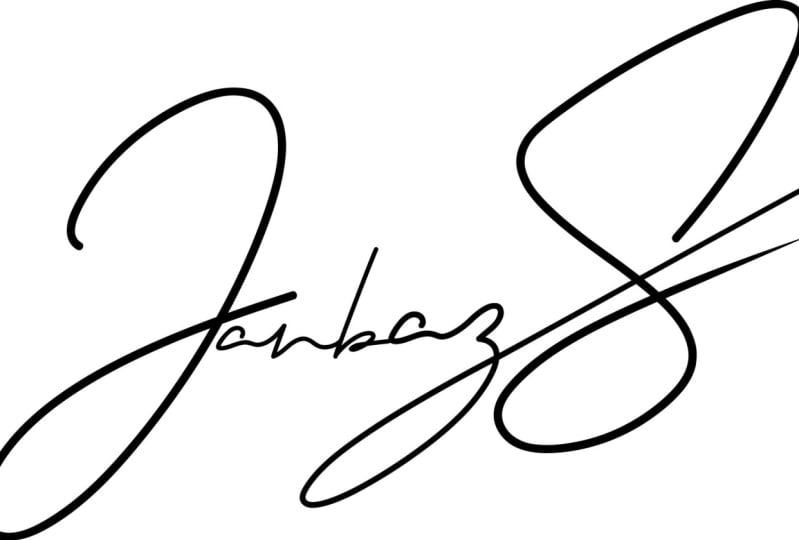
going to be creating your very own signature logo. We're going to start with regular piece
of paper and some markers, we're going to sketch
some things up and I'm going to show you
how to take those, bring them into Illustrator,
vectorize them, and then export these in a way that you could
use for anything. Maybe you're a photographer
and you want to create your own custom watermark when you export things
from Lightroom, or perhaps you're a graphic
designer and a freelancer and you want to create
your own logo quickly. You can even use
these just to make stickers or all kinds of things. But what's fun about this, is these techniques
make it so you can use your traditional artist
skills if you're an artist or maybe you're
not an artist at all, but you can use real
mediums like pens and markers to create something and bring it into
Illustrator and then use it. My name is Jerry
Mitchell. I have over 150,000 students at the time
of this recording and I'm a creative director
with over 20 years of experience and I'd love
for you to be able to follow along with me
in this course to create your very own custom
signature logo. Let's go ahead and dive in.
2. Write Your Signature on Paper: It's time to dive in and make your signature logo.
Grab a piece of paper. It doesn't even have to
be a big letter-sized, 8.5 by 11 sheet of paper. It could be an index
card like this, so this is a
three-by-five index card. The biggest thing is, ideally, you want a blank printer
paper or index card that doesn't have any lines on it or anything to
try to workaround. Pretty simple, let's go
ahead and get started. I've got my index
card here and I'm going to grab a few different
things to work with. I've got a colored
pencil, I've got a pen. I'm going to grab a sharpie
marker or we got a black one. I even have a
chisel tip sharpie. Then let's grab this one that's got more of a
brush tip shape to it. I've got some options here
and they're all going to change obviously
how this looks. What I'm going to
do is go ahead and jump in here and
write my signature. This one, here we go. I got distracted. That looks like garbage,
obviously too thick. I might need a bigger piece
of paper so let's just sign this really big here so
I've got room to work. I'm going to go ahead
and throw this up here. Let's grab another one. This time I'm going to use the pointier side
of this chisel tip. [NOISE] That's better. You can sign it, you can
draw it, you can sketch it. It doesn't really matter
but the thing is, in this case, I'm going to do a few different options here. Just so as I bring this
into the computer, I have a few choices
to work with. The other thing I want you
to notice in this case, this light purple, it's still going to be enough because the background
is so clean, I'll be able to use this. But ideally, you want
something with enough contrast so just go ahead and do
a bunch of things here. You have options. Let's try the color pencil. [NOISE] Looks good, so the next step is we need to take a picture of this and
get it into the computer.
3. Take a Photo of Your Signature: The next step is actually taking a photo of the sketch
you just made. Get your smartphone or a camera, it doesn't really matter. A smartphone if you have one
is going to be a lot easier. I've got my iPhone here and I'm just
going to take a photo. Now, a couple of things as
you're taking this photo, if I get too close to it, you'll notice I cast shadows
over the top of this. One way to get around
that is just to light it better or to maybe
move towards a window. Obviously, I'm
sitting at my desk recording this so I
can't really move. What I'm going to do
is pull out a little bit and then zoom
in with the camera. Now my hand is further back and I can take a photo
without casting a shadow. I'll take a picture of
this card and this card. Even though I don't
like this one, I'm not going to bother
with this one, this one looks like garbage. We're going to throw
that one to the side, and what we're going to
do now is let's jump into the camera roll
and we're going to share this with the computer. Because I'm on an iPhone, I can use AirDrop, which is super
nice, really easy. I just click on the
button here and it immediately shares
with my computer. I can see this pops up here
in my download stack after I share it and it's really
quick, really easy. Now, if you're on an Android device and you
don't have AirDrop, maybe there's another
way to do this. If you're an Android user
or PC user and there's a shortcut to share from your phone or your mobile
device to the computer. Please share with the group,
go ahead and post below. Maybe the best way
is just to text it to yourself or
send an e-mail. But however you can get it off your phone onto the computer, so you can begin working with
this now in Illustrator.
4. Linked vs Embedded Photos in Illustrator: Now that we've got our
signatures into the computer, let's get them into Illustrator. The first thing we're
going to do obviously, is open up Illustrator
if you haven't already. There's a couple of
ways we can work here. We can start with just
making a brand new file, so I'll click on ''New File''. I'm going to actually
make this an 8.5 by 11 regular-size
piece of paper. One thing I want to point
out in Illustrator, you have all of these shortcuts up here across the
top, these tabs. Typically what I'll do
is I'll jump right into the Print settings and I'll
click right here on Letter. I'd like to change
it from points to inches because it
makes sense to me. But you can make this
any size you want because this is going
be vector-based. It really doesn't
matter too much. This is just my preference. I'm going to make
this a landscape, we'll use one art-board. Down here in the color mode,
it should already be set to CMYK and high. These don't matter too much right now for
what we're doing. I'm just going to
click ''Create''. Now I've got a brand new
art-board or canvas or file, whatever you want to
call it, I'm ready to go and let's go ahead
and get started. A few ways to work. I like to just click down here, my downloads and just drag and drop right into Illustrator. This is going to come in huge. There's a few things you can do. What I like to do
is hit the letter S to get my Scale Tool, and then without
clicking anything else, I just hit the Return button. Now I can just change this from a 100 percent down to say, let's just call it 10
percent and hit ''Return'', and that gets it pretty close. The other thing you could do
is you could come to File, and then come down to Place,and then you can
navigate to your downloads. Then you could find the
other document here. The other thing I
want to point out, we have this little
checkbox here to link this. I'm going to go ahead
and uncheck this one. I'll click ''Place'' and notice the other thing too is when you go to
import it this way, I've got the cursor here where
I can just click and drag and automatically have the size be smaller instead of
having to scale it. There's two different
ways to work. I'm going to get my
selection tool over here. You'll notice when I hover
over this first image, I've got a blue X through it. I want to hover over
this new one we've brought in that we
unchecked the link box. You'll notice it doesn't
have that blue line. The two differences here is this image is now embedded
in this document. If I were to move this somewhere else or
e-mail it or share it, this image would come through, but this one is actually
linked to and referring to this file that is
still in my downloads. If I delete this image or if I don't move
this with the file, you're going to get a big
old question mark saying, hey, I can't find the file
when you open this up. To fix this, we've got
a couple of options. One is just to keep this file
together as a linked asset. Or when I click on this
with my selection tool, you'll notice the Options
bar across the top. It gives me a few
different options here. What I'm going to do is
click on the Embed button. Now this image will
be embedded into Illustrator and I don't
have to worry about any more broken links. Now we've made it this far. Let's go ahead and
save our file. Go to File and I'll
come down here to Save. Typically, it's a good idea
to use the Creative Cloud. You can see all of the benefits of using the Creative Cloud. However, my workflow, typically I save
it on my computer because I use Dropbox and I share my assets with a lot of my teammates when I'm
working on things. I'm just in the habit
of using Dropbox. I'm going to go ahead
and go to my Desktop, I'm going to make a New Folder. I'm just going to
call it a signature logo and I'll click ''Create''. Let's just call this
DM signature logo and I'll click ''Save''. Click ''Okay''.
In the next video where you're going
to learn how to actually trace this sketch and turn it into a vector
signature logo.
5. Using Image Trace in Adobe Illustrator: Welcome back. Let's go ahead and continue by tracing
these images. Luckily, this is really simple. What we're going
to do is click on our image and then I'm going to come up here
and click on "Image Trace." You'll notice depending
on what you use, you're going to have
different results so quickly and
easily traced all of this but the top versions that were in the lighter color don't come through as well. What we're going to do is we're going to come up here
to this little tiny box. It says Image Trace panel. Now if you don't see that, make sure you've
got the selection tool and you've selected your thumbnail or come
up here to Window, come down here to Image Trace and it'll open up the
same window, same thing. We've got a few different
options to work with. Right now we've got the
preset set as default, so the threshold controls basically how much
contrast is used. If I have more threshold and I scrub all the
way to the right, you'll notice up here that the other
signatures come back. Whereas if I go to
less threshold, you'll see they
almost all disappear. I'm going to go back
up here to more so that way those signatures
really popped through. That's too much, let's
dial it down a little bit. That looks pretty good.
I'm going to go just a tiny bit more. Let's do 180, that should get us pretty close. That's pretty good. I'm
going to go ahead and X out of this and
then let's click on this other one and
you'll notice as we did that the default turn this into a black
and white trace. On this image, I'm going to
click on Image Trace again, but this time I'm going to show you a few
different options. We'll open up that
tracing window again, and instead of default, if I click on this twirl down, you'll notice we have
a lot of options here. Typically when I'm doing this, I'll just make it
a black and white logo and after I click on this, you'll notice the
result is the same. It does change how the
anchor points are created. But what we're going to
do right now if I click on this and go to three colors, we should see some of that purple come back
from the marker. Now, this is a vector trace, but it looks a lot
more like the photo. Let's go ahead and
close this window and now the next
thing you'll notice, we still can't really
select anything in here, so what we need to do now, let's go ahead and
save our document. I'm going to click on this
first one and up here we have this button for
expanding the trace. If I click on "Expand",
it's going to convert it to has all
these anchor points. If I click off and
then come back, you'll notice that I still
can't really select this. Let's do the same thing over
here. I'll click "Expand", but there's still some things we need to go through to be able
to actually work with this.
6. Edit Image Trace Results and Change Color: Now that you've traced
your signature logo, let's go ahead and
continue and refine this a little bit further. What I'm going to do
is hit the letter Q to get my selection tool up here, it's actually the Lasso
tool which helps me select points or path segments. The reason why
we're going do this is because I want to be able to grab just this piece right here, so we're going to use
the Lasso selection tool to grab our signature. Now, you'll notice just these anchor points have
been selected. I'm going to hit
the letter X to cut it and copy it to my
clipboard at the same time, and hit Command V to
paste this down here. Now the next thing we can do
is hit the letter R to get our Rotate tool and then turn this so it's a
little more level. I'm going to hit
Command R to turn on my rulers and then drag my
guide down here from there. Zoom in a little bit. That's looking good. I'm going to rotate it
just a little bit more. Now the next thing we need to do is clean this up a little bit. You'll notice if I get the
direct selection tool, which is the letter A and I
click in here and I move it, we've got a lot of other
stuff happening here, we've got a lot of
little other pieces that come over with it. Another trick we can do is I can select just this purple, and I'll go to Select, Same, Fill and Stroke, and it should select
this purple up here too. I'm going to cut it and now you can see the
background that came over, I'll delete that and then hit Command F to paste everything
back in place where it was. Now we've got a vector
of just our signature. Let's go ahead and grab
this one over here that I drew with the colored pencil. I like that it's got
a little more grit, little more grunge in it. I'll hit letter Q to get
my Lasso tool again, and we'll make a selection
around this signature, hit Command X to cut it and
copy it to my clipboard, Command V to paste it down here, we'll get it in place, hit the letter R to
get my Rotate tool. I'm going to click down
here in the corner so I can pivot it from that anchor point. Let's scale it up a little
bit using our Scale tool. Now this is looking good. I've got a couple of
pretty good options here. What's cool about this, let's go ahead and
highlight all of this, hit Command G to group it, is I can change the colors on this really easily
to anything I want. Even though we drew this
out with a colored pencil, now that it's a vector, I can convert this
to any color I want.
7. Add Text To Your Signature Logo: Now that you've vectorized
your signature, let's go ahead and add
some text to it as well. I'm going to go ahead and
change this back to black, and then I'm going to hit the letter T
to get my type tool, and then I'm going to
click once in here. I'm just going to
add my website. Then we'll move it
back up into place, I'd hit letter E to
get my scale tool. Hold down, Shift and scale it down so it's nice
and close here. Then I'm going to add a
little space between here just so this little tail on the letter T drops
down between it. Let's scale it
down a little bit. Let's go ahead and change
the font to something else. It looks good. There's
a signature logo. Let's go ahead and save this. Now I'm going to show
you how to export this in a way that
you can use it.
8. Export Your Signature Logo: You've got your signature logo, you've added some text, now it's time to
export this thing so you can use it
anywhere you want. There's lots of ways to do this. There's a couple of
things we could do. We could just delete all
this extra stuff like this, any of them that you
decide not to keep, and scale this up.
We get in here. Then I'll hit "Command Shift S". I'd like to save
it on my computer. I'll call it DM-Signature-Logo-Final
and I'll hit "Save". Click "Okay". Then I'm going to group these
together, "Command G". I'll center it horizontally
and vertically. I could be done, I could
save it just like this and it's vector and I could
use this for anything, but let's push this a
little bit further. If you're happy with your font, one thing I recommend
doing is grabbing this type and going to type, down to Create Outlines. The shortcut for that
is Shift Command O. Now, it's no longer a
font, it's a shape. Then that way, if
you send it off to somebody else and they
don't have the font, it'll still work exactly
like you want it to. That's one way to save it. But if you don't
have Illustrator, how are they going to use this? Well, here's a few
things we could do. The first is we'll come here to File and we're going to come down to Export, Export As. Let's make a new
folder in here called exports or you can call it finals or whatever you want, it doesn't
really matter. I'm going to click down
here on "Use Artboard". I'm going to change
this to a JPEG. Then I'll click "Export". It can be a CMYK. This looks fine.
We'll click "Okay". Now, if I come back
into my Finder and I go find this folder
we're working on, go to my Exports, you can see there's the JPEG. Anybody on any computer could
open this up and see it. Now, there's a lot of extra white space
around this logo, so let's push this a little bit further and see what
else we can do. I'm going to come back
down here to File, down to Export, Export As. This time I'm going
to use a PNG. I'm going to turn
off Use Artboards. Let's click "Export". The resolution is set to 150. I would change this to high and make sure the background is transparent and
then click "Okay". I'll jump back into Finder. Now, you'll notice the file is just the exact size
of the artwork. Because it's a PNG, the
background is transparent. You could actually put this into anything and be able to use it. Now, let's do the same thing, but maybe let's make
a white version. I'll get my eyedropper tool, hit the letter "I",
and I'll just click on the Canvas here. You'll see it's still there, but if we click off,
you can't see anything. I'm going to go to File,
Export, Export As. Let's change this
to final-white. I'll click "Export as a PNG", again, without the
Artboard option selected. This looks good.
We'll click "Okay". Now, we have a white version that's also
transparent behind it. We could use this if you've got a colored background
on something. Let's go ahead and close that. Now, another way to
work that I enjoy, I'm going to hit
"Command Z" to make this back to the
black version here, is we've got this
little icon over here on the right
called Asset Export. Now, if you don't see this
and you're in Illustrator, let me just go ahead and
make this full screen. Up on the top right, you should see this tiny little thumbnail
for your workspaces. I'm currently using
Essentia's Classic. I'm going to come down here and click "Reset
Essentia's Classic". Hopefully, you and I are
seeing the same thing. If you don't see that,
come up to Window, come down to Workspace, and you'll see it here as well. I'm using Essentia's Classic. You should see
this little option right here for Asset Export. Again, if you don't
see it there, come down to Window,
down to Asset Export. Lots of ways to get
to the same place. What we're going to
do now is simply drag and drop right into this window. Now, we can name this
DM Black Logo with URL. Then I could delete
my text below it and just drag this in here as an option. Let's try that again. It's because I'm still
drilled into the group here. I'm going to
double-click up here, and now it's back to the
main artboard. There we go. We'll call this
DM-Signature-Only. Let's maybe change
the color on this. I'm going to go to my libraries and let's just grab
another color. You'll notice it updated
all of these because they're dynamically linked.
I'm going to undo that. I'm going to drag a copy down, holding down Option and Shift. We'll click on this. Now, we'll drag it in
and you'll notice that the colors stay the same for the ones that are
linked to this asset and then the new one we brought
in is the new blue color. I've got three
different options here. Let's rename this,
DM-Blue- Signature. I'm going to select
all three of these by holding down the shift
key and clicking. Then down here you
can see we've got some different export settings. I can make the scale larger, in this case 4X should be four
times the size it is now, or I can do 1x, which would
just keep it at scale, which honestly in this
case looks pretty good. It's about seven inches wide. I can see because my
ruler is up here. I'm going to do the
format as a PNG. Now, you see there are a lot
of other options you have. A PDF would be
another great option. Then you can add a scale. In this case, maybe I want to
do one that's twice as big. If you're doing a retina display or a high quality display, make sure these are
still selected. Then I'm going to come down
here and click" Export". I'm going to put these
in the Exports folder. Let's choose that. It
already exported this. It shows me this
message, export is complete. Let's
jump into Finder. You can see we've got
the original ones we did plus the new
ones we just added. Now, these look the same
because of this window, but if I look in
my details here, this size is only 18 kilobytes and is about 466
pixels wide at 72. If I click right here,
you'll notice it's about double in size, at 144 for the resolution. We can play those
export settings to get the exact file we need. Now, we can use our signature
logo anywhere we want.
9. Use Your Logo In Photoshop and The Class Project: One of the thing I want
to show you is how to bring that vector
into other programs. Specifically in this one, I'm going to show you
how I would put this into a Photoshop document. Right now, I've got
a document open for a thumbnail I made for
one of my courses. I'm going to jump back
over into Illustrator, I'm going to grab
this signature logo, copy it, jump over
into Photoshop, and just hit Command-V
to paste it. Now, when you paste it, you have a few different options here. I like to use smart objects, because then it retains
its editability as well as being able to scale
without getting pixelated. I'll click "Okay,"
and now I have the option to scale this
to whatever size I want. You see I can make it huge
and it stays nice and crispy, or I can scale it down smaller. If I wanted to put this maybe
down here in the corner, or maybe down over here, or somewhere like this, nice and tiny, and I'll hit "Return". Now, one thing you'll notice when you bring it in that way, the color is whatever
you brought it in as, so you could either
change the color before you copy
it, in this case, I could select the
eyedropper tool, sample the background, copy it, bring it back into
Photoshop as a smart object, and now it's white or whatever
color you want it to be, or if you're familiar
with Photoshop and you can click on this
vector smart object, I could double-click on that layer and it's going
to bring me back into Illustrator where I
can change the color from here, save it, close it, and now that smart object
updates in Photoshop, or I can come down here
to the effects panel, and I could do a color overlay. Whatever color I
make this overlay, it will apply to this layer. Now, I've changed the signature without actually having
to open up Illustrator. Okay, for the class project, you're going to be creating
your very own signature logo. If you haven't already, go ahead and dive in, create your own logo, and then post it into
the class project area. I can't wait to see what
you guys come up with.
 Derrick Mitchell, Designer | Teacher | Artist | Innovator