Transcripts
1. Introduction: If you're looking to
build a Shopify website without hiring a team of
designers and developers, this class is for you. If you haven't seen
my face before, my name is Christopher Dodd. I'm a top teacher here on skillshare.com and an expert
in Shopify development. Working with the Shopify
platform since 2019. In this class, I'll take
you through the process of transforming your
eCommerce brand into a beautiful and
mobile responsive Shopify store without
having to learn advanced web design
tools like Figma or touching the inner code
of your Shopify theme. Instead, what we'll focus on is Shopify native approach
to no code store design. The Online Store Editor. Within this class, we'll
take the core components of an eCommerce brand and design a shopper by store from scratch using existing sections
within our theme. By the end of the
class, you'll have a functioning
storefront that you can use to launch your own
brand. Let's get started.
2. Preface: So as I mentioned in the
intro in this class, I'm going to take you
through the process of transforming your
eCommerce brand into a beautiful and mobile
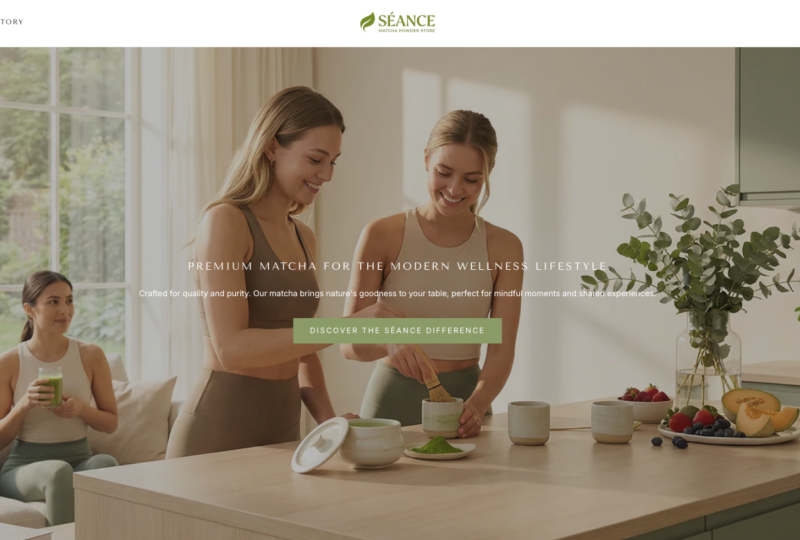
responsive Shopify store using the online store Editor, and I'm going to do this using this fake Macha
brand as an example. As you can see here, I already have all my assets ready to go. If you want to follow along
with the exact same assets, I'll leave a link here
on this class for you to download the
exact same files. If, however, you want to follow along with your own brand, I encourage you to organize
your brand assets and website imagery into a location
you can easily access, like I have done with this
folder for my fake brand Sans. You haven't already gotten to that stage of your
brand's development yet, you can use a tool like ov At, which is an AI tool that can help you develop a
brand from scratch. As you can see here, all
of the assets in my folder here have been generated
from within the Lovart app. And if you want to learn
exactly how I did this, you can check out my free
video on my YouTube channel. But regardless of
whether you use my brand assets or your own, please make sure you prepare
this folder ahead of time, as this is what we're
going to be using as the foundation for our
storefront design on Shopper FI. Second thing I want to
mention here is that there are obviously different
resources within the Shopify platform itself that are used to help
create the storefront. Apart from the Shopify
theme customization itself, you'll need to add some
products to your store and organize them into
collections, if applicable. We'll touch on some of
the other resources in Shopify in this class. But if you're fully
new to Shopify, you're going to
want to familiarize yourself with the
platform first. If you haven't already,
I'd recommend you take my Shopify store setup class here on Skillshare
before taking this one, as it'll give you an overview
of how the platform works before we dive specifically
into theme customization. Ally, as I also
mentioned in the intro, we're going to build a
storefront on Shopify in this class without any coding. In order to avoid
code altogether, we're going to select a
pre built Shopify theme from the Shopify Theme Store. These themes you can think
of as collections of prebuilt modules that
we can use as building blocks within the
online store Editor. It's important to note here that these building blocks are dependent on which theme
we choose to start with, and these themes come in a
variety of price ranges. While there are a bunch of
free themes that we can use, we're going to have more
quality options inside the online store Editor using what's called a premium theme. In other words, a theme
that we have to pay for. That being said, the
principles I teach in this class are universally
applicable to all themes. And as we'll see in this class, we can actually start
to play around with the sections and build our
storefront on trial mode, which allows us to test
out as many designs as we like before going
live with that theme. So to summarize before we get started, you'll want to one, get your brand assets
folder ready to go and two, familiarize yourself with
the Shopify platform. If you haven't already,
go ahead and do that, and I'll meet you
in the next video.
3. Moodboarding: In this video, we're going
to discuss moodboarding, which as it says here, is the process of creating a visual collection to
define the direction, aesthetic, or emotional
tone of a creative project. Basically, what we're trying
to achieve in this step, which we can do a little later if you want to delay it and you want to actually start putting in your products
into your store now, this is something that
we can do throughout our journey as a
brand on Shopify is we can constantly
gain inspiration from other websites and learn
what they're doing, what might be effective, what might work
for our brand and incorporate that into
our own website. So gaining inspiration
from other websites is not something we do
once, and it's all done. We're going to consistently
need to look at our competitors and see
what they're doing. We can actually get inspiration from websites within
different niches as well, but definitely from stores that sell a similar
product to us, we definitely want to
see what they're doing and possibly use
in our own brand. So we can find other
brands in our niche. Ideally, you would know who your competitors
are in your niche. But if you need help with
this, you can use Google or an LLM like Gemini to ask what are your top
competitors or what are the best or most popular
brands in your space. So the example brand for this Skillshare class
is a mata brand, so I'm going to search
for matcha powder online. And now we can see a whole bunch of search engine optimized
websites that come up. We might want to narrow this down to our particular market. So as an Australian, I might want to put
Australia in here. Or if you're American,
replace that with USA. You can narrow this down
as much as you want. I'm going to use Google Gemini, so I'm going to say over here, who are the top
matcha brands selling online predominantly
through an online store. It's giving me one of
these choice A choice Bs. Yeah, it has a whole bunch of
names on evther side here. So a lot of these
are very Japanese, but if we look at O brand, it's a little bit more
targeted at Westerners. So let's have a look
here at Jade Leaf Macho. This is one of the largest
online sellers in the US. So let's take that and have
a look at their website. So it's a similar product
to what we sell with the macho powder itself
and the kit to prepare it. Knowing little pop up here,
I'll close that down. Then we can have a look at the website and what
we like about it, what we don't like about it, and importantly, what can
we apply to our brand. So for example, if it has a large product range and we don't have a
large product range, then we can't necessarily
apply that to our brand. If they have 1,300 reviews
on a single product, we can't necessarily
do 1,300 reviews. But if they've got,
let's say, for instance, testimonials here that they're particularly highlighting
or recipes here, we could create our own recipes
on how to use the powder. We can definitely
take some inspiration from this website, okay? Also, selling it on
subscription and how the subscription Bridget is
laid out. Maybe we like that. So what I'm going
to do is I'm going to I also like the icons here, and some like USPs here. Okay, so let's find
some other examples. Let's find Macha full Okay. Again, this is quite
a subjective process. I want you to look at what
you like about this website. If I like this header, I can
just screenshot that header. I've got my screenshotting set so it's going to go direct to a folder that I've set up for the brand's website
inspiration so you can see. So I could just put it all
into a folder if I wanted to, and then just look
at that folder or I can arrange it on
some sort of canvas. I've got Figma over here, so I could do a whole bunch
of let's say, headers right? I need to make this big right? So I could put all my
headers here that I like. So let's just say, for instance,
I also like this header. Obviously, they're
completely different, but let's just say I liked both. Then I could just line up all my headers that I like here. Again, you can use whatever
tool you prefer with this. I'm just a Figma user, so it makes sense
for me to use Figma, but you can put this together. Any software that you prefer? And because we're not
going to be custom coding the website in
this Skillshare class, I want you to focus
more on the list of sections rather than exact
design requirements. Because unless we choose
a theme that already has this header design
already inside it, this is quite a custom design. So most themes aren't
going to give us the functionality of having a header that looks
exactly like this. Instead, what I want
you to focus on is what is the section above
the fold on the homepage? It's pretty standard
in eCommerce. This is what's called
a hero section. And if we look at any
of these websites, if I go back here, let's
have a look at peak life. All of them are going to have some sort of hero
section at the top here. So we're obviously going
to want a hero section. We're not going to
reinvent the wheel here, but maybe we want to look at what sort of hero
sections we like. They're all pretty similar here, but this one's pretty clean. So I'll just screenshot that. And then same thing over here. I'll do hero Let's say
homepage sections, right? So we can show hero here. Maybe we like to look at that. As mentioned, we're most
likely going to have a hero section on our homepage. That's pretty standard. And then we can
look at stuff like, Okay, what are the
health benefits? That might be something that we want to highlight
on our website, so we can put that into
our mood board as well. And this will help us determine what to actually
put on our website, what sections to actually look for so that we
can bring them in. And we might want
to group these. Let's say, we definitely want to highlight the
benefits, right? And I'm sure the other brands here probably have
something similar. So here we go, health benefits of
our botanicals. So let me just copy
and paste that. Actually, I'll copy and
paste from the whole width. So we can stack together
different sections that achieve the same result from
different websites of highlighting the benefits. So does this one
have a benefits? This one actually
doesn't what it does have is this nice
little recipes section. So let me see if I
can fit that all into one website frame
here by zooming out. Looks like I can't we go. So I'll just grab all of that. And let's say over here, we're going to have showcase
recipes or mach recipes, bring in that section. And as you can see,
I'm breaking this up section by section. A website is essentially
a list of sections. So we can break this down into this announcement
bar, this header, this hero section,
this benefit section, this featured
collection section. We can essentially break down any standard eCommerce
website into sections, and that's how it
works in Shopify. So when we start to build
our store a little later, you'll see going through the list of sections
available in the theme, and then we'll just be bringing them into our templates, okay? So maybe I call this hero, and I can put a frame
around all of this for sections that I might
want to put on the homepage. All right, so I can
group these all into homepage sections. Now obviously, my text
is the wrong color, so I'll just fix. Right? So I can obviously use
these bits of inspiration on different templates
on my Shopify website, but just giving you
some ideas here. So I'm going to create another frame here
for product page. So, in Shopify, it's a product template
that we're going to use for all products unless
we use alternative templates, but most of the time we
just use a single template. For our products. And so let's go to the
main product page. These are the two main pages for any eCommerce
Shopify website. I'm still zoomed out here, so let me zoom back in. It depends on how much
I want a screenshot. But here we can take a look at the main product template
of these other brands. So let me here, I'll zoom out. And you can see this one
doesn't zoom out so well, but you can see here that a lot of them are
offered on subscription. Let me go to where's
the product page here. Okay. Sun goddess Macha. Okay, yeah, this one's
on subscription as well. So we can take a look at how
the galleries are set up, whether we like the
thumbnails on the left. Or we like them on the bottom. Again, we're going to be
limited by our theme. We won't be able to customize necessarily exactly how we
want it without custom coding, but we can get it pretty
close with the theme. And you can see here we've
got some little badges here. Let's see if that
is over here, no. I think I saw some
badges here, no. So that's something unique that sun Goddess is doing is it's putting some badges over the product images,
and over here. Let's also look at how we're
able to expand these images. You can do this for as long
or as little as you like. The more research you do, the more you'll learn
what other websites are doing and you might
get some good ideas. But obviously, like
I mentioned before, it needs to match with what you're able to achieve
with your brand. So if you don't have what was
this one had 1,300 reviews, if you don't have a ton
of reviews yet, then, you can't necessarily showcase a ton of reviews, obviously. But we can do some testimonials. If we only have a small
number of reviews, we can highlight each
individual review like like the use of icons here. This is not
necessarily a section, but just some design inspiration
to say can just say, I like these icons. Again, this is your
little scrapbook, your little canvas to put all your design inspiration
on a single page. There's no set process to this. This is a flexible process to gaining design
inspiration, okay? So I recommend you
definitely look at your competitors or stores selling similar products to you. Gain some inspiration for them. The top elements that you like
put into your mood board, and so that when
we get to building our storefront within
the online store Editor, you already have an idea of what you want to put into the store. And as a reminder, you can do this at any stage
of the process. You don't have to do
your moodboarding now, finish it, and then move
on to the next step. This can be something
and it should be something you do throughout
the life of your brand, always looking at
different inspirations, and you can always update
your website as you gain new inspiration
from other websites or just ideas that come
off the top of your head. But this is definitely a thought process
you're going to want to have before you just dive straight into the
online store editor, which is what we'll do
later in the class.
4. Product entry: Alright, so now we've arrived
at a Bresh Shopify store. This is the store I've
created for Sans marcher. And if we go to the online
store sales channel, you'll see that it's only the
default theme at the time of recording Horizon that
is in our Theme library. And if we go to our products, you'll see that our product
list is completely empty. In this video, it's
going to be pretty short because we're just going to
add products to our store. Obviously, for your brand, depending on how many
products you have, this might be a long process. If you want to follow along with the same product list as
my example brand CNS, then all you need to do
here is click Import and we can add in a Shopify
formatted CSV file. So I'll go over to my brand
identity folder right here, which has all of
my brand assets. And you can see here there's one called productlst dot csv. So you can just click
and drag that into here. I'm going to publish
all new products to all sales channels. Our website is not live yet, so this doesn't really matter. Going to click
Upload and preview. So it's just going to
check the mapping here, the title, and the description and
they're in the right place. I can assure you that this
was exported from Shopify, so we should be fine
to just import, and this will take a
little bit of time. But after a while, it'll
say products imported. You'll see some images are showing up here, which is good. But if we go over to
our matcha powder here, yeah, we've got the
images as well. So within that CSV file, it should have a
link to the image. And if we add some products
with images to our store, if we go over to content
and go to files, we should see that
those have already been uploaded into our
files section as well. Important to note here, I had
a client recently who just went through deleting some files because their store
was filling up. Anything that links to these files in our
product list or in our theme will end up with empty content if we delete
our files. So yeah. Make sure when deleting files, just as a side note
that you do not delete files that are
currently in use. As you can see here, references, it's used in one product. So if we were to delete that, then we would lose that image from our
product images over here. Now, of course, if you're
using your own brand, you're not just going to import my product list and use that. So obviously, you're
going to need to go through the process of
adding your own products, whether that be through
an automated process, through an import like
I've just done or manually by clicking
Add product over here. When you're adding
your products, the main things
you need to focus on is obviously the title so I'm going to say product
just as an example here, product title, this is going to determine down here your
search engine listing. So you can see here that
it took product title, and it put it as
product dash title, but you can also edit
this right here. In Shopify, the handle is
not just an SEO thing, but it's also how we target
products in our programming. So it's important to get
this right ahead of time. So when you're setting
up your products, you want to make sure
that the product handle this last part
of the URL here, is as you intend it to be, okay? But apart from the
title and an image and a price and obviously adding some inventory here so
that can be purchased, that's all that you
really require, and everything else is
extra on top of that. Obviously, if your product
comes in different options, you need to add them here, and that will create
different variants. But we're not going to
go into the difference between products and
variants in this class. We already covered that in the Shopify Store
setup so I won't go deep into how the
Shopify platform actually works outside of
the online store editor. If you want to learn
more about that, you can go to the previous
Skillshare class. But regardless of the method you used to get some
products on your store, you're going to
need some products, so I encourage you to
do that right now. And one other thing
I'm going to do is arrange these
into a collection. And because we have such
a small product range, I'm just going to create a very basic collection
instead of homepage, which is the default one, I'm
going to delete that one. I could also edit
it to my liking, but I'm just going to delete
that and start fresh. And I'm just going to call
this the Shop All collection. A lot of stores do this, and I can either make it smart here or manual because I've got such a
small product range, it's not going to
matter much either way. So I'm going to add in all four products in
my product range here, and that's going to add it
to this shop All collection. So at the end of this video, you should have your products imported or at least
a few of them, and at least one collection built with some of those
products within it. Okay. Now in the next video, we're going to move over to the brand settings of
our Shopify store, and we are going to put in our brand logo and
some colors as well. So I'll catch you
in the next video.
5. Brand Settings: So in the last video,
we quickly added in our product list using an import and arrange them
into a single collection. We're going to do one
more quick video on setting up some stuff within
our store before we move on to selecting our theme and setting up our storefront
with the online store editor, and that's to go into
our brand settings. This, I believe is a pretty
new feature in Shopify, but now we can add things like our logo and our brand colors to a brand section of our settings within
our Shopify store. Was previously done inside the online store Editor
when setting up your theme, and it is still done that way. But the idea of the
brand settings is that we're not copying and pasting settings across multiple themes, which could be up to 20 different themes in
your theme library. We have a centralized place
to put in stuff that doesn't really change like our brand
colors and our brand logo. So let's use it
now, and then we'll obviously link this to
our theme a little later. And if we scroll down, you can see that it's not
just logos and colors. We can also add cover image, slogan, short description,
and some social links here. So I encourage you to fill
this out as much as possible. In this video, I'm just
going to add in the logo. So as you can see here, we've got our
product images here, but we haven't got our logo yet, so I'm going to open up
my brand identity folder, and you can see
we've got the logo, so I'm just going to drag just
a reminder that this logo, if we take a look at it is very well cropped and has a
transparent background. When you're preparing your logo, I recommend you do the same. And if you're interested
in how I did that, I basically just used preview, which is the standard app in MAC to just crop
an image like this, and then you can use a
tool like remove dot Bg to remove the background
from an image if you don't have an app
like Photoshop, okay? But, yes, you want
to add in your logo, like such without
tons of space around the actual content of the logo and a transparent background. So I'm going to add that in. And a cool thing about
this brand settings, as you can see, it gets added to
this little mock up at the top here as well. We can also add
in a square logo. I'm not sure if I have the
square version right here. I don't think I do, but that's also an
option right there. And then now I'm going to
add in my brand colors. So let's have a look
at we can either look at the list here written
down in text edit. Or we can look at our brand
identity guide right here. So I'm going to look at my
brand identity guide instead. So I'll open that
up with preview. And as you can see, I've got two primary colors
and three secondary, which I think matches
perfectly over here. So let's add in my
first primary color, which is going to be hopefully
I can copy and paste. Yes, I can, right here. It doesn't like the hash, so we're going to make
sure we get the hash away. So if I do something like that, it just misses the last
character of three. Okay, there we go. And then the contrasting color
is this one right here. So I wish I could
select actually, maybe I go to the document over here might be easier
to copy and paste. Although these are organized
a little wrong here, so let me have a look over here. So we want to move the cream
color over into secondary. Alright, now we
can use this list. So if I go back here for
the contrasting color, it was soft beige. So I'll copy that
without the hash, and then I'll go into
secondary colors right here, put in the sage green. The next one, obviously, it should go without
saying that you're going to put in your
own brand colors here. You're doing this
with your own brand. But if you're just following
along with my example brand, you'll be following the process the same way I'm doing it. And now we can click Save
to save those colors. And if we scroll
up, we can see how those colors sort of interact
in a little mockup up here. Even though it's not a
real website mockup, it is looking pretty good the combination of those colors. Alright, so that's it for
setting up the brand settings. We're going to obviously
link this logo and these colors to our theme
via the online store editor, but it's going to depend on what theme we're
going to use. The good news with setting up
the brand settings here is that it's consistent
across all Shopify stores, whereas the part that
we're going to get to next with choosing
your theme and then putting this
information within your theme varies
from theme to theme. So without fervor ado, now that we've got our
brand settings set, and our products imported, let's now move on to the online store sales channel and start to work on our theme.
6. Choosing a theme: Alright, so now we've reached the part of the class where it's time to decide on
our Shopify theme. And there's a range of factors that go into this decision. The first factor, I
would say is price. So if you have zero budget, then you're obviously
going to have to choose a free theme, or you're going to have
to use this feature, where is it down here where you can write in with Shopify magic, a prompt, and generate a
theme based on your prompt. I wouldn't necessarily
recommend this. You can test this out and see if it produces a good result, but I've found the results
from this are not amazing. And it's better to use a
theme that was actually created by real
developers and not AI, at least at the
time of recording. And so your options, obviously, you've got one installed on
your Shopify Store already. So if I click Edit Theme here, it's going to take me to
the Online Store Editor for the Horizon Theme. So this theme Horizon has
been out for a year or two as the default theme
on Shopify stores. And as you can see, we
don't have to pay for this. This is a free theme. When evaluating themes, I
want you to move through different templates and look through the list of sections. So a little primer on
Online Store Editor. We covered a little
bit about it in my previous Skillshare class
on Shopify Store setup. But essentially, your
Shopify storefront is just a bunch of templates, and we can access these
different templates up here in the top center. So as you can see, here
the current template that I'm on is homepage. But if I click this, I can choose other
templates to look at. So the main pages we're
going to look at is homepage and the product page. And as you can see, there's a
sub menu here because I can create alternative templates
for the product template, or I can just use the
default product template. We're just going to use the
default product template, so I'm going to click on
that and you can see that switches me over to a
preview of that template. And then it also depends on what product we're passing
through that template. So what I can do is I can change the product that I'm looking
at through this template. To, let's say, our main product, which is the premium
marcher powder, and we can see how our template interacts with a
different input product. Okay? Let's go back
to the home page. And within this template area, you can see that there is
a button to add section. And so what you're
going to want to do is to look at the
different options when you're evaluating a theme here in the list of sections. With Horizon, actually,
there's quite a big list. Again, if you've got no budget and you just want a free theme, then Horizon's pretty okay. But let's actually
have a look at some of the other options on
the Shopify Theme Store. If I go down here to
popular free themes, you can see there's some
other free themes here. But let's visit the whole
Theme store. All right. Now, as you can see here, some of the ones that
come up to the top, the most popular
ones do come with a price tag of 300 to $400. Impulse. This one right here
is one of the most popular. I've used it on
various projects, but it is going to come
at a premium price tag. That being said, if you were to custom code your own theme, it's going to be most
likely more than 400 USD. So I believe you
do get good bang for Buck with premium themes, and I recommend buying a
premium theme to anyone that's in that budget range
where they can't afford a 5,000 to
$10,000 website, you can get a ton of
development work inside a very modular theme
that you can work with in the online store
editor here on Shopify. So you can have a look at the demo store on any one
of these Shopify themes, and you can play around with it. It's within this
little container here, but I can expand out
and you can see here, there's a lot more in
the way of animation, and it's just very
crisp and premium. There's a ton of sections and a very nice
mega menu, as well. So a few of my clients have used this premium theme before. But obviously, there's on
the Shopify Theme Store. We go back to browsing
through all the themes, there is over 1,000 of them. So pretty hard to look at
and evaluate all of them. It's near impossible. So you'll want to use some
of these filters over here. I don't think you
can filter by price. It can only be free or paid. So let's say your
budget is zero, you're going to be looking at
these 24 different themes. You can obviously grab a theme from outside of
the Shopify Theme Store, but I just wouldn't
recommend it. All of these themes within
the Theme store go through a stringent checklist
in order to be approved to exist on
this theme store. So I definitely recommend you go through the
Shopify Theme Store. Can also filter via industry. So what would ours be? I guess it would be food
and drink, right here. So you can filter by
different industries, small catalog sizes and
different features. But you can also
use AI to help you. So going back to our friend Google Gemini,
I'm going to say, help me choose a
Shopify theme for my premium machaPowder
brand seance. Obviously, replace this with your own brand if you're
doing this on your own brand. Okay, so here you can see it
recommends some themes here. Prestige is a good one
that I've heard before. Let's have a look at prestige. Again, like a lot of
things in this class, this is a bit of a
subjective process, and it's going to
depend highly on your own brand and
your own preferences, but we can view the
demo of prestige here. It's a bit more fashiony. I don't know if this necessarily makes sense for our Macha brand, but what we can do is
on any of these themes, we can click Tri Theme. And what Tri Theme enables us
to do is actually start to build our storefront with this theme without
having to pay for it. Now, of course,
without paying for it, we are not going to
get a lot of features, for example, we can't actually
publish it to our store. So as you can see here,
it's going to install in my Theme library on a trial basis. So
that's just done now. And usually there's a
button here to publish, so I can move this theme
in our theme library, which is currently a preview
theme into the main theme, and therefore publish
it to the website. We can't do that
with a trial theme. We can only click here to buy. And if we want to edit the code, we can't actually
edit the code Eva. Looks like we can
preview the theme. That's nice. Okay.
And you can see it's already loaded
in our logo there. We just can't publish
it or edit the code. Those are the main
two limitations here. But we can actually go
through the rest of the class building our
storefront on a theme like this without having to
necessarily buy it unless we are ready to actually go live
with this storefront, okay? So here you can see, it's
already pre loaded my logo. So if I go into my header here, the image is pulling through the default logo from
our brand settings. But let's just
say, for instance, we did not set that logo
up in our brand settings, we can always just link it directly here in the
online store Editor. That's no problem. I'm going to click to connect
a dynamic source, though, and connect our brand logo just to
be cleaner here. Okay. It's also pulling
through some navigations. We'll work on navigations a little bit later in the class. But if we go to our overall
theme settings over here, we can start to load in some of our brand colors and typography. I'm going to start
with typography first. And for the body text, our brand fonts are, as it says in here, Inter and tenor Sands. So our body font is
going to be Inter. So I'm going to dial
that in straightaway. Then I'm going to go up to
here to our heading font. And according to
our brand document, it's going to be
tennis Sands, right? So put that in there. And you can see it doesn't
look too different, but I hope you'll agree the
fonts go quite well together. Alright, so now we'll put in our color Modern Shopify
themes now have color schemes. So you select one scheme, and then it brings
through all of the color variables
within that scheme. And what this allows
you to do is instead of setting individual
colors on every section, you can bring across a scheme, and you can swap out that
scheme on a certain section. So it just narrows down
the options so that instead of adding
in a whole bunch of color variables
on each section, you just select one scheme, and then you set up
the color variables on one of these schemes. So I'm going to
add a new scheme, and you can see
here, we've got one, two, three, four, five, six, seven different color
variables to add in. So here we can put
in our brand colors. There is some skill here in
determining what goes where. For our background colors, we obviously want
something that's a little bit off white, and for our text colors, we want something
that's a bit darker. Okay? So if I look at the actual graphic of our
brand colors right here, I've already got it open,
you can see here that we've already got a certain
off white loaded into here. We can instead change
that and we can add in a specific color or we can add in a dynamic value and bring in, let's say, for instance, our
secondary contrasting color, so they'll link the
actual variable to our general background color. And then in terms of body text, we can bring in our
primary color one. These sections
haven't actually been switched to use our
new color scheme, so we'll have to do
that a little later. Let's just put these in now, Let's go into our
button background, which is usually the inverse
of what we've set up here. So I'll set it up to be
basically the inverse. So I'm going to set
up the background to be the brand bright green, and then I'll set the text to be the contrasting primary color. And then down here, I might use secondary color two, and contrasting that with the secondary contrasting color. Alright, we might
need to edit this and tweak this as we start
to build our sections. But let's go to this slide
show section, for example, and does it have an option for color scheme? Doesn't
seem to have that. But let's go into, let's
say, for instance, featured collection right here, and then we can change this to our new color color scheme five. And as you can see,
it looks okay, but we've got a little bit of
a problem with the button. Let me go back to here, let's go over to our
button text right here. And we don't necessarily have
to use these exact colors, so I can just remove that, leave that as white. You know, maybe I want to use the other secondary
contrasting color. Okay, let me save that. And I believe that the text
here using primary color one, there's not enough
contrast there, so I'm just going to break
out of that selection, and I'm going to just make the
green a little bit darker. You know, this is
a flexible system. We don't need to fully
respect the exact color code. We can make that color
a little bit darker, and I think that color
scheme works nicer. Okay. All right, so now
with our theme decided, let's move on to the next step, which is to add in our sections. And if this doesn't work
for this particular theme, we can always switch themes. But now using prestige, let's actually start to set up our storefront
using the sections available in our chosen theme.
7. Homepage: Alright, so here we are inside
the online store editor, customizing the prestige theme. As mentioned in the last video, the options for theme
customization are very dependent on the
actual theme you choose. This online store
editor is going to be the same no matter
what theme you use, but the options in terms of which sections you can
add in and the options within those sections
is going to be limited or enabled by the theme. Okay? So we're going to go ahead with the
prestige theme here, but you can follow along in
principle with any theme. The sections and the settings are just going to be different. One thing you can
notice here is I'm on such a tight screen
size here that this hamburger icon is
showing for the mobile menu. If I expand to full screen, you can see that that
expands out into menu items. I don't want it
to show like that when I'm customizing
the homepage, so I'm just going to zoom out, and that should bring us
our menu items here. Okay. Now with this particular theme, we can see different groups
of sections on the left here. So we've got our header
group, our overlay group, and our footer group in addition to the group that
goes under the template. Just to explain this a
little bit before we go and look at the sections
in the template itself. In Shopify, we can
create our own groups of sections that apply
to every template, and these go outside of this
normal template group here. In the past, it was just a header section and
a footer section. But in order for these areas to be a bit more
customizable and allow for extra sections to
be added to these areas, Shopify created something called section groups a few years ago, and now a footer group and a header group
that's going to be pretty consistent
across all themes. But this overlay
group is something that's pretty
unique to prestige. All you need to know here
is that these groups are going to show up on no matter what template
you're looking at, but the sections
underneath this heading of template apply only to the template that
we're looking at. So we're looking at the homepage right now as we can see up here. So these sections are
running on our homepage. As you can see, there's
a ton of sections here. What happens when you install a theme from the Theme
store on trial mode, like such is you're going
to get a whole bunch of demo sections added
to the homepage, which is a little bit annoying. It at least showcases
all the features of the theme or at least a bunch of the features, but
we don't want that. We want to actually build
our storefront from scratch. And we can still select these by adding a section via this menu. So I'm going to remove
as many of these as I can is going to allow me
to delete all of them, except for one because we need at least one section in
our template at all times. So you can see here now
that if I scroll down, we don't have any more
of those sections, and for this particular
slideshow section, we're not able to delete
it because this is currently the only
section in our template. Now, as mentioned in the
moodboarding lesson, pretty much all
eCommerce websites are going to have a hero
section on their homepage. So this is a pretty easy
design decision to make. We want to find a
section that is a hero section that we can add to the top of our template. What we're going to do is inside this template group right
here, click Add section. And now we can see
a whole bunch of sections in different
groups like this. We can expand and
contract these groups within specifically
the prestige theme. So this selection of
different sections, this is going to be dependent on what theme that
you're customizing. So in the prestige theme, we've got all these
different options. And as we hover over
the different sections, we can obviously read the name. But then on the right, if
a preset has been set, we can see a visual preview of what that section
might look like. So as we scroll our cursor
over these different sections, you can see what they
could potentially look like on your store with
placeholder content. Okay? Now, this slideshow is something we can
use as our hero, but I'm going to choose from this list of
other banners here. Let's have a look at this
image with text block. And what I'm going to
do is I'm going to add in the image that
I prepared earlier, our seance lifestyle
hero section. So I'm going to click
and drag that into my files here and then hit done. And then I'm obviously going to want to change the text here, but let me just double check that I can actually
move this box because I don't want it
right here in the center. So actually, I want to get
rid of this paralex effect. Okay, that's better. But
you can see here that this box is kind of
obscuring the content. So, unless there's an option for us to move it to
the left or right, I don't think that this
is the ideal section for our hero section. So what I'm going to do
is I'm going to look at this other one here
image with text overlay. We don't actually have
a preview of that, but we can see it here now as we bring it in
with the preset data. And you can see here this might actually work
a little bit better. So I'm going to set
my color scheme up here to the color
scheme for our brand, and then I'm going
to click Select here in the image field to bring in that image that
we did in the previous. Okay. I think this is
going to look nicer, although the text is not the right color in
terms of contrast. So what we can do, actually, there's an overlay
setting over here. So as you can see, it's
putting in a dark overlay. What we could do is put in a more bright overlay
like this and then maybe increase the
overlay opacity to create more contrast
with the text here. I'm going to leave it on black, and I'm going to change the color scheme
to make it white. I actually think that
looks a little bit better. But each their own whatever looks best to you,
you can obviously do. And then I'm going to dial in my opacity to a level
that I think doesn't obscure the image
too much whilst at the same time gives some
contrast with the text. And in terms of customizing the actual elements
within this section, I can look to the blocks
within the section. Let me just delete
these other sections now that I've decided
on this as my hero. So as you can see here, this is going to look nice as a hero. I can customize some
other things like the content whip and the
position of the content, so I can put it on the
top left if I wanted to. I can put it on the bottom
right if I wanted to. That looks kind of nice, as
long as it's above the fold, but I definitely want the
text to be above the fold. So I'm going to leave it
in the middle center. Then what I'm going to want
to do is customize that text. So as you can see here, there are two blocks
within this section, and I can click here
to add more blocks. So this section allows
for a subheading. Liquid just means custom code, so we can add in
some custom code. We can add in a button. I might want to add
in a button here and then obviously reorder
this, so it's at the bottom. Then I'm going to want
to change the copy. So I've got my website
copy document over here. Let me just open that up. And then at the top here, I can see a little
bit of a headline, so I'm going to copy
that, put that here. And then for the paragraph, I'm going to take
this paragraph under the heading and put
that in here, right? And then for the button text, we also need to link this
button to somewhere, obviously. Maybe I just say discover the seance difference or
whatever you like in here, and then I can just link
to our shop or collection, or I could link directly
to our primary product. The premium marcha powder,
whatever I want here. And I can also customize
the color of the button. I can change it to an outline. I'm going to make it solid
or keep it at solid. And then the background color, maybe I use my
primary brand color. It's going to go straight
to Meta objects here, but I can click
this Chevron here to go back to our brand, and then let's try
primary color first. I think that's too
bold of a color. So let me just replace that
with secondary color one. And then, of course,
I want the text to be a different color
white for contrast. Okay. So I like
the look at that. If we want to see it on
different screen sizes, we can go over to these
icons right here. So if I click full screen, that's going to
hide the side bar, and then we view it on a
bit wider of a screen. And then if I click mobile, we can see how it
looks on mobile, which is quite tight. So we might want to update our settings
a little bit here. So what I might do is
in the image size, I might change that from original ratio to
large. Fit screen. So that looks a lot
better on mobile, and then that doesn't look
too bad on desktop Eva. So that's giving us the best
of both worlds, I think, in terms of using the same hero image for
desktop and mobile. We get a good result doing that. Okay, so that's
our first section. We can actually rename this
if we want to to hero, just to make that a bit clearer. And with our hero section added, let's add some more sections. Now, I'm going to move a
bit faster through this now that we understand how to at
least set up one section, and now it's just a
matter of deciding which other sections to go on our homepage and
setting those up. So we're going to
hit Save on this and let's work on
the next sections. So for the first section
of the homepage, it's typically always going
to be a hero section. So that's a pretty
big no brainer. But now we have to decide what else we want
on our homepage. And in order to
inspire this decision, we can look to our mood board. And see what other websites
are doing that we like. But we also have
to match this with the sections available
in our chosen theme. So we're kind of limited to the sections available
within our theme here, which in this case is prestige. Now, of course, if you're a
custom coding your website, you can make it look
however you want and build in whatever
sections you like. And I'll get to some
of the options at the end of this class
on how you do that. But for now, without
using AI or code, just using the standard
way in Shopify, we need to look at
what sections are available within the
actual But seeming, I don't really
have a mood board, and I already have an idea in my head of what
I want to build. I'm just going to go
through these list of blocks and see what
makes sense to add. A contact form on the homepage, not particularly typical
for a brand of this nature. If I have a newsletter,
I can capture newsletter sign ups if I have some sort of lead magnet
to gather from people. But I think something
that's pretty common is to showcase some products
on our homepage. And we can do that
using what's called a featured collection in
Shopify or in this case, a featured collections section. So I'm going to click this And what it allows
me to do is bring in a certain collection
or set of collections. So in the case of this one, we can add in multiple
different collections. By default, it's only one, but for this particular section, we can add in
multiple collections. And so what I'm going to do
is I'm going to click on this block for collection,
and as you can see here, we can link a collection
from our store, as we only have one because we have a small product range, I'm just going to Link Shop A. This is the limit of
products to show, but seeming we only
have four on our store. We're only going to show four. So this is the maximum that
will show up this section. And then we can put in a
heading for this collection, remembering that we can put
in multiple collections here, so I could put in an optional
header here of Shop A. As you can see, under
here, if you look closely, this defaults to
collection title. So if I leave that blank, the section title
is Shop All anyway, so that's actually not
going to change the text. Let me change this instead
to Al product range, right? And then that's going to
change the text here. And then I don't want a view all button because
that's literally all the products we
have on our store. And then if I go up to
the section settings, there is this other
little bit of text here, the subheading, and I'm just going to remove
that completely. Typically with Shopify sections, if you remove the text
completely in the field, then it will remove
that space where that text was going if the theme is built
correctly, that is. And just like last time,
we want to look at our different
customization options here to find opportunities to
make this look even better. Obviously, we want it to
use our own color scheme, so I'll set that to scheme five, and that looks quite
nice, actually. If you've got one of those premium brands
where you don't show the price or the title
of can switch that on. I'm not going to do
that in this instance. We can stack the products. So I believe this is
related to mobile, so I'll switch over to
mobile view right here. If I turn this off, then it's a sort of overflow
scrolling container. But if I switch this
to stack products, then you can see that I
can have a grid here of two columns or a simple grid
of one product per row. So it's up to your
personal preference. I kind of like this one, so I'm going to leave it at that. And then this is going to be relevant here because we
only have four products. So unless we change this to, let's say, for instance,
two on desktop, which I think is just too big, then we're not going
to have to break onto multiple lines with
a product range of only four products. Okay. So that's our options
within the section itself, but within the block settings, we can also link the button that we just
removed here to something. Obviously, if we have
a view or button, it defaults to the
collection URL, but we can actually get it
to link to somewhere else. I'm just going to remove
the button altogether. I don't think it makes sense, and that's it for our
featured collection section. I might even rename it to
featured collection, okay? Or I could call it
our product range. Okay. This does not change it in the names of
sections right here, only the instance of our section that gets brought in
to the template here. Okay, so I'm going
to hit Save on that. That's our second
homepage section built. Alright, let's remove
the sidebar and see what we've got so
far. I'm liking this. We'll get to the header
a little bit later, but in terms of the
homepage specific sections, everything's looking
good so far. I'm going to add two more and then we'll wrap up and
look at the next template. So one of the things
if you remember from the mood board lesson is that it seemed like all the
other matcher brands highlighted the benefits
of their matcher. And another thing that I
liked was these icons here. So what I've done
is I've generated my own icons that you can
find in the icons folder, and each of these icons
represent a different benefit. So antioxidant, if I just
reduce the size of that, brain health, calm
energy, and detox. Actually, I got one more here, but I probably won't use it. I think four is probably enough. Have something that's like
a list of dot points, you can use something like icons to make that list a little
bit more rich, okay? So if we go back to our
template over here, let's find a section that we can use to highlight
these benefits. So I'm going to
click Add section under our product range, and let's have a look through the different
groups of sections. Using the titles of these
different groups to inform me. We're not looking for a banner. Looking for calls to action, maybe looking for
something content. So we're not going to bring in some blog posts at
least at this stage, not some tabbed content, not a before and after image, but we can find something like this multi column section here as long as we
can add an image. So I'm going to
bring that in here. And let's have a look at the
settings within each block. Yes, we can add in an image. So we could possibly use
this multi column section. Let me just have another look at what other sections we
might have available to us. And down in the Trust
and social proof group, we have this section
called Text With icons. This is exactly what
I'm looking for. So I'm going to bring
that in right here. Actually, we can see
that we're using it down here with the built in
icons in the theme. This theme obviously comes with some icons, as you can see here. We can add in our
own custom icons. So what I'm going to do is
I'm going to add in all of these icons into this
image uploader right here. And what this is going to do is upload them all at the one time. But once they're
uploaded, obviously, I'm going to select them one at a time to highlight
each of these benefits. Okay? So I'm obviously going to need to pair this with
some website copy. So let's go back to my website
copy document right here. And here we have some
dot points here that we want about on our
website radical defense, sustained ritual, metabolic
spark and vivid detox. We can match our icons
to these benefits. So the first one
radical defense, I'm going to look over here. This icon here seems
to be the right match. So I'm going to
add that in here, change this to radical defense, and then take the subtitle from our website copy
document right there. The icon whip for our more detailed icons is
obviously way too small here, so I'm going to bring
this up quite a bit. In fact, I think
I want to take it all the way up to the
maximum value of 64. And then we have this option here for mobile
icon WIP, as well. We definitely want that to be
bigger on mobile, as well. So I'll put it all the
way up to 64 as well. And as you can see
here on mobile, we're going to have it
break into this sort of slider with animations
between the slides. Okay. So the benefit of using a theme off
the shelf and not custom coding it is we
don't have to worry about coding it for
multiple screen sizes. This theme should
work automatically on mobile without us
having to look at it, but there should also be
options available to us within the theme for
customizing those options. As you can see here, I'm
defaulting to scheme one. So I'm going to want to change
this to our color scheme. If you want to avoid this
step altogether with switching the color scheme of
each newly created section, then we could have
set up our colors over here. In scheme one. Actually, there's an option here to have the default
color scheme. So let's set that to five, and that will allow us to with every new section
that we build, it will use color
scheme five by default, which is our own color scheme. Okay? What other
options do we have in the section settings here before we move on to
customizing the blocks. Separate section with border. So it's hard to see it with
these blue lines right now. But there is a border
on either side. I think that looks
alright for now, so I'm going to leave that. And then this other option
for stack on mobile, right, but it's not stacking as nice. I'm going
to turn that back. And yeah, I think that's it for the section settings overall. For now, I'm just going to
dial in the rest of my icons. So I'm going to go here
and what was the next one sustained ritual, okay? So, this one is about a calm focused energy that
lasts 4 hours. I might actually crease this zoom in a little
bit for you guys. Looks like I can't zoom
in, so I'm just going to make this bigger in
terms of font size. Okay, so sustained ritual, a calm focused energy
that lasts for hours. So what would that be? Calm energy, probably. Alright, let me put that one in. Again, I want to dial
up the icon whips, replace the content
here. And what was it? Sustained ritual? I'll just type that in myself. Alright, cool. And then
the third one right here, what have we got
metabolic spark? So a natural plant based
boost to your metabolism. So metabolism boosting. I believe I've got one here for metabolism. Let's
put that one in. Again, make them much
bigger, replace the content, metabolic spark and then one more I can add in
here for vivid detox, rich in shade grown
chlorophyll to help your body naturally
filter and cleanse. Okay? So that's something that talks about cleansing
and detoxing. So I believe this one is
the right icon for that. Again, putting up the
sizes of the icon, replacing that heading, and replacing that text right here. Alright. So let's have a quick
look at it on full screen, and then on mobile, looks pretty good, but
it's missing a heading. So let me go back to my
section settings right here. And unfortunately,
there's no heading option within this particular section, which I think is a little bit
bizarre, but that's right. We can bring that in in
a different section. So I'm going to click
Add section here. And in a lot of modern
Shopify themes, there should be a section
just called Rich Text, which is a flexible
section where we can bring in different pieces
of text using blocks. So as we can see in the example, we've got subheading,
heading and paragraph. I'm going to delete
subheading and paragraph. Going to put this
above text with icons, and I'm just going to use
it only for its heading. So even though it's
a new section, it's still using the old schema, I guess, because I
haven't hit Save yet. So let's make this scheme five, and this is a
little bit too big. So let's see if we can fix that. I'm going to remove this
section with border, but then let's see, remove vertical spacing.
Okay, there we go. So any settings we
can customize here, the style of the heading,
the heading text. And for the heading here, we have in our website
copy y seance marcha. Okay. So this is more of
benefits of matcha in general, but tying it to our brand of seance marcher, we
can put that in here. And now let's have a look at it. Okay, so our section down
here still got that border, which doesn't really make
sense with the title here. So I'm going to remove
separate section with border, and that'll get that
heading section to blend in a little bit better
with our icons section. Okay. Alright, so technically
two new sections here. I'm going to hit Save on that, and let's do one last section. Like I said, this is
a brand new brand, so we don't have
a ton of reviews. So I'm going to make a bigger deal out of the
reviews we actually do have, and I'm going to bring
in testimonials instead. So I believe there's actually a testimonials section
within prestige, if I go all the way down
to trust and social proof. And so I can just click
testimonials here. Sometimes you find that
there's a section within your theme that exactly matches what you're
trying to achieve. And that's the best
case scenario, but sometimes you need to
take the existing sections and work with them to create
something in particular. So I'm not sure why, but it uses a different
color scheme here. Let's set it to our color
scheme of scheme five. And for the section header, I'm just going to put in
here from our customers. Obviously, the rest of the
content here is optional, so I'll just leave that blank. And then we can go in here to these different testimonials. As you can see, we've got some
placeholder content here, share what your customers are
saying about your products, customer service,
or shipping rate. So let's remove these. Go back over to our list
of testimonials here. Going to grab this
one from Sara. And then in the author field, I can put Sara. And we actually have images of all these
testimonial authors. So I'm going to go over here. And just like I
did for the icons, I'm going to upload
them all at once, and then I'm going
to select them selectively as we bring
them into different fields. So inside my customers
folder here, I've got three customers that are providing
the testimonials. And I believe Sarah M was
the blonde girl here. So we can bring in
a photo of her. And this is looking a
little weird at this stage, but the images are
actually navigation. So if I go down to here and
let's add in the next girl, I'm not sure which one is which, but it doesn't really matter. We bring in a new testimonial, go back to her testimony. She can be Maya, grab her, put her testimonial here, take her name, put it
in the offer name. And you can see here
these kind of act as navigation for the different
testimonials, okay? Let me go here, select the last image. This girl can be Ava, put her name down there, put her quote right
here in content, and Wala, we have our
testimonials section. Alright? So if I
go to full screen, we can see how this looks
on a bit wider of a screen. And if we go down to mobile, we can see that we get this slider navigation
with the dots. So the navigations a
little bit different here. And again, let's have
a look at anything else we can do to make
this a bit nicer. There's something here
called a font size factor, so we can actually
reduce the font size. I might just reduce it slightly because you don't want to reduce it too much on mobile, especially if your viewers if they're of the older variety, they're going to struggle
to possibly read it. The only other
option here that we haven't touched is
the image width. So maybe we play around
with that to see. Yeah, I think we can make
that a little bit bigger. So let's make that
160 instead of 140. For each testimonial block. I accidentally clicked
in between blocks, which created a new block, so just deleting that one. And I'm going to
hit Save on that. And let's have a look at
our completed homepage. Obviously, I could go on FEVA. I could add more
homepage sections. But for this particular video within the Skillshare class, I'm going to leave it at
these four sections or technically five
sections if you include the heading as a
separate section. Here you can see, we've
got our hero section. This takes us to the collection
or to a specific product. It showcases our
product range with the different names and prices. Why seance Macha,
the benefits of our product and some
testimonials right here. If you're wondering
where this text With icons section
is coming from, it's actually coming
from the foot group. So if you want to remove
that or just hide it, you can do so like such. I might just hide it
for now because yeah, we don't know if we can
offer those benefits. And then likewise, at the
top here in the header, we might not be counting
down to a super sale. So let's actually just actually, we aren't counting
down to a super sale, so I'm just going to remove
that. But it is an option. If you do have a sale in future, you can add this countdown
timer or announcement bar to the head of group specifically
within prestige, okay. But for now, I'm just
going to remove those, and this is our
current homepage. As you can see, with some
nice scroll image animations. And then if we look on mobile, looks pretty good, as well. Okay? So in terms
of page importance, there's probably two pages
that are the most important, the homepage and
the product page. So in the next video,
we're going to get to the product page next.
8. Product Page: In the last video, we customize the homepage of
our Shopify Store, but now we're going to
move on to probably the most important page to optimize in our
Shopify storefront, and that is our product page. If I go over to the
template selector up here and I select products, it opens up a new menu, and it gives me all the options for the different
product templates. Okay? So unlike homepage,
there's only one. So this template applies
to only one page. If we see this Chevron
on the right here, indicates that any of these templates could apply
to multiple resources, whether that be a product or a collection or a blog
post, et cetera, et cetera. The pages for each of these different resources are
going to be pretty similar. They're going to typically pass through the same template. And that's why we have
this Chevron here, giving us the ability to not just one product template that applies to all products, but the ability to assign different products to
different templates. So as you can see here,
this is the default within specifically
the prestige theme. This might be different
on your theme, but we're definitely
going to have a default product template, and then we're going to have
alternative templates here. So as you can see here, there is an alternative
template built into the prestige theme called preorder underneath the
names of the templates, you can see how many products each template is assigned to. So here you can see
the pre order template is not currently assigned
to any products. Therefore, if we were
to customize this, it's not going to have any
impact on our storefront unless we were to assign a certain product
to this template. And just to be complete here, I'm just going to go to the store Admin here
and just show you that. I believe we would
have covered this in the video on store setup. But just to be clear,
in order to get a particular product to
use a different template, I go down here to
Theme template, and I switch that
from default product to another product template. This selection only comes from the currently
published theme. So if we look at our
currently published themes, you can see our currently
published theme is Horizon. So this is a little
bit of a nuance within Shopify that can
be kind of annoying. We would need to create the
same alternative templates in the currently published
theme in the case that the theme we're working on is not already the
published theme. So if I wanted to do this, I could say alternative, give it the same name as the alternative template I've created in the prestige Theme. That's going to create it in the currently published theme, and then to just finish this slight
tangent demonstration, I should now be able to
select alternative as the template to which this
product will pass through. Okay? But in this example, we're not going to have
alternative product templates. We're just going to
have the one template. So I don't believe there's
an option to delete here. I can go into the
code and delete, but we don't have code access, and this is a no code class. So we're just going to switch back to default product here, and then I'm going to open
up this side bar here. So same principles as before, but now we have a new
option at the top here, and that is we can change which
product we're looking at. So we can see the preview of this template passing through different products on our store. So what I'm going to do
is I'm going to set this to our central product, our main product that has multiple product images and is our flagship product, okay? And then what I'm going
to do is I'm going to customize this template
based on this product. Okay? So you can see it's looking pretty good
out of the gate. The vendor we don't want here, so if I click into the
section right here, you can see that each of these different
aspects over here are different blocks that go into the main product section, which is this thing right here. I'm going to remove vendor. I can also rearrange these, so I could put the price above
the title if I wanted to, doesn't really make sense,
but I could do that, as well. And so what I can do is
remove some of them, add new ones, and
rearrange them. So let's have a look at
all the available blocks within this particular theme. As you can see
here, I can add in extra elements to our
main product section. Right here, okay? Also, underneath the
main product section, as you can see here, it's called product page, but in other themes, it might be called
main product section. I typically refer to it across different themes as the
main product section. It's the main section that's going to determine
your product page. But then underneath it, we can add in other sections. So you can see we've got this
related product section. And just to be clear,
this populates based on an API that's set
by Shopify themselves. So if you're not getting
this to show up, need to click around
on your store more for the Shopify algorithm to figure out what's related
based on actual user data, which in your case is yourself. So just to let you know this
related product section, as it says here, dynamic recommendations
change and improve with time. You can create manual product recommendations
if you want using the Shopify search and
discovery app, but by default, Shopify will determine
which are related products based on how users are
interacting with your website. Okay. I've done a lot
of talking and only made one change so far
to our product page. Let's jump into changes to
our product page right now. As always, we're
going to be limited by the options available
within the theme. So let me look on our
product page object. And number one, I'm going
to change the schema to our particular color
scheme, so that's on brand. And what I can do here
is reduce the width of the actual details on the right to give more space
to the images if I want. Or I could do the opposite. I can make that bigger, giving less space to the images. So dial this into your
personal preferences. I think 33% was probably
a good number there, remembering that the
web is relative. So if I make my screen bigger, it's going to make both
of those columns bigger, but maintaining
that ratio of 33%. Okay? Looking through
the other options here, I can choose a different
layout for the product images. So as you can see here, remember when we looked in
the moodboarding lesson on whether the thumbnails were on the left
or on the bottom, if we prefer it to
be on the bottom, we can actually customize this
via our theme right here, within the prestige theme. I actually like it more on the left, so I'm
going to do that. And then we can decrease
the gap if we wanted to, specifically on desktop
between these images. Doesn't seem to be doing much. Maybe my screen width
is not big enough. But yeah, same
principles apply here. We need to work
within the options that are available
within our theme unless, of course, we custom code it, which once again, we'll get
to at the end of the class. Okay? So I've got my title, got my price. Payment
installments. So if we've set up our store to support Shop
Pay installments, as you can see it written here, then that will show something. But let's just
say, for instance, we didn't have
that as an option, we're going to want to delete that even though it's empty. A separator is just
this line here. We're putting in the
product description. We can collapse that into a collapsible
section right there. Don't think that
necessarily makes sense. And then we have
the variant picker. So if the product was available
in different options, this is where we would bring in the UI for choosing between
the different options. Quantity selector this
thing right here that allows you to add to the cart in a higher
quantity than just one. You've got these buy buttons
to add the product to the cart or just go straight to the checkout
with that product. And then complimentary
products, which again, is similar to related products is going to be based
on the algorithm. And in this situation, it's not currently showing anything. So I'm going to
remove that, as well. I'm going to hit Save on that. And what I'm going to
do next is I'm not going to make too big
of a change here. I'm just going to add some
accordion sections underneath here to add in some extra
details about the product. And in order to do that, I'm
going to use metafields. But if you're not
familiar with metafields, I'm going to do it
without metafelds first, so I can show you
the difference, and then you'll
see why metafields are needed in this instance. So what I'm going to do is
I'm going to go down here and I'm going to add in
an accordion section, which in this theme and a lot of other themes is just
called collapsible text. You can see within
these options. Actually, my theme seems
to be stuck on loading, so I'm just going to
refresh it right now. It should have saved
my previous changes. Yeah. Okay. So going back to the blocks within the
product page section here, I'm going to add in a new
block called collapsible Text. For our accordion.
And as you can see, it's showing below the
product gallery at present. That's because this checkbox
is checked up here. We're going to uncheck
that to get it to show up over here.
And it's quite simple. All it is is title and then content for when
you open it, okay? You can also put some
custom liquid code here, which is the
programming language essentially of Shopify themes, which we won't go into in
this particular class. And you can also, if the content is
particularly advanced, essentially more advanced
than what you could put inside of this
rich text field. You can also bring
in the content from a page on your
Shopify Store, okay? So what I'm going to do
here is I'm going to go over to my web copy
document over here. And for the premium
matcher powder product, we have some details. We have some ingredients, and then we have some
instructions on how to use. So what I'm going
to do is I'm going to grab these dot points, and then I'm going to
put these in here. And then what I'm going
to do is I'm going to call this details, okay? And then I'm going to
create two more of these. I'm going to add one
for the ingredients, collapsible text right here. Again, I don't want it to
show under the gallery. I want it to show up over here. This one's going
to be ingredients, and then I'm just
going to copy across the ingredients
over here, right? And then one more
for how to use. So I'm going to go over
here, collapsible text, remove that from below the gallery, put
it back over here. The next one was how to use. So I'm going to
copy that content, paste it right here. Okay? So now what we can see if
I just hide the sidebar, you can see we've added some details to our
product page right here, which is really nice, except
for one problem, okay? If we go to another, let me just save this so that it doesn't
lose that progress. And then I go and change the input product to
something else on our store. So let's just say
this ceramic bowl. You can see here
that I've still got those same accordionts because they're using the same template. As you can see here,
it doesn't really make sense to be talking
about the macho powder with the ingredients
and how to use on the ceramic bowl
product, okay? So this is the perfect
use case for metafeld. Meta fields are
additional fields that we can add to certain
resources like products, and then we can pull across
those dynamic values. So like we have here
with the title, we're not setting
the actual title in the online store Editor. That's just pulling from
the product itself. Likewise, the price and
the variance, right? It's pulling from
the actual product itself, not the template. Okay? So in order to do this, I'm going to need to
go back into my store, so I'm going to have to leave
the online store editor. And then from anywhere
in our store, there's this settings
button down here. I'm going to click on that,
and then I'm going to go down here to Meta
fields and Meta Objects. Okay. Now, again, metafeld might sound like
something complicated, but it's basically just an
additional field that you can add to any one of these
resources, right? So we can add to
the variant object, the collection object,
customers orders. There's a lot of options,
but the most common one is probably going
to be products. So we go here to add some
new fields to our products, and then we can click
Add Definition here. So what I'm going to do is
I'm going to say details. Right? And for the type, we just want to
match the type of the field in the
online store editor. This one right here, I
can identify it easily, but I'm not sure if it says exactly that it's
a rich text field, but this is what's called a rich text field
because unlike this, which is just a basic text field that only allows
us to put in text, rich text field allows us to put in bullet points,
numbered lists, links, bold and italicize certain points and
even put in headings. So rich text is the type that we're
going to look for here. So I'm going to type in rich
text to filter down to that. We can also use metapils to
put in a list of values, so I could switch
this to list of values rather than
just one value. But in this case, we
just need the one value. And then I can add in a
description here if I think admins are going to need help identifying what this is. So I could say details shown on the product
page, for example. I think it's pretty
self explanatory. We could use this details on the product anywhere
within our store. It could go more places
than just the product page. So I'm going to
hit Save on that, and I'm going to do the exact same for two more definitions. So I'm going to go
over here. You can see we've already got
details defined there. The next one was ingredients, and then once again,
same thing, rich text. And then the exact
same thing again for I might just arrange these
in the correct order. How to use, go here, Rich Text once again, and then hit Save. Okay, so I'm just
going to move that down here so that they're in the same order that they appear. And with these definitions set, now all we have to
do is add data to these custom fields on the
product that it belongs to. So I'm going to
exit out of here, and then I'm going to go
to the flagship product, the product where these details ingredients and how to
use actually apply to, and then I'm going
to scroll down to the bottom to find my metafelds. So here you can see details
ingredients and how to use. We're going to set this
at the product level now rather than in the
online store editor, which as I mentioned before, is going to apply to all
products that use that template. Okay? So again, I can copy it from the
Online Store Editor, I can copy it from here. I'm just going to
copy it from here, go into details, copy that, go into ingredients, copy that, and then go into how
to use and copy that. Okay. I'm going to
hit Save on that. And just to make it extra clear, if I am to go to another product within our store,
the ceramic bowl, for example, you'll see that if I go down to
product metafields, those values are not
set for all products. They're only set at an
individual product level, okay? So that's how we can assign
information to one product, but not the other in Shopify. Now that that metafeld
has been linked, we can use something called
dynamic linking to populate this content of
the details field with the value from
the metafield. So I'm going to take all
of these dot points here, remove them, and then
I'm going to click this button here to
connect a dynamic source. So I'm going to click
this and then we're going to not sure why it's showing
options to reference itself. We just need to press this
Chevron to go back and we want to access the
product object, and then you can see
here that we could pull other aspects that are already existing from the
product object here, like the title or vendor or the ones that we
already created. So I'm going to add in
my details here, right? It's not showing up yet, but I'll just hit Save, and then hopefully that'll pop up for me. Actually, I just realize we're still on the ceramic product. So that's exactly what we hope would happen if the
details is blank, then it just doesn't show
the accordion at all, okay? So if I do another one of these, if I go to ingredients and I get rid of these ingredients, connect to dynamic source, add in ingredients
from the metafeld, you'll see it disappears from the product page for
this particular product. But if I go over and change
the product that I'm looking at to the one where the
metafeld values have been set, you can see details and
ingredients are coming through. I'm going to do that
last one, how to use. I'm going to remove the
template level content and bring in a dynamic
source that's pulling from the actual product
itself to how to use metafield right
here. Hit save on that. And now instead of
what we had before, which we had these
applying to all products, it's only going to apply to
this particular product. And then as we saw a
little preview of before, if I go to the
ceramic bowl product, you'll see that
those, even though the blocks are here in
Online Store Editor, because this value is blank, is just not going to show them. So it's going to
show the value as per the metaf but if it's empty, it's just going to show nothing, which is exactly
how it should work. Okay, so to finish off this product page before we
move on to the other pages, I might just add in a little bit extra to
this product template. I might want to bring
in a reminder of why they would buy from sans the
benefits of our product. So instead of recreating it, what I can do is I can
actually go home to the template where that
section already exists. And I can copy it. So
I can go over to here. Obviously, there are across
two different sections, but this one is
going to be easier to replicate than this one. And what I can do
here is I can either click here to copy or I can right click on it over
here and I can click Copy. Then I can go over to my
product template right here, and then I can right click here and then click
Paste in between. Okay. There you go. So the section with
all the settings that we had previously
are being brought across. And then I just need to add in that rich text section again. I'll just search for
rich text up here. It's going to add in some
extra content by default, but I just need it
for the heading. So I'm going to go in
here and say, why seance. And then I want to set that
to the correct color scheme, remove this separate
with border, and then also the
related product section I just noticed is not
the right color scheme, so I'm just going to set
that to our color scheme. Right now. We can also change this to a slightly
different color scheme, as well, if we wanted to
invert the colors, perhaps. But now we've got that
duplicated section onto our product template. And if we have a look at
our product template now, I'm going to look at
the main product. So I'm going to go over here
to our flagship product, the premium Macha powder, and let's have a look at
our product page right now. Obviously, there's so
much more we could do at the product page if you have
people using the product. Obviously, the more
social proof and demonstration of the product that you can put on
this page, the better. So you could add more sections below the main product section. But in this video, we've covered some of
the options within the prestige theme,
and importantly, we've talked about metafelds
which we can bring in via dynamic linking in the
online store editor so that we can set data
at the product level, like such and have
that pull through. To our template in the right areas using
the online store dither. Okay, so with the product page and the homepage out of the way, let's move on to
some other pages in the next video and wrap
up this website built.
9. Other pages: Okay. So at this
point, we've set up the two most important pages
on our Shopify website, the homepage and
the product page. Let's continue to
go down the list and optimize the
rest of the pages. So if I go to my template
selector up here, we started at homepage. We customize the
product template. Let's have a look now at
the collection template, and we only have one here, the default collection template. Okay. So collection pages
aren't going to be of super importance to us as a store with a product range
of only four products, but there are some
optimizations we can do here. As we can see inside up
our template group here, we have two sections, the collection banner
and the collection page. Obviously, the contrast
here is not ideal. Let's set both of these
to our color scheme. That's a lot better already. So we're going to set this
to our color scheme five, which is our custom color
scheme that's on brand. And I think we can make
this look a bit nicer by adding in a background image. So I'm going to do that now. I'm going to go
into my folder of images right here
and cycle through, I think this one right here could be a good
background image. So I'm going to bring that
one in, hit done on that. And now we need to make
a few more changes. That's made it really big. I believe that's image size has been set to original
image ratio. I actually want it
to be quite tight. So that's as small as it
goes, apparently, X small. And then I don't actually
want that dark green text. So I'm going to switch
it back to scheme four, and that's looking
a lot nicer, okay? So we can also remove the transparent
heading setting here, and we could show or hide
the bread crumbs here. I don't know if it makes sense
to have home shop, shop A, but if you have a
lot of collections, you might want to keep that
breadcrumbs element there. And if there is a collection
description, it'll show. I might just remove that in case there is doing this
parallex effect. Not sure if I vibe with
that parallex effect. That's up to you whether
you leave that in or not. Again, it all depends
on your theme. The opacity, maybe I dial up a little bit more to
increase that contrast. The text is a little bit over the label of the image,
which is not ideal. We probably want to use a slightly different
background image where text is not
overlaid over the text, but I'll leave it there for now. And looking over here, let's see what the options are for our main collection
page section. We've got our MAX
products per page of 48, but we've only got
four products. Don't think we need to filter
by availability and price, so I'm just going to remove
the filters altogether. And then I don't know if we need to have this grid selector. I believe this is the
grid size selector. So I'll just remove that. And that simplifies
our design a lot more. I think that makes more sense
when we're dealing with such a small product range shop the four products right here. And we're leaving
sort by in there. I'm not sure if we can get
rid of sort by as well, but typically collection pages will have sort by in the corner. Turn that off. And I can also turn off the amount of
products, as well, right? So that it's just
those four products. I'm going to leave the
product results count here. And hit save on that. I'm
pretty happy with that. Of course, you're
going to want to customize it to your
preferences within the available
options of the theme you're using if you're
not using prestige. And now that that's done, let's move on to the next
template in the list. This one is one that's
not super common. I don't often work on the
collection list page. It's just a single template that lists out all the
collections on your store. And as you can see here,
only have one collection, so this is pretty redundant. Next one, gift card. This is only
relevant if we offer gift cards. Next one is cart. Again, this is not
super relevant if we're using the modern
day slide out card. So if I go to a product, hopefully, I can do this within
the online store Editor. If not, I can probably
click here to preview. And then we can actually get a working preview of
our site so far. So if I was to go over here
and click Add to Cart, you'll see that it pops out in our little side card over here rather than taking
us to the cart page. So by default, all Shopify sites are going to have
that cart page. But if you're using
any modern theme, it's going to be
more likely to have this interactive slide out cart. So customizing of that
particular template, if we go to it is not
of much importance. Someone would literally have to navigate to your website slash CART in order to access this if you're using
the card drawer. Okay? Here, you can click on Checkout Accounts customizer. That takes you to a whole
different customizer. This is just a link to a
whole different section of your Shopify store. So
I'm not going to cover that. That's outside of the online
store Editor technically. Then we get to pages,
blogs, blog posts. Okay? So obviously blogs and
blogposts are only going to be relevant if you're running a blog on your eCommerce store. This is like a side
feature of Shopify. Shopify is an
eCommerce platform, so it provides all the
features to sell a product. It's not known as a
blogging platform like Wordpress perhaps, but you do have the option
to add in different blogs. It's a bit confusing,
but you can think of each blog as a
different category on your blog on your website. So you could have, for
instance, a blog for recipes and a blog for journal
articles or whatever. Right? So we're not
really going to cover that in this class because our store is not
going to be a blog, as well. But if you wanted to
customize those templates, it's a similar principle
to the products template. You have your list of
alternative templates here or default template, and it's going to depend on what blogpost you run
through that template, and each of the blog
posts are going to run through that
blogpost template. Each of the blogs are
going to run through that default blog template. Okay. The one that I
really want to focus on for the rest of
this video is pages. So if we click here for pages, you can see that we
have default page, contact page, which is
assigned to one page, FAQ and list collections. These are default in prestige. It's not going to be the same
necessarily on your theme, but almost all Shopify themes will likely come
out of the box with a obviously default
page template and a contact page template. Okay, so how pages work in Shopify specifically
this page resource. If I go to default page here, you can see it's
going to show us the page template applied
to this particular page, but just like when we were customizing the
product template, we can click here to
change that and we can go to another page
within our store. Just like products, that's in a different section
of our store. So if I go back to
our store here, I'm in the products
section currently. But if I go down to Online Store sales channel right here, and then I click Pages, you can see these
are the two pages that we have on our store. Basically the privacy policy
page and the contact page. If we click on the Privacy
Policy page right here, you can see it runs through
the default page template. But if we click here, there is another page template
called Contact. Okay, so over here, if we go to actually just to go back
to privacy choices, the content of that
page is coming through this content
section here. But if we leave this, I'll just click here to
discard my changes. I didn't make any
changes anyway. And if we go over
here to contact, you'll see that this is empty, but it's using a
different template. So the content for this
particular page is coming through whatever we set here
in the alternative template. So if I go to
contact, right here, you'll see instead of the
standard page section, which has been
hidden here, we're using this contact form. And this allows us
to create pages with whatever custom
content we want, okay? Obviously, on the contact page, it makes sense to bring in this contact form section,
which is already in. If we have other
pages that we want to bring into our
Shopper fi Store that don't fit any of the other categories right
here, this is where we do it. And to finish off this video, I'm actually going to set
one up with you right now. So the first thing I'm going
to want to do, actually, we can either start in
the online store Editor and set it up here
and then assign it to a page or we can
create a page and create a template that
assigns that page right away. I'm going to create the page first and
link them together. So I'm going to go up
here, click Add page, and I'm going to create
an About us page for this Shopper Pi brand. And instead of about
us, which is a bit dry, I'm going to say O story. Okay. I'm going to hit Save
on that, make that visible. Again, it doesn't really matter
if we make it visible or hidden because our site
isn't live just yet. And what I'm going to
do is I'm going to change this to a new template that we're going to set up
in our online store editor. So I'm going to go over here to our template selector,
go up to Pages, create template, and
I'm going to call this Eva About Us or Our Story. I'm going to click
Create Template on that. And as you can see,
because it's not assigned to any
particular page yet, is just going to
choose the first page in our Shopify Store. But as you can see,
up here, it says, assigned to zero pages.
So let's fix that. Let's go over here, and
I believe I will have to refresh after
adding the template. And then I'll click over here. Again, we've got
that same problem where it's not letting me select that unless it is a
template in the live theme. So I'm going to
have to duplicate the same process on the theme
that's on the live theme. So I'm going to go over here,
do the exact same process, but on the currently published
theme, which is Horizon. And that is the little
hack that will allow me to select it right here, as you can see, Our story. Alright, so I'm going
to hit Save on that, and then I will refresh over here in my
online store Editor. Now you can see Our story
is assigned to one page, but we're still looking at the privacy policy page
fed through that template. So we're going to switch
this to Our story. And now with a template
created and assigned to a specific page in the back
end of our Shopify Store, we can now customize this page. And in order to
access this page, we can see the URL
right here, okay? Let's go over now and
craft a page that takes you through the story
of how seance was started. First of all, I'm going to
hide the default page section, and then I'm going
to take the story, which I've written into the web copy document
here and figure out the best way that we can display this information
with the sections available within
the theme, okay? So we've got our story.
It's a timeline. So we've got
different years here with different titles for
each stage of the journey. And then a paragraph describing
the story at each stage. Okay? So let me look
through the sections available within my theme. And there's obviously a range of different ways that we could
present this information. We could make it a slideshow. We could layer images
with text blocks here. But I believe there
is an actual section here by the name of timeline under the story telling heading. So as you can see here, there's one called timeline right here. So with a name like Timeline, you might think that this
is an appropriate section to use for our story right here. So first of all, I can change the color scheme of the
section to match our brand, and then there's this internal
color scheme, as well. So we might want to set up an inverse color scheme, as well. Maybe we use Oh, definitely don't
want to use that one could do something like this. Let me just go through the
different options here. Maybe in our color scheme
one, in our theme settings, we just edit the background
to be a bit more on brand. So what if we use that color, and then we change the text color to our
secondary contrasting color? Does that look good? Okay, that could
potentially look good. That's kind of inverting the colors on the
other color scheme. Let's just say, for instance, that's what we're
going to go with. Then what we can
do is we can go in and set up an item for
each of these years. So I can bring in the image that goes along
with that part of the story. I'm going to bring these
over all in one go. So as you can see, here
there's a folder in our brand identity
folder here called brand story that covers
each stage of the journey. So instead of uploading
them one by one, I'm just going to
throw them all into this file uploader right here so that they
upload all at once, and that will allow us to select them faster
in each stage. And then I'm going to
select the first one, the start of the brand journey, which the year
was, if we go back to our copy over here, 2020. Might put that as the
navigation label or actually, I'll use this as the
navigation label, right? Subheading 2020, heading
is going to be the same, and then I can put in the story here into
the content, right? And then go to the next item, do the same thing, put in the next image for the
next part of the story. Navigation label
was the discovery. I'll use that as the heading
within the block as well. 2021 for the subheading, and then I'll customize
the third block here. I'll put in the brand
story part three image, copy the source for the
navigation label and the heading, replace the
subheading with 2022. And then put in
the content here. And then, obviously,
we would do that for the other two to three
parts of the story. Let's have a look at that
just before we go through the trouble of adding in
all of those other items. And we can see here
if we go full screen, it's going to show
up like this, right, which is nice and compact, has some nice animations. And I think this would work well on a page with other content, but this is our story page. So I think it makes
sense to have a separate section for
each part of the journey. So, again, this is
personal preference. I think it's going
to be nicer to have a longer page with all
the content in one view. So instead of deleting
that particular section, I'm just going to hide that, and let's find a
section that we could stack to create our story. So going back to storytelling, okay, not really fond of the other options within
the story telling category. Let me go up the list. Image with text. Okay, I think this one might
be appropriate. So I'm going to switch the
color scheme to scheme five, our default scheme
for our brand. Then I'm going to select the first one from our
brand story images. I'm then going to
click out of that and look at the blocks
to update the heading. So the subheading, I
believe it was 2020, right? The founder is the name of
this part of the story, right? Actually, what does
it say here style? Maybe we make it a bit smaller. So H two style. And
then we go into the paragraph and we bring in this text right
here. Alright? I like that. And then
we can add another one of those image with
text sections. Change the schema to five. I might want to switch the image position
over to the right. So they're alternating.
Going to add in our image for the
second part of the story. Then go into our blocks, subheading 2021, I believe
it was the next year. It is the discovery. So let's copy the
other parts we need. So in paragraph, it's
going to be this content. And then the heading
is the discovery. G to make sure that
these all H twos instead of H ones. I believe
it's just the style. It's not using the actual H one, which would be bad for SEO. So I think actually, I do
prefer it to be bigger, so I'm going to just make these all H ones or H one styles. Okay? Let me save
and have a look at that before I go any further. I forgot to put a section
at the top for our story, so I'm going to do that first. I'm going to go up here.
And like we did before with adding a heading at
any point of our template, I'll just put in changing
the color scheme to five, a rich text section removing the default paragraph and subheading and just put
our story at the top here. Okay. Now, let's
have a look again. So we've got our story, the
founder, the discovery. I'm liking this, so I'm
going to continue going with these sections and
finish building out the page. Obviously, it's
going to be the same process over and over again. So I'm going to breeze
through this a little faster. So I'm just going
to set these up and then how many more parts
of the story do we have? We have one, two, three, four. Okay, so I'm just
going to set this up how I want it with
the correct scheme, and I'm just going to duplicate this three more times just
to save time. Alright? So now we've got
one, two, three, four, and then I just need to alternate the image position. So I'm going to
put image position to the right on that
one and then go two up, put image position to the
right on that one, too. And then it's just a matter of filling in the content
for each of these. So I'm going to add in the
third part of the brand story. Again, go back into here, put in the year, which
is probably the source, just do one more in real
time with you guys, and then I will just fast
forward through the rest. Alright, so that's all the
sections on the one page. I'm going to hit save on that. Let's look at it on full screen. We can see the whole
brand story now. We can meet the founder, the journey that led her to discovering matcha
at the source, bringing that into
her daily life, then on a mission
to create a brand that passed on this experience to other women like herself. And then today, it
has become the go to matcha for the
modern Wellness woman. Again, all of these images and website copy were all created within love art.
There is no Emma. This is a fictional story, but ideally you would have a real life brand story that you could put into your
our story page. And obviously, if
you can get images that are as quality
as this or even generate them with nano
Banana or love art yourself for the missing pieces where you don't actually have
real photography, you can use that for your
website imagery as well. And with this About us page, our product page, our homepage, our collection
page, all created. The last thing we're
going to want to do is to update the
navigation of our site, because as you can
see over here, we just got the
default navigation of home, catalog, and contact. We're probably going to
want to change that. So that's what we'll
cover in the next video, and that should essentially
wrap up our storefront.
10. Navigation: Alright, so this video is probably going to
be a quick one. We just need to talk
about navigations and how they link to our theme. When it comes to building
a storefront on Shopify, there are certain
things that live inside the theme and that live
outside the theme. And in the case of navigations, they typically live
outside the theme and are brought in using the
online store Editor, similar to what we saw with
products and metafelds. Okay? So it used to be
under Online Store, but now we can go
over to content. Then under Content,
we can find menus, and here we have our main menu. So if you're wondering
where those items came from before home,
catalog and contact, here they are right here
inside of our main menu, or on the back end, these are called link lists. So because this menu is
already linking to our theme, we can just customize
this however we want, and it's going to apply
directly to our theme. So because we don't
have a large catalog, I'm going to remove
this or at least edit it and change this
link item to shop. And instead of linking
to all products, I'm just going to link it
to our flagship product, the premium marcher Powder. But there's obviously
some strategy that goes into your navigation. It's going to depend
on your brand and where you want to direct
your customers to. So in my case, I
want to direct them to the main product that
I'm trying to sell here. And instead of contact, I want to also have a link to that About us
page that I created, our brand story that currently is not part of
any other navigation. So definitely users are going to need a path to get to
this particular page. So I'm going to put that in here as well. So I'm
going to hit Save. And like I said,
because this navigation is linked to the theme, if I go into my theme now, I should see that my
menu items have updated. Let's see how that link list or that menu is linking
to our theme. If we click on the
header section, you can see here that we have all these
different options, and then we have an
option for menu. Here is where we choose from
the link lists in the admin, so I can click here to replace, and this will give me
the option of linking other navigations from our
menu section of our store. You can see here
that this is clearly linked to our main
menu link list. And so that's why when we
edit our main menu link list, it's pulling across our changes
directly into our theme. Okay? If we look at
the other link lists that are linked to our theme, if we go down here, we should
have some in our Footer. As you can see, our overall footer section
settings don't have them, but our Footer is made
up of different blocks. So as you can see here, this is pulling from something
called the footer menu. So if I go and I just open it up at a new tab so it can more
easily switch between them, and I go back over to our
menus section over here, you can see the Footer menu. Search and your privacy choices. You can see here that
we've got search, and your privacy
choices is missing. Maybe that page has
been set to hidden, but we can, of course, go in
here and edit these as well. So instead of search, which doesn't really make
sense on our store, I'm going to remove search, and I'm going to
add in our range to take them to the collection
page for Shop All. We will link this
in our navigation, but just in the footer. Then I'll put in another
link to Our story. So we can go, Oops, not products, but
pages, our story. I'll put that above
privacy choices. And finally, we can bring
back in that contact us page that we took out of
the main menu navigation. So put this here above privacy
choices, hit save on that. And then we should start to
see all of those changes reflected over here in our online store editor
or in our theme. So if I click over to here. It's still showing
the old information. Let me just switch this quickly
and then switch it back. This is a little bit
of a bug. There we go. Foot a menu, and then
we can click here to show title or not show title. If we click Show title, it's going to pull directly from the menu title by default, but then we can say here, menu or whatever we want to customize that
title right there. So when it comes to
inklist, there's two parts. There's the link list
that we actually set up here in this menus section
of our Shopify store, and then there's the linking
of that menu in our theme. So to show you how we would create a new menu and
link it to our theme, maybe we have a second
column of menu links here. So I'm going to add one here. And by default, it just
links to footer links, which is going to
give us a duplicate. But let's just
say, for instance, instead, we created a new menu, and we say second footer menu, and then we can add
in random stuff here. So let's just actually, let's say our products, and then maybe each
of these can be just a link to each of our products because
there's only four of them. So we'll do, sorry,
complete marcha set. What's the next one?
Elegant Macha whisk. Okay, if we set the link first, then it's going to auto
populate the label. That's handy.
Premium marcher bowl and the marcha powder itself. Maybe we put that at the
top. Hit save on that. And now that we've
created that inklist, we can now link it here
inside of our theme. So we can click
here in the block setting to replace that
with our products, and then you can see that
gets brought across, okay? So that's how navigations are usually done on Shopify sites. We set them up here on the back end of our
Shopify website, and then we bring them in to our storefront via these
if I navigate to it, these link list fields. And so we can either swap
out the menu entirely with another link list
or if we just want to change one item
in the Link list, we would, of course,
go into here and we can update the
different items in here. And this also allows
for nesting, as well. So we can create nested menus here up to three layers deep. Alright, so close that down. That basically covers it, guys. I'm going to remove the
list of products here. That was just a demonstration. And this is essentially our storefront that
we've created. For your class project, I'm going to ask you
later in the class to showcase what you've built
with the rest of the class. But this is the
example that I've taken you through in
this particular class. And in the last video
before the conclusion, I'm going to talk about what are your options now for
advanced customization? As I mentioned
throughout the class, we were going to do this
build in a no code way. So no code, no AI, just using the
online store editor with a premium or free theme. But let's just say,
for instance, there's a feature that you really
want to bring into your storefront where a section does not exist within
your current theme. What are your options
then? That's what we're going to cover
in the next video.
11. Advanced Customisation Options: Alright, so, now we've
built the storefront for our Shopify store, using the online store Editor. And as I've mentioned
throughout this class, we are limited by the
sections and the options within the sections available
in our theme of choice, which in this case, is prestige. But if you want to break
out of that limitation, I mentioned earlier that I would cover that at
the end of the class, and now is the time to do that. And the two options
I'm going to talk about using what's called Shopify magic and sidekick to help you make edits using AI. And then the second option is to hire an actual developer. So I mentioned before, when we're using a trial theme, we can't actually edit the code, and we're also limited in
terms of AI features as well. If I click to add a
section here, usually, there's a button here to
generate a section with AI. So what I'm going to
have to do is move off of prestige for
now because it's on trial and show you this on a
theme that's not on trial. So I'll demonstrate
this on Horizon, so I'll go over here to Edit one of the things
to note and something I talk about on my
YouTube channel is all of these sections have
code on the back end. So if I right click here, I can actually
click to Edit code. I can do this from anywhere within the online store Editor, either from the visual preview or over here on the side bar. I can put my cursor
over the section. Right, click click Edit code. I'll bring up this code
editor for me here, and here is all the code. And you can see here
all the code files in different folders. I'm not going to go
deep into the code and how it works in this
Skillshare class. I actually have three
different Skillshare class talking about Shopify
theme development, development, meaning coding, I go into a lot of
detail in those classes about how to customize your theme through the
use of custom coding. But since I made those classes, there's been new features
that have come out in Shopify for generating
sections and blocks with AI. So if I click over
here to add a section, you'll see a button appear
that we didn't see in the prestige theme because
we were on trial mode, and that is this button
here to generate. So as you can see over here
in the preview section, it's promoting that if you have an idea you can
bring it to life. So you're only limited
by what you can describe here in this box
to add in your prompt. So this is something
to play around with. It's not going to
necessarily be perfect, but we can give it
a crack right now. So, one of the sections
I've built before using this Lock generation
tool in Shuba fi is create me a
full width section that showcases two images, each image taking up exactly half the width
of the section, okay? I'll hit Send on
that and then we'll let Shopify Magic or
sidekick do its thing. As you can see, it's creating some code for us
on the back end, but we'll be able to
preview this along with section settings and everything when it's done processing. And as you can see here, it's generated a preview
of our block. Technically, it's a block. Hopefully, if I click out of here, I'll still be able to it. Technically, it creates a block, but if you just put one
block in an empty section, you're essentially
getting a section. So if I go back here,
I want to make sure that I'm testing this
first before I hit Save, because if I hit Save, that locks in this section, and I'm not able to provide
follow up instructions. Just to note here,
guys, that this is a pretty new feature and
probably will evolve. So if you're watching this
well into the future, this might be more advanced
or the UI might be different. Just wanted to put that
out there that this is probably going to change
a lot in the future. At the time of recording,
this is how it works. So as you can see, it's giving me two slots to put in images. So let's just put in I'm just going to put in
pictures of these girls. It doesn't really matter. We're just demonstrating
here, right? And then let's see whatever
options that it gives us so we can make the
image height higher, okay? And the gap between images,
I didn't want any gap, but I can actually add
that in if I wanted to and then add in a border radius. And then I can also control
the positioning on mobile, so I can make it so that it's side by side on mobile
if I want or stacked. And these are just settings
that it assumed we want. So it's just guessing here but I wanted a
full with section. I wanted something that
goes across the full width. So let me see if I
can get it to do that with follow up
instructions. I'll say, Good. But can you make it
truly full width? I don't want the usual padding
on the left and right. And then just to
be super specific, the left edge of the left
image should be flush against the left of the page
and vice versa on the right. All right. Hit Enter on that, and let's see if it
actually can understand my changes and make it
properly for width. All right, so it looks like
it understood correctly. The bad thing about providing
follow up instructions to this AI tool is that it'll wipe all of the
previous settings. So depending on how
complex the section is, this can be quite annoying. So let me add in
these images again. Okay. And this is essentially
what I was going for. So yeah, it's done a good job for a simple
section like this. And so you can use the
AI features within Shubafi to create the
look you're going for. I'm going to set it to
side by side on mobile. And so maybe we wanted to put some text on top of
the image on either side. Make that linkable, we could provide those instructions
here as well. But it's important to note that if you click Save up here, you're locking in this section. So if I hit Save,
it's going to prevent me from creating any
new follow up prompts, but I can go in and edit the code if I
understand how to edit code. So I can't repmpt, but I can go in and edit
the code like such. But again, the issue with
this is you obviously need to understand code in
order to work with this. So once again, if you do
want to learn how to code, that is the ultimate in terms
of theme customization. And there are classes here on Skillshare that I've created. You can take if you
want to understand the actual coding
of Shaba fi themes. But in this class, we
focused specifically on building out a storefront
without any custom coding. Now, just to finish
up on the AI stuff, if we go over here, there
should be a little button here. This is pretty new in the last year at the
time of recording. I can go in here and I
can ask for changes. This I've found doesn't
work as well as just generating it over here because I guess it's
a newer feature, but I mean, I predict
it's only just going to get better as all of
these AI tools are. Add in a button over each image that I can link to
somewhere else on my store. Hit Enter on that. So
like I said before, you can't make follow
up prompts over here, but once you generate
an AI section, wherever it's generated
by AI or not, you can use this little
side kick theme editor. And let's see over here. I'll help you add
a clickable button over the images in this section. Let me adjust the
theme to add buttons. Okay. Has it done it
if we go over here? Yeah. Okay, so it's kind of added buttons
to the left and right. So yeah, as I mentioned, I've found that I get much better results if I'm generating the section from scratch with AI using the prompt
field over here. So I definitely recommend having a good think before you
hit Save because, yeah, your only options at this point, are to custom code or to use this side kick ask
for changes feature. Okay. So to finish this off, what if the sections available in your theme and AI is not helping to get the
exact result you want and you want an extra
level of customization? Well, as mentioned,
the highest level of customization you can have with themes is to edit the code. As we saw before, if we go into clicking Edit
code on any block, the entirety of the theme, including the section settings. So if I scroll down here, you
can see in the schema here, this is all JSON code. But just to demonstrate that even the settings within the theme are all
written in code. So you have access to
the entire let's say, back end of your Shopify theme, including the options available
in the theme customizer. And this is exactly what I
do as a Shopify developer. I help merchants on Shopify make more advanced customizations to their store using the power of code because many sellers
do want to customize their stores outside of the
available no code options. So that's where I come
in as a developer. I'll leave my website here
for you to check out if you're interested, it's
Christopher dodd.com. You can see the brands
I've worked with here and some testimonials
from previous clients, but the principle is that if you want advanced
customization, you're going to want to either learn to code or
hire a developer. So whether that's me or
someone else you can find, that's going to be
your best option for full customization
of your storefront. And just to finish
off this lesson here, if you are a Shopify merchant that wants to learn more about advanced customizations
and how tech works on the Shopify platform, I have a YouTube channel as
well that you can find at youtube.com slash symbol
Chris Dodd Shopify. And on this channel, you can learn more about
what it is I do and similar topics to what we
covered in this video. I have two videos
here that overlap quite nicely with this
class content in terms of how to use the
online store editor and how to use side
kick and magic. But I also have a whole
bunch of other videos on different tech aspects of your Shopify store
from someone who's been working on the platform
for over six years. Alright, so if that's
out of the way, let's get to the conclusion
of the Skillshare class, and I'll also talk to you about your class project
in the next video.
12. Conclusion & Class Project: So this concludes this class on Shopify Theme customization. For your class project,
I encourage you to build your own
storefront on Shopify, using the method showcased
throughout this class. If you have an actual
store, you would, of course, use your
own store for this. But if you're taking this
class just for practice, you can create what's called a development store for free. You can do so by signing up for a free partner's account and creating it via
the dev dashboard. Then with your
Shopify store setup, choose a theme from the
Shopify Theme Store and use the online store Editor to customize your theme of choice. You've completed
your storefront, share it with the class in
the class project section in whichever way you
feel most comfortable, whether that be through
just screenshots or via a direct
link to the store. If you enjoy this class, make sure to leave a
positive review and be sure to check out some
of my other classes here on skillshare.com, where I dive into
web development, Shopify, and much Me. Thanks as always for watching, and I'll catch you
guys in the next one.
 Christopher Dodd, Shopify Web Developer & Educator