Transcripts
1. Introduction: Hello, everybody, and
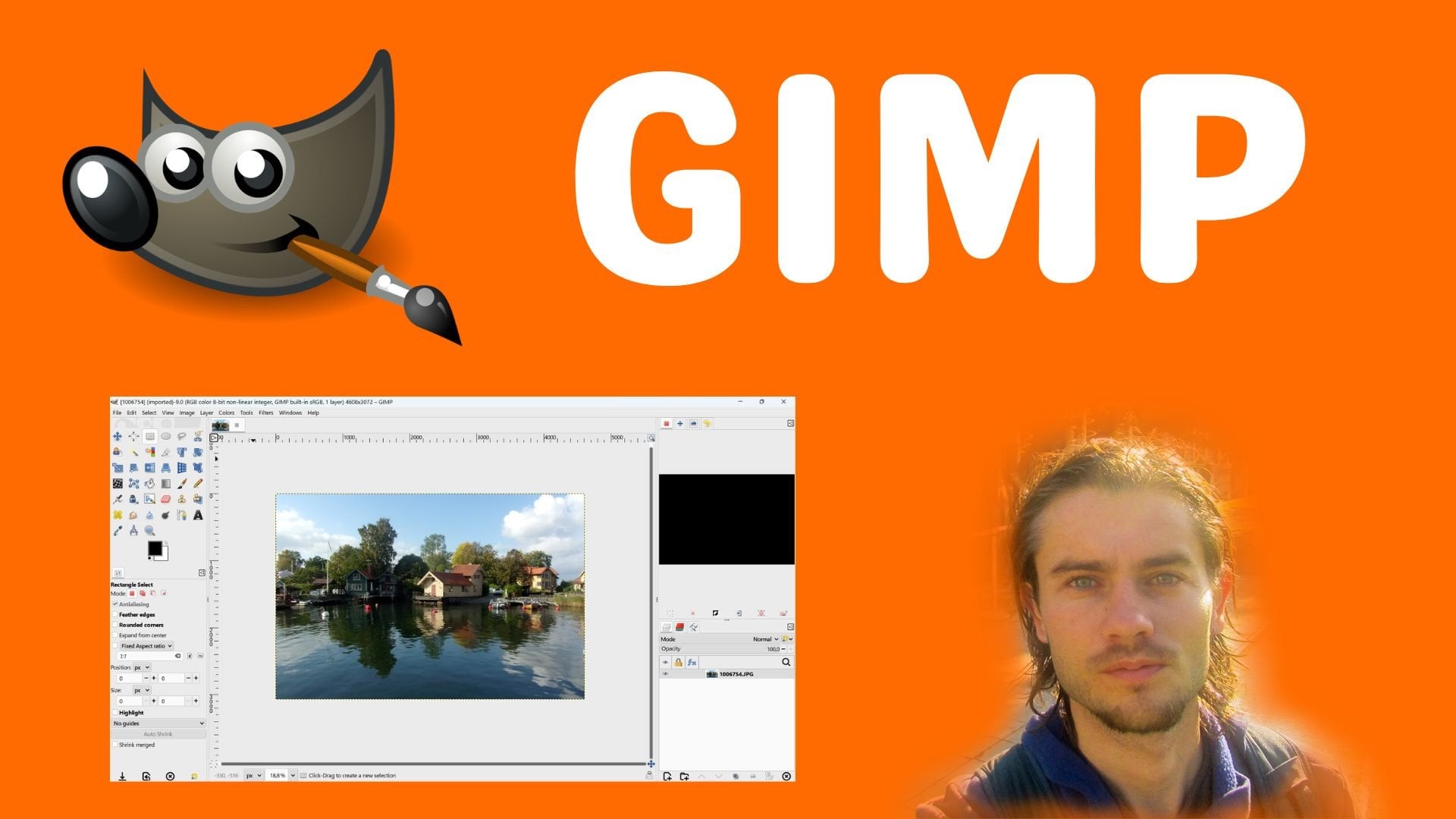
welcome to this cures, Gimp, the complete cures.
Gimp, what is this? It is a powerful photo editing
and photo montage software with different features and numerous tools to
work with images. It is free and open
source software, making it attractive for
a wide range of works. It also offer a flexible
and configurable interface to suit individual needs. The software offers
advanced features to create selection to work
with layers and mask, as well as powerful
image editing tools. It allows users to work with numerous adjustments
to enhance Photos, it also allow users to work with a variety of filters
and generate effect. The software can also
be used for all type of graphic design
such as covers, cards, flyers, and more. It also offers advanced
drawing features with numerous painting tools and color manipulation capabilities. You will have an
impressive number of possibility with GIMP. The software is
very comprehensive, allowing you to
create all kinds of project with high
quality graphic design. What are the
software advantages, why it is useful to use game? Because it is a free and
open source software. You can find
ergonomic interface. You have a powerful
layer system. You have a powerful mask system. You can find advanced
selection tools. You can find advanced
transformation tools. You will find numerous
settings for editing photos. You can have access
to painting tools, you can add filters, and you have different mode for quickly enhancing any photos. Now what you will learn
in this training curs in this training curs you will learn to master
game from scratch. At the end of the training, you will have an
excellent levels of proficiency
with the software, and you will be able to work with all type of
graphic documents. After an explanation of the interface and
panel management, you will learn the basics to get starts such as layers and mask. All the tools will be explained in details with
concrete example, optimizing your learning
of the software. We also learn how to
perfectly manage selection, how to create shapes, and how to add text. You will also learn how
to edit photos as well as how to add filters
and their various uses. At the end of the
training course, numerous exercises
will allow you to put into practice all the elements in
the training course. G the complete curs.
2. Start with dashboard: We're going to see how to
start with the dashboard. One of the first things to do
is to see how to work with the dashboard and to understand how is these different elements. So first, when we start with a new document here
when you go on the top left corner,
you have file. In the file, what you will
be able to do it is to create a new document,
open a document. You will be able to save
and export your work. You will have access also to
edit all the preferences or to edit the
preferences only from this document with
the document setups. The edit panels, you will
be able to undo do action, so history panels to
work with spy and past to work also
with some selections. You have also the
possibility to adjust to rat style to crat new colors
or to replace colors. Here we have items, items, you have different type of tools that you can use
with item features. In insert, what you can do, you have different types
of tools of conception, like how to crack shapes
or how to crack texts, but concretely of the things
that you have in insert, you can find again on just this tab below because all these are
the different tools. You can manage the page for these panels insert new pages. You can apply Master Page. We see how to work with Master extremely useful in this
type of layout software. To manage the guide, you can also manage the
snapping option here, grid, two guides, and two items. Here, this is a table, so this is the
different table tools that we can use to edit a table. Here this is some extra panels. View panels to work with
different options like, for example, the Zoom or the
preview on your document, script, Windows and
app in Windows, we'll be able to adjust
a different window, and I will show you after
how you can do that. So first you have
these different tabs. After below, you have a tab
with different options. You can have a summary of basic things that you can do
to create a new document, to open save close and
printer again, save as PDF. Then you can undo and
redo actions just here. If I just continue, you can also even copy
and past from this panel, cut copy and past and after you have the different
tools of conception, they are located on this area, like the text tools
or the image frame, you have also the
possibility to create some shapes or to create lines. So you see a different type
of tools of conception. When you continue little bit, you have more advanced about PDF features and on the right, the different preview options. So after to do
this type of work, here I place different panels. So for example, in my interface, I decided to place range
page panels on the left. I decided on the right
to put property panels, content property panels
and layer panels. All these panels where
their positions, you can then after extend
on this direction or this one I can also extend on the direction if I
need, as you can see. You have also the
possibility if you work with two rows like it is here, you can also move these
panels on this direction. For example, I can
do something like this and I can move a
little bit more to panel, but I cannot in this case, move little really more. So this is the type
of thing that we can do with this type of panels, totally in the middle. So you can find your page, your space, your area of work. On the top, you have
horizontal rulers, and on the left, you can
find vertical rulers. Totally, when you are below, you can work with
some Zoom options. You will be able to switch
from a page to another one. Here we have just one page, so this is a page number 121. And on this area, we can find backgrounds, and it is the layers. By default, we work
on background layers, as you can see, because I
place the layer panels. Here we have some coordinate and we have the unit
of the document. If you want to change the
unit of the document, you can change that here. And in this case, by default, we work in millimeters. So this is some different things that you need to know
at the beginning. Concretely, when you go
in the top left corners, so different tabs that you can use with different
types of tools. At the same time, if
you just go below, you have different type of
categorize because you have also this categorize that you can drag and
move some element. Here, I'm not going
to do this because I think it's pretty good to keep all these type of tools with all these type of categorize, but you can edit if
really you need. And generally, it's pretty good, so create new documents, sell expert, historic panels. Here's a different type
of tools of conception, more options about
PDF and totally on the write the preview option because here we use
normal preview, and here by default, we are in the edit mode. But we can switch also for the preview mode and Toggle
management color system. You want to see, for example, the preview mode,
you will be able to activate preview just here. So this is all the basics
that you need to know. So after what I will explain, I will explain how you
can edit the panels. Edit the preferences first, how you can edit
the preferences. And I will explain also how
you can edit the panels. So it means to place
these property panels, layer panels,
arrange patch panels for simple reason that
when you go on Window, you have these different
type of panels and you can place in the
position that you want to perfectly adjust your dashboard at
your convenience.
3. Edit preferences: We are going to see how
to edit preferences. And to edit preferences, we can go on file here. And when you go on file, you have the possibility to edit the preferences
just on this area. You need to understand that the preferences are different
than the document setup. So preferences are
the preferences for all the documents
that you will create. And document setup is
to create modification from some preferences only for the document where you are. So the general preferences,
it is this one. When I click on this one, you can find user
interface here. By default, if you need to, for example, change
the language, you have the main
window and you have the language here and you can
adjust the language here. By default, you have also font
size menu with a palette, eight point and eight
point, concretely, you have different type of size for the text on this dashboard, and this is the size
that we have a default. We're going to keep this one.
After you have some pass, concretely, it shows
that when, for example, you will save work or
export a work by default, this is the pass
that it will use, and you can change the
pass on your computer. Different keyboard shortcut. So here you have a list of all the shortcuts
that you can use. Depending if you can learn
the different shortcut, it is up to you. You have shortcuts that we use in different graphic software, and you have order specific
in Scribus. It depends. You have some are
very interesting, order one are less interesting. It depends about
what you want to do. So this one is the shortcut. We have the document setup for all the documents
that you will create. So it means if I create a
new document by default, the page will be A for page with orientation portrait
in millimeters and the white and the eight. So for all the documents that you will create
at the beginning, you can define by default
what you want just here. And in this case, I will work with A for
document in portrait. And it is same. You can
change the language as well. You have also the layout here. And with the layout, you have single page or facing page when you
create a new document. I will keep single page, you have margin and pleads. So when you will
create a new document, even if you can change that when you create
a new document, I decided to put zero for the margins and
zero for the bleed. But if you want to start with, for example, the margin, you can activate here. If you want that all your
document by default, when you start, you go ten for the margin,
you can apply ten. If you want, for example, 20 or the bled,
you can apply 20. After it's up to you depending on the range of document
that you will create, I will come back to
the preferences. I will come back to
the document setups, margins, and bleeds. Here I will come
back with a value of zero and I will activate
the proportion just here. Savingt by default, you can have interval of saving
by default of 10 minutes. Number fail to keep one
and you have enable und radio system
up to 99 action. Generally, it's pretty enough. So if I continue a
little bit, page size, it just different type of size
of page that you can have. Just when you create
a new document, they will propose the active
size that you have here, and you have more active size that you can integrate
on the right. And after to integrate
on the right, when you create a new document, you will be able to
have more options. So here, it depends if you want to start
with one of these. Even if you can after customize the size of your page after, so
it's not a problem. Guides by default placement
visibility colors, concretely placement, the guides will arrive on the top after you have
the baseline grid, content object margin and grid. You can just change the position of the different
element if we need. You have a snapping distant
and pixel grabac for pixels and the visibility by default will be the
guides and the margins. But in the different option
here we'll be able to make visible the page grid
or the baseline grid after. Here, this is a color, so the guide have a
color just like this. If you want to change,
you can change, but we can just keep by default these different
colors for the guide margin, measure grid, minal
grid, baseline grid. After something interesting,
it is also the IM tools. So concretely, when
you create some text, by default, the
text will be with this font family
and with this size. So if you want to start with another font family or
another size, you can change. By default, the color
will be in black as well. So every time when you add text, it will keep this
parameter by default, and you can change
that for sure after. By default, you will have
when you create text just one columns
also, just like this. It is same if you integrate
image, for example, you want to have field
color on line color, and you can change after. If you integrate the shape, for example, when you
create rectangles, I decided when I create rectangle to have by
default, the red color, and I decided to not
have any struck color, so it means a light color. And the line style,
I decided to have this line and linewse airline, so it means no white. Regular polygon, if you
create a regular polygon, you can define the number
of corners that you want, and you can also apply
directly the factors here. Even if we can change
that after also, when you create a line,
it is same by default, the line will appear in black with this style and a
line one, one point. You need to change, you prefer something
different, you can change. Same for calligraphic
paint, arc, and spiral. So every time when
you will use one of these tools that we
have on the top here, it correspond to the preferences
that we can use this. So this is the main
thing that we need to do after all the rest. All the rest is not
the main features, and I cannot advise you to try to edit all
these different do parameters because it is really advanced
and generally it's not extremely useful to change
any of these parameters. So if you have
parameters to change, you can focus on user
interface until, for example, item tools,
user interface pass, keyboard shortcut
documentePt size guide item tools to see the most important things
that we need to know when we start with the
preferences, just like this. And after you will be able to find again in the
document setup, only for the active document. So only for the active document, I can find one more
time document setup, guides, I can find
also item tools, but only for this document. So this is something
that you need to know.
4. Edit windows: We're going to see
how to edit windows. So for these two edit windows, we can go on these panels, and we have the possibility to integrate different
type of windows. So by default, you won't
have this type of interface. By default, you won't
have range pages, properties, contend
properties or layers. So something that I'm
going to do first, it is to remove these windows. For example, if I want
to remove range page, I can just click here
and I can remove. You can also dragging
and moving an element, dragging and moving the window, and you can work with a
moving window like this. And if I want to
close, I can close. If I want to close this one, I can click here and close
this one, I can click here. So by default, you
will have this. And as you can see, it's
not a perfect way to work. It is like a simple interface. At the beginning, it looks not extremely good
for this reason. But you can personalize with a very interesting interface. For example, in my opinion, and something that
you can do also for the cures that you can
also adjust by yourself, it is to go to Windows. And one of the first
panels that we can use it is the property panels. So the property panels
will be pretty good. Because you can take
the property panels. I can put this, for example, on the right, just like this, you can dragging and move. It is very useful
because when you create any type of
shape, for example, you will have the possibility
to adjust the shapes to add a drop shadow to change some parameters to
adjust the strokes, the colors, and
the transparency. So extremely useful for
everything that you need to use. Second thing that I'm going
to add it is layer panels. So the layer panel
is located here. I'm going to click on layer. So he place my
layer panels here, but if it's not the case, I can just drag in
and move in here. So I'm going to show you again. I'm going to click on
Window properties, and here and now it
appears on this area, and then I can put layers, and I can drag in layers just
and scrolling down below. Layer panels, we use less inscrib layer panels that some graphic software
for different reasons. But by default, we have
just background layers, and you can just stay on
the background layers. It's possible, but
if you need to create more layer,
you can do this. Generally, I prefer to
work with layer panels on the bottom right
corner on every software. So this is why I decided to
place this element here. You can also drag in and move in the position on this area. The other opposites that
I'm going to integrate, it is window,
content properties. And content properties is going to place my
content properties. Here, I will just
tracking and moving, and I will place my
content properties maybe around this
area, just like that. After, yes, just like this. So after to place my
content properties, I want to I'm not
going to place here. I'm going to place
just below properties. So I need to go on properties
like this and left click, as you can see now, the two
window are on the same rows. If I want to put
properties on first, I just need to drag
in and move in here. While content properties
will be pretty good, I will explain more
after when you will create something
like image frame, or you will work with text. Automatically, the content
property will be adjusted. So if it's a image, it will be content images and extremely useful
to recize an image. And if you work with text, it will be text properties here. So extremely useful for the image properties
and text properties. So this is why I decided
to put this one here. So we'll have the properties and the content properties and
just below the er panels. Totally, on the left,
I have some place, and I will display
something very useful also because we work in a layout software want to
work with pages and master. This is why I will
work with Arran pages. And Arran pages will be
located on the left here. But if it's not the case, you can drag and moving and you can place around here again, as you can see, you
can just dragging and moving and
place on the left. As you can see, it
is a big window. With available master
pages, document pages. So here we'll be able to see all the masters and here
to see all the pages. And because we work on layout software, it's
pretty convenient. You can also adjust here to see more of the pages
or to see more, for example, the masters. Each time you can also dragging and moving the window here and you can also
dragging and moving the window here. And that's it. Now we have a very
interesting interface to start with Scribus, arrange pages, properties,
content properties and layers. After if you need to complete, you can put more element. I don't like to have
too many windows, just the essentials. But if you want
more, you can have something interesting
like, for example, halin and distribute panels, and you can place
on a specific area. This panel can be pretty interesting because you can work with alignment
and distribution. But we can also open the
panels when we need. So when we need, we can
just open the panels, and it's definitely
not a problem. So you can open
panels when you need. Here, you have Outline panels. So like panels, you can find a summary of what you have
inside your document. For example, inside
your document, here we only have one
master page and one page, but we can have more elements. So each time when
you go on Window, you can also have access to
more element just like that. Resources, action history, scrapbook symbols, inline items. Can have more element like
this can be also some symbol, but here we don't have anything, so this is why I don't
see any element, but it's possible to
open these windows also. But they're less useful. I think here we have
the things most useful. So to start with the cures
and at the same time, I think for you, it's
pretty convenient when you work with Scribus.
Arrange pages. Here on the left, I
think it's pretty good. Properties panels completed
with content properties, and we can switch very easy and layer panels if we
need to work with the layers in our
space of work here.
5. Create document: We're going to see how to
create a new document. For this, when I
create new document, I have this page. This is a four page. To create a new document,
you can run file. You can create new. You can also use from template because you have different templates
that you can use. We click a new here, by default, you will have
different model of size. As explained that
you can find in the preferences and you
can add more models. If I select A four, you can select a single
page here, portrait, and if I want to
create the same page, I will do something like this, and as you can see,
I have my page. Now when I create new
if I want another page, anor size, I can use, for example, A sue, and this time, I will have
a new document with A sue. You can find also the
size we have here, the horizontal ruler
and the vertical ruler. Let's click on fine you. I will come back to custom so
you can create custom size. If, for example, I want
a document with maybe 1,600 600 wide and 2008, I will tape this value. You can also change the
unit if you prefer to work sometime can be in print or in inches or in
centimeter, it's possible. And as you can see, I added another type of document
just like this. If I select new here, you have also the possibility
if I come back to A for document to activate a
margin guide and a bled. So the margin guide,
what is this? It is a margin inside. So I edited in the preferences
to put zero by default. But by default, you
will have a margin. You can activate the
proportion if you want to have the margin on the same area. For example, I type 20 and left click and I can apply
20 on each element, but you can also break the
proportion, and on the right, I can want only ten and maybe
on the ten on the left, I want only ten. Just validate with Enter and
I created this new document, and you can see the page with a red color and the margin with a blue
color, for example. There also the possibility
when you create new to add a bleed and it is same. You can work with
different value. For example, I can
deactivate the proportion, put on the left, maybe 60, put on the right, maybe 60 as well
on the top maybe 20 and on the bottom
maybe 20 also. We just validate and
now I have a bleed. A bleed, what is
this? It is a space of work outside of your page. Sometimes it is convenient if you want to share
your work that other people see some
information outside of the page. And this is why we
can use a bleed. It is the area of work. If I just come back here, let's create another one. I will come back to my
properties by default, and something that I will
do it is to, for example, I will add a margin
gun with a proportion like ten, just like this. Left click and a
bleed like maybe 40, and I will validate and I
will obtain this random. This is how you can manage
the size of the page, the margin, and the bled. Now what you can do, you have the possibility when you create a new document to start
with multiple pages. Here, you can define the
number of page that you want. If I want to start
with six page, I will start with six page. By default, I just forgot to show you you can switch orientation
for landscape. And when you click on Landscape, you can also create a
new page in Landscape. So this is also something
that you need to know. So you can switch here for
landscape at any moment. Page come back to portrait. I will define, for example, six page to start,
pages validate. Now you can find the
six page appearing in our arranged page properties and you can find just here,
we have six page also. So we can see the display of
the six page appearing here. You can also switch from
a page to another one, just clicking on this area when for example, you zoom here, you can define what page you want to have and you can
come back at any page. Can also start with
a double page. So it means you can start
with a page just here. And you can, for example, click on Facing page. If you click on
Facing page and you just add only one page, the one page will appear
just on the right. We still have one page, but on the Master page, we have left and right. You just have created
one page here. If you want to create a double
page, you will create new, you select facing page, you select number page two, but the first page
needs to be on the left because if the first
page is not on the left, the seven page will
appear just below. So here I will define
right page and one first page on the
left, number of page two. First page is on the
left. Facing page. And if I just valid it, now we'll have a double page. So if I zoom out, I created a new document with my
double page, as you can see. And because we have a
double page, by default, we have normal left and normal
right on the master page. We can create, for example, a master and have this for the left and for
the right as well. Same. You can create
multiple double pages. You can select, for
example, facing pages. I can define maybe six page. I will start on the left. You can also start on the right, but it just that the first
page will be on the right. It's logical because you
can when you create a book, you can have just the
first page on the right. So this is why this
work like this. And if I just validate
here, as you can see, I have three double
pages, just like that. One, two, three,
four, five, six, and double page one,
two, and three. Don't forget that you can
edit the properties after. So what does it mean? It
means that at any moment, you can go on file here. I'm going to create
just a new document. And yes, so you can
create a new document. If you want to edit
the properties after, you can go on file and
you have document setup. Thanks to the document setup, if I want to change the layout, the margin blin
saving option here, I can only for this document, if I want to switch for a sue, I click for Au, and that's it. I change the size
of my document. You can go on file
document setup, and you can adjust the size
of your document just here. So if you need after you want to enter some
specific dimension, I want, for example, 200 and here I want,
for example, 300. I can just validate this value. I just click and validate. And as you can see, you will
be able to adjust the size. So after with document
setup, as you can see, 203 hundred just here, 200 wide and 308. So after that, you
can go at any moment, document set up and you can
adjust at your convenience. If I want to come
back to A four, I will switch for A
four just like this. You need to zoom in zoom
out to see the adjustment. So this is how you can
create a new document. So as you can see
multiple options, you need to understand the size, you need to understand
the margin, the bleed, and how
you can create multiple page or how you can create a double page
at the beginning.
6. Master navigation: We are going to see how
to work with navigation. So so extremely important
when you start, it is to see how to
work with navigation. So by default, we
have this page. I created this new page, and when you just
scroll down below, you can find
different parameters. And the first parameter
can be the level of zoom. So for example, you can change
the level of zooms just here and you can adjust your level of zooms
as you can see. This is one of the
first things to do. After that, you
can see Zoom out. You can zoom out here
and you can see Zoom in. You have also the
possibility to zoom in by the stating value
in tools preferences, and by preferences, we have a value of zoom by step,
and we can use this one. So here I'm going
to zoom out again. Here, you will be able to see on what page you are working. So this is the
first things to do. Something that you can do also, you can move you can
find this tab here. This is a vertical tab to
dragging and moving here or this is a horizontal tab
and dragging and moving here. I will create a
rectangle, for example, I will select default
shape rectangles, and I will create rectangles
around this area. If for example, I
click here or I increase my evl of
Zoom until here, I can move vertically like this and I can move horizontally
like this as well. S here. So now how you can work to make
something more simple. So it means zoom in zoom
out with the scroll wheel. If you want to zoom in and zoom out with the scroll wheel, you just need to Press
control on the keyboard, and when you press Control, you drag and move
the scroll wheel. So you press control, and you drag and move the
scroll wheel like this. And thanks to that, you
can zoom in, zoom out. If you want to zoom
more on this area, you place the cursor
here and you use control on the scroll wheel and you can zoom in,
zoom out more here. If I want to zoom more on this corner on the
red rectangle, I place my cursor here, control, dragging and moving
the scroll wheel, and I can zoom more on
this area, as you can see. Now when you zoom, if you want to move vertically, you can just move
the scroll wheel. And when you move
the scroll wheel, you can dragging and
moving vertically. And when you press shift
and move the scroll wheel, you can move horizontally. So here, I'm moving horizontally as you can
see, just like that. So you can move also with a scroll wheel
horizontally, vertically. So if you want to
move vertically, you just dragging
and moving here. And if you press shift, you just dragging and moving
here, just like this. So let zoom out.
Control, dragging and move the scroll wheel,
and I can zoom out. If you want to
dragging and moving, you can also click
on the scroll wheel and you have end appearing here. And with this and, you
can just move like this, as you can see, I'm
going to show you again. I decide to zoom control and drag and
move the scroll wheel. And now if I want to move, I can click on the
scroll wheel and the end is going to appear
and as you can see, I can move like this. This is something
extremely important. You can use and
tools, and for this, you click on the scroll wheel
and you can just drag in and moving at your convenience
on your space of work. Just like that. So after
to understand this base, you can have access
to more options. When I go on the left here, you won't have
directly some options on this area about how to
zoom in Zoom out or fit. But if you go and view here, you can find Zoom and feed
28 feet to white just here. So for example, view, Zoom, feed to eight. So you can fit the eight of the page here like this
to your space of work. You go on Zoom, you
have also the shortcut, as you can see, control zero, fit to wide, and it will fit the wide of the page depending on
the windows that you have. When you click on view, you can then activate
a percentage, for example, 50%, 75%. You can use 100%. You can use 200%, and then you can use
400%, just like this. So you can have different value, and now when you scroll below, you can find here we
have 400%, just Okay. So after that, we don't have
many more things to know. So concretely, if I make a summary to make
something simple, to zoom in, zoom out, you press Control and you draw again move
the scroll wheel, and in a fast way, you
can zoom in and zoom out. If you want to
move, for example, vertically, you just move the scroll wheel and you
can move vertically. If you want to
move horizontally, you press shift
and you draw again move the scroll wheel to move horizontally,
just like that. You have also the
possibility to click on the scroll wheel and you will
have end too in a fast way, you can drag and moving
like this and you can move. You have also the
possibility to just move the vertical tab here and to just move the
horizontal tab here. And if you want
to have access to some fit, you can click here. And if you want to also
work with a level of Zoom, you have these options as
you can see just below, and you can define also
percentage value, for example. So it sees how we
can work with this.
7. Master selections: We're going to see how
to work with selections. And this is something
that we are going to do. First, it is to
create rectangles. We'll create different
rectangle just here. And after that, I can create a first
rectangle on this area, and I can go on the property panels on
the property panels, you can find colors. So by default, as I explained, I decided to when I create any shapes to have
the red color and to not have strock So concrete
feel red and struck none. When I go and feel, I will
keep this red color first, but I can change if I need, I will start with
the red colors. And I will extend
little bit Oops. Not here because if
you double click, you can edit the point, but we'll see that after. So first, I will extend
the rectangle here. I'll create another
one just below, and I will activate
another colors, and I will create another one, just here with another colors, and I will create another one, just here with the white color. So by default, every time when
you de selic so you click, for example, outside,
you will be redirected to your select
select item tools. With this one, you
just go left click. And when you go Left click, you can select shape. You can select any object. This object, if for example, you select handles, you will be able to resize
just like this. If you want to resize
proportionally, you press Shift and left click you press Control and left
click to keep the proportion. So as you can see, I will keep the proportion with
Control and left click. If you want to resize
from the center, you press Shift, and you
will resize from the center. And if you press
Shift and control, you can keep the ratio, and you can resize from
the center as well. If you want to edit
more in details, we'll see that when
we will craft shapes, you will have to go on the top right corner in
the property panels, and here we have more options. Bit up for the
position, the white, the eight, the rotation,
and more options. Now, if you want to
select more object, for example, I want
to select rectangle. I select the red one, then I can press Shift and I can
select the yellow one. And as you can see, I
selected these two rectangle. I can also select
the blue one with shift and left click and shift and left
click on the green one. I selected all the rectangle. I can resize with, for example, shift and control if I want to keep the proportion
from the center, as you can see, and all my
rectangle are now selected. All the rectangle are now
selected as you can see. If you want to deselect, you can just press Escape, scape is going to work. Or if I select again, you can just click outside, it's going to work also. You can also work with
a frame of selection. To work with a
frame of selection, you arrive here and you stay left click and when
you stay left click, you can create a frame of
selection just like this. In Scribus, you need to be around all the object to
select all the objects. Sometime in some software, just to touch the object. In Scribus, it is to
surround all the object. So I will go left click and
if I stay left click here, I can select these two
rectangle because I was around. If I want to select
all the rectangle, I stay left click and I
create a frame of selection like this and I can select all the rectangles,
as you can see. So now we can have
more options as well. When you go in the
Edit panels here, you can find select H Advanced
select L and deselect. So for this something
that I will do, I will play this rectangle here, this one, here, this one,
here, this one, here. And I will click on I
will create two circle. So we'll go here and
default shape will create a first
circle maybe here, and I will define colors, these red colors,
and I will create another this time
ellipse with the ratio, and in color, I will
define in color. I will define this blue
color just like that. So now you can find edit select. So if you click on
select or Control A, all the object will be
selected as you can see. If you go in Edit, you have Advanced Select All, and here it is interesting
because you have the panels, and you can select
on current page, current layers on
the scratch space. So if you select
on current page, it will be impact on this page, and I have only one
page and you can define what attribute
you want to have. For example, it can be by color. Sometimes if you have a lot of things, it can be interesting. And for example, I
can use field colors, and this is the color
that I was using. For example, I want to select only the blue shapes.
I can click on blue. I will validate and that's it. I selected my two blue
shapes, for example. Let's continue. I will go on
edit Advance select Hall. And I would like to select, for example, by the item types. And the item types, I would like, for example, it can be a text, image, a shape, polyline,
lines, symbol. For example, if I select shapes because I only have
shapes as you can see, he defines all the
shapes just like this. But you can apply
also more options. You can click on
Advanced Select All, and it can be, for
example, shapes. And inside the
shapes, I would like, for example, the red color, and inside the red color, I can complete with something more line wines or print ember, or resizable or not. So you can apply
multiple attributes. And after if I do
this type of work, I have selected
these two objects, as you can see, these
21, just like that. So this is the type of
thing that you can do, and sometimes it is convenient. Don't forget that you can also deselect all when you go and edit and you have the possibility
to just deselect all. You have every time the
different shortcut Control A, Control A t A, and Control Shift A. And if I click on Deselect, I will obtain this
vendor, as you can see. So this is how we can
work with the selection. I all the element to
delete a selection, delete a selected Obj or
all the selected obje, you can just press delete on the keyboard and you will be
able to delete like this.
8. Create shapes part 1: We are going to see
how to create shapes. And for this, we can
use these tools, and here we can create
different type of shapes. We have first this type of simple shapes
that we can create. We have also arrows. We can create flow chart, we can see jig saw, and we can find specials. So first in the default shapes, I will select first
one, the rectangles. And when I click
on the rectangles, I will just ragging and moving. So when you go left click,
you stay left click, you can dragging and
moving to create, for example, your first shapes. These shapes, if you want to adjust the size after you can resize clicking on one of the handles and dragging and moving on one
of the handles. You have also the
possibility when you double click to edit the
different and Shark Point. But here, for example, you can do something like
this, something like this, and you can adjust the different and Sharp
Point, and it's possible. If I just come back
with my undo panels, I will just come back with my original shapes just like this. You want to resize your
shapes proportionally, you press control, and
when you press control, you can keep the proportion. When you press shift, you will resize from the center depending of the handles
that you choose. You can resize from the center. And if you press
shift and control, you can keep the proportion and you can resize
from the center. So Shift and control, keep the proportion and resize
from the center as well. So after to understand these
different type of options, you will go in the
properties panels on the top right corners. So these property panels,
you have different options. The first option is xyz axis. And concretely, you have
the name of the shapes, and you can change the
position of the X axis, and we can change the
position on the y axis. Then we can adjust the white. So for example, I can
adjust the white here. If I want to have shapes
with 160 millimeter, I can tap 160 millimeter wide. If I want to have
eight, 100 millimeter, I can tap 100 millimeter eight, and we can also crator rotation. So first, I will
decrease the white, then I will change
the eight as well. And if I want to
crator rotation, I can change the
rotation value here. I tap 20 degrees, I will turn with 20 degrees. If I tape 30 degrees, I will turn with 30 degrees
depending on the base point. The base point is located
on the top left corners, but we can change the
position of the left point. If I click here, the base point will be now in the center. So if I decide to turn, I will turn from this
different center point. If I place the point in the bottom right corner
here and I decide to turn, the shape will turn directly
from the center point. Extremely important
to understand the position of the base point. So after to understand that on each shape, you
have more options. First, something important
is the colors and the line. When you click on
colors, just here, you can select the
colors that you want. We'll have the possibility
to create more colors. If we want to add a straw, you can activate stroke here, you define a color. But here I don't see
almost anything for simple reason that I
need to apply a line, so I will click on
lines here, and online, you can change the line wide and I can adjust the
line wine, for example, here. If I want to deactivate this, you can deactivate
just on the stroke, click on no, but
you will still see this one even if it's
in transparency. So I'll just click
online, and online, I will have to decrease to what we call airline,
just like this. So this one it is
about the color. On each shape, you can also
address the transparency. So here we have the possibility to change the transparency. We have a different
adding line color to transparency and this one for the transparency
of the shapes. And when you click on this area, you can decrease
the transparency until, for example, zero. So this one is just to
decrease the transparency. And if I come back,
I will obtain 100%. Here, transparency,
colors, line. You can also edit the shapes. When you click here,
you can go and edit and you can have access to
the different Sharp Point, I will explain more in
details after because it is a transformation panels and also a way to adjust the
different and sharp point. You can also double click to
have access to these panels. The last possibility is
to have the drop shadow. So you can click
on Drop Shadow and you can activate a
drop shadow here. And when you click on this area, you can define a drop shadow. This drop shadow,
you can work with offset offset on the x axis and offset on the
Y axis as well. You can define the value
of blue less or more Blu. You can also define a color. If you want a different color, you can switch for
a different color. So as you can see, you can
make an interesting effect in a very fast way, you can also adjust, for example, the shad value, and you can adjust also the
opacity value of your shadow. You can also use what we call content cover drop shadows and inherit object transparency. But in this type of case, it's not extremely useful
in this type of case. So let's just come
back with 100% here and I will go
back with 100% here. If I want to deactivate
the drop shadow, I can just click here and I will deactivate the drop shadow. So after to do
this type of work, this is how we can
create a rectangle, and it works for
any type of shape. I will throw you with
a circle and after we will show you in a fast
way to different shapes. If I create a
circle, it is same. You can just create ellipse in a fast way with left click. But if you want to stay
from with a perfect ratio, you can press control,
and with control, you can keep the
ratio just like this. After to understand that, we can go on the
right. It is same. We have the properties, one
more times the position on the X position on the y axis. You can also change the
wide and the eight, if I want 100, I can take 100. You can also activate the ratio just on the
right if you need. And if I want to
break the ratio, I can also just scale
this. It is same. We can create a rotation
depending on the char point. And if I want to
come back to here, I can come back to
this char point. While more time, we can
adjust the shapes, colors. If I want to adjust the colors, I can switch for
different colors. We have also the
possibility to apply feel none and to only
apply a strap color. I can define a strap
color like red. I define line, and
on the line options, we can just change the value
of the line just like this. And we can also don't apply the colors inside
and only on the line. So it is also a possibility. If I just click here, I will just switch on this area, come back with colors. And after to come
back with colors, I will stroke, I
will deactivate. As you can see, we don't
have any stroke anymore, and I will go and fill and I will change for the blue colors. So this is how we can
start with shapes after I'm going to
show you more options. And it's convenient to have
different type of tools, and you have a lot
of possibilities to create simple shapes.
9. Create shapes part 2: We are going to continue
with the shapes. We have seen how to
create shapes and something that we are going
to do it is to continue. I will zoom here,
and we have seen that we can create, for
example, rectangle. We have seen that we
can create circles. If you want to
create more shapes, you have different
type of options. So for example, if you
want to create something like a circle like
this or Alf circle, you can do something here. You can press control,
but if you press control, you won't have a perfect ratio. So I can just do something like this and after I can drag and move this element. It is same like every time you will have the possibility to go on the X Y Z properties
to change the position, you can also adjust the Y and adjust the eight or to
create some rotation. You can also scale with the different value here and you can create this
type of al circles. If you want, I will
delete that to work on different levels. You can switch, for
example, select this one, and if you select this one, you will be on these
directions as you can see. You can also create
different type of triangle. You have the
triangle rectangles. And if you press control, you can keep the proportion. And I created rectangle
t angles like this. I can break the
proportion if I need. If for example, I want to
place in a corner of the page. When you go on the page here, you have snap two grid snap
two guide, snap two items. If you select Snap two guides, snap two guide will
allow you to yes, snap two Guides will allow you to snap to
the border of the page, for example, I can go here and I can snap to the
border of the page. Then I can adjust
if I want to size, just to create something like corners on this area,
as you can see. This is the type of
thing that we can do. We can also create
something like a ring. So here we have a ring and we can create a ring on this area. This ring one more time, if I want, I can go on colors, and if I want to
edit the colors, I can replace the color by
another one just like this. As you can see, you can create
multiple type of shapes. After what more type of
shape you can create, you have various types of
arrows as you can see. For example, I can
select this one. So if I select this one, I will go left click here. And if you press Control, you can keep the proportion. But after that, you can adjust. For example, I can
reduce my arrow here and extend on
this direction. I can select the color as well. And more time you can
go also fell stroke, define, for example,
stroke colors. Let's apply black. I will then go on fill options. I will deactivate the fill, and I will go on
the line value to, for example, define airline, and you can craft something
without any color inside, but only outlines
colors, just like this. So after to do
this type of work, if I want to come
back, I will switch, and I will define airlines. I will go here, and I
will go on stroke none, feel, for example, blue, and I created this blue arrow. When you have
something like this, you can go in the properties. So here we have one more
time XYZ properties. You have also some
parameter of the shapes, and you need to understand
that for some shape, you can add rounded corner. It's not the case, I forgot to show you, but
when you create, for example, rectangles, I'm going to create
rectangles here. For it to show you
when you create your rectangles and you
go in the shape panels, the shape panels will be
interesting when you want to wrap text around the shapes because
you have text flow. But it's interesting also here because you can
add rounded corner with a positive value or a negative value
if you go inside. So as you can see, you can create rounded
corner like this. So positive value, or I can also create a negative value
just kicking here. So in this type of case, if I want to add rounded corner
with something like this, as you can see, you
have this possibility. So let's just come
back on this area, so it works for this one. If you click on this area
and you see like shapes, as you can see, it's
not possible to crack rounded corner
for this one. I will zoom little out
and I will press delete. What type of other type
of shapes you can create? Oops. When you go here, you have different
types of arrow, up to you, you can take
a look at more options. You have the flowchart,
sometimes interesting, you can create
something like a flag, for example, and as you
can see, it's pretty good. I can create this flag. One more time I
have some options. I will go on the colors and I can define
colors just like this. Don't forget that when
you double click, you have also the
possibility to have access to the nods option
and I can adjust. For example, I can move this one or I can move this one
or I can move this one. So we can adjust our
shapes after that. So this one it is for the different hard
value, flow shot. You have also some jigsaw, and sometime it is useful. It depends about
what we want to do. We don't use this too much, but you can, for example, let's take a look about one and you can add
multiple like this, and sometimes it can
be pretty convenient. We can just replace with
the color just like that. One more time, double click, and I can have access also to the different sharp
point if I want to edit. Then the last type of
shape that we can create, you have some special,
just some symbols. So you have the herd symbol, I will press control to
keep the properties, and I will define
maybe these colors. Then the or one that you
can use, it is a flower, so I can create flower
just like this, and I will define
the yellow color. The der one that you can
create can be, for example, the symbol with a
face just like this, and I will define
the blue colors. And the last one in
special will be this one. The penguin and I
will place here, and I will increase the size, and I will just change
the color for my disease. Don't forget that you
can edit each time. So you can, for example, I will show you
more details after, but double click and you can
edit each and sharp point. You can take and Sharp Point. And you can drag and move. You can also adjust
with more options. And, this is the type of
things that you can do if you want to adjust your
shape. You have the flower. I can double click.
And if I wanted to adjust the position of
so point, I can do this. I will show you
after more details because you can also
edit the handles, not only the point. By default, this is a point, but you can edit the handles. But I don't want to give you too many things at the beginning because
after it's too much, so we'll see that in details
after here it is same. You can, for example, dragging and moving this one. Dragging and moving
this one as well. So we can adjust at
our convenience. We can also add more
points if we need. And if I double click here, it is same as you can see, I have multiple points,
and it is the same. I can just dragging and
moving, and as you can see, we can also double click and have access to
the different entre point, and we can make
some transformation one more time, just like this. And each time it
is the same way. So you create shapes. You can go one left click
to edit the shapes, a second left click to edit and sharp point,
just like this. And when you go on the right, so to left click
and you can edit. And when you go on the right,
you have the properties. You select shape properties XYZ, axis drop shadow, shape, lines, color, and transparency.
10. Create polygons: We're going to see how
to create polygons. For this, we can
use these tools, and this tool is a polygon tool. When you click on these tools, you can create a polygon. You can just start and you can press control to
keep the proportion. If you don't press control, you will break the proportion. If you want to
have the same wide and head you can press control. And you can create
this type of polygons. You want to adjust more
in detail your polygons, you will have the possibility
to go into properties, and when you go in
the properties, you will have more options. So in the properties, you can change the
number of corners. For example, if I want
to create an older one, I can change the
number of corner here. And if I want to have eight, I can also create some rotation. You can see the
preview on this area, and you can also
dragging and moving here to create your
rotation, just like that. After to do this type of work, we can also apply a factor
if we want to create a star. But first, let's create another
polygon with eight side. If I come back to the polygons after it's every time the same, you can go to the
property panels. And to the property pants, we can change the position
on the x axis Y axis. I can also define a wide. So if I want to increase 120, and here I want 120, I can put 100 2,120. Here, we have a rotation, and I can change the rotation. For example, I can put
40 degrees if I need. The base point is on the top, as you can see, so this
is why I turn like this. After if I want to have
access to the colors, I will click on colors here. We can change one more time
the colors of the shapes. And if I want to apply a
stroke, I can go and feel. I will define stroke here, and I will change for
maybe some green colors. I will go on the stroke
option with lines, and I will increase
the stroke if I need, and I will switch airline
for another ones, like, for example, a
value, just like this. So this is how we can work. If I want to remove the stroke, I will come back to
airlines and after I will select just colors. And on the colors features, just here, I will go
on stroke and no. And this is how we
can create polygons. If I just click
here, you can also break the proportion
of the polygons. At any moment, you
can just select handles and you can
break the proportion. You can also resize
with control, and if you press shift, you can resize keeping
the proportion. Let's press delete
and press delete. Something that you can do
also in the property panel, it is to create
something like a stars. So to create a star,
you can apply factors. And here you can create factors inside or you can go
also outside like this. So this one is a factor. You can apply a percentage, and we can apply
your inner rotation. So it means you can also turn
like this, as you can see. So it's possible
to turn like this. If I want to come back at zero, I can come back at
zero inner curvature, if you want to increase
with curs and curvature. You can make something
like a flower if you tape curvature as well. You can also if you want
to have a perfect star, you can switch for five, but you can also
create this type of element with only sweep. Let's create 81 more time, and I will just validate
and left click and I will press Control to keep the proportion and I
will cred this element. Something interesting also. So I can change the color. I will go in colors,
and in colors, I will define another one, like, for example, hoops among colors. I would like to change the field and I will select Magenta. After to select Magenta, what I will do I will also have the possibility if you
double click to have access to the
polygon properties. So it is another
interesting way. When you create this
type of shapes, you can also go on the
properties with double click. Or if you select
with double click, you can go in the property or if you go in the shape option here, can also define edit and you
can have a polycon property. So here we cannot edit
directly the point. You can directly work here
and you have the first point, and with the first point,
you can create a rotation. You have the second
point, you can work with a factor here with
a second point, but you can turn also as well
to create inner rotation. As you can see, you can
move here and here, you can create inner
rotation and apply a factor. All the parameter, you
can edit again here. If I want to change the number
of corners one more time, if I want to adjust
again the rotation, if I want to apply a factor, I can one more time
adjust but even after. So even if you create a shape, after you want to
edit this shape, as you can see, it's possible with these different parameters, and you can do this after. Let's come back to zero, zero in a rotation. Maybe I will put zero as well. And the factor will be
something like this. I can now apply
some er curvature like maybe want to create
something like the flower. I can do something here, and the inner curvature, maybe we can keep this one. But something I can
do it is a factor, and I will increase
little bits of factors and I will create
something like this. And as you can see, I can
create this element and I can resize after if
I want with control. So this is how we
can create polygons. Okay
11. Create arcs: We're going to see how to
create arcs and for this, we can use these tools. This is the arc tools. After to click on these tools, I can zoom a little
bit on this area. And I can start arc. If I want to keep
the proportion, you press control,
and thanks to that, you can keep the proportion, so it means the same wide and the same eight,
just like that. After that, one more time, you can have the
basic parameters. So it means when you
click on the colors, you can change the colors. If you want to add a stroke, you can click on Stroke, you can activate stroke colors, and you can go on
the line options to increase with the
value of the stroke. You can also even have the possibility to
remove the color inside, as I explained before. I want to remove the stroke, I will deactivate for
airlines and after I will come back to the colors stroke, and I will apply none. Now I created this shape, but how to edit this shape. First, if you just click
here as you can see, you cannot edit directly. Something that I will do
because if I just click here, I can just create another one just like that as you can see. Something that we can
do it is to edit, and to edit, you
can double click. When you double
click, you will enter in the Edit arc options. And this panel, if you want
to extend a little bit, you can extend a little bit. Have different
option corresponding to the different handles. First, I will change the color because the handles are in blue, so I will just change the stroke for noon
and feel for red. It will be pretty better.
So now double click. You can find one handle, second, third, and four handles. You have four point or
four handles if you prefer corresponding of the elements that we
have on the right. Concretely, I can drag in I can change the
start angles here. I can change also
the end angles so we can decrease or
increase the size. Here we have the eight, so I can increase the eight
and I can change the white. If I want to keep
the proportion, I just need to put
the same value. So for example, I
can recuperate 120, and here I can
recuperate 120 as well. So now what I can do, I have the possibility to go on this area and I
can drag and moving here. So with this one, I can dragging and moving,
as you can see. So you can also change
an angle with this one, and you can change the start angles with this one as well. Now something that
you can do also, you can use the point. It means you can use this point and this point is just the wide, and this point is just eight. If you move these two point, generally will break
the proportion. If I want to recover proportion, I need to adjust the proportion again on this area
just like that. If I just click on hand, this is the type of
thing that you can do. So it means if you
want, for example, to cra Alf or a crater,
I will click here, I will press Control
and what I will do, I will double click
and I will adjust. For example, the
start angle is at 30. I change that start angle at
90 and the end angle at 270. And if I do something like this, you can have a
perfect half circle, as you can see, just like that. You want to have a cart crater, you can put 90 and
here you can put 180. And if I put 180, I can craft perfect crater. I can the edit then. I will select on the top
here snap two guide. So thanks to that, I can
snap to the border of my page and I can
dragging and moving, for example, this
element around here. And if I move, I
will play this one, around this area,
just like that. So after to do this work, I can change one
more time the color. If I want to resize here, it will be pretty
convenient to use control, and you can resize
from this base. As you can see, we have
this rectangle frame corresponding to if
I scale like this, I will obtain this render. But if you scale from
this point, in this case, if I scale with this print, oops, here it's not
going to work properly. I'm going to come
back at this moment. I just come back here, yes, I resize and it was not
working properly in this case. I'm going to redo again. I'm going to slip
one more time tools, and I will click here,
I will double click. So I will tap one more times 90, and here I will tap
one more times 180. I will end the edit. I will play the element
around here and yes. Now if I only move this one, only move these handles, I can increase and I can
stay fixed on this area. But I need to now if
I move a second time, as you can see, it's going to be not extremely convenient. But the first time is
going to be convenient. And after that, I can
have this option. I can double click again. And if I want to adjust, I can adjust again with another value and we can recuperate
something like this. Here, I can take 120 or more, 100 maybe 200 and we can
do something like this. I can reduce only
400 and that's it. So this is how we
can create arc.
12. Create spirals: We're going to see how
to create spirals. And for this, we
can use this tool. This is a spiral tools. I will zoom here, and I will click on
the spiral tools, and I will start
with left click. And if you want to
keep the proportion, you need to press Control. And with control, you can keep the proportion same
wide and same eight. After I will place
my element around here and after to place
my element around here, I have the possibility
to go on the right. So after to ground
the right here, it's not extremely
interesting to fill with a color because
if I just ground colors, you can use fill, but you will obtain
something like this. So generally, we don't
use fill color too much. And generally, I will
only use stroke. So I will deactivate
the field colors. I will click on the
stroke and on the stroke, we will activate color. We can change the
color as you can see. But in this case, I
will stay in black. Then I will go on
the line options, and on the line options, we will define a value. So here I can define a value, and maybe I will define a value of 2 millimeters,
just like that. Maybe two is too much
will work with one. So now you can find the different properties
here one more time. How to edit more the properties, you can double click. And when you double click, you can upturn this render. So it means you
can drag and move, for example, your element here, and when you double click, you can also extend
little BDS panel even if it's not
extremely useful. And something that you can do it is to work with
the start angles. So this one is a start
angle so you can change. As you can see, you can
change the position. Uh, the start angle, if you put in a negative value,
it's not going to work. So you cannot put in a negative
value these start angles. You can type start angles. For example, I will start
maybe at 20 degrees. I will tap 20 degrees
hoops and double click. I will double click again
and you have angles. Concretely, if you multiply
360 degrees to complete turn, you can define your
number of turns. So here we have 1,800, so we can find almost see turns. If I just if I just decrease, for example, I just tap
something like 800. And I will go left click here, as you can see, we
have less term. And if I want to
craft more term, I will tape maybe 2000. I will tap 2000, and I will click
here to validate, as you can see, we
have more turns. So you can multiply 260
degrees by a number that you want and you will obtain a
render. You have the factor. This is a space between
the different codes. So here we can change the space more from
the center like this, or we can change the factor
more outside, just like that. And we can do
something like this. Don't forget that you
can also edit inside. So to edit inside, you
can just go left click here and you can also
change inside like this. And here you can left
click again and you can also change with this one. It is also a possibility
and I can continue. I can continue with more
angle just like that, and I can change the factor one more time, as you can see. It is also something important, and I can change maybe and
start more around this area. If I click on edit, I can do something like this. This is how you can create
spearll. So you click here. Generally, you press
Control because generally, you will keep the proportion and you will obtain this render. So double click and I can edit. One more time I will
make something a little bit more inside, maybe, yes. Maybe just hoops sometimes
it's not extremely convenient. Yes, maybe I will do
something like this. And this one I can take
this point as well. Something that I will do also, I'll click on edit. When you go in the
line features here, you have the possibility so I can change for maybe
one millimeters, but I have the possibility also to change the
type of the line, and I can change for
this one, this one, or this one, or I can
change with multiple ones, as you can see, maybe
this one as well as here. And as you can see, I
will obtain this render. So you can change the
style of the line, and depending on the
style that you choose, you can obtain different
type of renders. When you edit this
type of shapes, you can go on shapes
also and edit. And if you go on shapes, edit, it is like to
do double click. So generally, double click
is more convenient to use, but you can use
this one as well. So we don't use a
spiral too much, but sometimes it
can be convenient. Generally, you keep
the proportion because if you break the
proportion like this, you will obtain this
type of render. So generally, it's more convenient to keep
the proportion, as you can see, or double click, and I will obtain this render. So it's okay for the spirals. Something that I'm going
to do is to click on the spirals and I will press
delete on the keyboard, and we are okay with this tool.
13. Create lines: We're going to see
how to crat lines. And for this, we
can use this tool. This is the line tools. Something that I'm
going to do it is to zoom little bit here, and I will click
on the line tools. To rato line, you can just go left click
and you stay Left click and you can dragging and moving a line
as you can see. And for example, you can
stop the left click. You can have information
about the angle and the length as you can see
in millimeter in degrees, and you stop the left
click to Crato Line. You have also the possibility
to create horizontal, vertical or constraint
every 15 degrees. For this, you can use these tools if you
want to create a perfect horizontal line, you stay left click
and you press control. And when you press Control, you can apply your
constraint every 15 degrees. For example, zero, 15, 30, 45, 60, 75, 90. So you can apply some
constraint like this. In this case, I will
constrain to angle zero degrees and I will
stop the lef click. And I will continue. I
will crat ano der line. I will go here, and I
will crat anorline. I will press control to
this time apply 90 degrees, to this time apply 90 degrees, 270 degrees in this case. And I will continue. I will crat nor lines,
I will go here, and I will tap 270 degrees
as well, just like that. And as you can see, this is the type of things
that you can do. And at any moment, you can click on the line. And the line you can
select the first point. So it means you have this point, and you can drag and
moving the first point. And you have this
print and you can dragging and moving
the second point. So for example, I can dragging and moving these lines as well. I can click on this
one, and I can adjust. I will crack anoor
once, I will go here. And I will create an oder once, maybe on these directions, as you can see, I will
select an oder once, and maybe I will
create anoder one with control on
these directions, and I will create anoerOce
around this direction, and we can apply some
constraint as you can see. When you have a line, you
can address the properties. So concretely, because
it's not shape, as you can see, you cannot
adjust the shape properties. But something that you can do it is to work with the line. So line and color of the line. So if you click on color here, you can define stroke. If you go and feel, you
can select any color, it's not going to
change anything. But if you select stroke, you can define the color. For example, here, put color
in red as you can see. I will go on the
options on the line, and on the line, I can
increase the line wide. So here we can change
the line wide. We can also change the
style type of line we can put with multiple types of
options, as you can see. And if I just go to the option here when I
zoom little bit here, you can find the final
end just like that. And this one
correspond to the end. Flat cap, we can use square cap. In this case, sometimes
you can zoom in and zoom out to see the update. As you can see the square
tap is a little bit outside. So this one is anchor point and we are a little bit outside. You can use also the wound cap. And when you use the wound cap just like this, you zoom in, zoom out and you can see here these options and we can
crack wounded at the end, wounded ending, just like that. After you have more options, I will explain more
in details after because you have
also more options. You can come back to flat. You can zoom in zoom out. You can also
generate some arrow, so it means you can
just click here and you can create a type of
arrow at the beginning, you can create a square as well. So you have different
types of options, and at the end, it is same. You can also create some arrow. But you can use a scaling value. So it means I can just
apply a scaling value of 20% and here 20%. You need to zoom in Zoom
out to have the preview, and as you can see, I can
create arrow just like that. So as you can see, it's
also convenient to do. You can create arrow
with a base of a line. It's pretty good and you have different type of
options that you can use on the start arrow
and on the end arrow. One more time if I want
to change the colors, I can just come back here, and I will define the colors. Like for example, I will
come back in black, as you can see, I
created this arrow, and I can resize if I want after with my move
tools just like this. And we can create some
rotation as well. But you can see, multiple type
of options that we can do. If you select, for example, two lines or more lines, I'm going to show
you I will delete, and I will select all this line. So if, for example, I select all these lines and I
go on the line options, and I want to increase,
you can increase the size of all the
lines at the same time. So it's also something
important to know. You can increase the size of multiple lines
at the same time. You just need to
crate to selection. And here we don't need
to create a group, I just need to crate a
selection, for example. I will click one more
time on the line too, so I will crack oder
once here and I will press Control
one more time, and I will select all the lines. I will go here, and we
will define the same size. Maybe I will define two
and I will validate. Is how we can crack lines so as you can
see, it's convenient. You need to understand
the constraint and to understand that you can edit the line with the
different lines options. Let's select all the lines and press delete
on the keyboard.
14. Draw with pen: We are going to see
how to create curves. And for this, we can use
these tools to create curves. And I'm going to zoom here
this is the paint tools, and thanks to that,
we can create curves. So first, if you just want
to create segment, no care. You can just go left click
to place the first point, then left click to
place the second point. And as long you just
put one left click, you can just create
multiple point places. If you want to finish your pass, you can just press escape and you can just create
a pass like this. Sometime you need
to zoom in zoom out to really see your
pass like that. Don't try to close. It's not extremely
nice in Scribus, it means if you want to
create something close, you can not directly close
like this in Scribus. You can just place an
element and you can just feel if you need.
I'm going to show you. First, when you create
a segment like this, you can click on this element. If you want to adjust, you will be able to double click and to have access
to the sharp point, and in this case, you can dragging and moving
the sharp point. But you have more options, I will explain more in
details in separate sessions. Here it is same, I can click and validate and I can
double click here, and as you can
see, you can move. If you make something
a little bit faster, you can have a little curve. So this is why we
obtain this render. Now, if you just go left
click on this area, you can have access to colors. If you apply a field color, you obtain something like this, so it's not extremely
convenient. If I remove the field color, I will go on the stroke,
and on the stroke, you can apply any colors, and you can also go
on the line options, and on the line option, you can change the line white. For example, I can change the
line white just like this. And you can also change
the type of lines and have more options just here. After to do this
one, if for example, I click on this one, or maybe this one I will change
the line for this one. If I click on this
one, I want to fill, it will automatically
fill on this area. So what does it mean? It means that I can go around this area and I can
select just a few colors. And if I go like this, I can fill in this way. Now let's select this
element, press delete and this element press delete. If you want to create a curves, you have the possibility to click on the Basier curve tools, and if you want to
create a curve, you don't start with
Left click here, another Left click and
you stay Left click. And when you stay Left click, you can have the possibility to dragging and moving
on a direction. For example, I can move
here to create curves. Then I will continue to
place another point. Left click here, I
stay Left click, and I move on a direction
to start a curves. Uh, if you have used another graphic software
and you use a pen tools, it works at the opposite when
you're dragging and moving the mouse when you want to crack a cures and I can do
something like this. Then I can go here, Left click and I can dragging and moving. When I'm satisfied on the curve, I can stop the left click and
you can continue like this. If you just press escape, you will be able to validate. I'm going to show you way. We click Left click. Left click here. I
stay Left click, I start my curves. Then I can stop the left click. Left click again, I start my curves and do something here. Then I can go on this area. Left click, I start my curve. Here, left click, I
start another curve, and I stop the left click
and you need to train if you want to use well these
tools, just like that. Yeah, even if I don't close, I can just press escape. I will be able to fill. If you double click on element, you can dragging and moving handles just like
this if you need. So I can dragging
and moving handles. If you want to edit this one, you need to switch for move Control Point and move Control Point, you
can move this one. So here you move the
point with this one, and here you move
the control point, so it means this handle. So this is the two main
options that we can have here. So if I just validate. So one more time, I
can click on this one, and if I want to
go on the stroke, I can edit the stroke. If I want to go on
the line options, I can adjust the size
of the line if I need. If I click on this one,
I can do the same thing, but if I apply fill, it's also a possibility. So it means if you go fill, you can also fill
like this here. So now what I'm going to do, I'm going to select
everything and just delete. Something that I will do, I
will go on this option here. And on the options, we will use directly
Snap to guide, and I will use the pain tools. And something that I can do, you can create, for example, first element like
this around here, then another one
around here and I can just create another
point around here. Little bit outside like this. And even if you
don't close here, you can just press Escape and
finish your work like this. So it means I didn't create the line to close here.
I don't have any line. And if I just go on
the field options, I can just activate color and
I will obtain this render. I can go on the stroke option
and I will activate none. So now if I just zoom and I
decide to double click here, I can adjust my point. So it means you can
drag and move the point because you are using
here snap to guide, you can snap the point to the edge of the page,
just like that. Here at this s I can take this point and I can now snap to the corner of my page and we
can do something like this. Here. Then I will little out
and I will select this one, and I will dragging and moving on this direction,
just like that. And I will select
this one and I can just snap to the
corner of the page. As you can see, even
if you don't close, you have the possibility to do this type of transformation. And if I just valid it, I can create this element
on the base of the page. Even if we can
create a rectangle to do the same type
of work as well. And I can double click
and adjust again. So this is something
important to understand. And it works for
any type of thing, so it means you can also
lobs bezier curves. You can maybe start
around this area. Then here, and then I can go left click here
and I can crap to curves. Then left click and I can
crap to curves like this, and then left click and I can
crap too curves like this. Then I can come back here
and if I just press scape, I can just fill with fill options and I
can fill like that. I can go on stroke, I can click on none,
and after I can adjust, so I can double click,
can adjust, for example, this point just here, I can maybe adjust
this point just here. So we can adjust in this way. This another way to
process this point here, and I will adjust this point
on this area just like that. I can also click here and we can adjust this point
on this direction. Then we come back to the point
tools and we can adjust. Even if you have more
options to adjust, I will explain just after
how you can adjust more. Thanks to that, we can
create this on the top, and we can create
this on the bottom. Let's click here, press delete. Let's click here, press delete, and after we explain
how to edit the point.
15. Draw with pencil: We're going to see how
to draw with freehand. And for this, we can
use these tools. This is freehand tools. And thanks to that, we can
create lines with freehand. So something we can do it
is to click on these tools. This is a freehand lines. And as you can see,
you have something like pencil that you can use, small symbol like a pencil, and you can just go
left click and you can in a free way create
something like this. So you just click on the tools and after to
click on the tools, you can just create in a free
way anything that you want. But when you click after, if you want to edit
the shore Point, you double click, and you
will have a multitude of shop point depending
on what you do. So here, for example, you have
a multitude of Ish point. If I double click on this one, I have less show point for the simple reason that I was doing something
pretty more fast. So I'm going to show you again. If you use this one and you make something
little bit small, a little bit long
just like this, you will have a lot of sharp
point, as you can see. But if you make
something pretty fast, you sell these tools. And for example, I do
something like this very fast. As you can see, you will
have less sharp point. You have also the possibility
when you have a element, so you double click, just like
a line that you can crack. You go on the right here and on the right,
what we can do, we can edit as I explained
the sharp point, and you can also edit
the handle so you can click on the handle so it
means the pink element. So you need to understand that the node is the blue point, and the control point is the pink point or
the purple point, if you prefer, just take that. So after to do
this type of work, you can find shapes, line,
color, transparency. So if you click on
color, it is the same. Every time if you click on feel, as you can see in this case, it's not going to be
very interesting. So I'm going to put none, and I will activate a stroke. And a stroke, I will define, for example, a green color. If I want to edit
the line options, I will go into line options and we can increase
the sickness, but we can change
also the ending or we can also
change the type of lines if we need the ending of the line whites
that we can put. And that's it. So after
to do this type of work, I will double click here, and this is not a tool
that we use too much. You can use this
tool if you want to make something pretty fast, for example, something
like a sketch, you can crap a layer,
you just crap a sketch. And if you want to give a notation information about something, you can use this one. For example, you can
use these tools, you can use a freehand tools, and you can type something. I can tape just
something like this. And I will come back
with these tools, freehand, and I will tell just
something here, freehand. And every time I will repeat
my freehand tools like this hoops I just tap something like Titan. Each time you need to
re create the tool. So if you prefer you
can use a shortcut F, it will be pretty more
convenient sometimes. And you can just, for example, use a friend tools, and I can just crat something like this. So I just something
if you want to craft something
sketch in a fast way, sometimes it can be interesting. If you want maybe to
draw something fast, it's going to be
interesting as well. You can click on
the freehand tools. Just like this, you
can do something here. For example, you can
use this tool again, can create curves here. I can continue with these tools and I can
create curves like this. If you press Control, you can reduce the number of points. So for example,
here press control, and as you can see, I have
only this number of point. So if you press control, you can reduce the
number of point. With control, for example, you can make something
smooth and pretty better. So don't hesitate
to use control. Here, for example,
I'm using control. I'm going to show you again. Here I'm going to use control, and as you can see, at the end, we have something smooth. Double click, I have only a few ino point because
I was using control. So if you want to make something pretty better about your curves, you can press control. I'm going to show you again. I will do something here. And as you can see,
I have a nice curve because I was using control. I'm going to show you again. I will go here, and I will
do something like this. I press Control,
and as you can see, it's a little bit different. So don't hesitate
to press Control. You can click here and I
will do something here. I will do something
here one more time. I will click on this area, something here and click on
this area, something here. Now, if I double click, as you can see, we have
very few on Sharp Point. Very few on Sharp Point
because I press Control, and because of this, we
can obtain this render. And I can adjust after
the different endles, I can adjust more
points if I need. This is the type of
thing that we can do.
16. Draw with curves: We're going to see how to
draw with calligraphy. And for this, we can
use these tools. This is a calligraphy
tools, and concretely, you can create lines
with calligraphy. For this, I will zoom a
little bit around here. And first, I will
click on the tools, and I will just
create something. So the first way, you can just going to create
a curve just like this, and I will obtur
this type of render. I'm going to click again here and I will create another
one just like this. If you double click, you will realize that you have different and sharp points, but you need to
understand that you will have something like stroke. So for example, if I zoom here, as you can see, we have
the stroke on this area. So we can fill with a color. I'm going to show you. So if I want to fill with a color here, I can fill and use at the
same time the stroke. So if I go in color,
fill, as you can see, if I change the color, it will
be applied directly here. So it's not directly
only hotlines. It is we can fill inside and
we can also add a stroke. So I can click on Stroke. I can select, for example,
these blue colors. And now if I go in
the line option, we can also apply some
sickness here, as you can see. So this is something
important to understand. Here it's different
that when you create two lines or when you create
two line with freehand, it is different
because we can feel inside and we have
also a stroke, so we can work
with the two ones. I will come back
here with airlines, and after that, I will
come back with colors. So here with the colors, you can feel all your
shapes just like this. So now this is some bicycle. If you want to edit, you just double click, and when you double
click, you can have access to the shop point. And for example, I can
adjust like this to change, for example, the sickness
if I need, here, maybe I can extend
and reduce like that, and here, maybe I can extend and on this
area adjust as well. So we can adjust just like this. Here. So this is the type
of thing that we can do. Don't forget, I'm going to
press delete on the keyboard for this one and press delete on the keyboard
for this one. The calligraphy tools can
be pretty interesting also when you stay
left click here, you can work with
angle and a white. So for example, if I
apply angle of 20, you will see a little
bit of difference. I will click on these tools and I will go left click here. And because I put 20, I will have more difference
between this part, this part, and for
example, the other part. Because we are using 20. Something that you can use also, I'm going to come back to zero. It is a wide, and you can
also increase the wide on decrease if I put maybe
20 just like that, and I'm using these tools. As you can see, we'll
have more sickness. At the opposite, I can reduce. I can click here,
and at the opposite, I can reduce if I apply
something like only four, and I click on these tools, as you can see, we will
have something smaller. This is why it can
be interesting. You can when you do
this type of thing, you can, for example, create
something like a symbol. So I will click on this area and maybe I can create a symbol. I will create something here. Then I will click
on the tools again, and I will create
something here. As you can see, if you want
to create specific symbols, you can use this type of tools. For example, I will
do something here. I will click on this
tool, something here, and I will do something
on this area, and I will do this
again, just like that. But sometimes you need to change, for example,
the sickness. You can select
element like that. You can adjust the position. You can also scale if you need or I can select all
this element like that, and you can change the position. As you can see, it's
pretty convenient. If you want to draw little bit, you can also use these tools. I can increase a little bit
the number for maybe eight, and I will be able to
click on my tools. And as I explained before, you can also use these
tools if you want to try to draw little bit
something with freehand. You can also use these tools
as well, as you can see. So it is another way to process. So it is interesting tools, definitely that you can use
these calligraphy tools. I will click on this one and I will do
something like this. You can use for different way. If you want to
create a notation, it can be also interesting. So it means you
can one more time, use these tools, and
you can, for example, create something here,
then you come back and you can create something
like this to define. But even in this case, it's not extremely interesting. So maybe in this
case, it's pretty better to create a first line. And then to create, for example, say on line. But depending on the angle, it depends because if I
create on these directions, as you can see, it's not
going to be extremely good because of the angles. We can do something
like this as well. Like, for example, this one, it's not extremely convenient. You can select also
multiple element. At the same time, you can
adjust the color here. And so I can do
something like this. Here, it's for the stroke color, but I can put stroke no, I can put another one
for the field option, but in this case, as you can
see, it's filled like this. So this is why you need
to be careful as well. So yes, sometimes you can
have this type of trouble. Oh, this is a type of
thing that we can do. I'm going to, yes, just come back here,
come back here. Let's put black,
and now it's not convenient because as you
can see, they feel this one. And yes, so definitely sometime you can have
this type of troubles. So it's okay for
that. This is how you can use these calligraphy tools.
17. Create groups: We're going to see
how to create groups. For this, something
that I'm going to do it is to create rectangles. I will click here and I
will generate rectangles. We'll create the
first rectangles will go on the right here. And in the color panels
we define a first color. I will define, for
example, the blue color. Then we'll create
another rectangles here. We'll define the green colors, we'll crataner one on this
area with the yellow colors, and we'll create maybe
another smaller one here, and we will define
the magenta colors. So I have these
different elements. To group, you can select
the entities that you want. I can create a
frame of selections around all the rectangle
or you can press shift, and I can select all the
rectangle in the same way. Cato group, you
have multiple way. Right click, we can
define group or Control G. I can go also on the top
and I can use Edit options. And when we go in
the not edit option, when we go in the item options, we can also generate groups. So we have groups
here and groups or Control G. After
that, we have to group. The first interest
of the group is just to transformation to all group. You can go one left click. You can select all the group. You can, for example, scale
all the group as well. The only thing is when you go on the right,
as you can see, it's not possible to
edit the colors of all groups or the
lines of A group. But you can, for example, apply the different type of transformation
that we have here. You can also scale the group at your convenience and use these
different type of options. This is the first
interest of the group. You want to select one
element of the group, if you double click, as you
can see, it's not possible. So how you can process for this, you can use panels. You can go on Window
here, and I Window, you can find different options like, for example, Outlines. When you click on Outlines, just like this, my outlines
will arrive on the right. It is a summary of all the object and everything that you have on your document. For example, all the element,
I have Document one, here, this is the
master page normals and I have one page. Inside, you can see
all the elements that compose your document. I have a polygon, this
one, this one, this one, and this one, and inside the
group that we have created. And if I select one polygons, I can select only one
polygons here and I can, for example, scale on this one. If I need, I can go into
properties as well, go into color panels, and I will define another
color, for example. So when you go in this one, you can adjust one element
at your convenience. And for this, you can use outline panels and you can seal it any element
just like that. Now to ungroup, you
select your group, you can go right
click and you can find ungroup just like that. And thanks to that now, I have only all the polygon
in independent way. So the outline panels, I'm going to remove, but can
be interesting in some case. Let's see a second example. Another interest can be to work with the alignment
and the distribution. First, I will select another
rectangle just like that. I will create a rectangles
on the top here, and on the properties panels
will define the red color. I will zoom a little bit, and inside the rectangles, I will define a default
shapes like circles. And I will create
circles around here, and the circles I will
go on the color panels, and I will define
the white color, and I will place
the circle here. I can center this circle. This, we can open
directly in window. We can open hinge and
distribute panels. It will appear on this area. Can select the circle, shift the red rectangles, and relative to the
frost selected, for example, Zola selected
for the rectangles, we can define center particle
and center horizontal. Then I will duplicate
this circle with control D and
with Control D, I can duplicate, just like that. Control D, I will
duplicate again, and Control D I will
duplicate again, and Control D I will
duplicate again. So if I want, I can adjust, select all the circle with shift to work with
the distribution, and here in the
alignment panels, we can define, for example, Mdals and we can distribute
here and in distribute, we can use this one. Distribute center
equidntHrizontal. Now, if, for example, I want to center all this
circle inside my red rectangle, I need to create a group
because if I don't create a group and I use
my eigen panels, I click on center,
all the circle will arrive in the center, and this is not
what I want to do. So this is why I need
to create a group. So I will select all the circle. For example, the first
word, I will shift, the second, the third, and
the fourth, just like this. And I will go right click and I will generate a
group of Control G. So now I generated the groups and because
I have a groups, I can move all my groups, and now I can center
all my groups here. So for example, I can
click on the group, shift the red rectangles, and I can click on Center and center here because
I have a group here. I can craft another group, so it means I can select
all this element. And I will go right click and
I will create two groups. And now, as you can see,
I have a complete groups. You can also, one more time
go on the Window panels. You can open outlines. And when you go on
the right here, you select outlines, and you can see we have
a first group. So it means we have
this one and inside, I have a second groups inside
as well, just like that. This is why it is useful. And even this group, as you can see, I can move. If for example, I want
to scale to group, I can scale to group, I can
make different type of thing. If I need to ungroups, I will go right click and I
can ungroup or control hip k, and I will ungroup this one and I can recuperate this group. If I want to now
ungroup this one, I will go right click as well. I will go on ungroups and I will recuperate all my
different polygons. And as you can see, we
can have six polygons. So another very important
interest of the group is to be able to work with the
alignment and distribution. And when you have
multiple element, if you want to work properly, you need to work with groups
in other interesting way. So something that we will do we select all these
elements here, we'll press delete, and
it's okay with the groups. If you want to remove this, this is a panel that you
can keep every time, but you can also just
open when you need.
18. Duplicate objects: We're going to see how
to duplicate object. So for this, I will
create a rectangle. And I will create
the rectangles here. This rectangle will
keep these red colors. To duplicate object, you have
different type of options. One of the first option
it is to press Control D, and when you press Control
D on the keyboard, you can, as you can see,
duplicate an object. And you can repeat Control D, you can duplicate again, and you can repeat
with Control D. The first way to duplicate is just to use a
shortcut Control D, and generally it's
pretty convenient. If I select this rectangle, I will press delete
on the keyboard and I will selt this one again. Another way is to go on item here and you can
find duplicate also. I same it is like
to press Control D, and you can just duplicate
like this as well. It works for any
type of element. If for example, I create
a frame like textFrame, I will just go below, I will create a text
frame like this, and I will double click
to edit the content. I will go right click.
With Right click, I can apply a sample text, and I will define some whatever
we define I will define, for example, English, and I
will just validate like that. And I have some text
frame here with content. I want to duplicate
this text frame, I can do the same thing. I can press Control D, and I can duplicate,
as you can see. If you want to work
with aligment, you just take a look here and you can use
Snap two guides. You can use Snap two
items, and thanks to that, if I move this, as you can see, I can go in the aligment
on the left of this one. And I can press Control D, I can duplicate again,
just like that. Or something that I can do also, it's to go item duplicate, and I can duplicate again, stay on the axis. So this is how you
can duplicate. Now let's select all this
element and press delete. We'll zoom a little bit again, and we will create
another rectangles, just like that. Small
rectangle here. Something that we
can do also when you go on the top here, IMs, you can find multiple
duplicate or Control Shift D, and thanks to that, you
can open these panels. And you can create, for example, just copy, you
define the number. You can create a copy with a gap between the item
or shift created item. If you create a gap,
you can work with, for example, a horizontal gap, and if I define maybe
something like 20, I can duplicate with four and horizontal gap
with 20 millimeter. I can repeat in this way. But you can also have
multiple options. For example, when you click
on multiple duplicate, you can also put it
can be horizontal, so I can put maybe just 16. I can put a vertical gap, maybe six and create
also small rotation. Thanks to that, I can
duplicate like this. I just duplicate it one time, but if I adjust with duplicate, multiple duplicate, if I adjust with more
time, for example, four and I define maybe
here 12, vertical, I define four and
rotation maybe two, and if I just validate, I can duplicate like this. Another possibility
it is when you go on item duplicate,
multiple duplicate. Another possibility will be to use shift created item between. And thanks to that, you
can define a number or we define four and you can
apply a horizontal shift, but also a vertical shift. And you can also
create a rotation. And when you click here,
you can obtain this render. If you want to have more
space between the element, you can just increase the value, and you can just
increase the value because if the value
is not extremely high, like for example, just here, you will duplicate like this. Okay. So something
we can do also another way when you duplicate and use multiple transform here. It is by row and columns. So you can define
a number of rows. You can define the
number of columns. Maybe I can define
eight and here four, and you can define a horizontal
gap and vertical gap. If I do something like this, I will repeat in this way. And as you can see, it
can be pretty convenient. You can create a grid
or something like this. And when you go in
the item features, you select multiple duplicate. So this is how you
can craft the grid. And maybe rose define six. Here I can increase, maybe define 12 and
horizontal gap, I will define maybe ten, and here we define maybe ten. And we just validate and
I can repeat in this way. Maybe I could invert the value
to repeat in another way. But as you can see,
it's pretty convenient. And the last
possibility when you use this one would
be to use by page, and you can use following page, following even,
but page ran page. This one is a little
bit specific. We're going to focus
by the two first one. If I come back here, maybe we can make more value on this area 12 and
this one maybe six. Horizontal gap may be eight and vertical gap
maybe eight as well. If I just validate,
as you can see, I can create this type of thing. For example, after that, select all the elements
and right click, I can create to groups
and thanks to that, I can move the
groups and if I want to move the group in
the center of my page, I can, for example, go on the window features. In the Window features,
I will use hanning and distribute and when I go on
the right, what I will do, I will apply inhaling
and distribute panels relative to the page and I will define center
and center just like that. But you can see this is
how you can duplicate and don't forget that when
you go on the top here, you can use duplicate, you go on the top, you
can find duplicate. But you have also multiple duplicate if you want to
crack some repetition and it is a convenient way to earn time depending on the
work that you want to do. Let's remove this one. I will
also close these panels, and it's okay on
how to duplicate.
19. Edit points: We're going to see
how to edit points. We have the possibility
to edit points, so it means to
edit the so point. First, it works when you work on shapes and then
when you work, for example, on something like a pass when you use paint tools. Let's first create
a default shape. It works for any type
of default shape here. I will show you
with a rectangle, so I will create a
rectangle first, and I will show you
also with a circle, so I will click on
the circle tools, and I will create a circle with control to keep
the propulsion. Zoom on this rectangle first. When I zoom as these rectangles, to edit the point, you have to option first
option, double click, and you can have access
to the not panels. Second option, you
go on shapes here, and you click on Edit, and you can have access to these knot panels,
as you can see. So after to do
this type of work, you have the possibility
to move node. So here, this is a move node. When you are in the move node, you can just take a point and you can
just move like this. You take a point and you can move the different
point just like that. Here, you can move
the control point, but the control point are
when you have curves. But even if you use
move control point, the handle will start here and you can dragging
and moving like this on a direction and
the second one on a direction to create a
curve just like this. And here, it is say if I
wanted to create a curve, I can move this one here and
I can move this one here. Now if you want to
add a nod or point, you come back here and you can
click on Plus Add a nodes. And when you arrive close to, for example, a line like this, you just go Left
click and you can add a nod Left click and
you can add a nod. Now if I click on Move
Point, as you can see, I can move this point or I
can move this one as well. If you want to remove a nod, you click on Minus and you select the
node that you want to remove and you can
remove a nod that can remove this one or
remove this one as well. Here, this is the different
options that you can use. Now if I click on the circle, it is same, I can double
click on the circles. And as you can see, we can move the point just like
this, this one. And if I want to
move the handles, I click here. Move
Control Point. When you move Control
Point, by default, you use Move control
point independently. But you can use symmetrical. If you use symmetrical, you
move the handle on the right. On the left, it's going to
move in a symmetrical way. So as you can see,
it's convenient. But if you use, for example, this one by default, move Control point
independently. As you can see, you can
move only this one, and you can move
only this one to adjust in a different
way, as you can see. So this is the type of
thing that we can do. So after to understand that we have opened polygons or
close the BziR curve. I'm going to show
you in another way. I will click here and
I will press delete, and I will click here,
I will press Delete. As I explained, you can
write some curves with, for example, the bezier curves. And with the bezier curves, I will start here, left click. Then left click and I will stay left click to
start to curves. Then I will go here, left click, and I will stay left click
to create another curves. And I will go in this direction. Left click, I will stay left
click to create no one, and then I will go here and I will stay left click
to Cretano one. And I will press Escape. So I have this curve that
can go into line options, and in the line option will
define around a value of one. Maybe I can tap directly a value of one and I can
keep the black color. So now I can edit my shapes with double click or edit here. And thanks to that, I
can edit the point. So one more time, I
can show you again, you can move the nod. So you can move a
nod just like this. Or you can click here, move the Control point. So I can move the control
point just like this. And if I want to
activate symmetric, I can move the control
point symmetric way. You have also the option here to sit the control point,
and in this case, I will lose this
one, as you can see, and I can crack
curves again after. The same when you click on anything you have the
possibility to sit. So you can, for
example, double click. You can click to
create two point, and I can create two
point like this. And also create oder
one, just like that. So you can add new point. And when you are here, you can rest the Control point as well, all the control point. And if I want to move, I can address the curve again. To remove a point, you
can just click here. You can click on a
point and you can remove Or I can
click on this point, remove, click on
this one, remove. And now I can come back to the curves and I can
extend just like that. You have more options. You can invert all the pass. So this direction
or this direction or put a symmetric way
vertical horizontal. Note here, I make a mistake. It is s. So you can also when you use this
one, for example, if I have a rectangle, it is also the possibility to
crack some transformation. For example, when you
click here, double click, you can use this one to apply a chair transformation on this direction or
these directions. This type of thing, you can do this also with the knot tools. So you can apply this
type of transformation. You can also flip,
reduce the size just like this with a value of
percentage that you can define. Sometime you can duplicate
and increase and also on this direction in
millimeter, if you prefer. If I just come back to this one, so it means double click here. I have also the possibility here we come back to this value. I have also the possibility
to open a polycon. So when you click on open here, when you just go left click, you create a new point
to create to cut. So it means if I open like
this, now I can open, as you can see, and now I have so point and I can
dragging and moving. So you can open a
polycon like this. Also the possibility to close. So when you click on close,
is base your curves. But the problem is it
will close like that. So depending on the situation, it will be good or not. So if I select this one, I will double click. I can, for example, change I can, for example, change handles with this
one, do something like this. Then we can just try and move. And now if I define to close,
I will close like that. So in this case, it can
be more convenient. And you can also
invert apply chair. You can also change
put some rotation here just a rotation value
that you can apply as well. So as you can see,
multiple types of interesting options
that you can use. When you close here, it was not extremely useful to close as you can
see in this area. They just click here
and just click here. So every time Double click edit different
and Shark Point, you can add new and Shark Point. You can remove and Sharp Point. You can also start handles, and it can be pretty convenient. Now what I will do, I
will validate and I will delete these rectangles.
20. Master transformations part 1: We're going to see how to
work with transformations. So for this, I will select
the rectangle tools and we'll create a
rectangle on this area. And after to plat
rectangle on this area, we will see the transformation. First things to understand when you use the selection tools, you can transform your object. When you click here, you can scale on this area, this one scale on this area, you can dragging and
moving the object. When you press shift, you can scale directly
from the center. When you press shift, you
can scale from the center like this or like this
or also like this, you can scale from the center. And when you press control, you can keep the
proportion just like that. When you press control, you can keep the
proportion as you can see. If you want to scale from the center, and
at the same time, you want to keep the proportion, you will press
shift and control, and thanks to that,
you can scale from the center with
the right proportion. Say on things to understand
when you go on the right, you will have the
property panels, and as I explained before, you have the
transformation panels, which means you can
move on the x axis. You can move on the
Y axis as well. You can define a wide and
eight for your objects. So if you want to
change, for example, the wide, I would like
120, I can tap 120. And if I want to tap 40, I can tap 40 and you can also create some rotation
for your object. You can just click here, you can apply a value and
I can create a rotation. This rotation will depend on
the transformation points. If your transformation
point is in the Mdals and you
create the rotation, it will be different
as you can see. This will have an
impact directly. So you can create your rotation depending on this
transformation point. If I double click, you can enter to edit the nod, and for example, I
can move the node here or move this one
or move this one. You have the possibility to edit the node when you
double click here. If you just continue here, you can flip
horizontally your object and you can flip
vertically your object. Oh, I will delete
this object and I will create another rectangles. Another thing that you can do it is when you go
on the top here, you can find some item, duplicate transforms, and
here you can find transforms. When you click on
Transform, what you can do, you have the
possibility to adjust with AD and you have scaling translation
rotation, scaling. If you select
scaling, for example, you can just define a value if I apply 120 and I just validate, I can scale with 120. But when you go on item,
you select transforms. G on the right, just like this
and you can add something. As you can see, the first value will be the scaling
options and you can just change the value
also on two axis here. You can scale from a base
point just like this. And don't forget that you
can also create copy. If, for example,
I define to copy with this value and
I click to validate, I created to copy
as you can see. I have a first one, I
can change, for example, the color just here, and I have a second one and I can change
the color as well. And I have a third one, so it means this one,
the original one. So it is another interesting
way to transform. We delete this one
and I will this one. When you go on transforms
here, you select your object, items, transforms, you have also the possibility to
generate a translation. Here, just pretty simple. You can generate any translation just like this horizontally
and also vertical. If I put, for
example, ten and ten, I can just crap translation. But you can also generate
copy one more time. If I apply for copy, I can do something like this. And as you can see, I
have first rectangle, the last rectangle, another one, another one, and another one. So it is another way
to transform and you have multiple ways to
transform as you can see. Let's delete this
different element. Another thing that you can do in item here,
duplicate transforms. You can click on transforms, and when you go and add, you can also create some rotation. You define the base
0.1 more time. Let's take an example center, and I will put 90 degrees and I will turn
my object places. I will just come
back and the last possibility that you can do when you go in transform here, it is to click on skewing, and here you can
skew your object and you can define your value horizontally and
vertically as well. I also breaks the proportion if you don't want to
have the same value. If I just click here, I can do something like
this for my object. But now it is useful, I'm going to show you something with a rotation, for example, I will create a default shapes
we use the circle tools, and I will define
circle around here. I will scale a little
bit on these directions, and I will define the magenta
color just like that. Now this element, I will
create a rotation with copy. For this, I will go on item, duplicate transform and
I will define transform. What we do add welc rotations
in the rotation features, it depends about
the number of copy. If for example, I apply
value like six copy, I will have six entity. If I have six entity and I
divide 260 degrees by six, I will obtain 60 degrees. This is why I will take,
for example, 60 degrees. And six copy, I will change the base point from center
to turn around the center. And if I just valid it, as you can see, I can
create something like this. So I will define six copy
with every time 160 degrees, and as you can see, we
obtain this type of render. And if I just select, I can also generate to complete groups or rightly
create two groups, and we can generate this type of element thanks
to the rotation. After to understand that, you have the last possibility, you can use a default shape. So for example, I can
crack a rectangle, a small rectangle here, and you can multiply the effing. What does it mean? It means you can select, for
example, transforms. You can go here, you
can define transforms. And when you click on ad, you can apply multiple
elements at the same time. I can use, for example, scaling, but I can complete, I can use translation as well. I can use rotation and
I can use skewing. For example, I remove skew, I can take on remove exes. I want to remove rotate, I can remove as well. If I want to add again, I can add again. And you can apply
multiple things. For example, I would
like 120 degrees. I would like a translation, maybe a translation of ten, and here a transtation of 12. I would like a rotation
like ten degrees, and I would like a skew
value like, for example, a value of ten here and
maybe a value of 16 here. You can apply multiple
transformation. Depending every time
of the base point, and you can also create
a copy if you need. For example, if I
want some copy, I can also put more translation. So it means I can apply maybe 100 here and I can
apply 100 here. I can define four copy
and if I just validate. As you can see, I can multiply. Maybe it's a little too
far because I put 100, but you can apply multiple
transformation slices. So this is why it can be useful. This is the way to transform. You can transform directly
your object like this. You can take a look also on
the property panels here, and you can go on item duplicate transforms and you can have access to the transform panels.
21. Master transformations part 2: We're going to continue
with the transformations. Now for this, we have seen how
we can transform elements. So I will select
rectangles one more time. And we have seen that when
we have something like this, we have the possibility to use the selection tools and
to scale, for example, and we have the
possibility to go in the property panels in the X, Y, and Z axis to adjust with
different geometry properties. We have seen also, I'm going
to show you one more time. You can just go on this area. And when you go on this a item, you can find transforms. And with transforms, you have
multiple way to transform. And you can use, for
example, scaling. You can use a translation. You can use a rotation, and you can use queuing. One more times, I'm
going to show you, I would like to use and to change the base point
maybe from the center. I would like to
scale a little bit. I will apply scale
value like 110. With the proportion, I will
translate a little bit. I will translate with
maybe 10 millimeters or maybe ten is not enough. I will translate with 40 millimeter horizontal
and 40 vertical. In the rotate
angle, I will turn, let's apply ten degrees
and on the skew value, I will apply maybe 12 and here, let's apply ten, for example. I would crat some copies. I'd crat maybe four copies. And if I just valid
it, as you can see, you can crat repetition like this with multiple
type of transformation. As you can see in some case, it can be interesting
just like that. So after that, I will delete
this one, delete this one, delete this one, did this one, we delete on the keyboard.
Something that we can do. Also, when we are on this area, it is to double click
here and we can edit the sharp point as I
explained just like this, and we will be able
to adjust the shoot. You know what I'm
going to show you, it is another features. I will here and I
will press delete, and I will recuperate
to default shapes, and I will create
another rectangles. You have also the possibility
when you go on this area, you can find items, and when you go on items, you can find different
types of tools. And here we have the past tools. In the past tools,
you have what we call the mesh distortions. And thanks to that, you
can make more advancing. L on mesh distortion, you can open these panels. When you open these panels, you can extend, for example, the size just like
this of the panel. And you can see you
have different points. So with a grid, you can
deform your objects. For example, you can just first, you can zoom more if you want, and you can zoom in zoom out. So zoom in and zoom
out just like this. After that, you
can take a point. For example, I can take a point, and as you can see,
if for example, you want to work
with perspective, you can just dragging
and moving this one, dragging and moving this one, you can dragging this one on this direction and dragging
this one on this direction. You just click on
and validate and you can deform your shapes
just like this. I'm going to come back with
my history panels just here. So yes, the problem is
with the story panel, it's not going to work properly, so I will press delete and I will create another rectangles. Let's just go back to item here. I would select past tools, and I will define the
mesh distortions. After to define the
mesh distortion, here. We can adjust with
different type of point. If I want to create something
like a flag, I can, for example, taking this point
and drag it moving here. But you can also adjust more with this point because
you have point inside. So you have point outside
and you have point inside. If you want to sit or, you just click on rest
and you can sit to point. But not only a point because you can select multiple point. For example, you can create
a frame of selection and select more than one point just like this, as you can see. You have also the possibility to select four points if you need. You have also the
possibility to press control and to select
two point as well. Oh, you can make multiple
things as you can see. If you select point and
you click on resit, you can sit the points
that you select. In this case, I can
also select point, rest, and I will come back. You can move multiple points. If you want to sit, you can
create a frame of selection, select all the points,
and just crap rest. If I want to crate
something like a flag, I can, for example,
move this point here. I can move this point like this. This one little bit here. This one maybe around this area. I can pull this one around here. This one maybe we can
do something like this. And I can also take
multiple point, maybe these two ones and
adjust little bit like this. And that's it. If I just
click and validate, I can obtain this render. And if you double click
to edit share point, now what you can see, you can see that it's a
little bit different. Cho each point has
now two handles, and you can click here if you want to change the position of the handles or if you want to change the curves
on the handle. After that, you can also
adjust at your convenience with the different options that you have here. This is a fact. You know what I'm going to do, I'm going to delete
this one and this one. Um, it works for
every type of shape, so it means you can select,
for example, circles. You can dragging and moving something like ellipse,
just like that. I can increase
little bit of size. And I will go on
the options here, and I will define
one more time items. I will select the past tools, and one more time we will
define mesh distortions. At s I can adjust here as well. I can, for example, select these four elements,
and as you can see, I can extend, maybe just like that or
I can reduce like this. I can create a frame of selection of these two
elements and I can, as you can see, change as well. So it is convenient. You can really adjust different Enders
and thanks to that, you can make something really, really specific, just like this. And I can drag in and bring the different handles,
as you can see. If I want to sit, I can select, sit,
just like that. You can move any handles. You can also move the handles
inside, as you can see. If you want to sit,
don't search the handle. You can just create a
frame of selection, select all the handles, and just click on, I'm going to Zoom litter out, can select all the handles
like this and just click on resit. You can see,
it's convenient. Finally, even if you
have just basic shapes, after if you want to
adjust more in details, the shapes, you can do
something like this. You can do something
like this here. And after to do
this type of work, you have satisfied,
I just validate, I can double click
and you can see now we have multiple
and sharp point created by simple reason that we make some
change to these shapes. So now I have multiple
points as you can see that I can adjust if I
need, for example. And we just validate like that. So this is how we can
work with transformation.
22. Master boolean operations part 1: We're going to see how to work with the boolean operation. For this, something
that we are going to do it is to create a rectangle, so I will select
the rectangle tools and we'll create
rectangles on this area. At the same time, I will
go on the page here and we activate Snap two guides and we will activate
also Snap two items. Then I will zoom a little bit. We create also circles. I will select the circle tools. I will press Control to
keep the proportions. We will change the colors in
the color feature panels, and I will define
the blue colors. And then we can play
this circle around here, just like that, and we
can snap in the mid. Oh, what is the
boolean operation? The boolean operation
is different type of additions that you
can do with two shapes. In Scribus, you can only
focus with two shapes. It's not possible to crab boolean operation with multiple
shapes at the same time. You can focus only two shapes. How to crat boolean operation, you select the two
shapes that you want with shift or frame
of selection. In this case, I will craft
a frame of selection, and I will go on the
top corners just here, and you can find in items, you can select pass tools and pass operation pass
tools pass operation. When I click on pass operation, the interesting thing is you
have directly the preview. Correctly, the different
operations are located here. You can use unit the shapes, substrate the second
shape from the first. You can use intersection
of the shapes. Result is the area where the
two shapes do not intersect and break apart intersection
and exclusions. Something that you can do, so you can see the first shapes, and you can see the
second shapes and equal. So here the operation is unique. Concretely, when you do
something like this, we only create one entity, and the result
will take a color. So by default, this
is the first shapes or the color of the second
shapes, just like that. If I just validate, I
have only one entity, and as you can see, only
one entity is created. You can also, if I just come back to these
panels to this way, you can go also on window
and you can select outlines. Outlines will be the summary of everything that you
have in your document. And here we have
the two polygons. If, for example, I
repeat the operations, I select the two
polygons as you can see, and we will go on items. I will define pass
tools, pass operation. I will do the same
thing, but this time, I will use, for
example, custom colors. And you can define a
stroke so you can define stroke and you can
also if you prefer define on an custom color,
and I can select green. I have the red rectangle,
the Blue circle, I cran one entity
in green colors. If I just validate, I will obtain this
render just like that. And as you can see, I
only have one polygon. I think I forgot to
switch the color. Let's just redo again. I will select items
here, pass tools, pass operations, and I
will select customs, I will define green, and I will just
validate like that. The problem in some cases, sometimes it's not
working properly. As you can see, the color is not adjusted properly
in this case. It's a little strange
in this case. If I go on the outline feature, it was just to show you I'm
going to remove these panels, and I will undo with
the last actions. So I will say the two entity. Another thing that you can do when you define directly items, pass tools, pass operation, you can also keep
the first shapes and keep the second
shapes if you need. And if I just validate, I have created this one, and I have my new
shapes, this one. This is my base shapes. This one is my Odorma shapes and we have created
this new one. So you can keep the original
shapes if you need. Let's just delete this one, and I will just come back
with these two shapes. I will zoom here and I
will come back here. We are going to see the
other Bolan operation. I will select all
this object and I will go one more time on items. I will select pass tools
and pass operation. What we will do is the
second type of operation is substract and we can subtract the second
shapes from the first. When I click here, I will remove the circle
to the rectangles. And when I just valid
it, as you can see, we have removed the
circles to the rectangles. This is the type of
boolean operation. I'm going to select
all this one. I will come back on items, pass tools, pass operation. The other one is this one. Intersection of the shapes. Ccretly you have the
intersection of the two shapes, and the result in this case
will be like Alf circles. If I just validate, I will have the element at the intersection
of the two shapes. Another boolean operation,
I'm going to select and I will go directly
on items here. I will go directly
on the pass tools and I will define
pass operations. When I click on pass
operation just like this, I have the possibility
to adjust and for this, the er one will be this one. You will remove the area at the intersection
of the two shapes. If I validate, I can remove this area at the intersection
of the two shapes. And if I just come back,
the last boolean operation, let's grab a selection of
two entity one more time, and I will define one
more time here items. I will define one more
time, pass operations. And the last boolean operation
will be break apart. And concretely, you can
separate in three part. So you have one
part, the last part, and the part has
the intersection, and everything will be
brick and will be brick. Concretely, if I just validate, what we can see, we can
see this half circle. We can see these
other half circles, and we can see
this part as well. I'm going to show you
a concrete example, and as you can see one more time when you use
the boolean operation, sometimes you can make
more advent shapes. This is the way to process when you want to work with
Boland operation. So concretely, you have
different type of way to use. After I'm going to
show you concrete example, at this moment, I will select all
the different object and I will press delete
on the keyboard.
23. Master boolean operations part 2: We're going to continue
with the Boolean operation. So we have seen how to use
the boolean operation. We're going to make
concrete example. For this, I will select
the rectangle tool, so I will crack a rectangle
on this area one more time, and I will zoom on
this rectangle. We'll adjust little
bit this rectangle, we scale around here, and I will scale a
little bit here. Then what I will do, I
will add on the top here, I will select default shapes, and I will create a triangle,
this type of triangle. I will start a triangle
without the proportions, and I will place the triangle
on the top just like this. Now, what I would
like to do it is to create a union
between the two shapes. Maybe I can extend
a little bit here. For this, I will
select the two shapes, and after to select
the two shapes, I will go on items, pass tools, pass operation, and I will click on we
have Keep and keep. I will just go in
the operation Union. I will take the color
of the four shapes and I will just validate and I
will obtain this random. So as you can see now, we have only one element,
just like that. I will create
another rectangles. I'll create another rectangles, maybe rectangles around here, I will change the colors, and I will work with another
color like the blue color. I will place this rectangle
in the middle just like that. Now I would like to substrate this rectangle from this
union, these shapes. I will select the two
entity one more time. I will go in the
items features here. I re clic pass tools, and we will use one more
time pass operation. This time, I will
use substrate I will substrate the second shape
to the first shapes, and I will obtain this render. I will just validate, and as you can see, I
will obtain this render. I will repeat this
operation with another rectangle maybe here. These rectangles, I will adjust with maybe the yellow
color just like that. I think I can scale
little bit here, and I will play this rectangle around this area,
oops this area. So after to do
this type of work, I will select I will
define a color, color, let's apply
the green color. I will select the two entity, and I will go on items, I will select the past tools. I will go in the
past operations, and I will define here sutra, substrate the second shape
from the first shapes. And thanks to that, I
will obtain this render. But case, in this case, I could use also this
one intersections, and intersection
will work properly, and I will just validate and I will obtain this
render as you can see. And if I want to
continue, I can continue. I can create the fault
shapes the rectangles. Let's grab the small rectangles here and place this
one on this area. As you can see, it's a little
bit difficult to snap here. I cannot snap, now
it's going to work. And I will just adjust a little bit maybe this area
and this area like this. I will define another color first and I will
duplicate with Control D, and we will place
another one like that. I need to zoom and two
snap on this area. You know what I will
do, I will select this entity and this blue
rectangle is the first one, and I will go on item pass
tools, pass operations, and we will use operation
unit, the shapes. And I will take the color
from the first shape. So it means red color,
and I will validate. And I will repeat this process. I will click on this
one, click on this one, and I will go on
item pass tools, pass operations, and I will
use for shapes plus union, and I will just validate. Something is wrong.
It's a little strange. Let's select all, and
I will go on Edit. I will define items. I will define pass tools, pass operations, and I
think something is wrong. It's a little strange. I will obtain this render. So why I will
obtain this render? I think it's because maybe
this one is not on the top. I'm going to come back
with my history panel. Something is a little strang. I think maybe the objects
are not perfectly on. I'm going to move a
little bit of object here. Let's try again. I will click on this one, shift, click on this one,
blue rectangle, and I will go on items. I will take the pass tools, pass operations, and we'll
do these operations, and I will do
something like this. Then we'll seck the two ones. I will go on items, pass tools, pass operations. And I will obtain this. Yes,
now it's going to work. I think maybe an element was not perfectly on the older one. And as you can see,
you can create simple different type of
things using this process. I would like to create
something like a mod. And for this, I will
select two circles. So we'll create the first
circles on this area, I will create the first
circles and I will press Control D to duplicate the
circles and place another one. I will scale a little
bit with shift to keep the proportion and to scale from the center shift control. So after to do this work, I have the possibility to
place the circle around here. So we have the first one and we have the second one,
just like that. Maybe I can change the color. I can define the blue or maybe
the yellow for this one, and for this one, maybe the red. If it's too big,
you can also scale little bit these second circles. And now what I will do, I will select the
two circle just like this and I will go
on the item features. I will select the pass tools and we will use the pass operation and we will define not
intersection, this one. But the problem is, as you can see, um, this is not exactly
what I want to do. Something that we can
do it is to invert. Here you have the option
because I want to be in the invert position. You can just click
on Swap shapes and when you swap shapes, you can invert the shapes. As you can see, I can obtain the surrender and
this is what I want. I will select the color
of the floor shape. So you can switch like this. Don't forget that when
you double click here, you will have multiple
sharp point created. In this case, I have
multiple sharp point crated and if you want
to adjust inshPoint, we can adjust in sharp
point, as you can see. So this is something important
to know. Here it is same. I'm going to validate if I
double click on this one, different end sharp
point will be created depending
on what we have. F this, I have, for example, this enra point and if I
want to drag and moving, if I want to dragon move this one or dragon
move this one, we can dragon and
moving as well. After you will have multiple enshra points as you can see. No, it's okay this is how to work with a boolean operation.
24. Master alignments: We are going to see how
to work with aligment. So for this, something
that we can do, we will create your
rectangles and we will place rectangles around
here, just like that. And for this rectangle, I will reduce a
little bit of size. After to do this type of work, I will define the alignment
and distribution panel. But just before, I just
want to show you something. You can have on the page here, you can activate Snap to
guide and snap to item. When you click on Snap to Guide, you can just snap to the edge of your
page just like that, and you can place
on the front area your object because you can snap to the
border of the page. Now, if, for example, I have second rectangles, I create a second one, and the second one, I will
go on the color features, and I will define another color like this blue color,
as you can see. And instead of the moment where you activate
Snap two items, you have the possibility to align this rectangle
with the older one. For example, I can go
here and I can find indication like what
I'm in the same axis. If I create another
one, for example, and create anor one here
with a different colors, and as you can see,
we can stay in the same alignment because
we use a snapping option. I can also put this
rectangle inside this one and I can put in the top left corner,
we can snap. On this area, we can snap. You also put in the
center on the rectangle. You can have information
about the milder like this. You also snap like this in the milder or snap like
this in the mider. But this is the first
things to understand. I will remove this rectangle
and remove this one. Now, if, for example, I deactivate Snap two guide and deactivate Snap two items. Something that we will do
it is to go on Windows, and we can find the line
and distribute panels. This panel you can open
only when you want, or you can play this on the right every
time if you prefer. It's up to you after it depends. I'm going to place
at this moment on the right and place just here, and you have alignment
distribution and swap the alignment panels. Something important is relative to concretely, you have
different options. If I want to be relative
to the page, Ilic page, and I can place my rectangle
depending on the page. For example, Aileen by move
resize, we're going to move. And if I go here, I can work horizontally, and I can go on the
left of my page, here on the right of my page. But I can go also outside just like this or
outside just like this. And this one is centered
on vertical axis. And I can do the same thing
horizontally on the top, on the bottom or outside bottom, outside top, just like
that, and in the milder. So if I want to be in the
top left corner on the page, I select left and top. If I want to be in the
milder, for example, I select center and center horizontal
and vertical axis because I'm relative
to the page. Something important
to understand also, we can work with
alignment like this. And we're going to create
an direct tangles. I'll create ano one, I will create another direct
tangle just like this. This one I can increase
little bit the size. And if I click on
these rectangles, I will go in the property
panels and in colors. I will go here. I start
to do this type of work. I have the possibility
when I go on the right, I will come back to the
line distribute panels. You can also lg, for example, an element
to another one. And for this, you
need to change that. Just before to
change that, I want to I'm going to click
here and delete. I wanted to show
you when you are, for example, in the
document setup, if you have a
margin, for example, you apply your
margins, I will apply ten, validate the proportion. If you have a margin, instead to use a page, you can use margin. It works also for
guides and selection. You click on margin, you
can do the same thing. You click on the rectangle, but the alignment will
be on the margin. I can go on top here and the top in comparison of the margin and the
mi dal as well, just like that and
here on the back. You can just place
depending on the margin. If now I come back,
I will go on file. I will save the document setup and into document
setup in the margins, I will define zero, activate, apply
change, and validate. Now if I have a seven tangles, if shapes, I will
crack another one, I will go into
property s panels and in the color features,
we define blue. If I just come back
to in and distribute, I can play this small
rectangle here. So if I don't use the
snapping options, something that we
can do is we can select the red rectangle
and the blue rectangle. And if I just go on the
right here, I can change, for example, the
first selective, the red rectangle. I
can do the same thing. But this time, the base is the red rectangles,
as you can see. And you can also, for example, de selct if you selct the blue rectangle and
then the red rectangle, you can switch for
less selective. If I want to go on the left, I can go on the
left on the right, and you can go also outside of the shape just like this
or outside like this, and I can come back to myps. This is something
important to understand. Now you can also work with your element when you
have multiple elements. For example, I have this one, I can press Control
D, then Control D, and then Control D. Acidic, for example, this
rectangle shift, this one, this
one, and this one. This one is the first selected. So I can align to the first
selected, for example, in this case on the top, and we can align like this. At the same time, I can
place this rectangle here, this one here, and
this one here, for example, and I
can duplicate also. I will press Control D, and I will press Control D. And I will select this
different rectangle. If I want to align to,
for example, this one, I will select this one
first or at the end. I selected this one first,
I will go on the right. I will select relative
to the first selective, and I will go on the right
side, just like that. And on the right side,
I can just g here. And after I will explain how you can use the distribution. At any moment, you can
select your panel, you can drag and move outside, or you can close the
panel at any moment.
25. Master distribution: We're going to see
the distributions. This is something
that we are going to do to see the distribution, we will create rectangles. We'll create the
rectangles and we will place the rectangles
around here. So to see the distribution, I will place the first
rectangle around this area and I will duplicate with
Control D, just like this, and I will duplicate
with Control D again, and I will duplicate with Control D. So we have seen
how to work with alignment. So first, you can just click on this area and you can open the align and
distribute panels. Now, it's going to be placed on the right,
but as you can see, you can also, as I explained, dragging and moving these
panels on this area. Web the alignment and you can see the
distribution as well. Distribution, what is this? It is to have the space
properly between each element. So it means concretely
the same space between each element. So first, I will ing. I will select the
first rectangle, the second, the third
and the fourth one. And in the adding panels, I will put relative to the first selective and I will
select top just like that. Now if I want to have the
same space between this, this and this, I will
complete with distribute. And with distribute, we can work vertically
or horizontally, and here I need to
work horizontally. In this case, if you
select this one, or I just come back, you select this one. All these option in this case, will have the same will
have the same effect. So all the option will
have the same space. Concretely, you can start with this one here
from the beginning, this one from the center, this one from the end, and this one space
between each area. And most of the time, you will use this one
from the midle and it's going to work toward the same
space here, here and here. Now something that you can do also is you can also compete to have the same space between the left of the page and
the right of the page. For this, you can find
also this option. Make horizontal gap between items and sides of page equal. And you also on this area, make horizontal
gaps between items and sides of page margins equal. This one will be when you use the margins and this
one with a page. Concretely, if I select this
and I click on this ara, I have not only the same
space here, here and here, but also on the left and also
on the right of the page. So you have the same space here. Here, here, here, and here. If you was using a margin, if you were using margins, you can also use with margins, and it's going to work
properly as well. Now, you can do the same type
of things if you want to, for example, work on
these directions. So I can crack multiple
rectangles like this, and I will continue
with Control D, Control D again,
control D again, and I will duplicate another
times Control D again. Now what we will do,
I will zoom out and I will create a realm of
selection just like this. I will create a complete
frame of selections. After to do this type of work, I will align to the left. But if I want to align to a specific element,
like, for example, this rectangle, I will
select this one first and I will select all the
other one with shift. And because I selected this one first in the
alignment panels, I can use relative to, for example, we will use
relative to the first selected, and we will click on, for example, left,
just like that. You have something like swap, so it means sometimes it can be useful in
this type of case. When you use swap, it's not
going to be interesting. I'm in goma to the Align panel. So I will slick left like that. Oops, I forgot to
select my first object. So this one shift, this one, this one, this one, this one, this one, this
one, and this one, and I will use Allen left. Now I will be able to
distribute as well. And now we'll focus on this one. Distribute bottom eccental
center equidistance, distribute top
equidistance, make vertical gap between
time, it equal. In all these type of case, I can select any
type of element. In this type of case, we'll have the same render. In a few case, it will be different. But in this time we'll
have the same render. So what I will use, I will use distribute
center ecdntaly vertically. And thanks to that if
I click on this area, something that we use most
will have the same space here, here, here, here,
here, here and here. So now what I would like to do, I would like also
to, for example, have the same space depending on the pages on the margins. If I want this
depending on the pages, we can complete with this one. Make vertical gap
between items and the top of the page and
bottom of the page equal. And thanks to that, we have
the same space here, here, here, here, here, here, here, here, and here as well. And if you were using a margin, it will be starting
from the margin, clicking on this one. This case is not going to change anything for the simple reason. The simple reason
that I don't have any margins just like this. This is how you can
work with this. As you can see, it's
pretty convenient to use the distribution
and the alignment. So what I'm going to do, I will select all this element
and I will press delete, and I will click on
and distribute panels, and we will close this panel. So you can keep these panels
at any moment if you prefer, but I prefer to not have too many panels
at the same time. But if you want, you can keep the panels every time or
you can open when you need, as I've explained before.
26. Add colors part 1: We're going to see how
to work with colors. And for this, something that
we can do it is to select rectangles and we'll create
rectangles on this area. So how to work with colors, as I explained when you
edit the properties, you can define the
colors that you want when you create default
shapes or anything like this. I decided to put the red color when I create any
default shapes. Now, if I just go on the right, you can have the
property panels, and in the property panels, we can define colors. When we open colors, I can just zoom little bit to have the possibility
to change the colors. We have a palette,
not many colors, but I will explain after
how you can add colors. And for this, you can
define what you want. So concretely, you can
define the black color, the blue color, green
color, yellow color. So you can adjust the
color just like this. This one will be
to fill the color. You can also fill
with a gradient. I will explain after
how you can crab gradient and you could
fill with hatch as well. If you fill with
hatch just like this, you can define the line
color, for example, blue, the background color, for example, yellow, and you
can do something like this. You can define a distance as you can see between
the different lines. You can even work with angles to turn the
line just like this, and you have also the type of lines and you can do
something like that. This one is if you want
to feel this arch. Now I will come back to
H I will come back to singles and the angles will
come back with zero degrees, for example, and
here I will rest bi. Now what I'm going to do I
will come back to the solid. If you want to apply a stroke, you can switch for stroke, and when you switch or stroke, it just the stroke mode. And in the stroke mode, you can find solid also and
gradient on the stroke. If I define solid or the stroke, I can define a color. Let's apply blue. And if I
want to see my stroke colors, I need to switch four lines. And when you switch four lines, you can define the line
right here and I can define a color on the stroke
just like this. If you want to remove
the color inside, you come back to colors and
you switch for fill and for fill you select null and you only apply a color
on the stroke. So this is how you can use. If you use stroke, you
can also apply non, like this fill I will go back
with maybe the red color. And in the stroke,
I will apply non, and I can come back to lines. And this one I will come
back to airlines to remove affinity to
stroke, just like that. On each color that you can
create, you can find shade. It's like a transparency
value of your colors, and you can decrease
this transparency value. Oops, I'm on the stroke, so this is why it's
not working properly. I'm going to come
back and I will apply this to the fill options. And on the fill option, we can decrease the transparency of the colors as
well, just like that. So we can decrease
how the saturation, the saturation of
the color will be applied just on this area. So that's it. After we
have the fill mode, solid, and here we can
use this type of colors. And it works for
any type of shapes. For example, I can
use a default shapes. I can write a circle here, and I can define some
circle around this area. And I can repeat the
same type of things. Concretely, if I want to color, I will go and fill
and I can define the color that I
want on this area. If I want to add a stroke, I will click on Stroke. I will activate colors. I will select, for example, green, and after to
select the green color, I will go on the line options, and on the line options, I can define what I want here. If I want to remove
now the color inside, I can go back to colors here. And in the colors feature, I will go and field and
I will activate none. And this is how you can
process, for example. If now I recuperate colors, I will recuperate something like red or something like blue, and I will come back to lines. And on the lines, I will
decrease line wide of zero. So it means airlines. And then when I go
on colors here, I will define directly yes, the colors and
inside the colors, I will go in the field options
and in the field options. In the stroke option,
I will define none, and I can definitely remove
all the stroke colors. And now I will come
back to fill and I can change again my color is here. So this is how we can work
with color, as you can see. You have these
different type options. So it is how we can work
with colors as you can see. After we explain that
it's possible to extend this palette
because as you can see, it's not extremely convenient in Scribus because we don't have directly color wheel with
the axis of all the colors. You need to create
your own palette if you want to have more colors, and it's not extremely convenient
in Scribus or this one. So something that we will
do will remove these shapes and we will remove
these shapes as well. I
27. Add colors part 2: We are going to continue
with the colors. We have seen how to add colors, and we are going to see how
we can create more colors. And for this, I will
select rectangles. I will crept rectangles
on this area. And this rectangle, as
I explained before, we can go into
property s panels, and here we have colors and
we can change the color. The problem is we don't
have many color here. So if we want to
have more options, how we can process. To have access to more options, you go on this area and you can find in
the edit properties, you can find colors
and colors and fills. Thanks to that, you
can open these panels. You can extend the
panels if you need, and you have the possibility
to create more colors. To create more colors, you click on at here
and you can create. For example, I don't
have any orange colors. What I can do, I can
tape name, orange first. Here you can select
the color models. In this care, you are
going to keep CMYK, but we can change as well, and you can search in the
color wheel and create colors. We define, for example, in the color wheel first, but you can also search a
color in multiple elements. For example, you
can search color for one of the palettes that
they propose to you here. You have multiple types of
palettes and as you can see, you can directly create a base
with one of the element of the multiple palettes that we can have access
just on this area. So when you click here, you can have access
to multiple path. You have also a Scribus. This one is a palette original of Scribus, as you can see, and you have access
to multiple types of basic on this area options, and this one is the
original palette of Scribus as you can see. This is the first
thing. You can define a color of one of the palette
here or something you can do it just to come back a color map and you can
select the color that you want with one of the
palette and ANGB mode here. If you select CMYK, you will have CM Y and
value on this area. And don't forget that
when, for example, you use a K value, it's more to darker your colors
just like this. You can also work in
percentage on the right. So I have, for example, this orange color, and I
can validate like this. I created orange
color just like this. For example, I don't have brown. So if I don't have brown, I will click on add and I will replace the name by
brown, just like this. And I will search a brand color. By example, I will
go close to orange. I will make something
little bit darker here. And with this one, I will
make something darker. And thanks to that,
I can crat a brown. If I want to create
another green, something darker green,
I can click add, and I will replace
that and I will tape green dark after to
take green dark, I will select a green
color like this, maybe I can select this
type of green color and I will make
something a little bit darker on this area
and I will validate. I created another
color green dark. As you can see, it can be
interesting to work like this. If I want, for example, a dark red, I will
click on ad here. I will select I will take red dark and I will define
some red color here. And I will adjust the red color with something
darker on this area, and I will just validate
and I created another one. This is how you
can create colors. And here, you can
find ad on this area. When you are satisfied,
you can click on Okay, and you can add this different
color on this palette. So now if I see
my rectangle or I can selict any type
of order shape, for example, the circles, I can have access
to this palette, and I created the prawn. I created the orange, I created the green dark, and I created also, for example, the orange, just like that,
and the red dark. So this is how you can
create your own palette. And you don't have
directly access to this, and you need to go on
the top left corner. So when you go
here on this area, so every time edit, you can select colors and fips and you can address the palette Here you can find remove us. You need to be
careful because if I see I work and I use
only two colors here, all the other one even from the original Scribus
palette will be removed. You need to be careful
if you click on remove Nuss because you can have multiple colors remove on
this area. Just like this. When I go on this ware, you can find a new color,
so I can add again. But you can also create a
new color from the base. For example, I can
select Magenta. And if I click on duplicate, I can duplicate these colors, and we can duplicate like
this or if I select, for example, der one, like yellow, I can
duplicate these colors. And you can also adjust an existing color
or adjust in color. If I click orange, for example, and I
want to edit again, I just need to click edit and I can adjust my colors as well. And let's make something
a little bit darker. I will just validate. And as you can see the color
will change also here. This is another
important things. If you use a color
on different object, and after you adjust the
color in the panels, it will be adjusted on
the object. It's logical. So it is also
something important to understand when
you go and edit here. Silic color and feel. If
you adjust the color here, it will be adjusted
here as well. If you want to remove,
you click on an element, you just click and
delete and you can remove different color. So for example, what I have
created, I want to remove, I want to remove brown,
I can click and delete. If I want to remove my red dark, I can click to delete. Red dark, replace. But if you have an existing
shape with a color, he's going to ask you to
replace by another one. For example, I will
replace by this one. And I have also blue on green dark that I have created so I can
click and delete. If I have orange, I
click and delete, it's going to ask
because I have orange here and I can see it maybe
green just like that. So this is also
how you can work. And even existing colors
that you have by default, you can delete, but you need to be careful when you do this. But just by date,
as you can see, the two colors here have been adjusted because I
deleted the down one.
28. Create gradients: We're going to see how
to create gradients. So for this something
that we are going to do it is to create rectangles. So we'll create rectangles, and I will zoom on
these rectangles, and we will see how
to create gradients. Well, let's extend
a little bit on this direction and
this direction. To create a gradient, you go on the right and
you define colors. When you define
colors on this area, you have the possibility
to adjust the gradient. So it means you can
switch the film mode, and you have different
type of options. You can switch fill by gradient and fill by
aches, for example. In this case, I
will use gradient. When you click on gradient, you have the type of gradient
that you can use linear, radial, conical, four colors, diamond, mesh, and ph mesh. I will use linear first, I will some little bit, and to define the color
of your first point, you select the first
point with left click and you define color here. For example, I can
define the first blue. Then you select
the second point, left click and you
define a color, I will define, for example, yellow and gradient
blue to yellow. Now you can change the position. For example, I select
my blue point here. I'm at 0% and you can
just change the position. But you can also select
the second one and you can change the position in
percentage just like this. If you want to make
something faster, you just need to drag and move the point and it's pretty
better thanks to that, you can adjust the
gradient and make something closer just like this. I want to come back
this 10 and this 1100 it's faster when we do
something like this. You can find also something like the extend and I will
show you it can be useful in a different way
when you work with Strot. But first, before to do this, you have also the transparency. For example, this one
is the yellow colors, and the yellow color, we can
decrease the transparency. And if I put a zero, I can obtain this
render as you can see. We can also decrease the
shad value just like that. It's very close,
but it's a little bit different just like this. Something that you can do if you want to create a gradient, transparent to colors, you
select the second color. The second color will be the
same that the first one. And then you decrease, for example, the
transparency to zero, and you can move like
this, thanks to that, you can create a gradient
with a color to transparency. In this case, it is if
you want to work with, for example, a gradient
with transparency. If you decrease the shade, you can also do
something like this and move this one and
it's going to work. Oops, I added a point. I'm going to show
you after how you can add a point
and remove point. But let's just
come back to 100%. Gradient with more point, you just go left
click and you can add a new point with a position and you can
define another colors. I can go left click again, define a new point
and another colors. The last one I will define,
for example, this color. And thanks to that,
you can create a gradient with multiple
point just like that. How to remove a point
to remove a point, you just need to take
a point and you go little bit below and the
point will be removed. You go little bit below, you have minus appearing and the point will be
move like this. To adjust the direction
because as you can see, I cannot adjust the
direction here. You can click on move vectors. When you click on move vectors, now if you Zoomtler, you can find this point and you can just directly
move the gradient. You can move this
point just like that. You can move this point to
work with the angles as well. And thanks to that,
this is a way that you can use to adjust
your gradient, and it is convenient definitely. We can adjust the
gradient like this. Here. And we can take this one and we can adjust
as well on this area. This is how you can also
have access to these panels, and you have the
start point with the location in millimeters, start and end point
on the X and Y axis. So you can also work
for this if you want to give specific rand int, and you can also apply your
skew value just like that. This is how you can change the
position of your gradient. Can also apply your
gradient on the stroke. So it means I can use stroke, and it is same, you can
apply your gradient. And on the stroke, I will
define maybe yellow. Here, I will define maybe green. I need to go on the line value
and increase the airlines. And you can create a gradient also on the stroke,
just like that. When you create a
gradient on the stroke, as you can see, it's a
little strange here. And this is why in extent
you can switch for pad, and in this case, it's useful when you
work with a stroke. So here you can switch for pad. It is same. You can
work with a gradient, but this time on on the stroke, you can move the vectors, and it will apply on the
stroke, as you can see. Now, if I don't want any
gradient on the stroke, I will switch for maybe
solid or just non, and I will go on
the line options, and I will decrease for
airlines just like that. This is a type of
thing that we can do. After to do this type of work, we are struck, I
will click on non, we fill and on fill, we will stay like that. I will click on the
rectangle and press delete. You can also create
type of gradient. I will create two
circles just like this. And the circle, I will
switch for colors. And in fill, I will
define gradient. You can also create a radial
gradient, and it is same. You can just hoops
among the strokm fill, and I can select
my second point, and I will define maybe yellow. You can also adjust the
point, the first print, and the last point
as you can see, you can extend like this. We can also add more
points if you need. You can also work with conicals, four colors, diamond,
mesh, and patch mesh. It works the same
for everything. It's only that if you
work with four color, you can define the four
colors that you need here, for example, like this one
or also maybe this one. And if you switch
for move vector, you will have multiple
types of handles, and you can dragging and moving handles at different way
to adjust your gradient. So this is just
something a little bit different to use here. I'm going to come back to radio. We use a lot radial
just like that. So I define two colors. And one more time I can I
can move the vector as well. And if I zoom little out, you can see this
print and we can drag and moving this
print just like that to change the position
of my red colors here, I can craft something
like a sphere with effect and I can
reduce the size. You can work with the
different coordinate, but I think it's
pretty better to work directly with the print
here sometimes and I can drag in and moving at my convenience and I
will obtain this render. If I just click here and just validate this
type of gradient. As you can see multiple
way to create gradient one more time, very interesting. And for this, you will operate. You will operate everything
in these panels.
29. Edit strokes: We're going to see how
to work with strokes, and this is something
that we're going to do. It is first to
create a rectangle, we'll select the
rectangle tools. We'll create rectangles here, and we will see how
to edit strokes. So as I explained before, when you want to edit strokes, you can go on the
property panels and here you can find lines you can edit the
stroke from this. When you go on color first,
when you go on colors, you can adjust the
colors of your object, and here you can define
a color for the stroke. So from this panel, you can adjust the color of the stroke. If for example, I
want to have blue, I can switch from blue. But I see almost nothing
for the simple reason that I need to go on lines, and from this, I will be
able to edit the stroke. The first thing
that you can do it is to define the line wide, and I put this on airlines, and you can define the
size here in millimeters. Something interesting
will be the edge. Endings will be
interesting when you work with lines or
something like this. And when you have
a closed shape, you can work with edge. If I zoom little bit here, you can see the sharp point
is located on this area, and we can change
that for evil drain, and you can change that
for roundy drains, just like that on the
corner like this. And if you want to come
back to meter drain, you can come back
to meter drains. Now, something that
I can do it is to reduce a little
bit the line white. I can reduce a little bit to
line white like maybe two. And you can change the type
of line clicking here, and you have multiple
types of options that you can use to adjust the line. Now we'll show you after
with another example because you can make something with more advanced,
it means custom. So I'm going to show
you this after. So here you can change the
type of line that you want. If you want to remove the
stroke colors or just a stroke, you can have two options. First, you click on your shape, you can go on the line and you
can come back to airlines. Yes, you can come back to airlines here with
a value of zero. And when I go in the
line features here, in the colors features,
in the color features, something that I can
do, I can click on Stroke and none and that's it. That's it. It's okay for that and I can recuperate
color for to fill my rectangle like
for example, this one. Now I'm going to
delete this rectangle. And on this area, you can see you can use a line
tool, for example. I will create a line, I
will go left click here. You can press Control
to constraint, for example, horizontally
to generate this line. So first, I will go into struck and I will
apply the black color. Then I will go on
the line options, and on the line option, the base point, you
have the endpoint as a base or the left point.
So it means the first one. And one more time,
I can change hoops. I was moving. One more time you can change
here, this one. Something interesting,
if I go at the end, you can see the ench
point is located here. And here we can change
heading or square cap. You can zoom in
Zoom out to update or it's not going to
be seen properly. And the entrre point is here
and we have square cap, so we have cap
outside like this. And you can switch
for wound cap, and if you zoom in Zoom out, you can find the wounded
cap on this area. So this is how you can
finish if you need. I come back here,
zoom in and zoom out. One more time, you can
also have the possibility to work with arrow at the
beginning at the end. For this, you can
find start arrow. And I can define arrow, for example, at the
beginning, like this. It's pretty big, but
we can adjust after, and at the end, you can have multiple types of arrow as well, but it can be something
different like a dot or like a line
to inish like this, or it can be just also something like a
square at the end. And something that
I will do, you can define a percentage. So for example,
you can increase, but you can also decrease
with a percentage value. I can define maybe 30%. So I will tap 30, I
will press Enter. You need to zoom in Zoom
out to see the preview. And for the arrow,
I will apply maybe 40 and I will press Enter and
I can zoom in and zoom out. And thanks to that,
you can create this type of arrow
using this one. So it's also convenient. If you want to come back,
you can click on nn, and here I can
come back unknown. Now I will decrease a
little bit of size. Something that I wanted
to show you is you can, when you are on this area, define the type of baseline. So one more time, you have
multiple type of options. And something that you can do
it is in the type of line. You can go also on custom and you can create
something like a sequence. So here is the size
of your element, for example, I'm
going to show you. So in the black area, this is the element
that you have. You can also remove a
point clicking here. So I can create a sequence
with the black area will be the size of the dot and
the wise area is a space, or I can reduce the wise
area just like this. And as you can see, you
can repeat proportionally. Now you can add more point
to create a sequence, non proportional
with another one here and another one here. And here, I can let
maybe more space. And I can continue
with something bigger and something
maybe bigger here. As you can see, you can
create sequence like this. And honestly, it's a very interesting features
to adjust like that. If you want to remove
multiple point, you can just drag in and moving on the back
just like this, and it takes something
important to know. You need to have at
least two point. If I want to come back, I will define the customs and I will come
back to this one. And I will press
delete for this line. And it works for everything. So it means not
only for the line, if you use these tools
like the BziR curves, freehand live calligraphic or let's click on the BasiR curves, and we can go left click here, left click here, we
stay left click, generate a curves, and
then maybe left click here and generate curves
on these directions. And if I press scape, I can validate my curves. And the same when you
have a curves like this, you can use the same
type of things. And one more time, you can define here. You can adjust just like that. With a size, you can
adjust square cap. You can adjust one cap. So one more time, you can
do the same type of work. You can also adjust with a start arrow and arrow
the type of lines as well. So you can, one more time
adjust just like this. And if I want to come back here, I will go on these directions and I will click on this ara. Just like that. It works for every type of
element that you are going to use when you want to crack
any curve of them. As you can see, you will be able to edit the stroke as well. I can also come back
to the color stroke, and I can come back with different colors if I
need for this element. So it's okay for that. This is how you can edit the strokes. This is how you can
work with strokes.
30. Add images part 1: We're going to see
how to add images. For this, something that
we can do to add images, it is to go in this area and
you can create image frame. But when you click here, is just when you want
to insert image, you need to insert the
image inside the frame. By default, you can
go left click here, create a frame, and you
can put image inside. To put the image
inside the frame, you can just go
right click here. And on this area, you can find get
Image or Control A. And when you click on this area, I can search image
on my computer. I have image with the title
road and you can click here, you can have the
preview on the right, and I will just double click
to validate the image here. Now if you want to
resize the image, it is important to understand
that when you double click, you can jogging and moving
the image inside the frame. The problem is the size. What we can do we have
different options. When you go right click here, you can find adjust frame to image or adjust image to frame. So if you select, for example, adjust image to frame, you will obtain this render. The problem is if I
double click here, I can move the image inside, but as you can see, the
side is not enough big, so it's not going
to be interesting. When you go right click, you can also adjust the
frame to the image, and the frame will be adjusted to the image, just like that. It's not the best way to work. The best way to work concretely, it's to go on Window here and you need to open the
content property panels. These content property panels will be switched depending
on what you use. If you use the image,
you click here, it will switch to
image properties. As you can see, this
is content property. You select the frame
image property now when it stacks X properties. Now you can click on
image properties and the best way to you
have, for example, your frame and the best
way to adjust your image, it is to go on image
properties and you select two frame size and then you switch
for free scaling. After to switch
for free scaling, you have the
proportion like that, and you can increase the
proportion like this. You can also break
the proportion, but if you break the proportion, generally it's not
good for image. I'm going to recu
the proportion with maybe 20 and here we
recuperate with 20. You can use also X DPI, but Y DPI, it is the same way. I just to in what
you prefer to use. But I'm going to
repres the proportion. Generally, the
percentage is the best. So you increase a
little bit of size, and when you are satisfied, you double click
and you can take the part that you want inside
the frame, just like that. Don't forget that when you because when you
go in this area, you can select, for example, a default shapes,
any default shapes, and you can convert
these shapes. For example, I can
create the ellipse here, and this ellipse, I can
convert to a frame. And how to do this, you can go right click and you
have Convert to, and you can find image frame. So you can convert any
shape to image frame, and this will be
converted to this one. And now if I want to integrate
the image one more time, I will go right click, I
will define get image. And on G image, I will
select another one. I will select the
image with Ocean, I will double click here, and I will repeat the process. First, I will use two
frame size just like this. Then free scaling,
and as you can see, we can reduce or
increase the size. In this case, I will
increase little bit of size and when I'm arrive
inside all the circle, I can double click
here and I can drag and move the
image inside to really take the part that I want and I can just
validate like this. And when you have any
shapes, for example, I have these shapes
or I have this shape, you can convert the shapes. When you go in the
image properties here, you can also switch
for properties. And when you switch
for properties, you have the shape options. And here you can
convert your shapes, and you can use default shapes. You can select, for example, and convert to triangles, you can convert to half circles, you can convert to this one. So you can have multiple options to
convert just like that. And you can come back to
a basic frame as well. And let's come back to circle. You need to understand
that when you create the image frame, it will be a rectangle. But after you can
change for any shapes, you can convert any type of
image to any type of shapes. Now if I just go on right here, you can also adjust sharp point. When you double click on the double click on the frame as you can
see when you're inside, but you can also
click on the frame. You can also go on the shape value and
you can click on Edit. And if you click on Edit, you can also even adjust your frame at your
convenience like this. It's even possible to do this type of work
as you can see. If I just validate, I
will double click and maybe I can drag in
moving my element inside, or I can go back to
the image properties. I can scale a little bit more and I will take,
for example, this one. Concretely, you can put image
inside any type of element, any type of element. You can select any
type of shapes, you can put image inside. If I'm just going
to remove this one, I will create this circle. Don't forget that
you can also add a stroke and for this
in the property panels, you can also define lines. And when you define lines, you can enter value. For example, you can create frames with a line
value like this. I can define ten. I will go in the colors value. So here we have colors. And in colors, I
will define stroke, and in stroke I will define, for example, the red color. You can create stroke around, and to create a stroke around, you just need to
click on Stroke. If you click on feel,
you can put anything, but because you have an image, it's not going to
change anything, but you can put
stroke, and then you go on the right in
the shape pictures. You can just define the size of your
stroke just like this. It is also something
important to know. You can create a decoration
or adjustment on around, it depends on your
shape is going to be exactly the same thing and
you will obtain this render. If I want to remove, I can come back to
airlines and I have also the possibility to come
back to strap colors, and I will activate none. Thanks to that, I can
only have this render. This is how to work with images. After I'm going to show you another example and
also more properties.
31. Add images part 2: We're going to continue
with the images. So we have seen how
to create images, how to integrate images, and we're going to make
a concrete example. First, I will go on the top left corners and we will define the document setup. And in the document
setup we will work with here on this area, we can change the
margins and bleeds. So on this area, I have the possibility to
change the margins. And for this, we have
the left and right. So first, I will
define the margins, I will put ten, I will activate the proportions
and I will validate. Forgot to do something
when you go on file and you select
the document setup. You need to apply margin and bleed and apply the
change just like that. After to do this work,
I will separate my page and I will go on page
here, manage guide, and we will work in columns and rows and we will
define a number of horizontal element like sui
and in vertical just one. We will use a gap, and in the gap feature
we apply a space like 10 millimeters and here
also 10 millimeters. Thanks to that, I can
crad my structure. I will click on Apply
and I will get out. I will select here the rectangle image
rectangle frame tools. And we'll go on this area. I can use a page Snap to guide as well,
and thanks to that, we can perfectly snap on each corner of this
area just like that. So after to do
this type of work, something that I
would like to do it is to integrate
the image inside. I will go right click,
I will seg image. I have four images with temple
Temple one, two, three, and four, and I will
select the Temple one, and the image will
appear inside. So now what we will
do, as I explained to Agers the best way is to
use image properties, and you use two frame size
first and after free scaling, you can increase
little bits of size, and when you are satisfied, you can double click
and you can dragging and moving to take the part
of the image that you want. Then I will select
the frame and I will press Control D to duplicate, and I will duplicate here. The problem is, as you can see
the size is not good here. Why it's not good because
I forgot to do something. When we go in page manage guide, we need to apply column and
rows with refer to to margin. And now it's going
to be pretty better. And thanks to that, I can scale this one here and I can scale this one yes on this area and
we will have the same size. So now I will replace
the image inside. I will go right click here. I will select Get image, and I will select the
temple number two. We will go on the
right one more time, to frame size, prescing. We will increase it will
be the size and double click we just take only
a part of the image. So let's repeat the process. I will select this image, this frame text,
this frame image, and I will go right click, I will duplicate as
well or if you prefer edit item duplicate
or Control D, and I will duplicate again. Then I will go right
click Yet Image, temple suit, and I will go
on the right to frame size. Freescaling, will increase
little bit of size and we can just adjust double click to adjust the
image inside the frame. And I will duplicate again. I will press Control D, I will duplicate, play this one here, and right click Get image
temples number four, and I will one more time
use two frame size. Prescale. We can increase it a bit the size and
double click to adjust what I want exactly
inside. And that's it. So this is the way to process. As you can see, it's
pretty convenient. I'm saying I'm going to do it is to come back on page here. And when I go on page, I will just use manage guide, and I will remove
all this element. I will come back to zero, zero, and I will apply to lepage and at the same
time, I will go on file. I will define document system. So thanks to that,
we can see how to work with this
different element. And in margins and lead, I will just remove to the left with a value of zero
and apply just like that. As you can see, you can create
structure using this way. The last thing that I wanted
to show you for the image, I will select all the
image and press delete. I will define one more
time another image here. As you can see, I
created a rectangle. I can go right click. I can just convert
to image frame. Now I can feel. I can go
right click Get Image. We will select another one
and what I will select, I have image with road, so I will define this
one and I will go on the right and I will define two frame size just like that. And free scaling after we increase little
bit the size here, and we will zoom little
bit on this image. What I wanted to show you
also is you can have filters. When filters, you click
on the image and you can see image effect and you
can open these panels. When you go right click, you have also image
effect or Control A, and when you just
click Control E, when you just click here, you can find available
effect, available effect. Have multiple way to
apply the effect. If you want to add
blue, you double click, you can enter value of blue, for example, six, you
can see the preview on this area and I can validate and I can add
blue, as you can see. If you come back
on image effect, you can see the
blue appear here. You can click on
the blue and you can remove if you
want to delete. But you can also improve image with multiple effects
at the same time. For example, I can use contrast and I will
increase the contrast, I will click on ab and I will improve little bits or
contrast of my image. I will use brightness. I will click on
brightness and I will increase little bit brightness
as well on my image. Then I would like to
increase with the curves, and with the curve
this is another way to work with a contrast. We can put different points. I'm not going to enter in
detail with image editing because this software focus not on this, but
just to show you. So you can use the curves. And if I want, for example, to improve improve the
quality of details, you can use Sharpen
and it is a great way. You can activate Sharpen. You can define a
radius and you can reinforce the level of
details with sharpens. If I'm satisfied, I
have four adjustment. I will just validate and we just need to wait a little
bit and that's it. Sometimes you can zoom in
zoom out and you can really see the difference on
this image before, after. But it is interesting. Right click Image effect or when you go in when
you click on the frame, image property, you can
see image effect as well. When you go here, you
can have multiple ema. You can change the position of the element for simple
reason that in some case, sometimes the position
of the element will differ about the impact of the effect, foreground
background. This is why we have
the arrow here. Can remove only one element. If I want to remove brightness, I can remove brightness
and keep this. But if I want to remove all, I just need to click on
remove all just like this and we can recuperate
the original image. So don't forget that you
have the possibility to use this image effect
and it's pretty convenient if you want
to improve the image. So it's okay for that.
We're going to click here, remove the image, and it's
okay about how to add
32. Add guides: We're going to see
how to create guides. And for this some
things that we can do if you want to create guides. First, you need
to go on Windows, and when you go here on view, you can select grids and guides and you can
find show guide. So this is the
first things to do. If you want to see the guide, you need to display show guides. So after that, as you can see, you have also the possibility when you go on the
different options, you have different
type of option here. And in the document, you can also apply the
margin if you need. So after that, you can find a horizontal ruler here and you can find a
vertical ruler here. And what we can do,
we can concretely pull a guide and place
a guide on this area. This, you can just
go left click and you can pull a
guide on the area. Here I have a horizontal guide, I can draw another one
and you can pull a guide. You are not going
to have exactly a perfect position
for a simple reason that you need to zoom
and you need to take a look about the
position in millimeters. After to understand that, if I want to create
a vertical guide, I can just draw a
guide on this area. If you want to remove a guide, I'm going to show you
after how to remove. But first, when you do something
like this, for example, I create in frame
like, for example, I create rectangles and I
can draw a rectangle here. As you can see, I can dragging
and moving my rectangles. And I can place my rectangle, I can snap depending on
the snapping option. This when you go on page, you can snap two guides and
snap to tap, for example. So here I'm going to
apply Snap two guides. When you use Snap to guide, you can snap to the border of the page and at the
same time to the guide. For example, I can snap here, and as you can see, you will feel that you can
snap with a guide. Let's crat another rectangle. I will crat another one. I will draw a rectangle here. I will go into color
panels on the right, and I will define
the blue colors. After to define the blue color, I can place this rectangle here, I can snap and I can extend the rectangle and snap
to this guide as well. I can create another rectangles, default shape rectangles, and I can create
another one here, define another colors,
and after that, I will do something like this. And I will create another
one, default rectangles. Maybe I can draw rectangle here. I will define the green color. I will snap on this area
and snap on this area. So this is the first
things to understand. I'm going to select
all the rectangle and delete this rectangle. To delete a guide,
you have two options. The first option is to dragging and moving
the guide outside on the ruler and you can
remove a guide as you can see. The second option is if
you have guide like this, I'm going to draw
two other guides. You can go on the top here
and when you go on page, you can find manage guide. Here you can find
single colon rose Misc. When you click on Single, you can find the
guide that I place on this area and you can delete
the guide from this area, or you can go here,
delete guide from all the pages or just
the current page. Here I only have one page so I can click on this
one or this one. It's going to work properly. So now what I'm going to do, I'm going to show you the
second way to create a guide. The second way is to go on page, manage guide, and you
can go on single. From this, you can add a guide. I can click on Add and can place with more precision guide. For example, in horizontal way, I can place one at 20 and you
just need to click on AD. If I want another one at 200, I can type 200 and I
can place another one. If I want a vertical
guide just on this area, I can add another one. I will add maybe one at tens. And I will add anoerO
maybe a second one at 40. But you can see you can
add guide just like this. And depending if
you just adjust, sometime you can change the color just like
that and you can put, for example, anoer guide and adjust with
different colors. You have the possibility
to log a guide. If you log a guide, you just apply the guide,
you just move here. As you can see, I cannot move any guide because
I log the guide. So when you go on page here, you select manage guide, you have the possibility to
log the guide just like this. I'm going to click on
this one and delete. Now if I don't log the guide, I have the possibility
to move the guide again. I will go on page, I will select one of time manage guide, and as you can see,
I move this guide. If I want to recuperate
position specific position, I will take, for example, 60, and I will just
click on AplaTPages. This is how we can add guides. And after as I explained, you can select any tools, like, for example, rectangle and you can just
snap to the guide. It's pretty convenient
for the simple reason that you can use the guide and you can
apply snap to guide. I will select rectangles.
I will click here. I will define colors, and then I will snap
to this position, and I will snap
to this position, and I will snap to
this position as well. I could continue I have
multiple area as you can see. We click on this
rectangle press dit. Click on this rectangle
press Digit as well. Now if I want to delete all
the guide, as I explained, you can come back on page, you can select manage guide, and here you can
delete only one guide. To delete only one guide, you click on the guide
and you can click on Dt. You click on the guide and
you can click on Di it. Second way to go on Misc here and you can delete guide
only from the current page. Here we have only one page if you apply the guide
on all pages, you can also delete the
guides from all the pages. So these pages are all the pages depending
on your number of pages. Here, I'm going to show
you on your one page, but you can adjust
at your convenience. Oh, here we can delete the guide from all
pages if we need. But this is a two
way to process. The first process is to
work on this area here. And with the rulers and the second process is to go on page and to
select manage guide. And here, you can
enter specific values, sometimes convenient because
you can have more precision. And you can also
delete all guide in a very fast way instead to just dragging and moving the guide on the
ruler to delete. So this is how we can process.
33. Add columns: We're going to see how
to work with colons. So for this to
work with columns, we have the possibility
to go on page here. And when we go on page, you can just use managed Guide. When you use managed guide, you have the possibility
in your page to separate in columns and rows. And here you can find
horizontal and vertical. For example, I can just click
here and in horizontal, I can display
different separations. I can also do this vertically. For example, I will separate in two horizontal rows and
in the vertical way, I will separate in columns and I will apply, for example, swi. Here, the reference is the page, but you can use also
a margin reference. How to process, you need
first to add a margin. You can go on the
left, you go on file, document set up in
the document setup. You can go in here. You have the possibility
to go on margin and blend and you
can define margins. I will define, for example, margins at 10 millimeters,
I will tap ten, I will activate here
the proportions, and I will use applied change to all pages and I will validate. Now the margin is displayed. I can put the guide from the margins and put the
columns from the margin. For this, you can go on page
you can select manage guide, and you will replace this one by margins and this
one by margins. So thanks to that, we can
place this one by margin. You can also use the gap.
The gap, what is this? It is the the value that you can use between each columns and each
can apply use a gap, for example, I will apply
maybe ten millimeter as well. I will click on
ten millimeter and ten millimeter here
and you can see the space between we have two more guide to define the
space between each area. And why it can be useful because you can
create a structure. I can separate maybe with
three horizontal columns, and I will just apply. You can apply to one page or to all page when
you click here. If I just zoom out, I have the possibility to, for example, I will
create frame image, and I will create a structure. I will use page, I will
apply Snap to guides here. And thanks to that, I can snap to my guides just like this. And I will go right click here. I will define gettimage. And after to define get Image, I will use, for example, this image with Rod
and I will go on the right image
properties to frame size, pre scaling, and I will
increase little bit to size and double click
to scale the image. Now what I will do I will
press Control D to duplicate. Oops. It's not going
to work properly, I will click on the
frame Control D, and I will duplicate
and Control D, and I will duplicate again. Then I will select all this
image and Control D again, and I will dragging
and moving here. Then Control D again. You just need to snap to the
guide and Control D again, and I will snap to the guide. As you can see, you can
create a complete structure. I will go on this area and
I will deactivate with the preview mode
and you can create complete structure.
Just like this. I I zoom little in, you can create a
complete structure with the right disposition
between the different areas. I will click here and
after to click here, I will select the
different frames, and I will press delete on the keyboard to come
back to this area. After to do this type of work,
something that we will go, will go on the top here, and I will go on manage guide. And if you want to
remove all the guide, you can come back to zero, but something that you can do
just to click on the right here and you can delete all
the guide just like that. Now what I'm going to do, I'm going to show you
another example. If you want to add text, separate in different column, it's also the way to process. Even if inside the text frame, you can also separate in the text properties
in different columns, you can also do this for
the structure of the page. For this, you will go on page, you will select manage guide, and on this area, I
will come back here. We define horizontally once
and I will use a gap as well. For this, we can use a value. I will use maybe ten millimeter, one more times and I will separate vertical
and vertically, I will apply to. I will use a gap and
I will define a value and I will apply a
value as well of ten. Now we have separate,
as you can see, we have one area, two, three, four, five, six. I will apply to all page, it means if you have
multiple pages, you will be able to apply
this on multiple pages. Here we're going to
stay on one page, but you understand the
principle of work. I will click here and I
will select the frame text. We'll click on the
frame text tools. We will go right click here and we can with the right
click inside the text, apply a simple text. After to apply a simple text, I will select the language, I will validate just like this and I can click
on my frame text, I can put this on the
top left corner on my margins and then I can
extend until my guides. After to do this type of work, I will go on the
right and I will click here linked text justify. Now what I will do,
I will duplicate. I will press Control D, and I will duplicate my text here, and then I will press Control D again and I will
duplicate my text here. I will press Control D again and I will
duplicate my text here. I will press Control D again, I will place my text here, and then Control D again, and I will place
my text just here. So as you can see, we can place multiple elements
of text just like this. And it's definitely
very convenient because you can create
a structure of page. We have the same space
between each area, and this is why
it is convenient. Again, click here to
activate the preview, and you can see we have the right structure just like this. So now what I'm going to
do, I will come back here. I will select all the
element and press delete. As explained if you want
to remove the guide, you go on page, you
select manage guide. And in manage guide, what you will be able to do, you will be able to change the number and I will apply
here, you can apply zero. But if you are not at zero, you just go here and you can delete the guide from
the current page or all the pages like this to come back to zero.
It is the same. If I want to remove the
margin, I will go on file. I will select the
document setups, and I will select
margin end bleeds and inside margin bleeds, you can apply zero and apply proportionally
to all the elements. General layout margin bleeds, and here we can apply zero. I will apply the change to all the pages or all
the master pages, I will validate and we can come back to this original image.
34. Add grid: We're going to see how
to work with grid. And for this, something that
we can do to work with grid. The first thing to do
is to go on view here. And when you veto and view, you can find grids and guides, and you can de after two click on Show
grid, as you can see, you are not going to
display anything for a simple reason that you need
to have a lever of Zoom. So if you are this
lever on Zoom, as you can see, you are
not going to see anything. If you zoom in, as you can see, the grid will be now display. And you can just enter
a specific percentage, and as you can see
at 40%, for example, you can display the grid, but at 25%, it's
not going to work. Now how you can edit the grid? Because you have division
and subdivision. You can go on the
top left corners and you can go in
the document setup. First, you can also go
into preferences and the preferences to set the grid for all the documents
that you craft. After that, you can go
into document setup, and in the document setup, we can define here. We have layout marginal bleed. And saving here. And
if you just go below, you can find guides,
Plasman visibility colors. If I go on Plasman here, you can find the
measure grid spacing. So by default, we have a grid spacing depending on
the page that you have. And if you want to
adjust, if, for example, I want to have a measure grid every 20 millimeter,
I can do every 20. And if I apply a minor
grid four, for example, I will have five small square
between the measure grid. And I'm going to
show you because 20/4, we can obtain five. If I just validate here, I will zoom on this
area and you can find the major grid here
20 millimeter by 20 millimeter and the minor grid inside with five subdivision. So now what we can do, we can also on the
file options here, and on the file options, I will go in the
document setups. In the document setups, just on this area, I will have the
possibility to go on guides and you
can change again. If for example, you want to
have only two subdivision, you can just switch for
maybe 10 millimeters, and I will have 20
10 millimeters, so divided by two,
if I just validate. As you can see now we only have two subdivision for
the measure grid. Now if you take a look, you will go on the page here and you can
apply snap to grid. So here you can
snap to the guide, snap to items, and you
can find Snap to Grid. If you don't apply snap to grid, you create something
like, for example, rectangles and I
create something here. As you can see, I'm not going to snap and it's not
going to work proper. Now, what I can do, I will go on this
area default shapes. I will go on this area
page, snap to grid, and I can snap not
only to this area, I can also snap to the grid. And we can extend on this
direction until maybe this one. So now what we're going to do, we're going to
reduce, for example, two letter space on the top and to letter
space on the right also. And for this, I will let two small square on the left and two small
square on the right. We'll adjust the color. I will go on the right here
and I will adjust the colors. In the color features, I will use the black colors. I will use, for example, I will use this one. And I will select
the text tools. With a text tool, I
will snap to this area. I will create a frame text
and double click here, I will go right click here, and I will apply a simple text. Well apply a single text, I will define the language, and I will just
validate like this. I will select all the texts
or I don't need to select. You can just select
the frame text. You can go in the
text properties here, and I will justify like this. As you can see, you
can create structure, for example, you can
snap to the grid. I can, for example, create
frame text like this, and I can select this
rectangle and can press Control D to
duplicate and place here. Then I can press Control D
to maybe duplicate the text, for example, and I
can place Control D, duplicate the text again. And as you can see, you can define some the same
space if you need. I can press Control
D with this one, place this element on this area, and I can adjust just like that. So you can create a page
structure using this one. If I just come back here
on the file options, if I just go back on
the document setups, when you sell guide here you
can find the snap distance. So generally, you can keep
the value by default, but you can find
the snap distance and the grab reduce as well. Here, this is a visibility. So you can use a page grid with the type because you can use
crosses and dots. In this case, if I zoom, you can see dotted. I'm going to remove
all the content and show you if you zoom here, you can find dotted. So it's a little bit
different as you can see. And I will define, yes. It's a bit different. You can go on file. You can select the
document setups, define guides, and visibility, I can come back to
lines, for example. Also baseline grid. I'm going to choose
baseline grid in a different way because it's different, it's
totally different. And I will explain how you can
work with a baseline grid. In this case, we're just going
to focus on the page grid. You can click on colors, and here you have the colors of the different information, margins, major grid, minor grid. Baseline grid, and you
can adjust the color. You can just click here
and if you want to change, if you want to
satisfy, you can just click here and you
can adjust the color. Here we are in green, but if
you prefer different color, you can adjust with
a different colors. The last point is now if
you want to deactivate, for example, the
snapping option, you can go on page and you
can deactivate, for example, Snap to Grid, but I can deactivate the older
one if I need as well. If you want to deactivate
the preview of the grid, you can just go on view. You can see the grid
and guide and you can deactivate Show,
for example, grid. And in this case, if I zoom in, as you can see, I'm not going
to see the grid anymore. This is how we can
work with the grid.
35. Add base grid: We're going to see how to
work with the baseline grid. For this, we're going
to see how to work with this and why it is
extremely interesting. The first thing is to understand to activate the baseline grid, you can go on the top here, and when you select a view, you have text frame and you can activate Show baseline grid. I will click here and the
baseline grid will be display. The baseline grid, what is this? It is to adjust your text
on the baseline grid. I'm going to show you after why it can be extremely useful. First, let's see how to
edit this baseline grid. Concretely, you can
go on file here. You can select the
document setup, and in the guides option here you have placement,
visibility and colors. You can also switch
the baseline grid from these panels as well. You can activate or deactivate the baseline grid
for this panel. Here, this is the color
of the baseline grid. And if you want to
change the color, you can change the colors and this one is just the placement. Here we have the document setup, layout margin bleeds
and saving here, I will define a
margin on this area. And I will define, by the way, a margin at maybe
12 millimeters. I will activate here, and I will just the date. Just to take a look when you come back here,
you have the guide. And you have the baseline
grid spacing here. This is where you can change
the size of your baseline. If for example, I apply
something like 26, so I will tap 26. I will validate and
you can see the space between each element at 26. Why it is useful, it is useful because when you
create a frame text, for example, I'm going
to add a frame text. Oops, I forgot to I will
double click first, I will go right click and I
will apply a simple text, and we will apply a simple
text just like this. Something that I
will do first, I will come back to five because I forgot to do something
in the guide here. So we have placed the
baseline grid with 26. With the document set up, we'll apply margin to all
the pages just like that. So now I will select my text, and my text I will place here, I will place on the right, and I will extend until
the end of my page. Something that you can
do. As you can see, you can adjust your text
on the baseline grid, and how you can do this. You can just and with
the text property. When you go on the text
properties, first, I will justify here, and you have a fixed
line spacing by default. This one is just a space
between the different lines, and you can switch or
allying to baseline grid. And in this case,
as you can see, all the text will be perfectly allied to
my baseline grid, and it will correspond
to a specific value. So now if I change, I will go on file. I will select the
document setup, and in the document set
up in the guide options, I will decrease the
baseline grid for, for example, 20, as you can see the text
will be adjusted. This is the first interest.
Now I will go on view. I will select text frame, deactivate this and
remove the text. I'm going to show you another
very interesting example. And for this, the first
thing that we're going to do is to work with this page, and we will separate in page, we apply manage guide, and in manage guide, we
will separate in two here. And we'll apply gaps. We will apply gaps
with just maybe six, and I will apply to page. Now what I will do, I will
select the text tools. And with the text
tools, I will create a frame text we snap
here and we snap here and double click and right click to apply a simple text. I will apply one more
time a simple text, maybe ten paragraph,
I will validate, and I will go on the text
properties option in the text property option
will justify the text here. So I will save my text frame, text property, and justify. So now I will duplicate
with Control D, and I will place
another one here. I forgot to do something
in the page option, manage guide, I need to apply
the guide from the margin. It's going to be pretty better. And now I can dragging
and moving this one. Oops, I need to adjust. So this one I will adjust just
here, we remove this one, and now I can press Control D, and I can play this one with the same size and
Control D again. So now what we will
do we move like this. This one will move like this and this one will
move maybe like this. I will add image, so I will
select the image frame tools. We'll create the image just like that on this area
and right click, I will insert image, get image, and I will insert image with maybe the row
just like this. Applicable on the right
image properties, and in the image
property will use two frame size rescaling I will increase little bit the size and double click to play the
image just like that. I will duplicate this image. I will click here I
will press Control D, and I will duplicate
on this area, and I will change the
size a little bit, and I will press Control D, I will place another
one just like this, and I will change
the size again. So now we'll adjust the text on this area and we will adjust
the text on this area. As you can see, the
size of the image of the frame image are
different. What does it mean? It means that here in this area, because prime image
are different size, the text are not going
to correspond here. This line is not in front of this one and this one is
not in front of this one, the alignment is not properly, and this is why we can
use the baseline grid. How to process concretely, you can first activate the
baseline grid so we will go on view text frame and
show baseline grid. After that you define the
value of your baseline grid. So you can go on edit here. You can go on file here, you can go on the
document setups. And in the guide property, you can define the
baseline grid spacing. Let's apply, for example, 20. You can also apply
offset from the top. If you apply offset for six, you will have a small offset
on the top here six point. Is the type of things
that you can do. So in the document setting, when you go in the guide here, you can also activate a
baseline grid offset. So if I define, for example, baseline grid spacing
with 20 point. What I need to do I just need to if I want to be in
the right alignment, so it means the text here
and the text here in front. I need to select each element
of text, go on the right, and here to replace the fixed line spacing
by align to base grid. And I can align here. I can select, for
example, this one, and I can use Ally and I
can click on this one, and I can use line
to baseline grid. Now if I zone, as you can see, this text here is perfectly
in front of this one. The text on the left is
perfectly in front of the right, thanks to the baseline grid, thanks to this adjustment. You can have different sides of the Image. It's
not a problem. The text will be perfectly
haline on each columns, thanks to the baseline grid. And this is why it can
be extremely useful. You can come back
on file, you can come back into document setups. And if you want to change
the baseline grid space, you can just come back here, you select for example guide, and I'm going to reduce. Maybe I'm going to put 18 print. And if I just validate, now I reduce to 18 print. And as you can see, the text is still just perfectly in front because we halin each front
text on the baseline grid. So this is why link to baseline grid can be
extremely useful. I can activate the preview
and you can see we have perfectly the text perfectly
in front of each columns, even if we have different
image frame size. So what we will do
we come back here, I will remove all the elements. So first, I will
go on view here, and I will deactivate
show baseline grid. Then I will go on page. I will use Manage guide,
and in manage guide, I will click here and delete
the different guides, and then we can see
this one again. I will go into document setups, and I will select yes
margin and bleeds. We will put a value
of zero here, we activate this one and
I will just validate. I forgot something it is
in the document setup. Don't forget to
apply the change to the pages. Oops, right? Document setups. Yes, margin and bleeds, applies to change just like this and validate.
Yes, now it's okay.
36. Add text part 1: We're going to see
how to add text. And for this something that
we can do to add text, we can see the text tool here. And with the text tool, you
can create a text frame, and after to create
this text frame, you will be able to
enter your text. First I will click
on these tools. As you can see, we have
the content property here, and the content property
will be switched directly to the extent
text properties. I will create a rectangle
just like that, if you want to tape your text, double click and automatically, you will be redirected to the edit content frame and
you can tape your text. For example, I'm going
to tape title content. After that, if you want to
adjust, you click here. And the first things
to understand if you take a look
on the properties, just the general properties. It will move your
text frame just like this and the position
and Y just like that. And if you click on the
colors features here, the color will apply
not on the text, but on the text frame. For example, if I click here, I can apply a color
on my text frame. So at this moment, I'm
going to apply no. After that, to adjust the text, you can click on the
text properties. And on text properties, you can define
different options. First, you can change
the font family. You have different type of font families that
you can use here, like, for example, this one, and you can change you have multiple
types of font family. I'm going to come back with a basic font family, this one, and you can change if
you want in bolt and you have multiple options that
you can use on this area. After that, you can
change the size. Here, this is the
size of the text. So in print, you can change
the value as you can see. You like something bigger, you will obtain something like this because it's not going to fit inside the frame. You can adjust here the
position inside your frame. For example, if I
want to center, we click on center, and you have fixed line space, it is a space between
your different line. Here you have only one element. To adjust your element
automatically vertically as well, you can click on
columns and distance, and you have the vertical
alignment and you can change for
bottom and for Midl. If you click on Midol
here and Midl here, you can put your
frame like that. Now if for example,
I apply on the page, I will apply Snap two guide, and I will apply Snap two items, and I will play this one here, and I will extend on
these directions. And after to do this work, if I want to apply, for example, on my text frame
colors, what I will do, I will go back to the properties and to
the color properties, I will switch or for example, I will apply something
like this blue color. Or I can put red color as well. And if I adjust my text, if I adjust my frame, the text will be
adjusted inside. If you want to adjust
the color of the text. So to adjust the
color on the text, you need to go in
the text properties. And in the text properties here, you have the possibility to change the color
in color and effect. So here you have
color and effect, and you can just
change the color. If I want blue, I
will define blue. If I want white, I
will define white. This one is a little
bit different. It is for to surround
your text with color. For example, you can put
magenta like this or you can put green like this and you can do
something like this. So really understand the
color between the text between the area around the
text and then the text frame. You have three type of
possibility, as you can see. Now, if I just continue, I can find more options. So if I make a summary,
if I make a summary, I will click on the
text tools here, and you can just crap
frame just like that. I will put the frame here, just like that, and I
will tap something again. I will double click and I will tape directly plain, title, content and more option. Let tap anythings like this. I will select my
text one more time. I don't need to see that I
can just select the frame. I can go in center as well. I will select color
and text exitance, and I will define the
vertical alignment, you can go bottom
and you can go Mer. Then I will go on this area with increase a little bit
the size of the text. Here, I will go on this frame and I will
increase the size. I will put something like 60. And as you can see, you can
put your text like this. If I select this frame. So after we have more
options that I will explain more in detail when
really crap paragraph. But at this moment, if you want to edit the text,
you double click, or you click on these tools, Edit content of frame
and it is same, you can edit the content. So when you click on the tools, it is like to double
click on your text frame. Now if I go on this area,
something that I will do, it is to if I click
on this text frame, you have also the
possibility to edit the text with the story editor. When you click here, you
can open this panel. I'm going to show
you again, you click here and you can
open these panels. In this panel, you can also edit the text in
a different way. If you want extend the
panels just like this, you can select what
you want and Walmart, you can change the
font family here. You can change also the size. You can work with the spacing
between, for example, the letters or the
spacing horizontally, but the problem is, you don't have too much
the previous here. You have information about
the number of words, the total of paragraph, and character as well, and you have more options here. You want to underline the
text and more options. You are satisfied, you can go on file here, and
when you go on file, you can just update
text frame and exit, so you can update the
text frame and exit. And after that, I will be
able to validate my change. So every time you want to
make some modification, you can go on this area. But you have also the
possibility to go on these options and you
can also edit the text. You can select what you
want, you can adjust. I'm going to reduce
again to 20 point, and this one maybe 100, and I will just
click on file here, or you can also
click on this area, exit without updated text frame, and this one load
text four frame. Or you can click here, update text frame and
exit, just like this. This is how you can add text
first, and as you can see, if I adjust, because I selected MDL horizontally
and vertically, it's going to be
adjusted as well. It is important to
understand that.
37. Add text part 2: We're going to continue
with the text. For this, something
that we're going to do, it is to zoom little bit, and I will go on
file first and I will select the document setter. In the document setups, we switch or yes,
margin and bleed, and we will apply a small margin with ten millimeter proportion, and I will apply the
change and validate. Now I will show you how
to craft paragraph. For this, I will select one more time, the text frame tools, and I will snap around here until this corner
point, just like that. I will adjust maybe little
bit just like that. Who edit the content, I can click on these tools or double click and
it's going to work. Now you can tap the
text that you want. You can also go right click. And when you go right click, you can click on Get Text
and you can insert and copy the text that you have in a specific area
on your computer. And in this area, you have sample text. I'm going to use sample text
to import just affect text. I will click here to
have example text, I will select the language. And you can define a number
of paragraph you have random and happen to
existing text by default, will keep these parameters, and I will just validate. And as you can see,
multiple content with paragraph has
been created here. Now if I select this one, one more time, take a look, you can click on this area and you can
also edit from here. So if you want to
edit from here, as you can see, it's possible. You can find the separation between the different paragraph, you can find the
information about the word, the character, number, total
of paragraph on this area. And one more time, you can
make adjustment if you need. I'm going to get out on this one and take a
look on the right. So one more time, I can
work with the properties. So for example, colors,
just like this. But I can also work with a
frame color just like this, as you can see the
color with a pa apply only around
the characters, not everywhere, just like that. I'm going to come back
with the black colors. After that, something
important to know, you can find the
fixed line spacing, so you see the space
between the line and we can address the space between
the line on this area. You can also reduce if you need. If I continue here, first line of set. If we move, you can see the
first line and you have maximum ascent to pass perfectly
on the top front ascent, line spacing, and baseline
grid, just like that. By default, we use front ascent. Interesting you have here often window is a
little bit specific. You have the paragraph effic. The paragraph eff you can put different type of effect
at the beginning. Like for example, you
have a drop caps, you have a bullet with a point in front
of each paragraph. And so you see some paragraph
fi that you can apply. You can also have a list with a number just in front
of each element. Don't forget that you
can justify your text. If I zum out I can justify
like this one or this one. In this case, I will justify using this one just like this. Something that we can do also is to have access to the colon
and text and distance. We can separate in
multiple columns using the page options
in manage guide. And when you go
page manage guide, you can separate in columns. But you can inside a
text frame like this, you can separate in column
and text distance with, for example, a
number of columns. I can separate like this. For example, I can separate
the two and define a gap, and I can define a
gap just like this. It means a space
between my element. I can also define by wide of
the columns if you prefer. But I think it's more
convenient to use the gap. And in the gap, I
will use value, I will decrease to a
value of 10 millimeters. You can even add a
space on the top. It means on the top,
you can add a space. On the bottom, you can add
a space also if you need, as you can see, I
can put ten here, I can put some space also on the left or some
space on the right, as you can see inside
your frame text. In this case, I will
come back to zero, and I will come
back to zero here, and I will come back to
zero to the top also. This is a type of
thing that we can do also for the column,
text and distance. You can put some optical margins
to make some adjustment. I'm going to keep none. You can have some advance. Advancing is also interesting. You have also fun features, past text properties,
but this is a little bit more
advanced for this one. Something that I
wanted to show you, it is advanced settings. And if I zoom a little bit in the advanced settings,
what you can find, you can find on this area, offset to baseline of character. So here you can crack offset to the base of your character
in the midle in percentage, depending on the baseline grid. I will explain how to use the baseline grid
in a different way. On this area, you
can find the space, and this one is a space
between the litters. So you can change the
space between the litters. So this one is a space
between the letters. You can also change the size
of the letters horizontally, so increase the size of
the letters horizontally, and you can increase the size
of the letter vertically, so it means on
this area as well. Here, change the size of the letter horizontally
and vertically. You can also put a negative
value if you need. I will come back to zero, and here I will come
back to zero also, and that's it here we have
the font features as well. One more time, if I wanted to see the different
options that we have. If one more time I want
to change the frame, I can go into properties, general properties, and in
the general properties, I can see the colors. And if I want to apply some
colors to all my frame, I can apply the colors on all my frame as you can
see, just like this. As you can see, it's
pretty convenient. You need to understand you
have this text frame to start after double click or you click
here to edit the content, and you can also have access
to editor text on this area. Don't forget that you need
to have the text property. It's extremely important, and this is the reason
for which in Windows, you need to activate
content properties. When you activate
content properties, it will allow you to have access to the image properties
and the text properties. I will switch to text or image property depending
on what you choose. Just on this area.
So I can go on file, I can select the document setup. I will come back on margins, and we will apply a value
of zero proportions, and I will validate like this.
38. Wrap text part 1: We're going to see how to
work with wrap text for this, something that we are
going to do first, it is to add a margin. I will go on the left here, I will go into document setup, and in the document setup
we define margins here. In the margins, I
will define a value. I will apply a margin with 10
millimeters just like this, and I will activate
the proportions. Then we can apply to all pages. After to do this type of work, I will create a
complete frame text. I will create a text frame. We will be able to go on page and snap to guide,
and thanks to that, I can create a frame just to
the value of the margins, and we can just double click and right click to
apply a simple text. And after to apply
a simple text, I will define
number of paragraph like 12 paragraph
just like this. Now we will select all the text, and after to select
all the text, I will go into text properties. We will justify the text, and I can adjust maybe with 40. So let's see how to work with text. Ap text,
what is this? It is when you have a shape
or you have a image frame, you can wrap the text around. Let's take an example, I will go on this area and I
will add text image frame. I will go left click here. I will go right
click to get image, and I will select the image
with a road for example, and I will go on the
right image properties to frame size, free scaling, and I will increase
a little bit size, double click to address
the image inside, and I will click on the frame again and I will
scale little bit. I will at the same time
create another image as well. You can use a default shape, you will use a circle will
integrate after inside. But first, I'm going
to show you that you can apply this on the shape. So first, when I select
this image frame. As you can see, the text
is just on the back. So now, how you can
put the text around. You select the image first
and the frame image, you go on the right and you
can go in the properties. The properties, you need to
go in the shape properties. And in the shape properties,
what you can see, you can find this one.
This is a text flow. Text flow around
the frame disable. You can apply text flow
around frame shape. And in this case, as you can see the text will be
around the shapes. And if I move, as you can see, my text is going
to move as well. When you click here, you can put the text around
the booding box. When you have a rectangle, it's not going to change anything. And here, text flow
around the control line. This one will be
useful when you want to add more space
between your frame. So concretely, if I move
my frame here on the left, I scale, for example,
a little bit my frame. As you can see, when
you go on this area, you don't have
space on this area, and it's not pretty good. So how you can process
to adjust this one, you can click on just here on text flow around the frame shape first after you go on Edit. And in edit, what you can do, you can apply Edit Control line. And when you click on
Edit Control line, you have the possibility to apply and to enlarge
with a value. Like, for example, 10%, but it can be more. You can just define
the specific value here and you can enlarge. After to enlarge with the value, as you can see the
outline is here, but you cannot directly
apply this one. So you just need to validate. After to validate, switch directly here or text
flow around control line, and it's going to
work like this. But the thing that you
need to understand, don't click here first and after go to edit because it's not
going to work properly. It's little trend, but it's
not going to work properly. So don't click here
and after edit. First go on text flow
around frame shapes, edit, and then switch
after to this one. As you can see, the text will be around just like that
around the hotlines. And this is why we have
this type of space. You can also switch,
and as you can see, it can be pretty convenient. And after if you want to adjust, we'll just click on this area. You can select the
text frame again, and depending on
how you are going to move your image frame, the text will follow, as you can see. Here it is same. When you have
something like this, it works with a shape
or any image frame. So if you click here, it's
going to work as well. In this case, let's
import image inside. I will go right click, I
will convert to image frame, and I will go right click
again and I will get image. And what image I will get, I will get image
with models and I will put the image
inside image properties. After to do this type of work, I will use two frame
size pre scaling, and we will increase
little bit the size. Double click to play the
image inside just like that. Now what we will do I will
click on the image frame. I will click outside,
click on the image frame, and I will adjust little
bit the size of my image. Just like that. Yes. So now
I will go on the right, and in the properties, I will go in the
shape properties. And in the shape property, I can put the text
around just like that. As you can see the
text will be around. So if I move, the text will
stay around the ellipse. And if you click here, text
flow around the bonding box. Even if you have ellipse, you can put the text
like you had rectangles, just like this, like
you had a bounding box. Even if you have something like ellipse or any
type of shapes. So this is why we
have this option. And here, text flow
around the contour line. And if you want to
adjust the text, it means to have more space, I'm going to scale a little
bit, just like that. So if you want to have
more space around, how you can do first
you click here. Explore around the frame shapes. After to click here,
you go on Edit. And after to go on Edit, you can use Edit control line. Here you can define space. Maybe I would like
10 millimeters, I will apply ten and I will click and I will
extend like this. But if you wanted, for example, in percentage, you can do this. If for example is too much, I will just go back here and
I will reduce a little bit, maybe six, and I will extend
a little bit here with six. And I will just validate. And after to apply the
value of the control line, you just need to click here and activate Text around
Control line. And now you can find
this space around. So as you can see,
it's convenient. And if I just
dragging and moving, you can do this type of work. And as you can see, the text
will follow just like that. And you can extend, for example, the size of your element, the text will continue with
the space that we define. You just need to be careful
because if I scale here, the image is not going
to be properly inside. So we'll go into
image property again. I will scale again, and I will double
click to adjust the position of
the image inside. Here it is sem, I can just
click on the framed here. So I can click on the image
frame, left click here. As you can see if I
move the text will be on round and I can
move on the right. You can find with outlines here that we can
define some space. I can just click on this area, as you can see, it's convenient. You just need to be careful about the position you need also for your text to justify because if you don't
justify the text, generally, it's not going
to be pretty convenient. Generally, you need
to justify the text. It's more interesting. Oh, we are going to click
on A, press delete. I will come back to the
document setup just like this, and we will come back to zero. And after I will show you with a concrete example why it
can be useful as well.
39. Wrap text part 2: We're going to continue
with the wrap text. And for this something
that we're going to do it is to create different
element first. So we'll create different
elements on this page. First, I will go on
the top left corner, I will go in the
document setups. And in the document setups, we can apply here. We have different options and we'll use margin and bleeds, and I will apply a margin
with ten millimeter, activate the proportion, and apply the change
to the pages. After that, I will
separate in columns. We have seen that we can
separate in columns in page, manage guides, and here I
will define columns and rows. And in columns and rows, we will separate in hoops, not this number in
a vertical way, we separate in two. And I will use a gap as well, and I will define a
gap of 10 millimeters. Apply to all pages, you need to apply
from the margin. It's going to be pretty
better for what I want to do. Apply to all pages. So after to do
this type of work, I will select the
text frame tools. We create a frame text, need to check a in the page
you activated Snap to guide, and you can create a frame text, and you can snap the
frame around this area. Then double click to
enter inside the text, right click and apply a
simple text as an example, we select the language. I will define maybe
eight paragraph and I will just validate. I will click on this text frame, go on the text
properties on the right, and we will justify
the text first. And then I will keep
a value of 12 point, and I will duplicate
with Control D to place another one here. Oops. It's not going to work properly. Let's do this again, Control D, and I will duplicate. Oops. It's not going
to work. It's strange. Control D. And as you can see, sometimes it's not
working properly. When it's like this, just go on the left here and you can just
duplicate using this one. And I will duplicate again. I will select item duplicate
or Control D item duplicate. Now let's place
different image frame. I will create image frame
on this area like this, and I will go right click. I will get the image
and I will select the image with a row.
I will double click. I will go on the
image properties, and in the image
property, first, I will use to frame
size rescaling, I will increase a little bit
of size and double click, and we can change the
position of the image. We can adjust and place
maybe the image here. I will duplicate again, I will go and edit
item duplicate, and I will duplicate and I
will place another one maybe around this area on the bottom
right corner like this, and I will scale little
bit on these directions. And then we will add
another element. I will select the
default shapes, circles, and will create
a circle around here. And I will go right click. I will convert to
what to image frames. And after to convert,
we can integrate image. So right click Get image, and I will select the
image with, for example, I have the image with the
model, so this image, and we can go on to right image properties to
frame size, rescaling, and we can increase the
size and double click, and we can place the
image on this area. I think I will replace the
content inside for this one, so right click Get image, and I will link the image
with the ocean I will put inside two frame
size pre scaling. Let's increase it to
be the size and then double click and take,
for example, this area. Maybe this one we can extend a little bit and put into Pidr. So now let's apply
what we have seen. So concretely what we have seen, it is how to put the
content around frame. And from this, I will
select this image. And after to select this image, I will go on the
right, so properties. And the properties,
you need to go in to shape properties
as you can see. So on the properties panels, shape properties,
and as I explained, you can find this one, and I can put the text around the frame shapes
just like this first. Now if I move, you can see the text is going to
move around the image. Even if I'm moving here, the text is going
to move around. So I can define my position and maybe we can stay like this when you
are in this direction. But if I wanted to
apply a specific space, as I explained, you can use
what I have explained before. Now we are going to work
with, for example, this one. I will click here,
I will go into shape options and we'll
click on this area. In this case, I want to define
a space around the circle. What we can do, we click first on text flow
around frame shapes, Edit, and here we can
edit the contour lines. After to edit the contour lines, we can activate a percentage
value to enlarge. Or we can apply a
millimeter value. And here in this area, maybe we can apply
6 millimeters. And if I apply six millimeter, you can click here enlarge, and you can see the small
hotlines appearing here and we can enlarge with a
value of 6 millimeters. If I just validate, don't forget after to display that to click on text flow
around the control line. As I explained, you need to
do this first because if you click on text flow around the control line
and then you edit, it's not going to work properly. It's a little strange,
but it's like this. So you need first to
click here, then edit, you adjust, and then after you can click on TextFlow
around the control line. And thanks to that, we
can define this space. Even if I move, you
can see the text is going to move around and at
the same time to move around, we have still this space
with 6 millimeters, and definitely it's
convenient just like that. Now the last thing that I'm
going to do is this image. As you can see, we
have this image. If, for example, I extend
this image here and I want to have a space
on the left here, or maybe I'm going to
extend a video image here, I would like to have
a space on this area. And a little bit on the top, how I can process, I
will go on this area. I will go on the
shape properties, and I will click textflow
around the image, how the text is
going to be around, but the problem is here
it's not pretty good. So how we can process, you
can click on the image frame. You can go on first text
flow around frame shape, Edit, and you can use
Edit to control line. You define the value
that you want here. Let's put, for example, 8 millimeters large, and you can find outline with
eight millimeter. We can use these outline
values to put the text around this area and to define a space
with 8 millimeters. I just click and validate. Don't forget to switch after for text flow
around the contour line, and you can see now we
have this space here. And depending on what you do, sometimes you need to adjust. So for example, if I
just my frame image, I can adjust on the top
as well. It depends. Sometime you can also
be able to adjust the image frame depending on what you want to
do, for example. In this case, maybe we can reduce until this
area, just like that. And as you can
see, we can define the space that we need
around our image. And I can click here. We
can activate the preview. So as you can see,
it's definitely pretty convenient to use this feature when
you want to wrap your text around any frame. It can be an image,
but it can be a shape. You can also convert
to different shapes. It's going to work in the same way. So
it's okay for that. I'm going to remove
the different guides, and we are going to be
okay with these features. It's called manage guide, I will select this one, delete the guide from the current page or pages here, and I will go on the file. I will select the
document setups, and in the document
setup, we define margins. I will apply a value of zero. I will activate the change and I will just
validate like this.
40. Create tables part 1: We're going to see how
to work with tables. For this something that
we can do it is to go on this area
and on this area, you can find tables. After to do this type of work, I can click on the
table tools and I can go left click to
generate tables. So we can click on these
tools and left click and you can enter the number
of rows and columns. So for example,
if I want to have four rows or two columns, I can apply maybe
maybe a number of rows at a number of columns at six and a
number of rows at four. And if I just validate, I can do something like that. After that, you have
the possibility to adjust your table. So to adjust your table, first, you can scale your table. You just need to click
on your selection tools, and with your section tool, you can just scale your
tables as you can see. So you can scale your
tables just like that. After to scale your table, you have the possibility
to take a look on the preview because here
you have some hotline, but you just outline
when you are working. So it means the final render will be this one,
as you can see. So it is important
to understand that the final render
will be like this. If you want to
remove colons or you want to remove rows or
at columns or rows, you can go on table here and you can insert rows
or insert colons. For example, if I scan, I can reduce like this or
I can reduce like this. I have the possibility
to go on insert rows. I can, for example, insert to rows at the beginning
or at the end, and as you can see,
I can insert to rows or I can go on page here. I can go on table, I
can insert columns, and I will insert two columns
maybe at the end as well. You can add something like this. So the way to process is, first, I'm going to
delete this table. I will select one more
time the table tools, and I will go left click here, and I will define a number
of rows with, for example, I will define just three and the columns I will
define four, just like that. Now what we will do we
place the table around here and something that we
will add, it is content. To add content, you double click inside inside a frame
just like that, and you can tape your content. For example, I will tape just content O
here on this area, I will tape content, two on this area, I will tape content three, and on this area I
will tape content for. Now if you want to adjust the
content inside your table, it means maybe you want
to put in the center, you can select your
content just like that. You can select the content. And you can go into
text property and you can repeat the same thing
that in a frame text. It means you can center
horizontally and vertically, you will center in column
and text distance, vertical meant M dal. And this is how you can center. I can repeat here, I can select the text here because if you
select the cells, you will address the cells on the right with
the properties. I'm going to show
you this after. So first, I will define this one and I will
click on Center here. And on this area, I will click on Center as well. So it means here, MDL. I will select this one and
I will click on Center and on this area MDLs I
will click on this one. I will select Center
and on this area, I will go on MDL,
just like that. So after to do this work, I have put this content here. I wanted to show
you again how you can ask rods and colons. If you go on here, you can insert rows and colons. But you have also the
possibility to double click. And when you double click,
you can just select a cell. And to select a
cell, you just need to dragging and
moving the mouse, for example, I can
select these cells. And this cell can be
a reference or I can select and dragging and
moving to select these cells. And now if I go on table, I can delet to rows
or dile it to colons, just like that, for example. If I want to insert a rose, I will click on Insert, I will click on
the table, Insert. Insert a rose, I will add
once maybe at the beginning, as you can see,
and I will go on, insert a columns once at
the beginning as well. Now if I want to
delete a colons, for example, I can
just select here. I will go on, I
will select here, and I will go on table and I will delete the
rows just like that. Or I can select the cells, and I will go on table and
delete the colons and I can come back with this type
of content, for example. You have also the possibility
when you go on table to distribute the rows and
evenly end the columns. For example, you can drag
and double click inside, and as you can see,
you can change the position of the
rows and colons. So you can adjust the
line just like this. Or I can adjust the
line also like this. You can adjust the different
space dragging and moving. And if you want to
recuperate what you need, you can just click on the table, and you can distribute the rows evenly or distribute
the colon in Val. But before to do this,
you can double click, for example, and select
colons just like this. And in this columns,
you can go on the table feature
set colons wide. And if I want, for example, have a columns wise of
maybe 60 millimeter, I will tape 60 and I have
created a colons wide with 60. If I want to define the size of the rows,
maybe of this one, I can click on this, and it will adjust the row for
all this area. And for this, I can go
on table, set row eight, and you can take a look about the ruler with the
dimension that we have, and I would like maybe
just 20 millimeter, and I will create a space
with 20 millimeters. So as you can see, it's
definitely convenient. Now, if you want to recuperate your table with original size. What does it mean,
it means space even for the columns and the rows. You can
click on the table. When you go on this area, you have distribute rows evenly. If I click here, I can
recuperate the same space between the different
rows, the same dimensions. Now I can go also on table
and I will be able to distribute columns evenly and I can recuperate this
type of content. So what we will do we
click on the table with scale little bit of table on this area and the
table on this area. And here we have the text, and I would like to
adjust little bit. So for this, I will
double click inside, and we'll dragging and
moving little bit this line on this area because we have the text and I will
reduce this one. And now if I select this, as you can see, you
can go on table. And if you select
distribute rows evenly, it's going to be applied
only on my selection. So if you apply, for example, I'm going
to show you again. If, for example, I'm
dragging and moving this, I click a drag and moving this. And I don't want
to touch this one. So if you select all the table, you will apply this
on all the table. So it means you will apply these options on all the table. But if you grab a
selection of cells, like for example, this one, I will apply only
on the selection, and now I can go on table, distribute rose evenly, and
only for this selection. This is why it can
be useful as well.
41. Create tables part 2: We are going to continue
with the tables. And for this, something
that we are going to do it is to
zoom in this area. And I'm going to
show you how you can edit the different area, so it means the table
with the properties. Congratly when you click
on the table here, and on this area, we will have the
content properties replaced by table properties. So here we have
content properties. If you select a table, it will be replaced by table properties, exactly like image properties
and text properties. As you can see it is
definitely very convenient. And this is why this
Content property s panel, it's extremely important
and extremely useful. Now if I click on
the table property, I can zoom on this area and I can take a
look on the right. And if I take a
look on the right, you can find the table with
default table style here, and we can also
crat table style. So I will show you how
you can crat styles, and it's also possible
to crat table style. And when I just go
here, you have feel. First, you need to understand. You need to understand
here the cells, the wide of the cells and
the wide of the frame. If you want to change
the wide of the frame, you click on the table and the wide of the frame will be
in the property panel. So it means when you
go on line here, you have the possibility to
define a value on this area. And if you define a value, you can increase the size. But the problem is when
I go here, I see colors, and for example, you
go on stroke and you can activate just a
stroke like this. But as you can see,
it's not going to be displayed properly because here you have none and you can also
apply a solid color. But here, you cannot
manage directly, so you need to use
the table properties. As you can see, if I click on Stroke, I can
apply your value, I can come back to
the line options, and as you can see,
it's not going to be displayed properly. What I will do I will
click on stroke, no, I will go back on the right, and here I will decrease the line Y to zero,
just like that. Now if I take a look to
the table properties, you can fill with
a color and you can fill all the
table with a color, just like this on
the backgrounds. So you can just select
a color just like this on the backgrounds
with a shared value, so just the transparency
value that you can adjust on this area
for your colors. Let's just come back with 100%. So here it is a
background column. If you don't want, you
just come back to null. Now you have this element,
and this element, if you just click here, this element concerns the table, and as you can see,
it will focus on what it will focus on all the
frame outside frame, this frame, not
the cells inside. So here you are not going
to adjust the cell inside. You adjust the frame
of your table, so you define a size. You can also adjust the
style just like that. So then you need to
wait a little bit, and you can adjust
the type just here. We can adjust the size here. We can come back to this type, and this is how we can process. So here, when you
click on this area, you can focus on
the outside part. Now if you want, you can also change the
color and you can change the color of the stroke
outside just like this. You just need every
time to come back. Click here if you
want to adjust again. And if you don't want any color, you can even remove the color, but it's not
extremely convenient. If you click here, you will have something like this
for the table. So as you can see. Now
we'll click on the table in the table properties,
we come back. We'll click here. So this
one is the outside part. Now after to understand that, I will come back to
the black color. You have the element inside, and to edit the element inside, you need to select the cell. And when you are
like this, you can, for example, double click and
you can select the cells. And if you select all
the cells like this, you have the
possibility to click on this area and this will work on all the cells
selected, as you can see. And now we work on all the
different cells inside. And I can put, for
example, four maybe, and you can change the color
also inside by Selc blue, as you can see, we
obtain this render. You need to understand
this type of properties. You go in the table properties. Here, you focus on the outside part if you
don't select any cells, but if you double click and
you select all the cells, you can just change the cells, and I will come back for
example, with black here. Now you can also adjust
just an element. So it means you can adjust
something without the top. And in this case, if I just adjust like this, I will adjust without
the top here. And sometimes it's convenient
because, for example, I'm going to click here and I will adjust with the top again. We can just come back here. Why you have a plus because
you can add another style. For example, you can
just click here and you can apply another way. So here, for example, I'm
outside, just like that. But if I select some cells
like the cells on the right, I can click Plus, and for
this one, I can just change. And maybe I can double click
and I can select this one, and for this one,
I can crack plus, and I can change only
also for this one. You can see you can
make different things depending on the cells. Now if I want to come
back with the same value, I will click on all the tables. And here, these
types I will remove, and I will click on this one. And for example,
I will apply to. Now if I want to apply
to on the sales, I will double click and
I will just select all, and I will just
click on this one, and I will apply to as well on all the element
with this tile. Now if I click outside, I will obtain this render. I will select the tables, and I will go on the
top right corners, preview mode, and this
is how to grate tables. Oops, I think I forgot I
will adjust again this one. To adjust, you need to repre
this view and I will select this area and I can distribute the rows
evenly just like this. This is how we can craft table. You can add more content inside. As you can see, I can also scale my table and you need to understand this table
property extremely useful. First, you go tables and here you have these different
options when you want. You can also merge the cell and split the cells.
I'm going to show you. You can double click
on all this area. Can select all this area. And when you go on table,
you can merge the cells. And in this case, you can only create one cells as you can see. And if you just click
here, select the cells, you can go on tables, and you have the possibility
to merge just like that. Can also select different cells like you can select this
one or you can also select maybe this
one or you can just select two cells just like this and you can
also merge the cell. In this case, we'll
have only one content. If I select these two, I will go on merge cells, and I will have only one
content, as you can see. And I can, for example, replace if I need different
number just like that. So you have also the
possibility to merge the cells. So it's okay for that. This
is how we can create tables.
42. Create styles part 1: We're going to see how
to work with styles. And for this
something that we are going to do it is first, we are going to crat content, and after we'll see
how to crat styles. First, I will go on the
left here and in the file, I will go into document setups. And in the document setups, we will focus on the margins. I will define a margins
with a value of ten, and I will activate
the proportions here, and I will apply to all pages. So after that, I will zoom
a little bit on this area, and we'll separate
the page page, manage guide, and we'll
separate the page. We can add guide. Here we are horizontal, and here we are vertical. So what we can do, we can not
guide will apply columns, and I will define one columns, and I will use a gap. I will use a gap
of 10 millimeters, so we'll apply 10 millimeters. And here we'll apply also sue rows with ten
millimeter as well. I will put this from the
margin applied to all pages. Now what we will do will
create a textframe. I will create a textframe here. First, I will zoo little
bit, I will go in the page. I will activate Snap two guides
and I will just go here. I will activate Snap
two items as well. Then we will double click and
we will tap title content. I will just tape title
content just here, and I will go on the right. I will go into text
properties and the text property will
just put the text in the center center and we will use column
and text distance, and here we'll select Midols. We can at the same time just increase little bit to
size just like that, and I will adjust little
bit on these directions. Now I will duplicate this one. I will press Control
D, I will duplicate, and I will press Control D, and I will duplicate again. I will select this swift
frame text and I will press Control D and we duplicate
to place on this area. Now what we will do we
add content as well. I will select the
text tools here, and we will snap around this a until this a and
we will double click, right click sample text, and we will apply
sample text here. What I will use, I will
use, for example, this one, and I will define
maybe six paragraph and I will just validate. So text will appear here. I will select all the text, and at this moment, I will just define maybe ten, and I will apply the value
for all the contents. I will go here and I will
define maybe ten as well. I like that. Maybe here, yes, we can define ten. I think it's not
extremely convenient. Let's first go back to 12 and we're going
to craft a style, so it will be more convenient. So I will press Control D, I will duplicate, and I
will press Control D, I will duplicate again. And then we'll go here. I will press Control
D, I will duplicate. I could duplicate those
at the same time, but I'm going to
do individual way, it's going to work as well, and I will press Control D, and I will duplicate as well. So when you add a frame text, when you click on frame
text in the text property, you can find this default paragraph style and
default caracter style, and you can replace by
something that you can create. How to create a style. To create a style, you go
on the top corner here. And when you go edit, you can create a style. So edit and you can
create a style. Now after to do this work, you can create to paragraph
style character table style, sale style line style. I'm going to show you with a
paragraph and the character, but you can also do the
same thing with a table, a sale, or a line. So first, let's create
to character style. I will click on
Character Style here, and I will go anew. And when you go new here, you can select what type
of style you want to Crat. I will select a new
character style. After to do this work,
you can change the name. And for this style, I
will tape, for example, title style, number one, and you just create the
style that you need. So for example, you define the
font family that you want. In this case, I will define, for example, the
font family camea. I will define the style if
I want to have bold or not. I will define bold. I
will define a size. I will use maybe 16. You can define the space
between the letter, for example, you can also
define the size of the litter. I will put 100 tens. Here I will put 100 tens, and here maybe 2%. I'll select the language
and I will define a color. Let's just change the color. As you can see, this is
just a basic parameter that you can use with
a character style, you will be able
to apply this on multiple elements
at the same time and I will show you
after why it is useful. First, let's create
different style here. You have also the font feature, but let's just keep like this
and I will click on Apply. I created my first style. Let's create another
character style, new character style, and I
will create another one. Title style number
two, just like that. And I will change. I will define maybe an order from family. Let's select, for
example, I will select. I will select this one, GaduGi. I will define a size maybe 14, and I will define
also just a color. I will switch for the blue
color just like this, and I will increase maybe the space between
the later, 10%. We'll just click on a plan. So now we have created
two style like this. If you want to create
a paragraph style, it is exactly the
same way to process. You go edit, define style, and instead to go new and to create a
new character style, you can do the same thing
for a paragraph style. You can rename and I will tape pa graph style number
one, just like this. And I will go on this area, paragraph style number one, and I will be able to
define some parameters. The difference when you
have a paragraph style is you have the properties
for the character, but you can find also the
property for the paragraph. So you have the two things. And the character, generally, you use the character properties you use the character
properties, only a character style
it's only title. And if you create
content like paragraph, you use a paragraph style. First, in the paragraph style, you can define a character. So on more time, you can define the font
family that you want. I will define maybe what we use, we will use maybe countdown. After the style, we can
switch. I will use regular. I will define a value of
maybe ten, just like this. And I will use maybe
black color here. At the same time, you can go in the paragraph effect and you can also in the
properties if you need. And here see the properties
of the paragraph. For example, you can
justify your text. You can change the
fixed line spacing. You can also define
optical margin. You can also have
access to advanceating, like some space wide, or here, you can also define a
space from the first line, and on the first line, I can
define a space like this. You can also adjust with the color and here's the
color on the background. I'm just going to click on apply and create this new style, and I will create last one
new paragraph style again, and I will define graph style
number two, just like this. So paragraph style number two, and after to define
paragraph style number two, I will go on this array. And I will adjust. What we will adjust,
we will use, for example, here, I will define justification
one more time. I will increase first before I will go into
character style, and I will select
before my font family. Let's select to Loder one. I will select maybe let's
select Lato font family. I will define ten. I will use maybe a little bit more space
between the letters, 100%, and I will use maybe the
red colors just like that. Or maybe anoer one. I would select the
green color to change. And after that, I will
go into properties, and in the property we justify. We will use the
fixed line spacings, and at the same time, I will
just validate this one, and I created another
paragraph style. So at this moment,
at this moment, we have created two
character style. So we have this
one and this one. Is two character style,
you can edit after, and we have created
two paragraph style, this one, and this one. After I will explain how you can apply and why it is useful.
43. Create styles part 2: We're going to continue with the styles and for this,
something that we can do. It is to go on this area, and we're going to see
how to apply the style. So to apply a style, we have created
different styles, as I explained before. Now to apply a style, you can click on the text frame, and you can apply the style that you want in the text properties. So I will go on the right and I will define the text properties. In the text properties, you have the
paragraph style here, and we can see our
two paragraph styles and the character style. From the title, I will
apply a character style. From this one, I will apply, for example, the title style. Number one, and I
will click here and I will apply the title
style number one as well, and I will click here and
the title style number one. And as you can see, you
can apply the style. Why it is useful
because if you have, for example, multiple pages, multiple titles, you don't need to you can
just apply the style. Simple reason that if
after, for example, you want to change the dimension or you want to change the color, instead to change, for
example, 100 titles, you will just only
change the style, and the change will be
applied to the 100 titles. So if you have only one page, generally, it's not
useful to write a style. But if you have a lot of
page, a lot of titles, and you want to apply
the same properties, you can write the styles. Now I will click on this one, and I will define also the
title style number two. This one I will define the
title style number two here, and this one the title
style number two. And I will repeat the
process with my paragraph. I will click on this paragraph, but this time, I will
use paragraph style. And I will define the
paragraph style number one. I will click here, and I will
define the paragraph style one and this one I will define maybe the paragraph
style one as well. And I will click on this one. I will define the paragraph
style number two. I will click on this one,
the paragraph style two, and this one, the
paragraph style two. As you can see, I apply my different styles on my
different areas just like that. And for this, you just need
to go in the text properties. This is why it's extremely important to have
these properties, and you can replace with the character
style that you want. Now why it is useful
because as I explained, you can edit the style
and the style will be apply directly
on what you have. For example, I can go and edit, I can define style, I
can edit the style. If I edit my title style
number one, for example, I would like to change from
family to try another one, for example, will
select maybe this one. And I would like to
change maybe the colors. I would like to
have, for example, come back with blue colors, so I will select
the blue colors. And if I just validate, as you can see, the change
will be made directly here. And as you can see, we can
just have the change here. You don't need to
change every title. You can just change the style. So here we only
have three element, but if you have 100 element, you understand why it is
efficient and useful. Here it is same, for example, I will change this paragraph. I will go on edit here, we will select styles, and I will edit my
paragraph style number one, for example, we will change the
spacing like maybe 18, I will apply space
for the first line, and something that I will do, I will change in the character style will
change the color, and I will apply red. And I will just click on Apply. And as you can see, the change have been made on this
different element. You can repeat this process for any type of
elements that we have, so it means I want to change
the style number two, I can change the
style number two. I want to change maybe
the font family, I can change the
font family like this and I can just apply. I will just crate another one. I will select maybe this one. I will select this one and
I can just click on apply. If I want to edit my
paragraph number two, I will go directly
on these options. I will go on edit and we will apply style and I will sex the
paragraph number two. I want, for example, to
edit the character style or want to properties or
to change the color again. I will select this blue color, I will click on apply
and as you can see, we can just change like that. At any moment, you
can come back on down and have a summary
of your element. You have the
possibility to click on element and to
clone the element. Why it is useful to click on Clone because if
you click on Clone, you can recuperate
base that you have. For example, if I
clone this one, I could rename, for example, and I can recuperate this base. So I can recuperate the
base of the paragraph style two to adjust and to make modification or if I select
the title style two, I can also click on Clone
and after to click on Clone, I can adjust with this base. If you want to delete a star, you can click on Delete, and at the opposite, you
can delete a star. You can click on
this one, delete, and I will just validate or
I can click on this one, delete, and I will validate. Something that you
can do as well. If I just get out, you can come back
with a basic style. If you want to remove a style, you just need to
click on your frame, and you go on this area. And for example, we have
the title style one, I just need to come back to
the fourth character style, and in this case, I
can come back here. Even if you have your
style style number one, if you want to adjust, after you can adjust. Even if you apply the style, if you want to make
some adjustment after you can adjust
as you can see, for example, you can
change the size, you can adjust the properties, I can just change the color. So even if you want to
change after you can change. So it means you can
apply the style, but you can edit
after if you need. And if I want to come back, you can also go on to default Carter style
just like this. So you can come back and adjust if I want to
come back to my style, I will define again the
title style number one. Now, if you want
to remove a style, you need to be careful because
if you remove a style, you need to choose by
what you want to replace. So, for example, if I go on the eight panels
and I define style, you can define and
you can delete. I can go and edit here to extend the panels
just like that, and you can also
reduce just like this. So gredly if I reduce
title style one, if I decide to delete, it's going to ask me by
what I want to replace, and you can replace
by another Style. It can be the title
Style two in this case, but you can use the
default character style, or it can be also no style. For example, the
title Style two, I will click on
Delete and I will apply Nosti and when
you click on No style, it is like the default style. Here, in this case, no
style or the default style, it is the same because I didn't
edited the default style. By default, we have a default paragraph style and
a default character style. So you can use this one to edit as well that
we have by default. But generally, I can
advise you to write your own new style instead
to edit this default style. If I just continue with delete, I will delete, for example, the paragraph style number one. And I will just click on delete. He's going to ask to me, and I can use the
default paragraph style, for example, or none. Or I can select the
paragraph style number two. I can click on delete,
and it is same. I can select the default
paragraph style or nosty select nosty going to work because it is the
same in this case. This is how you can work with these panels to
create new styles. You can even impart a created
that you can sell as well. So this is how we can
work with the style. So as you can see, it's pretty convenient if you
have multi page, multiple titles,
multiple paragraph, you can create two styles, and then you can just
adjust the style instead to adjust all the
frames, all the text frame. So it's okay for that. We are
going to go on this area. We'll go on page manage guide, and I will remove all
the guides like this, and I will go in the file. I will go in the
document setup as well. We will select here
margins and bleeds. I will come back with
a value of zero, and I will apply the proportion and apply this to all pages.
44. Master layers part 1: We're going to see
how to work with layers for this something
that we can do, we are going to create different layers and then we will see how to
work with the layers. P to displace the layer panel, we have displayed
the layer panels on the bottom right corners. When I go on the top here, you can find layers. At the beginning, we have
activated the layer panels. Even if we don't use too much this layer panels
in this software, it's possible in some
way to use this one. First thing to do with
a background layer. What does it mean? It means that if you
don't create any layers, all the elements will be displayed directly
on the same layers. To create a new layers, you can activate plus here
and you can add a new layers. I will create a new one. On these new layers,
I will rename and I will create a rectangle
on the background. I will just rename
with rectangle. You can rename a layer, just
double click to rename. I will zoom a little bit, I will activate page
Snap two guide. We will use the rectangle tools. And with rectangle tools, I will add rectangles on the
background just like this. Then I will go on
the right here. I will go in colors
and in colors, I will display the blue colors, and I will extend
until this area. This will be, for
example, my color. Background, I could place
also on the background, but I prefer to
display a new one. Now let's create another one. I will click here one more time, click on Plus, and I
will create new layers. It will be something
like header layers, so we tape headers. And on the top, I will select the image frame and we'll
create the image frame around this area will adjust and we will snap to
the border of the page, and we will replace by an image. Right click Get Image, and I will select the image with the rod, double click here. I will go in the image
properties to frame size, prescale increase the size of the image and then
double click to adjust a little bit
the position inside. I will add also a text
frame on the front. I will select the
text frame tools. I will create a
text frame around this area and double
click to add content. I will tape title example. And something that I will do, I will click on my text frame, and first things to do, I will go in the properties, general properties to activate
a color on the frame. I will define the red color, and then we will activate
the text properties, and in the text properties will increase the size of the text first I will
increase the size, I will put something like 40. I will adding to the center
and at the same time in color and text distance will reduce the vertical gigment and we will select bottom. I can also place my text
with another colors. And for this, I will select
colors and effect and we will switch black for
white, just like that. I can adjust little bit
the size of my rectangle. I can adjust like
this and we will put around this area as you can see. You can find directly. If you go on page here, I will activate Snap two
item, and thanks to that, I can find as you can
see the center of the image frame to place
this text in the center. Just so after to do
this type of work, I will create another layers. I will click here plus and we create another layers I
will rename for content. And in this layer,
we'll just add text. I will select the text tools, and with the textFrame tools, I will create a text
frame around this area, and I will double click here to edit the
content, right click. Define sample text. And in the sample text, we will adjust with a
camera just like that. But we'll adjust
with a camera view, and we will put, we will put a value
of paragraph, just maybe eight paragraph. I will activate this language, validate, and I
created this content. I will select all
the content here. I will just click
on the text frame, go on the right, we
switch the color, we put is, and at the same time, I will justify my text, hing and justify left. We can change a
little bit the size, I will put a 14 here, but in this scale, just keep 12, it's
going to work properly. I will adjust a little bit
the size of my text here, and I will put in the center
as well, just like that. So now at this moment, if I take a look to my panels, we have four different layers,
four different layers. We have this one, the
background layers. We have this one, rectangle,
this one, and this one. To see the layers,
you have to option. These layer panels.
This is the most convenient because you
can manage the layers. But when you go on the bottom, for example, you don't
have these panels, you have the possibility
to click here, and on this area, you have a summary of the
different layers. So if I click on this one, I will be on the content layers. If I click on this one,
I will be on the layers. If I click on this one, I will
be on the rectangle layers and this one on my original
background layers. And here we have a total
of four different layers. So you can select a layer
just clicking on this area. Or on this layer panel, you can also click on the layer that you
want, as you can see. You can click on the layers
that you want as well. After that, I'm
going to show you the different option because you can switch for ground by
grounds for the layers. But you can also take
a look here and you can activate the
preview options. And thanks to that, you can display your different layers or just your document to see
the different frames. This is the first
things to understand. You go on the top view, you go on the top windows. You can open these layer panels. On this layer panel, you
can display what you want we display in the bottom
right corner in this case, and you can create new layers with plus, rename the layers, and you can select the
layer that you need, weather on these panels, weather on these panels.
45. Master layers part 2: We're going to continue
with the layers. We have seen how to
create new layers. And how we can put content
on these new layers. But as I explained before, on the bottom right corner, we have displayed
these layer panels. I created a total of
four different layers. When I go on this area, you have a small color code and you can switch this color code. It just an information for you. It's not extremely useful. I just information for you. If you have a lot of layers, you can put the same color
code on what you need. For example, if I
click on this one, I can define another color. I would like maybe
ornge for this. If for this one, I click
here and I want to apply clear blue colors as an information, I
can click on this one. If this one I want to put
yellow, I can put yellow. If this one I want to put some
purple, I can put purple. So you can define
some color code. Sometimes it is useful
because you can have multiple layers and put the same color code on
different layers here. But it's just about
information, nothing more. The second thing is the preview. Here you have make
layers visible. So if I zoom a little bit here, I select the content
layers and you can deactivate the view of the
layers on your document. Here for the header that
can deactivate the view, here for this rectangle, and this one for the background, but we don't have anything
special on the background. Also for the impression when
you go into Scribus here, have the possibility to directly
print from the software, so you can directly print here. You have also the possibility to click on this area and to print. And if you deactivate some layer for the
printing options, you will not print the
layers that you not check. So for example, here, you have these
options, print layers unchecked to disable printing. So if for example,
I disable here, I will disable the printing
of the text on this area. If I decide to disable the
rectangle on the backgrounds, I will disable the rectangle of the backgrounds from
the printing options. Now if we just continue, you can also local
layer. Why to loc layer? Because I'm going to
show you an example, I have this rectangle layer, and sometimes you can work
and maybe by default, you will maybe
dragging and moving your element by default. So if you don't want
to have this problem, what if you don't want
to have this problem, you have the possibility, I'm going to come back with my history panels
to log the layers. For this, you can click here
and you can log the layers. If you log the layers,
now I click on the rectangles and I want
to move my blue rectangle, as you can see, I
cannot do anything because I lock these layers. Sometimes it is useful, but you can also
log just an object. When you go on this area, you have the possibility
to log on an object or, as you can see, enable or disable also when you
want to print an object. It works for object, but it works also for layers. And for this, you can
just deactivate this one. On this area, you make
text in lower layer flow. It's a little bit specific. I can advise you to keep every time this check
it's pretty better. Here Outline mode, wireframe is just that
when you click here, you can display the object
in a wireframe way. For example, here you can
see the frame in wireframe, but click on the header, you can see the
display in wireframe. So it means we are not going to see temporarily the image. If you click on the
rectangle wireframe, so you are not going to display
the color, and that's it. So here you can you
can just activate deactivate the wireframe
when you are on this area. And the last possibility
is select top here layer. When you click here, you
can select the object or the layers automatically
when you activate this one. This is the first things to understand. I'm
going to zoom out. The second things to understand is the position for
ground backgrounds. So here you have
different arrows. When you click here, it's
not possible to dragging and moving layers to the
front or to the bottom. So layers on the top
will be on the front, the layer on the
bottom on the back, and you can change the position. Example, if I select
this text content here. And I decide to move
here just like that, and you can see I'm not
going to see my content anymore for the simple reason that I put on the backgrounds. If I come back here, I'm not going to see because the rectangle is
in still in front. And if I click here, I can put the content now just on the top. And if I put here, I can put the content on the top as well. So on this area, you can switch foreground to background
and layers and you can change as you can see the position of the different
layers on this area. To create a new layers, as I explained, you
can click here. You can just create new layers. If you want to remove layers, you can click on Minus, and on Minus, you
can remove a layer. So here I can remove, here I can remove, and here I can remove. When you have the layers, you can work with two options, the blend mode and the opacity. Concretely, what does it mean? The blend mode, if
I select my headers will be depending on the layers that you
have on the back, you can switch for
ano blend mode and you can have
different type of random. If I select overlay, you can see the
image and the color of my rectangle will be
displayed in a different way, depending on the layers
that we have below. And sometimes it is
interesting to gratific more when you work
with images on layers. This one is a blend mode. The other thing that
we can do is this to change the
transparency of a layer. So here I can change
the transparency of the layers exactly like, for example, when
you are an object, and sometimes it is
useful to prorate it. Even for the text,
sometimes you can just for the text instead
to change the color. If I select my
content layers here, I can just decrease a little
bit of transparency and put less transparency on my text just using the percentage value. It is another way to process. So here's a blend mode to write different type of
incrustation effect, and here this one. Possibility to duplicate
the layer as well. For example, I
have this content. If I click here,
I can duplicate, and as you can see, you
can duplicate the layer. So for example, if I select
here, as you can see, I created another one
with more text and more. You can duplicate layers clicking on this
area, just like that. If I want to delete
a layer again, I will click on this area, I will delete and delete all the object I'm going to
validate. I will click here. If you have content
on the layers, they will ask if you
want to remove as well, and you can delete the different
layers just like that. So this is how we can
work with layers. So we have explained all the different features that you can use in this panel.
46. Work with pages part 1: We're going to see how
to work with pages. And for this, when
you start like this, you can find this page. When you go on the top, you can find page and you have
the possibility to insert a page to copy page to
delete page to move page. So first, something that I'm going to show you, as
I explained before, you can go on Window
and extremely useful to click on Arrange page. And thanks to that, we can place these panels on the left. We have the Master page. I will explain just
after how you can work with master and it will be
interesting to use with pages. By default, we just have normal MasterPage apply
on all the pages, and here you can
find document page. We have a four page. First thing is to understand
how you can add a page. To add a page, you
can go on page here, and you just need to click on Insert and you can insert
to page before or after. Before to do this, I will
create rectangles here. And I will go on page. I will use SnapTGuide and
I will use Snap two items. I will create rectangles around this area and around this
area as well, just like this. I will extend this
rectangle until this. No, after to do
this type of work, something that we
will do we have our rectangles on this area. We will keep the red
colors and I will insert the page insert and you
can define a number. For example, I would like
to define maybe six page, after or maybe more,
maybe eight pages, maybe let's try 66
page at the end. And the master page, we only have one, so I will
just validate like this. As you can see now, I
have a total of six page. We can scroll down and we
have a total of seven page. When you go on the left here, you can see a summary of the different
page that you have. If you want to add page
before, for example, before the page one, you go
on page, you select Insert, and I'm going to
insert, for example, see pages before
the page number, and you can define
what page you want. In this case, I will apply see pages before the
page number one. Don't forget that if you select
over master page sizing, concretely, you can also
have different size of page. And even inside
the same document, if you want to mix different
size of page, it's possible. We don't do this too much, but it's possible as well. And for this, you can use
override. I will just validate. And as you can see, I created
two pages before this one. On the first one, the first one, I will zoom here, and I will create
a rectangle with different colors just to see
how to manage the pages. So I will create a rectangle
with different colors. I will go on colors on
the right just like this, and I will define
the blue colors, for example, I will define
the blue color just here. And after to do
this type of work. So we have this one. If you want to select a page, for example, I have this one. You can select a page, you just double click and when
you double click, you will be redirected to
the page that you need. So, for example, if I want to
come back to the page one, double click and I will be
on the one here on the two, here on the sui,
here on the four. So you can just double
click to be redirected by on the page that
you want on this area. When you go in the
page feature here, you can also copy
and pass a page. So for example, I select
my page number one. And I have the possibility to go on page and to select copy. And I can define a
number, not only one. If for example, I want to
copy, I can define two. I can define copy
page the number one, and I would like
maybe to copy and at the end or before
one more time. I will select at the end, and I will create
copy page number one and two copies of the page number one.
I will just validate. And thanks to that, as you can see if I go at the beginning, just here, I created two copy of the page number
one, just like that. And now I have a
total of 12 pages. And I created the two copy
at the end, as you can see. To copy will appear here. If you want to delete a
page, how you can do this. You go on page and you
can click on delete. And when you click on Delete, you can delete by example, I'd like to delete the two last. So I will delete. For example, here, in this case,
it will be ten to 12. Or in this case, it will
be on the 11 to 12, so the two last page, and I will just
validate and that's it. I deleted the two last pages to only keep ten pages as well. Now, something that I
wanted to show you also, it is how you can move a page. To move a page, how
you can do this, you can just drag and
moving a page here and you can move a page in
different positions. For example, I
move the page with a blue rectangle and I can
come back on this area. You just need to drag and move. Other way to move a page
will be to go on page here and to go on move. This is another way to process. For example, you can move the
page for example, the one, I can move the page one and I can move the page one to six, for example, we can put just before or just after
we click at the end. After page after page. Here, we can move the
page the number of page. I would like to move
only the first one. I will select move
the page one to one after what is the
page after maybe the six. I will just validate
and that's it. I move my page number one, which is once initially here and I move this page
on the position six, just like that, and
you can see we are in the position six as well. Something that we are
going to do it is to go on page here and I'm going to
remove different pages. After I will show you how
to work with double page. First we will go on page here, I will select this one and I will go on delete and on delete,
what I will do? I will delete all the pages, expect the first one. I will go on two, and here
we will go two until ten, and I will just lit it. And thanks to that, I can
come back with only this one. So we only have now
only this page. And after I'm going to show
you how you want to process, if you need to work
is double page.
47. Work with pages part 2: We're going to continue
with the pages. We have seen how to add pages. So as explained, if
you want to add pages, you can go on page here and
you can click on Insert. And when I click on Insert, I can define a number of page. For example, I would like to add maybe I will add ten pages, and I would like to add
ten pages at the end, and I will sect the Master page normals and I will
just validate. So now you can see
I have 11 pages. If I want to add another one, I will go on page, I
can click on Insert, and I can insert more if I
need or if I want to insert, maybe see, I will insert se. So now I have, for
example, 14 pages. We have seen also
how to delete pages. So to delete pages, I
can go on page here, and I can delete. And what I will delete, I will delete, for
example, the page, I will go at the end
to last page 14, so I will delete maybe page 12, two page 13 and 14. And I will just
validate with this one. So now we have a
total of 12 pages. How you can work
with a double page. So to work with a double page, one more time on this panel, it is very convenient. Concretely, you have the
document layer here, and we are in single
page and you can switch single page
for facing page. And in this case,
as you can see, we have different facing page. The first page, why the first page is
located on this area? The first page is
located on this area because generally
when you read a book, you turn the cover, the first page will
start on the right. So this is why by default, we have the first page here. But concretely, if you want to do this way and you
want to make, for example, creation only on
the double page, you can also switch
first page E, and now you can switch for
F page just like that. And here you can drag page
also when you go on this area. Concretely, you
have this element, drag pages or master page into
the trash to delete this. Sometimes you can
use this feature, but it's not extremely
convenient, in my opinion. So as you can see, we
have now double page. We have six double page and you can also double click here. And on this area, if you want one more time to work
with some content, I can, for example, create rectangles here and create the content on this one, and I can create rectangles. And as you can see, I can
also work with this one. And I will go on the colors, and the colors features, I will change for this one. I will say these two rectangles. We shift and I will
press Control D, I will duplicate, and
I will put this one. Here, we just change the
colors of the rectangle. So first, we'll click out. We'll click on these rectangles. Yellow, we'll click
on this one, green, and as you can see, I can change the
content just like that. So here we are working
with double page. So at any moment,
you can switch, so you can come back to
right page just like that. But if you come back to right, you need to be careful
because as you can see, the content will
be move like this. And this is why you
need to be careful. And if I come back to left, I will just upturn this render. If I come back to single
page, we can come back here, and as you can see the content, for example, for this
rectangle will be here. This is why sometimes you
need to be careful when you switch double page
because of the content. So it was just an example. So easy way to switch, you just go on this area and you can in a fast way
use basing page, and you can start only with
the right page if you need, and if you want to
start with a left page, you can switch with a left. If I just come back to
single page, just like this, forget that you have
also the possibility to see on what page you
are on the bottom here. And as you can see, we
have on the page number, for example, you can also select the page that you want from
the small panels just below. This panel can be interesting. You can click on this
area and you can see the different pages and you can go directly on the
page that you want. So it is another way to process. Why we have this process
because sometimes some people don't use the window and
don't use orange page panels. I think it's really
convenient to use orange page panels
when you work with pages, but sometimes some people don't use this and in this case, you can work with
this and you can select on one page you want to go directly
from these panels. You have also the
possibility to move from a page to another
one clicking here. You can move to the last
page and you can move to the first page in a fast
way, just like that. If I just come back
to the page feature, so we have seen
how to move page. So let's see again. I
have the page number one. I'm going to click on Move, and let's see again
how to process. I would like to
move, for example, the page one and two. I will select one, two, two with two rectangle
and I will switch, for example, I will
move maybe after a page and I will move after
maybe the page number six. I will move my two first pages after the page number six,
and I will click here. Now if I just double click, page number one is located here and I have these two page. I want to move these
two pages at the end, I will go on this one
is the page number. This one is a page, this one, this
one, five and six. I will go on page,
I will select move, and I will select move
the page five to six, and I will define at the end, and I will just validate now these two pages
are at the end. So as you can see,
it's convenient. The last thing that I'm going
to show you again how to delete pages will
go on page here, and I will delete pages. What I would like to delete, I will delete all the pages, expect the first one, so I will delete from two, and my last one is
page number 12, so I will delete 2-12. And after to do
this type of work, I will just click and validate, and I will come back
with only one pages. So this is how we can work
with pages, convenient way. As you can see, with
range page panels, it's definitely very
convenient to work with pages.
48. Work with masters part 1: We're going to see how
to work with masters. So for this something
that we are going to do to work with masters, it is to go on Window. And when you go on Window, extremely useful you can
open the orange page panels, as I explained before, and I play the Orange
page panels on the left. And thanks to that,
you can manage pages, but you can also manage
the Master Page. To edit a master, to create a master, you can
just double click here. And when you double
click, you can enter in Manage Master Page. And here you can return
to normal page mode. Another possibility to process
is to work with here Edit. And when you work on Edit, you can click on Master Page, and it's going to be same. You will be redirected
to manage Master page. Now by default, you have
a normal Master page. The normal MasterPage you
don't have anything and you just something
without any content. But you can put also on the normal MasterPage
some content. But I can advise you
to create MasterPage. While it is useful to
create Master page, you can create a Master
page when you have element same elements
that you want to have on multiple
pages at the same time. For example, you
have a backgrounds or you create, for example, interior for the book with the same page that
you repeat 100 time, you will create a Master page. Be thanks to that, you can apply the Master page on the number
of page that you want. And if you want to edit, you won't have to
edit 100 pages, but only to edit
the Master page. So this is why it is useful. So let's create a
First Master page to create a First Master page, you can click and add
a new MasterPage. And I will create a new master, and I will tap Master
number one, just like that. On this master number one, I will do some
rectangles on the back, so I will create rectangles
on the back. Just like this. I will check page Snap
two guide and snap items, and I will put rectangles
on the back, like this. After to do this type of work, I will define image. I will select the image frame, we craft image frame
just on this area, and I will replace with
right click Get image, and I will select the
image with hoops, not this one or I will
click on on this one. We'll click with this
one. I will go on the right here and what
we will do on the right, will go in the image properties, and in the image
properties, we will adjust. For this, we can use two
frame size and free scaling, and I will increase
little do size. So here we can increases the
size plus two frame size, and I can use free scaling, and I can increase
little do size. And now I can double
click and I can adjust to content inside, as you can see, and we will
do something like this. Maybe I can adjust little bits of frame will
reduce a little bit, and I will decrease
little bits of size and double click and I can place this image
just like that. Now, so this will
be my first master, and I will create another one. I will create another one, and the der one will be
the Master number two. And I will play the Master
number two just here. On this Master number two, I will create rectangles also
on the back just like that. And I will create the
rectangles on the back. I will change in the
property spanel the colors, and in the colors, I will
define some blue colors. Then we will add also a
text image frame here. I will define image frame
and we insert image. I will go right click,
I will use Get Image. And we have image
with, for example, when I go here, I have image with a garden. I will click the image with
a garden just like that, and I will go on the right image properties
to frame size rescaling, and I will increase a
little bit of size, and I will double click to adjust the position of
my image just like that. So now, this one is
a master one and this one is the master
two, for example. Oops, I think I can
adjust my image inside, double click, and I will
jogging and moving, a little bit more
just like that. So now let's come
back to the page. First, something
that you can do. You can have, for
example, just blank page. If I insert, maybe I will insert five blank page at the
end, just like that. So you can apply your master
just dragging and moving. For example, you can
dragging and moving the master one on
the first page, for example, and I can
dragging and moving like this. So it is a first way to process. You can just dragging and
moving master page on the page. Another way to process, which can be more simple, it is to go on page here, and you have apply Master Page. And you can apply Master
Page on PRN pages, for example, but it can
be on page that you want. For example, I can apply
my Master Page 123. I can apply the Master one. You can define the master
that you want here, and I can apply 123, and I will just validate. So 123, I have the first master. Now I will continue. And I will Oops, I will go on page, and I will apply
your Master page and I will select within range, and I will apply the
Master number two, and the Master number two will
be applied to four to six, and I will just
validate like that. And as you can see, I apply
my Master Page number two on these three pages. Another way to process
to add a Master page, it is also you can create edges and directly insert
the Master page. For this, when you
click on page, you can insert edges, and directly I can
apply the MasterPage. For example, I'm going
to create sweep pages. At the end, for example, sweep pages at the end with
the Master page number one. So sweep pages at the end with
a Master page number one. And if I just validate
like this, as you can see, I create it again, three new pages with a
MasterPage number one. I will repeat this process. I will go on page, insert, and directly when you
insert a page you can directly apply
the master that you mode and I will create three other pages with a
MasterPage number two, and I will just
validate like that. And as you can see,
we can find 12 pages, and we have the si four with, for example, this Master Page, then this one is Master Page, then this one is Master Page, and then this one is
this Master page. You can at any moment
use facing page, and it's going to work
properly as well. So you can also use facing page. It's definitely
possible, and you can work with this also
with a MasterPage. It's definitely not a problem. You can also edit a master, and you can just work with a MasterPage and
using Facing page. I'm going to come
back single page. Now, before to continue and to see why it is useful
to use a master page, the first thing that
I'm going to do, I'm going to page here. And on page, if you want to remove the Master page
to come back to normal, you can apply Master page. And to all pages, you can define normals. And in this case, you
will come back with a normal MasterPage
without anything. First, I'm going to go
on page, I will select, delete, and I will delete all the pages,
expect the first one. Just like this, we'll
come back here, but we'll keep the two
Master page because after I'm going to show
you why it is useful.
49. Work with masters part 2: We are going to continue
with the masters. And for this, something
that we can do it is to add pages. We are going to see how
we can add pages and why it is useful to
add a master page. First, when you go on page here, you can insert pages, and I'm just going to insert
pages with different pages. So Congratully, I
will insert a number. And I will increase the
number to maybe I will insert 21 pages with a Master page normals first
and I will just validate. So now I have a totals of, as you can see, 22 pages. So we have a total of 22 pages. Maybe I'm going to add more. I will add maybe I will
add four pages more, and at the end is normal. So now I have
totals of 26 pages. When you add a Masters, you can also apply on
Even and odd pages. For example, when
I go on page here, I can click on Apply
Master page and I can select the Master
one on Even pages. And you can even
apply within a range. But if it's all the document, you can just apply this. And if I just validate,
as you can see, I have my Master page
one on even pages. And I can go on page here, I can insert, and I can insert maybe not
insert a go on page, and I will just apply your
Master page on hot pages, and I will use a Master number to
invalidate, just like that. So you can apply
Master like this. Now why it is useful.
You can also invert. So for example, I can apply
MasterPage you can also invert or we can replace we can use more different type
of options if we need. Or I can come back Master page number one on odd
pages like this, and I can apply page, apply Master Page, and
Master number two on um, Ot pages, just like this. Oops, Applymaster page,
Master two on even pages, and apply MasterPage Master one on hot pages,
just like this. Yeah. Why it is
useful Because now if I edit my Master
Number one, for example, the Master number one, I
decide to maybe add text, so I will add text. We'll add some text just here. In the text features, I
will go on the right. First, I will double click. I will tape Title content one. And I will select my text. First, I will go here. I will select my text. I will go in the center. I will go you don't
need to see if the text is going
to work properly, and I will go in
the middle here. I will increase the size. I will increase the size like
46, and at the same time, I will go in the
property panels, and in the property panels, I will crack a
rectangle like this. And I will also adjust inside my text and inside my text
in the text properties. We will um adjust the
color of the text, and we will use the is color, colors, and I will define wise. Now I will click on this frame. I will go right click
and I will copy, and we will go on the
Master too and we will go right click and we will
click on past here. Then I will move, I will
snap just below my image, and I will replace my
title number on 102, and at the same time, I
will select my rectangles. And in the property panel, we will adjust with maybe red, just like that or magenta. Oh, as you can see, I make
modification on my master. And if you just return here, as you can see, you
have the modification. So this is why it's
extremely useful. If you have modification
on 100 pages, you need to edit 100 pages. You can just edit one and it's going to
be totally enough. And after that, I can
it it in content, so it means I can come
back to my master one. And if for example, I want to maybe change the color here,
I can change the color. If I want to go in the text properties and I decide to adjust
the size of the text, I can change as well. So for example, we can
adjust the size of the text. I will reduce to 30, and if I just return here, as you can see, we
have the adjustment. So this is why it is
extremely useful. When you have this
different master here, when you just double click here, you can enter your Master page. A Master, you can duplicate
a master as well. Example, you can click here
and you can duplicate to master and I can define
maybe Master number three, or I can select this one and I can also duplicate a master, and I can duplicate for
Master number four. You can duplicate different
masters on this area using this one and you can
also delete masters as well. If you delete a master, for example, I will
remove this one. You need to be careful because
you have some content, so I'm going to
click on es here. And you need to be careful
because you have some content. So what will happen? First, if I just
come back to here, as you can see,
this is why it is useful to apply the masters. You can also dragging and
moving the master normals. And in this case, you can just replace any master
by the first master, it means the basic master, and by default, still you need to have at
least one master. This is a normal
master by default. As I explained,
you can also apply master page and you
can also apply, for example, the master normals to the page that you want. So you can come back, it's not a problem and you can
keep your master here. Something that you
can do as well, it is when you go in this area, you can also delete the masters. And to do this type of
work, I can come back here. So this one is my normal master. This one is the Master one and this one is the Master two. So the Master one, I will, for example, click on this ara. And I will delete the
selected masters. And this master page is used at least once
in the document. So we ask yourself because you have some
masters in some pages. And if you are okay, you can click and validate to. Or this one it is
same, I can delete. And if I just delete, I will click on to. So now what will happen? If you delete
masters and you add, for example, masters on pages, automatically, the
pages will come back with your original masters. So it means the normal masters. So concretely, if
I just click here, I will select return to normal page mode
just on this area. And as you can see,
now all my pages have just thermal
masters, as you can see. So this is how you
can craft masters, why it is useful to add masters and definitely
something extremely powerful when you work in this type of software and
you want to manage pages. Manage pages, manage Masters. I will go on page here. I will find delete, we delete to different pages. So it means I will save
the page number two. So thanks to that, we
can see one more time also how to manage
pages because generally you manage masters
and you manage pages at the same time and
we need to work with two. I will delete 2-26, and I will come back
to my first page. And this is how we can
work with masters.
50. Add symbols part 1: We're going to see how
to insert page number. For this to insert page number, I have this document here
and the first things to do, we will work with a master. If you want to create
a page number, you will have to
work on a master. Plus I have this master
here and something that we will do it is
to create a new one. I will double click here and I will create
a new MasterPage. After that, we have a name. We can change the name
of this master page. We'll just change
for master example, and I will just validate. In this master page, what we will do, will select
directly image frame. I will use page, I
will snap to guide, and we will create a image
on the top image frame. I will adjust on the different position of
my frame and right click. We will get the image. What image I will use, I will use the image
with the model. So it means this
one, double click, and we'll play the image inside. Then we'll go on the image properties to
activate two frame size, and we can come back to freescalin increase
the size of the image. And after to increase the size, I will double click and
I will dragging and moving little bit image
to move just like that. Maybe we can increase a
little bit more the size. So after to do this work,
I will just validate. So we'll create a master
page with this one. After that, I will return
to normal page mode here, and I will apply the master page directly
on my first image. And we will add Oder page. I will go on page here, insert, and I will
insert, for example, we'll insert maybe
ten page at the end, and I will apply the Master
Page Master example. But after that, we can add any content on our
different page. For example, I will
use a default shapes. I will go on page,
snap two items, and maybe I will create
a rectangles here, just add little bit content
on the different pages. I will select the text tools, and I will create a frame
text around this area. I will go right
click sample text. I will define the language, I will define a
paragraph with eight, and I will put my text here. On the right we
justify the text. And after to justify the text, I will just put the text
with a black color, and we will snap
the text just here, and I will extend a little
bit around this arrow or maybe we can let a little
bit more space on the top. After that, something that I will do it is to select
the rectangle, shift, select the text, and
we will go on edit, and we will just or item I
will duplicate or Control D, and we will place also
on the second page, and I will press Control D, I will place on the third page, just like that, and I
will place Control D, and I will place on
the fourth page, and I could continue
with filing. And you can just change the
content if you need here. Know how to add a page number. To add a page number,
extremely important, you need to work on a master. So for example, I will go on
this master Master example, and I will add my number page. To add a number page, you select the text frame. You create a text
frame like this. This text frame inside, you need to insert a symbol. How to insert a symbol. When you go right click, you can have different
type of options, and here you are not going to find directly what you need. And for this, you need
to bun the top Insert. And here when you
continue little bit, you have character, and
you can see page number. So you double click
first. Double click. After Double click, you
go on the insert options. And now, as you can see,
you can insert character. And it's going to
work exactly the same way for all the
elements that you can use. I'm going to show you
with a page number, and after I will show you
with a number of pages. We define a page number
just here, page number. And as you can
see, just a number is going to be displayed. So it's not extremely important. You can just keep the number
that give you like this. And after you define the
position of your frame, where you want to
find the page number, for example, I want
the page number on the bottom right corner. Just like that, I can
place my element here, I can adjust a little bit
the size of my frame. And if I just click here, something that I can do it
is to increase the size. I can increase the size. Maybe I will put the
page number with 26 in the center and in the column and te distance
in the midle as well. So now what I will
do if I get out, my page number will be displayed on the pages where
I apply my master. So if I just come back here, you can see the page number
is going to display here. And on all the pages, as you can see, four, five, six, seven, eight, nine, ten. If I want to adjust the size because it's too big,
I double click here, I can adjust the frame, I can reduce the
size of the frame, for example, and I will decrease the size of the page
number like 16, and now if I get out, return to normal page, as you can see, we
have our number of pages perfectly,
just like that. And here we have 11, ten, nine. You can also deactivate
the preview like this. If, for example,
I add more image, I'm going to click
on Page Insert, and I will insert maybe 11 after the page with
the master example. And as you can see, we have
all the number of pages. If you work, for example,
with a double page, you can switch for facing page, and you can start if I start, even if I start with a
left page, how to process. As you can see, you
just need to work with, for example, another master. So how to process, you will come back to this
master example. And on this area, you can create a new master, so you can create a new master. Duplicate this master. You can, for example,
duplicate this master. I will duplicate this one, and I will double click. I will duplicate with
master example two, and this one I will rename
for master example one. And in the master
example one, I will put, for example, the text
on the right here. And for the master two, I will put on the left. So I will dragging and moving, and I will put on the
left, just like that. So now what I will
do if I return here. I will apply I will go on page, and I will apply MasterPage. I will apply my Master example
one on all the even pages, even pages, master
one, just like that. And I will go on page, I will apply MasterPage and I will apply the Master example two on odd page just like that. And thanks to that,
as you can see, we can have the page number on the left and on
the right like this. And for this, you need
to crap two master. And if I just continue, you can see the number of page
will be perfectly display. And the same if you
want to adjust, you can double click, and
you select the Master one. If for example, it's too big, I can reduce like this. I can select the master
example two. As well. And if I want to change the
size, I can click here, but you can also
change the color or any type of properties here. And if I just return here, as you can see, you can
display the different pages. If I just go here at any moment, I can come back to just
one page, single page. And in this case, we
have display on the left and on the right because
we have two masters.
51. Add symbols part 2: We're going to see how to
create a number of pages. For this something
that we are going to do to create a number of pages, we will go on this document here and to
add this type of element, you need to work
with a master page. So first, I will
create a Master page with an element on the top. I will define Master page, I will double click here, and I will create
a new MasterPage. I will rename this Master page. I will go for Master example. And I will validate. I will just create
image on the top. We will select the image frame, and I will create the
image frame on the top. I will zoom a little bit
on the page options. We activate SnapTGuide
and I will put this on the left and I will adjust
on each side my image frame. We'll put the image
inside for this, we will click here, image frame. No image frame will come back
with the selection tool. I will click on this one
and right click Get image. We'll select the image
with the models. This one, double click, and I will go on the
right image properties. The image property will activate two frame
size and we will activate the free scaling value to increase the percentage. So I will increase the
percentage until around here and double click to
adjust little bit the position of
the image inside. After to do this, this type of, this
will be my base. Then we will come back
on return page here. And I will dragging and moving the master example
on this first page, and we will add more
page. I will go on page. I will apply Master page. I will add image. So we'll go on page, insert and we'll
insert more pages. How much pages I will insert? I will insert, for
example, 25 pages. And if I insert 25 pages, I will define the master page, master example, I will validate. And now we have a
total of 26 pages. As you can see on this area, we have 26 pages. So after to do
this type of work, I will put just a little
bit content one more time. We can repeat the
same type of thing. I will create maybe a rectangle,
small rectangle here. I will change the color in
the properties options. Let's click on colors, and I will define the black
color just like that. After that, I will
select the text tools. We craft a text frame
around this area, and I will double click and then right click to
apply a simple text, and we will define just maybe four paragraph
with this language, and I will just validate inside. I'll select the text frame. I will go on the text
property will keep a value of 12 point and we'll adjust
with ing text justified. And I will extend a little bit
my frame text on the left, and we can put in the
center like this. I need to go on
page, snap two item, and thanks to that,
we can center here and dragging and
moving a little bit. I think I will reduce
also these rectangles. Let's reduce and put like this and put
this one just here. Then I will duplicate
two times with Control D. I will duplicate these two
element with Control D, and I will play these two
element just like that. And I will use Control D with this one dragging
and moving here. I will select the four element, go little bit on the top. These two element,
little bit on the top, and this one just here, and I will extend a little bit. So to insert page number, first, I will select all this element, and I will go right click
or I will just duplicate. In this case, it's
going to be okay, and I will duplicate
and I will place here. And yeah, I think it's pretty
better to create to group. So I will go right
click here and I will cry to group with
all this element, and I will select all
this and cry to group. So thanks to that, we can change little bits
of position and, for example, snap to
the top like this. And here I can
snap to the top as well here. I will go on page. Yes, I have snapping options, and yes, just place
this one around here. And I will just
dragging and moving little bit here and this one
dragging and moving hoops, dragging and moving
little bit here. So it's notice tell me pot on
the content at this moment. I just want to show you how
you can add a page number. So to add a page number, you need to go in your master. So you go in the master first, I go in the Master example, I create a text frame will set the text frame tools and
you can craft a text frame. And when you double
click inside, you have the possibility to
go on Insert and in Insert, what you will be
able to find will be able to find character
and number of page. So you click here,
and as you can see, we have the number
26 corresponding to the total of number of page that we have
on this document. Then you can click here. You can adjust like the center, you can use any type of options that we have on
the right to change. I will select Mid also. You can change the
color if you want. You can change the size. Let's put, for example, 16, and I will drag in moving
on the bottom right corner, for example, and I will adjust little bit to size
just like this. So now if I just get out, return to normal page mode, you can see our page number. So we have 26 appearing here. You can click on
the preview option and we have the number of page. But here just the
number of page. So if you want to complete
the number of page with a page number,
it's also possible. You need to create
a second frame. I will click here and come
back to the master example. It's the master example,
I will complete. So what we will do we
create another frame. We will go with the
text frame tool. We'll create another one. This one we will snap to
the right just like this. Here. Maybe this
one we can scale a little bit on
this direction and put this one just here. Just need to adjust to
be on the bottom hoops. It's not extremely
convenient here to perfectly align,
yes, just like that. And I will align this
one just like this. And if I select the 21, yes now we can go on this area. And this one I can,
yes, address perfect. So now on this one, I will double click
and I will go on page. I will go on Insert
and we will select character and what we will apply in the character features, will create a number of page. So here I can insert a page number will
insert to page number. I will click on this area and the page number will be display. One more time I will switch to have the right alignment center, we will click on the
vertical alignment mider. And after to do this work, I can also adjust the size. Maybe I will put 16. And as you can see, if you
just come back to the page, you can display like this. Now you can add you can add
any symbol if you need. So you can add any
symbol to complete. So how you can complete, you come back to your master. And for example,
just beside here, I can letter space, and I can add, for
example, coma like this. I can also, if I prefer, I can reduce ittlebt
the size here. This one I can reduce
little bit the size and place around
here, just like that. And as you can see, you
can adjust like this, but you can reduce little bit more this one as
well, just like that. And I can do something here. Now, if I get out, I will come back to the page. As you can see, you
can display like this 1226 or two to 26 to 26, and you can just scroll
below as you can see. And if you want to reduce
little, it's still possible. You just come back to one
more time you master, and you can also adjust
more this frame. So you can adjust
more this frame and put this one more
closer, just like that. And this one you can reduce
again a little bit more and put this one a little bit more closer and do
something like this. Now, if I get out, I
will come back here. Return to normal page mode. And as you can see if I
click on the display, you can work like that 226, three to 26, but you need to be careful because when you
will have two number, you will have
something like this. As you can see, it's not
extremely convenient here. I need to come back
to my master example, and on my master example, I need to extend a little bit to have a little bit more
space, just like that. And I will need to extend a little bit when I return and I have two
number, it's going to work. Here. So this is the type
of things that we can do if you want to add also a number of pages
with a page number.
52. Card part 1: If in this training, we're going to create a card, and it will be
interesting training to see different features. For this, I created a new
document 135 millimeters wide, 135 millimeter wide, and
for the 860 5 millimeters. So for the eight, 65 millimeter, you can take a look on the rulers here and
on the rulers here. We create the front
of the card and then we'll create the
back of the card as well. The first thing that
I'm going to do here is to create image frame
on the backgrounds. And we will click
on the image frame will go around this
area, and first, I will go on the
page options to snap two guides and in the
page to snap two items. At the same time,
I will zoom and I will place my image frame, snapping the different
borders of my page. And something that
we will do it is to go right click and
to get the image. What image will select
with image with a table, it means this one and double
click to insert the image. Then we will scale the image. I will go on the right, as I explained before,
image properties, two frame size,
then free scaling, and we can increase in
percentage value, the size. When I arrive around 40, I can double click and I
can adjust little bits of position like turn,
something like this. And I will just validate. After that, I will come back
to this property panels, and we will create a
rectangle on the front. I will create a
rectangle like this. I will scale little bit this
rectangle on this area, and I will place in the center. We can, by the way, open a panel because we
will use these panels, but we directly open
in the window panels, ailing and distribute
panels and we'll put this directly
on the right here. For the color on
these rectangles, we will define colors
and what we can use, we can use the wise color. After that, we will decrease a little bit of
transparency of the colors here you have the value or
you can have the value here, shared value, and
I will decrease to upturn value of something
like 80%, just like that. Here we have a stroke fill. Oops. None. I will go on the Ys. Here, this one is not
working properly. I'm going to adjust with
a transparency value. It's not on the shed, it
is the transparency value. And yes, now it's going to work. I will adjust with 80%. Now something I will do, I will add content on the front, and I will select the text tool. I will go left click here. We will extend this text frame, and directly what we can tap
we can tap nature G done. So we'll sec natural gardens. We will adjust little bits of frame around
something like this. And something like
this, and I will go on the text
properties options. So on the text properties
option, first, I will change the font family. I have different
type of font family, and I will adjust I have andara, and I will use Kandara bolt. Yes, I will use Kandara bolt. And I will increase the size. Just like this, we will
put a value like around. I think 30 can be pretty good. Maybe we can increase a
little bit more like 36. And I will put in
the center here, and in the color
and take distance, we activate my dolls, and I will hoops dragging and moving little bit
element inside. The problem is, I would like
to have a specific color. So one of the problem if I just get in the
property panel, I don't have the green
color that I want, so I need to create a color. But to create a color, I will
go on the top left corner. And as I explained, we can go on colors here, and I will use colors and feel. And will create a new one. I will click on ad. I will
select something in green. So I will adjust with
some green color, little bit darker,
maybe like this one. I think it will be pretty good. And this type of green color. And I will click
and validate here. I have my new color
appearing here, and I can double
click to change. I will make green dark
and I will validate. Now I created green dark
and I will click on Okay, and I will activate the
green dark to this one. But here it is, as you
can see on the frame, I don't want to have
this on the frame. I want to have this on the text, so we'll select the
text properties, color and effect, and we
will select green dark. Then we will duplicate, edit, duplicate, or you can
press Control D as well. It's going to be
faster Control D, and we are going to double
click and tape conceptions. Then we can adjust little
bits of text frame on the vertical way
just like this here, and I can put natural
garden and conception, maybe this one here and
maybe this one here. I will duplicate
conception with Control D, we duplicate, and the text inside will reduce
the text inside. I will reduce, I will reduce, and I will reduce
until maybe 12, and I will double click to change the content
and I will tape garden Mans by Pfau
nights, just like this. And I will adjust the text
frame on these directions, and we can do
something like this. Maybe we can go here, reduce a little bit
more. This one. Oops, I'm not going to see my
text, yet, just like that. And maybe this one can
reduce a little bit, and I will obtain this render. No I have little
space on the top. So on the top, we are going
to create something like a symbol with a circle
and a tree inside. How to process, you can use
the default shape circles. You go on the top area here, you can press Control to
display a small circles. And these circles in
the property panels, and in the color panels, we will re parate the
same green dark color. We'll put the circle
here, and inside, we will create another element. I will go on the top. I will create rectangles. We'll create a small
rectangles just like this. Here. After to create
this small rectangle, I will change for
the wise color. I will go in colors, and I will define is. We create also a circle. I will use anoer circles, and create an order circle here. I will define the wise color. I will place ones
around maybe this area, and I will press
Control D to duplicate. I will place anoer one here. And I will press Control D, and I will place another
one maybe like this. As you can see here with Snap, but I think this
will be pretty good. I can extend it be this one. And something that I will do, I will select inside
this different element. And for this, I will select
I will click outside first. I will see this first circle, the second one. The third one. Oops. Yes. The third one and the rectangle
to generate a group. So I will go right click, group or Control G. Then I will select
also the circle and this group to go on the Allen and distribute
panel center and center. And then we can generate a
group with all this element. Right click generate
a group again. And thanks to that, if I want to scale little bit my groups, keeping the proportion,
I can pre shift control, and as you can see, I can scale. And we will place
our small symbol on the top, just like that. I just need to check that
everything is in the center. So how we can process, we can click on this element, this group, and relative to the page, we
can check Center. I can click on Net
Garden center, Conception Center, Garden
NorsbergProfessional Center. And we can activate the
preview to take a look about what we have and I think like this, it's
pretty convenient. The problem is think it's
not perfect in the center. Let's just click
on Natural Garden. Yes, because natural garden
in the text properties, I forgot to put here in. We're not in the center. It's a little strange. Perception we are. And
if I select this one, yes, we are not in
the center here. It's a little strange. And So this text is not pretty good. I will press control the here. It's a little strange. So for this reason, I
will prefer to duplicate this one and I will tap again because it's a little
strange in this way. And yes, now it's going
to work and I can adjust this one and
I can snap here. And now I think it's
going to be better. Can also dice your garden
on these directions, and we can obtain this render. So it's okay for the
front of the card.
53. Card part 2: We're going to continue
with this training. We have seen how to
create this card, and we have seen to
create this card, how to crat the front, and we're going to
create the back. So what we will do to
create the back, first, I will go on page and
I will select insert, and at the end, I will insert a page with
the same dimensions. And we will just validate to
have this second page here. On this second page, we crack rectangles
on the background. I will use the
default shapes and I will generate rectangles here. This rectangle, I
will place, yes. On this area, we will snap and I will define the green color
that we use for this text. We'll go on the right, I
will go into color features, and in the color features, we will activate
this green color. Then we'll insert image. I will click on the
image frame tools and I will create image around this area will reduce a little bit
the size of the image, and I will place here. Maybe we can extend where in the midle will
reduce a little bit, and I will insert image inside. Right click will get image, and in the Get Image tools, what we will use in
the G Image tools, we will use a garden image and double click
will place here. While more times I will go on
the right and on the right, we have the image properties. In the image properties, I will work with
first frame size, and I will define free scaling. And in the free scaling, I will increase the albedo
size and double click, and we can adjust
what we want inside. So after I will check, yes, the vertical iga. I will continue
with some content, and I will select
the text frame tool will go around this area, and we will double
click to tape Contact. We'll tact us, and I will
just click on the frame text. We change the phone family. We will use the same font
family that we used before, and I will select Candaa. After that, we can adjust on this area the number
of point here, and we will select
something like 24, and I will use Alen tech center. Not Alentex center,
we'll stay on the left. In this case,
staying on the left will be pretty better,
as you can see. And if we continue, we use colon and takes distance, but the vertical
igment will use dolls. And I will adjust a little
bit my frame just like this. I will change the
color also for is and maybe you can increase
a little bit the size 26 and I will place
contact us around here. Then we duplicate, we press
Control D, I will duplicate. I will reduce the size of
the content inside like 14, I will also scale the
size on the directions. I will reduce as well
until 12 and I will tape address street
mimosa any content. I will then duplicate. We'll click on the textFrames. I will press Control
D and I will go here, we will tap fun like this. Then we will click outside, we select this and
Control D again, and I will replace the
content, I will tape then we will duplicate again. I will press Control D, and I will duplicate until here, and we will replace the content by so it's okay for that. Now I will just in the
different elements. So first, I will move little
bit garden design here, this one around here, and this one around here. I will select these four
element of text on this area. And after to select this
four elements of text, I think it's little B.
I don't like too much. We are in 14, we reduce to 12, and here I will reduce to 12. Here, I will reduce it too big, I will reduce to 12 as well, this one I will reduce
to 12, just like this. And contact, maybe we
can increase to 30. But if I increase to 30, I will extend a little
bit on this direction and little bit the directions.
Let's take a look. Yeah. Or maybe here
we can reduce to 11. Yes, I will reduce to 11, this 111, and this 111, let's take a look and
contact us will reduce to I think 26 is convenient. Yes, let's just work like this. I will select this four element of text on this area,
as you can see, and I will go into Ailing and distribute panels relative to, for example, the first selected. We will define directly
the left alignment, left and distribution,
we will use this one. Distribute center
accidentally vertically. Now we'll click on contact us. I will adjust little
bit of position here, and I will just check
with all the element, alignment left, just like this. I think it's okay for that. We can select all
this element and generate a group with all
the text, right click, generate groups, right click, create two groups,
and thanks to that, we can adjust little bit the position of the
group if we need, and I will position
just like that. So after to do this work we will click here and that's it. We have created the
front of the card, so it means this one, and we have created
the back of the card, so it means this one.
54. Post part 1: In this training, we are
going to create a post, and for this, I created a new document,
and in millimeter, 280 millimeter wide, and
240 millimeter eight, 280 millimeter wide and
240 millimeter eight. At the same time, what
we will do concretely, we will focus with disposition. We will separate
in different part. We will add four images. After that, we will
add a rectangle and also content inside
this rectangle. So the first thing that
I'm going to do is to create different separation
to place my different images. And for this, I will
go on the page here, and I will define manage guide. After to do this type of work, I will define here colons rows, and we will define one colons horizontal and one vertical. After to do this work, I will define use gap, and
thanks to that, I can add a gap horizontally
and vertically, and we can define a value. The value of the gap
will be ten millimeter, so I can apply ten
millimeter here and I can apply ten millimeter
as well on this area. I will apply to all pages, but I only have one
page in this case, and I will validate. Now I have my position
for my four images. I will go on the page here. We will activate
also Snap to guides, and at the same time, we can
apply Snap to item as well. Now what we will do we will apply our different
images on the area. For this, I can select the image frame tools and I will go left click to
create image frame. This image frame because I'm
using the snapping option, I can snap to the edge
of my border first, and then we can snap
to the guide in this area and to the guide
in this area as well. Now I will replace the image inside and to replace
the image inside, I will go right click,
I will get image, and I have four
images with temple, Temple one, two,
three, and four. We use these four images. I will select the
temple number one, double click, I will put
the image inside and first, I will go on the right
image properties and we will use two frame size re scaling and I will increase
with the scale value. After to increase like this, I can double click and I
can dragging and moving to select a specific areas
that I want for my image. Maybe we can increase
a little bit more again like this one, and I can define maybe
this area, just like that. If I'm satisfied, I
will just validate. I will click outside
and I will validate. And now the aim is to repeat
the process four times. Oh, I will select this
image one more time, and I will duplicate. I will press Control D, and I will duplicate
little bit on the right, and I just need to snap. I will replace the image
with right click Get Image, and I will selex the
image temple number two. I will validate. Let's go on the right image
properties, two frame size, three scaling, increase
the size until two B to cover perfectly
the image frame. And when I'm satisfied, I double click here
and I can just take the part that I
want on the image. And in this case, we will
tap this part, for example. Let's repeat the process. I will click on this image, and I will press
Control D to duplicate, and I will snap on this area, then we'll go on the right. To frame size hoops. If I to use this one, I will replace by another one. So let's just come
back, right click, get image, and we will take the image
temple number three. Now, to frame size, freescaling, and I will increase
with scale value. And I will define
maybe 36 double click and we adjust little
bit this area. And I will repeat last time. I will select this
time this image, and I will duplicate with Control D. We will
go on the right. We can perfectly snap here, and I will go on the
right click here, image, and we have the
temple number four and double click
temple number four. Now what I will do, I will just use two frame
size, pre scaling. Let's increase the size until to cover perfectly
the image frame. And when I'm satisfied, now I can just dragging
and moving a little bit, and we will select this area. Then we will just click
outside, as you can see. So after to do
this type of work. After to do this type of
work, what we can do. We will just remove
our different guide. We just check that our images are perfectly
snapping on each corner. I think in this case, it's okay. So now if I can keep the guide, but I think I don't need
anymore at this moment, so I will go on
the options here, and we will define first
page, manage guide, and we'll go on this area, delete guide from the current
page, just like this. And now we have the
right structure. It's important every
time when you want to have the right
alignment, distribution, right space to ask yourself
what is the best is the best to right colon is the best to use to align and
distribute panels. It's important to
understand that. So it's okay with
this first part.
55. Post part 2: We're going to continue
with this training. So for this, we have seen how to play these different images in different image frame
with a structure to have the same space
between each image frame. Now what we will do
we will add content. And for this, I will create
rectangles, default shapes, rectangles, and we'll create rectangles around
this area first. I can open my limen
panels at the moment. We can go on Windows, we can
select alien distribute. And first, I need to create a color because I
want to have orange color. When I go on color,
as you can see, I don't have any orange. This is the reason for
which I will go here, edit, and we will use colors and fills and
we'll create a new one. For this I will click on ad. I will search orange color on this area like maybe this one, this orange color, I will just validate and I will
click on ad just here. I need to rename
also. I will rename, I will tape orange. I will get out and
now I can activate my orange color and
on the stroke, none. I think we can adjust
a little bit of size around this
area just like this. Something that I will do also, is to put this in the center. Hinge and distribute relative to the page, center and center. Here you have the
different option and inhaling center and center. I would like to
add a stroke with the same wise that the
gutter that we have. How to process will come
back to the property panels. Stroke, we will
activate now wise, we'll go in the line features, and we will define airlines. I need to put ten millimeter
as well, just like this. Now we will add some content. I will use the text tools, and with the text tools, we'll create a frame
text around this area. And inside this frame text, I will double click and I
will tape travel Japan. After that, we will
click outside, we select the frame text again, we will go into text properties, and I will start to increase the text until 30
to start center. I will go in the column and
distance vertical alignment, Mdels and then we can
adjust the font family. So here I have
multiple font family, and I will change
for another one. And what we reduce will reduce
the font family calibre. And I will switch regular
for bolt just like this. And after that, I will
increase more the size. So here we can increase more. We will define value like
I think 60 is too much. We'll define 48, and I will
put travel Japan here. I just need to change
the color, color, and effect, and we
will switch for is. After that, I will adjust I will duplicate my text
with Control D. We will reduce the size and I
will put the size of maybe 30 and I will double
click and I will tape the temples like this. Then we will adjust. I will zoom little out. We'll put this frame text, we can scale on
these directions, and we can put a little
bit more on the top. I will activate the preview, take a look about
the disposition. I think it's pretty good. Maybe we can put this
one little bit more on the top and this one little bit more on the top as
well. Just like that. And now we have some space just below to create different stars. I will set for that
to star tools. We can click here properties. And to create the stars, I need to switch the corner for five and to apply a factor. So thanks to that, we can
create the stars and we can adjust the apply
factors value. I think around -40% can
be pretty convenient. I will validate and I will
create the stars just below. I will start my starts
around this size. No big stars, maybe
around this size, and I will go in the
property panels. I will select stroke
no pill wise, and I will duplicate with Control D. We duplicate the
first time on the left, Control D second time
on the left again, and I will select this one, Control D on the right, and Control D on the right
again, just like this. I will select these five stars. I will go on the
right here and in the adding and distribute panels relative to maybe
the first selected, I will activate center
on horizontal axis. And after that, we'll select
the distribution panels. Distribute center
equenaly horizontal. We can then generate a group, so rightly create
a group to be able to center the group on the page, and we can come
back to alignment relative to page center. Now if I zoom little out, we can check with a preview. I think like this, it's
pretty convenient. We can just change eventually the position of the
different element. So for example, I can
see travel Japan, maybe we can move a little
bit more on the top again. Maybe this one we can move a little bit more
on the top again. I think the position
of the stars can be pretty convenient. We can check that everything
is in the center. This is how to process. You can open your annals. You select Travel Japan
and you check Center. You select Discover temples
and you check Center. You select this group of
stars, you check center. You click also on
the range rectangle, and relative to the page, you check center
on vertical axis and center on horizontal axis
as well, just like that. And that's it.
We're finished for the creation of this post. If I activate the preview, we can obtain this render. As you can see, it's
important to work right with the alignment
panel, the distribution, panels, and also the position of the different elements who
have the right structure.
56. Flyer part 1: O. In this training, we're going to create
a flyer and for this, I created a new document
A for document, and we will create these
flyers and we will see many different features
in this training. F things to do we create a
rectangle on the backgrounds. For this, I will select
the rectangle tool, we activate first in the page Snap two guides and we
can apply Snap two items, and I will generate my
first rectangle with Snap on each border of the page. And after that, we will be
able to change the color. I will go on the
right here and on the right in the color features will apply the black color. After to do this
work, I would like to create something like
a symbol on the top. For this, I would like to
create something like a fork and a spoon and generate
this type of symbol. I will use a default shapes, the rectangles with create
rectangles around here we adjust little bit
position like that. And these rectangles,
what we will do, first we will go on
the stroke value, and stroke will activate wie on the field value
will activate black, and on the line wide, we will apply a value
of 2 millimeters. I will add little
bit rounded corners. I can go in the shape options, and in the shape option, we can put little bit like
a value of 2 millimeters. After that, I will create
another rectangles on the top, so we'll create another
one, little bit smaller. This rectangle will do
the same type of thing. We'll go on color,
feel black, stroke, we apply wise in the line value, we define also two millimeter. And we can scale little
bit on these directions, and we can play this
one around this area. Again just dragging and moving to snap like this in the midle. Then we will create oder shape. First, I will reduce a little
bit on these directions, and I will create circles. Let's create the circles. You can press Control to
create perfect circles, and then you will
create rectangles and a second rectangle arriving in the midle to generate
a Bolan erron. You can change the
color of this circle, for example, in the field
options, green, stroke, no. So now what we will do we
generate Bolan operation. I will select the
rectangle and the circles. And as I explained before, when you go in items, you can find here pass tools and you have combined polygons, and you have here
pass operation. Let's select pass operation, and I will define
substract and we can just invert the shape so we can swap shapes upturn half
circle just like this. And now this half circle I
can place around this area. I will adjust little
bits of color, so feel black, stroke, wise. Line size to millimeter
as well, and that's it. We can center our element. Then I will select
the line tools. So for this, we can use
the line tools here, and I will be able to generate a line on this area
with press shift, and this line I will adjust with the line
to millimeter also. And I will check the colors
peel no stroke wise, and I will move a little bit my line on the edge like this. I will duplicate.
We press Control D, I will place also on
the right like that, but you need to zoom
to move a little bit more and Control D again. I will place here
and Control D again. I will place here. Now we can open the panels. Aline and distribute panel. In the Allen and
distribute panels, we can select these
four rectangles. And when I go in the haline
and distribute panels, I will define relative
to the first selected, and I will arrive top here, and we will use the
distribute value. And in the distribute
value distribute center occidentally horizontal,
just like that. As you can see, we
have a first icon. Then we'll crad the spoon. To crad the spoon, I will
select this element. I will press Control D, and I will dragging and moving
little bit on the right. I will select this one, Control D as well, and I will move also a little bit on the
right, just like that. You need to check that are
perfectly in the center here, and we'll create another circle. I will select the circles, the circle tools to
create ellips and we can make something like this
we can put in the center. And you can align on the top
on this a with this one. We have this one and we
can scale just like this. I think, yes I need to adjust
on this array strength because we don't
find the top here. I think like this
it's pretty good. If I want to be sure, I can move, yes, now it's okay. And I will Adjust, so I
will go on the right. We will use the property panels, and the property panel
will select stroke wise, feel no, and in the line value, we will define a line
wise of 2 millimeters. And then we can put this around
this rea just like that. I can fill with a black color as well, so I will click here. And in the property panels, we will also fill
with a black color. Now we can cry to group
with all this element, right click group,
then create to group with all this
element, right click group, then create complete groups with these two groups,
right click groups, and we can just scale a
little bit around this area, and I will place my element
around here on the top. We can reduce a little
bit and place element, yes, just like that. Now we will add some text. So I will come back
here and we'll select the text tools, and
with a text tool, we crack a text frame just
below around this size, and we will double
click to tape content. We will seal the kitchen. After to tape silver kitchen, I will select my text frame, and I will go in the options of the text
with the text properties. In the text properties, first we will change
the color color for the white color like this. Then we'll center on
the horizontal axis and center on the vertical
axis with column, and we'll apply medals. We can increase the
size of the text, and after to increase
the size of the text, something that I will do, I
will put a value like 48, and I will just change the font. And to change the font family, what we will use, we
will scroll down, we select the font
family to the letter, and we will select MV
boll just like this. C adjust a little bit here. It's too small, we can
increase little bit more the size until maybe 60.
I think it's pretty good. I will adjust a little bit
the size on this direction. Oops, not too much, and I will place the text
around here, just like that. Maybe just a little
bit more on the top. We can check the
alignment aligned center, and we can duplicate with press Control D. After to
press Control D, we'll just place the
element just below. And in the text property will reduce the
size of the text. I will reduce maybe
30 to 28 first, and I will tap something
this new level of test. Maybe we can increase just more. I will select my text frame. I will extend a little
bit on the left, extend a little
bit on the right, and increase the size of the te, not too much. Let's put 30. Change little bit the
size on these directions, and then move the text
frame around this area. So I will check that
everything is okay. We'll come back to
my properties panel. So we have created our symbols. We have created our titles, and we have created
our subtitles. And now it's okay for
that. We'll continue after with more element. We'll add images, we'll
continue with text. We'll add other types of element
to generate this player.
57. Flyer part 2: We're going to continue
with this flyer. For this, something that
we are going to do, we will zoom on this area. And we will select
the image frame tools to insert we are going to
insert different images. So I create image
frame like around, I think this ratio, we need
after to duplicate two times. I think this ratio
can be pretty good, and I will go right
click Get image. And I have three
images with mill, mill number one, two, and three. So I will select mill
number one first, and then I will go in the image properties,
two frame size, freescale, and we can increase little bit the
size and double click, we can adjust the
position inside, like for example, this one. Then we will select
the image frame. I will click on the image frame move a little bit on the left and Control D to
duplicate the first time. I will press Control D to
duplicate a third time. Now I will select this frame
and I will go right click. Get image will replace with the Mal number
two, double click, go on the right two
frame size, rescaling, let's increase just a
little bit and after I can move inside, just like that. I will select my
last image frame, right click, Get Image. I will select Mal number three, and I will go on the
right tworameRscaling, and we will put maybe this size. And double click to adjust little bits of position inside. So after to do this work, we'll select the
sui image frame, and we will distribute
haline and distribute. We'll select the distribution, and we will use
this distribution, distribute center
ecdntaly horizontally. I can generate a group,
I will go right click, create a group, and we can play this group in the
center, just like that. Now we'll create a
small rectangles on the top of this group. I will create a
small one just here and adjust the position on
the right and on the left. I can Zoom increase just a
little bit these rectangles. And in the property panels, we will use colors, and we will select wise, and for the stroke nod. Then we'll duplicate
with Control D, and I will place an 01 here, like around this area, this one around here, and we'll select this
first rectangle, the group of image,
the second rectangles. Adding and distribute panels, adding to the page
center, distribute. We will use this one, distribute
center ekinant vertical, and I can create
another complete group with all this element
just like that. I have a complete
groups, as you can see, and I can move my
groups if I need. Now I will select
this element of text, and we press Control D will
place around this area, and we will address the content. First, I will go into
text properties. We will reduce the size to maybe 24 and double click
to edit the content. And I will tape Food
Center shopping mall. Maybe it's a little bit bigger, I will decrease for 20. I will adjust the frontex
on these directions, and we will stay in
the center here. Now I will create
different stars. I will select the star
tools properties. We switch the corner for five, and we can activate apply
factors to generate the stars. Now we'll adjust little bit
these factors like -42, validate, and I will generate small stars around this area. I think it's too small,
let's increase, like, for example, this size. Food Center shopping
mall is too small, I will increase to
24, just like that. And then I will
select the stars. On the property
panels will activate stroke non Pell wise, and I will press Control D, and I will move on the left. Then I will press Control D, and I will move on the left. Control D this
time on the right, and Control D this
time on the right. So we'll create five
stars just like this. We can place around
this one here, this one around here, and we
can select all the stars. To work with the align and
distribute panels again. Alignment we can use relative to the first selected,
for example, top to check, and in the
distribution panels, distribute center
ecdntaly horizontally. And then generate
a group directly, you can press
Control G or groups, and I can center my
groups just like that. Then we'll select Shopping
Mall Food Center. I will press Control D, and I will duplicate
just be low, just K after I will use
in the text property, will decrease the size to 18 and double click
IR type number. Like for example, this one, and I will just
check the center. I can just little video
size on these directions, and I will press
Control D again, and I will duplicate just below, and on this area will double
click also and we will tap WWW and we will use silver. Kitchen.com, like this. With the same size.
It's okay for that. We can just adjust little bit the position of
the different element. Maybe if I just scroll down, maybe this one we can
put a little bit below. This one little
bit below as well, this one little bit below. This I think the
position is pretty good. Here we have our group. Maybe this one we
can scroll down, but I think it's okay for that. Maybe you can reduce and move a little bit on
the top, just like that. And I think I can move a
little bit more on the top. Adjust again the size and move a little bit more
on the top, just like that. Now, maybe it's too much. Yes. The last step is just to check that
everything is in the center. So you open the alignment
distribute panels. You select each
element or each group, and you check in the alignment panels
relative to the page. And every time you
click on center, you click here center, you click here center, this one center,
this one center, this one center,
this one center, and this one center. It's okay, I can
activate the preview, and we're finished
with this player. So as you can see, we have
seen many features mix the different features together
to create this player.
58. Leaf part 1: In this training, we're going to create a leaflet and it will be interesting training to
see different features. I created first new
document and the size of this document in millimeter
is 280 millimeter, 280 millimeter wide and
240 millimeter eight. 280 millimeter wide and
240 millimeter eight. After to do this type of work, the first thing
that we're going to do is to go on this area. And on the page options
here we go on manage guide. I would like to create a
different columns and rows. And for this, I will use verticals and we'll
focus with two rows, user gap, and I will
put a little bit gap. And because of this leaflet, where if we want to
bend the leaflet here, we have this small separation. We'll put only 2 millimeters and we can apply to all
page just like this. After that, I will add
image on the background. I would take the image frame, and I will create
image just like this. And this image, I will adjust
first on the page options. I will use Snap two guides, and I will use Snap two items. Thanks to that, I
can put my image and snap to the border of my page. And after to snap to
the border of my page, I will go right click and I will get image just like that. After to go right click
and to use Get Image, I have su image on Iceland and I will sick the first one
Iceland number one, and I will go on the
right image property, image property two frame
size free scaling, and we can increase a
little bit the size. And after to be satisfied, I will double click and I will
put this one around here. Then we will create rectangles. I will select the
rectangle tool, differ shape rectangles, and we will create
rectangles on this area. And I will snap direct
this rectangle on the left here on the top, and also here. I would like to
search a blue color. For this, I don't have directly these colors in
my color options. It's not enough dark, so
I will create a new one. I will go edit colors and
fields will click on at here, and I will tape blue dark. And I will search
a dark blue color like more something
like this one, maybe we can adjust
little bits of color, and I think this
will be pretty good. I will just validate,
click here, and I will activate
this dark blue color, and I will change the
transparency also. So just below, you can
find transparency, and you can reduce the transparency and
we'll reduce to 80%. So now I will add text, and I would like to create a new color for
this text as well. So for this, we can
go on dit options, colors and fields, and we will
create another blue color. I will go on ad here. It is more blue green color. So maybe we can tap
green green bright, for example, or blue bright. Maybe it's going to be
a little bit more blue, so maybe we can
apply blue bright. And after that, I
will define a color. I will make something a
little bit like this. We adjust little bits of
color and make something I think you can put little
bit color just like that, and it's not enough blue. I will move a little bit on
the right, just like this. We'll try this one here. And after I will just validate this blue bright color
and we can tap text. I receive a text to it
here, and I will tap admire the scenic spots
and incredible landscape. So I will tape this. I will
click on my frame here, and we will let little bit space on the left and on
the right as well. And now I will go on
the text options. On the right first, I will
click on the text properties. And on the text
property will stay in the left and we'll
change the font family. Font families that we
can use many times, I'm going to reuse here will
be the caliber font family. I will say calibre first. After I will adjust the color, and in the color we select the blue bright that
we have created, and after I will increase
little bit the size. And we will put a
value like maybe 24, but as you can see, I don't have enough space between my lines. So I need to increase the line spacing to make
something better, and we will put a line
spacing like maybe 30 here. And I will put the
element around here. I can adjust little
bit my frame text. Now I will duplicate
with Control D, and I will put another
one on this area. And I will adjust the text. I think I need to
check the color. I selected my blue bright. I think it's not enough blue. I will go and edit and I will
see the color and feels. I will double click on this one. We'll make something a little
bit darker, just like that, a little bit darker, and I
will validate just like this. Here we replace the content. I will tape nor turn trips, just like this. We will scale. I will click here, I will dragging and moving, and I will scale the
size of the text. And we will put 36
just like that. After that, I will
duplicate again. I will press Control D, I will duplicate this
element on the right. I will decrease
little bits of size, will decrease little bits of size to line spacing as well, and I will switch
the color for is. So I will tap some content
with a white color. And after to do this work, I will adjust little
bit this frame. We'll put norm
trims around here. Here, we can move little bit, and maybe we can scale
little the text for 18, and I think like
this is convenient. I will take norm trips, I will press Control D, and I will put
this on the right, just like that, I will
switch the content. I I will replace the content by lting
around just like this. We will switch the color
for the white color, so I will define
the white color. Maybe for the size,
we can put 32. After that, after to
crack this content, we have the white color. We can duplicate with Control D, and I will replace the
content by Iceland. I will tap Iceland. Then we will increase the
size scale a little bit here. And in this case, I
will switch for center, and in this case, I will
switch for center as well. So center and center. Iceland maybe we can reduce
little bit to 48 and I will duplicate Iceland with Control D. I will scale little bit
before to replace the content. I will tape country guides. We will scale, reduce the size. Oops. Let's click here. 26, and I can adjust little
bit my different frames. And I think like
this is convenient. I can take a look while
kill a wrong Iceland. We can put Iceland little
bit more on the top. Here it's too much
maybe on this area, and I think it's pretty good. On this area can extend the space and we can put the space at maybe not
the size of the t, the space can
increase 26, I think. And it's okay for
this first part.
59. Leaf part 2: We are going to continue
with this training. So for this something
that I'm going to do it is to
create a new page. Can create a new page and to create the part so it means
we have created the front, and now after to
create the front, we can create the back. So first, we'll add
a new page, page, will go on insert here and we'll insert one page after with
exactly the same size. I'm going to Zoom
little beta root, I will go on page, insert, and we'll insert one page. After that, we can zoom
on this second page, and on this second page,
we can double click. We can go also on
page manage guide, and we can also apply
on this one column rose and use a gap and also two millimeter
apply to all pages. I will define also the same type of thing
image on the back. We click on the
image frame tools, and we will snap on each
corner as well, here, here. On this area and on this area, and we will replace the image. So right click Get image. And I will select
Iceland number two. Then we can go in the
image properties, two frame size, pre scaling. I can increase the size, and after to increase the size, double click and we can
dragging and moving little bit image around here. Just like that. I'm satisfied, I can just validate, I can click Outside hoops. I need to double click and put a little bit more on the top. After to do this type of work,
we'll create rectangles. I will select the rectangle
tools and we'll create rectangles around
here like this. After these rectangles,
I will go into property panels
will define colors, and what color will define will define the
blue dark colors. Then we will create
rectangles on the right here and we'll snap
to this part of the guide, not totally on the
rectangle just here. And after that, I will
define the blue dark. We'll change the
transparency as well, so I can click here and I can
change the transparency of these rectangles with
80 and this rectangle with 80 as well. Then we can add content. I will select, for
example, this one, and I will press Control D, and I will duplicate on my
second arrea just like that. Then we'll place
the content here. I will double click and I
will tape visit Iceland. After to do this type of work, I will adjust my text. I will go into text properties. We can increase the
size of the text. We put, I think, 36, I think 36. Maybe
it's not enough. I will put 40 and I will
place my element here. We can extend a
little bit rectangle and create another
frame text just here. I will create a frame
text just below, I will put on this
area and this area. And inside, I will switch
for the calibre font family. We will also switch the color
first for the wise color. And then I will go left click. I will go right click and I
will insert a simple text. And for this simple text, we'll just crate something
like maybe two paragraph. I will define the language, I will validate and I can do something here,
just like this. We can maybe adjust
little bits of content and we do it to put
this number off line, I will put a value of 12. And for the space,
maybe we can put 16 and place this content
just maybe here. I can take a look and I think
like this, it's convenient. So after that, I will select Visit Iceland and I
will press Control D, and I will duplicate
around this area. Oh, we're going to
adjust the text. I will take something like this. Let's reduce size, maybe enjoy a wide
variety of attraction. Maybe we can adjust, I can put variety here of a track of attractions. And finally, I think I
can come back like this. I will put variety
just here and of attractions that made Iceland beautiful. Let's
just stay like this. I will click on the content. I will change the size, I will put maybe I
think we can put 18. And for the live spacing, we can reduce little to 26, and I will put my
element around maybe here and we reduce the
frame a little bit. So after that, I will
click on visit Iceland. I will press Control D, and I will go on the right here. We will replace by destination. After to tape destination, we'll put more destination
on the top like this, and we will duplicate as well. I will press Control D. I will stay in this alignment, then we reduce the size, and I will double click. I will tape something like Montens and I will reduce
again the size of the content. Just like that. After to
do this type of work, we can go on the left, we can take this frame text, and we can press Control D to duplicate and play
this one around here. Maybe adjust little
bit text with less content only four
lines just like that. And I can select Monten and this one and
we can duplicate. We can generate a group first. We can go right click groups. Then we can press Control D. And we can duplicate maybe here, maybe this one we
can just scroll the group little below, here. This one may be around here, and I will press Control D again and this one around here. So now I have these
three different groups, I can select the three groups. We can go in the window panels and you can open the Aline
and distribute panels. I'll put my healing and
distribute panels here, and in the distribution, we can click here, distribute center
Equilen study vertical. And now I can group, I can go right click and group. This one, right click and group, and this one right
click and group. And if I want to
edit the content, here, we have mountains. Here we can change for
maybe Volcan nose, I will replace by Volca nose and this one I will replace by
maybe legs just like this. And it's okay for that. I will take a look and we
can obtain this render. So now the last thing that I'm going to do is to just create rectangle where we
can bend the leaflet. So for example, I will define a default shape rectangle on the first here and we'll create a small
rectangle on this area. And we'll use the properties. And first in the properties, we need to recuperate
the white color. So I will recuperate
the white color, and I will place the white color around here. I will snap. I will snap here as well, and we can extend the rectangle until the back of the page, the bottom of the page,
I will press Control D, and I will duplicate and play this one around here as
well and we can snap. Then we can press Control D, and I will drag in and
moving and play this one on the other page just like this. I will press Control D, and I will duplicate
and play this one again on this area. Maybe I'm not, now I'm in
the right position, I think. So it's okay for that.
I will go in the page, I will select manage guide
and in the columns and rose, can go here and delete the guide from QN
page and all pages. And now I will
click on this area. I will activate
the preview mode, and it's okay for the
creation of this leaflet.
60. Map site part 1: In this training, we are
going to create a site map, and it will be
interesting training to see different features. I created a new
document 260 pixels, 260 pixels wide, and 220 pixels. Eight. So 260 pixels wide
and 220 pixels eight. So something that we
are going to do first, it is to create a rectangle
on the backgrounds. So we'll create rectangles. And for this we will
click on the page, Snap two Guide and
page Snap two items. We'll create rectangles
on the back, we will adjust on
these directions, this direction, and
this direction, and I would like orange color. If I go in the colors features, I don't have the orange color. So this is the reason for
which I will go on edit. I will select colors and fields
and in colors and fields, we will add colors. I will click on A. I will search orange color like this
type of orange color. I will rename we tape orange, and I will just validate. After that, we can
click on Okay and we can validate our
orange color here. Now what I will do we add text, and I will go on the
top just like this, and we will add text
directly on this area. After that, something
that we will do we tap inside
something and I will tap coffee shop with the first letter upper
case and after lower Ks, and then I will select my text. I will go on the right, will activate the white color Oops. Not this white
color because here, as you can see, we are
directly on the backgrounds. I will go in the
text properties, and in the text properties, we activate center first. Color and text distance
will work in the Mdels. And here we'll select
another font family. What font family will use? We use the font family Lato. I'll reduce this one Lato, and we'll increase the size of the text and then switch
for the wise color. I will put a size like maybe 36. After to do this
work, I will go in the colors and effect and
we will switch for wide. I will adjust a
little bit the size of my text of my text frame, and I will put on the
top just like that. Then we'll press
Control D. We will duplicate and I will put
another element just below. We will extend little
bits of text here, and we will tape site map. So after to do this work, I will click on Sitemap. We click on sitemap, and I will increase the size. Have this element of text, and we will put I think
60 just like that. I will adjust little bits of
size on these directions. Oops, on these directions, if I adjust little bit, yes, like this, and I will
put on this area. So at this moment, we can also open in
the panels here, the haline and distribute panels and haline and
distribute panels, we can just check
that coffee shop is in the center and
sit map in the center. Now what we will do we
create another text frame. And I will create
anoer text frame here, and I will extend a little bit on the right, just like that. And after to do
this type of work, I will just change
the properties. So first, I can double click. I will just type inside, and I will adjust my frame. So first, I will
click on my frame, and I want to define a
color for this frame. So in the general property, we can use Y after we can
go in the text properties, and we can select the
same font family. First, I will see the
same font family. So it means ato, we can go on the letter L, and I will define in the center. At the same time to
be in the center, we will be also on the vertical alignment and
the vertical aligment ld ups. We can scale a little bit
the size of the text. Let's put something like I
think 20 can be convenient, and I can put little bit on the left around this
area like this, and I will duplicate two times. I will press Control D, I will duplicate the first time, and I will press Control D, I will duplicate no dark times. I think it's a little too wide. So I will just come back here. I think it's a little too wide. I will reduce a little
bit white here. Yes. Just like that. And Oops. I think, yes, I have my
duplicated elemment. So I will radiate little
bit white, just like this. Not too much, maybe here, and I will duplicate again. I will press Control D, I will duplicate
here and Control D, I will duplicate here again. Now I will place my first here, my second in the middle and
my third around this area. I will select this suit
element, align and distribute, and here we can go
in the alignment, we can check the
alignment like this, but the most important
here because the aligment is already
okay is the distribution. And we can use distribute
center equilenHrizontal. Now what we will do we go
a little bit on the top, like around this area. And I will replace content. Here we will tape menu, and here we can tap reservation. So after to do
this type of work, I will select this
sweet element, and I will press Control D, I will place just
below, just like that. And something that we will do, will just remove this one and remove this one. I will
click on this one. I will invert the
color of the text and of the element
of the frame text. I will go on the properties, feel black and text properties. And I will go in
the field options of the text properties, and on the field option, we will switch or wise. Thanks to that, we
can adjust like this, and I will press
Control D again. I will move on the right, and Control D will move on the right with the
same alignment. And we will replace the content. I will tap Coffee shop, I will tape here coffee, and on this area, I
will tape tables. We can then selt this element, we can press Control D, and I will duplicate
again around here, and I will change the content. Origins, beverages, packages. We can repeat. We select this silaan. Maybe we can stay a little
bit more on the top, and I will press Control D, and I will duplicate again. Bran cheese Swindy cheese, sandwich cheese and chops. So after that, we can
duplicate a last time. I will take the
swilun Control D, and I will duplicate a
last time just below. Contact us Dissevent. So it's okay for that. Now what we will do I need
to adjust a little bit. Concretely, we have
coffee shop on the top, and we can hoops put this
little bit more on the top, maybe just like this. Here, we have site map. Oops. The frame is
not very convenient. I can maybe reduce just
little no it's too much. I will put this one
on the top here. I will try to select each element and I
will create a group. Here we can create
a group with this, this suit frame text. Then a group with this, right click and groups. Then a group with this, right click and group, then a group with this, right click and group, and then a group with this, right click and group as well. We can move little bits of groups on the top,
just like that. Then after to do
this type of work, I will select all
my different groups here and align and distribute, I will check in the
alignment, burst center, and distribute center
equidon study vertically. Then we can dragging
and moving a little bit all the groups just below to let a little bit
more space here. Like, for example, this area, a little bit more, and thanks to that we'll be able
to adjust on this area. I will scroll down
a little bit more, and I think like this,
it's convenient. We can create a group
also with all this, and you can create a
complete groups and put these complete groups
also in the center, and it's okay for
this first part.
61. Map site part 2: We're going to continue
with this training, and for something that
we're going to do, it is to create different lines. So for this to create a line, we can click on this area, this is the line tools. And first, I will
create a line around this area and you can press Control to
constraint horizontal. So create your first line, go on the properties
of the line. So first on the right,
in the properties, we can activate colors, and inside colors,
feel no stroke, we can put the wise
color and feel null. After we need to
define the size of the stroke with the line value, and here I will
change and I will tap a value of 2 millimeters. So let's just tap 2 millimeters. So after that, I will
duplicate this line, I will press Control
D, I will duplicate. And this line, I will
create a rotation, so I will move this
point and I will press Control to
constraint, just like that. I will take the top of my line and I will extend until here, and I need to place the line
in the midle of this area. So how to process, we can move here and move this line first. And as you can see, if
you go in this area, you can not directly find the midle because we
have a group on the back. But if you select this
one and you ungroup, so right click Ungroup,
just like that. And you select
again your element. Just here, you select
again this one. As you can see, you're not going to find the center again. So what you can
do, you can select all this group and you
can go right click, you can ungroup or you can
select this one first, right click and group, then select this one,
right click group. Then this one right
click and group, then this one right click group, and then this one
right click group. Thanks to that, with
this rectangle, you will be able to dragging and moving and to find
the Midl here. The Midl is located
on this area. Here we can extend until maybe this area after will go
into the back so it's not extremely important and
this one around here. We will move the
second rectangles and we can move the second
rectangle just like this. Maybe it's a little
too much on the top, I will reduce a
little bit more and I can put this one maybe on the
top, yes, just like that, and I will duplicate
with Control D. This rectangle took
place also here, and I will press Control D to place another one
around here as well. Just below, and need to zoom if you want to
adjust a little bit. So now what I will do this
one I don't need to have this size will reduce
the size hops. I reduce, but I'm not
on the right position. You need to press control to keep the vertical or
horizontal constraint, and I will put just a
small one on this area, and we can extend a little
bit here, just like that. I think maybe site map
is a little bigger. I go in the text properties, I think we can reduce maybe put this 48 and coffee
shop maybe put 32. And I can reduce the
size of sitemap, just like this and
coffee shop little bit. And I can move site map
and snap here and I can extend a little bit this rectangle with
control on the top, just like that. I think
it's pretty better. Now what we need to
do, we need to select this rectangle, shift
this rectangle. But you can also put this line, all this line you can
select and you can go right click and you can go in
levers to lower to bottom. No, I don't see my
line anymore because the orange red tangle
is on the front. You need to take the
orange red tangles and right click levers, raise from one step,
just like that. Oops, it's not working properly, need to select these
orange red tangles. And if I go on raise, as you can see, I will obtain
this render. Not raise. I need to go on levels
and lower to bottom, yes, and now it's going to work. A. Now I will select
coffee shop here and I will press or I will
select site map or anything. Let's coffee shop, I
will press Control D, and I will put this
one just below. We will scale a little
bit the size of the text. I will put maybe around
20 and double click, we replace the content by
WWW co shop come like this, CF shop D. Come and I
will use my frame text. Maybe we can adjust
little bit the size. We have a value of 20. I
think it's pretty convenient, and I will put this one around. So now I just need to check that my titles are
in the center. I will select this
one, coffee shop. I will go in the aligned
and distribution panels, and we will work
in the alignment. Relative to the page
center, this one, relative to the page center, we can also check this line in the center and we can check
this line in the center. As you can see, we are
not in the center. So it means I need to click
here and I need to adjust. And if I put center, I will have offset, so
it's a little strange, I think this rectangle
is not perfect in the center in comparison of
my element or maybe this one. Maybe here, let's try to move this one on this area and
adjust this one on this area. I can check the center and
now it's going to work. Yeah. I will select this element, I will go Center as well. And for the rest,
I think it's okay. You can activate the preview, and this is an example of site map graphic
documents that we can create using the software. Maybe coffee shop, we can put coffee shop here and just
move a little bit on the top, just like that. I
will check Center.
62. Cover part 1: In this training, you are
going to create a cover book, and it will be
interesting training to see different features. For this, I created
a new document. It is A four document
with two pages. So we have created two pages, and the two pages, it is facing pages with the left page and the right page just
in front each other. And for the, the first thing
that I'm going to do is just to create an
area for the spine. Craton area for the spine
will select rectangle tools. This area, the size
of this area will depend only about
the number of pages. So here, it's not
extremely important, but you need to understand that this area will depend
on the number of pages. So I can just create a
rectangle just like this first around this area and I can extend this
rectangle until here. We'll define a
finger on this size. And I can put this in the Mdal. We can just check and we can just put in
the Mdal of our document. I will create a new color. So for this, I will go and edit, and I will sell colors and fields will create a new color, I will click on add and I will create a new color
with the name we will define blue dark. I will define a dark blue color we select around this dark blue. I think it's pretty
good and I will just validate and I
will click on Okay. Then we'll select
this rectangle, we'll go in colors, and in colors we define the blue dark. At the same time, we
can open in the page, the Snap two guides and
the snap two items and we can open at the same time in the windows haling and
distribute panels. Thanks to that, with haling
and distribute panels, we have the different option in the hing panels
relative to page, I can define center
just like this. But the problem is here
is relative to the page. So because it's
relative to the page, you can also change margin, you have got selection, but here it's
relative to the page. So with the snapping option, normally you can snap to
the midle just like this. And I think I need to extend. And on this area, yes,
it's pretty good. Now what we will do we
craton direct tangles. We'll cretondirect tangles here. We will go in the
property panels, and we will select
these blue colors. Then I will snap on the
left here on my spine, and we can extend on the right, and we can also
extend like this. I will take a look
normally on stroke, I'm a non, so it's
okay for that. We can snap to hoops, yes, the corner of the page. And on this area, I can snap, yes, just like this. And on the back, I can
snap here as well. So after to do this work, I will create rectangles. I will create an
order rectangles. Just like this, I would like
to apply the orange color, but I don't have orange color. So let's just go on edit, and I will define color and
fields will click on ad. We will rename this
color for orange, and I will define some orange
color like maybe this one, and I will validate
here and I will activate orange on my shapes. Let's click on the shapes
and activate the orange. Little strange. It's not
apply directly on my shapes. Let's take a look. It's
because I'm on stroke, yes. And if I go on feel
orange, perfect. So let's put this rectangle
around this area. I can put this one around here, and I will put a
little image below. For this, I would select the frame too, I
would create a frame, and I will adjust my frame to my rectangles
just like this. Maybe the rectangle is
enough not enough wide. I will extend a little bit, put my image frame just
like this until here, let little bit space here
because we'll add ter name. So I will drag and moving here, and I will go get image
rightly get image. And I will select the image
with a rod and double click. We'll go into image properties, two frame size, pre scaling, let just increase little bit
of size and double click, and I will put
this in the Midea. So now what we will do we
will add some content tools. I think I need to adjust. Yes,
I think it's pretty good. I will create se arrows. And to create arrows, we can go on the shape tools
we have default shapes, and as you can see, you can in the arrows option you can
select the first one. I will crat arrows I'm not going to keep the proportion.
I will make something. I will break little
bit of proportion, and I will define
the wise color. I will craft arrows. I think around this size
can be pretty good, and I will put arrows
little bit on this area, and I will duplicate
these arrows. I will press Control D, I will
duplicate the first time, and I will press Control D, and I will duplicate
the second time I will place in the big line, how I want to place my
arrows like around here, after I can select
my three arrows, I will go on the Alien
and distribute panels relative to the first selected and I will define
top just like that. Then we will also work with the distribute panels
and center here. Center occidentally, horizontally, and I will put
my three arrows around here. I can also generate a group create a group to perfectly
center all my group. Then we will add a frame text. And I will select the
text tools just here, and I will create a frame
text just around this area. And I will center my text. I will double click, and I
will take life of choice. Then we will click on the text options on
the text options, text properties, I
will define centers. I will go in the
columns and distance. I will define Mduls as well. We will increase the
text size first, and I can change
the font family. I have different font family. I will use maybe andara in
bolt, just like this, yes. Life or choice with
Kandara in bold, and I will switch for the
color with the white color. After let's increase a
little bit the size, I will put maybe 42 and
life of choice around here. Then I will press Control D, and I will duplicate. We will reduce the size. I will tap directly
maybe 24 the size. I will extend a
little bit of frame, and I will tap something. Let's just tap
something like this. I will click on my
element of text here. I put a font size with 20, and we can change the
line spacing as well. So we'll increase
the line spacing, I think around maybe let's
try with 30, just like that. Maybe we can put life of choice, little bit on the top, and this one around here. Let's take a look with the
preview, things pretty good. We can adjust little bit
position around here. Life of choice, give
yourself the ability to live your life and succeed.
I think it's pretty good. I will just duplicate life
of choice one more time, I will press Control D, and I will play this
one around here. One more time, I will
go into options. I will scale a little bit, and I will replace the content. We will tape John Doe. After to do this type of work, we put for the size maybe 26, I can scale a little bit, play this one around here, and I think the position
is pretty good. Yes, just like
this. Don't forget that when you work with a cover, you need to be
careful to not put some important element like
texts or anything like this too close to the border of the page
because when you print, when you print,
you will cut area. So this is why it's
important to not put very important element
too close to this one. It's okay for that. I think it's okay
for this first part. And we will work after
with the second part.
63. Cover part 2: We are going to continue
with this training, and for this something
that we are going to do it is to work with this area. So we have worked with
the front on this area, so it means the
front of the cover, and we will work on this area, so the back of the cover. First thing to do, it is to
create one more time shapes. I will define the rectangles, and I will create the
rectangles around here. This rectangle will
change the color. We'll go in the color
options on the right, and we will define the blue
color that we use this one. I need to snap to the
corner of my page, and you need to be
careful not snap here to snap only to the
rectangle of the spine, and here we can extend
until this area. At the same time I will
create another rectangles. We select again the
rectangle tool, and we'll create
another rectangle, we recuperate the orange color, and I will put in the
bottom left corner. And then we can
extend until here, and we can extend a little bit around this area, like that. After that, I will
add frame text. I will take the
frame text tools. We'll craft frame text here
around this area like that, and we can let a little bit more space on
the left and on the right. And I will enter some text
inside. I will double click. I will go right click here, answer to simple text will
use will change the language, and I will put maybe
just six paragraph and I will put my content here. Now what I will do, I will go into text property. In the text property
first we'use the same font
families that we use, so we'll use candle. But this time in regular, no need to put this in bold. After we have the size here of the text to click here so we can change
the size of the text. I think a value of two
will be pretty good. I will increase little
bits of space for 16, and maybe we can
reduce to only keep this area like that in
place maybe around here. I will change as
well the colors. We will switch for Ys. Maybe we can let a little
bit more space with spacing, maybe 18, and I will
extend like this. Perfect. So now I
will duplicate, I will press Control D,
and I will duplicate. And after to play this
different element, what we will do we will change
the position of the frame, and we'll select maybe we can play this one around here,
this one around here, and we can select the
different text frame, go on the Allen and
distribute panels. And here we have a
different option. We use the distribute panels, and we'll set distribute
center ecdntaly vertically, just like that. And if you take a look,
we'll obtain this render. I forgot to change
the font family so it's not extremely good. I think it's not
Kandara this one. Yes, this one is not
Kandara as well. Let's select again andara. And this one it is same. Let's select again Kandara. So now after to do
this type of work, I just add a little bit
effect on this area. So concretely, we will
add a drop shadow. I will select the image, and I want to show you how to
use a drop shadow again. So when you click
on element here, we are going to group the image with the orange rectangles, and we'll go right click
with create a group. It's better to add the
shadow or all the group. And now you can go on dropshadow and in the drop shadow feature, you can add a drop
shadow just like this. So drop shadow will
going to appear, and you need to set
the parameters. So what we use as a parameters, I think one can be enough, maybe one is not enough, I will put 1.2. Here, I will put 1.2, and here I will put 1.2 as well. Color black, shade 100%, and we have also
the opacity value. So I think we can decrease
little bit of opacity, and I think we can
decrease to 60 opacity. So 100 for the shed and 60 for the opacity,
just like this. Thanks to that, we can create
an interesting effect. Now I will select the group with the arrows, and it is same. I can add a drop shadow. It will appear on my groups, and I will reduce to
offset maybe once, once and once color black, and opacity will put 60 as well. I will select life of choice. We'll add a drop shadow, and I will reduce also. And maybe we can put once, once and once.
Let's take a look. Opacity 60 as well, and maybe it's too much. So maybe we can put 0.8. Here, I can try to put 0.8, and here maybe 0.8,
just like that. I will select them this
from tech, so it is same. Add up shadows and I
will put 60% as well, but it's too much maybe
I can put only 0.20 0.2, and maybe 0.2 to just
add a little bit effect. Maybe it's not
enough in this case, let's try with 0.4, 0.4, and I think 0.4
will be pretty good. Yes, it's okay for that. And I will select also John Doe and we'll apply also small
effect, ado drop shadows. I will define a transparency
of 60 and how I will adjust. Zero point I think six
will be pretty convenient, 0.6 and here 0.6. And if I zoom little out, as you can see, you can
crack interesting things. So we didn't use really
too much the drop effect, and this is why I
wanted to show you in this cover how you can use this type of
effect one more time. As you can see, it's
pretty interesting to use. And I will just
click on this area, I will activate the preview
options, and that's it. This is an example
of this cover.
64. Double page travel part 1: In this training, we are
going to create a double page for travel magazines and for this to create
this double page, I created a new document,
A four document. And for this A four document, I created two pages, and in the document layout, we focus on facing pages, and the first page
is on the let. So thanks to that, we can
work with this double page. The first thing that
I'm going to do is to go on the left here. And when I go on the left, I will go on file, and I will
select the document setup. And the document setup we
have different options here, and as I explained,
we can apply margins. I will apply your margins and I will put a margin
of 10 millimeters. I will activate the
proportion and I will apply the change to the
pages and I will validate. Now something that I will do, I will create a first image
on the top, and for this, we select on this area, and I will select
the image frame. It will be for a
travel magazine. So first I will create
my first image frame. I will go on the
page, Snap two guide, and snap two items first, and I will snap to the top
left corner just like that. So I can adjust my
frame on the right. We can snap also the
middle of the double page, and we can put this
one around here. Now what I will do I will
integrate the image inside. So right click Get image. And what image will select
were four images with temple and I will select
the temples number one. I will go into
image property and the image properties
two frame size, free scale and we can increase
the percentage value. But we'll increase
the percentage value and after to increase
the percentage value, like around here, I can
double click and I can adjust little bit the position of my image, maybe like this. So after to do this work, I will select the
text frame tools, and we will craft the text
frame on the top left corner. And I will place my
text frame here, and I will double
click and I will tap travel around the world. So I will take travel
around the world. And what we will do first, we will go in the
option of the text. The first thing
that I'm going to do it is to change the color. We'll go on colors,
and I will select is. Oops, I need to
select again here, color, and I will go here
and I will select is. After to do this type of work because here we
have the properties, yes. So text properties, we will
change the font family. And for the font family, we will change we will
use andaras after to use as I can have the
possibility to switch for, for example, bolt, so
I will apply bolt. And when I go on the right here, I will adjust with
Alintex center, and at the same time in the
colon and text distance, we will use Mdx. Then we can adjust
little bits of size, and we will put 16. I will extend a little bit. I think 16 is too much. Let's just put 14, and I will adjust little
bits of text and we will stay on the horizontal
and vertical axis. Perfect. Now what we will
do we take this text and we'll press Control D to duplicate and place
the text around here. I need to change the
color of the text. I will go first here and we will switch for
the blue color. As you can see, we have
this blue color and we'll activate this blue
color just like this. After to activate
this blue color, we will extend the frame text on the right until around here. We'll extend a little bit here, and I will tape
destination Japan. So I will tape
destination Japan. Then we'll click here and
we will increase the size. After to increase the size, as you can see, we can
start on the left, but we can also start
on the center and just adjust little bits of
frame text around here. But I think in this case, I
want to stay on the left. So I will stay on
the left alignment. Here we can tap
something on the right, and what we will tap on the
right will create stars. We will go in the
stars properties. I will switch for five.
I will apply factors, and here we can reduce
the factors to -42%, and I will create the
first stars around here. These stars I will adjust
the size in the properties. I will adjust the properties. I will go in colors, and the colors will use
the red colors, at the same time struck none, and I will duplicate the
stars with Control D first time and Control D second
time just like this. At this moment, we are
not going to adjust more stars. Let's continue. I will go on the page, I
will select manage guides, and we will separate
in column and rows, and I will separate
in vertical here. We'll apply two verticals and use gaps will apply also
gaps of ten millimeter. And we can apply this
on the two pages. So apply to all pages, and we need to activate
refer to the margin. Important to refer
to the margins, and then we can just validate. Then we will select
the text frame tools. We'll create a frame
text around this area. First I will extend a little
bit my frame like this, and I will select
the text hoops. I think it's too much. I will reduce a little bit,
yes, like this. So I will place the frame text on this
area on this corner, and then we can go double click, right click and we can
apply a simple text. We will apply a simple text with maybe let's try six
paragraph just like that, and I will select
this simple text. I will go on the text properties
and the text properties. We can maybe reduce a
little bit for ten, and we can use ify,
just like that. So now I will press Control D, I will duplicate on the right, and I will press Control D, and I will duplicate
on the right again. We'll place two image. I will select the frame image. Just like this, we'll
place small image around this area,
just like this. This small image will replace the content so right
clan get image, and I will select the
image temple number two. I will integrate the image. And on the right, I will select two frame size frescale increase
little bit size inside, double click, and
take this part. Then I will duplicate
with Control D. I will place another frame
around maybe here, and I will adjust with
right click Get image, and I will select the
temple number three, double click, two frame size, rescaling and we can adjust little bit the size,
just like that. Double click, I can move
little bit to image inside. Now we need to work with
a frame with a wrap text. So how to process,
as I explained, you can click on the image. And after to click on the image, what you can do, you can go in the properties and you need to go in the shape properties. In the shape property frost
things you will click here to text flow around
the frame shapes. Now, something that you can
do if you want to adjust, you can also go and edit. And for example, you
want to activate Edit contour line to have exactly the
distance that you want. You can, for example,
put something here, and if I put four, as you
can see, I can extend. I will use four and
I will validate, and I think it will be pretty good and I will
switch for this one, text flow around contour line. I think for this case, um, maybe four is too much. So I'm going to come back just here and we'll
click on this area, and I will go in Edit. And maybe we can put with
two edit the contour line, and I will reduce
from two hoops. What's happened? It's
not working properly. Yes, I will come back to this
moment. I will click here. I will go on Edit and I will
put edit the contour line, I will activate two first time, maybe two or second times. I think it's going
to work like this, and I can click on this
area. Yes, going to work. I will click on this one, and it is same. I will activate the text
around just like that. Can also move little
bit image around. And if I want, I can also
check in the edit panels, maybe edit the contour line
and let's try with two. I will extend a little bit the
first time or second time. And if I just validate, I will click here,
as you can see, I have more space, but I can adjust little bit my text here. So after I can adjust
little bit, eventually, the position of my
image just like that. So thanks to that, we
can obtain this one. Now I will select
my three stars, and we will go on
to view panels. We will select in Window
Alling and distribute. So we have this hing and distribute panels
with all the options, and I will play the
first stars on Oops. What's happened here, I'll move, my element of text. Yes, I will switch. I move also my image. Will strange. Yes,
just like this. So I will select my first
star, my second one. I will place for the these stars on the right, just like this. And then I will select
the Swiss stars. I will go in the
alignment panels relative to first select the top and distribute
my del just like that. Then I will generate a group. I think it's not working properly because this one
need to be more inside. Let's select again the si stars and I will align like this. I will go right click,
create a group, and I can adjust on this area. Now if I take a look,
as you can see, you can create
something like this, maybe the stars are
a little too big, and again, I think it's
going to be okay with this. F s destination Japan in the text properties can
try to increase 36.
65. Double page travel part 2: We're going to continue
with this training. For this, we have
worked with this page, it means we have worked with the left page and we're going to work with the right page. Something that I'm
going to do to work with this right page is first to separate
in different lines. And for this, I will go on page, I will define manage guide, and we will work with
horizontal guides. I will use a gap, I can
apply to all pages, and we will apply two
horizontals here using a gap and a gap with also a value of ten millimeter and
apply to all pages. Now I will just validate. I will zoom a little
bit on this area. And something that I will do it is to select the image frame. And with the image frame, I will go on this area, here, and I will put
the image frame here. We can adjust to be sure
to snap perfectly on the different guides and
right click Get image. We'll set our last image, the temple number
four, double click, and we can go on the right image properties,
two frame size, rescaling and we can increase until two covers all the image. Vertical. After to cover
all the image vertically, we can double click and take on a specific area as you can see, I will take maybe this area. And I will just maybe this
one and I will click outside. Now we'll go on
the right here and we will add frame text as well. I forgot to do
something on this text, I forgot to change
the lato font family. So here I need to change, and I will select also one
more time KandaaFont family. I need to click here, and I need to select the KandaaFont
family as well. So Kandara I will
select this one, and I will adjust for Kandara
I will select this one, and I will adjust
for Kandara as well. So now we'll go here. We'll tape a title. And we can select the
text frame tools. We cratFrametex here,
and this frame text, we will tape something inside. And I will tape temples wind. Then we will click
on this text frame. I will change the font family. I will define also Kanda Ras, and we will increase the size. I will put, for example, 24, we will keep the
alignment top left. It will be convenient, and we will keep also
the black color. I will adjust little
bit the size here, and we can add a frame
text just below. I can add a frame text
just below, like this. Maybe we can extend
it'll be this one. And inside this frame
text, right click, I will use sample text. We will select the language. I will select maybe
eight paragraph. I will just validate like this. And then we will click
on the frame text. We will change the
font family again, we'll select one
more time anda RAs and after we use justify left, and maybe we can decrease or I think we can keep a value
of two, just like that. And if I increase a little
bit more, I will obtain this. I think I will keep
a value of two. Now if I take a look, we will obtain this render
just like that. Maybe you can adjust
little bit to text. I adjust here my frame and
this one until this area. Now what we will do,
we can cry to group. I can select all this and
I can go right click, I can try to group, and I will press Control D
to duplicate this group, and I will press Control D to
duplicate this group again. Now we can edit the
content more conveniently, we can ungroup again. So each group we
can ungroup again, and each group this time
I can ungroup again. I'm not going to
replace the image here, we are going to keep
the same image. It's not extremely important. I will just replace the
content here with tape temple, then, and here we
tape temples fire. For example. So now
if I take a look, as you can see, we'll obtain
this render on the right. Now, I would like to change
a little bit the color. So what we will do concretely, here in this area, we
have this content. So this content, we will
change for the blue color. We'll click here
and we will switch for the blue color that
we use in this title. So I will switch and I will
work with this blue color, and this one it is same. I will work with
this blue color. Now, I would like to
create on the right page, a rectangle on the background
with a clear blue color. And for this, I will have
to create a new color. First, I will create
a default shape. We will do something like this. I will extend until
this around this area. And we can just extend until here and
put on the background. So right click, I
will select S two, I will select levers and lower
to bottom, just like that. Now I want to
create a new color. I will go into Edit options, we select color and fills, and we will define a new color. I will click on ad here, and something that
we will do we create blue I will select blue sky, for example, and I will define
search clear blue colors. Maybe this one we can
adjust little bit more like maybe this
type of colors, and I will just validate. Now if I click on Okay, I can replace this color
in the property panels. We can go in the color features and in the stroke options. So stroke, no, feel blue
colors just like that. Pretty when if I want to
adjust the color, I can, so I can come back here, I can select color and feels. I can adjust again my color. I just come back on blue sky, edit, and I can adjust
the color again. So I'm not too satisfied, I can adjust a little bit. Maybe I can make something a little bit brighter,
for example, I will just validate
and if I validate here, as you can see the color
will change as well. So something that I will do at the end, I will
go in the page, manage guide, and we will delete all the guide
just like this. At the same time, I will
go on file document setups and I will go in the different options that we have here and margins and bleed. I will come back
with a value of zero to definitely see my render. I will apply to all the pages. I will validate and
now I can take a look here to the final
render just like that. Something that we can
do, maybe we can here, maybe we can adjust a
little bit more space, I think on this area so I can just move a little
bit to content here. And at the same time, I think like this
it's convenient. Maybe we can move a little
bit of stars just below. Thanks to that, we have
a little bit more space, and I think it's better.
Yes, just like that. Again, if I select
destination Japan, we can adjust until here, and this one we can adjust little bit on this
direction, just like that.
66. Recipe journal part 1: In this training, we're going
to create a recip journal. So what we're going to do, we're going to create
this journal interior, and we will create
a model of page for this using directly
the master page, and then we'll apply this
master page on multiple pages to repeat to create this
interior for recep journal. The first thing that I'm
going to do is to create A A for document
with a single page, and we need to
create a new master to focus on the master page. First, before to do this, I will go on file here, I will select the
document setup and the document setups
property will select margins and bleed
and we'll apply your margins at 20 millimeters. I will apply on all the pages here on pages and master page, and I will validate
just like that. So now we'll create
a Master page. I will double click here, and we will create
a new Master page, and we will rename this
Master page for recip. So we'll just type
recip on this area, and I will just
validate like this. After we are in the Master page, we are going to create
the main element first and after we'll
focus on the disposition. So first, I will
select the text tools, frame text tools, and I
will create a frame text. We'll go on the
page. We'll activate Snap two guides and we'll
activate Snap two items. I will snap to my
margins just like this. I will reduce little bit
on these directions, and I can tap some
content inside and we will tap resip
just like this. So after tape recipe
use font family. We go in the text properties, and in the text property, we select the font
family calibre. After to sex the
font family calibre, I will increase the size. And I will define a value
here, so it's not enough. Let just increase and I will
tape something like 48. Then we will adjust little
bit to size on the direction, these directions,
maybe around here, and I will duplicate. I'll press Control D, I will duplicate on
these directions. And I will adjust the content. I will adjust like around 26, and I will tape
preparation time, just like this, I
think it's too big. Let's reduce. I will
put something like 20, and I will adjust
little bit my frame, like for example, this, and we will duplicate
with Control D, and I will put little
bit on the right, and I will tape cooking time. Double click and I will
tape cooking time. We'll adjust each
time here we can adjust little bit on this area, and here we can adjust the frame also little bit
around this area. Then we can duplicate
preparation time. I will press Control D, I will scroll just below. Maybe this one we can adjust to position just
like this and I will double click and what
I will tape will tape number of person I need to scale on
these direction. Number of persons, and
I will press Control D, I will duplicate also on this area and I will
tap difficulty. I will adjust my frame
on this direction. The frame will stay on
the top left corner for the alignment of the text, top left corner horizontally
and vertically. I can move cooking time and difficulty a little
bit on the right, and I will duplicate again. I will press Control D, and I will duplicate again here. I will scale a little bit my frame on this
area, as you can see, I will increase the
size of the text, not too much like around 26 and I will
replace the content. I will tap ingredient. Then we will duplicate. First before to duplicate, I will adjust little bit the
frame again and I will press Control D. You can scale little bit of
frame and we will be replaced by preparation. It's okay for that. We will
duplicate preparations. We'll just scrollle and
arrive around this area, and we will tap something
different. We'll tape not. And for this, we'll reduce
also the size of the text, 22 for this one. And on this area, we will tape we
create rectangles. I will create rectangles,
the fault shapes. I will create two
rectangles here. I will scale little bit on these directions and in the properties of this
rectangle will go in colors. What we will go in colors
we apply feel non, stroke black, and for the
stroke, I can adjust. We'll go in the
stroke options and I can adjust the size
of the stroke. I will go in the line features and in the line
features, we can switch. And who is too much. Let's just tap one,
just like that. I will put note around maybe this area or
maybe this area. I will adjust little bit here
in the middle around here. And I will duplicate note, I will press Control D. I will play this one in the
center of my rectangles. We will replace by photo. And after that, I
will go on the right, and I can this time center
the text properties. So center horizontal and with column and text
distance, vertical. I will adjust a little
bit of colors in the colors when I go in
the properties here. In the color properties, we can use a little shared value to reduce the transparency. But the problem is the problem is is that here I'm not on the text, so
I need to do this, but on the text properties, and when I go on colors, I can reduce here and
I can put maybe 60%. And we can put this in the
center of the rectangle. If I don't find the
center of the rectangles, we can open the panels window,
haline and distribute. Thanks to that, we have
haline distribute swap. And if I select this frame text, and if I select this
and maybe photo, we can also reduce
little bit size. It means in the text properties, we can just put something small like maybe I think
we can work with 20, and I will select
the frame text, shift the rectangles and inhaling and distribute
panel center and center. And I would put this on. I need to check that I'm
perfectly on the right. And as you can see, we need to adjust just that
I have my stroke. Yes, now it's okay. I will check the stroke
of this one properties. Lines 1 millimeter,
I think it's okay. The last thing that I'm going
to do is to create a line, and I will create a small line around this area
with press control, and this line I will
go in the properties. We will select for
the color, feel none, stroke black, and in
the line options, we will apply also a value
of one, just like this.
67. Recipe journal part 2: We're going to continue
with the recip journals. And for this something
that we can do, it is to continue to
work with the master. So I will click here, we have created these masters. And on this master,
what I will do, I will add different
line to be able to note the different answers. What we will do we select
the line tools here, and I will start to create a
line I will press control, and this line will enter the properties
first that I need. For this, I will go in the
color features and feel none. And here on this area, we can go in the stroke options, and in the stroke options, we will define black. So after to define
the black colors, I will be able to go on lines and we will
increase little bid size. I will put just a very small
value like zero point. I think 0.2 will be enough. So I will put 0.2.
And we will activate, I need to come back to
the color properties, so feel non strap black. And in the light properties, we can change the type of line
for the second one dotted. As you can see, if you
click here, you don't see, but if you click outside, you can find this line
appearing here. I will extend this line until
to snap to the right here. And after that
about the position, we need to adjust little
bit the position, as you can see in
comparison of the text, just a little bit below. And I will duplicate with
Control D this line, and I will place
another one just below. I will change scale this line. I will press Control every time to keep the
right proportion, and I will place another
one around this area. And I will adjust it will be
the size, just like this. I think it's more convenient if I have the right disposition, so maybe we can reduce a little
bit the preparation time. Yes, we can change and
play this one around here, and I will press Control D.
I will duplicate to have another one around this arraor we let little
bit space here. This one can put
around this array. I think like this,
it's convenient. Cooking time, we can move difficulty coking time a
little bit on the right. And something that we
can do, we can try to be on the same position.
What does it mean? It means we can adjust the
frame text here and we can adjust the position of
this element like that, and we can adjust the
position to be on the same alignment
with this one. So it means this
line we can try to adjust to be in the same position with
this one, just like that. Then I will click on this one, I will press Control D, and I will duplicate
to be on the right, and I will duplicate
until this area, and I will scroll and move a
little bit just like this. Now what we will do here
we add different stars. I will select the star tools. I will go in the properties
option of the stars. I will reduce the corners
by five, apply a factors. And with the factors, as I explained before, many times you can be around
-40, something like this. Let's try -42%, and I will create small stars
on the directions. So this stars where we will do we need to go
on the right to go in the property s
panels and to define struck colors field colors
non, struck colors black. And for the line here, we can adjust and we can
replace with a value of not one it's definitely
too much, 0.2 as well. I will duplicate these
stars with Control D. I will duplicate the first time, Control D, I will
duplicate Noer times, Control D, again, and then Control D again
until to be on the right. I will select these
five different stars. I think like this is
pretty convenient, and I will go in the Helling
and distribute panels, relative to the first selected, go, for example, on
the top, and yes, in the distribution panels, use this one, distribute center
ekinon sly horizontally. Then go right
click, crap groups, and thanks to that,
we can address the position of the
group if we need. Now I will select these lines, and I will press Control D, will duplicate this line to
place one on the left here. And with Control to keep
the horizontal axis, I will extend until this area. And I will repeat the process. I will press Control
D, I will duplicate. I will press Control
D, I will duplicate. Then I will select
the sui lines. I will press Control D, and I will duplicate
the sui lines, and then I will duplicate
the six and I will press Control D to
place around here. I think we can adjust
maybe a little bit this element for the image, and I will select my frame text and my frame text here and
the rectangle for the image, and I will go in the ailing. I will check again
center and center. And after that, I
will need to select the two element and to move again in the
bottom right corner. Thanks to that, I can move
little bit notes around here. So now what we can do, we can, for example, select all this line here. And with all this line in
the distribute panels, we can use distribute
centerkan study and the alignment I
can use left to check. Now I will be able to duplicate with Control D. I
will duplicate on the right. I will like little bit
space around this area, and I will use the same
aligment on the left. I just need to extend my
line until to arrive here. Now I can click on the
line in the midle. We can move little
bit on the top, press Control every time we
keep the right proportion, and we can put the line maybe
I think it's convenient. Maybe a little bit
more on the left, one step, yes, like this. And I can extend my line with
control until this area. So now what I will do? I will select these
four different lines, and I will press Control D, and I will place four lines also on this area
just like that. Maybe one more time,
as you can see, we are a little bit too high, so maybe I can scroll
down the not just below, and maybe we can
put this one and this one a little
bit more scroll a little bit more below, also, just like this to adjust. And I can adjust my
frame again like this, a little bit more
on the right arm. Yes, maybe you can put
the photo like this, and I need to adjust
this one in the center. I need to select the
two element again. And one more time, I will adjust center center and if I select the text
and the rectangles, I will adjust again the
position around here. That's it. Now, I
think it's convenient. If I take a look, you can create this type
of model of page. If for example, I'm satisfied, I can have the possibility to go on five, document setup again. So let's click outside, return to normal page and select file document setup
in the margin and bleed, I will apply zero. Proportions and apply change
to pages and masters, and I will just validate. To know what I can do, we have
our masters created ready, and we can just repeat the masters on multiple pages
to create our interiors. So how to process,
we can just get out. Return to normal page mode here, and I will go on page
and insert page. So we can go and insert. And for example, I
will put on 40 pages. So I will insert 40
pages at the end, and I will apply my
master page receipt. If you want to
repeat on 200 pages, you can do 200 pages. It's after at your convenience depending on the interior
that you come to create. Let's take the example 40, and I will just validate. Now I will just
delete my first page, but in the first page, you can keep the
first page to create introduction to create
the first page of introduction for your interior for your interior with a
title or anythings like this. If it's um so it means you
can keep this first page. If here I'm focused only on the interior,
I can go on page, and I will delete the first one, delete 1-1, and that's it. As you can see, we can repeat this page multiple times
and it's convenient. And when you do
this type of work, it's important to work on master because if I edit the master, for example, I edit the master, and finally, maybe I would
like to maybe recipe. I would like to add letter. So for example, I add
the letter like this, for example, just to show
you your return here. And as you can see,
the change will be made on all the pages,
and it's convenient. You don't need to
change all the pages. If you have 200 pages, you are not going to change
something on 200 pages. So you will change
only the master. If I want to change again, I will select double
click recipe, I will zoom here, and
I will double click. I will remove this letter again. I will adjust little bit
my frame just like that. And now if I get
out return here, as you can see, the change
has been made as well. So this is why it's convenient. So an example about what you
can do if you want to create interior using a master and to repeat this master
on multiple pages.
68. Book photo part 1: In this training, we're going to create a photo book and it will be interesting training
to see different features. So thanks to that we'll be
able to work with masters, and we will be able
to work with edges. The first thing that
I'm going to do it is to go in the masters here. But first, I will apply margins. So for this will go
in the file here, we define document setups, and we have these
different options here, I will go in margin
and bleeds and I will define margins on the left. So on the left, I will define
margins 30 on the right, I will define
margins 30 as well, and I will define
margins on the top also. On the top we increase a
little bit more with 40, and on the bottom we apply also a value of 40. Just like that. After I will apply to le
page and All Master page, and I will just validate and
I created these margins. After that, we'll crat Masters. I will go in Masters
and I will click here, add a new Masters, and I will crat my first master. It will be the Masters Japan. And I will just validate here. And after we crat
another master hoops, I pull a guide, but I don't need to pull
a guide in my case. I will zoom little bit
and on this master, we cratRctangles on the back. First, I will create
two colors that we will reuse after,
so I will go and edit. I will see color and fills, and we can click on Ad here. And I will create more
bright blue color, so I will define some blue
color like maybe this one, and I will tape blue bright. And I will just validate
with this color. After I will click
on Ad again and I will define a green color
a little bit more darker. Maybe this one. Let's just adjust a little bit of color like maybe this one, and I will tape green let's
just tape green dark. After that, I will
validate like this here. After to do this type of work, I will create rectangles,
default shapes rectangles. And on this master page, we can create a rectangle. I can go on the page option, snap two guides and page
option snap two items. We can put the rectangles
on the back just like this. I will define on
the right the color that I have created
the blue bright here. And the problem is, as you can see, I
don't see my margin. So for this, I need
to go on file. I need to re pred
the document set up, so file documents setup. And the problem is when you
click on Margin and bleed, margin not on margin and bleed when you go in the
guide features. As you can see, the object is in the foreground
of the margin. So we need to put the margins just before
the content object. And now if I just validate
and I go to my master, I can see the margin,
just like that. I will create a text here. We will use this wide, and I will tape inside. Double click. Nature
exploration book. After that, we can also extend until the margin and the top of the edge to create
this type of frame. After that, I will go into
option text property. So first we'll
define font family. I will use the font family one more time that we
can use a lot caliber. Then we will increase
the size and I will put a size of maybe 30, and I will put in the center
horizontally and vertically, I will put colons, and I will put Mdels as well. Natural exploration book. We change the colors. I will go in the colors
and effects of the text, and we will switch is. Here we can put is. We duplicate, I will
press Control D, and I will duplicate here. We can put also on this
area, and I will tape, double click And I will
type number travel natural. So after to do
this type of work, I will read it and
I will redo it until maybe maybe I will
put 26 in this case. So after that, we have
our first masters. To create the second
master, weuse this base. We'll just duplicate the
selected masters and we will rename our masters Iceland. So here we name for masters. Iceland, I will validate. And in this master, Island will just change the color
of the rectangle. And for this, I can
go in the property and select my green dark color. So now it's okay,
I can get outside. I will just create two page
of introduction and after we'll apply the master on different pages
that we will trad. But first, I have this page. I will Go on page, I will insert another
one just after. And on this first page, we'll do the same type of work. So first, I will
create a rectangle, but this time on the first page, so we'll create the first page. On this area, we can snap the rectangle to
the border of the page, and I will go on the right,
and I will select Lu Bright. Now something that I will do, I will select the text
tools and I will create a frame text around maybe
here, we double click. We will tap Japan, I will select my text frame and on the options on
the text property, we define center here. And on this area, we can define also the
column and text options, and here we can define Midols. After to define Midls, I will click on the options here and we
will change for wie. I will increase the text size. I forgot to use a font family calibry so
we'll switch the font family. And we will define
one more times libri. After that, so I tape
Jap, I put Calibri, I increase again the
size of my text, and I will put maybe 80, and I will duplicate
with Control D, and I will go here. We will reduce the size. Maybe I can reduce to
40 and double click, I will change the content to
tape discover maybe temples, and we'll adjust the
size of the text frame, the size of the text
frame, this one as well, just like that. We can maybe a little
bit more space. We can select the two
elements of text here, and we can thanks
to that dragging and moving to center,
just like that. And we'll obtain this
render, as you can see. Now what we will do, we will click on these
two elements of text. We'll click on all the
content of this page. And we can duplicate all the content with
Control D and place all the content to
the second page and snap to the corner. And we just need to adjust
the content inside. First, I will select the
blue rectangles property will switch for the green dark. And then if I zoom we adjust
directly the frame text. So Japan will replace, and we will tap Iceland and here discover
Temple will replace, and we will discover Natural. So just tape nature
just like this. And that's it. So it's okay. We'll have this two page. So we have two page
created of introduction. At the same time, we
have the Master Japan and the master Iceland, perfect. And after that we'll be able to add few content and few images.
69. Book photo part 2: We're going to continue
with this training. And for this something
that we are going to do it is to add edges, and we will add pages
with the master. For this, we will
go on this area and we'll select page, insert page, and we'll insert page
after the page number one, we will insert four
pages 4 pages here. Then we can apply the
Master Page Japan here validate and I created, as you can see, four pages
with the MasterPag Japan. Now at the end, we will go on page. We will select Insert and
we will insert three pages. This time, at the end, with the MasterPage
Iceland, just like that. Why only se Because I was using only three images of Iceland and for Japan, we will use four. So after to do this type
of work, what we will do? We'll go just on this first
area on the page number two. And here we'll just add content. I'll select the image frame, and we will snap on this
area here on the margin, can extend little bit image. And I will insert image inside. So right click Get Image, and we'll select the
image temple number one. Then we will go in
the image properties and to frame size free scaling, let's increase the
size of the image. When I will be satisfied, I will double click and I will
dragging and moving here. After I will create a text, I will define a text, I will snap on the top
of the image here. We will double click, I will tape temple for example, let's just tap
temple fire exist. I will go in the options. We will reuse the
same font family. In this case, I will use the same font family calibory
we will go in center here, and I will define also
on these options. Colon takes distance Mdels. We'll go back in the color, I will select the wise color. I define calibre font family, and we will increase the size. Let's put, for example, 30. Then we'll craft another frame
text from here until here. This area, as you can
see, we can snap. Maybe you can
extend a little bit this frame with a title
and this one just here. I will define one more time
the font family calibre. After that, we will
double click here inside. I will define the color as well, is and double click inside, y click simple text. I will define maybe
six paragraph, change the content
with this language, and I will just fill with
my text just like that. I will click on the text. Maybe we can increase 14, and I will use justification
just like this. I can increase little
bits of fixed life spacing to make something
a little bit better. Maybe 18 will be pretty good. And maybe we can
reduce to 12 and put on the spacing 18,
just like that. And that's it. It's too small, maybe I will put 14. Yeah. So it's okay for that. So
now what I'm going to do, I'm just going to select
the three element, the image, the titles, and also so the image. The title and the content here. And we can just go right
click and we can copy. Then we go on the
other page and right click and we can past
here, just like that. Or I could duplicate
also as well, because if you do
something like this, you need to place
again the content. At the same time, we can
select all this element. You can press Control D. The best way if I want
to run it all time, you just press Control
D and you duplicate all this element on each
page even on island. You can play this element here, and we will just
replace the content. So you can just duplicate
multiple times. You can duplicate
multiple times just like this until the last page. And now you just
replace each content. To replace its content, let's slit the second one. Here we'll replace the image. Right click get image, I will see temples number two, we'll repeat the
process image property two frame size, free scaling, increase the size, double click, adjust, and we will change here. We'll tape something
like temple wind, for example, and
I will continue. I will click here, I will
go right click, get image. We select temple
number three will use the right to frame
image free scaling. Let's increase the size
and then double click. We can adjust a little bit
and change the content. Here, I will tape maybe pound, and I will select this
one and right click. I will use Get Image,
just like that. And I will select
temple number four. We will frame size free scaling, increase the size in
percentage value. And then double click and
adjust little bit of position, and here we can change and we will tape temple maybe forest. And I will continue Iceland. So here we'll replace the image. Rightly get image. I have the image
Iceland number one. I put the image frame
size free scaling and we can increase the size. Then double click and
adjust little bits of position. Here, I will change. And we will replace here
we tap Explore mountains. Then we'll click here. I will replace the image
so right click Get image. I will select Iceland
number two to frame size freescaling and double click to adjust and
double click here. Explore volcanoes, and then
I will select the last one. I will click on the image
or click get image. I will select Iceland
number three. Then two frame size pre scaling, increase the size, double click. I will put this one maybe
just here and double click, I will tape explore
lakes, just like that. Yeah. And that's it, I think we are okay with
these different options. After that, if you want, you
can create any first page, it means I can go on page insert page before the page number one, for example, I can
insert one page. Just like this. And
on this first page, maybe I can use the
default shapes. I can create rectangles. I can select any color. It depends about what we
want to do, and I can, for example, raise Control
D with This one hoops. Not only this one because here, I'm going to duplicate these
two elements and press Control D. I will play
these two element here, and I can just select this content and I
can tap for example, book will replace the content. I will tape photo,
and that's it. I can adjust after if we need. I can increase the size of this one and this one I will
increase the size as well. So just to show you that after you can adjust
at your convenience, you can create a first page of introduction,
anything like this. And here I just show
you with ten pages, but you can repeat this process 100 pages, anything
that you want. The interesting thing if you work with a master,
if for example, you want to change
something like the color or you want to change natural
exploration book, number, travel, nature,
this will be apply directly on your pages
with the master. So this is why it is
useful as I explained. So that's it, I'm going to
activate the preview here, and this is just an example
about what we can do.
 Nicolas Forgue, Welcome awesome students !