Transcripts
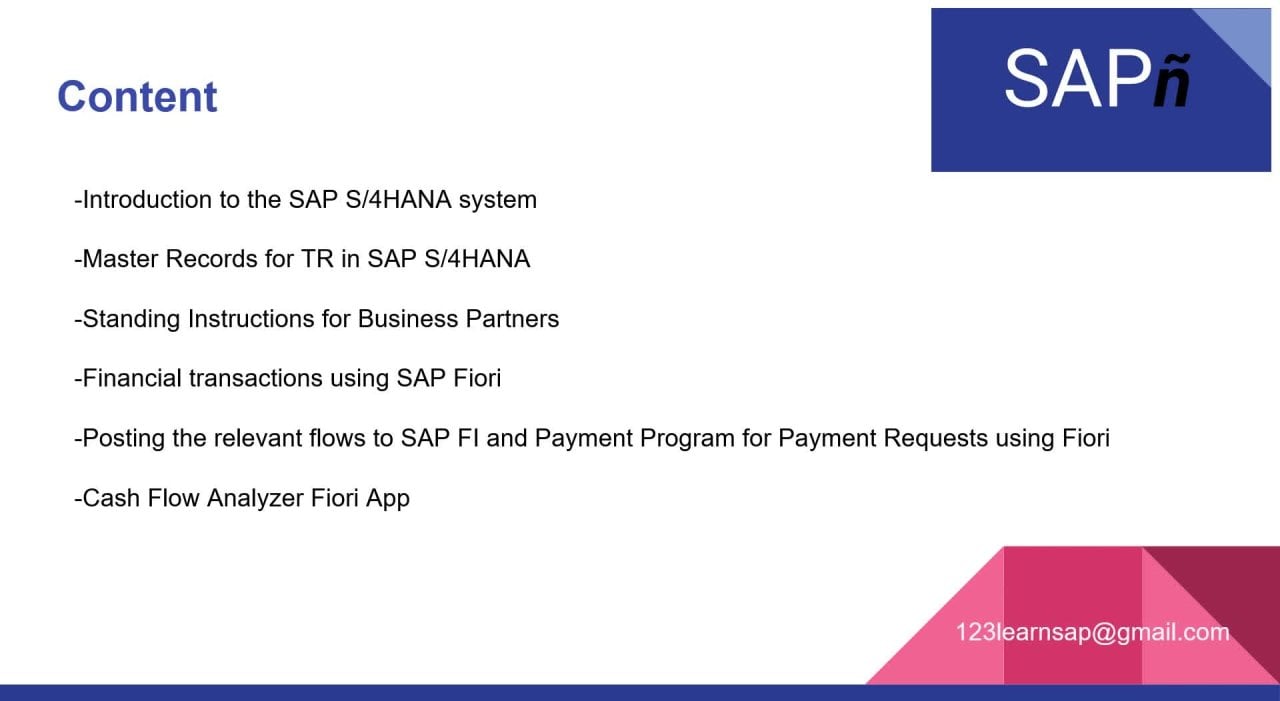
1. Introduction: Welcome to Treasury in S
for consulting course. We are a collective of
Expert MSP consultants with decades of experience and we are eager to share our
knowledge with you. In this class, you will
learn from our experience, not only how to run the most important
business processes for master records in treasury, but also features such
as the memory records, the new fury absolutely
have to manage them. We will start with the simple creation of
a bang master record. But then we will convert
this bank to house bank. And we will check the
consequences in the SEP login. Then we will start
the process to create the Bank of commerce to record and the corresponding
GL account. And of course we will link
both of these master records. Finally, we will have a section in which we
will create a VTE, compared and even
delete a memo records. And of course we will check
also the consequences of doing so in the
cash position app, which is a new fury app, is specifically designed to show the cash position
by different views. We can check that by
country, by bank, by company code and some additional options that we will be checking in
the coming lessons. So without further ado, we invite you to start with the first
lesson and start learning. These S4 hana training.
2. Creation of a Bank Master Record using SAP Fiori: In this lesson, we will
show the steps to create the new bank in SAP S4 hana. And the great news is we know is that this is no longer
a customizing task. So that means we don't
need credentials to a access the IMG, the
implementation guide, we can do it directly as simple end-user using also
the new fury apps. We are already connected to fury and we will start the
managed banks up. First of all, we have
these viewing which we can have some filters
here at the top, and we have a list
at the bottom. We have in the middle. Here these go push button. If we click go, we will have a list of competitors
to follow the banks that are created in this server with these filters that we cancel a
cure at the top. Right now we went
to use this app to create a new master
record for a bank. It's as simple as we have
to click here, create bank. Well, of course we have some simple fields that
we need to complete. Actually, the mandatory fields
are these 3 first fields, but we will also use
some other fields just to have a more
complete master record that for this scenario. So the first is the
bank countries. So we will select
Germany for these bank. Of course, the
code that we have. We can look for it and we can just double check that it's D E. Here, we have it. Then, but let's enter the bank. The bank name will
be your example. Bank we are going to
enter is three codes. Then in the main category, we can have these two options. External, simple external bank, which is one common setting to select for
most of the banks. Unless we have, for example, in banking setting, in our
customizing of our system. And we will use these bank for internal cash pulling
processes and other things. But right now, let us select
these only as external. Fairly well. We can just city, for example, which in this scenario it's
like these Berlin. So once we have completed all these mandatory fields and some additional information, we can just click save at
the bottom right corner. As simple as that, we
will have our bank created it for
this first lesson. So we can just click the SciPy logo to
go back to our home page. And that's it.
3. Exploring the FI13_HBANK transaction in SAP S/4HANA: In the previous
lesson, we created the master record
of the new bank. But as we know, this can
be an extensive list of all the banks that are relevant in the countries
in which we have operation. But not with all of these banks, we will have an account. It actually the banks for which the corporation has
at least one account. It's called The House banks. All of these other banks are
just important because we need them for
account receivable, accounts payable processes. For example, when we have to pay to vendor and these
particular vendor has an account in a specific bank for which we
don't have any relationship. We don't have an account there, but we need to transfer money to that bank so we can
pay the vendor. At that point. When we create these
master records, they are only created
bank master level. But of course then we
can create houses banks. In this lesson, we
just wanted to show that at this point in time, the bank that we create
is not yet a house bank. For that, we can open a
counting in this sep, z-axis. Financial accounting. Here we have banks, master data. We have a section
here for house banks. We will use these transactions FI 13 underscore age bank to display the banks that had
been the house banks that are assigned in our or
for our company code. So we just set that up here. As you can see, right now, the list is completely
empty as of now because we just
created the bank, but this bank is not
yet a house bank. So that is something we will show in some of
the next lessons. And of course we
will show the update here in these transactions, but that will be in some
of the coming lessons. So for the time being, you can just close this
and remind you to write with any doubt that
you might have 2123 learners, a PhD mid.com.
4. Convert a Bank into a House Bank in SAP S/4HANA: In previous lessons, we created the master
record of a bank. But now we have a relationship
with this bank because we have open an account for this
reason in the CP system, we need to transform these regular bank into
what we call a house bank. Lucky for us, this is a
simple process and again, we no longer have to run
these steps in customizing. Now we have access as
inducers using fury. Actually it's the same app. So this is really simple. We'll start again the
managed banks app. Of course, we will
look for our bank, the one that we created
in the previous lesson. We will enter the bank
country, the bank key. We can just click Go To get to have access
to the master records. So to continue editing
these metal record, we can just click on the an arrow pointing to the right that we have
here on the right-hand side. And of course, at first we
are in display only mode, but we can just switch. Clicking. Here. As you can see, we have
all the data that we entered previously to
create the master record. But here we have a section, a complete section
for house banks. So I have to click there. And this brings us directly
to the bank section. Right now it's empty because
this is not yet husband. But to transform these must
record into a house vanco, we can just click here create. And of course, in
a house bank is always linked to
a company codes, which is the legal
entity that actually, in the real-world, we used a legal representative
of that corporation, of that company
code, and we went to the bank and we
create the account. So right now we need to enter the idea of the company code, which is the city company codes. We need to specify id
for this house bank. So it's going to be the bank CD. For Bank City. Actually only five beats
like this BK city. Now, it does pretty
much everything we need for this process. So we can just save. With these, the house
bank is now creative. Well, we can just go back to the homepage and we invite you to keep learning
with the next lessons. For English, we will show the next steps for this process.
5. Show the House Bank using SAP Logon: In the previous lesson, we transformed our regular
bank into now a house bank. And now we just want to show if the update is now reflected in our transaction FI three
underscore each bank. So let's open the path for this in financial accounting
banks and of course, in the master data section. So here we have the transaction that just double-click to start
this transaction. We need to select our
company code. That's it. Now, we only have
one house bank. As you can see, the screen
is completely different. Instead of you're
showing an empty list. Now we have the details
for this company codes, and as you can see, we
only have this house bank. In an scenario we have more than one husband will have a list and then we
can double-click from the list and
get to the details. But right now because
we only have one, we go with the system
goes straight into the detail of the only husband that we have for
these company codes? Yes. Citibank, the details. And we can I have
additional sections here. We can have a data for the electronic data interchange partner profiles and the DMI, that data medium exchange. But so far we just want to show that the husband is
correctly set up. Right now. Everything is great actually, as you can see now, if
we go back one screen, we get the full list right now, there's only one entry
because we only have one house bank for
this company codes. And the next steps in
the coming lessons, it's about the account we still need to create
the house bank account, and we also have to have
a general ledger account. We need to create
the connection using a connectivity path or the
connectivity part section. And that is something we will show in the next
lessons using Fury. So for now, let's
just finish this and we will see each other
in the coming lessons.
6. Creation of the G/L account master record: To create a bank account, we need to set up for
a master record for the main account that we'll assign to
these bank accounts. So first we need to create this general ledger
master record, and we're connected to fury. And we will use these managerial
e-commerce to the API exactly for that purpose to create these
new master record. So let us start the app, and of course, let's
go and jump directly into the Create
option of the screen. We get to the fields that we need to set up
for these new account. While the ID of the general ledger account is probably the most
important thing, as it is the field that will the value of that field that will identify
forever this account. Well, let's enter the ID. We need to set up the Chart of Account section of data here. Actually we need to
start with the chart of accounts for this company code. We already have a
chart for guns. Why CoA? So let's select that one For the general
ledger account type, of course, but this will be
a balance sheet account. Now for the account group, let's use the magic code to
select the liquid funds. So if i n liquid
funds account, now, let's enter the description
for these genetic, your account will enter exactly the same. In the lung, the x actually, we need to reduce
our short texts. So of course, we can
just enter it like this. The lung text in full. Now, let's assign this to
a group chart of accounts. And actually we need to set up the group account number
for consolidation purposes. So in this scenario we
already have this graded, so we will just select
the group account number, which this is the ID. Now of course, we need to scroll down to the company
code section. As you can see right now, this is completely empty, but we can just jump
and click Create. So we go to the next screen. We can start typing the relevant
values for these fields. Of course, the first thing
is the company code. So we have our company called
array set up in the server. Let's just select the
admin, the currency. It's actually, it's
automatically defaulted because it's read from the local currency of
that company code. In this scenario, this
account is also in euros, so we will not modify that. But of course, if maybe this was an BankAccount in dollar, in US dollars or in Great British pounds
or any other currency. We can modify that value
right from this screen. Now. We will select a sort
key for the value date, which one has the value 027? This one. Finally, in the create bank intersection
for the time being, we will enter the bank
account status group, which has the ID yB O5. As you can see this one, even with the description, we know that the validate
it's mandatory for transactions that get posted to the general ledger accounts. So that is exactly
what we wanted. And now that we
have finished that, we can just click Okay, that will take us back
to the previous screen in which we have the basic layer for our ordinary dirt account. With this, we can save. And now they come has
been saved successfully. Now we have the master record for general ledger accounts, so we can just go back to the homepage to the
fury launchpad. And we can continue the process specifically to banks and the mega counts in
the coming lessons. So we'll see you in the next.
7. Create a Bank Account Master Record using SAP Fiori: Up to this point, we have
correctly set up a house bank, but of course we are still
missing the bank accounts, so well, for this next step, we have a dedicated app. And as you can see
here is the segment, the managed bank accounts. So let us start this one. Pretty much is the same scenario in which the w have the filters. And at the bottom
we may have a list of all the accounts
if we click go. But right now we want to use the create section of
these new episode. Let's click the
relevant push button. Here in the middle
of the screen. Of course, we need
to start setting up the data for these new account. The first thing, it's just
an account description. This will be for a
current account. So we will just David like
this and the account number. The next thing is
the bank country, which as we know it, this is for Germany. So we can just select
the ID for Germany. We need to specify the
key for the husband. So in this scenario, it's, if you remember from
the previous lessons, Citi Bank, this is the ID. Once we have finished with that, we can continue with the
currency. This is important. An account, a bank
account can only have one account currency
and the CP system, for any given reason you
need more than one currency. Category ID multiple records
from the master records. But right now, this
one, it's in euros. So we can just type EUR. After these. We can now
continue with the company code, the general data section. So actually we can scroll down
and for the company code, but we need to enter our
company code. Actually. The account holder is the same, so we can just type it. The city company code. As we have been seeing
disease, a current account. Select 01, which is the
IV for current account. Of course, that
will depend if we, for example, investment account
or other kinds of games. The segment is optional, but we can link for reporting
purposes a segment. In this scenario, we'll link the services segment
must record, which then leads 1100 score a. With this. Now we can continue with the house bank account
connectivity section. So for that we have that
a link here at the top. We can just click on that. Or we can scroll down until
we find the section here. The husband can
count connectivity. Right now. It's empty
node data found that's good because we're about
to create the section. So let's just click Create. The first and most
important thing is the value for
the ID category. As you can see
right now, we have central system
house bank account. There are many
multiple options and specifically we have some
options because in S4, hana is important for
you to know that we can have a bank data and real-time data from
remote bank accounts that we might have
in promotes systems. But in this first scenario, in simple scenario,
we will leave this as a central
system has BankAccount. Actually, as you can see, we have some values, some default values for
some of the fields, for the company code. For the house bank, for example, the decays as it
did, that's fine. But of course we need to enter
the house bank account ID. For this first account, we will just enter a
current account one. Now, the link really
do accounting, which is of course the idea of the general ledger account that we already created
in the server. So let's enter these ID. With this, we have finished setting up
everything here for this bank account
connectivity path. We can just click apply, and that will take us back
to the previous screen. We actually, we can
scroll to the top. And as you can see, we have the IVR here, the push button that
we can just click to have the system propose these international
bank account number. This can be later. We can modify this
later if needed. If for any given recent these
proposals is not correct. But for the time being, we will just leave them the fault value that has been proposed by
the system here, by the algorithms
in these furious. With this, we can save. We will have a fault is a warning message about the
account not being the bank, not being in a bank Iraqi yet, but that's good for
the time being. We will not modify anything that has to do
with that hierarchy. So let's just click Close. This is a warning only. We can just go back to the fury lounge and finish this lesson
for the time being.
8. Complete the G/L Account: We have created the
master regrow for GL account and we have created the master record
of our bank account, but we need to complete just the last steps
in which we will open again, the master regrow,
the GLA kingdom. We will complete the details
of the bank section. For this. Well, we are connected and we will start again the managerial
icon master data up. Now, we need to look for
our general ledger account. The first thing and that's mandatory is the
chart of accounts. So let's just select our standard shelf accounts
and let's enter the ID of the general ledger
account like this. So we can just click Go. Here we have our city
mine main bank account. So let's click the detail icon to get to the display
mode of this transaction. But actually let's click it
so we can modify the values. Of course, we have
all the basic data, the general ledger, contact, they can group the description. We could modify some of
those things if needed. We can even translate to
other languages, of course. But right now, what we want is to modify the
company called data. So here, right, in the
company code data section, Let's really have one
company code linked here. Because what we are only using these account for this
particular company codes. Well, let's modify the values
for that city company code. Actually we can go and jump. They're ugly to decreed
by interest section. Because again, the thing that we're missing
is we have to link in the husband and they
cause bank account AD. So I will use the match code. Right now. We only have one
house bank, the vk SED. We select Darwin, and only, you only have one bank account. Let's use much goes and
let's just double-check. Yes, that's correct. We have the cerebral rent
account, which if you remember, the ID was ACC you one account current wonder, critic and one. That's it. With this link. We can finalize
this, we can click. Okay, we get back to
the main screen of the general ledger
account master record. We will not modify anything
else for this master record. We have completed all the
details so we can just save. That's it. The change has
been saved successfully. And with this, we can go back to the launchpad and
finish this lesson. Not before saying that we
want to thank you, of course. And that we want to remind you you can write with
any doubts that you might have to over email to
relearn SAP at gmail.com.
9. Cash Position Fiori app: Up to this point, we have finished setting
up the master records. We needed for a new bank, actually a house bank and
corresponding bank account. But now, in this lesson we will show the cash
positions of today. Just to prepare
this scenario for this new section in which we
will show the memo records. All these new capabilities
that we have with fury. And the way in which we
just be the central lab, we can create a compared to delete everything that has to do
with memo records. So first of all, let's switch to my
home group of apps. Because right here we have the
cash position as of today. So this is also a new
and interesting fury up, pretty much replacing
the FFT transaction. So let's have a look. As always, with this fury up, it's very colorful and graphic. In nature. We have a biobank Andhra, we have the amounts. For example, here in Germany, around 20 million Euros. And for some other countries, we can also switch the view. So we have the data
by bank, for example. Here, it's interesting to notice right now that we have
nothing with where new bank, of course, or even by company codes in which there is nothing for our company code. After we have seen this
in the next lesson, we will create a memory card
and see the consequences, how everything is impacted in where cash
position, for example. Right now, Let's create depth. And with this, we finish this
lesson and we invite you, of course, to keep learning
with the next one.
10. Creation of a Memo Record using SAP Fiori: In this lesson, we want to show the management records app, but we will use it
specifically for the creation of a
new memo recorded. So let's jump into the basic cash operations
group of apps. And here we have the central transaction management
and records. So let us start this one. As we know by now,
with this fury apps, we have a first filtering the top and a list of
possible memory records. But right now we want
to create a new one. So we'll create a
simple memory records. We will start assigning the planning level just for you to check the possible
pain levels. For this, we will use the DM for a money market trace will be for our rank level, for our memory records. Now, as you can see, well, we have some other fields
that we need to fill. But first let's start
with the company code. So of course, we will use our company code that we have been setting everything
up for this one. For the city company code. The amount. We will have this as 5 million. The currency, EUR, €4. Now, another mandatory
field is the Validate. We will leave that as of today. But for the expiration date, we will choose the next
thing, obviously, on Monday. Perfect. And finally, we will assign the house bank we
set up previously. So we have the company code. We can just click Go here. Actually we have it. Then B, k is ET house bank. And actually we only have one account with
this, how is bank? So everything will
be set up correctly. As you can see, we have the
ID here for the husband. The husband could count in itself the bank account
number and the when Kennedy, it's already set up for us. Before we save, of
course here at the top left we have the ID,
but right now it's 0. We haven't saved. Let's proceed and click save at the bottom. And as you can see now, we know the memory card has been created successfully
and it has been saved correctly because the
system has assigned the corresponding next
number available, which in this scenario is for, for these new memo records. So now we know
everything was saved correctly and we can
just take the ACP logo. So we go back to our
Launchpad and with this, we finish this lesson.
11. Consult the Memo Record in Cash Position: In the previous lesson,
we successfully saved a new memory card and now we went to check the consequences in
the cash position. So let's jump into again, my home group of apps and
let us start the cash, cash position fury up. So if you remember, and we compare these two, the two lessons ago, the
changes immediately. We can immediately
see that we have the additional five minutes here because their bank
belongs to Germany. But of course we can again switch the view, select by bank. And again, if we compare these two lessons
ago, It's right away. It jumps to your attention
that we have the new bank here and the value of the memo
record here for €5 million. The same, pretty much the same goes for the bike company view. Because here we will have
our city company code. And of course it's
organized according to the amounts that we have for each one of
these banks as of today. So right now the memo
record is working is being shown here correctly in the cash position for the app. And about in the coming lessons, we will show the
consequences of a converting that memo record and even
deleting the record if needed. For the time this is okay. We can click this logo and we're back in the theory
launchpad to finish the lesson. But of course, we
invite you as always, to reach out to us using the 123 learners API
at gmail.com address, you can reach out and ask any questions that you
might have, any comments. We are more than welcome to receive those and answer
as soon as possible. Thank you again, and we'll
see you in the next lesson.
12. Conversion of a Memo Record using SAP Fiori: We know we can really use the memo records for
planning purposes. And sometimes after
we have evaluated the consequences
in cash position, we went to hide them. We went to temporarily
disabled them. So lucky for us, this is super simple. We just have to switch
to the same app, the manage memory records, which again is a central hub for everything that has
to do with records. So let us start this one. The first thing we have
to locate the memory, we need to come up
with the memo record. So let us use the
company code filter. Actually, we only have one memo record assigned
to this company code. So it simple, we just
go wait for the query to come up with the only
memory record that we have. Actually, of course, we can click on the little arrow
pointing to the right, the themes to get to the
full screen in which we can see everything that has to do with these
memory record. At the top. As you can see, we have these functions right now
we would use convert. Before we click, we have
denote these status right now, this statistic is saying active. So that means, of course it's
showing out in the report. We have it there. And we
have all the details. Which bank which has bank
account, the dates, everything. But let's see what
happens when we convert. It will of course, as from
us to confirm that you say, okay, the status will
change to inactive. And when we check
the cash position, now we won't be able
to see this actually. Well, of course,
let's jump back. In the next lesson. We will show the next step, showed the consequences in the
report and the next steps. So it will see you
in the next one.
13. Check the consequence of the conversion of the Memo Record : In the previous lesson, we successfully convert our
memory record and let us just see the consequences right now in my home group of apps, of course, in the cash position. Let's start this. And we will see
immediately the difference because we have not 25 million. We have again 20 million. For Germany. Of course, the other countries,
they haven't changed. And if we go by bank, there's nothing
anymore anymore for our city bank and of course nothing for our
city company code. So right now it has been
said it at the inactive. Let's see in the
coming lessons what other alternatives and things we have for these memory record. But for the time being, the test was successful, we no longer see the number of records in our
guests position, and that is exactly
what we wanted. With this. We
finish this lesson. Let's continue learning
with the next one.
14. Activation of a Memo Record using the central Fiori app: Perfect, So in the
previous lessons, we create the memo record. It checks the consequences
in the cash position, and then we convert the memory record and
it was set as inactive. But what's important
and interesting is that we haven't deleted the memory
records. It's still there. So in this lesson
we want to show the simple way in which we can convert again these
memory records. So it will go from
inactive to active. Then we will check the
consequences as well. So let's jump into the basic cache
operation group of apps and let us start the
management of records up. Well again, we will enter
the company codes as the filtering
criteria ambulatory go to get our memory records. So again, right now, the memo record is inactive. As we can see here. If we go into the details, we can see clearly here, even in this nice color that is, right now it's inactive. So let's convert. Of course we went to
convert, that's okay. Now it is active. So let's see the
consequences right away. So we'll jump back
to our homepage. And from there we will go to
my home. What's important? And it's also interesting with some fury apps and specifically now with
the cash position is that we have indirect
interaction and just a bit like a KPI right from the fury
LaunchPad because we have these very big number
and it hasn't been refresh in more than 30 minutes. That is a because we haven't executed the app or we haven't
click here on the refresh. But if we click Refresh, now, it will query and right away, even without getting
into the detail, even without starting the tile, the absolute detail will update itself and show that the
memory record is now active, so well, Let's just do We can compare it to
the previous lessons. Let us start the app. Again. This is also really
great with these apps. Are they function as KPIs
right from the fury Launchpad. So most people would say
it's like dashboard, bit of a dashboard
behavior again, but now that the memo
record is active, we have again the 25 million
in Germany banks in Germany. But of course we can
break this down by bank. And again, we will see
aware Citibank with the corresponding memory
record the amount under my company code. So well, of course, we have now completed a full example in
which we converted. So going from active to inactive arm record and
then the other way around, converting again from
inactive to active. And we see the
consequences of dated and updates happening immediately
in our cash position app. Well, now that we
have seen this, we can just quit
this application. You can go back to
the fury launchpad. And with these, we finish this lesson thinking you
for all the attention.
15. Deletion of a Memo Record: In the previous lesson,
we set the status to active again
for a memo record. Just to finish the scenario now, we would like to
show how to delete. Of course, this will be a
very similar consequences in the gas pushes cash
position because it will no longer show anything that has to do with this memo record. But the difference is that
we can never convert again the memory regard because we
will have deleted forever. So let's jump again into our basic cash operations and let us start the
management my records up. Of course, we need to
look for our memo record, so we'll just click Go here. And again, for
this company code, we only have one, which is
the one for €5 million. The only difference,
of course, is that now we will delete. We'll delete Completely
these memory records. Of course, we need to
confirm right now, this is exactly what we want. So let's delete
these memory record. And of course, we want also to show the
consequence right away. So let's go back to the fury launchpad and
my home group of apps. Just again, remember,
something to remember is that this is
an active fuel retail. So that means if we click here, it will refresh it, look for the data, and of course it
updates the value. And now we have only
twenty million, five millions are no longer here anymore because that
memory was deleted. And just to check the details, of course we can start the tile. And as we know well, similar
to win scenario home, we set the value to inactive. Now everything is back to only
€20 million, for example. And actually if we checked
by bank, there's nothing. Our Citibank and
of course nothing even with our company codes. Well, we have a
similar scenario here. The one in which we said
the a grid to inactive. But of course now the
main difference is that we can no
longer go back and activate the record
because he's now permanently has been permanent,
permanently deleted. Right now, let's go back
to our field launchpad. And with these, we
finish this lesson. But we just want to remind
you whatever you might want to contact us for
maybe doubts or comments. Of course, you can
just write to our 123 learn SAP at
gmail.com address. And we're happy to answer as soon as possible,
as soon as we can. So with this, we finish the
lesson and thank you again.
 SAP EnTuIdioma