Transcripts
1. Intro: In this video, I'll
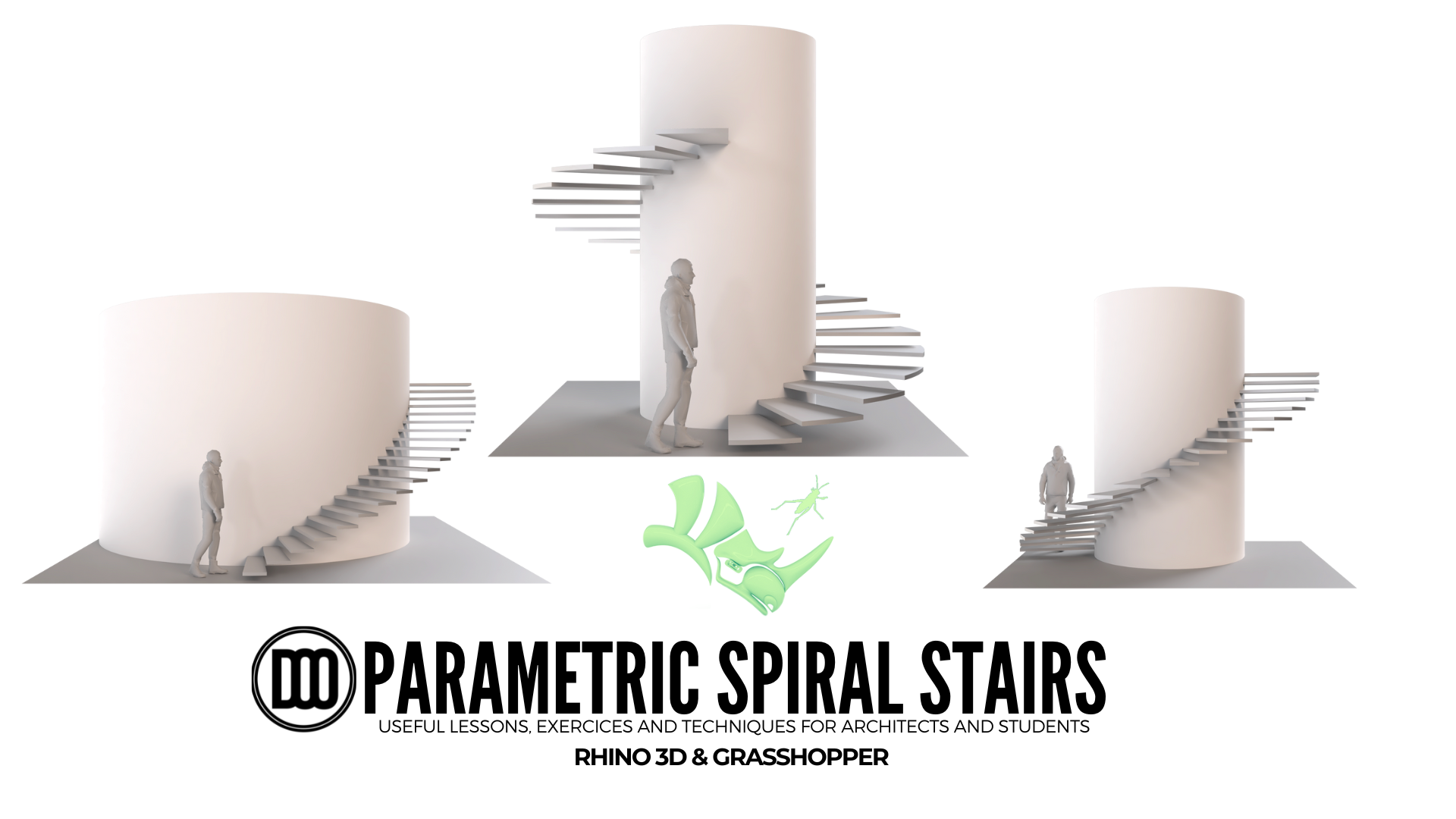
be showing you how to create this
set of stairs. This is a question
that I get often. How do I create spiral stairs and what are the steps involved? So it makes sure it in
this video that I go over the basics of how to get started creating
something like this. From scratch. I go over exercises and
techniques that you can use not only for this design
but for many other designs. So I'm very excited to share this process with you so you can learn how the parametric
design works. I'll have the script
available for you and if you have
any questions, make sure to let me know. I'm excited to share with you the process. So
let's jump right in.
2. Base Geometry: Alright, so the
first thing we'll do is create the base geometry. So what we're going to
do is to create a point. This way we can always
move the location. So we'll start by
constructing, hear your point. So I'll double-click,
go to construct point. This will give me a
parametric point that I can place anywhere in the
XYZ coordinate system. Then I like to route it through
a empty point component. This way, we can always
change that location. So we'll start here and create our base geometry,
which is a circle. So we'll go here to a circle and we'll use the point
input as the plane. And the radius will be the inside portion of
the spiral stairs. So if on the inside, Let's say you want ten feet. Well, we can go here
to slider of ten. But remember that this
is the radius, right? So it's a ten from here, not all the way across. So what we need to do this way, you always know what's
the inside diameter? Is that put, throw you off
if you think that, oh, you know, the science is
going to be ten feet now, well, this is actually 20 feet. So what I do is I go
ten divided by two. So you go forward slash to
and what it does is it will give you a division
component with PS2. And then we can plug
in ten into the input. And so now this would be the diameter of the
inside of the stairs. So inside of all caps,
inside stare diameter. Now we can move on to creating
the base geometry for it. So this is where we start. Then we would create
the actual stare width. So we'll take the circle and
we'll go to offset curve. And now it's offsetting
it to the outside. So now we can pick a distance. I'll go here to 48.50. And the reason why I do
this is so I can have two decimal points and
it'll put it at 48.5, which is how wide this is. Now, what's happening here is, let's take a look at
the units in inches. So that's okay.
This is ten inches. So if this is a
little bit too small, well we need to do is increase this to something like a 100. And then say the inside of this, since we're in inches,
It's actually going to be something like 60. Now, we can offset by 48. That is the width up the stairs. And since we're
working in inches, that is the reason why we want the inside diameter
to be six inches, which is five feet, making
it five feet diameter. So premiered here is five feet from here to here are four feet. We're 48. Now we can create a
surface between these two. And that's what we'll, that's what we're going to
use to create our tread, will take this one
and this one and plug them into a component
called boundary surfaces. Boundary surfaces will create a surface around the boundary. But what happens is when I plug this one and this one
at the same time, they overlap because
when you were there, plugged in here, you're plugged in as two
separate curves. So it's trying to create
a plane for both of them when we
flattened the input. Now, it looks at
both of those S1, therefore creating a
hole on the inside. And we can still change all
of the dimensions here. The thing to note is
that if you're new, understand that logic kinda
goes from left to right. And so the SERP, the initial circle is a parent object
in the sense that when I change the size of it, well, the size of the
offset will also change. The thing that's different about this offset that's
after the circle. This means that, that will
not affect this circle. So what happens is as the
wires to the last component, that is how the logic works. So you go from left to right, and things that are on the
right-hand side are most likely affected by the
things on the left. But the thing is on the
right when you change them, they're not they won't affect so much of the stuff
on the inside. And we can always use all
the data that we have here. So let's move on and
create our tread. What we need to do
is create a line at the start of these two and
then use that to rotate. So we'll take this and this
will go here, two end points. So we want the end point of
this circle and this circle. So we'll plug the circle into the endpoints and it's going to have the start and end
point be the same. So you have to be aware of that. And also I'll copy
this down and do the same thing for the offset. Now that we have two points, we can create a line segment, but we need to be
careful in the sense that we want to note will go from we
want to be consistent. So the start point up this
inside circle is going to connect with the start
point of the offset. Will go to start
and an end point. So we created a line segment. That's where the
stairs would start. Now that we have this, then we need to rotate
this line segment by a specific amount of degrees
to create one tread. And that's all we need
when we create one tread. That trade is what's going to be arrayed all the way around. So we're starting with
the basics, with the, with the base model,
learning the techniques. And then later you'll
see how you can put them altogether into your whatever
script that you want. So now we can take this. We'll go to rotate.
We'll move forward. We'll go to rotate. What
are we going to rotate? What we know we want to rotate this line because that's what's going to
create the tread. Now by default, these
components have an input already set in
and they're in radians. That's a pain in the
but if you're not used to them and you are
used to only degrees. So you can change that
by going to degrees. Then plane is going to be what reference plane is
going to rotate it from. Because technically you can
rotate it around like this, but it will always use
the default plane, x, y. We can change that
if we want to by plugging in this point
into the plane input. And so now this point is the reference of where
that rotation is taken. And it's taken on the x, y, which means that
it's on the ground. If we wanted to rotate
it another way, we would actually have
to change the plane. It would have to not be
x, y would have to be y, z or z or x, z. So with that being said,
let's move on to the angle. We can pick whatever
angle we want. We can just say 15.50. And I do like to use some
decimal points here. We can just rotate it. But what happens is
this will lead us to not an even set of steps to create a 360 turnaround from
the beginning to the end. So what happens is I create a division of 360 because
what happens is with stairs, since we're rotating
all the way around 360. Well, we can do a division by 360 depending on how
many treads we want. So what I'll do is I'll do that. Let me show you how to do that. It's very simple math, but it's super useful. This will be, can be used for
so many different things. So I'll go here to
quotation marks, three hundred and sixty, three hundred and sixty degrees
to go all the way around. Now if we divide 360 degrees, so I'll go forward slash
by the number of treads. So let's say I want 20 threads. So I'll go here to 2360 degrees. We want 20 treads. How many degrees would it
be if I divide it by 20? So that's what we're doing. 360 divided by 20. Now this is what
goes into the ankle, because here we will
see 18 degrees. Well, with three, if you're trying to turn around all the way up to 360 degrees, which is the point of
the spiral stair anyway. And you divide it by the
amount of treads, 20. So let's go here. Number of treads. Then we get a degree which
rotates it around to here. And now, if I were to take this segment and
rotate it 20 times, it would fill the entire circle. That is exactly
what we're doing. It's a little bit complicated
if you're not used to it, but I will have this script for you for free and available. So you can learn this process. Now with this being said, let's take this and this, and now let's split
them using these. We'll split this surface
using these two lines will go here to surface split. Will use the surface input and
the geometry as the curve. And also this one, right? Because this is a rotated one, we also need this one. Hold down Shift to
add another input to the surface split. And now we can move on to keep this here so you can
see where things plugin. Now, we can disable
the preview on everything because
what's happening is now that we
split the surface, we're still seeing it
before we split it. So we'll go here, middle
click disabled preview. We'll take this rotation and lines like we, we
kinda don't need that. That's okay because it doesn't
really get in our way. So now with that, we
have a surface here. It says two values, which means that it's been split into two
different surfaces. So now if we want more
treads or less treads, you can see that it
updates automatically. So this is the cool thing about parametric design
is that you can kinda tie numbers together, making it more cohesive. So let's move on. We're going to take this, it now extract one
of the two surfaces.
3. Tread Array: So now let's take this
and let's break it up. Let's go here to list item. I just type item and then
I look for list item. Here, we can pick
one of those two. So what happens is it will
pick one automatically, whichever one has index of 0. And we can tell which one
is one or 0 by doing this. So we have two elements here. If I were to bring in an area component and
just get the midpoint of these two fragments
here to graft. It's getting the center of those two, so that's
not going to work. The idea is that we want
to just pick this tread, not the entire thing. So we'll plug in the
fragments into the list item. And by default we have
the index of 0 is doing the entire thing
except for the tread. Now, you can go to index
instead of 0 of one. Well, we can actually
reverse this because when you only have to, you can reverse it
and get the one that's not that you're trying to pick, not
the other ones. So with that, we have our tread. Let's disabled preview
on this stuff. Okay, so we've got a tread. Now we need to array
it all the way around. We could go to array polar. It can help you rotate things around using
a specific angle. So this is a good way if
you're fairly new to it. But I want to show
you how you can do it yourself by using series, which is the same thing as this. So we'll delete
this and start by bringing in a series component. The series component is
going to ask three things. Where does it start, how much does it buy, and how many do you want? Well, some of those are
already answered for us because we know how many
number of treads we want. So that goes into the
count. The degrees. We know it's 15, so
it'll start by 15. Now we can use this
output into the rotation. Will go to rotate. We're going to take this item, plug it into the geometry, and rotate it around by
15 degrees, 24 times. You'll see here the first is 0, second 1 is 1530456075. And that's by how much
is going to rotate. Now, recall that we
have degrees here. So if we plug in a radius value, which is by default what it is, then we just need to
change it to degrees. Now we've successfully been
able to change the number of treads and everything is
tied together to 360. But let's say you only want
it to go to 90 degrees. Well, you can change it to 90. Now we're only rotating 90, but ours treads are too small, so then we would actually
need less treads. So this angle becomes critical for creating
spiral stairs. You're inside a grasshopper. So we can now have at
least the base geometry, which is taken care of by splitting at entire
ring into the tread. The tread is then rotated
around 360 degrees, 32 times to complete
that 360 degrees. Perfect. If it's a little bit confusing, I would suggest just
give it a few tries and see where you'd have issues. And then if you have questions that maybe
haven't answered, maybe you haven't thought of
send them to me either to my email or to anywhere here, and I can answer them for you. So I'll disable
the preview here. Now, we can move on to
creating the vertical rise.
4. Tread Vertical Array: Alright, so at this point, we got most of the stuff. Now the only thing I
haven't relabeled here is going to be stair width. Now what we need to
do is the same thing that we did with series, because we know how many
number of treads we want. So now we need to move it
up vertically by 32 times. By specific height. Series is exactly
what that's used for. It's, for me one of the
most useful components. So we'll start with count. Well, we know how
many threads we want. Step, how much are
we going to go up? Well, we'll say 6.500. Where's it going to start at 0? But let me show you how that one can be very useful in this case. So it will take the rotated ones and we're going to move them up. So what do we need to bring in? A move components will move
all of those up by 6.5 each. So we'll go geometry
into the geometry input. The motion unit Z. Now it's going to
be moved up by it. So if we only have one
slider here, let's say 6.5. Well, they would all move up
by the same amount because it's only one value
that it's moving up. Here. We have 0.513196. So progressively
it's going to go up. That is what we need to use. And what happens
is, I did not plot. So when I plug it right in, It's a bunch of numbers
into the motion, but the motion needs to
have a specific vector, so we need to move it
up in the z direction. This is why that didn't work. Now, here we have the ability
to create a step of 6.5. Then this one from
the ground goes up by 6.5 times 2345, and so on. Let's go back here. Let's go to a smaller count, 20. And the reason why I picked
20 is because 20 code in the United States is the maximum number of threads that you can have before
you have a landing. Or ten feet vertical height
before you have a landing. So spiral stairs,
if they're trying to go up more than ten feet, they will need to
have a landing. So this is where there are additional things
that we could do to raise this up and
create a landing. But the idea for this is
to get started and show you some of these
simple steps can end up creating some of
these very complex designs. Let's go back here. Now. We have the amount
6.5. You can see six. Now we don't need
the bottom copy. We will go back here
to our surface or boundary surface and are subdivided rotation
disabled preview. Now let's go back and look at our dimensions are
inside diameter. If we have it at 0,
it will not work. So you would have it at a
very small and regardless, let's say if you had a spiral
stair like this, well, it sometimes you
would actually have a structural column
going up here. And that's what
supports these threads. So you would always have a
small, small mountain here. You wouldn't actually
go to a point that would be actually
structurally when Mark. So this is how we
can change this to, let's say 6060 is going to be five feet
from here to here. You can always
increase this also. Then we can go stare
with is going to be also by code 36 inch minimum. Let's move on here to
number of threads. The more we have actually we
increase a higher number. But like I said, we do have some code restrictions.
We'll go here to 20. If we don't want to rotate
all the way to 360, we can go to 90. I can also have
this as a slider. So right now I don't
have it as a slider, I have it as a panel. We can always change that. So let's go here too. Create a custom
slider will go 0 dot, dot, dot, dot, 720. This way, we can change this
to be from three to 60. It could even go more. Or it can go less. 360 is typically the normal one, but we can also do a 180, which means it just goes, let's say from here up
to the second floor. Height by code, six
inches for commercial. And then you can go up to seven inches or seven inches and more. If you're in residential.
5. Structure column / wall: Now the other thing that
I was going to mention is this is the tread height. And technically, if we
were to look at this, this tread is on the ground
and if we were to extrude it, that's not where it would start. It would actually want to
start up at this level. So what we need to do is
when we create the array up, the start point is at 0, which means that when you create the series, it starts at 0. So how do we make it?
So it starts at six. We're at whatever
value the tread is. Six here. Well, this same
input, it's going to, output is going to be
into the start number, which means that it starts at six and then
progressively goes up. And this is more of what we're, what we expect to see
when we do spiral stairs. And also, what are
those rare cases where you'd actually do have a start
point that is different. Typically I use it when star
point is going to be 0, like when we do rotation here. And that's because you
don't want to start from a rotation that is a
different rotating. You want to start at 0 so
that every case is going to be different depending on what you're trying to do with this. Let's create the
thickness for the treads. What we'll do is we'll take
this and we're just going to extrude each one of those up. So I'll go here to extrude. We'll take the treads
into the base input. Now we're going
to extrude it up. So when we extrude or move something,
we need a direction. We'll go to unit Z, that n. Now we can pick a value, we can say 1.5. That will give me a slider
from 0 to ten, put it out 1.5. But what happens is we need
to extrude this not up, because then that would make our tread larger from
our spring point. So z but negative. Now let's do this. So now that we've done this, I want to show you how to make it a little bit more structural
because right now we just have these floating around. So what we're gonna do is take the inside portion
of the circle, we're going to offset it
and create a wall that goes all the way up
past the treads. What we need to do is
take the initial circle. We can either go to
boundary surfaces to create a surface right
on the inside of that. Now we can extrude that surface up all the
way to the top here. The way to calculate
how far did we go up, because we did it
in steps six by multiplied by 26
inches for 20 treads. So I go here to a
multiplication. So I'll go to star enter. You can always go up here to math multiplication
and bring it in. We'll do six times 20. This is going to be 120, which is the direction that I
want to extrude this up by. So I'll go here to unit z, the vector into the direction. What we've done is we've just extruded it up to that point. And from there, we can
extrude it further to, let's say create a. When you come up
that it's just Andy, I think it looks a
little bit awkward. We can extrude it
further by adding to it. This is another
great way in which using simple math
here super useful. We have six times 20 plus. This is how we're
going to extend this. Plus whatever amount will
just say 64 or five feet. Then. Since the output was 120, now it's 180 and I
have to override that. It works. It now this becomes from 0 to whatever height
is going to be. I'll just go 36 years. So that is how we can create that structural
wall on the inside. But it is a, just a solid wall. So if we wanted to make it into a hollow one, this
is where we would do. We would take that initial line, we would offset it. So I'll go here to
offset curve and offset this circle
to the inside. So I'll go here to a
negative component because the positive one
is going to the outside. So the negative one
will go to the inside. We'll go 1.500. Now
when we take this. And so we have this
surface before. Well, we want to create the
surface between these two. So I'll take this and this and create a boundary
surface to override. Plug this one in
holding down Shift. I'll also add this input. Then, since they're overlapping, like I mentioned earlier, we need to flatten it, so we only get that. And that is what we override. Will delete this and we'll
use this to extrude it up. This is a cool way to offset geometry to give it a little bit more of a
realistic structural looks. So we'll go here
to find my mind. And all of it is tied
together like this. We're going to go. So that
concludes the tutorial. This is more of a general
overview on how to create spiral stairs using series and rotation
and circles here. From here, I don't know if, if, if you guys have seen my other, my scripts and stuff, some of them can get
really complicated and complex as we move forward because we always start from
general and go to specific. So this is more of a general
design that anyone Getting Started can learn some
techniques to use later on. You can take this middle
click and then bake. And from here we can
go further into, let's say, doing
more and designing. So I'll just go here
to shaded mode. And we can just go
to a new layer. Go to an interpolated curve, will go here,
interpolated curve. And I'll just pick
the outside points. Now we can do this
parametrically. But if you're not too, if you're fairly new,
it's okay to do this. It's okay to do the heavy
work inside of grasshopper. And then when you already
have what you want, you can further develop
it inside a rhino. Make knowing that most of these steps that
we took to create this perfectly accurate
because we made sure to do all of the
steps using sliders. So there's no, there
are no issues here. So I'll take this move this down a little bit past the treads. And then I'll go here
to extrude curve. And I'll go past that rail here, like this, reading
and side rail. And now we will take this, will go here, sweep
one, select the rail. This one shapes this one. So it'll finish it
off here at the top. Will join it off set surface
and we'll say three inches. So we've created this
spiral stair set like this with a
small inside diameter that we can always change. We can always go here and
update that inside diameter. So with that being said, make sure to check the
files so you can follow along with me and not if
you have any questions, you can always send them to me, but that should
help you out a lot. Thank you very much
for being here and hopefully that was useful. And stay tuned for other
videos that will help you get ahead with parametric design and just gathering more skills to
become a better architect. Thank you once again, and
I'll see you next time.
 DCO Graphicstudio