Transcripts
1. Intro: Hi, welcome to DCO. My name is David capacity
and in this video, I'll be sharing with
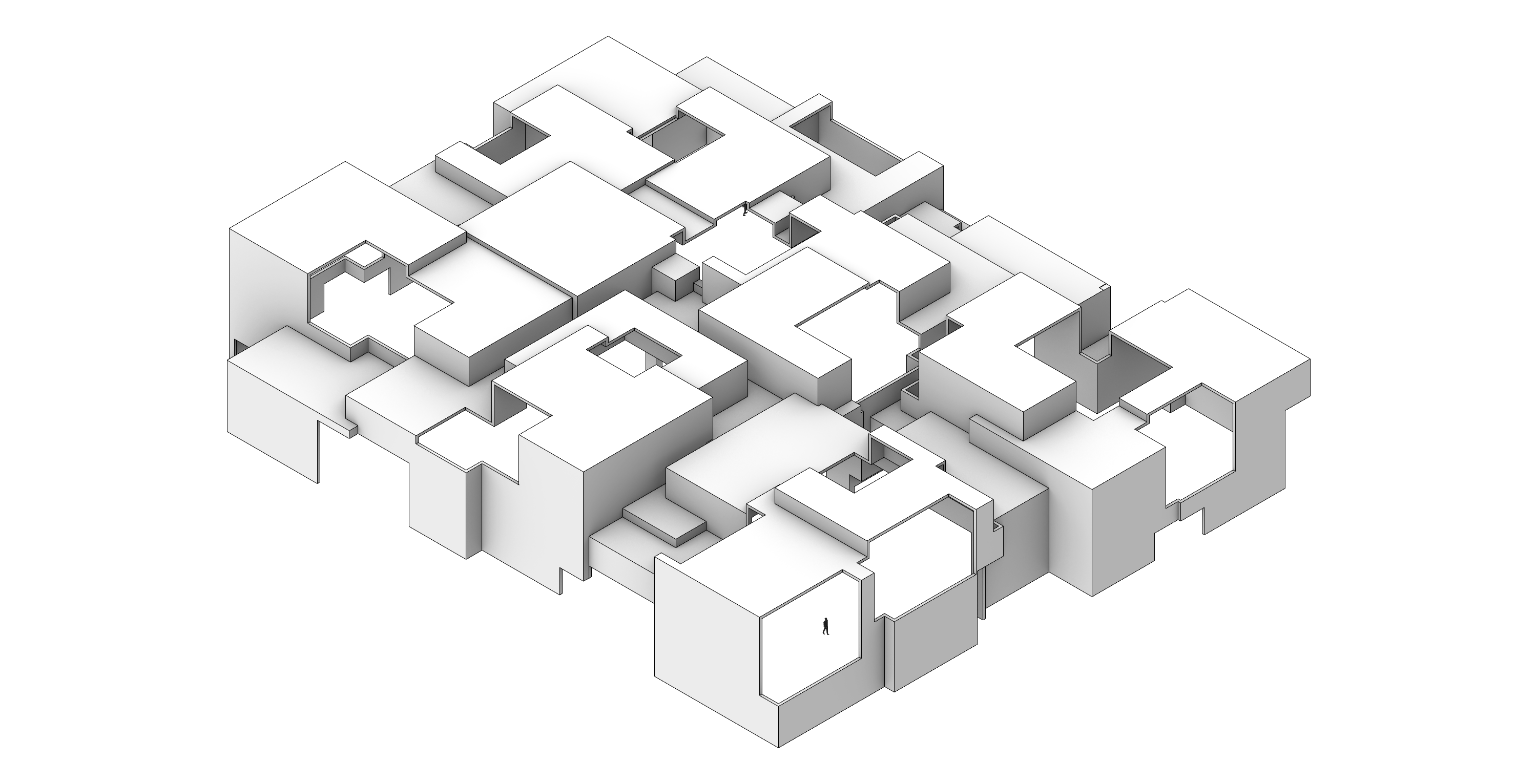
you how I created the script where this building
that has random forms, it has subtractions for the doors and then other subtractions for the
Windows and ventilation. I'll be sharing with you
all of the steps in detail. And my goal is to show you some techniques
and exercises that can help you understand
how parametric design works and how you can use
them for your designs. Now the cool thing about this specific script is
that we can use the slider to change
how many points, the size of them, and just to get different
iterations depending on what outcome we
see that we like. So with that being said, thank you very much
for being here. And let's go ahead and jump
right into this tutorial.
2. Base Geometry: We're starting with
the new Rhino file. We have it at units of feet, and then I have a brand
new grasshopper file here so we can go to
File New Document. And with this new document,
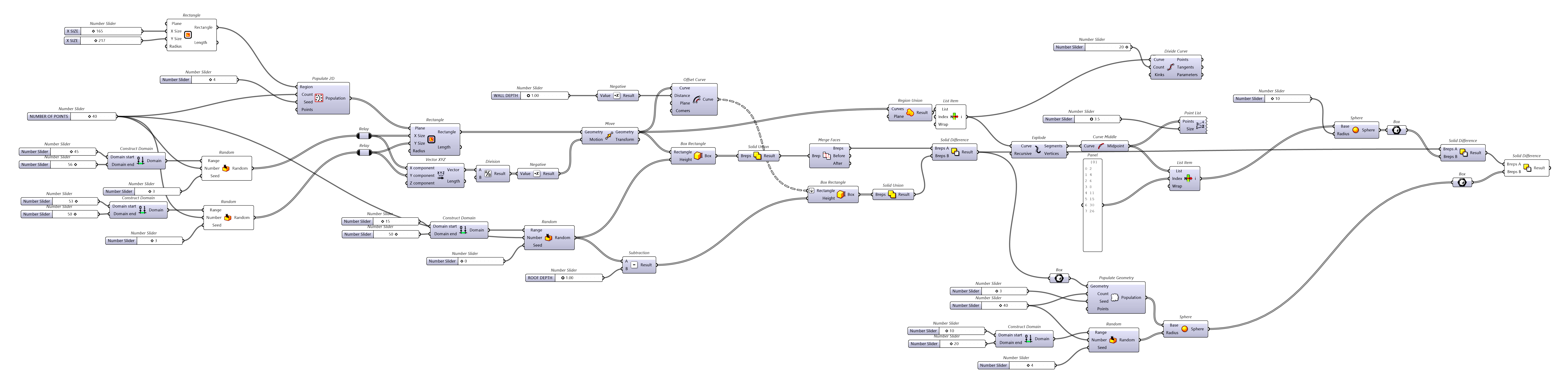
we'll start our design. The first component will bring in is going to be a rectangle. So we'll start here
by double-clicking. We'll start typing in
rectangle and we'll be using this rectangle on a plane. Now, we can input the location for the plane and change the size
for the x and y. So I'll go to 150. Have two sliders for
the overall size. This is to give us a
region where we can set a number of points that
are going to be random. So we'll go here to
rectangle, then populate. So we'll go here to set or
vector grid populate to D. This will lead us populate a set of
points within a region, which is going to
be the rectangle. Now we can change
the account size. So we'll go here to 15. So we have the ability to
create a random set of points. Within this region. We can increase or decrease
the number of points. So this is going to be how
many objects we create. So this is going to, we can right-click
here and change for x. I like to do caps x size. Why size? And the reason why we
would change the names. So we know what the change and I right-click here and then
it says number slider. We can change it
right away to x size. Now we can change it,
change the proportions. And notice that when
we move this around, the points ri, populate and change to a
different location. So that's something
to keep in mind. Because let's say you
have a static design that you just want to scale up. If we were to change
the size of our region, we know that our design is
going to change to match that. So we would actually take a different approach
and scale it. But with this, now
we can move forward and we can change here
for number of points. Next, what we're
going to do is create a rectangle at the, where these points are located. So we'll go here to rectangle. Once again. We can use
this population of points as the plane
input for our rectangle. Now let's change the x and
y size for the rectangle. So I'll go here to 15 and
change, create two sliders. So 0-100 sets it at 15. So we've created a
set of boxes that are all the same dimension
in the x and y that we can create here. Now notice that
it's not centered. So what happens is we do, if we want to center them, we do need to either create
this with a domain of negative 33 and then go to positive 33 or
-15 and positive 15. Or the way that I like to
do it is by moving it. Now these are two different ways of rearranging this
to be in the center, but we're going to
be moving this wreck all of these rectangles
in which direction? While we'll do a vector, because we need to move it
in a specific direction. But we see that we have
the x value is 33, so we'll go to 33 per the x, and 34 is going to be for the y. So now if we plug
this in here, well, it's going to move it further away rather than to the center. So what we need to do
is take this vector that's moving in the same
amount and do a negative. This way goes in the
opposite direction. But we also need to
divide this by two. So notice that we, all we did was move it from this corner, this corner to this corner. Now that we have that vector, we can do a division
by two. This way. We have this vector that is whatever values they are divided by two in the
opposite direction. And that will let us
center goes rectangles or boxes within that point. This way, we have this being
symmetrical rather than having a box be
shifted to one side. All of the boxes are now
the exact same size. And this is okay. But what we want is we want random sized boxes
within a specific range. So what we're going to
do is replace these two. Now we're going to bring
in a random component. This way we can create
a range of numbers. So we'll go from 15, 30, we'll just say 15 to 30. We need to construct
this domain. That is going to be
the range of numbers within where we create
the random points. So that's going to be the
range of numbers that we, where we want the points. How many of these? Well, we know we have our
number of points here. And seed is going to
be randomized options. We'll go here to three, bring it back to zero. So it has the seed of two. Now, we can plug
this into the x, but we know that this X goes to this x and this y
goes to this way. So here's the technique. So you can, you don't have
to unplug them completely, double-click on the output. And that creates a relay, which is the ability to take this into two
different inputs, but only have one input. So now we can take this, delete it, and plugging
the random numbers. So these are the random
numbers that are going to be created
in the x-direction. Now, we're going to set random
points in the y direction. So taking this one away, delete and plugging
in the random points. So now it's creating a set of random size boxes within the point and it's
centering them. If we increase on one side
or decrease on the other. This is where we're able to have a varying sizes both
in the x and y. And we can increase the number
of points and create more. So let's go here to 30. Increase size in
the x and the y. In the x and the y, so
they're overlapping. So at this point,
what we've done is created a rectangle with points. The points create a set of
rectangles that are randomly sized in the x and y using these random components that come into the
size of the x, y. And this shifts that
back to the center. Now let's go back to
our rectangles here. Now we're going to extrude them. So there's something called
box height, box rectangle. And it's going to be, all of these rectangles
can be plugged in, and now we can give it a height. So we'll go to rectangle here, and the height is
going to be 50.5. Let's go here like this. Notice that they're
all extruding up by the exact same amount. So what can we do
for it to be random? Well, we can do the same
thing that we did before, which is come back here. Have a range of numbers
within where you want the height to
be in set of random, random set of numbers here. So copy this. Because I can reuse these random numbers and
plug those into the eye. Now, let's see here what's happening is that there's 50.53, so there's, there's
a very small change. So now when I change
this down to 15, now you see that there are some random height's
going on here. This is the, this is what
I wanted to show you, is how we can create these
intricate box extrusions and designs using random numbers and
random extrusion secrete a pavilion that
is fully parametric. And that's one of
the things that I want to teach everyone is how to use this tool to
create outcomes that are, could be very simple in
terms of overall design, but can be developed
further to create an architectural piece
that is very intricate and would be difficult to create because when we 3D model
creating a random set of points, that's one already a challenge. And then setting random
sizes for boxes, that's another challenge
and then for the height. So this lets us take
care of most of these things within this
script here. So let's move on. Let's take this and now
let's put it all together. I'll be disabling the preview on everything except for the boxes. Now we'll go here to solid union disabled the preview. And at the bottom here actually creates some
cool patterns, would say, if we were doing some kind of fluorine that
goes with the design, we can take some of
those creases and explode them and use those
individual surfaces. But for this exercise, I'll show you this other
technique which is to remove these creases. We need to go to region. Now. Merge all co-planar pieces. So merge basis
will remove those. If I disabled the
preview on this, you'll see that
there are no creases at the bottom except for that original rectangle
that we created. For this next portion, we're going to be
creating the openings on the inside or the design so you can access the interior spaces.
3. Interior Spaces: The next set of steps
that we're going to take is going back to our rectangles when they were scaled or they are
here on the ground. So first thing we need
to do is take these, which it doesn't look like, it's a rectangle
because we moved them, but we need to offset them. So we'll go to offset curve. Again. Offset curve will take all of those
and offset them. Now, notice that when
I pick the original and then I pick the offset, it's offsetting to the outside. So the distance of one
is to the outside. We need to create a
negative value that we plug-in us a distance so it offsets on the opposite
direction. So I'll go to 1.50. Here. We can see that it offsets to the inside, which
is what we want. Now that we've offset this to
the inside by this amount, this is going to
be our wall depth. I'll share something a
little bit later about using the sea where we
can change the design. But for now, let's continue
developing the wall. So now we've created the offset. Notice that there's still
overlapping. That's fine. We're going to take these
and we're going to extrude them or use rectangle height. So I'll go here, tap
Alt, read a quick copy. Now we can use this rectangle
as the input. Use preview. Notice that it's actually not extruding it correctly
because these are grafted. So we need to right-click here, go to flatten, so they
come in as one long list. But notice that they are
the exact same height. So we need to bring this height
down by specific amount. So these random numbers that
we use as a height work, but we need to subtract
the wall depth so that way we have a ceiling that's the
same size as the wall depth. We can change that also. So we can go to
minus and create. You just go to minus
sign to subtraction. We're going to subtract
from the random numbers. Whatever amount this
is will go to random. Notice that we have 30
values as we have 30 points. The first value is 41.9. So if I go 41.9 minus, we'll call this roof. That will go to two. So what happens is whatever
number is come in here, gets subtracted by two and
the result is going to be 39.8 rather than 41.9, 39.9. So with this, now we can use this as
the input for the height. Notice that it won't
cover all the way to the top and we can
change the depth. So if it's going to be
3 ft for the rooftop and 1.5 ft for the walls. Now we can bring this
together using Boolean union. So we'll go to Union. The reason why I do
this is it's easier to have this as a solid and then subtract from the
overall rather than have a bunch of small boxes
subtract from the overall, will disable the preview. Then we'll take this and
subtract from the outside form. So the offsets and extrusions that are
a little bit smaller will be subtracted using
difference, solid difference. It now we can plug in the outside a which we want to keep. And we want to take this box or these extrusions that are offset to the
inside S be reps B, which means that it's
subtracted from it. And now we can take a look at the design by disabling the
premium, everything else. If I take this in
a middle click and bake them on layer one,
Let's try that again. Middle click and bake or
right-click and bake. We can move this to the side. Take a look here under
shaded mode and see that It's created a, some spaces on the inside
with a random heights. So with this, now we can
move on to the next part, which is going to be to create the openings for the doors, for the outside, and then some other openings around here. So let's move on
to that portion.
4. Doors and Openings: Or the openings we want to go back to all of the rectangles. So we created an moved here. And let's disable the
premium on the end portion. Focus on where these overlap it. Now we're going to go to region union because it's the same thing as Boolean union, but with 2D fields
or 2D regions. So we'll go to
geometry as the input. Notice that we have a outside curve now and we
have some inside openings. These become the
structural members that are within the floor. But the outside curve
is going to help us a few points where we
can create some openings. So I'll go here, select this. Notice that we have as the
result, five different curves. We only want the
one on the outside. But go here to list item because I want to pick
one of those five items. When I plug in all of those
five items into the list, the index of zero is actually going to give me
the outside curve. This is useful because
now I can use that too. Create the points where I
want the openings to go. Now, this is more of a
random way of doing this. Let me show you why. Because now we're going
to divide this curve is outside curve by we'll say five. So there's five points
that are randomly created. Let's disabled preview
on this. You can see it. There are five points that are spaced evenly
within this polyline. If I increase those, those will change locations. Those would be the locations
where you can access the design or the
structure on the inside. The reason why I say it's
random is because it will place it within
us, even space. But that's going to
land on the building in these random locations. That may not be what you want. But this will show you one of the ways
that we can do that. And I'll show you
another one, actually, because I want to show you
different options to do this. We'll do this one. This way. We'll create a sphere. This is a technique
because a sphere, it's equal space
from a center point. So if we have equal space
from the center point, then we can say, well, I want it to be 15 ft. And
it's going to be 15 ft, one side, one side, and the top. So if I say 15, then I take that sphere and
I create a box around it. Well, now it's the extent, but to the outside
face of the sphere, to technically we're going each, it's just a box that is 15. But since we're on the
ground at that location, well, ten is going to be
20-foot wide and ten foot tall. We can use that box
in our design here, and we can do a
solid difference. So I'll double-click here, will go to solid. Sometimes I type in difference just because it's
going to be solid. Difference will be using
the outside form as a. And we're going to
use the boxes that we created around the
spheres as B reps B. Now we can disable
the preview on everything, including the boxes. And you see that we've created openings within the
building that are ten by ten or ten height in 20 on each side because the sphere kind
of creates that shape. We can move it up
to create higher, a higher window and door head. But the idea here
is that you can increase the number of doors. If we want 20 openings
all the way around the outside, we could do that. This is one option
that we could do. The other option is
taking this polyline, disabled the preview
on the subdivisions. And rather than creating
the openings randomly, we can explode all of these
little line segments. Now we can go here,
segments, vertices. So if segments are going
to be the line segments, vertices are going
to be the points. These line segments, we can divide and we get the midpoint. Now, this where the midpoint is, that can be a location where
we can create an opening. So if we go here to these points and we go
to item or list item. We can also know which
number we want to pick. By going to point. List will change the size. The size is a little small. We'll go to 3.5. So now we know which one. We have more than 30, 39 points, zero to 39, so we have 40 points. Now, what we can do is go to list item and see which ones we want.
So we want 11. We want to create a panel. Right-click, go
to multiline data and use this as the input. So now we're doing 11, 15, then 30, and then 26. And rather than using, I'm bringing all
of this back here. And so rather than bringing in random points that
are evenly spaced, we can just use
these 111,530.26, which are organized here. And we can use those items as the base of where the spheres
are located with the doors. And now we can preview
and see that they're exactly in the center
at those locations. And we can change the
size to be random. Let's see the size of this. This could be a random
size so we can change, we can also open changes
to a bigger size here. Let's say I want an opening
on 8,246.8. So let's go here. 246.8. Big the opening. So that is the power of how we can create the openings here. And lastly, we're
going to be creating random openings
throughout the building that are not necessarily
here on the floor, that would be up here somewhere. So let's go ahead
and create that. At this point, I'm going to disable the preview
on this information. And also have this as an option. Because this, these
points can go into this base point here. Let's move on to
that next portion.
5. Finalize design and Conclusion: This portion, we're going
to create random points throughout this structure
to create openings. So what we're going to do
is go to that last result. Or we can even go a
little bit before, before we did the
Boolean difference or this solid subtraction. Now we can take this and
create a box around it. So I'll go here to box. And what it does is whatever
you put inside of it, it will create a bounding box to the exact exterior of it. Now we can take this and we're going to populate this
with random points. We'll take this, we'll
go to populate geometry. This will fill this entire
box with random points. Now those points is where those spheres in boxes
will be created. So we don't need that many. We probably need
something like 15 or so. What we can do is disable
the preview on that box. It now go to a portion of the design that we had
already created and reuse it. It's going to be
here using random. And we're going to
be using a sphere. Now the range is going
to be the count here. We'll take this and go to number will
actually change that. The range will also change. So we'll change this year. And we'll plug this into
the radius for our spheres. So that's maybe a
little bit too large. So we can decrease the size. Then we can increase the number
of points that we create. At this point, we'll take those spheres and plug them into a box component to create a bounding box
around each sphere. Disable the pre-B
on everything else. Now that we have
them randomly sized. And we can change the iteration, seizing the seed portion. Now we can change the size. We can subtract from the overall form that we
had at the end before. We can take this go to solid difference and plug-in the form from before
and to be wrapped a, it now to be rubs B, we're going to plug in the
boxes that gets subtracted. So now we can disable
the preview on all of the boxes and then take a look at the
overall result here. Where we have openings
throughout and we can change the size of
those openings here. You see C here.
There's some places where maybe it's
not intersecting. So as you can see now
we have the result here which are subtracting not only the boxes for the openings, which were these, that we have some other boxes that gets subtracted to create some
random perforations. Now, here you see that this
one is a little small. So this is where we can increase
that small number, 8-10. I'm pretty sure that
that's going to increase and then
subtract from it. But also because of the
roof portion back here. For so we can change
that maybe to one. Same with the world debt. Let's go back to look at
the overall form that we've created by disabling
the preview and everything. But this last component. As you can see, we have a really interesting forum
that is pretty randomized, where the boxes and the
intersections happened. And what I feel like it's one of the coolest things about
this is that we can change just the seed and get a completely different
iteration of form. Same with this one. This is going to represent you randomize X and Y direction. And here, randomizing
the height. So this will give us
different heights. In some instances you see
that maybe it doesn't work. Then we can go back here and
change the number of points. Instead of 30 will go to 20. Then. Or change the size here
to be a different, different size, same
with the height. So let's go here back to 30. We can also randomize
those points so we don't have a seed for
the population here. This is where we could have a seed for where the points are located. If some of these
openings are too large, then we can bake
different iterations. So what I'll do is I'll take
this middle click and bake. Then I'll move this to the side. Kind of use my
mouse to go through the space and show you what
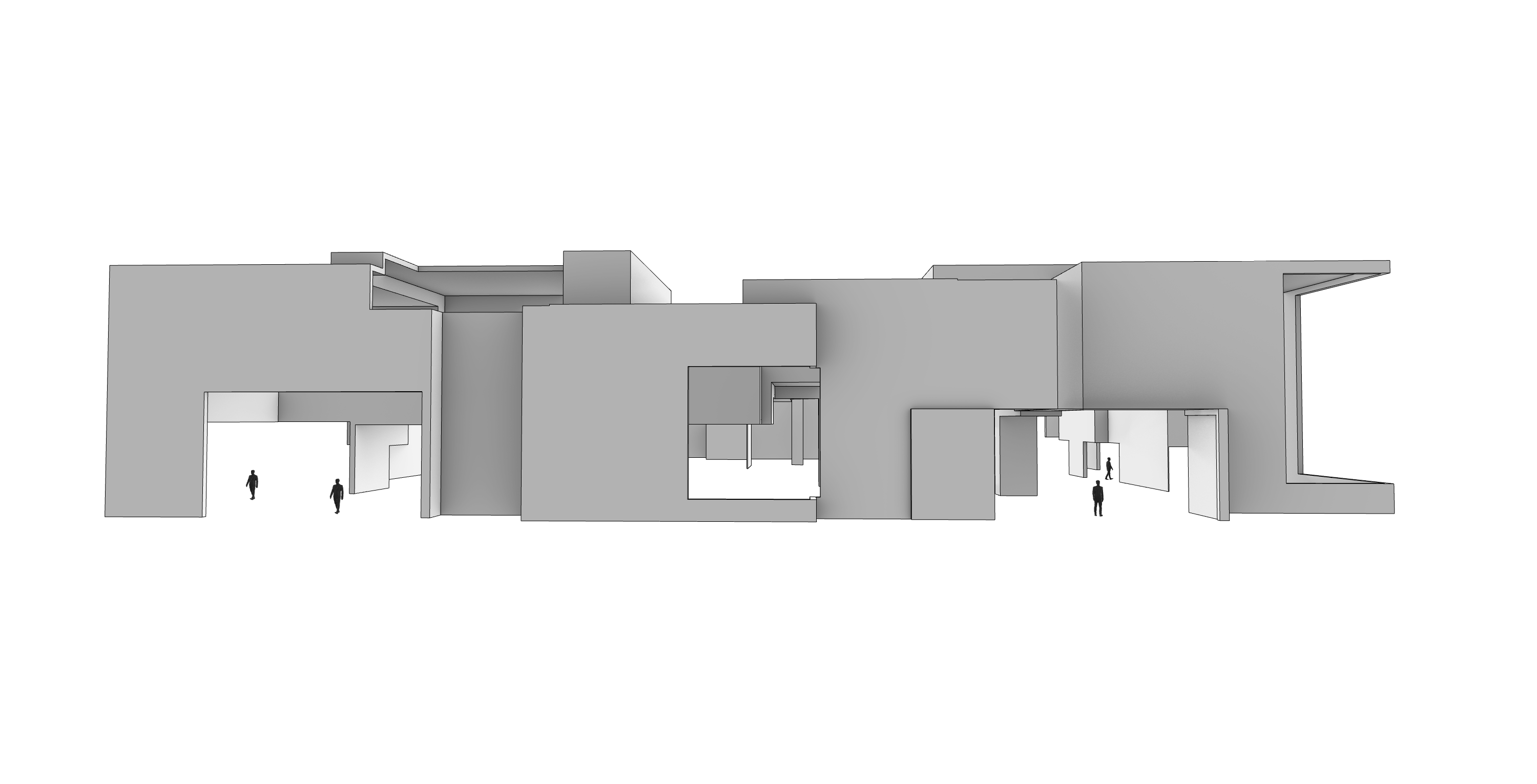
it looks like inside here. We can also do a section by
typing in clipping plane, vertical, showing your
vertical section of the form. So at the end, what I would
want for the project, for the project, it's going to be to capture
one of these views. So what you would
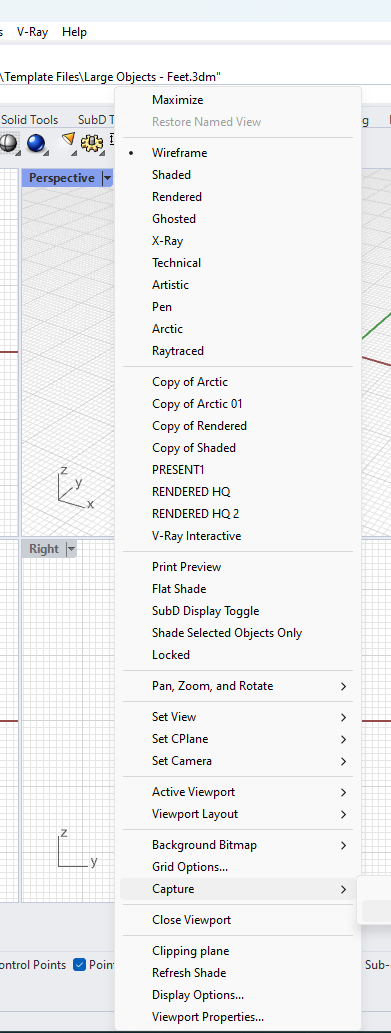
do is you would go to the view like this. Right-click, capture the file. You can capture your file, your picture to a file as a PNG with 1920 by 1080 resolution. And you can go here into
your Grasshopper script. When, once you
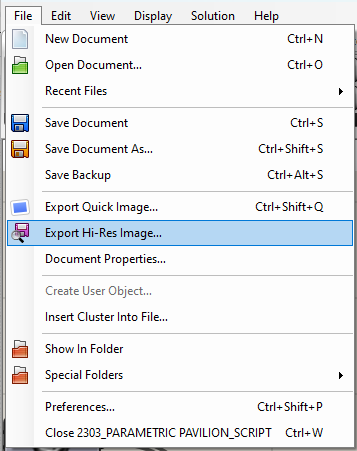
have it like this, you can go to File Export
high resolution image, and that will be able to create a little exhibit or a
little presentation. We have the script below
your final result. The thinking very
much for being here, I hope you found this useful. Grasshoppers a little
bit intimidating, but with this exercise, you'll be able to see the
power of parametric design. We can create unlimited
iterations of designs that have these interlocking
volumes with subtractions. So thank you. And I hope to see
you on the next one.
 DCO Graphicstudio