Realistic AI Image Generation Using Google Labs | Kavere Mugambi | Skillshare

Playback Speed


1.0x


  • 0.5x
  • 0.75x
  • 1x (Normal)
  • 1.25x
  • 1.5x
  • 1.75x
  • 2x

Realistic AI Image Generation Using Google Labs

teacher avatar Kavere Mugambi

Watch this class and thousands more

Get unlimited access to every class
Taught by industry leaders & working professionals
Topics include illustration, design, photography, and more

Watch this class and thousands more

Get unlimited access to every class
Taught by industry leaders & working professionals
Topics include illustration, design, photography, and more

Lessons in This Class

    • 1.

      Intro

      0:24

    • 2.

      Using Style

      6:43

  • --
  • Beginner level
  • Intermediate level
  • Advanced level
  • All levels

Community Generated

The level is determined by a majority opinion of students who have reviewed this class. The teacher's recommendation is shown until at least 5 student responses are collected.

22

Students

1

Projects

About This Class

Master AI Image Generation with Google Whisk: From Realistic to Stylistic

Class Overview
Unlock the power of AI art with Google Whisk! This hands-on class will guide you from basic prompts to advanced techniques, teaching you how to generate a wide spectrum of images—from photorealistic scenes to stunning stylistic artwork.

What You Will Learn

  • How to navigate and use Google Whisk effectively.

  • The art of crafting detailed prompts for consistent results.

  • Techniques for generating images in multiple styles like realism, fantasy, and illustration.

  • A workflow to go from a simple idea to a polished final image.

Why You Should Take This Class
AI image generation is a vital skill for modern creators. Google Whisk is a powerful and free tool, and this class will help you master it quickly, saving you hours of trial and error. Learn to create unique, professional-looking art for your projects with confidence.

Who This Class is For
Perfect for beginners, artists, content creators, and hobbyists. No prior AI experience is needed—just your curiosity and imagination!

Materials/Resources

  • A computer/tablet with internet.

  • A free Google Account.

  • A provided prompt keyword cheat sheet to kickstart your creativity.

Meet Your Teacher

Level: Beginner

Class Ratings

Expectations Met?
    Exceeded!
  • 0%
  • Yes
  • 0%
  • Somewhat
  • 0%
  • Not really
  • 0%

Why Join Skillshare?

Take award-winning Skillshare Original Classes

Each class has short lessons, hands-on projects

Your membership supports Skillshare teachers

Learn From Anywhere

Take classes on the go with the Skillshare app. Stream or download to watch on the plane, the subway, or wherever you learn best.

Transcripts

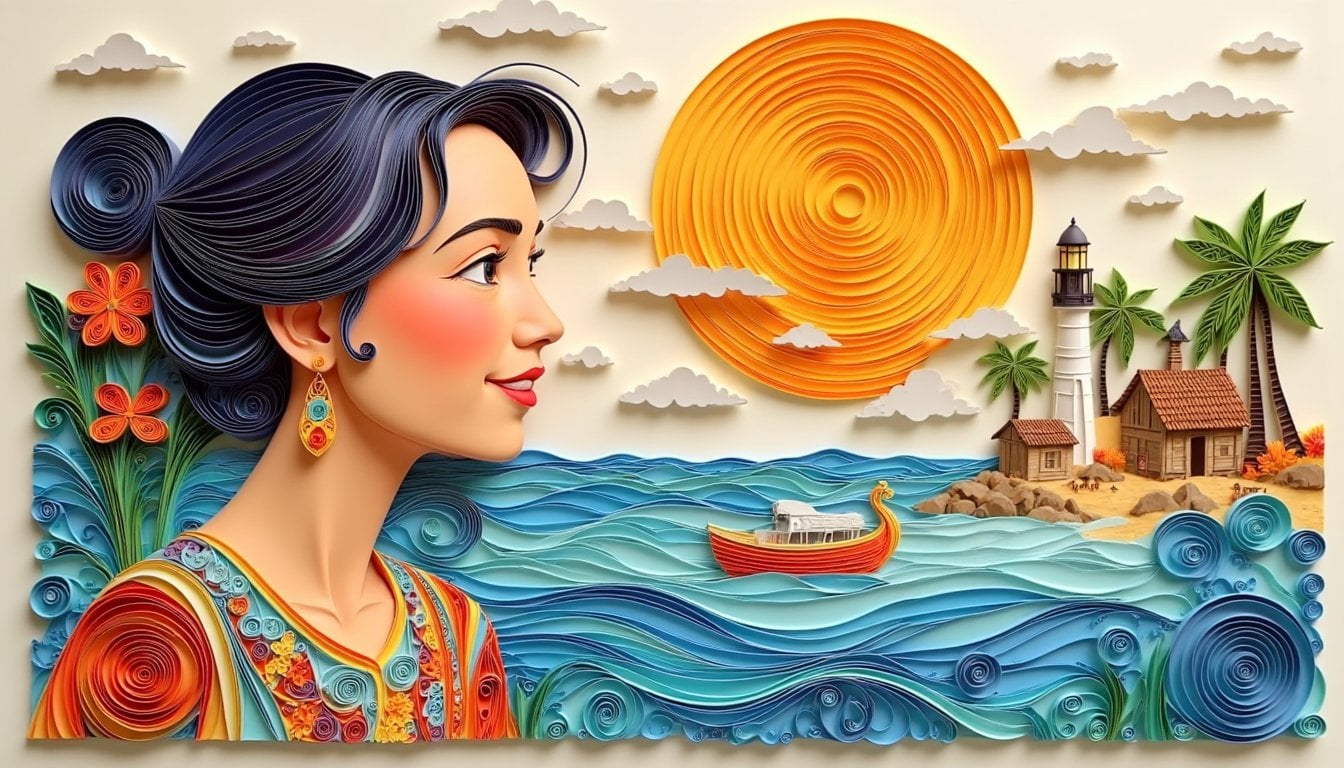
1. Intro: Images that you can see on the screen are what we are going to be creating today. As you can see, these images look almost exactly like photographs. It's actually very hard to tell that these are made using AI. With that, let's just jump into it. It's going to be relatively easy because you are not going to be depending on the prompts. Instead, we are going to be using mainly images to drive the output that we want. 2. Using Style: At this point, you have already looked at how to use the subject as well as how to use the scene. Now I want us to look at the third one which is style. It works the same as the other two. In terms of you can either enter text to define what you want to see or you can upload image. Once you start using this style, that's when you start getting images such as this one here. Let's try it out. First, I want us to define the style by using text. We are just going to use a very simple text, so we click on Enter text. We've just gone with cartoon animation to keep it simple. Let's click on generate. There we go. This is the image that you have gotten. You can see it's relatively simple. Let's try and use it. It's going to combine this image and then it's going to combine it with this style. Let's see the result that you're going to get. Let's hit Generate here. There you go. You can see how simple that was. Just by typing cartoon animation here and then combining it with the image that we had here, we are now getting beautiful animations here or images that look like they are shots from an animation. Let's generate again to see another sample. Perfect. You can see we are getting quite a lot of variations because comparing to this, given that we are not giving it a lot of guidance in terms of what the animation should look like in terms of its style, we can get a variety of different designs to choose from. Now, another thing that you can do is that you can upload your own image here instead of typing the style that you want to use. Let's delete this and now upload our own image. Let's go with this. There you go. Now we can click on Generate to see the combination of this subject matter, this character, and this style. There you go. This is what I wanted. The style that I've used here, let me just show you the style. What I've imported, is this right here that looks like a paper cart. As you can see, this is a layered paper cart, diorama. That's what I wanted to use as the inspiration, the style to go with, and the image you have gotten is exactly that. We can see it looks like layers of paper that have been layered together to create this image. And it has a dri look in the sense of you can almost see the shadows behind each layer of paper. I love this a lot, this style because it's so confusing when you're looking at it, you cannot tell if it's an animation or you cannot tell if it's something that has been constructed actually using paper. There's some texture with that's just fantastic to look at. Look at this. Look at those beautiful textures on the paper itself. Actually, even me collate paper. It just goes to show how detailed it is. Let me do the last round here. There you go. Perfect. Another thing you can do, if at all, this is not the style that you want to go with then you cannot think of the words to describe the style that you want, you can go again to Pinterest and just look for any style that you feel that you'd like to use. Say we look for a style such as this one, just click on it, and then you can save that image. And then you just come here, delete this, and then upload the style that you want. This can be quite handy, especially where you already have an artistic style of your own and you want to check it against different images to see how they look. If you already have a style that you like to create, maybe using Procreate or any other tool, you can upload one of your images here in that style, and then use that image to guide yourself so that you can see how different pictures or different characters look in your style. Now we have both. We have the character here, we have uploaded the style that you want, let's generate to see the result. And there you go, let's try again. You see it has picked even the color scheme from this image in terms of the reds, blacks and whites or more off white. Perfect. It has even taken some creative liberties here. That's how you go about it. Let's see if we can find one final style to go with before we stop such as this one. I feel like this one is quite creative. Let's see what it can do with something like this. Let's generate. There you go. Basically, that's how it works when it comes to style. Now you have already covered all the aspects of this. You have covered subject, you have covered the same, you have covered the style. All you have to do especially with style is just experiment with different images or different styles of your own to see the one that works best for you and you can either describe it as I've said, or you can upload an image that's going to be the guide for the AI itself so that it can combine the two for you. Okay. With that being said, the one that I've used for this one, it's not on Pinterest, so I'm going to give you this. It's something that I created on my own or rather it generated, so you can use it if you want. But for the rest, just remember that these are cells that are owned by other people. But if you have your own, even better. That's it from my end. Just stick around and Here's I have anything else, you can be checking my page to see if I've uploaded a different class and if there will be any developments on Whisk, just be sure that I'm going to update this class. With that being said, catch on the next one. Okay.