Quick Trick: Creating Seamless Patterns in Photoshop | Vera Rehaag | Skillshare

Playback Speed


1.0x


  • 0.5x
  • 0.75x
  • 1x (Normal)
  • 1.25x
  • 1.5x
  • 1.75x
  • 2x

Quick Trick: Creating Seamless Patterns in Photoshop

teacher avatar Vera Rehaag, Freelance Artist

Watch this class and thousands more

Get unlimited access to every class
Taught by industry leaders & working professionals
Topics include illustration, design, photography, and more

Watch this class and thousands more

Get unlimited access to every class
Taught by industry leaders & working professionals
Topics include illustration, design, photography, and more

Lessons in This Class

    • 1.

      Class Trailer

      1:06

    • 2.

      Our Project

      1:30

    • 3.

      Preparation

      0:53

    • 4.

      Using Pattern Preview

      1:39

    • 5.

      The Hard Way

      3:38

    • 6.

      Define Pattern

      2:05

    • 7.

      Last Words

      0:22

  • --
  • Beginner level
  • Intermediate level
  • Advanced level
  • All levels

Community Generated

The level is determined by a majority opinion of students who have reviewed this class. The teacher's recommendation is shown until at least 5 student responses are collected.

126

Students

3

Projects

About This Class

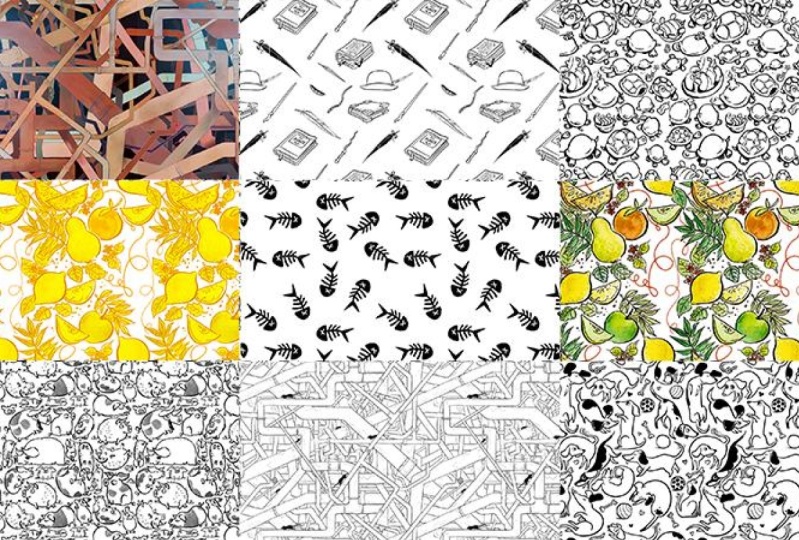
In this Quick Trick you will learn, how to create Seamless Patterns using Photoshop.
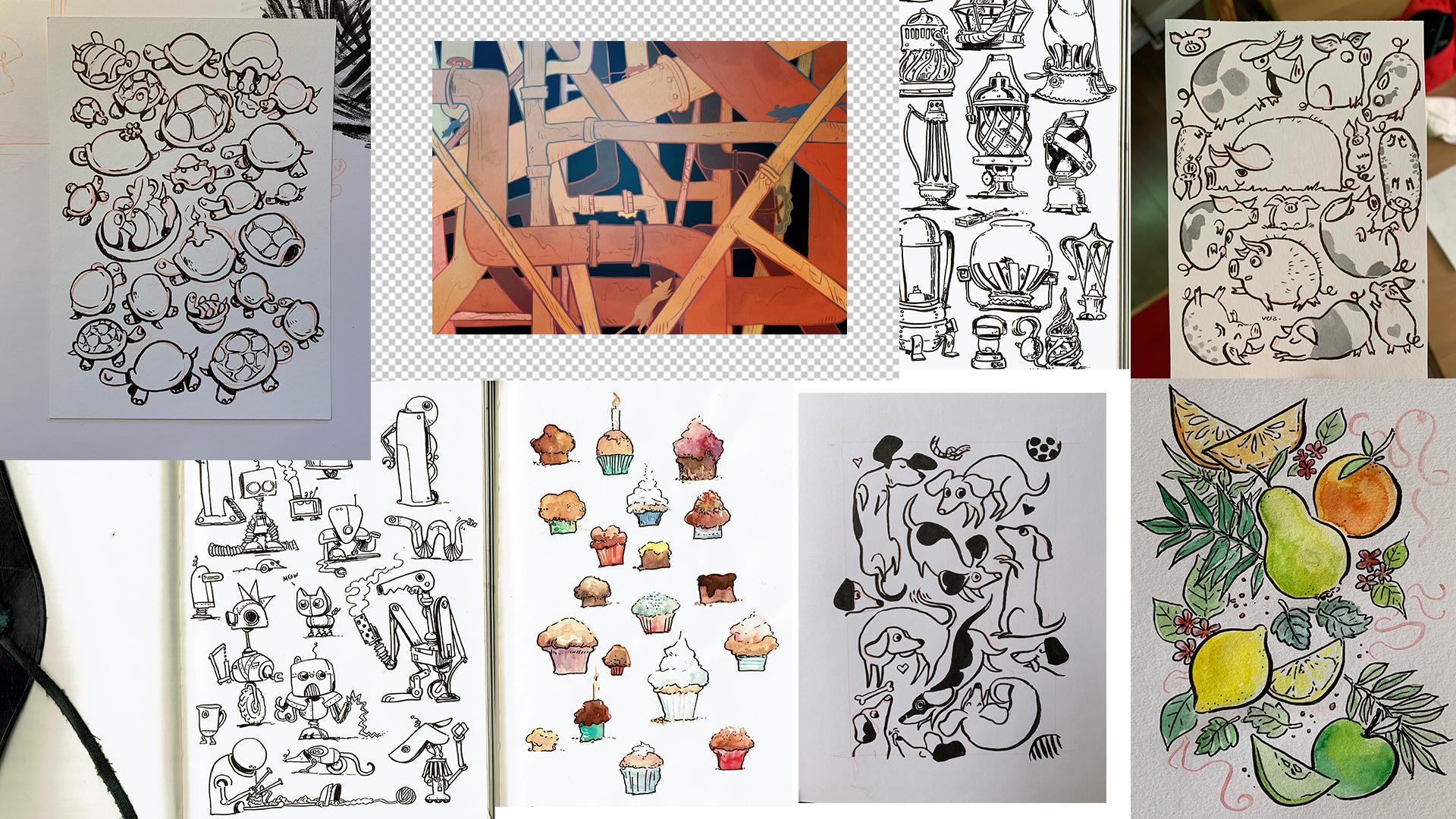
There are two ways to go at this: using Pattern Preview ...and the hard way, making it all by hand. I will show you how to approach both.

  • Use your own artwork with repeating elements or intertwining parts. Alternatively I am providing a drawing you can use to tag along.
  • Prepare the artwork to be used in Photoshop (if you need help, check out my short class on digitising line art).
  • Choose your path: easy or hard, and learn the most important steps to make the pattern repeat seamlessly.
  • Learn how to safe the artwork as a Pattern Preset

The seamless patterns can be used to be applied in illustrations, as a simple background for a drawing or photo cut-out, made into end-paper for a book or all-over printed materials.
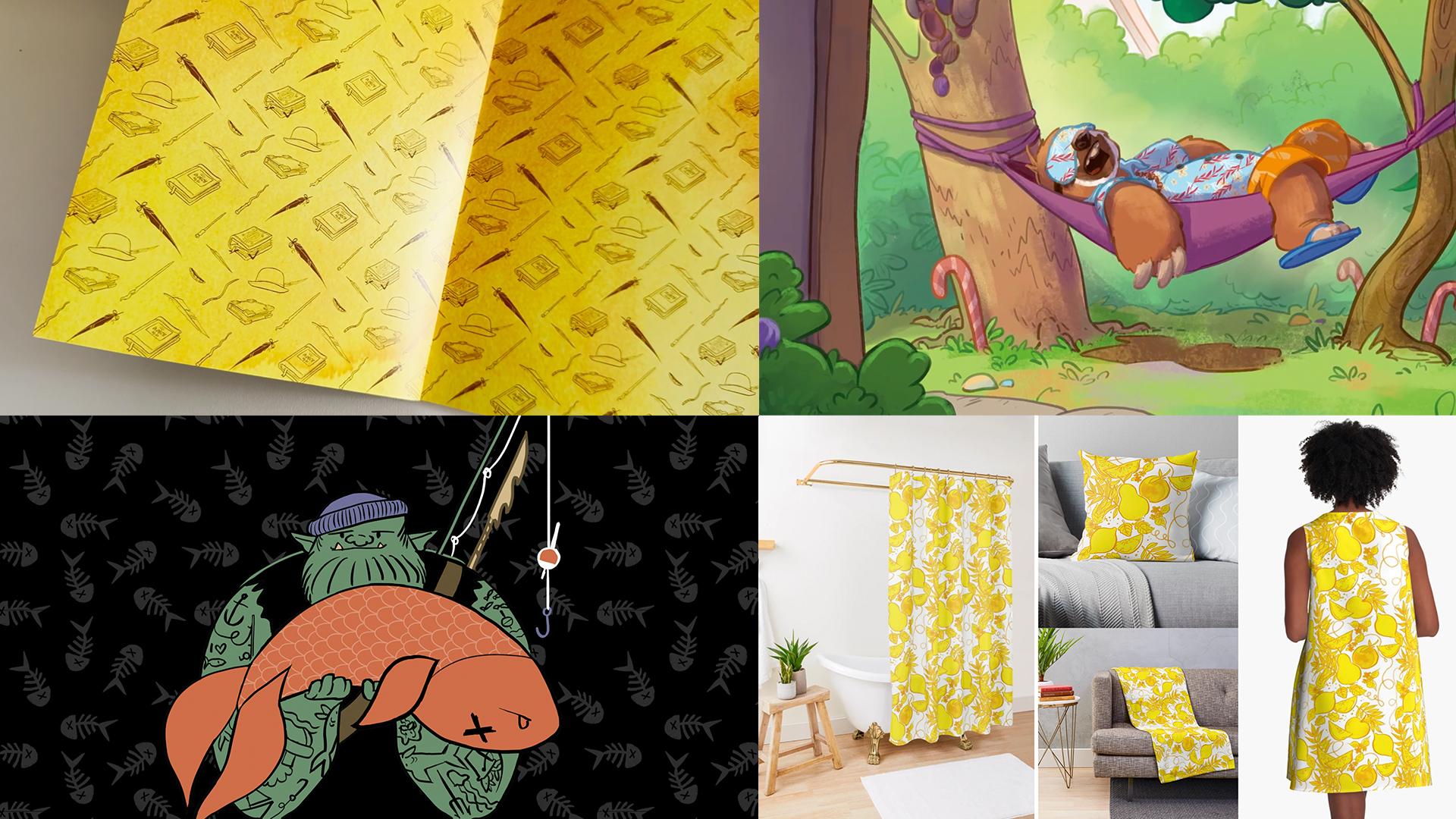


The steps are easy to follow, and suitable for students, hobbyists and professionals alike. I am providing as much context as possible, and you don't need prior knowledge as long as you are not opening photoshop for the first time today.


You will need:
- Photoshop
- a Graphics Tablet

- your own drawing with repeating or intertwining elements (optional, a drawing to use for the class is provided)

Have fun!

Meet Your Teacher

Teacher Profile Image

Vera Rehaag

Freelance Artist

Teacher


I'm Vera!

I have been arting ever since I could use fingerpaints.

After studying Communications Design, Illustration and 2D Animation, I eventually became a freelance illustrator and animator and began teaching on Skillshare in 2019. AND I LOVE IT!

As a teacher I want to help you to grow as an artist, inspire you and challenge you.
With my Classes I am doing my best to be both entertaining and informative, and thus make learning fun and easy!

While teaching is the thing I am burning the most for, I also have the great pleasure to call myself an award winning illustrator for children books. My day to day work includes also visual development for games and animated projects, art directing and making personal art pieces.

Much of my private work i... See full profile

Level: All Levels

Class Ratings

Expectations Met?
    Exceeded!
  • 0%
  • Yes
  • 0%
  • Somewhat
  • 0%
  • Not really
  • 0%

Why Join Skillshare?

Take award-winning Skillshare Original Classes

Each class has short lessons, hands-on projects

Your membership supports Skillshare teachers

Learn From Anywhere

Take classes on the go with the Skillshare app. Stream or download to watch on the plane, the subway, or wherever you learn best.

Transcripts

1. Class Trailer: You like patterns? I like patterns. Let me show you how to make them in this quick chick. I was yesterday years old when I realized that Photoshop has had a built in pattern making tool since 2020 now. I have been making my patterns by hand up until now, and I'm here to show you how to make seamless patterns in Photoshop, the easy way and the hard way. Hey. I'm Vera. I work as an Ils charter, and whenever I need to unwind, I like to fill a page of my sketchbook with just one thing. These drawings lend themselves very well to be turned into cool, seamless patterns. These could have repeating elements or some azuresque kind of intertwining going on. It is completely up to you. So let's jump right in and see how to make these in Photoshop. 2. Our Project: Today, we will be making seamless patterns in Photoshop. I like to use them in illustrations as backdrops or for the end paper of a book, and maybe one day I will have them made into all over printed materials. All you need is Photoshop and a graphics tablet for maximum success. In preparation, scan or photograph a drawing you already made on paper or make a new one digitally. These could have repeating elements or some azuresque kind of intertwining going on. It is completely up to you. We'll open the drawing in Photoshop, clean it up if needed, and proceed to the pattern making steps. If your Photoshop is from end 2020 or newer, I will show you how to use the pattern preview. If you have an older version of Photoshop or you want to do it the hardway, I will detail the steps to create a seamless pattern by hand. Finally, you will learn how to set up the result as a useful option for the fill tool. Please note that I will be focusing on the technical aspects and leave all creative freedom to you. However, there is a drawing I made which you may use to follow along if you like. So let us get started. 3. Preparation: I will be working with the photos of drawings I have made on paper. Now would be the moment for you to snap a picture or scan your drawing or pause the class and make a new one digitally. Alternatively, you can download the drawing I provided so you can tag along without any extra work. Maybe your line art needs some cleaning up after digitizing, make use of the adjustment layers for levels and curves. And if you need any help with that, check out by class on that topic. Since it's always easier to size a file down than to size it up, I recommend to use an artwork or photo that is not less than 2000 pixels square. It will just lead to a better quality result. Once you're happy with the state of your file, let's move on to the actual pattern making. 4. Using Pattern Preview: Pattern Preview. I was literally preparing this class and thought, Hey, let's see if there's an easier way to do this than how I have been doing it. Well, there is and has been for years. Well, anyways, you can find it under view Pattern Preview. When you activate it, Photoshop will give you a warning because apparently it works best with smart objects, but you'll be just fine. Just click Okay. You will get this funky preview of your design repeating for all eternity. Now, what I like to do is either crop the canvas a little to reduce the empty space or scale up my drawing a bit to fit snug into the artboard. You can now either draw directly into the file to add and fill the pattern or like I do, copy elements and paste them. If you want to transform them, make sure to do so while the full element is inside the canvas, or it will do this. Other than that, it is very straightforward. Copy and paste, transform and rotate to your liking until you have filled up all the gaps. I also drew in a few little turtles here and there, so you can see how easy it is. Remember this because before I show you how to make it usable with a fill tool, I'm going to show you the hard way to make a pattern in the next video. 5. The Hard Way: Again, as a reminder, if your Photoshop is newer than 2020, you can use and should use the pattern fib to make your life easier. Otherwise, carry on. In principle, the process of copying and pasting elements is the same when you make a pattern by hand. The big difference is that you have to figure out yourself which parts of your lamin are going to connect where. Inspect the empty space before you decide where to place the new item. Depending on your style of pattern, you might want to leave a little bit of space around it or have the elements overlap in an interesting way. Don't shy away from rearranging the existing drawing. Let's assume you would like to place lemon into a corner. This means you need to start out with a full lemon, which needs to be cut up four ways to show a part of the lemon in each corner of the canvas. My strategy here is to do the vertical cut first. The order of vertical versus horizontal first doesn't matter. It will just make the second part easier when you merge the already fixed layer down, and then do the other direction. Hold on. It will make sense. Place the isolated lemon layer and duplicate it. Drag a selection into the corner and mark the lemon on the border of the canvas using the brush tool. It should be right up on the border, and the selection will keep the brush stroke inside the canvas. Press V for the select move tool, lock the horizontal position by holding down shift, and then drag the layer to the opposite side of the canvas. The lemon should stay on the exact same horizontal line. This is very important. Over here, you can carefully use the arrow keys to nudge the lemon in position horizontally, so left and right until the last bit of the mark vanishes outside the artboard. Now, merge down the two parts of the lemon. Outside the borders of your canvas should be the rest of the lemon hiding. Check that. If it doesn't, remember to deselect your selection first. We shall repeat this process for the horizontal cut. Duplicate the two lemon parts by pressing Command J. Use M to draw selection to the upper border of the canvas and mark the lemon or its layer with a brush tool. Use V to drag the marked lemon layer to the bottom of the canvas. Remember to hold Shift to lock the position so it will align perfectly. Nudge the lemon into place using the up and down errors until the mark you made is outside the canvas. You have now successfully put the lemon into the corner. Proceed with more items in the same manner if you like, or draw something into the canvas. Draw half the thing here, duplicate it, mark it, move it over here, draw the rest as best as you can, and nudge it into place and hope for the best, or, you know, make your life easier and first draw the whole thing before moving it into position and applying the aforementioned steps. Once you feel like you have sufficiently filled up all empty spaces and gaps that you want filled, I bet you are excited to see what happens next. Let me show you how to turn this masterpiece into a pattern preset in the next video. 6. Define Pattern: When you use the fill tool, you have the option to either select foreground as a filling method or to use pattern. Photoshop comes with a selection of pre in style patterns to choose from. But you've just put a lot of work into making your own. So this is how you add it to your pattern library. Since you're a smart person who was thinking ahead, you set up your working file to be at least 2000 pixels square. The charm of a pattern is that it is repeating itself, and in order for it to do that, we will size down your illustration. You can do the sizing down directly in the file or better yet, copy the artwork and open it in a new Canvas. Click Image, Image Size and make sure that the link here is activated. Now change the size to 500 pixel. It does not matter if you choose it for width or height, the link will adjust the other parameter accordingly. Once you have adjusted the size, I recommend turning off the background color or any layer really that you don't want to show in your pattern. Now go to Edit and select Define Pattern. A window pops up where you can name the pattern. Give it a good name, which will help you identify it later on and click Okay. The pattern is now saved in your pattern library. Press three to activate the fill tool and on the top left, select pattern. In the drop down menu, you can now select your own self made pattern and test it by filling a canvas. Gorgeous. Depending on which way you made this pattern, you may need to return to the work file to erase leftover marks, nudge elements into place or fill another gap. Then you will have to save the pattern again. Other than that, you're all set and can use your pattern for whatever you like. 7. Last Words: This is the end of the quick trick. Thank you for tagging along. I hope it has been helpful. Remember to share your pretty art, your insights and moments of success, and please leave a review to help your fellow students and you. Thank you again and see you next time.