Transcripts
1. Welcome to Primavera P6 Training: Hello and welcome to the
Primavera P6 training course. My name is Charlotte
early and I'm having over 15 years or project
management experience, worked with medium to
large scale projects and the private and government
sectors such as IT, telecommunications and EPC. Today I will help you learn the foundations of
Primavera P6 and all those concepts that
are required to build your project schedule
efficiently and effectively. Just a quick note that for
the learning purposes, we'll be using the Primavera P6 professional and a
standalone environment, which is a single user
implementation only. Throughout the course,
I will help you learn the project schedule
building concepts and other related tasks
using the Primavera P6 professional will learn to create enterprise
project structure. And we'll create a new project and its related activities. After, we'll see
how to configure Primavera P6 preferences
and calendars. I will help you create the
work breakdown structure. And we'll work together to create and set up a
project schedule. Then we'll see and we'll learn adding constraints to the
different project activities. Also, I will discuss about setting up an assigned baselines and we'll go through and assign project resources to the
particular activities. After this, setting
up and handling of the project expenses will also be examined
during the training. Will demonstrate and learn about printing project layouts, importing and exporting of the projects and
different file formats. So are you ready to build
your project schedule? Then? Let's start it right away.
2. Core Concepts: As we know that the
Primavera P6 is a portfolio programs and
projects management software. So let's learn the
concept of portfolio, this program and the
definition of a project. Now, to understand portfolio, Let's concentrate and
build other concepts. Please remember that the
portfolios are means to achieve the organization's
strategic objectives and always exist and the top
of organizations hierarchy, all projects and programs always created under
the portfolio. E.g. the reader products or services that are
being offered by any organization to
their customers is called the products or
services portfolio. One example can be if a company, let's say the company
name is R-bar, is investing large amounts of their money in
different sectors, such as oil and gas, telecommunications,
construction, then this will be the company
or investment portfolio. Now, let's try to understand
that what is the program? As per PMI definition, a program is a collection of related projects which
are managed as a group. Now, the program is
created to achieve the specific
organizational objectives. And those organizational
objectives what not possible to achieve by executing
the project separately. Now, let's understand
what is the project. According to PMI,
PMBOK, sixth edition, the project can be
defined as the project is a temporary endeavor
undertaken to create a unique product,
service, or result. Please remember that the
project is always temporary in nature and has definite
start and end date. E.g. launching of a new product in the market is an
example of project. Also, the migration of your primarily local
server-based to install addition to a
Cloud-based environment is another good
example of a project. I hope the concept, project, program and portfolio
is clear to you now. So that's heard
about this lecture. Let's move to our
next lesson now.
3. Schedule Building Process: Now let's have a
quick overview and examine the project schedule
building process in German. More or less, we will follow the same concept of
scheduled building that you are using the Oracle Primavera P6
are in Microsoft project. We will adopt the same concept
of scheduled building, except the creation of the EPS that you may
or may not be able to find in any other schedule
management software, Oracle Primavera P6. While building your
project schedule, please remember that we
have to go step-by-step. Firstly, we will create enterprise project structure if it's not created
there previously. Secondly, under EPS, we will
create our new project. Then under the newly
created project, work breakdown structure,
or WBS, is created. After, we'll add
activities under each WBS element
regarding toward project requirements
or objectives. Then the relationship between activities such as
finish-to-start, start to start, start to finish. Our finish-to-finish is defined. Lastly, the resources
such as labor, non-labor, our
material resources will be assigned to each
and every project activity. So that's it about this lecture. Let's move to our
next lesson now.
4. Installing Primavera P6 Professional software: Let's select the folder where we have downloaded the zip file. In our case, I have
downloaded and extracted the zip file
in my Download folder. So I will select and
run the setup file, the P6 Pro Arte 1912 folder. Darren database configuration
option will keep as it is. And then click Okay. Since I will not
be connecting to any Oracle Database,
Cloud Connect, Microsoft SQL Server for
training purposes with revoking and configuring
the database locally on our laptop machine. That's why I will select the driver type B6 pro professional
standalone SQLite only. Then click Next. Please note that
since we will be adding the standalone
database on our laptop. So I will select
the radio button, add a new standalone
database and connection. Then I will click Next button, type and confirm my password. Then I'll click Next. Select Finish button. Press. Okay, my setup is complete now. The latest Primavera P6 version 19 is installed already
on my computer. Then I will run programs
Primavera P6 version 19. It will ask for the
username and password. As you can see in the window, I will type my
username and password. Click on Connect button. Standalone Primavera P6, professional project
management software is ready. Now, we need to select the
relevant industry working for. From the main menu. I will select admin,
admin preferences. I will select the industry type, aerospace and
defense. Click Okay. Latest version of Primavera
P6 is ready further, our patient now positive
that you have learned and understood the Primavera P6 installation procedure
very well now.
5. Downloading Primavera P6 from Oracle: In case if you don't have a copy of the Primavera P6
software review. The Primavera P6 is not installed on your laptop
or desktop machine. Then please don't worry. The downloading of the parameter a P6 software is
straightforward and very easy. You can always download it
from the Oracle website. I'm going to explain the
download procedure for you. Let's open our web browser
and visit the website. Delivery.oracle.com. It will open up the Get Started video download page
in front of us. Click on new user
registration link. If you don't have DICOM already. Create your Oracle Account. Farm is appearing here.
6. Creating Enterprise Project Structure: Now we are ready to create
enterprise project structure. Then can create and start
working on our new project. Please remember,
in simple terms, the enterprise
project structure. Eps, creates a database or
projects similar like folders. And each EPS node can be further divided into
multiple levels. From the main menu,
select Enterprise, and then click on the enterprise project
structure option. Click on Add button
on the right side. And don't below, under EPS ID, I will type training and EPS name has
Primavera education. And I will click on
the Close button then you see the new EPS. As a Primavera education has
appeared already at the top. Next, we're going to
create our project until this new EPS named as
primary education. Please remember that the
EPS id and name can be selected as part of a specific
company requirements.
7. Creating New Project in Primavera P6: We have already created enterprise project structure
in the previous lesson, and we are ready to create a new project now, for doing so, I will select my EPS and click
on File from the top menu, and click on New. Simply press Control
plus N on our keyboard. New project wizard will open up. Then choose the newly created
EPS to select EPS option. Select Plus button on the
right side and click Next. Type project ID as he 001, and project name as learning
Primavera foundations. And select Next. We have to mention the project start and
finish date here. Or you can leave it as default. I will be leaving other options such as a responsible manager, raid type as defaults. Click on Finish,
and the new project is appearing under our new EPS. Earlier named as
learning Primavera. Select the project by
clicking on project id. We are zeros 01, and see the detail from below
here in the date stamp. Let's mention that up Chan, as our plan start date. I will mentioned the
anticipated start dates as 15th January and finish
dates to 30th of June. Congratulations, you have created your first project in the
primal variable. Now our next step would be to set up a calendar for our
newly created for them.
8. Creating Calendar: As we have created our project already in
the previous video. And now we need to
create a calendar and assign it to our new
project accordingly. In Primavera, we can
create an assigned to lenders to every project
activity and resource. In a calendar, we can define the available work hours
for each calendar day, such as holidays, working
and non-working days. Resource. Vacation days. From the main menu,
select Enterprise. And I will click on
calendar options. As you see, the calendar
window is opened already. Select the project radio button. Since we are going to apply
calendar to our project. So I will click on Add button. Let's select Template from
the global calendars. I'm going to select five
days Worksheet Template. Let's click Add and a new calendar is appeared
under calendar name. I'm going to rename it as
PR zeros 015 days per week. We will click on modify button. At the top, I will select a
detailed work, our Barbie. I'm going to click on Work
Week and the right side. And making sure that Saturday, Sunday is a holiday. And my timing for
all other days is eight to 04:00 P.M. 8 h a day. Every day. After that, I will select Okay
button and close. Calendar named e0015 days per week is created for
my project already. Now let's apply this calendar by clicking on our project name. Then it defaults tab in
the calendrics option. Let's confirm if the newly created calendar
is applied already.
9. Creating WBS: So far now, the calendar is already
assigned to my project. Our next step is to create the work breakdown structure
or WBS for our project. And then create activities
under these WBS. Accordingly. Wbs means we will break down our project work into different
parts or sections. So let's click on projects
from the top menu. And then I will
select WBS option. It is opening up the WBS window
in front of us with it's showing the project
name that has start and finish dates displaying
in the Gantt chart area. Next, we need to
right mouse click on WBS name, click Add. And in new WBS name is
appearing on the screen. Let's create two more
in a similar way. For the sake of this training, I will keep it
simple and we will limit ourselves to
three WBS only. Next, I have to rename them
as part of my requirements, such as stage one to
training planning, stage to as training
commencement, and stage three as
training implementation. We can sort them
out by clicking on WBS name in ascending
or descending order. I'll let Project
WBS is complete. And next step is to add the project activities
under these WBS names.
10. Adding Activities: In our last lesson, we have already completed
the WPS entries, and now it's time to define
activities under each WBS. We need to switch to
activities window. So from the top menu,
select activities. From the project option. I will right mouse click
on training, planning, and then click on Add option
to add activities here. I will add three. For now. We have noticed that the activity IDs are automatically assigned
by the software. Let's rename the activities to define training objectives. Training lead, analysis, and create list of participants. Similarly, we can
add activities by right mouse click on the
Training commencement. Then I will rename these activities as identifies
start and end dates. And the second activity we will modify as training
material preparation. Next, we will add activities
for our third WBS, which is training, implementation and
undertraining implementation. We will rename the activities as conduct training and
issue certificates. We have defined our
project activities under each WBS category. The next task is to define milestones and add relationship
between the activities.
11. Add Project Milestones: We have created the
project activities in our last lesson. And now let's define the milestone activities
for our project. By the way, what's the
milestone activity? It means the activities that shows and mark the
start or end of a certain project
work or face in other scheduled
milestone activities, I'll always have
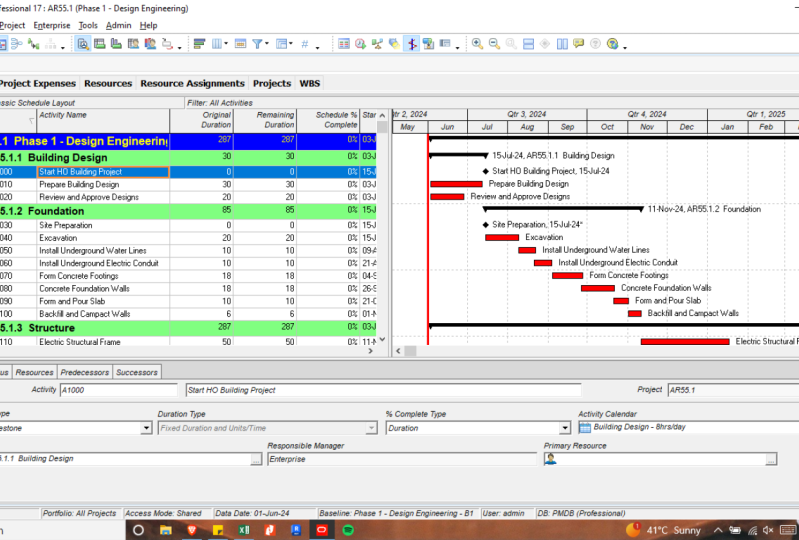
a zero duration. Please make sure that we are
in the activities window. Now. In the project
activities window, Let's click on
Activity ID a 1,000, which is defined
training objective. As you see here in the
detail from down below. In the journal tab, I will change the
activity type option to start milestone. Kindly observe that here. As soon as I change the activity type has
milestone activity. The activity duration
is changed to zero. And at the same time, this change will also be reflected in the Gantt
chart area as well. Now, in a similar way, I'm going to assign
activity ID a 1060, which is issued certificates. We will assign this activity 1060 as the finishing milestone. So that's how we define the milestone activities
in our project schedule. As a next step. In the next lesson, we will add relationships
between our project activities. So that's the end
of this lecture. Let's move to our
next lesson now.
12. Create Activities relationship: If we observe the
schedule activities in the upper right side
in the Gantt Chart Area, we find out that all
these activities are starting in the same time. Why is that? It means there is no
relationship exists. And we need to create
the relationship between these activities
in our project schedule. So first, I will
click on the activity that I want to assign
predecessor activity. And here, in our case, I will click on the
activity called create a list of participants. Now from the 3D Slicer tab, Let's click on the
Assign button. In the activity
detail from below. As you see, we will have assigned reading assessors
window, displaying here. Now in this window, select activities id a 1010, which is training
needs analysis. And then let's click on
the plus button to assign this activity as a predecessor
to the activity ID 1020, create a list of participants. And after you see a finish
to start relationship is appear in the relations column
in the detail form below. Now again, in a similar fashion, I will click on the identify, start and end dates, and assign, create a
list of participants. The predecessor. Then we'll click on training, material preparation, and assign identifies start and end
dates as a previous answer. After, I will click on
conduct training and assign training material preparation
as a predecessor of the sector D. Now, we created relationship between all the activities in
other projects schedule. So next, I need to schedule my activities by pressing the schedule icon
in the top menu. And immediately after
this, as you see, will have a finish to
start relationship appear between all the activities as shown in the
Gantt Chart Area. Good. So in this way, we can always create any
type of relationship, such as finish to start, finish to finish,
start to start. Our start to finish between our project activities as
part of our project needs. Now, please note
that alternatively, we can create any activity
relationship type. Whether it's finished to
start, Start to start, finish to finish
our start to finish by using the
relationship optional. So we will discuss
and we'll go through these relationship types in details in Primavera
P6 essentials course. And this is the end
of this lecture. Let's move to our
next lesson now.
13. Adding resources: We have created and defined the relationship between
project activities already. Now, we will learn to
add resources, I mean, the labor or non-labor and material resources
to the activities in our project schedule. And further, we will assign these resources to the
different project tasks. From the top in the main menu, let's select Enterprise, and let's click on
the Resources option. And as you see, it is opening up the resources
window in front of us. Now, let's move down at the end. And right mouse click on Add to add resources to the
resources database here. Let's be fine. The main heading for
our resources first. If it's not existing already. Here. As an example, I will
enter the resource ID as prime Amira and resource
name as Learning Solutions. Resource Type will be as labor. Then the Details tab below. I will change the defaults
units per time as 8 h per day. And rest of the settings
I will keep as defaults. Now here, I would suggest to add and create separate
heading for the labor, non-labor and
material resources. And then under each heading, we can define the
resources accordingly. Okay, So next, I will add resources under the
Learning Solutions. And at the moment, let's add just to labor resources under
learning solutions for now. By right-clicking on this, I will modify the
resource IDs at JB and j k respectively. The source name can be any
names such as John and David. Now here, please note
that you can have your own resource IDs, name, and type as per your specific organization and as birth as plus
big project needs. Then after selecting
the resource below in the Details tab, I will change the default
units per time to 8 h per day. Please note that we can always modify the resource details down below in the details and units
and prices tabs as needed. So this way, we can add resources to the
project resources, the database in Primavera
P6 professional. And in the next lecture, we will learn to assign these resources to the
different project activities. So that's it. That's the end of this lecture. Let's move to our
next lesson now.
14. Assign resources: In our previous lesson, we have learned the procedure to create the resources
for our project. Now, we will see that how these
resources, whether labor, non-labor, our material, can be assigned to the project
activities in our schedule. To complete this task, let's click on the
project and open it. It will take us to the
activities window. Or we can select activities option from the project
menu at the top as well. First, we have to make sure
and select the activity. We want to assign any resource. Then in the detail from below, we will click on Resources tab. For me. I will click on the activity, training,
needs analysis. And in the bottom, under Resources tab, I will
select Add Resource button. And it will open
up a new window. So from here, I
will assign John to our first project activity by clicking the plus
icon on the right. You see in the resources window, john has been assigned already training, needs
analysis activity. Similarly, I will assign drawn to other
activities, accept, conduct training, since
the required resource for this activity is David. So that's how we usually assign the different resource types part of a project activities. That's it. This is the
end of this lesson. Let's move to our
next lesson now.
15. Assign expenses: In our earlier lessons, we have already learned
the procedure to create and assign resources,
the project activities. Now it's time for the expenses. In this lesson, we are going
to learn that How can we assign different expenses to
a certain project activity? Please note that
the expenses are the non resource cost that are associated with the project and these are assigned to
the activities in a project. Generally, the expenses are onetime expenditures for
non reusable items, e.g. it can include expenses
related to materials, facilities, travel,
overhead, and training. Please note that
we can categorize expenses and we can
mention a unit of measure for expenses and
specify if an expense occurs at the start or end of an activity or uniformly
over its duration. Each expense item has a
budgeted or planned cost, actual cost, and
estimated remaining cost. For your info, the expenses are not the same,
like resources. As you know, the resources
generally extend across multiple activities
and on multiple projects. The examples of
resources, as you know, people working on the
project and equipment, etc. Please note that
unlike resources, the expenses are
project-specific only. Now to assign expense
to activities, please make sure to open the activities window from
the project menu at the top. Now, in the project
activities window, we need to select
the activity for which we want to
assign the expenses. E.g. in our case, it can be conducted training. As you see below in
the detail form. We will click on
the expenses tab. Now, click on Add button
to add new expenses item. And I will click once
more to add another one. We will rename the first
item as a trainer, boarding and lodging, and the second one as training
material expenses. In the budget cost field, we can enter budget available
for every activity. In our case. Let us assume that the
budget available for trainer boarding and
logic is US dollar 1,200. And for training material
it is US dollar 900. Various costs such as labor, non-labor material, total
costs, and expenses. Details can also be seen and
observed in the summary tab. That's it. This is the
end of this lesson. Let's move to our
next lecture now.
16. Setting Project baselines: Setting a baseline for a project is another
important topic. Okay, So what's the baseline? A baseline is a complete
copy of a project plan that we can compare to the current schedule
to evaluate progress. Please note that the
simplest baseline plan is a complete copy, our snapshot of the
original schedule. And this snapshot
provides a target against which we can track our project's cost,
schedule and performance. Now, for your information, although the Primavera P6 allow us to save a number of
baselines for our project. But at any given point of time, we can select only up
to three baselines for the comparison purposes. And also, please note that before we update the
schedule for the first time, we should create a
baseline plan first. Now, let's learn that. How can we create and assign a certain
baseline to our project? For this, I will click
on the project from the main menu and click on
the maintain baseline option. As you can see, the maintained baseline window is already displaying
my project name here. And need to click on Add
button on the right side and then add new baseline
window is showing here. Now we will confirm, save a copy of the current
project as new baseline. And next I will click. Okay. We can see the newly created baselines B1 has appeared in
the baseline lean. I will select baseline type as a management
sign of baseline. Okay, Then let's press Close
button on the right side. Now, the next step is assign this newly created
baseline to our project. So let's select project
from the main menu, and let's click on the
assigned baseline option. I will select project baseline as our newly created baseline. And similarly, we will select learning primarily
foundations be one option, primary in the user baselines. Then we need to click
on the Okay button. Now, let's observe this
in the Gantt chart area. And the new blue bar has appeared under each
project activity, which is actually
the project baseline that we have assigned
to our project already. So this is the end
of our lesson. Let's move to our
next lecture now.
17. Updating project schedule: Please note that once a
project is in progress, It's important to keep
the schedule up to date. And one of the most
important reasons to update the schedule is that actual durations may change from our original durations,
our original estimates. Also, the sequence of
activities may change, wants the book begins, and we may need to add new activities and delete
the unnecessary ones. Regularly updating schedules and comparing them with
baseline schedules, and shows that we are using our project
resources effectively. So let's learn to update the activities progress
in the project schedule. In the project
activities window. Down in the details from below, I will click on the status tab. And under status, we can
update the spirit is up each project
activity here, e.g. when the activity was
started or finished, the expected finish
date, duration. Duration facilitates
complete, etc. Please note that it's very important that we should
update the progress regularly and enter
the start and dates as well as expected finished day of every project activity here. Okay, So this is the
end of this lesson. Let's move to our
next lecture now.
18. Reporting project activities: In Primavera P6 professional, the reporting of the project
activities is very easy. Please note that it's
important for us to control and monitor our
project schedules accordingly. Now, to monitor the
project activities in the upper left corner area. In the project
activities section. I will right mouse click and then I will select the
filters option here. E.g. if I want to show and see the activities that has streets defined in
our project schedule. For this, in the Filters window, I will click and
select the option that has taught constraint or has
finished constraint options. And after, I will click on OK button to see the
required result. And this will display
all the activities that has constraints
defined in our project, as you can observe in
the activities window. As another example, that
increase in our schedule. If we want to see the
activities that are defined as milestone,
then for this, we can select
milestone option in the Filters window to see our display the
milestone activities in our project schedule. Now as you can see in
the activities window, there are just a
milestone activities that are showing there. Now. Please note that as part of our own specific
project requirements, we can always define
our own filters by clicking on the New button on the right side of
the filter window. In fact, there are
various filters defined already that are there in the
Filters window by default, such as completed and critical
activities in progress, not started activities, etc. This is the end of this lecture. Let's move to our
next lesson now.
19. Project constraints: Generally, in Primavera P6, the constraints are
used to manipulate the start or finish time of the individual projects
or activities. In other words, we can say that a constraint is a factor that sets when an activity can start or when it
can be finished. Now, in order to add our
second project constraint, I will select our project
in the project window. Then in the project
detail from below, we need to click
on the Data tab. Now here, as you see, must finish by option is the one that we normally use for
setting the project constraint. Here. I will set them must finish by option to 30th, January 2020. Nafta. I will refresh data by pressing F5
from my keyboard. So once my data is refreshed, then I have to reschedule my project that we
can do by pressing the F9 key on our keyboard Are we can use the schedule
option from the tools menu. Now, let's press F9 to schedule the project for
this change to happen. And this will let us update the project database with
the latest project data. Okay, So this is how we set a constraint
for our projects. So that's it. This is
the end of our lecture. Let's move to our
next lesson now.
20. Add activity constraint: We have already learned about adding the project
constraint earlier. And now, let's learn to Add Activity constraint to
our project activities. Like this. I will select our project and open up
the activity has been low. Then I'm going to select
the activities for which I'm going to
apply the constraint. In fact, each activity in
primary therapy is six. We can have up to
two constraints, primary and secondary,
that can be placed on it. Please note that there are many different types of
constraints available for each activity under primary and secondary
constraint types. Now, let's choose and click
on the Activity ID a 1010. In the detail from below, I will select Status tab. Then under constraints and
the primary constraint, I will select start on or before mentioned
day as required. Leave as it is. Now, you see the asterisk sign the beer in the start date
of the activity, which shows that this activity has constraint applied
on it already. So that's it. This is
the end of our lecture. Let's move to our
next lesson now.
21. Import Export projects in Primavera P6: In this lesson, I'm going to show one of the
important function of Primavera P6 that we can use to import our export the projects
in different file formats. E.g. we can import our primary basics project files into R, XCR, XML, Microsoft XL, etc. We can also export, import our projects into Microsoft Project file
format if required. Okay, so let's open our project. And I will click on the
File menu on the left. And then I will click
on the Export option. As you see, it will open
up the export window. Now, I will leave the
first option selected. And I'm going to press
the next button. Then I will leave
the project option selected and click Next again. And that will show me the
project to export window. Our project is showing
there already. So let's click Next. And I need to
select the location here where my project
file is saved. After, I will click on the
Finish button and it will save the exported project
in the mentioned location. In our case, it is our desktop. Similarly, now to import, I will select the Import
option from the file menu, and then I will click Next. Next again. And we need
to select the location of the file to be imported into the Primavera
P6 professional. Now in the Import
Project Options window, I will select the Import
action as create new project. And also the important location
such as engineering and construction are E and C. And then we'll click on the plus button on
the right side. After I will press Next
and select Finish, as you see now. Another copy of our
project B are 001 is appearing on the engineering and construction EPS already. So this way we can transfer projects in different
file formats into our out from the Primavera P6
professional as needed. Okay, So this is the
end of our lesson. Let's move to our
next lecture now.
22. Printing project reports: It's very simple to print
our current layout. I will click on the file
from the top menu and select Preview option in
case you need to do some adjustments in the page, margin, header or footer
sections of your layout. Then, the upper left, Gardner, I will select
Page Setup icon. To accomplish these tasks. By selecting page margin tabs. I have the option to
select page orientation, paper size, and margin settings. Then I had the option to
select header and footer tags. For modifying section settings. Options tab let you change
the start and end dates, activity table and
Gantt chart settings. We can click OK button
on the right side to apply changes to our
layout for printing. Once the setup is complete, we can click on Print icon on the upper left corner to set the layout for d.
Okay, so that's it. Let's move to our
next lesson now.
23. Primavera P6 'File' Menu Options: Now, if you asked me
that what exactly we want to achieve by
going to the File menu. Our objective is to go to the File menu to
make you familiar, understand, and observe
the available options. Learn the commands and
describe their functions. Briefly. Inside the file
menu. From the top. In the main menu, we can leftmost
click on the file to see all the functions
available in the File menu. Please note that
there are commands in the file menu that
are grouped into sections separated by a
horizontal menu separated bar. The first group is
related to the projects, that is, and create
a new project. Open an existing project. Are close. All the
open projects. Every one of these
actions can be achieved by a
shortcut key as well. For example, Control plus n creates a new project. Control. Plus o is used to open
an existing project. Similarly, the control
plus w keys are used for closing all the
currently open projects. The File menu can
also be accessed by using the art plus F
keys from the keyboard. Now, let's start and discuss the first command
in the file menu. The new command is used
to create a new project. As you can see, if we
click on the new command, it will open up the
new project wizard. And we can select
our required EPS to create the new project in the
primary route P6 database. Alternatively, we can
use Control plus n keys from our keyboard to open
up the new project window. Next, the open command will launch the Open Project window. And we can click
and select to open the required project from
the existing projects list. Alternatively, we can use
Control plus o keys from our keyboard to open up an existing project from
other projects list. Moving forward, the close
I'll command is used to close all the projects
that are opened currently. Alternatively, dot
Control plus w keys can also be used
to achieve this task. Please note that all
the open windows that display projects
specific data, I mean the activities and work breakdown structure windows will also close automatically. When we are selecting
close, I'll command. The next group of items on the File menu is related
to the printing. Let's start with page setup. The setup command is used to open up the
page setup window. In the page setup dialogue box. We can define bit
size and orientation. Set scaling options, change
the size of margins, and define a header and footer. Please note that this
screen is similar to the Print Setup and
other Windows applications. As we can see that that are tabs for the headers
and footers. I highly recommend that the
company name and current there should be set in either the header or
the footer section. And let's make sure
that the printouts are clearly marked as the
property of your company. The Print Setup concerns
the settings for other specific printer may
differ from person to person. The Print Setup command
opens the print setup window where we can select the printer and define printer
properties as required. Print preview opens the
print preview window. And the print preview window. We can define page
and print settings. And we can print the content
of the selected window. Print Preview shows
what the primary route B6 will be sending to
the selected printer. This is very helpful. Because we can adjust the Page Setup,
view, print, review, and continue to make
adjustments until the preview shows the printout that how you want to see it. Print command allows us to print the currently
selected window, helps to select the printer
and set printer options. Next, the import command
starts the import wizard. Normally we use the import
wizard to import projects, resources, roles from
other Oracle applications or various other
different applications. That means the import option help us to bring the project and data into Primavera P6 from specifically
formatted data sources. I mean, it may come from
various different sources, including earlier
versions of Primavera, P6, P3, Microsoft
Project, and XL, etc. Similarly, the export command
starts the Export Wizard. The Export Wizard is
used to export projects. Resources are rules to
other Oracle applications. Project. Microsoft Excel. In other words, export. Let us send projects and data out of Primavera
P6 into data file. And this file may be exported
to a variety of formats, such as earlier versions
of Primavera V3, Primavera P6, Microsoft Project, and Microsoft XL, etc. The second project
command is used to create primarily there
are XCR export file of the open project and
automatically opens your email system and attaches the XCR file to the body
of the email message. As you can see, the
subject line of the email is automatically filled with
the name of the project. Send project option is
simply a convenient shortcut for exporting the project and emailing the
file separately. Please note that this command is enabled once we open a project. The project portfolio command opens the selected
portfolio window. And we use select a portfolio
window to open a portfolio. Please note that when we open
a portfolio, it will close. All the open projects. Then displays the
projects contained in the selected portfolio
in the project window. Select Project Portfolio lets the user to choose from
the available portfolios. In fact, these are
subsets of projects. For example, the
portfolio could contain all projects above
a certain budget. Art. It could be the
setup projects that are the responsibility of a
specific project manager. Please note that opening
portfolio definite open the projects contained
in the portfolio. We must open the
projects we want to work with from the
project's Window, which normally shows all of the projects contained
in the open portfolio. The Commit Changes
command is used to apply all the changes to
the primary P6 database. In other words, commit changes, rights, any changes you have
made back to the database. Now, let's see the
refresh data command, which refreshes and display the most current data
from the database. Refresh data is
very helpful when multiple people and processes are making changes
to the system. Pressing F5, we'll update the data to reflect the
changes from others. The recent projects option shows us the three most
recently open projects. You can select the project you want to open and work with. Finally, the exit
command is used. If we want to exit and close down the primary B6 software. Exit is the standard
Windows command. To close the application. And choosing exit will always prompt us to answer
the question that, how are you sure you want to exit Primavera P6 professional? In fact, this prompt is
a safety measure for the people who repeatedly tell the program to exit by accident.
24. 'Edit' Menu Explained: The Edit menu is a
standard Windows menu that help us to do common
actions such as cut, copy, and paste, etc. Now let's briefly
discuss the functions. Are the available commands
in the Edit menu. We can launch the Edit menu from the top from the main menu. Alternatively, we can
access the Edit menu option by pressing the plus e keys
together from our keyboard. Like any other Windows
application, for example, Microsoft Word or Microsoft
Excel applications. The undo command in the
Primavera also changes the data back to its previous state
before our last action. Similarly, the cut command, the selected data object, and the Primavera P6
cut option will remove an item and place it into a buffer so that we
can paste it later. We can cut simple text, a complex items
such as activities. The shortcut for this is the same as in most of
the Windows programs, which is Control plus x. Similarly, the copy command copies the selected
data objects. However, copy will not delete the original
data after the pace. The shortcut for the
copy command is control plus C. By using
the paste command, we can paste copied. Got data objects using
the paste option. Paste will insert the last
item, guard or copied. The shortcut for this command is control plus V. Please remember that this command is only enabled once we copy
cut a data object. The add command
in the Edit menu, data item into the active
window, for example. And the activities
window by choosing the egg demand and activity
to the related WBS. Please note that the results
of the add function depends on the screen on which we are located in the main application. For example, if we are
viewing activities, add command will add
in new activity. And if we are viewing
WBS structure, command will add a
new WBS element. Although no shortcut is shown, we can usually achieve
the same result by pressing the Insert
key on our keyboard. Similarly, the delete command deletes the selected
data object. The result of the
delete function depends on which
screen we are in. For example, if we are
viewing activities, delete function will
delete activities. If we are the project's window, delete command will delete
the selected project. Fortunately, the anima, we
issue a delete command. We will be prompted before
the delete is committed, which is a great safety measure. The delete function can also be used by the Delete
button on our keyboard. Please note that the
dissolved command in the Edit menu delete the selected activity and Jin's its predecessor
and successor activities with a
finish-to-start relationship. In other words,
dissolve function is only available when we select an activity that has both
predecessors and successors. It allows us to
delete the activity. For our node. The predecessor activities are then assigned to its
successor activities. The assigned function in
the Edit menu is used to assign additional entities
to the project activities, such as resources, roles, activity codes, predecessors,
and successors. Next, the function of
the link activities command is to create a finish to start relationship
between the activities that are selected in
the activities window. This action creates
relationships based on the order in which
the selected activities. It listed, for example,
the link activities. The two activities will be linked via a finish to
start relationship. And the default
behavior is direct. The upper item in the
activity view will become the predecessor
of the item below it. So if you sort by activity
ID in the ascending order, such that activity ID 200 appears before
activity ID a 300, and link the two activities by using the link
activities command, then the a21 will be the
predecessor of activity ID 300. However, if we sort by activity
ID in descending order, such that activity a 300 appears before the
activity A2, 100. And link the two activities by using link activities function. Then in this case, the activity A3 will become the predecessor to
the activity a 200. Linking activities in
this way can be easy, but we have to use
it with great care. Please note that
the link activities come on, it's only enabled. Then we select more
than one activity and the activity table,
our activity network. Clear from the name, the renumber activity
IDs command is used to open up the renumber
activity IDs window. We use the renumber
activity IDs window to specify that how we can renumber the selected
activity IDs. Renumber activity IDs
option help us to change the ID numbers of
a group of activities. Since the activity ID
is a key piece of data, this is very helpful
and function. For example, at the
beginning of a project, activity IDs under a
certain WBS element are to be prefixed with CD
and incremented by 20. But later on, it is decided by the project
management team that the same
activities are to be changed and prefixed if AB, and incremented by it. Rather than having to update all of the
activities manually. One-by-one renumber activity IDs can be used to change the
activity IDs at once. The select all command
in the Edit menu, select all the data items
in the active window. The shortcut key for the select all command is control plus a. For example, choosing
this command in the activity window, select all the
project activities. Find command is used
to open the window. And this window, we can search
for a particular value. We specify within
the active window, the sharp cut further
fine function is control plus F. Replace command is used to
replace the text found in the search results with
a new text we specify. In other words, replace the letter search
for the text and the currently selected column and replace it with
the new value. The shortcut keys for
this function is control plus r. As clear from
the command name, the spell check command starts the spelling checker and the
primary raw P6 database. And we use this function
to check spelling for all the displays that are
objects in the active window. Another important command in the Edit menu is
user preferences, which is used to open the
user preferences window. This menu item is
quite different to every other item found
under the Edit menu. It brings up a window that shows a lot of other users
settings and options. We use the user
preferences window to specify settings
and preferences, like how to display time, date, and currency information.
Paraboloid project. We can also set
options to send email, specify startup options, and how to change
the password, etc. We will discuss the
user preferences, configuration details
in the coming lessons.
25. 'View' Menu Commands: Now it's time to introduce and briefly describe
the view menu commands. Normally, we can access view menu from the
mean menu in the top. And the alternative way
to access the view menu is by using the ir plus v
keys from the keyboard. The parameter P6, project layout files and nice feature
for creating reports. But projects in the
primary route B6. If required, we can say Explore and can store B6
project layout files. In the Windows Operating System. We use Leo command to create open a save the project
layout as required. The shoe on the top command
is used to choose the type of LEO we want to display it in the top portion of
the active window. Similarly, show on
bottom command, help us to choose the
type of Leo used to display the bottom portion
of the active window. The bottom layer option, we can use to customize the tabs that are displayed
in the activity details. Similarly, the boss
command is used to open the dialogue balls. Botsman DO is used to specify the style and the labels for
the buds in the Gantt chart. Please note that
this boss command is enabled only when we displaying Gantt chart
in the active window. Further, we can open the
bar chart options to customize of a current
project Gantt chart display. The color command is choose
to open the columns window, which we use to customize the gardens that displays
in the active window. The available options
differ for each window displayed in the parameter
of B6 display area. Please note that this
command is enabled. Then we'll display a table
view and the active window. The timescale option is for opening the timescale
of dialogue box. And this is used to specify the timescale we want to display in the current
Gantt chart profile, our spreadsheet layout options. Open the filters dialog box and is used to select
a predefined filter. We can create a custom
filter if needed. The group and sort
by command is Jews to open the group
and sort by window. And we use this to specify a grouping and
sorting criterias. Similarly, the
progress line command is used to show or hide
the progress line. And again chart, which shows the comparison
and progress of their activities
and how the project is performing with respect
to the baseline project. Progress spotlight command is
another very useful command that is choose to enable or disable the progress
spotlight feature. And when this problem is
spotlight feature is enabled, it highlights the activities
that fall between the last data and the new data date in
the game chart area. Next, the attachments come on, enables us to add curtain and textured elements and to show or hide all
curtain attachments. Curtain attachments highlight
a specific time period in a Gantt Chart Area. Texture attachments
are used to display the custom text we
enter and again char. This command is
enabled only when we display a Gantt chart
in the activities window. The line numbers option
is used to show number for each row in the activities view and
the primary without B6. This command is enabled only when we display an
activity table, Gantt chart activity using spreadsheet in the
active window. The table front and
fruit command is used to open the table
front and rear window. The table front and
trope window-based use, but changing the
appearance, the text, color, and the height of
the rows in the display. Hint help them use but enabling or disabling
the hilt head. Like any other
Windows applications. The function of the
zoom come on is to enable zoom in zoom mode
of a timescale layout. Such as Gantt chart, spreadsheet profile. As needed. We can resize the chart views, fit the entire chart
into the visible area. And the Expand
command is used to expand all the collapsed
elements in a group. In the hierarchical TableView. This collapse, I'll come on, collapses all the expanded
elements in a group of identical TableView
gloves to come on open. The collapse to Window, which we use to select the grouping band we want to collapse or expand
in the grant layout. Then the toolbar
command is choose to choose the toolbars we want to display in
our toolbar, ADL. Reset all toolbars command. This option help us to
reset all the toolbars, icons and locations back
to the factory defaults. Cleared from the name lock. Our toolbox option help us to set lock the toolbars and the current
president positions.
26. All about 'Project' Menu: The project menu, let us to perform a number of
projects related actions, such as working with activities, resources, and WBS elements. Please note that
we will describe these project manual functions
briefly at the moment. And D's and other projects
related activities will be covered in detail
in the coming lessons. In order to access Project Menu, normally would click on the
project from the top menu. Can use the r plus pq together directly
from the keyboard to access the project menu. The first command
from the very top in the project menu is used to
open the activities window. We use the activities
window to create, view and edit activities for
the currently open project. That is salts
assignments option. We use this option to open the Resource
Assignments window. We use studies source
assignments window to view all the resources assignments
grouped by the source. For all the currently
open projects. We can display resource cost, and quantity information in
a spreadsheet if required. Breakdown Structure
or WBS command is used to open the WBS window. Typically, we use the book breakdown
structure window to create, view and edit the open projects Breakdown
Structure, or WBS. An important command,
the assign baselines, which is used to open the
assign baselines window. Normally, we use the assign
baselines dialog box by assigning project primary, secondary, and
tertiary baselines to a particular project. The main theme baselines option, is by opening the maintain
baselines dialog box. The typical use of the main thin baselines
window is to create, delete, copy, or restore
baselines for the open project. Next women see that
expands his command. The expenses command is used to open the project
expenses window. And we use this project
expenses window to add, edit, and delete expense items for all the activities in
the open project as needed. The products and documents. Wpa and docs command opens. Wps and Docs window. The typical use. The WPS and Docs window
is to create and maintain product and
document records for the open project. For example, the
records per standards, procedures, guidelines,
and templates, etc. The threshold command is used for opening the project
threshold window. The project threshold
window is used to create, view, edit, and
monitor thresholds. But the open project also, we can monitor a threshold at the work breakdown
structure level, the activity level to identify issues and
the ongoing projects. Another useful feature,
the issues command is used for opening the
project issues window. This project issues
window help us to add, edit and delete issues
for the open projects. And used to send email
notifications about the project issues to the project team and senior
management as required. Another important command in
the project menu is risks. Come on. Please note that
this command only appears if the
parameter will be six. Professional is connected with
B6 professional database. The risks command open
up the risks view. We use statistics view to edit, assign, and delete
project risks. The open project, if needed. We can also calculate exposure values and
its overall impact on the project's
schedule and costs. Next comes the set D
for project command. The SEC default
project option is used to open the SEC
before project may note, if we go to Open and
with multiple projects, then we use this window. Specify which project
to open by default, which project setting to use. Then we scheduled
level resources. Also. Which project to
use by D4 when we add new information to the
primary that are P6 database.
27. 'Enterprise' Menu Functions: Please note that the
enterprise menu will show different functions are items depending on whether
we are running. Primavera P6 professional, the B6 enterprise
optional client. Please also remember that in our case, for
learning purposes, we are referring to and using the primary therapy six professional throughout
this course. Please note that
generally the difference in these two, I mean, the Primavera P6 professional or the B6 enterprise
optional client. Is that the P6 enterprise
optional client assumes that the
system is installed in an environment where the primary B6 administrative
responsibilities are separated from their
daily scheduling jobs. Whereas the primary B6 professional generally
installed at the organizations. Schedulers have
more responsibility and ownership of the
entire Primavera P6. Installing. The
enterprise menu can be accessed directly by pressing the r plus n keys
from our keyboard. We can open the enterprise menu from the main menu as well. The first command and the enterprise menu
is projects command. The projects command will
open the project window. We use the project's
window to setup the enterprise
project structure. Eps. We can add new
projects and can also manage multiple projects
by using this command. Enterprise project
structure on EPS command. Open up the enterprise
project structure dialog box. The typical use of the enterprise project
structure window is to define the EPS, which is hierarchical structure of the database of our project. Then the tracking command is used to launch the
tracking Mendel. The tracking window is
used for monitoring a project's progress using
different types of layouts. Next comes the project
portfolios command. Project portfolios command. Open up the project portfolios. Mendel. We use the project
portfolios dialog box to add, edit and delete portfolios
in the database. That is sources command is used to open up the
resources window. The resources window
is used to maintain both our organizations
resource hierarchy and individual
resource information. The primary route P6 database. The role command
opens the window. We use the rules
dialog box to add, edit and delete rules. We can also use
the roles command to assign roles
to the resources. Please note that we can define up to five price per unit
rates for each role. And also we can specify role
availability over time. Similarly, the obvious
command is used to open the organizational
breakdown structure window. We use the
organizational breakdown structure dialog box to create, view and edit the organizational
breakdown structure. Our OBS. We can also use
this dialog box to view a list of users who can access and OBS elements related project information. So let's discuss the
resource scores command, which is used to open, that is source
scores dialog box. The resource courts
dialog box is for creating and deleting
the resource chords. We can use these cores
to sort, filter, group, and report on the project data
across the enterprise. Project courts command will open the project courts window. And the project courts
window is used to create, edit, and delete project
goals and values. Normally, we use these
chords and values to sort, filter, group, and report
activity information. For your information
project called command only appears when the primary therapy six
professional software is connected to a Primavera
P6 professional database. Next, the activity
course command is used to open the activity
course dialog box. The activity courts window
is used to create, edit, and delete global project and EPS activity chords and values. Also, we use these chords
and values to sort, filter, grow, and report
project activity information. Then we use user-defined fields option to open the
user-defined fields window. The use of the user-defined
fields dialog box is to add an unlimited number of custom fields and values
to the project database. Another very important
command is calendars. Calendars command
in the project menu is used to open up
the calendars window. And by using the calendars
command, we can create, edit and delete global project and resource calendars
as required. We can also view
calendar assignments and can also specify a default, global Canada as needed. The usage of resource shifts command is to open
the source window. We use the resource shifts
window for defining the shift calendars part
of a project resources. One of the important and very
interesting command that we use in the project menu is
activity step templates. The activity step
templates is used to open the activity step
Templates window. This activity step
Templates window is simply used to create templates containing groups of steps common to the
multiple activities. Then we can assign these templates to the
activities as needed. The cost account command open up the cost
accounts window. Discussed accounts
window is used for maintaining our
organizations cost accounts. And we can assign
these cost accounts to activities in any of the
projects in our organization. And we can assign
these cost accounts to activities in any of the projects in our
Primavera P6 database, the costs we cannot
option only visible when the parameter P16
professional is connected to a P16
professional database. The funding sources
command helps to open the funding sources
window in Primavera P6. The funding sources window
is used for setting up a funding sources dictionary for any type of funding sources, such as any non-profit, government allocated funds, etc. The store images option, open star images Manager window, which we use to upload
pictures are thumbnails for use in the various types of project reports
that will be reduced. Another interesting command in the project menu is
resource curves option, which launches the
resource Scopes window. This resource comes option. It's used to add, delete, modify the
source curves. These curves are used to assign resources and cost over the
duration of an activity. I mean, the resource
curves are used to specify how we want
resource units. Our costs are spread over the duration of a
particular activity. For your information. There are 12 default
resource curves defined in the primary raw B6. Finally, the external
applications option is used. But opening the external
applications window. And this external
application window help us to set-up links with external
applications if needed.
28. 'Tools' Menu Commands: The tools menu covers
a range of options. The first section deals with the progressives
project status. We will discuss these
and other tools, menu commands and their functions
briefly in this lesson. The first command in the
Tools menu is scheduled, which we use to open
schedule dialog box. And in this window, we can schedule
the open projects and set different
scheduling options. I mean, usually after updating
the project activities, we need to reschedule
the project regarding to the new data date by
pressing F9 on our keyboard. By using the schedule
command in the Tools menu. Level resources means
that in our projects, we make sure that resource demand does not
exceed resource availability. The level resources command used to launch the level
of resources window. And from here, we can
leverage resources and can set the resource leveling
option as required. The applied actually means that we've scheduled
activities only within the specified timescale between the grains that are
there and the new data. Did they apply actuals come on, open up the apply
AT tools window. And this window, we can
update the schedule by applying actual sales up to
date data that we select. For each open project. Once the project is ongoing, it is important to keep the
project schedule up-to-date. Possibility. The actual duration will differ from your
original estimates and the sequence
of activities may also change once the
project work begins. The update progress
command is used to launch the update
progress window. This window, we can estimate progress for the selected
activities as needed. The recalculate
assignment costs. This option in the
project menu is used for launching the recalculate
assignment costs Mendel. From this window,
we can recalculate resource and role
assignment costs for all the activities
in the open project. The objective of the
summarise command is to make sure that all the projects
are been recently summarized so that
project information stays up-to-date in the
primary therapy six database for the
most accurate data. Summarise command enable us
to summarize open projects. Also, we have the option to
summarize all the projects. Instead of summarizing
just the open projects. By using the store period
performance feature, we can track actuals. Today two units and costs. Store period performance. Come on. Open up the store period
performance window, where we can store
past period actually, for any open project in the
defined financial period. By default, we can add, edit or remove data in a
P16 window, for example. And the activities,
our projects window. The feature will automatically reorganize data in the
active window according to the group and sort criteria specified for that
particular window. Basically, the disabled Otto
reorganization feature is used to enable or disable the
automatic reorganization. By default, automatic
reorganization is enabled. But when we turn on the disabled Otto of
reorganization feature, the model does not
automatically reorder the currently active window regarding to our recent changes. The Global Change feature is used to launch the
Global Change window, where we can make changes to all the activities,
resources, assignments, our project expenses is selected group of these
items at one time. Please note that one must have
access to the activities, resources, assignments,
and expenses. To which we want to
make global changes. Please remember, the
security profile does not enable you to
access all of these items. You will not be able
to commit changes. You want to make.
Dominate thresholds. Feature is used to open the
monitor threshold dialog box. In this window, we
can monitor all of the open projects
thresholds at once. Threshold identifies
some issues, Then the issues are displayed
under the threshold issues. Please note that when a
threshold is created, it does not automatically
have issues identified. Instead, we must manually
monitor the specific threshold. The issue navigator is
another useful feature used to track any issues related to any of the
project activities. You should navigate the largest, the issue navigator
window where we can track the open
projects issues, including associated
activities, resources, and work breakdown
structure elements. The visualizer command is used to open up the primary
grab B6 visualizer. B6 visualizer is a
reporting tool that we use to create
customizable Gantt charts, timescale logic diagrams,
and schedule comparisons. For the time-based daily
comparison reporting. Reports feature is used to
launch the report's window. We use the report's window to
create, edit, run, delete, import, and export different types of global and
project reports. The report wizard command is used to start the report wizard, which is used to
create new reports and modify existing
result reports. As part of a project
reporting needs. The use of the public
project website. This window is used to save the project information
specified as HTML files. And we can then
publish these files. Has a website on an
Intranet, on the Internet. Activity layouts, open. The Select activity
layouts window, which is used to specify the activity layouts to publish
to the project website. The use of the tracking
layouts command is to open publish dialog box, and to specify tracking layouts to publish on
the project website. The top-down estimation come on. We'll launch the top-down
estimation window. The main objective of the top tone estimation
feature is to apply labor, non-labor, and material
resource units to the activities in
a top-down manner using the assign weights. Please remember that when performing the
top-down estimation, first, we must determine
the total number of labor non-labor
resource units. We want to apply words to
perform top-down estimations. First, we have to assign
estimation weights. Go to the WBS elements and
related activities. If needed. We can limit the
scope of the estimate according to the WBS element
and required resources. The schedule comparison
command launches. The visualizer. We use Visualizer tool to create a schedule
comparison layout, which is used to compare the selected data fields
in a revised project, whether it's related retinal
project or revised project. And the corresponding
baseline visualizer allows us to set options, then visualize the reports. We can directly output reports. Printing to an XPS
document as needed.
29. Primavera P6 'Admin' Menu: The Primavera P6 professional. The Admin menu is used to manage Edmund preferences
and categories. To get the red, the currencies, and the financial
videos as well. The Primavera P6
professional client. The Admin menu can
be accessed by using the R plus AKS together
from the keyboard. And on the other hand, we can launch the Admin menu from the main menu
at the top as well. Please note that
since we are using Primavera P6
professional client, the Admin menu is available
and visible for us already. In case, if you are using and working in a B6
enterprise environment. I mean, if you are using
P6 enterprise client, then all these
administrative functions are allowed to access via
the web interface only. The first command in the Admin
menu is admin preferences. The admin preferences command is used to launch the admin
preferences window. Edmund preferences is used to modify a number of
global settings. And there are several tabs
like general data elements, lens and time periods. The General tab we set
starting day of the V. And the time periods is the place where we
can set the number of working hours along with abbreviations for each
time period, etc. The earned value is very
large topic in charge. For understanding purposes. Earned value is simply a technique that is used for measuring
project performance, which is calculated
according to both of our project costs and
the project schedule. Generally, the earned value
analysis are typically performed for the WBS elements
in our project schedule. Now here in the
Earned Value tab, we set the techniques for calculating the
project performance, percentage complete, and specify the procedure for estimate
to complete calculations. That is also called ETC. In chart form. In the Reports tab, in the headers and footers form, we specify and set the default labels for
our project reports. We can select and
specify resource titles and roll rate types,
integrates diet tab. In order for default
calculation settings. In the Primavera
P6 professional, we specify our industry type in the industry tab as needed. In chart. We use the admin preferences
window to specify default settings which are established by the primary
grab B6 project administrator. Now the next command
or the feature in the Admin menu is guard
admin categories. The admin categories
feature allows us to open the admin
categories window. We use this argument categories window to set the
baseline types, expense categories,
breakdown structure, and the document categories, along with document status
and risk categories. By using the admin categories. Also, we can set the
notebook topics and units of mayors as part of a project's
requirements as needed. The admin categories
window is used to define standard
categories and values that we can apply to all products
in our organization. Next comes the currencies
feature and the Admin menu, which allows us to open the
currencies dialogue box. We normally use these
currencies window to set up the
currencies we want to use for our project in order to calculate
the project cost. In the primary therapy
six professional. Then the last feature
is financial periods. The financial periods command is used to open up the
financial periods window, which is used to define global and customized
financial periods that we can use to store a product's time
period performance for any predefined time period mentioned in the
financial periods window.
 Basharat Bhatti, MSc. Strategic Project Management, PMP