Transcripts
1. Introduction: Hi there. My name is Jenna and I'm the artist
behind jehna Creates. I'm a surface pattern design on graphic and web designer and Oren Creative based
in Sydney, Australia. If you're creative,
hustle like me, chances are you've had to build a website to best
show off your work. As creatives naturally want this website to be as beautiful, impactful, and
memorable as possible. So we can send out to potential
clients or customers. Over the years, as
a growing designer, it has been imperative for me to create stunning
portfolio websites, both aesthetically
and functionally. The best show off my walk. With my bachelor
degree background and experience in design, I've been able to apply
design thinking to my sides. This combined with years
of experience running both the portfolio
and e-commerce sites, means I've had a lot of time
to make mistakes and truly learn the fundamentals of
designing for web insider. In this class, I'm going
to take you through ten actionable steps that a simple yet really impactful to quickly
elevate your website. We're going to cover a range of fundamental design
elements that make websites coherent and beautiful. Things like Typography families and effective Colour Palettes, as well as more technical
improvements like fixing your site's loading Speed and creating easy and
clever layouts with PNG images throughout
the class will be taking a simple one-page website and applying the ten tips to it. So you can visually
see step-by-step, the impact that each tip
is having on the website. And start to imagine how this
will enhance your own side. This is not a web
development class, but does focus on graphic design
specifically for websites. Beginners can absolutely
take this class, but this class is primarily designed for people
who are about to build their website or already
have a website that they want to enhance
aesthetically and functionally. I'll main focus is to
create simple changes to your current website
that will keep visitors engaged and
interested in your content. By the end of this class, I'll have you thinking
differently about your website. You'll have a great
understanding of design fundamentals and more importantly and
actionable list of quick changes you can make that will dramatically
improve the look, feel, and function
of your website. I'm really excited
to teach this topic. So let's jump right in.
2. What You'll Learn: Before we stop this class, Let's quickly talk
about the format of the lessons and
what You'll Learn. The ten tips in this class will be split into
three categories. Branding, keeping Interest,
and functionality. You can think of these three
categories as the look, feel, and function
of your website. In case you're worried,
it doesn't matter which platform your
website is built on. You'll be able to apply
these tips for Godless. The biggest section of
this class is branding. Now, before you panic, I know branding can be
a bit of a scary word. You may be thinking,
I don't have a brand, I'm just making nice things. But the fact is, no matter what you're creating, you have a brand identity. Simply put, a brand is a set of features that distinguishes
your products from others. This can be made up of a logo, specific fonts, a color scheme, and many other factors. Well, these things help
define who you are and should reflect your brand's identity,
personality, and values. In this class, we'll cover a few branding elements
that can amplify a website. And we'll talk
about how to choose these elements to best
reflect your brand identity. Once you branding is
clear on your website, we'll go into the keeping
Interest category, which you can think
of as improving the feel of your site. This section covers a range of techniques you can
use to further engage audiences and keep
them on your website longer. Finally, the last few lessons are all about website function. This section will help quickly
optimize your site so that users can enjoy all
the other hard work you've put into your website. There's nothing worse than
creating a beautiful website, but no one sees because it
takes too long to load. In each lesson, I'll be applying the relevant tip to this
simple one-page website. You can gradually see
the impact they have. Although I'll be demonstrating these changes on Wordpress, I'll not actually be teaching any web development
in this class. I also want be going into
search engine optimization. If you feel a basic website before all my tips
should be easy to apply on any website hosting platform using simple
front end design. If you haven't build a
website before, no problem. These are simple concepts
that you'll be able to apply as you learn the
basics of web development. I recommend you watch
all the lessons through first and then decide which tips you're
going to apply based on how relevant they
are to your website, will talk about your
project in the next video.
3. Your Project: Your project for this class, we to implement at least one or more of the ten tips
I'll be sharing. Your first step
is to simply take a screenshot of your
website as it is now. Once you've implemented
your chosen tips, take another screenshot
and post it in the project gallery
so that we can compare the impact
before and after. I really liked this
project because it's super easy to implement and you'll end up with a
great visual record and understanding
of the differences, these small changes and
making to your website. You can upload
your project using the create project button under this class and share
your screenshots. This will allow me to
give you feedback on any changes you make
to your website. I've also provided a simple
branding workbook for you to fill in to help
make these changes easier. This specifically helps solidify what you learn in lessons 123. So if this is your focus,
please feel free to share. This is a project to. Let's jump into
lesson number one
4. Branding: Typography : Let's start with tip number one. How to enhance her
websites designed by selecting the Typography. It is so easy to underestimate the power fonts can
have on our website. But I believe fonts are actually the most important
asset of your branding. They quickly communicate
your brand's identity, provide important visual cues about the audit
information should be read in and define the overall tone
and mood of a page. They also a key
element to ensuring a great user experience
when selecting fonts. The most important thing to consider is
typographic hierarchy. Now typographical font
hierarchy is simply a system of ordering fonts to communicate to raiders the importance
of information. When done effectively,
FUN hierarchy can create a much
better user experience. Adding structure and visual
organization to your content, as well as reinforcing
brand recognition. There are three basic tears to website on hierarchy that
you need to consider. Headings, subheadings,
and body text. Simple, right? When it comes to
selecting these funds, you'll be doing something
known as font pairing. The aim of font pairing is
to choose different fonts that create visual contrast
in a harmonic way. Before we go into some
font pairing examples, let's define a few terms. We've just touched
on what hierarchy and font pairings off. But here are some other
standard Typography times. Serifs, a typefaces with a small projection at the
end of the little strokes. The most famous
example of this is Times New Roman san-serif fonts are the most common fonts
you see on the web. These are typeface's without any strokes or embellishments. A standard example
of this is Colibri. Script typefaces are
essentially fonts that mimic handwriting
and slab serifs, so similar to Serifs, but maintain stroke weight
and thickness throughout. Now that you know what
you're working with, Let's choose some fonts. This is the best pot. A basic rule of font pairing
is opposites attract. When choosing fonts, I want
you to consider two things. Do these fonts
reflect the type of service or product
I'm representing? And all they easy to read. When choosing fonts, consider the mood you want your
brand to communicate, your brand playful
and approachable? Or does it have a
minimal Bohemian fill? Font pairings communicate the overall aesthetic of your brand. Let's have a look
at these examples. First one is to minimalistic style font pairings that I've just put together
using Google Fonts. You can very easily
download Google fonts to your computer and
many website builders will already have
them available. What works about these
pairings and Creates that minimalistic vibe
is the readability and structure of these fonts. These fonts are all sans serifs and that lack of
projection on the letters, as well as the
spacing we have here, creates a very clean
and practical Look. Our second example is here, have a more luxury,
high-end Aesthetic. These pairings are
very much applying opposites attract by
combining serifs and script fonts for the
headings and then supporting it with
a really clean sans serif for the body font. This one here is a very
nice sophisticated vibe and is an example of a
font pairing you can buy, in this case on Etsy. We'll talk a bit more about this at the end of the lesson. I last font pairings exude a
very playful and phon vibe. Soft round of fonts keep
things playful compared to clean Cera fonts that communicate
a more lux Aesthetic. You can play around
with combinations to see what kind of vibe that communicate and figure out what kind of Aesthetic
you're trying to evoke. For a one-page website, I'm going to go for
quite a high-end look. So I'm going to use
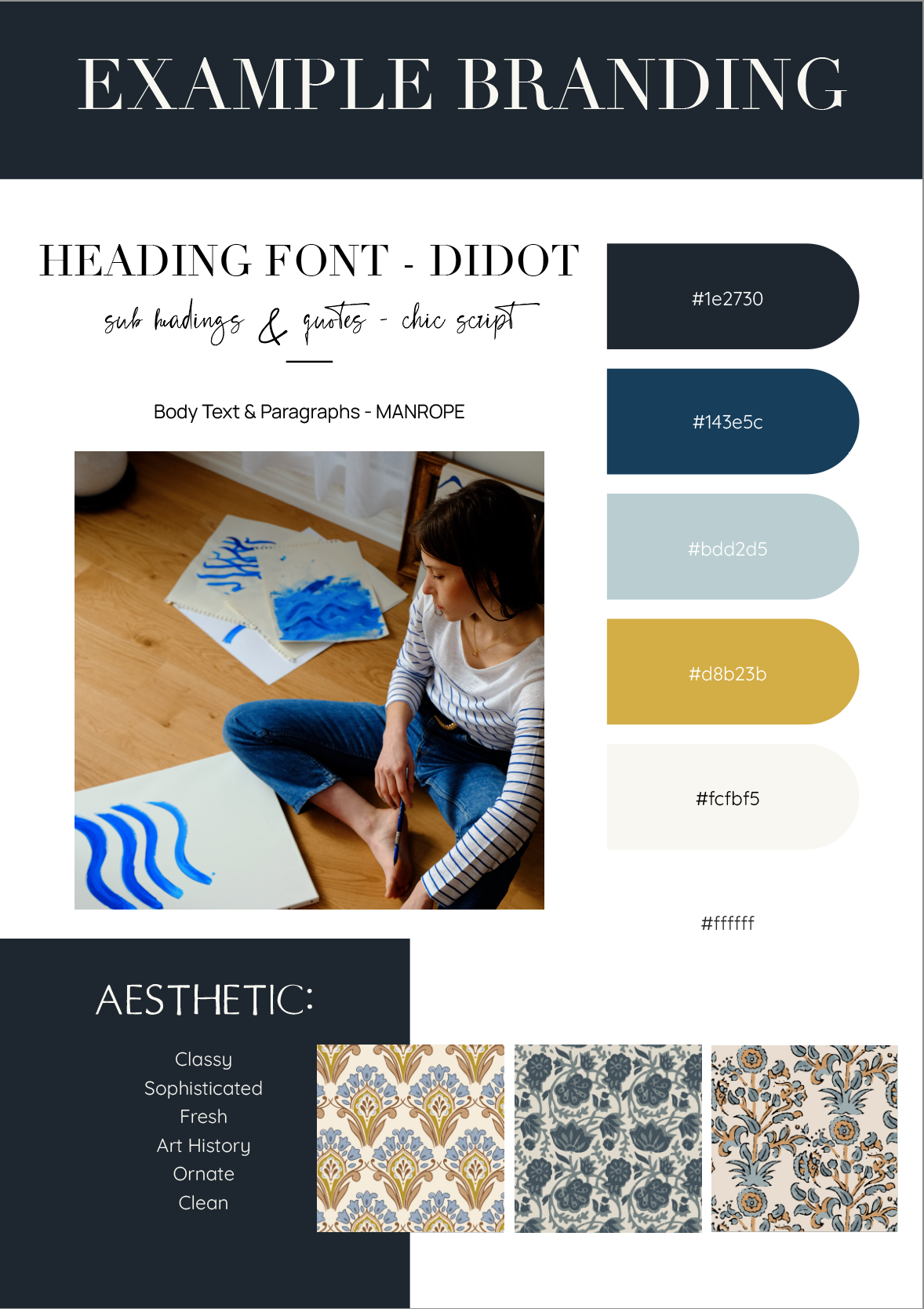
this font pairing here. I'll start filling this out
and I'll branding workbook, which you can access
under this lesson. I put in H font name
as well as it ties. I'm also going to
stop filling out some words that represent the Aesthetic I'm
trying to create. But we'll also add to
this as we go along. Now that we've
learnt some theory, let's apply it to this page. We have some basic
typographic hierarchy going on here, which is good. And the fonts are
quite readable. But they're not really bringing anything else to the side. They don't exactly represent the sophisticated fresh
field I'm trying to go for. So let's replace them with the font pairings
he tries before. I'm going to start by
making something like this headline font as it's clearly something
very important. And then something
like this would be a tagline and this is
obviously body text. I want all my headlines
to be uppercase. That's obviously too small, but we'll just make
it nice and big. Change the line height a little. And I want these to
all be lowercase. And then we want to
make this body font and nice readable
sans serif font You can already see the difference that's
bringing to the page. Keep in mind when
choosing your Typography, I recommend using no more
than three different fonts for your whole website. Using termini
fonts, font styles, or font sizes can make the
site look unstructured. Keeping things clean with a max of three fonts are crushed. Your whole website creates a visual coherency and helps
reinforce your branding. Now that you have
your fonts, let's quickly touch on how
best to use them. So firstly, we have
line-height or leading, which is the vertical space
between two lines of text. Research shows proper use
of whitespace between lines of texts can increase
comprehension by up to 20%. Column length is how
many words split horizontally before
moving to the next line, 40-60 words across is considered the most
visually appealing. Let us facing defines a distance between characters
and let a height defines the height of those
characters. Bold and italics. A different formatting
options and harmony is all about creating cohesiveness
between elements. When it comes to Typography, that means using
similar fonts and consistent line spacing
and formatting. So that's a plaza, but the
formatting tricks here, I'm gonna make this line hi, a bit bigger to improve
the readability. And then maybe also capitalize this a button to further
the visual hierarchy. We don't want it too big, but that looks nice,
a bit more readable. Then this button,
I'm just going to transform it to
uppercase and change the font to that same
sentence, Sarah. I'm also going to go
through and change all these other fonts to keep it consistent across the site. By keeping the size and spacing consistent across the site, it's just going to look
so much more coherent. This is looking so
much better already. You can really already see the differences is
making to the website. It's clearer, easier to read, and it feels more on
brand with that clean, luxury Aesthetic I'm
trying to represent. That's just one tips so far. Before we move on
to the next lesson, I want to quickly touch
on front copyright. I've attached a resource
to this lesson that lists a few places to find
copyright-free fonts, as well as places to buy fonts. Most website platforms
will allow you to download any custom
font to your website, but always make sure to buy the appropriate license
before installing a font. You can often purchase pre-made font pairings
as well on these sides. If you don't want to
download custom fonts, you can always apply what
you've learned here and create font pairings with
pre-installed fonts. If you want to go
the extra step, you can always turn
your own handwriting into a beautiful font
to use on your site. There's some really
great classes here on Skillshare that can show
you how to do this as well.
5. Branding: Colour Palettes: Tip two is all about
Colour Palettes. Your website's colour scheme is a huge component of
creating a beautiful brand. Having a cohesive color
palette that represents your brand's identity will hugely enhance your
website's look and feel. In fact, according to a study
by the University of Lille, lot, Colour can increase brand recognition by
up to 80 per cent. There's a few things that make a good website colour
scheme, essential. Colours. The first thing people will notice when they
visit your site. Colours determine your website and brands visual identity. A good color scheme can hugely impact the style and
consistency of Your Side. Colors evoke emotional
responses which can impact the way someone feels
I'm visiting your website. And lastly, colours
create visual hierarchy. A websites colour
scheme is more than just your logo and
background color. It includes every single color that appears on your website. Your head up, foot, sections, buttons, text colors. Even though the heat is
used in your photos, all contribute to the color palette that you're presenting. Keeping in mind that
60% of people accept or reject new products
based on color alone. Getting this palette right
is so important and plays a huge role in shaping the mood and Aesthetic
of your science. Thankfully, it's not too
hard to know where to start. If you're an artist or designer, picking colors to represent
your brand can be simple. Just take a look at your work. Are there colours you always
use are naturally drawn to? Maybe you only really
use warm hues or Ajanta contrasting colors when picking a palette for
your website and brand, drawing colors
from your own logo or product will ensure
a cohesive look. You can even take this
to a more personal level by looking at the clothes and items you buy a similar colors or tones that you're drawn to. These items represent who
you are in brand new around your identity can be
a really nice way to present your website. Alternatively, you can analyze the general mood of your back. Think about the Aesthetic
you're trying to present. Do you want your website to read as minimalistic,
brightened, bold, Bohemian, maybe
even darken Gothic. Certain colors are associated with certain
aesthetic movements. So knowing your
Aesthetic can make picking these colors
a lot easier. So how many colors should
be in your palette? Simple approach is to follow a similar hierarchy to what we've talked about
and Typography, and choose a primary, secondary and accent color. A general rule in web
design is 603010. This rule suggests 60th percent of the site should be
the dominant color, 30% should be the secondary, and ten per cent for the accent. Of course, rules are made to be broken and I highly recommend experimenting and using
whatever amount of colors you think best
represents your brand. As we said before, certain aesthetic movements are associated with certain colors. So this example
here is all about a minimalistic, clean Aesthetic. Minimalism is often
associated with neutral colors and earthy tones, which we can see
in these examples. Having a very highly
saturated bright color here would feel
very out of place. Formula lux look again, neutrals are very important. But this time the
axon colours and more saturated and we'll have more presence and
roll on a website. There's also more
contrast happening here. I've actually selected this
palette specifically for our mockup site to go with
these fonts we chose before. And I've put them in
branding workbook along with the hex codes so that I can copy and paste them
into the site. I'll come back to why
I chose them shortly. When it comes to selecting
more playful and phon Palettes using colors with more white
in them is quite standard. This can create a
lovely pastel look. This Aesthetic also often
plays with contrasting and split complimentary
color combinations with quite high saturation. A palette like this one is more bold and
striking compared to a palette like this one which is more sophisticated
but still FUN. But all these Palettes still
create a very friendly, bright, and happy mood. Choosing the right
combo comes down to your work and the mood that
you're trying to create. Something you may also want to consider is color psychology. Psychology is essentially
the idea that certain colors trigger
specific emotions. Applied to web design, many designers choose
colors based on the emotional experience they
want to deliver to users. When you haven't
understanding of what each color represents, choosing colors for your website can become more intuitive. So let's take everything they've learned in this lesson
I'm applied here. The only color is
currently on this website. Why? Black and any colors
from the photos? This is a mock-up of
an artist website. I decided choose colours
inspired from Art History, like deep blues and goals that are timeless
and beautiful. Blues are also
linked to feelings of communists and reliability, which I think would
work well for the mood I want to evoke. I also want to keep a lot of whitespace to keep a
fresh, clean look. Currently, the only
background color is white. So I'm going to
start with adding background colors and
fall below 603010. Structure will balance the
colors visually as we go on. I will leave the background
like this for now and keep developing it
as the site changes. I'll quickly make this
button an accent color to, and also change these fonts the opposite color so
it's more readable. We finally apply to tips so far, and it already looks
so much better. I want to compare. Let's compare. This, is it. This isn't now
that we've applied some background colors
and some Typography, that's already done
so far, just to tips adam, two out of ten. And it already looks so
much better than this. Just so, so much better. I think that's so exciting. Let's go into take three
6. Branding: Images, Videos & Aesthetic: Now that we've covered
Typography and colour, let's talk about
the power Images, Videos and your
overall Aesthetic. Beautiful images aren't a
central pot to any website, whether you're
selling a product, service, or just
sharing information. They really solidify the vibe
and Aesthetic of a website. Good images, especially when
it comes to product images, can mean the difference between
a user converting or not. Even though high-quality
images will bring professionalism
to your website. Ensuring those images
that consistent in Aesthetic and tone will take
them to the next level. Having images from
the same photo shoot or edited with the
same filter brings a coherency to a website
that can be tied into the branding you already created with your color scheme. I've created two examples of different aesthetics
with the photos here. On the left, we're building
on our minimalistic branding. There's a few things
that make these images work so well together. The most important thing
to note here is that all the images have very warm, earthy tones and
quite dark editing. This is the same feel as the minimalistic color
palette we created. These images are also shot quite similarly when it
comes to whitespace. If you added an image here with brighter editing and cool tones, this will change the mood
of the look overall. It's important to
consider the role of each individual image
amongst the entirety. These images evoke a much
more happy, playful vibe. This would work
well with some of the softer fonts and Brad
or Palettes we created. The main difference here
is that these images are edited to have a
much higher exposure, keeping them brightened, joyful. Those pretty much no dot props or colors in these
images at all. The facial expressions and the closer positioning
to the camera creates quite a friendly vibe. Video content is another incredible tool to
elevate your site. Videos are an amazing
way to convey emotive concepts without words, the perfect medium to highlight your work
process and help quickly communicate to
potential audiences the value of your work. If your work has a very hands on manufacturing process or
a unique story behind it. Adding a high-quality, well-crafted video
of those details on your website not only adds a sense of
tactility to your site, but visually
communicates the worth of what you've created via as a media has
never been more accessible or consumed
than right now. With 96% of people
saying they turn to videos to learn more about
a product or service. Utilising this medium is a must. A few other ways you could share information through
video on your website include an introductory video explaining your
product or service. A video giving instructions on how to use your
product or service. A campaign style
video highlighting the way your product or
service could impact someone. A compilation of customer
testimonials or stories, behind the scenes footage or process videos that can help
you as feel more involved. So let's apply this theory here. Currently we have
a few images and they're all really
high-quality, which is great. But they're not all necessarily speaking the
same visual language. These ones have a bit
of a different tone to these other ones
and don't really fit the color scheme
we've established. Now because this is
just a mock-up site. I haven't taken a
specific photo shoot. I've just grabbed these
images off on splash. In this case, I'm just
going to use photos from the same Unsplash photoshoot,
which is this one. As well as better, something
much those hues like these. I'm actually going
to remove these ones just because they're not
adding a lot by being here. In fact, even though
they're really nice images that actually taking away from the coherency at the
site by being warmer hues. The majority of
images and colors we have now a blues which is nice. I want more of that excellent
gold color for my palette. I've just taken this image and turned it into a
full-width BATNA. There's nothing wrong with using the same asset
twice. In this case. It's going to help tie
the page together. Let's put that
down here for now. Now. We don't have any pictures left, but we're not exactly Making the Most other ones. We do have. This one, for example, is a really, really nice image. And it ties into this one just because it's
from the same photo shoot. But I really think we could make this content more
visually interesting. I think anyone can
turn it into a type of collage and we can play with the relationship between our photos
and alcohol scheme. We can come back
to this content. So I'm just going to start by creating a sexual two columns. And I'll show you what I
mean by collage in a second. We want this image to
be the main focus. So naturally it's going to
take up the most real estate. Then I want the other
side to be one of the colors that are
in our scheme is stuck with lots of cool stop. Now I'm going to duplicate
it and invert it. And I'm going to replace this
image with all that they is just to keep the
same visual look. This is kinda the
basic Look I want, but it looks weird
in the middle. So I'm gonna go for about a 70, 30 split. That looks pretty cool. So now I'm going to take some of this content and put it in here. The main things I want to take, the fact that this is about home design and this last sentence where it's
specifically for wool pay pop bedding and home deco. The rest of this content
I'll come back to. But I think we can communicate the same sentiment visually without displaying it just as
a standard text paragraph. I think that's much,
much more effective. I've also written in this
section, enhance your space. I think by stating
what You'll work does rather than
what it actually is. I can often help communicate
what you're offering better. I want to add some
video to this site. So again, I'm just going
to grab a copyright free one this time from Pexels. I'm looking for on the Tells the same visual story as the rest of my branding. This one's great. Let's just add a as
the background of a new section and
put it on loop. I've just added
some texts on top of this video as I think it's just a really
visually dynamic way to display information. Having this video here, we'll just catch a
user's attention and instantly communicate to them
what this websites about?
7. Branding: The Importance of Your Story: Tip number four
is all about you. This may be the most
underestimated asset that every single
person has access to. That asset is Your
Story. And your Y. Telling a story on your website may seem like an obvious step, but it is so often
overlooked and pushed aside as unimportant. I'm going to tell you your
About page on your website. Maybe the most important and
Impactful page you create. Prioritizing and
dedicated space to share your story and personality
on your website is both a beautiful and extremely
effective way to go to essential things with the
audience, connection and trust. Your story matters
so much because it adds a human element
to your WACC. Humans are always
craving connection. By sharing a piece
of us with others, we can start to build
a relationship. When someone reads your story
and is moved in some way, whether it's because
they empathize, relate to, or inspired by you. That person is now
inevitably more engaged and invested in you
and of course, your work. This foundation of connection also suddenly adds
value to walk. When we look at a
product, for example, and know nothing about it
except the way it looks. We subconsciously
give it a value based purely on that one aspect. However, when you know the
people who made the product, the hard work and processes
that went into making it, and the inspiration
behind why they felt it needed to
exist in this world. You've seen that same
product as more valuable. On the surface, nothing changes. Its your emotional connection to something that adds that value. That is the power that
telling your story can have. Simply by sharing your why, you can help people understand the true value of your work. I've put together a few
examples of PFK-1 ways to share information about
yourself on your website. Firstly, we have this soda, which is something
that was trending on Instagram for awhile, but it's actually really
FUN addition to a website. Something like this can
tell someone quickly and visually some personal relatable
information about you. You can personalize
the options and keep it in your style
to keep it relevant. Having a shortlist of interesting
information about you can be a poetic and phon, way to share a bit
of personality to keeping the display
of this information quite visual makes
it more likely for a user to rate it than if it
was just a block of text. You can also share
your favorite things or a short personal story. Using my tapes and your style to segment your services values, or any other type of
information you want to share is another
technique you could use, adding interactivity to this using something
like hover effects. So it also helped to increase user interests and engagement, will cover more about this
concept in lesson six. Currently on my website, I have a quick list
to summarize my style and you could definitely add
cute illustrations here too. I also have a timeline
of my story and working history so people can understand how I
got to where I am. I've used a little
illustrations here as well to visually support
the concept of growth. Adding these tidbits of personal relatable
information just helps users connect to you, and in turn allows them to become more invested
in your work.
8. Branding: Utilise your Header & Footer: My fifth tip is Utilising the presentation
of your Header and put out to best
represent your brand. Making the Most of your
Header and Footer design is a great way to enhance
the look of your website. Your Header and Footer go across all pages on your website. So it's a huge part of setting the tone and
feel of your site. You want your Header
and Footer to include your brand's
colours and identity. Easy menu access
to all your pages, especially your portfolio,
shop or about pages, any social links and
easy way to contact you, such as an input or
subscription box, your logo, your copyright
notice and privacy policy, and any other links you want
accessible on all pages. Essentially, you want to use
your head out to introduce your branding and communicate quickly what's on your site. And you want to use
your Footer to share important information that
improves the site's usability. Choosing a style of Header that works best
with your branding and the type of
menu function that you require is really important. Let's take a look at some
different Header and Footer styles and the impact they have on the
look of a website. A lot of website builders have
templates you can look at. And I've just gone into the Shopify site to show you a few different styles
you can create. When it comes to implementing
this on your own site, you may be limited in
what you can build, but it's worth
knowing the potential of what a Header and
Footer can look like. Let's have a look
at a few examples. This one is a really
nice simplistic Header that utilize this transparency. This one also has
a very good photo. It has the brand
name huge across the bottom so you can access the homepage easily at anytime. It also has the full columns here that includes site Info, important links, a
newsletter subscription box. And then at the bottom it has the more technical links such as copyright and privacy policy. This design has a similar thing with the full-width image, but this time it
has an opaque keto. I know often with
headers like this, you can set it to scroll so that it stays on the page
the whole time. The Footer for this one
is a bit more simple. However, this time it
included social links. This final example is more
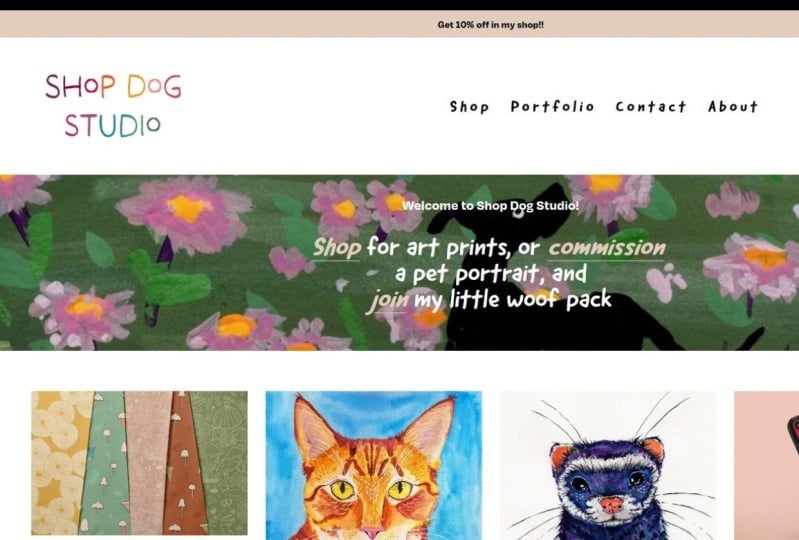
integrated into the site. It just has a simple
announcement bar in a different color, a centered logo,
and then the menu. And we'll just quickly look
at the Mobile Header here. Again, this is really
simple and clean, which is ideal for something so key to navigating the site. You can find lots of inspiration when it
comes to Header and Footer design by looking at
these kind of templates. Currently this page
doesn't have a head. We've just got the
logo at the top and a copyright
Florida at the bottom. Let's start with the Header. Even though this is
a one-page site, adding a menu will
help with navigation. I'm going to insert a
header I built earlier. This header is a really
nice simple layout that will just
help guide a user. I've added the main
sections from this page, as well as two
extra menu options for journal and contact, which we'll just pretend it
to extra pages I've built. You can see I've added one
about accent colors to the have to keep that
color consistency. Let's go into a bit more
depth with the Footer. I'm going to include this
subscription box in the footer. Since this is theoretically just a one or two-page website, it would work well
in this case to have a subscription box on each page. So let's start with that. Will make that text white. I'm actually going to
change it to just say newsletter and make
it small incentive. Now that I've done
that, let's add a secondary section
to the photo. Some things I want to include
in this another menu, any social links,
our logo again, and maybe even some
information about the brand. I think I'm going
to create it as two columns with the
menu on one side, other information on the upper. Yea, So that's how it
looks really good. And now on the side, I'm going to add the
same navigation menu I used in the head off. Cool, so I think that
looks really nice. I've got navigation on one side, which I've just taken the same menu as I'll hit them in you. And then information on the other side
without social links. I've also added this gold border just to tie in that
accent color a bit more. I'm going to quickly add in a copyright section
to finish this off. I think that looks really nice. And let's go have a look now at how that actually
looks on the page. That looks really nice. I'm just going to get rid of this section because we
don't need it anymore. I'm also going to add
the gold banner here. Just separate these
two sections. And that's the Furda. You can see it's a much more optimized user friendly space now that really ties into the branding we created earlier, you can imagine if this
was a multi-page site, just how much impact that
would have on the ease of use, as well as the sites
Aesthetic consistency
9. Keeping Interest: Basic User Experience: Now that we've finished
all the branding tips, these next few changes
are all based around keeping your website
visitors engaged. Tip six is all about the most important aspect
of engaging users, which is all about providing
a good user experience. Now, I've been throwing around this term user experience a
lot throughout this class. But let's go deeper into what
actually mean simply put, user experience
design or UX design, is the process of making
something is usable, accessible, and enjoyable
for use that as possible. When it comes to web design, it means considering every
interaction I user has on your website and making
sure it's optimized. The user experience of your site cannot
be underestimated. Research shows if a website
has poor user experience, up to 89% of people will switch to a
competitor's website. On top of that, 38% of users
will stop engaging with a website's content if the layer is unattractive or outdated. The most important part of UX design is understanding
the users themselves. It's about understanding
their who, what, where, when, and why. It's ideal for use as
to have a positive, intuitive, and smooth experience when navigating your website. Providing this meaningful
user experience not only allows you to better define a visitors journey
on your website, but it also allows
consumers to feel more confident in you and what
you're providing them. Again, building that
sense of trust. Now, I'm not expecting you to become a UX designer overnight, but I do want you to
start considering this perspective when it
comes to a website design, there are a few key areas of UX design for
you to consider. This includes
well-organized information, interaction focus design, usability design, visually appealing design,
and user research. Go through your
website as it is now, and ask yourself some questions
related to these areas. Is this easy to use? Does the reader experience
Flow or does it feel guilty? Would it be clear to a
user were to go next? Buttons and intuitive places? Is the texts large enough
to read and so on. There are plenty of
resources online about ways to improve
user experience. But one general thing I
like to do when considering UX is apply the concept
of less is more. Things like taking big
blocks of texts and adding Read More button to make
it more digestible. Or even hiding it in a visual
way like an image flip box. Somethings you can consider it when it comes to less is more. Embracing whitespace,
prioritizing visual hierarchy, categorizing information, segmenting information
with bullet points, raid mole buttons or
interesting visual elements, keeping pages
consistent and making big areas of information
more interactive and phon. I'll demonstrate some
really basic examples over on the mockup website. Let's look at this,
my persist section as a quick example of
user experience design. Now this is really
great content and it's looking a lot
better than when we first started for sure. But it's still quite
a lot of texts to digest in a big
group like this. Because we've got clear
subheadings here. I think a very user
experience would be something like a toggle system to
break up this information. I've gone ahead and built this so you can see what I mean. This is the same content
except now it's more interactive and easy to digest as it's been
broken up into sections, were really utilizing whitespace and visual hierarchy here too. So overall, it's much
more pleasing experience visually and functionally. Just quickly, looking
at this page is section is disrupting the flow of
the side a little bit. These margins are a bit jarring. It would look a lot better as a full-width section to essentially create a
more attractive design, which we learned is very
important to users. To fix this, I'm going to turn this into a
full-width picture. I've decided to invert this and make the
pattern the background of this section and add a
dark blue box inside it. While we're here, I'm also
going to add this headline to the center here and also
add a dark overlay. Awesome, that looks a lot nicer and it actually ties really
well into the header as well. Now that that's changed when we scroll through
the whole page, it has a really
nice visual Flow. And we'll keep working
on that as we go along. What space page consistency will also things we talked
about in this lesson. I just want to go
through and add some nice whitespace and padding to the areas where it's looking a bit on top of
each other, like here. That's just going
to make it look a bit more professional. So I've added a bit of spacing and just changed
around a few things. I change this text a little bit and move this button
down to the bottom. Now what I'm looking
at this, I actually think I want to move this image to this side
if I can. Let me go. Yeah, I feel like that
just works a little bit. I made sure that all
the texts was all the same and have deleted things that aren't
relevant anymore. I added some extra words. That spacing is just made a huge difference to the page Flow
10. Keeping Interest: The Power of PNGs: Tip seven is all about
The Power of PNGs. There are two very
cool things I want to talk about when
it comes to PNGs. Firstly, PNGs are a great option for saving high-quality
images for the web. And secondly, they
have the ability to save with transparent
backgrounds. I want to start by
sharing the difference between a PNG and JPEG. There are pros and cons
to both image types when it comes to saving
images for your website, a PNG file can hold
more data than a JPEG, which means it can be a
higher-quality image, but can also be a larger file, which can then affect the
load speed of your site. However, PNGs have
lossless compression, which essentially means
you can reduce the size of a PNG image while
maintaining the quality. These files will
still be a lot bigger than JPEGS which use
lossy compression. This makes the image
size a lot smaller, but with less data
to use, a JPEG, image quality can
suffer and you may find certain colors and
details will be lost. Choosing whether to use a
PNG or JPEG comes down to your judgment and
how important that Images quality will
be to your audience. For example, if you're
a photographer and you have your photography
portfolio on your website, having these is a high-quality
image is really important. As mentioned, that
the stop paying J's can have transparent
backgrounds, making them very
useful for the web. Utilising Piaget's transparent
backgrounds can result in some really interesting
and unique opportunities when it comes to images. Now before you worry
about big file sizes, I want you to just explore the possibilities of what
Piaget's could offer. On your side. We'll come back to leading space and image sizes
in less than ten. I want to show you a few
examples of PNGs on websites. This is my current
website and I did this illustration
as a PNG to create a really dynamic background for this inflammation that is very
much in my artistic style. It gives people a
really quick idea of what kinda odd I make. I drew these flowers
and procreate and then save them as a PNG with a
transparent background. Another example I've created is this little value
section on this side. The wavy lines and textured
circles are both PNGs. These lines, for example, I just created the wave on Illustrator and saved it
with a transparent side. And then made sure
the hex codes of the colors matched
what was on the side. Anything circular or with textured edges is
going to be a PNG. And that artistic stylization
just brings a FUN, playful, and different vibe
to web design, which is otherwise very
sharp edged and structured. Nothing you know
what defines a PNG? You'll see it everywhere. Scrolling Website
Design on Pinterest. You can say this is a Piaget, then so is this. You'll be able to find
inspiration on how best to use PNGs really easily. Probably the best use of
PNGs that I personally have ever seen is by Mike costs
for the sound snap website. Now this is a super
beautiful website that definitely would have
taken some crazy coding. But all these beautiful
illustrations would have had to be saved as PNGs with transparent
backgrounds to get those organic lines. This site design realize really heavily on PNGs
for its aesthetic. You can view the website
in detail at snip sand.com and save
yourself some great PNGs. Even though you may be
tempted to put texts in your image compilations
to create cool layouts. I recommend you keep all your texts directly
on your website. If your text is an image,
it's not highlighted. And this means search
engines such as Google can't read it and understand
the purpose of your site. If you plan to have your
site findable on Google, just having that text
readable can mean all the difference
between your website showing up or getting
lost amongst the crap. Looking at this page, there's a few places I think would be really FUN to use PNGs, but let's keep it
quite simple to stop this section and how
we've taken this image and these sentences and
we've turned it into this. All that's left in this section of content is this section. And this is just describing
this person style. I think this would be
a really FUN thing to display visually using PNGs. Looking at this content, I've broken it down
into three main words, ornate, timeless, and tranquil, which describes the style. I'm going to save
some PNG images on Illustrator that match
those three words. I've just taken
these a free pick, but if this is my own work, I would draw my own images
to show off my style photo. I'm going to quickly image trace this to remove the
white background. I'm going to select Sketch
and check that ignore white is selected. Nice. I'm going to expand
them and ungroup them. I've created three outputs, all of the same dimensions to
put each PNG on for saving. I want them on the
same size artboard to ensure they all look
consistent on the side. I've picked these three and I'm just going to
make sure that they're aligned to the artboard
so that the centered on the page need to make sure the correct
kabeles selected files. We'll do the same phase J. And now we're going
to exploit them My favorite way to save
images like this for PNG is to go File, Export, Export for Screens. And then each
individual artboard will come up with its own box. And you can just tick the ones
which you want to explore, in this case, all of them. Then I'm gonna go down
here and make sure this is on PNG or I'll choose PNG eight. Then just press export and save it to a folder
you can find later. So let's insert them
here on the page. I'm going to have them
as three images below. This is such a fine way to
display information like this. And you can imagine
you can make PNGs even more interesting by having
colored backgrounds, adding textures, and obviously having images that are relevant to whatever you're
trying to display. I also want to change these
review images into PNGs. So it's a bit more interesting
than just a rectangle. So let's get back
into Illustrator. This time I've just taken this paintbrush
stroke from free pig, and I'm just going to
image trace it as well. Again. Ignore White is on. I'm going to up the threshold
so that it comes back. That looks good. So I'm
going to expand it. And choosing the color
of this is really easy, thanks to our color palette. I'm going to have
that accent blue. Now these are
currently rectangles, but what I wanna do is clipping, mask them into this
circle and then have this nice paintbrush
stroke behind it. Same as before. I've just created
three artboards are the same dimensions and
I'll play around with the layout and send
it to the bank. So it will just quickly check those no white
background behind here. A quick way to test
this is to just make a dark background
and put it behind. And you can see there's
no white showing up. So as long as we have nothing
else behind this image, when we save it as a PNG, it will be transparent. Now I'll go ahead and export data in the
same way I did before. And then we can insert them. And voila, it just looks a little bit
more interesting now. These are just two very
simple PNG examples, but you can already start
to see the potential of transparent
background images and all the things you could
create just by layering
11. Keeping Interest: Animation & Movement: My eighth tip is adding Animation and Movement
to your website. Animation and Movement is
a super effective strategy to engage users on your website. This can include small things
like button animations and image hovers to larger things
like dynamic fixed images, video backgrounds, moving
graphics and even gifts. Moving graphics will catch people's attention and keep
them on your website longer, increasing the chances of them engaging with your content. In fact, research has found
website visitors will stay at eight per cent longer
on web pages with Videos. Let's jump into a
few examples of ways to add movement
to your site. I want to show you a few ways to add simple movement
to your site. I wanted to start with a
simple fixed image example. We're looking at the
pattern gallery here, and it's looking quite nice. But I want to add a texture
to the background just as a super subtle way to add
movement to the page. And I want this texture
to be an overlay. Now I'm just going
to set it to fixed. A fixed image just means that when someone is
scrolling the page, the image stays in
the same position, which creates movement. You can see from the specs here, The staying in the same spot, which gives an illusion
that it's moving. And it's very subtle
way to add movement, but it's just a bit more eye-catching than
a static background. I'm going to add that same fixed style image in
the background here. I just added this
same fixed image in the review section here. I've changed the proportions of it so that the text is
wider than the images. And you can see just
how that little bit of extra movement adds that
nice amount of interests. Just a bit more dynamic. Looks really nice without, without distracting from the content, which
is the main thing. The next example I
want to show you is this calibration section. Now, this looks okay as is, but I think it could be
a lot more interesting. I'm going to utilize
mass hovering here and turn these
static images into flip boxes to create a
more interactive Movement. This is the kind of
thing we're gonna be creating when you
hover, it flips. And instead of having an image
and then the information, we're going to put the
information on the image. I think I just want the
image of the front. And I've added a
little gold border just to bring in that
accent color again. And then we'll have this information and
the button on the back. I think that looks a
lot more interesting. So I'm gonna go ahead
and do these other two. This is just a much
more engaging way to present information. The interactivity of it
involves the use of moles, so there'll be more inclined
to engage with this content. The last thing I'm
gonna do is add some basic animation effects
to the rest of this website. So images like these, maybe these ones, and
probably these as well. I'm just going to add
in some feedings or other simple animation settings so that when the page loads, these images will move
as you scroll past them. Animation effects are pretty basic front end design feature. So when it comes to
doing this yourself, just have a look at what
website hosts you're using. Most of them will have
basic animation options you can apply to
any static image. I've added those in, so let's
update it and preview it, and I'll show you
what it looks like. You can see that subtle fade-in. It's just Creating a
bit more interests. And you can do whatever
kind of fade ins you want. With this. I've just picked some
really basic ones. I've also added this list onto the same video background
as less than three. You can just see already how much more interesting this
pages with all this movement
12. Functionality: Breakpoints & Mobile First: Tip nine is all about Breakpoints and
Designing Mobile First, when designing a website, it is really important
to first analyze way your ideal audience will be viewing
your website from. For example, if you're
selling products and primarily used Instagram
to promote your work, then most of your
audience will be clicking the link
your Instagram bio, and viewing the website
on their phones. Alternatively, if you have a resume portfolio site and emailing this to
potential employers, this one will likely
be viewed on desktop. Now, if you don't know
what Breakpoints, our breakpoint is a
specific size at which a website's content
and design will adapt to provide a
better user experience. Although you can create as
many breakpoints as you want, the average website
has three Breakpoints. These allow the
website to function differently based on whether the user is viewing on a
desktop or tablet or mobile. Obviously, a phone screen is a completely different
shape and size. So computer desktop, and
so often what you've designed for one type of screen weren't translate
well to a novel. If you're going to have
a decent percentage of people viewing your
website from their phones. I would highly recommend designing a website
mobile first. Now oftentimes it feels
more intuitive to design the desktop site first and then treat them mobile site
as an afterthought. But if you will have
a lot of mobile use, I recommend taking them
mobile design very seriously. According to zip, yeah,
52% of people say a bad mobile experience will make them lose
faith in accompany. And on top of that uses a
five times more likely to leave a website that isn't
optimized for mobile devices. It's a lot easier to design for mobile and ultimate for desktop than the other way
around as you're scaling your design
up, not down. When designing for mobile, you have a lot less space. So it forces you to prioritize page content and create
an intuitive experience. If you can make your website
look good on mobile, you can make it look
amazing on desktop. I built this whole
Webpage desktop first. And you can see when I
look at the breakpoints, Let's start with tablet. It looks pretty good so far. But like something like this obviously hasn't
translated well. And on the mobile, you can see certain sections
just haven't worked well. If I was to build something like this button Mobile First, it would have translated
fine to tablet and desktop. But because I did
the opposite way, this is just creating
extra work for me. You can see some areas just
aren't working at all. Now that we've changed
the responsive mode, some areas look fine though. And back on tablet, you can see the spacing is
just a bit off on the sides. And I don't think
this would have happened if we'd gone
from mobile to desktop. Again, something like this. It has a really weird spacing. And if I'd built
it Mobile First, I don't think that
would have happened. So it's just something
to consider if your audience is going
to be on mobile a lot, Designing this mobile phone site first will make you
laugh a lot easier.
13. Functionality: Site Speed: My final tip for enhancing
your website is a huge one, optimizing your
site's loading speed. I want to start this
lesson with the fact that might make you
feel a little sad. Research has shown 39% of users weren't engaged if a website
takes too long to load. Now you may be wondering
how long is too long? Well, the sad truth is that 53% of website
visitors over Hawk, No potential traffic
will abandon any website that takes
longer than 3 s to load. That is the time it has taken
me to read this sentence. So you've put in
all the hard work, created a stunning website
full of incredible content and over half of the
people going to look at it leaving before
they even say it. I'm sure you can
see how important a fast loading
website really is. Before we go into how to
improve your Site Speed, we need to know what it
currently is and why. Google has this incredible
tool that makes this super easy called
PageSpeed Insights. I'm going to use this tool on the one-page site we created
during this class and use it to explain
what you can do to improve your site's
loading speed. So first we're going to grab the URL link of our
published Webpage, copy that, paste it
here and click Analyze. Now it's going to come up
with these two sections, mobile and desktop. This is because these
two different modes have different Loading spades. You Mobile Site Speed will almost always be worse
than your desktop. Even if your mobile
site is optimized. Just because desktop
computers have better processes and often a more reliable
internet connection. I'm going to look at
the desktop first just because I haven't really
built this site for mobile. So Google has
running analysis on this webpage and diagnose
its performance. It's broken up into
full sections. Performance, accessibility,
best practice, and SEO or search
engine optimization. These results only
apply to one Webpage. So if you have a
multi-page site that has an About page,
portfolio page, etc. you will need to analyze
each one individually. When we're talking about
your site to Loading Speed, we want to look at this
performance section. All of this data here is related to your
site's loading speed. But the main number you need
to know is your Speed Index, which is the total load
time of your Webpage. This first content for paint is how long it takes for the first piece of
information to load. And this largest
content full paint, is how long the biggest file
on your page takes to load. This big number here is
your overall Speed School. Ideally you want this to
be in the green zone, but honestly anything in the high '70s to '80s
is pretty great. Performance also has a visual
tree map which shows you the stages in which your
page's content is Loading in. Under the tree map, we
have opportunities, and this is where
you can start to see suggestions on how to
improve your Site Speed. Let's take a look at saving
images in next-gen formats. And you can see it's showing me the actual images that are
taking the most time to load. Suggesting I convert
these next-gen formats such as web pay. I'm actually using a plug-in
that automates this for me, which is a big reason of why this score is so good already. But you can easily look up
an image, convert it online. And I find when using
these converters, the images don't lose much. If inequality, my preference
is to save an image as a PNG first for
that high-quality and then convert it
to Webpage after. This section is related
to my back-end, which you could again
deal with with a plugin, but I'd just leave
something like this. Now those two are
specific to this website. But if I come down to
this past audit section, these are few other
issues that you may face when looking
at your Site Speed. Properly sized
images is related to having the images the right
size for your Breakpoints. Defer off-screen images is suggesting that you
set up a lazy loader, which just means that
images that are on the page but not visible until
you scroll down further. Don't actually load in
until user gets to them. As you can see, there's a
lot of other suggestions. When it comes to improving
your Site Speed. You only need to look at
the opportunity section. When you click on
it, it will pretty much tell you exactly
what you need to do. If you don't understand
what it means, it just Google the
sentence and there'll be plenty of instructions
on how to do it. Most Site Speed improvements
will be around how you images are saved and how
you've built your website. They will always
be back in hosting suggestions that you
can't do anything about. It. Don't worry about those ones. If your scores in the red zone, and it's all related
to the backend, you probably need to look into upgrading your website hosting. The next section
is accessibility, which ties back into user experience and
things like readability. This is a great school, but one suggestion they
have here is background and foreground
colors do not have a sufficient contrast ratio. If we click on this, it shows us where it thinks this applies. In this case, it's saying my gray text on the
crane background, maybe hard for some
people to read, as well as this white text on
the light blue background. This is quite an
easy thing to fix. Best practices is all
about backend and quoting. So assuming you're not doing
any crazy coding stuff, typically you should
be safe here. And finally, SEO score is how easily search engines can
understand your content. Now I'm not gonna go into SEO, but adding a meta description is a pretty important
and standard thing to do and we'll improve
this score a lot. A meta description is just a short summary of what
a particular page is about. You can easily Google how to add a meta description
foia website provider. Now you know what these
phone numbers mean, and the same all
applies to mobile. It will have a few
different suggestions for your mobile site. So it makes sure to
go through both. But that's pretty
much all you need to know to improve your Site Speed.
14. Your Turn!: We did it once add bubble. That's how it body modem. That was a lot of
content to take in. So let's quickly
summarize each of the ten tips and
get you thinking about which ones would work
best for your website. The first five lessons
of this class explored breaking down the
visual fundamentals of creating a brand. This included Typography, where we covered basic
typographic hierarchy, how to pick font
pairings that match your brand and how best to
use them on your website, as well as some quick
info on fonts, copyright. Then we dealt into Colour
Palettes and broke down how to choose colours
that reflect your work. How many colors to have
in your brand palette, and how much of each color
to use on your website, as well as some basic
color psychology. In lesson three, we
talked about choosing the right images for your brand and the power of video content. And in less than four,
we deep dive into the importance of sharing
your story on your website. I'll fifth and final
branding lesson explored Utilising
your headers and footers and habits to use them to set the tone and
mood of your site. Lesson six to eight, cupboard all things
feel and keeping uses engaged including
user experience thinking, Creating interesting
images using PNGs, Exploring The Power of movement
with animation and video. I lost her lessons were
all about function. This included analysing
your audience and potentially
Designing Mobile First, as well as how to understand and optimize the OCO
important Site Speed. Let's quickly take a
look at the before and after about Mockup
Example website. So here we have the
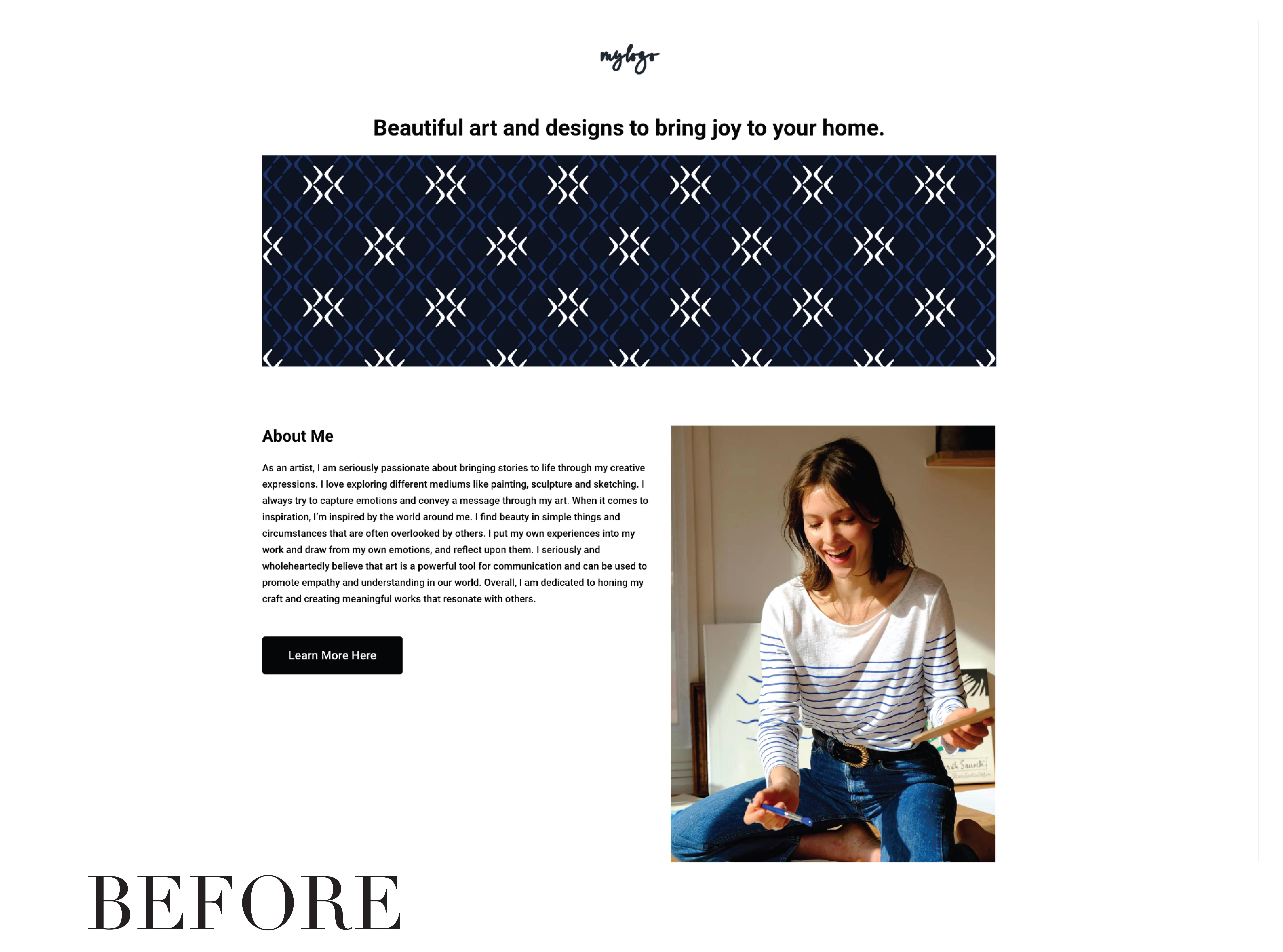
before website. It didn't look so
bad at the start, but now that we have
visual evidence of how much better it could be, it's hard to go back. You watched me apply H of
the ten tips for this page, starting with the Typography, adding the colors, playing around with the
layouts and spacing. And so now you know the impact each of
these changes can have. This is the complete page
with all the tips applied. And I think it looks
really beautiful and it's definitely much,
much more optimized. When making these changes
yourself don't get overwhelmed. If it's not looking
perfect straightaway. Make time to experiment and play with what
you've learned. You have all anology named here. So just break it down tip by
tip and see what happens. I'm always here to
give you feedback and would absolutely love to see any before off the
changes you make to your website in
the projects section. Each little change
you make counts towards enhancing your website. I would love to see it. Before we finish up. I want to say thank
you so much for watching my first ever
Skillshare class. It would mean the world
to me if you could leave a review and let me know what you thought
about this class. You can also follow
me here on Skillshare and you'll be notified of
any new classes I create. I really hope you found some
value in these lessons. I love teaching this topic and truly can't wait
to hear which of these tips you found the most useful and what you create
with this new knowledge. Thanks again and happy website
 Jehna Creates, Designer, Artist, Forever Student