Transcripts
1. Introduction: Hi, I'm Jake. And in this
class we are going to create this really cool
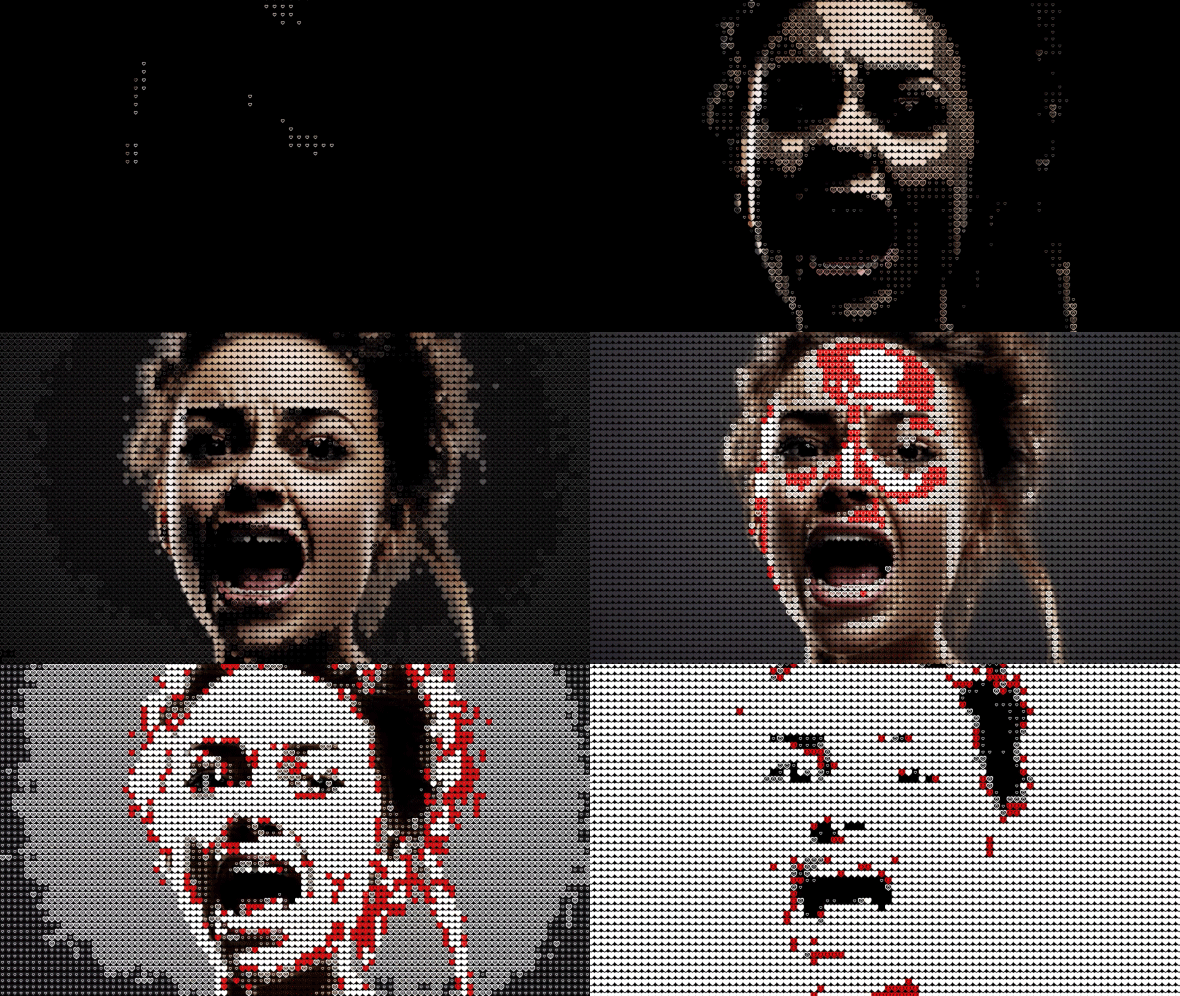
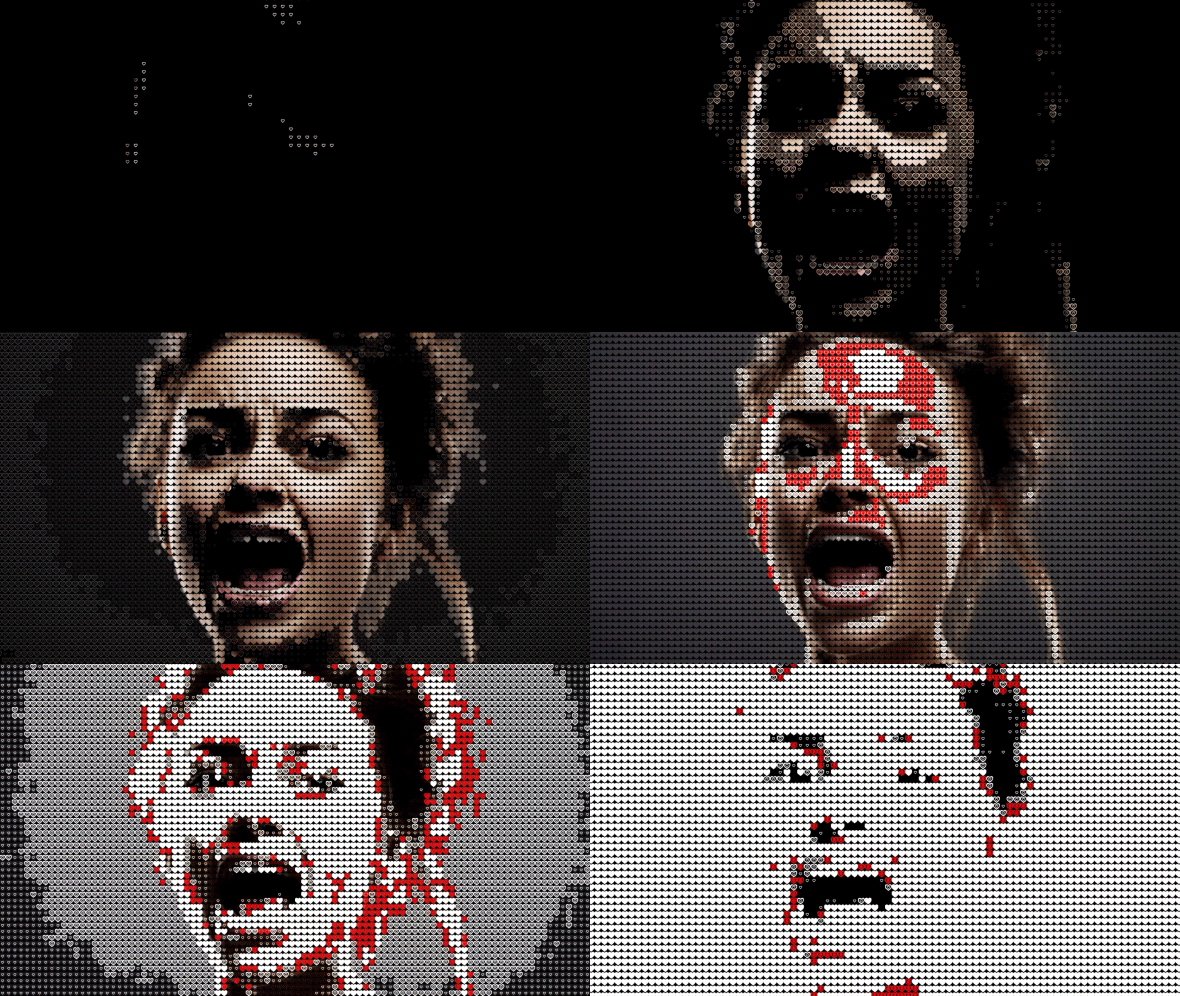
pixel art template. The best thing about this class
is that you don't need to have any experience of working
with Adobe After Effects. Any version of this
software will work fine. Even a free trial version of Adobe After Effects
would work great. After completing this class, you'll be able to drop
any photo or video into this template and get this
cool pixel art effect. Also, I'm going to
show you how you can create your custom shapes
to use them as pixels. You'll be able to reveal your image using any
pixel shape you want. I'll provide you all
needed knowledge to complete this effect
from start to finish. You can always write
your questions in discussion section under any of my classes to get the help from me while creating
cool effects. I'm excited to see your projects after completing this class. I think it's the
best way to learn this software while creating
interesting effects for fun. And to complete this class, our goal is to create this
cool pixel art image reveal. I'll be happy to see
you in my class, as also your result, after following all the steps. So let's get started.
2. Basic Understanding of Effect: I'm using obiter effects 2024, but you can pretty much use any version of adopter effects. It will work fine if for some reason you cannot
see some panels, which you can see on my screen. You can easily locate
it here in window. For example, you need
effects and presets. You can enable it here.
Effects and presets. First thing which
we want to do is to understand how
this effect works. Basically, we need
a photo and video. It will drive the
animation of this effect. Let's go to file,
import this photo. And this video will be available in resource
step to this class. Let's download it and open it. Click Import. Let's
create a new composition. You can click here or you can click here to create
new composition. This composition we
will call placeholder, because here we are going
to drop our video or photo, and our effect will
generate animation from it. Place holder, 1920 by
1080, which is polygD. Let's go with 30
frames per second. Here you can set your duration. In our case, I think
this animation will not be longer
than 10 seconds. Maybe let's set it to
15. And click the key. Now we have this placeholder
with 15 seconds long here, we can just drop it. Your photo or video, You can just left most click
hold and drag and drop here. Basically, this
effect will work from darkest part of your image
to the lightest parts. We will use exposure effect. You can even go to
effects and presets here. Once again, if you
can see this panel, you can go to window
and enable it. From here, Effects and presets. Here we can type exposure. With this effect of exposure, we can adjust and control how quickly this animation
will appear on our screen. We will go from really
low, something like this, to really high, like
something like this, to cover all the
screen with the video. If we will drop our video here, it will generate pixels on the brightest parts of our image as you
could see in preview. As you can see
from this preview, it generates these pixels
on the brightest parts. Just keep in mind
that this effect is driven by the brightest
pixels in your image. For video, you would want to
have something like this, light travels on your object. In the case of the images, we are going to use exposure
to do the same trick. Basically, we would want to make this reveal of our image. Basically, it will look
something like this. As you can see, it goes from
dark to brighter stones. Later in this class, I'm
going to show you how you can reveal your image
with original colors, as well as to create these
pixels to different colors. To get color variation, I'm going to show you
how you can change these pixels to wherever
custom shape you want. It's not have to be squares. You can go with the circles, hearts, stars,
wherever you want.
3. Basics of Creating Template: To see this principle
even better, we can create our
main composition. Let's click here to create
another composition. And this composition we will
call Engine for Images. As you can guess by the name, we need to create an engine for images and engine for videos. Let's start with the
engine for images. These settings should be the
same post 30 day frames, four second and 15 seconds long. And also, I want to create a new composition
for our placeholder. Because we don't want to use our exposure effect
directly on your photo. Because you'll have to change this value to each new photo, which you'll drop it here. But instead, we can
just delete it here and create another composition just like this and call it exposure. And click okay, with
basically the same settings. Click key and drop our placeholder inside
of this exposure. Now we can just apply our exposure effect from here
and effects and presets. Type exposure leftmost click and drag and drop
it on placeholder. Now basically, if we
will animate this, we can just click here
to create a keyframe. And if you're going to select this placeholder and
press on keyboard, you'll see our first key
frame. What is key frame? Basically, the keyframe
is the point in time which remembers the value
of certain property. In our case, this keyframe remembers this point in
time which is 0 seconds. It remembers this value of
zero of property exposure. If I'm going to scroll through here on
timeline 2 seconds, I can change it to other value. Super bright something,
maybe even 20. We would make sure that it
will cover all the screen. Now as you can see, this
key frame remembered this value of 20 at 2 seconds. And here we have
another key frame with the value of zero. Now after effects,
it's trying to connect these two key frames. And it will go from zero
value to this value of 20. If I'm going to scroll through, you're going to see
this value change. This is basically how animation works inside of Adobo effects. But first one I want to
make a lot more dark, maybe let's go with
leak minus nine. We can spread this
key frame like this. Basically this animation
will go slower if I'm going to change this
work area just like this, by clicking on this edge, click and drag, you can make
this work area shorter. And press zero up it to preview. Now as you can see, we
have this animation which goes from dark to white. What is cool about this,
that we have created our exposure and placed this
place holder inside of it. That means that if
I'm going to go to Project panel and open
this placeholder, we can drop it
here. Other image. Let me show you how I
would place another image. Now I don't need to worry about copying some effects here, because we have this
exposure composition which basically will
apply the same effect of this exposure on any
image which we will drop inside of this
placeholder is pretty handy because it makes
this effect as a template. Basically, you
would want to drop any photo which you like
and get this effect done. This is why we've created
this exposure composition.
4. Creating Pixel Look: Next step would be, is to use this engine for
images which we've created. Let's drop this exposure effect here Inside of this
engine for images. As you can see, we have this
effect already applied. Now what we want to do is to apply effect called threshold. Let's type here threshold
and choose this one C, but the simplest one,
and drop it here. As you can see,
with this effect, we are getting the
brightest parts, or the darkest
parts, of our image. This is how we want to isolate some of the parts of our image. For example, I want to go with the first value of
6,000 like this. This is basically, if I'm
going to shut this off, you can see that this is the
darkest parts of our image. You can clearly see
that these parts which left are the darkest
parts of our image. If I'm going to change
to any other image, you can see that if I'm going to apply
the threshold again, it still works on
any image basically. Now it represents the
darkest parts of this image, which is in these parts here. As you can see, it's pretty
handy effect to isolate only darkest parts because these darkest parts we
want to convert to pixels. You can see that the
darkest parts are represented with this one line. The brightest part
with this square, then how square almost field
square and field square. This is basically
how we can isolate these parts and change them from just simple image to pixels which we want to use, but before we want to
have them as a pixels, basically as a squares. Because now as you can see, we have some lines
here, curve lines. And this is not exactly
what we want for this. We want to go to
effects and presets. And type here Mosaic. And just select this mosaic
effect, either stylize, let most lick hold and drop
it on exposure composition. As you can see, we already
getting this pixelated effect. What kind of values
you want to type here? Basically, you want to
select your layer presp. You can just type these
values but without zero. Basically we want to
take this value of 960/10 As you can see, 900 by 60/10 and as
you can guess it's 96. Same you want to do
with this value, basically 540/10 will be 54. This is how you can
get pretty much a good pixelation of your image. If you would want to
go with finer pixels, you would just want to
multiply by two here as well. Multiply beto you'll get
these more fine pixels. But in this case, you
would not be able to see the effect itself because these shapes will
be so small that it would be really difficult
to see the effect itself. I imagine to have
these little pixels, it would be about the size and you cannot
really see the effect itself. This is why I recommend
you to go with the 96. By 54, you would be able
to see your shapes, which you are going
to apply here.
5. Custom Pixel Shape: Let's actually add a shape here. You would see how
the darkest part is translated into shapes
which you want to feed. Let's go to Project
Panel and click here. Or you can just basically go to Composition and create
new composition. Here we can type your shape one. Because as you can guess, we are going to use not just one shape, but a variety of shapes. For this class, we are
going to use five shapes. Let's go with your shape
one here we need to change the width
to 40 height, 240. Basically, we want to have
a square because each of these squares we will
change with our shape. Here we will leave 30 prints per second and 15 seconds duration. Click a key if you're going
to use scroll on the mouse, you can zoom in into our
picture and see our square. Basically here you can just
drop any shape you want. Now we can start with the
simple square animation. Basically you can just
select this pentol here and set field to nothing. Just like this to none
include key and stroke. We can set to white color
and maybe increase it a bit. Let's draw a line just like this T here, you can hold Shift. As you can see, I'm
holding Shift on keyboard. Click here to draw a line. If I'm going to change
this stroke value, you can see that we
can get this line, but it could be square
wherever you want as representation of
our darkest pixels. Let's go with the line, and later we will
change if you want. Let's select the
selection tool here, go to a line panel. If you cannot see this
panel on your screen, you can go to Window
and enable it. From here, click on a line and you'll be able to
see your panel. Select your shape. Click
here to a line horizontally, and here to a line vertically. You can move around
a few pixels if you want to see these lines clearly. To move around this, you
can just select your shape. And press arrow keys on
keyboard, right and left, up and down to get the
clearest possible shape. Now we can go back to our engine for images and basically
drop your shape here. Let's disable this exposure. We would see only our pixel. Next step, which we
want to do is to set this pixel across
all of our screen. The easiest way to do this
is to select your shape and go to effects in
precess panel and type here motion tile. Let's let lick drop it
here on your shape. Basically. With this effect, we are going to make copies of our shape across
all of our screen. Let's increase this number. Here we are, increasing amount of these shapes left
and right maybe. Let's make it even smaller. Let's select our shape
and press S on keyboard, and let's make it smaller, 50% Let's increase it even more. Here in output, we would
cover all of our screen, something like 97,
60 would work fine. Output height. We can
also change this value, maybe let's say to 5,500 It should work as well to cover all of our
screen, basically, If I'm going to select this
exposure and click here, you can see that we've
created these pixels just on edges of each of our pixel. Which looks pretty fun. But we need to adjust the position of it
because in our case, we want to have our effect inside of these pixels
and not on the edges. You can see that
these lines are, goes inside of the pixels and not on the edges.
Let's fix this. You can just simply select your shape and
press P. Basically, we would want to move
it to ten pixels. Let's change 960-950
As you can see, we already moved now let's
change this second one, value, 540-530 Now as you can see, our lines, our
shapes are exactly in the middle of our pixels, which is exactly what we want. Select our exposure, set
it above, close it here. Now we can just use this
exposure as a Luma met, which basically means it will
mesk out the parts where these literal pixels should be visible and wish pixels
should not be visible. Let's tackle the wishes
and modes and set this Luma mat to this
exposure one just like this. We can click here. We would
not see the alpha meet. We want to use Luma met. Basically, we will
use this exposure as a mask for our shapes. This is exactly what
we're getting here. First issue which I
want to change is that we are getting the brightest
pixels and not so bright. It's pretty easy to change. You can basically select
the selection tool here, select this exposure effect. Just click on the sharp colors. Now as you can see, we're
getting a bright pixels, which is exactly what we want. Let's invert it, because
basically with this exposure, as you remember, we only see the darkest
parts of our image. If I'm going to go
to placeholder, you can see that these are
supposed to be dark parts. We want to have these little
lines on the darkest parts. As brighter this image will get. We will cover with
more complex pixels. Basically what we
need to do is to go to your shape one inverted. We are using luma inverted met. If you're using older
version of ter effects, you just need to select
here inverted luma met. As you remember, we have
already this animation in exposure where it gets from dark to brightest
parts like this. This is already creates
this animation which basically means that engine
here for our images. It also has this animation, basically it all covered
with these dots, because we are getting
this really dark part. Then it will get brighter,
it will disappear. These little dots
will disappear, the brightest
pixels will appear. This is basically the
technique of this effect. The next video, I'm going
to show you how to create more shapes to cover entire
image see in the next video.
6. Creating All Shapes: We've basically
created the engine of our effect and now we need to create
more shapes to it. It would work and cover with more shapes to
reveal our image. I'll suggest to
you to go to file and save wherever you
want on your computer, because after effects can
crash from time to time, save your projects from time
to time on your computer. Okay, how to create more shapes so we would be able to see
our image even better, By the way, it works even better with less detailed photos. Let's import
something different. For example, we can
go with the face. I'm going to go to
Placeholder and drop here on this
AI generated face. Let's just make it bigger. You can just press
S on keyboard, make it bigger so it will
cover all of your screen. These images will be provided in resource step to this class. By the way, you can also
change, right, mostly here. And go to Composition Settings. Let's call it not
placeholder but your image. Because now we are creating the engine which will
work with the images. Later in this class, I'm
going to show you how to create the engine which
will work with the video. Let's click Okay. Let's
make it here a bit more organized so it would be easier to find what we want to use. Let's create a folder
by clicking here. And let's type here your shapes
and drop your shape here, because we're going to create more shapes and it
will get messy. Let's create another folder, Let's call it footage. Here, you basically import all your videos and photos
selected one by one. Just select it and then hold control and select
other images which you imported and left most leak hold and drop
into your footage folder. And you can close
it here for now, we can leave it as it is. Let's create another shape. We can just select this one and press control
D to duplicate. As you can see, it's already
renamed to your shape two, which is exactly what we want. Now we can just left double
click on it to open it. Here we can create
another shape. We can just select this
shape and press Delete. To delete it, you can
just let it mostly here. Select Rectangle tool. Now we can just
create another shape. This time we would want to have something more than just a line. Let's create a square.
You can just simply let click hold and drag. If you can hold shift, it will create a perfect square. Something like this
should work fine. You can just release it and then select
the selection tool. Here, select your layer. And just with arrow keys, we can move around
on our screen. We can also use
this align panel, just mostly here and here
it will be centered, and as we did before, we can just move up or down to get sharpest edges
as we can get. It doesn't have to
be super perfect, but you can always just
press on keyboard and change the values to get the better
shape with the sharp edges. You can also select your shape and change
the stroke amount. It will also help you get
the shape which you like. Maybe let's even make it smaller because it's
only second shape, which will represent a bit
brighter parts of our image. Basically, with each new shape, we want to cover this
square even more. Now let's create
our third shape. We can select your shape here, Press control D to duplicate it. Left, double click
it to open it. You can just delete this shape
here, select the pen tool, left most click about here, then here, here,
and finally here. To close our shape, basically we want to
have a triangle or any other shape which will cover our screen more than this
shape than previous one. In our case, we would want to maybe select our
stroke and set it to non select our fill and set
it to this solid color click. Okay, here we can change
this color to white. Just by clicking on the edge, we can create a perfect line on the edges,
something like this. We can also click here and
here to a line in our window. Just select it and
you can always change the scale of it and just make sure to have
clean lines here. Something like this
should work fine. Finally, we need to
create two more shapes. Let's duplicate this
shape. Open it. Let's not just duplicate
the third shape. We can just delete it here. We can actually duplicate
this second one. Let's select the second one and press control
D to duplicate it. Open it now instead of
drawing more shapes, you can just simply
make it this one bigger and select it and press control
D. Press make it smaller. Once again, we can change
this fill to solid color. To change to solid color, you just need to click on the word fill, just around here. Change to solid color and
click also change it to white. Now we have this fourth shape. You can select it
and also center it, maybe this outside line, let's make it thicker. Because at this point it should almost completely
cover our scream. As you can see
here, our progress. It covers more, more and
even more final shape. You can just duplicate
this one here, open it control to duplicate. We can basically delete this one and press
S to see the scale. And basically we need to
cover all of our scream. So now we have all
of our shapes, and now we can just simply
go to our engine for images and apply it here so we
would have more of them. And it will appear on our
image which we've plugged in here in this composition.
And exactly this. I'm going to show
you the next video.
7. Pixel Animation Done: Now we have all of our shapes. Basically what we want to do
is just to select both of these compositions engine for images and press control
D to duplicate it. Just move up this, you can select your
shape one here, you can select your shape two. Make sure that you have
selected here and here, because we want to swap
this shape with this shape. You need to select here, here and after this
you can just lap most lick hold old
key on keyboard. As you can see, I'm
holding old just left most click hold old and drag it
on top of this shape one. Once you'll release it, it will swap your shape one with shape two
as you can see here. Now we need to make adjustments
because at this point it already changed to
exactly the same places where we've said this shape one, to adjust where these
shapes should appear. We want to refer to our exposure and go to
effects and controls. Basically, with this threshold, we can adjust where the
second shapes should appear. To do this, you can just
simply click here and change it to value to 8,000 Basically, we had 6,000 We want to go
with increments of 2000, Basically 6,000 plus 2000, we'll get you 8,000
Now as you can see, we are getting these shapes in a bit different
places to amplify this effect so we would see
better what we are doing. We actually need to
create a background for each of our shapes.
It's pretty easy to do. You can just simply go to
your Shape one and go to layer new solid and make sure that the
solid would be black. And click Key. You can
also click Make Comp size. It would be exactly the same
size as our composition. And click key and just leftmost click and drag it
below our shape. Now basically we have
created our background. We can just simply select it and press control C to copy
and go to your shape Two, press control V to paste
it and drag it below. Then to your shape
three, pasted, drag it below your shape four, exactly the same
control V to paste it and drag it below your shape. Five, also control V
and drop it below. Now if we are going
to engine for images, you can see that we are getting
a bit different result. Which by the way, it's not
exactly what we want because we don't want to choose
aluma inverted met. We actually need to
choose Luma met. Make sure if you are using
older version of At effects just change from Luma inverted
met to just Luma met. In version of 2024, you can just uncheck
these boxes. We are getting much
better result. If we will scroll through, we already getting this
animation which goes from the literal lines
to these squares. Now we can add another
increment of this effect. Basically we can just
select these both layers. Press control D, drop it above, and then go to exposure. Just select this exposure, A top change, 8000-10 thousand. Once again, we need to select the shape which we want to swap, that go to project. And select this shape with which we are going
to swap this shape. And just make sure that
you've selected this one. And this one left
most click hold, hold and drop it
above and release it. As you can see, we've added
another shape into our mix. Now we are creating this
gradient of different shapes, which gives us more
detailed animation. Let's repeat this
process two more times. Select these both layers. Press control D to
duplicate, Drag it above. Select this shape
three, and here. Select your shape four, Hold old, drop it here, then go to your exposure and change this 10000-12 thousand. Finally, we can just
select these both layers. Press control D to duplicate, then drag it above. And select your shape Four, select your shape five, hold old left most lick, and drag it on top of this
shape four to swap it. This is our last time. Let's go to exposure
and change this to 41,000 As you can see, we created this gradient
to the place where we are covering all of our screen
and all of our image. If we will change our
work area to this moment, you can press zero Numpad
and you'll see this result. Now as you can see, we already
have our pixelated effect, which looks pretty cool. And the next videos, I'm
going to show you how you can change the colors of
each of these shapes. And we will create it more like a template where
you can just click a few checkboxes and change
all of the properties of our shapes and colors
within one layer. And these adjustments
we will do in the next video. See
in the next video.
8. Fast Color Change: Now let's make this template
a bit easier to work with. Because at this point
you can see that we have a lot of the shapes, a lot of these shapes which we would want
to change colors from one place and not
just go to each of these shapes and
change in your color. Because at this point
you can clearly change the colors here
and go to Engine, and one of the pixels, as you can guess, will
change the color. But we can create
a much easier way to change the colors
from one place. So it would be a lot more fun to play with this
template and not go to each of these compositions and swap these
colors one by one. Because in case where
you would want to have more than one
shape, for example, if you would want to change
this from squares to circles, you would not want to
mess around with all of these shapes and find each
one to change the color. How to make this a lot easier? We need to go to Project Panel and click here to
Create New composition. Or go to Composition and click
to Create New Composition. In this composition, we can
call it as main click key. In this main comp,
we can just drag our engine where we have all of this which
we already created. We want to create
a control layer. Let's go to layer new
adjustment layer. We can select it and
press control shift Y. As you can see, a
press control shift Y. Let's name it Control Layer, because from this layer
we will be able to change the colors and even more. Let's look okay here,
Effects and controls. We want to add from
this effects in precess panel, color
control effect. Select it and drop
it on control layer. And we can change
the color control. We can selected and press Enter. Let's call it Shape One because
with this color picker, we will be able to change
the color of the shape one. We can also selected
and press control D a bunch of times we
would have each shape, we would be able to change
each of the shapes. Now we need to lock this effect control
spanel left, mostly here. Then just simply go
to your shape here. We would want to create
another adjustment layer. Let's go to new adjustment
layer and place it above, basically everything
which is below our adjustment layer would be colorized according
to these colors. Here, let's select
this adjustment layer and call it color. We would know that it
colorizes our shapes. To change our colors, we want
to use simple feel effect. Because if we will
drop here feel, you would see that it will
colorize all the picture, which not what we want. Instead, we would want
to use tint effect. Select tint and
drop it on color. Now if I'm going to change
this white to any other color, you can see that
we are colorizing only our shape and not
the background itself, which is exactly what we want. Now just close this effect
with the tint here, and now we can see our
shapes with the colors. Basically, you need
to select this color inside of your shape
and press on keyboard. Or just simply scroll
down here and here to see our effects
in tent effect. This is really handy
trick which you can do is to link this
color to this color. Basically what we want to
do is to hold old key, leftmost click on this map. White two, let's leftmost
click on this stopwatch. But make sure that you're
holding old on keyboard. As you can see I'm holding old. Then let lick on your
stopwatch here basically. Now it allows us to use this
speak web and connect to this shape one color and just lick anywhere.
Just like this. Now if I'm going to change this shape one to
any other color, the green one or even darker
green. And click, Okay. You can see that we are changing color directly from this panel. Exactly the same we want to
do with other shapes as well. The fastest way is to select this shape,
Empress Control C. Let's close it here and go
to your shape two empress. Then just scroll here, here and here to map white two. And change here in expression 1-2 Basically to
check if it worked, you can just change this
color to any other color. As you can see, it already connected your shape
to this color. Let's repeat the step three
more times. Let's select it. Press control C to copy, control V to paste. Drag it above, It will colorize
everything below this. You can also click
here on Source Name to see our names which
we've applied. Let's open here,
Effects Tent and Map. Let's change here
to Shape Three, because we are inside of
Shape three composition. Then let's go to
your Shape Four. Press control V to paste
it and drag it above. Open these arrows to
get to map white. To change here 2-4 because we are in shape
four and click anywhere. Let's check if it
works shape four. Let's change to any
other color it works. Go to shape five. Control to paste. Drag it above, open, here, here as well. And change this shape
two to shape five. Now if we are going
to go back to our main composition,
let's drag it here. We can simply unlock this
panel just by clicking here. Now as you can see, we've changed it to our custom colors. Basically, I would
recommend to go white here, here, some color for example. Then here white as well, then some color,
and white as well. Because it's much
easier to control these colors if you have
only two colors basically. Now you can see that you're
getting pretty cool result. It took you just a few
seconds to change. As you can see, we've spent a bit more time to create
these connections. But after this, you
can simply just drag any other image and just simply play around with these
colors a lot faster. But once again,
it's better to use something which is
easily recognized. For example, if you
would want to use a car, it would be also
pretty easy to see. As you can see, it works with
easily recognized objects. The next video, I'm going
to show you how you can reveal the actual image and not just in these pixelated colored shapes see
in the next video.
9. Animation Control: This is our pixilated reveal. Now we can just create an
animation in which we are going to reveal the actual
colors of our image. This is even easier task
because all what we need to do is just simply to drag
your image here below. Just simply organize like this engine for image
should be on top. Your image should be
below and set Luma met. If you are using
after effects 2024, you just need to simply
connect this one to this one by using this
pickup and not this one left slick and connect here and change from alpha
meet to Lumo mat. Now if we are going
to scroll through, you can see that we are
creating this effect with our pixels which we've created to reveal
our actual image. You can see that we
are not getting all of our shapes bright, for example. You can clearly see that here, supposed to be these
pixels visible, but they are too dark. What we want to do is to go
to effects and presets here. Let's type tritone effect. If I'm going to select the tritone effect
and drop it on engine for images composition and
change the midtones to white. If you're going to select the tritone effect and
duplicate for a bunch of times, just select it and press control D. Control D. You can see that we clearly made these
pixels a lot brighter. Three copies of the triton
effect will do the job, and now we are getting
a lot better result. Now as you can see, we are
creating this animation. As you remember, speed of this animation is controlled
here in exposure. To stay organized,
we can also link our exposure animation
to our control layer. What we need to do is to apply slider control type
here and effects in press slider control and
drop it on control layer. Here we can just press Enter and name it
Exposure Animation. If you can write most here, you can edit value and just make sure to write mostly
on the word slider. Let's set this slider range
from -20 to maybe 50. And click Okay. Why we did this? Because if you will scroll down, you would know exactly
the range from which you want to adjust your brightness. Now basically we
can go to Exposure, select this composition,
and press U on keyboard to see
these keyframes. Simply you can just select them and press control
C to copy them. And go to main Comp. Set your time courser
to very beginning. Then just click here on
slider to create a key frame. And then press U on keyboard. Basically, instead of
using this key frame, we can just press control V
to paste those key frames, which we used to
animate our exposure. Why we did this?
Because we want to now link our exposure
animation to this slider. Once again, we need just to lock this panel,
go to exposure. Instead of using
these keyframes, we can just delete these keyframes inside
of exposure composition. Just select them
and press Delete. Now we can once again
hold old key on keyboard. Left, Must click on your
stopwatch and just simply connect to this slider and just click
anywhere, basically. Now with this slider, we can change the exposure. As you can see as I'm changing
it changes this exposure. Now we can just simply close
this composition and pretty much forget about it because in the main comp we can
control this animation. Now, at any time with
any other image, you can simply just
select any other image. Maybe let's use this
one and go to main cap. Basically, we can just adjust this animation just
accordingly to this image. Because the different images
you are going to use, the different values you
would want to set here, you'll be able to adjust this animation according
to your image. Let's find where this image
will start to appear. This image is about to
appear at minus six. Let's see where it gets
completely visible on our screen. It looks like at about five. We can still see some
of the pixels here. Let's increase it
to maybe seven. Now as you can see, we almost
completely got our reveal. We can just tweak our
values, maybe 210. This basically works pretty
great with this image. But if we will use some different image like
this one and go here, it may actually not appear
on your screen for a while. For example, here, nothing
appears on your screen. This is something to keep in
mind that you will need to tweak this exposure
according to your image. As you can see, this
image starts not from minus six but more
like minus four or -4.2 This is why we'd want to connect our
exposure animation to our control layer. It would be easier to control all of our
template from one place. Maybe let's leave a disk here, or maybe let's just use
some art like this. Let's press zero on apt
to see what we got. As you can see, we are getting this cool animation of our
image appear in our screen.
10. Mixing Styles: What is cool about
this, that you can even combine two modes. Basically, this is
operation of our image. We can duplicate this engine for images slated and press control to duplicated
and enable it. Basically, if we will move
slightly to the right, so it will start later, can achieve this animation of transition from the image
to this effect here where it starts to
cover our image with our shapes which could
be pretty interesting effect. You can also change
this to screen, which can give you a
lot more cleaner look and transition to it. Now as you can see, you
can get really nice. This is basically
how you can get this transition to
the white background. If you would want to
use your own colors, you would want to
change to normal. To get your colors back, you just need to unlock
this panel from this one, which is above all these ones. We just need to select these
effects and delete them. Now as you can see, we
already getting our colors, which we've set on
our control layer. Basically, if you would want, you can change to
any other colors. You can also experiment and
change the mode to screen. You can get the
colored pixels and pretty interesting look to this white color which
you've set it here. If you're going to
set to red one, you would see this effect which is also could be
pretty interesting. Feel free to play around
with these modes. The color mode should
be fun as well. As you can see, it just gives you another look for my taste. A screen is better one. And just feel free to experiment and get
different results. Next video, I'm going to
show you how you can use this template for your video.
See in the next video.
11. How to Use Video: Create another composition
for your videos. Basically, let's duplicate this, your video and replace it. Control D to duplicate, press Enter and let's
call it your video. Let's open it and
drop this video, which is provided in
resource step to this class. We also need to create another engine for
videos selected and press control D. Let's change this one for video left
on double click on it. Another step which
we want to do is to change this exposure to images. Just rename it this
Exposure to Images. And press control D to
create exposure for videos. Why you would want to do this? Because for video,
we are not going to use a slider to drive
this animation, but instead we are going to use the brightness of
the video itself. Let's open this exposure
videos which we just created. And select your image and swap with your
video composition. Here your video. Make sure
to select your image here, your video here, press and hold Old Most Click and drag
it on top of this image. Now we've swapped
it now we can just close it here and here
an engine for video. We can also locate it here,
leftmost double click. We also need to select
each of these images. Expos. Images just crawl
down to see all of them. Select all of them and
select our exposure. Videos hold old. Just swap it as well. Now we've completed
our engine for video. Let's go back to
main composition. Maybe let's close all of these
compositions so they will not look so scary.
Let's close it here. You remember we can control everything from this
layer, basically. Now what we can do is just to select our engine for
video and drop it here. And now we can just simply
hide the engine for images because now we are
focusing on using our video. If you remember here, in control layer with
this exposure animation, we are driving the
animation of our images. But in case of the video, we don't want to
use any animation. Press on keyboard and
delete these keyframes. Press delete, basically.
Now with this slider, we are not controlling
the animation, but we controlling where our colors and brightest
parts will appear. If I'm going to scroll through, you can clearly see that now the video itself
drives the animation. We can with this exposure
animation control the look of this video in case if you don't want you to use these custom
colors which we built. We can also just simply
go to project panel, select your video, and drop it just below your
engine for video. Just simply change
this to Luma Met or just use the speak web and connect it to this
engine for video. Let's set it to Luma Met. Now as you can see,
we are getting this animation for our
video as we did before. We just want to use a bunch of tritone effects
to make it brighter. Let's type tritone here and drop it on top of
this engine for video. Change the color to white
and duplicate two times. Now as you can see, we are
getting exactly our video, but with this effect
built in, basically. Now the animation drives, not with this
exposure animation, but with the brightness
of our actual video. As you can see, our
brightest parts are controlled with
this slider control. If I'm going to
change this value, you will get different
brightest pixels. By the way, if you will still want to have some grid here, you can basically go to your shapes here in
your shape five, you can just simply make this
final shape a bit smaller. Let's select it and
press on Keyboard. And make it smaller,
just like this. And go to Main Composition. Now you can see that
we get in this grid. In some cases, it looks better. If I'm going to press control Z, you can see that it will
reveal the colors itself. Now if I'm going to go
to your shape and once again make it smaller
to get these lines, it will create these
lines here as well. It's up to you which
reveal you would want to get with the
lines or without them. Let's press zero Ampa
to see how it looks. You can clearly see
that this effect works. Final thing, which
you can add is basically duplicating
this engine for video. And make sure to delete these Triantolon effects which are applied to it and enable it. If you will change
this mode to color, you can basically
apply the colors, custom colors which we
created on our control layer. Now basically you can just simply create a
gradient of the colors. For example, we can even make it like bronze or goldish one. Something like this
could work pretty fine, less color, Let's
set it to white. Now as you can see,
we are getting this goldish look
of this effect, but you can pretty much use any other colors and see what
works best on your image. I mostly like to use one color
to have a little accent. Or you can just press and
make it a bit dimmer, it would be not that noticeable. This is basically how you can
get the pre cool effects. At this point, feel free
to use your own video or image and share your result by creating
a project on Skillshare. And I'll be happy to check it and give you a little
tips if you want. Also, feel free to ask questions in discussion
to this class. And by the way, in
resource to this class, you can find this notepad
in which you can find this link to already made
template on envato market. Basically, it's a
professional template which I've made
using this effect. If I'm going to
open this project, which you're going to get, if you'll want to purchase it, you're going to get a logo reveal image, reveal
custom colors. Basically exactly the same which I've shown you in this class. But you'll get this
fancy movement of the camera and
professional look to it, as well as you're going to get more controls into
your control layer. As you can see, I've
added smooth mode, as well as ability to
make the grid fade out. As you can see, it already
has this exposure, animation, and video threshold
which you can adjust. Basically, you're going to get five presets of the shapes. For example, if I'm
going to click here on Hearts and drop it here in
your image, resemble this car. You can see that you'll
get this depth of field effect as well
as camera movement. And as you can see, it will also create these hearts
instead of pixels.
12. Other Pixel Shapes: Basically go to your shapes, open all of these shapes, and create instead
of the squares, hearts, or zeros and ones or any other
shapes which you like. By the way, if you
cannot draw any shapes like these hearts to
create in your template, you can find this note pad with the links in
research to this class. I'm also going to
include this free site, let's call it shapes, where you can just simply search for the shapes and apply
it to your template. Basically, let's visit
the site flat icon. You can simply just type your star and get a bunch
of variation of the stars. Just make sure to save them on your computer and place
inside of your shapes and keep this principle where first shape
should be small, then bigger than bigger, and a lot bigger. Basically, you could
choose for the one shape, this one than this one, than this one, and maybe
something super large, and you'll get your pixels
with different kind of shapes. I'm excited to see
your projects, so just scroll down and click
here to submit a project. Don't be afraid, I'll
be happy to help you. If you'll get some issues, just make sure to go to
discussion session and ask questions or just
submit a project and type what issues
you're having. If you need some help from me, I'm checking all of your work. And here in discussions, you can also see that
I answer as fast as I can on any questions
which you may have. Also consider to leave a review because
it really helps to promote these classes and inspire me to make
more classes for you. Feel free to follow me
here on Skillshare. I have a bunch of classes on
VFX using obiter effects. I really recommend you
to watch this one. It takes only 12
minutes and you'll get really powerful results
at the end as well. I have this section
of new classes. I have a bunch of
classes on AI as well as VFX fundamental
to do after effects, complex V, effects
logo animation, even vent, resolve
classes and more. Feel free to follow me here
on Skillshare and I'll be happy to see you
in my next class. Thank you for watching.
 M Jake, Lets Create VFX & Cool Stuff Together