Transcripts
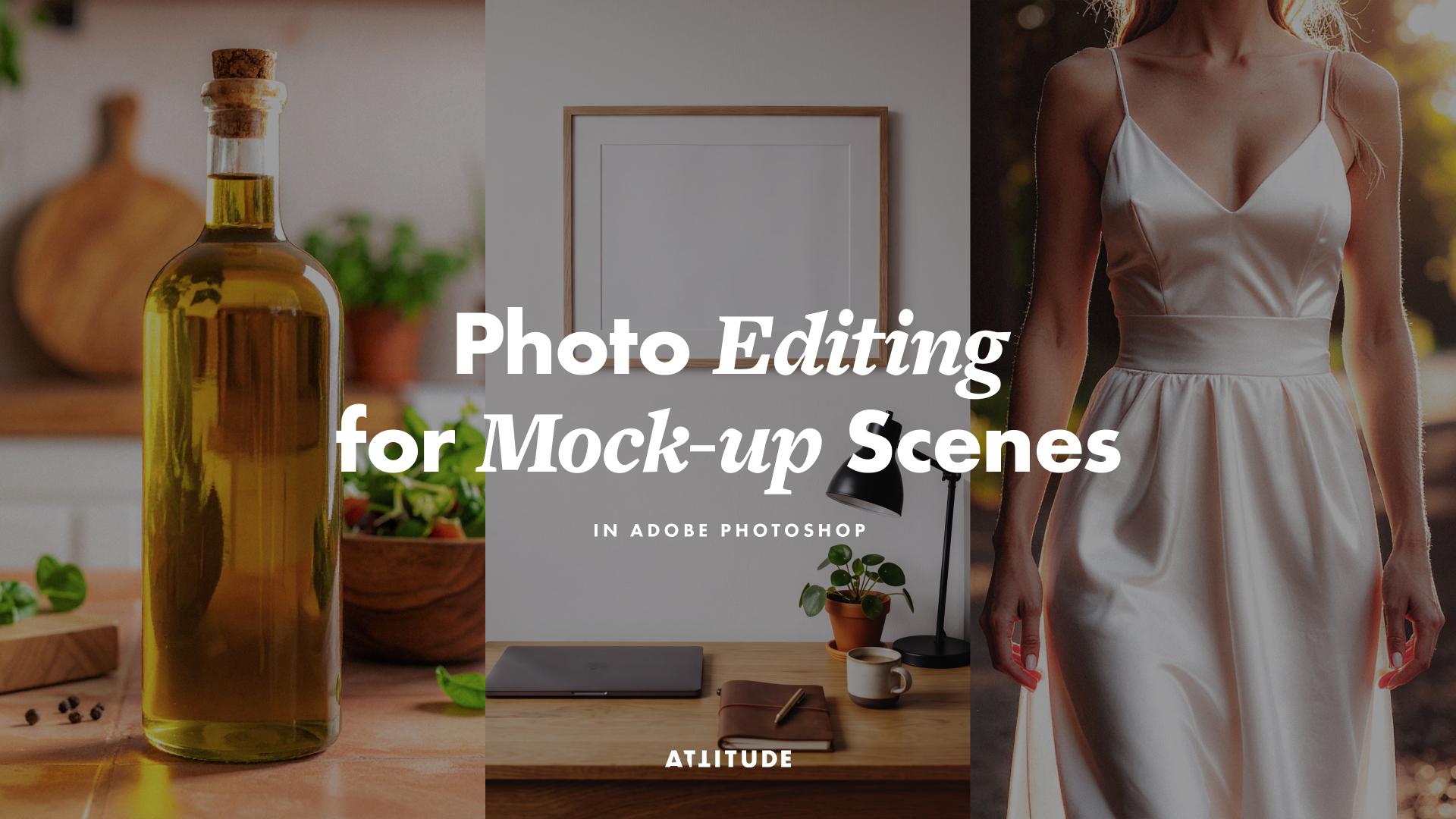
1. Introduction & Class Overview: Whether you create
your mockups using real digital photographs or photorealistic AI
generated scenes, you can often find
the base images looking a bit off in terms
of the colour temperature, saturation, or sharpness or simply lack in depth of the photographic
character you're after. But luckily, there are a few simple adjustments
you can make in Adobe Photoshop to make your
mockup scenes more lively, engaging and better aligned with the overall aesthetic
and be of your work. Hey, guys. I'm Jen from
Artistic Creative, and as a graphic designer, I often find myself creating mockups for various
design projects, digital products, or
surface patterns. I moved beyond boring
generic mockups a few years ago when generating unique images with AI became a viable alternative, and I share my workflows
and techniques for creating realistic lifestyle mockups in a series of the classes
on this subject. And in this short class, I'm excited to share with you my favorite workflow for elevating the loop of
photorealistic mocrap scenes, using a few super simple
photo editing tools in Adobe Photoshop. This class is not about complex photo editing or making drastic changes
to your images, and we have a separate
class on that subject, but rather it is about applying subtle adjustments and fixing common issues you might come across when creating
mockups using AI generated images and unedited or lightly edited
digital photographs. So if you create
photorealistic mockups for projects new portfolio, client presentations or simply to share your work
on social media, join me in this class, and let's give you mockups a little more photographic
character. But
2. Getting Started & Your Class Project: Technically, you can apply the
following adjustments when editing any kind of digital
images and photographs. But in this class,
I will be covering specific tips and issues
that you might come across when creating
photorealistic lifestyle mockups using AI generated scenes or not strongly edited
digital photographs. For your class project,
follow alone with the class, edit any mockup scene you
have created in the past, and share the results in the project section
for this class. It is always exciting to see how images evolve
through photo editing. Be sure to document
the stages of editing after applying different
adjustments I'll be covering in this class and
share them together with the original image and the final edited image
in your class project. If you need some ideas
and inspiration about how to document your process
and present your project, be sure to check
out my project in this class where I have
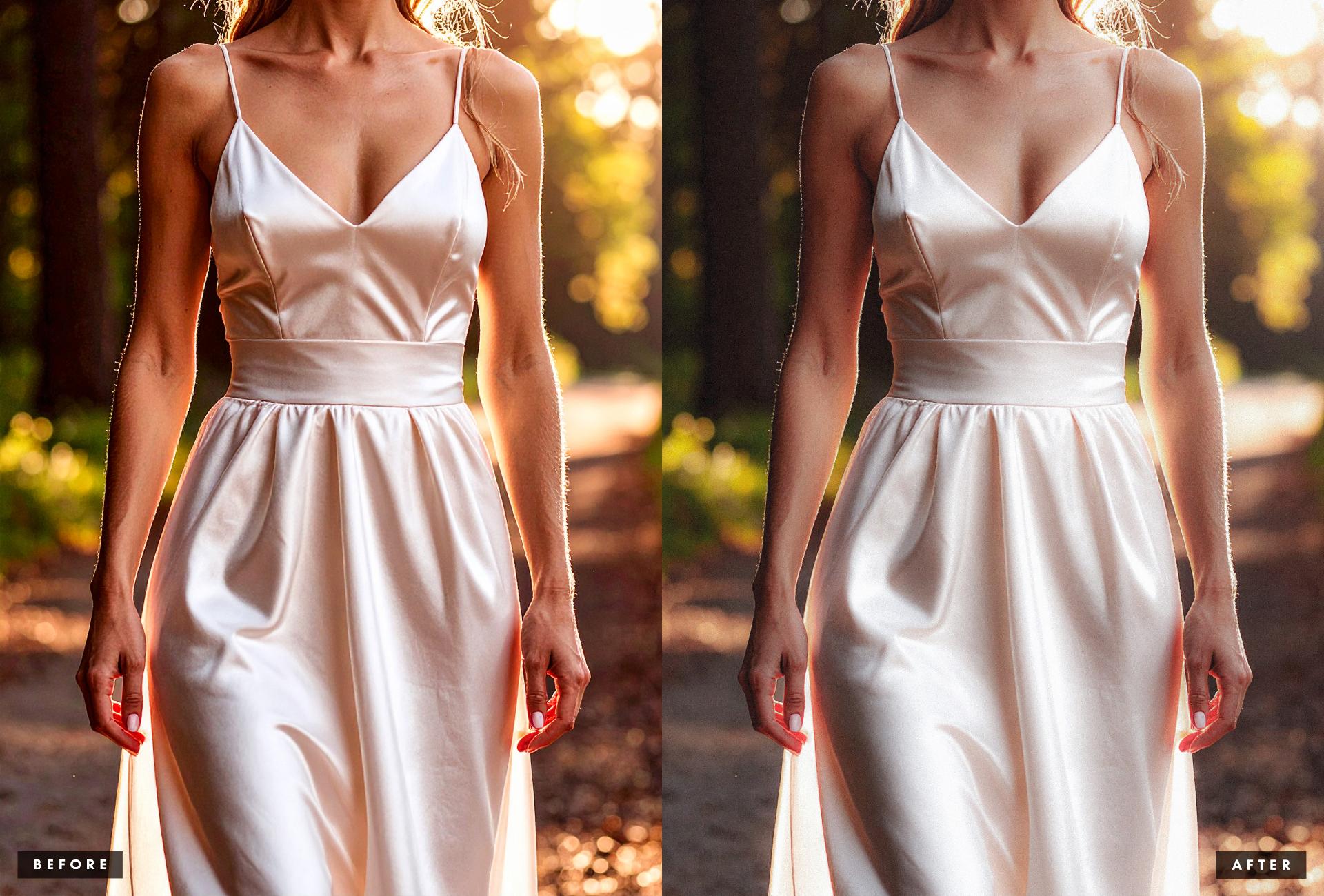
shared a range of examples of how editing helps to elevate the look and even overcome
some graphic issues. You can work with your
original mockup scene image with a single image
layer in your document, or you can work in the
Photoshop document that already contains
your mockup layers. In this file, I will
be using in my demo, I already have my mockup
element folder here, so you could see how to apply
your adjustments around the design elements in a practical non-destructive
mockup document. But I'm going to hide
this folder for now, so it doesn't distract us
when editing the base image. If you are going to be using a setup mockup document as well, be sure to group and hide all of the design layers
that are not part of the actual scene so that you
can concentrate on editing the actual image without worrying how the
design blends with it. In any case, open a Mocap scene, you want to edit and
let's get started.
3. Fine-Tuning Colour & Improving the Mood: A common but not very
apparent problem with digital photographs, and AI generated images is the colour temperature
and vibrance that can make your images
look flat and sterile or too warm or too cold. Even if your image looks right
as it is at first glance, it is worth playing around
with the temperature, tint saturation and
vibrance to see how you can enhance the colors and change the character
of your image. To make the adjustments,
non-destructive, go to the add new fill or
adjustment layer button in the layers panel and
select color and vibrance. Make sure that this
adjustment layer is above your sin layer, and you should see these sliders
in the properties panel. Here you can adjust
the colour temperature to make your image
warmer or colder. And this is the first thing I recommend playing around with. You generally won't need to
make drastic changes unless the image has a
strange colour cast if you're working with
an actual photograph, that was shot in
unusual lighting and hasn't been corrected. So just slightly move the slider and see how
it affects your image. Then what helps you
create a better mood? Generally, warmer images
feel more inviting, which works particularly well here because we are
working with food. On the other hand, colder images can feel cleaner and work well for things that need a more technical or
slightly grittier look. Even tiny changes to the colour temperature can
help to enhance your sin, to make it work better with the product you are showcasing. In this case, I'm going to shift the temperature slightly
towards the warm side. Apart from the temperature, here you have the
tint adjustment, which allows you to add a little bit of green or
magenta to your image. Tint works together
with temperature and helps you further fun in
the overall white balance. In this case, I
am going to shift the tint slider
evasol slightly to the right to add a little more magenta
and enhance the warmth. Tint is a very useful tool for compensating for any unwanted
colour cast in your image, which is particularly visible in the white and
neutral light areas. If you see too much magenta, you can add a little green, and if you see too magic green, you can add some magenta. This will make your image look considerably more pleasing. Then you have vibrance
and saturation. Saturation is a fairly
straightforward tool that adjusts the overall
saturation of the image. Vibrance, on the other hand, has a more subtle effect and affects the less saturated
colors in the image. And this makes it particularly useful when you
want to fine tune the colors without making the whole image under
or over saturated. In this case, I'm going to
use both of these adjustments together and lower
the saturation slightly to make the image
feel a little more natural, but at the same time, increase the vibrance to make
the colors pop a little more but the way you work with these layers will depend on the image
you are dealing with. For example, if you
are working with an image containing
people and skin tones, you might want to lower the vibrance and increase
the saturation to achieve a more natural look
in skin tones whilst preserving all other colors
and not washing them out. So you need to play around with these two sliders
in relation to each other and see how they
affect your particular image. In most cases, when working
with these four sliders, you only need to make
tiny adjustments to fine tune the overall
color and mood of your image. And you can quickly check
the effect they're having on your image by toggling the visibility of this
adjustment on and off. Here. For example, in this case, the image now looks
a little warmer, retains the nice green
color in the greenery, but has a slightly
reduced saturation in the terracotta colors that makes it look a
little more natural. So be sure to use the color and vibrance adjustment to tweak the colors in your image and fine tune the look and
feel to your liking. Next, let's have a
look at how adjusting the sharpness in
definition can help you add a more realistic
photographic character to your image. A,
4. Softening an Overly Digital Look: Another common issue with any
kind of digital images and particularly anything
generated using AI is the level of
sharpness and clarity. Even if at first glance, everything looks right, when you look closely at your image, you might notice that it is
a little too sharp or has an overly processed
look to make your image look more lively and realistic and more akin to a high
quality photograph, you will need to carefully reduce the sharpness
and definition. To do this effectively and
non-destructive, again, go to the add new fill or adjustment layer menu and
select clarity and dehaze. Again, place it above your sin layer and your color and vibrance
adjustment layer, you will see the clarity and the haze sliders in
the properties panel. To make your image
look a little softer, you will need to reduce
the clarity and how much you reduce it by will depend on the image
you are working with. If you reduce it too much, you will definitely notice
the effect and the image will start to look wet and you
don't want to go that far. The goal here is just
to eliminate some of the harshness and overly
processed appearance. In this case, somewhere around
-40 works quite nicely. It allows to reduce some of the harsh high contrast halos around the edges of the
objects and colors, but at the same
time, we don't lose any details or introduce
any blurriness. So around 30 or even 35 is probably the maximum amount you might need to
reduce the clarity by. And if you are working
with an image that doesn't look quite as
sharp or processed, you might only need
to reduce it by two to five points to make the image feel slightly softer. After reducing the clarity, you can further fine
tune the lock using the deha slider and
slightly shifted to the right to bring
back a little bit of the local contrast that you
lose when reducing clarity. Basically, the haze
works by boosting the local contrast and
reducing the hazy washed out appearance of the image that allows to enhance the
tunnel and color depth. And you only need to
increase it by a few points, for example, like this. Use the clarity and
the haze adjustment to fine tune the appearance of your image and make it feel a little softer and less
digitally processed. Next, let's explore how you can further
develop the look of your image by making tunnel
contrast adjustments.
5. Adding Depth & Tonal Contrast: Working with the
dehaze adjustment I covered in the
previous lesson, to a certain extent,
will allow you to adjust the tonal
contrast in the image. But to add more depth and
character to your image, you can make a few super simple and subtle
curve adjustments. So go to the Ad new fill or adjustment layer menu
and select curves. Place your curves adjustment above the other
adjustment layers, and in the properties panel, you will see the curves
graph and histogram. When you're working
with an image in RGB color mode in the
bottom left corner, you'll have the black point, and if you start
lifting it vertically, you will be fading the
blacks in your image. If you move the black
point horizontally, you will be changing which tones in your image become black. You can use these
two movements to control the depth and
appearance of the darker tones. For example, if you lift and move the black points
slightly to the right, you both fade the blacks and make more of the
shadow tones darker. Don't overdo it, but making a subtle adjustment like
this can help create a filmic look with a
bit more depth and character in the darker
areas of your image. In the top right corner
of the curves graph, you'll find the white point. If you move this point down, you'll make the
brightest areas darker, which will make
the image flatter. And if you move it horizontally, you will make the
lighter areas brighter. When working with
the white point, be careful and pay
attention to the histogram. If you already have image information reaching the right hand side
of the histogram, avoid moving the
white point along the horizontal axis
because you can start blowing out
the lightest areas. But if there is no
information reaching the edge and your image
is slightly underexposed, you can move the white
point to the left until it reaches the point where
the information starts. In this case, I'm actually going to leave the
white point as it is. Apart from working with the
black and white points, you can add additional points to the curve to control
specific tonal ranges. For example, you
can add a point in the middle to control
the mid tones. If you leave this point
above the diagonal, you will make the mid tones and hence most of the image
a little lighter. If you move it
below the diagonal, the image will become darker and the colors will
generally feel richer. In this case, that's
what I'm going to do to add a little more depth and
character to the image. Next, you can also add a point in the lighter
areas of the image. Again, if you move it upwards, you'll increase the brightness
in the lighter areas. And if you move down, you will make these tonal areas
slightly darker. In this case, I'm just going to gently shave this point upwards. You can also move each point
along the curve to target slightly different tunnel as to see how this affects the image. Experiment and play
around with the curve, but always keep an eye on the brightest areas to make sure you're not blowing
out any details. You can also add a point in the shadow areas
to either deepen the shadows or leave them to
create a more faded effect. Gently nudge the
points around and fine tune the overall look of
your image to your liking. In this case, this
particular curve allows me to gently
make the image feel deeper and slightly darker in terms of the overall
tones and colors. But for example, if you need to increase the
contrast in your image, you can add two or three
points to the curve and create a simple S curve by lifting the lighter areas and
lowering the shadows. In my editing, I most often use gentle S curves
and faded blacks. Generally, adjusting the curves
is a very visual process, do not be afraid to experiment. Here is how these three
different adjustments affect the image together. Because the curves
adjustment also affects the intensity of
the colors in the image, now you might need
to go back and fine tune your color and
vibrance adjustment. For example, in this case, I am going to reduce the
saturation eva so slightly and also reduce the
vibrance a little just to make the overall
image feel more natural. Adjusting the wide balance, vibrance saturation, definition, and tonal contrast
should already enhance the photographic character of your image and make it
look more interesting. In the next lesson, we'll
be finalizing the look by adding subtle film
grain to the image.
6. Adding Film Grain for Photographic Character: The final simple adjustment
that can transform and elevate the character
of your image is photographic grain. This is something that works
more on a subliminal level, making the viewer perceive
the image as real because of the visual properties
characteristic to traditional film photographs. To add grain, again, go to the add new film or adjustment layer menu
and select grain. You will want to keep
this grain layer above your image and all of
your other adjustments. And when you're
creating your mockup, make sure you place
the grain layer above all of your design layers. For example, I'm
going to place it above my mockup folder here. It is important that
the grain adjustment is at the very top of your layer stack because it must affect the entire image
and unify the look. With the grain adjustment added, select the grain
adjustment layer thumbnail and in the properties panel, set a tap to your liking. Start by increasing
the amount to around ten just to see how it
affects your image. But the exact amount you need
will depend on your image. So you might want to
increase it a little more if you want a
stronger grain effect. Strong grain like this
can look great and give the image a
nice filmic quality. But that said, it
might not be ideal for mockups because it
can look destructing. And you just want enough
grain to add a little texture without affecting the details of your image and your
design mockup. The size of your grain will depend on the size
of your image. Experiment and see what
works best for you. A setting somewhere 25-50
will usually work quite well and create grain that is visible without being too
obvious and noisy. Finally, you can
adjust the roughness. Increasing the roughness adds more variation to the grain, making it look a little more
organic and at this point, it also becomes more visible. If you reduce the roughness, the grain becomes a little sharper and more
uniform instead. So experiment with roughness and find a look that works
best for your image. I usually like setting
the roughness somewhere 50-75 to create a slightly rougher
and more organic grain. After you have changed
the roughness and size, you might want to
go back and adjust the amount and reduce
it if necessary, to make the overall
grain feel more subtle. Finalize the look
of your grain and aim for the settings
that allow you to add a little more character
to the image and make areas of consistent color and tone a little
more interesting, but without negatively affecting the details and general
quality of the image. Unlike most of other
texturing techniques, the grain adjustment
doesn't require any blended mold
changes because it is blended with everything
underneath it by design. Just remember to place it
above all of the other layers and you're done. Um
7. Final Thoughts & Conclusion: So let's sit for a few
super simple adjustments. You can apply to your
mock scenes to elevate the look or fix
some minor issues. As I have mentioned in the
very beginning of the class, these techniques are
meant for making subtle changes to your
images to make them better, match the vibe of your work, and have the photographic
character you're after. But if you want to take your color editing
a little further, do not hesitate to check out our class about advanced
color editing techniques. While this class is focused on using Adobe
Lightroom Classic, you will be able to follow
alone using the camera filter available in Adobe Photoshop as it has most of
the same tools. If you want to learn
how to generate photorealistic product or
lifestyle scenes and then turn them into
non-destructive versatile print product and packaging
mockups in Adobe Photoshop, be sure to join me in my
classes on these subjects. All of the examples
you have seen in this class were created
following the workflows, I teach in these classes, and if you don't have your own photorealistic mockup scenes to edit for your class project, do not hesitate to quickly
generate them using any of them templates from
either of these classes. I would be super excited
to see how you transform your mockup scenes using the techniques I have
covered in this class. So be sure to share
your experiments before and after
images and any work in progress in your project in the project section
for this class. And if you're going
to share your work creative in this
class on Instagram, please tag us at
Attitude Creative in your posts so that we can easily discover them and share your work
with our followers. And that's it for this class. If you have found it helpful, please leave a review in the
reviews tab for this class. It really means a lot to us and helps students
discover our classes. If you have any
sort of questions, be sure to leave a comment in the discussion stub
for this class, and I'll haply answer
and provide feedback. And be sure to follow us
here on Skillshare to be the first to know about our
new classes and updates. Thank you for
watching this class, and I hope to see you
in our other classes.
 Evgeniya & Dominic Righini-Brand, Graphic Design & Photography