Transcripts
1. Intro: Imagine creating this, this in just an hour notion
formulas may seem daunting, but with the right guidance, they will become your best
ally in a short time. Hey, I'm Krystal Man, a seasoned notion power user. Having empowered over 1,000
students with notion mystery formulas and notion not only
help with calculations, but also unlock a
lot of fund stuff. Make it easy to
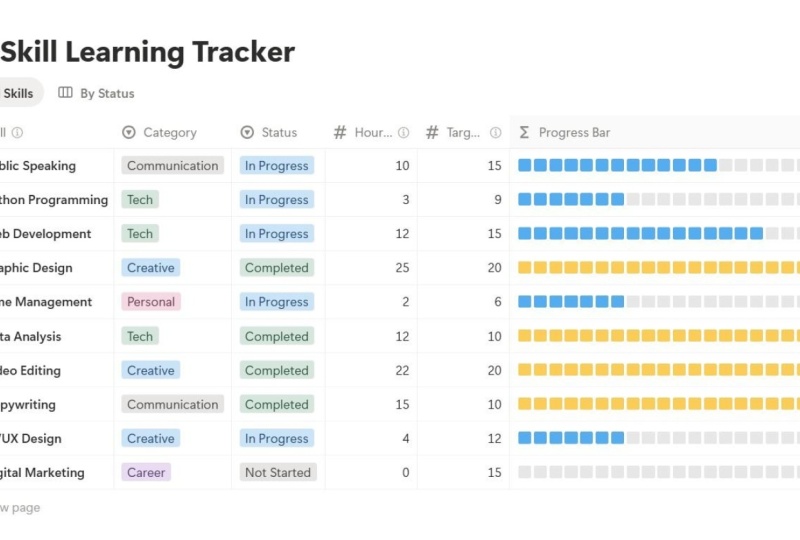
grasp the essence of information or quickly assess a particular status at a glance. Sometimes I build really
complex visualizations. And in this class, I will
share my experience with you and guide you step by step in building a
progress bar formula. So that you can start revealing
the full potential of notion from tracking income to visualizing
project completion. This class empowers
you to transform your databases into
visually engaging tools. We will explore the formulas
to understand how they work, how to use the formula editor. Together with the most useful
functions and operators, we'll focus on constructing
a progress bar formula, delving into the
underlying logic, and providing you with a step by step guide for crafting it. I will also share
my best practices on building self explained
reusable formulas. By the end of this class, you will not only have a solid understanding
of notion formulas, but also possess a reusable
progress bar formula ready for quick adoption
in any of your databases. Join in this class to master notion formulas and
elevate your workspace.
2. Class Project: Class project. We
are aiming to create a reusable and easily customizable
progress bar formula. We'll create a simple
income tracker and add a progress bar to it. If you already have a
database and your notion workspace that you would love to upgrade with
the progress bar, then go with this database. Or if you're not
sure, start with the income tracker as
the class project. After we build the
progress bar formula, I will show you how
you can use it for your other notion
databases, quick and easy. Anyway, feel free to ask questions in the discussion
section if you need help. Okay, let's start.
3. Setting the Stage: Welcome to our first
hands on lesson. Here we will create a system for tracking income and
fill it with some data. This sets the stage
for the exciting part, building a cool progress bar in the upcoming
lessons before we jump in a quick reminder that instead of income
tracking system, you can use one of
your existing notion databases that you want to
upgrade with the progress bar. Just remember that this database should contain
measurable numbers. It may be project database with amount of completed tasks, sum of expenses in
the budget system, or even your sleeping tracker with log of your
daily snows hours. Grab a database with
numbers that matter to you. Stick with the income
trackers that I offer. Here is the class
project and let's elevate it to a new level
of visual excitement. Okay, it's time to open
an ocean workspace. Let's add an empty page where we will place
the class project. Use the plus button in the left menu to add a fresh
page to your workspace. Give it a name like income tracker and hit
that empty page label. Now let's add a new
database type slash to open up the blocks. Then type data To
find the one we need, click on the table view and
hit the new database label. Awesome. Our new
database is created. Let's give it a name income log. In my case, we will use the name column to
store months names. We don't need text, I suggest to delete it. Let's add a date column
so that we could sort the records based on
the months start date. Now let's bring in a number
column to log income. Start it with your preferred
currency formating. Go for number with coma. If your currency isn't listed
and I'm choosing Euro. Now let's add a gold
column to store the desired amount of
income for every month. I duplicated the income column, renamed it, and I don't have
to set the currency format. This setting is already here
because of the duplication. I also prefer to hide
the database title. You can always get it
back in the settings. Let's rename the database view
and give it a proper icon. And if you prefer, you can also set an icon for the whole page. All right, time
to add some data. I'll make a year
log for 12 months. I will add in by the start
date in the dissenting order. And I will range
income 2500-6000 eros, a very positive case with income more than
doubled within a year. And I will set the gold
values from 40006000 eros. Okay, we're done here. Now it's time to take a
closer look at progress bars.
4. Step-by-Step Guide: All right, it's time to start
building the Progress Bar. We will start from unraveling the logic which
stands behind it. And learning the step by step process that you can apply
to any of your databases. To upgrade it with a nicely
looked progress bar. The progress bar
visually indicates how close you are to reaching
a specific milestone. Depending on your context, this could represent completed
tasks in your projects, expenses from a budget, or any other measurable goal. And what is universal
here is that the top point represents
100% of something. The progress done can be transformed to the
percentage as well, like if you have 12 tasks
to be done in your project, three completed tasks
can be translated to 25% of the project progress. In notion formulas,
we don't have some visual editor to draw the bar for custom
progress bars, but we have all the
images at our service. You can use squares, circles, stars, or
whatever you like. For the class project, I will choose a pair of squares. Here is a list of steps to pass when you are building
a custom progress bar. Step one choose
what you measure. Usually it will be a column with a number amount of
completed tasks, sum of expenses, sum of check, check boxes, or anything
else in the class project. It is the income column. Step two, what is the top value of 100% for this measurement? It may be another column
with a number times. You may hard quote the values
straight into the formula. In the class project,
it is the goal column. Step three, decide the
bar lens, the easy one, The longer the bar, the more detailed is the visualization. Standard length is ten squares or other mg of your choice. But for the class project, I will use 20 the
bar lens. Step four. Build or use the progress
bar formula with the values from the
previous three steps, okay? As you can see, the first
three steps are quite simple. We figured them out already. In the rest of this class, we'll take care of
the first step, building the progress
bar formula. The beautiful thing
here is that we will build the formula
once and you can re, use it for any of your
databases whenever you need it. Thus, upgrading
your database with a progress bar will become
a minute loan task. In the next lesson, we will take a closer look at what are
the formulas in notion.
5. Formulas Overview: Welcome back. In
this lesson we will talk about what
notion formula is. Formula is one of the
notion database properties and it's indispensable
when you need to take values from other
database columns and transform them in some
way. You might want to in different currencies or
transform minutes to ours or concutonate several
columns text to get a summarized description
of the whole record. Of course you can create a custom progress bar with
formula if you are not satisfied with native
progress bars In notion of course we could do all those calculations
by ourselves. Getting back to the example with convert and
minutes to ours, I could feel the values
for every task manually. First of all, I would have to do a lot of tedious
additional work. But what is more important, if at some point I
realized I had made a mistake and then corrected
the time and minus, I would have to remember to change the corresponding
hours value. As a human, I could just forget to do the corrections
at some point. And eventually my
records would contain contradictory data
dealing with formula. You construct it once and
it immediately starts to work for all your existing
and future database records. Obviously, you have to
instruct notion which exact calculations and data transformations should be done. There is a special
language for this purpose. It's time to take a look
at the formula editor.
6. Formula Editor Overview: I'm delighted to
welcome you back. In this lesson, we will
explore the notion formula property and take a look
at the formula editor. I will add a new
formula column to our project and open
the formula editor. This area is for
typing your formula. Below this area, you will
find a lot of useful stuff. The list on the left contains all the columns available to
be mentioned in the formula, together with all the functions. Once you start typing, the list gets filtered to only show you the
matching options. You can use your keyboard to navigate through
this list and hit Enter to incorporate the option you selected into your formula. Note that if you stay on a
function notion provides you with short explanation
of what this function does, along with some examples. You can mention other
columns that you have in your database to make
some calculations. You can use the same
arithmetic notation that you have in
your smartphone. Calculator plus sign is used
not only for summon numbers, but also for
concatenating strings. You can see the result preview
right below your formula. Sometimes you will see the
error message that gives you a hint of what is wrong
with your formula. Note that if I mention a
column for every formula cell, the value is taken
from the same row row Notion database is rather a separate document that a bunch of cells you can
open it and see as a separate page with
all the properties that you see as cells
in the table view. You can get values from
other rows and even from other databases with the help
of the relation property. But this topic lays
beyond our class scope. Well, that was the
basic overview of the notion formula editor. Now you know where you
can find a list of all the supported functions
with the short description. We've learned how to do basic
arithmetic operations and create new strings with the data stored in
other database column. Study and start building
the progress bar formula.
7. Core Function for Progress Bars: repeat(): Welcome back. In this essen, we'll start building the
progress bar formula. All right, let's rename the formula column
to progress bar. And delve into the fundamental
function for creating custom progress bars and
notion, the repeat function. Every function and notion
consists of several parts. Function name, which
uniquely identifies which exact operation or data
processing should be done. Every function is
followed by a pair of parentheses and we have arguments placed inside
of the parentheses. Sometimes there is no arguments, but anyway you have to place parenthesis right after
the function name. This is how notion
understands that you invoke a function repeat
function duplicates the specified text piece in the first argument as many times as you indicate in
the second argument. Thus, you will get a string consisting of
repeating segments. Let's copy this
last example with purple square to
our formula column. Note that I use quotes
for the square symbol. It is important to use quotes when you mean a text
piece, a string, because that is how notion
understands that you mean a string and not a number
or some other data type. As you can see, we've got
a progress bar here which looks like a line of seven
purple squares for every row. Currently, there
is no connection between the bar lens and the income value because
we use hard coded seven here instead of the
appropriate calculations. We will fix it later as long as we can concatenate strings
with the plus sign. Let's add to this yet
fake progress bar, a tail of three D squares. This is basically how the custom progress bars
in notion can be created. We only have to figure out the calculations to replace
the hard coded numbers with, so that the progress bar lengths connects to the values
in the income column. Okay, now we know the
main function to build progress bar formulas and in the next class we'll do
some further exploration.
8. Organize Your Formula with lets() Function: Hi again. In this
lesson we will do some prerequisites to continue with the progress bar formula. We will talk about
best practices to organize your formulas so
that you could easily read, reuse, and update them. First of all notion added the possibility to create
multi lined formulas. Shift with enter to
go to the next line. The tab is also available, thus you can organize your
formulas the way it's best readable for you instead of having it all meshed together. The next cool thing is possibility to add
comments to your formulas. Place your comments within
these two ties with asterisk to add nodes for the most tricky parts
of your formula, I will revert the
changes and it's time to talk about
another very cool notion, function, the Lets function. This function allows to assign shortcuts for some
values or calculations. These shortcuts are
named variables. Often you will need to do the same calculations several
times in your formula. With the less function, you can do the calculation once, store the result
into a variable, and then use this variable
across your formula. The less function allows to add as many variables
as you need. Just remember to always put a value pair for your variable. The last argument is
always considered to be the expression that builds the result of the
whole function. Let's see how it works
on practice to do this rub formula with
the less function, it works right away. Currently using
the less function doesn't make a lot
of sense because we only have expression here and we haven't created
any variable yet. But soon we will change it. One of my best
practices working with this function is to arrange it this way, separating
the expression. I also put a common
saying output, because in our case, this expression
builds what we will see as the output in
this formula column. Let's arrange some free space
for the variables that we are going to have here and
add a common variables. These comments are
absolutely optional. If they make you more confused, instead of helping, just
don't use them for me. They help to see the
structure of the formula and find quickly what I
want to change or fix. Okay, time to add
our first variable. Let it be the bar lens that
we have already defined. I'm setting it to 20. It is important to
remember to put commas right after a
variable name and its value. Cool, we have our first variable and now we can use it within the expression as the amount of white squares depends on
the amount of purple ones. Let's replace three with bar lens minus seven as we have seven
purple squares here. Now it's a little
bit more dynamic, but seven is repeated
two times here. If I decide to
change it to four, for instance, I will have to do it twice, which is not good. It's better to
store the value for the prople squares in a
separate variable as well. I will name it Field Segment
to highlight its relation to the bar segment filed with
color and set it to seven. Later in this class, we will
change the hard coded value to proper calculation to
connect it to the income value. Now we can replace
the hard coded values in the output expression
with this new variable. In addition to
hard coded values, we can assign some calculation
expression to a variable. Let's move the calculation of the tail lengths to a
separate variable as well. I will name this
variable tail segment. Note that you can refer to a variable only after
its definition. If I place tail segment
variable before the field segment notional
will show the error. This is how less function works. Pairs of variables with their values followed
by the expression. And we have to be very
careful with commas here, not forgetting to put them after variable names and their values. Okay, we have our formula
prepared for the next lesson, where we will finally connect the proper segment lengths
with the income column.
9. Progress Bar Formula Logic: All right, now that we have all the prerequisites and now all the essential
functions needed, it's time to unravel the logic behind the
progress bar formula. Let's revisit the
progress bar Animation. The progress bar comprises
a specific number of purple and y squares or
other images you choose. This quantity is determined by the variable bar lens and it remains constant for all the
records in the database. I said bar lens to 20. For all my months,
the progress bar lens will be 20 squares. Our task is to determine how many purple
squares have to be shown and how many y squares are needed to fill the
remaining gap if necessary. But how do relate the amount of squares to the income amount? We need to translate
everything into one language, the language of percentages. Suppose my income in a
certain month is 2,500 years, and the goal was 6,000 years. Meaning the income was
75% of the target. So we need to draw 75% of the parlance with
purple squares. Let's explore how the
calculation will look like. Here you have just seen
the percentage formula, which is commonly known, divide part by whole
and multiply by 100. The part is income in my case, and the whole is
the income goal. This is how we
calculate the percent of the part done
towards the goal. Also, this is the percent of the bar lens to be built
with prop squares. Another formula that we need
here is the formula that allows to find the amount when you know the total
and the percentage, convert the percentage to a decimal by dividing
it by 100 and multiply the decimal
percentage by the total amount and
we know the total, that is bar lens variable, or 20 in my case. And we've just calculated the percentage 75% for the
example that we have here. Thus, we've got the
calculated amount of purple squares to be
shown, that is 15. Calculating the number of
white squares is easy by subtracting the
obtained quantity of purple squares
from the total lens. Now it's time to add all these calculations to the progress bar formula editor. First we have to write down the calculation for the
progress percentage. Let's place it right after
the bar lens variable. Name it percent and use
the percentage formula. Dividing the income value by the goal value and
multiplying by 100. Now we can finally replace
the hard coded value for field segment with the
calculation to make it dynamic. Divide progress
percent by 100 to get decimal and multiply the
result by the bar lens. We already have calculation for the tail segment and
the output expression. Everything works right away. Awesome, we did the
trickiest part. You can see how the bar lens now reflects the income value
for different months. Bar seems to have additional
squares to fix it, we have to round the value for the field segment variable to make it always be an integer. To do this, rub the whole
calculation expression with parenthesis and add the
round function in the end. We need parenthesis
here to highlight the notion that we want to round the whole
calculation expression, not just the last
variable in it. The round function rounds a numeric value to
the nearest integer. Alternatively, you can use the
floor or seal functions to round a value to the closest lower or higher
integer respectively. We still see
additional squares for the income values exceeding the corresponding gold values. This is the topic for our next lesson where we
will talk about edge cases. Now perhaps you'd like to add the percentage value
after the scale. As you can see,
it makes sense to round the percent value as well. Oftentimes, it's better to use a measured value
instead of percentage. For example, I could
add income of gold. Note that you have
to add explicitly all the white spaces
that you want to see in your formula output. By the way, you
can easily adjust the bar lens by changing the
bar lens variable value. Because we have all the
values properly connected, the bar of new lens
is created right away without any
additional changes needed. The formula is most done. Congratulations, wrap up will add some small adjustments
in the next lesson to cover the edge cases like empty progress values and
values exceeding 100%
10. Edge Cases: Okay, let's start by eliminating extra squares
for the exceeding values. Here we utilize one of Notion's most useful
functions, the function. The function alters
the formula output based on a given condition. The first argument is a condition which means
we pose a question here that can only be answered with yes or no, true or false. In other words, we place the instructions for
the true case as the second argument and for the false case as
the last argument. Notion will execute instructions from either the second
or the last argument, depending on the answer
to the question in the first argument notion
will never execute both the second and the last
arguments instructions. It will always run
only one of them. Sometimes you may want to
set more than one condition. That's our case as we are going to address two
edge situations, exceeding and empty values. For such cases, we can use an upgraded version of the
function called if's function. It works the same way, with the only difference
being that now you can include multiple pairs of conditions or questions with instructions for
their true cases. This is very similar to the last function that
we already know from the previous lessons
notion will check the conditions one by one in the order that we placed them. Once notion sees that
a condition is true, it will execute the
corresponding instructions even if several
conditions are true. Notion will only process
the first of them. If none of the
conditions is true, notion will execute the
expression in the last argument. Now let's explore
how we can apply this function for the
progress bar expression. If the income for
a specific month succeeds its corresponding goal, I want to display 20
proposed squares. Otherwise, I want our existing
expression to be executed. We already have
the last argument which is our
existing expression. I will wrap it up with if function adding placeholders
for the missing arguments, condition for exceeding value, and expression to
show 20 squares. You don't have to use
these placeholders. Obviously they
break the formula. I only use them for
explanation purpose. And soon I will replace
them with real expressions. To create a condition, we will use the
greater than sine. We already have the
percent variable, and now we can
check if it exceeds 100% using the
greater than sine. Okay, The condition is
done and now it's torn. For the conditions correspond
in true case where I want to create a string
of 20 purple squares, we need to use the
repeat function here. The value 20 is already assigned to the
bar lens variable. I will use it here instead
of the hard coded value. Remember to put commas after all the conditions
and true cases. Okay, let's check
out the result. Obviously, I forgot to
add this number part. I will just copy it
from the false case. By the way, you might want to consider changing the emoji
for the exceeding case. For instance, I will
use a yellow square for cases when income
exceeds the goal. Okay, Now let's take a look at another edge case when the
income or goal value is empty. First, let's observe how the bar looks when
income is empty, when goal is empty, when both are empty. As you can see, there are bars that don't make
a lot of sense. I would like to add
a new condition. If one of these two
columns is empty, I want the progress bar
property also be empty. Okay, Let's start
updating the formula from adding two nucleus
holders for a new condition and its true case
goal or income is missing for the condition and show nothing
for its true case. Let's start from the condition to check if a column
is missing a value, use the empty function, add it to a column name. After a dot, remember to
add parenthesis In the end, this expression returns true if the value is missing
and falls otherwise. Let's do the same for the
income column by adding the Or operator following
the same check. If I wanted to cover the case where both income and
goal are missing, I would use the end operator. But now we need, or, okay, we're done with the condition. And now let's address
the true case. It's an easy one. Used to quote, to designate an empty stream. Okay, let's check the result. Great. As you can see now
the bar cells are empty. If there is no goal
or no income set. By the way, you can use a message instead
of an empty string. If you prefer,
we're almost there. And to finish the lesson, I will share a very useful tip for working with numbers
in Notion formulas. See what happens if I add zero
to income or goal columns. Notion still considers
these cells to be empty. This is how the empty
function works for numbers. It considers zero
as an empty value. Sometimes it's
okay, but not here. If I had a really bad month with zero income and
goal of sum value, I would prefer to see a bar illustrating that there is
0% of goal accomplished, not an empty string. There is a trick to adjust
the empty function behavior. Translate the number
to a string with the format function before checking it with
the empty function. Thus, the empty
function will work with a string containing one symbol instead of the number zero. Empty will return true only if there is no value
set in a cell. Well, we are very
close to the finish. The only thing left is
to explore how you can reuse this formula for any
of your notion databases.
11. Reuse Your Progress Bar: Welcome back. We are
on the finish line. The formula is ready
and in this lesson, we will learn how
you can reuse it for any database in
your notion workspace. First of all, let's do some
prior arrangements that are very helpful with any formulas that you plan to
reuse or update. This is another best practice that I wanted to share with you. It implies moving the main
influential variables to the very top and separating them from
other variables with common settings for us, such variables are bar
lens progress values stored in income column, and top values stored
in goal column. Actually, exactly these
three variables are mentioned in the step by step guideline for
adding a progress bar. All the following
calculations are universal. While these three define
what exactly we are going to measure and how detailed the progress should
be visualized. Because we already have
the bar length variable, I will simply move it
to the setting section. Income and goal columns have
to be assigned to variables. As we haven't done it yet, I will add a variable done for the income column and a variable
top for the goal column. By the way, if I only
type a column name notion doesn't transform it automatically
to a column reference. As you can see, the
goal column reference here is not highlighted
by gray color, which means it's
not a reference. To transform it to a reference, I have to explicitly choose the option from the ones
suggested by notion. Here we have one option, goal, and click on it, or hit
Enter button, okay? Now I have to replace
all dimensions for the income and the goal columns with newly created variables. Okay? All the necessary
prerequisites are done. Now let's see how you
can reuse this formula. I have a database for
track and sleeping hours. It already calculates
the difference between bed and wake up time. And I know that my goal is to sleep for 8 hours every night. To add a progress bar, I have to create a
new formula column, copy the progress bar formula, and update the setting section. Let's refer to the step by step guideline to
make it easier. The first step, we have to
define what we measure. Actually, it's a value
for our variable. In the context of this
sleeping tracker, I'm going to measure the sleeping hours I assigned
to the Don variable, the calculated
sleeping hours value, which is stored in
sleeping hours column. On the second step, we have
to define the top value. My target here is to
sleep for 8 hours. I put eight at the
top value here. Let's set the bar lens to 16. Thus, every square
will stand for half an hour, easy, right? I would prefer to
change the images here. By the way, if you want
to learn how to calculate the difference between
that and wake up time, visit my other class for building automated routine
tracker in notion. Sometimes you will
have a percent value stored in another column, like in this example
with projects, and the percent of
completed tasks. In this case, you could
assign percent value to the done variable and set
the top variable to 100. Sometimes instead of assigning columns to done
and top variables, you will have to write
some expressions. Like if you have a weak habit
tracker with check boxes, you will have to
calculate done as the sum of all
checked check boxes. The number of function will
help to build the expression. Seven plays the top value here. As we have seven days in a week, I will set the bar
lens to seven as well. Probably you could
have a column for week goal for non
seven day habit. And use this column as the top, as the bar lens to
reflect the amount of days when you
committed your habits. All we can easily transform
this bar into a percent view. Okay. If you're ready
for some extra practice, try to upgrade any of your existing databases with
the progress bar formula. Of course, it's not
applicable for any database. A database should
contain data which is possible to be assessed
in terms of progress. I'm here to help you
if you face a problem, understanding what is done or top value within
your context. So feel free to post in
the discussion section. Okay, I have just few more words to say before we
finish this class.
12. Outro: Congratulations, you've completed this class
and now you have a usable and customizable
notion formula for the progress bar
built by yourself. If you want to go deeper into building tracking
systems in notion, I recommend you to visit my other classes
on the platform. If you want to keep
in touch with me, please visit my
block where I share my knowledge and my
experience using Notion. I ask you to share the screenshot of
your class project to celebrate the completion and inspire me and other students. A feedback from you about
this class is very welcome. It's really quick to live
and it helps me lot and other students to
navigate within the huge amount of other
classes on the platform. Okay, that's it for now. Thank you for
learning with me and good luck in becoming
notion Power User.
 Krista Harlamenkova, Notion Ambassador