Transcripts
1. Welcome to the class: Nail your Next Creative
Project with a table. There are many ways
in which you can effectively leverage
air tables, features, and functionalities to
organize and manage various aspects of a
creative business. From project managements and client communications
to budgeting. In this class, I'd
like to help you to discover the power of Airtable, a versatile and
user-friendly database tool. It's going to help
you to project, manage your next
creative project, and take it to the next level, managing a Youtube channel or any other creative project which requires more than
just motivation. If you've been
looking for a tool to keep you accountable
and organised, then this is it. So what exactly is a table? Simply put, a table
is a versatile, user-friendly database
tool that combines the best features of
spreadsheets and databases, allowing you to organize
and store your data in a visually appealing and
highly customizable way. The absolute best part is that Airtable is available
on multiple platforms, including desktop, web,
and mobile devices. And the free plan is just fine for getting started
with the basics. With it, you can access and
update your data anytime, anywhere, ensuring that you stay productive and connected. Even on the go, when I started
working with a table, I struggled to grasp some of the key benefits and
concepts which are really cool to both getting
comfortable and excited about this awesome
tool as a non-developed, any mention of APIs, interfaces, or relational
databases left me cold. And so that's why I'm so
excited to be teaching this class by a
creative, for creatives, I'll be breaking down each concept simply
and easily giving real-world examples
along the way to make sure that no
one is left behind. Let's clear this app
right off the bat. Your Airtable can
be as simple or as complex as you
want a needed to be. Having been a solopreneur
myself when I used to freelance as a
digital marketing strategist. I know that no two creative
businesses are the same. I love that Airtable can be configured in a way that makes the most sense based on your
needs and your objectives. It's a tool with
endless possibilities, which is what makes it
particularly well-suited to multi-faceted
creatives like you or I. If we haven't met before, It's an absolute
pleasure to meet you. My name is megs Hollis. I'm a digital
marketer, Youtuber, Course Creator and content team lead a major economies
brand in South Africa. Did I mention I eat, breathe, and sleep a table. So whether you're a
freelancer, artist, designer, or small business owner, this is a table course, is likely to be a
game changer for you. It provides all the
insights you need about how this powerful yet
intuitive platform can streamline your processes, manage your projects,
and organize your data in a way that suits
your unique needs. Ready to unlock
the full potential of your creative business. Let's do this thing. I'll catch you on the inside.
2. What is a relational database?: Can I make ten on a secret? The truth is that behind almost every
business application that you know and
love is a database. A salesperson probably uses a Customer Relationship
Management or CRM tool, which uses a database to store important information
about prospects, the people who
work at companies, and the deals that
you're tracking. A Project Manager would use a project management
tool to track their project tasks
and deliverables. And even applications like
Youtube or storing videos, playlists, subscribers, and
of course, viewer data. If you think about
the applications that you use every day, you'll start to notice a
pattern of the types of similar objects that are
related to one another. So when I was a freelancer, I used to create so many
different spreadsheets that contains similar but different information about my clients. There was so much copying
and pasting of projects and client data between
these various spreadsheets. So instead, a
relational database is what's going to allow us to relate objects to one
another, hence the name. So now all of these different
objects can tie back to one place rather than duplicating information
all over the place. So in the simplest of terms, a relational database is a type of database that organizes and stores information
in a structured way using tables and relationships. It's like a digital filing
system that helps you to manage and connect
different pieces of data to one another. So imagine you have a bunch
of data about people, so their names, their ages, addresses, and phone numbers. In a relational database, you would create a table
for this data with the columns representing
each piece of information. Each row in the table represents a specific person with
their data fooled N. But what makes a relational database
spatial is that you now have the ability to create relationships between
the different tables. So let's say you have
another table for products with columns for product
name, price, and description. If you want to link a person to the product that
they purchased, you can easily create that relationship by
adding a column and the people table that refers to the product
table that hasn't, but information about the
product that they've bought. This relationship
allows you to connect information across
tables and you can easily find out which
person board which products by following
the relationship between those two tables. This is the power of a
relational database, enables you to organize
and retrieve data by establishing connections between related pieces of information. And that's what it's able, of course, allows us to do. It's time, all those important bits of information
to one another. Rather than an archaic or complicated-looking
spreadsheets. A table allows us to create
this whole structure of information by using a colorful
drag-and-drop interface. Adding new tables is as easy
as clicking a button and different fields
can be arranged in a way that makes the
most sense to you. Not even limited to seeing the data in a
spreadsheet like way. You can of course,
create different views of your data to
slice and dice it. You can toggle between
these views while keeping the same
underlying data intact. So in summary, a relational
database is a way of organizing and connecting data through tables and
relationships. It allows you to
store and retrieve information in a structured
and efficient manner, making it easier to
analyze, update, and retrieve data for
various purposes.
3. Benefits of Airtable: One of the key benefits
of using a table for your creative business is it's
unparalleled flexibility. Unlike traditional spreadsheets or rigid database systems, a table allows you to customize your workspace to match
your unique needs. You can create tables and fields tailored specifically to
your creative projects, whether it's tracking
clients, managing inventory, or organised, and your
design assets with a table, you have the freedom
to structure and categorize your data in a way that makes the
most sense to you. Collaboration is also a
breeze with Airtable, you can invite team members,
kinds or collaborators. Tool-based is enabling everyone to work together seamlessly. Multiple people can access and edit the data
simultaneously, eliminating the need for a back-and-forth e-mails or
complicated file-sharing. So whether you're coordinating
tasks, gathering feedback, or brainstorming ideas,
Airtable is gonna be what keeps everyone
on the exact same page. Clustering, efficient
communication, and teamwork, analyzing your data is another powerful advantage
of this Airtable, the kind of the days of
plane spreadsheets or overwhelming databases with
tables intuitive interface, you can create beautiful
and interactive views that make understanding
and analyzing your data and absolute
pleasure from grid views to Kanban
boards to calendar view. You're going to be able to visualize your
project's timelines and you'll progress
in a way that suits your creative mindset. Examples, Integrations
open up a world of possibilities for
creative businesses. Connecting your Airtable with other popular tools
and applications, you can automate
repetitive tasks, streamline your workflows and eliminate manual data entry, whether it's sinking
your Airtable events with your Google Calendar, creating tasks and your
project management tool, or potentially sending
notifications through your Slack. It enables Integrations
are gonna be what empower you to work smarter, not harder. Lastly, a Tables
accessibility across devices ensures that you can stay productive and in-control
wherever you go. So whether you're
at your days out in a client meeting or maybe
working from a coffee shop, you're going to be able
to access and update your data through its
hurdles, web or mobile. This mobility empowers you
to make informed decisions, respond to client inquiries, all manage your
projects on the fly, giving you the freedom
and the flexibility to run your creative
business on your terms. But it table doesn't stop there. It also seamlessly integrates
with various tools and applications enabling you
to automate workflows, synchronize data, and
enhance your productivity. So you can connect a table with popular apps like Slack
or Google Calendar, or even automate processes
using tools like Zapier. What if you want
people outside of your organization
to create records? Well, Airtable forms, lids where visitors submit information
from your website. Perfect for event
registration or contact forms plus
a table has been investing and creating even
more personalized interfaces to be able to interact with information given
more flexibility to the types of user experiences
that you can dream up. Aside from the visual
aspects of the platform, Airtable has a powerful
automation engine that allows you to
design workflows. These workflows can
update records, trigger e-mail
notifications, and also work with a variety of
integrated systems. And if you're a developer, you automatically have access to an API to be able to
create an update records, integrate with other
stems and match more. So in summary, it's
able offers a wealth of benefits and advantages for
your creative business. It's very flexible. It has a lot of
collaboration features, visualization, Integrations, and of course that
accessibility, making it an indispensable tool for streamlining
your processes, managing your projects,
and organizing your data
4. Let's walk through Airtable: So before you log in
and get overwhelmed, I'm gonna be taking you through a general walk
through so that you can see exactly what the
interfaces looks like, what the back-end
data looks like, and how you constructed a table in so many different ways. So just bear in mind that what is making you feel
overwhelmed is normally just the possibility
when you start to realize exactly how
many applications they are of a table. So once you're logged in, you'll see the Airtable logo and the top left-hand corner as
well as any of your basis. You of course are not
going to have any, but you can see just
how many I have. There's a lot going on here. But don't be stressed out. It's really just
a starting point. If you are nervous about starting from scratch
or you're not entirely sure what you
are wanting to create. Bear in mind that
these are really, really helpful template section. So here you can see papular templates,
templates for marketing, templates for
products and design, operations, it and support
engineering and so much more. So really, it starts
to open your eyes to the possibilities
of exactly what you can achieve with a table. And if you want to see it in a slightly different fashion, you can just click, see more. And you'll see just how many
different ways in which they are able to showcase
the use of a table. So whether it's your
pits, medical history, whether it's apartment hunting, you can totally start to get just how incredible
this tool really is. Alright, that's
enough about that. Let's just click out of pretty much what
I'm going to share with you now is how I choose to use Airtable
and my personal pasty. There's a whole section
just on course creation. A table. So high use a
table to create courses. So we're gonna go into
more depth on that. But really I just
wanted to show you it's not totally different
from a spreadsheet. So in some instances you will definitely see
those similarities. But where it is different is, if you've ever used
notion, for example, you'll notice it's got to kinda like a similar field to it where it just feels a whole
lot more put together. And that's typically
down to the formatting. So it's allowing you to
use colorful drop-downs. Obviously, you can
also populate dates. You can populate
things like duration, which is what I'm using in
this course creation example, URLs, as well as buttons. So there's just a bit
more opportunity for you to make things look nice
with less of a heavy lift, as is typically
the case in Excel. Other benefits of a table is that you can choose
different views. So for example, Calendar views, gallery views, or Kanban views. Some people will
call it combine. I'm going to call it Kanban. But basically you can
see you're populating a grid or a back and kind
of underlying dataset, which is what's going
to allow you to do a whole bunch of different
fan and cool things. So either you can
populate deaths in your grid and then
look at it in a calendar. Or you can create forms. There's just so much
more possibility. Here is the form example. There's just so much more
possibility in a table than what you will note with Excel. So, yes, of course there
are some similarities. But pretty much what I can say Fred is anything
you can do an Excel, you can pretty much
do an air table, but a table's going to unlock a whole lot more opportunities because you're using templates and Dan for you effectively,
formula fields. It's a little bit
more straightforward right here you can see,
for example, status. If I click on that, I'm able to color coordinate a bunch of different statuses, which is always going
to show in that color. So it's not like
an Excel where you have to manually set this up. It's all done for you. And similarly with video type, you can see here I'm choosing to use that same drop-down field. And I can choose to
color code options. I can alphabetize my options. That's all of the
click of a button. I can also use checkboxes, which I do use
typically, quite often. So quality check could be, for example, preaching
something before it goes live. And then you or I populate here. And as soon as I've
populated a URL, you'll notice that there's a button that allows
you to populate this. So what I want to show
you is effectively when you creating a
new column of data. This is how many different
ways in which you can actually use that data
or capture that data. There's so many
different formats. So let's start with
a single line text. And that's quite obvious
in the sense that each I'm new. Textfield is gonna be
blank effectively. Long texts would be
maybe a few wanting to capture like a script
or something like that. Attachment is very
straightforward. The ones that I was
showing you just a second ago was multi-select
or single select. And then user is what's going to add that power of collaboration. So by having multiple users on a particular Airtable based, you're able to tag someone quite some clear and
straightforward. The top tip that I can give here is that if
you don't want to pay for additional
users or you don't want to maybe onboard your clients, which you can do instead
of using the use of field is rather used
either a single select or multiple select and just
type the name of someone so that it's not having to
connect to the account, but rather it's just giving
you the sense that, Okay, I've sent the email
to that person or that editors working on
it or that writes them. So there's different ways
in which you can do that. Other things to bear in mind, of course, the URL, the email for a number. It's just going to help
you keep in check. You'll notice even for
example, if you choose number, it's asking you how
many decimal places are allowed, negative numbers. And do you have a
default number? The default option
is very handy, particularly for that
multiple select field between multiple select
and single select. You often going to notice
that it's used for statuses. For example, if one
of your stages, this is not started on a job, you would want the
default to, of course, be not started so
that you're not having every time a new record
gets creates that anyway, table based, I have to tag
it with a default status. So I hope that gives you the top-line understanding
of what you're going to expect when you
first login to a table. That other things I do
just want to mention up at this point is the
ability to filter, group, salt and color your data. So full term is a great
one because bear in mind, you're gonna be having
various views in Airtable. And so you might have quite an extraordinarily
big dataset, in which case you can call
that the master data set. But your very next view could be client view or invoicing view, or something that
allows you to just see a sub select of the data. In this instance, for example, this sample of data, Let's say we add a condition
and we say we only want to see things when the
status is editing. So that could, for example, be a view that I'm
creating for my editor. And hey presto, it's
as simple as that. It's going to filter
that out for you. So you can add as many
conditions as you like. You could then say, Okay, I want it to be editing
and talking head. Again, it's just going to filter things down further
and further here. All of them are talking head. So that was wired
was doing that. Then to simply remove
those filters. So straightforward, you just
hit that trash can icon. Similarly, if you're not
wanting to filter things out, but you want to
group by the status. So you only want to see
things that are informing. You, want to group things
that are in editing. You can see that you
can pop them all together using the group field. So this isn't removing
anything from your view, but it's definitely grouping things together,
which is really cool. Then we can remove that, and then we can say salt. So if we wanted to do things
in alphabetical order, or we wanted to look at
which has notes versus what doesn't a to Zed, Zed to a. Or we could look and see. We only want to
look at the stuff. We want to pull up the stack. Should I say that
has quality tests? We want to start from the staff and go to
the narcotic staff. So many different options. And then color because we're
operating on the Freebase, it's not going to
allow us to do this, but good to know is when you
upgrade to a paid for base, you'll note that you can also
color coordinate things, which is really FUN too, because that means
that, for example, if something has been in your system for
longer than three days, you can do a FUN
little red thing to call attention to something, or you can make something green if you wanted
to call that out. So that's the top line in
terms of what to expect. You'll also notice that they
are tabs along the top here, which are going to be the different things that you're trying to track
in your business. So for me, I like
to have my classes. So AI accelerator
charged up E101 a table. But then I also have
some different versions like Youtube sponsorships, briefs, as well as
a content calendar. So I hope that
helps to alleviate your nervousness when you first login that effectively
expect Excel, but beta and expect a whole lot of formatting
options to make things really easy to use and super,
hopefully self-explanatory. But if you do have
any questions, of course, that is
what I'm here for. So I'm going to be with you
every step of this journey.
5. Course creator example: You guys in on a little secrets
and that is that this is absolutely my favorite
use case of Airtable. I create courses in addition
to my nine to five. So I have to say
incredibly on top of the organizational side,
of course creation. And I've noticed
that Airtable has given me an edge that
not even notion could, if you know, notion that
it's quite a similar tool. But honestly the
database approach of a table has just been
second to none for me. So it's really helped me to just get on top
of exactly what I meant to be doing on any
given Good day and what the brief is on what I'm
really working towards. Here you can see three of the causes that I've
recently been working on. There was one which was focused
around AI acceleration, one focused around THE beauty. And of course this one
focused around a table. Here you can see I'm populating the course
name quite simply. And I can drag and change
the different order of it. And here in my notes section, I'm writing my script. I'm also putting a status, a video type of farming date, duration, whether it's been
quality checked or not by me. And then a URL for where
it's going to love. This could either be
on Skillshare or on whichever platform
your app alerting a two or it could be
a Google Drive URL. We can have both. And then I'm also using the
button functionality, which, which is what's
allowing me to have just a simple button
that says View now. Alright, so in terms of heart, I'm going about doing this. Either I'm writing
the script myself or I'm using touchy PT
to write it for me. But either way, it's going to be populated in
the notes section. I can easily change
this name by simply going to edit field
and changing this, for example, to scrub. And typically I do suggest
enabling rich text formatting because
that's going to be what's going to allow you
to include checklists, type links, headings,
code blocks, and more. So let's save that. So from here, if I
hit the Spacebar, I can then open this
record and it's going to take me down to
the script section. Here is everything that I
wanted to say in my script. So I will always say something along the lines of
if we haven't met before, It's an absolute
pleasure to meet you. And I used this across multiple different
classes and courses. So the fact that it's bolded is because I know
that that's something I'm going to absolutely
need in all of my classes and it just helps me to pull that out
for the next class. The status that this
is N is editing. Editor is currently helping
me with the editing of this. But it's, it could
be in scripting, filming, editing,
uploading are many more. How you actually go about
creating a status field is you simply hit the Plus
to create a new column. And then you'll go either to single select or multiple select depending on whether you're allowing it to be one thing at any one time or if it can be multiple things
at any one time. And then I can create the
options like editing, scripting, you name it. It's all going to go here and it's also going to
choose a color for me. But if I'm not happy with
that color, hey presto, all I have to do is click
and I can edit it like that. So very, very straightforward
from that perspective. You can add as many columns
as you like in a base. And you can also
easily delete columns. So let's say for example, we created this one and we
decide now we don't need that. We just going to hit
the downward arrow and hit Delete field. Then the talking head
versus live demos telling me what the
video type is and then the phone data
and populating here. The reason why I like
to populate a foam day. And again, if I hit that space spots opening
the full record for me is because once
I've populated it, I can create a different view, which I would've done
by going down here to create and select
and calendar here, I've already done
it, so I'm going to select calendar there. You can see both what classes or courses you're meant to
be filming on which days. And you can, again click Expand
to open that full record. That is really brilliant
in terms of keeping you on track in a
very visual way. Then what I love
about it is here on the right-hand side on
the calendar version. You're going to see
that anything that doesn't have a date
will be populated. Yeah. So for example, Project Tracker I'm
working on at the moment. It didn't have a date. All I need to do is
grab bad record from the right-hand side
and populate it onto today so that I can see what I'm working on today is
Sunday, July the 9th. That's a brilliant
way of looking at it. But other two views I
would love for you to take a look at from
this perspective would began if you
are going to go for the Pro version of a table, you can do that or timeline. Again also pro functionality. If you don't want to go
for the pro feature, which I'm not actually
currently using I can simply use
Kanban or Kanban. So here you can see all
the uncategorized ones are just chilling like
villains over there. And then I can simply
drag things in and out of their statuses again
in the same way that in my previous example, just by dragging it, it
was adding the date here, just by dragging it, it's
going to change the status. And that's because
when I created the Kanban view as in our
way into plus Kanban, Let's say yes, we don't
mind at naming like that. It's asking me what is that grouping field
and it's giving me the suggestion of
status because that's typically what the
kanban is used for. Or I can change that, but simply by hitting stages, it's going to create
that same version of what I had there. You can bookmark this to
be your default view. You don't always have to
look at the grid view. I have noticed people
will typically stick to the grid view once they're
comfortable with that. But it's not always the most
effective or visual way of looking at your data, then I do like to capture
my duration here. So high I'm doing that
is I would have hit the Plus icon and then I would have just popped into the
slightly lower down box. And I would have taught
something like say time. There you can see there's
a Duration option. I simply need to
select the format and that's what's going to
do that for me there. Once I've done that and I've populated my
duration, guess what? I can see the duration of all of those different
segments over here. So I don't have to do
like on Excel equals sum. It's actually summing it up
for me automatically and for any numeric fields, It's going to do that for you. Summing it at the bottom of
the column, quality check. So you can see the little, if you hover over the icon
that this is a checkbox field. Again, how do we do that? Just look for checkbox. So, so, so simple. These are actually exactly
what you're looking at in your class that you're watching these or all of
the different segments. So you can see exactly
how I'm using it. I'm popping my script in here. I'm editing the status as I go and I'm keeping
track of everything. If I don't yet have a script and I wanna
go to church, EPC, Let's say I can either
use chatty BT to develop the course outline or I can
use it to develop the script. So here it's actually giving
me blow by blow exactly what it thinks should be
the segments of my class. I'm going to let it
go ahead and do that. And then I'm going to
copy and paste it and pull it into a table. It assumed that I was actually
happy with this outline. Let's copy it and let's create a new table rather than
going with this old ones. So by doing that, we would simply
hit the Plus icon and then we'd say
create blind table. So here I'm gonna go over to name and I'm gonna hit paste. It's going to ask me,
Do I want to expand this table and always just
say yes, expand the table. Yeah, you can see how
brilliant is this. It is literally populating
all the different names of every different class
that it thinks I should effectively
creates a segment for. The only thing that's
getting a little bit confused is of course, some of these or titles would say module when or module two. So what we could do in this
instance is we could create a single select and we could
call this module prides. We can then drag the column
next to the name column. It's rather copy and paste. So for example, we
could do like that. To pop that there. To down today. Do this one. Paste, drag it down. Come on. See that when paste
drag it down. And keep on doing this until you're happy you've
covered everything. Alright, then what
I'm gonna go to do is go to the Edit
Fields of the modules. And here you'll see
I can change hello. So literally Let's just
choose a different color per module and hit Save. Beautiful. Now bear in mind that these are not
correct any longer, so we can remove them. So simply by hitting
the little checkbox, which effectively
replaces the number when you hover over it, double-click, delete
all selected records. Yes, we want to Fed be less. Next thing we can eat the filter to maybe only
look at my juul one if we wanted to create a view just for module one
or what I would suggest doing is just saying group and saying
Group By Module. Hard, straightforward
and simple is that now we said we wanted to have our notes as
the script section. We can change the name.
Yeah, it's a script. And then we could either
get charged CPT to write a script or we could
write the script itself and pop it in there. Then we could create an assignee over here by
hitting the drop-down. Or we could create a status. Again, I would suggest
using statuses like editing or exactly where
it is in your workflow. And that is how course
creators are using a table. They are effectively
building out frameworks, either themselves or with
the assistance of AI. There Then retrospectively going in and populating that
stuff so that they can always be on top of where they add in that course
creation journey. I hope that helps you if you are either an aspiring
course creator or course creator yourself. It has been an absolute game changer for me and I'm
hoping it'll be for Youtube
6. Youtuber example: A really FUN way in
which you can use a table is as a Youtuber. So I have my own YouTube
channel and a big way in which I like to organize
my upcoming scripting, upcoming editing and my
upcoming upload schedule is using a table. So I'm gonna show you a dummy version of exactly
how you can do this. So as you can see
here effectively, I have populated a bunch
of different video ideas, which again, either
I can create a way can get AI to help me creates. And I like to assign them
erasing out of five. So simply, what
I've done here is chosen a rating field columns. So how I would do that? Again, just hit the Plus
search for rating and voila, you can then choose a style if you have the premium version. Or you can simply just choose how many stars if you're on
the basic version like I am, I'm going to keep it
as five it creates. And that's going to allow
me to assign little stars. So that's how I've done that. And I've taken the titles that I liked the most,
given them five-stars. They can vice given
them four-stars, third most given them
three stars and so forth. Then I've hit the group fields and I've grouped it
by the rating itself. So if I were to remove that, that would've been what the
data would have looked like. But I've just hits
group and then I have had see all fields are rating. Okay? Then I've chosen to
do it nine to one, meaning most stars, TV stars. Alright, then once
I've done that, I can pick and
choose every time I have the time and the
wherewithal to create a video, I can go and then take
a look at which of these five-star rates
of videos I want to go and then do versus some
of the other ones. I can either leave
them with no rating or I can give them
one-star if it's like, maybe I need to think
about this further or do a bit more research will re-frame the title
and a specific way. I can then populate my
script in my notes section. So again, we can script
rather than nodes. We can have an assignee
which could either be me or like I mentioned, if you don't want other people working on the table
base with you, you can just populate
names like that so that you know who
is busy working on it, then you can create
a status field. I've used ideating,
scripting, editing uploaded, and then I'm doing
something a little bit fancy and sponsors, so give me one sick before
I get to that point. I've then got a form date. And I can also assign a
budget if for example, I've spent a certain amount
on props or an editing, I can assign a budget here. Then again at the very
bottom here you'll see that it's summing
everything that I've spent. The two fields that are new on this particular
example which you weren't yet have seen is I'm starting to use a formula field. How that works again, if you hit the Plus, you go here and
you type formula, that's what you're gonna get. And it's going to
allow you to enter a formula match like on Excel. So here you can populate
Whatever you need. So what I'm doing is setting up a little formula cold working days before shoot. So it's kinda giving
me some indication of how much time I
have to prep for a particular video and just effectively giving
myself enough of lead time. So the formula which I've used here is Workday and
discord difference. So workday and discord diff is the official way
that they refer to it. And then I'm comparing
today with my film day. And voila, it is giving me how many days will
have to prepare. This is a little
bit more advanced. Obviously, this is
a beginners class. I won't focus too much on that. Just to let you know
that they are ways in which you can set up
alerts for yourself. What I do want to focus
on those sponsor ideas. So this is our
first introduction to the linked fields concept. If we go playlist, you'll notice link to another
record is the top option. And what we're going
to use that for. So basically I've just hit that and have been able to populate some stuff
from a different table. So you can see Nestle or cocoa, any of that sitting
in this current base. I'm going to delete it
and just start again so you can see exactly
what I've done there. Alright, so plus LinkedIn other. Now it's populating all of the tabs that you
see at the top here, it's populating over here. So I'm gonna say actually, I want to link to
a different table. I want to link to a
table that I've called sponsorships and create field. Now it's asking me, in addition to my primary field, that's in the sponsorships tab, which I'll show you in a second. Are there any other fields
that I want to pull through? So for now we're
going to click skip. But bear in mind they are
additional linked fields that you can pull through. So let's go to sponsorships
and see what I have. Yeah, sorry. If I'm a Youtuber
working with clientele, I can have Nestle, Coca-Cola, Toyota
Cadbury Budweiser. I can have the email
address of my client or the agency that
represents that time, the phone number, the nodes. Nestle apparently
loves the color blue. And I can give them a status. Maybe they pay
really timelessly, in which case maybe I
want to give them a gold, so on and so forth. Let's delete that for now. So you get the picture. Basically, I've
wanted to put all of my client details somewhere and I've called it
the sponsorships. Now when I go ahead and
head back to Youtube, you'll see that now
if I hit the plus, I'm actually able
to access stuff from a different tab
now how cool is that? So let's say we sit
cook, Toyota, Cadbury. You actually able to assign basically the client or
whoever sponsoring that video. And then it can link through two different record which has a whole different
set of information. So how cool is that? I mean, you can also easily just click on the record
and it'll open it up. I haven't mentioned this before, but it's definitely
worthwhile noticing that you can see some
of your history. If you have the premium plan, you can see all of the history. But certainly if someone's
like made a mistake somewhere along the line or
overwritten your changes, you can actually go
back and check it. But that is effectively
how I'm using it. And I haven't populated
very accurate dates here. But let's see Kanban and
calendar views nevertheless, you can exactly
see what status on my end sample calendar,
when am I shooting? What if I don't yet
have a sheet date? Can I drag things from the
right-hand side, cross it? I really hope that that
helps you if you are a Youtuber or
uninspiring Youtuber
7. Social media example: All right, sir, I know
what you're thinking. You may not be a Youtuber, but you may still
be wanting to use Airtable for social
media planning purposes. Like I mentioned, they are of course ten
pizzas you can use. And I've simply selected the
content calendar template. And you can see here, I mean, how incredible and useful
is this little templates. It is effectively showing
you that you can use a table to stay up-to-date
with your content, be, see all of your
content in one place. And three co authors workload. So of course, like I mentioned at the
beginning of this class, a table is all about
collaboration. So you do want to
be making sure that everyone is managing
what they workload. Let's just pull this
little thought. We are quite familiar at this point with
the calendar view. It's rather look at some
of the other views. You can see that it is showing us exactly who
is working on what. I can then go. Of course, choose to duplicate this view and
create my own version. But basically it's showing me the headline and sub-headline. It's showing me an
image or suggested images when there's any channels
that I'm hoping to make. The other thing they using is something called extensions, which is showing
you the number of records which are each
different status. So this is just an FTE
pop out with that, as well as a
beautiful table which is showing you which
creators are busy with. What really super
straightforward. All you need to do
is hit Copy base. It's going to ask you to which workspace would you
like to install it? I can just say megs. And here we go. Let's see what this does. It's populated it for me
because I'm on the free plan, it's only letting me
use one extension. So let's say we're
happy with that. And we can of course, when
we've status by writer, but good to know that those
are things that you can do. Another template I
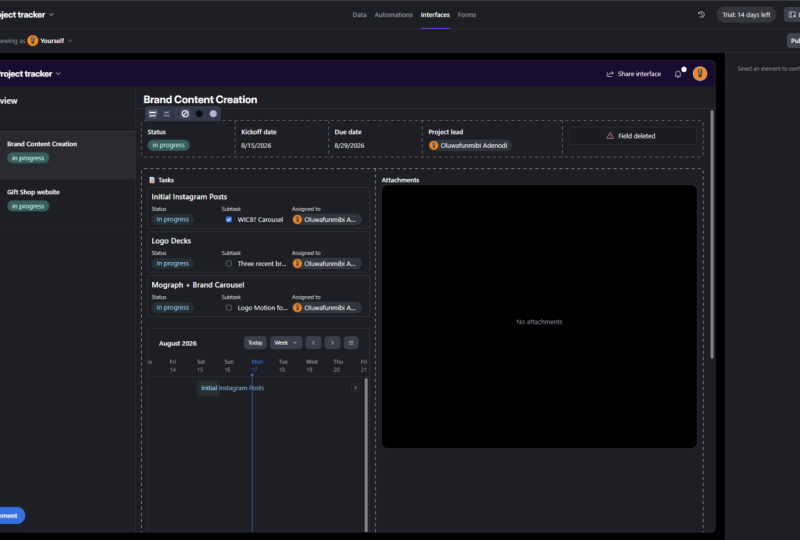
really like to show off is if you select the
Project Tracker template, when you are choosing
your templates, you'll notice that this
again is a brilliant one because it combines what's
known as an interface, which is a different way in
which you can see your data. And it really is just showing off that
you can use it for, let's say a brand
refresh and redesign and employee satisfaction
survey and new homepage, welcome emails and so forth. Effectively, what that's doing is it's got a tab for tasks, timelines and assignees, and
it's got a tab for overview. And then if you go
into interfaces, you'll notice these little eyes. That's where I'm
seeing that interface. An interface does that weigh
more customizable view? You're not relying on the
grid view, the Kanban view, any of those views instead, you actually empowered to
create your very own interface. And that is going to be what allows things like data
privacy, for example, you may want to see all the underlying data
as the day to hold all the data owner of
the people that are working on the data don't
necessarily need to. So you could design templates and interfaces for
each of them to make sure that what they're
looking at in a table suits their job description
exactly what they're hoping to get from
software effectively. So I hope that that also just showcases that they
are of course, a huge variety of
different ways in which you can utilize a table. Please do let me know
in the reviews or comments if you would like
more advanced version of this class because
of course then we can go into automations and interfaces and that sort of thing a little bit
in more detail. But what I will just leave
you with a parting thought is automations are
another really cool. But if functionality
in a table that we could get into in
a subsequent class, effectively what these do
is it allows you to kind of trigger different workflows or trigger things that
are going to happen. So I'll give you some examples
of when you'd use this. For example, you could trigger
a Slack integration that says when you change
your status to Dan Ping, the editor-in-chief to
review the information. Stuff like that is great. Otherwise, I use it a lot
in my day job for tracking. So I can track in every different status
how long something sits so that I can see where holdup is in a
particular process. And lots more stuff like that. So if they are more
advanced things that you are hoping a
table would be able to do. We can just simply cover
that in a upcoming class and you can let me know
exactly what it is that you're
hoping to achieve.
8. Ecommerce inventory example: Part of my day job, we're thinking ecommerce
involves a whole lot of a tables I'm going to be sharing with you
in this example. Just exactly how you're able to use a table from an
economist's perspective. So this is a duplicate of a similar base of
what we use at work. And effectively this
is going to help us to work through both web tasks, which is things that other
members of staff are flagging to our team to work on from a
content perspective, as well as photography
been one of the tabs is studio in how shoot required. Here you can see there'll be a whole bunch of
different product names, these external links associated. If there's an in-house
photography brief, it can be captured here. Then there's a drop-down
to allow you to shoot either pack
shots or lifestyle or patch on and
lifestyle to indicate to the photographer what it is that you're expecting
them to shoot. Whether the sample is coming from the
supplier or whether we having to pull it from one stock and what the deadline reason is. So are we featuring
and an unused later? Is there a campaign
maybe upcoming? Isn't a new brands. So we may be, if there
isn't a new brand, maybe we can reference previous examples
of the photography we've shot for them before. If not, if the brands
and of course, we're gonna go ahead
and start to craft that CI may be based on what
they have on their website. And then all the
enhanced information including skew code, barcode, and so forth. So that's one example
of how it can be used. The other example it
can be used for in the e-commerce space is
keeping track of inventory. So RStudio has a
lot of stock and equipment, so that's cameras. I'll let lightning samples
that we need to utilize. And so again, you can see
here's the product name, the brand, the product image. So what exactly
does it look like? What is the quantity
that we have on hand? And what is the condition. This is of course particularly important where you're tracking the condition of
your photography. This is particularly
important if you're tracking the quality or condition
of your cameras, off your microphones
and so forth. And then you can also just utilize this
inventory drop-down, which is going to show, is that a sample, is
it a styling prop? Is it equipment or is
it production product? So again, super useful. There is another one, which is for products
going live on our site. So again, quite similar to the studio in
harsh shoot required. It's a bit more of
a detailed database that you can flesh out. And again, this is basically
just helping us to manage and stay on top of deadlines here you can see that
as a calendar view, should we wish to rather present our deadlines
in this way? But because this is a dummy, It's not sharing exactly
what's happening there. Then finally, one of
the things that I found really important in
working in e-commerce, particularly if there's
a proprietary backend or CMS or different
looking interface. So we're not talking WordPress
or Squarespace or Wix, we talking about a
custom bolts back-end. So basically, that
is going to mean all necessitate that we have learning hubs in
any of our bases. I'm trying to advocate for
the inclusion of what we're calling a learning
hub effectively. Then you can see,
I've labeled it, is it a dynamic landing
page or DLP as I call it, is it a category management job? Is it a redirect job? Is it a feature
save jobs so that the particular resource or
person who's tasked to a job, they can, especially
in the beginning, just go and reference like, how does this company
do UTM tracking? Why did the automation
considerations? What are the nuances in terms of how we reference our products? And all of these work together to really creates almost like a sandbox in which everyone is working on
the same set of data. There's a single-point of truth, which of course is
incredibly important. And that's going
to mean that Iran is pulling in the
same direction. We're all up-to-date
and there is a reduced reliance
on and e-mails. I can definitely testify
to the fact that using a table does reduce
your reliance on email, particularly if
you're working with your clients inside
of an tables. So now you're going to be tagging team members
in the comments. You're going to be
tithing appliance when things are ready for approval. You're not going to have to send a long and convoluted email, which really is just tried to tell someone's stages
of their project. So I hope that
that shows exactly how you can use it in
the comments space.
9. Client communications: Apart from what I have described in this
class regarding how you can use Airtable to
track project progress. They are, of course, numerous ways in which
you can now apply your new font skills within
your creative business. Another common use
is to take your creates a business to
the absolute next level. With enhanced client
communications, you can use a table
to store all of your client details
in one place and then create fields for the name, contact information, preferred
communication methods. Any other relevant information? Maybe they kids names, they've pet's names
and so forth. This ensures that you
have quick access to vital client information
whenever you need it. You can even invite your clients as
collaborators on your base, which allows them to access
specific tables or views, keeping them informed
about their project, as well as any updates on timelines and deliverables
and so forth. Plants can also provide feedback
directly within a table, fostering seamless communication
and collaboration, and eliminating the need for
lengthy client email chains. This would be a great use of a tables commenting feature
which can be used to facilitate discussions
and gather client feedback on
specific records. You can mention clients by using an act followed
by the name, ensuring that they
receive notifications about relevant updates
and communication. A table enables you
to attach files directly to your records so you can use this
feature to share, design mockups, documents, or any other files relating
to your project. And clients can easily
access and download these files ensuring that
everyone is on the same page. You can also automate
email reminders. So with air tables
automation features, you can set up
email reminders for important project milestones
or upcoming deadlines. This insurance, both you and
your clients stay informed and meet project timelines
without manual follow-ups, you can also use it for
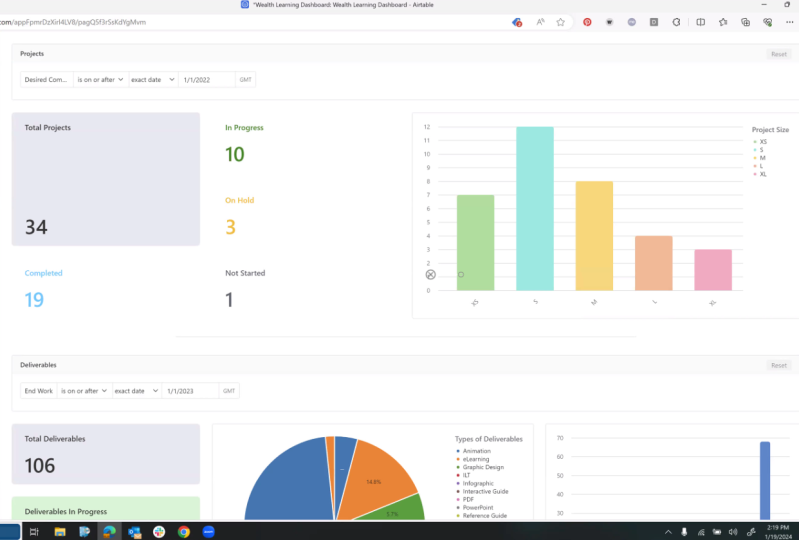
reporting and insights. So generating reports and
summaries using a Tables, aggregations, falses and
groupings is super easy. This is going to
allow you to present project progress timelines and any other relevant
information to your clients in a kit
and visual formats. So you can see that just by utilizing these cool features, you can streamline your
client communications, foster collaboration, and
enhance transparency. So with everything
centralized in one place, you're going to be
saving heaps of time, minimizing miscommunication
and delivering on your projects that
much more efficiently.
10. Let's design your database: In a table using a
different tabs known as tables helps you to organize and manage various aspects of
your creative business. So here are some
scenarios way you might consider using different
tabs on a table, organizing different
categories of data. Using different
tabs to categorize and store different types
of data is recommended. So for example, you
could have a tab for clients and now
the full project, another tab for inventory
finance or maybe team members. The separation allows you to keep relate to data organized and easily accessible,
managing multiple projects. If you handle multiple
projects simultaneously, creating a separate
tab for each project can help you to track and
manage them individually. Each tab can include project specific details like
timelines, tasks, deadlines, progress, as well as
client communication, tracking resources or assets. If your creative
business involves managing resources or creative
assets such as images, videos, or design files. You can dedicate a tab to track and organised
each of those. Each record within this tab represents a specific
resource or acid, for example, metadata
descriptions as well as maybe the
links to the files. Storing Client Information. Maintaining a tab specifically for client information
allows you to store all of the
relevant details about your clients in one place, including client names, contact information, Project
history preferences, and any other information
that you need to provide personalized and
efficient client service, managing team members
or collaborators. If you work with a team or
collaborate with freelancers, having a dedicated tab for
team members can be helpful. You can include fields
for their names, roles, contact information, and
any other relevant details. This tab can also serve as
a centralized directory for easy access to team
member information, analyzing data and metrics. If you want to analyze
and track metrics or data relating to
your creative business, creating a separate
tab can be beneficial. This tab can include fields for Key Performance
Indicators, KPIs, financial data,
marketing analytics, or any other data points that you wish to monitor and analyze. Remember the number of tabs you create an air
table depends on the complexity and
specific needs of your creates a business. Using different tabs allows
you to organize data, streamline workflows
and gain insights into the different areas of your business as your
business grows and evolves, you can of course,
add and modify tabs to accommodate
new requirements.
11. 10 words you need to know : When using a table, understanding key
terms is crucial for navigates and then making
the most of the platform. Here are ten important tends to familiarize
yourself with. Number one base. A base and a table is the primary container
for your data. It's like a database
that holds all of your tables, views and records. Table. A table represents a collection
of records in a table. Think of it as an
individual sheets will tab within your base. Tables are used to organize and structure specific types of data such as clients project
will inventory, record. Record is a single entity within your table and
it contains all of the information associated with a specific item,
entity, or object. For example, in a
client's table, each record would represent
an individual clients and contain the details
field, field. So the individual data
elements within a record, they hold specific types of information such
as text numbers, dates, attachments,
checkboxes, or drop-down list. Fields define the structure and the properties of
your data view. A view determines how data is displayed and organised
within your table. It table offers various
different views, including grid views, which is your traditional
spreadsheet-like view. Gallery view, which displays
records as visual cards. Calendar view in which you can visualize dates and events. And Kanban or Kanban view, which uses cards and columns to manage your workflows full-time. A filter that allows
you to narrow down the records interview based
on specific criteria. You can apply filters to display only the data that meets
certain conditions, making it easier to focus on
the relevant information, formula, formulas or
expressions that perform calculations or generate
dynamic content based on the values
and your fields. With formulas, you can automate calculations,
manipulate text, concatenate data, perform other
functions to derive meaningful insights
from your data. Linked record. A linked record as a field
type that establishes a connection between records
in different tables. It allows you to
create relationships or associations
between the data, enabling you to link
related information. For example, linking
a project record to a client record
in separate tables. Collaborator. A collaborator is a
person you invite to access and work on
your Airtable base. Collaborators can have
different levels of access, including view only, edit, or full control, depending on the permissions that
you grant them. They can then
contribute to the data, collaborate in real-time,
and of course, participate in discussions
within the base using the comments
functionality integration. It table offers integrations with other apps and services. In order to enhance
its functionality. Integrations allow you
to connect a table with tools like Slack, google
Calendar, Zapier, or integral Matt, enabling
you to automate workflows, synchronize your data and extend the capabilities of
your Airtable base. But understanding
these key concepts, you're going to have
a solid foundation for using Airtable
effectively and of course, leveraging its features to organize and manage and analyze your data for your
specific creative business
12. Identifying your business requirements: Before diving into a table, it's essential to identify your specific business
requirements and objectives. So let's break down the
process in a few key steps. So step one, you're
going to want to assess your current workflow. Take a closer look at your existing workflow
and identify pinpoints. Well, inefficiencies. Are you struggling with
project management, client communication, or is that organizing your creative assets that you're battling with? So understanding
these challenges will help you to determine the areas where it's able can make the most
significant impact. And then of course,
start their step to find your objectives. So what are you
hoping to achieve by streamlining your
creative process? Do you want to improve
collaboration in Hans project tracking or
increase your productivity? Clearly define your objectives. Can shut that your
implementation of Airtable does in fact
align with your goals. Sit three is to identify
key areas of improvement, identifying the
specific areas and your business that could
benefit from using a tail. So for example, you
might want to streamline your client onboarding
process, automated, repetitive, specific tasks, or create a centralized database
for your creative assets. This tape is going to help
you to focus your efforts and make the most of
your tables features. Step four is to determine the
necessary data and fields, considering the type of
information that you need to track for each
area of improvement. So determining the essential
data points and creating corresponding fields in
Airtable is important yet. For example, if you want to streamline your
client onboarding, you would need fields for
client contact information, project details, deadlines,
and deliverables. Step five is to plan your
workspace structure. So thinking about how
you want to structure your Airtable
workspace is integral. Identifying the tables
you need and how they relate to each other
is the point yet. So for instance, you may have tables for clients, project, tasks and resources,
visualizing the flow of data and ensuring
that it aligns with your business requirements
as important. By following these few steps, hopefully you might have a clearer understanding of those business
requirements as well as your objectives when
using a table in order to streamline your creative
business or project. So this preparation phase is crucial because it's
going to ensure you have a successful and
smooth implementation over on a table
13. Setting up your workspace: Setting up a workspace in a table is a straightforward
process that allows you to create a
customized environment tailored to your specific needs. Here's a step-by-step guide
to help you to get started. So first off, sign-ins a table, visit the air table
website and sign into your account or create one
using your credentials. You can just, as I mentioned, sign up with a free plan. That's absolutely fine. Creating a new base. So once you've logged in, you'll be taken to the
air table dashboard, check on the plus
new base button to create your new base. Here you can either choose a template will
start from scratch. It table offers a wide range of templates design for
various use cases. And you can easily select a
template that aligns with your creative business
requirements or start with a blank base to build your
workspace from scratch, choose the option that suits
you best, name your base, giving your base a
descriptive name that reflects its purpose. So for example, if you're using a table to manage
your design projects, you could name it
designs project tracker. Next you're going
to want to create a table inside your base. You'll need to represent the tables with
different categories or aspects of your creative
business to think of tables as individual
spreadsheets or tabs. For instance, you might be
creating tables for clients, projects, inventory, finances, or any
other relevant areas. Next, you're going to want
to define your fields. So within each
table you'll define fields to capture
specific information. Start by identifying
the key data that you want to
track for each table. For example, in the
client's table, you might have fields
like client name, email, phone number,
and Project history. You can add fields of
different types such as text, numbers, dates, attachments,
checkboxes, and mole. Then you can customize
your field properties. So customizing your
field properties is based on your requirements. For example, you can set, you can feel to be required at formatting options or define drop-down lists for
consistent data entry, establishing relationships. If they are relationships
between tables, you can of course, establish the connections
using linked fields. For example, if you have a project's table in
a client's table, you may wish to link a project or specific
client by adding a link field that references the client's table,
designing views. It table offers different
views to visualize your data. The GridView is the
default view that displays your data in a
spreadsheet like formats. And you can also
create additional views like gallery view, calendar view, or Kanban view, depending on which
one you would like to use to act and present
your data with setting up collaborators if
you're working with a team or when a share your base with
clients or collaborators, you can invite them as
collaborators on your base. Determine the access level, whether they can
only view the base, make edits all manage the
base of the line side. You customizing the workspace. Customizing your workspace is all about rearranging
your tables. You'll fields on your views in order to suit your workflow. You can resize columns, drag and drop fields, and reorder your
views to create and organised and
intuitive workspace. And that's it. With these steps, you can set up a workspace
in a table that aligns with your creative business needs
or your upcoming project. Remember, of course
today a table offers the highly
customizable environments. So feel free to experiment. This will take time and iterations to refine
your setup as you go. In the next lesson, I'll show
you my suggested setup for managing a longer-term
creative projects.
14. Your project: The best way, of course
to learn is to put what you have been absorbing
into practice. And that is of course, why we need to establish what our project is
going to be for this class. So this one is really,
really straightforward. I want you to just create an
absolutely basic overview of either upcoming tasks
or maybe not the client lists because
of course we don't want you sharing
confidential information. But if you've got dummy
data and you're happy to share how you're
using a table. I would love to
see a screenshot. This can be of a grid view, a calendar view at gallery
view or Kanban view, whatever you are most
comfortable sharing beds. I would love to just see that you are having
a little play, having a little fiddle. You all caused. Also welcome to use a
pre-existing template. So if the thought of
starting from scratch, it's proving a
little bit too much, then of course, feel free to
use any sort of templates. And ya, I'd love to see how you using the
various drop-downs. There's so many
different ways in which you can use a table that honestly they are about 100
different applications of it. So I'm really just interested to see what you are
hoping to use it for. And I can't wait to comments and share and chat about it
in the comments sections. So please do feel free
to go ahead and do that. It hopefully it
shouldn't take you more than 15 min or so. Good luck.
15. Thank you!: Congratulations, you have
successfully completed the a table one-on-one class of mine and I could not be
more thrilled for you. Thanks for journeying with me on this learning experience. I hope that you now feel equipped to manage
your creates projects and handle time communications more efficiently using a table. Throughout this course,
we've of course explored the powerful features of a
table from organizing data, collaborating with teammates and clients, and
everything in-between. So I trust this newfound skill
of yours is going to prove invaluable as you tackle your longer-term
Creative Project with ease and efficiency. But our journey
doesn't end here. I encourage you to
please take a moment to review this class
shale feedback. Please let me know how I've done and if this
class has in fact helped you in your creative endeavors,
you'll input, of course, is not only going
to help me improve, but to also guide
future students even better and help them to embark on their own
Airtable journey. I'd love to see your
work in action. So of course please do
post your projects. I would love to see you sharing
that with the community. Let's really celebrate
these accomplishments, inspire others, and embrace the power of a table altogether for our
collective creative proceed. Once again, thank you so
much for choosing my class. I hope you found it
informative, engaging, and most importantly useful
in your professional journey. And I cannot wait to see in the next one said we can keep
on doing its little better.
 Megs Hollis, #DoDigitalBetter