Transcripts
1. Introduction | Hello and Welcome!: Hi everyone. My name is Christopher
Princeton and I'm happy that you're interested in
learning more folio trace. This course is
designed to teach you the basics of morpholino trace. I get straight to
the point and I only teach you what
you need to know. This course is intended
for architects, architecture students,
designers like industrial designers,
interior designers, landscape designers, and all other creative
thinkers and makers that are looking to use the most powerful iPad design
tool available. And the best part
is you don't need any iPad experience or
drawing experience. You'll learn how to use design
drawing tools like pens, pencils, brushes, erasers,
and the color palette. We're going to touch on
almost every single tool that morpholino
trace has to offer. We're also going to
learn how to manage red line and then send off PDFs. We're going to scale drawings
and go through the settings and customize them
perfectly to your liking. And finally, at the end, we're going to combine all the knowledge that we
learned throughout this course and create a
beautiful perspective drawing. So go ahead and sign up now and I'll catch you
in the first video.
2. Project Launch Screen: When you boot up
more folio trace, you start at the
project launch page. Along the top here you
have about eight options. The first option is blank. This will create a
new blank project for you the same size
as your iPad screen. Next is custom, where you can open up an image
from your library. You can take a photo with your camera and use
that as a background. You can also access images
in your Cloud Drive. We also have a lot
of options that morpholino Trace
provides for us. If we just select one of these, Let's go craft grid. It'll give us the option
to enter in a custom size. Next option is library, which is very similar to custom, except that when
you open the image, it's going to open
and its default size, it won't give you the
option to change it. Next to a library is PDF, except we're gonna
go over that a little bit later
in the tutorial. Below the eight options
on the top of the screen, you have a list of projects that are available
for you to open. Use your stylist to tap the example perspective project
and it will load it up.
3. Project Interface: I first want to project opens. You can see there's a
lot going on around the screen and it can
be really intimidating. But don't worry about
that because I'm going to break it down and make
it really simple for us. Along the top of your screen, you have more or less all of your project tools and
options from left to right, we have the go back to the project launch
screen, page manager. Here's your project settings. Here. Lasso tool,
the smart fill tool, perspective tool, your ruler, triangle, protractor
and stencils tool. You'll notice that I
skipped over the AR tool because we're going
to go over that in a different tutorial. Over on the right-hand side is your support and export options. On the left-hand side
is the brush tool bar, or would I like to
call the pencil pouch. And over on the right-hand
side is your layers toolbar.
4. Finger Gestures and Moving Around: Learning how to navigate
and move around a new application is usually
the most frustrating part. The good thing about
morpholino traces it uses a lot of
gestures that we already know and use with the iPad in most
other applications. To move around, use two
fingers and drag them across the screen.
To zoom in and out. You can pinch and
extend your fingers. You can rotate the image by using two fingers
and twisting it. It'll snap at 90 degrees, and it will also snap
at zero degrees. Select a layer by double
tapping it with your pencil. You can use three fingers
to move that layer around. Let's put that back.
By undoing the move, just use two fingers
and tap on the screen. You can actually redo by
tapping with three fingers. If the toolbars along the
side are getting in your way, you can tap with four
fingers to hide everything. Tap again with four fingers
to bring it back up.
5. Brush Toolbar: On the left-hand side
is your brush tool bar. And it's got what seems like 20 different options to
end to make it simple. This is just your pencil pouch. It contains all your pens, pencils, brushes, and erasers. You can customize these
however you want by double tapping it and then selecting
one of your options. I'd like to leave
eraser as one of them. So now let's say I want
my micro pen here. I want a marker here. And I want this one
to be my pencil. This one can be my roller brush. I'll leave this as a
chisel tip marker. And this one I would
like to be a pastel. At the top we have
undo and redo. Then you have your
line weight button. This will open and close
your line weight options. If you zoom in and out, you can see that
your line weights respond to the scale that
you're currently at. So if I zoom way out, it'll give me the
larger options. And if I zoom way in, it'll give me the more
precise line weights. Also on the line weight palette, you have this opacity slider. You can use this to
change your opacity. The lower your opacity, the more transparent
your line will be. You can see a 75%. It's
almost totally opaque. The next is your
line type button. If you tap it, it'll give you four options for your line type. The first one is
your solid line, the second is your dashed line. The third is gonna
be your dotted line. In your fourth is
your center line. Next is our colors. At the top you can
see our color. We'll go ahead and tap that and a whole bunch of color palettes open up for us to choose from. If there's a color
palette that you like, you can simply tap the circle
next to it to activate it, and it will populate
your color toolbar. If you can't find a color
palette that you like, click this plus at the top here. And we'll create a
new color palette. Let's go ahead and name
this custom colors. Tap Done. Now tap the color wheel at the bottom and choose
a color that you like. I'm gonna go with this yellow. After you find a
color that you like, tap one of the empty squares
at the bottom to save it. Now let's add a dark red in
here and maybe a purple. Let's go back to
the Palettes tab. Let's say you don't like
the colors that you chose. Swipe left and tap, Delete, go ahead and click. Yes. I'm gonna go
ahead and activate the diagrams color palette that came with more folio trace, find it and tap the
circle next to it. The unique thing about
our drawing tools, as they change, as you adjust
the angle of your pencil. If you use this
chisel tip marker, Let's select a red and you
hold your pencil at an angle. It draws a thicker line. If you draw straight up above, it'll draw a thinner line. Another tool that reacts about the same as the pastel tool. And then we have the
roller brush tool. The roller brush tool will color in an area that you draw. So if you want to do is circle, you draw a circle,
rectangle and a square. Let's say I wanted to color
in one of these windows. You just outline it
with your pencil. Next I'm going to show
you the eraser tool. Let's draw a box with
a roller brush tap to activate our eraser and then you can erase
straight through it. Last but not least, is
the eyedropper tool that's right underneath
the color wheel. If you tap it, it'll bring up a cross hair that zooms in
on the area that it covers. Let's say I want to get the same green That's from this tree. You can see when I put
the cross here over it, then activates that green
and I can now draw with it. With this eyedropper tool. You can also select colors from an image that you drop
into your drawing.
6. Layer Toolbar: Same way that layers and
a real drawing would. Layers towards the top will cover up the layers
towards the bottom. Just the same way
as if you were to stack trace paper on
top of each other. If you tap and hold a layer, you can actually move
it around your stack. So let's say I wanted my line
work at the very bottom. I would just move it below
tap hold and move it. You can position
your view around this specific layer by
tapping it with your pencil. If you want to activate a layer, you can simply double-tap it. Now if you're going to draw, you're only going to
draw on that layer. Each layer has two
icons beside it. When icon hides the layer. Each layer also has
three dots beside it, which will open up
the layer actions. Here you can change
your layer title, the paper opacity, meaning how
thick is your trace paper. Next is your drawing opacity, which will change the opacity
of that specific layer. Here you can see
that I'm changing the opacity of the gray layer. Next you can change the
color of your paper. Let's turn it on yellow and then turn the
paper opacity up. And you can see
it starts to show more of the trace paper. Next is your paper
blending mode. If you've ever used
any Adobe products or possibly Procreate. This works the same ES6,
different options, Normal, darken, multiply, color, burn, linear burn, and darker burn. To get used to these options, I would simply play with it until you find
one that you like. And below that, you have a lot more options that are
pretty self-explanatory. Scale in place will allow you to change the size
and placement of that layer. Next is clear, which will
totally clear that layer. Next you have delete. This
is how you delete the layer. I'm not going to
delete this one. Next we have copy, which will add it into
our clipboard up here. If we start a new layer, we can tap it and
it'll add it on top. We have mirror horizontally. Mirror vertically. And
then disable AR extrusion, which we won't go over
in this tutorial. These options that we
just went over will actually change if your
layer is a text layer. So here you can see
we have a text layer. If I select the layer
actions on this text layer, you'll see we have a lot
less options to choose from. At the top of your
layer toolbar, you can add a new sheet. You can add an image. Next, you can add some text. Here. You can change your font color, as well as your point size. Tap Done when you're ready.
7. Project Tools Introduction: Now that we've learned
how to open up a project, we know about our brush
toolbar on the left-hand side, and we know about our layers toolbar on the right-hand side, Let's start to go over our project options and settings along the
top of the screen.
8. Scale Tool: First let's start with
how to set the scale, go to Project preferences, and then over to the scale tab. Next, select Set scale. It'll give you two
cross hairs that you can adjust to set your scale, find a measurement in
your drawing somewhere. This is a perspective drawing, so it's not going to
be really accurate, but let's just say this
is about 4 ft tall. Select whether you want
imperial or metric, and then enter in
that measurement. I'm going to say 4 ft, tap out and then tap
the green check. And now you've set
your drawing scale.
9. Ruler Triangle and Protractor Tool: Next, let's learn how to draw a straight line and
perfect curves. Let's start with our scale
tools, which is the ruler, the triangle, and the
protractor. Tap the ruler tool. You can move it around
with one finger, rotate it with two fingers, and it'll snap at 0.90. Let's say you don't
want to snap it at zero and you want
a smaller increments, just wiggle it back and forth past the zero a couple of times. Then it will give
you the option to stop at a smaller degree. You'll immediately see that
a ruler is not in inches. If you zoom in, you
can see that it corresponds directly to the
measurements and the drawing. So remember that scale we
set earlier about 4 ft. You can see that the
ruler is showing the height of this wall at 4 ft. When you select the ruler tool, you'll also notice two more
options pop up at the top. If you select the gear icon, it'll give you options
for the ruler. We're going to talk about
these in just a second. Grab one of your
pencils or pens. Make sure your line type
is a straight line. And then tap one of the
larger breast sizes. If you run your pencil
along the straight edge, you can see that it
draws a perfect line. If your ruler is
kind of getting in the way a little bit when
you're drawing lines, you can simply move it over
to the side somewhere. And it will still allow you
to draw straight lines. If you want to turn
that option off, go back up to your gear
icon and tap on assist. Now, it will only draw straight lines if
your ruler is near. I'm going to clear
the board. Would I prefer to do is leave the assist on and turn
on tap to toggle. You can't draw an
angle if you have your ruler active unless
your ruler is at that angle. But if you have
tapped to toggle on, you simply start drawing a line, tap on your screen and then it will unlock the line for you. So now you can draw it
at any angle you'd like. You'll also notice that you
have five different options. Infinity 153,045.90. I like to leave mine set to 90. And just so you
know, you can always set your angle by
rotating your ruler. It will always draw
lines parallel or perpendicular to
your ruler ankle. If you want to rotate your
ruler perfectly 90 degrees, either double-tap it or tap
this button at the top here. The next tool is
a triangle tool. And just like the ruler is, shows the measurements
when you zoom in and out. You can see again this
wall that's about 4 ft. If you draw above the triangle, it'll draw it at a
30 degree angle. If you draw it below, it'll draw a straight line. And if you draw it
to the right of it, it'll draw a straight line. So it corresponds to whatever side of the
triangle you're drawing on. Over here, you can't
draw a 30 degree angle. And over here, you can't
draw a straight line. The triangle options are similar
to the ruler and you can actually change the angle of your triangle by adjusting
the slider here. Or if you want to
be more precise, you can change it
by using this icon. Just like the ruler.
If you tap this icon, it will rotate the triangle the same way as if
you double-tap it. You can also flip the
triangle on its axis. The protractor allows you
to draw a perfect circle. And it will allow you to draw a line that runs perfectly
through the center of it. The protractor settings are very similar to the triangle
and the ruler. Next to it, you have
an input option. You can choose diameter
or the radius. And let's say I wanted to
have a three-foot diameter. Enter in your feet and then
press the green check. Now you can see that it
shrunk my protractor to 3 ft. If I delete my old lines, I can now draw a perfect circle. The diameter 3 ft. You can change your input
from feet to inches by tapping on the feet here
and selecting inches. Another cool thing
about the protractor is you can change it
into an ellipse by manipulating it with these
orange control points to revert back to its original
circle, double-tap it.
10. Stencil Tool: Next we're going to
jump into stencils, which I believe is the
most powerful component of morpholino trace. They're extremely
useful in my opinion. Zoom out a little bit here so
we can see the full canvas. And up at the top we have
our stencils option. Go ahead and tap that. And if you tap the
gear icon next to it, you can see that
more folio gives us a massive selection of
stencils to choose from. I'm going to place a tree. So go to the trees tab and choose whatever
tree you'd like. Tap it, and then tap out. Now you can see that
we have a stencil. You can re-size the stencil and move it around by
using two fingers. I'm going to put one. Well, let's just put it right here in the middle so we can see it along the top
of this tensile here, you can see that we have
quite a number of options. We can flip it vertically. We can flip it horizontally. We can lock it, so
we cannot resize it, but we can still move it. We can lock it. So we saw that we can move it but
we can't rotate it. We can invert it. We can somewhat filled in and then fill
it in all the way. I'm going to turn off the invert and I'm going to unlock it here. And I'm going to move
the tree a little bit so it looks fine, good. Now, I'm going to select
a dark green over here. And I'm going to select fulfill. You can see that
it fully filled in the stencil with that color. Now if I undo and bring it back, you can actually draw
this in yourself. I'm going to select
the chisel tip marker and then select a green, and then fill it in myself. Let's delete that
tree by undoing. Another thing that you can do is tap the invert button here. And instead of actually
filling in this tensile, it's going to fill in
everything around it. If you don't want to
completely fill in the tree, you can tap this button here and it will only fill it in partly. Morpholino trace offers a lot of different stencils
and I think it's totally worth skimming through this library to see if
anything sticks out to you.
11. Lasso Tool: Another extremely useful tool in morpholino trace
is the lasso tool. I'm going to select
my line weight layer and then select my lasso
tool at the top here, at the bottom of
the screen you can see you have four options. The free-hand Lasso tool. You have the
point-to-point lasso tool, which allows you to draw
out the points yourself. A circle lasso tool. Then a square Lasso tool. For the free-hand Lasso tool, you can draw a selection
however you want. And whenever you take your
pencil off the paper, it's going to connect straight back to the
beginning point. So let's say I want to select half of the
lines in this building. If I stop here and let go, it's going to connect back to
that starting point there. With the polygon lasso tool. It'll draw perfectly
straight lines for me. When I'm done selecting,
you just tap back in this white circle and it
will close your selection. With the lasso
tool. You can only work with one layer at a time. Let's say that I wanted
to select the sky. You can see that it's actually
not selecting the sky because I have my line
weights layer selected. In order to select the sky, I need to activate
the layer that actually has the sky on it. Then I can use my
free hand tool to select this guy and
move it around. When you have a selection, you'll see that a menu pops up. The first selection is your
transformation options. You can uniformly stretched
and resize your selection. You can transform it
in a free-form way, which doesn't keep
the shape uniform. You can distort it in a 2D way. You can distort it in a 3D way. I would just play
around with all these and see which
ones that you like. You can create some pretty
interesting shapes. The great thing about
the 2D transformation is that you can align these points to fit any
type of perspective. The next option is
revert to normal. Whatever transformations
you make, you can rotate it. And if you tap this button, it'll send it right
back to the beginning. You have the flip vertically and the Flip
horizontal buttons. You have the duplicate, and then you have the delete. There's actually one
more tool that we should probably go
over before we start editing PDFs or drawing our
first perspective drawing.
12. Smart Fill Tool: The smart fill tool can
quickly get area calyx for a single area
or multiple areas. It can also fill in a single area with
a color or a hatch. When you select it, you can see that the crosshair pops up. You can move the
crosshair around with your pen or your finger. And you can see that if I
stop inside of a window, it wants to fill that window in. If I stop at the sky and
wants to fill everything in. Let's start by
placing our crosshair in one of these windows. Because we already set
the scale earlier. This is what's going
to allow us to get an accurate area calculation. And like I said before, this is a perspective drawing. So the area calyx are
gonna be slightly off, but you can use the
same method and any plan drawing
sections and elevations, any type of drawing
that's going to have an accurate scale to it. When you move the cross here around to the different windows, you will immediately see
an animation pop up where the smart fill tool wants to get an area calculation
or color it in. You can edit the smart
fill selection live by, let's say, by making your
areas slightly smaller. See that the smart fill tool is showing that
this is 11 sq ft. If I wanted to place
an annotation here, you can tap the
annotation button. If I want to fill it in, you can choose
whichever color you want and then tap
the Fill button. If you want to lower the
opacity of the fill, tap the opacity button and lower it slightly
using the slider. Press X when you're done, and then tap the Fill button. The slider on the left here
is called your tolerance. With the lower tolerance, it's going to stick to the
same color that you selected. If you raise the
tolerance slightly, you can see that it'll
jump above that shadow. And then it will
start to hop over the boundaries that
you've created with the higher tolerance. So one trick is if the smart fill tool
isn't exactly picking up the boundaries that you
want and you can adjust the tolerance here and
hopefully that helps. I keep mine pretty low
around three to five. The smart fill tool also has a lasso selection down
here at the bottom. If functions about the same
way that the Lasso tool does, except now, you can choose
where you want it to fill in. You can freehand selection. And then you can use this
circle and the square tool. Another cool feature is
you can actually fill this with a hat instead of
a color if you'd like. Up here at the top, tap
the smart hatch button, and then choose whichever
hatch that you like. You got landscape and
interior options as well. One of the best features about the smart fill tool
is you can actually color and get area calcs of multiple areas
at the same time. So move your cross
here until one of the Empty windows and
tap the Plus button. Anytime you drag and let
go of the cross here, it's going to add that area and to your total calculations. Then you can color it in. At the top right,
you can see you have your total calculations, tap it and select Copy, and then tap new text
layer and paste. Let's lower that point size. Change our color to black. It created a table of our
area calculations for us. And because we have
those calculations saved in our
clipboard right now, because we copied them, we can now paste
them into an email. We can paste them into
another document. You can do whatever
you'd like with them.
13. Send/Export Files: Now let's learn
how to send a PDF. Tap your page
manager at the top. Let's see, You only want to
send off one of these pages. Tap, Edit, select your page, and then click the Export
button here at the bottom. Here you have the
choice is between PDF, image or project. Pdf will export it
obviously as a PDF. Image will export it
as a flattened JPEG. And project will export it as more folio traces
proprietary file type. Good, better and best
relates to the quality. Now let's say you wanted
to send all these off as a single combined PDF. You're going to select the
Export button at the top here. And it'll give you
the same options.
14. Project Settings: Let's go ahead and back out
of our PDF page manager. While inside of a project, we have different settings
that we can adjust. Tap that wrench icon. Here. You can set the scale which we did earlier in this tutorial. You can change your units
from imperial to metric. You can show your grid. You can also change
the size of your grid. So if you wanted to every 4 ft, or if you wanted to change
its angle to be 45 degrees. You also have three
different grid types. You can do one that
has angles in it, and you can also do one
that is just pure dots. Finally, you can change
the color of it. When you have what you want,
press the green check. If you don't like the grid, go down to show grid
and toggle it off. In the video tab, you have
three different options, time-lapse recording, time-lapse replay,
and export video. Right now I have time-lapse
recording going. If you're creating a drawing, it's going to create a video
of it in the background. When you want to see that video, tap the time-lapse replay. When you want to export
that video, tap Export. And it will give you an option of where you would
like to save it. Next in the Preferences tab, we have the layer drop shadows, rotation, snap, and
reset palettes. Layer drop shadows,
toggles on and off the drop shadow
beneath your layers. Here you can see this layer
has a shadow underneath it. If you toggle this off, it'll hide the shadow. Next is your rotation step. If you turn it off, it
won't snap at 0.90 degrees. I'd like to leave mine on. Last is reset palettes. This will totally reset all the color palettes
that you have saved.
15. Morpholio Trace Settings: Let's head back into the
project launch page. Tap the gear icon at
the top to bring up the morpholino trace
application settings. Here you can see your
current subscription status. Pencil only drawing allows
you to draw with your finger. If you select it though, it'll take away the option to
pan around with one finger. This is because if
you try to move around with one finger,
you're just going to draw. I like to turn mine on and I
like to turn on one finger. Double-tap behavior is different for every tool
that you're using. If you're drawing,
it'll switch between the eraser and whatever
pencil or brush you're using. If you double-tap
your pencil when you have the ruler and triangle out, it will rotate it 90 degrees. For the protractor,
it'll change it back to a perfect circle for
the smart fill tool, and it will open up
your color palette. For the Perspective tool, it'll show and hide your guide. You can change your
default units. Your default layer color. Andrew tool color. You can change your
layer background to transparent or white. These are the settings
that I typically use. Imperial. Dark and white. If stack layers is turned on every time you create a
new layer and a project, it's going to create the layer the same size as
your base layer. If you have stack
layers turned off, it's going to create a new layer the same size as
your iPad screen. For instance, if stack
layers is on and I go into this PDF markup and I
create a new layer. It's going to create the layer the same size as this
PDF markup base layer. Although if I turn
off stack layers, then it will create
a new layer the same size as my screen. This is useful if
you want to create different size or shape layers. I like to leave stack layers on. Next is the undo
and redo gesture. If you have this on,
then you can tap with two fingers to undo and tap
with three fingers to redo. If you turn it off,
you can do that. Left-handed mode. I would recommend if you're left-handed, this will swap the
toolbars on the left and right and then zoom
rotation lock, which doesn't let you zoom
and rotate at the same time.
16. Perspective Tool: Great job for sticking around with me through all of that. Now that we have a very
strong basic understanding of morpholino trace, I think it's time
that we can jump into our first
perspective drawing. Pablo Picasso famously said, in drawing, there's nothing better than your first attempt. Let's start a new
project by going to our project launch screen up at the top type of gear icon. Change it to white background. And then let's start
a blank new project. I'm gonna go back to the
project launch screen because I want to rename this project tab select over
here on the right-hand side, and then tap the title.
And let's name it. Perspective drawing.
And then press OK, select Done, and then tap
your project to launch it. Tap the Perspective
tool at the top. Here you can see you
have three options. One-point perspective, two-point perspective, and
three-point perspective. Let's start with
one-point perspective. Tap one point and then
tap the green check. You'll notice there's
a floating guide with three lines
going through it. This guide will help you
draw your perspective lines. You can also turn
your grid on and off by going up to the
Perspective tool settings. I like to leave my non, I also like to use my guide and I also like to
keep on assist. So all my lines snap well, okay, let's start by
drawing a simple box. If you start drawing the line
near guides dotted line, it'll snap onto that line. See you can move it around. And if that dashed line is going through that corner point, it will snap right to it. I want to connect
these two edges. Outline the guide
just like that. And there you go. Now let's finish
off our box here. Alright, there we go. Our first perspective box. We can go ahead and throw a
person in there if we'd like. Let's just pick
this karate kick. Cool. We just drew offers Dojo. Let's go back to our
perspective tool and tap the settings. I'm going to go over these a
little bit more in detail. You can readjust your vanishing
points by tapping this. You can move it around. Press the green check
when you're ready. One type of option
setup that you might like is if you leave guide on, but turn off assist. This allows you to freehand
draw anywhere you would like. But then when you
get near the grid, it'll draw straight line. Okay, anyways, this is our first drawing and
more folio trace.
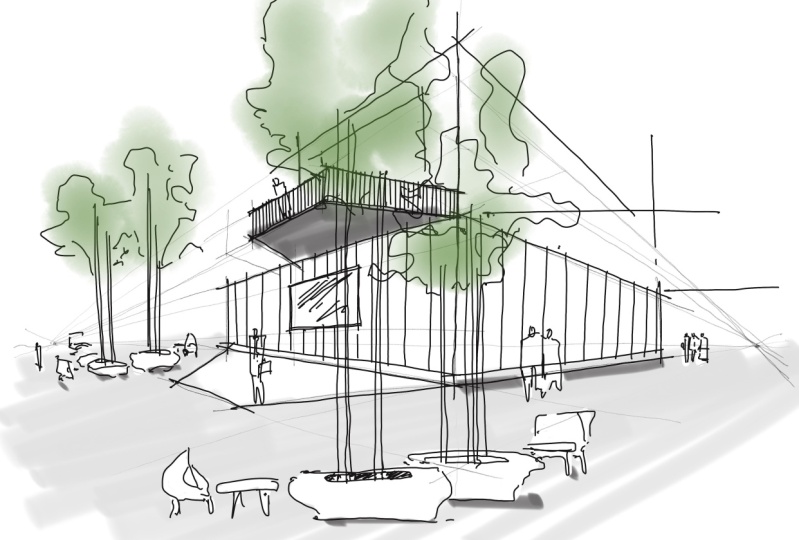
17. 2 Point Perspective | My Tricks and Tips: Starting off, I like to imagine a space I would like
to be in myself. It's also fun to imagine who
are you designing this for and where is it located for
this project specifically, I imagine a small to medium-sized community space and the building where
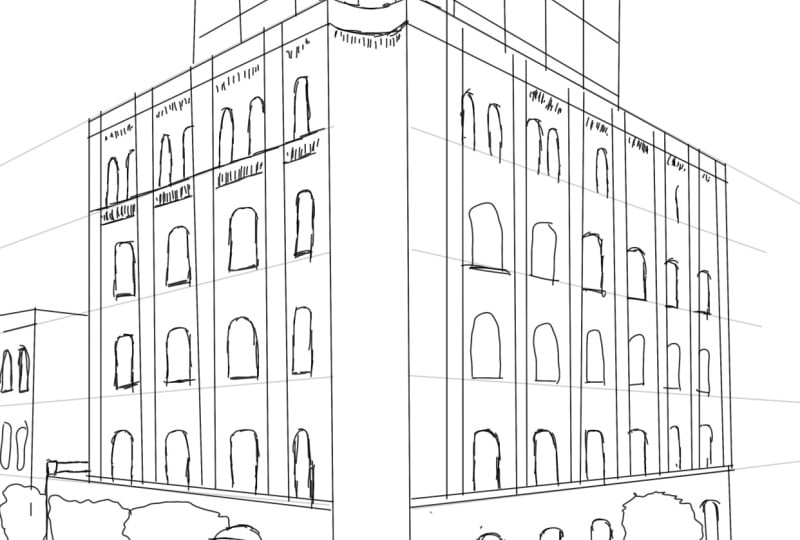
locals can gather. I typically start off with a very rough outline and as a drawing starts to take a form, I'll start to add detail. I use a Perspective tool with the Perspective
Guide to do this. I think in a tree or
a scale figure with your stencil tool can help
you better understand the scale of what you're drawing randomly out there on some color to see if it gives
me inspiration. And I enjoy doing it with
a chisel tip marker. I really enjoyed the
directionality of the marker and the texture it can give a heavy line way drawing like this. At this point I start
introducing some angles that aren't pertaining
to the Perspective Grid. So I turned off the cyst
and I went free hand. Now that I have my concept
drawn down and heavy lines, I like to lay down a new
layer trace by tapping new layer and then going over my lines with a finer point pen. And then this allows me to
add in smaller details like the protruding door
frame and the materials wrapping around the roof of the shorter structure
on the right. After I have my perspective
somewhat developed, I'll start adding in
shadows using the marker. I'll select black, and then
I'll lower its opacity. I'll use the directionality
of the sun to determine the angles
of my shadows. And then after the
shadows are laid out, I'll use a super
ruler and the eraser to go back in and clean
up the shadow edges. Don't be afraid to go back
and erase anything you don't like because nothing has
to be permanent anymore. You're working in
a digital space. I added some sketchy vegetation to occupy the background
a little bit, and sketchy rocks to
anchor the ground plane. I would highly suggest though, that if you are adding a new
element to your drawing, you should add it
onto a new layer. This just makes it
easier to edit later on. Last but definitely not least, is adding and some
entourage and vegetation. I use a stencil tool for this, and I color them in with a chisel tip marker just to give them a
little bit more life. The vegetation, and the
people really come alive. If you use different
color shades and move your marker in
the direction of the sun, this gives the drawing
some directionality and a lot of movement. I threw in a couple
of highlights of yellow here and there for the interesting elements and focal points I
painted in the sky. And finally, I use
the eraser tool to highlight the edges
of the building.
18. It's Your Turn to Draw!: Now that we have
learned a lot of the amazing tools that more
folio trace has to offer, it's time to put that
knowledge to good use. Go up to the Perspective
tool settings and set our vanishing points. This time, let's tap
two-point perspective. I'm going to set it up like so. Go ahead and press the green
check whenever you're ready. Let's create our very
own perspective drawing. After we're done, we're going to share it with other students in the class so they can give us constructive feedback
on your drawings. Great job. I can't see what you've drawn, but I think it's safe to assume that it's probably pretty great. And if it's not
that great, well, I'm still happy for you
because you gave it a go.
19. Upload Your Drawing to Skillshare: To upload your project, go over to the projects
and resources tab. Click Create project,
upload an image, name your project, give
your project a description, and then click the
Publish button.
20. Thank you and Farewell: Thank you very
much for watching, and I really do appreciate
you selecting discourse. If you could please
leave a review, it really helps us
course tremendously. It helps to promote
it throughout the website so that people
can more easily find it. Again. Thank you so much for watching and I'll catch you next time.
 Christopher Prinsen, Architecture and Sketching Enthusiast!