Transcripts
1. Introduction: Have you always wanted to
start making stickers of your art but aren't ready to commit to ordering
hundreds at a time. Let me show you how to
make your own stickers at home that are high-quality
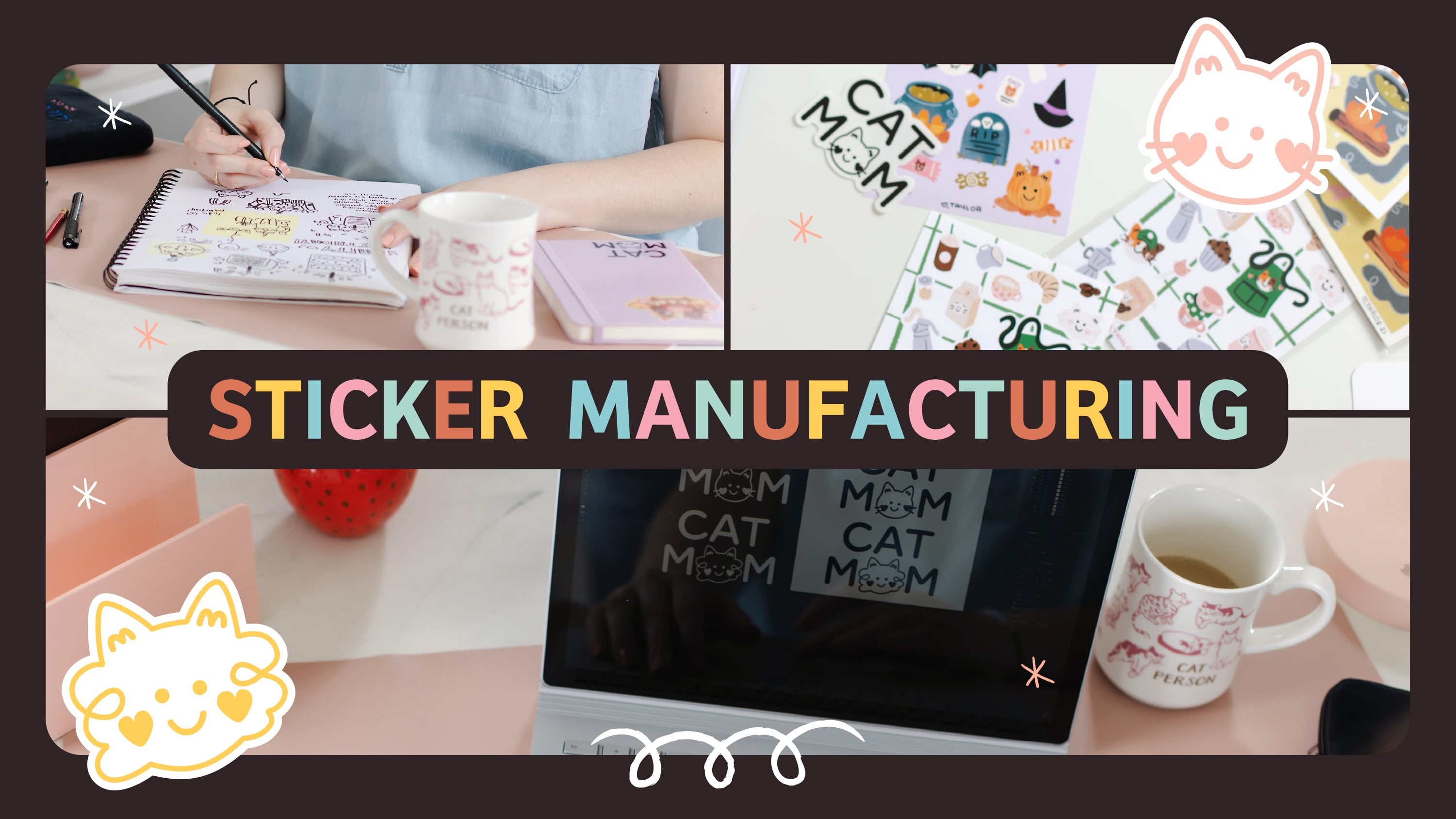
and ready to sell. Hello, I'm Taylor. As well as being a
full-time artist and Skillshare top teacher, I also run a cat being stationary brand out of
my home in Virginia. It's grown from creating
stickers for fun, just using my planner, to a full-fledged
shop that sells hundreds of stickers to
people all over the US. Being able to create
stickers of my designed anytime I want has
allowed me to test products on a smaller scale
to see what my customers want before shelling out
big money to have them manufactured in the hundreds. Not only that, but I love making stickers for all
kinds of occasions. You can make stickers
of your pets to slap on literally everything. Maybe make some stickers
of your kids artwork for them to use or
design something special for a loved
one as a gift. You can do all kinds of
things with stickers, and who doesn't love
a good sticker? In this class, you'll learn how to create your own stickers from artwork you already have using a silhouette
cutting machine. I've tried tons of
sticker papers, laminate machines, and wasted a scene amount
of material on the process. I want to help you avoid some of the mistakes I
made by giving you all the information
I've learned about sticker making over
the past three years. To help me do that, my
sticker paper provider online labels has gifted me their best-selling sticker
papers to show you all the options
available to you. They have also given
me a sweet promo code that I'll share with you
in the class resources, for discount on your first-order of sticker paper to
help you get started. Any sticker paper
will do though, so feel free to use
whatever you like. Other than some
high-quality sticker paper, all you need is some artwork, a silhouette or cricket
cutting machine, and access to a printer. I also have lots of other
suggestions for fun things you can invest in and
make your sticker making process easier. Overall, this class
is perfect for anyone who already owns
a cutting machine but needs help getting
into sticker making or anyone who is looking into making their own
stickers at home, but would love to see
the whole process before they take the plunge to
purchase their own machine. By the end of this class, you'll be able to create
all kinds of stickers at home from your artwork
anytime you like. What are we waiting for? I'll see you in class.
2. Your Project: For today's project, we're going to create
a sticker sheet from new or existing
artwork that is high quality enough for
you to sell anywhere. We'll be going over what makes a good sticker as
far as the design, the materials you'll need
to create your stickers, and how to get the best results from your cutting machine. If you've ever tried to
make stickers yourself, you've probably run
into a few issues, maybe even wasted a couple of stacks of sticker paper even. I can confidently say that
I've wasted over 100 sheets of sticker paper in
the past three years of running my business. If you're still having issues, this class is here to help make the process a lot
more simple and fun. If you're brand new
to making stickers, congratulations on
finding this class because you get to skip
the awful step of making countless mistakes
with no end in sight. I'm here to tell you all of
the things that I messed up on so you don't have to. You're welcome. This class will focus on the
silhouette line of cutting machines but I will go into more depth about the
pros and cons of silhouette versus cricket
in a later lesson to give you a better
understanding of why I recommend silhouette
for sticker cutting. That being said, if
you have a cricket, there's still a bunch of
wonderful information in this class that can help you create
high-quality stickers. I'll go into more detail
in the next lesson but all you need right
now is some artwork that you'd love to
turn into stickers. It can be whatever you'd like, but I'll go over how to
choose the best designs that turn into stickers
and what to avoid. So I'll see you in
the next lesson.
3. Choosing Art for Your Stickers: [MUSIC] Any artwork can
be turned into stickers. However, some designs are better than others and this can all come down to the
complexity of the design. At-home cutting machines,
especially silhouettes, can cut some pretty fine
details and complex shapes. But once you start
peeling your sticker off the backing to pop
it on something, things can turn
into a nightmare. If you've ever tried to
use a sticker that has long bits hanging off of it
or lots of internal cuts, you know what I'm talking about. It's just really easy to rip or misplace stickers like that. To make it easy for
not only you but your potential customers
to enjoy your stickers, you want to make sure you have simple smooth lines
around your artwork. This makes it easy to peel and
almost foolproof to place. Once you've considered
your potential cut line, you really can make any of
your artwork into a sticker. Honestly, you can really make anything into a
sticker if you'd like. You can take pictures of your
pets or a loved ones pet, you can take a logo and make freebie stickers
for your business. Really, the sky is the limit, the main thing is having a simple and smooth cut
line that's easy to peel. Now that we have our artwork chosen and we've
considered our cut line, we're going to move on to the next lesson.
I'll see you there.
4. Silhouette vs. Cricut: [MUSIC] For this class, I'll
be going over how to make your stickers on my
silhouette cameo form. If you have an older version of the cameo or a
silhouette portrait, that everything
should be about the same with some tiny differences. If you already have
a silhouette machine and don't plan on getting
a cricket anytime soon, feel free to skip this lesson. I did want to make it
though to share while I'll be using a
silhouette in this class. However, I do understand
that some of you may have a cricket or considering
buying a cutting machine. I had a brand new cricket maker when I first started
my online business, and I loved it
because it was rose pink and it was
super cute and it did a great job cutting
vinyl, paper and felt. But I quickly realized
that it gave me so many issues when it came to printing and
cutting stickers. I could not tell you how frustrating it was to
constantly have to throw away perfectly
fine sticker paper due to very off miscuts. I tried all the tricks
in the books to calibrate it and just nothing
seemed to work for me. After months of frustration, I finally decided to invest in a silhouette cameo
and sell my cricket. I personally have not
looked back since. The silhouette is extremely
accurate and easy to use. It's not without its quirks like it needs to have like near perfect lighting to read
registration marks sometimes, but we'll get into that
in a later lesson. I'll just say the cricket works great for a lot of people, but it didn't work for
me and my business, and it could have been
a messed up machine on my end, however, I talked with many
artists that had the exact same issues as I did. If you're looking
to buy a machine to make your own
stickers at home, I highly recommend any of the
newer silhouette machines. If you watch all this
and already have one, then I'll stop rambling and we'll get on to
learning how to use it.
5. Materials Breakdown: Once you have your machine, you're going to need
a few other things to get started making stickers. If you just bought a silhouette, it should have came with an
auto blade and a cutting mat. You'll need both of these
to make your stickers. If you don't have
those for some reason, you can easily find them
in most craft stores. Just be sure to check that you get the right one
for your machine. I highly recommend starting with the silhouette branded ones since they're going
to be completely compatible with your machine, same goes for cricket. There's a lot of knockoffs
that work great, but they can take
some calibration and more troubleshooting, and we really want to
make this process as simple as possible
until we're pros at it. You'll also need a printer,
nothing fancy though. You can find great used ones
on most online marketplaces. Mine is a $90 Epson that I got a long time
ago and it works great. If you want color stickers, you'll obviously
need a color printer but if you're strictly
a no color artists, you can save a
little bit of money with a black and
white only printer. Last but not least, you're going to need
some sticker paper. I use OnlineLabels
sticker paper. I've tried a lot of different
papers when I got started, but I definitely
found that I liked their quality the
best for my use. However, any sticker
paper works. When I first got started, I definitely just picked up
some at a local craft store. You can also find
lots of suggestions online if you just
search around. I'll dive deeper into
the type of paper I recommend for stickers and the different
finishes you can use in the next lesson but for now, let's review the
must have materials that you need for your project. You'll obviously need
a cutting machine, I'll be using a
Silhouette Cameo 4. I'll also be using
the auto blade, so you just need
some type of blade that works with your
cutting machine. A cutting mat that
fits your machine. A printer, ink jet or laser, ink-jet is what I use and it's typically a
little bit cheaper. You'll also need the sticker
paper of your choice. I'll primarily be
using OnlineLabels, weatherproof matte paper. You only need those
five things to get started making
your own stickers. However, if you want
to get a little fancy, here's a list of the extras
that do come in handy. Self-laminating
sheets are great. A squeegee to help
lay on the laminate. Tape, because you
sometimes need it if your mat is older
and less sticky. Then also have a
social media stamp for adding my information
to the back of my stickers. If for whatever reason you're feeling overwhelmed, don't be. You totally got this. It can seem like a lot of stuff, but it is totally doable, and there are plenty
of workarounds. Like I mentioned, if you
buy the machine new, it comes with the first
three things you need. You can also ask a
friend to print off some of the sheets for you if you can't get a
hold of a printer, and the samples at
OnlineLabels are free. You can also totally grab whatever sticker paper
you can find to tryout. I started with a
brand I just found at Target in the
office supply isle. Let's go ahead and move
on to the next lesson, where I'm going to
go over some of my favorite sticker paper finishes and how to use them.
6. Sticker Paper: Recommendations: Let's talk sticker paper. Like I mentioned,
any sticker paper you can get your
hands on will work. When I first got started, I used this paper before
I upgraded to this paper for a little while. However, I do have some
recommendations of things I like if you do intend on
selling your new stickers. My favorite paper to
use for longevity and quality is the online
labels weatherproof matte. I like that it's really buttery
and the fact that it can withstand more than
other papers I've used. I also like that I
can skip the laminate if I just want matte stickers. I do that a lot with
sticker sheets that are meant to be used for
journaling or planning. If I'm making stickers
just for packaging or gift wrapping purposes, I like to use the online labels recycled white or
standard matte. Any standard sticker paper
works great for this, they do come out
looking a little less crisp because of the
finish of the paper, but that's perfectly
fine for packaging. These papers also work great
for planner stickers too since they don't need to
hold up to the elements. I personally like to laminate my sticker sheets
as a separate step, but there's also
glossy and clear sticker papers
available out there. These ones from online
labels are great. I always have a
little bit of issue with bleeding ink though. I do recommend
testing glossy papers before making a bunch
of stickers with it. You also probably want to adjust your print settings
to use less ink so that you don't get a bunch of excess ink
sitting on the paper, which is what causes the
bleeding I mentioned. Again, just try it
out for yourself. Speaking of laminate, I love to store my stickers
to help them last even longer and laminate can add
an extra layer of protection to your design to help them hold up
better over time. I personally like to use the Avery or Scotch
single-sided laminating sheets. But any self laminating
sheets will work. Self-laminating or cold
laminating just means that you don't need a
thermal laminating machine to get them to stick. I do like to use a
laminating machine on cold to get an even seal, but a squeegee or credit
card works great to. Another fun element of
laminate is glitter. I have a couple of different
types of glitter laminate that I like to use to add
sparkle to my stickers. I just got mine on Amazon. It's more of a decorative
element for me, so I just pick whatever
glitter pattern I want from the
ones that I find. Now that you have your
sticker paper ready, let's move on to
prepping your artwork. I'll see you in the next lesson.
7. Prepping Your Artwork: [MUSIC] Whether you work
traditionally or digitally, we are going to need
some degree of prep to get your work ready to
be cutting the stickers. Let's go over that now. Once you have your
artwork picked out, you're going to want
to add cut lines. You can do this by
hand for more control. I like to use a big
smooth brush for this and either
Procreate or Fresco, whichever you drew it in, any program you drew it in. You can also outline
your shape with the pen tool in
Illustrator or Photoshop. Silhouette Studio also has a tool that I can go over where it'll create the outlines for you and it has a very
similar Pen tool. For sticker sheets, you'll need a background sheet and
this can be as simple as a filled-in colored rectangle or you can add some cute
designs on the back, add your logo, your name,
anything like that. For traditional art prep, you're going to want to scan
or photograph your work. From there, you can
adjust color if needed, if that's something
that you're used to doing or the colors
came in a little off, then you can create a cut line, by either cutting out
the background of your image or masking a
shape around your work. This can also be done in
Illustrator or Photoshop, but you can use
Procreate as well as Fresco if you're more
comfortable using the iPad. Now that your artwork is all
prepped and ready to go, we're going to bring it
into silhouette Studio so I'll show you how to do that in the next lesson. [MUSIC]
8. Using Silhouette Studio: Silhouette Studio can look intimidating when
you first open it, but we only need to use
a handful of these tools to make awesome stickers. If you've ever used
an Adobe program like Illustrator or Photoshop, it uses a lot of the same
concepts and key shortcuts. For example, Control
or Command Z can be used to undo
in Silhouette Studio, just like it can be in Adobe. Let's go ahead and jump
on into Silhouette Studio and I'll show you
exactly how it works and what it looks like. This is what Silhouette
Studio looks like when you open it up. The first thing we're
going to want to do is go over to this
little page setup panel. What we're going to do
is we're going to set our media size to letter. Mine is already set at letter because that's what I used last. But it's typically going
to be set on auto, which is 12 by 12. However, most sticker
papers are letter size unless you have a
large format printer, then good for you. But my sticker paper
is letter sized. I'm also using the Cameo 4 and that's plugged
into my computer, so it's reading that. Then my cutting mat is
a Cameo cutting mat. We don't need to mess with
any of these settings, but we do have to go up here and turn on our
registration marks. The registration marks are what allows the Silhouette
to print and then cuts. When you turn them on, they're going to look like this. I always bump the
thickness up all the way. It really doesn't
make too much of a difference as far
as the visuals, but it does help the machine read them
a little bit earlier. Then that's all we
have to do there. The next thing we have to
do is bring in our artwork and the easiest way to do this is to open up
your file explorer and pull in any graphics
that you'd like to use. I'm going to be
using this Cat Mom. It'll load in and it always
loads in pretty large, especially if you have
a high-quality file, I'm going to load
both of these in. Then if I minimize
this and we hold Alt and use our scroll wheel, we can zoom all the way out and see how large these came in. From here, I'm going
to select them all by holding down on the
left key and dragging. Then again, very similar
to Adobe products, we're going to hold shift. We get this little
arrow in the corner and just scale this down. I'm going to drag them
back onto our matte. From here you can scroll
in with Alt again or you can right-click
it to window. My favorite thing about
Silhouette Studio is it'll tell you
how big things are. If I click this, it will
open up a bound box and tell me the exact size. From here, I can adjust it like we just did
by holding Shift. If you don't hold Shift, it typically will
hold the scale. I'm just used to holding Shift because a lot of Adobe
programs will skew the scale. Like I mentioned earlier, I'm going to Control
Z or Command Z to go back to the original size. You can also adjust
the size from up here, but just watch to make sure that the lock aspect ratio is on. If I hit three, Enter, it'll scale
that down to three. From here these do not
have any cut lines. What we're going to do
is we're going to create cut lines within
Silhouette Studio. Another one of my favorite tools that Silhouette Studio has. What you're going to
want to do is click the art work that you'd like
to create cut lines for. Then we're going to go over to the offset panel and we're
going to do an offset. An internal offset
would basically create cut lines going
in to your artwork. We're going to do
the standard offset. From here there's
a default amount which I actually normally like, I like this cutout, but from here you can
make it go up or down. Let's do about 150. You can also adjust to create sharp corners or round corners. That doesn't change
too much for me because my artwork
is very round, all of the edges
of this is round. Your just going to hit "Apply". From here you're
going to want to make sure that these are combined. If I click "Off", right now, these are not together and
we need them to be together. The first thing we're going to
do is drag left mouse click and then we're going to
do a right-click group. Then that's going to
allow them to be friends and that way they stay together because you don't want
them to be separated. We just grouped, so everything stays together. But if we do have
internal lines, not every sticker is going
to make internal lines, but this one did. We're going to want
to right-click again and ungroup really quick being careful not to
move our artwork. Then we're going to go in and
we're going to double-click until we get these little dots. This is their pin
tool basically. We're going to go in
and we're going to click the little points
and hit "Delete". You just keep hitting Delete once you've selected an area
until it gets rid of it. I'm just going to get rid of all of these little
internal cuts. You want to watch two, so this one's pretty obvious, but sometimes there will be little dots in here
that I don't see, but when the cutting
machine starts working, it'll keep making
little lines here. Then I have to go back and look at my file
and realize that there's a tiny little dot
in this little light thing, I have to cut right there. Just make sure you get them all. That's perfect. From here, before we regroup it, we are selected on just
the outline at this point. I'm going to go to
this drop-down menu and I'm going to set the
outline to a different color. The reason I'm doing this is
when we go to send and cut, we're going to organize
our cuts by color. If we cut now, if you look, this graphic
came in with a red outline. Both of these have red outlines. Silhouette Studio is not
going to be able to tell which one we want to cut and it'll cut these as well as the outline, we
don't want that. I will show you a cool
little thing too. If you double-click
on your artwork when you bring it in, don't move it though, it'll create these
little lines again. I've definitely used this
to clean stuff up before, because if I hit "Delete", it will get rid of it. It'll create this little
white space around it, which if you're printing on
white, it doesn't matter, but you can adjust
things from in here, which is pretty cool. Let me just undo
that real quick. We're going to go in and
we're going to make sure Control G or Command G and
then those are grouped again. Let me go ahead and
do it to this one. Now our outlines are ready. We have different color
strokes for our outline, which will be our
final cut line, so we're good to
go at this point. Now that we know how to
use Silhouette Studio and everything is
completely set up, we're going to work on actually printing and cutting them out. I will see you in
the next lesson.
9. Printing & Cutting Your Stickers: Now that everything's ready, let's hop back into
the Silhouette studio and I'll show you how to print and get ready to
cut your stickers. It's time to print and
cut, so before we do that, we want to make
sure that we're not wasting any lovely
sticker paper. We're going to move around and duplicate our design to fit it into this red box. You don't want to move anything
outside of the red box because it will not cut and when you go to
send your design, it will let you know that something is outside
of the red box. You should check that
before you go to cut. To do this, I'm going to
move everything around, being sure not to get
anything too close to our registration marks. That's basically what these little X's hat
cross hatching thing is. I can put this here, technically it will cut, but I have a black design near a black registration mark, so it's more likely to
confuse the sensor. What I do is I just play it safe and I get it away from those. Then we get to play a
fun game of jigsaw. Again, I'm just left-clicking and dragging to place
everything where I'd like it. From here, I'm going to, again select by dragging
with left-click. Then I'm going to do
what you would do to copy and paste in
any Adobe program, which is Command or Control C, and then Command or Control V and then I'll duplicate it. Unfortunately we're
not lucky in these do not fit right here. This part, like I said, it's going to not cut this because it's outside
of our red box. From here, I'm going
to click this top one and then I'm just
going to drag it and it should lock into place or at least a little bit,
it'll show you the lines. But if you want it to
lock within 90 degrees, you just hold down shift. I`m going to do the
same to this one. Shift, Drag, boom. As I mentioned, Silhouette hasn't really good
tolerance for fine details. This isn't too close. In real life, this is
probably maybe a quarter inch and that's perfectly fine. I honestly could probably
get it a little bit closer. However I`m do for a new
blade so I'm not going to. Then you're just going
to keep duplicating to fill up the page. Sometimes I'll have weird
little spaces like this where I can't really fit
any of my designs into it. What I'll do is I'll either
duplicate one of the designs and make a teeny-tiny version. I normally keep
these for myself or give them to friends and family or pop them into
orders is freebies. But you can also take your
logo and put them in here. I've made extra logo
stickers like that before. Now that everything
is ready and we're happy with it nothing is too close to the registration marks and nothing is
passed the red line. We're going to go over to send. From here, we're going
to make sure that our silhouette is on, so you see it says
it's ready to load. It's actually missing
the blade right now, so I'll have to put that in. But do you see how everything
here has red lines? That means that it is
going to cut all of this and those probably wouldn't
be very cute stickers. You know I like to brag that the silhouette can
cut fine detail. Just going to have a little
bit of a hard time with this. What we're going to do is go
over from simple to line. This is why it was
really important for us to change the color
of our outline. Because what we're going to do is we're going to
turn the red line off and everything that's highlighted
is just the purple line. That's letting us know that only the purple
line will be cut. Before we get ready to cut this, we obviously have to print it. We're going to go
over to File, Print. Once we get ready to print it, we want to double-check
everything. It's not going to
show any lines. We don't want it
to show any lines because then you would see
them when it cuts them out. Everything looks good here for me so I'm going
to hit "Print". I'm going to select the printer that I would like it to print on and from here if you would like, you can change any preferences. I like to print my stickers
as the highest-quality that my printer will allow me. Plain paper is fine for me since I'm using a
matte sticker paper. But this is like
when I mentioned, if you're using a
glossy sticker paper, you might want to do standard
quality so it uses less ink or you're going to want to go
in and tell it glossy paper. This is where you're
going to have to do trial and error to see
what works best. Once we're ready, all we have to do is hit
"Okay" and then "Print". It's really important from here, once you hit print that you do not change anything
in your design space because if I move this
over in my design, it's going to cut off. Technically it will be cutting
where it's supposed to. It's just we moved our design so our design isn't going
to be cut in the right way. I'm going to hit "Print". Once our design is
printed and ready to go, I'm going to stick
it on my paper. I recommend using
a light grip of any of your cutting
mats that you're using. If you use standard grip, sometimes it's a little
too sticky and it can curl or rip your paper. You're also going to
want to make sure that it's lined up in the corner and it's straight on the
mat as you can get it and the registration
square always goes in the top left corner. To load your machine, you're going to want to line up the left side of your
paper with the line on your machine and you're
going to very lightly hold the back end of
it and press "Enter", the little arrow basically
is enter to get it to go in. The cut setting you'll
need is going to depend on your sticker paper, If you laminated your stickers and how sharp or
new your blade is. It might take a little
trial and error however, these are the settings
that I currently use for various materials. You will have to test yours
and make adjustments as you go but mine are a
good starting point. Once your machine is loaded
with your sticker paper, you have the correct cut depth, then you're ready to register. All you have to do is press, "Send" or "Register" at the bottom in your
silhouette studio. Quick note about lighting. The number one
issue with getting a silhouette to read the
registration marks is lighting. It's taken me a lot
of trial and error, as well as moving my
machine all over the room but I've found that soft
even light works best. If there's too much shadow
from harsh lighting, it causes it not to be
able to read the marks. Then sometimes if it's
really acting up, I'll just unload it, reposition the sheet on
the paper and reload it. That works about nine
times out of ten. If something went wrong with the registration,
the cut accuracy, the depth of the cut, or any other little quirks, be sure to check out the
troubleshooting lesson next. I'll go over how to remedy a
bunch of different problems that I faced in the past
and how to fix them.
10. Troubleshooting: [MUSIC] In this lesson, I'm going to be going over all of the different
little issues that can happen and how
to troubleshoot them, so let's go ahead and go
through all of those. If your machine won't load, the first thing you want to
do is make sure that it's on. It'll make some noises and move the blade around
when it powers up, so just make sure it does that. You may also be pushing
the mat in too hard, it just needs a light
touch to create tension. Like I said, practice helps just loaded a couple of times to
get used to the feel of it. Check your white rings
on the machine bar, they need to be locked into
place to create tension. I did this when I first got
started because I think they come slightly unlocked
or they can be moved, so you just want
to make sure that it's locked or else
you're going to have one side be loose and
it's not going to have enough tension to pull
them out through. If your machine isn't
showing up on your computer, you want to make sure that
it's connected either via Bluetooth or with a cable. Bluetooth does like
to disconnect, so I highly recommend
using a cable. I got mine from Amazon and
it's really long and it lets me move my machine
across the room if I need to. If your machine won't register, try manually registering it. Just switch it to manual on
silhouettes studio and use the arrows on your
machine to move your tool right above
the black square. Don't move the sensor
above the black square, just a tool, and then you're going to press
"Play" to register. If that doesn't work, unload your machine and
reposition your stickers. This works for me
most of the time. If I'm having some trouble, sometimes it's
just a weird angle or it just needs to be reloaded. If those two things don't work, then it's time to
check your lighting. Like I said, soft
lighting works best. I have a lamp over my
machine and I turn on my main office lights
to cast even light. Anything too bright or
harsh is going to make it hard for the sensor to
read your registration marks. I also have my machine
on a rolling cart which allows me to adjust the spot to get it
in better lighting. Just remember, it may take a
couple of registrations to figure out what lighting setup
you need for your machine. But once you have it,
it should work great. Once I got mine doubt in, I've had almost no problems getting it to read
on the first go. If your machine is cutting
your stickers off, then make sure you're watching your machine as it registers. Sometimes it can read the marks wrong and it's normally
really easy to tell that this is happening
and you can pause to restart before it
cuts everything off. If that doesn't help, make sure to check your printer settings, you want to make
sure that you aren't printing out a weird size, so when you go to print, you need to make sure that
it's printing out letter size because that's what we set
hours up to print for. If your sticker paper
isn't sticking to the mat or it's getting
caught up in the blade, then this means it's time for a new mat if you
have an old one. You can also look into resurfacing them to add
some stickiness back. I normally just opt to go buy new ones since it's worth
the time it saves me. I keep my old ones for
tests and messy projects, especially makes a
super mess on your mat. If you can't get
a new mat or you think yours is already
pretty sticky, then you can tape along
the edges to help your paper stay on better. I like to use light-colored
washi tape for this. If you use anything dark, you risk the machine reading
it as registration marks, which will result in offcuts. It may be time for new blade
if your mat is good to go. Older dollar blades can get caught on the paper
and cause it to tug. This will move your
sheet around or cause your machine it gets
stuck in one area. Just remember that you
may need to adjust your cut settings to
account for a new blade. Be sure to check back
on this lesson if you do have any more issues, I know it's easy to
forget things when you're learning a new
machine or program, so this lesson we'll be here for you all the time
to check back on. I'll also have a PDF
full of resources to help you out in a little step-by-step that
you can follow. So let's go ahead and move
on to the last lesson. We will go over everything we learned in this
class. [MUSIC]
11. Conclusion: [MUSIC] Now you have some
super cool stickers to sell, share, or hoard
away and stare at occasionally dreaming of the
perfect place to put them. But hopefully, you'll
just use them. That'd be great.
[LAUGHTER] I mentioned, you can make all kinds of fun stickers to
gift to loved ones, give away as
freebies and orders, used to promote a
band or business, and lots of more things. Please don't forget to share your hard work in
the project gallery. I'd love to see pictures of
your final sticker sheets, especially if you
actually end up using them or selling them. Just to recap, we went over how to choose what artwork makes
for the best stickers, the pros of using a silhouette for stickers over a cricut, what materials you
will need to start making your own sticker sheets, how to prep your artwork
for sticker making, navigating the silhouette
studio application, how to print and cut your
stickers, and finally, troubleshooting
your silhouette to quickly fix any issues
that may come up. I hope you enjoyed this class. Sticker-making can be
a bit overwhelming if you don't have any
guidance for getting started. I've been making my own
stickers for years now and it's such a fun
skill to have even. If you don't end up selling
your final sticker sheets, this process can help
you create stickers from your artwork easily
anytime you want. It's also great to test
out designs before manufacturing if you
decide to go that route. If there's only one thing
I hope you took from this class is that
making your own stickers at home is a fun and easy way to turn your artwork into
a sellable product. Manufacturing normally requires
you to make hundreds of one item which can be super overwhelming when you're
just getting started. I love getting to
make a few stickers at a time to see what my customers like and think before committing
to ordering hundreds. Like I mentioned, please share your creation in
the project gallery along with your social
media handles for myself and your other
classmates to check out. Last but not least, if
you'd like the class, I'd love for you to
leave me a review and follow me for more classes. [MUSIC] I will see
you next time. Bye.
 Taylor Carroll, Illustrator & Chief Cat Mom