Transcripts
1. Welcome to Class: Let's dive into the
advanced features of Procreate 5.4 Brush Library. In this class, you'll discover multiple libraries in one place. Smooth Cloud sync
across your ipads and the easy organization through both Procreate and
the files app. With smart gestures,
you'll quickly learn how to create and customize
libraries and sets. Duplicate and move brushes and import or share
them with ease. Plus a powerful search feature will speed up your workflow. Hi, I'm Arika, a top
teacher here on Skillshare. And I designed this
quick and easy to follow class for all creatives
using Procreate. Mastering the brush library is key for a great
workflow in Procreate, especially if you create
your own brushes, build professional sets,
or prepare them for sale. And do you still have this massive classic library with hundreds of
sets and brushes? Time to clean that up. Before we start, two
important notes. Please back up your
iPad first to protect all your brushes and files
before making any changes. And second, you'll need Procreate version
5.4 to follow along. The link to Procreate is
in the class description. So check your backup, get your iPad ready, and let's explore the
fantastic library features together.
See you in class.
2. Your Project: You project is really easy. First, create a
new brush library and import the leaf
set into this library, which you can download
from the class resources. And finally, create a new set with three of your
favorite brushes. Please take a quick
screenshot and upload the photo to the project
gallery. And don't be shy. If you have any
questions along the way, drop them in the
discussion section. I'll be happy to help, so let's get started.
3. Store Your Brushes: Before we begin, let's enable a great
feature of Procreate. Up here, under the wrench icon, Go to preferences and check
store brushes in iCloud. If you switch this off, Procreate will ask
if you want to save your brushes to
the iPad instead. Since I use more than one iPad, I want to work with all my
libraries on each of them. I keep mine in the Cloud. Now everything stays in automatic sync mode.
That's fantastic. And that's a huge game
changer for my workflow. Now let's take a
look at our brushes, and you'll see the classic
library. Just as you know it. That's the big list
of all your brushes, the brushes you imported
and all the built in brushes from the previous app's
version. Nothing is lost. It's all here. So
what's new? Try this. Use two fingers and
pinch. Yes, like this. And suddenly you see
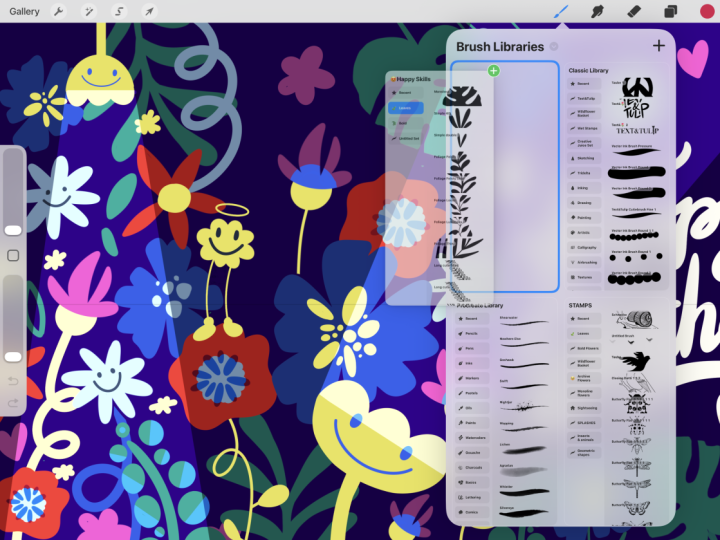
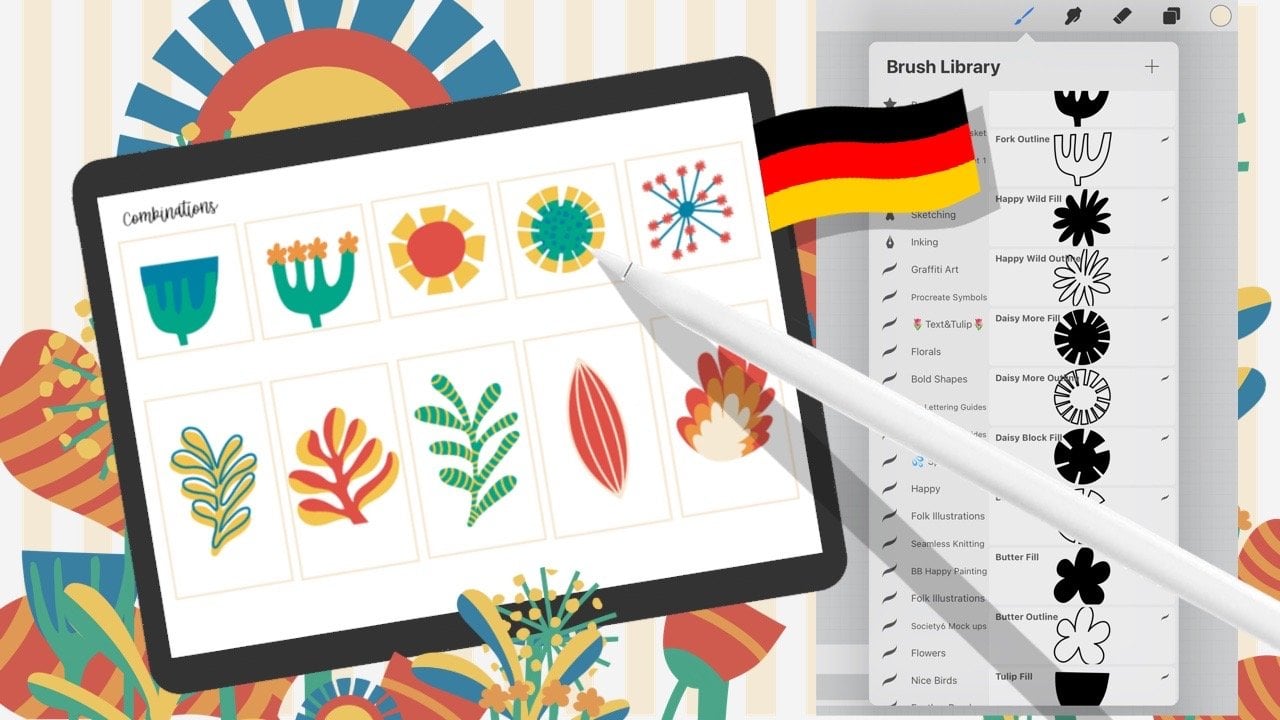
a whole collection of multiple brush libraries. This is your new playground
to organize all your brushes, sets and different libraries. Classic is the one we
already looked at, and this one is new. The Procreate Library. Here, in addition to all the built in brushes
you already have, you'll find 18 brand new sets, each with up to ten beautifully
handcrafted brushes. Take your time to explore
them another day because today we go step by step through the fantastically optimized
library workflow. That's our focus, so
let's get started.
4. Create Sets and Libraries: Great to have you here. Now, let's begin with
a short cut recap. Use two fingers, pinch, and there's your complete
libraries collection. Think of it like a
vast library hall with multiple categories
neatly arranged. Up here with a plus symbol, you can create a new library.
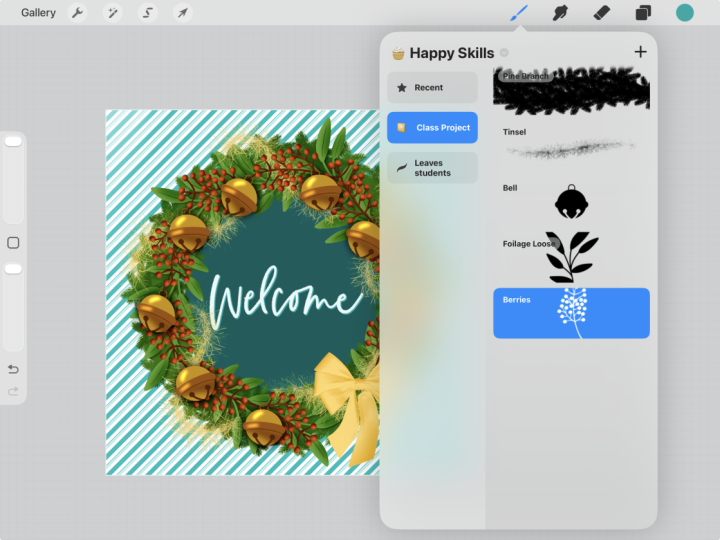
So let's do that now. We'll call it Happy Skills. And to make it extra cheerful, we can even add an
Emoji in front. Pick whichever you like. I think the alligator
is pretty funny, but okay, that cute
emoji works better. So that's happy skills. Now we've created our
very first new library. If we tap on it, you'll see
you can create a new set, and you can also have your
recent set, just like before. Inside every library,
you'll also find this plus. Tap it, and you
can either create a new brush which takes
you into the brush studio, create a new set or
import from files. So let's choose,
create a new set. Here we could collect all
our thick, strong brushes. So let's call it bold. Once you're ready,
tap, apply. Well done. This is your new set. Tap on your brand new set, and you can rename it, duplicate it, or
change the icon. So let's change the icon. For a bold set, I think the hammer works
well. Okay, that's fun. And here, too, under rename, you could even add an emoji. Okay, now it's time
for the alligator. That's pretty cool.
Apply. But now I've got the hammer and
the alligator together. That feels a bit odd.
So let's tap again, go to customize icon,
deselect the hammer. And now we only have
the alligator in front. Super fantastic. And
how we fill the set, that's coming in
the next lesson.
5. Fill Your Brush Set: To fill our bowl set with your favorite brushes that are especially thick or saturated, let's go back to the
library overview. Let's open the Procreate library and pick any brush you like. I will have a look at
markers and choose Westway. Now, important, when you move brushes from
one set to another, you always need to
duplicate them. Swipe right, duplicate, and
now you have Westway two. Now, hold it and it detach from the list,
and you can move it. You can move it up inside your set or into
another library. So hold it, go
back to libraries, and to happy skills. Bold is blue, so it's active, and we'll drop Westway in. You can pause the video
here and try yourself, or you can move Westway
into an unnamed set. Then it sits there. And you see it was removed
from bold. Let's undo that. Back. Okay, Westway
goes back into bold. Perfect. You could
also, let's say, I want to take three brushes
from my set that I like. So hole the first, it detaches, and now you can add one after the other into a
going to move bundle. That's so cool. Keep holding, pinch back to Happy
skills and release them. And we have extended
our new set in no time. Fantastic. If we go back
a back to libraries, you'll see those brushes
are missing now. To restore them, let's
pinch back, duplicate them. One, two, three, and take
the duplicates back. Pinch classic library
and drop them back in. And now my brushes are
restored. Well done. Let's go back to libraries
and back into Happy Skills. Next step, import brushes.
6. Import Brush Sets and Libraries: You can also, and this is the second option
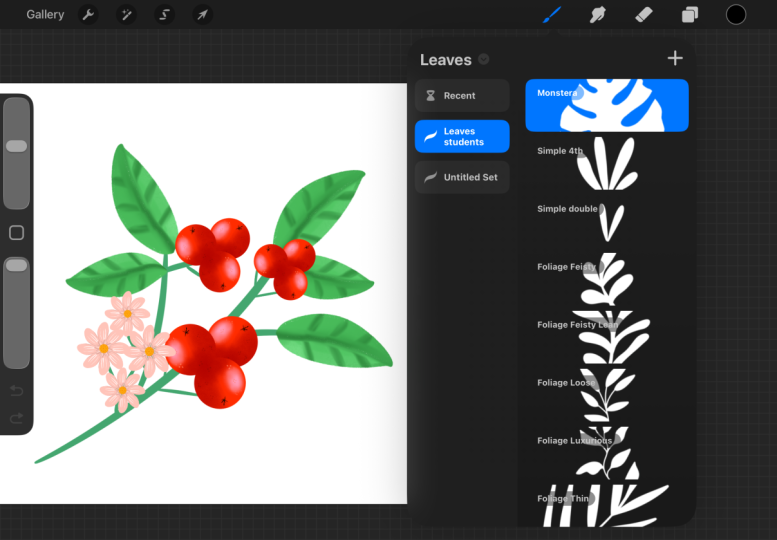
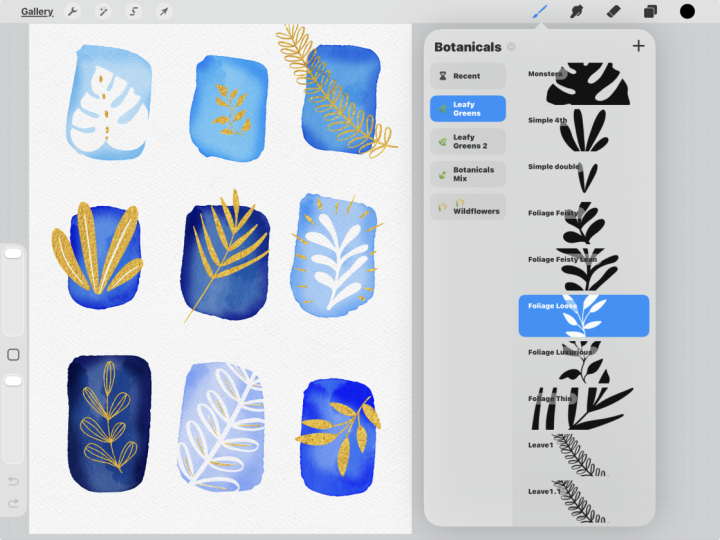
under the plus, choose Import from files. Under project and resources, you'll find the leaves
brush set to download. Tap here, Import from files. Your Download folder opens, tap the set, and the set imports into Procreate
automatically. And here they are our leaves. When importing, you can also go into the Bush
libraries collection. Tap the plus here, tapimport from files, and again, select the leaves brush set. Watch out. Depending on which library has the
blue active frame, that's where the set
will be imported. If we tap here, we now have the leaf set twice. Okay. If you don't need it, select it, tap, delete. Confirm. Yes. Okay.
Let's go back again. Say, I'm in the classic library. So now you see classic
is blue, so it's active. I choose Import from files. There's the leaves brush set. And Walla. Here it is placed. Okay. Since I don't
want it here, I'll again hold it, tap delete, and done. Now pinch, and we're back to the complete
library collection. Finally, let's import
an entire library. We'll take the happy brush
library we just created. And here you see Happy Skills
two has been imported. Keep your collection tidy. Delete the duplicate because now it's time for a
very special feature. How to organize your
brushes in files.
7. Organize in Files App: Now you've learned
how to organize your brushes directly
inside Procreate. But the big feature
here is you can also manage everything
through your Fils app. Let's open Files and here you can see how
my brush library is set up in ICloud. Let's quickly switch to split view to make it
easier to follow. Okay, here's what
we just created in ECloudO Happy Skills. We also have the Procreate
library, the stems, the classic library, and
down here, the artists. These are all brushes
made by other creators. So let's open happy
skills together. Now you see they are
absolutely identical. We have the leaves,
our bold set, and the set you can
create yourself. Let's tap on our leaf set. In the list, you can preview and organize the individual brushes. Usually, you'd rename a brush in the brush studio
just by tapping on it. But right now, that
doesn't work yet. What we can do is go
back to the list, hold the brush, tap rename, and give it a new name. Let's call this one Long cute. And you can see it will be updated in the files
folder as well. So here's the update. But this brush, Leaf 1.1 has also a pretty bad
name. Let's rename it. Long ue filled. Tap rename. Fantastic. And now you
can see in Procreate, it says Long cute
and long cute filed. Bravo. You can also duplicate a brush in your files and move
it into another set. Your changes appear almost
instantly in Procreate. Have a look at the other side of the screen while I
make the changes. So let's go into
Procreate brushes into Happy skills. Tap move. Okay. And now inside bold, you can see our foliage. Well done. In the next step, we'll share your set. That's where exporting comes in.
8. Export: You can share your set and
entire libraries with friends, followers or even for sale. Just hold the set, tap, share, and choose where
you want to save it. Tap save two files, and it will store it
on the ICloud Drive. I've already done
that. In ICloud Drive, you'll see first, the folder
with the procreate brushes. Below that are two
exported libraries. And finally, a set. A set always shows two
brushes as its icon. A library is shown as a black folder with a
white brush. Careful. If you tap on set, it will automatically
import into Procreate. And Wa now we have
the leaf twice. Anything you don't
need, keep it tidy, tap, delete, and you're done. Bravo, mission completed. Next, we will explore
a great tool to speed up the process of
finding a particular brush.
9. Brush Search Feature: By now, we've learned a lot, and we have many, many brushes, sets,
and libraries. So the question is, how do
we actually find anything? Pull down here and search opens. At the top, type
your search term. And yes, it can
even be an emoji. I'll search for ink. Now it shows me all the individual brushes
related to ink. The libraries they are in and best of all the sets
that contain ink brushes. If I now tap here, it takes me into the new Procreate library
straight into inks. Fantastic. So practical. Let's look
at the last feature, working with your recent set.
10. Recent Feature: The last feature and maybe
one you already know. Every library has a recon set. Here you see in order all the brushes you've used while working
in this library. It updates
automatically while you draw and is individual
for each library. If I now pick a brush from inks and make a
fun little swoose, that brush jumps right to
the top of the recon set. Up to eight brushes
will be saved here. To keep a brush
from disappearing, swipe left and tap pin. A pin icon appears next
to the brush name. Even if new brushes are
added, that one stays. If I now draw with a marker, the brush shows up
below the pinned brush. You can also unpin it, and it disappears from the list. And there's another great
search feature here. Let's say I have no idea
where Ruby Rose is. Swipe write, tap, find, and it tells me, aha it's
in the lettering set. That's how you can find your brushes and use
the reason feature. Bravo. These were the basics for organizing your
brush library. Up next, we'll
create your project. And as a bonus, I'll show you one more excellent shortcut.
11. Wrap up & Post your Project: Time to celebrate, you've mastered all the essentials
of Procreate's Brush Library. You now know how the
library collection works, how to manage individual
libraries and brush sets, and how to use ICloudSyc
to keep everything stored, organized, and ready
to go on any iPad. You've learned how to
create, name, fill, and share both sets
and entire libraries. Perfect if you'd like to sell
or share your own brushes. And you've seen how
the third feature and the reason set can speed up your workflow and make finding brushes effortless.
Now it's your turn. Post your project. Show that you created
a new library, imported the leaves folder, and build a set with three
of your favorite brushes. Before you head off,
I leave you with a few handy gesture
shortcuts to make working with Procreate even
smoother and more fun. If you enjoyed this class, please leave a review. It really helps. Thank you so much
for joining me, and I look forward to
seeing you again in one of my other Procreate classes
here on Skillshare. Choose
 Ulrike Text&Tulip, Digital Art in Procreate