Transcripts
1. Introduction: Hey guys, this is Emerick from Emory experiment I've seen. Welcome to these
hyper laps course. We're going to learn how to
shoot normal day hyper laps, nighttime prolapse and also a holy grail, dead
tonight half-life. It's gonna be the ultimate
high prolapse because you have to change the settings are the same time you're
doing your epilepsy. All right, so this is the end of the first video and I see
you in the second video, we choose the production
of an IP address. Let's go.
2. Production: How to Shoot a Hyperlapse: Okay guys, welcome to the first part of this
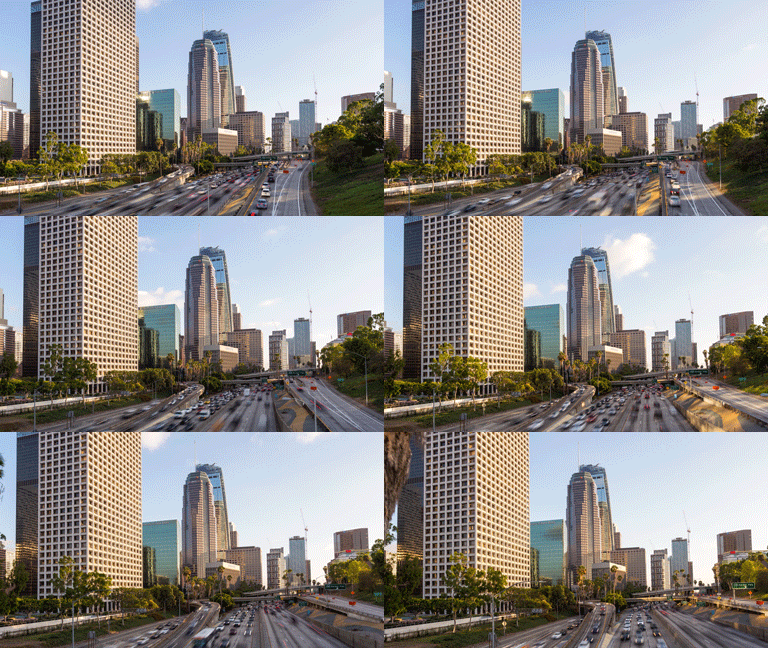
hyper laps course. Today we are in downtown Los Angeles in
regarding to do and I pull out. So I have all my gear ready. I'm gonna show you
right now what gear I am using for
these hyper lapse. So I have a Canon 5D Mark II and his 17 to 40
millimeter lens today, because I wanted to use a slow shutter speed
even during the day, I'm using a breakthrough
photography and D6 filter, which allows me to go maybe
up to 1 second shutter speed, then I have a steady tripod. It's very important to
have in steady tripod. It's very important to
have a sturdy tripod because like In labs, you need a sturdy tripod. And it's very important to
get a bull head as well. You don't want to fluid head, just use bull head
because you have to aim your camera only
in a few seconds. So usable at a steady bowhead. And then finally I have my remote control,
my interval meter, and I'm going to set
my interval right now and do all the
settings. So let's go. Obviously the settings
are going to be different in your situation. Let's see, let's see why we have today I am using an ND filter, so I'm gonna have to move a little bit with
the shutter speed. I'm using a wide lens. So don't shoot 2y0, usually 2024 millimeters. It's the maximum. Today we'd probably going to
go something like 35 mil. We're going to do
an eye prolapse using this freeway here. Something very important in high prolapse is to
use the guidelines. You can see here. Here,
I have a three-by-three, but I wanted to change it. I'm going to use a six by six. So I'm going in grid display
right there, six by four. You also can use the
Freebase feet plus diagonal. Doesn't know. I'm gonna use this six by four. And I'm gonna tell
you right now why the grid display is very
important in the hyper lapses. Now, let's do the
settings pretty quickly. I think I'm gonna go a
little higher in the ISO. It's a very dark. Maybe 200. Okay. I'm gonna open my
aperture a little bit. F9, it's pretty good. I don't want to be too to open because you can
see here with this guy, he's very bright right now. Then let's do the focus. I'm gonna focus on this bridge. Here you go. That's perfect. All right. Now I'm gonna select an anchor points are
so-called a fixed points. So once an anchor
point, an anchor point, it's going to be where
two lines are crossing. It's gonna be the point where
the twins are crossing. And I'm gonna select something on my photos as
an anchor points. And this component is
going to have to be the same drink
entire hyper laps. And this is how you can have
a very steady hyper lapse even before stabilizing
it on after effect, your anchor points doesn't
have to be in the middle. It can be on the site, but don't forget that your
subject has to stay in the middle of your
picture as much as possible because that's
where you're shooting. So let's see here what we
can use as an anchor points. I am at 40 million meters. Okay, let's see. Maybe I can use this one here. There you go. That's pretty no, that's not going to work. Let's see where we
can use maybe this. Let's see. I want something. Okay? There you go. I have my anchor point. So I'm going to use
these two lines here, crossing here, the
second from the right. And I'm gonna use the top of this building as
my anchor points. My main subject, which
buildings here on the freeway? You're going to always
going to stay in my shots. What I can use is use the
level as well to make sure my my studies, my anchor point is right there. And your fixed,
you anchor point, let's call it anchor point is, it's easier to say
your anchor point has to be visible during
the entire hyper lapse. So you have to make
sure you're going to see these part of this building. From the beginning to the end. Why do you can do is take maybe one picture
at the beginning, one picture in the middle, and one thing sure at
the end to make sure you hyper laps gonna work
was the anchor points. You actually choose.
Something very important to its try
to get your screen, your camera screen at i's
level. See it right there. It's perfect because
you want to be able to see how you picture it
looks like old time. One more thing
about your bowhead is use the two knobs here. You want your bowl
hate to be tight, but not too tight. And not to try to find
something in-between, something that where you're gonna move your
camera is going to, if a steady steel there, they're going to stay still. See, I can move my camera left and right and it's
not going to move. If it's too loose, your camera
is going to fall down like this and you can have
a blurry pictures. So try to find something
in-between, both. If it's too tight, it's gonna be too hard
for you to move it. It's not gonna be as precise. So try to find and
claim one of it with the knobs to get something very, very easy to use and
something that's gonna save you a lot of time
in-between the shots. So now that I have all my
settings in my shots ready, I'm gonna select my interval. Usually it takes me around
seven to eight seconds to move the tripod and aim my
camera at my anchor points. I like to either couple of seconds of safety
like two or three, maybe two or three seconds. For this time lapse, for these hyper laps, sorry. I'm gonna select an interval of, let's say ten seconds. All right, Let's
take it on here. All right. You need to calculate about
how many pictures you need and how long your time
Philips is going to be. I want my video to be
between 56 seconds, so I need between
one hundred and fifty and one hundred
and eighty photos when you're shooting your hyper laps, try to get something in your environment that's going to help you move on
a straight line. Like today, you can see we
have the fence and the role. So I put the two feet of my tripod next to
it and I can move my tripod half a foot
to one suit every time using the fence
in this small wall, which is gonna be
very, very helpful. If you're shooting on a beach. You can draw a line in the sand. That's pretty helpful as well. If you can, you can use a
chalk as I've already said, a charge, and you can draw lines on the grant to help you
move on a straight line. Today we have the
fence and the wall, so it's gonna be perfect. Now it's time to start shooting
the hyper laps. Let's go.
3. Color Correction: Guys, this is the first video of the post-production part
of this hyper laps course. Obviously the first
step when you come back from your shoot is to use time-lapse and to do the color correction using Lightroom like a
standard workflow, like a standard time-lapse. You just import your
pictures in your time-lapse. And then you can have a preview of your hyper laps for ear. Hope you sweet. It's a little shaky because
it's an hyper laps. But it looks pretty good. It looks pretty **** good for actually before the stabilization
that we're going to do. It's already, it's
certainly very stable for a hyper laps. My anchor point, remember
it was right here, the top of this building here. So if I can put my pointer here, you can see it doesn't
move as much a little bit, but hey, it's all right. You can see here, what is that? What did I do? You can see I changed the
settings are a couple of times because it was
getting a little dark. It was right before the sunset and the light was
changing pretty fast. So I decided to change the
settings a couple of times. But you don't have to do it. If you're shooting a
standard day time, I pull apps or a standard
night hyper laps. Don't change the
settings unless you have to unless you're
doing holy grounds. Hyperloop split, I'm
probably going to say time-lapse on instead
of hyper laps. Anyway, I changed the
settings a couple of time here I changed the ISO, I think actually the ISO twice. Yeah, it's showing
the ISO twice because I already had 1
second shutter speed, so I was good with this. But if you can change
the shutter speed as often as you can, because shutter speed is usually
why you have flickering. It's because, I
mean, if you have a fast shutter speed is
the cause of flickering. If you can reduce, slow
down the shutter speed, it'll help a lot
with the Flickr. Today I was already remember I was shooting was md six filters. So that's why I have
a 1 second shutter and my ISO is only a 125. And then I went to 160 into 200, which is pretty decent value, ISO, I won't have any
problem with the green. Again, at gender settings
here It's not a big deal. Sometimes you have to. It's not a holy grail,
time-lapse, but it's just a day. Hyper laps will
still be able to use the holy grail resorb here to
remove those exposure jump. We can see really
quickly how it looks. It looks pretty good to me. It's the natural color it looks, it looks pretty, pretty decent. Let's do it. Let's create a keyframe. So we're going to
create three keyframes. I always do three keyframes, especially, especially when
the light change a lot. I like to see how how my color correction
is going to look in the middle and at the end of my heart perhaps, or time-lapse. Alright, so now we're
going to have to do this holy grill wizard thing. You know, it's not gonna
be very hard to do today. We can just see I go, that's it. That's
pretty much it. It's not a holy grail, it's only two settings I changed during the
hyper laps are my God, during the hyper laps. And to help me
with the exposure. But don't change the settings
if you don't have to. All right, so now let's go to her electron and
co-occurring epilepsy. We import. We add the photos. Obviously. Today we have 150 photos, which is exactly five
seconds of video on a base of 30
frames per seconds. We're going to go and develop. What's good was hyper laps. It's like it's not
a lot of pictures. Even when you're shooting a
date tonight, hyper laps. You end up with I usually I end up with like four to 600 photos. And I'm when I'm shooting
a time-lapse and MAN, usually between one thousand
and fifteen hundred photos. Hyper lapses where less pictures because you don't
want it to be too long. Usually a good hyper laps
length is between 57 seconds, not more in seven seconds, sometimes a little too much. Six segments, five-sixths segments, it's the
perfect length. All right, so the first
thing I'm going to do It's to spot removal. I always like to do the
Spot Removal first. Ceo today we have a couple all the time in
time-lapse, you know, when you Shooting hundreds
and thousands of frames, you always have one right ear, small one is always
the spots showing up. All right, so let's see
what we're gonna do here with Oracle or correction. Like I like to do. I usually lower the highlights, push up the shadows
a little bit. See we already have
something a little better. Who shipped the
whites a little bit? Push down the black to get more contrast, a
little contrasts. Let's see if my white
balance is good. I like it pretty
close to golden hour. So I'm gonna go with something a little yellowish and purplish. You can see if I come
back to the original one, I was more exposed for the sky. Then the foreground here
that the freeway, why? I always like to be
exposed for the sky, because usually that's what the brighter it's the brighter. And if you expose your
picture for the foreground, which can be dark, sometimes you can
end up very bright, overexposed at some point. You don't want this, you'll have more information
in your shadows. Then you highlights
if it's burned, if it's overexposed, it's dead. But if it's pretty dark, usually there is
a lot you can do to get all the information make. Today. It's not a
lot of contrast. But you can see
our still exposed. I was still well
exposed for this case, so my foreground is all
darker, but it's alright. I'm shooting pretty low ISO. So even if I push up the shadows and the
exposure a little bit, I can still have a
pretty decent balance. I'm going to bed a
little bit of clarity because I love clarity. Obviously vibrance to
C25 and saturation, I don't go usually
more than 1512. Looks pretty good. Let's see. I'm going to remove a
little bit of this. Let's see the exposure. You don't have to touch, you don't have to use
crop and straighten. Don't do this because
all of this is gonna be done on After Effects. Like it's the difference with a time-lapse in
time-lapse usually, I don't usually
crap on Lightroom, but I can use the angle tool to fix my time-lapse a little
bit, but hyper laps, Just don't worry about this
because you are going to do all of this in After
Effects, after this video. All right, so we have
a pretty decent image. Now it's pretty simple. You don't have to do too much, stay natural and I
plot, so that's key. We're gonna do some
sharpening 50. There we go. We're gonna do our masking. If you hit Option
on your keyboard, you can go create your
mask noise reduction. I always like to put like five. Even if I have a very low ISO, I always stick, put a
little value, small value. We're going to remove
the chromatic aberration and enable the
profile correction. All right, this is pretty much
my workflow and inlet room for any basic time-lapse
or high, perhaps. If you like the colors
of the contrast, you select the pictures
after the first one going script and 01 l
time-lapse sink keyframes. So now we're going to check our second picture
and see if we like it as it looks pretty good. It's so maybe a little
too much to write. The scalar result too bright, I want to get some
information back arrow, push up the shadows
just a little bit. What about yeah, I'm gonna go with something a
little yellow or more yellowish to create little
bit like a golden car. Look. You can use radial
filter if you want, or just normal filter,
gradient filter. You can use any of this if you wish today,
I don't have to. It's a very standard hyper laps. Alright, this is my last frame. Looks good. It looks good. I like how the shadow is. Usually it looks more blue, bluer than the
rest of the image. That's why I wanted to show
to local more yellowish. Maybe I can do this
though there was before, after we have a decent hyper
laps here, decent color. What I'm gonna do is
check my removal spot to see if there is nothing
on the way. There you go. See the prime here at the stack, this building, because it's
an Apple apps, it's moving. It's not gonna work out. You can see there is something here. You can see a part
of the building. So check this if sometimes
you're using the removal tool, check if there is nothing on the web because it's
gonna look weird. You have to remove it on
every single picture. You can move the reference area. I feel like I'd probably
going to have to remove the top left here because we
have the blowing so we can, we can only keep those to
hear that state in the sky. See here it's already
pretty close to a building. They're not very visible
with your eyes, if they are. I suggest you check my
video, YouTube video. It's a free video on YouTube that explained to
you how to remove any dust spot on your
time-lapse and epilepsy, it's a great way to really clean your
time-lapse in high perhaps if you have things by sitting in front of your dust
spots or like this, like half labs where
we have the buildings. There's always a way
to fix it today. They'd not very visible
with your own eyes just just when you're using this special
tool in Lightroom. So we, okay, we're just going
to use the two in the sky. Alright, so we go back to
the library and we hit Command S on your keyboard or Control S if you're on a PC. We go back to Lightroom. We're going to reload
the metadata's. Reloading the XMP. We're gonna do the
auto transition. We're going to save
one more time. When we're done. We're gonna do the
visual prisoner. I'm going to tell
them That's this for you guys and I see
you right now. Okay guys, the visual
preview is not down. You can see that we
don't have any exposure jump now thanks to the
holy grail wizard, that actually did a pretty
freaking amazing job, if you can remember, if see the gems for
it right there. And they were the
second jump over there, which the visual preview, we have a perfect, very smooth hyper laps. I don't think I need to add
some visual definitely curve, but I always like to put
just a little bit of it. You can see our visual
luminance curve. It looks pretty smooth already, but I'm going to put like a smooth very small
value, apply it, and then do the
new visual preview using the visual flicker. I see you right now. So the visual difficulties
over now, let's watch it. I mean, there wasn't any flicker visible before that,
but 97 matter. It's hard to go. Okay. Alright, so we're done with turnips and Lightroom's. So the next step is
to actually export the video in a ProRes file. Or if you're on PC, just find a very
high-quality version. You can explore it. I don't know all the
codec you're out on PC, but just export the time-lapse. Export your video first before
doing the stabilization, export it as 0s. Don't put like a
16 by nine ratio. Just keep it as is huge, which is usually three
by two if you are shooting them Canon
full-frame camera, it's a three-bit to ratio. Don't resize your hyper laps, just export it as
almost a square. Then you understand why? Because with destablization, we probably going
to have to crop. If you already grabbed this
using 16 by nine, you, you're going to
have to zoom even more to remove the
black around it. So keep the entire
picture in your video. And I'm going to show
you how you do it now. So you can do it using Lightroom or in a
time-lapse like you do. Or you can use it after, after effect like I love
to do all the time, which is your import your
sequence in After Effect, and you export this sequence, the image sequence
to create the video, which is a great way to do it. I'm gonna do it right now. But you do export
your video the way you do it all the time,
the way you like it. The final touch, the final, the goal is to have
the video very, very good quietly ready
to establish guys. I'm going to close
our time-lapse. I'm gonna close Lightroom NICU right now on after
he thinks, okay, so now we're on After
Effects because we want to create the video from
the image sequence. So if you did it
another way with other time-lapse all at room
on or your own way, you can just keep this
part of the video and directly go to the
stabilizations video, which is the second video,
the one right after that. But if you want to know how
I export my time-lapse, how I create the video
from the image sequence. That's what I'm gonna
show you right now. We are on After Effects. What do you want to
do first is you go into After Effects Preferences, and then you go in
important, which is here. Then you want to check
your sequence footage. You are a number of frames
per seconds you want like, you would like your
image sequence to be. I always use 2997 if you're
using 25 frames per second, just change the value
here and then click, Okay, then we're
going to do Command I or file and then import. And then we're going to import or sequence image sequence. We are in a time-lapse alpha. It's not a burka Gita. It's Angeles. Yes, photos. And I only have one hyper lapse. So I'm gonna select here a name, and I'm going to select the
first image in option makes sure you have Camera Raw
sequence checked or a JPEG. If you're exploring
the JPEG, click open. After Effects is going open Adobe Camera Raw that you
just gonna select and click. Okay, it's on the other screen or CEO opens camera
row because you can't, you have the option to change the colors on your picture
because they are raw files, but we don't need to use
this because it's already, we already did this
action on Lightroom. Just click. Okay, you don't mind a bit. This right-click. Rename it. Stay organized. It's very important. They hyper laps, okay? Then you can see
here we have the 2997 that I selected
in the Preferences. And then you have a
little more information. What do you want to
do is you select your sequence and you click and drag it on this icon here, which is going to create
a new composition using all the settings are your sequence C.
You can see I have five seconds and
you're going to keep actually the size of the image. You don't want to resize
it, like I said before, because you're going
to crop it a little bit using with destabilisation. So don't do anything on it, just keep it as is
and click Export. So going composition,
you know what, what I'd like to do is
add an effect first, which is the sharpen. I always like to add a quick effects sharpen
like between 1015. It's a great effect
and really add like a good sharpen without
adding too much green. This effect actually works a little bit better than
the one on Lightroom. I felt like it. You don't see anything here
because it's pretty small. But when you zoom in
on the image, it will. When you're watching
a big screen, you can really see
the difference. When you don't just
control current aim, Control Command M or Composition,
add to Render Queue. Here it's important to
select the good codec. So you can click on lossless. All right, format option, everything is on the
other screen, agar. Here, if you are on
a Mac, on a pole, you can create Apple
ProRes four to two HQ, which is an amazing codec,
very good quantity. We don't need the audio, so we just put it off here. And that's it. If you are on a PC. Well, I'm sorry, I
don't know what's a good critic and equivalence
of the QuickTime Player. I's four to two. Hq just
said something with a very high bitrate by
betrayed, betrayed. And I always say this
is a very good quality because you don't want, you don't want to lose quality. Just select something like
good quality anywhere. We're going to select
this and we're going to explore it in hyper laps. They have labs on the desktop. So obviously this is
going to be your clip was all the shakiness and
stuff, but it's fine. What do I do this
first is because doing this stabilization on
an image real sequence, it's very, very already
really need a very, very powerful
laptop or computer. It's probably like one
image every 30 seconds. And if I work on my
price video file, it's probably
something like 2025. Sometimes it can read the file
up to 30 frame per second, which is exactly what it was meant for if you
change it a little bit, the quantity and
working directly on the video fight is way
easier to actually see. Even a stabilization
was done properly. Because if you have one frame every 20 seconds, it
doesn't really work. So right now I'm just
going to click Render. This, is it for the first
price prediction video. Now we're gonna go
to the second video, which is the most important
part of this course, the stabilization using
the tracking tool and the Warp Stabilizer. I see you on the second video.
4. Stabilization with the Tracker: All right guys, this is my
video is not export it, so we're going to go,
I need my keyboard. Was working on something else. We're going to import the
video now in After Effects, the same way we did for
the image sequence, which is Command I or
Control I on a PC, I guess. I explored it on the desktop. And it is here. I perhaps. Alright. This is the original size,
not stabilized video. I remember, which is
a QuickTime movie ProRes four to two HQ, which is a great video codec. This is the kerygma used to
sell all my work online. It's pretty big fast
as you can see. It's like 1.4 gigs for
five seconds of video. It's pretty big, but the
quality is amazing and you can easily play it on a
big screen stuff. And you never know where you've worked
because gonna hand up, so that's why you need the
best quality possible. All right, so this
is my video here. This is still a where we're smaller file
than I had before. So I don't need this anymore. I just wanted to clean it. I like to have a clean
after coming project. All right, so we take
all the hyper laps and we do the same. We just go here and drag
it on the icon here. So now we have the exact
same thing that before, but it's not an image
sequence now, it's a video. We will see it's gonna be way easier for my computer in four, I'm pretty sure must
computer to read the file. Sienna, I can play it. And I have yes. Like what one picture
every second or something. Let's do picture per se. It's pretty good. It's wet enough to actually see if the stabilization
is going to work. Before that. The world sequence would be like one frame
every 20 seconds. So it's like if you wait
and you wait any way, no, it's not possible to work on war sequence if you don't have, I'm sure a $10
thousand computer, maybe $5 thousand computer
or maybe you're pretty, anyway, a pretty powerful PC. But this is what I do. My head collapse with.
This is the way I do it. If you want to work on the
world sequence, just do it, but I'm pretty
sure it's the same and it's easier to
work on a video. Most of the time you can't use
the Warp Stabilizer first, use the tracking
machine tool first, and then the Warp
Stabilizer after. Because even, even
here on this one is gonna be wet too much work
for the Warp Stabilizer. What do we want to do is smooth these shakiness a little bit, make it smoother
than what it is now. And then the website
is a2 Warp Stabilizer to be able to smooth
it and then finish it. If you don't see the
tracker tool here, you just go into window, Window menu here and
then you should have it. Whereas it tracking tracker, It's right there.
It's check for me. So it's right there.
If you don't have it. Window tracker, where are
we going to do first is as stabilized motion not Track
Motion, stabilize machine. It's going to append the
lingual, the composition window. We don't know this is the layer window that we need, okay? This layer window here, you want to select
position and rotation. Now you're going to see a
bunch of stuff on your, on your, on your video. So what it is all of this. Let's make it a little bigger
because it's pretty small. We have two of the same. We have 1 here, one small square,
rectangle in a bigger one. So what are those? So it's kind of hard to explain. So I just went on
the Adobe website that x actually
explained pretty well. In the middle here we have a
point, a little cross here, which is a adobe call
it the attached point. I like to call it
tracking points, pretty much the same thing. Basically the tracking
point is the place of attachment for the target. So this is something we're going to seal the later we're
going to select a target. Then we have the smallest square here are the small rectangle. This rectangle is called
the feature region. The feature region defined the elements in the
layer to be tracked. Basically, if you're tracking
a car, for example, well, this little square here, this rectangle, it's going
to be the entire car. This is what you're
going to be tracking today because we are actually going to be tracking
some buildings. We're going to select
an area to be tracts. We're going to
select an elements on the buildings
to be trying to. It's not a car, but we're
going to figure something out. Usually it's great to
select something with high contrast
because it's gonna, it's gonna help actually after effects to locate these feature, these elements on your image. Then we have a big square which is called
the search region. The in the search
region, thanks to add b, define the area
that after effect, we'll search to locate
the tracking feature. You don't want this area to
be too big or too small. Because if it's too small. The feature region can actually go out of the square
and the tracking can be, can be messed up a little bit. And then if it's too big, well, the area of the search
raging won't be too big and the tracking may not be as precise as if it was
a little smaller. The tracking point or
so-called attach points, the smallest square here
it's called the feature within which is going to
be your tracking elements. And then the big square
is your search widget. So what do we have two of them, two sets of tracking
point, well, because we selected
rotation here, so obviously you need two tracking points
to tell After Effect. Okay, this is how it is. This is all my two tracking
points on this hyper laps. And having two tracking points going to allows you to stabilize the position and
rotation because see the point is going to
be moving a little bit up and down probably, or maybe if you didn't, this is going to be left and right. If you have two tracking points, adn After Effects
gonna be that okay. I have those two
tracking points here. So those two points I
have to stay straight. And then that's how
after we fixed going to stabilize the rotation using
those two tracking points, you're going to select
your feature elements for every single frame yet it's going to
take a lot of times. At the end you have
an amazing results. And then when you're
going to apply the tracking and
the stem position, you will see that your
image probably going to rotate like this,
left and right. This is thanks to those
two tracking points. It's not easy to understand
and to explain for myself being English now being my first language because
it's pretty technical. You're going to
understand very soon what it is and how
it works. Let's see. Now we're gonna select
two tracking points. When you're doing
building like this, It's great to use
usually buildings, the edge of the buildings, we don't have anything
else anyway to use. You can use the edge
of the buildings because it's usually
straight in. Your building is going to be
straight, so it's perfect. Let's see what we
can use in here. Don't use something too much on the side
of your pictures. Use something. The middle, it's better. You don't have to use
your anchor points. You can, if you're a
component is in the middle. Sometimes I use most of the time I don't use
my akin point either. As a tracking point. I use something more,
something more better. You know that I'm gonna use, gonna work a little better
than my tracking point because my tracking point
isn't always in the Moon. Alright, so let's see what
we have here that we can use a fill like this building
my work pretty well. Let us see. We have this one here. You don't want to you
don't want to take a small area between the
two tracking points. The bigger the area, the smoother your time-lapse you hyper laps going
to be at the end. It because if it's too small, it may move a little bit. And it's gonna be not
gonna be as precise if you're the distance
between 0.1.2. Here's a bigger try to
get something attract point that's gonna be visible during the entire hyper laps. I will show you in the last
video of this course how to do if there is
something passing in front of your tracking point
before this one. Try to find something that is not going to be
covered by something else. For example, let's see, let's see, I'm trying
to find something. Maybe we can find
this angle here. This is way too big. And tracking point here. Maybe we can go down here. See I'm using this building because I'm gonna be very easy to determinates a the edges of the buildings, so
how straight it is. So maybe you can find, Let's see, the middle
of this window here. Make it a little smaller. You don't want to. Maybe along. We can take
one window up so we don't have the bottom at the
top of this building here. And then we're gonna
select the search area. Alright, so those are
by two tracking points. So what did I select? Why did I select those ones? Well, because it's
a building and it's in the middle old
and it's pretty big, pretty straight as well. Here you can see
my tracking points might attach point here. It's going to be
in the corner of this building here, right here. So it's our best to stay always here during
the entire app labs. So we're going to
do it right now. Then the small square, it's called the feature region
that I just said before. So my feature region, That's what I want to
track this area here. This area, It's like
this building behind it, part of this building
here and these buildings, that's the same building
but in different colors. I wanted, I want to actually track this entire piece here. Then we have this
search region that I created that's not too
big, not too small. And I'm sure it's
gonna do the job. And then the track 0.2, which is right below
it, very straight. I selected an area of
the building here. That is actually pretty straight up track point number one because that's the
edge of the building. So my trike points is Brad in the middle
of this window here. So it's going to be very easy
to locate on every frame. Then I have my feature in their so-called
the feature region. That's a lot of words. I feature region,
which is these, all these windows here, and then part of this
Windows as well, but it's a very
shadow is there's a different contrasts
which is actually pretty great for the trucking
because it's gonna help having very different
colors and contrast. Then I have my future regions. Now, I have my search
region here that actually including this building here because I know my hair
prolapse gonna move. I know that the perspective was this building and
the building behind it. It's going to change
a little bit. That's why I want to use this building here
as a reference. All right, now we
are ready to go. What are we going to do is
like the tracking tool. Holly, What happened here? Now what we're gonna
do is I'm going to click on Analyze forward. Or we can also do one
frame by one frame. But right now we're
gonna do is analyze forward and if
there's any problem, I'm going to stop it and then move the tracking
point manually. All right, Let us go. Let's see how it looks. You can see already that the
tracking point I following, they're actually
forming the buildings. And it's going very fast
because it's a surprise file. If you're using an
image row sequence, it will take at least
one minute per, per frame here it's pretty fast. See I'm almost 20 frame done. Again to stop because
my tracking point to is just moved right there. Maybe maybe this trucking point isn't the best. After all. Let us see what happened here. This is this picture here. So let's go back. I think there's not going to
work on this striking point because the texture
is too similar. Texture is way too similar. So let's see what
else could we do? Maybe I can go down
a little bit more on was this tracking point here. Let us go back to
the first frame. You know, that's
something that happened. It's gonna take, it's
going to take you sometimes to find a
good checking point. Maybe I can go down
to this window here. Let's see, we're
going to analyze forward and see if it's
following the window. I have more of the building,
the carpenters building, which is different contrasts
and different texture, which probably going to
help the tracking to follow the attached points. See it's working
better now that I have the top of the building in my, in my region, search region. And I also have the
top of the building in my feature region helps
a lot, a lot, a lot. And I'm sure I'm going to stop here to go back
to the full view. You can see in live, you know what,
That's good, what, That's why I use a video
file because you can pretty much see in live as if it's following
the tracking or not. If it's following your what do you selected the
future your elements. This is where you understand
why you need two points. Because when, After
Effects going to apply, the tracking point, that stabilization,
it's going to keep those two points you selected
straight all the time. And that's actually
how you fixed the rotation and destabilization
in the same time. That's why this tracking tool is actually pretty powerful. If you use only one see you can, you can use only
one tracking point. You can stabilizes the rotation
just to position because the CFU like take a paper and then you can
with one tracking points, you can turn the paper
around your finger. You can try on the wall. But if you have two
points on your paper, you won't be able to rotate it. That's the way you do it. Pretty fast. It
seems pretty good. We'll take a look before we actually apply the
stabilization. I stopped here because in the
end the track point to just start doing weird, crazy things. And I think there's a couple
of times that he was off. So let's go back to
maybe like two seconds. We're gonna zoom and track 0.2. And then we're going to go
back frame-by-frame to see if track points just stay in the middle
of this window here. So if you do come
in and right arrow, you'll be able to
do frame by frame. It's very, very precise. I'm pretty surprised. Tracking tool. I don't know how I would do with
an After Effects. I think. Yeah,
this one is wrong, so it has to go back here. That's right. So you can go one frame by one frame if you
click here as well, go analyze one
frame by one frame. And you can follow
your own speed, which is pretty good. Here. I know it's good,
It's still there. One is pretty good. Right there. See that's the importance
of taking an elements of your building with high
contrast or different texture. That's going to help you. Which this tracking, because if the texture is too similar, it's going to create those
kind of problem here. He doesn't remember, it doesn't know what window
it is right here. Here. It's pretty good.
Okay, this is where we were. Let's see how it dies. If I click one frame forward, it's pretty hard to see with
all those tracking points. Nice forward and
see what happens. I think we're pretty good
for track point number two. Photo the the area
I was looking for. I wanted to and
now I'm just gonna go check track point number one. Let's go back up. All right. Then let's take a look at track point number one and
feel like at the beginning of the semi was good but around the ear and it started
to be off a little bit. Let's go frame by frame.
Let's see This one. No, I don't want to Zoom
too much because sometimes, sometimes if you zoom out and
use this p manifestations, say effect, it's
just way easier. Let's go frame by frame. Here. It's good. Yes. Stabilizing an eye prolapse going to take you a lot of time. It's very time-consuming, but it's what you have to
deal with hyper lapses. If it was too easy, everyone would do it. Try to be as precise
as possible to have your hyper laps as smooth as possible before we
use the web's blazer. Because you have to
make the job easier for the website
laser, this is key. This is key to get a
smooth, higher prolapse. I only have four seconds. And that's also
why you don't want to collapse that is too long. You'll see the number
of time that it takes me to stop to do the tracking motion
for only a 150 frames. So you don't want it too long. If you end up with a lot of pictures, it's
already showing up. I don't know where it's at
ten seconds hyper laps, for example, just speed it up. Before doing the tracking. Just speed it up to five or
six seconds and work under new sped up video instead
of the origin one, you don't want to
work on 300 frames. It's way too long, hyper laps. I remember watching a
ten seconds hyper laps and it's way too long. You know, hyper lapse,
everything is going fast and the movement
is going fast. So if you have ten seconds, hyper laps just doesn't work. Just a few changes and it's a few big sails
off, but not much. And it will be wet enough
for the website laser, but you want to be you want to have a very
clean Hyperloop. So take the time to move your tracking points
if you have to. It can actually save
you a lot of time. It takes you a lot
of time right now, but it can save you a lot
of time later because if there is any problem was
there were absolute laser, you probably can
ask to go back to the striking here and
you can lose time. You wanted to actually
save some times, but you may actually lose some. All right, we have our
two trucking point. It looks pretty good to me. Try 0.1 here too, and then track point on here. So now the next
step is to apply. So we're going to
click Apply and then a window going to show
up. Technically. Yeah, that's on the other
screen all the time. So you want to apply
the dimensions x and y, which is vertical
and horizontal. So we're going to click OK.
And let's see what happens. Let's see now what
we're gonna do. So you can see some
black lines here. So we can see that after effects stabilize or
hyper laps already, which is pretty good,
actually stabilize the rotation like
we asked to do it. What I'm gonna do
is I don't like to watch my hyper lapse on
the same composition. I'm gonna select my
composition here. I'm going to create
a new composition from this composition. Same way, click and drag. What I'm gonna do is
here I'm going to change the quantity by half. Then let's see how it looks. Let's play it. So far. It looks pretty good to me. You look at the
building in the middle, It's like you can't
even see anything. Obviously, you can see the lines under the
edges of your image, but that's totally normal because you're
just stabilize it. So After Effects, going
to move your image, your video up and down, left and right to
stabilize the movements. Remember it's only,
that's the original size. We're going to crop
to 16 by nine. That's where you, that's
pretty interesting to keep the original ratio of your video because we're
going to crop it later. And then that's going to remove all those black lines
on the bottom and the top and the edges as well because we're going
to crop it a little more. See, that's why
having a video is interesting because
it's pretty fast right now and it's
already green, so it's actually
rendering the pictures. And when it's going
to go back to 0, you'll be able to see the
time-lapse of the hyper lapse pretty much as
almost normal speed. Which is great. But right now the tracking
worked perfectly. It's going to be perfect
for the web stuff, laser, 20 frames left. Here you see it's
almost normal speed. This is actually normal speed. You can see at the
top here, 2997. See how perfect it is already just using
the tracking points. The tracker that is incredible. Now the Warp Stabilizer won't have any problem to stabilize. The small side, there is a few buildings
moving a little bit, but you'll see that the Warp Stabilizer
won't have any problem. This is where you have to
create a new composition from your old composition to watch it because you know you
have a clean composition. You don't have all those
key-frames everywhere. And because you want
to add an effect, so it's better to add an effect on your composition instead
of your original clip. We're going to go
into the effects and presets right there. Come on, Mr. All right. We're going to remove
the sharpening. We need the Warp Stabilizer. Not the Warp Stabilizer,
you kidding me? The Warp Stabilizer, VFX, double-click or click and drag
on your composition here. Then click Analyze. Usually it's gonna
do it by yourself. Okay, So while we want here is a smooth motion
in your results. You don't want no motion
because no motion means you don't want
anything to move. We have hyper laps, we
need smooth motion. You're going to use subspace
wrap here. Nothing else. And then border in framing, I like to just do stabilize on the I don't
want to crop in autoscale. I'm just gonna do
that by myself. Once the effect is
applied, stabilized only. Alright, sterilize RNA. Now, I'm just going to cut the video and come
back when it's done.
5. Warp and Cropping: I guess so now you can see
that my Warp Stabilizer, stabilizer has been applied to my clip here in
my composition. So let's see what happened here. Wow, this is perfect. Now, see the fact that you use, we use actually the tracker tool before applying Warp Stabilizer helped help the Warp Stabilizer to make it like where perfect. Because if we apply
the Warp Stabilizer right from the video without
even using the tracker, I'm pretty sure it
wouldn't be that perfect. It wouldn't be
that that's moves. So this is, this is pretty good. If you still have
some shaky shakiness. If you still have part of your
image that is still shaky, What do you can do
is create again another composition
of your composition. Of the composition, this composition
inception composition. Anyway, you can just take your composition,
which is this one. They are perhaps two, and
create a new composition. I'm actually going to do it
right now to crop my image. If you still have some
part of your image, shaky, just apply a warp
stabilizer one more time, two passes, a second pass, usually it will
be perfect today, the first pass was good. We don't need to
apply a second time. What we're going
to do now is like Composition and
Composition Settings. Settings, oral, come in K. We're gonna call it
the hyper lapse three. This fine. And here I'm gonna change
my settings to time-lapse, but I'm going to use this. I'm gonna do it manually. You can save templates,
which is pretty good. See if I click on here, proof, it just
change it to there. The resolution I used
to sell my clip, which is 19 by 964096, by 23 or four, which is four K plus. And it's a widescreen
1699 ratio. And that's what we want. And this is where we
actually do it and not on Lightroom or not before the stem position
every time It's the last thing you do is to crop your time-lapse for cell to
cell it and then click Okay, Obviously it's a little
bigger than your image. So what are you going to
do is change the scale. Don't do it to maximum because remember we have
some black lines on the bottom left and top
left of your image. Here we can see we still have some lens distortion
on your lap, so we can remove it a
little bit and fix it by using 3D basic, basic, basic 3D. That's what it is. I'm just going to play basic
3D here and change the tilt. See it's the same, it's the same effect than
we have in Lightroom, but I like to do at the end. Again. Here you see this building
that's perfectly straight and we don't have the lens
distortion and it's stabilized. We have some black line here, so we're going to zoom in
a little bit, maybe 80%. Let's go down a little bit. I don't want to
go down too much. Just this guy is boring. I assume it's pretty good to me. Let's play it and
see how it looks. We have perfectly
straight buildings. We have absolutely no shakiness. It's freaking smooth. I love it. Okay, This is our final
hyper laps to Meets Perfect. Just check that, you know, usually the edges of your higher prolapse
or of your frame. So you don't have any
black, black lines. You don't want to see
the black parts of their civilization. But to me it's perfect. It's exactly the way
I did it the first time because I'm
actually redoing this one just for you
guys for the course. But the first time I actually
did it, it was perfect. Like this. Alright, well
now it's ready to export, so we just do come on a command Control M or Composition
add to Render Queue. Then one more time we
can just export it as a ProRes 42 to HQ. And the clip is ready to sell, ready to be shared on
Instagram for two to HQ. And we render and voila guys, this is the clip
before stabilisation. This is the creep after stabilization with tracking
and Warp Stabilizer. How cool is this guy's, how cool it is. Amazing. This is it for this
post-production video of a day hyper laps it works
too for epilepsy, it's pretty standard hyper
lapses because you use tripod. You can use standard hyper laps without actually
changing the settings. But you can use long shutter
speed if you want to. But now we're gonna do
the holy grail of regrow. I call it the holy
grail hyper laps, which means it's an hyper laps. But I changed the settings
during the time of shoots. So it's going to be amazing. It's pretty hard to shoot. It's also pretty not that hard. It's not a big
difference to stabilize. But I'm gonna show you again, this is the next video. I'll see you on the next
part of this course.
6. How to Shoot Holy Grail Hyperlapse: All right guys.
So we should have elapsed and we stabilize
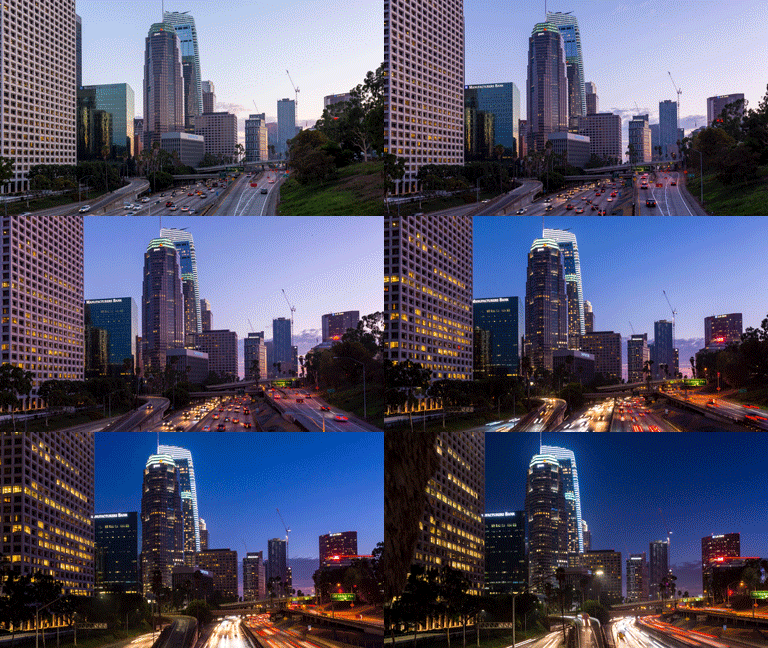
her day our lives. It's great. But what we want to do now, it's a good tonight. Holy grail Hyperledger.
It's the holy grail. Of the Holy Grail, I
recommend you know, how to shoot hyper laps, and I'll shoot day tonight
time-lapse before doing any holy grail of hyper laps because it's not easy to shoot
the Holy Grail hyper laps. Basically, it's a mix of hyper laps and a
digital time-lapse. You're going to move
your tripod as any good to change the
settings window, actually the Nikon's
or I guess so now I'm doing my holy grail
digits and I have lapsed. So it's like an hyper laps it's like addition,
a time-lapse. You mix both together, which means I do like it. Under hyper laps,
you see I can move my tripod between each shot. And as soon as I think that
my picture looks too dark, too dark, I'm going to change
one of the three settings. Mostly change the shutter speed first because that's
what's great flickering. So if you ever longer a
slower shutter speed, you're going to end up
with less flickering on your hyper laps,
which is great. This is what I am
doing now in front of the beautiful downtown
Los Angeles skyline. This one, my anchor points, my six-point is the
top of this building here and the two
lanes crossing here. I feel like my picture
is too dark right now. So on the next picture I'm going to change
the shutter speed. I set up my camera and I
changed the shutter speed. There we go. We have OneNote 1
tenth of a second. Then you do this all the
way through the night. It's a long process,
but it's worse. It we have a very nice charts. We have a few clouds
in the sky tonight. And I don't know
why I yell because my camera my mic is pretty good. When you're doing your dead
tonight hyper laps and don't use any ND filter like I
say my time-lapse course. Because if you use
an ND filter once, once it gets dark at night, it doesn't work, it's
gonna be went too dark. You can see I removed the ND filter it and
I'm shooting natural. Take your time when you're
shooting an IPE laps. If you think that
your interval is too fast and you don't have the time to set up
the next frame. Step, everything, start over and add a couple of
seconds to your interval. Sometimes it can help a lot. The more you should
hyper lapses, the more comfortable
you'll get with those. And you'll be able to get a
faster interval when shooting a holy grail hyper laps select a longer
interval than a day, happy lives, because
you will be shooting on a longer period of time
from day to night. Usually it's between one hour in one hour and 30 minutes
and actually having 15 seconds interval and move my tripod a little less
between each shot. If you end up with more photos
than expected, it's okay. Speed up your clip on After Effects before you sterilize it. It's always better to
have more content than not enough for your settings. Start like a normal day to
night time lapse, ISO 100, medium or pitcher
between F and F 13 and set up your
shutter speed. You will be changing those
three settings to let more light in your
pictures start always by changing the shutter speed until desk and you can change the ISO and aperture a few
times for your anchor points, think about the fact that
when it's nighttime, it can be harder
to see it acidic, something that you know what
we visible during the night. It can be a light and
drove a building, a logo or texts somewhere. Think about how you anchor
point will be at night. It's very important. If you're not sure
how to manually should definitely time-lapse. I suggest you to watch
my holy grounds that tonight time-lapse cores
available on my website. Before doing that
tonight, hyper lapses. Okay guys, so now I'm done
with my data and I have labs, so it's time to go
back to the studio, do a color correction
and stabilize it.
7. Day-to-Night Color Correction: Okay guys, welcome back. Right now we're going to edit an hyper laps did
not have perhaps. So we're going to do the
color correction and then stabilize it on After Effects the same way I did
for the first one. I'm going to stay too long
on the other time-lapse in Lightroom part because I estimate that you know
how to do that tonight. Time-lapse before doing data not hypoactive is great
because it's way harder. But I'm still gonna
show you my process and what I'm doing
and then but I'm pretty I'm going to
go quickly on all of this because I think the most
important part of an IPO, AP scores, It's establish causation and mortar
color correction. Anyway. This is my digital hyper laps. It was shut like a few
minutes after the collapse. We use for the first video. As you can see here, it's very shaky, but
that's all right. It's not that shaky. I mean, we have
the ramping here. I was changing the settings. You can see I was
staying, as usual, more exposed on the sky
than the foreground. So my foreground is sometimes a little bit
dark, but it's all right. That's something we
can fix in past. Then. Alright, so we're going to
start by creating a keyframe. We have. How many
pictures do we have? We have 213 frames, which is a little longer
than the first one. We had 150 frames, probably going to speed
it up and After Effects, before I actually doing
this stabilization. So we have less
frames to work with. So today we have 230 frames. So I think I'm going to take five key frames.
That's pretty good. Let's do the Holy Grail wizard. Okay, so we're gonna
do is train it up and then move it to the
middle of my hyper laps. Looks pretty good here. Maybe up a little bit. No. All right. It looks
pretty good like this. Now we save if you don't
know what I'm doing, I have a date tonight
time-lapse course available on my website that I suggest you watch before actually doing this
hyper laps photograph. And then we imported. Good, Let's do a quick
color correction. I don't want to stay
too long on this. Like I just said, you
probably saw that the production part of a dead 2.5 laps wasn't
that long because, I mean, there's
nothing else to say. You've already know how
to shoot an eye, perhaps. You technically
already know how to shoot a dead tonight time-lapse. So it's really, really like a mix of these to get
all those together. I have a complete hyper
laps production video, which is exactly
what you need to do. A hyper laps, there is
nothing else I could say. Settings. Obviously I'm going to change during the hyper lapse so I can't really settings it
was the same setup besides, you didn't have the T6 filter. But the only thing that
changes my anchor point, which was, I think the top
of this building right here. It was this little rectangle here at the top of
this building here. That's it. There's obviously
not much more to say. So I didn't want to do like ten minutes video to
repeat the same thing at already said in the
first prediction video for the hyper laps. Anyway, this was just a
comment I wanted to say. Let's start by obviously
do or removal spots. There is only one right here. Let's see if we go at the end. The last frame maybe comes
now it looks pretty good. It looks okay. Doesn't cross with the building or anything. We'll be able to remove that one here and then this
one here. Okay? All right, so let's
do the usual like push down the highlights,
up the shadows. Let's see the white balance or yellowish and purplish
because it's called an hour. Little bit of exposure, not much. And what do you want? You don't want to do too
much white-black contrast in clarity because the Prime Was this in
the exposure 2012 on Lightroom, It's like Lightroom, the process version,
the new one, which is it exposure 2012, actually take the
entire pictures and apply those those tools, the sittings differently
from one picture to another. It's gonna dip, depends actually
what's on your picture. If you have something
passing in front of it, your picture can be
darker or brighter. So most of those settings can
be applied differently from one frame to another because they are called
non-linear tool, which is the contrast, the white, the black,
and the clarity. That's something you
don't want to use too much on day tonight, hyper lapse or a time lapses because that can actually
mess up your TAM apps big time and create
some contrast figure that actually pretty horrible
on your, on your time. Have somebody video.
Should be good. 20 here, It's good
ten years ago here. Okay, we have some nice
color here in the sky. Let's see. I think it needs more normal, more vibrance and a little
bit more of colors. Saturation. Again, don't take,
don't worry about crop and straighten just everything is gonna be on After Effects. During the stabilization. I'm gonna go faster now
because there is nothing much. I'm just gonna do my
color correction due to your color correction
the way you want it. Then we we move on. All right. This is it. I'm done with my
color correction. It was very quickly. Quick color correction. Just pretty simple again,
nothing extraordinary. Then. Now we're going to
go back to LR time-lapse. I'm going to save the myth that data's go back to
our time-lapse. I'm gonna reload it. I'm going to do the
auto transition as usual and then I'm
going to save it. Now. I'm going to create
the visual preview. I'm going to time-lapse
this for you guys and I see right after it See you soon. Okay, so the visual preview is over now let's see how it looks. Looks pretty good. We don't have all
the exposure gems now at the end we
have a little bit of, I think it's what I call natural flickering because it's due to the car lights that change the overall exposure of
your time lapse or relapse. So it's not natural exposure
or due to anything. But I'm still going to add some I'm still going to add
some visual difficulties. I'm gonna select my first frame and I'm going to select here the sky because the
sky is perfect. There is nothing that's going to interfere with the overall
exposure. The sky. The sky is going to change from night from day to
night like smoothly. As to why it's the
perfect area to select. You can see the visual mediums curve is a little different. Now, here at the end it's a
little, it's not very smooth. I'm pretty sure it's
because of the car lights, the lower the lights
from the cars. I'm going to, I'm going to apply some visual definitely
curve just a little bit. And then I'm coming
back in a few minutes, few seconds, a few minutes
to see how it looks. Let's see. I mean, right now, I'm obviously looking just at the transition. The holy ground, not looking at. Don't mind either shakiness, obviously it's something you can really it looks
pretty good to me. That looks pretty good. This is before. Here you can see you as the
foreground was pretty dark. The foreground was pretty dark. And then we are all
flicker from the exposure. And now we have a
perfectly smooth look at this visual elements curve. It's perfect. All right, So now it's
time to stabilize it. No, First-time to
export this video as a ProRes file or any other high-quality
video file you can have if you are on PC. And then I'll meet you. I see you on After Effects.
8. Day-to-Night Stabilization: I guess so I exported my video. I have now the perez file
ready to be stabilised. Remember I do this
because you know, it's ways to work on
a video file them, the image sequence you
notice stabilize it. So I have my file seats
only two gigabytes, 2997. And then let's go, let's do it. We have our data not hyper laps, that needs to be stabilized. So I'm gonna create a
new composition here by dragging the video clip
on this icon here. And then let's see
what we can do. Obviously, we're
going to start by drawing the tracker and never start by using
the Warp Stabilizer. We're going to click on
stabilized motion here. If you don't have
the tracker window, just go window and trucker, everything is going to
be in this menu here. All right, so we're
going to select position and rotation
because we want to stabilize the rotation and
the position of our images. We have or two
tracking points here. This is the search region, the feature region and the
tracking point in the middle. What I did for this one, I remember doing
something a little different than what I
showed you for the day. Hyper laps. What I did for this
one is I selected two tracking points that are not on the same line, vertical. And like on a building, I didn't selected the edge of the building that
supposed to be straight. I actually selected two
different points on very different located on
two different buildings on my, on my hyper laps. Why did I do this? Because I couldn't
find anything. I couldn't find anything
on this building here or any other building
that will be actually easy to use as a
tracking points. See if you go at night. At night, everything's like the texture are very
similar on the building. It's hard for the
tracker to keep track, actually attach points. That's why I decided to select two different points that
are very easy to track. It doesn't work every
time because you know, the distance between those
two points can exchange, which means our
After Effects can rotate your image like
crazy like a lot. You're going to have to
rotate it back manually. But that can work. That's how I ended up
with these hyper laps. I remember putting like the first one on this
logo here, P belt, PWC. It's great because
see day and night. This logo is very easy to see and it's a very
different texture. We gonna select or first tracking points on
this logo here, PwC, if you have any texts to use on your hyper
laps, it's really easy. It's good to use texts
because it's very easy to very contrasty and usually after effect doesn't have any
issue to track some text. This is my attach point here, trucking point in the middle
of the W, my feature points. So we're going to try the logo. And then this is the
search region here. I'm selecting most of
the building here and a little bit of the sky because see it's
different texture. It will be easy for, for After Effects to track it. My second tracking points, I'm going to actually put
it on my anchor point, which was right here. I think there is a red light, heparin see the red light here. So that's why I wanted to
keep on the right light. It's gonna be very easy
for the attach point. And because see we have the sky and the top
of the buildings, so we won't have any problem to track those two tracking points. See here we can see the low. The light is right
there. So we're gonna put or outage font right here. My feature region will be
like the top of the building. And the search
region will be like top of the building a little
bit. It must have this guy. All right, so now we have our two trucking
point ready at C. C, They are pretty good. Now what I'm going
to start doing is we're going to
analyze the time-lapse, the hyper laps and then see what is going
on, what happened. If there is any problem? I stop here because
our truck point to just completely off for now. I don't know what
happened was them Iraq's pretty grids
so far we already have more than
three seconds done. Let's see, this is the oral
track point number two. So what happened to you, Mr. he? Okay. I don't know what happened here, so I have to go
put it back here. This one the same
services right there. Let's see if I do
Analyze forward one frame back on track. And let's see number one here. If it's still on the
w, That's perfect. All right, let's keep
shooting. Let's keep tracking. See during the nights, because the texture very
similar, the color. There's not a lot of contrast in the colors. It's very dark. So the tracking tool has
a little bit more issue to actually follow the The
attach point I selected. I'm pretty sure I'm
pretty sure that truck 0.1 will be
perfect because text, it's very easy to track. It's a very, I mean,
the texts, the PWC, It's a very easy
elements to track for the for the trucker. I have more problems, more issue with the
truck bond two, because the texture, the sky, and the building looks very dark now at the
beginning it was okay. After four or five seconds, as you probably saw a change, I had to go back to change
a couple of frames. Alright, so this is that
there was pretty fast. It took about 34 minutes. It see if the tracking point
here at the end is good? Yeah. Okay. I was pretty good. Let's check like
five friends before. Okay. Yeah. I'm pretty sure it's
gonna be way easier for the web symbolizing. I'm using this technique here. Only on you see the two points. The first frame and
the last frame. The distance between
those two tracking points are pretty much the same. It doesn't change up and
down or left and right. You have to really carefully choose your tracking point when you're doing
this technique. It's always better to choose the edge of a
building or something that is straight
on new hyper laps, it's gonna be way
easier for you and for the tracker because those
two points always going to stay vertical and always going to stay the same
distance between each other. But here when you select two different points on two different buildings,
it's all different. You don't want it.
You don't want that perspective between
those two points to change too much
or it's gonna be, it's gonna create some weird
stuff with destabilisation. Here, the distance
between the first one and the second one
is pretty much the same. We won't have any big
issue and you see, it's always the up and down. It doesn't move up and down or left and right to each other. Hopefully you understand
why I'm saying it's not easy to explain. So what we're gonna
do now is apply stabilization and
see how it looks. See, yeah, that's what I had problem at the end because I'm pretty sure that the
two tracking points are getting closer
to each other. So the stabilization, the tracker probably going to rotate or hyper laps or not. Maybe I was actually not
very straight at the end. It's all right. We will find a way to manually
move up this a little bit. We're going to have
to crap anyway, so it's not a big deal to
have that much black here. Let's see, we're gonna
do as we usually do. So we're going to
take our composition here and then create a new one. Because we're going to
apply or reps to blazer. But first I want to check
how high perhaps looking. See selecting the PWC vulgar. Something happened on this one. See if there's
something happening. Just tick the time code
here. This is 2024. And go back to the
24th frame here. And let's see what's
going on here. It was a 24, so we have
to go back to the layer. There's probably
something going on was one of the two tracker agar. You can see this one is
completely half year and I missed it up. We're going to
move it back here. Then when you're done with this, you have to apply one more
time to reset the, the effect. Now if I go back to the
dead tonight happen perhaps to the frame number
24 should be fixed. There you go. I didn't know. If I didn't notice it's good. Which means are you
guys I fixed it? See, there is
always a way to fix if trekking funny is
off a little bit, just go back to the tracker, then move your trucking
point a little bit. It's a back-and-forth,
but it's perfect. There has to be perfect
for the Warp Stabilizer. I'm going to speed this up for you guys and then look at it. Let's see how it
looks in real-time. This is how it looks now, it looks pretty good. I've seen a couple of
frames that needs to be fixed. Let's see how it is. And I wanted to done here, There's one little bit. Can I find it? Find it. Here you go. This one, this is 115. We go back to the first one
and to the Layer window. It's probably this one off, not much, but I'm gonna move it and there's a second
one a little bit later. This one I wanted to 15. Okay. This one here. One here. 201201. So we'll go back to 201. See this one is
off a little bit. Go down, it gets pretty good. We apply. We select OK, and now we are
ready to actually, well, let's check 115. Okay, it looks better.
It looks better. All right, so Webster, the laser, I know why there's actually love
black lens at the end. I'm pretty sure. My camera was off a little bit. I wasn't I wasn't that
straight when shooting. That's why it's very
important when you're shooting to stay as
straight as possible. I'm going to add the
warp stabilizer. I'm going to get
the video and when the web some laser is applied, I'm gonna come back
to you guys. I see. I see you. I see you there. I see you soon. Okay. I finally apply the Warp
Stabilizer to my day tonight. I have to say it looks pretty well done, pretty well executed. Let's watch it together, guys. See how smooth it is. That's normal speed. That is perfect. It is perfect. Wc we have now, we know have to crop it because we have some black
lines on the sides. But that's all good. That's all good. Looks pretty well done. It looks pretty well executed. There's a one-point
on the left and building moving a tiny bit. Not much, not much. What are we going to
do is apply a second, second time the Warp Stabilizer, I'm going to click
here, drag it here. There you go, and then apply the Western laser one more time. And then after that
you should be perfect. Perfect, perfect. We're gonna select stabilize on, and let's see how it looks. Okay, Finally, I use the
Warp Stabilizer twice, and now we have a perfectly
smooth hyper laps earlier on the first one, right after the tracking. Some issue here on
the left to the left, this building moving
a couple of times. Usually this side of the hyper laps that's
going to move them more. But right now is the one tracking plus
two Warp Stabilizer. You can see we have a
perfectly smooth hyper laps. Now what are we going to do is, well the final step,
this is cropping. We're going to crop it and create the 16 by nine
ratio widescreen. So I'm gonna do one more time, create a new composition
from the composition, I'm gonna keep coming
K, It's coming here. I'm gonna put like
4096 by 23 or four, which is four k plus
four plus 16 by nine. Okay, we're at 2997. We're going to keep the
tune out half laps. Okay? Alright, so we're good now we need to scale it
down a little bit too. We don't want to
crop it that much. I remember around the end
we have some black plane, so we don't want to
see those black lines. So we're going to
have to crop them. Let's see here, it looks
pretty good to me here. We probably going to have to
crop the top of this pyre. The Welsh for granted
a little bit. Let's see here, it looks
pretty good to me here. All right, now, we still have
some lens distortion here. So remember I just use the
filter called basic 3D. And then you change the
tilts a little bit, maybe like five degrees
or so, a little more, maybe we can go real
crab pretty well, the bottom, bottom
of the picture. So we can we can do pretty
much told too much. 877 looks pretty good to me. Let's see. Do a final check because
sometimes the edges, you can have some some
black showing up. So let's see 75.5 per cent. How this looks. Was still have a tiny
bits of 76 should be good at what you should
do sometimes like, um, play the file on every, every time, look at
different sites. So for example,
you're going to play it once and look only
at the right side. And then do it again
on leave at the top of your image to check
for the black lines. It's the best way to make sure you don't
have any blacks here, at least some blacks in
the bottom left again, little bit three, nothing. Maybe you can just move it
to the right a little bit. If it doesn't show up on
the right, should be good. So we don't have to scale. We can live to zoom more. It looks I think it looks even better than
the first time I did it. Is it me or this bill and a
little bit it looks tilted. You're in the end. It looks a little
bit for some reason, very sorry, we're
getting rotation here. Then at the last, let's see. We're going to change
the rotation a tiny bit, like 22, 2% degrees. So it's going to go see, it's like going from 0 to two. So at the beginning he was
perfectly straight and Randy and it was a
little tilted for some reason I didn't check this. But now it's perfectly straight from the beginning to the end. Here you go. This is it we ever did
tonight hyper laps. Now you understand how
I stabilize them to go from this to this. It's a big improvements. It's obviously it's
time-consuming. It took me like, I'll say a couple
hours to do it. It's just not a timelapse. Time-lapse is sharing the time passing and stuff like this. Here. It's like a mix
of space and time. Some yeah. I'm pretty happy about
how you worked out to me. It turned out pretty
well. It's perfect. It's really great. It's a really nice hyper laps, didn't I have collapsing and I'm pretty happy to
turn out pretty well. So this is it guys. Now, we have one more video
for the post-production. I'm going to show you how to stabilize and hyper laps
when there is something passing in front of your trucking point because
sometimes it can happen. So I'm gonna show you an
ICU in the next video. Ciao.
9. After Effects Bonus Video: All right guys, So we're
back for this last video of the post-production because
I have to talk about this. I have to talk about sometimes. Sometimes you can have something passing right in front
of your tracking points. You can't even see
or touch points. You can't even see your feature
elements on your image. Sometimes happen on only
one tracking points. Sometimes they happen on
the two tracking points. Imagine if you have
like a light pole or a traffic sign just passing right in front
of your pictures? Well, it's going to
block your view. It's going to block the view
on all your tracking points. You can fix it because there is always a way to do
it on After Effects. I'm going to show
you on this night hyper lapse of the
Flat Iron Building I showed back in New
York City a month ago. While depends on when you're
watching this tutorial, but it was technically
in September 2017. See, I selected only three
seconds of these high perhaps to make the file smaller in to make it
easier to work on. I think it was like
six seconds tall, the clip, it was a 180 frames. I had 1 second
before this part I selected and then two
more seconds after. But I selected
those three seconds because it's the three seconds where these things spacing right in front of
my tracking points. And I'm going to show you how to fix it so you can see I already started doing
the tracking point. I went a little
red and I did it. So the first striking
point, my mean, my my anchor point
during the shoot was here was this
part of the building. It was easy to see because
you see the difference, the distance between
those window and that window here
was pretty big. And it was that I
could different texture on the building, so it was pretty easy to see. My anchor point was here. I selected my first
tracking point here on this white thing here, because it's very easy to see the shape that
it's round shape. It's very easy to see for the feature elements
and the search region. My search region here
you can see acidic did a little bit of the sky because
it's different textures, so it's gonna be easier for
After Effects to track it. So here you can see for
the first like it's like almost let me clip is four seconds actually,
not three seconds. 43 seconds anyway, for
almost half of my clip. You can see that my first
tracking point is following the following the
feature element, the attachment pretty well. But I have some issue is
Treg point number two. I'll see you can see it's
doing a weird thing here. I selected an attach
points on the building. On the same line, you know, it's a vertical line. Vertical, vertical. F prime was this
word, I'm sorry, a vertical line on the
building because it's easier It's easier to
stabilize when you have you use a vertical
line on the building. You see my detach
point here is list, this little square here. It's pretty easy to see
because it's between this very thin window on the left in this bigger
window on the right. And it's really like it's white square on the
gray buildings. So it's very easy to see,
was following, okay. Up until actually cross
this one-way sign here, you can see it's go back. See it's already
like completely off. That happened because
your feature element, it's covered by something
and the search region two. So let's see what we can do. Let's go back to the first frame where it was actually working. In the first frame where he was started to be like completely off it actually
actually this one. So C19, D19, we are pretty good. And then if I go 120, you can see it's hurry off. It's off because of the
signs After Effect. Don't really know
what's going, honey, or there's something passing
right in front of it. What are we going to do? Well, we're going to have to
do manually until we don't even see or attachment anymore. Right now I can see
it this way here. I can just move my attach
point and then that's it. Then next frame, same thing up. And I can do this all the
way until I can't even see this white square here. Can see it almost, almost. I see, I can see my wet
squares right there. So I estimate that the middle of this query
is somewhere here. But this is adherent. We have a problem.
We can even see. I don't see where he's
my white square here, my touch point, I
can't even see it. What am I going to do? 10:00 AM. This is the whole
point of this video. What am I going to do is very simple because we're actually using a vertical line on
this building from between, you know, imagine a line between track point number
one, Point number two. It's gonna be very easy. What do we can do is
select another points and other attach points
on the same line. It's not going to affect
or stabilization because. The lens is gonna be the same between those two
tracking points. The distance is going
to be different, maybe like shortest
small distance. But it's all right. It's still going to work for destablization was after effect. That's pretty good.
That's where we can do c. We have entire, We have like four or five windows
we can use here. What are you gonna
do for this frame? Is I going to take my tracking point and go
all the way up to maybe, see there's another white
square we can use between, again, the thin window on the left and a little
bigger window on the right. I can select this attached
point for a few frames. And then as soon,
as soon as I see my original the touchpoint, my original feature
on him and back, I'll be able to come
back on this once we actually pass the one-way
saying, let's keep going. Here, we have this minor care. So remember I change
my trucking elements, so that's this one here. But let's zoom
manually obviously. Sometime you just faster
if you do it by yourself. All right, so now we
have three frames. I can, still can't see
my original elements. So I'm still working
with this one here. Make it perfect. It's almost back but for a few frames safety
as this one. Yeah. Let's see if the
next frame yeah, I can see my tracking point. Which one was I think
it was this one here. Here I can see my
feature image back. It's here, it's
the white square. I'm just gonna make sure. Yeah, I mean, you can see
all the checking point is pretty close to this one. So yeah, that's this one here. Now, next frame, I can go
back to my origin elements, which is right here. I'm just going to check if
that's one or two or two or is it the one with the
white square in the gray? Okay, that's good. So
let's go back to O2. O2, alright, now I'm back
to my original elements. So let's keep going. We can see you have an other, you have something
else going to show up in front of my
tracking point here? You can see Can I see it? Can I sit? No, I can't see it.
So what are you going to do is I'm going to use the longer distance I can between the two tracking points. So I don't have to use
this same tracking point that when the One-Way
sign was blocking, I can use a different one. Let's see, maybe you can
use it like this one. The middle square here, C, all the way until the
lights block the view. But you can see I'm still staying on the same
line all the time. It's very important
and you need to stay on the same line. Has to be at the vertical
line you're staying on. Pretty far away. It went in the sky. That is so strange. This is good. Next I'll see my
second trucking point is almost again covered. What I'm gonna do,
I'm gonna use one, I'm gonna use this one now. Still on the same light,
still on the same line. And C, you got the concept,
you know how it works. Now, it's very simple, just used tracking
point located on the same on the same night. And that's it. And you do this all
the way to the end. Is it this one? Did they select the middle
one on the bottom one? Bottom one right here. I know you have
two more seconds. So let's analyze frame by frame. I stop here because again, we have the same problem. See a sudden the
lights that scene, That's a crossing
pedestrian crossing light, still having the
same problem here and actually fall on the
tracking point here. But let's move one
frame by frame. I'm doing this manually. So the tracking point
is going to work at just gonna have to work
on the tracking point. Tracking if I'm gonna be
one sorry, going to work. So I don't have to
worry about this one. I'm gonna do this
trekking point number two manually up so I can sit. Let's go back to this one, for example, still
on the same line. See I can go down as
much as possible. Maybe up, hold on. I can't even this one. My original tracking
point is right there, but there's another
light bulb here, so let's use this one here.
I used this one before. I think I want to keep this one. I can see my original
element right here. It's this white square, but see there's the
sign pretty close. So I'm going to use this one
now as much as possible. And as soon as my original
element is back on track, I'll be able to go back to it. I've been working
on a few frames. I sped that up for you. See now, I already
passed the light, the traffic light pole here. So see I can see my
original element bag, that's the square here. So as soon as I can see it, I'm going to start
working with this one now to make it as
precise as possible. The tracking Vaughan
came for a bit. Now that I can see it, I can move the
attachment manually. I only have a few frame
left, at least five. So this should be quite fast. Can barely see here. Makes sure on this one I'm gonna use this square here. Hang on. Here's the traffic light. I can barely see the traffic. Traffic might attach
point and then we good. I'm just going to go check,
check point number one, but I'm sure try point
number one, uses. All good. See it's still on this
white thing here. Let's see here. All good. Tripod number one is all good. So now I'm gonna go
here and then going to apply and it's
worked talented. Hopefully I did up fully. It did jump here. Let's change the quiet you have. Let's play our headlamps to see. Hi, did so far so good. Let's see when the poll
is actually going, crossing or tracking points. It may move a little bit. But you remember the
tracker is the first step. Then we can have the
Warp Stabilizer. Here. We already passed
c, The first poll, it's moving a little
bit, tilting. This one is moving a lot. We're going to have to fix it. But otherwise it's pretty good. It's pretty **** good. Let's see what happened
here on this frame here. That's this 1228. So what I can do
is you go on 228, you click on your
Layer window here. And then we're going to
sit, what happened here? What the **** happen here? You can see the touch morning is absolutely not on the line. The line is supposed
to be between the small windows and
the bigger window here. Let's go check truck
point number one, track, but number one is
pretty good. It's good. All right, let's go
back to the full view. We're going to have to apply it again because we've
made some changes. So you can see the image went back to where it
was supposed to be. And there you go. We fixed it. Here we go. It's a huge
improvements from the first one. Remember the first one
was looking like this. Now it's looking like this. The tricare is the first step. Then we're going to have
to do the Warp Stabilizer once or twice to smooth
it as much as possible. But it's a huge improvement. It's gonna be way easier for
the warp stabilizer now. And see we move or tracking points number two up and down. But it didn't affect
any of the rotation because I stay on the same
line and that's important. Stay on the same
line all the time. Imagine a line between
track point number 12 and stay on the same line up
and down, left and right. Even though he's a case,
we do left and right. But here it's perfect for
the web supplies there. So let's go and apply
it and see how it does. I'm going to apply
the Warp Stabilizer. I'm gonna cut the video and
I'll be back on the web. Supplies is gonna be applied. Okay. Yeah. I had a little issue with my computer in the
program crashed. I lost everything I did before with the auto
stabilization because, you know what, Just two
projects for the tutorial. So I didn't say that, which was a big mistake from from me from
myself. And I'm sorry. But sorry, I just apply
the warp stabilizer and he looked exactly
the same that the first time I did it like this, I ended up with a pretty
stabilized hyper laps. Um, but it was really mostly to show you
what you could do with all these tracking points taken with same line on
the same angle. There's a lot you can
do with the tracker to help stabilize. You have laps. This is the final hyper laps. I think it looks pretty good. I really I don't really like
the light pole in front of my eye perhaps to another the yellow part moving
left and right. But I mean, that's,
that's totally normal because I was moving
the perspective a little bit between
building in the end my camera on the field. It's totally normal. It's not a big deal because
you really focused on the building and the
Flat Iron Building. But try, try one. Are you shooting? Try
to avoid obstacles like this object in front of your main subject as
much as possible. But if you can't do it, you can still have some, some stuff you can do to get
it back on after effects. It was the last video of the past prediction of
this Hyperloop scores. I have one more video just
to final words I want to say about hyper lapse photography
in the last video. So I'll see you there. And if you don't, if
you have any questions about hyper lapse videos, just email me and I will be
really happy to answer you. I see you in the next video.
10. Conclusion: All right guys, this is the
end of the hyper laps course. Thank you so much for watching. I really, really
hope you liked it. I really took the time to gather all the information you
need to feel comfortable with hyper lapse photography because I remembered
the only reason why I wasn't able to make to create
successful hyper lapses. It was only for one
reason, the anchor points. I knew about it, but when
I was shooting hyper laps, I wasn't applying it. I wasn't doing it
that way. Right. I wasn't doing it the way
it was supposed to. Do it. See if you don't have all the information in
epilepsy photography, you're not gonna be able to. It's as smooth as possible. And this is, this is key, this is the goal and
hyper lapses to make, make it like pretty much
like it's a huge slider, like a 100 meters or
200 meters slider. So if you don't have
all the information, you're not gonna be able to
create amazing epilepsies. Yeah, I just wanted to finish by first thanking you for buying
these Hyperloop scores it. And if you have any questions, don't hesitate to
send me a message on Facebook or e-mail or
anywhere you want, anywhere you can reach me so
I can answer your questions. One more thing, hyper
lapse photography. It's not easy, but
the key to create amazing hyper lapses to
really take your time, especially when you are moving your tripod between,
between each frame. I remember one day
I was shooting an iPad apps and a film like The interval was a little
too short and I was getting nervous between
each shot, each shot. It was just at the beginning. I took like maybe 1015 frames, but it was getting
going too fast. What I did is I stop everything. I formatted my car because it was the first hyper
lapse of the day. And I started over and I added a couple of seconds
to my interval and it changed everything where
enough time I was less nervous and it took me even less time that he was with
a shorter interval. I see if you have a if you would feel comfortable
with high prolapse, you're going to get used to moving your tripod
and your camera. And then you're going
to create amazing hyper lapse even before stabilization. Same thing on After Effects. Take your time to stabilize it. Take your time to do the
trucker its frame by frame, but it's not a lot of frame. It's like maximum a 180 frames. If you shut more than that, just speed up your clips and then make it to five
or six seconds. So it's easier to destabilize, it's faster and it's going to even look better
when you can share it. So this is the final words. Don't forget to share
your work with me if you watch the
course and then go shooting some hyper lapses, share your work with me. I really wanted to
see what you created from my courses that
I really love it. So you can tag me on Instagram, hashtag, Emory time-lapse
or at Emory time-lapse. So I can see it. I spend all my time on
Histogram anyway on facebook, tech meet there and
I can watch it. I can watch the
amazing work you do. Even if you did
something, you know, it was the image sequence
I gave you just, you can share on Instagram and I can check how
you sterilize it. And so it's good to have
feedback on my courses because I started courses this year and then he
started, it's blowing up. People loved my courses. People are buying them here. This is it guys. I really, really enjoy
doing this course. I hope you enjoyed watching it. What is this? Not an earthquake? Then? This is it. Don't forget if you
have any questions. Subscribe to my YouTube
channel and R6 time-lapse. Follow me on Instagram, Emerick time-lapse, and I'll see you in the next course. Bye.
 Emeric Le Bars