Let's Draw a Fancy Pancake on Procreate | Elaine Vitikainen | Skillshare

Playback Speed


1.0x


  • 0.5x
  • 0.75x
  • 1x (Normal)
  • 1.25x
  • 1.5x
  • 1.75x
  • 2x

Let's Draw a Fancy Pancake on Procreate

teacher avatar Elaine Vitikainen, Illustrator from Helsinki

Watch this class and thousands more

Get unlimited access to every class
Taught by industry leaders & working professionals
Topics include illustration, design, photography, and more

Watch this class and thousands more

Get unlimited access to every class
Taught by industry leaders & working professionals
Topics include illustration, design, photography, and more

Lessons in This Class

    • 1.

      Introduction

      0:57

    • 2.

      Class Project

      0:58

    • 3.

      Let's Draw

      2:44

    • 4.

      Let's Decorate

      4:40

    • 5.

      Bonus: Making a Confetti Brush

      3:05

    • 6.

      Many Thanks

      0:20

  • --
  • Beginner level
  • Intermediate level
  • Advanced level
  • All levels

Community Generated

The level is determined by a majority opinion of students who have reviewed this class. The teacher's recommendation is shown until at least 5 student responses are collected.

46

Students

21

Projects

About This Class

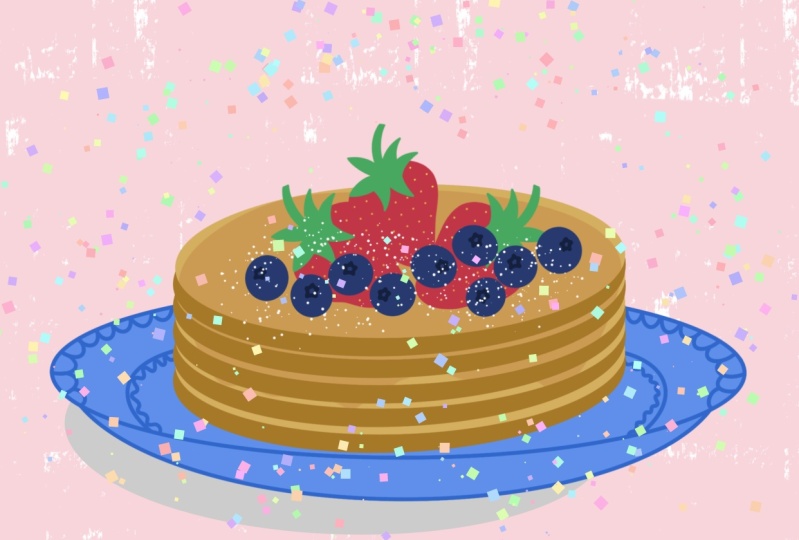
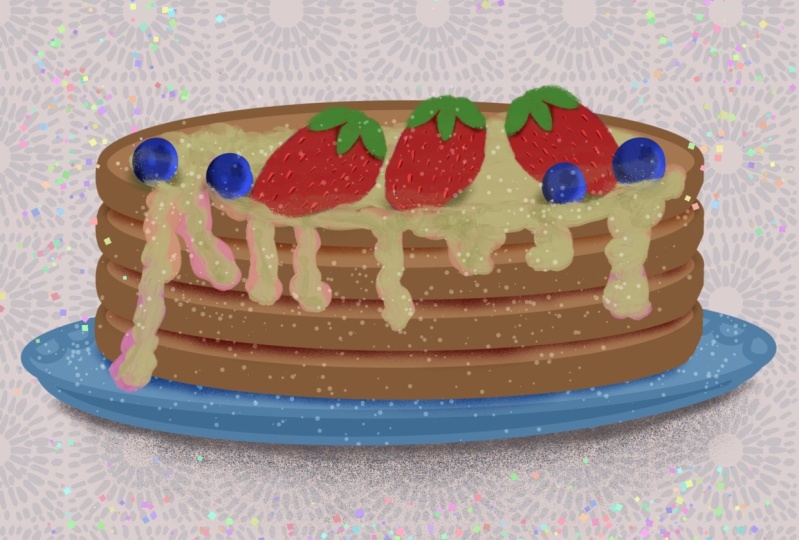
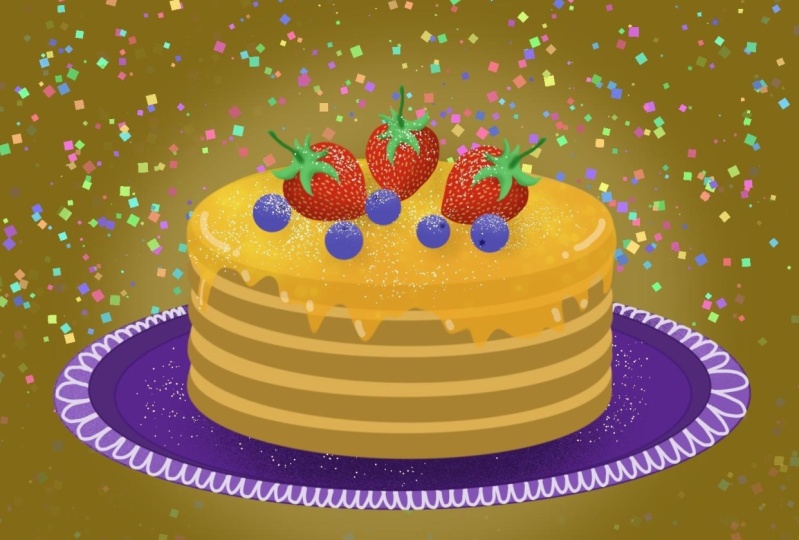
In this class, you will learn how to draw a Pancake in a quick and easy way using Procreate. We will decorate this pancake with strawberries, blueberries, syrup and sprinkle it with powdered sugar! This class is for beginners and for anyone who would like to draw a Pancake for fun, to share on social media and even to print out. I will be illustrating on an iPad with an Apple pen using the Procreate app. But you can also follow this class using other drawing tools.

Meet Your Teacher
Teacher Profile Image

Elaine Vitikainen

Illustrator from Helsinki

Teacher

You can find me at http://ev-visuals.com and at http://elainevitikainen.com for my travel adventures.

Let's connect on Instagram at https://www.instagram.com/ev_visuals/

and https://www.instagram.com/sweetpugnacity.

See full profile

Level: All Levels

Class Ratings

Expectations Met?
    Exceeded!
  • 0%
  • Yes
  • 0%
  • Somewhat
  • 0%
  • Not really
  • 0%

Why Join Skillshare?

Take award-winning Skillshare Original Classes

Each class has short lessons, hands-on projects

Your membership supports Skillshare teachers

Learn From Anywhere

Take classes on the go with the Skillshare app. Stream or download to watch on the plane, the subway, or wherever you learn best.

Transcripts

1. Introduction: Hi, I'm Elaine Vitikainen. I'm an illustrator and an entrepreneur from Helsinki. Today, we will learn how to draw a pancake in a quick and easy way using Procreate. We will decorate this pancake with strawberries, blueberries, syrup, and sprinkle it with powdered sugar. This class is for beginners and for anyone who would like to draw a pancake for fun, to share on social media and even to print out. I will be drawing on an iPad with an Apple pen using the Procreate app. But you can also follow this class using other drawing tools. Let's get started. 2. Class Project: The class project, we will be drawing a pancake in a quick, easy and fun way. First, we will learn how to draw a pancake. We will place this pancake on a plate and start decorating it with strawberries, blueberries, syrup, and powdered sugar. I've provided the colour palette that I've used in this project. But you can use any colors that you'd like. Also, I'm sharing with you my sugar brush to sprinkle the powdered sugar, and my confetti brush for a more festive pancake. And as a bonus, I will also teach you how to make a confetti brush on Procreate. By the end of this class, you will have an illustrated pancake that you can share on social media or even to print out. So we're ready to go. Let's start. 3. Let's Draw: To start a new project, Let's open Procreate. Hit the plus sign to open a new canvas. Let's make this a 1500s pixel by 1500 pixel in dimension and 300 DPI. The square canvas will make it easy to share on social media like Instagram. And with 300 DPI, it will give a good quality when printed. Then hit Create. I will be using the monoline pen from the calligraphy set in the brush library. My pen size is 10% all through. To draw the pancake, let's start with an oval. Hold your pen in place to create a perfect oval. Then let's use color drop to add the color. Be sure that there are no gaps, otherwise the color will drop on the entire canvas. Now, let's draw the strawberry. I suggest that you draw each item in a different layer. And now the blueberry. 4. Let's Decorate: Let's start decorating. Duplicate the pancake layer as many as you want to have a really tall pancake. I'll merge the pancake layers by pinching them together, then resize. Now, let's draw the plate. Don't forget to merge the pancake and plate layers before using the color drop. Also, duplicate the strawberry to have as many as you like. You can tilt, flip, resize to give the impression of different strawberries. Now the blueberry, and do the same process of duplicating, tilting, flipping, and resizing. We now add the syrup. Draw an oval and be sure that there are no gaps. Then color drop. Go to the adjustment panel and choose liquefy. Push the syrup downwards. Just play around until you are happy with how it looks. Lower the opacity to 60% to make it look syrupy, then choose the darker color. Add another layer. Choose white and with the sugar brush, sprinkle some powdered sugar. I will also add some confetti for a festive vibe. And there you have it. 5. Bonus: Making a Confetti Brush: Let's make a confetti brush in Procreate. Open Procreate. Hit the plus sign to create a canvas. You can use any canvas size. I will use a square canvas. I will use the monoline pen from the calligraphy section of the brush library. I'm going to draw a square. I will use a drawing guide by clicking action and activating the drawing guide. Remember that when you hold the pen in place, it will create a straight line. Be sure to check for gaps before using the color drop. Otherwise, the color will drop on the entire canvas. I will enlarge the square by dragging the sides. I will uncheck the background color, then go to the action panel and share as PNG to save the image to my photos. I will duplicate my monoline pen. Open and choose shape. In the shape editor, choose import a photo and choose the square that we just drew. Tap two fingers and hit done. Go to the stroke path and change the spacing to the maximum size and also the jitter to the maximum size then on the properties change the brush behavior of the maximum size to 50% and minimum size to 10%. Then we go to the Color Dynamics. On the stamp colour jitter, change the hue to the maximum and the lightness to the maximum. Then also change the hue to the maximum on the stroke colour jitter, and the lightness to 50%. Hit done. Now we can test the brush. Choose any color, then let's try it. Let's go back to the brush to add information on the About this brush section. Write the name of the brush. I'm calling it confetti. Then I'll write my name in the Made by section and upload the photo. You can also sign your name if you like. Hit done. There we see the confetti brush. Let's try the brush again. And there you have it. I hope you enjoyed this quick guide. 6. Many Thanks: Many, many thanks for joining me in this class. I hope you enjoyed drawing a pancake and decorating it too. Please don't forget to post your project in the project gallery section. Bye for now and see you again soon.