Transcripts
1. Introduction - What You Will Learn: Hello, my name is Anna. I'm a university teacher. I teach students, adults and kids to program. I like to create exciting games. I'll walk you through the newest one, Halloween animation. In this class, I will show you how to make a funny and interesting animation using Scratch. Three will together make the hello when animation in six easy steps. This class is for everyone who wants his kids to learn the basics of coding by making the simple animation. Get familiar with Crash three programming language, which is a perfect entry point for kids who wants to learn to program, to create something fun for Halloween and share it with friends and teachers. By the end of this class, your kids will learn how to create their animation. Applying the skills learned on this short course.
2. Let's Go to the MIT Website: First, let's go to the MIT Scratch website. There we will create our hello when animation. I'll type MIT Scratch in the search field and open the first site under the ads.
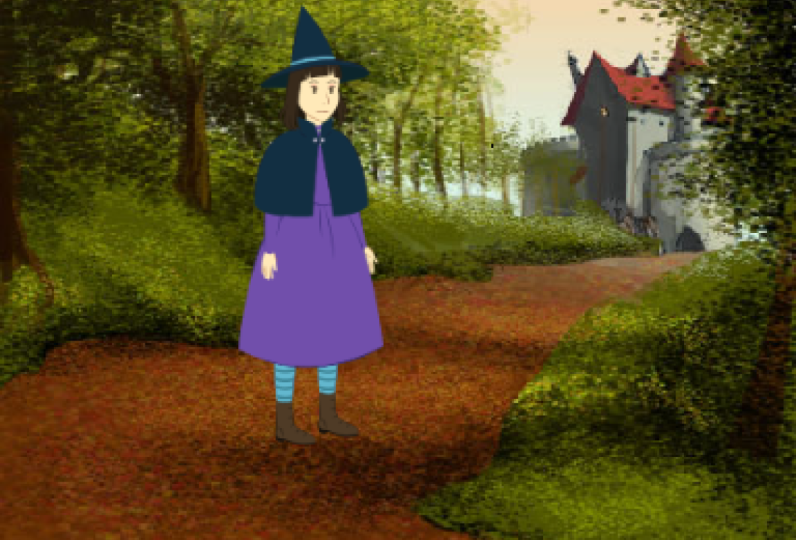
3. Let's Add Sprites and Backdrops to Our Scratch Project: I click on Create and wait till the new window opens. I'll click on Close here. I don't need a cat, so I will click here to remove it. In this animation, we'll have two sprites, a witch and skeleton. If I want to add a sprite, I will click here. Let's add a rich first. I will type which in the search field and click on the sprite to edit. I will repeat the same process. The skeleton. Again, I will type skeleton here and click on the sprite to edit. Now, I will add backdrops for my stage. I'll click here, choose backdrop. And I will look for the castle backdrops. I'll find Castilian, click on it and add it. Then repeats the process three more times to add CASEL, CASEL 3 and Castle for. You can see that you have now five backdrops. The one which was default. And for that we added, they will click on stage here. And on the backdrops tab. Here, we can see all the backdrops. Will remove the white one. Just click on it and remove it. Now, we have only the backdrops that we need.
4. Let's Code the Backdrops: We'll return to the code and continue making our animation. Our animation, we'll start when we click on the green flag. That is the event that triggers our animation. Will go to the events and find when green flag is clicked. I will click on the puzzle, hold the left button on my mouse, and move the puzzle to this part of the screen. Now, I will code what will happen if you click on the green flag? I want to change the backdrops all the time. If I wanted to repeat endlessly, I will use the puzzle named forever. And everything I put in this puzzle will be repeated until I stop the program. I want to change the look of the stage. So I will go to the looks and find a puzzle next backdrop and put it here. If you leave it this way, our backdrops will change very, very fast. So we need to slow them down. After every change, we want to wait a random number of seconds. Video go to the control and find the puzzle. Wait 1 second. We will go to Operators and find, pick random number between 0 and 10. Now, I will change the numbers. I will put 2.5th here, that's 0.5. And number three here. Let's see what will happen if I click on the green flag. See how the backdrops are changing after a random number of seconds.
5. Code for the Skeleton: We can now stop the program by clicking on the red hexagon. Now, we'll write the code for the skeletal sprite. Make sure that you have selected skeletal here. We'll go to the Events, find the puzzle when green flag is clicked and put it in this area. Very start the program. When we click on the green flag, we want our skeleton to be hidden. This will go to Looks and find the height puzzle and put it after this one. When green flag is clicked, the skeleton should be invisible for some time and they wanted to suddenly appear too scared, which they have to wait. Therefore, we'll use Wait 1 second from the control. They will use again the puzzle, random from one to 10, as we want our skeleton to be hidden for a random number of seconds. I don't want it to appear right away. I want it to be hidden for at least three seconds. So I'll change this one to three. I wanted to appear sometime between three and 15 seconds. After that period, we want our skeleton to appear. So I will take the puzzle show from the looks. This part of the code for the which is finished. We can see what happens now when I click on the green flag. Backdrops are changing. The skeleton is hidden. And after a random number of seconds, it shows up.
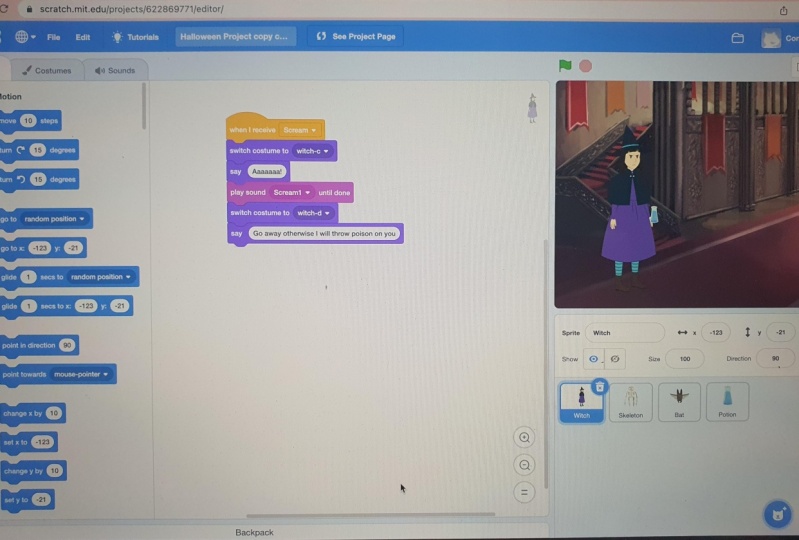
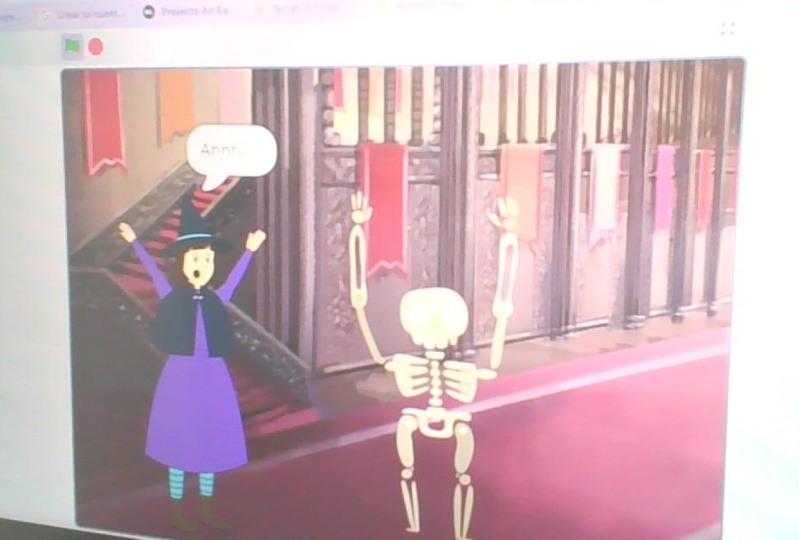
6. Let's Scare the Witch!: Now we have to scare the which, when the skeleton appears, we will broadcast the message. I'll change the message name to scream and click on the Okay button. The which will receive the message scream. And she will scream and say something. Now we'll write the code for the which makes sure that the width bright is selected will find the event. When I receive scream, they'll go to sounds, remove the default sound. Here, I have a magic spell. I'll get rid of it. Now. I lead scream. I'll type scream here. Click on one of them, and go back to court. Go to sound and use the puzzle. Play sound, scream until done. Then go to Looks and find the puzzle. Say hello, and edits between when I receive scream and play sound until done. If you put it after play sound until done, you will hear the sound first and then you will see the cloud. There. The width speaks. Now will change what the which says. Now we can test our program. When we click on the green flag, see the witch. She's going from one castle to the other end. Suddenly the skeleton appears there which screams and say, we can stop our program if we click on the red hexagon.
7. Save and Share the Halloween Animation: If you want to save your program, you have to go to the File menu. Click on the save to your computer, and your animation is saved on your computer. Click behind the saved file and select Show in folder. And the folder video file will open. Click on the plus here to open a new tab type Shipped tester, HTML5 higher in the search field. And then click, Enter. Click on the HTML, fire sheep, Destiel ink. Now we have to select the file from the computer. Check here, select the file from the computer and click on the trues File button. Go to the folder where your Scratch project file is downloaded. In most cases, it would be the download folder. Select discrete project file, and click Open. Now, click on this button and wait. After a few seconds, a new file named results dot HTML would we downloaded to your computer? Click on Show in folder and you see your file there. If you want to see the animation, you can double-click on the file and D animation will be shown. Now, you can do with this file whatever you want, send it to your friends, teachers, and you can altogether enjoy your animation. See you in the next one.