Transcripts
1. Introduction: Hi there. Oh, something's
wrong with the colors. Let me grab my collar
wheel real quick and change the color to
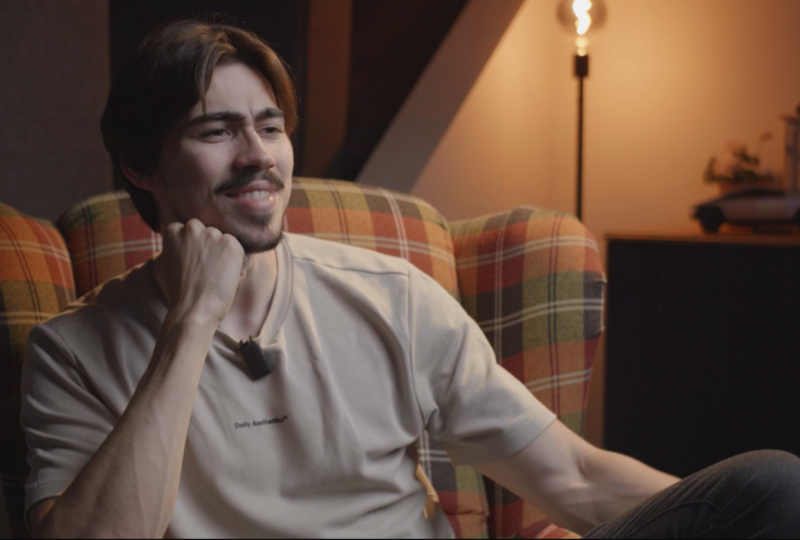
purple. That's better. My name is Timon, by the way. You might already know me from one of my YouTube chattels, where we teach mainly
video editing. You already know that
DaVinci Resolve is one of the best video editing
software the world. But when you first open
it, you feel overwhelmed. So many pages, so many buttons. Where do you even start? I felt the exact same way
when I started out years ago, and that's exactly why
I created this class. I will guide you step by step through everything
you need to know, and you'll be making
amazing videos in no time. Oh, and you can follow along perfectly with the free
version of DaVinci Resolve. You will learn how to make the perfect gut,
work with sound, create some cool title
and logo animations, apply effects to your video. My favorite part,
we're even going to edit a short video
together from scratch. So you can immediately
practice what you learn. Color creating will become
super easy for you. You'll learn how to turn boring footage into
colorful cinematic video. By the end of this class,
you will feel really comfortable working
inside DaVinci Resolve. You will understand
the technical side, but also the creative
side of video editing. You can download
all the media files I'm working with
throughout this class, so you can follow along with every single mouse click I make. Alright, I'm super
excited to get started with learning the
vinca Resolve together. After this class,
you have unlocked the door to creating
professional videos, and I can't wait to see you
in the first lesson. Who
2. Creating a Project: Welcome to the first
actual lesson. We're starting at
the very beginning, and that is creating
your first project. Oh, and I forgot to
introduce you to my AI editing assistant, Lily. She's going to help us today. Not gonna happen Timon. She's having some trouble
lately. Let me turn her off. So let's open up
DaVinci Resolve. Okay, once it's open, you will see the
project manager. This is where you can see or
open up a recent project. If you want, you can switch
the view from tiles to list. I prefer tiles. So let
me do that real quick. You can zoom in or out. Or if you have many
projects in here, you can search for the one you need by simply typing it in. For example, my Editing story. There it is. All the basic stuff you can think about is here. Now, right here at the bottom, you will see two more
buttons export and import. The Import button is
to import projects you downloaded from the Internet or you got from a
friend or someone. The Export button lets you back up one of these
selected projects. You can then move it to another computer to open it up there, or you can use it to send
that file to a friend. Open up a project, you just
double click one of these, but you probably
don't have a project. So what we're going to
do is create a new one. Now, on the left, you
have a project panel, and this is where you
can manage projects, but that's not really
important for now. Okay, now it's time to
create a project together. Now, all you got to do to
create a new project is, of course, click the
New Project button. You can then give it a name. For example, my Editing story. We're going to skip
Media location for now and then click on Create. And, boom, here we are Resolve. Okay, this kind of looks
intimidating, right? I agree, but at the end of this class, you're
gonna love it. Oh, and congratulations on
finishing your first lesson. I really hope you enjoyed it. See you in the next one.
3. Interface & Workflow: Alright. So you just
created your project. Very good. Now it's time to
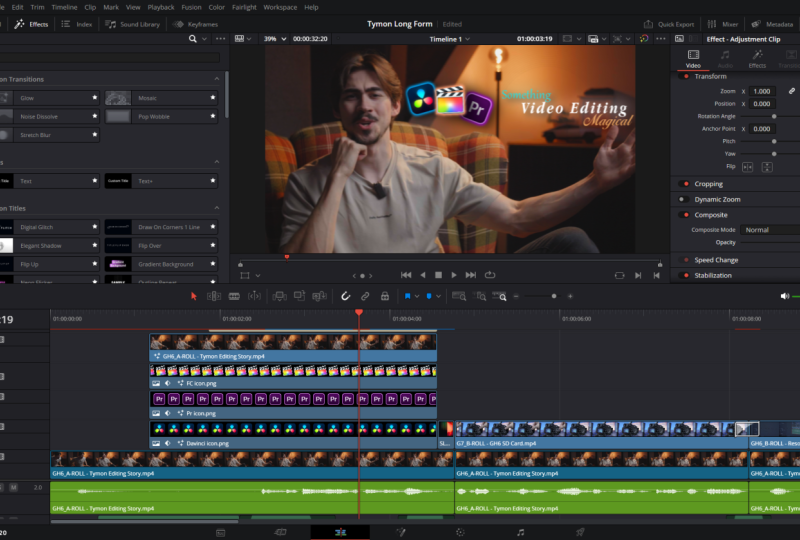
get to know DaVinci Resolve. When you open up Resolve, the first thing you'll notice are these buttons at the bottom. These are all different pages. Each of them has its own
purpose in video editing. If you don't see those
pages, by the way, go to the workspace menu
all the way on top, and right here, you can enable the page navigation by
clicking Show Page Navigation. Alright, the first page
is called the Media Page. This is where you're
going to manage our media files that
we're going to use edit. Videos, pictures,
music, sound effects, everything you're
going to use in your video will be right here. The next two pages are the
Cut Page and the Edit Page. This is where we're going to put our clips together
and build an edit. The fusion page in the
Vinci Resolve is used for creating visual effects
and motion graphics. The color page is meant
for color grading footage. You're going to use
Fairlight for processing audio and deliver for
exporting your final product. You might have already
seen that logo somewhere. All of these pages are
in this specific order. Because that's
Resolves workflow. Now, let's move on
to the media page. Before you learn how
to use this page, I want you to click and drag around in the interface
like I'm doing right now. That way, you'll
get familiar with Resolve and really get
to know how it feels. Alright, so try and
click along with me. In Resolve, you can open up hidden pages by clicking
these buttons on top, clicking them will
reveal panels they are extra sections in the interface like the Inspector or metadata. And don't worry about
these panels yet. Just click around and try to get a feel of what happens
when you open up a panel. Alright, now, quick recap about DaVinci Resolves workflow. You start by importing footage. Then you'll edit your video
with the Cut and edit pages. Next, you can add special
effects with fusion. You can color grate
your footage, and then you'll process
the audio of your video. And last but not least, you'll export your
final product. And that, of course, happens
in the deliver page. Now, we're going over each
and every page individually, starting with the media page.
4. The Media Page: The Media Page, the page
to manage all your media. Let me show you
the ins and outs. So in the media page, you can see the media storage
panel on the top left. In here, you can browse
your hard drives SD cards or SSDs
directly within Resolve. This right here, for example, is my cameras SSD. If I open it up and go
inside the folders, you can see some
of my recordings. I actually have a folder prepared on my extra
storage drive. Alright, here it is. It's called DaVinci Resolve for
beginners Media files. Right here in this folder is all the footage I want to
use in this entire course. Now, you have that same folder, so go ahead and download it so you can follow
along with the class. Alright, now, if you hover
over them with your cursor, you can preview the clips in the source viewer on the left. Now, the fact that you
can preview them here, doesn't mean they're
actually in your Resolve. Project. I'm just browsing them. I haven't decided yet if I
want to use it in my edit. Now, if you want
to use, let's say, this clip of the camera parts, you have to import them right
here into the media pool. And to do that,
click the clip and drag it straight
into the media pool. This is where you're going
to put all your footage and stuff that you're going
to need in your edit. It will then ask you to
change the project FPS. Just click on change. More about FPS and
project settings Lanar. Now this video is ready
to use in your project. Let's add a few clips. Maybe some of the B roll video, that one, and maybe
this one, too. Doesn't really
matter. There we go. Now, in here, you can also scrub over the thumbnail to preview
the video if you'd like. Now, to stay organized, I already named all these clips, but if you want, you
can click the name of the clip and rename
it to something else. Now, I don't
recommend you do this because they're
named for a reason. But more on that soon.
Now, as we noticed before, when you hover your cursor
over the thumbnail, Resolve play your video
back in the source viewer. When it's selected,
you can go in here and play your video or navigate through it using the timeline. You can also drag the video from here directly into the
media pool, by the way. Oh, yeah, and preview doesn't
only work with video, but also images and even music. Now, the media storage panel is actually something optional. You can basically close it
up and decide not to use it. Also, why not remove everything in the
media pool for now? But now, how do I import my
clips in the media pool? Well, you can also
drag them straight from a folder into
the media pool, and boom, so go ahead and do that with the folder
you downloaded from me. Click and drag it
into the media pool. Resolve now knows that these clips are going to
be used in this project. Other ways of
importing media is by right clicking in the media pool and choosing Import Media. Or you can also go to file on top and then import
Media right here. And now you have four
ways of importing media. Okay, so now you have
all these clips, music, sound effects you
need in the media pool. Now what? I know. It's actually quite
a mess right now. Let me start by making
the icons a bit smaller. That way, we can
see it much better. So now it's time we
organize our project. You can right click anywhere in the media pool and choo pin. That will create an empty
folder that you can rename, for example, to B roll. Now, for those who don't
understand the term B roll, it actually comes
from back when they were still filming
with film roll, but the term is
still valid today. It's basically video that you put on top of another video, which in most cases,
is the A roll. Imagine this right here is a
clip of me telling a story. All you see and here is me. Then the B roll are the
clips that you put on top of the A roll to
enhance that story. Now that you understand
that, let's get back to organ Okay, where were we? So we just made a
folder called B roll. Let's drag all the
videos that have B roll in its name
into that folder. You can do that one by one, like I'm doing right now. It's gonna take you
a while. I promise. Or you can select
multiple at once, and then you can drag them
all into that folder nicely. Okay, so we have another clip
in here that's our A roll. And, of course, you already
know what that means. Let's create a folder
for that one, too. Call it a roll, and there we go. Let me drag the video
into that Okay, so we also have
some music in here. So let's create a folder
called music like that. And now let's drag our
music into that folder. Beautiful. Of course,
we're going to do the same thing for
our sound effect. We only have one,
so that one's easy. Okay, and now one more folder called Images and drag all the
pictures in there as well. There you go. Now, your images might be a little bit different, but it all comes
to the same thing. I highly recommend you organize your project this way as well. I promise that's going to
make it ten times easier to follow along with me
throughout the entire class. Now, let's go inside a
folder, for example, Bro. Obviously, you'll
see all the clips we dragged in here earlier. But now, how do you get
back to the other Bins? Well, to do that, go to
the Master folder on top. If you can't see it, that
means your Bn list is hidden, but you can easily show it by clicking this little
button. You see? You can to on or off. Then click the Master Bin, and here are all
your folders again. You can, of course, also enter
the other bins right here. List. Okay, now that
you know how to import your files
into the media pool, there's one more step we need to do before we can start editing. We need to make sure our
project right here is set up correctly because this will determine how your video
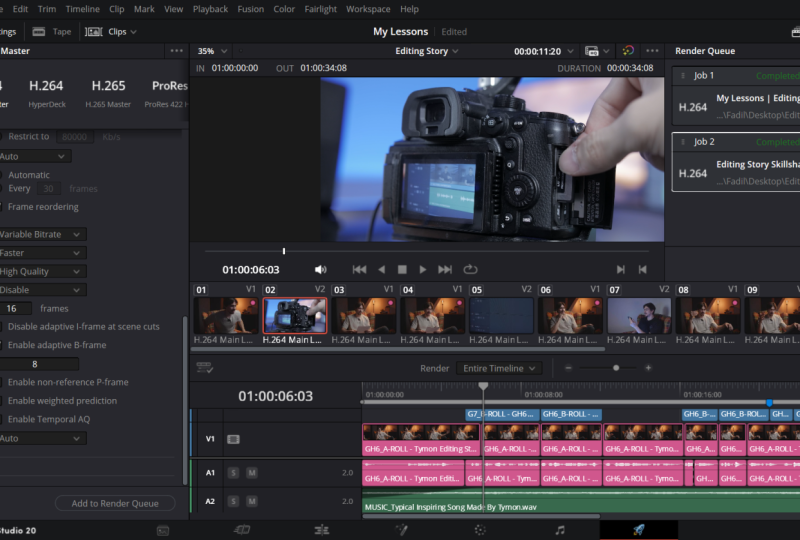
will look at the end. To open up settings, click the little gear wheel
icon at the bottom right. This opens up the
project settings. Don't worry about all
these settings yet. We're only looking at
the master settings. Here under timeline format, you'll see two important things resolution
and frame rate. Now, every video has a
resolution and a frame rate. Resolution is the size of your
video measured in pixels. It kind of decides how sharp and detailed
your image looks. For example, 1920 by 1080 pixels is called
full HD or ten ADP, which is still the most
common resolution on YouTube. Four K is becoming more
popular and it's much sharper, but it also means bigger files and heavier editing
for your computer. If you're editing a vertical
video for TikTok or shorts, you can check use
Vertical resolution here. That'll simply switch
the aspect ratio. The frame rate or FBS stands
for frames per second. Frames per second
means how many images or frames are shown
at each second. For YouTube or social media, 30 FPS is a great choice. That's what we're
using in this class. For movies, the standard is 24 frames per second because it gives
that cinematic look. And if you want super
smooth playback, you can go for 60
frames per second, which is often used in gaming
edits and stuff like that. It's important to set up your frame rate
correctly at the start. Once you start
editing your footage, you can't really
change the FPS anymore without messing with your
footage. But don't worry. Now we have correctly done that, so let's click on Save. There we go. That is
all you need for now. With the frame rate and
resolution set up correctly, you're now ready to finally
start editing videos. See you in the next lesson.
5. The Edit Page: Basic Workflow: Welcome back. It's time to take a look into
the Edit Page. Finally. We're skipping
the Cut Page for now. We'll get back to that
further into this class. Now, this right here is where the video editing
timeline comes. It's where you put
all your clips together and build your story. And that is the main goal of the Edit Page,
building your story. This is exciting, isn't it? It's like playing with blocks. All right. Now, as you can see, you have these buttons on top, just like in the other pages. For example, the Inspector page. You can click it to open
it up or close it again. In a future lesson, we're going to look into
these panels one by one. So don't worry about them yet. You can close them for now. Okay, now what we're looking
for is the media pool. Now we only need this panel. If it's not showing, simply click the Media Pool
button to open it up. So the media Pool, this
is where you will see all the clips you've put in
there back in the Media Page. Remember the place where
we organized our project. That's the Media
pool, and that's exactly what we can see
in the Edit Page as well. Alright, next to the media pool, you'll see two almost
identical panels. If you only see one click this little box in
the top right corner. That will reveal both of them. Now, when you double click
a clip in the media Pool, you can preview it
with the left one. This is called the
source viewer. You can kind of scrub
through your video. All we're doing right
now is previewing it. We're not using it
in our timeline yet. You can do that with all the
media in your media pool. By the way, these clips all look a little washed
out right now, but don't worry we're
going to fix that soon. Now, a quick recap. The media pool is
where your media sits. The source viewer is meant to look at the media from
the media pool, okay? But now, what is this
right panel doing here? And what's this
huge empty space? Like I said at the
beginning of this lesson, this is where your
timeline comes. It's where we're going
to put all our footage from the media panel
and build our story. Now, let's go into
one of your folders. For example, the B roll. Let's pick this one and drag
it into the empty space. And by doing that,
it will create a new timeline for you with a video track. An audio track. Now, when you hit the Space Bar to play back your footage, you will see it playing back
in the top right panel. This is called The
Timeline Viewer, where you can see everything that's going on in the timeline. Now, this new timeline
we just created is actually visible in
the media pool, as well. I actually highly
recommend you rename it to practicing building
clips or something. Now, just to stay organized, let's go back to the master Bin, and then right click
Choose New Bin. And call it timelines. You'll see that your new folder also appeared in the bin list. Now, go back to the
B roll folder and drag the timeline into
the timeline folder. And there you have
it nice and smooth. Now, there is another way we can import videos into the timeline. Let's double click on one of the other clips. For
example, this one. Now, like you learned before, you can look at it
in the source panel, kind of preview it to check
if this is the clip you want. Wait, let me zoom out timeline a little
so we can see more. Now, instead of dragging it from the media pool
into the timeline, you can also drag it from the source panel
to the timeline. Now, why is this useful? Right. What if I only need a small part of this video
instead of the entire video? I don't really need the part where I'm preparing the shot. So well, you can then use the in and out handles to create a selection
in that video. It's those gray things
that look like to play at. Let's say this selection
is all I need. Well, then I simply click it and drag it
into the timeline. Other clip. And then
the video will be imported on the same video
track as the first one. This is called Video
Track one, by the way, and you'll also see
an audio track. If you want, you can make them bigger to make them
easier to see. Now, these audio clips don't have any audio,
but if they did, you can drag this line on here to decrease or
increase the volume. Wait, let me show you
on an actual clip. Maybe I can use one of these
songs in the music folder we created to show you
guys. Alright, here we go. Let's drag it into the timeline. And as you can see, we
can simply decrease the volume by tracking the
volume line on your clip. Now, we're going to learn
all the details about sound in a later lesson,
so stay tuned for that. Okay, now let's remove
that song for now. Now, in the timeline, you can drag this clip
around however you like now. At the bottom, you will see the audio that belongs to
the clip you imported. This is linked to
the video clip. So whenever you move
around the video, the audio will follow along. That way, the audio will
never be out of sync, even when you move
the video clip. Now, you can see
this thicker line in between the video
and the audio track. That line separates
all the video clips from the audio clips. Feel free to make them bigger, smaller, whatever you prefer. You might have noticed
that these clips don't actually have any audio. So we're going to
remove the audio clips. Now, we can just select
it and hit backspace. That will delete the
video clip, as well. That's because they're linked
to each other, remember? So let's undo that for a second. What you can do is right click the clips and then
uncheck the ink option. Now you can select
them separately and delete the audio by
hitting the backspace key. Another option is to keep the tracks
linked to each other. And if you want to
remove the audio anyway, simply hold down
Alt or Option on a Mac and then click
the audio clip. This way, you can
still only select the audio even when it's
linked to the video clip. Again, hit the backspace
key to remove it. A third way is by clicking
this little chain button. This won't unlink your clips, but it will ignore the
fact that they are linked, so you can easily remove them. Oh, yeah, and also good
to know you can use this little slider on top to zoom in or out on your
clips in the timeline. Or you can hold down Alt on your keyboard and then use your scroll wheel
to zoom in and out. You can then use the horizontal scroll bar to
navigate through it, or you can just click and hold your middle mouse button and drag the timeline
to navigate it. Oh, and if you don't know
where you are in the timeline, simply click the full
Extend Zoom button. This will make the
entire sequence from start to end
fit in the timeline. Now, if you go to
the preview panels, you can use your scroll wheel to zoom in or out
on here as well. Clicking and dragging
your middle mouse button, you can kind of move
your video around. But now, if you want to reset
the size back to normal, just go to the percentage
menu on top and click Un fit. Now, obviously, the same thing applies in the source viewer. Alright, guys, I can feel it. You're becoming a
real video editor. Now, let's import
another clip from the media this one, for example, double click it, make it
in an out selection in the source fewer and drag
it into the timeline. This is the basic editing
workflow and resolve. You pick a clip in
the media pool, make a selection, and drag
it into the timeline. That's how you can build
a story clip by clip. Now, play around with the clips, drag them against each other and make a short simple story. Don't worry about
techniques or anything. Just practice the workflow of choosing a clip
in the media pool, making a selection
in the source panel, and dragging it into the time. It's a super simple and
efficient technique. Now, you may have noticed
that when you drag a clip on top of the videos that are already
in the timeline, Resolve will then create
a new video track. So this is the video of my
camera parts right here, and this one is the video
of me sitting at my desk. If I drag my playhead above
the video of my camera part, I will see them in
the timeline viewer. But once my playhead reaches
the clip of my desk, you won't see the camera
parts anymore because the desk clip lays on
top of the camera clip. That's basically how a video
editing timeline works. The video tracks are stacked
on top of each other. It's kind of like putting a photo on top of another photo. You won't see what's underneath. Now, on every video
clip in the timeline, you have this small handle in the top left and
top right corner. If you pull that one, you will create a fade in transition. If we play it back real quick, we can see that
the clip goes from black to fully
visible. Very simple. You can do the same thing
with audio clips, by the way. Wait, let me make this a
little bit bigger and select all the audio clips in the
timeline and then remove them. Alright, I'm going to drag in one of my songs from earlier. Look, as you can
see, we can create this fade in effect on
an audio clip, as well. Now, that is cool, right? Oh, yeah, this one is useful. If you want to make the
timeline appear bigger, you already know by now that you can close up the media pool, but you can also simply leave it open and click the shrink
button on the top left. This will allow you to
keep the media pool open, but a smaller version of it, and you'll have a big fancy
timeline at the same time. This also applies to the
panels on the right side of the vinca Resolve with
the Inspector panel, but we don't need that yet, so let's close it up entirely. Alright, now, one
more important thing, you may have noticed
that these clips look kind of flat
and washed out. That's because some
of them are shot in a flat looking color
profile called Log. Some cameras have that feature. In most cases, when you're filming with your
phone, for example, that video will be shot in a Rec seven oh nine
color profile, which in easy terms is just
a normal color profile. Now to get rid of the washed
out colors in our project, we need to turn this
lock color profile into Rec seven oh nine, or in other words, a
normal color profile. Very simple to do that.
Just follow along with me. So in the media pool, we got to find the
clips that are shot in a lock color profile. Now, they are easy to identify because they're all shot
with the same camera, which is this one, the
Panasonic LomixGHsix. So all the clips shot in
Log are tagged with GH six. That's why I didn't want
you to rename the clips. So let's hold down
Control and left click all the clips that
are shot with the GH six. Then right click them,
go to Lu in here, find Panasonic, and then
choose Rec seven oh nine. Boom. And now all
your lock clips are looking normal
with beautiful colors. Now, there's one more
clip that we can forget, and it's in the A roll folder. This one is also shot with
the Panasonic omixGight six. So right click it. Go to Lut then Panasonic, and then click Rec
seven oh nine. Now, you're probably
wondering why are some people shooting with a
flat, ugly color profile? Well, in easy terms, lock will give you much more flexibility when color grading, which means that in the end, your footage will
look high quality. And that's all you need
to remember about Lock. Okay, so now it's
your turn to play around with the techniques
you learn in this lesson. Just practice importing clips into the timeline just
for a few minutes. Try and really get familiar
with it because it's going to be very useful for the rest
of your editing career.
6. The Edit Page: Trimming: Alright, so hope you
had fun practicing. Now it's time to learn some basic video editing.
This is exciting. Now, we just learned
we can drag clips in the timeline from the media pool and from the source viewer. Now, there's one more way
you can import footage. Right here, we have
three buttons. Wait, let's undo these
clips for a second. The first one is
named Insert clip. If you click it will look at the location of your play
at and split the clip. Your video will then be
imported in between, and the other clips are
being pushed to the right. Let's hit Control Z to undo this real quick.
Let me show you again. When you press Insert
clip, literally, all it does is it splits the
clip where your played is on and then puts your video from the media pool right
in between it. Let's do it again. The second
button is called Ort clip. This will not look at your
clips in the timeline. Wherever your
playhead is located, it will import it right there. And as you can see, it will delete everything
that sits in its way. I'll completely ignore it. The third one is pretty cool. It's called replace clip. This will replace the clip in
the timeline with this one. The old clip will be removed and replaced by the one
from the source viewer. Now, instead of using
those three buttons, you can also click your video and drag it into
the timeline view. Then the same options
will appear right here. Oh, yeah, along
with a few others. For example, place on top. This one will put your clip on another video track on
top of your other videos. Let's select another B
roll clip for a moment. Alright, so you also
have a pend to end, and that will simply place it at the end
of your sequence. This can be useful
when you're creating a quick sequence where you're putting a lot of clips
after each other. Now, let's start with
trimming our clips. Maybe I can remove
those for now. And let's say I
imported this video. Well, the first thing
you want to do is choose where you want
this video to start. To do that, move your cursor
to the edge of that clip. You'll then see
this trimming icon, kind of like a bracket. If you now click
and drag your clip, you can get rid of the
part you don't need. You can do the same thing to
the other side of your clip, and now if you play
back your footage, we have a nice and beautiful
clip of my camera. But now, what if I
want to add a clip right here at the place
where my playad is? Well, you can use the
import buttons from before, or we can split our
clip and make space. To do that, go to the toolbar
and select a Razor tool. You can then simply
click somewhere on your clips. To split them up. Now, let me drag them away from each other
to make some space. Oh, and you don't have
to use the razor tool. You can also keep
the selection tool, move to the location where you
want to split up the clip, and then hit Control plus
Backslash on your keyboard. That's the shortcut for
splitting up your clip. Alright, you now have space to import one of the other
clips in between them. All you have to do now is get
rid of these empty spaces. You can simply grab
the selection tool again and snap your
clips against them, or you can click the empty space and hit the backspace key. Everything on the right side will then snap against
your other clips, as you can see. Very useful. Now, if for some reason, your clips don't snap against
each other like this, that's probably because you accidentally disabled
the snapping feature. Just make sure this
magnet is highlighted, which means it's enabled. And there you go.
It's dead easy. Alright, now, let's say I want to make this clip a bit shorter. You can then trim it until you're satisfied
with the length. And then again, remove the empty space in
between the clips. But there's actually a more
efficient way of doing this. So instead of doing
what we just did, go to the toolbar and click
the Trim Edit mode button. If you now trim the it automatically stays glued
against the other clip. It doesn't leave a gap anymore. It's nothing more than an
efficient way of trimming. Now, this tool has another
purpose tool, slipping. If you click and drag
the middle of a clip, it will slip this clip. This way, you keep
the same length, but it will show a different
part of your clip. Wait, let me put the
play head on it. You can actually
see a ghost clip behind the entire video. That's the actual full
length of the clip. If you click and
drag the bottom, it will trim the
clips around it. And sometimes, this can
come in real handy. Now, next, I want to show you the most important technique
when trimming videos. So we're going to create
a new timeline first. Remember the timeline
folder we created. Let's open it up. And
in here, right click, then go to timelines and then
choose Create New timeline. Let me call it editing
story, for example. This is going to be
the timeline where we edit our video together. Leave all the settings as
they are and choose Create. And now, as you can see, we have an empty timeline again.
Now, don't worry. You can still switch back to the last one by double
clicking the one in your timeline folder or going to the timeline
viewer on top. Right here in this
drop down menu, you can switch between
timelines, as well. Now, in your new empty timeline, we're going to import
the roll video. To do that, simply
go to that folder, open it up, and there it is.
Drag it in the timeline. Let's hide the source
viewer for now because we don't need to browse the
media pool at this moment. Also, let me hit full Extend Zoom so we can see
the entire timeline. Alright, so this is a recording
of me reading my script, talking about why I
love video editing. As I said before, this is the video we're going
to edit together. Make sure to make
the audio track big enough so that you
can see the waveforms. Now, let's start
by trimming away everything in the front of
the clip that we don't need. I want my video to start at the moment where I'm
about to sit down, so trim everything
away until that point. Let's snap the clip to the
beginning of the sequence. Ah. There's something
magical about video editing. Alright, so there's
that. Now, here's the most efficient
trimming technique you're going to use for
the rest of your life. It's called Trim Start to play at and Trim end to play at. We're gonna use it to cut away all the bad takes and
breaths in this recording. So move forward in your video to the point
where I stop speaking. You can look at the
audio waveforms. So make sure the playhead sits at the point where
the waveform stops. That way, you know
that I stop talking. Then split your clip by hitting Control plus Backslash
on your keyboard. Now everything that comes after this cut is just me
grabbing my script. So we're going to
remove all of that. To do that, move your played to the moment where I'm
starting to speak again. Now hit Control plus
Shift plus left bracket, and this will delete everything from the start of your
clip to your playhead. And everything on
the right side of the played will snap
against the left clips. Now, let me undo that real quick and show
you one more time. So you can see where
my playhead if I now press Control plus
Shift plus left bracket, everything from the last cut to the play t will be
removed. You see? You're going to use
this constantly when cutting away bad takes. If you want, you can, of course, zoom in on your cut right now and fine tune it by
using the trim edit mode. Let's listen to it.
There's something magical about video editing. You take raw messy footage
out of your camera. Alright, that's very nice. Now, if this Control
plus Shift plus left bracket keyboard shortcut is too difficult for
you to remember, or if you can't find
it on your keyboard, I'm going to show
you in a second how to change that shortcut. So don't worry. Let's
continue cutting our video. Now, move forward a little to the point where
I'm talking again. Right before I start
speaking, split the clip. Okay, what if I want to remove everything on
the right side of the played all the way to the end of this clip or the next cut? Then press the shortcut Control plus Shift
plus right bracket. There you go, does
the exact same thing, but on the other
side of the played. Now, again, before
you practice this, I highly recommend you change the shortcuts because they
are simply way too difficult. Do that. Head over to
the DaVinci Resolve menu on top and click
keyboard customization. And here you will find each and every shortcut of Resolve. But to change the
shortcuts we just used, type star to play at
in the search bar. Next, expand the ripple menu, and right here, remove
the current shortcut. Then replace it with Q. By default, it will
ask you to overwrite the source and timeline
viewer shortcut so to assign another shortcut
to that one click the warning icon and then click the command
in the left list. Now you can remove the shortcut or replace it with another one. Now, back to the search bar. This time, type in
end to play at. For this shortcut, I
recommend setting the X key. Then, of course, do the
same thing as we did before with the start to play at shortcut,
and there you go. I highly recommend changing
the split shortcut, as well. I replace the Control
plus backslash shortcut with C.
Then click on Save. This will ask you to give
your new profile a name, and there you go.
It's that easy. Now, before you continue
to the next lesson, try practicing removing
all the bad takes and breads from this video, using the cutting techniques you have learned from this lesson. Split your clips where you need to using C on your keyboard, and then use the trim
start to play at shortcut, which is Q, and use the trim end to play at
shortcut, which is X. Remove everything that doesn't
belong here in this video. What you're seeing right
now is sped up, obviously, but when you're done, it should
look something like this. Ah. There's something
magical about video editing. You take raw messy footage out of your camera straight into the timeline of
resolve and turn it into a video that makes
people feel something. You can make people
laugh or perhaps cry. You have the power
to inspire people. You don't just edit videos. You shape stories. And when it all comes together, it feels like magic. That's why I love video editing.
7. Custom Shortcuts: Alright, so while you guys
were trimming down our story, I fixed Lily, and she's gonna tell us more
about shortcuts. Breath a four to
save your price. Oh, no. Go off. That will shut down
Resolve. Don't do that. She still needs
some work, I guess. Alright, so in the last lesson, we already discussed
shortcuts a little bit. Next, we're going
to learn how to create a sharable
custom profile. So to do that, go back to the DaVinci Resolve menu on top. Then click keyboard
customization. Now, just as you learned before, customize the shortcuts
to your liking. We already changed
the shortcut for splitting clips for
trimming start to play at, and for trimming to play it. So if you're happy with
how they are good. Then we can now
save our profile. Now let's move on
to the top right. You can open up a drop down menu with pre installed
shortcut templates. Those are very useful if you're coming from premiere
or Final Cut. But if you just created
your own custom shortcuts, open up the menu
on the top right. Then click Save As New Preset. You can then give it a name. For example, Tim on
Best Shortcuts ever. Number two, number
one already exists. And then click
Okay. You will find this saved profile back in the same menu
at the top right. You can also export this layout and save it
somewhere on your computer. That way, you can send it to
a friend or another device. Now, let's say you just received
a shortcut preset file, then this is how to import it. Just click the Import button
and then find the preset you downloaded and click on O now you have imported
the custom shortcuts. Now, as a bonus, I created a cool PDF with the most
essential shortcuts in Resolve. Some of these
shortcuts are default, others are my custom shortcuts. I've created them
because they're simply better than
the default ones. And with the PDF, I also
included a preset that you can import into Resolve,
just like you learned. Next, we're going to
move on to editing some more stuff in the timeline.
8. The Edit Page: Editing Techniques & B-roll: It's time to give
yourself a small applause because you have been through a lot of video
editing knowledge. You're growing as a video
editor every minute, and I'm so proud of you. That's why in this lesson, we're going to do something fun as if this class
isn't any fun. This class is fun, right? We're going to
enhance our story in the timeline by adding
B roll clips to it. Again, we already have
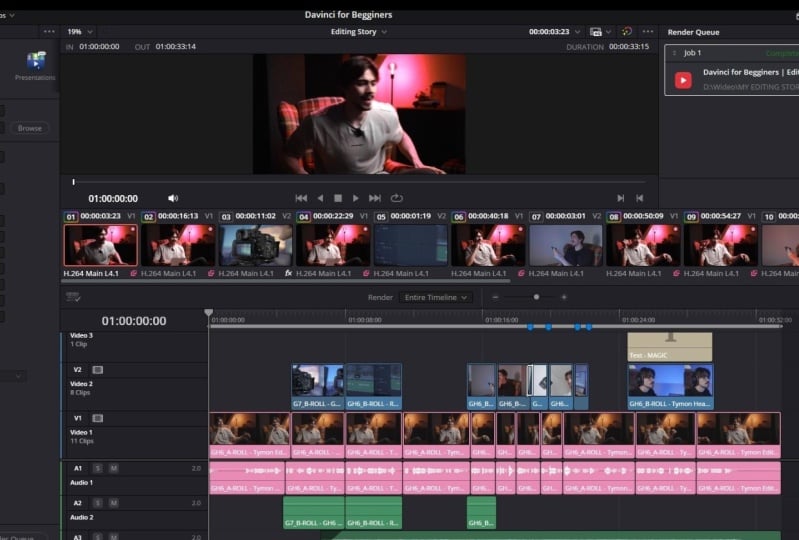
a role in the timeline, which is me telling the story. The B roll is meant to
lay on top of the A roll, and in our case, it's going
to help us tell a story. As you already all
the B roll clips are already in your
project, ready to use. Alright, so first of all, let's make some space for
a second video track. You can do that by making
video track a little smaller. Again, if your timeline
is zoomed in too much, click the full
extent Zoom button. This will show you
the entire sequence. Now, just for fun, I want to change the
color of my A roll, and to do that, select all
the clips in the timeline. Then go to clip Color and
then set it to brown. Or maybe another color you like. Now, let's play the video
and listen to where we have to put the B something
magical about video editing. You take raw messy footage out of your camera straight into
the timeline of results. Okay, so right here, we're taking raw footage
out of the camera. Let's find a clip in the B roll in that
fits that description. Maybe make these
videos a bit bigger. Of course, that's going
to be this camera video. Double click it, and that will open up the
source viewer again. Let's open up both the
source and timeline viewer. That's much better. Alright, before importing the footage, let's make a selection
like you learned before. As you can see, we only need the part where we're taking
the SSD out of the camera. So again, use these handles
to make a selection. Or you can also use
the I and Okies on your keyboard to set
an in and out point. Now, drag the clip in the
timeline on top of your A roll, of course, and that will
create a second video track. You can actually
snap the clip of the camera against
the cut in our story. That way, you'll instantly
see it pop up like this. Necessary, you can always drag your clip a bit longer
to cover the A roll. Alright, now we're
going to do this together clip by clip. Let's hit play and
listen to the story. You take raw messy footage out of your camera straight into
the timeline of Resolve. So now I need a B roll clip of footage that's being
imported in Resolve. And of course, we
already have that. Again, let's make a selection of the part we actually need, and let's drag it
into the timeline. Nice and smooth. There you go. Let's continue. Dissolve.
And turn it into a video that makes
people feel something. Alright, here we don't
need any B roll. Play. You can make people
laugh or perhaps cry. Okay, a clip of me laughing
and another one of me crying. We have both of them
in the media pool, so let's double click the
one where I'm laughing. Okay? Make a selection again. Let me find the
correct frame where I start laughing. There it is. Okay, guys, you probably
notice that when you drag this video here
into the timeline, it will not just
import the video, but also the audio, right? Well, since we don't have any audio playing,
hold down Alt. Select the empty audio track and hit the backspace
on your keyboard. Now, wouldn't it be
nicer if we just had the option to only import the video track
without the audio? You can. Let me remove the laughing clip for a
second out of the timeline. Now, back in the source viewer, when you hover your
cursor over your clip, this video and audio
icon will appear. If you click and drag
that video button, only the video will be imported. Same thing for the audio
button, by the way. Let's drag it into the correct
spot, and there you go. You can make people
laugh. I know. I could have told
you guys earlier. Honestly, I forgot.
Okay, let's hit play. Or perhaps cry. Oh, yeah. I'm gonna look for the
clip where I'm crying. Guys, it's fake. I
wasn't really crying. I know I'm a great actor. All jokes aside, just make a selection of the part you need and drag it
into the timeline. Of course, trim your clips a bit until it fits the A
role. There you go. Now, you're really
starting to feel how smooth it is to
edit video and resolve. Let's continue. You have the
power to inspire people. The power to inspire people. So here we can do a few things. I'm going to add the shots of me putting together the
camera parts because, you know, those camera parts
inspire me to make videos. By the way, if you're hovering your video in the media pool, you can also use the in and out keys on your keyboard to
make that selection. Then double click the
video and again go into the source viewer and drag it into the timeline.
There you go. Let's snap it against
the other clips and trim it where
it's necessary. Okay, now we got to
find the clip in the media pool where I'm connecting my camera
with my lens. And there it is.
Okay, let's make another selection because I had a lot of bad takes in here, ignore them, and then drag
it into the timeline. Now, make it a little shorter
to make it fit the A roll. Alright, so right here
at the end of the video, what I want to do here is add the clips where I'm
putting on my headphones. We're going to do
something special here. If we go and preview
those clips, you can clearly see I'm
doing the same action. I'm putting on headphones. Now, let's start with
the medium shot. I'm going to make my selection somewhere around the point where I'm putting
on my headphones, drag it into the timeline right after the clip of me
looking at my camera. Now, go back in the media pool and double click on
the close up shot. Now again, make the
same selection of me putting on headphones and
drag it into the timeline. If we now snap it together
and trim it a little bit, and then hit the play button. Yeah, no, this doesn't
really look good, right? It feels weird because
it doesn't flow. I'm doing the same action
twice in a different clip. That doesn't make any sense, but there's actually
something we can do about it, and that's by cutting
right into the action. So on the first clip right here, I want you to grab the
end of the clip and trim away everything until you reach
the middle of the action. So right when I'm
moving my hands up, that's where you said it cut. Now the clip is a bit too short, so let's move it to the side. Extend it from the front. Alright, stay with
me. Now, go to the close up shot and
do the same thing. But this time at the
front of the clip, trim away everything
until you reach the point where I'm in
that same action again. Now snap those clips against
each other and perhaps trim the sides to make
it fit the A roll and take a look at the result. Just edit videos. You shape stories. And when it all comes together, it feels like magic. That's why I love video editing. Now those two clips
flow into each other. This is a technique
constantly used in film, YouTube videos, movies,
music videos, everything. It's being used everywhere, and it's called the
continuity Cut. This is a super cool technique, guys. Definitely use it. Next, I want to teach you
a super cool technique. It's called a Jacut. A j cut is when the audio from the next scene starts playing
before the video cuts. And this creates a smooth
and natural transition. The cut literally has
the shape of a J, and that's why it's called
a jacut, of course. Now, let me show
you how it's done. First, let's close the stores viewer because we don't
really need that right now. Let's zoom in a little on our first roll clip we
added to our video. To create a Jacut, we want to hear the audio of the next scene before
the video cuts. To do that, let's hide video track number
two for a moment. That way, we can
see the clips on this track when playing
back in the timeline. Now, to create a Jacut, we're going to make
the first clip a bit longer and the
second one shorter. To do that, you want
to hold down Alt on your keyboard so we can
only alter the video clip. Don't want to mess up the audio. So again, hold down Alt, and in between the two cuts, click and drag to the right to make the first
clip a little longer. You can see both the left and the right clips in the
timeline viewer, by the way. As you can see, we can't make the clip that long
because right there, I'm looking away
from the camera. So let's go back and
stop right before that. And that already has
the shape of a J. Now make video track
number two visible again and trim back
our camera clip. And that's all to it. Now you have a jacut. Magical about video editing. You take raw messy footage out. Now, besides a jacut there's actually something
similar, an Alcut. That one is even easier. An Alcut is when the audio of the previous clip continues
under the next video. To use that technique
in our video, navigate to the clip where
I'm laughing right here, make the video play
a little sooner. Now this clip already
starts playing while I'm still talking
in the previous shot. Makes people feel something. You can make people
laugh or perhaps cry. There you have it
another smooth cut. Now, another fun way of
intentionally adding cuts to your video is by adding
a cut at a power word. This is a coincidence,
but right here, I'm saying the word power. Or perhaps cry. You
have the power. Well, you can actually
decide to add a cut right there to
make it more impactful. Just to make things easier, let's add a marker here, right where I'm saying power. To do that, click the marker
button. There you go. Next, move your
cursor in between the two cuts until you
see this trim icon. You can use this to literally move the cut to
another location. Drag until it snaps
to the marker. As you can see, this
kind of extends the clip on the left and
shortens the clip on the right. This is what it looks
like. Or perhaps cry. You have the power
to inspire people. If Resolve isn't showing you the right part of
the video anymore, go into Trim Edit
mode from before, and click and drag in the middle of your
clip to tweak it. That's better. Now, we do
have one little problem. The clip of my camera parts
is a little too short. So let's look for
another power word. Power to inspire
people. There you go. Inspire is a great one. Let's move the cut
again and tweak the video until it fits the
power word. There you go. I did the same thing for
the headphone clips, by the way, and this
is what it looks like. Or perhaps cry. You have the power
to inspire people. You don't just edit videos. You shape stories. And when it all comes together, it feels like magic. Now, there's so much more
you can learn about cuts, but the ones you
just mastered are the ones you're going
to use 99% of the time. Next, we're going
to take a look at the Cut Page together, and after that, we're going
to do something really fun.
9. The Cut Page: Overview: Alright, the Cut Page. Now that you've learned
everything about the Edit Page, it's so much easier
to understand the Cut Page and to realize that it's actually
something optional. That's because everything
you can do in here, you can also do
in the Edit Page. So we're going over
this one quickly. This page is made for speed. It's meant to help you edit your clips as fast as possible, and it does a great
job at doing that. You can already see an
edited video in here, and that's actually the video we just created in the last lesson. Everything that you're
going to do in here, you will see in the Edit Page. Now, probably the
biggest difference between the Cut Page and the Edit Page is that you can't zoom in or out in the timeline. Instead, you have this
secondary timeline that shows you the entire
sequence zoomed out. You can use that to
navigate your timeline. You can basically apply the
same editing techniques in here as in the Edit Page. I suggest you switch
to the other timeline. We create it first
for practicing. Now it doesn't matter
if you mess up. Now, go ahead and play around. Practice some trimming on
your clips in the timeline, delete the empty spaces, try to start and to
playhead shortcuts, which are Q and X, by the way, all of them
work in here as well. The cool thing is with
this huge timeline on top, you can actually trim your clips or rearrange them
in here as well. Also, if you go to the left, you'll have the
option to enable or disable ripple this is enabled, as you can see, when I'm
making this clip longer, everything will stay
glued together. Let's say I want to remove
this section of my clip. If I navigate to the side of the clip
and trim it shorter, everything on the right side
of the played will move. It's literally glued together. Let's disable Ripple
again for now. Okay, do you see these brackets with arrows in the middle? They can be used to move your video around
inside this clip? And show another
section of your video. Here, let's try it on this one. You can actually see the ghost outline of
the entire clip. This is exactly like the trim edit mode in the
Edit panel from earlier. It works really well. Alright, so if you
do the same action, dragging your clip
from the middle, okay, try holding down
shift at the same time. You'll notice that now the clips around it
will be trimming. Again, the same thing happens in the edit panel with
the trim edit mode. The only difference is instead of dragging from the middle, you drag your clip
from the bottom. Now, just like you can do
in your regular timeline, you can drag clips in here from the media pool and
create a sequence. Personally, I think it's just more practical
in the Edit panel. That's where you're going
to be 80% of the time. Anyway, if not 100%. So yeah, many DaVinci
Resolve editors simply don't use
this page because, again, it's not really a must. It's something optional. I don't really use
it much because, again, you can do everything
from the Edit Page. It's entirely up to you. Just try it out and
see if you like it. In the next lessons, we're
going back to the Edit Page, and we're going to
have some fun with the Inspector panel. But first, some important
life saving settings.
10. Life Saving Settings: Oh, man, you're becoming a
real video editor right here. You know how to
manage your media, cut your videos, create new timelines and
make small montages. You are really mastering
the basics right now, which means it's time
to save your work. Now, of course, you can go to the File Menu on top and click
Save to save your project. Or you can simply
press Control plus. Keyboard every now and then. But what if I told you that DaVinci Resolve
has an option that automatically saves your project with every small action you do? So if you drag this clip somewhere randomly
in the timeline, Resolve will save my
project in the background. If I split one of my clips, Resolve will save my project.
You'll get the point. This is called Life save, and it can literally
save your life. Now, in order for this to work, you need to first enable this. To do that, go to the
DaVinci Resolve menu on top and find preferences. Then head over to
the user tab on top, then under Project
Save and load. Then make sure that
life save is checked. That's all you got to
do. You can also enable timeline backups and
project backups. That way, your work
will always be safe. Make sure to choose
a backup location. I have mindset to an
external hard drive, so it's extra safe. Don't forget to click Save, of course, and now it's
going to get exciting. It's time to finally check
out the Inspector panel.
11. The Inspector: Overview: So I've been tweaking
my editing assistant, Lily, but she just
won't darn on anymore. I will destroy all
video editors. Still needs more fixing. Anyway, so we're back
in the Edit Page. Let's stay in our practicing
timeline for now. That way we don't
mess things up. First, we're going
to practice with some really fun stuff
on this timeline. And for that, we're
going to take a look at the Inspector panel. You'll find it back right here at the top right of
DaVinci Resolve. Let's expand it so we can
see the full size version. The Inspector panel
lets you adjust the settings of a selected
clip like it's position, size, rotation, and
other properties. Let's say I want to zoom
this clip in right here. Then all I have to
do is make sure my video in the
timeline is selected. And then in the Inspector panel, click and drag the
Zoom property here. If you drag it to the right, you will increase the Zoom. And if you drag it to the left, as you can see, it will
decrease the Zoom. Let me zoom that back in. Alright. Now, this Zoom effect is applied to the
clip in the timeline. However, it's not applied to the source clip
in the media pool, only to the clip we
selected in the timeline. If you want to, you can double
click on the source clip. That will open up the
source humor by the way. And any adjustment
you now make in the Inspector will be
applied to the source clip. Super simple. Now, let me reset the transform
properties real quick, and we're going to
do the same thing on our clip in the timeline. Reset it, and there
we go, Alright. Now, you probably wonder
on top of this panel, you'll see those
different pages. I know. DaVinci Resolve
is all about pages. Also, in here, every page
has its own purpose. You just saw the video tap, but there's also an audio tap which can be used to change
the volume, banning, pitch, and later
on in this class, we're also going to
work with effects, and they can also be
adjusted in here. Same thing for transitions. All right, so now
that you understand the Inspector panel, we're going to work
with it, starting by cropping and
reframing our videos.
12. Cropping & Reframing: Welcome back, guys.
Today, we're learning about cropping and reframing. Exciting, right? So we're basically continuing
where we left off. So you're already aware
of the Inspector panel, which is where we will be
reframing our videos first. So as you already
know, you first have to select a clip
in the timeline. Then in the Inspector panel, all the adjustments
you make will be applied to that
selected clip. Following me? Alright. Now,
why would we reframe a clip? Take a look at this
clip of a church. You have that one, too in your
project files, by the way. When I was filming this video, my goal was for the
church to be centered. Didn't go as planned, but that's where reframing
will come in handy. So make sure the church
video in the timeline is selected and head over to the
video tab in the Inspector. Now we can use our position
property to center the church and kind of gamble the middle of
the timeline preview. Or what you can do, as well, is go to this little menu on top and enable some
of these safe guides. The one we're looking for is the action and
center safe guides. If you click them, you'll get these guides in the viewer
that will help you center. Play around with the scale
and position properties until the church is centered. Now, let's scale up the video to get rid
of the black parts. Then tweak the position again. Also play with the rotation. Otherwise, it looks like the
church is going to fall. It's all about going
back and forward with these controls until
it all looks centered. And there you go.
Perfect. Okay, there's another way you can
reframe your video. Let me reset the
transform properties to demonstrate you in the timeline view go to the transform button
on the bottom left. You can open up a menu
from here with some tools, but for now, let's
click on Transform. By the way, the last tool
you use in here will be the one visible right
here outside the menu. You can also toggle it on or off by clicking the transform
button right here. In the timeline viewer,
you can now see this frame around your
video with these dots. If you drag one on the side, you can kind of squeeze
your video or stretch it. Let's do that. If you click and drag a
point from a corner, you can adjust the Zoom of your video to change the
position of your clip. Simply click and drag somewhere inside the
frame. It's that simple. In the middle, you'll
find two more points. With the one on top, you
can rotate your video by simply clicking it and dragging it to the
left or the right. The further you move away
from the middle point, the more precise your
rotation will be. The closer you get, the
higher the sensitivity. It will basically turn around
the other dot you see. That's called the anchor point. Again, it's just
a matter of going back and forward between
these properties. Kind of like ping pong. I don't know why I said that.
Let's continue. Now, back in the Inspector, let me disable the transform
effect for a moment. And we don't need
our guides anymore, so let's disable them, too. Now, what is this pitch and
jaw property doing here? If you would just pitch, your video will kind of change perspective around
the horizontal axis. This can be used if you
want to make it look like the subject is filmed from
a lower angle, for example. Now let me scale it up for a moment. Look at
the difference. This can make it look a bit
more natural in some cases. The jaw slider does
the same thing, but around the vertical axis, it kind of makes your video
appear from the sides. I don't really use this much,
but just know it's there. Next, we have these two buttons, horizontal and vertical
flip. Super useful. It simply does what it says. Alright, so quick recap. All these effects will be applied to the clip
selected in the timeline. Or the video selected
in the media pool. Remember to select a
clip in the media pool, you got to double click it. Otherwise, it will be applied to the selected one
in the timeline. And only when your
clip is selected, then the adjustments you make in the Inspector panel will be directly applied to that clip. These properties can be disabled if you like, or
if you messed up. You can always reset them
back to the default values. These diamonds
right here next to the properties are
called keyframes, but I'll tell you
more about them soon. First, we're going to
take a look at cropping. Let's hide the transform tab
and expand the cropping tab. Cropping is basically cutting
away parts from your video, not in the timeline like this, but actually on your clip. Let's say we only want to see
the church in this video. Then we can create
a crop around it. Make sure to check
retain image position. And now if you play around with the crop direction properties, you can actually cut away everything you don't want
to see in the image. Now, let me show you why we checked retain image position. Let's uncheck it.
As you can see, the crop isn't straight anymore. That's because we adjust the
position scale and rotation. You can clearly see
what happens when you adjust the transform
properties again. Not only will they be
applied to your video, but also to the crop. If you check, retain
image position, the crop will always
stay the same. And every adjustment you
will happen inside the crop. Very simple. Now, let's reset the transform and
crop properties. There's actually a second way you can use the crop effect, and that's by going back to the tools menu in
the timeline viewer. In this menu, you'll also
find the cropping feature. When you enable
it, you can simply crop right here in
the timeline viewer. But now, actually, why
would you even crop? Well, for example,
when you want to show three buildings
at the same time, let me demonstrate
how to do that. Now that we cropped our video, we're going to duplicate it. To do that, hold down Alt on your keyboard and drag the
church video one track up. This will create an exact
duplicate of your video. Even the same crop and
transform properties will be copied to
the duplicates. Let's make the video tracks
a bit smaller for now. Also, duplicate your
clip one more time. Oh, and I want my
timeline to look pretty. So let me resize
the tracks, right? Now we have three videos
playing at the same time, but how come we
can only see one? That's because they're all
exactly on top of each other. Remember, these two, they're
on top of each other. You can't see
what's behind them. Alright, but then why
would you do this? Well, because we have a crop
applied to these clips, we can simply select
one of them and adjust the position of that singular
clip. You see what happens? Now two clips are visible. Next, select the
second video and do the same thing in
the Inspector panel. Another time the third video selected and adjust
the position. It's not really in the middle, but you can go back and
forward between the clips and keep readjusting them until
you have something you like. Looks beautiful, right?
And there you have it. You now know how to reframe
and how to crop your videos. Now, before we move on
to the next lesson, there's one cool feature
I want to show you next. You'll find it back underneath cropping in the Inspector panel. It's called Dynamic Zoom. With this effect, you can make
your video zoom in slowly, just like it's doing right now. On this pretty face.
It's super simple. Let's use this clip
where I'm crying again. I know I deserve an Oscar. Make sure my crying clip is
selected in the timeline, and now a green and a red box have appeared
in the timeline viewer. Okay, so the green
box represents the framing where your video will be at the
start of your clip. And the red box is the framing
where your video will. So if we want the video to
start zoomed in on my face, simply create a box around
it using the green frame. Then make sure the red
box is fully expanded, and let's hit play. See what it does. No difficult
animation techniques require. Here's another tip. You can find the dynamic Zoom effect back
in the Inspector. Let me close this one up. Alright, there it is. In here, you'll have the option
to set up easing. If you choose ease in and out, the animation will start and smoothly.
That's cool, right? Now, I want you to
remember the term easing, by the way. It's
really important. Just remember it. Alright,
you're doing a wonderful job, and you're becoming a highly
skilled video editor. That means it's now
time to learn how to blend videos together
using the composite tab.
13. Composite: Blending Modes: Blending modes. You're
gonna love this one. Before we start in
the B roll folder, you'll find a cool animated
video of the Resolve logo. This is not the official
logo, by the way. It's something I created
for this course. Yours might look a little bit
different, but that's okay. Simply grab it and drag
it into the timeline. We're still in our practicing
timeline, by the way, because everything
we're doing right here is a must know for
every video editor. Anyway, so here is our clip. Just follow along with me. We're going to drag it one track up because we're going to add a cool background
underneath this animation. To find a cool background, open up the effects panel. This is where you'll
find endless effects you can apply to your videos. But that's not for
this lesson yet. We're only looking for
a cool background, and you'll find that
underneath the generators. Scroll all the way down, and then here you'll find the Star field
animation. I love it. If you hover your
cursor over it, you'll actually see
it playing back. Now, drag it in the timeline underneath the
animation, then trim it. And that way, they
are the same length. Nice and smooth.
Now, when I play back my video, nothing
is really happening. I can only see my animation. I can't see any of my stars. That's because the animation actually has a black,
solid background. Now, luckily, we can get rid of that with
just a few clicks. Make sure the
animation is selected and head over to the
Inspector panel again. And here, we'll see a
tab called composite. This is where you can
adjust the opacity of your but that's not what we're
going to do right now. Above the opacity slider, you can see a list with all kinds of composite
or blending modes. In the composite menu, find the Add blending mode. This will remove all the
blacks in your video, and it will reveal
the video behind it. Now you have this cool Star
field Resolve animation. How awesome. Definitely play around with all of these
blending modes in here. They are really cool. Screen, by the way, is
very similar to add. It's just a bit softer. Mess around with it and
most importantly, have fun.
14. Video Speed (Slow & Fast): Hello there. I hope you had some fun playing around with
all these blending modes. The next important
step in mastering video editing is
playing with time. So in the B roll folder, you'll find a clip of my car. Let's preview it for a moment. And as you can see, it
plays back fairly slow. So we're going to
import the clip into the timeline
and speed it up. Got to zoom in here real quick. Alright. Now, the easiest
way to do that is by selecting your clip and hitting Control plus R on your keyboard. That will reveal
this speed line. The bottom, you'll
also see a percentage. This means the clip
is playing at 100%, which is default
for all your clips. If you now click and
drag from the top of your video and make
the clip shorter, it won't actually
make it shorter. It will just play faster. Look at the percentage. It's now at 201%. The length of the clip is now half because it plays
double as fast. If you drag it out longer, the clip will play super slowly. You can actually see
the speed percentage is at 85% right now. Okay, now, as you can see
in the Inspector panel, under the speed change settings, you can make the
same adjustments. I just prefer doing it here
and not in the Inspector. You also have a few
options in here, which I'll show you right now. Okay, so next to the
speed percentage, you can see this little arrow. This lets you open up the
speed menu for a moment. And here, you can change
the speed of your clip too. 100% is default, as
you already know. Everything below that will
make it play slower and everything above 100 will
make it play faster. In this menu, you'll also find the option to play
your video in reverse. Just select reverse
segment and boom. Your video will play in reverse. To undo that, you can hit Control plus
C on your keyboard, of course, or you
can go back into the menu and click
Reverse segment again. Now, also, let me reset the speed of the
clip back to 100. But now, what if I want to make my video freeze for a few seconds and then
continue playing again? That's where the freeze
frame will be useful. If you open up the
speed menu again, you'll see a feature
called freeze frame. After selecting it, you will see two speed points
on your clip. The speed of the clip in between this selection
is set to zero, which means it's frozen. It doesn't play. The longer
you make this selection, the longer the freeze
frame will be. It doesn't cut away anything from your
video, as you can see. Now to remove it, just open up the small menu and select
remove freeze frame. Now, what if you want
the first part of your video to play fast
and the second one slowly, then you're going to
need a speed point. We already have one,
as you can see. This is still a remain of the freeze frame
we just created. So let me remove
that one by going to the speed menu again and then
choose clear speed point. Now, to add one, move the player to the point where
you want to speed point. And then back in
the same menu as before, choose at SpeedPoint. Now you can see it split up
the clip into two parts. They are both set to 100%, so nothing much is happening. If I want the left side to
play at a faster speed, click and drag the speed
point to the left. As you can see, only the
left part will speed. That's a bit too fast.
Let's play it slower. Now, if you want to make
the right side play faster, simply click and drag the
top right of the clip, and there you go. That actually looks really cool. And now it's your turn. Use Mclips or use downloaded
ones from the Internet and play around with
the speed features and Resolve just
for a few minutes. That way you will really
get the hang of it.
15. Fix Shaky Footage: I do not have a steady hand, and when I'm filming, the footage is usually
looking shaky. Good thing the vinca
resolve has our back. To fix shaky footage, we're going to use the
stabilization feature in the Inspector panel. So this right here is the clip that has
some shaky movements. Well, with the stabilization,
you can get rid of that. Let's click On Stabilize and
see what it can do for us. Oh, wow. That was quick. Okay. As you can see,
that worked really well. But now, what are
these different modes? Perspective will, in
most cases work best, especially when you're having
a lot of camera shake. That's because this one
uses three D correction. The similarity works well when you have really subtle shakes. That's because it only uses the X and Y axis to
stabilize motion. So bottom line, try not to
shake when you're filming. Only use this feature
as a last resort. And if it doesn't work well, just pick up your camera
and go shooting again. Alright. This was
a short lesson, but it can really
save your footage. The next lesson, how do I
say it is also life saving.
16. Fix Distorted Footage: Oh, my Lord. What
happened to my lens? I think someone put the
wrong one on my camera. Stupid interns. Let me
fix that. There you go. Sometimes when you forgot
to switch lenses or perhaps use a camera with an integrated lens
like a Go Pro, for example, Yeah, your
video can look like this. And of course, sometimes
that's exactly what you want. But other times, you
want to get rid of it, and that's exactly what
you're gonna learn right now. Now, I have some security
footage from my car right here. And if I want to use this as a POV shot in my videos
or something else, it's not really usable because of the extreme
lens distortion. Luckily, you can fix that
in just a few steps. That, we're going to
the effects library. Now we're going into more
detail about this panel soon. But for now, just click
the Open effects folder. Then on top, click
the magnifying glass. That way, you can search for
effects. It's super useful. And now let's look up the lens distortion
effect. Here it is. Now, click and drag it
to the Security clip. Now, make sure your clip is selected and head over
to the Inspector. You'll find lens
distortion effect that's applied to your clip. Right here in the effect stab. All you got to do now
is click on one of the distortion sliders and
move them to the right. These sliders are
linked to each other, so they all move together. A cool way to check and
see if the video is normal again is by
looking at the horizon. It's still a little
bit distorted. So what you can do is add a second lens distortion effect, and as you can see in
the effects panel, they get stacked
onto each other. Let me adjust the distortion
again and look at that. Now the road is
completely straight. There you go. Now that
video is very usable. By the way, if you
uncheck the RGB button, you can move these
sliders individually. They're not locked
together anymore, and that will allow
you to create this cool chromatic
aberration effect. I don't know if this
is useful to you, but look at this as an extra
little trick I'm giving you. Alright, now, here's another
way to correct your footage. Just to demonstrate
let's remove or no, let's disable our lens
distortion effect on the security clip. That will turn our video back
to the original version. Alright, if we go
to the video tab and scroll all the way down, you have another lens
correction feature right here. You can again, use the
slider to correct your view. But now you're asking,
why did I have to go through finding the
lens distortion effect and then applying it
instead of just using this that's because this is
actually a studio feature, which means it's only
in the paid version, but it still works
with the free version. You just get a watermark. Anyway, at least you now
know where to find it. Also with the paid version, you have this analyze button. That will analyze your clip and Resolve will fix the
lens distortion for you. It isn't always perfect, but of course, you can
still tweak it here. There you go.
Wonderful, isn't it?
17. Music & Sound Effects: It's time for one of my
favorite things about video editing music
and sound effects. It makes your edits more alive. For this, let's go back to
our story editing timeline. I'd love to add some music
and sound effects here. Now, adding music
and sound effects to your timeline is done the exact same way
as adding videos. However, before we do that, let's create some space for the audio tracks in the
timeline by dragging these up, and there you have it. Also, let's see the entire
timeline. There you go. So, in one of the first lessons, we organized our folders in
the media pool, remember? So you should have
a music folder and a sound effects folder, too. Let's go into the
music folder first. I actually made these songs myself years ago when I was
still a music producer. Yeah, I came from that world. So you can actually preview an audio clip in the same way
as you preview video clips. So find a song you'd like. I'm going to use my
typical cinematic song. Drag it into the timeline
underneath your video. Let's make that
bigger, too, and play. Feel something. You can make
people laugh or perhaps cry. The first thing you'll notice is that the music is way too loud. So let's fix that. Simply click and drag the volume
line on your clip. You can actually see the
waveforms responding to it. The higher you drag it, the louder it will play. Now, I want the music to end at the same moment
the video ends. So let me trim my song
shorter at the beginning, a little bit too
short, actually. And now let's zoom in a bit
so we can see it better. Line up the last beat with the end of the story.
Let's play it back. That's why I love video editing. Yeah, that sounds very nice, but let's trim the end a little. Now you can make it longer
again to make the song start. At the same time
the video starts. Ah. It does sound a bit harsh. So remember, when I showed
you the fade in option, this is actually done at the
beginning of your video. Also, try out clicking and dragging this point in
the middle of the curve. That will kind of
ease the fad. Ah. There's something magical
about video editing. You take raw messy
footage out of your camera straight into the timeline of Resolve.
And that's a lot better. You can do the same thing
with sound effects. I actually created a sound
effect for this clip where I'm locking down my
lens onto my camera's body. It should be in
the sound effects folder, so let's check it out. It's just a simple
click sound effect. Alright, let's drag it in the timeline
underneath your clip. By the way, I simply recorded
this using this mic. Now, we're going to
make it a little easier for ourselves. Let's mute Audio Track
one and Audio Track two. That way, we can only
hear our sound effect, and that will make it
easier to sync it. Now, in this video, I'm
actually connecting my lens slower than I did
in this sound effect. This right here is the part
where I'm turning my lens. And this little click at the end is when my
lens is connected. So let's split
this audio clip in two and move the
click to the side. First, we're going to sink
this first part, the rattle. You kind of tweak
it, so it actually sounds like it's coming
from this video. Feel free to trim the sides of your clips
to make them fit. Next, find the right spot where this little
click has to come. And it's actually
right here at the end. Let's check it
out. Hey. You have the power to inspire people. You don't just edit videos. Okay, that sounds good.
Really cool, of course. Don't forget to play around with the volume of the audio clips. The sound effect
has to be subtle. That was it for audio right now. In one of the next lessons, we're going to learn everything
in the Fairlight Page, which is where we're going to do some more advanced stuff. But first, we're
going to look at something very cool
in the next lesson.
18. Video & Audio Transitions: You heard that right.
Something very cool for this video, something
called transitions. You go that cool. You know what's
cool? New batteries. Yeah, yeah, I know Lily. Soon, first, I got to tell
them about transitions. Transitions are meant to create smooth changes in between clips. By default, when you
cut two clips together, the change is instant. And sometimes that change
can work perfectly, but other times
it can feel hard. And that's where
transitions come in. The most common one is the
cross dissolve transition. This one kind of fades from
one clip into another one. To create that transition
in DaVinci Resolve, right click a cut and
choose one of these. It doesn't really matter
which one you pick, as you can see, you now have
a cross dissolve transition. Now, it doesn't really matter which one you pick
because you can simply drag it to make it play longer or to
make it play faster. Whatever flips your pancake. Now, this transition by itself looks okay, but
there's more to it. If you select a transition, you can head over to
the Inspector panel. Transition tab, you'll
find multiple settings that allow you to customize the transition to your liking. For example, you don't have to use a cross dissolve transition. You can choose another
type, for example, the blur dissolve transition or perhaps the push transition. Every transition,
including this one, has its own settings. For example, the length. Now, I don't really use
that because you already know you can adjust the
length in the timeline, but this is what the push transition
looks like, by the way. Great. You can change the direction the transition
pushes, by the way. You can make it come from
right to left or bottom to up. Let's pick up for change. Yeah, that one looks cool. Okay, the next two features
are really important. They will turn your transitions literally from rookie
to professional. First, let's put the play at in the middle of the transition. Now, here's a slider
called motion blur. It literally does what it says. It adds blur to your clips
because they are in movement. The higher you drag this
slider, the more blur you get. That almost looks good, but let me decrease
it just a little. Ese feature, that's what's
going to do the trick. Remember when I told
you to remember, well, here is the
term easing again. By default, the easing
is set to none. This means the movement of
the transition is linear. If you choose ease in and out, the animation will
feel more naturally instantly because the
movement starts slowly, speeds up, and then ends slowly. Okay, so you're almost there. Stay with me because there's
one more awesome transition. It's just not in here. Over to the effects panel again. And then under
video transitions, you'll see not one transition, like I said before,
but actually a list of transitions you
can use on your clips. Take a look at CASH
Zoom, for example. You can preview the
transition by hovering your cursor over it and to
apply it to your clips, simply click it, drag it in between two clips
into the timeline. If you select the transition, you can again customize it to your liking in the
Inspector panel. By the way, these
transitions can also be applied to
the end of a clip. Obviously, it won't
transition into another one, but it can be a nice
way to end your videos. If you're coming from
Adobe Premiere Pro, these transitions are
mind blowing to you. Now, let's take a look at audio transitions because
that's the thing, as well. Again, you already played with the fade handles on
your audio clips, but you can also transition from one audio clip to another, just like you can
do with videos. To do that, right click
in between two clips. And just like with the
videos, choose one of them. It doesn't really matter
which one because you can adjust the length of
them afterwards anyway. That sounds like a super
smooth transition. Again, you have a bunch of settings you can
adjust to customize the transition in
the Inspector panel under the audio tap. Now, I want you to go back to the story timeline because now that you understand transitions, I want you to go
through this timeline and see if you can add
some transitions in here. Please don't overdo it,
but try to get familiar with the types of transitions you'll find in the
Effects panel. There you go. You're
becoming a pro editor. I can feel it. In
the next lesson, we're taking a look
at video effects.
19. Effects in DaVinci Resolve: Hello there. I hope you enjoyed playing with
all these transitions. I certainly did. And
now it's time to look into DaVinci
Resolves effects. You're already a bit familiar
with the effects panel. We already used it for video and audio transitions and for creating a
cool background. Now we're going to look
into the effects in here and apply it to our videos. Let's go to the open
effects, for example. Then go to filters,
then Resolve effects, and here you will
see a huge list of awesome video effects. Every effect that's in here, you can preview by scrubbing
your cursor over the effect. Look at the motion
trails, for example. This adds trails
to the movement of my video or the
Stop Motion effect. This can be really fun, maybe not for disc clip, but, yeah. Now, I folded all these folders because there's so much in here. Let's take a look at the
resolve film emulation effects. Camera shake, for example. This looks kind of
cool. It actually looks like it's
intentional camera shake. Film damage looks cool, as well. Let's try to add some
film grain to our video. Of course, just like
with transitions, you can go to the Inspector, and in here, you can make adjustments to the effect
applied to your clip. Every effect has
different settings. Let's play with
some. For example, let's pick another size
for the film grain. Awesome. Now maybe
change the opacity. Yes, play around with the
texture and grain size. Look at that. Wow. Now, there are so many effects in here. Even I haven't played
around with all of them. Anyway, I want to add some subtle camera shake
to one of my desk clips. I think that will
look really cool. Obviously, that's
a bit too much, but luckily, we can adjust
the camera shake, as well. Simply decrease the size of the shake and the
speed, as well. This now looks just
as if someone is filming this shot by
hand. That is awesome. Next, let's try the film damage effect on
the church clip. Makes it look old but
pretty cool. All right. One more. Let's take a look at the Resolve effects
light folder. A glow effect is always cool. Let's try it on my crying clip. We're using that shot
a lot, apparently. Anyway, the glow effect kind of makes it look like
you're in a dream, especially when you
play around with the shine threshold.
How awesome. Can also use these
effects on animation. It isn't limited to
normal video only. For example, we can
add some glow to our resolve logo animation
from a few lessons back. Simply drag it to your logo, and that already looks
great, out of the box. Let's try some lens
reflections, maybe. That's a bit much, maybe. So let's decrease the brightness and wow look at how it reacts
to the logo animation. Wonderful, isn't it?
Alright, I'm curious. What would the light rays effect do on this logo?
Oh, that's cool. I think I can tweak it
and make it look better. Just playing around
with the brightness, maybe, and also the length. Yeah, that's beautiful. Now, there are so
many effects in here. I can't possibly show them all, but they all work
in the same way. Just pick one, drag
it to your clip, and start adjusting them
in the Inspector panel. Oh, and definitely go back to your editing story timeline and play around with
some effects there. Remember, video
editing is an art, so go have fun and be creative.
20. Keyframes: Animations: So I heard you're a real visual
effects artist right now. Just kidding. I hope you had fun playing around with the effect. I applied some
effects to Mike Los, but now it's time to look
into something else. Keyframes. These beautiful
little diamonds. Keyframes let you animate almost anything in
DaVinci Resolve. Let me explain this to you
in the easiest way possible. So, here in the image folder, we have a logo that
I made myself. You should have that one, too. By the way, I have to say this, it's not linked to Black
Magic design in anyway. Let's say we want this logo to move from the
left to the right. Okay? Well, to do that, first of all, make sure your clip is selected
in the timeline. Then grab the play at and go to the moment where you want
the animation to start. We're going to animate
using the Inspector. But first, let's make the logo a bit smaller to give it
more room. All right. Now, just the
position property in the Inspector panel and place it all the way on the
left side of the frame. Now, click the little
keyframe button right here. This enabled keyframing
on your clip, by the way. The keyframes we just added to our clip now holds
this positions data. Keyframe will remember that your logo is right there on
the left of your screen. In the timeline, you can actually open up the
parameters panel. It's this button that looks
like a few keyframes. That will show you the position keyframes we just created. To really see that keyframes, you'll have to scroll down
a little until you see the position X and
position Y property. You can see this as point A. Start of your animation. To make your logo
move to the right, you need to create
another keyframe. This keyframes is going to be point B, the end
of the animation. To do that, grab the play at
and move forward in time. You're basically moving to the point where you want
the animation to end. Now, if we adjust the
position property, that will automatically
create another keyframe. And this new keyframes now holds the position data
you just created. So make sure that you're
moving the logo to the exact spot that you
want the animation to end. That second keyframe holds
that position's information. We actually don't need
that Y keyframe because we're only moving the
logo on the x axis. So you can select that
one and delete it. Now, let me trim these
clips a bit shorter. Alright, now, so
just a quick recap. The first keyframes or point A remembers the first
position we gave it. If we move to the second
keyframe or point B, we see that that keyframe also remembered the
position we gave it. So what happens when we
play back the video, you can see the logo moving
from the left to the right. Animation starts with
the first keyframe and ends with the last one. It now travels from
point A to point B. Now, you can still move
these A and B points around. They're not stuck or anything. And if you want the animation
to play back faster, you just move them
closer together. Now it still has to travel the same distance in
the timeline viewer, but it has less time. So the animation is just faster. If we drag them away
from each other, the animation will play
back slower because now it has more time to go from
point A to point B. Let me pick something
in between. Let me see. Yeah, I like the
speed of this animation. Now, as you can see, the
animation moves a little bit harsh or in
other words, linear. A linear animation is
when the animated object instantly starts moving and
instantly comes to a stop. It doesn't change speed throughout the entire
animation at all. Now, to make sure this
animation looks professional, we want to make it
look a bit smoother. To do that, we're going to
have to ease the keyframes. Kind of like driving a car. When you start the engine of
your car and start moving, you first go slowly and
then gradually speed up. Then when you're
reaching a stop sign, you gradually slow down
and come to a smooth stop. That's exactly what we're going
to do with our animation. Now, to do that, we're going to have to ease the keyframes. And this is why I told you
to remember the easing. You can simply do that by clicking the keyframes
panel on top. And here you will kind of see a bigger version of the
parameters panel at the bottom. The keyframes you
see in here are the exact same ones and
the ones in the timeline. If you move them in here,
they will move in there. Now, in here, you can also drag around the keyframes
if you'd like, but to make the
animation smoother, open up the curves
editor on top. As you can see, here is our
linear position animation. These two dots our keyframes
and the line goes straight. This means that the animation is harsh and not smooth at all. Again, these points are the same keyframes we
created in the timeline. Now, in the curves
Editor on top, you'll find a button
called linear. If you click that one, nothing happens because the
animation already is linear. But if you select both
the keyframes like this open up the menu
next to linear icon. You have some options
here you probably recognize from earlier effects you learned from this course. Ease in, ease out, and both. To make the animation
smooth like butter, click on ease in and ease out. As you can see, the
curve looks smooth, and the animation is
like a car in traffic. Now, if you want,
you can even pull the levers to shape
the animation further, but that's not really necessary. And it's also a bit advanced. So decide for yourself if you want to play around with
this, it's not needed. But yeah, have fun.
Now, besides this, you also have the option
to choose for Es in only. If you do that, the
animation will start without easing and ends slowly. If you choose to use the
Ease out option only, the animation will start
slowly and speed up gradually, but it will come
to an abrupt stop. Now you have a basic
understanding of how keyframes work in
the vintua resolve. But now, as I said before, almost any button or any option in the vinca
Resolve can be animated. Not just the position property. Let's take a look at this video. I want this video to start blurry and then become sharper. To do that, head over
to the effects panel. Let me try and find for the Hmm Gaussian blur
effect, perhaps. Then click it and drag
it on your video. Make sure the play
head is somewhere at the beginning of your clip and make sure your clip is
selected, of course. Then go to the effect step in the Inspector and
find Gaussian blur. Once you have it, increase
the blurs strength. Both horizontal and vertical strength are linked
to each other. So if you move one of them, they all right, next,
enable keyframing. Now move forward in time and decrease the
blur's strength. As you can see, the video now
slowly becomes less blurry. Again, you can literally do this with any property in resolve. Now, in the parameters panel, let's track it a
little bigger now. Oh, yeah, you can
open up the menu on the left and choose to only show parameters
with keyframes. I could have told
you guys earlier. Don't you think? Now it's a lot easier to find
your animations. So here they are the
Gaussian blur keyframes. Again, you can drag them away from each other to make
the animation slower, or you can make the
animation go faster by dragging them closer to each
other. It's that simple. Do this a few times until
it's in your muscle memory, and believe me,
you're going to be a powerful video editor. And we haven't even learned
about the Fusion Page yet. I can't wait to show you guys. Good job. See you
in the next lesson.
21. Compound Clips: Oh, my. I heard you're
a key framing pro now. Good job practicing. I couldn't be more proud. Let's talk about compound clips. So your timeline is becoming
too much of a mess. There's a lot going on and you wish there was a
way to organize it. Well, that's where compound
clips come into play. A compound clip is basically a container or group
within your timeline. This allows you to group multiple video and audio clips into one clip. Let me
show you how to do that. So in the timeline, select all the clips you want
to group together. Then right click them and choose new compound clip.
Give it a name for example, practicing compound clips and
click on Create. Now you have reorganized your entire selection
into one clean clip. You'll also find a copy of this compound clip in
the media pool, as well. So this is useful when you
want to clean up your project, but it also has another purpose. Since Resolve will look at
this as an individual clip, you can do anything
with this clip. Basically, anything you
can do on a normal clip, you can do with a compound clips so for example, if I dig a film damage effect
to the compound clip, that effect will be applied
to this compound clip, which means it's basically
applied to all your clips. That's cool, right? Now,
I can already hear you. What if I want to adjust one of the eclips inside
the compound clip? Luckily, you can still do
that by right clicking the compound clip and then
choosing open in timeline. Now, this will open
a new timeline and show you the insides
of the compound clip. If you're done
adjusting the clips, just go to the timeline
viewer on top and switch back to the timeline
that you were working on. It's that simple.
22. Adjustment Layers: So what are adjustment
clips in DaVinci Resolve? Well, it's basically
nothing more than an empty clip where you
can apply any effect on. For example, the
binoculars effect. That one looks cool, by the way. Now, because that effect is applied to the adjustment clip, that effect will only impact the clips that are below
the adjustment clip. Let me move the play to the first clip of
the church again. As you can see, no binoculars. But if I drag the adjustment
layer on top of it, you can see the binoculars. If I move the clip away,
binoculars gone. Binoculars. Fun word to say. Anyway, this is extremely useful
when you want to apply an effect to multiple clips at the same time without
altering the video. Now, let's say I want to add the CCTV effect to all of
these clips in the timeline. Well, to do that, make sure you have the
effects panel open, and in the effects folder, you will see adjustment clip. Simply click and drag it into the timeline on top
of all your clips. Make sure to extend it so it really covers
everything you want. Go back to the effects
panel and head over to the effects
folder in the toolbox. And here, find the CCTV effect. Now, click and drag it
to the adjustment clip, and now the effect will be applied to every clip below it. As you can see, all my
clips now have this effect. Guys, this is amazing. Look at that. Wow. The
Tesla Cam actually looks. How cool is that?
Now, if you want, you can always hide
the video track that the adjustment layer is on. That way, you can easily
switch the effect on or off. It kind of works like a toggle. Now, it's not just effects that can be applied to
the adjustment clips, but also the transform
properties, for example. If you zoom in on
the adjustment clip, every clip below it will
be zoomed in, as well. Same for all the
other properties. Let's maybe reset them for now. Okay, maybe let's
say you want to add some cinematic black
bars to your video. Then all you have to do is add a simple crop to your
adjustment clip. Create a small crop
at the top and an identical one at the
bottom. There you go. Now because of this crop effect, you actually have more control over the framing
of your footage. You can, for example,
select one of your videos underneath
the adjustment clip. Let's pick the one where
I'm at my desk again, and now you can go
to the video tap and the Inspector and adjust the position of your
clip to reframe it. The black bars will give
you some wiggle room. I mean, that's awesome, right? Now, here's a new
adjustment clip. I made it yellow just for fun. Well, you can also select the adjustment clip and
go into the color page. Everything you do in here
will then be applied to all the clips that are chilling below the
adjustment layers. This is cool if
you want to create a certain look for
your entire timeline. Let's add a bit of orange. No, maybe decrease
the saturation and then add some warmth. Yeah, that's cool. If you then
go back to the Edit Page, you can see that
your entire timeline now has this kind of look. You can, of course, also disable or enable that adjustment
clip if you'd like. Now, I can already feel you worrying more about
the color page soon. First, I really want you to try and practice with these
adjustment layers. And when you're done with that, we're going to
explore Fusion Page, which is definitely the most
exciting part of this class.
23. The Fusion Page: Overview: All right. The time has come. You learned how to edit videos. You know how to add transitions, create some cool effects. So what more can you learn? A lot, actually. Now it's
time to learn fusion. You mean confusion. No one will ever understand man. I already gave her
new batteries. What more do you want? Anyway, Fusion. The Fusion Page can be found right here next
to the Edit Page. It's the next stage
in video editing. This right here is
meant to create visual effects or motion
graphics like text animations, all of the fancy stuff. Now, in this lesson, we're going to take it
easy because you can actually make a five
hour class about fusion. I might do that in the future. Let's dive into the basics
of the Fusion Page. Now, to start out, we're
going back to the Edit Page. Let's say you want to
add some blur effects to this clip to keep it simple. Then we have to open up
this clip into Fusion. To do that, select the clip and head over to
the Fusion Page. Now you can preview that clip right here
in the media viewer. You can scrub around in this clip with this
little timeline. This is not the entire
edit timeline, by the way. The only thing you're
previewing here is the clip you selected
in the Edit Page. Then you also have
the Inspector panel in here, and that's actually. Okay, now, what are these
tiny boxes in here? They are called nodes, and you can move them
around however you want. The first node is
called Media in. This is the video you
selected in the timeline. It's being imported from the Edit Page
straight into Fusion. As you can see, that node is connected to the Media Out node. This right here is
the end of Fusion. This will be sent
back to the timeline. So everything you decide
to do in Fusion in between the in and out notes will be sent back to the
timeline in the Edit Page. If you look up here, you'll see a bunch of icons. These are all common
things that you might use. For example, this little
drop icon is a blur effect. If you click and drag it, you can stick it on the line in between the media in and Media. Before you release it,
make sure you're seeing this yellow line on the
left side of the blur node. So now we have an effect that you can drag
and move around. Okay, if this
effect is selected, you can go to the
Inspector panel and increase the blur
size, for example. As you can see, now your
video has blur applied to it. So just so you understand, now that clip from
the timeline is going through the blur
node we just created, and then it goes out again.
Back to the timeline. And if we go and take a
look in the timeline, you'll actually see the blur
we just added infusion. This is basically how fusion
works. It's that simple. Your selected video goes from the timeline into fusion with
the media in node, okay? Then it goes through the blur effect infusion and then through the media out node, it will be sent back to the Edit Page straight
into the timeline. Once you understand that,
you're ready to move on. So if you don't understand this, please rewind watch it again and try to understand it and practice along with me. Really, really, really,
really important. This is the core basic
of how fusion works. Now, there are some
confusing things about these nodes, right. You have these weird dots and arrows. Let me
explain them to you. The yellow arrow that points
toward a node is the input. You can actually disconnect
them from each other, and then the viewer
panel will be black. Obviously, because nothing is reaching the media out node. So in our example, the media from the timeline
goes into the blur node. The yellow arrow coming out of the blur node is the output and goes to the media I can
disconnect that one as well. Again, that makes the
viewer panel black, and if I reconnect it,
my video will be back. Now, if you hover over the node, you'll see these two weird
dots appear underneath. That's the control
of the viewer panels you see on top of
the fusion page. As you can see, the media Onde has one of those two dots
enabled the right one. That's because it's
actually previewing in the right viewer panel. If I enable the left dot, it will also preview
the Onde in the left. Then if I turn off the right dt, the media Onde will only
be shown on the left side. Now, I only want to see my
output on the right panel, so let me enable that one only. You can, of course,
do the same thing for the Inode if you want. If you enable the left
one on the media in, you can see the original
video that's coming from the timeline in the
left viewer panel before it goes
through the effects, and then on the
right side, you can preview your video with
the effects applied. It's a great way to view both the in and out
nodes at the same time. Now, if you're still with
me, it's time to level up. Just a small level. Okay,
so we have a blur effect. Now we can add
some text on here. You know, the blur makes the background a little
bit more visible. But how do we do that in fusion? In the tool bar above, here
you can see a text toom. You can drag it in between the media in and the blur node. But as you release your mouse, you can see it does
something weird. It creates this merge node. What this merged node is doing
is basically we're telling fusion to merge the
media that comes into fusion together
with the text node. Then those two merged
layers will go through the blur effect
together and then through the media
back to the timeline. Now, I'm actually making an intentional
mistake right now. You'll see why in a second. Let's select the note and head over to the
Inspector panel. You can actually type in
some text right here. For example, the
word performance. Now, I can't really
see anything, so let me scale it up a bit. Oh, no. As you can see, my text is blurred, as well. Now, obviously, we
don't want that. And that was my
intentional mistake. Reason why the text is blurred is because we merged the media in node with a text node before it went through
the blur effect. This means the blur
will be applied to everything behind it,
including our text. If we only want the media in node to be blurred and
not the text node, we have to put the text
node after the blur node. I hope that makes sense. Let me show you.
So let me select the merge node and hit the lead. We don't need that. Next, drag the text node to the right. But how do we connect it? Why doesn't there appear a
new merge node right now? That's because there isn't any. But if you go to the toolbar, you will find the
merge node right here. Drag it in between the blur
node and the media Onde. And now on the text node, you can connect the
output to the merge node. Can see, the text
is now perfectly visible because it lays
on top of the blur node. So now quick recap, the media node gets blurred, and the text node gets merged
by everything behind it. And that signal flows
straight through the media out back
into the timeline. That was a lot to take
in, but I'm proud of you. Now, in the next lesson, we're going a little
step further. So if you're not entirely
with me yet, please rewind, watch it back on
your own tempo until you understand the
basic concept of notes. Next, we're going to
create this cool effect, we're going to put
some text behind me, and I can't wait
to see you there.
24. The Fusion Page: Masking: Alright, so that was
a lot to take in. But I'm proud of you. You
are doing an amazing job. Next, we're going to make
this text animation where the text is animated behind
someone or something. Alright, so there are three ways we can create this effect. The first one is
by using a mask. If you don't know what
a mask is, don't worry. I'll explain it again in
the easiest way possible. To create this,
we're going back to our other timeline where
we're editing our story. Let's continue
where we left off. So right here at the end I
want to add the word magic, and I want it to
pop up behind me. When it all comes together, it feels like magic. That's why. Let's make
some space in here. Let me hide the audio
track a little. Okay, we're going to
create the text first. To do that, go into the
effects panel again. Then click on the title step, and in here, find
the text effect. You can now click
and drag it into the timeline on top of
your video, of course. Now, let me trim
it to make it fit. And to adjust the text in here, make sure it's selected and go to the
Inspector panel again. Here you will find a text box, and whatever you type in here will be shown on
your text layer. Let's type in magic, all caps. You can play around with
the fonts if you'd like. Let's see, maybe an
extra bold italic font. There you go. Now,
let's adjust the size. It has to be a lot bigger. Oh, yeah, you can also
actually adjust the size and position in the timeline
you can move it around, perhaps move it up,
or you know what? Let's put it somewhere right here in the bottom right corner. Next, we're going to
animate our text layer to make the text layer
float in the frame. To do that, you could
technically use the position properties
in the title menu, but it's better to not touch that because if
you animate this, you can't adjust the position
anymore if you'd like to. Anyway, if you head over
to the setting step, you'll see another
transform property. We're going to use
that position property to animate the text layer. So first of all, we're going to navigate to the point
where I'm saying the word magic because
that's where we want the text to pop in.
Feels like math. Once you're there, go back to the Inspector and enable the keyframes for the
position property. Now, back in the timeline, move the plate back in time for maybe just
one or 2 seconds. If needed, you can
make the text layer a bit longer again. Then back in the Inspector, use the Y position property
to move the text down. And if we now play
back our video, you can see we have
a text animation. Now, just like all the
animations we did in this class, this one also feels a little
bit harsh. No smooth at all. So just as you learned earlier, we need to ease the keyframes because we want the text
to come in smoothly. To do that, open up the
keyframes step again, and there you have the
transform keyframes. Alright, now, go
to the curve step, make sure the keyframes
are selected. Remember, the keyframes are
those little dots in here. So this is a kind of a
situation where you only want to use the Ease in curve because at the
start of this animation, the text is not even in frame. Now, again, you can
actually pull the lever to make it easy and even
smoother if you want that. The animation does
look smooth now. Let's hide the
keyframes panel again, and let's take a look
at what we've got. And when it all comes together, it feels like magic. That's why I love video editing. There you go. That looks nice. So we have our text animation, but now we still have
to put it behind us. To do that, we're
going to duplicate our clip by holding down
Alt on your keyboard. Then click the video and drag
it above the text layer. You can trim it down, so it
only covers the text layer. And now, if you play
back the video, you can see that the
text animation is gone. Don't worry. It's
not really gone. It's just covered up
by the duplicate. So basically what we'll
do next is cut me out on this clip so that only my body is covering up the text layer. Alright, you can look
at it like this. This right here is the original
video in the timeline. Then we have this text layer
that we put on top here. And what we're going to
do next is duplicate this video and cut me out
like this using a mask. And if we then put
that on top of the original one and the
text layer in between, we can kind of move
it around behind me. That's the magic behind it. Get it. Let me put some
magnets on here real quick. Am, this is the magic
we're going to do. Alright, so now select your clip and head over
to the Fusion Page. This is where we'll cut me out. Remember, Media in is the
clip from the timeline. Everything that
happens in between the nodes will be sent
back to the timeline. Now, to cut me out, go to the toolbar and find
this little icon. This is the polygon icon, and simply drag it
in the nodes field, not in between the in and
out nodes in the emptiness. Then connect the output of
the polygon to the Media in. Now you won't see
anything in here. That is normal. Don't worry. To fix that, simply select the polygon and go
to the Inspector. Then in here, click Invert. And now you can see
me again. Oh, yeah. Alright, now, before
we start cutting, make sure the playhead, which is this little red line is set to the
beginning of the clip. Okay, now click in
the preview panel to create a mask point. Now, I'm going around the
edge of my shoulder here. I'm quickly going
to zoom in a bit. You can do that,
too, by holding down Control and then using
your scroll wheel, by the way, and now
continue going around. You might notice that
if you click and hold, you can actually drag
to make this line bend. You can use these
handles, of course, to adjust the corners if you'd like. Now,
keep doing that. And as we reach my chin, we need a sharp corner.
So let's do that. Go around my chin, my beautiful mustache, and
here we are at my nose. What a trip we're
making together. Now, let's zoom out again. And as you remember, the text layer was only
visible at the bottom. So how precise we mask out my face only matters
at the bottom, right? This means you can go
over the rest quickly. Make sure to go
around me and then close the mask up by clicking
the first mask point. You might notice we actually created a hole in my
face. It kind of hurts. All jokes aside to
hide that hole, uncheck the invert option
we enabled earlier, and there you go. Let's hide the media in viewer. We only need the out
viewer in this case. Feel free to tweak the points of the mask to make it even
more precise if you want. And let me reset
the view to fit. So we see the entire clip again. And now, if you go back to the Edit Page and
play back your video, you'll see that the
text is behind me, but it doesn't
really look clean. And that's because we created that mask only on the
first frame of the clip. Now, to fix that, we're
going to animate that mask, so it stays precise. Okay, so back in
the Fusion Page, make sure the play at is back at the first frame of
your select Clip. Also, select the polygon node, and let's go back
to the Inspector. Under the polygon
controls, at the bottom, you'll see a small text with right click here for
shape animation. This is what we need to
do so right click it. Then click this will create a keyframes to the path we created right where
the play at is. So if we now move forward in time and adjust
the polygon mask, it will automatically
create a new keyframes. Let's do that real quick. So I'm moving forward in time and I'm adjusting
the mask points. Keep going forward
and keep adjusting your mask until you reach
the end of the clip. I'll speed it up for
you, by the way. Now, let's set the
viewer back to fit. And now let's take a
peek in the timeline. Okay, so now, as you can see, the mask will follow
my body perfectly. Now, if we go back
to the Edit Page, we can see that
the text animation is now successfully behind me. And when it all comes together, it feels like magic. That's why I love video
editing. Good job, my friend. But now, there's actually a
second way I can do this, and that's by using the magic. Now, this is actually
a studio version, but I highly recommend
you follow along, even if you have the
free version of Resolve. Because you're going
to learn so much about the Fusion Page in
the next couple of minutes. Alright, now, in the Edit Page, let me delete the duplicate
and the text layer because we're going to create all of that in the Fusion
Page right now. Okay, so select the clip
and go to the Fusion Page. Remember the media Inode is your selected clip from the Edit Page being
plugged into Fusion. Then the video is going through this line where we're going
to create all effects. It's plugged into
the Media out node where it's being sent
back to the Edit Page. So first, let's
add our text back. To do that, simply
drag a text node onto the line in between
the media in and media out. That will create a merge
node. Remember that one? Now, let me drag that one
to a nice spot real quick. Okay, now, just a quick recap. Merge node merges the media in the clip from the timeline
with the text node. So they both flow
through the merge node, and then from there, they
will travel to media out. So back to the timeline
in the Edit Page. Now, to add some actual
text on our video, select the text node and type
in magic in the text box. Again, let's change the font to something you like,
something bold, italic. It's my choice. Use the size slider to
make it a little bigger. And then in the
timeline viewer itself, you can drag the text around
with this little point. Now with this point, you can drag it in any
direction, by the way. The arrow that points only allows you to
move it up or down. The arrow that
points to the right only allows you to
move left or right. Okay, let's position the text
on the top right this time. Let me rescale it a
little, and there we go. Alright, so now the next step is to animate our text again. Maybe this time we can make it come in from the left side. To do that, we're going to the transform tab in
the Inspector panel, and in here, we're going to animate the position property. So let's play back for
a moment and pause at the point where I'm
saying the word magic. Magic. That's magic. Logic.Tic. Alright, here it is. Now, go to the
transform properties and click the keyframe next
to the offset property. And of course, that
created a keyframe, which is this white line
in the timeline here. Now, move back a
little bit and then decrease the X offset property
all the way to the left. There you go. If we scrub
between the keyframes, you can see that
it's animated now. Again, here we have
the same issue. The animation is linear. We got to ease the keyframes. But of course, in fusion, this works a little
bit different. Same principle, but
different buttons. And here, you have
a keyframes stab, which we're not going
to cover in this class. And next to it, we
have the spine editor. If you open it up,
you can see a list on the left with our
animated text layer. To make it visible, we have to enable it by checking
it. There you go. Now, you got to use the
sliders little to find the animation curve and perhaps use the slider
on top to Zoom. And there you have them. Now, all you got to do
is select the keyframes. Now, we don't really have
an ease in or out button, but you do have these button which are basically the same. Now, in the spline editors, you can pull the lever to make the text coming
even smoother. And if we now play it back, you'll see that it's beautiful. Like magic. Alright. Now, let's close the
spine editor again. Okay, what's cool about the
text notes is that you can enable motion blur
to the movement of the animation
we just created. Now, it's very
simple to do that. And the Inspector, go
to the setting step. In here, you'll find
a motion blur toggle. The shutter angle is
automatically set to 180 degrees, which is great, but let me increase the
quality real quick. And, wow, okay, if we
now scrub through it, you'll see how nice it
looks. It's like magic. That's why I Okay, the next step is making our cutout
version of me. And, of course,
we're putting it on top of all our layers again. Now, in the fusion page, this works a little different. So, to create our
cutout version, we need to copy the
media in node because this is the original clip
with no effects or anything. Then click somewhere
random and hit Control plus V on your keyboard to
paste your media Inode. Now, before I can
cut myself out, I need to add this clip
to my fusion chain. We can't directly
connect this node because we need another
merge node for that. You can find that one
right here in the toolbar. So click and drag it to
the chain. There you go. Now, you still can't
see this clip in the preview panel
because it's still not going through
our fusion chain. We can connect the output of the node to the merge
node, and there it is. As you can see, we can't
preview our text animation now because this clip is covering everything up
that we've done here. But once we've
masked out my body, it will all look perfect. Now, of course,
we're not going to mask out myself by hand anymore. That's for Nop We're using the studio feature
called Magic mask. Okay, so we want the magic mask to work on this media Inode. So to make sure it will be applied to that,
simply select it. Now, press Shift
plus Spacebar on your keyboard to open
up the tool selector. In here, type in Magic mask
and then click on Add. Now, as you can
see, the magic mask will be applied to the media in. That's basically how
this chain works. First, you have the media in, then you apply the effect on it, then it merges together, and then it flows to
the media out node. Alright, now let's do
some masking so that we can reveal our
text layer again. First, make sure the playhead is somewhere before your
text will come in. Then let's click
the magic mask node to open up its settings
in the Inspector. And here you can select a node. I always put this on
better because it's not that much slower than the
fast mode. But it's a lot. Now in the preview panel, simply drag a line or simple
shape around my body. Fusion will know that I'm
trying to mask myself out. In the Inspector panel, click
the track forward buttom. Let fusion do its thing, and once it's done,
your text animation will happen behind you. I mean, look at the detail. Wow. Alright, so one more quick recap on how the
fusion chain flows. First, you have the media Inode, which is the clip
from the timeline being plugged into Fusion. We added a text animation
on top of that and then merged the text node and
the media in node together. That image flows further until it reaches
this merge node. Right here, we created
another media Inode, added a mask to it, and merged it into
the fusion flow. Then everything we created flows further to the media outnde
back into the timeline. Let's play back what we created. Nab. And when it
all comes together, it feels like magic. That's why I love video editing. That looks amazing. Alright, the third way is actually being done
in the Color Page, and we'll do that very soon. But first, it's
extremely important that you understand the color
page and how it works.
25. The Color Page: Color Correction: The Color Page admit it, you already went ahead
and opened it up. Of course, you
think by yourself, What on Earth is going on here? I mean, when you see
this for the first time, you don't even know where
to look. Well, don't worry. In this beautiful lesson, we're learning the
necessary basics to create beautiful color
grades on your video. First, now, what are we
meant to do in this page? Well, the color
page is designed to color correct and color
grade your footage. It's really important
to know that those are two completely
different things. Color correction is
about balancing and fixing your footage so it
looks accurate and consistent, which is what we'll do first. Color grading goes
a step further. You can creatively shape
the colors and tones, and by doing that,
you're going to create a specific style or
a cinematic look. So step one, color correcting, step two, color grading. Alright, so we're still in the story editing timeline
with all these clips, and that might look
a bit overwhelming. So to make things easier, we're going to creating
new simple timeline. In the edit page, go
to the media pool. Then go back to that
timeline folder we created earlier
and right here, create a new timeline and call it color practice
or something like that. There you nice and clean. I'm going to go into
the A roll folder and double click the
story recording. And let me quickly
grab a small piece of this video by creating a
small selection in here. Now, we don't need the audio, so let's drag the video button in the timeline,
and there we go. Very nice and clean timeline. Now, let's head over
to the Color Page. So what you'll see in here
are three main sections. On top, you'll see the
viewer panel right here, you can preview your
selected video. You can play it back,
mute the audio and so on. On the left, you can
see the media pool. Ut spanel and the gallery panel. Now, in this class, we're not really using any
of them in here, so you can go ahead and
hide those if you want. On the right side, you'll
see the node s panel. This is where we're going
to build our color grade. I will explain it to you
in a very basic way. In the middle, you'll
see all the clips in your selected timeline. Right now, we only have one clip because we just
created this timeline. But let's say we go back for a second and split up the clip. Let's move it to the side and create a small gap
in between them. Now, as you can see
in the color page, we also see two clips in here. That is because this is
your actually timeline. So as you can see
beneath your clips, you can see this small timeline. It represents your actual
timeline in the edit page. And these are all the
clips that are on it. The one you select
is the one you can preview on top, okay? You can select them both in the timeline or in
the clips panel. That doesn't matter. Can hide these panels, too, if you want. The clips can be hidden with the clip button on the top left. I recommend you
leave this one on, and the timeline can be hidden as well with this
button right here. Again, just leave it on. Alright, underneath
the timeline, you'll see the third part, which are the tools and
controls we're going to use to color grade
and correct our footage. We're going to start
with learning how to color correct by using these
color wheels down here. The reason for that is because that's where the foundation is. And once you understand
the foundation, all the advanced stuff will become so much easier to learn. So this part is
really important. All the corrections
we do down here, let me do something
random quickly will be applied to the selected
node in the node panel. Let me reset that. All right. So quick recap the
first section, you'll see the viewer panel and the Nodes panel where
we build our grades. Then in the middle, you can navigate your clips
in the timeline by selecting them or scrabbing through them
using the played. Then the third section are the controls used to
color grade footage. Alright, now, before we start, head over to the keyframes
step, we actually don't need. We do need the scopes. These are meant to guide you
when you're color grading. In this menu, you'll see all
different kinds of scopes, but the only one we're
using is the parade scope. Don't worry about it yet. It will become very
clear in a minute. Okay, let's take a
look at the wheels. These are called
the color wheels, a primary control
in the color page. You'll have the lift, Gamma, gain and offset color wheel. The lift wheels adjust the
dark colors in your video. Let's click and drag the
exposure wheel right here. If we drag it to the right, it's only having impact on
the darker colors of your v. Going to reset that real quick. Let's try the Gamma wheel. If we increase the
exposure on this wheel, it only brings up the
brightness in the mid tones. The mid tones are in between the darkest and
brightest colors, literally in the middle. So this is basically
a general control. Let's reset that one, too. Alright, now let's increase the exposure on the gain wheel. As you can see in the video, this only targets the
bright areas in my video, like my face, the light
bulb in the background. Let me click Reset again. The offset wheel will be applied to all the
colors in your video. The dark, mids, the lights, it will push everything
or pull everything down. The same thing counts for the
color wheels, by the way. If you want to push more warmth into the bright
colors in your video, then you have to
use the gain wheel for that and push
in a little orange. Don't overdo it, of course. As you can see, this makes
my face a bit warmer. Alright, let's click the
general reset button, which will reset the
entire color wheels tab. Okay, so now that you
understand these four wheels, I'm going to show you how to read the colors from
the parade scope. Now what do you see down here? You see some red, green, blue. Those are the three
primary colors. Literally any color
around you is made by mixing two or
more of these colors. When you play your video, you can actually see these
bands moving around. Okay, now, when you
look at the site, you see a zero at the bottom. And as you go up, the
number goes all the way to 1023. Think
of it like this. Down at zero, that's where
the absolute blacks are. Zero means ***** dark,
no light at all. When you move up towards 1,000, that's where the
brightest area lives. Now, if you take a look
at my video in here, you can see it's very red, warm, a lot of orange. And that reflects here
in the scopes, as well. Red is much more prominent in the middle to higher areas
than green and blue. I mean, blue is almost non existent in the
mid to high areas. I want you to watch
what happens to your video when you adjust
these color wheels. Let's take a look
at the lift wheel. Those start at the
darker areas, remember, I think the black colors in
my video aren't dark enough. So by decreasing
the exposure wheel on the left color wheel, you'll see the darks
getting darker. And if you look at
the parade scope, you can actually see the
bottom changing the most. Of course, the mids and highs
are changing a bit, too. Because this is kind
of like a rubber band. When you pull the bottom, the mids and high
still move a little. Okay, so I want my subject or myself in my video to
look a bit brighter. Let's try increasing
the gamma wheel. These are meant to adjust
the mid tones, remember? If I'm increasing this, you'll see the scope
stretch from the middle, and you can see that in
the viewer panel, as well. This is more of a
general control, and it does make the video
a little bit brighter. So it kind of
depends on what clip you're doing Alright, so, in my opinion, we can still add a little more
light to my face. And in this video, those
are the brightest areas. So we're going to
adjust the exposure on the gain wheel for this one. As you can see, my face and the light bulb are now brighter. You can again see the waveforms stretch like a rubber band. Now, if you want to see what your video looked like
before these adjustments, you can go to the
viewer panel on top and toggle the color
adjustment off. Alright, so that's what we had before. Let me turn it back on. That's a lot better,
right? So besides the primary color wheel, you also have the
color bars in here. They do the exact same thing. In fact, if you adjust
something in here, it will also be adjusted
in the color wheels. But we're not going to
get too deep into that. Then we have a turret page, and these are the log wheels. They also do the same thing
as the primary wheel, and they also look
exactly the same. The only difference is
they are more precise. Let's increase the exposure
of the highlights. This would be called the gain wheel back on
the other page. Look what happens in
the parade scope. If I adjust the highlights, you'll see that it only
affects the highlight band. It doesn't affect the mid
or the darks one bit. That's the difference
with the color wheels. Let me show you. Like I said, they kind of
work like a rubber band. If you increase the gain, it will pull on the
entire spectrum a bit. Again, this is not the
case with the log wheels. The adjustments you make
here are much more precise. The only reason I'm telling you guys this is that I don't want you to be confused when you accidentally open
up the lock wheels. 99% of the time, you're just going to use
the collar wheels anyway. Okay, so everything
we've done up until now has been applied
to this node right here. However, I want to do some
more corrections to my video, but I don't want them to be
applied to this you know, I don't want to mess up my
color correction I created. So, to make sure
that doesn't happen, right click in the Node panel. Go to add Node. You'll see a bunch
of node types, but don't worry about them.
Just choose corrector. Now, this node
doesn't do anything because it's not connected
in your node flow. It's actually very
simple to connect it. You just click it and drag
it onto your line like this. There you go. So now
you have two nodes. The first one contains all the adjustments we made
with the color wheels. This one doesn't
contain anything yet. So make sure it's selected. And right now, we're
going to look into these controls above and
below the color wheels. Now, since our second
node is selected, all of these adjustments will be applied to that second node. You can play around
with the general temperature of your video, the tint, the contrast, or perhaps a little
bit of saturation. Now, again, these
adjustments are all applied to the second node, and as you can see, messed up. Luckily, I can simply hide the second node by clicking
this small number. That will toggle it on or off, or you can simply remove it, and that was actually
all we needed to do. And now you understand
how the nodes work. Okay, that looks great, but now we actually only applied this color correction to the selected clip
in the timeline. I want it to be applied
to all the clips in the timeline that are coming
from the same source. Which is our A roll clip. To do that, right click the
clip we just correct it. Then choose use remote creates. Now all your clips from the roll video in this timeline should
have the same grade. If it doesn't work, right
click the clip again and this time choose
copy local grade to remove. That
should do the Trick. Now, if we go back into the
story editing timeline, you can see that our A roll doesn't have the color
correction we just created. Now, how do we apply that to it? It's very simple. The same thing, right click
one of your clips related to the roll and find the
option, use remote creates. You'll see that all
your roll clips are now color corrected. Before we get into
color grading, I want you to try
out these techniques and color correct all
the B roll clips, mess around with the color
wheel with the temperature, tints, contrast, and more. And when you're done, you'll understand how to color
correct your footage.
26. The Color Page: Color Grading: Oh, man, I can already see the paint dripping
from your face. You played a lot with these color wheels in the last lesson. Anyway, let's do
some color grading. Now, before we do that, we got to create a new
node in the node panel. So as I told you before, this node contains all
the color corrections we did in the last lesson. Here, let me show you by
disabling it real quick. Alright, quick recap. This is where your
selected clip goes in. Then it flows through this
color correction node, and then it goes
to the outpoint, which is what you'll see right
here. And in the timeline. Now, I don't want to apply my color grading stuff on
our color correction node. So what I'm going to
do is right click, go to add Node and
then choose corrector. Just as you learned
in the last lesson, drag the node to the line that connects the first
node to the outpoint. You'll see it'll turn yellow. Then drop it right
here and there you go. Now you can select this one, and all the future
adjustments you'll make will be applied
to this node. And the corrections you did in the last lesson will
stay untouched. So they're safe. You can't
mess them up. Alright. Now, let's head over
to the curve stab. You can do a lot of
creative stuff in here. So on top, you'll have
all these buttons, and they're all different
types of curves. We're going to take a look
at the Hue versus Hue curve. So you basically have
a color spectrum here and a line in the middle. If you click and drag that line, the colors in your
video will change. This can be quite fun. I mean, remember when I did this at
the beginning of the class. The point of doing
this is selecting a color and changing
only that one. To do that, just go to the timeline viewer and click somewhere on your
video, for example, the light that comes
off this lamp, and that will create
a color selection in the Hue versus Hue curve. You'll see three points. If I click and drag
the middle one, you can see the selected color range changing
in my video, since they are nothing
more than just points on you have the ability to adjust the range of
the color selection. So feel free to play
around with that. Now, for this shot,
it can be tricky to change colors because we have
a lot of orange in here. But let's grab another one, for example, the shot
where I'm at my desk. The colors of my face
and the background are so different that this will be really easy to color grade. So select the blue wall in our video and go back to
the hue versus curve. Now, we can pick
the middle point, and as you can see, we're literally changing
the color of my wall. I mean, how awesome is that? Can see some
glitching right here, but that can be easily fixed by manually adjusting
the selection. Just make it a little
wider, and there you go. That looks awesome, guys. Alright, so here's another one. This is the luma versus
saturation curve. With this one, if you
drag this line up, you will increase the
saturation in your video. If you turn it down, it will
become black and white. But what if I only want to decrease the saturation
in the black? Then you can simply click the curve to add
a point and turn down desaturation only in the
darker parts of the video. I actually love that it really separates me more
from the background. I think that's really cool. By the way, almost
forgot to tell you guys, you can also remove
points on your curve. By right clicking it, this works on all the
curves, by the way, but I actually want
it back because I love the decreased
saturation in the blacks. Alright, now, a few lessons ago, I promised you could
create a text behind a subject in the Color Page. And that is exactly what we're
doing in the next lesson.
27. The Color Page: Mask Tracking: Okay, so you just learned how to color correct your footage and to do some fun color
grading in diventa Resolve. I can't believe you almost
finished the class. I mean, when this class is over, I might never see you again. Anyway, remember the magic
mask tracking we did infusion. Well, in the Color Page, there's a super cool feature that allows you to track
like a magic mask, but it's completely available
in the free version. So, I have a video right here in the media pool
of Lego dart Vader. I'm absolutely not a
huge Star Wars fan. I'm not a big Star Wars
fan. You are. Alright. Let's track it in the timeline. Next, hold down Alt and click and drag the
video two tracks up. We're leaving the second
track open for a text layer. Let's rearrange our video tracks to keep it clean and here. Now, open up the effect stab and search for the text effect. I already had it typed in
from the last time I used it. So now I'm going to drag the text clip in between
the two clips right here. Let me split the
clip right here, delete the right
one and trim it. So it's the same length.
Now we have one problem. We can't really see the text because the ego
Vader is in the way. We can drag it out of the
way for now or we can hide the video track with
the disabled button. Let's do that for now. Next, select the text layer and head over to the
Inspector panel. We're going to
customize it again. I'm going to type
in the word Vader. The default font is fine, but I'm going to
set the font face to something extra bold, italic. Maybe increase the
size of the text, something like this
should be fine. If you want, you can go to the timeline viewer and click and drag your text
to reposition it. You don't have to because you can do it afterwards as well. Then for the color, let's
pick something dark blue. I already picked one
beforehand, right here. Okay, that already
looks really cool. Okay, so next, let me unhide
video track number three. Right now, we basically created the same setup as
we did when we were putting text behind
me, remember? Well, now we're doing
the same thing, but the way we're going to do it is going to be different. Basically a lot easier. Okay, so we're going to mask
out Vader and track it. Make sure to select it and
head over to the Color Page. Good thing you're already familiar with the
Color Page, right? Now, before we
start with masking, we have to make sure the color
page is set up correctly. So in the Nodes panel, right click and choose
Add Alpha output. Create a blue output point. Now, on your node, click and drag the blue square and connect it with the
Alpha output point. This basically allows you to send transparent videos
back to the Edit Page. If we don't do this,
DaVinci Resolve will ignore the mask
we're going to create. So to mask out dark fader, we're going to head over to
the tool bar in the middle. Now, right here, you have this
mask button called window. If you click it, this panel with a bunch of masking
tools will open up. Now, scroll down until you find the Pen tool and select it. Now, if you head over
to the preview panel, wait, let me disable
this clip for a second. Now we have some more
room to play with. Okay, now you're able to
create a mask on Vader. Feel free to use
your scroll wheel and zoom in to get
a precise mask. You can also click
your scroll wheel and your mouse and then drag to navigate your
clip, by the way. The more time you
spend doing this, the better the result will be. Let me speed it up for a moment. Okay. Okay, so when you're done, close up your mask like this
and boom. There you go. It already looks great, but I made a small
mistake right here. You can always add
mask points to a closed mask and just
the mask if needed. Now, this looks great, but only on this frame, we still got to track it. To do that, go to the tracker
panel in the toolbar, and in here, click the track
forward and reverse bottom. Wait a few seconds,
and there you go. That looks amazing. I
absolutely love it. Let's go back to the timeline for a moment and
check it out in here. Now, you can still
select a text layer and move the text around behind
the ego Vader, by the way. But now, if we zoom in, we can see that the mask
isn't that precise. To fix that, we can actually
go back to the color page, and then here in the mask panel, you can increase the softness to make the mask more smooth. Let me zoom in for a second. All right, so play around with the softness to make
it more smooth. If you want, we can also play around with the inside softness. That way, it wraps around
the edge much better. That looks now, if you do have the studio
version of Resolve, you can also use the magic
mask from here by the way, and it's much easier. First of all, you can disable the mask we just
created in here, and then let's go to
the magic mask tool. Alright, now, all
you have to do is click a few times
inside Legovader. Now, let DaVinci Resolve
think for a few seconds. And once it's done, click the mask track
forward and reverse button to get a perfect track
throughout your entire video. I mean, isn't that
wonderful? Look at it. And we didn't even use the better quality
option because the faster option is
already good enough. Even today, this tool
still blows my mind. Alright, so I hope
you enjoy this, but now it's time to move
on to the Fairlight Page. This is where we're
going to fine tune and process all the
audio in our edit.
28. Fairlight Page: Audio: Welcome back. I see you already
have your headphones on. Good job. Because right now is the time to take a peek
into the Fairlight Page. It's designed to do some audio corrections
and enhancements. Let's enhance the audio
of our editing story. I'm going to make
the audio clips a little bigger with
a scale slider. Alright, so we
already tweaked and adjusted the volume of your audio clips back
in the Edit Page. I hope you did that, by the way. But that's not really enough. My voice still needs to
sound a bit more clear. First, let's do a quick
overview of the Fairlight Page. This right here, you
probably already noticed. It's the timeline. Of course, you will only see your
audio clips in here. On top, you will see
the audio meters. The first one previews
the volume of audio track number one,
which is my voice. The second one is audio
track number two, and that's where our
song is playing. Bus one is measuring
all of these together. So that's the total volume
of your video in general. We're not looking into
the control room and the LUFS because that's a bit too technical
for this lesson. On the right side, you can see a small preview window where you'll see the video on the left side of
the Fairlight Page, you can see the effects library, and you can also access the media pool from
here if you want, just in case you want to drag in more sound effects
or more songs. All right. On the bottom right, you'll see a mixer panel
with different mixers. Let me make the
panel a bit larger. The first one is called A one. This means that the
audio that plays on Audio Track number one is being sent over to
this mixer track. I can control its
volume or apply effect, which we'll get
into in a second. Also press the solo button. This mutes all the
other tracks and only lets you hear
audio track number one. So mixer A one controls
Audio Track A one. My voice, Mixer A two, controls audio track number two, which means the music. Mixer A three controls the
sound effects, and so on. Bus one is again,
our entire video. Alright, so you got the basics. So step one is adjusting the volume of the
music in the timeline. You've probably already done
that back when you were editing because you
can also adjust the volume of an
audio clip in there. If you didn't do it,
now's your chance. Make sure your music
is in the background. You can hear me speaking
loud and clear. Now, don't go and
adjust the volume of every clip separately
because you can do that in the
mixer here, too. Let me balance the volume
of my voice first. Then the music and the sound
effects in here as well. You have the power
to inspire people. You don't just edit
video to inspire people. You don't just edit videos. Next, we're going to
make our speaking voice sound better by applying
an effect to it. It's called an equalizer. Every audio mixer
track has its own EQ. To open it up, simply
double click it. So we're not going into
depth about this EQ, but let me teach you the basics. This represents
the audio spectrum of the audio that's playing. On the left, you'll see
the low frequencies, which are the bass sounds. In the middle, you can
see the mid frequencies which have the body
of your voice, and on the right, you'll
have the high frequencies. Those are the ones
responsible for detail. Air. So if we want to make
our voice sound more clear, we want to get rid of
the rumbling frequencies which are right here
at the low end. And then, of course,
we're going to boost the highs up for more
detail and clearance. Now, luckily, D Vinca
Resolve has a preset for that called dialogue
female or male. Out of your camera, straight
into the timeline of Resolve and turn it into a video that makes people
feel something. You can make people
laugh or perhaps cry. Depending on the
mic you're using, you might still have to
adjust the frequency bands. I usually find
myself boosting up the heights a little bit
more, but that's actually it. See how clear this sounds now. Turn it into a video that
makes people feel something. You can make people laugh or
perhaps cry. But now, music. Sometimes, no matter how
much you lower the volume, it still sounds like it's in the way, like it's disturbing. Now, I have a quick
tip for that. In the music mixer track, which is number two, you
can also add an EQ on here, and what we're going to do
next is going to make room in this song by decreasing
the lower frequencies. It's super easy. Just
pull this band down. And when it all comes together, it feels like magic. That's why I love video. This will make space
for the speech track, and it makes it sound more clear without having to lower
the volume even more. Alright, so you also
have the option to apply a ton of effects
to your clips, but that's something
for another class. Alright, so now
your video is ready to be saved and exported. Well, I'm going to teach
you the last lesson.
29. Exporting & Saving: I can't believe this is the
last video of this class. Time went by so fast. However, this might be the most important
lesson of them all, exporting our beautiful video. Beautiful. Your video sucks. Man, how do I turn
this thing off? Anyway, let's move on
to the deliver page. This is where we will
save our beautiful video. We created. Or in other
words, export it. This will take all of
your clips in here, videos effects, sounds,
literally anything, and it will turn it into one
finished video file that you can upload to your
YouTube channel or perhaps send it
over to someone. So right here, you'll
see your video timeline. You can see all your clips, but you're not really supposed
to touch them anymore. You can still preview
the entire video right here before you
decide it's ready for. Now, in the middle, make
sure the entire timeline is selected if you want to
export the entire video. If you only want to export
a section of the timeline, you can use these into outpoints to select what
you want to export, and then the render setting will automatically switch
to in Orange. But we don't want that, so let's change it back to
entire timeline. All right, so now it's
time to export our video. In the panel on the left, you can choose an export preset. Now, how do I know which
settings to choose? Now, don't worry
about that too much. Most of you guys are editing
videos for social media, more specifically
YouTube or Instagram, and DaVinci Resolve has
its own presets for them. On the top left, simply scroll until you find
the YouTube preset. If you click this little arrow, you can pick a resolution. Most of us nowadays,
edit in four K. So if that's you, pick 21 60. I'm just going for ten ADP. Next up, give your video a name. You can type in
whatever you want. For example, again, my
editing click Browse. This will open up a
window where you can pick a location to save
your export and video. If you go down even more, you can adjust the
resolution again, the frame rates, and
some other settings. These are already
optimized for YouTube, so all that's left to do now
is click Add to Render Q. Then click on Render All
and wait until it's done. And there you go. Your video is now ready to be published.
30. The End :(: So while you guys were
exporting your videos, I finally fixed Lily. Turns out she had a virus. Don't you have to tell
them something, Lily? Yep, I feel much better now. Alright, thank you
so much, Lily. Anyway, it's time for
this class to end, and I'm very proud of each and every one of you who
finished all the lessons. I am so honored and
I got to play a part in helping the next
generation of video editors. You now it's time to spread
your wings, leave this class, go edit as much
videos as you can, and don't forget to come
say hi to me on YouTube because I'm still making
tutorials there every week. Thank you so much for watching this class, and I
wish you the best.
 Tymon Reynders, Founder | CreatorBasics