Transcripts
1. Introduction: I learned the winter
resolve the hard way. When I started editing in the Winter Resolve
six years ago, I tried to figure out
everything on my own only to realize that there was a faster
and a better way to edit. I spent countless hours
watching YouTube tutorials. Some were helpful, but most of them were a complete
waste of time. Many of you might be in the same position I was when I started learning
the Winter Resolve. I truly wish I had access to something what you're
about to watch right now. And that's why I've created the Winter Resolve
master class to take you from a beginner to an advanced editor
in just a few hours. I broken everything down in the simplest possible way to make it easy for
you to understand, and you can actually
edit with me because I provided all the rafles whatever I've used
during this class, it's all in the description, so we can literally edit together and learn
together this software. And why you should listen
to me my name is Adi Singh. I'm a professional
videographer, photographer, and I am also a YouTuber
who just hit 100,000. And for all my professional use, whether it's a client work, making YouTube videos,
making courses like this, I'm using DawntiRsolve. So if you're ready to begin
your video editing journey, then let's get started.
2. Class Overview: In this chapter, I'm going
to be giving you an overview of what to expect in the
Winter sol 20 master class. Of course, as I
mentioned before, this class is for
absolute beginners, and by beginners,
I mean that I'm going to be teaching
everything from scratch. In the first few sections, I'm going to be discussing
with you some of the really important
settings that you need to change in the winter resolve because some of the settings, they are so important
that if you don't change them
in the beginning, then later on, it's almost
impossible to change. And after that,
we're going to be heading straight to editing. I would be teaching
you all the effects, everything what is available
in the free version. The first few sections. And after that, I have dedicated some chapters where I'm
discussing about the effects. What is in the Winter
resolve paid version? What is in the Winter
resolve studio version, what I'm using now? If you are a free version user, you can either skip it, or you can also just go through those chapters and
see what you're missing out. And if you really feel that whatever settings
or whatever effects is in the studio version, if it's really necessary
for you then you can decide for yourself
if you want to switch the studio
version or not. I'm going to be doing the same
thing in the edit page in the color grading section,
all different sections. Majority of the class would be for the free version users. And later on in every section, I've dedicated few chapters
for the studio version. And as I discussed
before, everything, all the raw files what I'm
using in this master class, they're all in the description. And I've divided those raw files into two different sections. First one is for Windows, second one is for Mac users. So really don't get confused and you can download the files, what is relevant to you. So now that I've given
you a class overview, now let's jump on in the Winter Resolve
and start editing.
3. Project Settings: So now let's actually start editing in
the winter Resolve. So what are we going to do we just open the Winter
Resolve here. And as you can see that I'm
using the studio version, which is the paid version. But if you're using
the free version, that's also really
fine because I think 80% or 85% of the thing, what I'm going to show you that is all in the free version. So this is how you
open your project. You go to Untitled, you know, just click here and you can
maybe I can just do avente Resolve Not all 20 master class. And then you just
do create project. And media location
you can either do here on the desktop
or you can change it, but this we can
also change later. So don't worry. So you just name the project and then we go create so this is what comes up. This is where I left off in the last section in
my last project, and I can also see that I
have this vertical video. You could have a horizontal
video, doesn't matter. But before we go and stat
everything in the materials, there are a few settings that we need to change because later, those settings are almost
impossible to change. So let's do that. First thing, what we're going to be changing
is the project setting. So if we go here, if you see here in the right
hand side corner, there's, like, a setting spot on which says project settings. So I'll just open that. Hang on. I'll also just make
it full screen. So you can see here
project settings. And once I open the
project settings, then this new window pops up. And on the left hand side, there is a list of things, and we can go
through all of that. But I would only show you
what you need to know. Because the winter is
always such a big software, so massive, and it can
be really complicated. But in this entire class, I'm only going to show
you what is required. Because if I show
you everything, then it's just so
much information for you at the same time. Anyways, so what
are we going to do? We go to master settings. Here, as you saw that I had
this vertical video open, that was because use vertical
resolution was checked, so I would just uncheck it. You don't need to if
you didn't have it. And then here we have
timeline resolution. So timeline resolution is the resolution in which we're going to be seeing the
playback of the video. So even if you have shot videos in four K, it doesn't matter. You can do the
timeline resolution in 1920 by 1080, which
is high definition. If you want the videos
to play even smoother, then you can do the timeline
resolution to 12 80 by 720, which is the 720 pixels. But I would just keep
it to 1920 by 1080, and here pixel aspect
you choose to square. And timeline frame rate, I would choose either 23.976 or 24 because all the videos, what we're going
to be editing on, they're all in 24
frames per second. And something to
really keep in mind, this is a time where you
can change the frame rates. If you are editing a
video and in the middle, if you decide to change the
frame rates, it's impossible. So you have to really be careful while choosing
the frame rates. If you have shot everything
in 25 frames per second, then you should
choose the 25 frames per second frame right. But here we're going
to be choosing 24 because all the videos, what I have from my Sony
camera, from my iPhone, from my drone, they're all
in 24 frames per second. But in my previous class, someone asked me that, Hey, half of my videos are in
24 frames per second, half of my videos are in
60 frames per second. Which frame date should I choose? That was
really good question. And in that case, you should still choose 24
frames per second, because it's difficult
to play a 24 frames per second video into a 60
frame per second video, but it's easier to
play a 60 frame per second video into a
24 frames per second. Doesn't make sense. Don't worry. It's just super nerdy thing. Some of you might
have this question. That's why I explained, but keep the frame rates to 24 or 25. If you're not sure, what is the frame rate of the
footage you filmed, go check in your
camera settings. Whatever video I'm giving you, they're all in 24,
so don't worry. But yeah, go check the
camera settings at what frame rates your
camera film the video at. Going to be doing this, and then here I wouldn't change anything. If something is different
in your system, you can change it
to this setting. Next, we're going to be going to optimized Media
and render cache. So here, later on, I'm going to be also showing you how to edit videos faster, sometimes our
timeline is lagging, sometimes the video
playback is lagging. Then we convert the
videos into Proxy. And that helps us to
have a smooth playback. So for Mac users, you can copy the settings. But if you're a Window user, then you should
choose this setting, the HQ DNx HRHQ in
all of the formats. So here as well, H or if you want to go
even lower quality, you can choose SQ, but I would just choose HQ if I were you and if
I'm editing in Windows. And then here, Project
media location, this you can choose wherever
you have empty space. So I chose project Media
location to desktop just for the sake of this video,
proxy generation location. So this you really should choose the place where
you have a lot of space or whatever
drive is faster. What happens in
the winter resolve is that if you generate a proxy, so that kind of generates
a low resolution video in the winter resolve so that
the videos can play easily. And that low resolution videos, if it's like 500 video clips
that would still need space. So you have to choose
this location really wisely that where I
want my proxy media. This is not the original videos, what you would be editing. This is just a proxy
media and that you can delete it after you're done
editing the video project. Cash files, location, this also you
have to choose wisely, choose the places where
you have enough space. And gallery still location, this also you can just choose it wherever you have
chosen the other things. I will tell you later what are these Galleries
still location. It's not really needed now. So yeah, here we just changed
the proxy resolution, you know, the proxy
media format. The video folders location, the proxy and the cache
folders location, and we change the frame rate
and timeline resolution. Black Magic Cloud, I
don't do anything, emit scaling, I
don't do anything. Now here, I do something which is really,
really important. So in the Minter resolve,
there can be a lot of videos on the Internet
about what color management you should be choosing
I have tried tons in my last ten years
of editing with DaVinci Resolve and I
have settled on this. Color signs, DaVinci wire GP. I have edited a lot of times in DaVinci wire Color manage. It was good, but I am really
happy with this setting. Then timeline color space, if you have chosen this, just unclick this, and then
you do timeline color space, DaVinci white Gameut
intermediate. Okay. And if you're a Mac user, choose output color
space Rec 709 A to get super accurate color when
you're exporting the video. If you're a window user,
then you should be choosing Rec 709 Gamma 2.4. Just copy these
settings blindly. I would all make sense later. If you really want accurate
colors from your videos, then really choose
these settings. So if you're a window
user, choose this. I wouldn't do it
because I am Mac user, and here I don't change
anything about the lots. You can also change these layers or really
don't worry about that. Then we go to general options. Here, as well, I just
don't change anything. Yeah. Camera rock, nothing. Here, capture playback. If nothing is like
this in your system, change it to this setting. It would save your life. Yeah, I don't change
anything subtitles. This setting you
can change later, so I won't worry about it. Fusion, nothing,
Fairlight, nothing. Path mapping, nothing. So here, I made some changes, but I don't want to save it. But if you want to save it,
you can, of course, save it. And what you can also do, you go to the three dots here. And then you do, that's
what I have done, save current settings
as default preset. So what would happen is that every time you open
the Winter Resolve, all these settings
would be preserved. So I have some different
different settings for different different projects or different different
types of videos, I edit. But my default setting is this. I just chose to use
vertical resolution. That was a mistake. But my
default setting is this. So you can do set
current settings as default preset and then save it. I won't do it, but I
would just maybe change the vertical
resolution because we want the video to be
in horizontal format. I hope that makes sense. So that was a general
project setting. We need to do some other changes as well, and that's here. So if you go on the left
hand side, on the top, we have the winter resolve, and then we go here
to preferences. What we're going to be
doing is we're going to be changing here memory and GPU. So whatever memory you have, just choose it to Max so that
that would help Resolve to, you know, run the videos
and everything faster because then Resolve would be actually using the real
power from your system. So choose everything
to Max, Media storage. Here I have chosen user ID movies because that's
where I export the files, like if I have a final video, I whatever is here,
don't worry about it. We're going to be
changing it later. Digod option. I do nothing here. If none of these is
selected, please select it. Here, I honestly, I
have never been here. I only go to these places when I have to
teach the winters. I have not done anything here. Control panel,
nothing. In general, we change something,
especially for Mac Uuser. If you're a Mac user,
choose this tick, use ten bit Precision viewers, use Mac display color
profile for viewers, and automatically tag Rex seven and nine
scene as this one, and check for updates if you want to update you the
pin to resolve regularly. Yeah, these are the four
things you have to tick, but you can also just uncheck this box if you
are Windows user. Here, I will check it, Internet account, nothing, nothing. In users, you have
to change something. What you're going
to be doing is you go to Project Save and load. And here, what you need
to be doing is you click to LiveSave and what
this does is that if, for example, if
your system fails, if you're editing a
really big project, if your system fails, DaVinci would have saved the one millisecond
before the project fails. So everything is being saved in the Minchi you don't
have to manually, you know, save it
like how I used to do in Premiere Pro,
which was a nightmare. So the Minchi is saving
everything all the time. Even if your project just
fails, everything crashes, you can reopen the Winter
Resolve and resume working on where you left off. Project backups that also
you should be taking, timeline backups also
you should be taking. And perform backup,
you can do it every 10 minutes so that it's sort of
backing up the project, but the live save is still
and then backup locations, you can choose it
wisely and really remember where you
chose the location. So I have chosen it here. You can choose
wherever you want. Color management,
case management. So whenever you're editing
in the winter Resolve, the resolve kind of generates
a lot of cache files, which is the files, which is necessary when you
are editing the to be honest, I don't really know the
best way to explain it, but the easiest way
to explain it is that DaVinci Resolve is also making
some files random files, it's generating the random files when you're editing any video, and it is saving in a folder. And like a few months ago, we had to manually
delete that every month because those little files would take so much
space over time. And now you can choose that DaVinci can
automatically delete that. I have done ten days, but if you kind of work on some video projects
for more than ten days, do it for a month, just to
be on the safe side because I'm sure that you're
not going to be editing any video project for
more than a month. So yeah, really do that. Otherwise, your system
would be so much full of all these random files which you are never
going to use. And if the cache files, they also accumulate a lot, that also makes then resolve
a little bit slower. So it's really wise
to delete them. Editing, I don't
change nothing here, color, I don't change nothing, Fairlight, nothing, playback, nothing, nothing,
nothing, nothing. So that was it for
project settings. And now let's get
into the venture Resolve and just go through
all these different pages.
4. User Interface Of DaVinci Resolve: Here, I'm going
to be showing you how actually the winter
resolve looks like. If you're a complete beginner, it can be a little bit
overwhelming this software, but let's go through
each and every step. Or let's go through each and
every section step by step. So this is how it looks
in the beginning. And if you go in the bottom, you can see that there
are different tabs. So this is a tab which
is called Media tab. So here you can import
all the videos, whatever I've given you or from your personal project
here in the media tab. And then we have the Cut tab. So cut tab, I used to, you know, you know, cut
the clips, trim the clips, put them together
in the cut tab, but I don't do it anymore
because you can do the exact same thing
in the edit tab. So Edit tab would be the place where we're going to be
building up the entire video. And once we are done
with the Edit tab, then we go to the
next one. Fusion tab. So in fusion tab, you do like kind of animations or you do, you know, the travel
map animations. We're not going to go super
in depth in fusion tab, but I'm going to show you
some really cool stuff that you can do in your videos. So fusion is mostly
for animation. Then comes my favorite
tab, the color tab. The Mature is always known for professional color grading, and this is how it looks. This is where I spend also
most of my time after editing. And after the color tab, we have fair light tab. So here, you kind of
adjust the audio, you mix them, you
enhance the audios. I'm going to show
you how to do it. And lastly, we have
the export tab. So by end of this entire class, I'm going to be showing you
the best video settings or the best export settings to get the highest quality export and also for different different formats such as social media, YouTube, vimeo, if you want. So yeah, these are seven
tabs in the Mint resolve. First, we're going to be
starting with the media tab, but that would be in the
next chapter. So let's go.
5. Media Page Introduction: Here we are in the media tab. So what I'm going to
be doing is, first, I'll give you a
brief introduction of what the media tab is, and then we're going
to be importing clips in the media tab. So if you go here on the
left hand corner on the top, you have the media storage. If I click it on, it appears, and then here we have the arrow, so that kind of expands. If I click it on, it
expands the whole section. But let's keep it this way. What it does in media storage is it kind of shows all the
folders from your system. And I have also chosen
some favorite folders. So what you can do if I
need a favorite folder, say iPhone filmmaking,
I go right click and then add
folders to favorites. And if I click that, then
the folder comes here. I have done these folders
as my favorite because a lot of times my
project files are there, like a lot of times all
the raw files are there. So that's what I
would import it from. Here are all the files which is in your
computer, in your system. And here would be all
the files which is in the int resolve
in your project. So that explains
these two sections. Then we have the audio. If you want to playback, then you can see the audiometer. Metadata is just information
about the videos. Inspector, we don't
really need it here and capture also
we don't need it here. Let's just leave it to audio. We don't actually really
need this section. Like here, I use media tab
just to import the clips. So our current project, what I want to, you know, edit and show you the editing
process, that is in here. And if I see here, I don't really see
the name clearly. So what I can do, I can
also change the outlook, so it can be in a list or it
can be in these little bins. So let's do list, and I can also
increase the width. And then this is where
all the awhils are. So wherever the awhils are, what you can do you
can select them all, you know, just drag
select with the mouse. And if you drag it here, then all the clips are here, you know, without the folder structure
because here I have structured the videos into different folders. The
drawn shots are here. You can also go back here. So without the folder structure, everything is just BM comes on the main page. We
don't want to do that. We want to preserve the
same folder structure as how it was in my computer. So what I'm going to do, I'm
going to drag it not here. But I'm going to drag
it here under master. And if I just leave it, then what happens
is in my master, if I go in the master,
then all the clips are in the exact same structure as how it was in my computer. Because every time what happens is that when I'm
filming something, I sort of really structure
everything really good. So if something is shot on
drone, I put it on drone, if something is shot on day one, I put it on day one, so I exactly know where
the files are. Because if I just put
them in one folder, I have 500 video
clip in one folder. So then it's impossible
to find anything. So that's why I put, yeah, separate in the different
folders as much as possible. And now what's
going to happen is I have imported
everything in the vinci. So this was the computer.
This is DaVinci. What you also need
to do is you need to activate something called
Smartbns or Power Bns. So here, if I go to
Power Bins, you know, you go to this three dot, you just select Power Bins, and I would just delete that. So if I go here on
the left hand bottom, I see something called this
PowerBn you also might see. And if I click that,
then I have a lot of different types of folders. You wouldn't have
but I've given you all these folders in
the raw video clips. So you can just download
that in the computer. What these folders
are, these folders are different sound
effects that I use on most of my videos,
different graphics, different overlays,
like, you know, these arrows that I use a lot, this location point, this one week later
meme that I use a lot. So I wouldn't copy all of this every time in
the int resolve, they are available
in the Power Bin. So Powerbin is like
a collection of all the sound effects and the video effects that is there. So how you can import
anything in the Power Bin is, say for example,
all these things you have downloaded
it somewhere. You know, I've given this
to you in the description. So all these things say if
you have saved it somewhere. So what you need to do, you just need to go in the computer, or you can also just go
in the video effects. Let's say if I had
the 2025 folder, if I want to copy it
in the power bins, I just drag it under master. And this 2025 folder would be in the vent resolve every time
I open the Venture resolve. I would just control Z
because I don't need it. So wherever you have
saved anything, just drag and drop
that under master, not in the project, but under Power Bins master. And then every time you
open the winter resolve, all these folders
would be there. And it's just so nice
to have an audio and a video library which you use every time, it
saves so much time. So, yeah, that's how you import videos in
the winter resolve. And in the next section, I'm going to be
teaching you actually how to edit in the winter
resolve. So let's go.
6. Edit Page Introduction: Now that we have
discussed the media pool, now let's skip the CUT page and go to the Edit page because that's where the
real thing happens. So we go to Edit Page, and this is how the layout is of the Edit page. What
are we going to do? Let's go through the
Edit page quickly because it doesn't really make sense to explain
all the tools now. It's more handy for you to get to know them as we
are editing the video. So you know exactly
what is the use of that rather than
me going two times. So here is the layout. And on the left hand side, we have the media pool, then we have effets. So this is what the media pool is off and whatever things we imported in the inter resolve from the media pool that's here, then we have the effects. So media pool still remains, and then the effects come here. So we have different kind of video effects, audio effects, a lot of effects,
titles, animations. A lot of things are here
in the effect panel. Index, you don't really
need sound library, you don't need,
keyframing we need. I'm going to be
explaining you later. So let's turn up the
effect. Let's go to media. Keyframe is so whatever panel which is activated,
that would have white. If it's not activated,
it becomes gray. So if I deactivate the effect, it becomes gray, of course. So here are all
the videos that we imported and here
are our Power pens. If you cannot see power bends
here, what you need to do, go just normal click
on these three dots, then here go show power Bens. So then you have the power pens. Let's just check
any of the videos. So let's just check this video. So if I just double click on this video, then
you have a playback. Wendy now. And then we have
a playback of this video. And if I just drag and drop
this video on the timeline, so then we have a playback of whatever is on the timeline. So say, for example, if I want to watch this
video, you know, just to know when to, you know, cut and
paste on the timeline. So this is the playback of everything which is playing
from the media pool, and this is the playback of everything which is
on the timeline. So if you want this layout, you can choose but I usually
do just single layout. So if you want a single layout, just do like this
because later on, we're going to be
adding some more stuff. So I don't want this whole
place to be cramped. What I also do is
that I kind of close this whole panel, so
I make it in half. So if you do that, then you
make everything in half, and I keep the power
bins like this, like so. So, master, we have everything
from the winter resolve, everything what we have
imported, we have power bins. And then I have like
a whole broad view of the timeline
because timeline, it's looking like this now, but when we add so many clips, so many different layers, then it gets a bit
messy, trust me. So that was this
side of the section. And then if we go
on the right side, then you have Quick Export. So quick export is a
really convenient way to directly export
from the Edit page rather than going
to the export page. You're not going
to use it. If you want to use it, you can do it. Mixer. Mixer is here. Mixer here shows
the audio level. Corner of the island. We are going to real. So you see the audio levels
and I can really see that the audio is really
muted or really low. But if I increase
it, we are going to have the real Tessle
experience we going to. Then you can see that the
audio levels have increased. So yeah, just like here, you can monitor the audio level. Sometimes the audio
is super peaking, then you can also see that here. So that was the mixer, where you can just check
the audio metadata. Metadata is if I just
click on this clip, then it kind of gives me the information about
everything about the clip. So this is in a 264 format. This is shot in 23 4976
frame rate per second, which is almost 24. That's the exact frame
rate of our project. This is in four K resolution, and this is the audio channels. And then here there
are more information about the video clip. So that's when you can know what are the frameworks in which
your video is shot at. So all my video clips,
whatever is here, they're all shot in
23.976 frames per second. And also, you might be wondering that all the video
clips that I have, it's a bit desaturated. Don't worry, we're going to
be color wading them because I film all my video clips
in Sony log format. So they are all a
bit desaturated. But some of the clips that
we have here, video extra. Like, these clips, they
are in a normal color because I downloaded
them from a stock video. But yeah, all the Sony ones, it's in, yeah, flat
picture profile, but we're gonna be
taking care of that. Don't worry. Yeah, that is
metadata and then inspector. That is really important. So here you can also, click this arrow and make everything
a little bit bigger. I don't do that because I really want a wide view of my timeline. And in inspector, there are a lot of settings
that you can change for audio and video that we're going to
be discussing later. So we discussed here, we discussed this panel. Then here we have the timeline. The timeline is like it
kind of gives you the box. So each clip is like
this little box. So the blue box
here is the video, the green box is the audio. Like each box, if
I just drag and drop they come down
on the timeline, and all these videos they pile up after each other. You see? So if I just export it now, all the videos would be exported
right after each other. What you can also
do, for example, if I just bring this up, then the second video
layer opens up. If I bring this one up, then the third video layer opens up and you can just
drag up and down. I will just increase. You can always just increase and reduce the size of
all different panels. I would just go this up. I would drag it a
little bit down so that everything I
can see everything. I can also reduce the
size of this panel. And one more thing
really important, what I want to show you. So here you can see different video one, two, three, Yeah. One more thing really important. You go here that is
something about timeline. And here what you need to do. If you go to thumbnail view, I have chosen film strip. So if I choose film strip and
if I kind of zoom in here, then I can see all the little
video shots in the strip, so I know what kind
of video it is. But if you had the
thumbnail view, then you would just have
one clip in the front, one clip in the back. You see? One clip, one clip. So then it's a bit difficult to see what's inside the clip, so I just keep it to film strip. And one more thing, display you should do display
non rectified waveform. So kind of you
shouldn't do that. You should do what was
the initial setting, but that kind of changes
the waveform of the audio. I just tick everything. So then, I can see the most
details in the waveform. So if I increase this like this and if I zoom
in in the timeline, you can zoom in
and out like this, then you can see the
waveform of each audio. And it is really handy see the waveform of each audio
really clearly because then you can really cut
the videos before when someone is
talking or you can cut the videos when
nobody is talking. So just by looking
at the waveform, you get to know a lot of information about the
audios, especially. So yeah, audio as well, you can have different
different layers of the audio. And what happens is that if I bring this clip on top of here, then you don't
really see This clip because now the second clip, the 5760, that is
overlapping this clip. So whatever you put on the top, the audience would see that. Does that make sense?
And you can also just bring it here in the
middle, bring it like this. So you can also kind of just
drag and drop on the clip, and then it kind of goes
in between the clip. But whatever is on the top, our audience would see that. And if I just export
everything now, then you would see
first this clip, this clip, this clip, this clip. And the audio would also
overlap but audio would go together because audio would
just mess up everything. So the audios would be all mixed together. So
really don't do that. But yeah, when we're going to be editing everything actually, then it would make more sense. So this is a little bit of introduction about the timeline. If I go here, then
I have, you know, you can change the height of the videos and audio track
can also do like that. But yeah, we're going to be
doing a lot of things here. You can check display
audio wave form because that is
really important. You can also check
display subtitles track. We're going to be talking
about that later. Display stack timeline, we're going to be talking
about this later. And here are some
of the tools that we would be using
in the timeline. So yeah, as we would go
through the timeline, then I would be
using more tools, and I think it's more
handy to tell about them. Or. So now that we have
discussed everything, now let's try to
actually, you know, cut and paste and, you know, put the
clips together. So if we have to delete
everything, what we can do, we can do Command
A or Control A, and then you can do backspace. So backspace would just
delete everything. But for me, I'm
using Sara shortcut. So for me, that's X,
but you can just do backspace and you have
a clear timeline. What do you need to do? I also see this voiceover. I would just bring
the voiceover to music so that it's all
everything is organized. So let's go here,
and I would choose a music because now
what we're gonna be doing is we are actually
making a sequence. Mm, let's choose this music. So I will just drag
this music clip here. So now, what happens is the
music clip is in Audio One, but I don't want the
music clip to be on Audio O. I want
the music clip to be on Audio three and why
it would make sense later. And then we go to the
voiceover because what kind of movie we want to make is that there is a
background music, and then there's a
voiceover and then here, we have the actual videos. So I just zoom in with this, and I'm actually using
a shortcut to zoom in, which is S, but it
wouldn't work for you because you're not really using the shortcut preset what I have. I would be discussing
that in the next section, but let's just zoom in
and zoom out like this. What you can also
do, if you want the extreme Zoom, you
can go like this. So that would give you the
extreme view of this area. If you want everything to be in one place, then click this. Anyways, I would just
zoom in like this, and then I want this
voiceover to start here. So let's listen to it. So if you want, you
can also edit with me. Let's start again. There's an island just off
the coast of the Netherlands. So here, I'm sure you can know
what what the problem is. The audio from the
music is a bit too loud and the voice
over is a bit too low. So what we can do if we just put the audio
track in the middle, you can also zoom in the
increase the length or the height of these tracks by pressing Shift and scroll up. So then you increase the
fiidth of the audio tracks. So here I want to increase
the sound of the audio. So as soon as you sort of
hover around the audio clip, the audio clip box, then you can see that
my cursor changes. It was arrow and now
it goes to like this. So I would increase the
audio a little bit. So you can already see that the volume is increasing
because I can see the decibels. It is 3.75 now, so it has increased
a little bit. So I would increase
it to until here, and then we here again. So yeah, video editing is all
about making some changes, revisiting, rewatching,
and relistening. This is an island. I think that the video is still like the background noise
is still super loud. So what we're going
to be doing now is I would go here and I want the background noise or the noise of this music to
be a little bit less here. So what we're going to be doing is if we reduce the sound here, then the sound for the entire
music track is reduced. I would just press
Command Z or Control Z. I hover here, I just zoom in. I I hover here, then I can go Option or Alt and
I just click here. So then I see this red dot. I need to do another
one option Alt dot. So then there are two dots. So what I can do
now I can just drag and drag this dot down. So if you have an entire
view of this music track, you can see, wait, you can see that the volume of track was here, 0 decibels. I'm not moving anything. I'm
just clicking on the line. And here, it's -12.19, so the volume reduced there's an island just off
the coast of the Netherlands. So you see now the voice
over sounds better. There's an island just off
the coast of the Netherlands. A place shaped by wind. So that sounds really good.
What are we going to do? We're going to now
put some video clips. So first shot, what
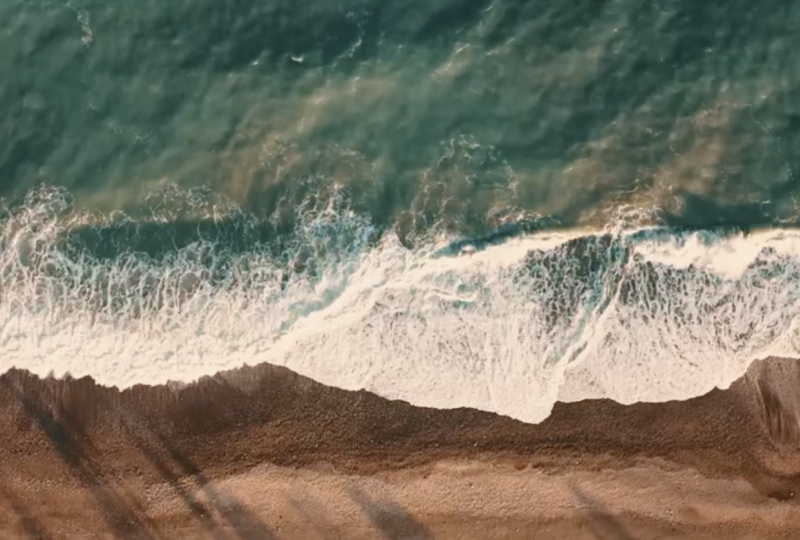
I want is here. So we have the video extra. Then we have this really
beautiful video clip of ocean waves. So what you can do, if I just double click, then the ocean wave
is playing here. So now my timeline
is not playing. I double click, and
now you can see that the source is Ocean wave. But if I go here and click
here on the timeline, then the source
is time line one. Yeah. Does that make sense? So I just go double click here so I can see that
the source is here. And I want to know I would
just you can either play it like this or you can just
drag the cursor like this. So that would show
you the entire clip. So what I want is
I want this clip to be from here in the timeline. So here, if I want to
select this point, I can press I and
I can go until O. So that's in and out
point we are selecting. And now what you can
do, you can just drag and drop this
file on the timeline, on the video w. And now
let's watch the video. There's an island. So just
when I start talking, I want another clip.
There's an island. So here I want another clip. So what I want to do if I
just go here that zooms in, I want this clip to be
cut after this point. So what you can do, you can
go here, select the blade. And you can also see
that blade edit mode is in my system at C because I
have this custom shortcut, but your system, it
would be something else. So you can just press whatever
button it is showing now. I would just press
C, and later on, I would give you my
shortcuts as well, which is really, really handy, and it would just save
you hours while editing. But let's focus on
super basics now. So just for the
sake of this class, you can see that I
have this arrow first. I will just click on the
blade, and now I have blade. Here is arrow, but if I go on the clips or the audio clips,
I have this blade now. So what I'm going
to do, I'm just going to make a cut here. And if I just move my timeline, you can see that there is
a little bit of cut in between the blade in between
this clip and this clip. So now we're going to be
pressing this arrow again. So now the blade is gone. Now we're going to be
clicking on this clip, and you can press Backspace. And now this clip is gone. There's an island just on. So here when I say
there's an island, I need another clip
from the Sony video. So you see now the
clips are a little bit small. I cannot
really see it. So what I'm going to do,
I'm just going to click off this the bin list, and
that would go away. And then I can increase
the size of these videos. So then I know, then I can see the thumbnails
a little bit better. So I maybe need this
clip from here. So what I'm going to do,
I just double click so I know the source and I
have the in points. I would go there with
the Ipoint then I play. And then I need
the outpoint here. So in the drone shot
in the ocean shot, only the video file came
because this clip had no audio. Okay? But if I go here, click Master, go to Sony,
we had our clip here. So you can also see here in the thumbnail that we chose
an in and out point here, that's exactly
what we have here. So if I just drag and drop this, then the entire video and
audio comes together. So you can see that this was video clip, and
this is the audio. But if you just want to import the video or the
audio, there is a way. So I go Command Z or Control Z. If I go click, and if
I go on this clip now, I have two options here. The first one is the video. If I just want to
drag and drop video, which can happen sometimes, you just drag and
drop the video. If I click here again, if I just want to drag
and drop the audio, you can just drag
and drop the audio. But here we need both
video and audio, so I would just drag
and drop them together. And now I have the clip here. So let's play it again and
let's see how that looks. There's an island
just up the coast. I also want to hear
the audio from this clip because that gives
a bit more vibe of the sea. There's an island just off
the coast of the Netherlands. I think it's too loud,
so I would reduce it. There's an island just off
the coast of the Netherlands. So this audio is nice, but what I also think is happening is the
audio is too abrupt, and I want the audio to start a little bit before
the video plays. Now you can see that if I
just drag it like this, the entire audio and the
video, they go together. But I want them to start here, but I want the audio
to start bit before. And now if I click on this clip, both the clips are
selected. Why is that? Because both of these
clips are linked together. So you see if I just
move it like this, both of them are
linked together. So what we need to do
is to disable the link, to disable the link,
what you need to do, you go click here. And now if I disable the link, then I can just drag and drop drag the
video and the audio. And you see that if I just
drag the video like this, then it shows that here
there is a difference of 1 second and 21 millisecond. That's really handy because
sometimes if you're editing and if the audio and the
video clip if they move, then the inti already shows
that they are not in sync. So I would just bring it here, and I would maybe
start the audio from here so that the audio comes before and
video comes later. And what I can also do is
that I can smoothen out the inserting of the audio.
And how do you do that? If I go here in the corner, you can just do it like this. So then the audio is
not going to come abruptly. So let's
play it again. There's an island just off
the coast of the Netherlands. So just when I say of the
Netherlands, then I can cut it. So we go go Blade
two, do it like this. Then you go here, then cut
it out with backspace or X. So that's how you can
cut and trim the clips. But I think it's a little
bit tedious process. So that's when I would be
introducing shortcuts. So we're going to be editing
the entire sequence, but I think it's nice to edit
them with the shortcuts. So in the next section, we're going to be
talking about shortcuts and editing this sequence again, I think, ten times
faster. So let's go.
7. Keyboard Shortcuts: So in the last section, we kind of went through
how the timeline works, and we also did some cutting and putting
the music together, reducing the sound of the
music when the voice over was. But in my opinion, that's a little bit of tedious process of how
we are doing everything. I have some set of shortcuts
that can help you to cut and put all the clips together just with one
press of a button. For example, if we
have this clip, like we cut until here, right? So if we have this clip, right, what I need to do I just
need to select or yeah, select the audio and the video. And if I just press
one button on the keyboard, it's already gone. And then if I press another
button on the keyboard, then it comes here in the front. What I can also do is
I'll just do Control Z. And if I press another
button here, say, for example, this
clip was here and I wanted to cut this part out. So if I just press
another button here, so what's happening here is if I just want to get
rid of this clip, then with one button, this part would be removed and this clip would go on the left. And if I have to remove the clip from here with one button,
everything is removed. How is all this possible? All of this is possible
because I'm using shortcuts, keyboard shortcuts,
to be precise, and I can also zoom in and out
of the timeline like that. So how do you change
the keyboard shortcut? Let's go here in the corner. We go to Winter resolve, then we go keyboard customization. And you can see here, I have a preset which
is already loaded, which is the winter resolve AD if you want to load
the same preset, what I have, then
what you need to do, you go in the resource
panel and you would have a dot TXT file, dot text file. Let me export this preset as
the Winter Resolve sorry, export the winters
of AI to Dextop and then I'll show
you how it looks. So I will just do
the Winter solve A. And if I go to my Dektop because a lot of
people get confused, they're like, Oh, there's
not a preset file. If I go here on my Dktop, then you would have a preset
which looks like this. This is the keyboard
customization preset. And what you need
to do with this is you go to the Venture
resolve keyboard customization. You press on these three dots
and then import a preset. And then you go to Dektop
or wherever you have saved the preset what I provided
you click on this and open. I'm not going to do it because
I already have the preset. So that's how you can import my keyboard shortcuts preset. I will also go through
what are the keys, what is helping me to, you know, move the clips back and forth or move
everything so easily. So the most important
button that I use, if you have imported my
preset, you would see here. So if I press Q, then there is an application
called Trim start, and that's what it does. It kind of trims
the starting part, and then W kind of trims the
end part. So let's go here. And on this clip,
if I just press Q, it kind of trims
the entire thing. We don't want that. That's why we select the audio and video. And we kind of trim here. And with this selected, we can also press W now, and it kind of trims
whatever is on the right or towards
the end of the video. So that's W and Q, the trim start and trim end. And if you want to also
search any of these commands, what you need to do, you go to all commands. That's
really important. Go to all command, and
then you will trim start, and then you would
have the buttons here. So TrimStart is the command and what button is associated
with TrimStart Q. If you want to change
it, say, for example, if I want to do J, J is assigned to something. So if I want to say go M, M is also assigned to something. S L. Let's just say if I
want to assign L button, you can just assign here, but L is all reassigned to something else, which
I don't really use. But yeah, then you can
assign any button of your convenience to
any of these commands. That was Q and W. Next one, it's also really handy is A and S. So if I go if you
have imported my preset, if you click on A, then you have application
Zoom out, Zoom out. If you go S, Zoom in Zoom in, what that does, I will
just discard the setting. So if this is my timeline, if I press S, it
kind of zooms in. So I just click click
click it zooms in. If I press A, it
kind of zooms out. So that's really handy if I want to jump all over my timeline. So wherever I would
put my playhead here, there it would zoom in. If I want to put my playbd here, if I press S, it would zoom in. So that also really
useful for me. Keyboard customization,
another one is C. So C was the blade edit mode. You know, we were
cutting the clips with the blade edit mode. Another one is V.
So when the cursor goes to the blade tool to
bring back it to the cursor, you have to press
V. For example, if you see my cursor here, if I press C, it's
on the blade tool, if I press V, it's
on the normal to. And if I press B, then it goes to trim edit mode. And the trim edit mode was something where the clips
were going really quickly. So if I'm in the normal mode, the cursor looks
like this, right? If I select this
clip, if I press Q, it kind of deletes
everything in the front. But then we still
have to manually drag it, you know,
select both of this, manually drag it, or we can click on the gap here and
press X that is ripple delete. Can press X, then
it comes there. That's still two, three steps. But if we go on this mode, that is the trim edit mode, which is B, then you can
see my cursor is changing. So cursor changes to this, and now if I press Q, then it kind of, of course,
does to everything. But now if I just select
this and if I press Q, then it chops off the
things in the front, and then it also moves the
clip towards the front. Say, for example, if you want
to get rid of this part, what I'm going to be doing is I would select both of this, go press B, and then W. I don't even have take off my
hands from the keyboard. It's that convenient. And then I go back to
the normal edit mode, which is V. So in the
normal edit mode, which is V, if I
want to, you know, drag this clip,
this clip to here, you can just overwrite it. You can just click on the edges
and you can overwrite it. So we are in the
normal edit mode. If you want to move the clip, you can bring it like this. But if you go to
the trim edit mode, which is B, I'll just press B, you can still drag the clips. But now, it's going to drag in the clip the
different section. So say, for example,
you wanted to put the things which is towards the end of the clip,
you can click here. You wanted to put
the things which is on the front of the clip,
you can put it here. So I hope it makes
sense. And that's why this timer is changing because now it's at
0.08 milliseconds. There is a difference between
the audio and the video. So I'll just press Control Z. So I hope it makes sense. So there is a difference between the normal edit mode
and the trim edit mode. So let's go back to the
keyboard customization. D, I don't have anything
with D. Ripple Delete was X. So what ripple delete always
does is if there is a gap, you press X, it goes like this. And now we have to do the
audio and video separately because the Link
tool is disabled. Yeah. But if you enable it and now if you press X,
then it goes together. So that's also handy if
you enable the Link too. Next to the link tool is a
magnet tool, snipping tool, which is shortcut as N. If you
press N, it gets disabled. If you press N, it gets enabled. So if we disable it, and if you have to
move this clip here, I'll just really zoom in, then you really have to
park this clip here, otherwise, you can
also go here or here. And if you leave it here,
then the clip stays there. But if we have the snipping tool enable and if I move,
I'll just zoom out. And if I move this clip
here, let's kind of zoom in. If I just put it
here, then it kind of like it kind of helps you
to snap on the other clip. You see, kind of like
it's like a magnet, so it kind of attaches
the clips together. And then if you really force it, then you
can move it here. But if you bring it
like this, you can really park it on the
end of the other clip. Like, it's really
difficult to explain, but you really have
to try for yourself, then you would know
what I mean by the snipping tool,
snapping tool. Another clip that I
really like to use is E, which is the enable clip. So if I press E, this
clip is disabled. If you press E, this
clip is enable. And that is really handy. So you see if I move this now, the audio and the
video, they both move. That's why I kind of
disable the link here. So if I move this
clip here, you know, if the goal was to put this
clip on top of this clip, but if I want to see the
clip which is under, then I can just disable
this by pressing E. So. And that is also handy. Post of the Netherlands. So yeah, with E, you can
enable or disable the clips. And what you can also do,
for example, if I go here, if I kind of zoomed in, how do you zoom in to
scroll with your mouse? If I zoomed in, you know, in the playhead in the
main playhead here. And if you want to bring
this clip back to normal, you don't have to zoom out,
you know, fit the screen. Now you see, Oh, it's too much
zoomed out. Now let's fit. Just press Z. If you press, it's fit to the screen. That's what you can
do here, Fit Z. But if you want
to go 200 person, you go 200 or just press Z,
it just fits to the screen. Because a lot of times if
I'm doing color grading, if I'm doing something else,
I kind of zoom in, zoom out, and then I just press
Z and I know that it is fit to the screen to the
space what I have provided. So those were shortcuts for you. I hope it all makes sense,
and I would really, really recommend you to import my shortcuts,
how I did it, because in the
upcoming sections, I would be editing
according to my shortcuts, and I would be repeating the keys according
to my shortcut. So it would make
sense for both of us. And they are really,
really handy and a lot of people have tried it
and they have loved it. So yeah, it takes 2
seconds to just import it. Do that so that we
are on the same page. Now in the next section,
we're going to actually make a sequence of this out of all
of these videos, let's go.
8. Editing Video Sequence - Part 1: So now let's actually
finish this sequence. I would start the sequence, tell you what to cut and edit, and also show you
some sound effects, what I've given it to you. Then I would let you edit
the sequence and then I would show you my kind
of final product. So let's start here. So I would just delete
these two clips because I don't think
they really fit here. Let's watch it from
the beginning. I would reduce the size
of this audio here. What I already see here
is that this audio, it starts a little bit later. So what I'm going
to be doing is, I will just click on
this and press Q. It is in the normal mode, and then I would
just drag it here. And I will zoom out Zoom and
you see how smooth it is. There's a nile. And I also
think that it gets muted. The volume gets reduced first, and then the voice overcomes. They should be together.
So you see that's why the wave forms are so handy. Let's listen again. There's
when I say there's an island, I need a clip of a bird. So we just get rid of it. Maybe kind of zoom
in a little bit. So you can change all the
shapes and sizes of everything. So I need this clip. Maybe from here, so
I'll press in and out. You just drag on the
clip and bring it here. And now what I
also want to do is I want the audio to
come a little bit earlier and I would reduce the volume of it so that it's not really bothering the music. Is an island just off the
coast of the Netherlands. So what's happening now? In this audio, we have
the audio camera. Audio camera here
is the voice over. You can see, of course,
I'm renaming it. Here is the music. Here I would do sound effects, and then we can
put another layer called sound effects Layer two, so that we know
exactly, you know, where to distribute
all the audios because soon there would
be a lot of audio. So here what I also feel is that the you can see the waves here, but you cannot really
feel it because there's no audio because
it was a drone shot. What we need to
do, go to master. We have the sound effects here. That's the sound of the wave. So what I would be
doing is I would just drag it here and let's hear it. I think it would
be a bit too loud, I already know because you
can see that the wave form of the music and waveform of the waves there of
the same height. But these waves they should
be just in the background. Now let's hear it. It's an island just up. And just when we come here, I want the audio of the
wave to disappear here. So I would press W. It's gone. And then I would also
want it to go out, you know, a bit smoothly, go out a bit smooth.
It's an island. Ask. And what I want to also do, I know I'm making
it complicated, but implementing these
sound effects they help so much with making
a really cool video. So I have this
impact sound, yeah. I would just put this here. The reason why I know all
of this is because I've already edited this video
for my YouTube log. So that's why it's going
every time smooth. But sometimes if I have
tons of sound effects, then I put then I put
one in the timeline, then I see if it sounds good. If it's not, then I switch
with something else. So if you want to have access
to all the sound effects, I have given all of
these folders to you. If I want to know where
this was, this was impacts. So you go Master Wooh impacts, and then I have downloaded
the Impact seven. But I would really
recommend you to go through all of
these sound effects. They are really, really good. Okay, let's get
rid of this panel, and let's go to Master. And let's hear it
again. It's an art. So just when this clip comes, then I want this and I want
it to be a little bit higher. It's an island just off the
coast of the Netherlands. And I also feel that
the audio sounds a bit off because I feel that
it's in a different format. So what I want to do, I will
go to here, clip attributes. I go to audio and I see that
if I just go audio one, then see how that sounds. There's an island just off
the coast of the Netherlands. And what I would also do is I
would just change the color of this so I know that is the voiceover and how
you can change it. You go right click, clip color. I would maybe put it
to yellow and music, I would put it to orange. So yeah, and the sound effects, I would just change it later. So right now we are just
done with 7 seconds, and I would show
you another clip. What is one of my
favorite clips. It is down here, but you can obviously put any clip you want. So I think I would put
it maybe from here, so I go in And this clip
doesn't have any audio. So whatever I drag, the audio is muted, you see, because it was a slow motion clip straight out of the camera, so I can either drag it
and delete the audio, so you can put it here. But we still need
the ambient sound. So let's see if we can use the same ambient sound of the Siegel clip.
The Netherlands. Play shaped by wind,
sea, and silence. That sounds good. So
that's what you can also do is just play
around with the audio. But the most important thing,
what I have, you know, what I have learned
before editing is just go through all the
rock clips again and again so that then you know exactly what clips and what
materials that you can use. But yeah, all these clips, what I've provided you, you
can use them in any order. All the sound clips, you
can use them in any order. What I'm doing right now, the
sequence, it's not correct. For some people, it would
be completely wrong. For some people, they would put completely different clips. So it's really up to you. So next clip, what I'm going to put is maybe this one when I say silence where the
sky stretches endlessly. Just off the coast
of the Netherlands. Maybe when I say coast, then this clip can
already go there. It's an island just off the
coast of the Netherlands. A place shaped. So I would
maybe put this clip here. So this clip has audio because it's in a
normal pace video, so I would just go and
increase the audio. I can see that it's
really low, but, yeah. I win. I think it's too
loud now, so Play shaped. I'll win. So I can also see that this audio change between here and here is a
little bit abrupt. Play shaped. I win. See. So what I can do, like, you have to
have an ear for it. I can quickly catch it because I've been editing
videos for really long. So what you can do
now is that if I want to swiftly move between
this audio and this audio, I can click in the middle. And go right click, and then you go add frame
24 frames cross or 12. That kind of blends
both the audio. So this audio would
disappear slowly, and this audio
would come slowly. So let's hear it
again. Play shaped by wind, see, and silence. So now you kind of know how
to put the clips together, how to put the sound
effects together. I would ask you to really edit this entire clip until
this voice over. And let me show you
what I came up with. And, of course, I'm going to be discussing you all the things, what I have put there. So yeah.
9. Editing Video Sequence - Part 2: So I am really curious
what you came up with, but let me just go through
these clips and then I'll show you what was my thought process and what all
techniques I used to, you know, put these
clips together. So this is how my
timeline looks. The first one is the
audio from the camera. I see that I've also put the sound effect here,
which I shouldn't. So these are all audio from the cameras. This is the music. This is the sound effects one. I can do Sex two. Maybe I can also change the color of all the
sound effects to, let's say, or let's say perfo. Now we have really separated
the sounds and the audio. Let me show you what I came
up with, and here it is. So what I did was I also pushed the voice over
a little bit later because I wanted the
audience to feel a bit of vibe of
this entire place. But yeah, let's play the
video and I'll show you. So here I kind of
smoothen the audio from this clip and let
it play until here. And then I kind of
smoothen in and out from both of these
clips. So how did you do? Just go in between, right click and
then you have the, you know, you can change
the smoothen in and out. There's an island, and just
when the audio starts, I have reduced the
volume of the music. There's an island
just of the code. Now, here is the
audio from this. Post of the Netherlands. And when these birds are coming, I have introduced a whoosh. And this sound is kind
of a sound effect, which is a mixture of this and this what you're
listening now, because these are the
bird sound effect, which was from this clip,
which was really helpful. The Netherlands. Play
shaped. By wind. So here you see that kind of the top clip from
the birds is fading. And then this clip appears. And how I have done this
is wait. Kind of zoom in. If you also go to
the video track, you can kind of fade
them in, fade them out. So I wanted these birds to
be kind of play shaped, faded in and faded
out from these clips. A play shaped by
wind, S, and silence. And here, what am I
doing is I'm kind of merging the audios of all the clips so that the
audio is not really abrupt. Where the sky
stretches endlessly. Here what I'm saying where
the sky stretches endlessly, then I'm showing, of
course, a white shot, and then I'm also using this sound effect,
Hawk and Eagle, which I have also provided
you here in sound effects, Hawk and eagle, this one. So it's like a really
long eagle's voice. But the sky stretches endlessly and the land
moves to its own. And here I'm bringing the waves back again
with an impact, which you cannot really hear it, but let's increase volume and C. And the land moves
to its own rhythm. Some call it peaceful. So, yeah, I swiftly
introduce the sound of the sea and then smoothly let
it out by, just fade out. Others magico. And here, there's just audio
from the camera. So I've kind of,
you know, merged them together, but
everyone agrees. It's so here was a drone shot, so I can also just put it in same level. It
doesn't matter. But everyone agrees
it's different. Unlike anywhere else
in the country. They say you don't
just visit Tso. You feel it. So that
was a 32nd sequence. So here, I didn't
do anything major. It was just cutting and
putting clips together. Going with the
rhythm of the music, putting the sound effects, which is really
important, putting some ambient noises for
all the drone shots. So those little little things they improve the
video quality a lot. So now you have learned how
to put the clips together, how to cut them, how to use shortcuts in the winters off.
That is really important. So, yeah, that's how you
can make a sequence. But if you think we are
going really quick, you can go back and revisit the last two chapters
and then try to edit the sequence again
because you really don't need to do anything yet, you don't need to go
to inspector panel, you don't need to do all
sort of crazy editing. Whatever you have
learned until now, you can make a cool
sequence out of it. And in the next section, we're going to be going
through inspector panel. But let me show you
one thing before. Say, for example,
if you wanted to make a vertical video out of it, right? What do you need to do? You go to project setting here, you go to vertical resolution. And now you can see that
the screen is really small. So this is really
cool in the winter. Is all 20. You can
just click here. You see this arrow, and this
vertical screen comes here. So now you have a full
length view of the vertical, and I can get rid of this mixer, and I can also get
rid of inspector. So it almost looks like
a really big workspace, especially for vertical videos, which is really, really cool. If you go through all the clips, of course, we can change
the position of the clips. But yeah, I just wanted
to show you that yeah, the Winch 20 has introduced
a really nice workspace, especially for vertical video. So I use it all the time when
I'm using vertical video. So if I have to shrink the view, I just shrink it, and I will change it back
to horizontal. Yeah, I just wanted to show you that because it's a
really cool feature. But this what we have done until now is just
half of the editing. Now we have to put some effects. Now we have to, of
course, also color grade, but now we have to also go to inspector panel because that is a whole another
game in DaVinci, but that is in the next chapter.
10. Inspector Panel For Video: In the last section, we put
all the clips together, and now we're going
to be putting or changing some of the
parameters of the clips. We're not really
doing anything with the audio, I'll
just put it down. So let's say if we
select this drawn shot, and as soon as we select it, then we go on the
right hand side, and then you click on Inspector. And once you click
on the Inspector, there are a lot of
parameters that you can change in this specific clip. So if I say Zoom in, and a lot of them are
really straightforward. So you go Zoom in Zoom out. You can change the
parameters like X axis and the Y axis. Like so. And if I did something and
you can also rotate it. And if I did something
wrong and if I want to reset it, for example, if I just want to
reset the rotation, then I just click here,
the reset button. But if you wanted to
reset everything, then you click here
and everything would be back as how
it was initially. Pitch, you can do like this. Yo, you can also
change like this. All of these things
we would be doing in the upcoming section,
and then flip, you can flip the
video horizontally, and this you can flip
the video vertically. But I would just reset it again. AI Smart reframe. This is just for
the studio version and I can show you how
this can be handy. Let's say if I go on
the settings here, if I do use vertical resolution. So here, if you see this video, my main subject is here in
this corner. Is it not? Right. But if I do
AI Smart reframe, the AI should be
capable of bringing my subject back in the
center. Let's see. Now, if I play this video, nile? You can see DaVinci brought
this back in the center. We can do the same for here. Let's do reframe
and then the us up the coast of the object
is in the center. Why we would reset them again. So what happens is that DaVinci is basically changing
the position of the Y and the X axis of
wherever the subject lies. So I would just reset it and go back to the horizontal
resolution. So this is an AI
feature cropping. This is really interesting. So say, for example, if
you are on this clip, if you go crop left,
you can crop left, you go crop right,
you can crop right. Top bottom, it's really
yeah straightforward. And if we have crop like that, you can also sort of u manipulate
the edges of the crop, and so you can
change the softness. We can reset it like this. Dynamic Zoom is, yeah, you can just turn it on and Eland up the
coast of the neoms. It kind of zooms in by itself. So this is a zoomed in image. End of the coast of the neoms. And then it zooms out. So that Zoom is quite
straightforward. Composite mode.
Composite is also really interesting because
what happens now? Let's put this clip. Right. So right now we have this clip here and the
clip is underneath this. But we are just seeing
this clip, right? But if you change the opacity, so then the clip on the top, it becomes a little bit lighter. And if it's 100%,
you don't see it. But there are different
modes of composite mode. So let's do a really cool thing. So I would just leave it like so and then what
are we going to do? We go in master. Then we go to overlays. Do
you see overlays? Yeah, we go overlay, and I would maybe
click on this one. So this and I would just click
bring it down here, right? So you have all of this. Okay? Don't worry, you should go in the overlays, and
then you have this. Now, I'll just mute the video because
it's a bit annoying. So now if I go here, you can see that I want this to be on top
of the other clip, but I also want the
other clip to show. So if you bring
down the opacity, then the whole image
goes like this. I will just change
the setting here. So what we can do is
you go to opacity. This I use it all the time. If I have to put any overlays in between two videos, I
use it all the time. So you go composite mode, you scroll all the way down, and then you go screen, and now you see
how cool it looks. You see, I have tons of overlays that what
I've given it to you, if I go here for Power Bins, if I just increase this
up, we have overlays, and I have so many
overlays that you can put, and they are quite long, so you can just choose
what portion of this overlay you want
on top of your videos. And what you need to do,
you just bring it on top of in between two video clips and then just composite mode, you change it from
normal to screen, and then the video
looks beautiful. So this is the
kind of transition a lot of people also
use in their videos, especially on the reels and
the short form format videos. So that's really interesting. Speed change is
not really handy. Stabilization is really cool. So if we see say
this clip, right? I would just bring
this clip here. So if you want to make a
duplicate of one clip, what you need to do, you
press Alt or option, and then you click on
the click and bring here because I don't want
to disturb this sequence, but I still want to show you the stabilization method or stabilization setting,
which is really cool. So I just press
Alt or show again. Option or Alt, click on
this and just drag it here. And that would
create a duplicate. So I just zoom in, I'm going to increase the length of this. And you can see that this
video is a little bit shaky. You can see it's a
little bit shaky. So what we're going to
be doing stabilization, you go stabilize. And then kind of it kind
of crops everything in. And now, if you go full screen, so how do you go full screen, you press P. So I
press Oh, wait, let's go in the beginning, press P. See now how smooth it looks. Without stabilization,
you can see. It's a bit shaky. You see? And with stabilization,
it's really smooth. Sometimes the stabilization,
they don't really work. So then you can choose
different modes. So you can do similarity, and then stabilize again. You can do translation
and stabilize again because it really depends on the movement of the video. So, yeah, I usually just reset. I usually go perspective
and that does the job. But in DaVinci, there is another cool
stabilization method. Let me quick click
to another clip. Mm. Maybe this one. Okay? So in this clip, you are seeing if
I go full screen, you can see that this is
a handheld clip, right? You can see some movements. Okay. But I'll just
copy it here as well, make it a little bit longer. But you can almost
make this clip look like it was a tripod
shot. How do you do that? You go to camera lock, so that would try to lock
the axis and then stabilize. The inch you would
crop in a little bit. Let's do go full screen,
and now let's play. You see how cool it is. A lot of times I take
those handheld shots, and sometimes you can see
the little bit of movement, but I want it to look
like a tripod shot. I just press camera lock, and I do stabilize. But this is only Apple cable if the footage is
not that shaky. If it's crazy shake,
then it wouldn't work. I think it can also
work with this video. You see, there's a bit of shake, I do camera log stabilize and now almost looks like
it's a static shot. Of course, if I
disable stabilization, if I disable stabilization, you can see that it's kind
of cropping in a little bit. But that's the thing
with stabilization, it crops in and then kind of tries to make the
whole video stable. Lens correction,
yeah, if you have some sort of lens distortion,
then it's useful. It's not really useful now. Retime and scaling. This is really handy. So for example, if we had a 60 frames per
second video clip, which I don't have it now. So I have found a 60
frames per second video. This is also with you. So how do you know it's 60
frames per second? I just click on the video.
You go to File here, and there you can see
that it's 59.9 40. That's 60 frames per second. So I don't want to, like, you know, go
all over the place, but in the inspector panel, we are until here, okay? Now, what we're going to
be doing is this clip, you can see it is 60
frames per second. But here, if I play this, it is also playing in
60 frames per second. So what we need to do is
that as most of you know, if you have a 60 frames per
second clip or 50 frames per second clip or 120
frames per second clip, you can convert that clip into a 24 frames
per second clip, and that clip would
be a slow motion. How do you do that
in a good way. You go to clip attributes,
you go to video, and then your video frame
brrate you convert it to 24, which is the frame
brrds of our timeline. Then if you play
back here already, let's say we won the clip here, now it's in a little
bit of slow motion. So that's how you slow videos
down and bring it here. So that was generally a way
to show you the slow motion. But let's take this clip. I'll just bring it here. So this clip, as you can see, it's already in
slow motion, right? But what if I want
to slow it further? This is something really
cool in the winch, and I use it all the time. If I have to reduce the speed down because if I
go clip attributes, it's already in 23 4976. You cannot really slow it down because you cannot really
play a video which is already slower than the frame rates DaVinci of the project. So what we need to do,
you go right, click, you go change, clip speed, and then you can slow
it down from here. So let's say we want to do
50. So we are reducing it. It was already slow motion, but we want to reduce
the speed even half. And let's play it
in full screen. Now you can see the video
is a little bit choppy. It's like a little bit jarring. It's not really smooth. This is something what DaVinci has introduced really cool. If you go to retime and scaling, and this is, of course, in the free version as
well, which is amazing. If you go to retime scaling, you go here, retime process, you go optical flow, and then motion estimation, you can either do enhance
faster or enhance better. I would do enhance
better because then the quality of the slow
motion is really good. Now if I play it now all
the jarring is gone, and the video it's getting
stuck because it's not really playing here
at 24 frames per second. You see, the video is
getting stuck because it's a bit heavy on the Vinci because
we have to enhance better. Let's do enhance faster and see. The video is still
getting stuck, but we're going to take
care of the stuck video. But if we export it, then the video plays
back really smooth. So what this is actually doing ret scaling is that it kind of takes care of
the jarring motion. For example, if we change
the speed to even say 20%, if we just reset it, and now if we see the video, you can see the video
is a bit choppy, right? So now if we go
optical flow here and then let's go standard faster and let's
see how that looks. So you see it kind of takes care of the choppiness,
the jarring motion. That is really
cool in the vinci. But of course, this
I'm showing you this in the standard
faster format just for the sake of this video. But every time before exporting, you should do enhance better. So then you get the best, slow motion out of the vinci. Of course, if I do
that, it's not really going to play the best. But yeah, this is what you should do to reduce the speed of the video more than how it was from the camera and is such
a cool feature of the. AI super scale is in
the studio version, but what happens here is that, speaking of studio version, if you are serious
about video editing, I would really, really recommend you to invest
in the studio version. This software is just so, so, so good. Let's show you. So for example,
if we had a video which was filmed on
a really bad camera, or if you sort of cropped
it in a lot, you know, and once you crop videos, then the quality loses. This is shot on a good camera, so you don't really see
the quality difference. If I just place it here, what you can do is that you
can super scale the video. So if we go four x enhanced, then the video is a little bit sharper and it wouldn't
look like it's cropped in. So what AI superscale
basically does is that it kind of introduces
like, it increases sharpness. It increases the video quality, even if it's zoomed in, because sometimes if
you zoom in a video, it kind of falls apart, and that's what DaVinci
taking care of. But it also makes your
system really slow. Like, if I play it now,
it just wouldn't play. It's like zero
frames per second. It should be playing 24, but it just wouldn't play. So that's what if
I have to do this, I do this AI superscale just
before exporting any video, you know, because I still
want a nice playback here. Anyways, let's transform,
bring the transform here. And one more thing what is really cool is that, of course, we went through
all the parameters in the inspector panel. So let's say, for example,
if we changed anything, if we increase the
clip speed, say, 20%, you know, forget
that we did this, okay? And let's say if
we changed the Y, if we change the Y position and if we rotated the
image a little bit. If we want to copy the
same video settings on this video clip. So we don't have to copy and paste the numbers
what we can do. You go right click, you go copy, or you can go Command C
or Control C in Windows. So what I would do I would
do is a shortcut Command C, Control C, and then here you go. You go right click and there is a thing called Paste Attributes, which is option or A to B. So here we're going to
be doing all or option. We go here, and now
DaVinci is going to be copying the properties from
this clip to this clip. And it's also going
to show you what all things it would copy from that clip
because it would only show you the things where
we have made any changes. But for example, if we don't want to copy the rotation angle, we can choose that
and let's apply. And then this video like this. So you can see that
it kind of zoomed in the same zoom
level as this clip. Then we have the position, we have zero rotation angle. So that's really handy as well. But I would just
change the video. So yeah, that's
how that's really, really handy when
you have to sort of paste the same settings
on the entire clips. For example, if I had to zoom in on all the clips
like zoom in, say 1.2, then you can just do
copy and paste attributes, and that would copy the
Zoom on all the clips. You don't have to
do it manually. So this is something really, really cool and I
use it all the time. Copy and paste attributes is going to save
you so much time. So that was inspector panel
in the inchi for videos, but there is another
inspector panel in the inchi for just audio, which we're going to cover
in the next section.
11. Inspector Panel For Audio: So now let's go to the
audio inspector panel. So let's bring the
voice over here. So I would just go option here because I want you to hear
really all the changes what I am making
in the voiceover because here it would be
distracted. Oh, wait. I can actually do
one thing here. If we just want to
play voice over here, you just need to do solo. And what it does is, even if it's going through
the entire timeline, it would only play
the voiceover. Nothing here. There's an island just off the coast
of the Netherlands, a place shaped button. But if you want to mute that,
you can just mute it here. You can mute it here.
And then we could only hear the sound effects. So that things which I
forgot to tell you before, but these are the things what
you can do in the timeline. Sometimes, if you just want to listen to one track, you do it. And what is also
really cool is you can lock the movement or you
can lock the clips here. For example, if I
just want to lock the voiceover clip or
voiceover entire level, then it wouldn't
change. You see? I cannot change it. It's locked, and that's really
handy if you have a big project that you have put all the voice over at
the particular places and you don't want
them to change at all, then you can just do it there. And the same lock you can
do for all the clips. Anyways, so we're going
to be selecting solo, and now let's go to the
Inspector Tab. For the audio. So we're going to be
selecting the clips because now there's nothing is
selected on the timeline. That's why we just cannot
see anything here, but we're going to be
clicking the voiceover. And as soon as we
click the voiceover, we see a lot of things. So here we can see that this was the initial level of the
audio and I would just do. So we have increased the volume of the audio that you
can also see here. You can also change the pan
so you can maybe do pan from left to right or right
to left that you can do here. All these AI things that
I would show you in the studio version
because that's all included in the
studio version, pitch, which is not
really important. I don't really use it,
so let's not do it. Speed change. Here you can
change the speed of the audio, but I barely use it. AI music editor, if you are in a free version,
you're missing this out. I would show you when I will talk about the studio version, which is really, really cool. Here we have the equalizer. So what you can do is that if
you turn on the equalizer, so what you can do,
you can do B one if we have to enhance this
audio. Let's listen to it. There's an island just off
the coast of the Netherlands. So if we go B one, then
we have the one point. And if I want to increase
the base of this, let's exaggerate it and see. Island just off the coast of the Netherlands. A place shape. So I want to increase the
base, but not too much, say until here, and
then let's hear it. There's an island just off
the coast of the Netherlands. A play? I would also increase
the spectra like this, so we have the equalizer here. It's shaped by wind,
sea, and silence. So here you can also, these are all different different
points in the audio. Let's play with
it. Where the sky stretches elessly and the
land moves to its own rhythm. Some call it peaceful,
others magical. And you can also change
how this thing dips. So if I do like this, you can sort of make
it a bit more pointy or make it a bit more
blunt. I usually do this. So what is my process is that? I would just play this audio. Island off the coast
of the Netherlands. A place shaped by
wind, sea and silence. Here it sounds a bit
weird. So here is endless. Reduce it down. I would
do the same for four. Let's make it a bit
more a bit less pointy. And let's
hear the audio. An island just off the
coast of the Netherlands. A place shaped by
wind, sea and silence. Where the sky
stretches endlessly. So wherever it sounds
weird to its own rhythm. Bring it down so
that we don't have any sort of variation
in the audio. There's an island just
off the coast of them. And here, if I increase
five, then Netherlands. A place shaped by wind. Then all the things which is a, they all get emphasized. So what we can do,
we can click on six and bring it a little bit
down. And let's now hear it. There's an island just off
the coast of the Netherlands. A place shaped by
wind, sea and silence. Where the sky stretches endlessly and the land
moves to its own rhythm. That's how I'm doing
the equalizer now, but you can do it how you want. So what we did was we increased
the base a little bit. We put a limiter
here on this corner and we have kind of
limited all the things, which sounded a bit unusual
in the entire clip. And what you can do
now is that if we have to copy and paste the same
properties on another clip, you can do the same
for audio as well. So we go, Come on,
see or Control C, and we want to just for
the sake of this tutorial, if you want to paste
the same settings here, we go option or all three, and then DaVinci would tell
me that it's going to be changing the volume and it's going to also change
the equalizer setting. That's what we did now.
And if we do that, then my music track also had the same exact parameter as the voice over. But
I don't want that. So that was equalizer, but we're going to be going
in the Fairlight Tab. There the main audio
adjustments are like, here, I don't really change much, so I would just reset it, but most of the changes I do in the audio is
in Fairlight tab. But this is still good to know because if we have the
AI voice isolation, AI dialog leveler,
all these things, I do it here in the vents, but that is for studio version. Anyways, there's another audio
setting that you can do. Say, last time we just
clicked on the clip, and everything what we changed
is just for this clip. If you click here,
everything what we're going to changing is
just for this clip. But if we want to change
for the entire track, then you click on
the track here, if I click on the track here, then another audio
bar comes here, then another audio
panel opens up. Go click here, then
the audio panel opens up for just audio A one. Let's do it for voice over, or yeah, let's do
it for A three. Okay? In the free version
in the into free version, here you can see that there
is an option called Ducker. And what Ducker does is that. Let's turn it on. And what Ducker does is that you
remember what we did here? We kind of reduce the volume of the track when we started
doing the voiceover. If I just delete it
so to delete it, you can just press
this white dot, and once you click it, it turns red, you delete it with X if you have my shortcuts. So let's go back to A three track audio Track
and turn on Ducker. So what Ducker does here, the AI of DaVinci
Resolve would help this audio track to reduce the sound when the
voice over comes in. But for that, we have to select the source which
is the voice over. So the voiceover is in the voice over track here,
A two voiceover. Source one is the audio camera. Source two we can do as a voiceover so you can choose different different sources, and the level of this music would reduce
down according to that. So let's see if DaVinci
did a good job. Oh, we have solo here. Let's play again. Is an island just off the coast
of the Netherlands, a place shaped by
wind, sea, and silent. And if I turn off
Ducker wins where the sky Is an island just off the coast
of the Netherlands. A place shaped by wind? You still hear the music,
but if I turn on the Ducker, then we can play again and see. Is an island just off the
coast of the Netherlands? Place You can see that this music is playing
in the background, but DaVinci has
reduced it itself. You can also choose
the duck level. So if you do it a
lot shaped by wind. And you barely hear
the background noise, but if I just duck
say 2.2 and silence. But the sky stretches.
You hear a little bit. So instead of, you
know, going here, Keyframing and putting
this volume down, and when the audio goes and
then you increase the volume, you can also use Docker. But to be honest, it is not perfect yet, but it's good to know for you. For now, I would
just turn it off because I don't think it's
really handy for now, but maybe in the
upcoming updates, just keep an eye on this. I think it would get better. But one thing, these options are only available
for the entire track, not for just this clip. It would only appear
if I go in this track, and then you have
these music options. So yeah, those were some
of the parameters that you can change in the audio
in the inspector panel. Now let's move on to
the next section.
12. Keyframing: And So now we're going to be
talking about Keyframing. So I have just copied this
clip which I had here in here. So what is Keyframing? So Keyframing is a way
in which you can lock the property of a video or audio or of anything
at one point, and then you can just change the same property at
some other point. For example, if we want this image to have a
Zoom number of one, the initial number,
I want it here. But as I go towards
the end of this clip, then I want the Zoom to be, say 1.4, let's say. 0.4. That we can achieve with Keyframing
because if I go 1.4 here, it's already zoomed in at 1.4. You see? Here I want
the value to be one. So that's when we set
keyframes on specific areas. So to set up the
keyframe in DaVinci, what you need to do,
you go click here. So if I click here,
any changes I would make here would be
locked at this point. So let's say I don't want
to do any change now, but when I go here, then I want this image to
be zoomed in till here. I want the position
of X to be here, I want the position
of Y to be here. And rotation, do I
want? Not really. So let's watch this video
again on full screen, press P. So now you can see that the video is
kind of slowly zooming in. The video is getting a bit stuck because it's a bit taxing on my system because I'm
screen recording as well. But yeah, if you see here
in the Transform panel, then you can see the
numbers changing. And they are going towards
our final position. So that's what Keyframing is. And we had the final
position somewhere here. So let's just turn of the video here and you can do
this to anything. Anything what you see here in stabilization,
lens correction, you can do anything
which has this diamond, you can do Keyframing. So let's do Keyframing at crop. So let's put the initial value. You know, I want to
make that effect. That kind of window
opens up like this. So let's do the
initial value 560. So I can see that
the top is cropped, and you can see this check mark. I think you might have it black. So what you need to do, you go here on the left side
of the timeline. You go view
background and you do checkboard. Yours is black. For me, black sometimes
is confusing. That's because if there is
a little bit of black left, I cannot really see it
while editing the video. So I think just to be sure I
have put it to checkboard. But when you have exported the video, this would be black. So this wouldn't
be a checkboard. Don't worry. So this
would be black. So anyways, coming
back to cropping, my initial crop, I want it to
be 560 from top and bottom. So we put the numbers, maybe go a little bit more here. And then I want to
key frame this. So let's key frame the position of the crop
top and bottom. I've also done it right
and left because why not? And then when we go
at this position, I want it back to zero. So now if we play full screen, you can see the image opening. But now I want the
screen which opened. I want it to be a bit slower. So I cannot really
change it here. So for that, I need to go
in the Keyframing panel, which is new in the
winter Resolve 20. What do you need to do? You go click on these diamonds here. You go show keyframe tray. You go up, it takes a bit
of space in the timeline. We don't really need the
audio, so we go here. And here you can see the
changes what we made. You have all the
parameters here, you know, the Zoom,
X, everything. So all these changes, you see the initial
and final diamonds, that is for the Zoom, everything what we did here, and all these little changes
are for the cropping because you see how fast our
crop went from one to here. But if you want to change
the duration of the effect, say something here, we can just select
everything and drag it. If we want this to be here, we can just select
this and drag here. So now let's watch everything
again in full screen. So our image is zooming in and the video
opens up like this, which looks really cool. So yeah, that is Keyframing.
But this is not just it. You can do Keyframing
with everything. You can do pitch
your, and you can, of course, control
the keyframes here. What I would want to do is I
would just close this tray. And when we talk about keyframe, there's also a really
cool thing you might have seen in a lot of videos
is called speed ramping. What speed ramping is, let's take this drone shot. Yeah? I think it's a little
bit longer drawn shot. Say, it starts from here, and then it goes up, up, up, and then it goes up until here. It's still going. What I want to do I want this shot to
play normally like this, and then I want this shot to
speed up, like, from here. And then it just shows the
last part. How do you do that? Also with Keyframing? So now you have to watch it
really carefully. So what we need to
be doing it is not the same process because here we cannot really
change the speed. What our initial
thought is that we go from normal speed, speed, then fast until here, and then normal speed here, and we cannot change
it here because, yeah, there's no
speed change option. So you right click on this clip, you go Retime controls. When we do retime controls, then our clip becomes like this. Here, I would just zoom in, say if you want the
change to be here. Yeah. Then I would want
add a Speed point. And then if I want the
change to end here, so I would do add
Speed point again. And now what we can do, you can either change the
speed in between to say, let's say, 800, yeah. Then it goes really quick. But in my opinion,
it looks really choppy that it goes slow
then fast, and then down. I don't really like it and you can change these speed
points like this. You can also change
the speed points like so see it looks really choppy. We want to make it
better. So what do we do? We do with the key frames again. What I need to do now, I
need to go This is new in the winter I all 20. I'll
make it full screen. We go to keyframes here. So there is a keyframe panel which opens up at the bottom. Let's close it. We have a keyframe panel here,
which opens up here. Now, we don't have any keyframes here because
I didn't do any Keyframing, but if we go down here, then we have some keyframes, which is the speed of the
clips that we changed, right? But what we need to do
we need to go here, and here you would see key frame curves. This
is really important. If it's not clear, you
should watch it two, three times this tutorial. We go key frame curves. And here you can see
the actual curve. Yeah, we go up, this goes
quick and then slope. But you see the
speed here is one, and it suddenly goes to eight, and then it goes to one again. We can also remember we did 800. We can increase the speed
here because with this arrow, you can only change
the speed up to 800. That's why we come
here. Let's do let's do 20 times the speed. And now let's play back. It
looks really bad animation. It's also getting stuck. But what we need to do
we need to smoothen out the speed so that it slowly goes 100-20 time 1-20 times and then come
back to one time. What do we need to do? We go just select these
two key points, and then here you see this little curve that
says ease in and ease out. If we do it, then there is a
bit of curve here. You see? We can
also zoom in here. And if you touch this, if you elongate this, then the curve becomes
a little bit smoother. You see, it becomes
a bit more smoother. So now, what's
going to happen is our footage would go from speed one to 20
times really nicely. It's not really playing good. So what I can do now, if it's not really playing good, I can maybe change
the resolution. So if I go settings here, let's go 720 pixel. So now the resolution of the
video wouldn't be great, and now hopefully it plays good. So let's watch it full screen. I pressed P. You see, so now it's going really nice. It's a bit more smoother. It's still not playing good, but in the upcoming section, I'm going to show you how
to play with proxy files. So yeah, that's how you
can do a speed ramping. But you can do a lot
with these curves. Let me show you another example. For example, we are
playing this clip right. We did the curve and everything. Let's reset this. Yeah, reset the transform,
reset the cropping. Okay? And here, what
I want to do I want this drone clip to come in the screen from
the right hand side. You might have seen
those animations. So what I can do now, I can do another Keyframing
for the position. So if I just drag it
this way, you know, go to position X, the position X is here. So it is out of the screen now, and I can set up
a keyframe here. I'm not setting up
here because we don't need to
keyframe everything. We are just making change here, so let's do it here. And now at this second, I want it at its
normal position. So here, if we play this you can see dis comes like a really
bad animation, right? And I also want it
to be a bit quicker. So what we need to do we
need to select this clip, then go to key frames again. Then we go to parameters, and I can see that
the parameters, which is chosen is ret speed, which was what we made now,
but we don't want that. Now we want the position X because that's the
change what we made now. And what we can also do is
that we can shorten this so that the clip comes
really quickly. Yeah. So this was the
initial position, and this is the final position. You can also do
the S curve here. So we go ease in and ease out. So it comes kind of
a bit more smoothly. And you can see here it is
not at his final position. It's not at zero. I can also
see on the screen here. This comes really nice. And you can do all of
this with a logo as well. For example, let me show
you something really cool. Let's go master. We have some PNG. Say, let's say if we
want this, you know, location title here
in the corner, if you want it to come
here in the corner. You know, like so. And I also don't want you know, you see something
here. You see this. I also don't want
this to come in. So you see I'm dragging and I'm sort of zooming
in in the video, but you can also go
up and down with, like, command or control
and scroll up and down. I also don't want this. So I'm just going to select this clip and then crop from the bottom
until it crops that. Oh, I think it's cropped. Yeah. Now if I press, it's a normal location. So now what I want, I
want the same X factor, same X, how do you say, same X parameter to be
copied on this little icon. So we're going to be doing
Command C and let's go option or Alt V. So now it's
going to copy the position. Position, you cannot separate the position between X and Y, so let's just see how it looks. So it might have the exact same graph as
how we had in this clip. PC, you can bring any
logo, anything here, but we want the initial position of this to be at the bottom. So let's keep it
here at the bottom. So it is at minus 240. So if we just copy this number to the
initial position as well, so then it wouldn't move. So I just copy paste
minus 240 so that we are making sure that
the only parameter which is changing
is on the X axis, not on the Y axis. And if we watch it full screen, So this is how you
can bring anything. And if you want to take
it out, what you can do, you go here, select
another key frame, and then here, you can
just bring it out. So if I want it to go that side, I can just take it out here. And then here we can do same nice select all the keyframes
and then in and out points make it a little bit more You have to always make sure that
this line is not bent. This always has to be straight. Yeah. Now let's play again, comes in and goes out. So, you see, you
don't have to be a crazy animator to do
all these things. It is just super easy
then to resolve. And this whole system, this whole Keyframing thing, the graph they
have introduced in the DaVinci 20, which
is really cool. And you can also zoom
in and out here, if you want to go
really zoom in, or you can choose this lens. So that would show
the entire keyframe. But if I'm here and if
I want to zoom in here, you can do it here as well. And you can also, of course, move the graph with
this hand or yeah, you can choose everything
with the arrow. What you can also do, you
can just plug it out. So you can make it
full screen like so. So sometimes, if you have a lot of things going on,
you can make it full screen. And if I press escape
or exit, then I'm here. If I go full screen,
skip and exit. So that is really handy. And I have all of
this thing the same. I didn't really change anything, and I use it a lot, with
a lot of things I do. And then if you want to go
back to the initial position, then you can go to the list, and here it would show you all the parameters
that we have changed. And of course, you can change the duration of all
the parameters. So here was the parameters,
here was the curve. It is just really cool. And with Keyframing,
you can also do Zoom in or Zoom
out in the video. So you might have seen
those travel videos where they kind of h Zoom in Zoom out, which is really cool. And we can do it here as well. So if we just copy these two clips and you
have to watch all of this carefully because I
want to see all of these effects project
in the project file. So yeah, I'm not just doing
it for anything, yeah. So let's just mute it. Here, what we're going to
be doing is, you know, that Zoom in effect that
we're going to be doing here. So let's say if we went
four frames this way. So we copied these
two clips here. I go in the middle and I go
four frames to the left. So how do you go four
frames to the left? Just press arrow.
Four. And here, what we can do, we can
choose the initial position. And if we go one, two, three, four, we can choose
the final position. So you don't really
see that clip because now it is
showing the other clip. But if we play it,
you see how it looks. So it's kind of zooming
in in the last moment. And here I want that
Zoom to continue. So here can be the
final initial position and four frames, one, two, three, four, and here I want the Zoom to be here.
And let's play this. But I think it has to be
a little bit quicker. It's going a little bit slow. So let's fix that up in
the key frame panel. So parameters, we had
the video parameters, which was for position, which was from last time, but now we do Zoom X and Zoom Y. So here I can see that the
Zoom is happening here. Maybe I want it to go
a little bit this way. And then I want it to
be a bit more smoother. And on this clip as well, we want to shorten that. So we selected this clip, and then you can just
shorten this one. Oh, no, it's taking
both the key frames. So just shorten this point. And then we kind of
make it like this. It looks a bit weird, but what can make it
better is putting a Zoom blur that we're
going to be talking in the next section because then we are going to Effect panel. But, yeah, you can
do Zoom in like this and you can also
do just Zoom here. See if I have the
initial position. Let's reset everything. See if I have initial
position here, and then I want to
Zoom in like so here, we can reduce Zoom
duration and then here. And now let's watch. You might
have seen a lot of videos, and it just takes 2
seconds to master this. I would also maybe make
this curve a little bit smoother, a bit more round. So the more round and curvy
it is, the more smooth it is. You see how nice it looks. Let's watch it on full screen. So we have a lot
of Zoom going on, and if you want
to make it nicer, you can put the Zoom like
what we had in here. So we have the media pool. You go to let's say, Power Bins. We have the sh. So what we did was
we went to master. We went to Bushes, and then
we go to folder number three, and then you can
choose what wooh you want. Probably this one. Oh, it's mute. Mmm.
Yeah, this sounds good. So we want Wooh
three to be here. Now we have to search where the transformation took place. So we can go to Keyframing. We chose this clip. Here
is and I can do solo, so we're just listening
to this. Let's hear it. It's so satisfying. So you have to also make
sure that the duration of the Zoom is I can
see that the Zoom here, the sound is over, and the
animation is still going on. So that's why I would move this keyframe here and
let's play it again. Now it really fits the So I really want to see
this in the project section. So just make sure that
you're implementing this. You can see at the starting
of the Zoom, it is like this. And just when the sound is over, we are at our final position. So yeah, this graph
of Keyframing, it just helps tons. So I hope that Keyframing
is clear to you. If it's not just
rewatch this again. I'm sure it might be a bit too
much too much information, but that's how it is, and
that's how we learn rewatching, repracticing, and you have
tons of clips to practice for. So yeah, let's move
to the next section.
13. Inbuilt Video Effects: So now let's talk
about video effects. But before that, let's
clear this mess. So I would just talk
a lot of keyframe. Let's not talk a lot media.
We just go like this. Here, we talked about
a lot of stuff. Let's just, yeah, reduce
the size of this. We talked about the inspector. We talked about everything
related to Keyframing. Now let's talk about
effects because there is a huge library of insane amount of
effects in the jisolve. Like, I literally use maybe three to 4% from all these effects because
I don't really need it. But, yeah, if you
really need it, just explore through everything. And if you have a
studio version, it's just so much, so much. Sometimes it can also
be a bit overwhelming. But one of my favorite effects, or let's just go through, you know, I'll give
you a brief overview. So if you press effects here, then you have this toolbox. The first few effects
are, you know, cross fade when
you're kind of fading between This is for audio. So if you just
cross fade between, you know, the video audio clips. So if we just go here, let's say, let's say we have
two audio clips here. Right? And if you want to drag and
drop any sort of clips, you can just go in
between or here. So it's gonna so you hear that this cycle
tone is already playing now. So that's what it's
doing the crossfade, because it's kind of cross
fading from the previous clip. But I would just do
that, reduce it. And next is a lot of effects
such as additive dissolve. So all these things,
you can just place it in between two clips. So it's kind of a
transition between you see, it's kind of transition
between the two plates. So you can try all of this. You can do blur dissolve, just copy and paste here.
And it goes like that. You can also do Smooth cut
is really interesting. What I'm going to
show you later. But then you have arrow. This is just like
simple transitions that you can do
between each clip. But if you go in toolbox, it's going to show
you all the effects. We don't want to do that. We go to first video transition. What are video transitions? I'll just press Smooth cut here. So video transitions are something where you move
from one clip to another, and you put a transition
in between so that the movement from one clip
to another is not abrupt. So you can put any of this. So, you know, you don't even
have to put it on the clip, you just drag and drop, and then it shows how it's
going to look like. Some of it is a bit childish, but yeah, it is what it is. Remember the slide what we
were doing with the animation, you can just slide it here and it's going to do it like that. You see how easy it is. And here you can also change the speed of the slide so you can sort of delay
it a little bit, and then it comes really quick here or you can just reset it. At this point, if you want
it to already finish, you can already finish it,
so it goes quicker here. You see, so that is slide,
and then you can do split. You can also do push. So here the footage pushes
the other footage. There's a lot of transition. You have to try it, and then you would be surprised that
there's so many things. Some of the cool ones what
I use is the camera shake, and also what you can also do is you can reduce the
transition duration. So if we have the camera shake, see it plays for so
long, the jittery thing. And if you go just like that, it'll turn off the audio. It goes in 2 seconds. It's really cool.
I really like it. I also like brightness. That's like just a flash
between two clips. So yeah, just try everything, and I think you
would really like. This is something
new, elastic rubber. And what the cool part is that you can put all
of these effects, some of them on
the text as well. So that's really handy.
Audio transitions. Remember the crossfade
what we did. Next, are the titles which
we go to come later. Let's do generators. Generators are just like
these kind of clips, which you can put it
behind the videos. Let's say, for example, if I have this video, if
I wanted to put it here, I will turn on the key frame
if I wanted to put it here, then you can put it like this, or you can put this, or you can put a gray scale, or you can put solid color. And this is I use quite a lot. You can put solid
color, and then you can change the color to
whatever color you want. Or if you want the solid color to be of the color
of the T shirt, you can just go drag
this selector here. You just click this, and
then you go to the shirt, and then it's here. So yeah, you can change the color of the
solid color as well. And you have a lot of things
such as these comics. That's all new in
the winter Resolve, which is quite cool. You have a lot of animations
that you can put in the back of all the clips. A lot of times people
have screen record and some other things and you can put everything
in back of it. So these are the generators, and then you also have in
generators this let thing. So you see, you don't need to do anything here what you
need to do. You go here. You go to graphic text
and just change the text. Change the text. If I do change the text,
Look how nice it is. You can also put it
in different line. Change the text. It's so cool. Let's just copy this, and
I would delete it with X. This is really
cool, really cute. So, yeah, you can go
through all of this. They are super easy to change. Just drag and drop
on the timeline and change the text super easy. Then we have effet. So Effect is something
what I use quite often. Let's go to effects here. So Effex you have a lot of
overlays, binoculars, CCTV. Like a lot of overlays that you can put it on top of your clips. Like earlier we had to
buy all of these things, back in the day and now it's
all there in the winter off. You can just play around
there really cool, I think. The most important
one adjustment clip. What it does is that. Let's say I want to put a video setting on top
of all of these clips. So if you go to Adjustment
Clip, just keep it here. And whatever this
whatever setting, I'm just going to
reduce the size. And whatever setting
I'm going to put on the adjustment clip, that would be applied to everything watches what
is underneath that. For example, if you
want to do, you know, the cinematic crop from
top to bottom, like so. So, you know, it
looks like a cinema. Let's do 120 from the top
and 120 from the bottom. So now on all these clips,
we have this setting. That's cool. If I wanted to kind of zoom in. You know, on adjustment clip, then all my clips are zoomed in. So that is really handy
if you want to do like a specific setting on
certain group of clips, not the entire timeline. Then adjustment clips is nice. It's also nice with
color grading. Sometimes you want
to make some clips softer than the other, or sometimes if
it was nighttime, you want to increase
the brightness of that specific just those
specific clips in the timeline, then you can do
adjustment clips. So that's when it's
really, really handy. And other than
that, I don't think there's something which is
more anything important. Now let's move on to Open fx. So here, something what I
use is the Zoom blur a lot. So let's go on this clip. So remember when
we did the Zoom, I don't think we have it here. So let's do it again quickly, and then we know. Keyframing takes
literally 2 seconds. Oh, that's a bit too
long to transition, the Zoom, so I would
just bring it here. So you see, it's zooming
in from here to here. I think I'm just going to check if the graph
is smooth or not. So yeah, so we starting here
and then we go like that. So what are we going to do? We're going to be
here in the middle. And then we go to EffX, we're going to copy the
Zoom blur to this clip. So now what happens
is the Zoom blur, you can see that the
footage is blurry. The Zoom blur is copied
to the entire clip, but we just want the
Zoom blur to be during the duration of our
Zoom, what we did. So we go back to Keyframing, and then you go so we are
kind of in the middle, right? If I just go one. Yeah, we are kind of in
the middle of this Zoom. So what we do if you
go click on this clip, you can be here, then
you need to go to EX, which would take you to
whatever effcs you're putting. If you have ten FX, there
would be a list of ten ec. We want this Zoom level
to be at this point. So let's put a keyframe here. But we want the video to look normal how it looked
before at this point. So we're going to set up
the Zoom amount to zero. And then, same thing
we're going to do here. So we go here at the
end of the transition, and we want the value to zero. So now what happens is
initially it was zero, then the Zoom increases, increases, increases,
and then end of the Zoom, it reduces. And now it actually looks like
a really nice transition. Let's watch it full screen. So you don't really see it, but when you pause it, then it looks really smooth. So it's so subtle that
you don't really see it. But now if I take out the zoom, now you see the difference. You see how it looks,
and if I put the zoom on that's really cool. It's just so subtle, but
then you still see it. Here, I also put the Zoom. And if I see the parameters, we have the parameters. We don't want the
parameters for Zoom, we change the speed here. So we have the parameters
for speed here. So we can do the exact same
thing. We have the Zoom blur. We put the Zoom
blur to 400 here, and the Zoom started from here. Sorry, the speed, and
we can go like so zero. Now when we play the clip, You can see there's
a bit of blur, and that makes the transition a bit more natural,
a bit more neutral. So, yeah, that's when
I use Zoom blur. A lot of times I also use the
lens blur or Gaussian blur. When do I use it mostly in, you know, the vertical video? So for example, I don't really
have any vertical video. Let's take a vertical video from you don't have to have it, but let's say let's take a vertical video
from here. Yeah. If I just put it on
my timeline, it is, of course, a vertical video
in a horizontal video. So what we can do
what I do usually, I just make a copy of it. You might have seen this
effect. And what do I do? The bottom video, I would select it and increase the Zoom. And now, what am I going to do? I go to Gaussian blur and
bring this blur here. So you might have
seen this effect, then you can increase the blur. So now our vertical video looks like a normal
horizontal video. And the reason why the
quality looks really bad is because we are
watching in cement 20. So let's increase it back to high definition because we
are not doing anything crazy, and let's watch it again. Look at this how nice it looks. So that's when I use Gagen blur. That's why these
things are starred. So which means that
that's the favorite. So if you scroll through it, you already know which
one is your favorite, so you know where to find them. Radial blur, I don't
really use it. Like, you can just try
all of these and then see if you find them nice, because there are ton of
effects here in filters, you can just just go through
everything if you have free time and just just select
and make them favorite. A lot of things you can also do in the color grading page in the Fairlight page
in the Fusion page. So I don't really that's
why I'm not really showing it because I have
to show you that later. Anyways, audio effects, I have to show these in
the Fairlight effect. So I'm just checking what
is important here as well. So if you go to favorites here, then you have all
the transitions and all the things that
I chose as favorite. And there's a really
cool effect called smooth cut in the inci.
What it does is that? Let's go to Media Pooh and Let's take out this shot? Let me show you what am I doing. So let's turn on the audio. Explore every corner
of these islands. And now, if I want to just skip all of it and
just start from here, you know, I'm using
the same shortcuts. And now, if you play the videos, There is a bit of
changes from one frame to another that you can see
here, right? These islands. This is going to really
push this effect. So if you go to effects,
we had the favorite. We had the smooth cut. And if you want to search anything, you go to toolbox,
you go Smooth cut. And if you cannot find it, you
go to here under the lens, and you should do all folders. So then DaVinci would search
in all the effects folder, not just the toolbox folder. And then what am I
going to do? I'm just going to drag and
drop smooth cut here. Then let's see if it
can kind of smooth cut. So here what DaVinci should do, it should kind of
lend it should blend both the frames and make it look like it's not an abrupt cut. So let's see if
it did it or not. It didn't do in this section, but let's try again.
Let's make a cut here. Let's make a cut where it's not really it's not really
obvious that there's a cut. It's called. So here you can see there's
a bit of cut, right? I just mute the voice. You can see there's
a bit of cut here. What are we going to
do? Are you going to drag smooth cut? It's called So you see if
we delete the smooth cut, you can see the cut, cut
between one clip to another, one frame to
another. Now, right? And if you put smooth cut here, the inchi kind of generates
the missing frames and it kind of
makes it look like it was a single clip.
There was no cut. Let's play it. It's called the Blue trot. So can you check
where the cut was? Dex. It's called That's crazy, right? So that's in the free
version as far as I know. It's called. It's really cool. So yeah, that's why Smoothcut is
also in my favorite list. And we have camera shake, what I showed solid color
I showed Gagen blur, camera shake, and drop shadow. Drop Shadow, I can
show you when we are talking about the
text animations.
14. Working With Compound Clips: I also want to talk
about something called this compound clip. For example, let's get
rid of the Effect panel. If we wanted DaVinci
to treat this clip as one clip or if you want to put any video settings on
both of the clips together, what we can do, you can go right click here and then
you do compound clip. Now both of the clips, they become one single clip. You can do this
for entire video. So this whole
thing, here we have sort of this entire
like everything here, you can make it in
one single clip. You see? The benefit of that, you can do this in the end, so it makes your timeline
look a bit cleaner. Now it's not that messy, but sometimes my timelines,
they get really messy. So then you can so it looks
like that it's one clip, and now if you want to
make a change as well, you can do the change as well. And that would be
on the entire clip. So I would just do it like this. Or if you want to do any
color grading changes, anything, it can be on the
compound clip as well. I will just go back and
what you can also do now if you had a
compound clip like this, but now your question would be, how if I have to edit something in one
single clip, what do I do? You go to click, you go decompose in place, or you can do open in timeline. So then this compound clip, all these clips would be
open in a separate timeline. And then whatever changes
you're going to be making here, that would be made in
the original timeline. That would be made
in this sequence. So that's when compound
clip is handy as well. And what you can also do, you
can do decompose in place, so it's yeah,
decomposed in place. For example, this,
you can make it in a compound clip Pum
is just one clip now. And if you want to
make any changes, if you want to rotate
it, it's all one clip. So that's when compound clip
is really handy as well.
15. Voice Over In DaVinci Resolve: Another effect, what
I wanted to show you, which is available in the
free version is voiceover. So if you go here,
you can see this mic. You can click on the voiceover, and then if you do it
for the first time, I think it would
ask you something. And if you go click
on these three dots, you can do Enable three
second countdown, so then you become ready for the voice
over and then file, you can do maybe test
and audio input. If you have any mic connected, then you can do then
Resolve MacBook Pro. Let's try with the iPhone. Should we try. What if
we do Art's iPhone? Oh, so we connected to
Adidas MacBook Pro. So now my iPhone is the
voice recording app. That's really cool. So
if I just press record, it's going to be starting now. So here is the audio recording
from my iPhone, I think. I'm not sure, but it's for sure is recording with
Mc from my laptop. I'm sure it's recording
from from the laptop. I put my phone away, and let's see how that sounds. So it is actually recorded
on the audio ten, but you can also choose audio, what track it should record on. So let's record again and
let's see if it's on the one. So here I'm going to be
doing a voice recording, and I'm doing voice recording
in the winter Resolve, and I don't know why it is red, but it should turn green when
I turn up the recording. Of course, it's red
because I'm recording. So let's see how that sounds. I'm sure it's going
to sound really bad because I'm so far away. So here I'm going to be
doing voice recording, and I'm doing There's
a lot of echo, but yeah, you can do voice
recording in your iPhone. No, not from the iPhone, but from the MacBook
Pro microphone. Voice recording in
the Mature zone. So, yeah, that's really
handy when you're sort of watching something
and you have to record the voice
at the same time. That was it for effects. And yeah, I would say really just explore
a lot of effects, and you would find so much value from just
exploring everything. And yeah, that was
the effects panel. And now let's move on
to some text animation because that is also whole
another world in Agi. So let's go.
16. Text/Titles: So now that we are getting
a hang of the edit page, now let's learn something
really interesting, which are the titles. So how you can find the titles, you go here in the effects, and here on the left hand side, you can find titles. The Winter Resolve
has a lot of titles, but the most common
and the basic one, what I use is this one, basic title, and
how you can use it, you just click on it and drag and drop on the timeline here. So let's say you want
to put a title here, and you can, of course,
change the size. So title works as exact same
as any video or audio clip, so you can just, you
know, change the length. You can also fit the
title in like this. And you can also fit
it out, like so. But now let's just keep it
as a normal basic title. So this is a basic
title, and of course, once you have
selected the title, then if you go on
the right hand side, then you can do all sort
of changes in the title. Of course, there is a box. You can just do say test. Oh. In this box,
whatever you change, let's say, Dong I can do. So if you can just
do int Resolve, you can just write
whatever you want, and here you can change
two different fonts. I'll just keep it to aerial. You can also change bold. Normal mode. So yeah. And then you can change
the size, everything. So it's really simple, yeah, quite simple
to understand. You can change the colors. You can also change the font so that you can do all caps or you can do mixed as how I wrote. You can change the
alignment, position, you can change the
Zoom, rotation, everything, and stroke
as well, you can change. So what stroke is you
see if I increase this, then you can see this stroke coming on the borders of the
text. Don't really like it. What I like it is something
called this drop shadow. So Drop shadow it kind of casts a shadow just under the text. So how do you do it?
You go to drop shadow. If you go to X, then the shadow would be on
the X axis, you know? Let's do the shadow
here, and if I do Y, then the shadow goes on the
Y axis. Let's do it here. But I think that the
shadow is a bit too harsh. So what I can do is I
can reduce the opacity. So now if I do full screen, you can see it really
nice. There is a shadow. It's a bit of subtle shadow. It looks really nice. Of course, you can
change the blur as well. So now it's too blur,
now it's too solid. So, yeah, you can play
around with a lot of things. You can also change
the background. So, you know, like you
might have seen this on social media that, hang on. That you can change the
background like this. So you can increase the height, you can change the width. I think the outline with
I'll just move it to zero. You can also change the
color of everything. So everything is
really straightforward when we do the basic title. What the inter Resolve
has done now is that, for example, if I want the
inter resolve here, right? And if I want another text
underneath the winter Resolve, let's say, video editing, right? But I want this text to
be of a different font. So of course, I
can do it here by selecting the text that
whatever change I made, I make, it's going to be here, and then I can change the color. But then I have to keep
selecting this all the time. I have to keep selecting this
video editing all the time. Because if I don't,
then the changes, whatever change I
would make would be on the entire timeline. And of course, I can also
I cannot really change, I can change the size, but you can see
that the other text is going up and
outside the screen. So it's a bit of
tedious process. So now what the inter
Resolve has done is that here in this basic text, you can just do one text. What the winter resolve
has done is you can do almost multiple text, almost, you can do really
multiple text in one box. So let's just click it out. This is really
cool, and I use it in a lot of reels in a
lot of YouTube videos. So here, you can do
say DaVinci res. Let's make the V capital because that's how it
is DaVinci resolve. Yeah. And we can do
whatever changes. Let's do aerial. You know, I can make it bold as well. Maybe just leave
the color to here. Yeah. Okay. And then if I want
to add another text, what you can do, you
can just to add text. And there is another text. And this text is
totally independent of the Danci resolve which
stands on the top of it. So let's do video editing. And then I can change the
font to, any font I want. Let's do bangers.
It's a bit funny. I can change the size of this. So you see if I'm changing
the size of this, the winter is always
not changing at all. I can also change
the color of this. So that is, I
think, really cool. And you can add a lot of
multiple text in this panel. And if you want to delete them, you can just delete
it like this. But now we want to do some more things
because it looks nice, in my opinion, but now we
want to do something else. So let's go in layout. And in layout, of course, can you see that my video
editing is selected here so I can change
the position. I can change the size of this. This is the max, and I can
change the perspective. No, I don't know
what that means. And I can change the rotation. So you can change the rotation. You can change the
rotation on the Y axis, you can change the
rotation on the z axis. So it kind of gives
a three D overview. And same thing if you
go click on the vinci, we can do the exact same
thing for the vinci. Now let's go on to shading. So you can do the
same thing here. Let's select something.
So, of course, here, you can change the
color of everything. You can also change
the softness. So if you want to
make it a bit blurry, you know, you can do it. You can also what you can do
is you can put Keyframing. So, you know, in the beginnings blurry and later, it's not. And you can also do outline. So outline is if we go
here, you can see this. That looks really nice. You
can do outline as well. And you can of course,
change the thickness. So yeah, there's a lot of
things to play around, and of course, you can
do shadows as well. So you can do enable, and that
is only for video editing. So we are not really
touching the top. You can of course change
the X and the Y axis. And, of course, you could
change the opacity. You can change a lot
of other things. So let's keep the X here as how they recommend.
Now I'll press Z. So yeah, that is multitext
in the winter resolve, which is a new feature,
and I absolutely love it. But now, if you want to do an overall change on
this entire thing, then you can just go
on the setting and treat this as a
normal video clip. So you can zoom in, zoom out, change the position rotation. You can also change the opacity. You know, like this,
you can also do some animation with the
positions, you know, how we did with the
Keyframing that here, the text can be outside. And then here the text can
come to its original place. And then when we
can go to keyframe, we go to the graph here, we change the parameter, we change the
position of X axis, and then you can just
select everything and pom. And now, just in 2 seconds, we have a text animation. So that's how you can do
multiple text in DaVinci. And of course, if
you want to change anything internal,
you go to titles.
17. Text/Titles Animation: And speaking of animation, you can still do a lot of things in the winter
resolve with the text. So if you just click on the title and if you
just scroll down, there are a lot of
title animations. So all you need to do with these things is
just drag and drop. So you just drag
and drop like this, the text opens and you can
do all sort of changes. If I want to change
the color to red, you can change the color to red. And so you can see here that there's no
drop shadow option. Oh. So what you can do is you can go to Effects
panel and you can go. This I do all the time. I go drop, I just write drop, and then I want the Vingi to search in the entire
effects panel. So then I have the drop everything what comes
up a drop, it's here. So drop shadow is here. I just put the dragon drop the drop shadow on this new text animation
that I have put. And now what happens
is, in the video, if I just have to do any
changes in the text, it's here and whatever effect that I have put and if I want to do
any changes on that, then I go to effect here. And then, of course, you can
change the shadow strength. If I reduce the blur, then you can see it more clear. You can change the drop angle,
you can change the drop. Distance. So this
is really cool. And I want to see this
in the projects as well. So really remember this part. So yeah, a lot of things
you can do with text, it is just almost too much
too much for me, at least. And this is, I think is
really funny comic title. So of course, this title just stays
here. You can change it. So let's say, I'll do test Test, yeah, it's all new in
the vinci resolve. So, of course, there is
no animation in this. So what I can do is I can put
some animation on this one. So one animation what
we learned was here, the whip in, you know, it's
kind of just coming in. But we have, of course, a lot of animations in built in DaVinci, which are in effects. You just need to go
to video transition. And, you know, remember, we did these video transition
for videos, but there are also a lot of
things that you can just put it on any sort of text or
any sort of, you know, remember this location icon, what we have put, you can also
put on any of these files. So let's go here, and I want to put a nice animation on this. Cameras, not really. Let's do elastic rubber. So, of course, you know, dragon if I'm just
hovering on the thing, it is showing me
the transition for the clips because these
are the two clips, but I want to just
drag and drop it on the text and let's
see how it goes. So you can see here
the video transition has been put on this text box. And if we just play it, you can see how cool it looks. It almost looks really funny. And that suits really
nice for this. You can obviously change
the length of this. Now it goes a bit slower. How cool is that, right? And then I can also just try
with a lot of other titles. You just need to
go in the title. There are a lot of them, and the vinci result they
keep adding every update. So that's also really
cool part about DaVinci that even if you bought
the studio version, you're not limited
to that version. Every update, it's free. So yeah, I would recommend
you to just play around with these texts.
And yeah, let me know. What do you think? And there are some texts which already
have an animation, something like this.
Which is really cool. And I think you can change
the color of everything. So of course, you can change
the color of the background. You can also change the color
of the text. I am hoping. I've never used it, so you can change the
color of the text. You can change the color
of a lot of things. I think you cannot change the
color of this, but, yeah, this is already nice, and
it's just drag and drop, and all you need to do
is change the text. This one is new, the ribbon. Yeah, they keep
adding all of this, so you really have
to try it out for yourself and then see which
one you think is nice. If you're a free version user, then you don't really
have access to the AI subtitle that DaVinci generates the
subtitles by itself, which is a bit of bummer. Like, yeah, I thought
they should have done it for free version
as well, but not. They haven't what you can do is that if you have
to put a subtitle, you go to titles here, and then you can search
here for a subtitle. Maybe I'll just do I'll just search for a
subtitle. And yeah, here. So you see this subtitle box, you would find this in titles. What do you need to do
is you just need to drag and drop on
the timeline here. So if you just do it here, then what happens is there is another subtitle section that
opens up on the timeline. So here we had the video, here, here, we had the audio. And on this section, we
have a subtitle box. And subtitle, of course, it acts the exact same as how
these text boxes would act. You can of course change all the video settings
and you can of course change the text as well. Here, if I write anything
in the subtitle, that would be here on this text. And, of course, whatever I say, you can manually do it, which is a bit of tedious, but that's how it is
in the free version. And, of course, you
can change anything, and what you can also do now in the Daventur
all 20 is you can also put these
animated subtitles or animated or sort of
designer subtitles. What do you need to
do? Say, for example, if you want this.
Let's get rid of it. We just need to scroll down to get those subtitle animation. So if we want these subtitles, say, animated. So what
do we need to do? We go click on this Lollipop and drag it on the
subtitle track here. And then the subtitle
animation would be here. So I will maybe write
something else. I don't know why
is it not working. So I think you can only change the text beforehand before
putting the animation. You can also try
different animations, if I go Statement and drag
it on the subtitle track. That is also really nice. But, yeah, if you are really thinking of buying
the studio version, I would really recommend
to do it because, like, just for subtitle, it's already worth it to
invest in studio version. But in the upcoming section, I'm going to show you all the studio features
in the edit page, and then we're going
to be showing you studio features in the
collaborating page. And for me, at least, it is 1,000% worth it. And if you're a video editor, you're serious about
this whole thing, video editing thing, I
would really recommend you to invest in
the Resolve studio. But anyways, that's how you
create subtitles and that's how you can play around
with texts in the Winters. And now let's move on
to the next section.
18. Using Proxy Files: So as we are learning all these animations and
all these effects, that would make your
system slow as well. That would make you working on the winter resolves
slow as well. So there's one method of how you can run or play back the videos. A little bit smoother
is by generating proxies. What are proxies? So proxies are those
low resolution file because if I play any
of these videos now, they are processing
the exact same video which came out of my camera, which in some cases, they can be a bit
tedious on the system if you put crazy effects if
you do crazy color grading. But what option there is in
the winter is always at. You can change the camera
originals into proxies, and proxies would be a
low resolution file. Of the camera original. While editing now in
the Winter Resolve, you can edit on those files
on the low resolution on, you know, low quality files. Of course, the playback, the quality of the video, what you would see now,
it wouldn't be great. But at least when
you're editing, there is no lag and you can
play everything in real time. So while editing, you are editing on proxy files,
you know, if you want. And then when you export it, then the winter is
always not going to export the low resolution file, then it would export
the camera originals. So it's just a way to get a smoother playback in
the winter resolve. So, yeah, I think
it makes our life really easier and how
you should do it. So what we can do now
is that let's go Sony, and I have already made
proxy of some files. But say, for example,
if you want to make proxy of the entire folder, then what we need to do,
we go on this folder. It is just an example.
Then you go Proxy Media, and then you go
generate proxy media. And remember, when we're
doing the video settings, we chose a format
of the proxy media, and we also chose a location
of the proxy media. So now DaVinci is making a low resolution file
of my camera originals, of the huge and complicated
files from the camera. And all those files would be saved in my computer somewhere. And now DaVinci would be linking those files from the
computer directly. Now it has nothing to do
with the camera originals if we generate proxies. So
I hope it makes sense. If it doesn't just assume that proxy media is to
run video smoother. So if we go to this
drone clip, right? I can get rid of the animation. So this drone clip
should be proxy, but I can see here that this file is original
from the camera. Because if we go here, if we just play this drone or maybe if we just copy
all of these clips, let's just put it here, right? So now we can see that the
proxy media is playing. And that is because I can see here there is a
little proxy icon. If it's not playing in your
case, what do you need to do, you go here on the top, and then you click
on this arrow. Yours must be like this. So if it's like this,
then there's no proxy. And then here, you can
choose preferred proxy. So if it's preferred proxy,
then you can do here. And there's also
a way in the inch Resolve is that proxy handling. So a lot of times you
can either choose preferred camera
originals or a lot of times you can choose
prefer proxies. So it really depends on you. And now, if you have
proxies and if you have crazy color grading
or crazy effects, the video should
play a little bit smoother than how
it was playing, you know, when it was
using camera originals. So this way, you can run the
system a little bit faster.
19. Timeline Organisation: Now we need to learn a little bit more about the timeline. So remember, I went here in the beginning and I was showing you some
things, you know, the subtitle track,
the audio wave forms, these audio wave forms.
That is really cool. But the Winter Resolve
has introduced some new features to just make our life easier as editors. So if we just go here
and click Display stacked timelines, then
what happens is that? Because a lot of
times, if I'm editing a project, I'll show you. It's going to blow your mind. So let's say this is one of
my clients project, right? If I didn't have
a stack timeline. So this is one of
the video for them. So I'm editing four
videos for them. Okay? If I want to go because a lot of times what I do
is that I finish a video, and then I make a
duplicate of that. And then I make another
duplicate of that so that if I have done any
changes in this video, I can always just go back to another version
that I created. Or if I want to go to
another video project, then I make multiple timelines. And how do you make multiple
timelines and I have also a folders for timelines or how do you make
a new timeline is? You just go timeline,
create a new timeline, and Dji would create
a new timeline. And how you can access that, you go here, display
stacked timeline. And now, this is the
timeline for company video. I can just jump into the
timeline of terminal video if I want I also made a timeline
for a voiceover of someone. So I just have the
voice over there, and if I want to copy anything from here,
so say, for example, if I want to copy from here, to cool, let's say, and if I want to copy here, what I would do, just
copy everything here. So this is being copied from a completely
different timeline. And that's why having
stack timeline is really important because you can just toggle between
different timelines. You can copy and paste different clips between
these timelines, and that is really handy. And of course, if you
click on the arrow, it would show you
which timeline is not open because I already have a
lot of timelines open here. So if I close them, if
I close all of this, and then if I want
a new timeline, I can choose from the list
which timeline I want. And there's also
another cool feature. You can put multiple
timeline layers. So say, for example, on this
timeline, I have this video. For these features, you
really need a big screen. And here I can put another video with
this saying this here. So here what we can do
is if we want to say, copy these videos on this one, on the top timeline, you can just drag
and drop like this. You see? I am just dragging
and dropping from here. So of course, it's
not going to move. It would just make
a duplicate from these video clips from
here to another timeline. And that is, I think
it's just really handy to be able to access all
these timelines in one go. What did I do was I did
display stack timeline. So that helped me to get these timelines
next to each other. And then I went here, and then I clicked on multiple timelines. So if I just pressed Plus, then it was another
layer of time. When I can open anything here, if I want another one, I can have three layers here. You see you can
almost open three, four timelines in one page.
And that is really cool. Now, what I want to
show you one more thing is that you can also switch
between different projects. You see what I just did here. So I am editing on
the Resolve with you. The Resolve 20, but if I wanted to go to
my clients video, I can just go home. And what I need to do, right click and then I go
dynamic project switching. This, you need to turn it on. And then if you have
another video project from something else that you
can just access like this. And then now you don't need to go home and click
another project. You can just click
on these arrows and open multiple project. I can open some other
project as well. And now we would
have three videos, so one, two, three
video projects, and of course, you can do
the exact same thing again. You can just copy all of this, everything on any
of the projects. So you don't think it's just it improves the quality of life so much as an editor. So yeah, what we learned
here was switching between different timelines
easily and also switching between
different video projects, which is, in my
opinion, really cool. Now I want to show you something
also really important. So I'm not sure where is the timeline from
this video here. So, I think it is in Sony. Yeah. So this timeline
is this one, right? I'll just make it a
little bit bigger. This timeline is here.
Remember I told you that I make duplicates
of the same timeline. So what you can do, how do you make a
duplicate, you go here, right click, and then you go at the bottom here,
duplicate timeline. And then it's going to make another timeline which would
say timeline one copy. We can also just rename it. I usually do backup. And now you have a backup here. So even if whatever you
do something wrong here, you can always just
go to the backup. Or if you want to make
two versions, usually, if I'm editing for a
client, I make two, three versions of the same video to show them which
one do they like. And that time I would
have multiple timelines, you know. So that's
really handy. And a lot of times, if
it's a big video project, then I make a separate bin and I would just name them timeline. And then I would
just drag and drop all the timelines in those
folders. We can do it now. So you just go timeline here, you go to timeline bin. Where was our backup backup
is here, you go to timeline. So now you don't have to
search it, it's all here. So that's also really handy. I want to show you
something also really cool. Say, for example, you're
not doing this backup, and it's also a bit tedious. I do it at the end of
the video project. But say, for example, if you are doing something at this portion, if there's a lot
of video clips and you delete something
here by mistake. And of course, the
interior is always saving every few seconds,
every few minutes. So how you can access
the things what you have deleted and you didn't
know B for example, if I'm zoomed in here, then I don't know if I by mistake and deleted
something in the front. So how you can access that. So then what do you need to do? You go to timeline, you go
right click on the timeline. You go to restore
timeline backup. And then DaVinci would show you all the different
versions what it has saved. So right now it's 1033. We have a version from 1023, we have a version from 1013. You can, of course, change the duration of how
often it saves. I have done it 10 minutes. So if we click on how our timeline looked on
1023, we would have here. So remember, we were playing
around with the texts. So all the texts,
they appear here. And also something really cool is whatever so
this new timeline, which was 10 minutes back, DaVinci is not overwriting on my current timeline because I went here, backup
this is this, DaVinci generates a
separate timeline so that I can watch
both the timelines, side by side and see like
what all things got deleted. So that is really cool. Remember, all these
drawn clips we had. So for example, if we
deleted by mistake, and if we couldn't do Command Z, man z because it
was 50 steps back. So then you can
obviously access, just go 10 minutes
back, and then you have a backup timeline. So that is, I think
it's just so, so cool because I'm sure a
lot of editors would have had this problem that the project crashed or they
did some mistake, and then they just cannot
access or cannot go back. Those were some of the timeline features that would improve your quality of
life and just make your life easier as an editor
in the winter resolve. Now let's move on to some of the really cool
studio features. So if you're a
free version user, I would recommend you
to just glance through the next chapter so that then you know what are features
you are missing out. And if you really
think that there is something useful for
you, just watch it. Or if you want to just
skip to the next section, just skip the next chapter
and go to the following.
20. AI Audio Features: So here in this section, I'm
gonna be showing you some of the AI features which are only available in the
Winger Resolve studio. The first one is one of my
favorites, and that feature, I use it all the time, and that is called
AI Voice Isolation. That's how it works. Let's
listen to this audio first. So so the sun is in my eyes, my hair goes everywhere. And apparently,
we're going to find a bird. I cannot
leave her pronounce. So you can see that there's
a lot of background noise. So so to get rid of
that, what we can do, you click on this audio tab, and then you go to
AI Voice Isolation. So if I just toll this on, and if I just make it
100%, let's hear it. So, the suns in my eyes, my hair goes everywhere, and apparently we
go find a bird. It sounds pretty good. It did a really good job
because this is how it was before. And this is after. So the sun is my eye. What you can do? 'Cause
I also feel that it sounds a bit
more robotic and it sounds a bit more fake
because I also want the audience to hear the
surrounding the ambience. So what I usually do is that
I put it about 20 to 30%. Sometimes I even do just 10%. Then let's hear it again. So, the sun is in my eyes, my hair goes everywhere. And that was before. And apparently we go fight. So this sounds a bit more neutral because you can
still hear the background, and you can still hear clearly hear the
voice of the subject. So the sun is in my eyes, my hair goes everywhere. So that is really handy. And after that, we have
the AI dialogue leveler. So what it's supposed to
be doing is it should be increasing the volume of the places where the
audio is a bit low, and it should be
reducing the volume of places where the audio
is a bit too high. In my opinion, it doesn't do the best job, but
let's try it out. So I've toggled it on, and
let's see how that works. So, the sun is in my eyes, my hair goes everywhere. It sounds pretty
good, but I have feeling that in the beginning,
it was a little bit low. So you see, it was a bit
low and then it widened up. So that's why I don't use it, but it's a nice thing
for you to just play around and see how it goes. And the next tool, like, you are not going
to believe that this tool is in the
winter Resolve, which is called
AI Music Remixer. So I have just downloaded
this music here. I would also give
this music to you. This is just a music with some
vocals. So let's hear it. It's more than enough
to let the light. So you can hear there's
vocals. There's some music. What we need to do, you just
toggle on AI Music Remixer. And if you want, you can just mute everything else and
just let the voice be there. It's more than enough
to let the light in. There was before. The
wave. There's after. Y'all making me
feel it's divine. That's crazy, right? So, yeah, that's how you can get rid of all the all the
instruments in a video. But if I want to just
mute the voice and let other things play,
that is also possible. So the audio is gone,
completely gone. So, yeah, that's a nice tool
for you to play around. Unfortunately, this tool
doesn't really work on normal audio because
it is not music, but it is really
good at detecting, you know, the drums, the bass, the guitar, and
other instruments. So it works really perfect
with any music track. And now, next tool,
what I want to show you is AI music editor. So if I just click
on this music, you know, This was the music
track what we used before. So if I click on
this, it shows me the length of this music track. At sometimes you have the
visuals are really long, but the audio track
is really small, so then you have to find the
perfect beat to repeat it. But in the winter
resolve, AI can do it. So say, for example, if I wanted this video to be 5
minutes, this audio. Now it's 2 minutes 39. Let's do it for, say, 5 minutes. Yeah, and then if I do adjust, then let's see what happens. In a few seconds, it
would try to make the same audio clip 5 minutes
and 39 seconds longer. And then we can see
how that sounds. So it would try to chop in between the clips. So let's see. I'm also trying this feature on this music for
the first time. Okay, so we have the clips here. So the audio should have
been ended here, you see. But there is this little you
can see the zig zag icon, which means that
there is an AI chop. So let's listen
at this point and then see if it did a good job. It sounds like it
just keeps going. So you see there are
different different chops. So whatever places
the AI thought that it's nice to repeat
the audio track, it did. And now, what if we make the audio to just
say 44 seconds? Because the original audio was, I think, 2 minutes something. So let's try to do that. What if we do 20 seconds, and then we can
see what happens? Because 20 seconds,
if you want to edit a reel, that's
perfect, right? Here is a bit abrupt. Here. That is really cool. So AI is doing it. What it also does
is that it gives you two or three versions. So let's check out version
two and then see how it works. It's still fine. Like this jump here,
it's still okay. I really like the version one. So yeah, that's how you
can change the length of the music according to how you want in the AI music editor. And unfortunately,
all of this is just available in
the studio version. And one more cool feature
also is AI beats detect. So, you know, like, a lot of times when
you're editing a video, you want to cut everything on
the beat. Let me show you. So if I do right click on any of the audio and then
you do show music beats, then AI would do its thing to detect the beats
in the music, and it would tell
you, Here is a beat. Here is a beat. And then, according to those lines, you can chop the clips
or edit the clips. So let's see. Oh, there
is a lot of beats here. You see, so it is
putting on every beat. But if you want, you
can also choose that I want to put the clips
on every fourth beat. And it's also really easy
to put the music here. And if I want this
clip to be here, it's really easy to just hover around because the software, it would stop try to
stop at every beat, but you can kind of
keep dragging it. That is really nice because if there was no beats detection, then I wouldn't know where to put this clip
on. You can see. Like, I don't know
where are the beats. So instead of listening
and going back and forth, you know exactly
where the beat is, and that is just by right
clicking and show music beat. And it's really cool. The next feature is, I think it's also really cool. All the features
are really cool, but this one is really cool. So what you can do now it's
my hair goes everywhere. And partly, we go. So you can see the voice. That is the voice of my wife. Here, what you can
do is that you can actually train the Vinci resolve to sort of
learn someone's voice. So say, for example, if I
just click on this clip, then I can already
see in the system in the file library that where
this clip is right here. What do we need to
do? You go right, click on the clip, and
then you go to AI tools. And then here what you can do the inchi AI voice training. So now we are
training the vinchi to learn the voice
of Mia, my wife. And if I just click on that, then it's going to ask
you for some permission. If you go accept it, then
you can do a new voice name. Let's do test. Okay, Test one. And training accuracy,
we do better. And what happens is that
now once we do this, then DaVinci would do its
job in the background to put this voice readily available
for us in a few minutes. So let's start, and it will
do its job in the background. It is in process and has been
launched in the background. So you can see here
if you go, Okay. So now what we can do, we
can go to the Fairlight Tab. You just click on this audio
and we go to Fairlight here. And now here you can
actually convert the voice. So we go to Right click, go to AI tools, and
then voice convert. And then you can
choose you can choose either render in place
or make a new track. We'll just do render in place. And DaVinci already
has, you know, female US female,
this this male. And also, this is one
of my friends voice, Ignas and this is Mira's
voice that I did last time. If we do the sound, the voice of one of my friends, and he also has a
really specific accent. So let's see if
that works or not. And he can do render, and now the voice
should be changing. So we are doing this
in Fairlight Tab, not in the Edit page, and we can go back
in the Edit page. So, the st is in my eyes, my hair goes everywhere, and probably find a bird
I cannot even pronounce, but says so, let's go. That's crazy, right?
This was before. So the st is in my eye. And this is after. So the Saudi zip. So that's how you
can train voices in the inter Resolve and just put any voice you
want on anyone's video. And I think it's quite funny. So those were some of the audio features in the Winter Resolve. And of course,
there are a lot of video features as well
in the studio version. A lot of them are with effects
because a lot of times, if you are a non studio version, if you hover to any
of the effects, a lot of them are not available. But all these effects,
whatever you see, they're all available to
you in the vent Resolve. And this one, what I told
before the super scale, that is available in the vent Resolve studio
version as well, so you can enhance the
quality of the video by four times six times like that
and make it really sharp. So let's see if we go just
back's not that sharp. And if we just enhance
it, of course, you're not going
to see it because this video is already sharp, but I've tried it on really bad, old videos or old photos,
and it does a great job. Some of the, a lot of features of the Interes studio versions
are all these effects. Some of them we're going also
be using in the color page, in the Fusion page, which I'm going to be
teaching you next. So you just play around
with a lot of features, a lot of effects,
all the effects, what I use that I've
showed you before. So that was everything
what you can find in the studio version
in the Veneris of except for the
subtitle panel, which I'm going to show
you in the next chapter. So let's go.
21. Subtitles In DaVinci Resolve: So in previous sections, I told you I gave you a brief introduction about
the subtitle feature, how to actually use them. Let me show you. So
what you need to do if you have to generate subtitle
for a specific section. So first, what we can do, we can open the timeline
which was this one, I think, which is
without the text. I think I'll just get rid of all the text or just
move them here. So say, for example, if
you want the sub title for this specific timeline,
what do we need to do? Or if you have to export or import or if you just have
to export any project, what do you need to do is go and you go in the beginning
and press I here, which is the point, and
then you go at the end, wherever you want
the video to be stopped, you just press O. So that is like
in and out point, and that is a segment what DaVinci would be exporting
when you're exporting. But that is also a segment what DaVinci would be producing
the subtitles from. So yeah, this is only
for studio version. So what do you need to
do? You go to timeline, you go to AI tools, you go to create
subtitles from Audio. And here you can
select the language. I would do English. Or you can also do Auto. But sometimes if there are
two languages and if you want to have subtitle in
one specific language, then you really
need to select it. And then maximum
characters per line. So, you know, sometimes if you see one of some
of those reels, they have just one word per frame so that you
can do as well. So that's when you
can change here. But we would just do maybe
say 30 characters per line. So there's maximum of 30
words or 30 letters per line. And then gap between subtitle, I'll just do zero lines, also, I'll just make it single. Sometimes, if people have to do, really long sentences, and if they want to put
everything in one frame, then you can do double lines. I usually do single lines. And caption preset, I just
says subtitle default, but later on, I have
my own presets. Depending on different
different clients, depending on my
personal usage as well. So let's go create. And in few seconds,
DaVinci would be creating the subtitle from the
voice over that we did. And subtitles should be here. Why are they not here? Crazy. How weird. Oh, because we have done solo, so that you have to
take it out because now DaVinci was just
listening this track. So that's my mistake as well. So if you have it
on, then delete it. So just unclick the solo, and now let's go AITols create
subtitles from the audio. So yeah, these little
problems you can run into. So we have in the beginning. So remember the
track what we put before the setting
that is already here, which we don't really want, but let's just see it
and see how it is. There's an island just off
the coast of the Netherlands, a place shaped by wind,
sea, and silence. But the sky stretches endlessly and the land
moves to its own rhythm. Some call it peaceful,
others magical. So yeah, and if you
want to do any changes, I don't really like this
whole animation thing now. So what I can do is
that I go in the track, and then I can put
my own preset. So if I have a
preset for YouTube, I would just go load preset, and hopefully it should
be there. It is not. Yeah, I tried this first time I'm doing it,
the animation. So how you can get
rid of the animation? Because I just wanted to
show you some normal things. So you can click on
the subtitle here, and then you can go
not on the caption, but on the track, and
then you can delete this. You see this fusion animation, you can delete this that would
delete the animation here. And now the subtitles are
according to my preset, and I have different different
presets for subtitles. So one is for my client, which is kind of in the middle. This one we usually
use for our YouTube. Cost of it is an island just off the
coast of the Netherlands. A place shaped by win. And if you want to
do any changes, you can do changes here. But the thing is
that if we do say, change here, then all
the subtitle changes. So you have to be
really careful. But if you want to say just change in this sentence,
then what you need to do. I'll just put this up.
Then what you need to do, you click on this box in which
we have in C and silence, and then I'll just make
it a little bit bigger. You click on this box
in inc and silence. And then what you
need to do, you go to you can also see
it selected here. Then you can go to
customize captions, and that's what's going to do is that we just customize that box. Customize caption,
let's make it, let's say, yellow, just
for the sake of this. So now hip by wind. None of the other
things are moving. You can also make it a
little bit bigger. I mean. You might have seen that in
some videos or mostly in the short form videos that
they have normal subtitles, and then if there's
something important, then that text is a
little bit bigger. And that's how you can achieve
that effect as well here. But of course, I am mostly using these subtitles because they look a
bit more minimal. They go with the kind
of videos that I make. But as I showed you
before, you can also do all sort of crazy subtitles, or you can also
just make it nice. So if we just want
with yellow Vg shadow, you can just drag and
drop on the subtitle. By wind, see, and silence. So if I do this, then everything what I
did before would be gone. And if you want to get
rid of this effect, what we got here, then you
need to delete it here. And then everything what
we had before would come. And of course, you can edit
all the subtitles here. So if there is some mistake, because a lot of
times DaVinci makes mistakes if some words are not in English or if some names
are not English names, the Mint does a lot of mistakes. You can also jump around
in the subtitles here. For example, this is not
Texo but it is called Tso. This is, that was not Tso, the spelling is Texel, but it is called Tso. So that's what I have to
change as well all the time. And if you go to the track, most of the changes
are in track here. So you can do all sort of
changes, you can do stroke. It's exact same as how
the text would work, but we are in the
subtitle panel. And you can also
disable the subtitle. So if you don't want
to see that, you can just disable subtitle track. So you don't really see that.
And you can enable it here. You can also do lock track. So now nothing is moving. Like it works exactly as how the audio or the video
files would be working. And I think it's really
cool the subtitles. And the accuracy of
these subtitles, they are getting better
and better every time. So that's really
handy, and of course, you can try these animated
subtitles, as well. They are a bit new in
the Winter reserve, and I think they're pretty good. There's an island just off
the coast of the Netherlands. A place shaped by wind. It's still a little
bit childish. As I told that I'm
not going to use it. But, yeah, it's pretty decent.
22. AI Audio Transcription: So now let's talk about
audio transcription. So I have just opened one of the timelines from
my YouTube log. And if I want the transcription
of the entire video, if you don't know what
transcription is so transcription is a written format
of every dialogue, every sentence
spoken in the video. So how you can get that? You go on the timeline, which timeline is
here, it's not yet. You right click on
this and you go AI tools and you go
audio transcription. And then you transcribe. It would take some
time, but for my, like, I've already done it,
so it comes really quick. And that gives you
all the words and everything that has been
spoken in the video. What I usually do
is that if I want to make an Instagram caption
or make a TikTok caption, I usually do with my reels. I would get the transcription
from that video, go to Chat GPT, tell
them that, Hey, can you convert this into an Instagram caption and
then hat TPT does that, and it gives me
an starting point to have an Instagram caption. So that's when I use
the transcription. Sometimes if you want to give it to your client or give
it to someone else, you can also do that
by just exporting it. So you see here, I have
clicked the Export button. You can just export
it and it would go out as a text file. What you can also do, let's go back to the Winter Resolve here. We have one clip where we are
sitting and talking, right? We have a clip here.
And if we go and get the transcription of just this
clip, let's go transcribe. It will take some
time, then we can edit according to whatever we
have said in this clip. Let me show you
how. So let's say, I would just move this
on the other screen and let's put an eye
point here, you know? And then if we do it's
less windy now than we thought first time
in Dutch island. If we just want this
sentence in the timeline. So I will just highlight
the text here, and then I will just click insert this button.
And that comes here. It's less windy now
than we thought. Yeah. So here we are
for the first time on the holidays in one of
the Dutch islands test. So you see everything what we
highlighted, that is here. And now if I want some other, you know,
that's our mission. That's our mission, this
whole trip. Here in Tso. Let's insert this that clip would come next to the
clip what we did before. Submission. Submission
this track here in Tessu. So yeah, from this transcript, you can also see
because a lot of times, if you are filming something
and if you know that you only needed just that two sentences from
this entire video, you don't have to go
through the entire video. You can just open up the
transcript and you can just select whatever you
want and just insert it, and that would go
in your timeline. And that is really handy. And what you can
also do is that you can use speaker detection. So if I just do
that and then if I go, yeah, tools, transcript, it's gonna just transcribe again and we can assign the speakers because last time we just got a little paragraph of
everything what we said. There was not a thing that
he said this, she said this. Hm. The speakers are not there. Yeah, so we have speakers. If you just go
here and if you go display speakers then
you have speaker here. So if I just play here, Oh, yeah, so this
is the speaker Mia, and this is the
speaker speaker one is Mira and then speaker
two is myself. And now, throughout
the whole video, we know that what Mira
said and what I said. And if I just wanted to take out my part or if I just wanted
to take out her part, we can easily do with
transcription and then just copy everything
on the timeline. And you can also delete
these little little gaps. So if you just go like this, and all the gaps are deleted. And now what you can do is that, I selected these clips here, and now what you can do if you select all the text here
and if you go insert, then all the text would
be on my timeline without any gap because we deleted all the gaps
in the transcript. So that's really cool, and
that's how you can use the transcript for your videos, which is, I think it's only
getting better and better, and it's really, really cool. So yes, I think that was from the edit section in the Resolve, and now we're going to be moving on to the Fairlight page, which I don't really use often but I use it once
in every project, and I'll show you when, and
I think it's really cool. So Fairlight page is
mostly for the audios. If you want to
enhance your audio, then yeah, let's go
to the next chapter.
23. Fairlight Page: So now that we have learned everything about the Edit page, now we're going to be
moving on to the next page, which is not the fusion. I distrust me, this sequence
of how I'm teaching, we would go to the
Fairlight page. And here, this is
a page where you can edit the audio in a
bit more detailed way. So what I usually do
is that I don't do crazy audio editing because it's not really needed
for general purposes, but what I do is that I enhance the voiceovers and the vocals. So how this page is. So here we just see
the audio tracks. I have, you know,
made them bigger. This is my voiceovers. So that's why it's also
really handy to name them. So here we had the audio camera, the voiceover, music,
and the sound effects. So what are we going
to be doing is we would be editing or enhancing the audio from the Voiceover page or the
voiceover table panel. So we're going to
be clicking here so you can see that
it is selected. And once we select that, then we can see that here, the audio two is
selected as well. So what we can also do,
we can just make it solo so we can just
hear the voiceover. There's an island just off
the coast of the Netherlands. So that's how it sounds now. The first thing what we
want to do to enhance the voice is something
called as DSR. And that DSR is if you
go to here restoration, we have falte effects, and then you go to DSR and what DSR does is that, you know, like all those Ss all those things in the
video, DSR eliminates that. So what we can do here,
if you just go here, listen to E S only,
then if you play there. There's an island just off
the coast of the Netherlands. Up to see Netherlands, like, all these things we have
to eliminate in then. And the software shows
that these essays, they lie here on this graph. Place shaped by wind,
sea, and silence. So what do we need to do is
we can make the dip here. So the more we dip, the more the software
would damp the SS. So let's hear it
again the Netherlands There's an island just off
the coast of the Netherlands. A place shaped by wind. We can also refine the edge, so make it a bit more
sharp or sorry, here. We can just change
the frequency. We can make it a bit more
broader, make it like this. Usually, I just do it like this. The silence. Where the sky stretches endlessly and the land
moves to its own rhythm. Some call it peaceful,
others magical. I think it sounds good. So here we're going
to leave DSR here. So that's the first step
in audio enhancement. And whatever changes you do, it's going to be listed here. You see DSR is there, and if we want to do
some changes again, we go to Controls and
we can change it again. Next one, what we have is. So if you have to put any
effect, you go to this plus. Next one, what we have
is you go to Dynamics, you go to Fairlight Effect, and then you go to soft Clipper. And here, we have
to do soft drive. And that would
enhance our audio. A little bit, it would just give a bit more body to
the entire audio. There's an island just off
the coast of the Netherlands. That is after, and let's
listen the before. To there's an island just off the coast
of the Netherlands. So before it was not
that bold the audio. And once we did
the soft clipper, it just sounds really full. There's an island just off
the coast of the Netherlands. A place shaped by wind,
sea, and silence. That sounds pretty good to me. So next, what we're
going to be doing is we're going to be playing
with the equalizer. Remember, we did
the equalizer as well in the edit section. But here, the equalizer
is a bit more advanced, and I also have some presets. So some presets from
different different mics, from different
different classes. So if we have preset
from the DGI mic to, the preset looks like this. But let's do from the beginning. So how you want to
reset it, you go here. So first thing what I do
is I bring the band one, and I reduce all the harsh or, like, really high bass voices. And then I bring
the two a little bit up and then reduce
the bass voices. There's an island just off
the coast of the Netherlands. A place shaped by wind,
sea, and silence. So now the audio sounds a little bit heavy,
a little bit nice. There's an island just off
the coast of the Netherlands. And now here at Band
three, four and five, what we can do is three
and four, specifically, what we can do is that we have to listen to the
errors in the audio. So we can just
increase this and we can also increase
the factor here. So then you see a little bit of really sharp
mountain kind of thing. And now, if you
listen to the audio, while the three is increased, and you can also keep
moving them around. Island just off the coast
of the Netherlands. A place shaped by wind,
sea, and silence. So wherever it sounds weird, I just bring the
value down here. Where the sky stretches endlessly and the land
moves to its own rhythm. And at four, I'm going to do the same, increase the factor. Some call it peaceful, others magical, but
everyone agrees. So I'm just hovering
around the graph here. It's different, unlike
anywhere else in the country. They say you don't
just visit Tessle. So that's how you can
dip in three and four. If you want, we can increase
or reduce the dip a lot. You feel it. Toast
of the Netherlands. A place shaped by wind. And here we can introduce
the Band six, as well. So band six comes like so, and we can increase the
five, like how the two. Sea and silence where the sky stretches endlessly and the land moves to its own. This was before On rhythm. Some call it peaceful. This is. Others, magico. So it just feels like the voice has opened up a little bit more. But everyone agrees
it's different, unlike anywhere else
in the country. So that's how you can enhance the audio in the Fairlight page. And I have something else
to show you as well. So if you see these clips, wait. So if you see these
clips in my timeline, you can see that the graph
is really different. So here I have
increased the volume. Here, the volume
is a bit reduced. Here, of course,
there is a same clip, but if we have another clip, if you bring this clip, this has a different
audio level. And if you want to bring
the audio level of all these different clips on the same level, then
we can do that, too. For example, you
see the line here, the line here, the audio
volume that is plus 20 TB, and then it's this loud. But maybe there could
be a chance that this audio is already loud here at 10 decibels, not 20 decibels. So instead of changing
this in each video, what we can do is we can
go to the Fairlight page. I'll just reset this one. We can go to the Fairlight page, so I can see that we have all the audio clips that
we already have here. So maybe we just
balance the audio of this entire clip and I
want my graph to be here. Oh, we have solo
here. I'm sorry. It's less windy now
than we thought. Yeah. So here we
are for the first. So I want my graph to be here because I feel like
this is a bit too loud. So you see? So I
want the graph to be here or the volume
to be at this level. So simple lmage, I want the graph from all the video clips
to look like this. So what I can do is you go
right click on this clip. You go AI tools, you go capture clip operations. You go to clip operations. Then you go level matcher. And then here you go
capture level profile. So DaVinci would be capturing the level profile
of just that audio. And now we're going to
be selecting everything. Let's just select everything. And now we go to
capture operations. We go level matcher, and then we go apply
level profile. And now you can see that
let's go to the Edit page. Now you can see that the graph looks very similar
to all the audios. The volume of this
is 4 decibels, the volume of this
is 10 decibels. The volume of this
is 12 decibels, and DaVinci has made sure
that they all sound very similar because a lot
of times in this video, we are sometimes we are
really close to the camera, sometimes we are really far, so the audio is, of
course, very different, but the vinci has made sure that they all sound really same. Yeah. We going to find a bird? I cannot leave her pronounce so. And for the coming days, we
find him on the holidays and trot. Now, in Dutch. And I think this
feature is really handy if I'm also
editing a video like this where you want the same level of audio
throughout the whole course. Same for YouTube video. You want the same
level of audio from different cameras or from different time of the day
or different mic distances. You want them to sound
good and sound the same. And that's when
it's really handy. So that was a
little introduction from the Fairlight page. As I told you, I don't
really use it often, but I use it for these
few little things, and it just makes my
life so much easier. And, yeah, it's so
reliable these tools. And now we're going
to be moving to my favorite section
in the winter Resolve the color grading
page. So let's go.
24. Colorgrading Overview: Welcome to my most
favorite section, Color Grading in
the Winter Resolve. So in the previous section, I showed you a lot of
files which were a bit desaturated because they were
filmed in Sony Log three. We're going to be editing
them, but we're going to be editing them later because
if I edit them now, it wouldn't make sense
to you because I want to teach you everything
from scratch. So we're going to
be starting with some normal looking clips, okay? So what I can and all these clips I've provided in the color grading folder. So yeah, really go
check that out. And maybe the first clip we would be starting
is this one, and I would just mute the
audio because it's annoying. So yeah, we would go to
the color grading page, and this is how it should look, your color grading page as well. So in this chapter, I would just give
you a brief overview so that it's not really
overwhelming to you. In the left hand side,
we have the gallery. Remember, with few screenshots
and there is stills, there is power grid,
there is timeline. So timeline would have
all the clips that we used in our previous section if you are in the same timeline, and the stills that I would discuss later
what the stills is. And lots. So the Winter Resolve
has a lot of inbuilt lot. And in the winter Resolve, we can also import your lot. So I have given you a lot of lots from my personal ut pack, and I also have this
really cool ut pack from previous yeah, from a previous subscription that I provided you for free. And I would also
show you, of course, how to import the lots,
but that's for later. And then we have
Media pool, you know, where we have the same
folder as how we had before. The media pool and yeah, but Media pool is not really
needed now because we are not an edit page
anymore. And then clips. So if I just toggle
off the clips, then you can see
that all the clips the thumbnails here are gone. If I toggle it on, it is on. So I usually don't let the clips be enabled because
if I'm editing on a laptop, then at least I have
a bigger room to play around and at least I can see what am I color
grading with. So that's why I disable it, but the good part about
clips is that you can see all the clips
on your timeline, so you can just go
wherever you want. So if you have a big project
just to scroll around, I think it's nice
to be on the clips. And then here are a few options. We're going to go
through it later. And then here is quick exports. So another quick export
of how to export your videos that we don't really use it,
then we have timelines. If you enable the timeline, you have a timeline in
the little little boxes, so you can still scroll
through the entire timeline. Which is not really
handy for us now. So we're going to disable
it just to have more room. I'm also going to
disable the clips here, and then we have the nodes. So nodes are one of the most important parts
of the winter resolve. And I'm going to be showing
you later what are nodes and how can we use them
to make beautiful images. And after nodes,
we have effects. So just like Edit page. So I have all the
favorites effects here. But just like Edit page, there are a lot of effects
in the inch resolve. A lot of these effects are the same effects that we
have in the Edit page, and a lot of
effects, which is in the color grading pages are specifically
for color grading. So we're going to
be going through some of my favorite ones, and there are also a
lot of effects which is only available for
the studio version. So there would be an
entire section about all the cool features of the winter Resolve
color grading page. So if you're a
free version user, I would also
recommend you to just go just glance through
the chapter so that you know what all things
are in the studio version because some of the effects
which are in studio version, just for that specific effect, would pay for the
studio version. They are so cool. So
those were the effects, then we have the light box. Light box also kind of gives you an overview of the
entire timeline. So when this is important is, say, for example, if
I coloutd this clip. So if I see an overview
of my project, then I know how my
entire project looks. So here you can maybe kind
of figure out that, Oh, maybe some of the clips, they are not that warm or Oh, some of the clips, they
are not that bright. So it kind of gives
you an overview of the entire project so that you know that are all
the clips in the project. First of all, they are
color grading or not. Second, if they are color grading with the same
mood and if they have the same tone
or if they have the same lot on the images. So it's really handy to
check that out like this. That's light box. And here
we have all the tools. So all these tools we would be using to change the
exposure of the image, to color create an image, to kind of transform the image or to track
something on the image. So we would be doing
a lot of stuff here. And this is kind of like a feedback of whatever
we are doing. For example, if I
increase the gain, you can see that this
graph is changing. And yeah, so this is just a, a feedback of whatever
we are doing. So we are here at parade, but you can also have waveform. You can also have vectroscope, you can also have histogram. So yeah, I leave it
to parade and I'm going to show you later why
do I leave it to parade? And then here we have
the Keyframing section. So just like Edit page, we also do Keyframing in the cloud rating page,
but I'll show you later. Don't then we have at the
bottom, different tabs. So that was an overview of collaborating page in
the winter Resolve. And in the next
section, now we're going to be discussing
what is not tree.
25. Node Tree Explained: So here we are. We're going to be just expanding
the winter resolve. So what are we going
to be learning here is the Node Tree. So what are nodes? So you see this little box
that is called as a node. If I just press Option
plus S or Alt plus S, that's a shortcut, you
have another node. Or what you can also
do, you go right click, then you go add Node, add a serial node because
these are in serials. These nodes, they can
also be in parallel, but we're going to be
talking about that later. So what these nodes
they do is that you can put various various
effects on these nodes. For example, on one node, you can just change the wide balance of
an image with here. On one node, you can change
the exposure of an image. On one node, you can change
the saturation of the image. On one node, you can put
the filter on the image. So nodes are basically different layers of settings
you put on your clip, but this image is
just frustrating. So let's just go back. So yeah, nodes are basically
layers of settings you put on your image to
have the desired results. But the thing is that
the sequence in which you put the settings,
that also matters. So for example, this is the
endpoint, it goes here, so if we put say exposure, if we increase the
exposure here, if you increase
the exposure here. So now what happens is
the second node here, this node wouldn't know how
the image looked originally. This node would know that image the original
image is looking like this because the input of this node is coming
through the first node. Same as, for example, if we increase the
saturation, let's go 100%. So this node, the input of this node is the input
from here and here. So yeah, this node
would never know how the original clip looped. And that is why you should put all these settings
in a certain way because sometimes what
happens is that if you put already the wrong setting in
the front in the first node, then if we do some
other setting later, so that setting wouldn't have the effect
how it should have because the input of
that node has been manipulated by the
previous node. So that's why it's really,
really important to have specific node settings. So what I did was reset
reset all nodes tax layers, or you can also do reset
all grades and nodes, and then the image would
come as how it was. So yeah, that was nodes, and of course, this
is the endpoints, so this is where the
image comes in green, and then here the
image goes out and you can have as many
nodes as you want. So I'm just pressing Option SSS. You can go as many
nodes as you want. And what I would do
reset all grade nodes. And what you can do
is that, for example, if I right click,
you can go ad Node, you can go at parallel. So then what would
happen here is that if I put another node, then what would happen
here is that the input in this node and input in these
two nodes are the same, which is coming from this image. It's not that just
because we put this node after this node, the input is coming from this node to this node.
I hope it makes sense. So the input of this node is
the same, the second node. And then the settings, what we have on this
node and this node, if we combine them, then that becomes the
input of this node. I know it's a bit complicated, but let's start color
grading in the next section, and then I'm going to be showing you how everything works and how all of this notary
works. So let's go.
26. Color Correction Basics: And in this section, we're going to be
actually color grading. So what I thought was previously when I was
making the Iteris itorial, I would first explain
all the tools and then we would go through all the tools again
to learn about them. So what I'm going
to be doing now is that I wouldn't explain any of the tools now as
we are color grading, then I would introduce
different different tools as we are color grading so you can
see the real life examples. So say, for example, what
I do usually when I am color grading is and if my image is in a
normal picture format, if it's not desaturated,
like the Sony images, what we saw before, and I would make Node
structure like so. So the first one, what I
would do, I would label, you go node label, I would
make it as white balance. Then if I go at node, you can do at serial or
you can just go Altes. I usually go test. Then here would be exposure. And then I would add
another node here, I would do HDR. And then here I would do L. So look would be what
kind of look we want. So this is the basic structure, but sometimes it also gets a bit complicated, so
don't worry about that. And you can just, you know, drag and drag around these notes. So yeah. So yeah, first one, we have to
look for white balance. So how do we know that
the white balance here is good or is
accurate or not? If you see the graph here, so what I did to have these graphs is go here
and go select parade. So if you see the graph here, then you can see
that the red, green, and blue, they are kind
of on the same level. But if I show you some
other image, for example, this image, if you
see this image, it looks a bit more
red, a bit more yellow. If we go here, then here you can see that there
is so much dense. The reds are so dense. The green is a little bit, and there is barely like the blues are just
here at the bottom. So that kind of tells
us that this image is red or warm dominant. So that's what those
are the information you can also get from
the parade section. So let's go. So we were
talking about white balance. So that's why in this image, the white balance is off. But let's focus on
this image first. I kind of still think that this image is a little
bit bluish because I can see that there's like this blue is a little
bit higher ideally. The red, green, and blue, they should be in
the same level. So what are we going
to do? We're going to be changing the
white balance, or are we going to be changing the temperature of this image?
And how do you do that? You go to primary color wheels, you know, this little circle. And then you go to
the first circle, which is the primary
color wheels. Sometimes the log wheels are the primary log
wheels are selected. We need to go on
primary color wheels. So how do we set up
the wide balance? So if I think that
it's a bit too bluish, then what I would do is that
to compensate that blue, I would introduce more
warmth in the image. So if I kind of drag
towards the right side, you can see that
there is a little bit of warmth in the image and you can also see here that
the blues are going down. This was before. How
do you see before? You just press
Command or Control D, and that will show you before. This was after, this is before. There is a little bit of
introduction of warmth in the image and you can see
that my blues are now down. If you check on the graph, this was before, this is after. Now you can see that
we have brought all of them in the same level. So the wide balance was not really kind of crazy
in this image. We took care of it super easily. Now what I think that now we have to take
care of the exposure. So the expose you can also
just drag and drop here, move the nodes there. How do you take care
of the exposure? So if you see here, we have
in the primary color hels, we have gain, gama and lift. What does gain do is that? If I go all the way up, gain kind of increases the
brightness of the image. So now you can see that
everything is out of this parade. I just go Control
Z or command Z. Our goal in the inch
Resolve in color grading is to keep everything
within this range. So to keep everything
within this range, if something is below
these black points, which means that it's too dark. If something is
above these 1023, which means that it's peaking. So we have to, for example, if we go in this image, I just went previous, you have this image
as well with you. We can see that there's
not much darks, there's not much shadows, and that you can see
here in the parade, there's not much darks, but there's a lot of there's a lot of brightness
somewhere in the middle. And that's where these
clouds are. You can see. Just by looking at the parade, you can first thing you can see what is the color tone
of the original image, and then you can see how saturated or how
contrasty the images. Let me show you another example. So if we go to our Sony clips, here you can see that
because the image is less contrast or super desaturated, everything
is in the middle. And our goal is to
expand the image, but expand until the thresholds. I shouldn't pass the
threshold in most cases. So let's go to our
main image here. So to change the exposure, what are we going
to be doing is? I can see that we can still push the gain a little bit up. So I can go until here. So if you go before and
after Command D, Control D, it's a little bit bright, and then lift you can bring
a little bit down. So what does Lift do is that? Lift kind of introduces the shadows or
blacks in the image. So if I go like this, the
image becomes super black, and if you want to reset it
just click here on the reset. What are we going to do? We
just go a little bit down. So I can see that some things
are below the threshold, that can be this bag, and that can be shadows here. But here's the thing. An image, it can go here, dark, I can go up here, but the most important thing, which is a subject,
which is us that shouldn't be overlighted or super underexposed
in normal cases. So here we took
care of the lift. What does Gamma does is that? Gamma kind of so lift was taking care of
the bottom portion, the gain was taking care
of the top portion. What Gamma does is that
Gamma kind of moves the whole brightness of
the image up or down. So Gamma would take care
of the mid section. So if I go up, you can see that the whole
image is lifting. If I go down, you can see that
the whole image goes dark. So I would just reset it, maybe increase it a little bit. So Gamma if we increase it, you can see that the
graph is going up, but it's not
crossing here a lot. And now what we do we
can go full screen, we go P, and if you go
Command or Control D, this was before this is after. This is before this is after. So what we have also
done is that we have introduced some
contrast in the image. And now what we're going to
be doing is we can still kind of push the exposure a little bit up because
it's a travel video, so I want it to be a bit punchy. Now what we're going
to be doing is we go so we can see that we pushed
again a bit too much, you know, so it's kind of
crossing the threshold, but we're going to
be taking care of that in the SDR section. So what is an HDR section? So SDR is here, SDR grade. So what happened in the primary color wheels
was that it was kind of affecting the
entire bright areas or the entire dark areas. But in SDR, you can choose kind of specific places
where you want the changes. For example, I can see that a lot of things
have blown out. So we would go to highlights. And if you don't have
highlights here, you can just press the arrows and that would kind of
bring the highlights. And you can go
like this. So that would go through different
different scopes. We're going to be
going to highlights. And what highlights
are is that highlights are the brightest
part of the image. And we're going to
be reducing that. So if I go here at
exposure, you go down. So now you would
see that all these things which kind of
passed the threshold, which blew out the image, we can bring just them back. And if you see here, there's
no change in anything. So you see now, I can just
bring all the brightness, the brightness which was
blowing out of the image back. So if we go full screen,
we can go before. You can see everything, all these clouds
were blowing out. We had no change here. This
is after before, after. So when we do after, then we see a lot of details in the clouds, which was lost because we pushed our gains
a bit too hard. What you can also do here, I can see that the darks
are a little bit dark, you know, we took
care of the bright, so now we have to take
care of the dark. It's just for the sake
of this tutorial, I would leave my image like this because I like that dark, you know, the blacks
being blacks. But just for the sake
of this tutorial, I would lift this just to have the image in the safe section. So to lift this, you can go to the darks and then go
up, up, up, up, up. So now you can see
that black bag is kind of becoming gray and it's
kind of being good exposed. But you shouldn't
push it too much, otherwise, the
image falls apart. So I can maybe leave it here and maybe increase the
shadows as well a little bit. So now you see,
just by doing that, you can bring a lot of
brightness in the image. So you see this was the
image before, this is after. I personally don't like it. I really like the
darks being dark. The shadows not
super overlifted. So I would just reset it, but that was just an example
that if something is, you know, below the dark point, you can always bring them back. So I would just reset it, and I love how the image looks. Okay. Now what we're going to be doing is I forgot one node, which is the saturation. So I would just go
node label saturation. So there are a lot of
ways in the vent resolve. I would go to primary colovials. So there are a lot of ways to introduce saturation in
the venture resolve. One of the most common
way is this one. You just go to saturation, just bump up the saturation
and hope for the best. But I think that it's
just not the best. Like, for some of you, yeah, you can say that
it's really nice, but it almost looks like a
cheap tool for saturation. So you see what happened
was in the saturation node, I didn't change any saturation. In the node, I changed the
saturation because by mistake, the selection tool
selected the node. So we're going to be
resetting the node grade, and then we go to
saturation node and then we're going
to be changing that. By the way, if you want
to see before and after of where we are now, we go P, full screen, we go
to option and D. So I cannot do it because
I have the cursor with me, so I would
just close it. So what I would be
doing is I would just select all of these notes
and then go full screen, then before and after. So you see before the image
looked a little bit dull. Now we have brought a
little bit of punch in the image and a bit
of warmth as well. I can see that all these
trees they are a bit warm. So yeah, that was
one way to saturate. The other way to saturate
is with color boost. You can increase the boost. It is kind of similar
to saturation, but a little bit more
nicer, which is good. But if I go color boost, you can also see that also changes the
exposure of the image. If I see my parade here, you can see that my exposure
is also going up and down. Like we worked so hard to bring all of these backs
from the SDR panel, and just by color boost, everything is ruined again. You can see that blacks have
passed these parts as well. So we're not going to
be using color boost. I would just reset that. This should be zero.
So I would reset it. But how do you change the
saturation of the image? Let me show you a
really cool way. So you click on the
saturation node, then go right click and
then you go to color space. And color space, you
should select HSV, which is hue, saturation,
and vibrance. We go HSD and now, right click, we go to channels. So we don't want to
change the hues, so I would disable the first channel and we don't want to
change what was it? HSV, the vibrans. We don't want to change
the channel three. What we want is the
saturation which is the S. Now whatever changes we would be doing in this node would
only affect saturation. With this being done, what I did again, I would
just go through again. I went to color space,
I selected HSV, and then I went
to channels here, and then I disabled the
channel one and channel three. Now what we're going to be doing is look at the image carefully. I've just zoomed in so if
you just scroll in and out, you can zoom in in the image. So I would increase again, and what that would
do is that that would increase the saturation
of the image. And if you see the parade, it's not really falling apart. We are increasing
the saturation, but that is really
slight saturation, and it goes really gradual. It's not going to
just blow apart. So for some of you, you might think that there's
no change in the saturation. If we go full screen, we can go before and after. So you can see how suddenly
we brought the saturation in and the exposure
of the image has not changed at all.
How cool is that? So that is with gain, we
can also do a little bit of saturation with gama,
and that would change. So the gains is kind of giving the saturation to most
of the bright areas, and then gama is
to the mid area. So if I increase a little bit, so we just to keep
it until here. And then if you go full screen, then we go before and after, you can see we have brought the saturation, but
it's really subtle. You can see the
color of the bag. You can see color
of the buildings. You go before and after.
You can see the grass. Like this image already
looks really nice. So that is saturation. And I recently discovered
this way of saturation, and I have never
looked back since. So now if we go,
just go before and after because it's just
so satisfying to watch. We're going to be
pressing Option D or AT before image, a normal image. Pretty well exposed, but yeah, just an okay image, and this
is what we did until now. So I'm already really liking it. You can leave it until here, because for a travel video, I think this is really,
really perfect. So what we did until now was something called
color correction, where we brought the image
to our desired liking. But in the upcoming sections, we're going to be
doing color grading, where we would be sort of
making some other changes in the image to have a certain
look but for a travel video, I think this is pretty
good because it is looking like a normal image. It looks quite good. And I am really happy with the result because in some of
the travel videos, you don't want to have
a crazy color grading. You don't want to
have, you know, really heavy or
cinematic color grading. You just want to look you just want it to look
bright and nice and happy. And I think we have
achieved that. So, yeah, we are done
with color correction. Upcoming section, I'm going to be showing
you color grading. But let me show you something really cool before
you go further. So if I want to copy
this whole setting, or if I want to have, like, a preset of this whatever
we did until now, and if we want to put
it to other clips, what I can do, you
just need to kind of enable the gallery
and go to stills. What we can do, you go right
click and you go grab still. So now what we did with that step was we
copied the settings, and we have made a kind
of a preset, you can say. And now, if you go to clip, that's why clip is handy. And if we kind of paste, if you want to paste the
same setting on this image, then what we can do,
you go right, click. And if you just hover
around this preset, it already shows you
how the image looks. So you can go right click
and you can go apply grade. And that would have the
same node structure. So why it is really handy? It is really handy because now I think that this
image is a little bit too warm and because we copy the same structure and
because we labeled each node, I know that it is too warm because we made the
other image warm, but that warmth is not
applicable to all the image. So what we can do,
we can disable this node here and
see how it looks. So to disable this node, we need to go
Command D or Control D. Now I think it's
looking really fine. So this was warm
look. This is before. So whatever you prefer,
you can choose it. And there's another tip. For example, if you think that the saturation was
a bit too much, I want it to be. So this was before
saturation, this is after. So yeah, if you thought that the saturation was
a bit too much, I want kind of 50% effect
of the saturation, what we did in the last image. So then you don't
need to go here and calculate what is
a 50% of the gain, what we increase, and what is the 50% of Gamma,
what we increased. What you can do,
you can just reduce the opacity of this node to 50%. And to do that, let's go here. Click on this node
and then you go here. You go to key, you
click the key and then key output,
you can reduce it. I reduce it, then I can also see the saturation going
down a little bit. And if I just go here, then that's 50% of the
initial saturation. And if I go like
this, that's 100%. That's one was 100, you can also go 150
to hundred percent. So this was before and after, and if you're just
going to go 0.5, you can go 50% saturation because I can imagine
that that saturation what we chose for
the previous image that might not be applicable. I am sure in this scene that saturation might
not be applicable. So let's go to gallery, then we kind of paste this. It looks pretty good, but we can also increase
the saturation a bit more. So we can increase the
saturation a little bit more because it
is an overcast date, the image is already a bit dull. So to have a bit more color, this is before, this is after. After. So yeah, that's how you can also
change the opacity, what we say in
technical terms of a node by just going to key
and changing the key output. So I would just reset the
grades from this video, and I would be back here. So yeah, in this section, what we learned is
color correction, where we changed the
wide balance first, then we took care
of the exposure. Then we went to the SDR panel to take care of the highlights. You can also target specific exposure
places by SDR panel, and then we did the saturation. So yeah, this was I'll
just do it one more time. This was before this is
after already looks perfect. But in the next section,
I'm going to be showing you some color
grading tips. So let's go.
27. Colorgrading With Curves: In this section, we're going to be doing some color grading, which is also one of my
coolest things to do. So we had all the exposure. Let's just put them in one row. So it's a bit more cleaner. Look. So there are several
ways to color grade an image. And one of my favorite ways
is by the custom curves. So if you go to
Custom curves here, you can go custom
curves this one. Can see that there's a curve here, which is a straight line, but if you go and
click on like this, you can use it as a curve. How I use this curve as
well, I'll just reset it, how I use this curve as well as that to change the
exposure of an image. So sometimes, if an
image is too bright, I would just go in the middle, just bring it down. So the exposure of the
entire image comes down. I will see if we
have a good example, then I can show you at that
as well. I'll show you later. Don't worry about
it. We were here. Yeah. This is a master frame. Let's go to color grading. Sure. That's how I use custom
curve for exposure, but we are now doing
color grading. So let's check that out. So the first type of
curve is Hue versus Hue. Then we have other curves, which is hue versus saturation, which I also use,
and then there's another curve which is
hue versus luminance. All these three curves, they are a little bit
different from each other. And I'm going to be showing
you first Hue versus Hue and then other ones because that's
how it would make sense. So let's go to Hue
versus Hue curve. So how do you know
if it's selected? It is a little bit, you know, highlighted here and
you can also see here, it says Hue versus Hue. Usually use Hub
versus Hu curve to change colors of
specific things. For example, if we go here, if this curve is selected, if we go here on the sky, you see that you
have this selector, you know, the color picker. If I click on this, as
soon as I click on this, there is a little
bit of there are three dots on Hub
versus Hue curve. And if I just go to the middle dot and
if I bring this up, then I can see that the
color of the skies or the color of all the blues in
the image, that's changing. So all the blues which is
within from this to this range, the color would be changing, and it would be
changing to first, it would go a little bit t and then it would go a
bit more towards greenish side
because I can see in the graph that that's
how the color is here. And if I go the other way, then it becomes a
little bit more bluish, which is natural to our eyes. And we go down down down
and then becomes a bit more pink and then purple and
so on. All the blues. So what usually I do is
that I just bring the blues a little bit up to have that classic teal
and orange effect. So this is how I would
just bring it here. And then if I go full screen, then I go before and after. So this is before. So there's a subtle
change in blue. There is after before, after. Change the color of the blues
to a little bit of teal. Now, say, for example,
if you want to change the color of the yellows. So if we go here, we can select this building. So I'm just zooming in
by scrolling the mouse. We select the
yellows, then it is, the building is
not really yellow. It's kind of reddish. So we can also select
anything manually here. So if I go here and if I
want this entire thing, I would just reset the image. If I want this entire thing, to look a little bit reddish, that would happen as
well in the image. For example, if I
go full screen, you can see that the bag
was not of this color. It was kind of yellowish. This building had
a shade of yellow. You can see, and now it
became a bit more reddish. So yeah, hue versus hue curve we can use to change the
color of the things. If we go here to the greens and if I just select the greens, then that would select
the green here. So I would just
bring this here so that the changes are only
being affected to these lines. The colors which belong
from this spectrum to this spectrum is
not really affected. Yeah, let's take
care of the green. So for the greens, I selected on this tree, so then that gave me a point here that that color lies here. So if I bring the greens up, then it becomes a bit more. You can say a bit more,
now it's looking pink, but I think the proper
greens were not selected. So let's go here. Now the
greens are let's go before. This is after. So greens
are a bit more warm. You can see here greens
are a bit green. Now it becomes a bit more warm. But if I go the other way, then the greens become
a bit more dark green. You can see before this
after before and after. You can see the tree
here before and after. So yeah, it's really up to you how you want
the colors to be. So if we go full screen and if we just go before and after, you can see that we brought a little bit of
change in the image. So that's one way of doing color grading is by just changing different
different colors. And maybe what I would also
do is I would maybe go to another different
clip and then show you so that it's
not a bit boring. Maybe let's go and do the
color grading on this clip. So if we have this clip here, what are we going to be
doing is we go to gallery and we're going to be copying and pasting the same settings. So the settings, what
we are pasting is just until the color
correction part, not the color grading part. And I can see here just by looking at the graph and
also looking at the images, the image is a little bit dark. So before any sort
of color grading, you should be taking care
of the color correction. You have to bring the image to the desired brightness or
to the desired color so that you just have to
bring the image to a place where how it looked with your own eyes
when you were there. So I would go to exposure. What I would do is I would just reset the exposure and
then see how the graph is. So I can see that
everything's a bit dark. I can also see that image is
a little bit too much blue. The reds are a bit
down. So let's take care of the
white balance first. I would introduce some warmth. Just to bring everything
in the same spectrum. This kind of looks good, maybe a little bit
of pink as well. So let's go before and after CK see, there
was so much blue. The whites were looking
also a bit bluish. And now we took care
of the white balance. It looks pretty good. But of course, you can
see that there's a lot of room here for the
image to be bright. So we're going to be
going to exposure, I would increase the gain here. I would increase the
grain, just let it go up. We're going to be taking
care of with the SDR. And then what we're going
to also be doing is maybe increase the
gamma a little bit and then reduce the lift. So we have that
contrast in the image. If you go before and after, you can see how much
change we have made in this image by just
one little node. And then if we go
to the SDR panel, we go to HDR here, I would reduce the
highlight a little bit more so that these clouds
are not falling apart. So this was before
this is after. You can see that all the texture on the buildings,
we can see it now. Okay, so that's good. I love the saturation, which is really nice, the look. So there's no change
in the graph here. So if you want to copy the
same settings of the look, what you can do, you
go to this image. You just press Command C, Control C. You come back
to our image here and then do Command V or Control V. And then the same
look would be on this image. But I want the color of this
blue to be teal as well. But this blue kind of lies
little bit this side. So I will also
increase this not too much so that we are kind of changing the color
of the entire blues, not just one specific blues. And I can also see that the
building here, it was yellow. It became a bit pink. So we're going to be
reducing that a little bit. And I'm not sure
about the greens. Let's just try the green. Let's just click it so
it is somewhere here. So just click the greens to be a bit more warm so you can
see it's a little bit warm. But that's a look. Like, we did some changes, and now we have this look. If we go full screen,
this was before. This is after before
really subtle change. Yeah. Now what we
want to do because I want to give a summer
vibe to this image. What we're going to be
doing is now we just let the flag here and we're going to introduce
some warmth in the image. So what we're going
to be doing now is because it's summer vibe, I want to get it, you know, make it look a bit more warm, what we're going to be
doing is we go to HDR, you go to temperature, and
make it a little bit warm. So the warmth,
what would come in the image would be
really, really subtle. So I'm going above, say, 2000 let's go here, and
let's go full screen. Let's go before and after. This before. This is after. So I can also see that
all the blues are gone, so we don't want that. What we can do now
is that we go to color wheels and we
can increase the gain. So how we always
increase the gain was for the brightness of
the image by going here. But now you can also just change the color of all the
brighter areas in the image by moving this little.in different
different spectrum. So that's what we're
going to be doing now. So we go to gain and we go
a little bit this size. So the image becomes
a little bit warm. So if you really zoom in here, you can see that the center of the gain has
shifted a little bit. And then gamma as well, because Gama are the mid tones. Now if you go before and after, now you would see a really
nice and warm image before and after,
before and after. So with these two nodes, we did color grading. So we go A, we go
before and after. So you see how nice and
warm the image looks. But if you wanted to make
it a little bit colder, you can also just reset it
and bring it down here. So it looks a little bit
colder, gain and gamma. It's nice if you go
before and after. But obviously, I just to go
Control Z. I think this feel, this looks really
nice on this image. What we're going to be doing
is I just put it as warm. And maybe let's copy this
setting to the previous image. Command C or Control C. We
go to clips, we go here, and I would make another
node option S or the S and let's paste it here. I think it is
looking really good. You see this clay. It looks really good. We go
full screen before and after. I think it fits really
nice with the vibe. So if we go before and
after for the entire image, this was before, this is after. So the first section, we
did the color correction. Second section, we
did color grading. But remember, I told
you that there are many ways to colour
grade an image. Let me show you another way. So this was color grading
using the custom curves, you know, what we did here. But let me show you another
way in the next chapter.
28. Qualifier Tool: Now we are on a
different clip because I wanted to show you another
way of color grading, and this time we're
going to be doing something a little
bit different. So we go to the Color panel. So I have also provided
you this clip as well. So now what we're
going to be doing is, let's choose a
master frame here, which is this one. And I can also see that I don't really see my prey,
it's really good. So what you can do, you
go to the settings here, three dots, you can increase
the opacity of the prey. So now you can see
everything super clear. So maybe this can be the
master frame, right? We just going to
make another note. Or let's just copy everything
from the previous video. So I just went and
applied grade. Yeah. Here what we can do I don't really
like the exposure. I don't really I'm
just going to reset the wide balance,
reset everything. Yeah. We just want
that structure. So I can see here that everything is falling
apart with the cloud. So let's first
take care of that. So you go to HDR, we just reduce the highlights. So you can see we are bringing the image back to
making it look normal. So you see with one click, everything was falling apart. We have brought
some things back. This master frame and
now here exposure, we go, I don't think I need to change anything in
the white balance, maybe reduce the
blues a little bit. So there is another way to
change the white balance. Let me show you here. If
we go to the curves here, then we go to custom curves. And then in this custom curve, if you go here to the blues, that would just show me
the curve for the blue. So I can see that the top
part of the blue that needs to be reduced if I
want to reduce it, then you can just click here on the top part
and then go down. So that would reduce the
top part of the blue without anything affecting
on the red and the green. So let's leave it here, maybe also green a little bit. So if I'm reducing the green, you can see that is
affecting both the curves, so I would just leave it here. Let's go before and after. So the image was a
little bit blue, and now it looks
a bit now normal. So what we can be doing
here is that exposure, I'm not sure if I need
to change anything. I will just reset it. So I would also reset the SDR because I
think I did a mistake. SDR was not really reset. So let's take care of the
exposure first because I want to make sure that my
subject is well exposed. Let's just be on this frame. The gains are quite high because the clouds
are already exposed. So let's increase it a
little bit, very little. Yeah. Then the gamma
also a little bit. And here just leave the gamma. Here we're going
to be increasing the shadows because
everything in the shadows, we have to expose it well. So now you can see as I'm
increasing the shadow, the grass, the clothes, or face, it is all increasing, which is really, really nice. So if we go before and after, you see how dull the
image was this is after. So yeah, we're going to be
taking care of the HDR. I know you came here
for another way of color grading, but yeah, this is also really
essential because we cannot really colour grade if the image is not well exposed. Okay, so now I think,
let's select everything. We go before and after. So now I think the
image is well exposed. Let's leave it here
to the master frame. Now if you want to have a
dramatic look on this image, saturation, I don't
think I would touch it, or maybe let's just try. Let's go to color space, HSV, then we go right click
Channels, Channel one, take it out, and then
here Channel three. And now we're going to be
increasing the saturation. I'm sure the reds
would go crazy. So maybe I am focusing on her
face because before this, the face looked a bit discolred. Now it looks a
little bit colorful, a bit more lively. So that's what happens
as well that it really depends on what
environment you're filming in. The face of the
subject or the colors, it just changes drastically. So saturation was pretty good. But what happened here was, I didn't want that saturation
to be on the jacket. I wanted that saturation to
be also not on the grass. So what would happen is that I would maybe
just select the face. So to do that, what you can do, you go right, click, Ego
add no, ego add layer. And as soon as I add layer, you can see that the
whole saturation, whatever we did, it
would be disabled. That is disabled because now what's happening
is that layer is like adding nodes in a layer is a way to kind
of separate the settings. Let me show you. So if for
example, we did saturation, layer is just another
node sitting on the top, that is making the input how
it was before saturation. So let's do something
really cool, which I haven't talked yet. So, if you go to
the Qualifier Tool, yeah, and if you select
the jacket here, if I select the jacket and if I go here
to the highlights, I know we are moving a little
bit quicker, but yeah, if we go to
highlights, that would show me what all
things are selected. And here, if we have
the qualifier selector, then I can also see what
colors have been selected. So if I just expand the colors, then we just want to
select the reds, right? And the saturation,
we can bring it up, but that is also selecting her
lips, which we don't want. Maybe if we go this way, then we just need to make sure that the whole
jacket is selected. So what's happening now is that here we did the
saturation usual saturation. But here, in this node, we are just selecting
the reds, the jackets. And if I want to make
any changes here, that would be just on the reds. But what's also
happening here is that if we go full screen
and if we disable that, then the reds, the saturation of reds is increasing a lot. What's happening here
is that the output of this little box is the input from this
minus the input of this. So we did saturation, which was on the entire image, but because this node
has these reds active, that is not letting
the saturation to be on the reds because we are
kind of excluding the reds. So whatever is selected on this node would be excluded
from this setting. And we can also do
some settings on this. So what you can do
is that if you just go color boost or saturation, if you just reduce
the saturation down, you can reduce the
saturation of the jacket. So if you go before and after, now, this looks a
bit more natural. So if we just select these two node and
go before and after, you can see how much
changes we made. You brought the
color of the face to normal looking and also
reduce the jacket color. So in look what we can do. Here what we're
going to be doing is we're going to be
using parallel nodes. So how do you do parallel nodes? You go add node, you
go add parallel. You go add Node, add parallel. So what parallel
node does is that it's a little bit
different than the layers. So layer was this
minus this is this, but the parallel is this plus
this plus, this is this. So you can also do everything on one node or you can do
everything on separate nodes. So here, what we're
going to be doing is we just go greens. I just enable it. We can
go here and go skin. We can go here, we can go blues. So say, for example, we just want to change the
color of the greens. We go to the greens, we go to the Qualifier Tool, and we can select the greens. And if we go to the highlight, that would tell me that just
the greens are selected. But we can also move around and just make sure that all
the greens are selected. Maybe expand this
entire saturation. Same as luminans increases
this entire band. And then what we can also do, we can also increase the
type of greens because I think the where I chosen was these greens
were not included, so I would just increase this. So I'm just kind of
making sure that all the greens in the
image are selected. If you just go here, and now whatever you
do on this note, that would just
select the greens. What you can do, you
can go to hues here. You go to primary color weeds, go to hue here, can change the color of the green
to anything you want. So it is exact same
as the curves, what we were doing, but
with a different twist. So we can maybe increase or reduce the color
of the green, maybe make it a
bit more warm ish, or maybe make it a
bit more bluish. Is before is after. And now the skin tone, I think it looks pretty good. How do we know if the skin
tones are looking good? Is we go to parade, we go to pectorscope. And then here, if you
go to the settings, we need to show skin
tone indicator. And here, if we do any
changes in the skin, that would kind of depict here. For example, let's
go to the curve. Or, yeah, let's even go
to the Qualifier Tool and just qualify the skin
here and if you go here, and if you see the entire image, that is kind of selecting
the entire just the skins. So you can also kind of
eliminate the hair if you want. You can also make it
a little bit soft, so you go soft, you
can go like this. You can also kind of
increase or reduce the saturation because we just want the skins
to be active. So that's the only demerit about saturation
tool is that you like precise the
precise selection is a little bit difficult. So we're going to
be going here and now you can see
that if I go here, the highlights, then you can
see that only in this node, only this part is activated, and that is where
the skin tone is. For example, if my skin tones
were off, it would be here. You can see now the
skin looks very weird. If my skin tones were like this, then this line wouldn't be
on the skin tone indicator. So if you bring it
here in the middle, we are kind of changing a
little bit of color is 50.6. It should be 50. Then this
is where the skin lies. But in my opinion, I think
it looks pretty good, and it also kind of
if you go highlights, it shows me that
the skin tone is lying on the skin
tone indicator. So if it's kind of here or here, which means that the
skin tones are not good. So that's really important. And if you go blues,
if there were skies, then we could have
done blues, as well. So that's how you
can also collaborate with by using the
Qualifier Tool. And now, in the end, what we can also do is
that if you want to make the entire image
a little bit bluish, we can just go to offset
and bring this down. So offset kind of affects
the entire image. So gain just affected
the brighter areas. Gamma affected the mid tones. Lift would affect
the darker areas, offset would just change the entrem the entire color
tone of the image. So what we can also
do here is that I can see that if I kind of make
the entire image bluish, the face and the body of the
subject is also changing. And if we don't want
that to change, what we can do,
you go reset node. You go to the Qualifier Tool, then you select the face. So we have the face selected. We can let the jacket
be like how it is. And now, what we need to be
doing is we go first here, to the offset two, bring
everything bluish, and then add another layer here. Add node, add layer. Now here, if we select the face, So now what's happening is of course, it's a
bit aggressive, but now what's happening is that everything is turning kind of
blue if you go full screen, except for the face. But it looks a little bit fake. So what we can do is that we can reduce the opacity of the layer. So we go to the
layer, we go here, to the key sorry, and then
reduce the output here. This before, this is after. And if we just choose
these two clips, this before, and this is after. So that was another way to
kind of color grade an image. And if you go full
screen before and after, you can see this is how the
image looked before, so dark. And wait. And this is how the
image looks after. You see how much
changes we have made. It looks a bit more dramatic. It is very different than
to see what we had before, before our goal was to
go for that warm tone, and now our goal is to get that cool tone to make
it a bit more dramatic.
29. Color Slice Tool: So now let me show you another
method of color grading. So if we go to the
Control panel here, then if you click
this droplet icon, that is called Color Slice. And what you can do exact
same as the Qualifier Tool, you can select the tools. The only difference is you don't need to select
the tools manually. The int Resolve has
certain color presets. So if we go click on the
red, we don't click, if you just go click
here on the red panel, then that would show
me what is selected. You go click on the skin, then the skins are selected. But then also the other
parts are also selected. If you go yellow, greens, cyan. So the thing is that here, you cannot really select
anything like super precise, but if you want an
overall selection of certain colors
that you can do here. So say, for example,
red, if you go here. So first of all, we have the same video
settings as how it was. So I just copy pasted this lot, what we had here, and I have disabled everything
from the L panel. So I will disable the gallery. And here, if you go red, we know that the
reds are selected. What you can do, you can
either go to Hue and you can change the colors of the
red to any color you want, which is kind of cool. We are not going to
do that. Here, maybe we can reduce the saturation. So if you go like this, you
can reduce the saturation. I would just Control Z, or you can reduce the luminance. So if this goes up, it becomes a little bit dark. If this goes down, it becomes
a little bit brighter. So that's how you can change
the luminance of an image. You can also just go
and drag and drop. We're just going to
maybe leave it here, increase the saturation
a little bit, so it is a bit more warm color. So this was how it was before,
this is how it is after. And now I can feel that the skin tones are they
are a little bit yellow. So if you go click on the skin, we can see that if you
see on the vectorscope, I can see that the skin
tones are falling here. I just go select the skin. They are falling a
little bit down, which means they're a bit warm. They're a bit too yellowish. So what we need to do
is we can increase the hues to a bit more reddish. Very slight. And now, if you go to the skin, you can see that it moved a little bit. Maybe we need to bring it a
little bit more to the red. Now I think it would
look really good. So see now the skin tones, they fall on the vectroscope,
skin tone indicators. If you go F, we go
before and after. Let's not do the rest so that it's not distracting.
Let's go here. Let's go before
and after. S here, you can see that the skin you just focus here and the hands, skin was a bit yellowish. You can see yellow greenish, and now it looks
like a normal skin. S before and after. So that was skin. If I had to go, if I
zoomed in and if I had to go to normal
size, I just press Z. What we can also do
yellow if you want. So yellow here is also selecting the greens because they are
in the kind of similar tone. So you can also, you
know, kind of change the colors to greens
or some other ones. What we're going to be doing is we're going to be changing the color of cyan,
which is here. So I want to make it
a little bit warm, so I would go a bit more
towards the greenish side. Not too much. So it
really depends on you. You go before and after. That looks good, and we'll see what happens
with the blue. So the blue is kind of
selecting the whole thing. So my whole point of showing
this to you is to just show that how we can use color slicer tool to
color grade as well. You don't have to kind of
qualify the things by yourself, and you can look for yourself that wattle area it's selecting. If you want to make some changes in some area and
not in the other, then color slicer tool
is not good enough. But I have another way
where you can select the area by using just
a color slicer tool. So let me show that to you in the next chapter because
it is really interesting.
30. Windows Tool: So in the previous section, we learned about
color slicer two. Now we're going to be learning about something which
is really interesting, which is called Windows tool. So if you go and click here, so I would just make
another node, you know, just label it as Windows
or WIN and if we go here. So what this does is that, what this tool does is that, this allows you to draw
certain shapes on your image, and then you can make changes in that shape or
outside the shape. Let me show you
really easy example. So for example, if you
just choose the circle. And if we say just want
to focus on the subject, not too much on the background, and our goal is to so I'm just zooming out to make
the image look like this. So our goal is to
and now I'm pressing command or control to bring
the image up and down. So our goal is to keep the brightness of the subject
where the subject is good, but the surrounding
areas a little bit low so that the whole focus is on the subject.
How do you do? So I made the circle. I can make it big
or small like so. And then you can also
make it a little bit softer so you can go like so. And now what I can do is
I can go to the curve. So this area is selected. If I do any changes, it is just in this area. You see, I've increased
again, it's just blowing out. I would go to parade.
What I want to do now, I'll just press. I
have two options. If I go to custom curve here, I just press Y so that the curve is selected
for the entire colors. I can either make the subject
a little bit brighter, but that means that this thing
is kind of blowing apart. If we go full screen,
it looks a bit weird. We can reset it. What we can do, we
go to Windows tool, you can see that
this circle appears. You can invert this tool. So if you just
click this button, and if you check the node here, so now in the node also, you can see if I just zoom
in in the node. In this node, you can see that this little
section is selected. If I invert it, now you can see
that everything is selected except my subject. And then you go
to custom curves. Remember I told you to reduce the brightness of the entire
image, how do you do it? You go to custom curve here
and pull it from the mir. So you might not see
any significant change, but if I go full screen,
you would be surprised. This is before, this is after. And this is what you
should be doing in almost all the image because the subject is the most important
thing in the video, in the frame, and how you kind of make it more visible
is just by using this. And this process actually has a term which is
called vignetting. Vignetting means you're
kind of darkening the outside the outer
areas of the frame. And for some of
you, if you think that it looks a bit weird,
you can, of course, increase, you know, how the darkness of the
surrounding it blends in. We can also use it for
some other images. So let's go copy this. Let's go to maybe this image. I'll just make the, let's go here and we're
going to be pasting it. So, come on. So our
subject is here. So let's do that. Let's go full screen before
and after I see. So now the whole focus
is on the subject. And what we can also do, you can put any setting you want. So, for example,
if you go effect, if we want to put any blur, we go to Gaussian blur,
we go put it here. So there is a blur
around the subject, but you can, of course,
reduce the intensity. And if you go full screen, this is before and this is after. So this image also has
a little bit blur, so we are kind of
making sure that the midpoint is a
little bit sharper. So this is also
really important. Not the blur part, blur is
optional, but this vignetting, it's also really important when it comes to color grading. And why I wanted
to show you this was is because of course, we can use the Windows tool as, you know, to highlight
the subject. But we can also use this tool. For example, when we were in the color slicer and when
we went to the skin, I saw that it is also when I press the skin it is
also selecting the grass, it is also selecting
the mountains, right? I just wanted to select or have the effect just
around the subject, or at least try to make it as much as possible
around the subject. What we can do, we
go to Windows two, we select this part. So you see, you can
also make it square, you can make it circle,
you can make it a line. You can make a lot of shapes, but we're going to be doing
something custom shape. So if we go here,
you go to curve. And what you can do
if I just zoom in, Zoom in with my mouse, I go here, I can make a
shape around my subject. I can go up so now what would
happen is that any change what I would be doing would
be just around this area. And now to make it a
little bit less harsh, what we're going to
be doing is we're going to be changing
the softness. So you go in line and outline. So yeah, let's go to
the color slicer tool. And now if we select the skin, you can still see that the
other areas are selected, like the mountains and
the grass in the front. It is showing, but if
I change the hues, the only change which is happening is here
is on the subject. You can see the mountains
are not changing. So this method you can also
do in the other sections. So if we go to, um, this, you cannot obviously
copy it because it's a custom thing because we just made it
specifically for this. This effect, we can also do for our red jacket
or the green grass. Imagine if there were
greens here as well. And if we just wanted to change the color
of these greens, then we would have made a sort of boundary around that green that node specific node would
select just those greens. So, yeah, that's how we
can use a Qualifier Tool. So now what we can also do is we can kind of track this
because you can see that my frame is woving my subject has kind
of gotten out here. If I go here, my
subject is here, the hand is kind of coming out. So let's go to the original
frame where I drew this according to how the subject was here. I
think it was this one. And now we go to
this plane tracker, and we need to
select this mintio. So now it's going to go
forward and backward, and it's going to
track the movement of the subject to make sure that
this stays on the subject. So now you can see that
if I move it around, this whole diagram, what we have made it is also moving
with the subject. But yeah, that's how you can
use the tracker tool and the Window tool to do any
specific change in any image. For example, let me show you, let me give you another example. So let's use this
image, for example. I can see that the image
is kind of well exposed, but I can see a lot of
brightness coming out from here. So what I can do, of course, we go to the Windows tool. We can use the gradient. So if we do the gradient and if we turn on the highlights, then it kind of also shows
what all areas are selected. And then you can go like this. So this is kind of the
line is really harsh, so the separation
everybody could see. But if we do like this, then the separation is a
little bit less harsh. And then we go like this.
Zoom out just to see. And I want these areas
to be a little bit dark. So it is kind of
selecting the area which is the brightest
in the image, and I'm just going
to take it out. So now let's go to the
curves because we want to reduce the exposure
of the entire, you know, area or the entire image which was being selected. So let's just bring it down. So here you can see that
the exposure has gone down. But I think it can maybe come
a little bit more inside. So you see the entire image has been reduced here the brightness
and what we can also do, we can reduce the highlights. See if I reduce the highlights, you can see I've been reducing the highlights a lot. So
let's go full screen. This was before
and this is after. So here, what we did was we
just used the gradient tool and we put the gradient tool
on the brightest area of the image and reduced
the brightness of that area because now we want to focus on
the subject here. So yeah, that was
Windows tool for you, and I also showed you how
to track a Window tool, which is really useful. Now let's move on to
the next section.
31. Key Framing: In this section, we're going to be talking about Keyframing. So remember, we talked about
Keyframing in the edit page, and we can do the
exact same thing in the Colabating page. And when is it necessary? Let me just grab a clip. Let's just take an
example of this clip. Yeah, I will just get
rid of the audio. So we're going to be going
to the collaborating page. Say, for example, if the exposure was super
low in the beginning, then later on, if the exposure went really high,
what we can do? So I can just make another node, and that you can do with
exposure, saturation, anything. I can just make
another node and just write as Keyframing example. So this is just an example.
I'm just asking you to assume that the exposure was
super low in the beginning. What we can do, we can
make some Keyframing. So Keyframing window is here. So if you are on the scopes, you can just click
on this Keyframing. And if I want this
keyframe section to be a little bit bigger, I can press this arrow. So then the graph is gone. Let's go back to Keyframing. And you can see
there's a list of correctors, one, two,
three, four, five, six, seven, because
we have seven nodes. Yes, we do have seven nodes. I was just counting.
And the arrector is because we have seven nodes. And if you want to make
change in the third node, then we can put a keyframe here. So now what's going to
happen is whatever change we would make that would
be stored here. So say, for example,
at this position, if the brightness of the
image was super low, I can bring this up or I can also just
bring the shadows up. For example, it was
a really dark image, so I'll bring the shadows
say 100 and then here, when we came to this
point, let's say, 6 seconds, then the
exposure went pretty good. Then the exposure went
to neural exposures. Then I would just make
it zero as how it is. So at this point, we
made two key frames. The first was here, the shadows
was on a second was here, the shadows was zero. And you can see these there is like a triangle, really
elongated triangle, and that kind of shows
that the shadow value, it's not going to
change instantaneously. I hope. If you
look in the image, you can see that the shadows. Here, of course,
the value is not changing as how it
was in the Edit page, but if I play the
video, you can actually see in the video that there's
not abrupt shadow change. It goes back to neutral and
you don't even realize it. And let's say at 9 seconds we want the
shadows to be up again. So it goes back here to neutral, and then you can see the
exposure kind of going up. And DaVinci does it
really gradually, and you don't have
to do anything here. So yeah, you don't
have to do anything. And this I just did with
exposure, changing the shadows. You can also do with saturation. So let's which node is it one, two, three, four, five.
So it's a fifth node. So if I just maybe set up a keyframe here, the saturation, what we chose, and
what we made 50% here, if let's make it two. And we can do the
exact same here. If it goes here, we can
make the saturation zero. So you can see that there was a keyframe here with a diamond. There's a keyframe here, and
you can also just drag and, you know, change the
position of the keyframes. So that's how you can do Keyframing in the colo
rating tab as well. And you can do the
exact same thing for these Windows panel as well. So if I go here, then you can see the circle if you want
to make the circle bigger. For example, here, let
the circle size be this, and then we go here, if you want the circle to be really small, you
can do that as well. So we didn't make any. So you can see that the
circle is kind of changing. So yeah, that's how you
can do Keyframing in the colo rating page
in the n itself.
32. Color Grading With LUTs: Now let's talk about how to add lots in the winter
or how to edit, how to color grade with lots. So this window tool, what we did in the last section, I'm going to just
going to reset it. We also played with
the saturation, I would reset it, and I think
we also played with this. I would just reset it. I
would just delete this note. So the first question would be, how do you import a lot in the in resolve? This
is how you do it. It's super easy.
And I have given you two separate ut packs. One is my personal ut pack which I made by
myself from scratch. And the second one
is a ut pack which I have been using since years, and they are just so, so good. So how do you do it? You go here to this panel, and then you can click on Lots. So once you click on Lots, you have a list of tons of lots. A lot of lots you
would have as well. Because DaVinci has a
lot of in built lots, but a lot of lots you
wouldn't have and the lots, what we're going to be using
that you might not have. So how do you import a lot? So, in your resource folder, you might be you might be seeing a folder with
this name in ts, Rex 709 and LCO Lot pack. How do you install it? So first of all, what you need to do, you go to Lots and
then right click here, you go to Reveal in Finder or Reveal in Windows,
if you have Windows. And then what your computer would do is that that would open the folder where the t files are saved from the interiors. What you need to do
whatever lot you have in the resources or if you have
any other external lot, you can just paste
in this folder. So in this folder, I have pasted the Rec seven oh nine
lot, I'll see a lot pack. And once you have pasted that, then you go back to DaVinci.
And what do you need to do? You go right click on this lot
and go refresh so that the update what you made
in your folder of your system that is also updated here in
the inch Resolve. Once you have done
it, then you have this Rex 79 and LC lot pack. So this is my personal lot pack, which I usually sell
it to students. But because you have enrolled in this class, it is free for you. So once we have tackled the first question,
how to import lots, second question you
should be asking is where should I place the lot
or how to place the lot? So a lot should always
be placed in the end. In the beginning, you did
all the color correction then you did some sort
of color grading. You know, you change the look or you change the temperature, and then in the
end, you put a lot. What you can also do, I would
just delete this Windows. What you can also do is that
you can already put the lot, but on the last node and
then go back from there. Because a lot of times,
if I put the lot, then I feel that the
saturation is a bit too much, then I have to reduce
the saturation. So it doesn't really make sense. So first, also what I do
is I just put the lot, and then according to that,
I change the saturation, I change exposure, I
change the white balance. So I would just label
this node as lot. Yeah, one rule really important, always put the lots in the end. So let's go to the LCO Lot pack. And if we just go
on the everyday, if you just go right click, add t to current
node or what you can also do just do just
double click on this lot. And if we go full screen, this is before, this is after. You see how much
colors we are getting. So this lot is usually it kind
of gives a cinematic look, but it's still not that harsh. You can still use it in
your YouTube videos. You can also use it on your
Instagram reels or TikTok. And I have kind of
enhanced the skin tones, and the blues are
a little bit teal, and the greens are, of course, a little bit warmer. So, yeah, that's my everyday
one, then everyday VT. It's a little bit different. So it's a bit more towards
the greenish side. And this is always happening, why the image is looking good. One reason is, of course,
because of the lot, but then another reason is because we did all
these changes. So if we just activate the lot, you can see the
images, it's okay. But if we activate all of this, then you have a
complete picture, and I absolutely love
it. So that's the thing. Just by slapping on
lots on any image, it's not going to do any good. You have to learn how to
do good color correction, how to get the perfect exposure, how to get that nice
and poppy contrast. And then you should put
the lots on the image. And what you can also
do with lots is, of course, you can
change the intensity. So if sometimes if we feel that the lot
is a bit too much, we can just reduce it down, and I do it all the time. And I also have some kind of a bit too harsh lot,
which is this one. I would just go to one. So this is a bit too
harsh, you know. Some people might like it,
some people might not. So yeah, you can put it, and then you can always
reduce the intensity. City cinematic. And we can also do the exact same
thing for other videos. So here we did everything. We just need to go
to the last node, and then we go lot. Let's do everyday one. All right. So I'm just
hovering on the lots, and then I can already
see how the image looks. Cherry, cinema, it's a
bit too much. So yeah. That's the thing that one lot wouldn't be good
for all the videos. So you have to always
just try them out and see how you feel
it, how you like it. And also the thing
with color grading is that it's really subjective. Whatever I'm doing right
here for some people, they might find it really ugly. And some people, they
might find it really good. So that's the thing with
color grading and editing. And I think with
any creative work, it is just subjective. It really depends on the
taste of the person. So anyway, that's how you can
slap on lots on an image, and then another lot pack, what I have given you that
has 20 really cool lots, and you can always, of course,
play around with that. So that's how you import lots and play around with lots
in the inch resolve. And I would high,
highly recommend you to import the two lots, what
I've given it to you. They are really, really cool and just try them out on
different different images. I think the lot what
I had that would also look really
good on this window. So here, if we want to paste the lot and if we
don't name everything, what we can do, we
go to our clips. Say we put the lot here, this one, we just go
Command C or Control C, and then you go on
this image and then paste the lot Command
V or Control V, and then you have the lot
pasted on this image, and look at this,
how nice it looks. I think the whole
thing got pasted. Yeah. So you can see here that I have
just pasted the lot. In my opinion, it's not
really looking the best. I feel that the saturation
is a bit too much. I would reduce the saturation. I also feel that I
need to increase the exposure because
here you can see there's a lot of darks.
So that's the thing. Once you put the lot,
the entire image can look really different
than how it was before, so you have to play around
with it again and again. So it's always just going back and forth
between the nodes. And that's why it is
really important to rename or name the nodes so that you know exactly
where you're going. Yeah, that's how you can
play around with lots. And in the next
section, I'm going to be teaching you how to color grade the Sony Log
or the log images, what comes out of your iPhone, what comes out of Sony or different film or professional
cameras. So let's
33. LOG Video Color Grading: Here, I'm going
to be showing you how to color grade log images, which is one of my
favorite types of color grading because the before and after results
are just shocking. So I went to this clip. It's a slow motion clip at the beach and
everything is filmed in perfect exposure
because I made sure in the camera that everything
was filmed a good exposure. And that's also
really important Pat about color grading is that
if you're filming yourself, then you really need
to make sure that everything is filmed
with the good exposure, with a good wide balance, with good video
settings in general, so that you just make your life easier when it comes
to color grading. What do you need to
do here? I would just get rid of the clips. I would also get rid
of the gallery so that we have a big room
to play around. So to convert this file into Rec 79 into a normal looking
image, we need two nodes. So one node would
be in the beginning and another node
would be in the end. Let's say we need three nodes. This is for the lot, which we might or might
use in this chapter. Here, what we would be
doing is we're going to be doing color
space transformation. So color space transformation is a way in the winter resolve to transform the colors from one color profile to another. And our goal here is to transform This is shot on
Sony camera in S log three. Our goal here is to
transform the S log three image into
Rec seven oh nine, which is a normal looking image, which is the image what you are seeing right now as
I'm talking to you. So you go in effects
color space transform, and then I would just
drag and drop here. Then what I would also do, I would also color
space transform on this node and then here. So you can see that FX, so FX means that I have put
some effect on this node. And I will just label
it say CST one, colossus transform
one, and then here as CST two. What
do we need to do? So remember, we did some color
management settings here. So this should be a color
management settings, otherwise it wouldn't work. So this is really,
really important, okay? It should be like this Ding RGB, DaVinci, the wing white
Game intermediate. And if you're a Mac
user, Rex 709, A, if you're a Windows user, do Rex 709 Gamma 2.4. Yep. I didn't change anything,
so I would just cancel it. In CSD one, what
do you need to do? You go back to EX again. So now the list of et is here. You need to go to settings. Input color space. So my input color space was the color space
from my camera, which was the Sony S gamma three C. When you're
editing something, and if you have any footage, you really need to
make sure you know what format your image or
your videos were shot at. So we will do this.
Nothing changes. We go input gamma. We do Sony E lock free. So that's input, yeah, because that's what
was in the camera. The image looks like a
disaster, that's fine. Here we're going to be
doing output color space, the inchi white gameut. And here we're going
to be doing the inchi intermediate because that
was our output gamma. That was our settings here
in the color management. Timeline color space is
the chi intermediate. And then, so we made some settings in the color
space transformation here, so you can just check again if this is all
the settings you have and then we're going to
be doing all the exposure, all the color changes and everything in between
these two nodes. So in between the
CST one and CST two. So all the color correction would be in between these two. Yeah. And then in this node, the CST two node, what do we need to do?
We go to FX again. And here we're going to be
doing is input color space. So here, the output
color space was Digi white gamma,
Domigi intermediate. Here we're going to be doing the same names as the
input color space. So we're going to be
doing DaVinci white Game, input Gamma, DaVinci
intermediate. And then output color space
is our desired color space, which is Rec seven oh nine. Yeah, so you just
search for Rec seven oh nine. Go click here. You can see a little
bit of colors, you know, on the image, which
looks a little bit natural. And here we're going to be
doing is we go to Gamma 2.4. If you're window users, you might have chosen Gamma
2.4 in the color settings, and that is why it is important. So you see, our
input color space was this because that
is the output here, and then we have exact just
copy exact same settings. And now you can
see that our image transformed from this to this. So this looks like a
normal looking image. But now your question would be, why do we even film in log and then do all
of these things? Because say, for example, your image was a little bit too bright or a little bit too dark. Then if you have filmed in log, it is easy, in that case, for the image to bring
them within these lines. So in simple terms, you can just push the image a lot when it's filmed in log. You can do some crazy
heavy color grading and the image
wouldn't fall apart. So that's why you
should film in log. But if an image was filmed in Rec seven oh nine,
which is this clip, this is just a stock footage, I wouldn't be able to
push this image or go crazy on this image as I would be able
to go on this image. So that's why you should
be filming in Log. That just gives you a
lot of dynamic range. So dynamic range in simple terms is that the more the dynamic
range of the image, the more you can you know, you can do some heavy
color grading or you can do some crazy
changes on the image. So that's why, yeah, you
should be filming in Log. So here what we did was. So that's the thing
with the log footage, there is an additional step. So all the x seven and nine, you just start with white
balance exposure, everything. This is the first
step for the log. So what are we going to
do? How did we start here? We start earlier what
with white balance. I will just maybe bring
the CSD node up here. Second row would be just
the color correction, and this CSD node would be
down here with the lots. Then we go exposure. Then we go maybe
saturation Okay. But now let's also look
at this parade here. Let's go before,
and let's go after. So you see, by doing the
color space transformation, we have expanded the colors
a little bit of this image. But as you can see here, there's so much more room to play around. So what are
we going to do? So I don't think
I would be doing any changes in the
white balance. I would just go to the exposure. And what are we going
to do? We go up here. You see this point. So this point kind of is
peaking in all the colors, and that is except for
blue, not too much. And that is depicting
the shorts and her face because they are the brightest thing
in the image. Other things are still in
normal picture, you know, in normal brightness level, but we're going to still push it and see how much we can push it. Let's go a little bit higher. I forgot to add the HDR. HDR. And then I would
go to HDR node, and then I would
reduce the highlights to see how much
we can push back. So what did we do
with these two nodes is before and after. So you can see how much brighter we can make an image,
which is crazy. And then we go back
to exposure because I feel that the blacks
are not really blacks. You can see it's lifted so much. So we're going to go to
the primary color wheels and bring down the lifts. So now you can see we are kind of expanding the color wheels, bring down the
gamma a little bit. So I can also see
the gamma is pushing the entire brightness back
as well. You can see. So we can push it again
again. So that's the thing. It's always about playing between this gama
lift and gain curves. I wouldn't let the gamma go so down, maybe
just leave it here, maybe just bring the blacks back and also increase
the shadows a little bit. I also feel that the image is becoming a little too harsh. So I would just increase
the gama a little bit, maybe reduce the gain, reduce the highlights
a little bit. So we went to the next note. I would go before and after. You can see just like
what is highlights doing. All the whites, it is kind of taking care of
all the whites. So yeah, that's how the image looks after we did some
exposure adjustment. And what we can also
do right now is, so we did exposure SDR. Now maybe we can increase
the saturation or maybe, let's just increase
the saturation a little bit and
see how it looks. So we go to color space, we go to HSV and then get rid of the channel
three and then here. You can increase the
saturation a little bit, gain, go up, gama, go up. So now you can see
before and after. So the image already
looks really nice. So this was color corrected. So if we just go
before and after, you can see how
much crazy change we have made in our image. After saturation, maybe we
can do the hue versus hue. And I would also show you some
different graphs as well. So let's go hue versus
hue. We go here. And if you want to change
the color of the blues, we go here, you go
up a little bit. Maybe you want if we want to
see the color of the skin, if it's falling on the
vectroscope, let's go to parade. Let's go to vectorscope. I think it should be fine. We need to toggle on the
skin tone indicator. I think it is fine. If you want to make
sure about it, then you go here, go
click on the skin, and then go here. So here you can see
that the skin is falling on the skin
tones, how it should be. So I'll just go Control Z. So the skin looks really nice. We're going to be
going to the curve, and maybe the sand, we can make it a little bit
reddish, really tiny bit. That's the thing you don't
have to play too much. Maybe also the watercolor, I can maybe increase the
entire blues a little bit. So if you go full screen
before and after, so you can see there's
a slight change in the color of the blues and
the color of the sand. We don't want to
do anything with the skin because it
looks really good. What we can do here is we can also play with
some other curves, which is hue versus saturation. So this curve is basically kind of changing the saturation
of specific colors. So if I go click on the
blues here, you can go, then you can see the
exact same thing and you can go up and down, so that would increase or
reduce the color of the blues. Maybe I want it to
be a bit you know, a bit saturated, so that
can look really nice, the sky is popping.
That is good. Then here we can also do
is hue versus luminance. What is Hu Hu versus hue was a curve which would help to change the colors
of certain color. Hue versus saturation curve is a curve that helps to
change the saturation of specific colors and hue
versus luminance is a curve that would help us to change the brightness
of certain colors. Let's go click on
the blues again. And if we go a bit higher, then you can see the blues are getting a little
bit brighter. And if you go low, you
can see the blues are getting a little bit,
you know, darker. There's a bit more
details coming. So that I really like. So maybe I can bring
the luminance down, maybe also the sand. I have a feeling I would just go like this to bring the luminance a little bit down
of the yellows. And let's go full screen and see what we do
with the curve. So this was before
this is after. There's a really subtle change. Before and after. There's a really,
really subtle change. The image already looks
really good here. So you can just stop everything and be
happy about your life. Everything looks
perfect. But of course, we want to experiment
a little bit more. So what are we going to
going to do now is that I also want to maybe put
the Windows, you know, so that I want the
subject to be the brightest and the surrounding or maybe not because I already feel the subject is brighter and the surroundings are
not that bright, so I think let's just
leave it like that. So that's also thing that just because you know how
to do some things, doesn't mean you
have to implement that in all the images. So yeah, that's
really important. And now maybe let's try to put the lots. So let's go here. This time we're
going to be doing the Rec seven oh nine lots, and let's just hover
around the lot and see which one looks nice. You can play around with everything if you want to go a bit more cinematic,
you can go here. But my usually preferable
lot is the lot ten. So I will just go double click. And here, once I put it, I have a feeling that
because we bumped up the exposure and we did
a lot of contrast work, it's kind of ruining
the image now. So if you go before,
it is like this, if you go after it is like this. So what we can do
right now is we can kind of reduce the
intensity of our exposure, or maybe just just bring the
gains down a little bit, so we're going to go to parade. Bring the gain a little bit down so that the image is
a little bit softer. Noah a little bit up. Yeah. And here, what we also going to be
doing is maybe let's just turn up the saturation and see saturation looks good, maybe reduce the
intensity of the lot. So that's the thing,
as I told before, there's no one rule
for all the images. You just need to know
these techniques, and if you see an image, then you need to think that, why is it not looking good? What's wrong? Like, I also haven't really
perfected this art. I'm also learning
day by day that, oh, because if I see my color
grading two years back, it was very different
than how it is now. And if I would see my color
grading two years from now, it would be very different
than how it is now. So yeah, you have to
learn these small, small tools and just look at
the image and see what is going wrong here and how can I achieve the
look what I want? How can I get closer to it and what changes
I have to make? So yeah, here we go to lot and reduce the key
output, say here. Go before and after. So I can see everything
looks perfect. So let's just go
before and after. So what you need to do, you
need to go Alt or Option D, go before and after. Look at this, how nice it looks. And if you want
to, you know, put these settings on
some other image, we go grab still. You can also put these
settings on all the images by just selecting them
so you go press Shift. You clicked on this
image, go here. And then, you know, I I
don't want here, then we go, Come on, this, this,
select everything. Yeah. So maybe let's just for
the sake of this tutorial, we go to gallery, we go
paste, apply grade here. So let's just get rid of this. I already see a
big problem here. I see that the saturation
of the reds is a little bit too much. So what
are we going to do? We go to Hue versus Hue curve, and we go here to hue
versus saturation. Maybe I can just bring this outside in some other nodes
so that it's not confusing. So I would just go
reds so that we are kind of making sure that we are taking care of the reds
just in this node. I would click on my jacket, and that shows that
the point is here. And if I want to bring
down the saturation, that is kind of bringing down the saturation of the jacket. I also want to make sure that it shouldn't bring down the
saturation of something else. So maybe I would kind of
close or make this gap or make this range as small as possible so that it is
only selecting the jacket. That looks good. I think maybe we have
to make it a little bit bigger. That looks good. And now if we want to play
with the hue versus luminance, we can do the same
with the reds. You just go click on the red and bring down the brightness. You see, if we go
like this, that brings down the exposure,
we go like this. Brings down the brightness.
So if you go full screen, this was before and after. So you see we've just changed
the colors of the reds. And in this image, I feel that we really need to
put the Windows, the vignetting here because the surrounding is same bright as the subject,
which we don't want. So we can just make here, just label it two Windows. And make a window around
my subject, go like this. You can also make it
a little bit soft, make it a little bit
bigger, a bit taller. So here in the beginning
subject was here. That was because of an
effect what we did. So we're going to be just going here just to see if we're
doing everything good and we can go to this main custom curve and
then pull it from the center. So we see what
mistake we did was. We didn't invert it what
we should have done. So if we invert it,
this whole darkness would be on the surroundings
except for the subject. And I feel that maybe it's
a little bit too hard, so I would increase the softness and maybe
increase this a little bit. And if you go full screen, this was before and after. So there is a soul change, but that is still
doing something. So yeah, if you go before and
after of this entire image, we go before and after. So you see how much
changes we are making. And that also saves
a lot of time if you are in the gallery
and if you are kind of, you know, just saving the presets and putting
that on any other clip. Let's go on this clip. So we go apply right here. And in this clip, I
see a little problem. I have a feeling
that this image was a little bit warmer,
but this image is not. So here, what we are going
to be doing is we go to the white balance and we
can change the white balance. So we go here, we can either go to the HDR node and change
the white balance from here. So that can make the image
a little bit warm. You see? Or instead of just
changing the wide balance, we can increase some warmth
like how we did before. So that we can do after the hues or that
we can do also in the end because that warmth I want to put as an end effect, you know, even after the lots. So we go here. The offset, you can pull it a little
bit towards this side. So you can see how nice
and summer vibe it looks. So we go full screen. So
we're just doing the warmth. This was before this is after. You see how nice it looks. Like, we didn't even do
anything in this image, just a bit of warmth. So that's the thing that if you're editing an
entire sequence, you have to kind of go back to the clips or go to
the light box here, what I showed before, and
then you can see the images. Because if we put all
these images together, I can see now that this image
is a little bit bluish. This image is perfect warm. This image is perfect warm. So then we have to
go in this image, and then we have to
bring some warmth. So we're going to be just yeah, bringing some warmth here. Let's go offset. And now
if you go to Lightbox, you can see this looks
pretty good as that. And that's how you can
edit an entire sequence. So yeah, we learned a lot in this chapter, a lot
of different things. So that's the thing with
editing in the in Resolve is that once you start editing, then a lot of tools
that comes on the way, and then you learn
it along the way. So let's go to the next chapter, and there I would be teaching
you how to utilize the inch Resolves lots because
the Winter Resolve also has some really
cool in built lot, really cool film like
looking lots. So let's go.
34. Film Look LUTs: So what am I going to teach you now is something really cool. So the winter Resolve also
has some inbuilt lot, as I told before, you don't
have to import my lots, you don't have to
import any lots. You don't have to buy any
lot pack because lots what we have in the winter
resolve, it's really cool. And to implement
that, what I would be doing is I would just
disable these two lots, and I would just put
them in the corner. Yeah. And I would make
another node here called film Look. The film look. And if we go to the lots
here, we go lots here. And then film looks. So these lots they are
available in the free version, in the paid version,
and they have been available in the
Winter so for ages. So these are some of
the film look lots, what are used in
a lot of cinemas, and it's really crazy that it's free in
the Winter Resolve. So I would just make it list view so that I
can know the names. And some of the lots are what
my favorite lots are Codec 203-80-3605 or this
one or this one. So let's try Codec 23 83 D 55. This is my image
after I put the lot. And I'm sure now your
question would be that I thought that you told that
it's a really good film lot. It is, but you have to put this lot on a good
video settings. So this lot is only for
specific type of videos. And we can convert
all of our videos, whatever we have to that
format so that film look lots are applicable for that
format. Just hear me out. Yep. So if we go to CST two, so here on CST one, color space transformation one, we had this test this settings, CSD two, we had this
test this settings. What do we want to do? We
want to go to output Gamma, and we're going to go
to Sinon film log. So once we do that, then the film look lot
is applicable on that because this lot is only
made for Sinon film log, you know, like some of the
lots what I have already, it's only made for Sony
Log picture profile. So those lots,
they automatically transform the Sony Log to seven and nine and
then they give us this look and same as
the film look lot. That is only for Sinon film log, and we can convert
any image into Sinon film log format
by this technique. And if you're wondering how
the Sinon film log looks, this is how the Sinon film log looks in real life in general. But our Rec seven and nine image that looked
completely different. So that's why the film
lots work on this. You can also just
try another lots. So that's also a
good learning curve about color space
transformation. If we go Kodak 83, Kodak D 65, it's
like these lots, they are, in my opinion,
really, really cool. I just need to maybe get
rid of the saturation. You can change the exposure
according to these lots, and they give a really
nice and cinematic vibe. Some people might like it,
some people might not, but I think they're really cool. And how we can use this
lot on a normal image, let's say, this image. Let's try it out. So remember
this image, how it looked. It was a Rec seven
oh nine image. So this image was a Rec
seven oh nine image. In reality, it looked like this. So what
do we need to do? We need to make another node
already in the beginning. Yeah. And then we
can reset this node, maybe just activate everything. Yeah. And on this node already, we need to convert the
image to Sinon film log. So we go color space
transformation, put it here, and then we don't need to change anything just output gamma, Sine on film log. So yeah, here what
we need to do, we need to put the
Seon film log, and that makes this image applicable to the lot
what we have in DaVinci. But the thing is
that as you can see, this lot is making this image
a little bit too bright, so we need to reset
our exposure, maybe reset our HDR. Also maybe reset the saturation or just
leave it like that. Here we can reduce the
exposure of the image. So we just go pull it
down from the center. Maybe it's not working, we need to maybe play with the HDR. I would just reduce
down the highlights because it's going really crazy. So now the image
looks a little bit decent. It's not the best. Maybe we have to reduce
down the gains because I can see that they're all
peaking up really bad. So yeah, and I can
increase the shadows, increase the gains here, maybe get rid of the saturation. So yeah, that's how you can
also use the film look lots. And if we go before
and after for the entire image, look at this. This was how it is, and now it really looks
like a film look. Let's maybe try on this image. So I would just go here, color space transform and
here just send on film look. So you can see that the image
is a little bit desaturated and I'll just put the
film look in the end. Or maybe this one or maybe this one. You
can try everything. My favorite is one
of these codecs. So yeah, as you can see, they make the image a
little bit brighter. So we're going to
reduce the exposure, maybe reduce the entire
exposure of the image. So, of course, this is
not a look what you would go for in your
daily log videos, but this is a look
what you can do if you are making any sort
of cinematic videos. And what we can also do here, you go to Custom
Curve and maybe bring down the brightness like this. You can see that
now our image is coming in earlier
it was all peaking. Now, it's coming in
the good spectrum. Here, maybe we can let
the gamma be like that, maybe increase the
shadows a little bit. You can see that in just
three nodes before, it was looking like a
normal trouble video image. Looks like a film now. That is really cool. That's how you can use the film look node in the winter itself.
35. Powergrade Tool: Remember, I was talking about
the color space transform. What we did every time was we made a color space
transform for Sony images. Remember that we made the color space transform
for this image. So what did we do here? I would just give you another tip. So say, for example, we want to maybe color space transform. Say this image, this image. This is inter seminar nine, or maybe say this image. Yeah. Just with the two nodes, one in the beginning,
one in the back. So you don't have to do
that in all the images. What you can do actually
is that if we have the color space transformation here and we have the coral
space transformation here, you can do the exact
same settings. Remember these two nodes, what we did for every Sony
image that we went like this, we put these values
in the first node and then we put these values
in the second node. For example, if
you're shooting a lot with S log three
files or Sony files, even if you're not, this can be applicable for
any other cameras. And if you want to put
these settings every time when you are
converting the S log image, what you can do to
make your life easier is there is something
called a Power Grade. So stills are the stills
for this specific project. You know, these two stills
what we made before. But if you go to Power Grade, you can already see I
have a lot of files here. So Power grade, what you can do if I go
here, grab stills, then this setting is set in the winter resolve
for any of my project. Say, for example, if I open
say, iPhone reels, yeah. If I have the iPhone reels, let's go to some image
which is shot on Sony. Let's say this all
Apple, Apple Apple. Let's say this image, it is shot on Sony, right? You can see a lot
of color grading. But if this image
looked like this, and if I have to do the
same as all the conversion, what I can do, I just
go to Power Grid, I can copy this setting. So you go here, you
go apply grade. And that would instantly convert my Sony image to Rec
seven and nine because we made a preset in
the winter resolve for all my video projects,
for all my video work. So you don't have to
do this all the time. I wouldn't recommend to make proper color
grading settings like this in the power grade
because all the exposure, everything that is very different
for different projects. What you can also
do is that you can make a whole node
structure like this. You can name everything like this and then put it
in the power grade. Then when you go to
make any project, then you don't have to
make separate notes and then you don't have
to rewrite the notes. That's how, yeah, you can
use Power grades as well. I have the Sony conversion
lot saved here every time, so when I go for Sony image, I just go click this and I can already see that the
image is converted into Rec seven and nine
with just one click. I have the same for
the drone, I think. So let me go to a drone
clip. I have put it here. I think there are
some other settings as well, but if I go like so, then if I go apply grade and if I just
disable all of this, then my image is in Rec seven oh nine and before the
image was like this. So let me just go quickly here. Here, what we did was, you don't have to
collaborate this with me, but what we did here was
this image was shot in Dog, which is my drone shots. Or maybe just let me colorrd this image so it would
make more sense. So how do you colorate
this image? We go here. We go Dog because that
was shot in Dlogs. I've given you some
drone shots as well, and that's how you
should edit them. So this is Dog and then here, we have DJI D. So this is what you need to
put in output color space, we go DaVinci white gamut, we go DaVinci intermediate. And then here another
color current version, we go DaVinci and then
DaVinci intermediate, output, Rx seven oh nine, and here we go Gamma 2.4. So you see now I have made this preset for the drone
right in front of you. I can go lots here, I can go gallery power grid, and then I can
just save it here. So I never saved
it for the drone, so today I've done it,
and that is really cool. So this is how you can transform the drone image to
Rec seven oh nine, and then you can color
grade from here. So I would also really encourage you that when you're
doing the video projects, you should also incorporate some drone images and
color grading them, and I would be really
happy to see you. So I think we are kind
of coming towards the end of color grading
in the winter Resolve. For the free version, I also have a lot
of tools to show you that is only applicable
for the studio version. So that would be in the
upcoming sections. So let's go.
36. Magic Mask: In this chapter, we're going
to be talking about one of the greatest invention
in the winter Resolve, which is the magic mask. And unfortunately, it is only available in
the studio version. And to be honest, it
makes sense because it is such a great tool that I would only buy the Winter Resolve
just for this, too. Anyways, what is a magic mask? So remember, in one
of the sections, we were selecting the subject by making some boundaries
around her, you know, here. I think I got rid of that node. But yeah, like, remember
what we were doing it, that we were making a
whole window around it, you know, something
like this, this, this, this this, this this. And then we hope
that the subject would be tracked throughout the entire process
throughout the entire walk. In magic mask, that can
be done with one click. So what exactly why is it so important this magic mask
and what exactly it is? So magic mask is a tool in
the win resolve that would help you to mask
anything in the screen. And that would be throughout the entire clip. Let
me show an example. So if we go here, you know, this human looking icon, you go, AI magic mask. If I just click on
the subject here, and then you need to
activate this panel. So if it's deactivated, you don't really see
anything on our face. But if it's activated, then you see a little red icon. Now you can see that just
the glasses are tracked. Okay? We can make
another click here, and now you can see that
just the skin on the face, not even the hair is tracked. If I click on the image, you can see that the
hair is tracked. Well, most of it is tracked. What if we want to
maybe just the skin here also we want
to track, you know? What if we want to just track
her face and make the face maybe a little bit less
bright? Let's go here. And what we need to do we
obviously want to track everything throughout
our whole movement because our subject is walking. Once we have
everything selected, we can also do here there are
some options in Magic Mass. You can do it better. So better would make your
system a bit laggy. Let's do it better for
the sake of this video. We go. We don't go
faster, we go better. So better, you know,
it would become a little bit darker so you
know better is selected. So once I do better, then you can see that even
the little tiny hairs that is selected in faster, it was like overall. You know, it's not
that accurate. But if I do better, even the little little
hairs are selected. If you go here, just
little hairs are selected. Just this bit is missing. Let's click that as well. So it is even selecting
the hair from this far. Which is insane, right? So I would just zoom
in the subject here, and then you can
do Smart refine. So sometimes you can also
refine by like this. So it kind of kind of
smoothens in or out. It makes the border
a little bit softer. I would go a little
bit low, not too low. So you see my system is
already getting a bit yeah, stressed because this is
a system heavy software. So what if we track everything? You can also do in and out ratio to make it a little bit softer, but we want whatever settings
we want to do we want to do on this on her
face and on her hair. So let's track it
forward and backward. So now it's going to go
throughout the entire movement. So we have to wait for
a couple of seconds. So it really depends on how fast or how strong
your system is. I'm using the M one Max, which was released back in 2021, and it still does okay. So if we play our clip, surprisingly, it
is working really good. So what do we need to do? Let's get rid of this
so that we don't need to check now what is
selected. What if we go here? And what if just for the
sake of this terorile? What if we wanted to darken
the face a little bit, you know, bring a
bit more contrast in the face, nowhere else. And if we go full screen, I can see that the
shirt is also selected, but we didn't really
see maybe because of the color shirt. If I go here. Yep, now I can see because the color of
the shirt was also, yeah, similar to red. So that's a really good thing. So now what we can do, can we just wanted to have the
effect on her face, on her chest, here, skin, and the hair
here on the top. What do we need to do? We need
to eliminate the T shirt. So I just want to check,
so it's all over here. So we go to the minus
here, not the plus, and then we click so now if
we go enable and disable, I can see that this
area is also selected, so I would just put
some dots here. So now I can really see
that just the face, a little bit of chest and
the hairs are selected. So what if we track again? So we have to go back
and forth again. So now I can see that
just the face is tracked. No, it's not really
tracking the other ones. Wait, let me just reset
it and do it again. So I'll just select the
face. Maybe do it better. So here we can see that
nothing is being selected. What if we track it like this? So, yeah, sometimes if
magic mask is not working, you have to redo it again
because I think what I did was I did choose
a lot of points, and that made the entire
process really slow. So now, if we just
reduce the shadow, so it is just on the face just for the sake of this video. And that would be like this. I would just turn on the audio throughout the entire frame. So you can see how
easily you can track. And that is also really handy
if you just want to change the color of the face or if you just want to change
the color of the sand. So let's reset it. And let's try to go on
another image like here. What we did here was
we had a layer node. We can reset it, right. And instead of going
through all of this, what we can do is that we
had a saturation here. Saturation was here
before, this after. So maybe we can
just try to select the jacket and see how it goes. So we go to AI Magic mask, we go here, and then we're going to see what is being selected. Or maybe it is handy
to make separate node. I'll just delete
this. Maybe let's make a separate node here. Or maybe let's just make a
separate node in the end. And here we can reduce the
brightness of the reds. So we just select everything, and then we can see
what is being selected. And what if we track this? So now, I don't know
if you can hear my laptop is going crazy
because of all this. So here, I can see that everything is tracked on this jacket from
start to finish. Say, for example,
if you wanted to change the color of this
red to something else, this just for the
sake of this video. Say, yeah, purple, blue. This is blue, I hope. So you can change the color of this. You can still see it's
not 100% accurate. Because we did it
in a faster way, but you can see it is tracking
the entire image like so. Here, there are some problems. So what you can do here, you go to the magic mask and you can eliminate these points. So you go click here, that
kind of takes it out. And then if you go
frame by frame, we put the negative here, then you have to track it again. Because if you just
put the point there, that disables all the
tracking after that point. So every time if
you see some error because it's still a machine,
it's still learning. It's still kind of
getting better. So yeah, you have to
go back and forth, but this is really like,
I've used it a lot. So now you can see that the
entire jacket is selected. But let me show an example. So yeah, this one. So let me show you
where we were. So if you see in this section, if you go in the color page. So I was filming for a company
whose trucks were green. But when we were
at the location, the truck which
came, this was red. So what I did was I made two
points with the magic mask, you know, so that selected the truck
here because it's red. You don't really
see the selection, and then I tracked it. And then what I did was I
went to Hugh versus Hughes, and I changed the color
from red to green, which is the color of their
trucks, which is like this. So it looks like it is
the exact same truck. What we have here.
But in reality, the color was red. So
that also you can do. You can change the colors, and I also reduce
the saturation. So you can change the colors. You can put blur on the subject. A lot of times you might have seen the license
plate of the cars. They are blur or
someone's face is blur. So that also you can do
with the magic mask. And there's also one
really cool feature or tool that you can do in magic mask if you
go to Fusion page, but that I would be showing in the Fusion page, so
don't worry about it. So, yeah, let's go
back to our DaVinci. So that was magic mask for you. But, yeah, it's a little
bit taxing on your system. If I do it better,
then of course, you can see that it's kind of, you know, like this was faster. You know, I just did it okay
job, and if I go better, then it really makes sure that everything is
selected to the hair, which is insane, but it would take ridiculously long
time to just track it. But it's worth it.
A lot of times, if I just have to if
I'm editing a project, I would just do it in faster, and just before exporting, I would do it in better so that it would export in
the best quality. So yeah, that is
magic mask for you. And now let's go to
the next chapter, where I will show you
another cool studio feature in Color Grading page in the
winter is off. So let's go.
37. Halation Tool: So the next tool,
what I'm going to be teaching you is hation tool. Wha halation tool does is that it gives the soft
look to the image. So let's go. Here we go fx, then you just type Halation. You might have seen a lot
of videos where people are kind of getting
this dreamy effect. So as soon as I drag
and drop elation, the image looks like this. So if you want, you
can leave it like so, or if you want, you
can make some changes. So the first and the
most important change, what you can do is global blend. So, of course, you can
reduce down the opacity. So I usually keep it until here. So it's not too much, but it still looks a
little bit dreamy. Then another change, what
I do is the strength here. So you can go all in
or a little bit less, all in or a little bit less. This halation tool, it
usually works when there is a bright light
source in the image. So that's the only two
variables that I change. One is the global bends,
next to the strength. You can play around
with gamma to have the different type
of the halation. I usually just leave
it to the default. Is this. So this also, you need to learn
is that if we go here and if you want everything
to be back to normal, then you just click
Double click on Gamma and it goes
back to normal. Let's give you example of the clip what we
were editing before. So Halation tool
would look really cool on this image because
there's a lot of bright spots. If I just go here, you can see there's a lot of
all these graphs. They have this they have this kind of shiny effect,
which looks really cool. But it might not look
great in this image. So let me just make this
image a bit more normal. So I would get rid
of the magic mask. And if you go here
in the effects here, and then if we put halation it wouldn't be too much
because there's not much kind of sunlight falling on someone's face or there's not
crazy sun or light source. It's still doing
something on the reds, but not too much on the skin, but it still does really good. Like, the image looks so much better than how it was before. So that's also really
cool tool watch which was introduced in the inch
Resolve a few years back. I think a couple of
years back here, if you do halation again, so you can see that,
there's a bit of glow here. So there's a glow on
a lot of reds and a lot of warm colors,
which is really cool. But I usually keep
the blend mode to about 50 to 60 so
that it shouldn't look like just because I know
how to put Halation tool, I would put it on
all the images. So, yeah, that's
Halation tool for you.
38. Noise Reduction: So the next tool, what we have
is a noise reduction tool. So I'll get rid of hlation here. Let me give
you an example. So all these clips that is included with the resource file, what I would do,
you can see it's a little bit darker image. So what I would do to make
it a little bit bright, I'm going to
increase the shadows just for the sake
of this tutorial. But when I increase the shadows, if I just zoom in in the image, you can see there are
a lot of grains here. Like this was before,
this is after, and that also happens with
a lot of dark images. There are a lot of grains. The Winter Resolve studio, there is a feature
where you can reduce these grains with one
click. Let me show you how. So we go make a new node, I'll just rename it
as Noise Reduction, and then we go to the FX panel, and then I would search Noise
Reduction here as well. We go to Noise Reduction, we can just drag and drop
to our current node. Nothing happens, right? What we need to do we
go to Luma threshold, and then you can
increase the intensity. And as I'm increasing
the intensity, you can see that my grains are disappearing and my image is becoming a little bit softer. So this was before
this is after. Let's go full screen. So you can see there
is a lot of grains, lot of noise in the image. And with one click,
it is all gone, which is really, really crazy. Like, for years, we have
been as videographers, we have been struggling with filming in low light because
you film in low light, there are a lot of noise,
there's a lot of grains. And with one click in the
winter dsolve studio, you can just eliminate
that, which is insane. So yeah, you can
change the intensity, but I would recommend
not push it too much because then the image becomes too soft and too unnatural. So whatever these tools are, keep the intensity
a little bit lower. So it shouldn't look like just because you can,
you're doing it. And that would make the image
look a little bit natural. So that was noise
reduction for you.
39. Film Grain : Now let's talk about
grains, film grains. So in the last chapter, we learned about
how to get rid of the noise and get rid
of the film grains. But film grains can also make the image look a
bit more cinematic. In a lot of movies, they use these film grains
that make the, the video look a
bit more analog. No It doesn't really look like it was filmed
on a digital camera. So how do you get film grain? So if I just type grain, there is a film grain option, and if you just drag
and drop on a clip, then we have film
grain on a clip. But I think in this class, you cannot really
see the film grain because they are there, but
they're not really there. So if you go before,
you can see the texture here changing in the
sky, and this is after. So you can see there is
some texture changing. So those are film
grains that make the image look like it was
shot on an analog camera. And you can, of course,
change the opacity. So here, if you go like this, the grains look like this, which is also looking
really cool, in my opinion. But you can change
the opacity here. And what you can
also do, you can change the size of the grains. So this is 16 millimeters, so it's a little bit bigger. The grains are a
little bit bigger. If you go to 35, then the grains are a
little bit smaller. If you go full screen, then
you increase the opacity, you can see that
the grains are a little bit thinner, a
little bit smaller. And if you go eight millimeter, then the grains are super big. So it almost looks like it is from those digital cameras used, 20, 30 years ago. I usually keep it to 35 or maybe 16 MM so that I keep the intensity really
low opacity until here, so I usually just keep it until this and that already makes the image look
a bit more nicer. So yeah, that's how
you can put grains, but it's really optional. And as I told before, just because you can do it,
you don't need to do it. And those were some of the
settings that I change always to have a nice
grain on my videos. So that was it for the
color grading page, and I hope you
enjoyed this section. And if you have some confusion, just let me know in
the comments below. And now we're going to be
going to the Fusion page and we're going to be doing some effects, which
is really cool. We're going to be
doing some animations, which is really cool. But what I would be doing is I would be just keeping
the previous lecture from the inch resolved previous
version because there's not much change in the Fusion page between those two versions. So you might be seeing a different setup, a
different outlook, but the tutorials are the same, and you would get the exact
same value. So let's go.
40. Fusion Page Overview: Now let's talk about
the Fusion page. The Fusion page is usually for someone who wants to, like, extreme graphic stuff, like green screen or
some text animation. Like, I used to use
for text animation, but now from everything what
I've showed you before, you can just do text animation
with one single click. So I barely use Fusion, but everything what I use
Fusion for, I will teach you. And for me for a
really long time, it was quite
intimidating Fusion. So let's dive in and see
what Fusion is about. So this is how
Fusion page looks. So what you can do is that
you can just select a clip, for example, this clip, and then go to Fusion.
So we go here. And now when you go
back, you can already see the Fusion logo, the fusion sign, the three star, which means that
that's a fusion clip. You can go here, and if sometimes it's your first
time going to Fusion, your playhead would
look like this, I would just go here in the right corner and
click and the viewer. So we just have
one single viewer. And if you scroll up and down, the clip goes up and down. But if you're in a Zoom
in, you press Command or Control and then
Zoom in and yeah, so I would maybe just
leave it like this. So let's give you
a little overview. It's not that complicated. So let's start from
the right hand side. So this is the media pool
what we discussed before, but we don't really need media
pool infusion right now, so I'll just click it off. You can also put all the effect. You can check all the clips,
but we don't really need it. Usually you're using
fusion on one single clip, not the entire timeline, like how we were doing with collaborating and
other editing things. Fusion is just for
one single clip. So this is what we have
discussed already. So this is to, you know, enable or disable
this node section. We'll get to the Node sections
Dom and here, of course, you can change the size and
the views of the playback. And this side, you can
obviously, you know, maintain the border or
this is the effect, which is on and off,
and this is the lot. So Fusion has its own lots, but I barely, it's not really, so I would just
put it like that. And this was the viewer. So if you want two viewers,
you can select like this. If you want one viewer,
you can select like this. And all these
Keyframing metadata, we don't really need it because that's almost too advanced. Or someone who is really
going into animation. And if you go here, then yeah, that brings the entire
node panel at the bottom. We can also keep it like this. And here are some
of the tools or some of the modifiers
that would be working on. So every time you
select a new tool, like this layout would change. And this is a timeline. So a lot of times, what
happens is that if you open the fusion this red bar or
red line is in the middle, and you have to bring it
all the way to the front. So this is all frame, right? So each image has
certain frames. And if you combine all
that frames together, and frames are like a photo. So if you combine
all those photos together and play
them really quickly, then that becomes a video. For example, this video is
shot in 24 frames per second. So which means that each
second has 24 photos. So this is 14 oh, two, four oh, three,
four oh, 44o. So I'm just going with the
arrow key to the next frame. And that's what this represents. So until here, I think
24 is somewhere here. Until here, this clip
would be 1 second. Then until here, 48 clip this
clip would be 2 seconds. So this is just
showing you where the timeline is and how many
frames this clip is for. That's not really important, but you should be aware
where your playhead is. So that's what this represents. Here we have sound on and off. And here are some of the
tools that we would be using. This is like an effect panel, how we had here in the Edit
page, that effect is here. Some of the effects
are here, but we would just do manual search. And this is the Node panel. So this is the media in. So media in would
be the raw media, you know, and media out is this. So whatever is here, it's
showing me media out, and you can see this white dot. So if I just disable it, then there's no output. And if I just do so this
dot is for the right view. So for example, if we had two
views, I'll just zoom out. If we had two views, and if you wanted the left
view to be like this, then we can always see the before and after simultaneously. This would make more sense
if I have put something. For example, if I
want to do text. So what I would do,
I would just drag this text from here, you know, and if I see this
blue and yellow line, then I would just drop the text. And then the text comes
here with a merge folder. I would just do maybe text. So you see, this is the media in view because here we have
selected the left view. You know, and this is the
media out because here we have selected this white dot which is showing the right
side of the view. That can be really handy to
see before and after always. But for what I do, I usually use just one view because a lot of times
I edit on my laptop, which is just 16 inch. So I want to see bigger view
of what I'm editing at. So Media I was the
original video. Then you put some effects, and then media out
is the outlet here. And that's how fusion
works as well. It's same as color grading
that in the beginning, you have this raw video and then you start putting
different effects, and then you have the output. It's kind of same
as making a dish. So first, you had this
ingredients such as water, and then you added some pasta, and then you add some salt, then you add some other thing, and then the output is here, which is the main output. I hope that example makes sense. So that was a little bit of
overview of the Fusion page. Now let's get into
some editing and some of the really cool things
what you can do in fusion.
41. Attact Text To Object: So the first effect,
what we're gonna do in fusion is
something like this. So I can show you in
the timeline I already did it. Uh, wait. Not this, but
something like this. If I go full screen, Fusion is a bit taxing on the system. That's why it's
lagging a little bit. So you can see that this text is going together
attached to my subject, and you might have seen a lot
of this kind of effect in commercials or even in any other video that the text
is attached to the object, and that's what we're
going to do now. So how you do it?
And for example, there are some things
here, some effects here, but if we want to
search for an effect, so we press Shift plus space, and that gives you a
list of all the effects, which is like hundreds of
effects in Fusion tab. You don't need to know
all these hundreds to make a good video. First we going to do is tracker. So whatever you search, it just appears, and there
are so many other trackers. So I would just go with a normal tracker and
fusion is really powerful. You can almost do really
crazy animations in fusion. But if you're interested, maybe I can make a course about it because if
I just teach fusion, it would take like seven to
8 hours for teaching fusion. It's so cool. So anyways, getting back to trackers as soon as I selected the tracker, the tracker just appears. Tracker node appears in between
the input and the output. And if you zoom in here, then you can see that there is a green arrow and then
there is a blue arrow. And there's also yellow box. So green arrow is anything that you would put on
top of the tracker, that should come on the top. And if you want to
put any effect, any mask or so that would be
connected to the blue one, and this yellow
one is the input, I think, yes, that's
the input because this tracker is
getting input from the main median median one, which is the original file. So the original file is
attaching but if you click here, the original file
gets disconnected. So now the output is
tracker plus the output, which is nothing, so that's
why you don't see nothing. So we would attach it again. As soon as I click tracker, if you go here on the screen, you would see intel tracker.
And that's the tracker. And if I just drag
this tracker around, if I drag it on the cow, it kind of zooms in and
shows where the tracker is. What I would do,
I would maybe put the tracker on her
head on the cap. B also for tracker to work, it's nice to select the area which is a
little bit contrasty, or maybe I just select the bag. Not that contrast,
but let's try. Yeah. So once we have this
tracker selected somewhere, now we want to track this
because now if I move this click now if I
move this clip here, you see the tracker, it
goes away from the bag. So what we want to do
is to do a setting so that this square box
sticks to the bag. Yeah. So let's do it. So as soon as I click
here on the tracker, you go on the right hand side, and then there are
a lot of settings and options. That
would always happen. Every time if you have
a new thing here, you would have
different settings and options relevant to
whatever you have selected. So with the tracker, what I
want to do I want to track, of course, square
to track the back. So what I would do if
you go here in trackers, you go tracking, and then you do this forward play button. So that obviously
says track forward. So let's just press it
and see what happens. Now the system is working for this image to track forward. And as you can see, that's just tracking all the
way until the end. Until I just bring
the camera down. Let's just go until here
or maybe what we can do is that we can just crop
this end part until here. Let's go back to fusion. Now you can see that the tracker has tracked the backpack all the way to the end
because if you go here to this green thing
that shows the path, exact path of how that particular point in the bag went throughout
the entire video. Now what we can do, we can attach text to the bag and that would stick
to the tracker. What you want to do, you
go to tracker or maybe you just go shift in
space and do text. You go text. And text commerce.
So text box is here, and you want to put the
text on the foreground. So what you would do, this
is the output of the text. So you take the arrow from here and put it
in the foreground. And now let's just say
maybe just write it back. Yep. Nothing happens.
There's a reason. What we want to do,
go back to tracker, go to operations,
and in operation, you can do from
here to match move. And now what happens is
because we put the bag here, like the text, whatever, it's same as the edit page
that if you bring a text, it's always in the
center, right? So now what we want to do is to bring this bag on
top, for example, if we just play the bag here, the bag is still
replicating the movement of this bag on its own plane. Yeah. So what we want to do is just drag this bag maybe here or on the subject
or maybe just on the bag, and let's just play. So now it almost looks like, the text is attached to the bag. In some cases, it might not be that easy to track
something because here my subject was
not going crazy. There was not crazy movement. So yeah, that was tracker. Like how we added text. In this case, you can
also add a lot of other things like graphics
or different icons. For example, let's go here. And if we go to Fusion,
now we have text, right? If I just say, delete the text, and then I bring so now
media pool comes in handy if I bring this arrow, you
can bring this arrow. I'll also delete the transform, you can bring so
that's the arrow. You can bring it
to the foreground, and now the arrow is here. What you can do, change you
cannot change the position of arrow now because
the arrow is not acting as a text. What
do you need to do? You need to put a
transform node. So you just go transform because as soon as you
put transform node, that gives you the option
to change the size, change the position of anything. So if I put transform node, so now the transform node
is attached to this arrow. So as soon as I
click on transform, then I can change the position. I can change the
size of this arrow. I can also change the
angle of this arrow. So let's just go angle.
Let's just go like this. And if I just bring
this up here, then it would be
attached to the cap. So you can, yeah, add anything once you have
tracked the object. I usually do text
or something like that, you know, just for fun.
42. Locked On Stablisation: There's one more really
cool thing what you can do with tracker
is stabilization. So I'll show you.
Just bear with me. So if you go to Fusion Folder, this is just a video of
someone dancing, yeah. And you can see this side bars because the video is
in vertical format. So maybe I would
just go until here. And got it. Yeah.
And what I can do, I can also just change the
resolution to vertical so you can go to setting for vertical resolution like throw. And now let's go to fusion. So here what I want
to do I want to track the jacket because here there is a bit of
contrast and white and black. So I would go press again. Tracker O press
Enter, tracker comes. You can see this green box here. I would put the tracker here. Yeah. And I want this tracker to track this jacket throughout
the entire movement. So let's hope that it is
tracking, tracking, tracking. Sometimes it can get you see. Here, as soon as the guy
twisted on the right side, it didn't track because
now the plane is gone. So what I would
be doing is here, I would bring the
square to his head and maybe track backwards to just match the movement because
how his jacket is moving, his head is also moving
in the same way. So I would just go backtracking. So now it's tracking
his entire head. So I think now my tracker
has a bit of a Movement. Of course, it was here late
back then and now it's here. So what I would do. Here, I want to stabilize
the frame or just keep this point at the same position throughout
the entire video. So the next step is we go here to operation on
the right hand side, and then you go match, move. And then after
selecting match move, if you go to merge, you
can go background only. And now you see what happens. You see, my mouse, if
I put my mouse here, he he or his jacket stays
at the same position, but it just jumps
a little bit here because of the bad tracking. So what we're going to
do is that we can track again and see what
can we do better. So maybe just leave the tracker here and then track again. No, it is not tracking. Maybe adaptive mode, every
frame I can do and see. So tracking always, that's what I also see in a
lot of tutorials that every time they choose
this easy clip and it doesn't work because
if I just zoom in here, my box should be somewhere here. So if I just bring
it here again, as soon as he turns, the whole plane is gone. So what I would be doing is
that's why you should always track things which is in the frame throughout
the whole video. Maybe what we can do
now is that maybe track his head. Maybe his head. You see, because there is not much contrast between the
head and the background, so that's why it's not
working, but let's try again. Yeah, because now the head the cap is there throughout
the entire video. Okay, so that worked. So yeah, choose this on a clip which is
not that complicated, so match more background only. So I think it is tracking now. So if we go here in the media
page, then you can see. So what is happening
now is that my clip is moving because it wants to keep
everything stable here. So what we need to
do in this case is we need to just
zoom in a little bit, you know, so that we need to make sure that the
clip is not going everywhere. And this is how it looks.
So if I just do like this, his head would be at the exact same position throughout
the entire frame. And in a lot of dance videos, a lot of dance TikToks,
they do this as well. And this is called
lock on stabilization. That you can achieve super easily with the tracker window.
43. Attach Text On Layer: Now, let's show you
something really cool. So here you see that
this text is attached to the lake text is
attached to the lake. You might have seen
in a lot of videos that sometimes the texts
are attached to the wall, so that's what we're
going to learn now. So what we do, I'll just
make another copy of it. I go to Fusion and I would
just delete everything. So here, we have
the lake with us. Yeah. You have this
video as well. So now we're going
to do tracker again. No, that we always get confused
between shift and space, so we go tracker again. And here we go planar tracker. So what planar tracker does is that the other tracker
was just for a point. Planar tracker is
for entire plane. So let's do tracker here. And now, what we're going
to do we just see the clip. I'll just turn off
the media pool. So yeah, I would just bring the cursor to the beginning and planar
tracker, what you want to do? I would do this time on the
mountain or maybe here. I would just draw
like a little plane because I want the text to be on this
mountain here. Yeah. So now this box is closed, I can change the
shape of the box. This. So you can just
make a little box here of whatever place you want to
track and always make sure that that place is there in the frame throughout
the entire video. It shouldn't appear like this plane because this plane
was not there in the video. So this plane should be there
through the entire video. So yeah, I can see
that it was there. So maybe, let's just do it here. So we made a little box. What do you want to do? You
go all the way to the front. You bring the red
line all the way to the front so you're
at the first frame, and then you click Set. Yeah. And after clicking set, what you need to do tracker, then go hybrid point areas. And now you track again. So here, what you can do, you can just press
the forward tracker. So you can see that
this box sticks to the floor to the grass
what we have selected. This is a really nice
smooth drawn shot. That's why it's
acting really nice. But sometimes if you
film from your camera, or if the shot is
not that smooth, if there's too much movement,
then this might not work. Okay, so we can see that this box was attached to the grass throughout
the whole time. Yeah. I can also there was a little movement
here. You can see. I would maybe do
perspective again and see Maybe I can just use the clip until now or just play it and
see how it looks. It looks like it is tracking. So if it doesn't
track, just go through different options and choose any of the options
and play it again, and then one of the
options should be working. If it's not working, then your clip is not good
enough for tracking. So now we have the
planner tracker here. Now what we can do
the text again. So I would do text text, and then text appears here. So what we want to do? I would just delete this merge because we don't
really need the merge. We want the text
in the foreground. So what I would do, just go
here and bring the text here. And now, if I write
something, say, grass, nothing happens, right? What do we want to do?
Go to planar Tracker, and from Track, you
go to corner pin. And as soon as I go corner pin, I see my grass appearing
in this weird box. So now what we want to
do we want to place this grass text on the grass and then see
how everything looks. So I'm putting the
grass on the grass. Of course, because
it's in that plane, you don't really see it clearly. But if I go to text,
I can zoom in. If you zoom in too much, sometimes it can go
outside the box. Yeah? This looks nice. Let's just see if it
actually is tracking or not. So you see the grass is
attached to the grass. That looks really cool, but it's not really looking
that realistic. So I would just add
some shadows. Yeah. So here I would go shift space. I just go shadow,
and drop shadow. Drop shadow we have
used in edit page. So let's select drop shadow. And now you can see
there is actually a shadow under this
under the grass, and you can change the
settings with like blur. If I don't go blur,
shadow is strength, you can see the strength of the. And you can change the angle of the shadow according to how
the sunlight is falling. So I can also zoom
in in this area. I would maybe go
blur a little bit, you know, so it still looks
a little bit realistic. Maybe just increase
the drop distance, increase the blur, maybe
something like that. It almost looks like the
grass is just placed there. Let's just go here and fit. Now if we track, let's see. It almost looks like grass
is just plays there. So this is also what you can do. Here, we're attaching
a text to a plane. In planar Tracker, we attached a text to a point to an object, but the text would still
be in the XY plane. But here it almost looks like the text is in
a three D plane, and that's really cool
about planear tracker. So last time, what I
showed you was here with water and this
time is the grass. And that's what
really cool thing about planar tracker is that any flat area you can
track and put anything, you can also put your photo, put Imogs, put anything
here, and track it. So cool.
44. Green Screen Effect: After planar tracker, we're going to do another
really cool thing. So a lot of you might have seen, you know, green
screens in the video, so I actually have given you stock footage
of a green screen. So yeah, if you want to make this green screen
disappear in DaVinci, it's not really possible until
you go to the Fusion tab. So I selected the clip. I go to Fusion Tab, and then I go Media I Media out. I just select median one, and then I go Delta. Just type Delta and then
it comes Delta here. You select Delta kee and then here is the
background color. So whatever color is in there, this Delta queer would
make it transparent. So what I want to do I take the selector tool and I
drag it to green area. But if I dragged
it to white area, this white, then
everything which is white in the screen
would become white. And that's why people use this crazy green color in a green screen because
most of the time, none of the other colors are
very similar to this screen, and that's why it's easy to
take out the green screen. So now we can put anything
on this computer. For example, now you can see that there's
this black screen. So if I put any footage, let's just put the drone
footage from here. If I put any footage under this, it would look like it is
playing in the system. But now you can see that the
footage is in just a normal, like, a full length shape. So what I would do, I would
reduce the size of the image. And I can also see
that the laptop is, like, not XY plane. It's kind of there's
a bit of tilt. I will also change
the yo and the pitch. Maybe I'll change the pitch so make the pitch look like this. Now it almost looks like it
is playing actually you see. Now my image is almost
in the same plane. Maybe change the yo a little
bit, so maybe rotation. All these things, yeah,
you can just tweak. That's why I wanted
to teach fusion in the end because whatever I'm doing right now that is in the Edit page which
I've already taught you. If you watch in
Phil full screen, it almost looks like this
video is in the computer. How cool is that? So with just one little click,
you can just use this. So, yeah, that's how you can use the green screen effect in
the winters of 19 infusion.
45. Travel Map Animation: Now, let's show you one of
the map animations what I do. This I use in a lot
of my YouTube videos. I've also recently used in
one of my client videos, and they absolutely love it. So to use this effect, you need a screenshot of a map. You can use any map you want. I have provided a
screenshot of a map. So let's just go here. This is just a screenshot, so it's like a little photo. So I'm just going to make
sure the photo goes for 5 seconds or even
longer is fine. So yeah, this is a screenshot
just from Google Maps. So I would just zoom
in because you can see that it was a
live is smaller, so I'll just zoom in. And let's go to Fusion. So here in fusion, what we want to do is that we want to maybe
mark, you know, how they do in map animation
that mark a point, a line from Hamburg, show the route from Hamburg, all the way to Berlin, e.
So that's how you do it. First thing what you need
to do is go to background. Just press background,
background appears, then add the background. So background is here now. Yeah. Whatever color you want the line to be, you
have to choose it now. You can always change it later. I would maybe do red because
yeah, red just pops out. And after that, you can see
that the whole image is red. After that, you need to click on the background and then
go to another effect. Just select the background
and press Shift Command, Shift space bar and type paint, and then select mask paint
here and then go add. So it gets added on
top of the background. Here. Now it's time
to draw, yeah. So I'm zooming in with command
and just scroll the mouse. You can do the same
with command or control. Now what we want to do? We have the mask paint here, and if I just do a little
click on the image, it just makes a little
dot. We don't want dots. We want to draw an
entire line, yeah. So we want to go here
to the polyline stroke. So once we have the
polyline stroke, you can make the
lines like this. Yeah. So I'll just control Z. So we are just going to draw, you know, not that precise. Just go according to the
follow this little highway. So I'm just clicking, yeah. And if you want
to make any turn, what you can do is just
click here a bit further, and then you have
this like a little polygon kind of tool so you
can make curves like that. So you can select here
as well and make curves. Yeah. So here we're going to
go all the way to Berlin. Yep. And now you can see that this is
a little bit blurry. I'll just go to
the normal shape. The line, what we have
drawn is a little bit, you know, washed out,
a bit more blurry. So what we want to do go
to brush controls here. And softness, I usually
just go all the way down. So now it's a really hard line. And you can also reduce
the size of the line. So now what's happening
here is that I can see that I don't
really see Hamburg. So maybe we can change the way. So you see this little dots, so you can just drag
it however you want. So, you know, just for
the sake of this video, I would just change the way so that people can also
see Hamburg in the map. So maybe I can also
add just go here. Now if I drew the new way, you can see Hamburg
actually really clearly. Yeah. So you have to make sure you're
selecting these points. Now if I zoom out, I can obviously see
Hamburg and Berlin. Now we have the
entire way drawn out. What we want to do, we want
the animation to start maybe at after 1 second. Let's go at 24 frames, which is here, and here
what we're going to do. You go to mask paint. And then you go to
stroke controls. So we go to stroke Controls and you see this write on tool. If I go all the way there, then my line disappears. I can maybe zoom in a little
bit so you can see clearly. So if I, you know, do right on, my line is there, if
not, line is gone. So what I would do I would do, of course, Keyframing here. So you see if I did Keyframing, there's a white line here. And when do I want this
effect to be over? Maybe at 100th frame. So we're starting at about after 1 second and
ending at the fifth second. And at the fifth second,
you go like, so. So should we play
from the beginning? Hamburg. And we went
to Berlin. Yeah. And if you want to add shadows, you can add shadows as well. So shadow, you don't have to
add under the mask paint, you go under background. So here what we would be doing is I would just
select background, and then I go drop shadow. Just try dropshadow.
You click it. The drop shadow comes in between the background and the merge
node. You can see here. And if I click on Drop Shadow, drop shadow is
somewhere there, I just reduce the blur and you
can see the shadow here. So I would keep the
blur like that, maybe change the distance. Yeah. And this was image without shadow, and this is with shadow. Now if I play in
full screen, this. So you might have seen
this animation so often, and now you know how to do it. And of course, you can
put some location point here. I don't know. Yeah, you can put I will also give you
this so don't worry. You can put some location point. So this one, I would
just reduce the size, go to Hamburg here, maybe just zoom in a little bit. So what I would be
doing is I would just bring it at Hamburg, yeah. And then I would also
do the same thing. I would just make
another copy, go option. Let's just increase it. So there's another one
at the same location. This I would bring it to Berlin. And if you see that you have this little shadow of
the location icon, if you want to get rid of it, just crop it from the bottom. So I just select this the
crop from the bottom. So now you can see if I get rid of this box, the shadow is gone. Same with the other one. I can get rid of it
from the bottom. And what you can
also do that you can do some animation, what
I taught you before. So if I go to Effect, yeah, here in effect, you go all the way down,
you go Magic Animate, V three, you go here, and then here, what you can do, you can do Zoom in and Zoom out. Both, drag L so we can
do Zoom in and Zoom out. So now let's see the
entire animation. How cool is that?
Like, you really don't have to do crazy amount of
editing to get this effect. So that was map animation for
you in the winters of 19.
46. The Cutout Effect: Here, I'm going to show you something which is
in studio version. Here, what we're going to do, we are going to cut out
this character and then delete all the things
in the background and we can put this character
anywhere we want. That's really easy infusion tab. What you need to do, select
median one, shift command, and here what we're going to do is we go click Magic mask. Select Magic mask and here
what we're going to do. If we select magic mask
as soon as we go to the subject that brings
this little selector. So here I would just
do a rough selection of the subject just
around their body. You know, just to make sure
that everything is selected. And now you can see that
the subject is selected. But I can also see there's also something else here selected. So I will just go
to negative here, select this just
to get this out. Yeah. You can also see something
else is selected here, just so I don't
want all of this. And here what you want to do. So you can see that
our subject is selected and the
background is gone. Yeah. Here what you want to do. You can also do it better. And if you go refined range, so that gives more
refined video, so the edges would
be more softer, but then it's also a bit
taxing on your system. Now we have to track this track throughout
the entire video. So what we want to do is usually we were doing
the forward tracking, but here I see that I
started it was my mistake. I started from the
middle of the clip. There is an option called
front and back tracking. So it would track all
the way to the front, you know, and then later, it would track all
the way to the back. So because this is a long clip, I shouldn't have done
it on long clip, it's going to take a while. So let's go to a point
where it's already to. So now you can see
that as soon as it tracked all the
way in the front, now it's tracking all
the way to the back. It is, of course, not perfect. If you really want
to do perfect, then you have to go frame by frame and track frame by frame, but it does the job. So here I can see that
the subject is cut out. Now I can put this
subject anywhere I want. So you can see that the subject jumped from one
video to another. What we can also do is I
will just make a copy of it, so option or Alt and
then drag it down. So now you can make
duplicate copy and here what we're going to do. Here we're going to
delete this magic mask. So what we have now is a transparent layer of all the background
the subject is here, and here we have
the entire video. So now what we can do, I can just bring this text here. So text, I would
just write down. I think I did the
other way around. Yes. That was my mistake, so you
can really learn from it. So what I did was the video
which was not cropped out, that should be all the
way at the bottom. So this video should
be at the top. So it almost looks like, first, is this cropped out image, and then we have the text. Text behind the this is text
behind the object effect, and you can just
do it like this. And then I can drag
the main clip here. So it almost looks like,
let's do full screen. Yeah, the text is
behind the object. What you can also do usually is that you know how you might
have seen all those cutouts. You can just play another video. Just drag this subject here
and display another video. This video is a bit
lagging maybe here. And you can change the
size and, you know, drag this anywhere,
change the size or so. So, yeah, that's really cool and it's just available in Resolve. But yeah, the text
behind object is one of my favorite effects because I use that in my reels as well, and it's super easy to do. It is a little bit taxing on the system because
you can sometimes see that it doesn't go at
23.976 frames per second. But yeah, in the end,
it's really nice. Once you render it exported, then it does really good job. So that was a brief
introduction about fusion. There are thousands and
thousands of effects. There are so many crazy things what you can do in this page. If you really want
to learn about it, just DMU or put it
in the discussions. Maybe I can give you a
link of some other YouTube or some other course which is
available about Fusion now. But if you really want me
to make a course about it, I'm happy to do so as well. So yeah, that was Fusion, and now we go to the last
section of the winter reserve, how to export high
quality videos. Let's go.
47. Best Export Settings: I'm really glad you have
made until this far, and now it's time to
export the files. I'm not going to tell you which settings you should export at. I'm going to tell you
what setting is what, and then you can decide
for yourself what setting you want to
export it. So let's go. First, for example, if I just want to export
from here to here, what I want to do
because now if you see my timeline,
everything is selected. But if I want to just
quote from here to here, I would just do out. I would just make an outpoint. So here you can see that you
can select in and out range. So here you just press I if it's not selected,
and here you go, Oh. You can always just
zoom in to see if there is no black spot left. I think there is one left, so I'll just bring it
closer to the clip. Okay. And yeah, I would also
just bring it closer here. You cannot do it here,
so you have to go in the Edit page, and then you can
also just do in and out points in the
Edit page itself. Yep. So let's go to the
Export page, how it works. If you don't want any dramas, you can just go
to Custom Export. You can go Browse,
but I have selected my export to a
specific location, which I already chose in the
beginning of this video. But I would go Browse and you can also just do it on Dektop. It's really up to you
and you can save it. So now this video can
be exported on Dektop. I can just do maybe
test file one, and that would be the
name of the clip. Sometimes, if you want to export individual
clips, for example, if I want to export just
this clip as how it is, I want to explore this clip individually, this
clip individually, then you can select
individual clip, and DaVinci would export
all the clips individually. I usually it's really handy when someone is
color grading the videos. So you can collaborate 100
videos and DaVinci can export all the hundred
videos as 100 new clips, not an entire project.
That's really handy then. But if you just want a single
clip of multiple clips, then that's the
option to select. Here with video, first we go
through the video option, you can go select
Tick Export Video. I usually do
QuickTime or MP four, and with MP four, you can
select h264 or 265 format. So what is the difference
264-265 format? They are called Codec
and tra 264 is easy to use in any other
video editing software because the footage works, it plays really smooth. But then the file sizes
are also really big. But 265, the footage
is a little bit difficult to play on certain systems if
it's in 265 format, but the file sizes
are really small. So sometimes, most of times, if I'm exporting
my YouTube videos, which are like 16 minutes,
20 minutes or so, then I choose do 265
because then that gives me the same
quality exported file, but the file size is almost
four to five times smaller. So now usually my YouTube videos are I think if I go in ASD 265, the final rendered video
would be 2 gigabytes, two GB, and if I was selecting SSD 264, then the final video would
be around ten to 12 GB. So if you want to save space, you can go AT 265, but ASD 264 also doesn't have any cons except
for the file size. So for the sake of this video, I'll just do SO 265. Here I would just select tick tick hardware
acceleration if available. Now, remember I
told you to select your timeline as high definition
for it to play smooth. Here, the Vinci shows
the same resolution, the timeline resolution,
which is high definition. But here, you can change it
to four K. So if you want, you can do four K ultra HD. In the DaVinci
studio paid version, you can also export in eight K, but I usually do in four K. You also have different
different other sizes. If you want to export in some lower quality
or if you want to export in a square format,
you can also do it. But for the sake of this video, I would just do four
k. Friend brrtes was the same 2,034.976. So I would select 23.976. The quality I would select automatic when I'm using hd 264. But if I'm doing hd
265, then the quality, I would restrict to 50,000
because in my experience, if I have exported
a video in ESD 265 and if I selected
quality automatic, DaVinci does something
weird and there are some glitches here
and there in the video. And after a lot of research, I have come to this conclusion
that if you restrict the quality to 50,000 KBPS
kilobytes per second, then the video is of
really good quality. So here I would select that, restrict to 50,000 if I'm
choosing the ESD 265 codec. Then in the advanced setting, I don't change nothing. But if you have subtitles, like I showed you before, if you have subtitles, then you can go
burn in the video if you want the subtitles
to appear in the video. But if you want the subtitles to be exported as
a separate file, I go to as a separate file
because sometimes in YouTube, I want to upload the
subtitle file as well. So then I would do
as a separate file, and then I would do dot SRT. But usually, if I want the subtitle to
appear in the video, I would just do
burn in the video. And I would just select
the outpoint again. For some reason, it disappeared. I think because we
did something here. So yeah, that was
the general setting, if you want to take it easy. And then I go to at render Q. Now, it says, add
higher resolution render because we chose the timeline size to be smaller and now we are
rendering in higher resolution. Yes, we're going to do that. And then you can render Oh, and you can also do
multiple clicks. For example, what I do usually with Skillshare
classes is that I would edit everything and then everything
is in the timeline. So that was one chapter. If, for example, if this
is another chapter, right? I would just change the
name to test file two, leave all the settings, and
then to add higher renders. So now we have two
files to render. So then what I do is that if
I have ten files to render, I would just select all
of them and render all. And meanwhile I'm on a break
or so when I come back, all the files are rendered. But that only when you have
to render multiple files. So that was a general
export settings. Audio, I don't really do much. I just leave it as it is. From here on, you would just see all the other presets
in the Vinci Resolve, what the vinci Resolve has
made to make our lives easier. So you can do ES Do 264. We can change all the settings
and see what best for you. But for my YouTube videos, what I do is that
I go to ESDo 265. This preset only does one thing. He just selects ESD 265. You can also do it manually, but I do if I have to
export on YouTube video, I just go Edo 265. Here I just do four K,
restrict to 50,000, burn into the video, if
there is any subtitle, name something and then export. But if you want to have the
highest quality output, ad 265 was pretty good
quality, small five size, but if you want to have the
highest quality output, then you can export in Ps. For example, as I
told that if I have to color grade
individual clips for a client and give them all the
clips after color grading, not the project file but
all the individual clips. Then I would export the clips
in ProRes 42h because then my client would get really high quality
big file size videos. And when they import that big file size videos
in their computer, the sizes would be quite big. But how it would play on DaVinci or any other video editing software
would be super smooth. So here, PRs, you
can do same thing. You can go ProRes, different
different options. Apple p422 is the
biggest file size. As soon as you go to 42 Proxy, it's the smallest file size. But if I have to export in the highest quality with
the biggest file size ever, then I would do for Prez. And then you can also
select four K. I wouldn't change anything here
and then export subtitles. And then you also have this
little YouTube format, like the format which works the best and easiest for
YouTube is this one. But yeah, these are all the presets what you
can use if you want to. But what I have showed
you before, the basics, everything is related
to the basics, and in each preset, just some of these
basics are changing. You can also do for Tik Tok, so for TikTok and oh, and also if you wanted to export this vertical video where
it was the dancing video. Yeah. So if I go here in and
out and if I go to export, and if I want to
export vertical video, what I do usually go to custom. And here, I would just
do vertical resolution. So if I do vertical resolution, then my image wouldn't
have these black pars, even if I have exported it. Same thing you can do
in Tik Tok, as well. So you can also make
your own preset TikTok they recommend thousand ADP. The inter recommends
thousand ATP as well. I don't do all of
this because this is only if you have to export
the videos into premiere. And if you want to
export just the audio, then there is another
preset as well. So export video is ticked
out, audio is selected. If you just want to
export the audio and the format is wave, which is the highest
export settings. So I hope that the
export settings are a little bit clear to you. It's not that complicated. But, yeah, you should
know the basics of what all these settings are
before exporting anything. So yeah, most of the
things I don't change. The only thing I change is
the timeline resolution. And if I have to export
it as a vertical video, then I do as a vertical video. And this one restrict to 50,000 if I am
exporting ISD 265. And last thing what I
do is that subtitles burn into the video if there
are subtitles in DaVinci. So, yeah, I think that was
it from the export panel.
48. Outro: Was it from this class about video editing in
the Winter Resolve. Make sure that you check out the project section and
I really want to see 1 minute video from
you and you should be using all the effects that I've taught in the Edit page, Fusion page, color grading page. Yes, I'm really excited
to see those projects. And if you have any questions, please let me know in
the comments below. Let me know in the
discussion panel, or if you want, you can also reach out to me
on my social media. So that was it for video
editing in the Int Resolve, and I'll see you
in the next class.
 Adi Singh, Videographer and Youtuber