Transcripts
1. Course description intro: Hi, everybody.
Welcome to my class. This is Karen from Moon
flower Studio Creative. Today, I thought
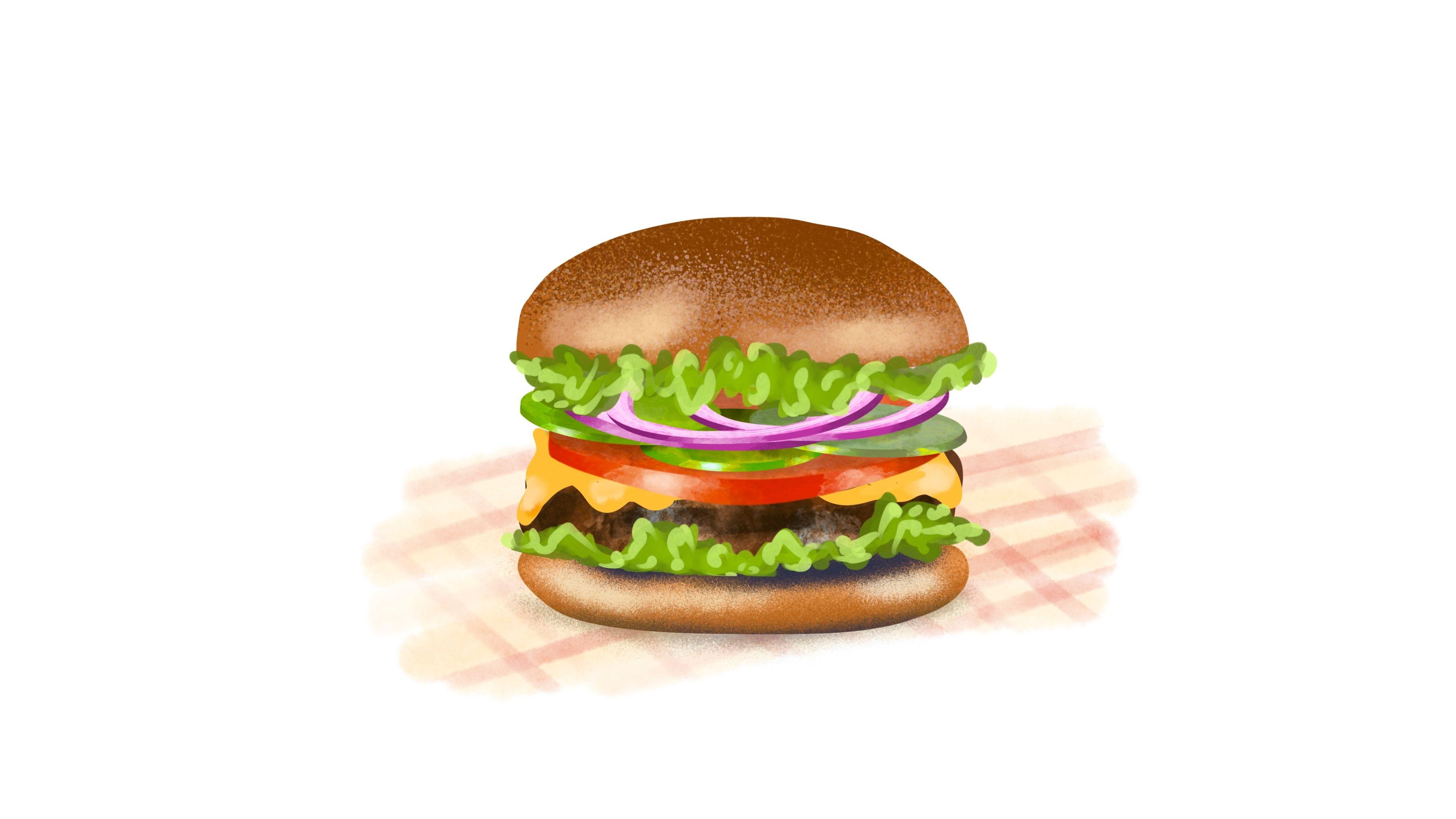
we can learn how to create a juicy hamburger. But really, we're going
it's a food illustration. And in this class, we're
going to learn how to take simple shapes and turn
them into food items. We're going to use layers
and clipping masks, and we're going to add
textures for depth. We're going to build
a new palette out of the photo that I provide, and we're going to use
my custom brushes that you can use on any other
project you would like. I created this watercolor
brush set for you to use. It will be in the downloads, and they are beneficial
for this class. So what I have in there is linework and two different
kinds of sprays. One's a little bit
bigger than the other one, and they're scalable. And then I have this beautiful green background that I made a blending brush
where you can blend colors together and add a little bit of water
maybe to something. And then I have a sponge
brush and a bloom brush. And then I have, like, a stamp, a little watercolor stamp to add texture behind something. And then I have a
nice cauliflower, that kind of watery effect
that you get when you touch water into
something that's dry. And that kind of a bloom, which is really awesome
and a beautiful wash. So if you want to
do clouds or just like some sort of light
wash over something, it's going to work
out beautiful. This works just like
my watercolors. And there I have
at the very end, it's like, just a
painting brush. It can scale up and
down and a stain, so it kind of stains you work. And it's got a nice beautiful
watercolor background behind it if you were
to do the whole page. So these are lovely brushes
that I'm supplying, and you can use them
for anything you want, and in future illustrations
and food illustrations, they should be quite
lovely for that. So with these brushes, I was able to create these
other two illustrations of a pomegranate
and some lemons. But for the final project, I would love for you to
just do the hamburger, and this is a good
base to learn how to do these other illustrations. Thank you so much,
and I will see you in the next section.
2. Set up canvas, Pallete and shapes: Okay. First, we are going
to create a new document. I'm going to make it and I
already created my canvases. You could see I make
a lot of canvases. 12 by 12 might be too big. So let's do ten by ten, and I think, let's
just make one. I have 300 GPI ten by ten. If I look at this, I'll go up to my little wrench here and
do Canvas information. You can see the dimensions
are 3,000 pixels, ten by ten, and 300 DPI. You don't want to go
any lower than 300 DPI. Otherwise, you could not print your art and ten
by ten is pretty big, so you can make it smaller, but you cannot make your
image bigger than that size. We can see how many layers
we have to work with. It's 55, that's pretty good. Let's close this out.
We're happy with this. For a reference photo, I found a reference Osplash I'm just going to import
it from my library, which is right here, this is the reference image
we are going to use. Now, we're just using
it as a reference. Like I said, we're not
copying it exactly and Unsplash lets you use
images copyright free. We're just going to move this to the top corner and make it
smaller so that we can see it. We're going to work in layers. And in my Skillshare
watercolor kit that I'm going to be
providing for you, I'm going to take out
this thing called line. This is a very versatile pen. You could draw lots
of lines with it. You can go big or small. You can go a little heavy
and really smooth as well. It's like my go to pen for
creating my illustrations. I'm going to clear this and we're just going
to take a minute to create a palette Let's go up to our palettes and create new. Now, you can do one
from the photo, but I prefer not to do that
because you'll just pick random colors out that
you may not want. Let's just create a new palette, and I'm going to hover
over these colors. I'm going to pick a
medium tan color. That looks pretty good. I'm just going to
drop it in. I'm going to pick the other one
that's a little bit darker and I'm going
to drop that in. I'm going to pick a
green that's not green, so I'm hovering over and
I'm picking a green, and I'm going to get a
darker green as well, and I'm going to get a
lighter green as well. Now we have three
values of a green and you can play with these even more once you have them in. Tomato. Let's get
a tomato color. Now, this tomato is a little
bit on the orange side, so I'll just drop
two values of that in and then the burger itself. I'll drop that color in, we should get a yellow
for our cheese. What's a cheese burger
without cheese. I'm going to go I have
some nice colors here. I'm going to pick this color here and just drop
that in there as well. Then I'm going to go in
here to our classic. I'm going to go a little
bit lighter with that because I want a
lighter value of that. Go back to our lighter
value of that. And I might go actually a
little brighter as well. I'm going to pick
up yellow in here. You can see I'm eyeballing
colors and I'm picking them also from my photo itself. We have a good selection
of colors here. If we need more, Oh,
let's do the purple. That's lovely purple for a purple onion,
which is on there. Who likes onions on
their hamburgers? I sometimes do not like onions because it gives
you onion breath. I'm going to go
for a lighter pink in the same value there. There we go. Same hue, I mean, and that
looks pretty awesome. So now we are pretty much ready to start
our illustration. I'm going to go
in here and clear it because that was an accident. I'm going to go back up to my line. There we
go. I don't know. I opened that. Now here we
are on our first layer. What I'm going to do is I'm
going to do each section of this hamburger on
a different layer. So I'm going to draw a line, which should be probably
in my dark brown color. G draw a line and I'm going to give it a
little curing back up. There's the bottom of our bun, I don't care if it's a
little wonky because this is an organic thing and
I'm just going to fill it. There we go. If you don't like
the shape of it, I'm just going to
go a little bit more and just fill in
those little lines. You're going to be This is
going to come out realistic, but it's really easy. Let's do the top of the bun too, but we're going to do
that on a separate layer. Well, everything's separate. So here's the top of the bun,
but this is wrong, right. It's got a little curve
to it, little curve. And then the sides are curved and the top of you
hold it for a minute, you'll get a perfect curve. That's pretty
awesome. I like that. It's kind of a tall bun. Woops. There's a hole there, so Let's just make sure there's no hole. Let's go over it again. Now fill it. There you go. Now if I continue filling, it'll make it nice
and clean and sharp. I have a little
smudger over there. So I'm just going to
grab this and keep the same If you hold this down, it'll make the same brush
appear in the eraser. So you can go in and
erase a little bit. So I don't mind
that it's a little wonky because let's face it, Bread isn't perfectly perfect. It is sort of perfect, but it's not perfectly perfect. Okay. That looks pretty good. Now let's draw another layer, and we'll draw the burger. I'm going to go in here and I'm going to pick
the darker brown. I'm just basically getting
the base colors of these. They're a little
square on the edges. Now I'm just going
to throw this in. Tara it looks like
a burger already.
3. Onions: Now let's make an onion. Let's go to our line again and we're going to go
to our dark purple, or I might make it a slightly
darker purple like here. Let's put that color
down here as well. I'm going to make a circle, oval, and I'm going to fill it. Oops. There we go. It was just a little
bit too much. Then I'm going to duplicate
this and I'm going to fill this one in
with a lighter pink. Then I'm going to take this
and bring it up to here. That looks pretty good.
Maybe I'll bring it to the edge of this
and the edge of this. I'm going to duplicate this
and just turn one off. Now I'm going to take this
one here and I'm going to grab my purple back or even
my eraser would be better. I'm just going to
erase the edge of this because it's an onion and it really needs to look
like it's an onion, it's sideways. There you go. I just distorted
it a little bit, and then I erased I erased it on the
side so that it had a squared off you
just sliced it edge. I'm going to distort it
yet a little bit more. It's not quite right.
I'm going to grab this. I'm going to hit distort
and I'm just going to you know I'm
going to warp it. Let's warp it. Warp it. I want it just right. Just right. Let's see
what that looks like. That looks better. I'm
going to erase all this. That looks better,
but what I don't like about it now is that
it's not thick enough. So I'm gonna go back to
my uniform, distort. Just move it up a little bit. There we go. That
looks pretty good. That looks pretty good. Okay. Now I'm going to take
I duplicated this one, so I'm going to take this one and I'm going to make it white so I can see the
different color of it, and I'm going to make
it a lot smaller. I still have to store
on, but that's okay. We're trying to make it
look like this onion here. There we go. That
looks pretty good. Now I'm going to take the shape. I'm going to select it. I'm going to turn it off. I'm going to combine. I'm going to actually
do this again. I'm going to take this one and
merge it down to that one. Then I'm going to select this one and go
here and clear it. Now we have an onion ring. So we can do is we
have this pink here. Let's make it slightly darker. And take our line
again and we're going to go underneath that layer and we're
going to go like this. Let me do it one more time. Onion ring. My hands are shaky
today, so there we go. All right, that's way better. Way better. That
looks pretty good. I might want a little
thicker back here. I said, you can hold
it, and then it will create a better line. So that looks like a
pretty good onion ring. Now, what I want to do is even erase a little
bit more off of this. I'm going to make
it slightly in. Doesn't seem natural enough. There we go. It
looks pretty good. Onion ring. Now, let's merge these down.
And there we go. I'm actually going
to merge these down, so I'm going to merge this down, and then I'm going to
do a lighter color. You see this light color here? It's almost a white but
it's not really white. I'm sure it's pink, we're
going to go in here. Not that I need to do
that lighter color. The only reason I'm doing a lighter color is because
I want to be able to see what I'm doing. I'm
just going to fill that in. Whoops. Actually, I
did the wrong layer. We need to add a new layer
and then put this in. Try to get it similar
to what the shape is. No, that's good. Fill that up. I don't mind that it's a
little crooked because it's an onion and then we're going to Ah, select it, turn it off, come here and then
clear. There we go. Now what we can do is create a new layer and add
the back of the onion. That looks pretty
awesome. There we go. This might be a
little too much on this side. There we go. It looks pretty good.
There, I'm happy with that. Okay. Now, what I'm going
to do is actually, I'm going to select hopefully
just the top of Oops, not that layer, this layer. I'm going to select just
the top here like that. And I'm going to do
a clipping mask, and we still have
this light color, and we're going to do
what we did before. I'm going to use a sponge. And just give it a little
bit of a texture. And also for this guy, I'm going to do
an alpha lock for this and I'm going to
go to the darker color. I'm going to give this also a little texture because we're not going to
actually see that, but it's just you know
you did it right. I'm going to do a
little bit darker right here or maybe right
here just to show that this is an onion and
then we're going to take this pen again and we're going to go back up to
this clipping mask layer. I'm just going to draw
in. One of those rings. There's rings in there.
That's pretty cool. I like that. I mean, it's your onion. You know there's
rings, you know it's organic and you want it to
look as organic as possible. That's a pretty good
thing. Now what we're going to do
is I'm going to also go back in and go back to this layer
and select this part. Automatic. Awesome. I'm
going to go back up to our clipping path and we're going to do the same thing
we did on the other. We're going to take our
sponge or the shape would be good and give it a highlight
in the same spots we had. We're going to go to the dark and put some dark on the edges. And give this some depth. And that looks pretty awesome. That looks like an onion. That's awesome. So now what
we're gonna do is group this. You call it onion. Oops,
we missed one, didn't we? Let's get this one in. Of course, it's not gonna go
where it's supposed to go. No, it looks okay. That's okay. Um, Yeah, that is okay. This should be the
clipping mask, but I don't think
it needs to be. It doesn't need to be. Okay. This we don't need anymore. Okay? That looks pretty awesome. And, of course, we're
calling it onion.
4. Tomato and pickle: Okay, so let's make a tomato. We're going to make a
circle. First, we're going to open a new layer. We're going to make a
circle. And fill it. I'm just going to distort
this slightly like this because that's the
way this is going to look. It's going to be on this
hamburger like that. I be a little bit
bigger. That's fine. Now I'm going to take this and
I'm going to duplicate it. I'm going to make the one on the bottom, the darker color. I'm going to take this one
and bring it up to here. So now you can see you
have a little gap here. What I want you to do is grab your line and just connect this. But it should be on
the right layer, which is this red one. Right on your red layer,
connect those two. You have a nice tomato. Shape. I think that
looks really good. It's flareed out a little bit. That's what I'm
trying to do flare it out just a teeny bit. Then finish that. It doesn't matter if it's not
perfect perfect. What I'm going to do now
is I'm going to grab this. I'm just going to
distort it a little bit more to be a little
bit more even. Even I'll go to the bottom
one and distort that one just slightly or you can
even warp it slightly. Just bring that up a little bit, it looks a little
bit more natural, like a slice of tomato. I think that's pretty close. I'm going to leave that alone, and I think that is pretty good. What I'm going to do
is I'm going to make a new layer on top of this and I'm going to
make clipping mask. I'm going to go into my
sponge or this shape here. I'm going to grab
a lighter color, probably orange first because you want to incorporate that in. And make it slightly bigger. We're just going to add a
little bit of dimension to this. I'm going
to grab this red. I'm going to go a
little bit darker, make the edges slightly
darker, like that. That looks pretty cool. Now we're going to go
one more color shade, we got our orange, we got a red. Let's grab this orange
and go a little lighter. I want to put some highlights. We're going to get this light
bright color right there. I'm just going to make
this little smaller and make another one here. I just keep tapping
it until I get a nice organic look to that. You can even change
the brush if you like. You might want to go with
how about this grainy one? That looks like it might work
pretty good and do that. I'm going to go even lighter. Look at that make
it even sparklier. I don't care. That
looks pretty awesome. I'm going to leave that. That looks like a
tomato already. Now for the top part, I want my tomatoes
to be not as orange, so I'm going to
take the same red. And go to our layer and alpha
lock and fill it with red, way too red for tomato. But now we're going to do
the same thing we just did. We're going to make a
clipping mask and we're going to grab that orange
back and we're going to grab the shape and add some texture to this tomato by using our reds and
that orange color. If you even tap this, you can grab the little salmon color, maybe change the shape
of this a little bit. Because we're not going to
really see this tomatoes. We're going to just
see the slice of it. That looks pretty good. Now I'm going to group this together, group, and call it tomato. Tomato and that's awesome. I'm going to turn off
my background color. I'm going to go to add and copy Canvas and then I'm
going to paste. Now I have this as a separate item and I
could turn this off. Now if I run out a room on this, we have a lot of
layers, so I'm not going to worry
about it too much. But now we're starting
to build our Thanks. Now I'm going to distort this
even more because I think it needs to be down
more like this. I think that looks pretty good. There's our tomato slice. Now, once this is
inside the sandwich, I think that is going
to look pretty awesome. I'm going to turn it
off. Basically, we're going to do the same thing for the pickles in the next film. I'm going to
duplicate my tomato. And then I'm going to go
over to my color balance. And I'm just adjusting these till I get a color that I think
is close to a pickle. Okay, so that is pretty good, but I'm not knowing
if I like it. So that's one way you can do it. What I'm going to do
now is undo this. And let's try something else. Let's go to Huge.
Oh, there we go. That was a lot faster, and you could change
the brightness of it. Little lighter. Yep.
Is it deal pickle? Is it a It's pretty good. I like it. It's pretty good. I'm gonna leave it. That just saved us a lot of
time, didn't it? We could duplicate this
and duplicate this. Okay, so now we have pickles. I'm going to rename them. Okay. Let's go on to the cheese.
5. Adding tasty finishes: Alright, so now I opened up all the layers
of everything we did. I don't have the tomato opened. Let's put Oh, the
tomatoes down here. It's just hiding for a
moment. Should be up here. Alright, so we're
just going to put everything sort of
where they need to go. Alright, so I'm going
to start with an onion. An onion. Let's
see where we are. Turn this onion off?
Oh, there we go. I wonder if I could
do all three. Yes, I can. Look at that. I'm going to make them smaller. Then after you make
them that size, just do them separately. Just put one Webster close. Put one here on the burger. It could be a little
bit distorted. Then we're going
to take this one and put this one on the burger. You could distort that one
and maybe tilt it slightly. And then the third
one could be over here and it can be turned
maybe a little bit more, maybe a little smaller. There, that looks pretty good. Now we're going to take
our tomato and put our tomato on top of the burger. It might be a little too big, so I'm just going to create
that a little bit smaller. Then our pickles. I don't know how many
pickles you like, but let's do a uniform one and make this and make sure they're in the right spot when
I'm on top of the pickles. On top of the onions,
I mean, there we go. There we go. You're not going
to see too much of them, so it doesn't really matter. You're just going to see
little corners of them. Since they're all in layers, you're able to move them around and change them
as you need them. That looks pretty good. Now, our burger, I'm going
to move it down. It's too high up, we want
it right about here. And we're gonna have
to change the angles on some of these items as well. Okay. That looks pretty good. So my tomato is down here, and I'm going to distort
it even more and make it look like it's
literally sitting on there. I'm going to warp it slightly. It became a thinner tomato, so that's okay, though. I like it. That
looks pretty good. Okay. Now, let's put a hunk of cheese on the burger because we couldn't do it before because we didn't know
where it was sitting. So we're going to
grab the darker yellow and we're just going
to draw in our cheese. Let's try it again. It's
going to be hanging off, going across, hanging off, then going back, going
back on the other side, and there we go. And
we're going to fill it. Now this is on its
own layer, remember, it could be a little drippy
if you want it drippy. Which means that
wouldn't be as pointy. I could erase some
of this and do the dripping the dripping
cheese, drippy drippy cheese. I like it more
dripping, I think. Okay. That looks pretty awesome. Now, I think I need
to move my burger. I'm going to warp my
burger just a little bit. I'm just make it a
little bit wider right here. That looks good. We're going to take
the bottom roll. I'm also going to warp that, make it a little bit rounder. That looks pretty awesome. Okay. Now, let's make some textures to make this
look more realistic even more. Let's make our lettuce. What I'm going to do is take
my basic draw and fill, which is a transparent brush, and we are going to make
a new layer up here above the bun because it's going to be halfway on
top and halfway on goto. You're just going to draw
these shapes that you see. Okay, that looks pretty good. Yeah, we're just going
to keep layering this with lighter color. We're gonna go a
little bit lighter. You can even try to blend it
a little bit if you like, in some areas, just
blend them together. Lost and found
edges, I call this. Lost and found edges. Your eye will just fill it in. Now I'm going to
go even lighter. Try to get this light light
color in here and just just decide where you want
those highlights because it's the top
edge of the lettuce, it's hitting the light.
It's curling around. It looks delicious, right? Okay, I'm happier with that. That is pretty good. And then we have lettuce on
the bottom, too. That's up to you if you want to put it down there, as well, but I just usually have
lettuce in one spot. I mean, maybe I would like it on the bottom more than
I like on the top. So we could put it. We literally take that and move it down here. Let's just duplicate it. And then you would want
to warp it to fit. I have two of them in there,
so let me turn one off. I destroyed that, let's delete that one and
duplicate this one. Then whoops. I'll open that one up. Now I'm just going to warp
this one to fit under that burger. That's cool. Yeah, I think I like
it in both places. I decided I'm going to
have it on both places. What I'm going to do is
take the second one, and I'm going to flip
it and bring it up. And I'm going to flip
the other way too. This way, you won't
really be able to tell that we copied
it, you know, I might duplicate it and merge it because I feel like
they're kind of both a little too transparent,
duplicate it. Merge it. There we go. That's pretty good. Now, I don't really like the pickle being next to the green because
they're both green. So let's take this group of onions and just bring them up. And the pickles, we might have
to rearrange the pickles. Pickles, pickles, pickles. And we have to rearrange
the onions too. It's going to distort
the whole group. Here we go, guys.
We have a burger. I might make my tomato slightly smaller because I want
to see more cheese. I think that looks good.
I like thin onions, too, because otherwise
you have onion breath. Anyways, let's put
a background color. I have white here.
So maybe Let's add. Let's add. All right. So for
the background, what I'm going to do is
I'm just going to grab my washi color here and I'm
going to make it a tan color, and I'm just going to
not on this layer, make a new layer and it's got to go all
the way to the back. Boom. All the way here.
We're going to do this. This is fun. And then we're going to make
this an alpha lock, and then I'm going
to take the stain, and I'm going to take my red, and I'm just going to do
some sort of checker in it. Like, you would
see maybe when you go out and you get a burger somewhere in a fast food place, you might have a checkerboard. You might have a checkerboard. I think that is super
cool and bone appetite.
6. Final Steps: All right. Now that you have
most of your Burr done, you can just make any final adjustments that you want to do. And back in the
day when I used to do illustrations for
different companies, like food companies, Ts
and things like that, you would have to do
this illustration on an illustration board. If somebody didn't like
something and said, Oh, can you just move that? I would have to do the
whole illustration over. You couldn't really redo it. What's wonderful about
having digital art is the fact that you can
literally change anything. I'm thinking these pickles need to be a little bit darker. So what I'm going to
do is take them and do a color balance with them. I'm going to pick
my shadows and make them a little darker. Let's see what am I on on
this one, on this one. I'm going to make
it a little darker. I'm going to go back
to my color balance, and I'm going to make my
shadows a little darker. There we go. And then I'm
gonna make my midtones, maybe, I think that's
a little bit better. I'm not sure if I want to do
anything with the highlight. It's not really doing
much, maybe a little bit. That's too blue. I want
to make it theory go. That looks pretty good. Then you want to just do that
with the other two. You want to go to Color Balance, do everything you did before. They all look a
little different too. I think that looks pretty good. I'm going to leave that one. See the difference
how bright that is? This is almost neon.
So I really want to make it more natural looking. We're going to go
to the shadows. And then we're gonna
go to the midtones. We got a little bit of
red to it because that's gonna make it better. I think that looks
way, way better. And the other thing you can do is actually which one's on top? That one's on top.
That one's here. Let's move this
one to the bottom, and then we're going to put
a clipping mask over it, and then we're going to grab our blooming edge and we're going to make it this
dark green bit darker. We're just going to give it
a little shadow like that. A little shadow. And we can also just go here and make some shadow marks there as well.
A little too much. But you can definitely
go here and make it multiply and then bring
it down. There we go. That's really
making it pop more. You can do the same with all
of your layers if you like. I'm not going to do the tomato because here it
doesn't look like there's too much of a shadow, but maybe we'll do
one under the onion. I'm going to go
above the pickle. I'm just going to try
to do this like that. Maybe something
back here as well. Just a little
darker, and then I'm going to do the same
thing, make it multiply. I just turn it
down a little bit. So this has given your
Burger a lot more dimension, and I hope you enjoy this
and had fun with this class. In this class, we learned a
lot about layers and clipping masks and setting things
up in an easy fashion, grouping, and we did color
adjustments and we also got to play with these awesome
brushes which are going to be in the description for
you to download and use. Okay, my friends,
I can't wait to see your project in
the projects panel. You can find more
references on unsplash.com. Thank you so much
for being here, and I hope to see you in
my next Skillshare course.
 Karen Ciocca, Graphic Designer, Illustrator, Fine Artist