Transcripts
1. Introduction: Hello. Welcome to this New class in which I'm going to teach you how to use
Linux command line. This is a quick intro to Linux command
line in which we are going to cover more than 20 essential commands
for beginners. So in less than ten
maybe 50 minutes, you will be able to start using the terminal today without any fear by simply learning the commands that every Linux the blobers using
on daily basis. Thanks watching this
intro. See you in class.
2. Intro to Linux Command Line: Hello and welcome
this new video, after which you will
be able to handle Linux terminal
without any issues. Now, this is a quick way
to learn Linux commands, and we are going to cover more than 20 essential
commands for beginners that you must know. So let's get started. The first step in getting to know how to deal with
the linux terminal is opening up your terminal if
you are on Windows or on MAC. Now on Mac it's called terminal, while in one's called
the command line. Now you can run it on Windows
by searching for CMD. While in Mac you can simply search for terminal and
you will have it there. Now, the first command
that we are going to study is the PWD. It's the print
working directory. If you wrote PWD, it will print the
working directory, the directory that
we are at right now, and you can change this to any directory using the command that we are going to
explain in this last one. But for now, let's take the
second command, which is LS. Now, each command
is an abbreviation. LS stands for list
files and directories. In order to list the files and directories in this folder, we can simply press Enter and you will see all the files
and folders that I have. Now, a common
option is the LS L, which shows us a detailed
view and as you can see, we have a lot of
details right now, and we have another
option which is LSA, which in turn shows us a lot of details like the
hidden files that starts with dot and
MAC as you can see. This is the main difference
between S L and A. The L will show or list all the details for each of the files that are
there in the document, while the A will show us only the hidden
files and folders. Now, the next step is if we
want to change a directory. Now, I just used clear to clear the command line so that I can show
you things clearly. Clear is used, it's
straight English. It's used to basically
clear the command line. Now, we also have the
change directory. Let's say that we want to change the current directory
to another directory. Let's first list
the directories. We have a lot of them here. Let's say that we want to go
to the desktop directory. We can simply do by typing
CD, which change directory. It stands for change directory and type the name of the folder. I will go inside the Disctub directory
as you can see now we are inside the
desktop directory. Now, if you want, you can move up one directory by simply typing
CD and two dots. We are back on the
main directory as you can see. Let's
try this again. We can write CD pin, and we are inside
the pin folder, CD double dot, we are outside the pin folder and going
to the higher directory. Now, let's make a directory for the class that we
are teaching right now. To make a directory, you
can write make the R, which is basically make directory
and let's type project. Now, this will be the name of the folder or the directory
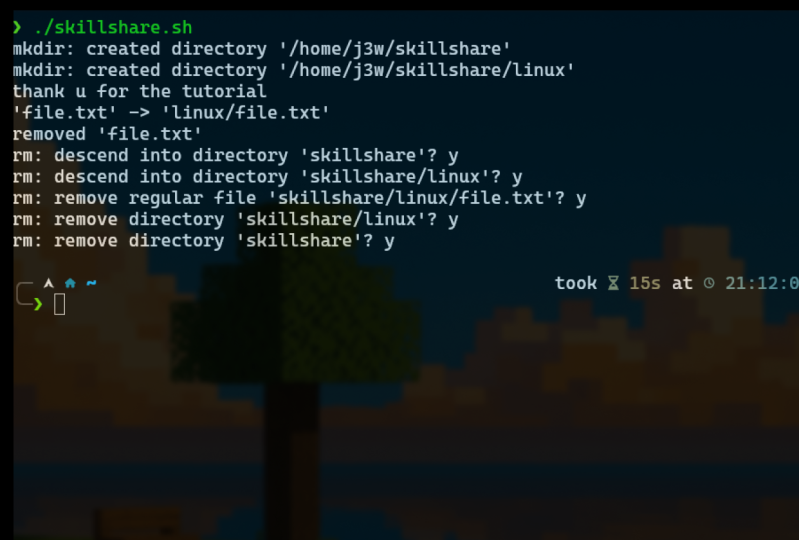
that we are going to create. We just created a directory. It's called project, sorry. Now, in order to navigate
to that directory, we can write the name,
see the project. Now we are inside the
project directory. Let's say that we want
to create an empty file. To create an empty file, we can instantly make a
blank file by typing touch, and let's say we will
call it nodes dot text. Now, we created a file. If we use LS, we will see the file
which is nodes, dot text. Now we have a file inside the
directory called project. Now the next step is if you want to copy a file
or a directory, you can copy file or directory
from one place to another, just like the copy
and paste feature on Windows and Mac by
simply using the CP, which stands for copy
and write nodes dot TXT, and you can copy that file or folder to any
other location that you want. Now, you can also move
that file or name it. Let's say that you want to copy the nos text to the
Disk to folder. Now we have copied the Nosto text and moved
it to the disto folder. We can also move it to any location by using
the MV command. MV stands for move. You can type the file title, and then the location where
you want to move this file. The next command is the remove. We can easily delete
files or folders, but folders needs a flag. I will tell you about
that in a minute. So to remove this file, let's say that we
have two folders, a folder called desk tub in which we have the
nodes dot text file, and a file called
nodes Dot text. Now, let me clear this. Let's list the content.
Now let's remove it. Click RM, then RM stands
for remove the nodes, dot text, and this
will remove the file. Now if we click Ls, you will see that we no
longer have the file. Now, if want to
remove the folder, we can simply write RM
which stands for remove R, which is the flag for a folder, and we can write the
folder name which is dtm. Now filst we will see that the project
folder has nothing. Now, what if we want to
see the file content? Let's create a file using the torch command we
mentioned before. Okay, we have a misspelling. Touch command, nodes to text. Now, the touch command just helped us
creating a text file. It's an empty file, but let's say that we want to see the content of that file. We can simply write
CAT nodes, dot text, and this will show
us the content since it's an empty file,
it has nothing. Now the next step, let's
say that you want to print text or a variable on
the serial monitor. You can simply print
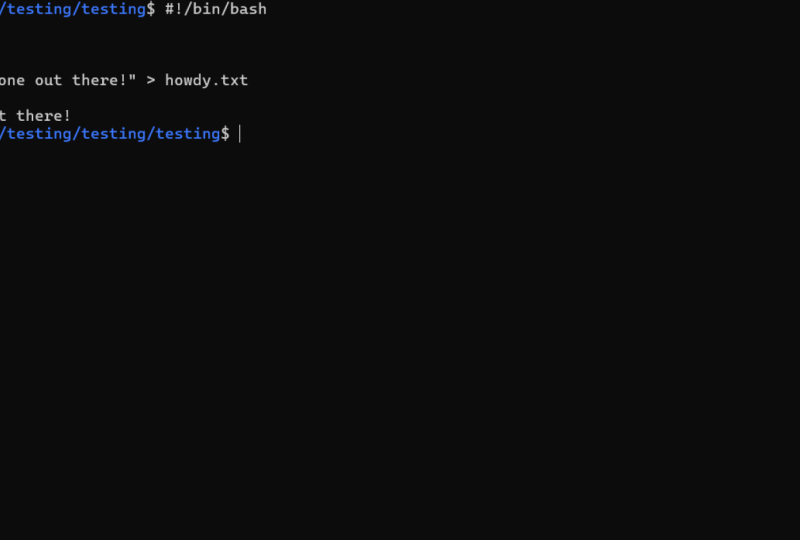
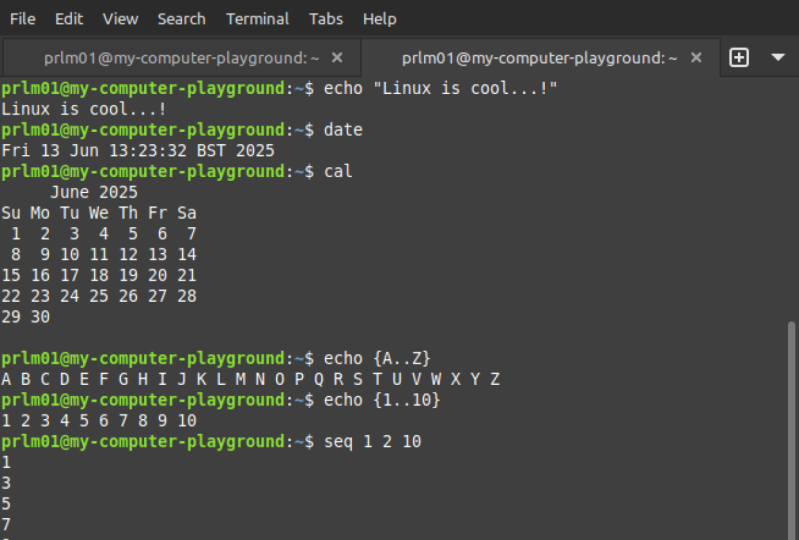
using the ECO command. Let's type ECO. Hello.
W. And as you can see, it responded with the text
that we asked it to print. You can also echo a
text into a text file. So let's try this
eco Linux is great. Now, we will send
it using this sign to the nodes txt file. Now, if you want, we will use the CAT nodes
TXT file to see the content, and now we have that content, which is Linux is great
inside the text file because we used ECO to send
that text to that text file. Now, basically,
these are some of the basic commands that every Linux user
must know and use. Now, let's talk about
other commands as well. In order to display
manual pages, you can display them for help by simply typing manls
which stands for manual, and this will be the
manual for your Linux. And in order to quit the manual, you just simply need to
press on the Q button. Now the next step is if you
want to clear the terminal, we mentioned that
before by using clear and we also have
the history command. And as you can see, it uses History basically
list all the commands that we used during
our coding process. Next, we have the grip command which search for text in files. So we use grip command
to search for Linux. In notes, the text file, it will we don't have
that. Let's list. Okay. No, we have a spelling, DXt. Now, as you can
see, it just found that the exteni and printed
out the line that has it. T will help us find
matching lines in files. Now, if you want to
search for files and directories or to locate
them in a directory tree, which might be a very
long directory tree, you can use the find command
and basically ad dot, then the name of the file. Inside these two
double quotation. Now, if you want to
search for any text file, you can simply type this and it will locate all the
text files in the document. If you want to give it a name
of the file to search for, you can simply do that, but you need to follow
this structure. Now, regarding disk space usage, you can simply use DF to see each file and how much
of this space it's using. Now you can print it in a humor readable format by
simply typing D F and H, and now you can see how many gigas are
used by each of these. We have a live system
resource monitor, which diplysalT
CPU memory usage, and running processes
by simply typing top. Once you type top,
you will see the CPU, the time and every
information needed, even the status of each
command in here and to exit again as usual
sembly head Q and you will be at so top will display the live
system resources monitor and to change
a file permission, you can use this
command CH mode, which basically help
change a file permission. So you can make a script executable by simply adding
BlusX then script dotsH. Now since we don't
have script SH, this is the error
that we are getting. So we can try it
with nods to text, and now, as you can see, it was executed, we
changed the nods to text to an executable script. Now, to download
files from the web, you can simply use
the Get Command W get HTTPS and basically
type your file URL, but it needs to
be a direct link. Now, once it's downloaded, will be downloaded into that
project folder, this folder. And if you want to, let's say, archive or extract files, you can compress a file by
simply using the tar command. Let's type tar at C VF, and let's create an archive, the tar, Gutar and that can be created
in any folder. So can press Enter, since we have no file
or directory specified, it's showing us an error. You can simply specify anything to be compressed
by the project. Now since we are let's
create a folder, I created an archive dot tar. But again, since the folder is empty and the file is empty, we are facing this error. But again, this is
how easy it is to execute the tar command so that you can archive or extract. Now, to create an archive, you'll have to use this C VF. But if you want to, let's say, extract it, as you can see, we have the
tar XF to extract your file. That's it. This was a
quick learning class to teach you the very
important commands to start using Linux today. Thanks for watching this video, and we are going to see you in another class.
This is Ashof.
 Achraf Mad, Creative Engineer