Transcripts
1. Welcome: Hi, I'm Nina, an
illustrator designer and so printmaker based
in Belgrade, Serbia. And in this class, I
want to show you how I make and prepare my
stickers for printing. The process is super
easy to follow, and it will come in handy
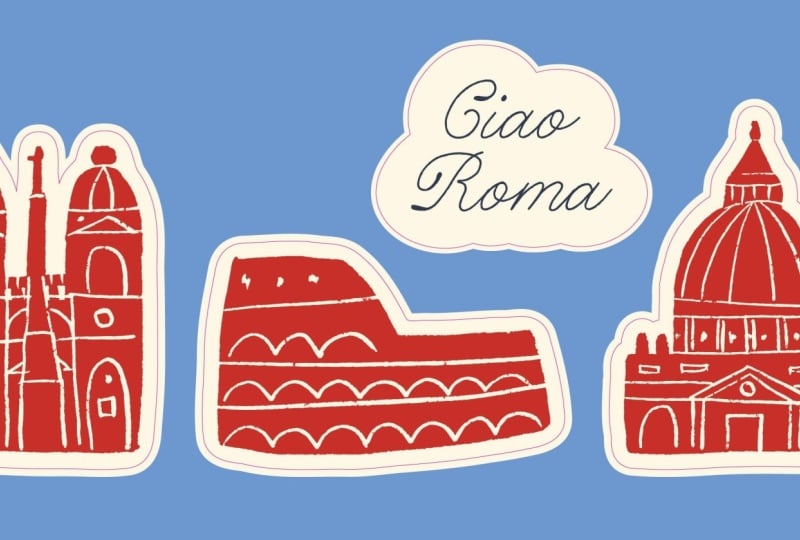
if you're planning to turn your illustrations into custom die cut stickers
like these ones. You'll create your
illustrations in Procreate or Photoshop and set up the printing file in
Adobe Illustrator. This class is beginner friendly, and all you need is a basic
knowledge of these programs. Alright, let's get started.
2. Project: Mm hmm The project for
this class is to create a sticker illustration
or use an existing one and prepare it for
printing and cutting. I'm always looking forward
to seeing what you create, so feel free to share your work in the class
project section.
3. Illustration in Photoshop: Okay, this is going
to be Step one. You can now create a
sticker illustration or use an existing one. I drew mine in Procreate,
but once I finish, I usually like to open it in Photoshop to continue
with the setup. I find it easier, but you can also do all of
this in Procreate. As you can see, the
illustration is in layers, but now I need to turn it
into a die cut sticker, meaning when it's printed, it will also be cut on a
machine in a custom shape. So I now need to
specify that cut line. The cut line can be
a simple square, rectangle, or a circle. But in this case, I want
it to have a custom shape. So to do that, I need to create the silhouette of the
entire illustration shape. And you can do that by drawing it in procreate in
another layer on top. But in this case, I already have it as the background layer. So I'm going to use that. I will just copy it, Command C, and paste it in
place Shift Command V. I will put it on top and I will change
its color to black. I'll just select
solid color Black. Then right click
Create Clipping mask, and now I can hold
Shift to select both layers and Command
E to merge them. That's it. The
silhouette is created. Now, before we continue, another thing to note here is
the canvas size I'm using. As you can see, it is very close to the edge of
the illustration. I don't want to have
a lot of empty space around it once I
save it as a PNG. Okay. Now we will export
this as two different PNGs. First of all, I will turn off the background so I have
a transparent background, and I will turn off
the silhouette. So first of all, I will export the final sticker
illustration as it is. I'll go to File,
Export, export as. I'll make sure it's PNG and that the background
is transparent. Okay. This one will be the main one. Now for the next
one, I can turn off the illustration layers and
just turn on the silhouette. Again, I'll go to File, Export export as PNG
with transparency, and let's name this one outline. This is it for the first step. You can basically do all
of this in Procreate. I just find the process to be easier to navigate in Photoshop, especially when I'm saving a lot of sticker illustrations. Next step is in Illustrator.
4. Sticker Setup in Illustrator: In this step, I'll show
you how to easily prepare die cut stickers for printing
in Adobe Illustrator. I already placed
two PNGs we saved. They're on top of each other, and you can see that once I turn one off and then on again. It is best that they
stay aligned like this. So first of all,
I want to create the outline around
the illustration. That's where it will be cut. I will now lock the illustration image so I
don't move it accidentally, and I will select the
black silhouette. Now, in this upper menu, you can see image trace.
I will click that. I will click this icon so I
can see the image trace menu. Now, here in advance options, I will select Ignore color. And if I don't like what
I'm seeing as the results, I can play with these settings. But since everything is fine, I can just click Expand. Okay, this is now a group, but it's a group for no reason. I can just ungroup it, Shift Command G. And you can
see that once I zoom in, there is a lot of rough
edges in the silhouette. And that's because I drew it with a textured
brush in procreate. But since I'm creating a
cut line for the machine, I want to make sure
everything is smooth. So to fix that, I will
use a smooth tool. You can find a smooth
tool here in the menu. It's always behind
a sharper tool, so you will just select it. Now, let's go back
to this object, select it, and then
select the smooth tool. Once you do that, this
little window will pop up and you can drag this to
smooth everything out. It will basically smooth
out the entire shape. I just want to
smooth it out a bit. Then another option,
in case you have just a specific part
you want to smooth out, you can just simply
press on it and drag it. All right. Once that's done, I can select the shape and
turn it into an outline. In this menu, you
can just click on the arrow and it will
switch the positions, the background will be off and you'll just
have the outline. I will change the
outline color to pink, and I will set it to 0.25 PT. You can now see that this now follows illustration nicely, but what we need is to place
it further away from it. If I just scale it up manually, it wouldn't be correct. So to do this task, we need something
called offset path. The outline is selected, and I will go to object. Path and select offset path. I will set it to 0.2
centimeters and click Okay. From my experience, this is the minimal size I'd recommend. When they cut it, they
can make small errors. You can also make it bigger than 0.2 centimeters to be safe. Now I will again select
the main outline, the first one I made, and
create another offset path. Let's go to object
path. Offset path. This time, I want
to make it bigger, so it will be 0.3 centimeters. I will delete the
first one I made, and we're now left with
only two outlines. I will rename this outline to cut and the other
one to background. The cut outline
will stay as it is, and the background outline
will become a solid color. So again, I will
make the switch, and let's select some color. Now I can put the background at the bottom so you can
see what's happening. On top, we have a cut line. In the middle, we have
the illustration image, and at the bottom is a
background that extends outside the cut line.
Why do we need this? You might ask?
Well, we're always thinking about small cut
errors that can happen. For example, the machine cutting half a
millimeter off center. So basically, we're extending the background color
in case that happens. And if it does, the background
will still be included. If you have a plain
white background, you don't need to do this. The sticker paper
is already white. All right, I'll now just change my background to an
off white color, the same one I
used on the horse. I can unlock the illustration and group illustration and
background in one group. And then I can group everything
with the cut mine on top and name this M. And that's it. The sticker
is ready for printing. But before you send this
file to be printed, you also want to make sure
you embed the PNG files. If you don't receive
an empty file. Now if I go to Links Window, I can see it here.
It's just a Link. In case you don't have it open, just go to Window
and then find Links. Now what we're going to do is
click on this burger menu. And click Embed Images. You can see now that
the link icon has disappeared and the
image is embedded. That's it. You can
now save this as an Illustrator file and send
it to the printing company.
5. Print File: Lastly, I just want to quickly show you how my
print file looks. The size of the
ardbard will depend. You have to inquire at the
print shop about this and they'll tell you
the correct size you can use to place
your stickers. This is how mine looks. I tried to fit as many
stickers as I could while leaving the space between them that is at
least 5 millimeters. You can see that each sticker
is in a separate group. And when I open one, the cut line is on top, and then inside the group, I have the image and at the
bottom, the background. It's important that the cut
layer is visible and named so that the print shop
can set everything up on their end for
printing and cutting.
6. Final Thoughts: Mm hmm hmm that's it. You've made it till the end. I hope you found it useful. It's a very quick
and easy process. All you need to do now
is make a selection of illustrations you'd
like to turn into stickers and follow these steps. By the way, I'd love to
see what you're making, so feel free to share
your progress and final stickers in the project
section of this class. As always, to get notified
about my next classes, you can follow me on Skillshare. And if you want
to keep in touch, you can find me on
Instagram at DOD. I'm sending you lots of
love and good vibes, and I'll see you
in the next one.