Transcripts
1. Course Intro : Creating AI Art in Canva: Welcome. This is Text
to Image creation using AI on canva before Text
to Image creation, one would have to master
many skills when it comes to designing on
software platforms. But now that we have Text
to Image creation for AI, anyone can create an
idea and type it in and have their image produced
for them within moments, canva is a free to use
online graphic design tool. They have recently launched their AI Text to
Image prompt feature. This allows for you to
take your ideas and generate images based
off of text prompts. In this class, I
will show you how to use the AI feature on canva. And I will show you how
to utilize the Text prompts in order to
generate better images. You'll follow me
through illustrating different projects that
I have for clients. And by the end of the class, you will be able to create
your own project on canva and generate
AIR it from it. So if this sounds like
something that you would enjoy, please follow along in the class
2. Your Class Project: Your Class Project will be to
choose a project for you to create on canva using the
AIR Text to Image prompt. And so the projects that you can make on canva are
limitless logos, website templates, flyers,
social media posts, calendars, YouTube
thumbnails, so much more. I want you to think
about your aesthetic. What's the vision for the
aesthetic of your project? Is that light? Is it dark? Is it post-apocalyptic? Is it retro, watercolors,
dreamy, conceptual, the aesthetic will really
matter when Choosing the style prompts for the Text
to Image features. So that's your class
project. Let's begin
3. Lesson One: How to find the Text to Image AI app on canva: How to find the Text to
Image prompt on canva.com to start creating graphic designs based off of the ideas
in your head, right? Uh, we're gonna go to canva.com. Now, canva is a free
website design tool, but you can also sign up
for their membership, which gives you a lot more
access to their features. But you can use
the Text to Image design feature without needing to be a part of the membership, which is a really awesome thing. Okay, So you're gonna
go to canva.com. You'll need to create
an account with them. Again, it is a free design tool that you can sign up
further membership. But you'll still need to create an account even if you're
using it for free. Once you get into Canva
and have an account, you'll go to the upper
right-hand corner and click Create a design. You'll be able to find the different templates of a design that you
would like to make. Now, if you have a very
specific type of design, which I do, I'm going to be
making playing cards, right? I'm going to be making Oracle
card decks for my project. You can also custom your sides. So you would just scroll
down to the bottom here and click Custom Size. And then you would
fill in your size. Now, you can also
adjust it to pixels, inches or millimeters
or centimeters. I'm gonna go ahead and
choose my custom design. Once you choose the
design that you want, whether it is one of Canvas templates or
your own custom design, canva is going to open up the Design page for
you to get started. Now, you'll see on
the Design page that they'll offer for you certain templates
that you can utilize. And as you're
creating your design, you can actually combine it. The images that you're making
through the AI feature or with what Canva already
has in their graphics. But in order to find the
Text to Image AI feature, you'll need to scroll
over to the apps. When you click the apps, you're going to possibly
see it right here. It shows me Text to Image prompt feature right
here at the top. Now, if you don't
see it at the top, you can also scroll down and
you'll see it at the bottom here where it says Popular
or create something new. The purple icon is the
Text to Image prompt. Now you're going to click that and it will open you
up into the window that you need to start
creating your ideas. So let's just walk through what is here and
available to you. The top part with this little box is actually
where you write your texts. You're going to write
your ideas and be able to generate
any sort of images. If you scroll under that, you'll see that it says styles. The styles give you options
in which they can pull from. If you click here to see all, it will show you all of the styles that are currently
available to Canva. But I promise you that
canva is changing and updating consistently because
when I first started this, they didn't have
as many options, but now they have even
more than before. So we are able to choose whichever style we
want to create here, which is really awesome. If you go back, you'll also
be able to choose a ratio. So for example, you
could do a square, you can do a landscape or
portrait for the image. And this does matter
because even though you have dimensions
for your project, how canva produces the AI image will be based off of
these aspect ratios. So because I have a very
specific dimension, I'm going to choose portrait to be able to match
it to what I have, which are these
playing oracle cards. And that is how you
find the Text to Image prompt feature in Canva. And the next lesson,
we're going to test and experiments on the styles so that you
can get acquainted with the styles that
are available on canva
4. Lesson Two: Choosing the Best AI Styles (Evaluation Experiment): We are ready to start our
Text to Image prompts. We're going to test
out the styles to see what aesthetics we
want for our image. And I encourage you to use
the Evaluation PDF for this exercise so you can rate the Styles and prepare
yourself for your own design. I'm gonna go ahead
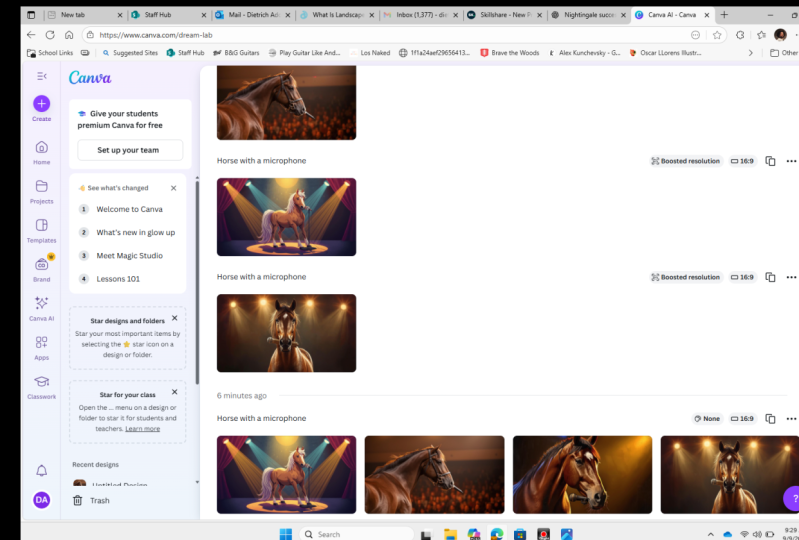
and put my idea down, which is to have a horse on
a horse with a microphone. And we're going to click
the seat all in the Styles. And you see that there
are various options. Okay, So we're gonna
go through each one and see what
we come up with. Okay, It's to be the
same exact text prompt, but different styles like
the scientific method. We're going to have a control which is the horse
with a microphone. And then we're going to change
it up with the variation. So we're going to
first start with the photography style section. This Styles section is the most realistic out of all the styles, starting with photo, will
hit create your image. And we'll see what happens here. As you can see, it
takes a few moments, but just a few moments in
order to get something. Now, this is really cool. We're going to go ahead and drag these images over into Canva, into the project so that we
could see them very clearly. And it's really
awesome that you get four images to choose from. Okay, so we have
here this course. I don't see any microphone here. So that's okay. We're still going to use
the same text prompt and see if we get it
with the other ones. Because this is the
more realistic style, it can be hard to get like a real quirky Concept like
the one that I just provided. But it's also
important for you to see the styles
that they provide. So this is the photo style. Here's the other photo
option that they gave us, which is like a
horse with the sun. And then we can do
this other option, which looks really
realistic here. It looks like a horse in
the race, horse running. This one, this one
might be my favorite. Go ahead and analyze for yourself which one is
your favorite out of the four options that we get
with the one photo style. This one is this a really
beautiful dark course? And those are our options for
the photo-realistic styles. So now we're going to go ahead
and add four more pages. You'll see that on canva. So simple to add more
pages by clicking underneath that Project there. And we're going to
try a different one. So we're gonna move
over to the filmic one. You can, you can see it here. We're just going to click
there and hit Create again. Here we have a really, really incredible
realistic depictions, still no microphone
and this one. Okay, but you see how realistic the style actually
portrays itself here. Alright, we have one
here with a microphone. That's kind of interesting. It kinda looks like the
Horsehead is the microphone, which is an interesting take. And we're going to
move to the next one, which kinda goes a horse, a little bit of a
purple hairstyle, which is kind of cute here. Then here is the last one where it looks like
the microphone is leaning on the horse head,
which is interesting. Okay. So this is the filmic style. And we got these four images
from the filmic style. So we're gonna go
back into the styles. We've done photo,
we've done filmic. Let's move to vibrant. I'm going to hit Create and
wait to see what we get. And it's amazing how a, how fast AI works in creating, designed for you in
just moment, isn't it? This one is a really vibrant as the style
portrays itself. Here we have a horse with
a purple background, and we have a horse with
a orange background. No microphone here, but
it's getting quirky. Let's watch this out. We have a horse. There's a nice beautiful
depiction of the horse. All of these are really on the more realistic
side arm thing. Then we have, this is
the quirky as to one. We've got a almost like a person's body with
the horse head. So it's really cool how AI will come up with these
random depictions? And then you're really able to decide which one
you want to use. Okay, So let's
move on from that. We have two more in the realistic photography
Styles section. So we're going to
click minimalistic and then we're going
to hit Create again. Now this one to me might be
the most realistic so far. It just really looks like
you can see how the, the hair, the horsehair just looks so realistic in
the minimalistic style. This one didn't even really
give us a horse that gave us a microphone. Kind of. So sometimes you're gonna get some Genki images like that. We have just a still microphone, which this is a really nice
image of a microphone. If one was looking
for just that, then we have a horse. Here we go, horse
with a microphone. And so now we get this really as close to what I
had said before, a horse with a microphone. Okay. So let's go on to what I
believe is the final one, which is the neon depiction. We're going to hit Create again. And while that's happening, I like to multitask. So while it's moving, I'll go ahead and add my pages here and get ready for the
Art to display itself. Now, this one, we're getting a real neon depiction as the
style promises it will be. And this one was will
take a horse on stage. And that was what
I was thinking. I would want right. Then. We've got this weird
microphone here. And then we've got a
horse with a microphone. This one is close as close to it as I was thinking
because it kinda looks like the horse is singing
with the microphone. So I really loved that one. Then we've got a man
with a microphone. So the AI was just like,
forget about your prompt. Let me just give you
something else here. And so you will get more
random takes on that. But it's just a part of the AI process trying to figure
out what you really want. We have completed all of the photography
styles within this, and we can just move on now
to the digital Art section. So we're going to use the same prompt because this is our little
scientific experiment. We need to keep the
same exact prompt and test out the styles. We're going to go to digital
Art and hit playful. We're going to add
our pages here, 234. These look very cartoony
animated in the playful style. And again, we have a
person with a microphone. Then we've got an actual
horse with a microphone. Love that. This one is really
cool with the, it really looks
like a horse is on stage with the microphone. I'm loving that one. We've got a horse with the
microphone around its neck, which is kind of cute. I really loved the cartoon
style that we're getting here from the playful style. And then we have a horse
with a microphone. That microphone looks
kind of big like it almost doesn't look
quite like a microphone, but we'll take it. Okay, let's keep it going. We're going to do retro wave
and click Create again. How this retro wave is coming in with some really
interesting looks. We've got a horse with
almost like the microphone, looks like it's its head. Really kinda quirky. And then we've got just a regular animated
photo of a horse, which I really liked, but it's not the microphone
that I wanted. So that's important to consider. This one pint of looks
like the horse is on stage or standing on something, right? But no real microphone here. This is just giving you
the look and the idea of retro wave style
looks like here. And then we've got, this looks like real
high-tech animation. Retro wave. It almost looks like
the microphone jack is plugged into
the horse's mouth. Very interesting depiction AI. Okay, So we're gonna move on. We're going move on
to the 3D option. Hit Create again. So we've got This is
really interesting. The 3D, it kinda looks like a high-tech clay mold
kind of look with a 3D. Also kind of like a
Pixar vibe a little bit. You tell me what you think. It, it looks like. It's really about the taste
of what you're looking for. Because this could be actually
really useful depending on what the aesthetic is
that I'm trying to go for. That kinda do like the
more glossy or image versus the animated image that we had in the
previous ones. So it's really just about whether it is that
you're looking for. Here we have the White Horse, kind of like kind of looks like a toy horse and a lot of ways. Okay, So that's the 3D. And how that looks like. We're gonna move on to the
psychedelic digital Art We're going to hit Create again and we're going to see what
we get when we do that. It really does have that
psychedelic affect. The horse does not
look realistic. It looks way more animated in
this section of the styles. So that can really depend on what you want out of your work. Do you want it to
be more realistic? Or are you looking for a
more animated version? And lastly, this horse face now with the prompt
being with a microphone. None of these have a microphone. And I think certain styles may have difficulty and pulling up specific details because
of the style itself. So that's something
to keep in mind. Alright, Concept Art. This one I actually
use quite often. And it creates almost
like an adult out effect. Let's see what it does with this interesting prompts that
we're going to hit Create. And look at this. I really
loved the concept one. It's one of my go-tos personally when creating certain
things because it, it works in conceptual and really creates beautiful
Art and almost looks drawn. Not too realistic,
but not too animated. It's my personal taste in the Art that I'm
looking to create. But it doesn't have as
much vibrant colors, the Concept Art as
the other ones. So that's something
to keep in mind. You'll see that the
colors are a lot like the whole image is a
little bit more shadow, more doled out colors. Here, darker colors,
less contrast, but still very, very beautiful. And here we go. Also, even though
this is Concept Art, and typically I can get a
lot of great your texts, ideas can work really well with the Concept Art one because
it's Concept Art style. But for this one that
actually does not giving us the horse with the
microphone prompts. So I mean, here it looks
like it's doing that, but it's not giving it as clearly as it did
with some of the others. So that's something
to think about. Okay, we're gonna
do the 3D model. And while this may feel tedious, it's just really important to go through this and
understand the styles so that you're not fishing for the styles when you're
really trying to work. This also is a
really good example that happens with AI
Art feature on canva, which is that sometimes it will take out a picture or a
won't give you any pictures. This possibly could be
that it is difficult for it to generate a picture because it's
not sure what we want. The style itself may just not be able to supply
you with a picture. Or sometimes the words
that you're using could signal to the AI that it's gonna be an
inappropriate picture. And so sometimes you may put an a prompt and
you may not get any pictures or miss out on
a couple that happened here. And it's good for you
to see that because it happens often and you
just got to adapt. Okay? Now none of these 3D model
portray any kind of horse. So this one that didn't, this one to me failed in the depiction of what
I'm looking for. And I think that
if you're looking for something that's
very obscure, the 3D model might be that at least for this very
specific type of prompt. Alright, we're gonna go
to the Gradient option. We're going to hit Create again. As we do that will prepare. Hopefully they will come
up with for images for us. And they do. We're back to actually
getting some horses. This one to very similar
to the other ones. Very, very bright colors
like the psychedelic one. The gradient and the psychedelic both have very bright colors. I'm very animated, cartoon like with the gradient that
we're finding here. Okay? And it's definitely
giving us two horns, but the concept of the horse on stage
with the microphone is just not really being
generated with these images. And you could try again. So if you were doing this and
you know the style that you want with the style
is not generating it before you move
to another style. Because let's say you
really want the more hype, bright colors, but it's
just not giving it to you. Then you might change
the text here. And you might say horse
singing with a microphone or horse holding on prank phone. You could change it. A horse on a stage
with a microphone. You could change the text
here in order to see if that style will
generate something better. So you're thinking about
the vision in your head and you're writing it down on
how you would describe it. Okay, let's move on
to the dreamy one. So we've got here bright color, a little bit dreamy. And you can see the
difference between the dreamy and the one before which
was gradient, right? Dreamy has a little bit
more fuzzy or it's a little bit like the edges are
a little bit more blurred. Whereas the gradient is still
very sharp in the, in the Design, but the dreamy has a little bit
more of a blurred. And that's probably why they
call it a dreamy or style. Okay, So we have this horse
with blue hairs, kinda cute. We've got another horse, what it looks like,
a sash on it, animated bright colors,
but no microphone. And then lastly, a
random picture of a woman with a microphone. So we got one that is almost
exactly what we asked for. Will be grateful for that. Okay, we're gonna move
on to retro animate one. I really love with how it
is kind of like drawn in. And it's got more distinct
lines in the Art. Less childlike cartoons and more like the newspaper
clipping vibe. I mean, some people
might disagree with me, but it's just a little
bit more detailed in it. So this is the retro enemy and it has a strong retro vibe. Yeah, it looks like comic book. It looks like comic
book drawings. Right? But I'm not quite
seeing the microphone. This looks like the horse has something plugged
into its mouth, but we're not seeing
the actual microphones. So if I really loved this one, I might go back and try to redescribe a horse on the stage, horse singing into a microphone. See if I could create a
better prompt for myself, because I liked
this one so much. And then we have regular enemy. So we'll go ahead and get that. Oh, this is a really cute this. It looks like a kid teenager, but looks like it has a horse phase that is
really interesting. Then it's kinda holding a mic. So it really is
taking in the ideas. And I got to say that this
one is the most unique. Probably my favorite. I mean, I know I've already
chosen, chosen favorites, but this one I just love
what the AI abroad, which is kinda cool. Then we've got a blue
and pink course. And again, AI is creating these plugs into the mouth
but not quite the mic. Then we just got
a regular horse, white and pink course. Then we've got the blue horse
with a pink background. Okay, so this first one is definitely a winner and
a keeper to me. Okay. We have completed the
digital arts section. We're gonna move on to
the final section in our test to see and
learn about the Styles. And this will be colored pencil, but the horse with a microphone, we're gonna go ahead and
generate those images. They're really cute. This one is indescribable, like I can't really tell
what it is, but that's okay. This one I love to,
and I love that. It has this kind of
innocence to the Art. It really looks like
a kindergarten or first grade or a second grader
attempted to draw horse. Again, depending
on the aesthetic, like if you're making children Color books or
something like that, you may like these
colored pencil vibes. And then the last one here is just like outline
draw of a horse. No exact depiction of our horse with a
microphone on this one. But I do like the childlike
nature of this style. Okay, we're gonna move
on to watercolor. Realistic watercolor
painting vibes. We're not getting any
microphones in these, but let's just go ahead
and look at how nice the images are created
through watercolor. Okay, and that's
really, really nice. This blue one is
absolutely beautiful. If I was to choose
out of the four, I think this one
would be my favorite. So while you're looking at them, you can start also writing down, what styles do you
think you would be using more than others? Right down and take note of what styles are your favorites. Alright, We're moving
on to stained glass, which is so cool that they have this kinda goes like
this painted church, cathedral kind of vibe
with the stained glass. Okay? And so with more of these
interesting styles, it might be harder to
get the full idea. And so it really requires
changing up the text, which we will cover as well, and how to really change
the text up so that it gets closer to the idea
that you have in your head. But these are really cool, the stained glass ones. And they could be very useful depending on what aesthetic
you're trying to get. This one looks more
like a cow than a horse to me but will accept it. And this one looks like a
seahorse with a horse head. So very interesting indeed, as the AI is generating
these designs for us. Okay, we're gonna
do the final one which is ink print with our same exact prompt course with a microphone so that we
can see what we got. Let's take a look here. Yeah, that's really beautiful. And the kind of looks
like it's trying to create the wires maybe
of a microphone, but we don't get a
microphone there quite yet. And because of my prompt, the realistic ones
might have really given us the more details
of what we're looking for. Right? But that's okay. Then we've got
just a microphone. And I really kinda do like this. It feels very classic
60s kind of vibe here. And the last one
is just a horse. Okay. I hope that this will familiarize you with the
styles so that you have an easier time and just
jumping to what style you want to utilize that you
don't have to do this, which it didn't
take too much time, but it did take 75 pages
to go through each one. So I hope that this will be useful for you and
knowing what to choose will seem the next lesson
5. Lesson Three: Make advanced text prompts: How to make your text
prompts even more creative. In this lesson, we're
going to utilize other platforms to give us ideas for Text to Image prompts. We're going to go to a very well-known
website called lexica. We're just going to stay
right here on the homepage. This homepage has a plethora
of designs and we can copy and paste some of the Text prompts or
get ideas from them. Let's click on this
black and white photo of an astronaut. And you'll see in the
description it says literally a black and white
drawing of an astronaut. There's other
descriptive words like ambient and chill wave. But another term
here is CG society. And what is CG society? We'll organization that has a platform for other
creative digital artists. So what this tells us is that
within the text prompts, we can be more descriptive. And we can use other
platforms so that it actually evokes the style
of those platforms. We're gonna go ahead
and copy and paste this entire prompt
into our Canva. So you'll see on the left-hand
side it says copy prompt. You'll just click that and we'll go over to
canva are going to paste that prompt into
our text prompts. And we're going to
keep it on no Styles. And then we're going to
hit create your image. This is just going to see
what canva provides for us randomly out of It's
a generator app. And here we find some
really nice images. They maintain the black and
white which we asked for. And it actually has some
interesting graphic, cartoon, comic strip lines
that I'm finding here. This one I think is
the most realistic out of the four that
canva provides for us. Now I'm going to choose an
actual style from Canva. I'm going to choose filmic
with the same prompt and look, see what we get. This really just shows us how so much variety we
can get from the AI Art, adding more creativity
and all of that. And you'll see here
that these actually aren't as realistic as
I wanted them to be. And it still has a really nice coloring,
the black and white. But it actually seem to be better with just
using the non styles. So that's important
to see that you can experiment with these and
let's try a different one. I love this. This one right here. It's a spider man
mixed with Batman. So I'm hopping back
over to Canva. I put in that prompt and
I didn't get anything. It actually gave me issues, so actually just took
out the dash that was in the prompt and it started
to generate photos from me. So you just want to play around with the Text prompts because some of them are going to
work for you and some won't. And it might be a minor
adjustment within the texts that
gives you results. So with no styles as
the pre-requisite here, we got these images. This one basically just
looks like Spiderman, but I really love it because
it has a really nice, realistic but cartoony vibe. And then this one
actually felt more like a mix of
Spider-Man, Batman. But I wasn't very
satisfied with this. So I start to choose one of
the Styles going with filmic. And this is what I
got after doing that. So we are given some
really nice images. One of them chops off his head, so I couldn't really
use that one. But this first one
I really liked and still giving more
Spiderman Batman, but I still really liked it. And this goes to show
that the AI prompt will give you well-known
celebrity names, archetype names,
superhero names. We can really use actual names
to get some great images. Let's go back to lexica and
look at this one right here. It's such a very
specific scenario. It says an exhausted Pepe the Frog at the front
lines in the army. Like what very specific scenario that it shows for us in
order to get the image. So I brought it over to Canva. And I want to see
if Canva will give me some similar ideas
to what was on lexica. And what I've found
here is that it's still not as realistic as the
one that is on lexica, but it's still gave
some interesting looks. We can take these ideas
from other platforms, bring it to Canva, and get some really great ideas. What do we learn about making our text prompts more creative? We can actually utilize so much more information
in those text prompts. We can create celebrity names
and archetypes and see if the AI generator will create favorable images that look like those names and archetypes. We can also create very detailed stories or
scenes and scenarios, which also helped the
AI to create precision. We can also add in
famous artists names. Now when I say famous
artists names of very well-known
illustrator or designer, Graphic Designer name
and get some styles that look like that
artist's style because the AI can pick up
the artist's style. And then we can also use other
website AI generator names
6. Lesson Four: Make AI Coloring books with Canva: In this lecture, I'm
going to show you how to make coloring books
using Canva AIR. You're going to need to have a subject that you want
your coloring books to be. For this example, it
will be robots for me. You're gonna go to the
text, the image app, and you're going to
write out these prompts. Welcome posed comma clean
coloring book page comma, solid backgrounds, comma
coloring book, line art comma. And then this is
where you're going to write your subject For me. It's going to be robots. You're gonna go ahead
and put that in the text prompt and you
can choose your ratio. I am actually going to
try out the styles. And I'm going to use the
colored pencil style for this. And then we're going to
click and get the images. Now these images are going
to show up in color. So the first thing you wanna
do is evaluate your images, see if they're useful. Now these images
came out in color, so we're going to convert
them to black and white. Click the image and then the upper left-hand
corner, click Edit Image. Scroll down to where you see
filters and click See All. Than scroll down, you'll see the two black and
white filter options, grayscale or street. I chose street for this
one because it darken the lines a little bit
and that was my results. So I wasn't
completely satisfied. I decided to try and
generalize the style, so I took it off the color
pencil and put it on none. And then I regenerated the images with the
same text prompt. And this is what I got. These images were way
more contrast to me. They had a lot more fillers, which I think are really
good for coloring books. So the colored pencil one gives
you more simplified look. Whereas the null styles
choosing No Styles gave you actually more of these
enriched thick lines. Kids can color in. So I went ahead and
click them all. And I filled them into
the page dimensions. And I think that
they actually make a really good general
coloring book ideas for this robot theme
that I was going for. So that is how you
can experiment with your own ideas to make
children coloring books
 Kareen Foster-WIlliams, I am committed to teaching as I learn!!!