Transcripts
1. Welcome! Start here: Welcome to irresistible
YouTube thumbnail creation. In this class, you
learn how to go from guessing what
looks good to building, clickable thumbnails
with confidence. This class is for
creators who want more people to test
their content and click. If your thumbnails feel random,
messy, or hard to make. This class gives you a
clear system to fix that. You'll learn three core skills, how to find winning
thumbnail ideas, why certain thumbnails
grab attention, and how to rebuild them using
Photoshop and AI tools. Along the way, you'll create your own high end thumbnails, test them before publishing, and use examples and simple
workflows you can return to. I recommend watching
videos in audio because every lesson builds
into the previous one. You can control the volume and the playbacks bit of
every video to learn on. If you get stuck you need any help tropic questions below, just make sure to check the existing questions
first because there's a good chance that
question you want to ask has already been
answered in detail. At some point, you'll be
asked to leave review. Please wait until
you've had a chance to really experience
the material. You honest feedback husband from the course and better serve
you and future students. Thanks, gain for
joining this class. I'm genuinely excited
to help you create clean, clickable
YouTube thumbnails. And to give you the confidence
to use them in projects, whether personal or client based. Let's jump
in to the first
2. YouTube Thumbnail Psychology: First, let's talk about the
psychology of thumbnails. A thumbnail is the very
first thing that people see. We have a thumbnail,
we have a title, and people will always look at the thumbnail first
because that's visual. We are very visual creatures, and then second thing
we have the text, the name of the video,
previews, and so on. So the thumbnail in some sense, is a gatekeeper to the video. We have to make it so good
so that people click on towards the unless
people click on Tumnil, nobody's going to
watch the video. So it is extremely,
extremely important. If you break down the YouTube algorithm or in other words, the YouTube audience,
it's super simple. It has to be like CTR, click to rate which is done
with thumbnail and title. Then AVD, average view duration, and then viewer satisfaction. So the more people
click on the video, the longer they watch the video and the more satisfied the R, if you get all three, your
video will go extremely viral. And so we are focusing on this very first
thing, which is Tumnil. But before we start creating
Tumnils, we have to prepare. So let's jump to the next
video, start preparing.
3. Outliers: What They Are and Why They Matter: In order to prepare for
thumbnail creation, we have to understand
what outliers are. Outliers are videos that
outperform regular videos. Let's say you post a video
and get 10,000 views, 50,000 views on average, and then this video
all of a sudden gets half 1 million or a
couple of million views. So you get ten text of views or 100 text of views,
that's an outlier. Obviously, outliers are not just
because of the thumbnails, that's also because of the
video, because of the title. People didn't click
on the video, that video wouldn't
get the views. So if we find outliers, it means we will find a very clickable thumbnail
and then based on Tambl, we can analyze it,
understand what's working, what's not, and then be
able to replicate that. And if we recreate a
clickable thumbnail, trust me, the results
are going to be good. So let's jump into
the next video and learn how to
find the outlier.
4. How to Find Outliers on YouTube and in Private Browser: In this and over
the next videos, I'm going to show you
ways to find outliers. The very first thing
I'd like to do is come to a private browser. So any browser like Safari
Chrome doesn't matter, and then if you right click, you'll be able to open
the private browser or in terms of chrome the incognity
window and open YouTube. And if we search for any
topic, let's try gardening. So we will find good results
that the YouTube is going to recommend us and we can click on the channel
open new window, and then we have to see what
are the average views for this so the average view is like 100,000 views, 70,000 views. Some videos are a little bit
more, a little bit less, but roughly, let's call
it like 100,000 views. Then the video that
was recommended for us is 2.6 million views. Good results. Let's
open this one. It's 122,000 views in 12 days. Let's take a look
at the averages. This channel is definitely
performing better than usual. So this video is actually
pretty good as well. Five essential jobs for March. Interesting. Now, I really
like the private window. But the problem is that we don't have a one
specific extension. That extension is called
VIQ and you can get VIQ if you use Chrome and specifically
not in cognitive mode. You can solve the
extension, vidIQ, and it will show
you the outliers. It will have kind of
this outlier score at the bottom of every video. So for example, this video, it's three times better
than the usual video, and this one is like 100 times more or even
more than 100 times. So this video really
outperformed. And this allows us to see the
outliers little bit easier, but we don't have the incognito. And with Incognito, once, let's say we watch
some of the videos, blah, blah, blah, blah blah, and then we go into the
homepage of YouTube, it's going to start recommending us content based
on what we search. And here, we can also find
a lot of great outliers. But if we go back to Chrome, the outliers score really good. And overall, I'll talk about VDIQ a little bit more,
a little bit later. Example, this outlier is also pretty good 22 times
the average views. And what I like to do is
I like to use Notion, and I literally just
take screenshots of the outliers and just
keep a library of them. Here's my page of
YouTube outliers, and these are some
of the videos, once again, that are performed. As you'll see, I take screenshots on
my phone and then put them in nottion and I don't
have the outlier score here, but I I see an interesting
video, click on it, and then I see that
it's outperforming based on the averages
of the channel. And so I just keep
it in this manner. So this is one of the
ways to find outliers. Let's jump into the
next video to find the
5. How to Find Viral Thumbnail Ideas from Colin and Samir and Jon Youshaei: Second way to find outliers is to use two YouTube channels. First one is called
Colin and Samir and the second one
is called Jon USI. So these channels
are about creators, about YouTubers, about
influencers, this kind of world. These channels are
specifically about that for Colin and Samir if we come
to their YouTube channel, and we basically to
find their websites. So this is for Colin and Samir. Copy it, paste it in and open. And if we scroll down a
little bit, obviously, these guys have
their own programs and can learn about
their playbooks. But if you scroll
down, you'll see that the latest creator news, if you subscribe, you'll receive these
emails like weekly. Honestly, these emails are
really, really, really good. I really recommend you that. And sometimes they
send outliers. Sometimes they send some
other useful information. This is in terms of
the calling and Samir. In terms of John,
if we open him up, we'll see that he has
this free YouTube and if we click on it, you'd be able to get it with
your email. That's it. In terms of the hack
pack, you'll be taken to this Google Drive page, and you'll have a lot of stuff. You can take a look at
it, but specifically, I'd like to take a look at
a couple of documents here. So the first thing is
that they give you the PSD Photoshop
thumbnail templates. This is a regular one. If you take a look at
John's YouTube page, he uses exactly this setup
to create his thumbnails. And then this is with Liza, and this is with you can literally open it,
break it down, take a look. But in terms of the outliers, he has these two documents, so top 100 thumbnails
and top 100 video IDs. And in the video ideas, we have a number of outliers. These are top 100 viral IDs. Bit defenstRduction, blah
blah, blah, blah, blah. He has some interesting
information as well, with mystery Bs and stuff. And then he has a list of 100 outliers and the outlier
score at the bottom as well. So we get list of 100
or so crazy outliers. Really good. And this
is one document. And if I open the
second one as well, this one is top 100 thumbnails and why it work.
Really, really good. So if you're into thumbnail
game, you want to explore it, you can take a look,
a lot of comparisons, a lot of, like, why
and things like that. Honestly, I was blown away by how much value
these two documents give in terms of
the thumbnail game. I really hope you will
find value here as well. If you have any
questions, let me know. A than that, let's jump into the last way of
finding outliers.
6. Best Tools to Find Outliers: Viewstats vs Spotter Studio vs vidIQ: The last way to find outliers
is we have three big tools. We have Viewstats,
Spotter Studio, and VIQ. This method is not for everyone because it does cost a
little bit of money, and I would say
it's pretty pricey. If you were a creator who was orging significant amount
of money from this, certainly, but paying these amount every
month for myself, it's a little bit too expensive. I just know these tools exist. I know these are really good. I'm not affiliated
with them in any way, so that's why I'd like
to share with them. If you have a bit of a budget,
you can definitely use. Stats.com. It's a
website by Mr. Beast. It's his tool that he created, and you can explore
this website, but right well, go into the ProTools because that's
where we have the outliers. And it's not only the outliers. It's a lot of different stuff. So you can see it on
left outliers, Lord, thumbnail search, ABTS
collections, computers. So you can compare a
lot of different stuff, but if I click on it, outliers. Costs like 43 euros per month.
For the Spotter Studio. Actually, I wasn't able
to use this platform because the payment didn't
go through somehow, but I tried a couple of
times for some reason, it didn't work for me, and
I'm located in Europe. I just know that it's
good platform as well. And for the VDI Q, you've probably heard the VDFQ. It's been around
for 1,000 years. If not, it's a
platform that once again helps you to
burst with keywords, optimization, titles,
thumbnails, things like that. And they have outliers. This, I believe it's a
little bit less expensive. So if you going into
the plans, yes, it's like $17 per
month, and of course, you can explore different
options that they have, but I just want to mention
that this also exists. So now that you have a ton
of ways to find outliers, let's jump in the next video and actually start doing the
work in creating thumbnails.
7. How to Recreate High-Performing YouTube Thumbnails in Photoshop: In this video, we're going
to get to the fun stuff and actually recreate
one of the thumbnails. This is the thumbnail
that I decided to create for one of the videos. This video I got from the
YouTube Outliers page, and you see that I actually took this screenshot like two weeks after this video was posted, and it had 550 K views. And then if we take a look at John's hundred viral video IDs, we have a very similar format. So I decided to do a
very similar video. And actually, this
video right now, the storytelling is now
at 2.7 million views. So it's telling me that a couple of videos are
doing this format. It's working really well. So why don't I do this one as well? So I went from this, the original one to this, which is my slightly different, but we have nor
different techniques, and I'd like to break this down. So actually, first of all, before I actually start
creating the video in Photoshop or in Canva
in whatever you do, you know, you can
use any software. The principles are all the same. Will come to the video, click on Share and copy
link of the video. And then I will go to a website
called YouTube thumbnail grabber.com and literally just paste the Link in and
download the video. When I download the video, I'm able to put it into
Photoshop and then just reference that because I found that when you create
thumbnails on your own, the sizing is slightly
weird because you don't know how it's
going to look good on a big screen on
a small screen. Is super important in terms
of the size reference. So that's why this
is the first step. Then I'm going to
come to Photoshop and click on command and
to create a new. And I'd like to
create, 1920 by 1080. That's what YouTube
says we need. And in terms of
the color profile, I like to work in SRGB. For many reasons, I like
to work in this one. Obviously, you can put your own or if you know
nothing about this, you can use this one as well. And I click and create. I will drag the thumbnail that I downloaded
from the Internet, and here's what I need
to sort of recreate. So the first thing is,
I need a picture of me. This was the original picture. And so we went from this to this and also
exactly how to do. The first thing I do in photoshop is like room
of the background. Usually, it does a
pretty good selection, and I'm left with
something like this, and then I have to make
myself a little bit bigger. There's no specific
technique that I use. It's just we have
a number of tools, and I don't know all the
tools that I can use. If I don't know at all, I'll
just literally Google it. There's no secret.
So picture of me. And then the picture of me, it's a little bit
too dark, and so we need to brighten
it up somehow. Of ways to do it in Photoshop. We can go, let's say, to the right and add adjustment
here or we can go to the adjustments going
to be basically the same thing as clicking
here at the bottom. For example, click on curves,
we'll have some curves, and then we have to adjust
curves a little bit, make things a bit
brighter in some areas. But if you don't know
how to work with curves, it can be a little bit tricky. By the way, if you want this to affect only specific layer, you have to click on Option or Alt and get until you get to this arrow and then
click and it's going to affect only the layer
that you selected. But I'm actually going
to delete the prefer to do is go into filter
and Camera Raw Filter. If I click on Shift
and double click on, let's say, exposure, it's
going to do it automatically. So I need to double
click. Double click, double click, double click,
double click, double click. And we can compare the before
and after with this button. But actually, I'd like to
add a bit of contrast, not get rid of white completely, increase shadows a
little bit further. Go for some like this. And obviously, we can
customize it later, but this is what
we have right now. Next, we need you to add some
sort of like a gradient, so I would pick a gradient too. But when you open Photoshop
for the first time, it's a little bit overwhelming. So you have to think
in small steps. Okay, what's my first step? What's my second step?
How do I achieve this? I need to put myself here and cut me off on
the background. I need to add this
brushstroke somehow, draw this line in
the background. I have no idea how to do it,
but I will figure it out. And literally, that's the
mindset that I go with. We have myself next step. Well, the next step would
be to add a backgon. In terms of the background, in Photoshop, we have
gradient tool. We can select it by pressing
on G and draw a gradient. Then we can set a color
set a green color, so we can do something
like green color. So and then if I press on G, we can also move it around,
put it in the middle. Okay. And then we
can put it behind myself so that we have
a bit of backgon. So similar to what we had. Here, right? Then we
need to draw a line. In terms of line, we need
to use like a pen tool. There are a number of ways
that we can draw this, but let's say we draw a line, just some sort of line. Because we're using the path, there's a specific method
that we have to use. You know, we need to create a
new layer by pressing here, then going to pads and
selecting to draw a path. In this case, it's going to be the weird one because we have
a specific brush selected. This is kind of the way
that I would go with it. Then we need to add circles. So I would do a similar thing
with circles where I would select the pen tool and I need to draw something
like a circle, I'm pressing shift at
the same time in order to draw sort of a circle. And I'd go into paths, actually, we need to select a nu
leer path and then re and one of my favorite things in Photoshop is double
clicking on a layer, and then we have layer styles. And here we can overlay
specific color. In this case, we can do
yellow what I had before. And then if I press some V, it's going to select kind
of the selection tool, and we can make things
a little bit smaller in the screen and then move
them to specific position. And that's literally
step by step how I would go with
every single step. The way you duplicate in
Photoshop is slightly different. You have to press command
or Control and then J, and then you can move things around then I take a look.
What's the next step? We have to draw the arrows, then draw the arrows or we can download the arrows
from the Internet. The great thing about
Photoshop is that you can use a lot of material
that's already used online. So we can search
for arrow Ping g, see which arrow is pingi. Make sure that we
can download it. This one looks interesting.
We can actually download it, even though it's not pinchy. Ping just means
it's transparent, so we can just drop
it in and then put it to the foreground,
remove the background. Actually did a pretty good job, and then we can select it
rotate it a little bit, and we can overlay
specific color. So let's double click on it. Color overlay, orange
looks really good. So let's just move
it a little bit. And for myself, for example, I would also double click on myself and add something like the inner glow or inner shadow in order to add this green
from the background, something like this, and it
already looks pretty good. Now, in Photoshop, you
don't need to know every single tool because it will take quite a bit of
time to learn all of this. But whatever video you use, just try find the outlier and then try to
replicate the outlier. If you don't know
a specific step, just search for it in Google. It's like the best
and easiest way to in terms of the time,
how long it takes, it takes anywhere
from an hour to maybe a couple of hours
to create thumbnail. Obviously, if you have a lot of experience and you have
a lot of templates, then it's definitely
a lot easier, but in the very beginning, it does take quite
a bit more time. And just like with any
tool that I ever use and TH I always recommend
to use shortcuts. In Photoshop, shortcuts are really, really useful as well. So we have the tool
here on the left, and every single tool has specific shortcuts
or for example, the frame tool is going
to be K. This one is going to be M. This
one is going V, and you can switch
between different tos, like for example, G,
the gradient, E eraser, H, or the space for the hand
tool to just move around. So this is how you do it
step by step in Photoshop. Let's jump to the next video
and learn how to use AI to speed up the process and
make things a lot easier.
8. Use AI for Thumbnails: ChatGPT, Higgsfield, and Nano Banana: Welcome. In this
video, I'm going to show you how to use AI to make your work a lot easier or do something that's
impossible to you, but possible to AI. My AI of choice for the platform
of choice is higfol.ai. I'm not affiliated
with them once again. But this is a pretty
interesting website because it combines a lot of AI
solutions into one platform. They have things like SOR, view, Google Dnano banana and a lot of other different
models in one platform. So you don't have to pay for
separate models separately, but if you want to use many different
models in one place, this is the place to another
class on how to use it. So if you click on my profile, you'll be able to find
how to create AI videos. It's a very similar process. And so what you have to
do is you have to go into some image and generate an
image, create an image. And you'll be
taking to this page where if you had any
previous generations, it's going to be here, like
what we see on the screen. And at the bottom, you can
select different models as you see a ton of
models. Right? A lot. ChatGPT, C dream clean, one nana, banana, a ton
of different stuff. All you have to do is
to upload an image, then give it to prompt, and it's going to generate. That's it. Obviously, you can
use other models as well. It's not limited to this webs. I'm just sharing my experience. And you'll see what we have on the screen is, for
example, this one, I had to generate it, and then this one and
this one as well. And eventually, I
used this generation. The reason why I had to do
it is because honestly, I'm not really good,
like, at Photoshop. I'm not 100% good at Photoshop. Adding a wall that looks
realistic is pretty hard for me. Even if I did it, it would
take me quite a bit of time. So I just asked you
to create this. So let's take a look
at the details. So what I did is I took
this image and then just made it 1920
by 1080 horizontal. And for this image, I
pasted the character between two structures world
symmetrically in the middle, get rid of the words on
the character's T shirt. Yeah, so this was
the original image. And so it added, like, a similar wall went
from this date to finally this date because I had to use it for social media. Then the ones at the
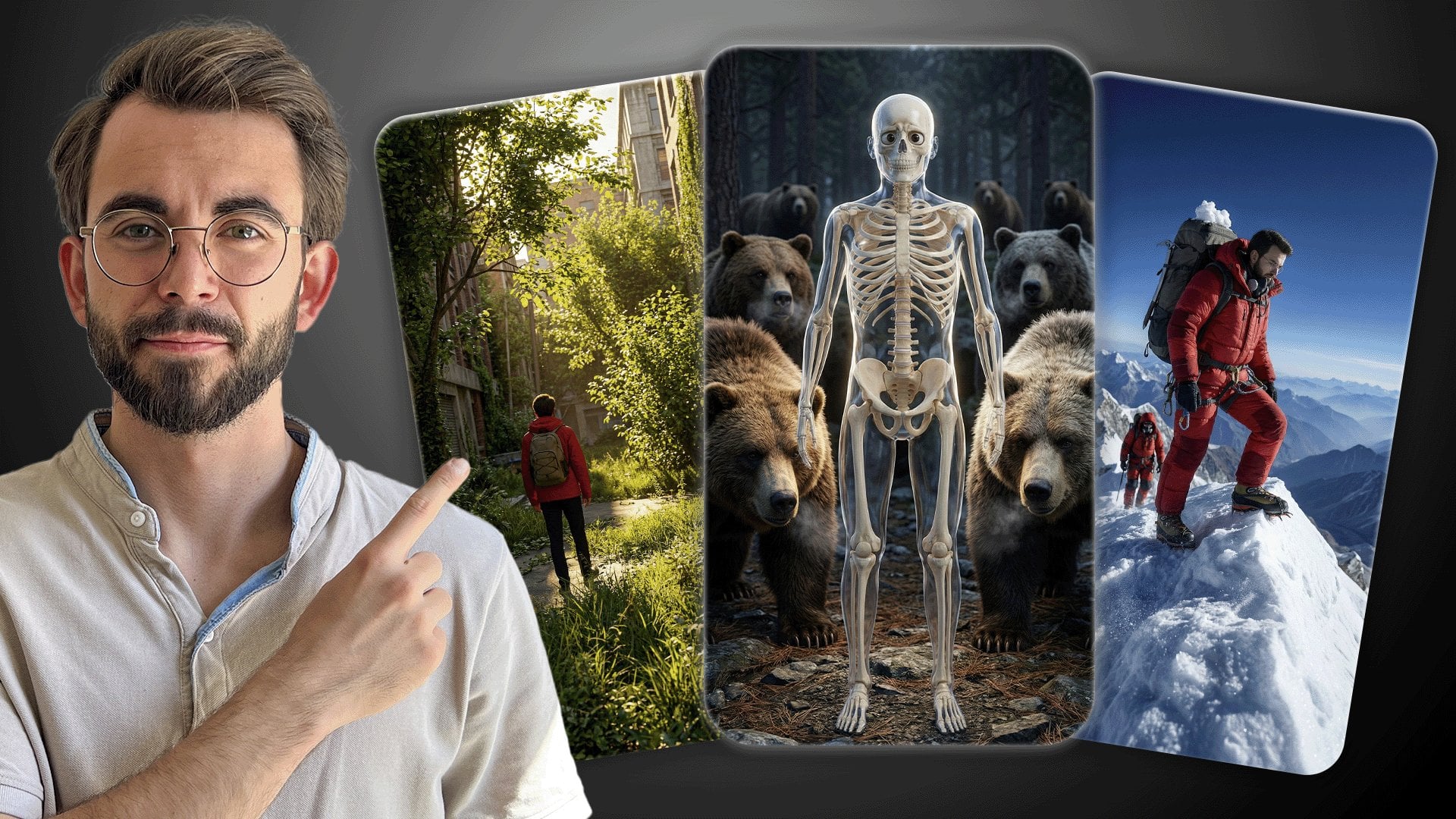
top here as well. Basically, Gary V
created this thumbnail, which blew me away. I'll do a quick
search to show you. So if we go into his page, this is this thumbnail
that he had, and I think it is a bit of an outlier compared
to his average views. I was so blown away with this thumbnail that
I thought like, Okay, I have to create it. But in order to create this, you have to put a lot of lights, move them together
because we have three sources of lights
or at least two. We have one on the right. We have this ramper triangle, and we have this highlight here. Freeze hard to do,
especially with limited amount of lights but
limited amount of space. I thought, why don't I use
AI? And so that's what I did. Felt, and this is the original image that
I used, an image of me. You can see, it was pretty bad. I had a lot of skin falling
off and things like that. So I asked GPT,
write me a prompt, told the details
that I want to do, generated, and eventually
I went with this one. It took away the skin, and it made me cinematic
and you saw it. We went from literally this, just the picture
that I took with my phone to something
super cinematic like this. And it's not something that
I'll be able to recreate, you know, rebuild in Photoshop, and moving lights would
be a lot longer and, you know, moving things around, setting everything up, then
just creating it here. This is really useful
and powerful tool, and it's not limited to this. Obviously, if you have
something that you cannot find online, if
something's copyright, that you can ask
HGPT or, you know, some of the other models like
Nano Banana to create it. In terms of the pricing,
the pricing differs, but I think the
lowest ones like, yes, $15 per month. You can explore this
website, obviously, but just want to give
you a quick overview. So if there are any specific
questions, let me know. Other than that, let's
jump into the next video.
9. How to Test Your Thumbnail with Screenshots Before You Post: Now the last thing
when it comes to thumbnail creation is to test it and to double check
that everything's okay, whether things going
to work or not. And the way to do it is
to come to Photoshop, just command and to
create a new document. And then I come to YouTube and I have to
take a screenshot, and then I come
back to Photoshop and literally just drag
the screenshot here. By pressing option and shift, I will make it a little bit
bigger so that it fills the whole and here's the super powerful thing
that we have to do. We have to find the screenshot that we did and
then put it here. Make it smaller, pressing
option shift or alt and shift, and just place it somewhere on the screen to see
how it would look. Make it a little bit bigger to fill the whole
screen. There you go. And so now I'm just seeing
how catchy is my thumbnail? I mean, it's pretty contrasty. It looks one of the most contrasting of the
ones on the screen. Visible, is everything okay? And if everything's
okay, good to go. But I rarely get to this
stage in the very beginning. I have to go through,
and you can see here a ton of different variations.
So let's take a look. This was the first one that I generated. Didn't really work. This was the second
one. This was the third one, fourth, fifth. And then eventually, I got
to this one. On this one. And this is kind of the final
one that I used this one. But in the very
beginning, kind of, this is what I started with. It was a little bit too much, and then I went a bit more and a bit more and a bit more.
And I experimented. So what I literally do is, like, export the video
or picture, sorry, track it here, like so, and then just track it to make sure the fatment is
exactly the same. And then I see like,
Okay, what's this one? Which one is more contrasting?
This one or this one? The orange one is definitely
1,000% more contrasting. So that's why I use
the orange one. And the way you export
the image in Photoshop is if you go into File,
Export, Export As, or you can see the shortcut, which is Shift Option
Command W. So I can just click Shift
Option Command W. It's going to Export. I click on smaller size to make the size a
little bit smaller, and I just click on Export. And then we have to select
like specific place. Let's click on save when I go to the place where I saved
it, there you go. This is going so this is how you can test it
with your competitors. You can test in
different places. You can go into YouTube
search and then find a number of competitors
and compare yourself there. There are a number
of tools that do this automatically for you, but this is such an easy way to do this that
that's how I do it. You can take a screenshot
on your phone as well, see if it looks good or not. But if you are using outliers and you're replicating them, chances are going to be
pretty, pretty good. If you have any
questions, let me know, and let's jump to
the next video.
10. Last step!: Congratulations to you.
You're nearly 100% done with the thumbnail Master. There are just three small
steps you need to take. First, take action.
Every big result starts with one small action. So if you haven't already, take the first step by creating
your first thumbnail. All the best information
in the world means nothing if you
don't act on it, and small steps lead
to massive outcomes. Secondly, if you want to
continue learning with me, you can follow my profile
here on Skillshare. Lastly, if this course
gave you value, could you take 60 seconds
to leave a quick review? Your feedback helps
the next person decide whether this course can help them too and helps me continue creating
better lessons for you. Although this course is complete,
journey has just begun. I'm excited to see
edits on line, so be sure to keep me
and fellow students B, I'm here for your success. So if there's anything
you need, don't hesitate to reach out in
the in section below. Thank you Ken for choosing
me as your instructor, wishing you all the
best and looking forward to seeing you
in future courses.
 Vladislav Sateev, Video Editor