Transcripts
1. How to Create Color Plattes in Procreate in 5 Ways: Hi everyone. I'm Hafdis, I'm an artist
designer and entrepreneur. Today I'm going to
show you how to create unique color palettes in procreate in five
different ways. Choosing the right colors for an art project is essential. However, it can be daunting
to some people. I know I used to be one of them. First we're going to look at how to create color palettes from a photo or a camera using the color palette options
within procreate. Then we're going to look for an already made
color palette that we like and how we can use it to create a palette
within procreate. I will share with you my
color palette Pinterest board that you can use or
you can find your own. Then we're going to try out Gal Shir's primary colors method to make a color
palette in procreate. If you want to check him out, I will link him here below
in the description. Next, we're going to master the harmony tools
within procreate to create harmonious color
palettes to fit our artwork. At last, we are going
to take a look at a few websites that can help us either make color palettes
or choose already made ones that we like In this course I will share with you a drawing of a
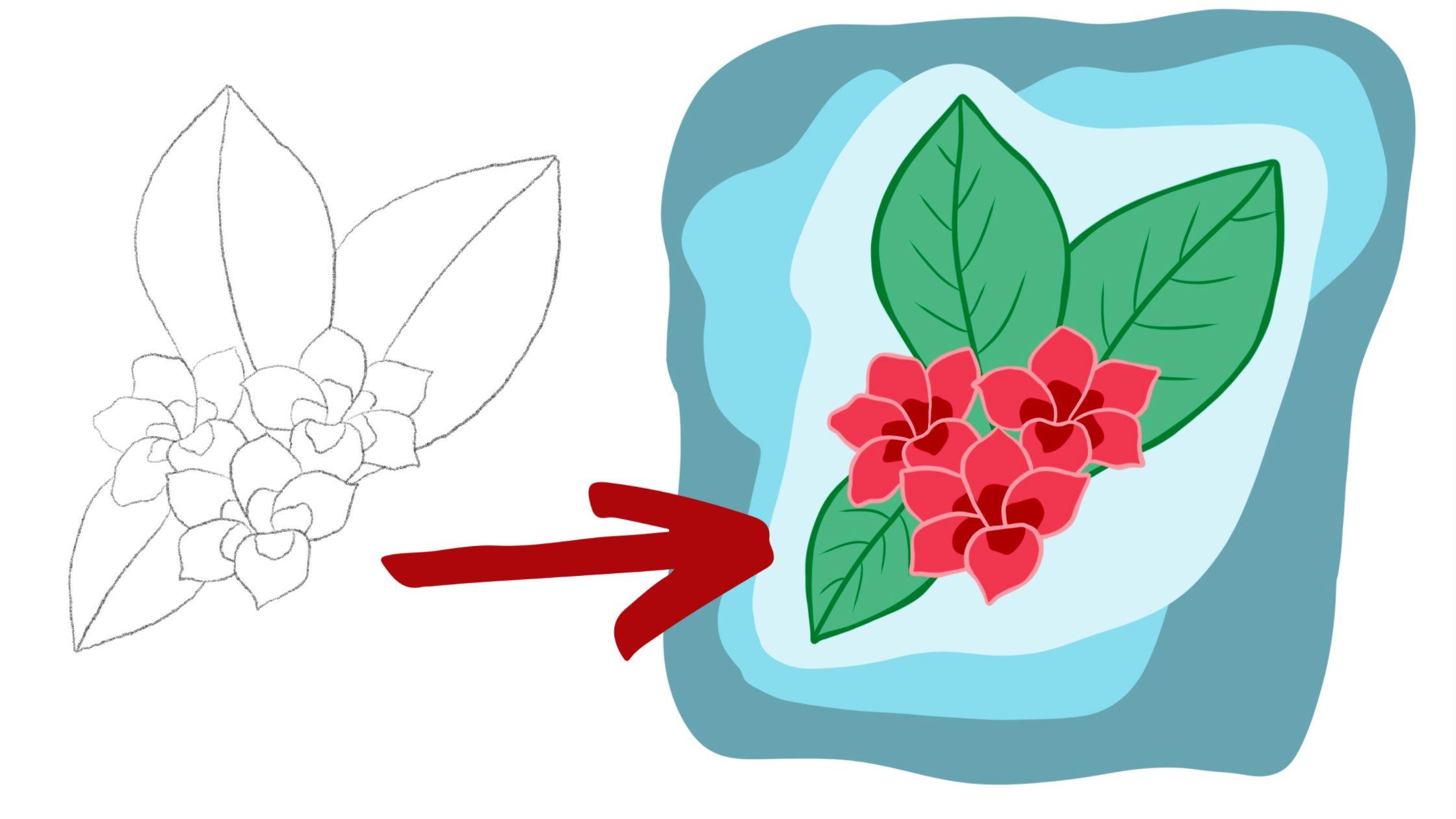
Frangipani flower that you can use, two
color swatches that I've made. And a PDF file of the Frangipani colored
in those swatches, as well as the
Frangipani. and the harmony tools,
Procreate workbooks. Creating color palettes
can be so much fun. And I'm always excited to find the right palettes
for a new project. So let's get started.
2. Palette From a Picture or Camera: First, we're going to
take a look at how we can make a color palette
from our camera. We're going to open
Procreate app. And then you can just create
new screen size canvas. What you want to do then is click the Color option
here at the top right, and the plus on the top. Then you choose New from camera. Now, we have this
screen right here, so we have our color
palette here in the middle. And we can just move our iPad
around and press the button. Now we have recorded our
color palette right here, so it's ready to use. If you want to try our
new color palette, we can open up our
Frangipani workbook, or if you have another picture that you would like to check, I already have our Frangipani. workbook right here As you can see
within the workbook, I have all the layers
so that you can recolor the image as you like. We have our new color palette
here from our camera. I'm just going to
choose a medium color for the main part
of the flowers. You can use, basically the
colors that you want to use. You don't have to use
them all and you can make them lighter or darker
or whatever fits. What you are drawing
or your artwork, what you were looking for. Now we have this blue tone and we're going to see
if we have a green one. Let's try this one. A little bit darker. Something like this. And now we have our background. Let's see. I think I might
want to use these, but it's a little bit dark, so I want to manipulate
this one a little bit. Make a lighter version. Then the lightest right here. So basically now we have made artwork with three of the colors
from our color palettes. And we have here on this site, you choose to insert
at the image here. You can basically fill in these colors that we were
using however you want. So if you want to
save the colors, just the colors as a palette
or whatever you want. And you can save
your palette here, name it whatever you want, or you can make a new one with just these colors that
you have chosen to use. So now we're gonna
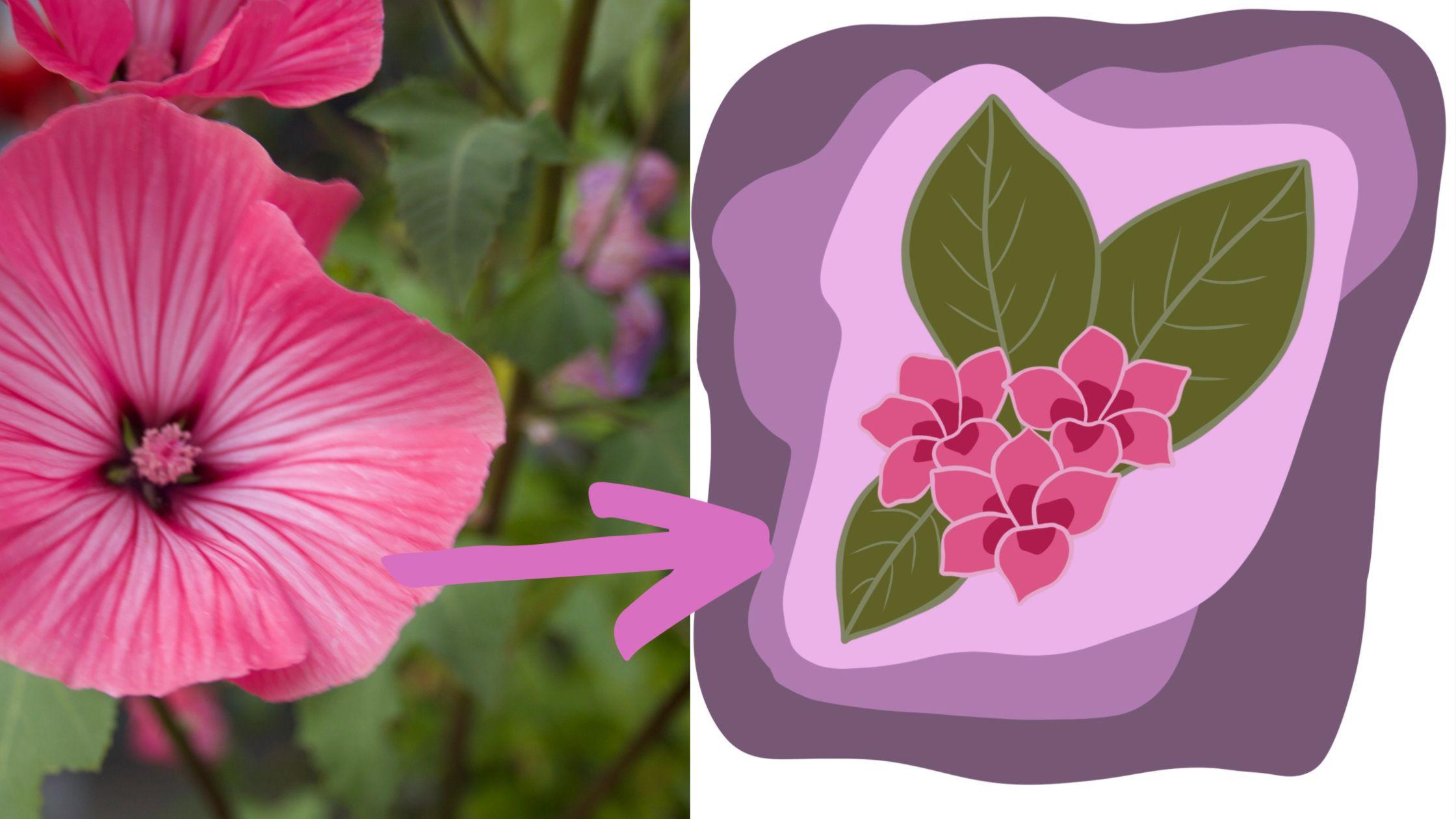
see how we can make a color palette from a picture that we
have already taken. So if we have lots
of pictures with nice colors then we can
import them as well. So we do the same thing. We go to the Color
option here at the top. We need to choose
now palettes because we are in this option. We choose the plus again, and then we choose the bottom
one here, new from photos. Now it takes you to
your photo album, so you can just search for any picture that
you want to use. So I think I'm just going
to take this one and now it makes a color
palette from that image. Now we can basically
do the same. We can use these colors to color our image
however you want. And like I said before, you can choose to keep the
whole palette or you can take specific
colors if you want, and save them and make a
new palette out of it. It's completely up to you. It's a very simple
option to find nice color combinations
because you already have a picture that you
like the colors in. Oops, wrong one. You can use the colors from that picture and use
them in your artwork. You can do whatever
you want with this. Like I said, you can use your own artwork or
if you want, you can. also use this worksheet and just fill out with your
own color combinations. And I would really love to see all of your artwork
in the project section, so please upload it. I'm very excited to
see what you did. So now we have artwork
from this color palette. And again, I can use these
buttons to fill in if I wanted to save the
palette as it is. And as you can see,
the color palette really matters because it's a whole different
picture depending on the colors that you use. All right.
3. Palette From a Palette: Now we're going to look
at how we can make a color palette from an
already made color palette. You can go to the Resources
section and check out my Pinterest
board if you want, you can check out the color palette that
you like there to use, or if you want to use Google, or if you have your
own or whatever. Just going to keep using our workbook here for the
Frangipani flower. What I like to do
when I'm using, already made color
palettes is that I actually import the palette. So like the picture of the
palette into Procreate. You can use this also with
normal images if you want. It's a little bit more work than using the tool that
we did before, like the one that procreate
makes the palate themselves. But if you want it
to do it like I do, you go here to Add
and then you insert a photo and you choose the
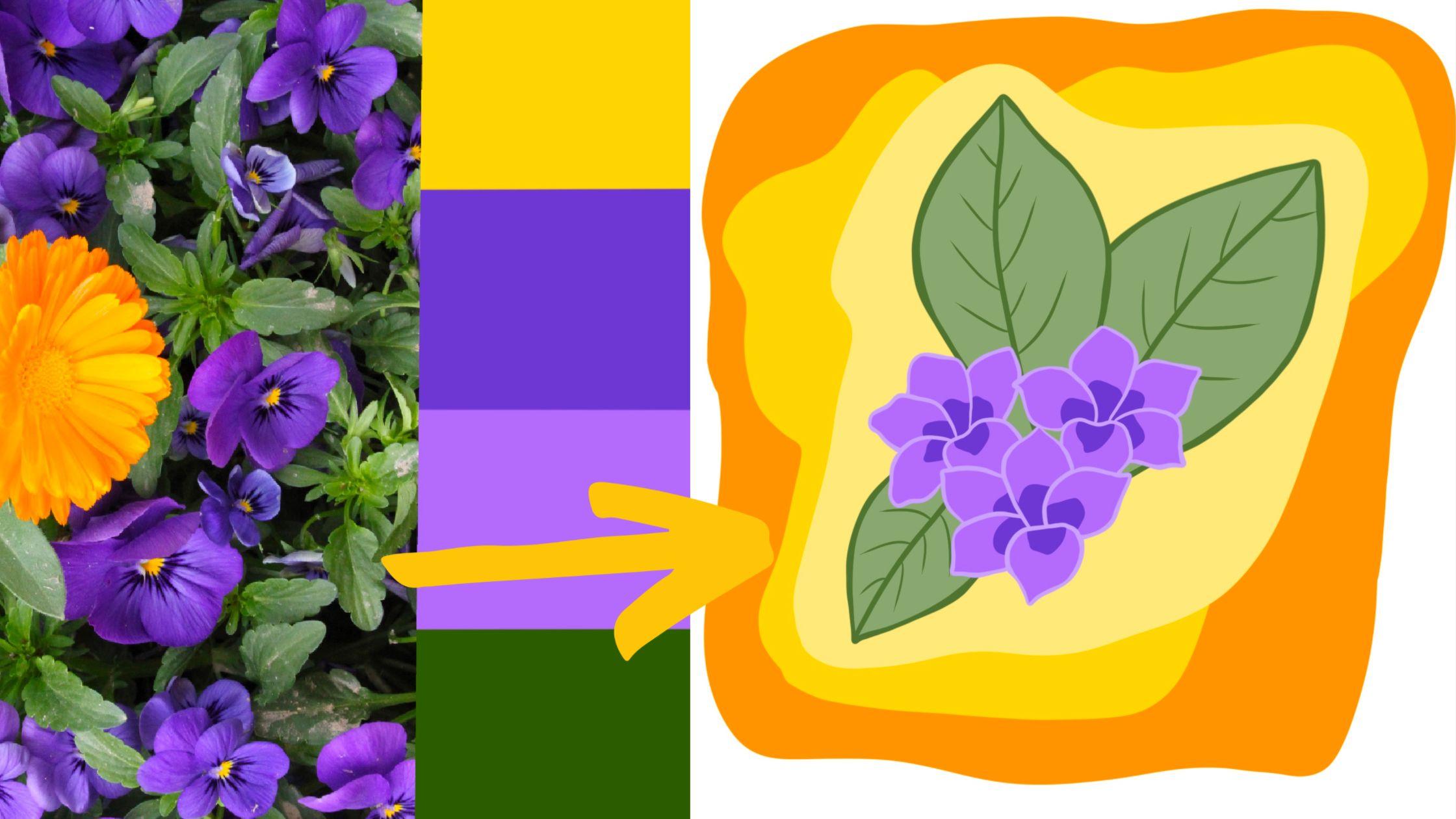
palette you want to use. So this one is what
I'm going to use. I'm not really worried about how it's coming in right now. We can see that they've
already pulled a couple of colors from the picture. I'm going to move it
to the top so we can see the pulled four
colors from the picture. Already made a palette
here to the side. So we can use that
or we can also use the picture to pull
some colors that we like. I'm going to choose some
colors and I'm going to use the palette here to make
a palette for three colors. I actually like this yellow one, so I'm wondering that form the main color
for the flowers, but I would like a little
bit of a darker one. I think I'm going to pull out
an orange so you just use your finger to press and you can move it to find the
color that you like. I would like lighter yellow, so I don't see a lighter yellow. So I'm just going to
use the classic tool here to get lighter yellow. So now we have three
colors ready here. Then we have some purples. I think I'm going to
use them as well. I'm going to use that as the darkest, one, lighter one. And then I also want one that
is even lighter than that. Like this. Yeah, I like these
three and some green ones. Let's see. If we use this one. The darkest green. See if we can find lighter. We can use either
a regular photo or if there are a couple of, you have a specific
color palette that you really like and you
want to pull from that. And then you can make
darker and lighter hues of that color palette. So I'm actually just going to delete the image
that we've been using. So now we have our
color palette here. Now we can use that
to color our image. I think I'm going to
use the yellow one for the background actually. Of course, you know, you never know how, you might
like the color palette, but when you put it
on your artwork, you might not like it on
that particular artwork, so you can always
find a new palette. For me. This is always fun. I love going back and forth, just playing around with
different color combinations and finding what fits the best for the
artwork that I'm doing. And for the platform
that I'm going to be showcasing my artwork, if
I'm gonna be selling it. And of course, I like
to think about also incorporating colors that are popular, in trending right now. Alright, so as you can see a choose pretty vibrant colors. There might be someone
out there that might like this
color combination, but this is how you can make a color palette from
another color palette.
4. Gal Shir's Primary Color Method: One of the easiest
ways to create your own unique color
palettes in procreate is using Gal Shir's,
primary colors methods. I will link to him in
the description below. If you want to have a
look at his website. So basically what
we're going to start with is we're going to
get the primary colors. We're going to color them. Can do a circle or a box
or whatever you like. So we have yellow
and we have red. Since everybody know the
primary colors, yellow, red, and blue, you just need to make sure that the colors are
intercepting each other. So you'll want,
want them to mix. Now. You have your
primary colors. So what do you want to do
is make a layer above that and choose basically whatever
color you can think of. I'm just going to use purple. What you're gonna do
is you're going to color the whole thing above. And then you're gonna
choose the layer. Choose the N here, and you're going to
lower the opacity. You can play around with how much you're going to lower it. Then what you're
gonna do is you're gonna use your fingers
and you're going to choose the colors. As you can see, the purple has changed how the primary
colors are looking right now. Here we have three
colors that actually are complimentary and work
together as a color palette. We can play around with this. If you want to change this
purple one out for, let's see. We want a bright green. Then we're going to
lower the opacity. Then we just do the same thing. So we're gonna choose yellow. red and Bluem as you can see you're playing around with
the same primary colors, but you have a completely
different color palettes. You can play around with this. I accidentally did. If we do one more, Let's say we want to go, we had already done purple. What do we want to do? orange? Fill the layer? Then choose the colors. All right, so now we have three different color palettes just from that one
basic method. So we can do different
hues of these colors and just play around with how we incorporate them
into our artwork.
5. Harmony: Now we're going to master the harmony tools
within Procreate. Who remembers the color wheel? I sure do. Let's quickly take a look at the color wheel and
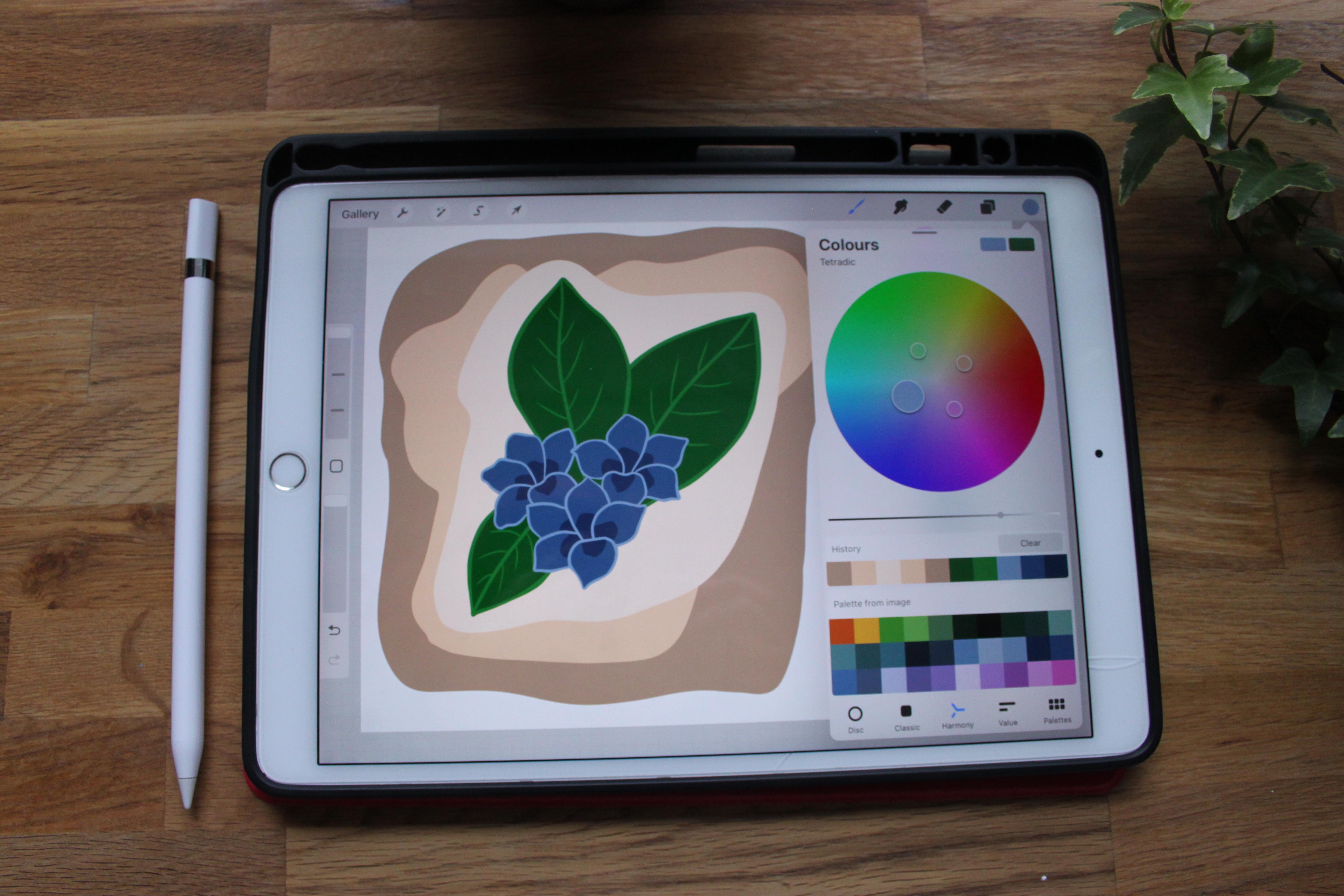
review the color theory. Here you can see a classic
color wheel and how it can be used to find complimentary colors
to make a palette, we can find the complimentary split complimentary analogues, triadic and tetradic
colors of our main color. What the harmony
tools in Procreate do is find those colors for us, making it so much easier to make a complimentary
color palette. All right, so you can download my workbook
for the harmony tools. It looks like this, it's in the resources. So now we're going to dive in. As you can see, I have here
the complimentary, split complimentary, analogous
triadic, and tetradic. And now we're just
going to fill those in in the workbook you can
see I have grouped them according to the type. And now we're going
to take a look at how these things work. So what we're gonna do is just start by choosing
one color that we like. I'm just going to
stick with kind of like a turquoise or something. And then you want to choose the harmony tools here
at the bottom screen. Now you have here
the color wheel. We're gonna start
filling this out. So we're gonna start
with the complimentary. And as you remember
on the color wheel, the complimentary color
is the one that is right across from
our main color. I'm going to open
here complimentary. And I'm going to start by putting my main color
here in the first. I think we're going to put it in the first boxes everywhere. So this is my main color
and I want to find a color palette around
this particular turquoise. Alright, so like this. Now we have this color, this is the complimentary color. We're going to go here in
the complimentary group. We're going to fill this layer. So now we have the complimentary
color of this turquoise. Then we're just going
to fill the rest out. So next we have the
split complimentary. If you think about
the color wheel, those are kind of next. We'll not quite across. We're going to choose
our main color here. If you go to split
complementary, you can see it's
not right ahead, but they're the
ones that are next to the complimentary color. Basically. We're gonna
start with one of them. We're going to fill
in the next box here and then we
take the other one. And this box. Now we have the
split complimentary. Then we're going to
go to the analagous. Those are the colors
that are next to like on both sides of our main colors. So we can see the
two on each side. And we're going to fill
this one out as well. So as you can see, we have our analogous
palette right here. Next we have triadic. Triadic. I'm going to do the same, I'm going to choose my main color, and then we press here under the colors and we
choose the triadic. You can see it's kind
of like a triangle. Each corner tip of the triangle. Then going to choose those
colors and fill in this. So we have the triadic, and next we have the
tetradic at the bottom. I'm going to choose my color. Do the same thing right here. So now we have three colors. All right? Now we have filled
all of those in. And of course, the
palate is gonna look different depending on the hue and saturation and
everything on your main color. The turquoise that I
chose is quite saturated. So we have a very
bold color palette. So as you can see, because of my main color, pretty much all of
these colors could work together in an artwork
if you like. Very bold artwork, but
you are free to use. This workbook if
you want to play around with making your
own color palettes, I find this easiest. And then I normally just make different hues of
the colors or something. If I'm going to use
the complimentary, I might make a lighter version of both of them are darker
hues or something like that. So you can play around with it. But this is the basic function
of the harmonic tool. So this is like super fun and if you
choose a different color, you see it calculates
everything for you. So it makes much more fun and much more easier to
find color palettes.
6. Websites: All right, So now
we're gonna take a look at a couple
of websites that you can either use to find already made color palettes
or generate your own. You can find the links to these websites in the resources. So the first one is Color Hunt, and this is how it looks
like when you open the link. Now we are here, as you can
see here on the left side, we are in New. So it's showing us
some new palettes. We can also go by popular. if we want to see some that have been very popular
or was on time. And then you also have
all sorts of filters. You can, if you're looking
for a vintage one, if you're doing a summer or neon or basically
whatever fits your artwork, the kind of artwork
that you are doing. This website can be a lot
of fun just to go through. And you can save your
own palettes here in your collection and then
use them for your artwork. The next one we're
gonna take a look at is Adobe wheel, the color wheel. And as you can see,
it's pretty similar to the color wheel in our
harmony tools in Procreate. Our main color is the
one here in the middle. And you can see the small arrow. You can see the small
arrow in this circle here. So this is our main color. If we touch this and move, our main color changes as well as the
complimentary colors. Here, we have five colors. So if we have here
chosen analogues , we're getting a lot more
options than in procreate. We can change this to
triadic. As you can see. We can move this around. We can also go inward if we want a lighter color,
like less saturated. So we can basically just play around with this
as much as we want. You can change here. You can do split complimentary colors,
complimentary, monochromatic. If you want to just go with a seamless
palette right here. So this one can be a lot
of fun with if you want to generate your own
palette, especially. Then we have coolers. And here you both
have the option of making your own or you can explore some trending palettes. If you have, you can download the apps right here
if you want to. I'm just going to explore
the trending pallets first. Here we can see and you have a lot more color
options per palette. While in some cases at least you can have a
look at here as well. They have monochromatic
pallets, pastels, bold colors, anything
you can think of. And you can look
for certain styles. And basically whatever you want. I'm going to go back and I'm going to start the generator. As you can see, we have
five colors right here. Then we can just press here. You can change the
colors if you want. Then you have a monochromatic
palette of that color. Press right here. This is more complicated tool than the Adobe one that
one is very simple, but you can have a look
at this if you want. I mainly use the
already made palettes for this website and the
generator for the Adobe one. If I, if I wanted to make a palette like that
without Procreate, if I want to have
more functions, you can have a look at
these three websites and just have fun with it.
7. Until Next Time!: As you can see, there are many ways to make
unique color palettes. I've used them all, and it depends on the project
I'm working on, which method I choose. I hope you have found this
course informative and that it has inspired you to
create your own palettes. The project for this class
is to use any of the methods we've covered to create a color
palette for your project. You can create one for
the Frangipani flower if you like, and then upload it to the
project section of this course. Or you can use a
work of your own. I hope you upload your project to this course
because I would love to see what you've come up
with. Until next time. Bye.
 Anganora, artist | designer | entrepreneur