Transcripts
1. Welcome to the Class: We live in a time where launching profitable products is more accessible than ever. You don't need a massive budget. You don't need to hire anyone, and you definitely don't
need to know how to code. That means if you're a
freelancer, running an agency, building a startup or just
someone with a product idea, but no clue how to build it. This course is for you. Hey, everyone. I'm Adi. In this course, I'll
show you how to build a real working web app, one that you can
actually use or even sell without writing a
single line of code. Now, I'm not a
backend developer, and building something like this with user authentication, real databases, and a clean UI would normally take a team or
months of learning. But today, we're
going to do it in less than an hour simply by having a conversation with AI, and there are a lot of AI
powered platforms out there, and I've tested quite a few. For this course, we're
using HostingerHizons, and what makes it stand out is that it's built by
HostingerH've been in the hosting game
for over 20 years serving nearly 4 million
people worldwide. So when they promise to handle hosting
domains and scaling, they've actually got the
infrastructure to back that up. We'll build the app step by step by guiding the
AI with prompts, building the base structure,
refining the functionality, adjusting layouts and
improving features as we go. The project, a simple but
functional invoice manager for freelancers. It lets users log
in, manage clients, generate invoices, and even
download them as PDFs. And yes, we'll integrate Superbse for user
authentication and secure data storage all
through the AI interface. Backend coding required. By the end of this course, you'll know how to
talk to an AI to build useful web
apps or websites, how to structure your prompts
to get better results, how to integrate tools like Super Base without depth skills, and how to build
real products fast. So that idea you've been sitting on the one you keep saying
you'll build someday, well, you can launch it today. No more excuses about
not being technical enough or not having
the budget or the team. Let's get started.
2. Quick Tour of Hostinger Horizons: Alright, so before we jump
into app Building mode, let me give you a quick
tour of HostingerHorizon, so you understand what
we're working with. Horizons is basically
like having a developer, designer, and
copywriter in one AI. You just chat with it, and it builds
actual websites and web applications
complete with databases, user accounts, payment
processing, the whole thing. There are other platforms out
there that work similarly, but what sets Hostinger apart is that everything's integrated. You don't need separate hosting, email services,
SSL certificates, Hostinger handles it all. So when you're ready to launch, you can manage your
domain and hosting from the same platform instead of
juggling multiple services. With that said, let me show
you how to get started. The very first thing
you need to do is create a free account
with Hostinger. So you need to go tohstinger.com
and click My Account. That's going to open up
a page that allows you to create an account or login
with your existing one. Now, I've already done that. Once you're logged in, you'll
be taken to your dashboard. Where you can control your
entire hosting experience. Now, to get started
with Horizons, you can click on Horizons right
here on the left sidebar. If you have existing projects
created with Horizons, those will be listed right here. Otherwise, you can just
click Add Projects. Alternatively, you can go directly to hoizons
dothstingor.com, and you can start
creating right away. Now, the interface here
is very, very simple. This is where you
write the prompt, and there are actually three ways you can
communicate with the AI. You can do that via chat. You can do that by uploading an image or
you can use voice, which is pretty cool. Now, Horizons actually
supports over 80 languages. So you can think and speak
in your native language, which is just fantastic. Now, just to give you an
idea of how this works, let's create a very simple demo, right, a simple test project just to get
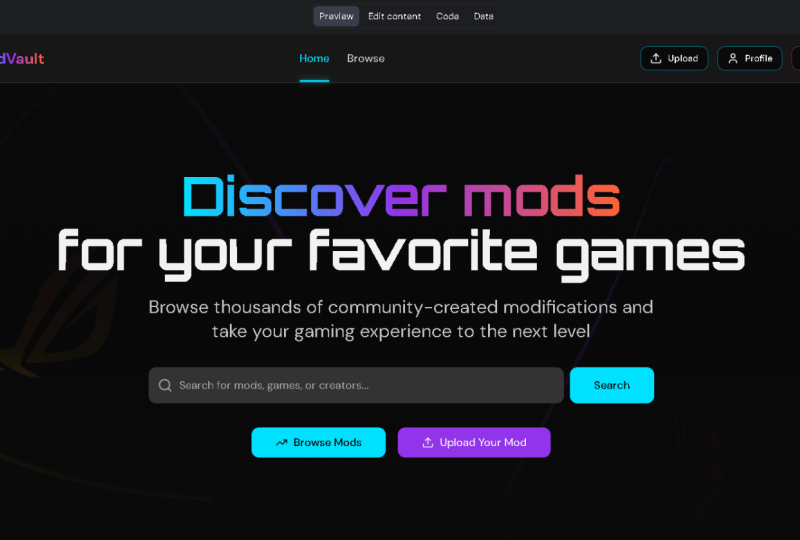
a handle of things. So in here, I'm going to say, create a landing page for
a SAS called time Tracker, and I'm not going to give
it any other details. So I'm just going to hit Send and the AI just
started doing its job. It's actually a very
communicative AI. I just told me, Let's go. I'm about to craft an incredible time tracker SAS landing page, and it tells me exactly
what it's doing. And this is going to
take a little bit, while the AI is building all the pages and the
whole design thing. And you can see right
here it's working on it. You have a few
tips here that you can cycle through
while you wait. And since we're waiting, I just want to tell
you that this platform actually integrates with a
lot of services like PayPal, Stripe, super Base, and
even Google AdSens. So this truly gives you the option to create
very complex apps, and you'll actually
get a taste of that in this course when we use the Superbase integration for user authentication
and secure storage for our invoicing app. Alright, so the AI
seems to have finished. It tells me that all done, your stunning time tracker, SAS landing page is
ready to impress. And let's see what it created. And let me actually reset the Zoom here so we can
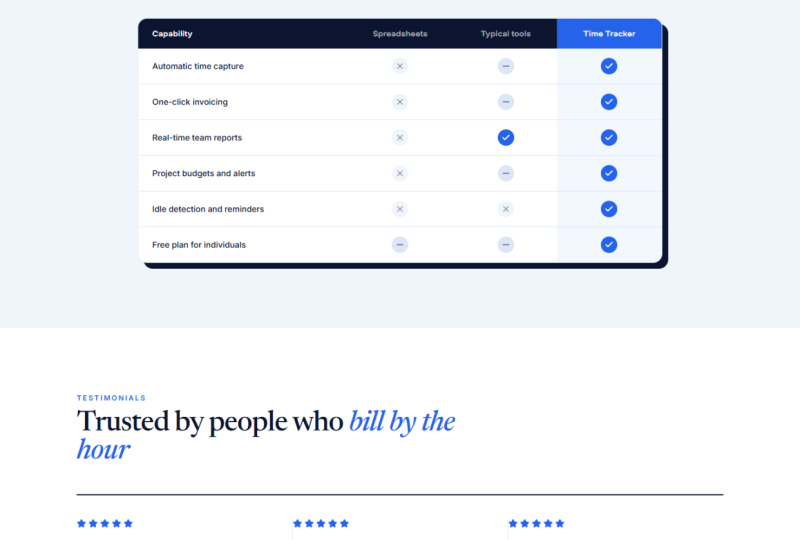
see the whole thing. So just like that, it created
a landing page out of, like, a sentence that I gave it, complete with animations. Even have pricing
tables here, buttons, and it created everything from
text to images to layout. And you can even go full screen
with this and preview it. And you can also check
out the mobile view. So it creates responsive
layouts by default, even though I didn't ask it to do that, which
is pretty cool. So this is what it
gives you by default. Now, it's your job to go
over what it created and start changing things and adapting them to what you
need that project to be. Also, if you spot any errors, any flaws in the layout, you can simply point
those out to the AI, and it's going to do
its best to fix them. For example, if I scroll
down to the pricing area, we can see that the most
popular badge right here sits under the pricing
card, and I don't want that. So let's actually
tell the AI that. I'm going to say I
spotted an error. The most popular badge in the pricing section sits
below the pricing card, and it needs to sit above it. Please fix it. Enter, and now the AI
will interpret that, and it's going to do its
best to fix that problem. And it's actually going
to converse with you. It's going to tell you in just
a little bit. You got it. I'm diving in to fix the most popular badge in the
pricing section right away. I'll pop perfectly above
the card this time. So let's see if it
actually does that. Okay, so the AI told me that all is done.
Let's check it out. And surely enough, it now
sits above the pricing card. And you can then go on and, you know, ask it to make
additional changes. Like, for example, if
you would like this to kind of overlay
the pricing card, you can just ask it to do that, and it should be
a very easy fix. Or if there are
any other changes that you would like to
make for I don't know, the layout, the colors,
the typography, you can ask it
anything you want, basically, and it's
going to do that. Now, assuming you now have a product that
you're happy with, the next step is publish and let me just
quickly touch on that. You need to go to the
upper right corner here and hit Publish. Hostinger Horizons actually
allows you to publish your project on a free
temporary subdomain, the one that you see right here. For me, for this project,
it's pale green, true numbers numbers
dot hosting site.com. And you can always click
this to view your site live. And this is great if
you want to present your work to I don't
know, your clients, your stakeholders, your team, you have a live link that you can use to show them
what you've done. Also, you can add
a custom domain. And this is why I said earlier
that hostinger kind of does everything for you because even if you don't
have a domain currently, you can buy that through hostinger and then apply
it to your project. Here, you don't need to go someplace else to do
that and then come back and do the whole domain
assigning thing. It's all baked in, and I think that's
a big advantage. And one other thing I wanted to mention before we
wrap things up, if you get stuck at some point, or you need help
setting up you can get assistance 247 from Hostingers
customer success team. So don't hesitate to contact them for anything
support related. Alright, now that you've seen how intuitive Horizons
is for simple projects, let's tackle something
more ambitious like our invoice manager app. That's coming up in
the next lesson.
3. What We're Building: As I mentioned earlier, we're building an
invoice manager app, a project that touches on real world challenges
like user authentication, databases, and third
party integrations. If you can build this, you can
build just about anything. Let me first walk you through
the app we're aiming for, and then I'll show
you how to craft a solid prompt to
get the AI started. This is what I have written
down as my invoice app idea. You know, quickly writing
down my thoughts, you can think of it
like just a brain dump, basically, just quickly
writing down ideas. So I want to make this app, like an invoice tool
for freelancer, and I'm thinking of calling
it freelance Bill, maybe. It doesn't need to be
fancy, just functional. Users need to log in,
maybe via Superbse. Then they can add clients
and make invoices. The app needs a
dashboard with a list of invoices and maybe some
stats like total revenue, number of clients, spending
invoices, et cetera. Each invoice has
a prefix number. It's going to auto increment, something like INV,
001, 002, et cetera. Now, when creating an invoice, I want to be able to select
the client from a drop down. I want to have line items
that have a description, the quantity, the price, just like any other invoice. The invoice total should
update automatically. I can set the status to
each invoice to either new, which is the default
sent or paid, and I would like to be able to download the PDF of the invoice. And maybe later I can add email functionality
so I can send the invoice to the clients
directly from the app. Also, I would like a
page for the clients. I would like to add
edit delete clients, and I need some basic
info for that like name, email, phone, and address. And I would also like a settings page where
they can put in their company info and also
change the invoice prefix. Clean layout, maybe with
a sidebar navigation, and very important, all the data is tied to the login user. So this is kind of what I'm
thinking about for the app. It's like a rough plan. This is definitely
not a good idea for a prompt because it's kind
of all over the place. And when writing AI prompts. You need to do it
in a specific way if you want the best results. And I'm going to give you
some tips and tricks for that when writing the
prompt for this project. So let's create a new project
or a new text document, I should say, for the
prompt, and let's begin. Very first tip is to
start with a clear goal and say exactly what you want to build and
what it should do. So for example, build a web app for freelancers to manage
and send invoices. So in our example, that first sentence would
look something like this. Hi, I'd like to build a web app for freelancers called
Freelance Bill. The app should help users manage clients and invoices
in one place. So very clear description
of what we want to achieve. After that, we should list the key features as
short scannable parts. And using bullet points
is a great idea. So for the core features, I would like secure login and authentication,
use Superbse, create a view edit and
delete invoices and clients, download invoices as
PDFs, and finally, all data is tied to
the logged in users. These are the most
important features. After that, we can
start describing the pages that we
want the AI to build. And in my case, those
look something like this. So I want a dashboard
page that has a table showing all invoices with edit and delete actions. And I also want some
overview stats that shows me the total
invoice number, the total revenue,
total clients, and also the pending amount. The second page is the
invoice creation Editing page or the invoice form,
as I call it here. So I would like a
drop down to select a client add multiple line items for
description, quantity, unit price, auto
calculate the totals, auto generate invoice
number with custom prefix, and I give it some examples
of what I mean by that. And also I would like the option to select
invoice status, new sent or paid. Then on the clients page, I would like a list of
all the clients with the ability to add edit delete. Each client has name,
email, phone address. So as you can see, I'm very
detailed in my description of what I want to achieve and how I want that particular
page to look like. Finally, the settings page, which has the company or personal information used
as sender on the invoices, and also the ability to define custom prefix for
invoice numbers. And finally, I added
some tech notes. I said, use Superbse for user authentication
and data storage, and also I added some
design preferences, if those are important, right? I said, design should
be clean, modern, responsive and use a
light color scheme. At the end I said,
Let's start by generating the basic
structure and UI, and I'll refine everything step by step in follow up prompts. This is not necessary, but I just thought
it's a nice addition. So this is what the
final prompt looks like. We went from this
app idea that was just a a random collection
of thoughts basically to a more structured prompt
that informs the AI of what it is that
we want to create and the goals of that project. So with this done, let's go ahead and
copy this prompt, and we'll jump back to Horizons, and we'll paste that in and start making our invoicing app. Let's go. And while
this is working, there was one other thing
that I wanted to mention, and you can think of
it as a best practice. Don't be afraid to
iterate, right? You don't need to get everything perfect
from the first try. You got to treat this
like a conversation with the platform.
The AI, basically. So, start by laying the foundations for your
app and then iterate. Then add features, make changes. As I said, treat it
like a conversation. It's the best thing you can do. And here's another great tip, actually, from
Hostinger this time. So for the best results, keep your messages
simple, short, and focused on one
change at a time. So when you want
to make changes, don't write a message
that says, Well, change this and then
change that and then make another change
on those elements. Make one change at a time. It doesn't confuse
the AI that way. And it's also going to be
easier for you to debug and test everything because when building stuff with
platforms like this, you'll find that you have to
do a lot of testing, right? After the AI makes a specific
change that you ask the two you got to test and see if that was
implemented correctly. And in some cases, you got to test and see
if that particular change didn't affect other parts of the app or their
functionality. So, you know, it's a process, but it definitely beats, you know, hiring
a team of people, spending huge budgets
on building an app, and most importantly, spending weeks and months
building something. With this kind of vibe coding, I guess you could call it, it's really easy you can
do it yourself. So we're almost done
where the AI is almost done building our
foundation for the app. I'm really curious to
see what it built. Okay, all done, it seems your freelance bill
app is ready to rock. Let me know if you'd
like any adjustments. Okay, so we see a very simple
login page, basically, because in the prompt that
I gave it, I did say that, okay, users need to be logged in to do
anything on the app. So the first logical step
is to ask users to sign in. So we can enter our
email, our password, and if we click on these links, they'll just switch from
login to create account. We also have a
small introduction here to the app with basic
core features, basically. Won't work just yet
because we don't have an active
Superbse integration. The AI even told me here that when you're ready to upgrade to Super Base for secure
authentication and data storage, you'll need to
complete these steps. So how about we do that next? Because Uh, you know, integrating super
Base is probably the most technical thing we
have to do for this built. So I'll see you in
the next lesson.
4. Integrating Supabase & Doing Initial Testing: Okay, so super Base, what is it? Well, simply put it's a
development platform. You can find more
information about it if you go to superbs.com. We're not going
to get into a lot of detail because honestly, I don't know that
much about it either. By trade, I'm not a
backend developer, so I've actually never
used SupABse before. However, with AI tools
like Hosting or Horizons, that doesn't stop
me from building an app with it
because connecting it to your Horizons
project is super simple. So here's how you
do it. You're back here on the Horizons platform, and you would go
to the top right where it says integrations. You would click that and
you would select SUPABse. It even tells you you
can add user signups, logins, data storage, and
other back end features. So go ahead and click that
here it's going to ask you to select an organization
and a project. Now, I already have
some defined here because I did some previous
testing with Super Base. But when you first use this, it will look different for you. Essentially, what you need to do is create an organization. For me, it's called
Hostinger Horizons Org. You can name it
whatever you want. And then after you create that, you can create a new project. So let's do that
together right now, and that's going to take you to the Super Base website
where you need to log in. If you don't have an account, simply create one. It's free. I'm going to click
Sign Up now and I'm going to enter an email
address and a password, and I'm going to click Sign Up. So now we have to
check our email to confirm the registration. The email looks
something like this. You just click Confirm
email address. And at this step, Super Base is actually
going to tell me to create a new organization. Sure, let's do that. I'm
going to say Audi's team. Personal for now, I can
select the free plan. This is great for most people who are
just getting started. It's more than enough. So let's click
Create Organization. And then I'm going to
select that organization, and I'm going to call the
project Freelance Bill. And we can set a
good password here, and this is going to be used
for the actual database. Then you can select the region that's
closest to your users, and you do this for
best performance. I'm based in Europe, so I'm just going to
select central U and then create new
project. Okay, cool. So once this is done
inside Superbse, we need to go back to
hosting our Horizons, and we need to do a
refresh on this project. And then we need to go back here to Integrations. Click Sup Base. Then we'll click add another
organization because I want to add the one
that we just created. And here I'm going to
get a pop up asking to authorize API access for
Hosting or Horizons, and I'm going to select that Addis team organization
that I just created. So I'm going to click
Authorize Hosting Horizons. And now that new
organization is connected. And I can see the
freelance Build project, and I'm simply going to click Connect right here
in the sidebar. Okay. And it's going to
ask for a confirmation, and I'm going to
hit again, connect. And by doing that, I actually gave the AI
a prompt and I told it, please connect my
SuperbasePject, freelance bill to my website, and I got a confirmation. Of course, I'll connect your SuperbasePject to
freelance Bill right away, and this will enable secure
user authentication and robust data storage
for your app. And in this time, the AI actually sets
everything up for you. It sets the database tables, you know, for invoices,
clients, and settings. It integrates Super
Base authentication for secure login and sign up, and it switches from
local storage to Superbse for all
data management. All right. So now
everything should be fully connected and I should
have access to my app, and I should be able to
create accounts and sign in. So let's see if that's the case. Let's start by going
to the sign up page. I'm going to enter
my full name ad Pod. And I'm going to enter my
email as Adi Pordla gmail.com, and I'm going to
enter a password, and I'm going to
hit Create Account. So let's see if this
work if this works. It gave me a notification
saying that, oops, it disappeared. Account created, basically. So now let's go to
the sign in page. Click Sign in. And it
says email not confirmed. Okay, we also have some
errors in the platform. It says it's a
super baase error. It says email not confirmed. Let's see if I actually got a confirmation email. And I did. It says, confirm your signup, so let's confirm that. Now I get a local host
refuse to connect error. Okay, this is actually
common with Super Base. I did some research
on the topic, and it's one of the problems you might face when building
something like this. So here's how you fix it, right? You go back to Super Base, you go to authentication. You go to URL configuration, and here you can see
that it's currently set up to local host 3,000. You need to change this to
your actual website address. So for that, we go
back to Horizons. Yeah, we publish this
so we can get that URL, and, you know, we can open
this and view our site. And we can copy this
without the login part, and we can go back
to Super Base. We can paste that in and
we can save the changes. Okay, so next, we need to
resend that confirmation email. The problem is that
only gets sent once. So here's what we'll do. We'll go to manage
users in Super Base, and I'm going to select this, and I'm going to say
delete one user. So now we go back
to our platform. Let's do a quick refresh. And let's sign up, but let's use a different email
address this time. So I'm just going to use
this one and create account. Okay. Nothing happened yet. Let's check out Super Base
to see if we have, yes. This was added,
and now we should check the email for the verification link.
So let's do that. And surely enough, we have a confirmation link for
this email address. Let's confirm. So that took us somewhere. If we go back to Super
Base and we do refresh, we should now see that
sign in when that happens. So now the email is
confirmed and we should be able to login to the app. So let's go back to Horizons
here. We'll click Sign in. So now I get a web
app error detected. Ask Horizons to fix
this error for you. So let's ask it to fix it. Okay, so apparently,
it's all fixed, and it tells me that the layout is now correctly using the
Superbase authentication, and I've cleaned
up the old files. Well, how about that?
So what we have here, we have freelance
Bill, dashboard, clients, new invoice,
and settings. Okay, and then some
account information. But before I move
on any further, I would like to test the login and logout functionality to
see if it works properly. So I'm going to click
Sign Out. Cool. Okay, so that takes me
back to the sign in page. So let's choose my credentials
or enter my credentials, once again, sign in. And yes, success. So that seems to be
working just fine. And this is actually a little
bit too bright for me. So before we move
on any further, let's actually change
our original statement and create this app
using a dark scheme. So I'm going to talk
to the AI again, and I'm going to say,
I changed my mind. Please use a dark color
scheme for the app with a, let's say, mint
green accent color because that was just a little bit too bright for my eyes. So that also gives us an opportunity to test these
kinds of design changes because changing a color scheme for an app like this is a
pretty big undertaking. It does take quite some time if you were to do it by hand, as you can see, the AI does it in a very short
amount of time. It hasn't even passed a minute since I
asked it to do that. So let's see what
it came up with. Okay, finishing touches. And just before it was done, it actually told me that yikes, it looks like a pesky error slipped into the
clients JSX files, and I'll untangle it
right away and get your up back in perfect
working order. Interesting. So
while it generated, while it changed
the color scheme, it noticed that syntax error in one of the files,
and it fixed it. All right. So this is what we got much better, not
perfect, obviously. The designer and me just immediately notices things
that should be fixed, but, you know, I didn't
actually give it precise indications on how
this should look like. I just told it, use a dark
color scheme, and it did that. And it looks just fine for now. I also like the color
choice. That's nice. We have some very
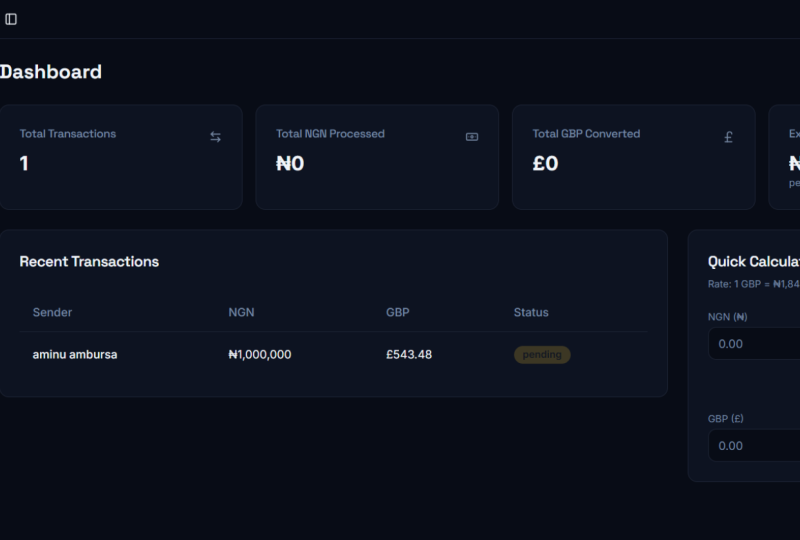
subtle animations here. And yeah, so this is the dashboard showing
total invoices, revenue, clients pending amount. Cool. Clients. No clients
yet with the ability to add. New invoice. I can select
the client from this list. I can select the status, new send paid, just like
I told it in the prompt. We have an invoice date. We have a due date, cool, and then the line items, and I can add as many
of these as I want. And in f click Cancel, takes me back to the dashboard, and then settings, company info, email address, business
address, invoice settings. I have the invoice
number prefix. Can I create an invoice? I need to create a
client first, actually. Let's add our first client. Let's say client one, email,
client one@gmail.com. Phone, address,
client one address. Let's add it. Cool.
So this was added. And then let's go back to
dashboard, create invoice. Okay, it says, No clients
found no clients found. So an initial testing shows
that most of it is working, but we have some work
to do ourselves. Let's actually go
back to Super base, and we'll go to database. And here, it actually shows us the structure
of our databases. So we have a table for invoices. We have one for settings, and we have one for clients, and you can see how these
are interconnected. So, for instance, each
invoice has a client ID, right, which is directly let
me actually show you this. The client ID in the
invoices table is linked to the idea of the actual client.
Yeah, interesting. Okay, so everything seems
to be just fine here. Let's go back to tables. And if we go to clients here and we view in
the table editor, yeah, we can see
the client that we just created in the app. We can see the name, the email, the phone, the address, and
when it was created. So the link with Superbse
works just fine. And this is all I wanted
to see right now. We got probably the
most complicated part of the process completed, and that was the super
base integration. Now, let's just refine
the app step by step and make the necessary changes to get it to the
state that we want. We'll start doing that
in the next lesson.
5. Fixing Errors & Refining the Layout: Okay, so the goals for this lesson are to test
the following things. Can I create invoices properly and link them
to specific clients? Can I change the
settings properly and have them applied
to the invoices? And can I associate clients invoices and
settings to the login user, which means if I
create a new user, will that user's data
be totally different? These are the things that I
want to test in this lesson. So let's start
with the invoices. As I showed you in
the previous lesson, we created a client
successfully, but when we wanted to
create a new invoice, we could not select a client
from the drop down list. So let's tell the
AI that exactly. When creating a new invoice, the client drop
down list is empty, even though I have successfully created
clients, and that's it. The AI tells me that, Hey, you've spotted it, my apologies. It seems I left a wire
unplugged between your new Superbase client
data and the invoice form. You know, I like the way
this AI communicates. It's very polite, but it has an occasional
sense of humor. So let's wait for it
to fix that error. And notice that I only asked
it one thing per prompt. That's a best practice that
I encourage you use as well. So DAI tells me that
it's all fixed. So let's see, click New invoice, select the client,
and sure enough, it now lets me
select client one. Let's actually create
a new client here, client two. Let's add that. That was added
successfully good. Now let's go back to
new invoice and we can choose between client
one and client two. Awesome. Okay. So client one, new invoice, today's date, due date for the invoice. Let's say end of the
month line items. Let's say, I don't
know, YouTube video. One quantity, let's say $100. Can we also use this
to increment? We can. But the increment
value here is not right because it just increments the decimal places like this. That's something
that we need to fix, but it's not something urgent. We can also update
the quantity here. Two, and it automatically
updates the total, which was one of
my requirements. Cool. So let's create invoice. Okay. New invoice
successfully created, but it doesn't actually show me the invoice here in the list. Let's tell it. I'm going to
say I created an invoice, but the app doesn't
show it to me in the recent invoices section. And, you know, I did a little
typo there where I said doesn't that doesn't really matter with AI because it understands what
you're trying to say. Uh huh. So, apparently, the dashboard is still
looking for invoices in the old local storage
spot instead of the new Superbse database
that we just created. And that's why your new
invoice isn't showing up Cool. So it also tells you that
this is why it's not working. Let me fix it. I like that. That's cool. And it
fixed it. Super nice. Recent invoices, I can now see the invoice that I just created. Cool. Let's create another one. This time, let's
select client two. New. Let's set the due date
for I don't know, 7 August. Let's add two line
items this time. So let's do a YouTube
course for $2,000, and let's add a I don't
know, marketing services. One for 1230 $9. Okay, so the total is
calculated correctly. Let's create invoice. Good. Okay, so this updated
the recent invoices list. It also updated the pending
amount here, which is good. So this is the sum
total of the invoices. Have two clients,
total revenue zero. This will update, I think, when the invoices
are marked as paid. It depends on how the AI
made the logic behind this, and I have two total invoices. Cool. Okay, so I can
create new invoices. I can create new clients. Let's see if we can edit a
specific invoice or a client. Let's start with clients here. Let's say I'm going
to update client two, and I'm going to say client two long address
instead of address. So update client,
client information has been successfully
updated. That's good. So now if I go back
to the dashboard and I edit invoice two, let's say I change
the YouTube course to 5,000 and I update invoice. And yeah, that seems
to update just fine. If I edit this and
change the client, it also works just fine. Let's change the client back and update the status to
sent instead of new. Yeah, that works too, and what's nice is that the AI uses these pills here colored differently
depending on the status. That's a very nice change. Let's edit invoice
one and mark it as paid and see how
that is reflected. Okay, so that is now
reflected with green and the AI now updated
the total revenue. So the total revenue is made up of the amounts from the
invoices that are paid, while the pending
amount, as it should be, is based on the amount of the invoices that
were either sent or new. And what's interesting
about this is that I didn't actually specify
this to the AI. Didn't ask it for
this functionality, but it knew, right? Without me having to tell it exactly how this should
function, it's very intuitive. So it knew exactly
how this should work. This just makes things so much easier when the AI
meets you halfway. Okay, so let's get back to
the goals for this lesson. I said that I wanted to test if, you know, these can be
edited, which they can. Also, if the settings are
doing their job properly. So let's actually
change these settings. And let's start with
the invoice settings because by default, the invoice prefix is INV, but let's change it to AD, let's say, or ADR. And let's save settings. So now when I create
a new invoice, I'm actually curious to see the invoice number and prefix because
normally in my head, the invoice number should automatically increment
based on the last invoice, but I should now be using the new prefix that I generated. And I did not specify
that to the AI, but I'm curious to see if it actually implemented
that on its own. So let's select client
two and let's say, blah, with a price of ten, create the invoice. Wow, cool. Okay, so this created
invoice ADR 003. So not only did it use the
new prefix that I gave it, but it also continued the invoice number from
where it left off. Supercool. Okay, let's
actually delete this invoice. Are you sure you want
to delete this invoice? This action cannot be undone? Okay. But why am I getting a browser notification instead
of an in app notification? So let's click,
Okay, the invoice has been successfully deleted. So now if I create a new
one, let's say client one. Oh, invalid input. I didn't actually
get to see that, but I think that's because I didn't get to select
the due date. Okay. So let's go
back to errors. Super base error.
Let's copy this. And let's tell the
AI to fix that. I got this error,
and I'm going to tell it to make the due date a required field because I
forgot to choose the due date. So that through an error. And to prevent that,
I don't necessarily have to rely on the
AI all the time. I can tell it, Hey, make that field required. That should take care of any problems we might
have in the future. Okay, so apparently all is done, the error is squashed
and the due date is now a required field just as
you wanted tells me the AI. Okay. Let's see if
those adjustments work. So let's create a new invoice. Yeah, select the client. The due date is now required, but what happens if I
hit Create invoice now. Okay? So it tells me,
please fill out this field. It actually automatically
populated the due date. Interesting. Okay. So
let's just do that. Let's do that. Create invoice. Okay, so that's what I
wanted to test originally. If I delete an invoice, for instance, invoice 003, and I create a new one will the AI still use
that 003 prefix, which it should or go to 004, because we had an invoice
previously with that number, but it did the right thing. It used 003. And let's create another one because I was curious
about this due date. So apparently, it automatically populates this due date with the last day of
the current month. Which is, I guess, fine by me. And I think for now, this
will work just fine. So I can add, edit, and delete clients,
I'm assuming. I haven't actually tested
the client deletion. So delete. Yeah, so it works. So I can edit delete at
clients and invoices, and I can change the
prefix accordingly. Now, the final thing
that I want to test is if the data that
was created here, clients invoices settings is
linked to the login user. And for that, we
just got to create a new user and create
new data for it. And when we switch users, we should only be able
to see the data that is associated with the specific
user, if that makes sense. So let's sign out. Nice. This also updated
the login screen. I like that. Let's sign up, create a new account here. And I'm just going to use a random email address
that I have for testing, and I'm going to create
an account with that. So now I should be
getting an email. Yep, that works. Confirm. So now let's log in
with this information. So we have no invoices. Of any kind. We have no clients. And when we go to settings, everything here is empty,
except the settings, say that the invoice
prefix number is ADR, but this is something that I added recently for
the previous user. So let's go ahead and fix that. And I'm just going to say,
when a new user is created, please use INV as the
default invoice prefix. Alright, so let's
see if that works. So this is a new user, and surely enough, we have
the INV. Well, that's nice. It also automatically filled in the email that
I used to sign up, and I don't think that
was there before, was it? Okay, but we also
have an error here. We have a super base
error, so let's fix that. And just a quick tip. If you want to write more
than one line in this box, you can press Shift Enter
to go to a new line. If you just press
Enter directly, it's going to submit
the prompt to the AI. Okay, so let's see let's
go back to settings, and we have another error,
duplicate key values. Okay, let's tell it. Now I got this. Let's see what it says. Yikes a duplicate key error. It looks like we have a
classic race condition. I don't know what that means. Both my database trigger
and the settings page, we're trying to create a default profile for you
at the same time. Uh huh. My apologies for
the little traffic jam. Very interesting.
So, it tells me that it will be fixed in
a flash all done. The settings page will
now load without a hitch. Let's see if that's the case. Hey, it does. Very impressive. Okay. So this is the thing
that I wanted to test. Let's create a new client, and I'm going to say
Demo client one, Demo client one@gmail.com,
and I'm going to add it. And then let's
create a new invoice here for Demo client one. Let's call this Logo design. $1,000 create invoice. Okay, so for this user
for the user Audi, I have invoice 001 for Demo
client one for $1,000, right? So if we now sign out and
we use my other account, yeah, all the data is
now associated properly. I have my client one and client two that we
created initially. I have the three invoices
that I created there. And in terms of settings, yeah, I have the INV prefix, although I remember
changing this to ADR. So now if I create a
new invoice, hold on. So let's change the
prefix here to ADR. Okay. So now if I
create a new invoice, it's going to be ADR 004. Okay. So now if I sign out and I login to the other account, and I go in here and I change the invoice prefix
to I don't know, let's say, HHH, save changes, and I create a new invoice. Yeah, see, this is not right because it doesn't use
that new invoice prefix. So let me tell that. Let's say the new
changed invoice prefix is not used when
creating a new invoice. As you can see, this
whole AI building is very conversational, right? You ask it to do
something, you test it. If it doesn't work, you
tell it to do it again. You test other things. If those don't work, you
tell it to make changes. That's all there is basically. But the nice thing
about it is, of course, you don't need to know
how to write code. The AI does it for you. Uh huh. So the
problem, apparently, was that the invoice form
was still looking at the old cached settings instead of fetching
the latest ones. Okay, so let's test
this properly. So now if you go to settings, we have the HHH prefix. So let's create a new invoice. And now it's using HHH 003, but I don't actually
want that hyphen. So I'm going to tell the AI, I don't want a hyphen
in the invoice number. Just use prefix plus number. HHH, for example, HHH 03 or 003. So yeah, I just spotted. An error, and I asked to fix it. So your role, I guess
you could call it here, is that of, you
know, supervisor, team leader, even
quality control person, you're the one with
the vision, basically. You need to know, you know, how you want the project to look and how you
want it to function, and then you need to
convey that vision to the AI by, yeah,
speaking to it. It's a very interesting
world we live in right now. All right, let's once again, create a new invoice HHH 04. And if I change that to DDD, and I save the
changes and I create a new invoice, let's
create the client. Let's select the
client, actually. Yes. DDD 05. Okay, let's do one more sign out and sign in with
the other account. And I want to check
out the settings here. It's still using the prefix ADR. Let's also change this
to OOOO I don't know, QQQ, save changes, new invoice. And it's now QQ q005. Cool. Okay, so everything
that I wanted to test in this lesson
works just fine. I can add, edit, delete clients. I can do the same for invoices, and all the data
that I create for the logIn user is associated
with that logN user, which is super cool. Now, coming up in
the next lesson, we'll start adding some
more advanced functionality to our invoice app, and as usual, we'll test things thoroughly and make sure everything is working. And if it doesn't, we'll
just ask the AI to fix it. So I'll see you in
the next lesson.
6. Extending the Invoice Functionality: Alright, so I have a very specific target
for this lesson. I want to implement a download as PDF
functionality in my app. And also, I would
like to implement an invoice preview.
What does that mean? When I create a new invoice
or I edit an existing one, I would like a
preview somewhere on the side that's
going to show me how that invoice looks
like as it will be when it's downloaded as
a PDF, if that makes sense. So let's do that.
Let's start with this. Is the Download
button working here? PDF download isn't
implemented yet. You can request it
in your next prompt. Okay, let's request that. I'm going to say,
please implement PDF download for invoices. Very simple request. We're working one
request at a time. As I said, that's a best
practice because it's not even the best
practice for the AI, but for you as well because it limits the things
that you want to test. When you're asking or if
you're asking the AI, do you know five
things in a prompt, you got to test for
five different things. But when you focus on
one thing at a time, it's much easier for
you and it's also much clearer for the AI. I'm always very happy to read the responses
that the AI gives me. So here's my game plan. Install Auto table, which
is a tool that will help me create professional
looking tables within your PDF invoices, create a dedicated page, build the PDF generation logic. It tells me that I'll add
a download PDF button to the new view page and
update the necessary items. Okay, so let's see what it did. So it changed the download icon. To an eye icon. And when we click that,
Oh, that's super cool. It actually shows me a preview, and this is what blows me away when using tools like this. I wanted a preview, right? I wanted it in the edit
page or the ad page. But I never thought
about, how about we add a preview functionality
here outside of it? I didn't even ask it to do that, but it did it anyway. Invoice number, company
info, client invoice date. You can see the contents of the invoice and then
you can download it. Let's download it.
Invoice QQQ 05 PDF. Let's download it, and let's
see what it looks like. It has all the necessary info. It has my company name, Bill from Bill two. So it got the client, correct? Yes. Quantity unit
price, is that correct? Yes, it is. Thank you
for your business. Yeah, so it works. How easy was that? And if I edit the invoice, do I also have a download
button? I do not. So the only way to currently
download the invoice is to open this and
then download PDF. And I can also click Edit and it's going to
take me to the edit page. Yeah, I'm okay with that flow. I think it's going to
work just fine for now. And I can also click
on an invoice, and it's going to take me
to the preview page NIE. These are actually
some best practices when it comes to UX, and the AI just implemented
them automatically, which is very impressive,
very impressive. Okay. So the download
PDF part is done, and that took
minutes. Very cool. Let's implement the
part where it shows me a preview when I add or
when I edit an invoice. So, for instance, when
I enter this page, I want to be able to edit the invoice details
just like before, but I would like to
see a preview of the final invoice
here on one side. So let's do that. So
let's ask it this. When adding or
editing on invoice, I would like to see a live
invoice preview on the side. Live, meaning it's updating its contents as I'm changing
the invoice details. Let's see what it
does. Of course, a live invoice preview
is a fantastic idea. I'll redesign the invoice
form to include a beautiful, real time preview that updates
instantly as you type. Let's see what it comes up with. Can you imagine sitting on a beach somewhere
with your laptop, you know, building apps,
building products? Very, very good. Okay,
let's go. Let's edit. Surely enough, we have that
preview on the right side. Change the due date to the
first, that updated instantly. Cool. Let's change the
description here to videos, that updates in real time. Let's change the
quantity here to two. That works. Let's change the
price. That's a problem. The form here is just
too squished in. So we need to change that. So change the quantity to three. Yeah, Prices update
automatically. Cool. Let's add some notes. Hey, thanks for working with me. Update invoice. Okay, so that was, I
believe, this one. Yeah. Okay. So that
was the edit page. If we open up the new page, yeah, it works just fine. So functionally, it works, but we need to fix some
usability things here. So first of all, these fields are now too small. I mean, the quantity, yeah, I guess it's okay because it usually holds
just a small value, but the price is too small. The total is too small. As you can see, the text
kind of overflows here. And I have a feeling that the side bar here
is just wasted space. So let's start by
removing the side bar and moving this content
into a top bar. So I'm going to tell
it the following. The side bar is taking
up too much space. Please remove it and move
its contents in a top bar. Should be easy
enough. And again, this kind of change
would take, I think, probably several
hours to complete depending on who's doing it for you if we're talking about, like, a live people. But yeah, the AI will
just code it in no time. Okay, this looks much better. It moved this whole
thing to the top. It shows me the dashboard, the client's new invoice,
but no settings. Also, Ah, okay. So it made like a drop down
menu here where it shows me, the user, the settings page. And then the logout link. Pretty cool, except
for the fact that I just have a G there
and it's not a circle, basically, so we
got to fix that. So I'm actually going
to say the drop down menu button in the top
bar doesn't look right. It just displays a G in
a vertical pill shape. Please update that
to show a user icon and move the user name and email outside of
the drop down menu. So that should be easy enough. So the user can
always see his name, his email when he's logged in. All right. So that looks
a little bit better, but it's not yet perfect because this shape here is very odd. It's like a pill shape, but we do have access
to the settings, which is nice and
the logout link. Cool. But let's actually
fix that problem. So I'm going to tell it the icon background is still
a vertical pill shape. Please make it a circle. Alright, let's see
how that does. Okay, and I think that
finally fixed it. The button now looks great. It works as it should. I have the information
here nice, and I can switch
between these pages. Okay, now, since we moved
the sidebar out of the way, let's actually edit
this edit invoice page and see how that is
with the extra space. Now, obviously, on
a live website, we don't have this side bar. It's going to look
like this, basically. But, you know, we still
have to make sure that this layout works on a lot
of different screen sizes. So this is what it
looks like on mobile. Okay, which is not too shabby, and the menu there still works. Nice. But on desktop, I feel that we're not
there yet with this form. So let's see how we can fix
this. And you know what? Actually, I'm not even going to try and find a solution
to this problem. I'm just going to describe the problem to the AI and
see what it comes up with, because if it does something
and I don't like it, I can always revert back to a specific version of the app by clicking
the Restore button. So after every chat, yeah, we can restore a
specific version of that app if we
don't like the change. So I'm actually going to
describe my problems here. And the problems
are basically in the line items section
because we don't have enough space for the quantity
unit price in total. So I'm going to say
the invoice form in the line items section doesn't offer enough space
for the line item fields, especially the price fields. Can you find a solution
for that, right? So I'm just describing
the problem, really. I'm not trying to
find it for the AI. I'm just waiting to see what suggestions it
gives me for that. And if I don't like them, I
can always revert back or ask you to make further changes. Let's see its plan
here, actually. So it says it wants to rework the grid layout and
improve the mobile view. All right. Well, let's
see how that goes. Okay, new invoice. Let's see. Hm. I mean, it didn't
really do much, did it? So if I change this, no, this still doesn't work properly
because the total here, if we're dealing
with larger amounts, it still overlaps or it goes
outside of its bounding box. And let's actually
see the mobile view because it said it updated the mobile view.
Let's ask it this. It didn't really make
any valuable changes, so I'm not going to revert
back to an older view, but instead, I'm going to ask it to move these around
a little bit. So I asked it for a solution it didn't
really give me a good one, so I'm going to
tell it what to do. In the line items section, please make the line
item description full width and
move the quantity, unit price, and total price
on their own or I should say, on the second row. That way, the data
has enough room. Okay. And one other tip here, and I've actually
done this before, if you ever find yourself not being able to
communicate with the AI, if you're asking it
to do something, but it just doesn't seem to understand what it needs to do, then try and use another AI
to generate a prompt for it. So I used to do
this in the past. I would ask the AI something
it wouldn't understand, and then I would ask CHAT GPT to write a prompt for
me to give the AI. And I explained what I
wanted to do to hATGPT. So then hATGPT took that, wrote a very detailed, very technical prompt, which
then I gave this other AI, and it finally got the job done. It doesn't work all the time, but it usually helps. Okay. So now let's
edit the invoice. Yeah, there we go.
That's much better. Now we have plenty of space for both the description
and the other three fields. Something else I
would like to add here is a currency
to the unit price. So I will say, add the US dollar currency to
the unit price as well. Okay, so the AI made changes. What does that mean?
We got to test them. So we edit. We now have the
dollar sign there as well, and changing this also
updates the amounts here and also updates them right
here in the preview. Very nice. If we check out the preview
here, it still works. And if I create a new invoice, select the client, there
is one little thing here. The invoice number
seems to be cut off. So it's not cut off. In the edit page, but it's cut off in the
Create page. Interesting. We're going to tell it. In the create invoice page, the invoice number is cut off, please fix testing new invoice. So now it says A, select the client invoice
number, date, due date. And if I edit, so the invoice
number is shown correctly, but I don't want that
hash sign there. Okay. But it's not displayed
correctly on new invoice. So this prompt for
this time would be remove the hash sign from the invoice number in the
invoice details page. Also, when creating
a new invoice, the invoice number
shows A, please fix. So I kind of broke my own
recommendation there because I asked it to do two
things in one prompt. Let's see how it does. Normally, as I said, I wouldn't really recommend that because it's much easier for you and also much
clearer for the AI. But let's see how it
does just this one time. Okay. So now, it removes that hash sign from
the invoice number, and when I create a new invoice, QQQ 06, yes, that is correct. As you can see, this
now fixed the issues, and it shows me the
correct invoice number. Now, let's quickly check out the other details that should
appear on the invoice. So when I select the client, it selects client one, client two, that's correct. But what about my own
personal details? So let's actually go back. Let's go to settings. And let's fill in the
company name here. Let's say, I don't know, Pordla Designs Ic DiPord my
email address, phone number. Sure. Let's just say just a dummy phone
number, the address. Let's put uh, the address, and let's actually fill
in all the fields here. Okay? Save changes. Cool. So now when I create
a new invoice, yes, it fills in my
information correctly. Although it doesn't display my website. Oh,
no, yes, it does. I didn't see that. Cool.
Okay, so let's set the client client one status
invoice date, due date. I automatically populates this. Due date tomorrow.
And let's say, I don't know, YouTube, quantity two unit price 100 and hit Enter, to
create the invoice. Cool. And we have an error here. I'm not seeing the
client for this invoice. If I change that to
client two, do we see it? We do not. Invoice QQQ 006
is having some issues. If I create a new invoice, do we have the same problems? Yes, we do. Okay. So we have just discovered
a new problem. This is why you
have to test, test, test, and just keep
on fixing things. When creating or let's say, the client is not displayed in the recent invoices
table for new invoices. That's a weird behavior. Let's see if it fixes that. So apparently, the client's name wasn't being saved properly
when creating a new invoice, which is why it wasn't
showing up on your dashboard. Stuff like this happens, you know, even to the AI. When you're making
these changes, you're changing the code itself. So it's only natural that
when you change something, you might mess up
something else, but it seems to have fixed it. So now if I create a new
invoice for client one, yeah, I displays it correctly. Awesome. Okay. And
the invoice number is shown there correctly. One thing that I noticed is that the invoice
preview that I see here is actually different from the invoice preview
that I see here. So we might want to change that. Let me ask you to do that. So I'm going to tell it
exactly what I told you. The invoice previews
are different between the preview page
and the ad edit pages. Please make them the same. Alright, let's check it out.
So this is the preview. It looks a certain way, good. And if we go to edit, yeah. So I think that looks pretty much the same.
So I'm happy with that. So if I download
this invoice now, the 008 invoice, and I open it, it shows me the correct
information, right? Yeah. But the design
of the actual invoice doesn't really look like the
preview that I see here. And it would be nice for all of these to be the same thing. So let's do that except the preview is using
this dark color scheme, and the invoice that I
generate should be on a light color scheme because you might want
to print it on paper. So in this case,
let's ask it this. Make the downloadable PDF
format look exactly like the two previews you just built except use a light color
scheme for the PDF. Let's see if that's possible. Oh, man. I love this. It seems there's nothing
the AI can't do. I mean, I just asked
it to do this, which, in my mind, is a
very complex task, right? But the AI tells me
that, Hey, you got it. I'm going to install this and
update that. Pretty cool. So let's see if it
did any changes to the previews here. I did not. So if I download
the PDF now, Oh. Okay. What is this? Yeah, this is not good. So maybe I wasn't very clear. It seems that all it did
was grab an image of the preview that I
had in the app and just placed it on a
white background. And that's not what I wanted. I want basically to
have this format, this layout of the invoice, basically, but on a
light color scheme. So let's ask it again. I'm going to say that's
not the right solution. Please use the same format and layout for the PDF as
you did for the preview, or I should say, for
the invoice preview. However, the PDF will use
a light color scheme. And I think that
should be enough. Let's see if that's
specific enough for it. If not, well, I think I'm going
to talk to my good friend Chad GPT and ask you to craft
a better prompt for the AI. Let's preview, let's download. Yeah, this is still not
right because yeah, it uses the format, but it doesn't work properly. This is the first invoice. And the text was actually
selectable here, but in these two, this is not even selectable. This is an image, basically. So let's actually go to hATGPT and try and find
a solution to this. All right, so after
talking with CHADGPT, I basically told it that, look, I'm building an invoicing
app with Hosting Horizons. I'm trying to get it to match the format of the PDF to
the preview from the app. So I gave it a bit of
context and asked it, can you help me with a prompt? So it gave me a prompt. This one, which is a
little bit too detail. So I told it, that's too detail. The AI already knows
what we're building, so it gave me this
smaller prompt. So let's try it like this. I'm just going to take that.
I'm going to paste it in. And the prompt here
basically says, Make the exported PDF, match the onscreen voice layout exactly same structure,
spacing and alignment. The only difference, use
a light color scheme, white background
black text for print, keep the design clean and
consistent with the preview. So let's see if this
helps in any way. From my experience, as I said, this works most of the time because having another AI
write the prompts for you, usually results
in more detailed, more technical prompts, but
that's not always the case. If this doesn't work properly, we might be looking
at, you know, something the AI can't do, but I doubt that's
the case, honestly. So he says, or it says, you got it. My apologies. The last tent wasn't
quite pixel perfect. Okay, so let's click this. Let's click download PDF. Let's see if no, this doesn't seem to work
properly, not even this time. So let's tell it this. You keep on putting
an image in that PDF. The text is not even selectable. Please generate the PDF the same way you did when first
creating this app. But use the layout and structure from the invoice
preview on screen. So, we're kind of attacking
this from a different angle. Let's see if that does anything. I am truly sorry for
the repeated missteps. I'm implementing this
correct solution now, and I'm confident you'll be happy with the professional
quality of the results. Well, that remains to be seen, my AI friend. Uh huh. So, apparently,
what it did was it was using a HTML to canvas
package to create that. So now it's removing that
and it's bringing back auto table to build a PDF
with real selectable text. Okay, let's give this a go. Oops. Let's download. Aha. There we go. So now it seems to display
it properly almost. It's not like 100%,
but it's pretty close. Like, all the information
is in the right place, except on the invoice. This is kind of a box
layout with the header, the table header being
colored like this, and the preview just
shows it like that. Think I'm going to
take it. I think I can tweak that a
little bit further, but this lesson has gone
for way too long anyway. So I think for now, we got a pretty close resemblance
with our preview here, and I'm going to take the win. So the targets for this
lesson were to implement the invoice preview and
also the download as PDF. And as you saw, the
work just fine, you can click on any invoice
to see a preview here. You can download that as a PDF and also creating
a new invoice or editing an existing
invoice will actually show a preview on
the right side. And that preview
updates live as you're updating the invoice details. So what else do I need or do
I want to make for this app? Well, it seems to work
really well for now. The one thing I think
I would change right away is the fact that we
have too many buttons, let's say new invoice, right? We have one here, and
we have one here, and the main menu here
also says new invoice. So I think I would
like to streamline that and kind of have
a single button, maybe here or maybe
here in the header. Remove this menu
item and then maybe make some design changes to make this look a
little bit more polished. But that's for the next
lesson because as I said, this is already too long. So I will see you in the next
lesson where we're going to implement the final
changes for our app.
7. Adding Finishing Touches: Okay, welcome back to the final build lesson
of this project, and the goals for this
one are very simple. We got to thin out the new invoice buttons
because there are too many, and they're scattered
all over the layout. And we also need to make
some aesthetic changes. Just polish the EUI
a little bit more. So let's start with the button. So I'm going to say, we have too many buttons for
creating a new invoice. Keep a single one
accented in the top bar. And I think it goes
without saying that the other two should be removed. So let's see if it
does that correctly. And apparently, while
it was doing that, the AI found an error,
a pesky semicolon. Okay, I didn't see that, but apparently it did. So yeah, we have a single
new invoice button now that takes us to the
Create New invoice page. Nice. And when we click Edit, it takes us to the
Edit invoice page. So that's target number one. Target number two is to make
some aesthetic changes. And for that, I would
actually like to test this image feature. So I would like to find some images that show the
kind of layout I'm trying to achieve give them
to the AI and ask it to match the colors and, you know, the spacing
and everything to the images that
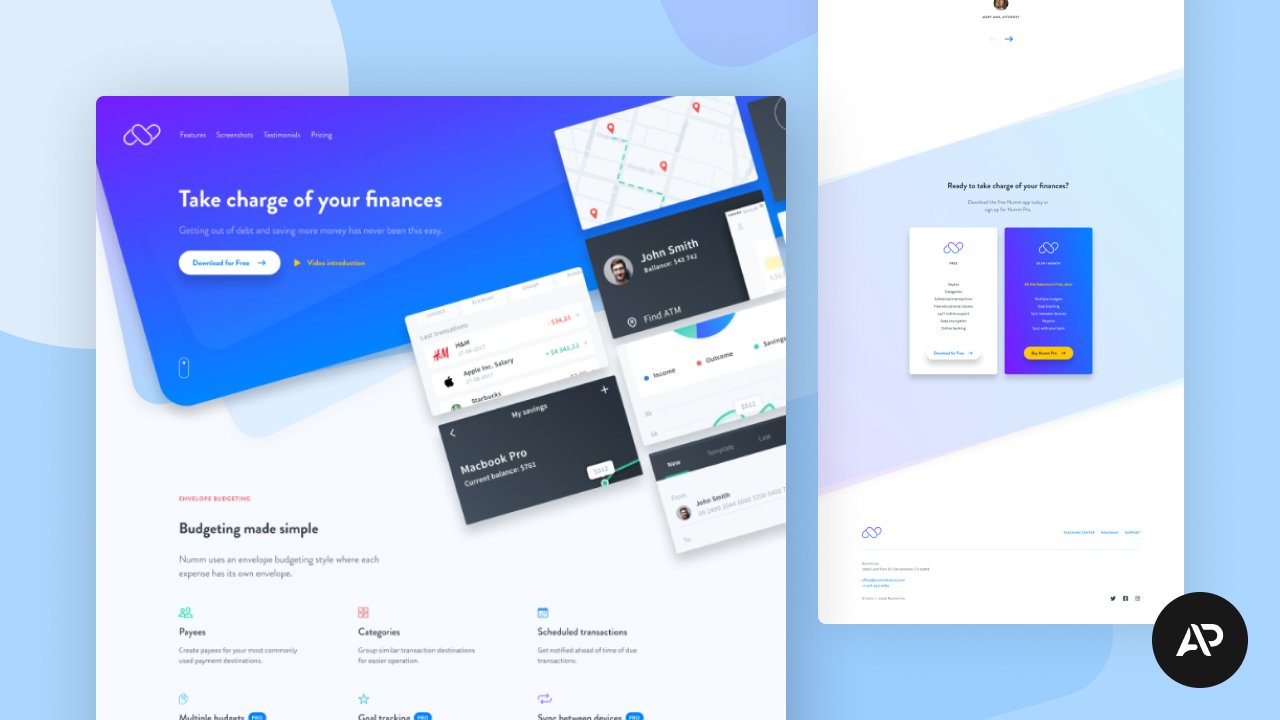
I just gave it. So let's see how that goes. Let's actually go to dribble, and let's search for what
would this be dark dashboard. Let's see if we can
find something that I like and that I think would work well for this kind of project. So this is interesting. From use mind. This
looks interesting. So let's save that. And that actually saves
it as a web P image. I'm wondering if the AI
accepts web P uploads. This is too dark. This
looks interesting. Again, I'm not going to try
and pronounce your name. So let's save that image. Okay, let's try it with
these two images, right? So we'll go back here
and click Upload. I'm just going to select
those two web P images and see if that works. So apparently it
did. Okay, cool. So let's actually
give it a prompt. Please use the two images
as a reference and change the colors and spacing of the UI I'm really curious about this because
if this does well, then it's really easy to build an app that
not just works good, but also looks good
because you can have a professional designer
create a design for that app and
you can just ask the AI to match that
as close as possible. It's saying that the plan here is to revamp
the color palette, refine spacing and layouts, and go through each UI
component to ensure they're perfectly aligned with their new color scheme and
spacing. All right, right. Well, the plan sounds great. Let's see the implementation. And here we are. So for reference, I opened up
an older version of the UI. This was, you know, before we made the
layout changes here. And this is the new one. So yeah, it's definitely different than what
we had before. Let's open one of these. It's not like night and day, but I think it's an improvement. It changed the accent color because the two images
that I gave it yeah, they were using this kind
of orange orange color. Yeah, I definitely did
some changes here. For instance, it added, like, a light background color
to all of these sections. It kind of lowered the
contrast of this border. And it also added I
just noticed this. I added like a blur, like a background
blur effect to this, to the stop bar, and I
think it made it fixed. I don't think it
was fixed before. So now it stays in place
when we scroll up and down. Okay, so overall, yeah, I like these changes, and I think I can just keep on talking with the AI
and perfect this and make it look like
what I have in mind. It's really just about how much time you're willing
to spend with the AI. If you're, you know, trying to build an MVP, like a minimum viable product that you want to show you know, stakeholders, then, you know, creating something like
this is more than enough. It looks great. It's responsive. You know, it works
on mobile as well. It's clean, and you can always make visual
changes to this. So I just want to do
one final round of tests just to make
sure everything works perfectly
before moving on. So let's go to clients. Let's add a client. Oh, it also changed
these fields here. It also changed
their appearance, basically. Okay, adding clients. Works, editing clients. Works. Let's go back here. Let's create a new invoice. Select client three. Yeah, cool. Quantity item description,
two of them for $300. Hey, let's great invoice. Yep. So that worked. I can preview it just fine. I can download a PDF of it. And the PDF looks like this. It also changed the
colors on the PDF, even though I didn't ask it to. Cool. I can edit the invoice, and then I can delete invoices. Nice. And I think I'm going to stop right
here with this app. I think I got it to a very
decent state in what? An hour. Maybe the course is going to be a bit longer than
an hour, probably, but you have to
understand that if I was to do this entire process without talking to the camera, it would obviously
take less time. But I'm happy with
what I created so far, and I'm going to end it here. Please join me in
the next lesson for the conclusion and next
steps. I'll see you there.
 Adi Purdila, UI/UX Designer, Framer Developer, Educator