Transcripts
1. Introduction: Hi and welcome. Now, first of all, thank you so much for deciding to take this course with us on how to build a professional WordPress website. Now before we go ahead and dive into what you'll be learning in this course. We just wanted to introduce ourselves and well, my name is Robyn, and I've been teaching digital marketing and how to set up and run your online business since 2017 with my very dear friend, jesper. That's me. I'm Jasper and I'm the second half of these two men team that with hundreds of thousands of students, have decided to create this step-by-step course called build a professional WordPress website. So what are you really going to learn inside this course? Well, this course has 25 plus lectures, where 100% of the lectures, our own screen recordings showing you exactly how to build a professional websites step-by-step with a blog, online store and much more. And as the name of this course suggests, we promised to take you from nothing to having a professional website up and running if you follow each step we're taking now this course will ask you to pause and play every now and then, as we are going to actually create a website together based on your brand, product or service, wants, needs and likings, wants the website, this build, you'll be able to create blog posts, collect email addresses, and sell products on it. Regardless if you have something to sell a product or service, or you just want to create a website to start blogging. We got you covered. Even though this course is built for you to have a completely backed up and secure WordPress website with a blog and a system set up to sell products. Who is this course really for? Well, it's designed for freelancers, entrepreneurs, and anyone who wants our website quickly. So now that you know who we are, how the course is built, what seemed colluded, who it's for. Let's talk about what to expect from this course in more detail. See you inside the next video.
2. What to Expect: Hi and welcome. So chances are that you're wondering, what will I learn and what's included in the course? Well, I'm glad you asked. First, you will learn how to build your website foundation. And that includes the very basics such as installing WordPress, which is easily done in no time. And then he will learn how to install a theme which gives you the design of your entire website. I'll show you how to pick a theme that will give you a professional look and require minimal work to get started. And once that's taken care of, you'll learn how to navigate your new website so that you will always be comfortable with it and know what each function does. So now that your foundation is set, it's time to build your website so that it has all the functions that you are going to need, such as creating all the pages you'll want, like a blog, shop, contact page, et cetera. You'll also learn how to create post on your blog to easily generate content to attract and keep your website visitors. You'll also learn how to create a custom menu so that your visitors quickly can find all the pages you've created. Now, what's the point of having a shop if no one's shopping, right? So then we'll move on to plugins, which are additional software that you can install on your website. Plugins for a website work the exact same way has apps to do on a phone. They're all free. You will learn how to backup your website. No matter what happens, you will always have the safety of your website being saved down to be quickly restore it should it need to be. You will learn how to secure your website to make sure that it won't be hacked and taken down. And then you'll learn how to install anti-spam so that your visitors voices can be heard on your blog and not drowned in bots trying to sell the random pharmaceuticals. Next up, it's time to design your website to make it unique to you. Starting off with the fonts and colors, which will set the feeling for your entire website. Then you'll learn how to design all the pages that you've created and all the menus as well. And then we'll finish off with the legal section, which will keep you safe legally, no matter what your visitors do on your website. This includes creating a privacy policy that declares how you use your visitor's data. Creating a terms and conditions that stays that visitors uses your website solidly on their own and that you are not responsible for anything that they do or that may happen to them. And finally, you will create a cookie consent, which asks for their approval to save down their information, which is required by law. The best part of all is that this is super fast and quick to do, since we'll be taking care of it with copy-paste templates and plugins. So to summarize, you'll learn how to quickly build a professional WordPress website by first setting your foundation and then building it up with all the pages and posts that are unique to you. And then adding plugins to keep your website backed up, save and spam free. Moving on to designing it the way you wanted. Finally, using simple copy paste templates and plugins to add all the required illegal parts to keep you safe at all times. And know that it will cost a bit of money to host a professional and secure website. The reason why we pay for hosting is to get rid of unwanted ads, get more custom options for designing and running our website, have access to great customer support. Should anything ever happen, get more disk space, because now you'll be filling up the space with the host instead of yourself. You'll get to put ads on your website to make money over time, instead of using free hosts who will put their own ads on your website to make money off of you. Get a secure payment system since the host will be used in comes with an encrypted connection called SSL that will keep your customers and visitors safe. And finally, you can use your own domain name, which all professional websites do. This is not available, should you be using free hosting? So to summarize, we'll be paying for hosting because it doesn't cost much, but comes with huge amounts of benefits. And it's an absolute must. If you want a professional website, you'll be getting a step-by-step guide where you will learn everything hands-on by following my every step on the screen. We'll leave nothing to chance. The goal is to get a WordPress website up and running with no complications or coding within 24 hours. And you'll get exactly that. Hope you're excited. See you in the next lecture.
3. Why Use Wordpress: Welcome back. So why should you be using WordPress when there are so many alternatives out there? Well, it's simple because it's the best option. Wordpress is the biggest and most popular CMS, that is content management system, the program that's allowing you to create that website. It's used by 40 percent of all the websites on the internet. There isn't even any competition here. The second place runner-up, Yuma, covers just 3% of the Internet. And famous website creation companies like Squarespace and Wix don't stand a chance. Even back in 2017, WordPress was by far the most dominant CMS choice covering 27% of the web. The following year, they increase their coverage to 32 percent. And today they are the undefeated leader and an amazing for the percent and for good reasons, it has over 60000 plugins that you can choose from to optimize your website. It's available in a 196 languages. Big companies like Sony, mercy these, and The New York Times or using it. And there are over 8 thousand themes you can choose from and customize as you'd like. If this doesn't convince you that WordPress is the right choice, you'll be glad to know that it's also free to use. Since WordPress is a free software, it means that you are free to download, install, use, and modify it to match your needs. It has a user-friendly CMS, which means that you can choose a website theme that you can tailor to your liking by using plugins. And we'll be doing just that in a couple of lectures. And by this sign, WordPress is very SEO friendly right out of the box. You can also use WordPress SEO plugins to further optimize your website. It's easy to manage since WordPress has a built-in management system that updates themes and plug-ins. It's easy to backup and protect your site using a few plugins, which will of course be doing. Wordpress is not just limited to writing text. It comes with a built-in media uploader to handle images, audio, and video files, which is perfect for a modern and diversity of blog. And finally, you can easily sell products. Wordpress offers a full range of e-commerce options, from one-click payments and paid subscriptions to a fully customizable online store. So to summarize, it's the biggest CMS platform. It's free to use user-friendly, SEO friendly, and allows you to sell your products whether they're physical or digital. With that said, in the next lecture, you'll see exactly what the website we'll be building is going to look like. See you in the next lecture.
4. What You'll Get: Welcome back. So this is exactly what the website looks like. The robot to learn how to create, starting off on the homepage, you'll learn how to put up your own product for displayed just like this. Add in a headline, added and description, and then add a call to action button where they can learn more about the product and of course, purchase it. Scrolling down, you'll learn how to add in multiple benefits so that they feel more secure and know that it's a good idea to shop on your site. You will learn how to add in multiple testimonials, how to link directly to your blog like this, and how to add in a useful food or that has an about this section. Useful links like contact, privacy, policy and terms and conditions. Moving onto the blog, you'll learn how to create content for your website, just like this. And within each blog post scrolling down, there will be a comment section where your visitors can voice their opinions about what you have written. You will also of course, have a shop added if you want to create a shop which is completely optional. This shop allows you to add as many items that you want for sale that you want. If you click on the item, you'll get more information about the product, both here in the short description and of course down here when there is some more text, all of your customers are also able to put in reviews so that they know which your top products are scrolling down. If they like it, they can add it to cart, move on to view their cards, and then either pay directly here with PayPal or proceed to checkout. And of course, when they enter all of their billing details, we'll have set up a payment system so that the money will go directly to your account and they will get the item shipped to them, whether it's a digital or a physical product. Moving onto my account, all of your customers will get their own login. Logging in is simple. Whenever they purchased anything, they just put in their email, their password, and then click on Login and they'll be taken to their own account where they'll have a dashboard. They can see their own orders, all of the downloads. If you're selling a digital product, they can see their addresses, their account details, and they can log out. And finally, scrolling down, you'll learn how to create a Contact page where all of your visitors and customers can contact you directly. You'll learn how to create a privacy policy where you explain exactly how you use their information to keep you safe legally, as well as the terms and conditions that is going to assure them that everything that happens on your website is their own responsibility. And for all of this, we're going to use templates, which means it's just copy paste, super easy and super-fast to do. So if you like what you see, you're going to love the contents of this course and whether you have a product to sell or not, you're going to learn how to build everything from an attractive and professional homepage to a blog, to also creating a shop. If you want to add a shop, if you like what you see, you're going to love What's coming up next. See you in the next lecture.
5. Install WordPress: So it's time to install WordPress. And in order to do this, we need a host. And the host that we've decided to go with are going to be blue host. Now there are multiple reasons for this. Number one, we've been using Bluehost for years, so we trust them to. They've been around since 2003 so they know their stuff, they're true and tried. And third, there, one of the cheapest options out there, they're one of the most reliable options out there with a over 99 percent uptime and one of the ECS to use host out there. So needless to say, there are a lot of great hosting options out there, but we really trust and love of Bluehost. Uh, we are gonna go with that. So start off by going to bluehost.com and then we're going to go down and click on Get Started. Now there's a couple of options for your sign-up. Now you can decide to pay for 36 months, which means that the price is going to be a little bit lower. Or you can decide to pay for 12 months, which means that there's going to be a higher monthly cost. So it goes without saying if you're planning on having our website for a long time go into 36 amounts option if you're still feeling things out, go with 12 months because you can always ought to renew every 12 a month. So we're going to start off by going with 12 months. Now there are four different options to choose from. There is basic plus, Choice, plus and Pro. Now you might have different options is not important because the only things that you need to understand are the difference between basic and plus. With basic, you get everything you need. But for just one side, which you get everything you need and you're allowed to run multiple websites. So it goes without saying if you only need one website, Ben, go with basic, then you're gonna get everything you need with that. You're gonna get a free domain, meaning we don't need to go and pay for and for a name for the website, We get it free CDN, meaning there are servers all over the world so that your visitors will have a quick loading experience of your site. And then there's also free SSL certificate, which is going to show that your site can be trusted and secure. So we are going to go with basic. So these are the only two wants that you're going to need for all of the others, the bonuses, they're just not worth the extra cost. So I'm gonna go down to basic and click on Select. So if you already have a domain name, you can write it in here and connect it to this website, but chances are you don't have one and besides we get one for free. So I'm going to create a new domain name here, and I'm going to call this website are n j templates. There's templates. There we go. It don't want to have a typo in your domain name. So RNA templates and then the extension.com, while there are many different extensions.com is the true and tried and you want to go with what already works, what people trust. This is especially true if you're creating a website for a client. So we always go with.com and I recommend that you do the same. And then we're going to click on Next. And now if we scroll down, we're going to start off by signing up with our account information. So let's just do that. So now I've signed up with all my information and for privacy reasons, it's all blurred out. Scrolling down, we've already chosen our account plan. We don't need to do anything. We got the domain for free, that would just roading. We get the SSL, the security certificate for free. So that's great. And then there are packaged extras. And of course, Bluehost is a business they want to make money off of you. But all of these things we can download ourselves and get for free. So you don't need any of these, except domain privacy and protection. Now while it's not mandatory, it's good to know that when you sign up with for hosting and you create your website, all of the information that you have written up in here is going to go public. And the problem with that is that there are people out there who are running bots to get an extract all of your information such as your phone number and your e-mail and they're going to be sending you spam. And I've had random numbers from UK call me, I've had my inbox filled up. So personally, I recommend that you pick domain privacy protection because then all of your information will be anonymous, meaning they won't get a hand on it and you won't get spam. So it's not mandatory, but for around $12 a year, I really recommend it. And then scrolling down, there's nothing more here. We're just going to go ahead and sign up with our credit card information. And once you've written in your credit card information, just scroll down on the page and you'll land here. Now, I've scroll down ahead of you because showing your credit card information online is not a good idea. So two more things we need to know about number 1, there's a checkbox here. This is I have read and agree to Bluehost auto renewal terms. Basically, that means that if you signed up for 12 months, they're going to try to alter renewed that every 12 months. So we need to acknowledge this and accept this by clicking here. Of course, if you don't want the auto renewal, you can easily go into the account and cancel it. Secondly, click here. If you do not want to receive emails about our products and services. And as much as I love Blue Host, I don't love their emails. So if you don't want their emails, either, check this box and then we click on submit. So once you're done, if you're a business, download the receipt and just add it in for your invoicing. And if you're not a business, then you don't need to worry about that. And we're going to click on Create Account. So we have our domain name already, which is the URL which shows. And then we're going to create a password. Once you've done that, I have read and agree to blue as prime as a policy in terms of service and then create account, okay, our account is ready. You can now log in, so go to login, and now we're just going to write in the password that we just wrote. And then we're going to log in, go down and click on create your website. And then we're just going to click on skip this step. So we're going to skip all of these steps because basically they want to know about you. They want to know how much they should help you. But honestly, that's why I'm here. So I'm going to help you with all of these parts. You can skip all of those steps. So then you get to the welcome screen. You are now in your Bluehost account. We're going to go up to here to the right upper right corner and click on log into WordPress. So congratulations, you've created your website. In the next lecture, we're going to install a theme which is going to give us the very foundation we need to start building up our website very quickly and effectively. Well done getting this far and see you in the next lecture.
6. Install a Theme: Welcome back. So in this lecture, It's time for you to install a theme. And a theme is basically what the entire look of your website is going to be. So if we move up to our dashboard and we go to where it says, welcome, right here. If we right-click and we open link in new tab, you can also have Visit Site and in new tab, you get a look at how your website looks like right now and yours should look something similar to this. And as you can see, there's not a lot of things going on. We don't have a menu, we don't, we don't have anything. And the goal is to create this website within 24 hours or as soon as possible. And that's completely possible when you get a lot of things for free. So what we're looking for is a versatile design. There's a minimalistic that's easy to use and that's going to be super effective with this loading speed. Just a great theme, in other words, so I'm going to close this tab down. So in order to do that, we need to find a theme and install it. And of course, I've already done the research ahead of you. So what we want to do is go down to appearance and then go to Themes. And next, you want to go down and click on add new theme. You already have a couple here, but we're gonna get some more. So while there are thousands and thousands of themes, as you can see, over 4 thousand themes. We want a theme is going to be a super versatile and that's gonna give us a lot of things for free. Even these themes that you see here, they're going to be bare bones. In other words, they're not going to come with the menu. They're not going to come with the needed plugins to actually keep them run it like this. This is just the bare bones, the way that it can look like. We want to use something known as a starter kit. Meaning we want all of the plugins, we want a bunch of pages. We can just get started much, much faster. And in order to do that, the best theme that I've found that I have used for this is called Sydney. So if you go here and you search for Sydney, you should find a theme here that's well aptly called Sydney. So we're going to click on details and preview. And as you can see, it's got a lot of ratings and it's very highly rated. So this is kind of true and tried and I love it. So we're going to click up here and click on Install, and then activates. Awesome. So once you've installed in an activated, it should have something here that says starter sites. Okay, So we're gonna click on Start or site right here. And then you're going to end up in this part. So this is what I'm talking about when I'm talking about starters sides. As you can see, this is the same theme, but they have very different looks. And you want to use a starter kit, as you can see, we're in the start two sides. All of these are starter kids just going to give us as much as possible for free so that we need to do as little as possible and we can have our website up and running as quickly as possible. So scrolling down, most of these are pro meaning that you need to pay for them. But honestly, there are three that's free here. It's this one. It's called Original. Down here, it's this one called shop and this one called plumber. And you don't need anymore. So if you want to see what they look like, just click on Preview demo right here. You get to see what the page actually looks like. So there are a couple of things to know here. For example, with this theme, we can see that as a Service is up here, it has a blog, it has a contact that has a team and it has a front page, but it doesn't have a shop. So if you are looking to sell items, you have something that you want to sell with your website, then this is going to be the theme or the starter kit for you. But if you've got a service to offer, this might just be for you. Similarly, if you're only looking to blog, this could also work for you. Now, looking at the next one, I can just click here and we get to the one called shop. Now this one has a homepage, it has a blog, it has a shop, and it has a part that says, my account, isn't that awesome. So if you're looking to sell something, it's already got the shop. If you want to sell something and have a blog with it, it's already got that too. Remember, we want to do as little as possible and have our website look professional and up and running as quickly as possible. And for this example, I'm actually going to be selling some things. I'm going to be using this theme. But let's also check out the third alternative, and that's called plumber. So it looks like this. You can scroll down, you can see some additional things as well. You get a lot of things for free hand. That's what I love. What if when you import this, all of this is going to come in the side and you can customize it towards your own needs. So once again, this doesn't have a blog. So if you're only looking to sell something has a service, especially if it's some sort of high ticket sale, this could actually be great for you. But if you're looking to use an e-commerce to sell an item, I strongly recommend going with sharp. And besides using the same SME is going to make the process much, much, much easier. So I'm going to go with sharp. I recommend that you do too, unless you're a very specific about using a service. But even this can be transformed into a service. So let's go with shop and then click on Import. And then here's all the things we'll get for free. We get the plugins needed to run the side, and then we get the content, the widgets, the customizer. This might not mean anything for you. They do so much work for you. That's why I love this. I'm going to click on import it. You want them all to be checked off. And once it's imported, you can click on View Site and you're going to have a look at what your site looks like right now. So check this out. This is your website right now you've got this big part right here. You've got, you're not selling sofas and lamps probably, but we're going to remove all of this and just add in what we need. But look at how much we are getting for free in our sites. And there's a bunch of additional parts as well. Remember, there is a blog, there's a shop would just haven't added in that menu yet. So we've got an atan for free. This is going to save us so much time. And this is what allows us to create a really professional website. You really short time and most people don't know that this is possible, but well, we're doing it. So once we have all of this, I'm going to click this down and then I'm gonna go to return to the dashboard. And now let's move over to the side here to the navigation and click on plugins and click on Install Plug-ins scrolling down, there's a lot of things that we want to remove and deactivate. Ok, so AC is met, for example, is something that we don't want. And there's a lot of reasons for this, but basically we're just going to collapse all of the plugins we don't need and then later on, fill in everything that we actually do need. So for now ak is met, just click on Delete. Okay, this is the themes we've got. Bluehost, we're going to want deactivate creative male, closest window and deactivate. You want to keep Elementor. Hello, Dolly is already deactivated. You want to deactivate a jetpack. Okay, so now I'm just going to select them. So this is going to make things a little faster. Sydney, you want to keep WooCommerce, you want to keep an Yoast, you also want to deactivate. So as long as you're keeping WooCommerce, Sydney Elementor, Bluehost and these starters sides, you are good to deactivate all of the others. You might get some additional plug-ins that I don't when you signed up for Bluehost each they vary that a little bit but just keep the ones that I mentioned here. And for the others, select them and then we're gonna go to deactivate, apply, and then we're going to select all of the deactivated one, this one, this one, this one, and this one. Scroll up bulk action. We're going to delete them, hit Apply. Okay, fantastic. So now we're starting from a clean slate. You have a website up and running. We just need to customize this study is going to feed you, but starting up, we need to understand how WordPress works. So in the next lecture, we're going to learn exactly how the navigation of your WordPress site actually work. So see you in the next lecture.
7. Navigation: Welcome back. In this lecture, you're going to learn how to navigate your own WordPress website. Now, be aware there are a lot of different options to learn about. So we're just going to have a quick run through and you don't need to worry about knowing all of them. In this lecture, this is going to be more like a reference. You are going to learn a couple of things now. But as you progress in the course, You're probably going to want to. What was that again? Well, then just come back to this lecture and I'm going to go through the Rhonda with you again. So use this lecture as a reference for now and for the future so that you can get more comfortable with your website over time. So we're going to start at the very top. The first thing we have is the WordPress symbol, and this is just about WordPress. I've never used it. I doubt you will need to use it either. But the next one is important. We have with Visit Site and visit store. Now if I open both of these in a new tab, we're going to get to see what our store looks like right now. So starting off with the site, we already know what the site looks like. It looks like this and we're going to customize everything. So when we're working on our site and we want to see, okay, what are the changes that had been made? Well, then you can just go here and check them out. And when it comes to your store, you have everything here. Chances are that they aren't selling lamps and sofas. And by the way, it says belt here. And then you have this so far, who they would logo, but this is a lamb, so this is all very random, but we're going to remove all of this. This is just so you know how to locate the different things within your website. And also if you didn't use this theme, it used another one. You're only going to have a Visit Site. And next up here, when you have new comments, you're going to get to see that here is going to be reflected by a number or the amount of new comments you have. If you want to quickly create something new, hover your mouse over here and then just create what you want to create. And then we have caching. So if you make changes on your website, but those changes aren't actually being reflected on your website. Then you want to come over here and click on purge all. Because caching is basically that you save down a lot of things on your website, on the computer so that it loads faster. But if something goes wrong and there are changes happening when you're editing, your side just purchased and it should show up coming soon. Active, well, our site isn't actually live. So when they go to your URL is going to show a coming soon sign. Perfect, we're going to publish it at the end of when we created our website. And if you need any help, click here. This will allow you to chat with Bluehost. It's one of the reasons why we use Bluehost. Their support is amazing. They are always available in the live chat and they are able to go straight into your WordPress website and do changes for you. So remember, me and jesper have a Q and a where you get a reply within 24 hours, we're always going to help you out there. But there's some bug or some big issues on your website used to Bluehost support. You're paying for it and they can help you more directly by going into your website and then moving on to the left, we have Blue Host. We're never going to use this. These are mostly just them trying to sell you different things and we don't need to play with staging or any of that dashboard. This is going to be the default when you load your WordPress website, you can customize this, but honestly, I never use it. And if there are any updates, you're going to see them here. Now pose, this is a big one. So when you're creating posts for your blog, you're going to find all posts here and you're going to be able to create new posts right here. So for whether you are creating an e-commerce website, blog, or you're just doing a blog, you're going to be spending quite a bit of time here and we're going to be going through it in an upcoming lecture. Then we have Media. Whenever you upload any form of media, all of that is going to be saved on your website and say it in your library. So remember, you don't have unlimited space, but I do believe you have 50 gigabytes, so this is going to last you for a while. But if you upload a lot or you want to locate something you've uploaded, It's right here. Now we have pages and we're going to, in an upcoming lecture, start creating more pages for you as well, and start customizing your websites. We're going to spend quite a bit of time here. If you have any comments, you can check them out here too. Now, Woo Commerce is your store. If you're selling something, then you've got a plugin called WooCommerce added. And we are going to learn how to set up and sell something on your website in an upcoming lecture. But for now, we don't need to do anything with this. Now products, this is where the magic happens. This is where we actually start adding our products and we're gonna do that in an upcoming lecture. Analytics, again for WooCommerce, for when you're selling something. If you want to see your amount of orders, if you want to see how much revenue you're making, which is always a lot of fun. It's all in here. Marketing. If you plan on doing any advertising, you can connect plug-ins and help you advertise from your website. We haven't used it. I don't recommend using it either, unless you really want to try it up. But if you're gonna do advertising, you use Facebook ads and do it directly on their platform instead. Elementary is going to help us. There's a plugin that's going to help us design our front page. We're not going to access it through here, but just so you know what it is. So we're going to play around with it when we start designing our website. Templates, a part of Elementor, we don't need to worry about it. Appearance is the look of your entire website. We're going to spend quite a bit of time here. This is where we went in order to install our theme. This is where we found our starter kit. Remember starter sides, and then we're gonna go through instead of menus that the header we just, all of that good stuff is coming up. But whenever it comes to appearance on your website, It's right in here. Plug-ins, anything extra to your website, you're going to find it right here. So you just go to Add New and if you want to remove something, click on Install Plugins and then you just remove it or deactivated users. If you have multiple users using your website, then you can add them in here. So go here, click on Add user, you add their e-mail, give them a password, and now they can also log in. This is great if you're planning on running a big blogging, want to have multiple authors for example. And then tools. Now tools is mostly for if you have another website, whether that's from Blogger or weeks or Squarespace or wherever it might be. And you want to import all that data into your WordPress website, then you would use tools right here. And then finally, Settings and Settings is something we're going to go through as well. We're going to learn how to change the permalink that a privacy policy, and how to change up the reading or our blog page or homepage, all of that good stuff. When it comes to the real big fundamental changes on your website, they are in settings. Okay, fantastic. So now you know how to navigate. Just one more thing to do before we move on to the next lecture. And that is to go up here in the upper-right corner where it says how the robin and jesper. So what we're gonna do is click on Edit Profile and we are going to set a password for ourselves because you are going to need to log out of your website at some point, you just close your computer and you want to be able to get into your website as quickly and as effectively as possible. And I'm going to show you how. So scroll down. Don't need to worry about any of these. Just remember what your nickname here is, okay, and here it is, Robin and jesper. And then we're gonna go down and we are going to go to Account Management and then set new password. Click there. Now I am going to set a password, I'm going to set one of my own. There we go. And then when I've said something that I'm happy with, strong and good, I'm going to scroll all the way down and click on update profile. Perfect, So now let's say that you're logged out. So I'm going to go to the upper right corner and actually logged out. And you would like to very quickly access your website. Well then all you need to do is write in www dot and then your website, which is going to be orange, a templates.com. And then this is important. You do a slash WP dash admin, Okay? This is going to be the way you login to www dot and then your domain name.com, forward slash WP admin. Okay, Now when I hit Enter, it's gonna take me right to the login box that you just saw, but this is so that you can access his quickly and you don't need to go through Bluehost to login, then I'm just going to type in the nickname that we had. And then I'm going to type in the password and then click on Login and look at that. We're inside again. So now you have some basic understanding of the navigation. Remember this is a reference lecture. Just come back to this and continue learning. You don't need to know all of it now and now you also know how to login to your website. All right, see you in the next lecture.
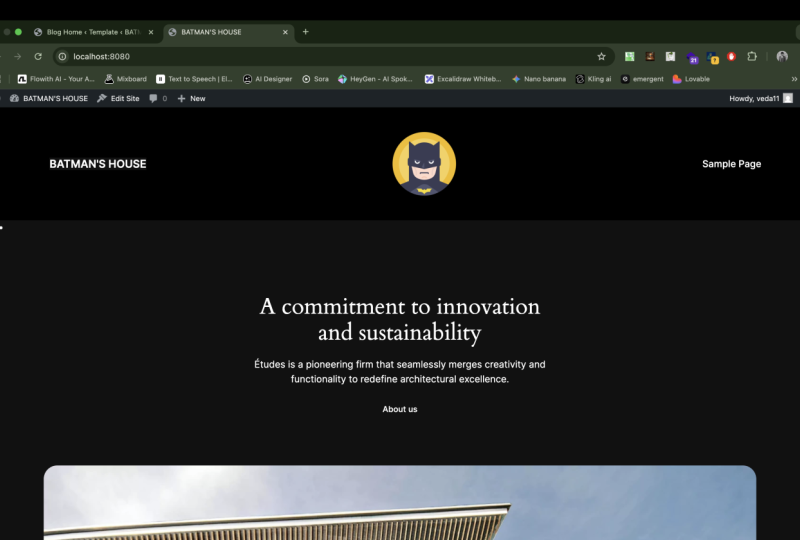
8. Website Title & Logo: Welcome back. So in this lecture, It's time to start building your website. And we are going to start off by setting your website title and logo. So if we start from the very beginning and we go up to welcome Visit Site and we open it in a new tab. If we look at how your website looks like right now, we can see that up in the upper left corner it says, welcome. Now, that's not a great name for our website. Even though it's a friendly thing to be welcomed, it doesn't really say much. Instead, we would like a logo to be here or just a website title if you don't have a logo. So I'm going to show you how to set that up for your website. Remember, just pause the video and follow me step-by-step instead, everything up together with me, that's really going to speed up your process. Okay, So I'm going to click this down, then I'm going to go down to appearance and then click on customize. And from here we're going to move to the left and click on site title tagline, logo right there. And starting off, we're going to set our site title. Now remember, the name of our website is going to be the same as our domain name. And if you are creating our website for someone else, you're going to want to put their brand name. It's going to be our templates, okay, robin, and just for templates are and J templates. So as you can see, we get a live preview of what is going to look like, ride up pear, orange, a template. So the tagline is going to be pretty much your slogan. So if you're working with brands, your brand probably has a slogan like Nike has, just do it. If you don't have a slogan and if you're creating a website for yourself, there's going to be based on blogging than your site title should probably be your own name. And then the tagline you make something up about what you're about to write about. So in this website we are going to be selling PowerPoint templates. So I'm going to write, save time with templates. That's going to be our slogan. Okay? So this is the way it looks like right now. So now what we're also going to do, if you have a logo, you can upload it here. A logo is a fantastic way to take your website designed to the next level. If you don't have one, don't panic about it. You can do without, but it really helps out. So if you have a logo, go down to where it says upload your logo, click on Select Image, click on select files. So once I've located my logo, that's right here, I'm just going to click on Open. Okay. And then I'm going to go to the lower right here where it says Choose image and just click on it. And there we go. Now we have our logo uploaded. So as you can see, it actually removes the site title and the tagline that we wrote in here. But it's still important that you write them because when you make your website live and people find your website when they Google it, then what's going to show is going to be the site title and at times the tagline. So it's very important that you nailed these students. They really represent your website. And besides, it also helps Google understand what your website is about. So make sure that you really do write these inaccurately because it will help you when people find you on Google, okay? And then finally, we also have the site icon. Now the site icon is going to be that little icon in the upper left here, right now it's just a globe. But should I go to Bluehost.com for example, you can see that this blue square that they've got, this is their icon. And if we have our own icon, we can set it up. And in this case, I do have an icon. It's not mandatory, but if you do have one, you click on select site, icon, upload files again, select file, then I'm just going to find it is usually around 25 times 25 or 32 times 32. And I click on Open and then select and then crop image. And now we can see we have our little site icon in the upper left corner. Now if you would like to set all of these things yourself, but you don't have a logo and you don't have a site icon, but you can do is that you can go to Fiverr.com, go into Fiverr.com and search for website logo and then move down towards this sort by and instead of relevance, change it to best-selling, and then scroll down and you're going to see that you can find some really nice-looking logo for a small sum of money. I mean, here it's talking about creating a nice logo for around nine Euro, around for euros, so forth, five to $10. You can get a really nice-looking logo at Fiverr. So all you need to do is just click on one of these, click on Continue or contact the seller and tell them what you want and ask them if they can do it. And remember, the logo should be in PNG, transparent PNG. And while you're at it, asked for a site icon because that site icon, you can also get this one. None of this is mandatory, but should you want one? This is how you set it up and this is how you get one yourself. But once again, it's not mandatory. And once we're happy with all of this, all we need to do is go ahead and click on Publish. So one more thing that we can do now that is published, if you think that the logo is a bit too big, what you can do is that you can click backwards here, you can scroll down to additional CSS, okay, so don't panic. You don't need to know any coding. If you look to the right of where you're watching this video, the lecture name, this should be something that says resources. If you click on resources there, you'll get access to a document that has this code. Okay? So if you copy this code and you put it in down here, look at what happens when I just paste it in and look at the size of the header, it changes. Okay, so if you wanted to go smaller, all you need to do is copy and paste this code and then you can start designing how big or small you want it to be. So if you want it to be 30, just remove this and write 30. You can have 20, you can have a 100. It's completely up to you, but I'm gonna go with 50. And notice that when you scroll down, now this becomes smaller and wastes less off the screen. So that's a really big benefit of having a smaller header. Again, not mandatory. It just, I thought that the original was a little bit too big, so this is how you change it. You'll find it in the resources once it's done, hit Publish. And then we're going to click on the cross sign here and just head back. And that concludes this lecture. In the next lecture, you're going to get to learn all about pages super-important. See you in the next lecture.
9. Pages: Welcome back. In this lecture, you're going to get to learn about pages. Now, pages on your website are going to be the main form of navigation. So let's start going through how it works. Starting off in the backend of your website, just like before, we're going to move down to where it says pages and we can just click there. You can click on all pages to you, but they're really the same. So what we see in here are all of the pages on your website. Now you're going to notice that there are quite a few doubles of these pages. And the reason for that is because when we install WooCommerce, We got a couple of these pages, for example, my account and checkout. And when we install the starter kid, we got another couple of pages. So we do have a doubles, but don't worry about that, we're going to take care of it. So let's learn just how this place works. First of all, here are all of the pages you have. Like we just said. The amazing thing with this is that if you create a WordPress from scratch, normally you have to create all of these pages yourself, meaning it takes a huge amount of time. But thanks to using a starter kit, we get all of these for free. We just need to customize them. The first thing we can do is have a look at how they look like. So I'm going to add open up and view the cards open in new tab, the checkout, you won't have anything to check out. And now, so I'm going to add in the, My Account, I'm going to open my blog in a new tab. We can also check out the sample page. Why not? And you can see the way they look like right now. So the cart is right here. This is what it's going to look like when the add something to the cart, of course, then they're going to see their item, they can return to shop, et cetera. And then when it comes to my account, as you can see, they have multiple options here already. If you have a digital product that you're selling, they have their downloads, that have their addresses, their their account details there, there are orders, their dashboard. All of this comes with the starter kit. I mean, as far as possible to create a website so quickly. Okay, closing this down, we have that blog, okay, We haven't seen that blog before. We're going to customize all of these, but know that you do have a blog as of this moment. And then here's just a sample page that comes with it. Okay, so we have a bunch of different pages. Now, what we can do for all of these doubles that we have weekend, delete them. So what I'm gonna do is check the marker where it says Cart. I'm going to check that one and then checkout and going to check that one. Now, when it's his cart page, cart, cart page, that means that it is in use. This one that doesn't say cart page here, that's not in use. That's the one we want to delete. Okay. My account, we're going to delete that. We only have one my blog page and one my front page. We're going to leave those sacred privacy policy and the return policy sample pages we just don't need. And then we have a double up on the shop. So we're going to go ahead and then we're going to move to the top bulk action, move to trash, and then click on Apply, and now they're all gone. Okay, so this is how you delete pages. And if you want to create the page, all you need to do is go to the upper corner here where it says Add New, click there. And then you can click this one away because I'm going to show you how everything works. Here we are. Here, you can start creating your page. Now. We're not going to start doing this right now. You're going to learn that in an upcoming lecture for now, I just want you to understand how pages work, how you can locate them, how you can see them, and what you can do with them. And the final thing we're going to do is that we are going to change their name so that we can set in nice menu in the upcoming lecture. Remember there is no menu on the top on our website right now. But for example, where it says my blog page, that's not very nice, name, is it? So instead, if I click on edit, I can change things up on the page. So instead of my blog page, I'm just going to change this name to blog. It's that simple. You want to have a short straight to the point name, okay, and then when we're done with this, we can click on update and now it has a new name. And if we want to go back, we'll just click on this button, the WordPress button, or we can just head back by clicking on the back button right here. So I'm gonna do that. And if it still says my blog page, then just refresh. And as you can see, it's moved to the top and now it says blog. Okay, So what we also can do that was the edit where you can go into all the great details. You can also click on quick edit. Now the quick edit allows you to change the title and the slug, and these are going to be the most important. The slug is going to be the URL to this page. So right now it's my blog page. We just want it to be blog so that when people go to www dot RNG, a template.com forward slash blog, they're going to end up right up in the blood. Okay, So we are going to change all of these slugs so that they have a nice straight to the point name so that we can start linking to our pages later. Now, remembering a name like blog is super easy. My front page unnecessarily long. Yeah. It's called home down there. Why not just call the title home as well? So the slug and the title is home. I'm going to update it. Perfect. And that's pretty much all we need to do. Those are going to be the ones that we're going to work with. You. Click on quick edit, shop, shop, perfect, straight to the point. I'm going to hit Cancel. And that's all we need to do in pages. Now, we're going to start editing these pages in an upcoming lecture. And then I'm going to show you how to create a page from scratch. But this is all we need to know for now. You know how to delete them, you know how to create them, and you know how to edit them and of course where to locate them. And we have so much for free. So with that said, See you in the next lecture.
10. Home Page: Welcome back. So let's talk about your homepage now we briefly talked about it, but in this lecture we're really going to set it and make sure it has the right intention. So first of all, let's make 100% clear what your homepage actually is. If you go up here on Visit Site and you open this up in a new tab. The first thing that people land on when they enter your domain name URL, which in this case is going to be orange, a template.com. The first thing that they land on is going to be your homepage. Okay? So currently this is our homepage. What's important to know right now is that if you're planning to sell anything, then you can leave this homepage. Acid is okay, it's perfect. But if you're planning on doing any form of influencing or brand-building, are just working on content. Just building up your blog, just building up that name of yours. You have nothing to sell. Then this is a waste. Then what do you want people to come to when the enter your website, your blog. So then your homepage should actually be your blog, okay, So always understand the intention behind your website. If you've got anything to sell, then keep it like this, then make a dedicated home page. If you are going to be working on content primarily and you have nothing to sell, then make your blog your home page, okay? And of course we are going to be changing up all of this later on you're going to get to put your product, picture it in your own call to action, et cetera, all of that good stuff. But for now, let's make sure that we set our own homepage. So we're going to go down to settings. Then we're going to go and click on reading. Now it's super simple. If you look here, you can see that your homepage displays a static page, meaning that when people land on your pages are always going to be the very same page. And in this case it's going to be home, the very page that we have already set, okay, now, if you wanted it to be your blog, then your homepage will display your blog and you would simply change it to your blog and your post pages still always going to be your blog, okay? Now you could use your latest posts as your homepage display. And this is great if you are doing some form of news website. But for most of you, you're probably not going to be doing in news websites. You're going to want to keep it at home if you're selling something and if you're working on content, you're going to want to change it to blog. Once you've changed that up, click on save changes. There's nothing else you need to play around with here. When you've done this, then move down to where it says permalink. So what we're going to do here is move over to common settings and we're going to move the plane one down to post name. So what this is going to do is steadies going to make your URLs looked much better and be much easier to be searched for. So when a plane is just going to say page equals one to three, and if you have 500 pages, they're all going to have different numbers and it's completely random. But if you use your post name, this is completely different. So that means that if you make a post that's called why templates are important, then the post name is going to be y. Templates are important with a dash in between. This is going to help the search engines understand what your posts are about, what your website is about, and it's just going to make it look so much better and professional. So change it to post name. And then we scroll down, we click on save changes. And once you've done this, you've understood the intention behind your website or you're selling something or are you not selling something? Set your homepage accordingly, and that's it. I'll see you in the next lecture.
11. Posts: Welcome back. So in this lecture we're going to go through posts. Now, first of all, I removed myself from the lower right corner so we can completely focused on the screen and building your website as effectively as possible. So let's get started. Move over to the left where it says posts and simply click on it. Now Post's work the same way as pages. You're gonna get an overview of all the different posts you have here. Similarly two pages, and if you want to remove them, you can click on trash. If you want to edit them, you can click on Edit and you can book select them like this and add a bulk action. Now, first of all, what our posts, posts are, what is going to appear on your blog whenever you write any form of, well, blog, post or article. So this is completely blog related. So in order to show you how that works, Let's start off by cleaning our plate. So hello world is to first post that you get by default when you create a website, we're going to select both of them, go to bulk action and move to trash. We don't need there Hello World. We can say hello to the world ourselves. So let's hit Apply, and now we're going to create our own post. So let's move up to where it says Add New and click there. And when you get in here you get a tutorial. You can check it out, but remember, I am going to veer tutorial as well, so you don't necessarily need it. So there's a lot of different options when it comes to pose. And it's also good to realize that posts and pages pretty much work the same way. So when you understand how to edit impose, you're going to understand how to edit in pages as well. Now, let's start off from the very basic. The first thing we have on top is a title. Now the title is simply going to be the title of your post. So I'm going to create a poster that's called how plates saves you time. So now when I've written this post name or post a title, if I go to the upper right corner where it says preview and then preview in new tab, we can have a look at what it currently looks like. So there we go. This is the title of your current blog posts. And don't worry about all of these different things. We're going to redesign all of it later on. But understand that when people enter your blog, the blog post title is the first thing that they're going to see when it comes to your blog post. So choose it wisely. Next up. If we go down, we have something that's known as a block. Now, a block is going to be the content of your blog post. So if you are looking to build your blog post and add a bunch of different images or use a bunch of different takes. That is all possible by changing the content itself. Now, if we start from the very beginning and just write something, then the first and most basic thing you're going to have is a paragraph. So if I write something in here such as this is a paragraph and then hit Enter like this, you're going to get a new block where you get a new paragraph. Now if you don't want this to be a paragraph, you actually want this to be a headline. What you can do is move to the right where, where there's a plus sign right here, click on it. And while the default is a paragraph, we could change it to anything. If you click on Browse all, you can see that there is a lot of different blocks that you can use, which means that the type of content that you make for your blog posts. I mean, there's a ton of variety here. But what we are going to do for this example is we're going to click on the plus sign here and change this to a heading. And then I can write, this is a header. And as you can tell, it's a little bit different, right? It's a header while this is a paragraph. So when I click on one of these blocks, you also get multiple options. You can go here and change this to anything that's similar since this is a piece of text, you're not going to be able to change this to an image, for example, but you can change it to a quote, or a list, or a column, or a pull quote, et cetera. And similarly with the paragraph, if you click up here, you can change this to, for example, a Batson, a column, something preformatted, a list, et cetera. So by simply clicking here, there is a lot of different options for you to choose between. Now, this is the very basic of writing a blog post. Now you know how to make a paragraph, how to create a header. So with this knowledge alone, you're able to create your own effective blog post. But let's get a little bit more in depth, starting with the very top pair, we have the WordPress site. If you click here, you're simply going to go back to your dashboard. Now this button is a block insert or if you click here, you can choose any block that you want to use directly and it will be added down below. Now is the very same thing as if you would click here and change this block to something, or click here and you would add a block from this place. It's really no different. You can add it from here or you can add it from here. Now next up, we have the selection tools or, or just the tools. Can either edit something like we're doing now. Edit mode means that if I click on a blog, I can write in its thing just like I did in the header right now. But if I change the tool to select, well then I'm not able to write anymore, but rather I can do things like move them around. So for example, if I click on the paragraph right here, and I hold down the left mouse button and I drag it down to below. Well then the header is going to be on top and the paragraph is going to be underneath. So this is fantastic when you have a lot of different blocks and you want to edit things around. And then we have the undo button. So if I want to undo what I just did, I can click here. If I want to redo, I can click here. Next up we have the details. If I click on the details, you can see how many characters, how many words, how many headings? Fantastic. If you know that you want to write a certain amount of words, for example, a thousand words for your blog post. You get all of that information here, and you also get an outline. It could be, Here's the title, Here's the header, and then here's the blah, blah, blah. And then there's going to be images. You get to see the outline of your entire blog post. Moving on, we have the list view. Similarly, you get to see the outline of your blog post, but you can also locate them differently. So if you have a ton of content and you just want to move directly to the images. Well then you can go in here. You can click on the images and new land right there. Now, edit with Elementor. We don't need to worry about this. We're going to use this later on when we're designing our homepage. This is a plug-in that allows you to decide differently than with the default. The default design tools that comes with WordPress. Moving on, we have saved draft and save drafts means that you're saving the work that you have created without actually publishing it. So whenever you have any work in progress, just click on save draft and then you can save it down, you can close it, and then you can come back into post and you'll find everything right here. Preview, just like we just checked out, means that you can check it out in a new tab and see what it looks like right now. We can also see what it looks like on a tablet, a mobile. And one of the fantastic things with the Sydney theme that we have installed is that is completely mobile friendly, meaning you don't need to do an extra designing is going to look fantastic on cell phones and on tablets already. Now publish is just like it sounds. It allows you to publish what you have created. And then we have additional tools here. If you click on this, you're going to remove the entire right road. This might be easier when you're editing, but you're probably going to want to leave this here for your own editing. Now this is actually the jetpack plugin that we have deleted. So this shouldn't actually be here, but it is, but we can safely ignore it. Then we have some additional tools. We have the spotlight mode, which is going to change things a little bit, meaning that if you are spotlighting in on one block at a time, well, that means that you can't edit anything around. And if you go into full screen mode, well that means that you're going to have a full screen like we have now. And if I remove it, we're going to see our dashboard to the left, but I like to be in full screen mode. We're going to use that. And then the top toolbar is just like it sounds when we hover our mouse over like this, we get a toolbar here. And if instead you want it to be on the top, you can click here and you get that toolbar in here. For all of you old-school word users, you're probably going to love this. Then there's the visual editor that we're using. We don't need to worry about this deleted plugin. Then there are some tools that we don't need to go to such as block manager and keyboard shortcuts and all of that and preferences. There's nothing to do around there. So if I go back and I remove spotlight mode, there we go. And I click on any one of these parts such as the header right now, if I go to the right, I get some additional options to my right side. And remember this because we activated these additional options. So I can change the typography such as the font size. And I can either use one of their predetermined sizes like huge, large, medium, or you can write in your own pixel size in here. Now we don't need to play with this because we're going to set a default for your entire website later on. We also have the colors if you want a certain text color, I'm going to assert them background color. But once again, we're going to set a website wide option for this later also, we don't need to play around with that. And advanced is just like it sounds advanced. We don't need to play around with advanced. So the block part is going to be specific for the block that you have chosen in. If I click here, I'm going to get to the paragraph block and I get a slightly different settings such as drop cap, which is a funny little option you can have. But that means that if you add in images or videos, et cetera, then those block settings are going to be different. Now if I go to the left and I go to pose, now here I get completely different settings. So let's start from the bottom actually. Now the first thing you can do, and these, remember our settings for your entire post is the discussion. We never need to do anything about the discussion. All we need to do is make sure that these are checked, which they will be by default, you allow comments and allow ping backs and track backs, which basically means that people can stay updated on your stuff. Excerpt means if you want to write an excerpt for your blog post. That's going to show later on in your blog. You can do that now if you don't write anything here because this is optional, is just going to pull maybe the first 50 words of your blog posts. When people enter your website and see your blog posts that this isn't important. Featured image is going to be the image that represents your entire blog post. And I'm going to show you what this means in the next lecture. Tags. If you want to tag your blog posts easier or have an easier time to find them later on. You can. I usually don't. It's not mandatory at all unless you have a massive website with multiple authors or something like that, you can add in your own categories are usually don't do this either. And then we have the permalink. And remember, the slug is how people find your website, like how templates saves you time. Now, that's going to be the slug taken from the title. If you wanted to call it templates, or you don't need to have a large a capital letter templates. Let's do that again. Templates saves time. You could change it like this. Normally you really don't need to worry about this at all. I'm just going to undo all of it until we get to the default. And there we go. So I'm just going to leave it as it is. Just know that you can change it if you want to. Revisions means we're not going to leave the site. Revisions means that you've changed things on your blog post. And if you did some big error and you messed everything up, you can go into relations and recover previous versions and templates. You can set different templates, but I usually don't do this either. And then the final options is move the entire pose to trash, which we can do from the default view as well. Remember it from the dashboard pending review, if you have multiple authors that you, did, you, you want someone to approve of the blog post before they go public. So then you can use pending review. But if you're only owning your own website, you don't need to worry about this. Stick to the top of the blog. You can if it's like a basic tutorial, and this is the blog posts you always want people to see. First and foremost, you can use this post format. You don't need to change. This should stay on standard and we can build our own content from here. When do you want to publish it? You can set a date or you can publish it immediately. And what is the visibility? Do you want it to be visible to anyone, the district website only to admins and editors or password protected and then you can set your password. And then that's pretty much it. When you are done with it, you're gonna move up and click on Publish. So these are all the different settings now, understand the only thing you really need to understand in order to create great blog posts is how blocks work, which you already know. You can add it from here, or you can add it from here. How to save the draft, which you can do here, and then how to publish it, which you can do from here. Great, so in the next lecture, we're going to actually write a blog post and I'm going to show you how this looks like in real time. See you in the next lecture.
12. Write Blog Post: Welcome back. So let's create our first blog posts. So while you understand the different settings and you had the previous lecture as a reference to all of these settings. You're now going to notice that most of them I don't need and I won't be using. So first of all, let's clean up a little here. If you have a block that you don't want to use like this one, you can hover over here to the three dots and go down to remove block and similar here, you go down and you click on Remove block. Now the first thing I'm going to do is click here to choose a new block. And by default, I'm going to get a paragraph. Now, I've already done some work ahead and written some texts I'm just going to paste that takes ride in. And you can see that what that text is going to look like. Of course, you need to write your own text, but this is to save us a little bit of time. So here we have the first piece of text. I'm pretty happy with it. And the next thing I want to do is to create a new blocks. I'm going to hit Enter and then I want to add in an image. So I'm going to move to the right, to the plus sign, and then I'm going to go to image right there and then click on Upload. And then I'm going to move over to the one that I want to use. Let's say this one and then click on Open, and there it is. So you're going to see it upload. And once it's uploaded, well then we can start off by changing the size. So by clicking on it than having it all selected, I can move to one of the corners and just make it a little bit smaller. So maybe something like this. Okay, so now we're building the content of our blog posts. So I already have another block in here. So let's add in a header right here, heading and I'm going to call this removes competition. And now I'm going to hit Enter. And I want to add in some additional texts. And once again, since I've already done some work ahead, all I'm going to do is paste it right in here, and there we go. Now we have even more text. And this is how easy it is to build out your own blog posts and create content for your blog. Now the last thing I want to show you is that if you are in your block like this and you hit Enter, well then you're going to create a new block, okay? If you press Delete, you're going to get back. But if you want instead to use jump a line and right within the same block, hold Shift, and then click on Enter. And notice that I'm in the same block, which is pretty cool. And then I hit Enter and then I get into a new block. And the difference is when you go to the Tools, you go to select, well then this is one big block and this is a new block. Okay? So if you want to stay within the same block, Shift plus Enter, and then let's head back, go and select this one. And I'm going to remove this block. There we go. So now I'm almost done with this. The last thing that I'm going to do is that I'm going to go to the right to post. I'm going to go down to featured image out of all these options. That's really the only one you're going to be using. Click on featured image and then set a featured image. And then I'm going to go to upload files, select files, and I'm going to use the same image that I used in the blog post. You absolutely don't have to. You can use any image you want. So what this is, is that the featured image is going to be the image to represent your entire blog post set featured image. So once that is set, now when people see your blog posts, they're going to get a visual representation of it. So now what I'm going to do is I'm going to go up to preview and click on Preview in new tab. So now you get to see the blog posts starting off with the title and then the featured image. And then you get all of the content of the actual post. Now, don't worry about these being replicated. We're going to do some design changes later on where this is going to represent your entire blog posts when it's a collective with all of your other blog posts and we're going to remove it as a single post so that you don't use doubles. Complete freedom when it comes to design. We're going to go through that in an upcoming lecture. But now I'm going to close this tab. I'm super happy with this content. I'm going to move up to Publish, and then I'm going to click on Publish. And that's it. It's published. Now when I'm happy with this, all I need to do is go to the W right here and we're back in our dashboard. Well done. Now you know how to use your blog so that you can create content for your website. In the next lecture, we're going to start building out or continue rather building out your website and add in your custom menu. See you in the next lecture.
13. Custom Menu: Welcome back. So it's time to create your custom menu. So if we go up to your page name and then to Visit Site and we open this in a new tab. You don't have to do this by the way, just to show you and we go to our website then, where we have the logo to the right here, we want to have a menu, okay, so that is your custom menu that we are going to be creating in this lecture. We also want to prepare the menu that we want to use later on in our footer and put right here. But that is for an upcoming lecture. Now we're going to start off by creating this menu and actually setting it out on your website so that people can navigate freely. So just follow me step-by-step in this lecture. So we're going to start off by going down to appearance and then we're going to go into menus. So the first thing we're going to do is we're going to go where it says select a menu to edit. It says food or one. We're going to change it to main and then click on Select. So this is your main menu. Okay? So right now we have home blog and there is some missing one on shop and there is some missing one on my account. I don't know why, but it doesn't matter. So we are going to fall those down and we're going to hit Remove, fold that one down. And we're going to hit Remove probably because these were the doubles that we were checking out before. Remember, we removed all the double pages. So we have home, we have a blog and if you look to the left, we have all the additional pages that we can add. If these aren't all or these are, aren't all that you need. You can click on View all you can see all of the pages. We want to have our home, right? We want to have our blog. And no doubt, we're also going to want to have my account so that people can log in. And we're also going to want to have shops so that people can access the shop. And then when you've selected the ones you want, which I recommend, just follow me in this case, click on Add to Menu. So now we get to make our own order and I recommend just holding your mouse here and dragging it down below. So my account is last, okay? And now what you want to do is go down where it says display location and then select Primary Menu. And then we click save menu. So now if we go up to the upper left here, we right-click and we open this in a new tab and then go to our website. We can see that we now have a menu and if I click on blog, it should take us straight to our blog. Fantastic. If I click on shop, it should take us directly to a shop. And if I click on my account, it should take us right to my account. Perfect. Now if you want to change anything on any one of these, you can just click here and then change the name. So for example, I might want to use a capital letter here on my account. Then I'm gonna do that. And then I just click on Save Menu and those changes will reflect what we just did. This is the only menu we're going to create a Zoom. Make sure that you pause the video and done the same menu as I ab. The next thing that we want to do is that we want to create our footer, okay? But in order to create our footer, we need to add in some things to our footer and those things currently aren't available. So what we're going to do, just follow me step-by-step here is move over to pages, right-click and open link in new tab and then move over two pages. Now if you scroll down, you're going to see that you have to important pages here, which are the privacy policy and the refund and return policy. What we want to do is publish these two pages. So what we want to do is hover our mouse over, starting off at privacy policy, it go to Quick Edit. And then down here where it says status draft, we're going to change it to publish. So don't worry about what's actually in the privacy policy and what it means because we are going to go through the legality of your website in an upcoming section of this course to make sure that everything you do is completely legal and safe. So these are only default right now. We're going to change them up later, same with refunds and return policy. Quick edit, we're going to hover over where it says draft and then change it to publish, and then click on update, make sure you do the same thing. And then we can go up and close this tab. Now when we're here, let's change the primary menu and jump over to footer and then click on select starting off. You don't want some random pages in Latin that apparently doesn't even exist. So we're going to start off by removing all of these. There we go. And if you don't have these, you have different ones. Well, don't worry about that either. Just make sure there's a clean slate here. And we're going to move to View All. And now we're going to check out the ones we've just published. And that's going to be the refunds and return policy. And also, here we go, the privacy policy. Now if we hadn't published these pages, they wouldn't be visible and it wouldn't be possible for us to add them to the footer. Okay, so now they're published. We can add them. I'm going to click on add to menu. And there we go. And that's all we're going to do for now. Later on in the course, we're going to design the footer because there's a lot more customization options for it. All we have done now is to create the menu for the footer. So then we actually get to decide and lay out that menu later on. Okay, so now you have created it to custom menus that you actually need, which is the main menu and the footer menu. And we've already added in the main menu. And later on we will add in the footer menu. But now it's prepared to make sure that you've done everything exactly as me. Don't check any of these. Click on Save Menu, and that's all we need to do. Well done. See you in the next lecture.
14. Backup: Welcome back. So while building a website can be really fast, it still takes a bit of work. And with all the work that you put in, you don't want to risk losing it. And that is why we're going to make sure to back up our website in case anything happens, then we can just restore it. So let's get started. Move to the left where it says Plugins and then go down and click on Add new. And now where it's just search for plugins, we're going to search for updraft. And this is the most trusted and best backup plug-in that I know I've used this for many years. I trust it, I love it. So we're going to use updraft, click on Install. Now it's completely free. All of the plug-ins will be using are going to be completely free. And then click on Activate. Fantastic. And then we'll just click press here to start. So there's a couple of things for us to set up. First of all, we're not going to back this up straight away because if we back this up right now, then that backup copy is going to be put on our website and we don't want to waste that space. Instead hover over and click on Settings. So there's a couple of things we're going to do here. First of all, we're going to set the files backup schedule and the database backup schedule. So we want to make sure that the entire database and all of our files are updated on a regular basis. Now how often you should update, it's completely up to you, and I think it should depend on how often you plan on playing with your website. Now if you plan on adding content and changing it once a week, then weekly is going to be fine. But if it's more often than that, if you plan on doing something every day, I strongly suggest you put it to daily. Both of these. And now you can see it says and retain this many scheduled backups too. So meaning that the next day you get a new backup file and then it's going to delete the previous and make sure that you always have two files in the backup, keeping you completely safe. And this is all happening behind the scenes. So you're always staying safe with these options. Now, scrolling down, we don't want to put the backup on our website because it wastes are limited space that we have on our website. So instead we can use a remote storage and which one you want to use is completely up to you. I think most of these are free anyway, that some of the most common are going to be Dropbox and while they sell their own, you don't need it. So we're going to set up the one on a Google Drive. I trust Google Drive. I use it. I love it. It's that simple. So we're going to make sure that all of these things are sets, okay, nothing we need to do here. And with all these things, I just mean plugins, themes, uploads and this one scroll down and then click on save changes. So now it's going to ask for our access to our Google Drive account, of course, so that it can create the backups and put it on our Google Drive account. So we're just going to click on this link and then choose our account and then click on Allow. And then all you need to do is click on Complete Setup. And there we go. So now we have set everything up. So now when it automatically creates these backups for you, it's going to be put on your Google Drive, on the first layer of your Google Drive in a folder called updraft. Okay, so what I recommend you do now is hover over here in the backup, restore and create your first backup. Make sure these three are checked up and you don't need to check the fourth one because it's going to be deleted automatically and we want to keep it like that so you don't need to do any of this stuff later on is going to be completely automated. Click on Backup now, just let the backup do its thing. It might take a couple of minutes and then you're all set and you're all done. So once it's all done, the final thing to show you is that you're going to see all of your existing backups down here. Should something ever happen, you have this magical button that says Restore and then you can restore a version from the previous day. Okay, So this is absolutely magical, keeps you safe at all times. So that's it. See you in the next lecture.
15. Security: Welcome back. So you got your backups. Read it now it's time for security. Did you know that the average small websites such as this one that we're creating experiences 44 cyber attacks every day. That's insane. We need to make sure that we stay safe, so we're going to do just that. So move over to the left side where it says plugins once again and then click on Add new and now serve for plugins. And we're going to search for a word, fans, and there it is. And once again, I've used this for many years. Completely free works, amazing. We're going to click on Install Now and then activate. So now it's installed already, Fantastic. Now it wants your email. So if you have any attacker and issues, where is it going to send that alert? So I'm going to write our email and then I'm just going to agree to the terms and services. And then would you also like to join the worthless security mailing list? I'm not a fan of joining mailing lists. I'm going to say no, thank you. And then click on Continue. Now we don't need an, a premium key. This works amazingly completely free acid is so we're going to hit No, thank you. Now when we get into the plugin, there's going to be a couple of things that we want to set up. So first things first, if we scroll down a little bit on the side here on your dashboard or, or rather on your sidebar navigation panel, you're going to have the new word fence section. So we're just going to head over to its dashboard and it's going to give you a walk-through and you can check this out. But also I'm here to just show you the most important things. You set everything up. So I'm going to click this away. So there's a couple of things we want to do from the get-go. Do you want word fence to stay up to date automatically? Yes. This is the security of your website, so yes, we are going to enable auto update. Now the next thing we want to do is integrate word fence with WooCommerce. Remember, since we decided on a theme that has WooCommerce that allows you to create a shop and sell a product. We need to make sure that they're integrated. That doesn't happen by itself. So we're going to click on where it says Manage settings here. If you don't have WooCommerce, by the way, a no shop, you don't need to do this step and we can click this guide away. Scroll down, hover over to where it says Settings. We're going to scroll down until we find the option. We're looking for m There it is enabled WooCommerce integration. I'm just going to check this. Okay, Scroll up and then click on save. Fantastic. So now is integrated. Now the next thing we want to do is if we look at the top, it says to make your site as secure as possible, take a moment to optimize the word fans Web Application, Firewall. And the firewall is your first line of defense. Basically blocks out all strange looking IP addresses trying to access your website that they know are trying to hack you. So you really want to make sure that this is spot on. So click here to configure. So then what we're going to do is download the HT access. So basically this is the access to your website. Should anything ever happened, you are getting some super hacked attack and you need to get into the back and all you need to allow someone else into the back-end. Well then they're going to need this HT axis. So just downloaded, make sure that you keep it safe somewhere. But that's really all. You don't need to think about it anymore than that, okay, once it's downloaded, we're just going to hit Continue, okay, and then we click on close. Awesome, So we're almost done setting up a protection. Now we're going to go down and we're going to move over to all options here in the navigation. And then we're going to scroll down until we find something that says brute force protection. So here we have two options. It says Lock out after how many login failures? Now, a lot of hackers are going to try to simply guess your password. And if they have 20 attempts before they get locked out, well, that increases their chances of succeeding. So 20 is a lot of attempts to get into your website. I recommend setting it to five and also look at after how many forgot password attempts. So this is for login failures, is for forgot password attempts. So that is going to be five as well. So if someone hacks your email and then they're going to forget, forgot password. Well then they have access to your website as well. So you shouldn't need more. You shouldn't even need five attempts to get into your website. So for security reasons, we're going to set this to 55 and then click on save changes and congratulations, you have a completely secure website. Well done. See you in the next lecture.
16. Anti-Spam: Welcome back. So you're all backed up. You're fully secured. And now we just want to make sure we have anti-spam because spam on your website gets really tiresome and no one really appreciates those Viagra commercials. So we're going to move over to the left again to plugins and click on Add new. And now we are going to search for and spam B and then install. Now, absolutely love this plug-in, the easiest anti-spam plugin that pretty much works straight out of the box. Hit at activate. So now that's pretty much it. Now you're completely secure against Spam of which is amazing. However, if we scroll down to anti-spam B and we go into settings, there's one thing we want to change. All of these default options are amazing. There's just one thing we want to set up and that is delete existing spam or after. And it's a good idea to set around 30 days because otherwise, you're just going to pile up, which is going to waste space and just waste processing power on your website complete way. So make sure that it ought to deletes after around 30 days. 30 days, because should there be something in this band that was actually important? Well, you have plenty of days to check that out and then click on save changes. And that's it. You're a completely safe, you're all backed up, you're fully secured, and now there won't be any spam on your website. Now in the next section of the course is time to design your website so that it truly becomes personal to you, what you're trying to achieve and the way that you wanted. See you in the next lecture and in the next section of the course.
17. Home Page: Welcome back. So it's time to design your homepage. Now, first of all, if your homepage doesn't look like this, rather it's your blog because you're focusing on content that we're building a brand, then you can safely skip this lecture. Secondly, if you chose another starter kit than the one that I'm using, don't worry about it. It's just a different design. The functions are going to be the same. And the third and finally, this is going to be quite a fast lecture. Don't worry about that either. Just pause the video as we go because the important thing isn't to learn exactly how the editor works so that we can change everything in precise ways. Understanding how to get the design and the functions that you want so that you can create it quickly and then move on. So with that said, make sure that you pause this video a lot. You're probably going to use it as a reference and come back to it a lot. It's going to be quite fast pasta that out and we'll get through it together. Okay, so I'm going to quit this and move to the back end of our website. And then I'm going to move over to pages and click there. And then I'm going to move to home. And rather than clicking on edit like usual, I'm going to click on edit with Elementor. Now if it's just that your site doesn't have a default kid, Don't worry about it is very common when you import starter sites, just click on recreate kids, move over towards this recreate kid and then click on this button and then save changes. Okay, and then I'm going to click this down, and then I'm going to click on, go back. And now let's try that one more time home and edit with Elementor. So here we are. As you can see, this sort of editor is a little different than the one that's default in WordPress. No worries is pretty much the same. You have all the different blocks in here. And all of these different blocks are just drag and drop wherever you want them to. And notice that this is a block, this is a block and you can put blocks within blocks, basically block section. But we're not here to go into details about elemental. We're here to build a nice functional website. Okay, so the first thing we're going to do is just decide what do we want to keep and what do we want to remove. So I want to keep this. This is the very first thing that they're going to see. So I'm later I'm going to change this to what I'm trying to sell. And then of course this takes to reflect that. So I'm going to want to keep this scrolling down. I'm not selling So for us or lamps. So I'm going to hover my mouse over here and then you get to see these different options. This is for the entire block of all of these items. I'm just going to hover up to where you see this delete section sign and I'm going to delete it. Same thing with this section. I'm going to delete it. Latest products, I'm going to delete it. I'm going to delete this as well. I don't want to keep any of this. I'm going to delete that and testimonials and the blog I actually like. So I'm going to keep these and I'm going to keep these for benefits as well. So I'm liking these now and that's it. And then we have the footer and the footer we're going to design later on. So what I'm going to do is I'm going to hover my mouse over at these four benefits. And where you see these six dots, I'm just going to click and hold. And then I'm going to drag it up because I don't want them so far down and release it down here. Okay. Very nice. Because I want them just underneath. So while I like testimonials and the blog, I don't want them to be side-by-side, so I'm going to put the blog underneath here. And in order to do that, what I need to do is to click this plus sign here and make sure that I select a structure and I'm going to select this completely open structure here. So there we go. Then I'm going to go down. I'm going to click and hold where it says Edit Column. And then I'm going to go down and I'm just going to release it just like that. Okay, so there we go. And then I can right-click up here and then I'll click Delete because for some reason there's still two columns or two blocks, if you will, within the same, by deleting that now it covers the entire space. So now we have one for testimonials. We have 14 block, and then I have the four benefits up here, and I have my, my product and then the call to action, what I want them to do right here. So let's start from the very top and let's start from left to right because that makes sense for us people in the West. So I'm not selling a chair. What I'm going to do is click on this block just like this, and that's going to change the settings to the left. Now, I'm going to click here where it says choose image. And then I'm going to upload the image that I want to use. I'm going to click on Select File. And then I'm going to go down to my so-called mock-up. Mock-up basically means that is the product without a background. And then I'm going to click on Open. So if you also have a product image than simply put that here or wherever it is that you're trying to sell or give away. And then I'm going to click on Insert media. And as you can see, this is looking pretty good right now I want to change this title, so I'm going to click on it just like this. And then the title, the actual text of this title is going to be to the left. Okay, so I'm going to change it so that it says 12 Power Point templates for online teachers. There we go. So that when they enter the website, this is the first thing that they're going to see. And this is going to be the first thing that they read. Remember, this is called above the fold. That's not important to remember. But what's important to remember about above the fold is that it's the very first thing that they're going to see when they enter your website. So the question is, what is it that you want to give them or make sure that they know that your site is all about when they enter your website. Well, this is going to be it for us, the 12 PowerPoint templates for online teachers. Now I'm going to click down here, I want to give it a description. Okay, so by clicking down here we get the text to the left. I'm going to remove all this and I'm going to insert my own designed for teachers, ease of use and students improved learning. I'm liking that. And then we have a button here. It says Shop Now. And while that is a pretty good so-called call to action, meaning we want them to go ahead and shop. Now, it's pretty aggressive. Not everyone is going to be ready to buy your product, especially if they have no idea who Robin in jesper is. The just entered our website and they're like shop now, I don't trust you guys. So what you could do instead is write something like learn more. While this is still going to take them to the same page, Learn More isn't as aggressive. It still allows them to get to the product, but without the actual shop intention or rather they could shop it of course, but you're not telling them, hey, going shop this now rather you tell them, Hey, you want to learn more. Click here. So while this button yet doesn't lead anywhere, we are going to set that up in a later lecture so that when they click on this button is going to be taken to this product, but we haven't actually set this product up yet, so we're going to do that later on. But for now, everything here on the top I'm super satisfied with and I'm just going to keep it the way that it is scrolling down. Now, free delivery for orders over a 199. I'm not liking this. I'm going to change these so that they fit what we're trying to accomplish. First of all, we can change this icon. There's an entire library with different icons, but I actually like this. I'm going to keep it simple and just change the title and description. So rather I'm going to write instant delivery because this PowerPoint templates are a digital product and then use your templates right away. So just trying to sell these properly, moving on to the next one. Well, let's use a 30-day money back Back Guarantee. And then no questions asked us. Actually really great, I'm going to keep that. And then moving on, we have exclusive discounts. Well, they're not gonna get that, but they are going to have tutorials in let's see, included. And then they will be able to customize everything. Okay? And then secure payments, 256 bit encryption. Most people don't know what this is, but they feel really safe nowhere. Okay. I can show up with my card and is going to be completely secure. So we want to keep this. So I'm super happy with this section so far. Scrolling down, we have the testimonial. So we're going to do is set the testimonials up. I need to do is click here and then we'll move on to the testimonials. If you want to change this to reviews or something like that, you can click on here and change that name. We're not gonna do that. So we don't speak Latin and Latin. These last ones aren't a good review. So I'm going to click on item one, which is review one. I'm going to open it like this and you don't need an image if you don't have one. But I do actually happen to have one. So I'm going to use an image and upload an image of an actual review. So moving on, we're going to use this wonderful picture of clear and then insert media. So there she is. Now, the first thing I want to change is her name is Dr. Claire John sun, and then her position, what does she do? She say, lucid, dreaming teacher. Remember our product is aimed at teachers. So now we're showing reviews from teachers. Fantastic. And I have already copied some review takes. Just going to paste that in these templates are wonderful. I'm now creating my online courses at twice the speed and my students are complimenting me on the upgraded modern look. Awesome. Okay. So there we go. There is the review, It's right here and now I'm going to change the other review as well. So in order to do that, I just collapsed these by clicking up here and then I move on to item number 2 and the process is the same. You go and choose your image, upload files, select File, choose the one you want to use, insert media. And I'm going to start off by changing his name. You are a doctor title for him, client position, he is a programming teacher. And then I'm just going to change the actual review content and paste that in because I already got it copied. When you've got hundreds of PowerPoint templates to create, having on the Go template with different designs to choose from. It's such a time saver. So scrolling down, now we have our actual reviews, terror or testimonials. And it's looking really nice in needs, okay. Scrolling down, we're also going to change the blog. So this is looking really good. And if I want to see how our website current that looks to see if there's any additional changes to Create. Then I'll just go down where it says preview changes down here and click there. And it's going to automatically open up in new tab. So this is looking really great. I'm really liking these two now there's too much space going on and we're going to change this. This is looking nice to a bit much perhaps space in between. And I don't like the white on this side and accept that everything is starting to look really neat. So rather than have the white on this space is that we just saw in the preview. I'm going to change that by changing the design of this entire box. Now, just a note, if you see anything that gets missed colored like this and it looks really off, don't worry about it. You can go into preview changes and have a look. Does it really look like that or is it just the elementary program? Now scrolling down, you can see that there's actually not a miss coloring down here is actually looking really fine. So should this happen? And it probably will because it gives some very odd design looks. Sometimes don't panic about it. Check the review and see if it's actually happening. Okay, so I'm going to go up to this box, these six dots click there and content width, I'm going to change to full width, right? So that means that all of these are going to go all the way to the sides. And now I'm going to hit Preview Changes again to see what happened. Scrolling down, you can see now this goes all the way out to decide which looks much nicer than the blog that is in a box content with perfect. So let's close this one down, scroll down and now go to the blog. So the first thing isn't going to change this name. I don't like the blog. I preferred that it just says blog. Okay, and then I'm going to change this text down below here. And I'm going to write, learn how to create and use your own powerful PowerPoint templates. There we go. And then I'm going to change from read our blog. I wanted instead to just say learn more. That's a really great call to action. And now because we have our blog setup, well, we haven't actually designed it, but the blog page exists here where it says link, all we need to do is remove that little sign, go up to where it says blog, right-click here, click on Copy link address, go in here, and then just paste it in. And it's going to be HTTPS, your URL.com slash blog because this is the slug that we changed early on. Okay, So that's all, so this is starting to look a little bit better. We're also going to go to the six dots and change it from Box to full width so that it goes all the way to the sides. Now, I'm not loving this background, to be honest. I want to change it. So I'm just going to go up here to this column sign. I'm going to click there and move over to style. And this is the background image. Now, I don't want to use this, I want to use another one. And there's a simple way that you can find anything that's used you, if you have something already, that's absolutely perfect, use that. But if you don't, you can go to unsplash.com where they have a bunch of free images that you can use without needing to give away any credit to the owner. So I just want a nice blog background, pictures. I'm going to go here and I'm going to search for blog. And there are many, many, many different options going on here. But honestly, I mean, if we can put the text in around the middle here, that's going to be really nice. So I'm going to use this click here. And then instead of just downloading, I'm going to download the medium size because this is going to be too small and this is going to be too big. So medium-size should do you will. And I'm gonna call it blog, background, picture, and then Save. I'm going to close this page down. I'm going to go back here, choose image, upload files, select files, and then blog background picture open. And once it's uploaded, click on Insert media. And then I'm going to click this one down as well. Now, depending on your Internet speed, is going to pop up in just a few seconds or a minute. Now, I'm liking this, but I think that is a bit too crammed in here. Okay, so to make some more space here, I'm going to go to this column here once again, click there, make sure that I end up here on a layout. And then where it says widget space, we can start playing around with the space. Now by default it says 20, but what happens if we use 25? Well, we get a little bit more space. What happens if we use 30? Well, we get even more space. Now to me because I don't want this to be too big. This is a good space, but I don't like that. The text is actually on this rider behind here. So I want to change the actual position of the image. So in order to change the position of the image, I'm going to make sure that I'm still in here, hover over and click on style. And then I'm going to start changing these positions. Now. I'm going to try, for example, right now it says Top Center. And we know that the image is actually bigger here than what we're seeing here. What happens if we put it, for example, well centers, centers since we want to be in the very center of the image. So let's try centers, center and look at that. That's actually pretty much exactly what it is that I'm looking for. Now, scrolling down, we want to make sure that some of these are at certain options. We don't need to understand everything, but we want to make sure that repeat is on no repeat meaning in order to make space is not going to repeat the image itself because that doesn't look nice. And we want this size to be on cover, okay? This is all very nice. Now, the next thing I want to do is that I want to change this color of the text. I don't think that it's quite visible enough. So I'm going to click on where it says blog here. And then I'm going to go to style, text color. And I'm going to change that to something that I think fits better, which in this case is going to be white. Gonna do the same thing here. I'm simply going to click there, move over to style text color, move over here and change it to white. So this is going to be a little bit easier to read in my opinion. Now, let's go to preview changes. Okay, so this is what we have right now, scrolling down, hi, I'm liking this. It's easy to read now I might want to make this text size a little bit bigger to make it even easier to read, maybe a little thicker. And then all we need to do is change these spaces so that they fit us. And then we're done with our homepage has been really quick and really effective, maybe a little confusing for you, but pause this video, go back and you can just follow me step-by-step, just get it done and make sure your message comes forward in the beginning. That's what's important. Okay, So moving back, the first thing we're going to do here is we're going to head over typography. We're going to click here and then we can change the size. So let's say that we want to use something like, I don't know. Let's try 22 and the weight well, let's see 400, it doesn't make a difference. 500 doesn't make a difference. 600. Well, that's going to be a little thicker and I'm quite liking that thicker. So for now I'm going to try keeping it on this size 22 blog. And my liking this size, I can go to typography, click here and I can change that size as well. Let's say that I want to keep it at 50, so a little bigger, a little more popping. I'm liking this. Now finally, we're going to change this space that we see in between everything. And in order to do that, we're going to start from the very beginning. So I'm not liking how type this is to the top. So I'm going to click on this At six box or six dots up here. And then I'm going to go to Advanced poker. And then I'm going to change the margin. So where it says top margin basically says how much space do you want to the next block. This is one block. This is one block and down here as one block. Well, right now it says I want no space to the top and I want a lot of space to the bottom. Well, we don't actually want that. So I'm going to have 30 in space. That's usually a pretty good space to have. And I'm going to change the bottom to 30 as well. Okay, so there we go. Now, going down, there's way too much space here as well, in my opinion. So I'm going to click on these six dots, go to advance and I'm going to look at the space that they're using here. So we can see that they're using padding. And remember, don't mind the discoloration there. The padding basically says, how much space do you want within the block? So this is currently using 100 at the top. So if we remove that, it's going to look like this. And I'm quite enjoying that up a whole lot more, to be honest. So I'm going to remove the bottom as well because that's going to remove all of this whitespace. However, I still want some margin okay, that's outside of the box so it stays within the same color. So I'm going to use 30. And now these are often filled top and bottom. You can change that, but I don't really mind it. So I'm liking this. I'm going to keep this. Moving on. We have the blog. Now, for the blog we can do the same thing. Going to click on these dots, go to Advanced and see, okay, do I want more space? If I use 30, we get some on the top and bottom. Again, that can be pretty nice, but do notice that because these have color within them, there's going to be some wide meaning your background in between. So should I dealing these meaning I can change just one of them, the top or the bottom. I might remove the top 30 just like this. And I might go back here like this, and I might remove the bottom like this. So now these are connected. And because there's still some space here, this is going to look just fine. And notice these are also fully color, so you're probably not going to want any space in between these. So I'm going to actually go back and change my mind and put these to 0 at the bottom. And then all I need to do is go to previous changes and see how it looks like. So here we go. As you can see, there's more space here. It looks a lot more professional. Scrolling down, we have our reviews, they're popping up like this. And if you're on your mobile, you are going to be able to swipe in-between them, scrolling down, we have the blog and then the about us. So if you actually want more spacing between here and you use the margin is going to be wide. So that's why we removed it. Remember, just click on a block, go to margin and then decide the space you want in between. But to me this is not crown. I'm actually really enjoying this look. So I'm super happy about this. We've just designed our homepage. I know it might have been a little bit confusing for you, but just pause the video, go back, go through the steps, create your own design. Honestly keep it simple and minimal. Just make sure that your point reaches forward in the beginning. And that's all there is to it. Very, very well done. Following along. In the next lecture, we're going to move on and start designing the blog. But before moving onto the blog, just wanted to say very important. Remember to go ahead and click on Update down below here. If you don't click on Update, well then these changes aren't going to take place. And once everything is saved, if you want to see things in different responsive moles, you can click down here responsive modes. You can see it on your desktop. You can see the way it's going to look in a tablet. You can see what it's gonna look on a cell phone. Again, one of the benefits of using this theme is that everything is already adapted to the mobile. So I just wanted to show you this before we move on. Very important that it looks good on your mobile and on the desktop, okay, Now that's it. Make sure that you save it by clicking on update here. Then I'll see you in the next lecture by simply clicking up here and then Exit to Dashboard. See you in the next lecture.
18. Blog: Welcome back. So if you just assigned your homepage, well, the good news is that it's only going to get easier from here, much easier. So in this lecture we're going to move on and design our blog. Okay, so we're simply going to move up to orange, a templates here. Well, there's going to have your own name and then we're going to click on visit site. From here we're going to move over to blog simply by clicking there. And then we're going to go up to customize. Now we're going to go down to where it says blog. And here we have two options. We have blog archives, which is the blog itself that we're currently looking at. Currently only have one blog post. But if we had multiple, they would all be shown down here. And then we have single post, which is, what do we want the design of the actual post to be? Let's start off with the blog itself. So we're going to click on blog archives. Now the first thing we have is the layout. How do we want the blog to look like? Now? Currently we have a title and image and then an excerpt, meaning a small piece of paragraph from the post itself. But if we wanted to, for example, put the title down below, we could use this layout and now we have the title down here. If we wanted them to be in a row, two by two, like this, then we had one here, one here, one here, one here, et cetera. We could all have them. Images are to the left and the text is to the right. Well, you get the idea there are multiple different layouts here. One that I prefer personally is this one where you have the title on top and then you have an image down below, and then you have the text. So I really enjoy this. I'm going to stick with that. One. Next step is going to be if you want a sidebar or not. And this is heavily debated area. Some people love the sidebar because you can add in social links, like links to your Facebook page. You could add in a call to action button. You could add in your product, et cetera, while some people find it just to be distracting and take up space on your screen. Do note that even if you enable sidebar, this is just for desktops. When, if you have sidebar enabled and you go down here and you go to the mobile version, notice that there's no sidebar, so you don't have to worry about it wasting space on your mobile, okay? So this is only for the desktops. But if you want to use it or not is going to be completely up to you. I will say this. If you're focusing on building content and a blog primarily, then I would keep the sidebar because the sidebar is really going to help you out with showing what additional blog post you have when they've actually read one of your posts. But if you're trying to sell something and you're using your content here as a way to put or tried to direct them to your products. Not quite as important, but it has benefits. So we are going to keep it and in the next lecture, design it. Then the sidebar position, the left or right. And here in the West we're very used to reading from the left to the right. So keeping your most important things to the left, which is going to be the content, is recommended. And then do you want to enable the featured image? Now, if you have featured image enabled, then remember when we did the actual post that is going to show here, if you remove this is only going to be a piece of text like this. So I prefer to enable featured image because it just gives some more. Well, it's easier to show what your posts are going to be about. The click-through rate just increases spacing in between things. We don't need to change that text alignment. I would leave all of the rest of these things up here as they are. Now when it comes to mete, meaning the additional information. As you can see, we have post category currently in uncategorized and then post date. I would remove these by clicking on the I. And the reason is simple. You want your content to be evergreen. So if you make a post in, I don't know, 2015 and then five or 10 years later people are going to come to your blog and say, Hey, this is old, I'm not going to read this. But if people don't know that it's actually old and still what you've written has a lot of value than people who are going to stay and read it. So I recommend removing the postdate so that your content stays so-called evergreen, meaning that it doesn't get outdated just because the date says so scrolling down when we don't need to play with spacing or the delimiter. So we are going to scroll up and then we're going to move over to style. And in style there are additional things like metta font size, the sizes of these, the excerpt font sizes, sizes of this, the post title font size, which would be the title size. We're going to play with the fonts and the sizes later on you can micromanage, but you don't have to. So I'm going to go back and then go to Single Post. Now in order to edit single pose, we're actually going to click on this post. So now we're here. Now, once again, we get some basic functions that we want, the sidebar, where do we want it? We're gonna keep it. We're going to keep it to the right, the header alignment to the left or in the middle, we're going to keep it to the left. It all just fits with this style. So we're going to leave it as it is. Now. Scrolling down, we have the image now. I don't like to show the featured image on my post. And that's because if you click on the post and you see the image, well then I want to get straight into the content and then I want to show the additional images within that content. So should I ever like in this example, I used an image within the content and I use that image as the excerpt image to display what the post is about. I don't want them to show double here and then double down below there like they would if I enable it, shake it out, then we have that image here and then that image once again here because I used it in the contents. So when it comes to your blog post, I prefer to show featured image. Just keep it off. Image placement if we don't have to play, it's already off. And then all the myths are, once again by Robin and jesper September on categories. I recommend removing the post date and the post categories. If you have multiple authors on your website, absolutely keep the post author. But since we don't, I am just going to turn this one off as well. There we go. Scrolling down, there's nothing additional we need to play with. All we need to do now is click on publish. Well done. So once you've designed your blog the way you want it to be, then all you need to do is go back and click on these big cross here and we're going to start getting back. Make sure you publish everything of course, firstly to make sure that it's saved. And then we just go to R and J templates, go to dashboard, and we'll be back to where we started from. And in the next lecture we're going to move on and start working on our sidebar. See you in the next lecture.
19. Sidebar: Welcome back. In this lecture, it's time to design your sidebar. No needless to say, if you don't have a sidebar, you can skip this lecture. But if you do or are using a sidebar, you're going to want to design it because this is just one big mess right now. So the sidebar is only going to be visible on two parts of your website, is going to be the actual blog where we are now and inside your blog posts. Okay, so let's start designing. We started the backend of your website and then we move over to appearance and then menus. So we start at the backend of your website and then we're going to go down to appearance and then click on widgets. Now you can go through this tutorial, but once again, that's also my jobs. You can safely skip it and I'll show you how this works. So as you can see, this is your sidebar and is easy to understand because it says sidebar up there. Now if I collapse this, we have multiple options, were multiple footers, and then we also have our inactive widgets. Now we're going to play around with the footer later on. So once again, open the sidebar. The question is, what do you want to actually keep in here? First of all, I like recent posts. I'm going to keep recent posts, but I don't like recent comments. I'm going to click on that one right here, move over to the three dots and then click on Remove block, okay? And similar here, which there's no commas to show, then I click on it, remove Block. I don't want archives. It doesn't actually add anything for our visitors. And I don't think they're very interesting going back into our archives, they want to read our material and see your stuff. And then categories. I'm going to remove that as well because we're not going to be using categories particularly much. Remove that as well. Search bar can be nice, but in the very beginning it might be a little bit too much since you won't have much to search for. But if you're planning on adding a lot of content quickly, we can keep this. So what we can do is we can click on this bar and where you see these six dots, click and hold, and then just drag it all the way up to the top. And now we have a search bar in the top here. Very nice, looking very good. Scrolling down, we have recent posts now we already have a recent post down here, so we can see that there are some doubles. Chances are that this is from the new version. This is from the old version. That is a mistake on the theme, but we're going to forgive them for that. So let's just open these up and delete all of the extras and remove block on all of these. Fantastic. So here we are right now. All we have is recent posts. And the recent posts we have here and on top we have a search bar. Now, I like to keep my sidebar simple and straight to the point because if you give people too many options, there are probably just going to get confused and not do anything. But let's say that you wanted to add in something. Then I would click on this button here and then click on Browse All, and then just decide what you want to add in. Of course, you can add in a quote, you can add in an image of your product and then link to that product. The options you have here are endless. Now what I am actually looking for, it's going to be the logos. And there we go, the logos to our social media. So if we have any additional platforms like Facebook or YouTube or Instagram, it can be nice to add links to them. So I'm going to click on social icon right here, and you see it gets added down below. So I'm going to click down here, and then I'm going to click on the plus sign and then I'm getting the options. What do I want to add? So let's click on Browse all and I'm going to want to add, well, we can also just search for YouTube. So I'm going to click on YouTube. There we go. And I also want to add, say Facebook, okay? And let's say that these are all we have. So those are all I'm going to add. So I'm going to start off by clicking on YouTube here and then enter address. And when they click on this icon, where do you want them to take? You wanted to take them to youtube.com slash Roe and Jasper. Okay. And for Facebook similarly, Mae's book.com slash bin. Oh, yes, there we go. So now we have our icons and it's looking really nice. So all I need to do is click on Update, and once it's saved, I can go to Orange, a template, Right-click on visit site, open link in new tab, and then move over to blog and then just have a look what it looks like. So as you can see, we actually have double search bar. I missed out on that. So this is an additional search bar. And then we have the recent posts down here, and then we have the logo. So a couple of mistakes we want to correct. First of all, let's remove this additional search bar. I like this one much more, and then change these logos because the color's just a mess. So let's go back here. We're going to start off by clicking here and then remove block. It's gone. Perfect. Now I want to change the look of these. So Graham going to do is that I'm going to click on the entire block right here. And then I'm going to go up towards the social icons changed block, type or style. Click there, and here we have different styles. Now, the visual representation is quite small, but the default isn't working too well. So we're going to go with logos only and see how that works on our website. Okay, So from here, I've removed the extra search bar, I've changed the logos, I'm going to click on Update and then go back to the website, just update it. And now it's looking a little bit different. So I'm liking this much more. And we can see that they're being linked to the size we want them to link to. So if I open this in a new tab, it should take us to our Facebook page. And indeed it does so perfect. This is really working out. Okay? So now I know that this works. Now it still, I think this takes is a little bit too big and it just could be tightened up, but we're going to go through the fonts and styles later on. For now the design, the things I wanted to include it, I'm really happy with, I'm enjoying the minimalist design. And remember, when you have a lot of additional blog posts are all going to show up here, but we want to add in some additional options for that. So now when we have the basic design, Let's go back. Let's click on recent posts here. And if we go to the right, we get some options. Okay, So this is the options for recent post. But if I click down below and I select the entire block, I get to do some options for the block itself. We're going to start off by looking at the block here. And first we have post-conflict settings. We don't want to include the post-conflict or the author's name, or we're going to want to display the post date, but we do want to display the featured image. So I'm actually going to activate that. And then I'm going to make sure that it's a thumbnail size because we don't want this to take up too much space. Once again, make sure that you've selected properly in the block and you select at the same level as the post itself to change the Post Settings. Scrolling down, we have some additional options. We don't need to worry about this. I recommend ordering from newest to oldest, but I would change the number of items, especially if you're focusing on building a lot of content. So right now this is going to show the top four or five a late this post you have. But let's say this, you want to increase this to eight posts instead. And they are all going to show the featured image that you've added. So I'm going to change these options. I'm going to click on Update. Now we only have one poster. This isn't going to get too visible, but I want to show you how it's going to look like when we've added an image. So this is looking a little bit better. I am enjoying this a lot more. So now we get a representation. This isn't the best picture to represent the blog post, but when you start focusing on these images to represent your blog post, this is going to help your visitors navigate a lot more. So this is a very simple and straight to the point sidebar. We're going to keep it simple and then we're going to move on because remember we want the functional professional looking website. And for that we don't need to go into perfect details because there's no such thing. So I'm super happy with this and the links are working. Search bars up here. I'm going to click this down. I'm going to make sure that everything is saved and then we're all done with the blog part of the page. Well done. See you in the next lecture.
20. Product Page: Welcome back. In this lecture, you are going to learn how to set up your products so that you can start selling it on your website and start making money. Now needless to say, if you don't have a product to sell, you're just focusing on content and building your brand. You can skip this lecture. But if you've got something to sell, you really need to follow along and make sure that you pause and apply the steps step by step. So let's start off at the backend of our website and then we're going to go down to where it says products right here. So we're going to click on products and then we're going to see all of the products that we currently have in our store. Now clearly, all of this is very, very random, right? It just comes with the mini starter kit we had. We want to remove all of it. So what we're going to do is just click here. This is the bulk, so it selects all of these products. Bulk action, move to trash, apply. So there we go. Now we have a clean slate. So let's make sure that we add your product. So let's go up to where it says Add New. And then we're going to start off with the product name, which is going to be 12 PowerPoint templates, okay? And then we're going to write a product description. Now the product description is going to look like this. I've already copied it. It says, spend your time on what matters by removing tedious repetition. That's going to be the main benefit of this product. And what I recommend that you do. What I always loved to do is add three bullet points, three things that are included that they're going to want to know about 12 different designs. Tutorials include that in every design and it comes in multiple color choices. Okay, Awesome. Now scrolling down, we have additional options in here. First off, the product data, do we have a simple product where group product or an external or a variable product. Now, it's simple product is just visits what we haven't offered by, you get it. Okay. And that's what we're going to focus on. These group products is if you add in multiple products in one or if you have an affiliate product, that is someone else's product is you get a commission for a variable product, meaning that you can have a product that comes in multiple sizes or multiple colors. We're going to stick to the basic and focus on simple product. Now, our product is virtual, okay? Meaning that we don't have anything that needs to be shipped. So when I click here, notice that the shipping option down there disappears. But I want to show you what it looks like. I'm not going to click it yet. And our product is downloadable because these templates are a downloadable digital product. So I'm going to check downloadable and get some additional options. So the regular price, let's say that it's going to be 1999, but it's currently on sale for 1499. Okay. So regular price, the basic price and the sale price if you only want the regular price, just don't fill this in. And if you want to schedule the sale, for example, maybe Black Friday is coming up or is Cyber Monday or Christmas sales are some verses, whatever it might be, you can click on schedule and actual schedule it when you wanted to start, when you want it to end. But we're not going to use that now, so I'm going to cancel it. Now for the downloadable file when they purchased it, we're going to click on Add File and make sure that they get the file that they purchased. So I'm going to click on Add File and filename, which is going to be 12 x PowerPoint templates. And then I'm going to click on choose file, upload files, select files. And then here we have the PowerPoint templates in a zip file. And the reason we have a sit file is because there are multiple files, there are 12 PowerPoints in there. C is just a great way to keep it to one file and put them all in one so-called sip. And then click on Open. And once it's uploaded, which may take some time depending on the file size that you have. Click on insert file URL, and there we go. So now this is a downloadable file and it comes with a URL that goes directly to your website. Now, do you want to have a download limit and when do you want it to expire? Now it makes sense to put a download limit because otherwise you're going to face issues of piracy. However, just know that no matter how you twist them, bend this when they've downloaded it, they have the ability to simply share it freely on the net is just how things work. So if you want unlimited read downloads, keep it like this. If you wanted to expire after a certain time, well, then you can keep it on never. But what I recommend that you do is keep it on something like 30 days and just keep this at unlimited because if you put five, then you're always going to have someone who emails you and say, hey, I got multiple cell phones and iPads and I couldn't download it everywhere and you want to minimize customer service. So I recommend unlimited downloads, expiry 30, okay, then we have a short product description which is going to show in your product page, which is quickly going to describe the product. I'm going to write plug and play templates, sorry, temp plates. There we go. Scrolling up, let's move through the different options we have here. First of all, we have inventory and an SKU, meaning you're the individual ID of your stocked item. You're going to need to write a code like a 0, 1. If you have multiple variables, maybe multiple colors, multiple sizes, et cetera. But if it's just one unique product or you have multiple unique products, you don't need to worry about it. Managed stock at management product level, we don't need to worry about is it in stock? Well, then you should decide, is it out-of-stock or can the back order It? Meaning if it's out-of-stock, can we still order it and then get it delivered later on? Now it's always going to be in stock since I have a virtual and downloadable products. And then if it's going to be sold individually, meaning that they only can purchase one within their order. We don't need to toy around with that. And then we have shipping. So if you have a physical product that you are that you need to ship out in our selling, then riding the dimension, the shipping class, the weight, everything. And that's going to be important because it decides the cost of the shipping. And then linked products. If you have any upsells, you can add them in here, but we don't need to do any of that advanced stuff right now. Attributes, meaning you can add an attribute such as sizes or colors, et cetera. We don't need to play around with that now as well. We just need to get our product up and out and we can make this way more complicated. But honestly, we don't need to. We just want to get our website up quickly and effectively. All right, so we're not going to deeply into the details. And then we have advanced. And the only thing that I recommend is adding the purchase notes. Now, a purchase note can be anything that you need to tell them when they're downloading their products. I've already prepared some text and I'm going to show you what it looks like. I'm just going to open it up here. So the text itself that I wrote is just going to be one that says you'll need a program that can open files such as wind or R. For Windows, Mac user should already have a program installed called blablabla. If you don't have a PowerPoint, you can download a free open source here, just making sure that when they get the product, they won't have any problems and they will need to contact you in order for you to solve their problems. So just within the purchase note, if there's anything that they need to know just added in there, okay, and then the menu order, we don't need to toy around with that or you're gonna enable reviews. Absolutely. I think that's super important. Now I'm going to hit back up and check in virtual because we have a virtual product. Now moving on to the right, we know already about the Save Draft to publish all of that, but we're gonna go down to product categories. We need to use a category or otherwise is automatically going to end up in uncategorized. So let's add a new category and let's call it a power points. We might use different templates, then we would add different categories, add new category, and then it's in there and is already checked off. Perfect. Now we don't need to do any parent categories. Apparent is the larger category like clothing and there might be multiple clothing accessories. Who'd is blah, blah, blah. We don't need to play around with any of that scrolling down. We don't need to add in tags. We won't have that many products. We do want to set a product image that's going to be very important. So I'm going to go there. Since I've already added the product image before, it's right here, I don't need to upload it once again. So I'm just going to click on it here and set product image and scrolling down. Since we're not using a gallery, we don't need to play around with this. Now if you notice that your images is too big later on when you check your shop, then just make it smaller, just save it down in a smaller size. This is usually a quick and easy process. Once you're all done and happy with it, you go up and click on Publish. And once you're done, you want to view the products. Let's right-click and open link in new tab and let's see what we have created. Awesome, So this is looking really, really nice. You can see here's the category home PowerPoints 12 PowerPoint templates. They can add it to cart there in the category we see the price is currently on sale is plug and play templates. And here we have a simple description and here all of the reviews are going to show up later on. Okay? So absolutely amazing. I'm loving this. Now there's one more thing we need to do and that is set up your settings and your payment because you're gonna get paid, right? So we're going to close this and then we're going to go into WooCommerce right here and then go down and click on Settings. Now there are a couple of things you'll want to set up. First of all, this your store address, you need to have a store address. And if you don't have one, just put in your your private address or rent the box or do whatever, but you need to add in an address that's for the legal part of this. Simply add in your own if you don't have an actual business address, no words. We've done that for a long, long time. Then you want to set your selling location. If you want to enable taxes, what is the currency going to be? The surge is non-important. Just said all of these things up and then move on to products. And your shop page is of course going to be your shop page. And we've already said that there's nothing more that we need to look at here except the measurements. So if you're in the US, then you don't want to use the metric system, right? Or it doesn't really matter where you are, but where do you think that your main customers are going to be from? So if you're in Europe, but all that you're aiming for are going to be an American audience. Then you probably want the measurements to be in the, in the American system rather than the European metric system. All right, and then we move on to shipping. So if you're selling a shipping a physical product, you want to add in the shipping zone and then just add in the cost for that shipping. So and then you can base it depending on the weight of the item that you have, how many of the order, et cetera, et cetera. It's very straightforward. Click on add shipping. So, but only if you've got a physical product, we don't need to worry about that right now since I've got a digital product, but it's very straightforward. And then finally, payments, this is perhaps the most important because you've pumped to be able to get paid, right? So scrolling down, there are multiple options in here. What I recommend you do is you don't need to play around with WooCommerce payment though it works. I've never used it. What you want to do is add in stripe payments and you want to add in PayPal payments because that's going to cover most of the people in the world. So let me show you very quickly how to set up paypal payment and then you can do the same with stripe payments is a super-quick process. So Paypal, I'm just going to go to get started and then I'm going to click on Connect to PayPal or is pronounced PayPal, but I'm Swedish. So then I'm going to add in my email address and then my country or region and click on Next. And since I've already got a business PayPal, all I'm gonna do is simply login and then click on agree and connect. So once you're connected to Paypal, it should look like something like this. Now if you want to test your PayPal and actually make a purchase to see that everything works. You can check this where it says test your WooCommerce installation. You can use the sandbox mode. Just check this, save it to test it, come back and then uncheck it. But what you want to do is scroll down and click on enable buttons on Checkout, okay? And we're going to click right there. And there's nothing that you need to play around with here. You just need to have it enabled scrolling down. You also wanted on single, single product page. So we're going to check that as well. And scrolling down car that we wanted on the card. Well, we can have it on the card. This well, if we want to be able to check out straight from there, why not going to enable that as well? And then I'm going to click on save changes. So now before you move on, click on payments once again. And then when you scroll down, Paypal should be activated. If it's not just activated, click on save changes. Now let's go up here, which is visit store. Right-click on Vista store open link in new tab, and then simply click on your product. And as we can see, the product image isn't optimal, but that's fine. I would just go back and make it smaller and make it fit. We're not going to worry about that right now. And here we can see that we have a Paypal button. So we can click here and just start painting right away. Or we can click on Add to cart. We can start painting here right away as well, where we can also go to View Cart. And then from here, well now I have added in a little bit too many. So I'm just going to put quantities one update cards. So once again, I can pay right here or proceed to checkout. And here we are. And now we're able to pay with PayPal or a debit or credit card. And if you think these are too many PayPal options, you can absolutely remove them. I think they're really great because it shows trust that, hey, if you just want to go ahead and pay right now, you can. So you can go into sandbox mode, try it out, or just create a coupon to yourself no matter how you want to do is try it out. And then just, you have a functioning web shop which is absolutely amazing. So just fill out all of this information. Try Paypal or debit card, and make sure that you set up stripe as well. And that's all there is to it. You should have your product page setup now. It should be working. People can buy your product and you can get paid for it. Absolutely amazing. See you in the next lecture.
21. Contact Page: Welcome back. In this lecture, you're going to learn how to create a Contact page so that people can write in and contact you directly. Now understand these can also be an About page, which is where you write about yourself. And then at the bottom, they are allowed to contact you. So you can go anywhere you want with this. But we're going to go with a basic contact form page because there's usually all that's needed. So we're going to go down to Plugins and then click on Add New. Now we're gonna go to Search and write WP forms because we don't have anything that naturally creates a forum where people can write in their email and then write a message us and that's connected to our email. Okay? This is going to solve that problem for us. So it's called Contact Form by WP forms, completely free, super effective. We're going to click on Install Now and then activate. And they're friendly enough to give us a tutorial, but we're just going to go ahead and click on create your first form. And while there are multiple different templates here, all that, we really need a simple contact form. So we're going to click on Use template, and it's pretty much already built for us. So this is super easy to use. This just drag and drop, just like we've been doing before, but there's nothing additional we need than this simple contact form. Now, what we can do is that we can change the name of it. This is just for our eyes, not theirs. We can go ahead and click on the name that we want it to be mandatory or not. Do we want the description on the name, I think is pretty self-explanatory. At comment or message email, if we want to change any of these, we can't, but we absolutely don't have to. Now if we go into settings, there are some additional enable anti-spam. There's always amazing. We don't need to play around with anything in the advanced. We have notifications. So this is where you might want to change a couple of things though. You don't have to. First, you have sent to e-mail address. And remember the email that you signed up to WordPress width for us, I believe it was rubbing and just spread gmail.com if you don't want it to be that email address that you want to receive these contact emails, do you writing the address that you want it to be sent to here? So if you want that different email subject line, then you could write it in here. Remember these are for your eyes. Now, new entry from simple contact form. You might want a new entry from contact page like that and then the additional options. So when they get a reply, where should it be from? Should it be from R and J templates? I think that's great from what images should it come from? Well, I think this would be great. And what EMS should they reply to? So none of this needs to be added additionally. So if you want to add something to that e-mail message down below, you could. I really don't think you should play around with any of these options. Just plain works. So then go down to confirmation. Thanks for contacting us. We'll be in touch with you shortly. This will show up when they've sent that message. Now you can also showed them a page once they've sent it or direct them to a different URL. We're just gonna use a simple message here. Automatically scroll to the confirmation message. Perfect, nothing else we need to do. I'm going to go up and click on Save, and then I'm going to exit here. So here we have our simple contact form. Now we want to go to pages and then click on Add New. Now I simply going to call this page contact. It could be contact us. Remember, it could be about, and then you could be writing about yourself or you could add in an image of yourself. You can really play this any way that you want to. Now, I'm going to add in a small piece of text here. There we go. Write your message down below and we'll get back to you as soon as possible. I probably don't want that to be in bold. There we go. So I'm going to hit Enter, so I get a new block down below. Click on the plus sign. We have gone through this before. Right? Click on Browse all and now I'm going to search for WP. And there we go, WP forms. I'm going to click on it. It's added in here, select the form and remember, it's called simple contact form. The one when we created, we didn't give it a different name. I'm going to select it. And there they had a simple contact form. Now if I go ahead and click on Preview, preview, new tab, here it is. So this is the contact page. Okay, write your message down below and we'll get back to you as soon as possible. They write their name, FirstName, LastName. You can also remove this if you don't want them. Email commenter, message submits. So remember to try this out, okay, before you publish it or go loud, go live with your website, which we're going to do later. So give this one a go. Now for your contact page, you could put it up in the menu up here, like we've done before. But we're gonna do is we're going to put it down in the footer to the side here. So the footer is coming up in a couple of lectures. So for now we're not gonna do anything special about it. We're just going to leave it like this. So remember if you have any additional pages that you want to create, go ahead and create them now and make sure that you have them. And also remember if you want anything additional in your menus, such as maybe you want the checkout in your menu or just make it into little cart icon, you can just go into menu just adding the checkout and just add in an icon or just call it checkup. You can play around with this any way you want. But remember, we also want to keep it simple and get our website up and going so well done. See you in the next lecture.
22. Footer: Welcome back. So in this lecture you are going to get to create and design your footer. So let's just get straight into it. We're going to start at the backend of our website as usual and go up to where it says your domain name and then click on Visit Site. And then we're going to go up and click on customize. And this is where the fun starts. So we're going to start by scrolling all the way down and realize that these are both our footers. You can see them as two footers or one doesn't really matter. We're going to be designing both of them. Okay? So in order to do this, we're going to go to the left and then we're going to go down to where it says Footer. And we have that footer widgets, that would be this area, and then we have the copyright area would be this area down here below. So let's start off with the footer widgets. Now the first thing we can do is decide on the style. So currently we have a widget layout that is of three blocks. So this is one block where we have a header and the text. There's one block in the middle that's not being used. And then there's another one to the right that's not being used. You can utilize these different layers if you want your text to be a little more compressed. If, for example, in this sort of design, that also means that your footer is going to get bigger. Now, what I want to do is that I want to add some links to the right here. And in order to do that and make this part about as, even as this part with the links, with the menu, I'm going to choose a different layout. And because there's going to be a little bit of takes, I'm going to choose this type of layout and that's going to collapse this entire footer area a little bit. So now it's not taking up quite as much space. Now, currently it says about us here. And if you decided to create a menu part that has About Us instead of a contact, or you decided to follow along with the course and actually leave the contact hours so we can add it in a bit. Then if that contact page is an About Us page, you might not even want to use this page at all and you could go and remove this entire page as it is. But since we only created a contact page, I want to use about us just like this. I'm going to leave this for now. Scrolling down, we have container type. It could be contained like it is right now you can see there is some space to decide which is nice. We're not going to go with full width. And then the alignment, now it's going to be aligned to the top. There's nothing we really need to do here. However, down below we have the widget area. This is important. So if we're going to widget area one, that's going to be this part, that's going to be the text that we get to decide what we want to write. It doesn't have to be about us, but that's what we're going to be using in this example. Now the first thing we want to do is to convert this currently with this theme and this version, you need to click here and click on Convert to blocks. That's just going to change how this looks like. Because otherwise, this isn't going to be adapting to the background and it won't be visible. It's just not fully functional so that blocks is delayed this development in WordPress. So make sure that you go through that and convert it to blocks. We're going to do it one more time, so don't worry if you missed it. So what I'm going to do is start off by clicking here and it says about us. That's the header. I enjoy that. It says about us. I just want a capital. There we go. You about us, just like that. That's just my preference. You can do it any way that you want to use it. So then I can change this text here now in order to save some time I've already pre-written it takes I'm just going to go ahead and mark it. I'm just going to hit Delete and then I'm going to paste in the text that I have read. And so you want the about us page to just describe your business, your brand, what you're about, what you do. And we've simply done this here. So this takes, is completely up to you and how you want to decide and describe your own brand. That marks for the first widget. Now once we're happy with that, we're just gonna go back here, okay? And then we're going to move over to foot or two. And footer 2 is going to be the other widget that's in this area. Okay, So we're going to click there and there's nothing going on here, right? So you could add something, something different if you wanted to add a block by clicking here, you could add in text, you could add in another header and just do what you want with it. But we're going to do is add in a menu. Okay, so we're going to click on Navigation Menu. And then we're going to, well, if you want a title, you can keep a title. I like to use a title just because then you have a title on the left in, you have a title on the right so you can name it anything. We're going to keep it as useful. Select menu footer, one. Remember in the menu lecture we already created a footer that was a preparation for this lecture. So that menu is already created. Okay, there we go. So this is what we currently have. And the only thing that's missing here right now is going to be the Contact page that we have created. So before we move on too much, we're going to make sure that we add that in. But currently, this is looking great. We just have to go back and make sure that we add in the contact page. Now if we go back, we're going to land in a slightly different place. So go back until you're all the way back here, head up to footer once again. And now we've changed everything we need to in the footer widgets, go down to where it says. Copyright area, okay, Now the copyright error is just right down below here. There's not too much that you need to do, but I just think that is our waste that it says proudly powered by Sidney. So Sydney is the theme that we're very thankful for that we're using, but we don't really want to mention their name. You want to focus on yourself and your own brand. So all I'm gonna do is I'm just going to remove it like that is gone. So copyright 2000 and 2001, orange templates, and this means that it's going to update to the current year. And this means that you're gonna get a copyright sign. And this means that is just for the site title. Of course, you can add in any text here. If you want to add in something specific, you want to add in a trademark are do whatever you want. But really, there's nothing you need to do here. Just remove that probably powered by Sydney's, just a waste. And then when you're done, click on Publish. And first of all, congratulations. Now you have a fully functional and great looking footer. What we're going to do is just make sure that we add in that final part of the menu, which is going to be the Contact page that we have created. So since this publish, I'm going to click on the exit sign up here, go up to orange, a templates click on dashboard. I'm going to scroll down. Remember we've done this before, appearance menus. And then I'm going to make sure that the menu name IS 41, and here it is. Now I'm just going to search for contact. There we go. Click on add to menu. If you don't want it to be on the bottom, you can pull it up just like this, do however you want. So I'm going to add it on the top just for the sake of it, and then click on save menu. So now let's just make sure that it works. Go up here to where it says Visit site. I'm going to open this in a new tab, scroll all the way down. And there we go. We have contact privacy policy, refund and returns policy. Awesome. So now we have our photo and you have complete freedom in how you want to design it. Just remember, don't waste too much time on it. We just want a professional, fully functional website up and running. Just get it done. I think this looks super and it's very professional. That's all there is to it. Now as a one final note, as you can tell, the about us is a little bit different than the useful. And that is because this has been converted to a block and this is still in the old version. So let's just go back very quickly and fix that. I'm going to go up to customize, going to scroll down so we know what we're working with. And I'm going to go to Footer, Footer Widgets, and then scroll down and go to widget area two. And here it is, so I'm just going to click on it. And it should say somewhere here. Let's see, due to what does this say, if we go here to where it says legacy widget and click there, we can transform it to columns. And there we go. And now these are matching, so he called them in a block are going to work the same way. Now this is completely updated with the current version of WordPress and that's how they're going to match. So all you need to do is follow this step-by-step, hit Publish, and there we go. All done, perfect. Now in the next lecture we're going to go ahead and set our fonts and colors super-quick, but super important. See you in the next lecture.
23. Fonts & Colors: Welcome back. So it's time to set your fonts and colors and really make your website personal to you or your client if you're building it for someone else. So let's start off. Let's go up to your domain name here and click on visit site. And then we're going to go to Customize. Now, let's start off by going into fonts and then move into colors. Okay, so click on fonts. And here, first of all, we have the font subset. Now we're going to use Latin because, well, that's the characters we use. If you were in Greece or if you were in Vietnam, you could click here and you could add in those type of characters to use on your website. But we don't need to use these, especially if you're a multi bilingual website, you're using multiple languages. We don't need to touch this body fonts. This is very important. So the body fonts is going to be how or the font of the text on your website. If you're doing this for another company or another brand or someone else, asked them if they have any specific brand fonts, because most brands are very specific about that. If you're doing this for yourself, don't worry about it. Pick something that you think looks good. Just scroll through this. Now. I've already decided on one that's called Laura. I think it looks really good. So before I click, have a look at this takes down here and see it change. As you can see, it's changed up a little bit and we have a different look, a completely different look on the entire website. Now the font weights, meaning, how thick do you want it to be? Let's not touch these scrolling down. We also have the headings, fonts. Now we can make this really complicated. There is a lot about fonts, but honestly, we're going to go with the simple way here and I'm going to add in Laura as well. So keep an eye on this portion and see how it changes. Or rather first of all, get a feel for this and now get a feel for this. As you can tell, it just changes the dynamic of your website. And it's really a big part of getting a certain feeling from your brand. I think this looks really good. Now there's a different font on the headers, on the Bateson on all of the texts. I just like it more and also the menu has changed up, okay, scrolling down, we have the font sizes. Now we can change these up as much as we want. There's one thing that I do want to change that I've seen a little bit earlier. And I'm going to go into blog, and then I'm going to click on this blog post. And if you scroll down, you might notice how big this font is compared to this one. Now they're almost either, and I don't like this. I like the titles of the blog posts to be much bigger than the H2 header. So I'm going to change the size of the H2 header. So rather than having it afforded to which is almost competing with the H1, this one being the H1, this one being the H2 header, h1 header tube. I'm just going to go down here and I'm going to set it at something like 32. Now notice how this shrinks in size. I'm liking this look much, much more. And since this is also an H2, you can tell that this one became smaller as well. Now, have a look at this in the previous size just to get a feel for how big that one was, is absolutely massive and it makes the sidebar massive 2. So rather, I prefer to put it down to 32, gives a cleaner look. It's saved some space. Just all win and they're scrolling down. You can check out all of these different sizes. Honestly, I wouldn't be touching it. I think this is more than good enough. I think this is looking fantastic. So what we're gonna do is scroll all the way up and go back. Now we're going to go down two colors, okay? And we have general header and sidebar. We're going to move into general. So we have a couple of options here. First of all, we have the background color and the background color of this, the most naturally white, That's the one we've been using. But of course, if you want a different look, you can use a different background color with the design we have done is a little bit too late for that. But of course, if there's something that you think fits well, you could do something like this and just get a silhouette. I recommend you sticking with the white one. Now the primary color is a bit of a branding. So if you're doing this for someone else or a different company, ask them if they have any certain color code. This is very important, is a part of different companies branding and reputation. So if you have a look at the logo here, you can notice that there is a certain orange going on there. That sort of orange is going to be our primary color, which is going to appear on certain places like this button and this post comic button for example. So I'm going to add in our color code that we have by simply removing this. And then I'm going to paste in our color code. And there we go. Now we have the same orange here as we have in our logo. It's just a way to match things. So most buttons on your website and most of these link texts, they are going to match the primary color. If you don't have any specific branding, will then just choose something that fits with the logo you're using. And if you're not using a logo, pick something that you could imagine sticking with, and then you could just save down this code that appears, for example, if you go like this, you're gonna get a very specific code, okay, just saved down the code so you can use it on more places for later. So we're going to stick with our orange and then the body text. This is awesome. This is a, just a really nice color to be reading from. I'm super happy with that. We're going to go back and we're going to move into header, okay, now there's nothing we need to do here. In my opinion, I wouldn't change the white background are scrolling down. You can tell that there's a white background on the menu. There is a certain color on the site title, the site description. Now, all of these are already adapted to the theme. I wouldn't change anything except menu items hover. I would match the previous primary color into the menu items hover color or rather the previous one that we use, meaning in general, this color, the primary color, this code, I would copy it just like this. Copy it. I would go back, go into header, and then go into menu items hover and change it to that color. So if we look now, there should be a reddish color with the menu items hover. But if we go back here and we change it just like this, now if we try, there should be more of an orange hue when we're hovering over. So it's not, the biggest deal is just a nice way to look even more professional and build up your brand. I wouldn't be touching anymore of these. So once you've done this, all you need to do is click on Publish, and that's it. Everything is looking fantastic, well done. Now let's move on to the next section of the course. You're going to make sure that your website is legally safe and secure so that nothing can happen to you and you're not responsible for what other people are doing on your website. Super-important. See you in the next lecture.
24. Privacy Policy: Welcome back. In this lecture, you are going to get to create your own privacy policies. So first of all, a watt is it. Now a privacy policy is a declaration that tells all your visitors how your website, this website is European creating, uses their information. So for example, when they visit your website, well then that information is saved, that their IP address shows up on WordPress. And their question is, what are you gonna do with this information? Similarly, if they buy something from you, remember, we've installed products on our website. We're actually selling something. When they buy something from us, they're giving us all of their information. And their question is, what are you doing with that information? How do you save it? Who do you give it to? What happens? Well, a privacy policy tells them all of those things and it is required by law for your website to be properly legal. So goes without saying quite important, Let's make sure we nail it. We're going to move over to the left where it says Pages and click there. Now, luckily for us, we already have a privacy policy that comes with the theme which is a huge time-saver, of course, is not properly adapted to us, so we need to check it out. So we're going to click on Edit. So what we're going to do here is make some changes at all you need to do is really follow me and well, check it out and make sure that it fits your website. So first of all, it's going to say suggest it takes, we're going to start off by marking that and then deleting it. So our website address is, well, it's not this. So we're going to delete all of that and then we're going to write HACCP or we don't need to write that, we're just going to write www dot orange a templates.com. That's all. And then we're going to move down to comments. So where it says suggest it takes, we're going to remove that. So it's going to take a lot of time if I read all of this takes for you. But basically what you want to do is read through the text, make sure that it doesn't say anything that's offered, That's weird. And then just remove remove all of the suggested texts and then you should be all safe and sound. Okay. We have cookies as well. And if you don't know what cookies are, don't worry about it. We have an entire lecture dedicated to it. So we're going to go through that in just a couple of lectures, going down embedded content from other websites. Now, this is also saying that if you're using other plug-ins and other programs, you are not responsible for what they're doing with the with the visitors information you cannot know and they're entering on their own risk. It's not as dramatic as it sounds. You just need to declare that this is what we're doing with your information. We saved and down in different ways, but when we're using other programs, they're also going to save it down and we don't know what they do with it. Okay? Gonna remove that and where we send your data, I'm going to remove the suggested takes. And that's really it. We already have a privacy policy that comes with it. Read it through, make sure that it fits you properly. But it is a basic one and it should cover all areas. But remember, I am not a lawyer, but it is something that me and jesper had been using for a long time and it has kept us safe. So go through it, make sure that it's spot on and then click on update. And that's all there is to it. Okay? And then we're going to click on the W here and go back. And we're going to stay on this part in preparation for the next lecture. Okay, see you in the next lecture.
25. Terms and Conditions: Welcome back. So you've already created your privacy policy, which basically reveals how you use your visitors information. Now we're going to create something that's known as the Terms and Conditions page. Now the terms and conditions basically removes your responsibility if something should happen to your visitors when they visit your website. It also says that you have the right to change anything at anytime. You're not responsible for third-party software's, et cetera. So while the privacy policy basically reveals how you use theory information on what you use it for. The terms and conditions basically says you're not responsible for whatever happens to you, the visitors on this website, it's not on you. Super important. So what we're gonna do is go down to refund and returns policy. If you're using a theme that doesn't have this, then don't worry, use the other one. If there's another one in here that has maybe just returns a refund and if there is no additional one, just go ahead and add a new one. I'm going to walk you through this for now. We're going to go to refund and returns. I'm going to click on Edit. So the first thing we're going to do is we're going to look it through and make sure that there is nothing off and that everything in here or stuff that we want to use. Okay? So basically, if I start from the very beginning, it says this is a sample page. Well, we don't want to include that text. Just follow along with me here and do this step-by-step and then adapt it to you. If there's something that you should keep. Our refund return policy last 30 days if 30 years have passed since your purchase, we can't offer your full refund or case. It's talking about additional non-refundable items to complete the return will require a receipt or proof of purchase. There are certain situation will only partial refunds or grant that. None of this is a political will to watch me and just Bird doing with our templates. Now we might decide to actually use a 30 days money-back guarantee. But then that means that we don't want to add in anything like this because there's additional non-refundable items, downloadable software product. Well, that's what we're selling. So what I'm going to do is just go from the very beginning here and select everything up towards the end. Remove it. Okay, So the only thing I'm keeping is our refund and returns policy last 30 days. If 30 days a passenger purchase, we can offer you a full refund or exchange. Well, if you don't have a 30-day money-back guarantee, then just remove all of this. Okay. But for now we're going to have that refunds once you refund is received and inspected, blah, blah, blah, later missing refunds. Well, we're selling a digital products. I'm just going to remove all of this. We don't need it. Okay. Exchanges. We only replace items bla, bla, bla. I'm going to remove all of this too, is not applicable. We don't do any gifts. I'm going to remove that as well. Shipping returns. Well, there won't be returned because we've got a digital products. I'm going to remove that as well. Now, remember if this applies to you, then read it through and see if you want to keep it. So I'm going to remove that as well. And then there is a need help section. Well, I'm going to remove that as well. And the reason is simple. You're going to see that very soon. Okay, So you should remove the Need Help section as well. So here we go. So I didn't keep much just this overview to be honest. So let's start from the very beginning. Instead of a refund and returns policy, I'm going to name this Terms and Conditions. Okay, there we go. Now what I'm going to do is I'm going to use a resource and you have access to this resource to, if you go to the right of the lecture, that you should be able to see bible section and click on Resources and then this takes should be there. But I'm going to do is select everything down here. Okay, I'm going to select the whole shebang are actually click on command and a. So I select everything. There we go. And then I'm going to copy it. Now. I'm going to go back down here. I'm going to make a new block and I'm going to paste it in. There we go. Okay, so now we have a little bit more text. So because this doesn't really seem to fit right here, what I'm going to do is move up here, click on Select, and I'm just going to change the place of this part here. How for refunds policy? I'm just going to put it down below here. Okay. There we go. And then it's just going to say Overview. Do I want to keep the overview? Well, actually I don't. So I'm going to go here and I'm going to click on Remove block. So let's go through this. Please read these transient condition, also known as terms or terms and conditions carefully before using your website, this is where we start making some edits. So where it says your website, I'm just going to write before you Are you seeing the www.orange.com? You want to do the same, right in your address versus your website. Website is operated by, and here you're going to write your company name or your name. So if you don't have a company, just write your own name. I'm going to write Robin and jesper LTD. Okay. And that's going to be referred to us we or our later on here. So now what you want to do is first just copy this name and go ahead and click on Copy because we're going to use this more in more places. So read through all of these and then search for places such as hair. Our service may contain links to third party website, the services that are not owned or controlled by your company or name. So I'm just going to remove that and then paste in Robin and Jasper Ltd. Once again, here, we're just going to paste in Robin and just for Ltd. For me, I just felt it it has no control and assumes no responsibility, blah, blah, blah. And then your company name, we're going to do the same here. There we go. Can you need to read through all of these? Clearly, I've read it multiple times. I'm not going to waste your time reading it out loud. I'm going to scroll down and see so that everything is looking good. There's nothing more to fill in here. And then we have contact us. If you have any questions about these terms, please contact us by e-mail and then we are just going to write Robin and jesper at gmail.com. Come. There we go. And now we're going to scroll up, click on Update. And there we go. Now, if you go back to your website, if you click on the W up here and you go up here and into Visit Site and open that in a new tab. Then if you scroll all the way down, you're gonna see that this has now changed name two terms and conditions. Remember we renamed it from the refund policy side. So this is all chicken out and now suddenly your website and you are safe. This is super important. But before you're completely safe, There's one more thing that you need to add in and we're going to do that in the next lecture. So stay tuned and see you in the next lecture.
26. Cookie Consent: Welcome back. So in this lecture you're going to make your website even safer and secure. So first of all, we need to understand something that is known as GDPR. So GDPR stands for general data protection regulation. And it is a European law that says that anyone who lives in Europe and visits a website own their own information. In other words, if I come and I visit your website, if you save down any information about me, that would be my name, That would be my IP address, that would be my e-mail address, whatever it might be, you are not allowed to do this without my consent. Okay. So whenever I visit your website, something known as cookies is going to be saved on my browser. And these cookies allows the website to save data on my browser so that everything loads quicker so that I know who you are. If you're a returning visitor, a big bunch of information, you are not allowed to do this without their consent, okay? And if you don't follow these rules, you can get fine. And I believe the fine is something like one to 5% of your yearly income. I mean, it can be quite hefty. So even if you are an American and you get the Europeans coming to your website, you still need to follow these rules as long as your visitors come from any part of Europe. They are regulated by GDPR and they need to give their consent before you can save information about them. So what we're going to do is install a plugin that asks for their consent when they enter your website. So I'm going to click this down and if you want to read more, you can go to GDP or.edu and read some more. But I mean, it's just a hundreds of pages of requirements. It's, it's, it's a really important but boring read. So we're going to go down to plugins and click on Add New. And then we're going to go to Search plug-in a surfer cookie. Yes, Just one word cookie. Yes. And here it is. So we're going to click on Install Now and then activate. And honestly, that's all there is to it. If you scroll down and you go to, oh, sorry, I must have scroll past it, they will go GDP or cookie consent. You can go into settings and there are customizations that you can make, you can customize that takes in everything. If I may recommend to you don't touch any of these because it works right out of the box and it's just amazing. So now if you go up to your domain name and open your website in a new tab, then check out what happens when people enter your website. See down here, we use cookies on our website to give you the most relevant experienced by remembering your preferences and repeat visits by clicking except all you consent to the use of all the cookies. However, you may visit cookie settings to provide a controlled consent. So either they're going to accept all, which means that you illegally, you're all good, your GDP are compliant, you can save your information. And by the way, you have a privacy policy that explains exactly how you save all of their information and a terms and conditions that says that no matter what happens, you are not responsible, so you're completely safe. But even if they wanted to customize it, they can go to cookies setting. They can decide what's okay to save and what's not okay. And when did deactivate something, then the website automatically will stop saving that information about that visitor and then save and accept. And that's all there is to it. And they're not going to see this the next time they visit because they've already accepted. So that's it. And now your website is completely safe. We're almost ready to go live. There's just two more things we're going to need to do. Number one is to set this button. If we click here right now, nothing happens because we never actually said it. So I'm going to close this down. We're gonna do this very quickly. Just follow along. We're going to go down to products and click on all products. And then for the product that you have, of course, if you don't have a product, this step won't apply to you. But if you do have a product and you've set it up with me, then where it says View, right-click there and copy the link address. Now go up to pages and click on all pages. And then we're going to scroll down until we find home. Well, it's already there. Click on Edit with Elementor. So now we're going to link the Learn More button that we never did when we created the homepage because we hadn't added the product yet. So I'm going to click on this button and where it says link, I'm going to remove that sign. I'm going to paste the link in. There we go, and then click on updates. So now if you click on Preview Changes and then you go ahead and check out the website first of all, looking good. And then you click on the Learn More button. It takes your visitors directly to your product, maize things. You're completely safe and you know that you can get paid now because you've set everything up, you have the product, and you've set up the actual download link in this case, and they can receive the product, everything works, you know what, it's time to go live. So what we're going to do is go up here where it says coming soon, active. And then from here go to Settings. And then you're going to see something that says coming soon page, you're going to turn that off. There we go. And then we'll just, well, there is no Save button here, so nothing that needs to be saved apparently. Now, if we go to your website or rather, if you go incognito to your website, you open up a completely new browser in incognito mode and just type in the URL. It will take you directly to the amazing website that you have spent this time on creating. Okay, so all you want to do is just go through your website, check everything out now, go live like we just did make sure that everything is on point. And congratulations. You've created a website in no time. If it took longer than expected, don't beat yourself up. This will be faster and faster. Should you do it more often? There is a bit of work, but it can be a really fast process, super well done. You should be so proud. See you in the next lecture.
27. Thank You: Hi again and welcome back. Now first of all, thank you so much from me and from jesper for taking this course with us. Now it's been an absolute honor and a pleasure having you with us. And I hope you had as much fun taking this course as I've had teaching it. Now you've learned how to get your WordPress website up and running in. No time you've learned, you can get an actual website up and running in a matter of minutes and then have it professionally designed with an e-commerce, with a blog to have it backed up, secure, spam protected, and everything in a matter of hours. Now these are invaluable skills and I hope you will put them to good use. I wish you the best of luck on your journey, my friend, and we'll see you again. Bye-bye.
 Robin & Jesper ✓, Teaches Digital Marketing & Social Media