Transcripts
1. Welcome: In a world full of
AI generated art, there's something special
about a pattern you can trace back to a real brush
stroke on real paper. Hi, I'm Mel Armstrong. I'm an illustrator and
surface pattern designer from Wellington, New Zealand. And my hand painted designs have been licensed onto fabric, gift wrap, and stationery
around the world. I love painting in gouache. The colors are so soft and
chalky, it's forgiving, and it gives a
pattern that handmade feel that's hard to
get in any other way. But this is where a
lot of us get stuck. How do we turn that into
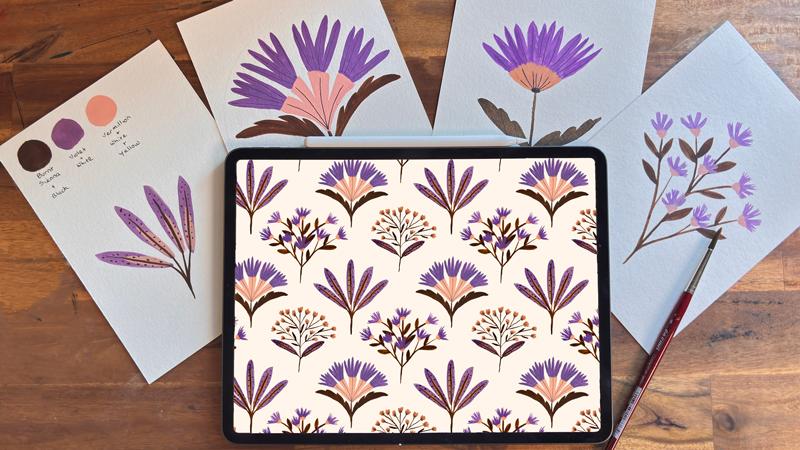
a repeating pattern? That's what we'll do together. We'll start by choosing a small, soft palette so everything feels like it belongs
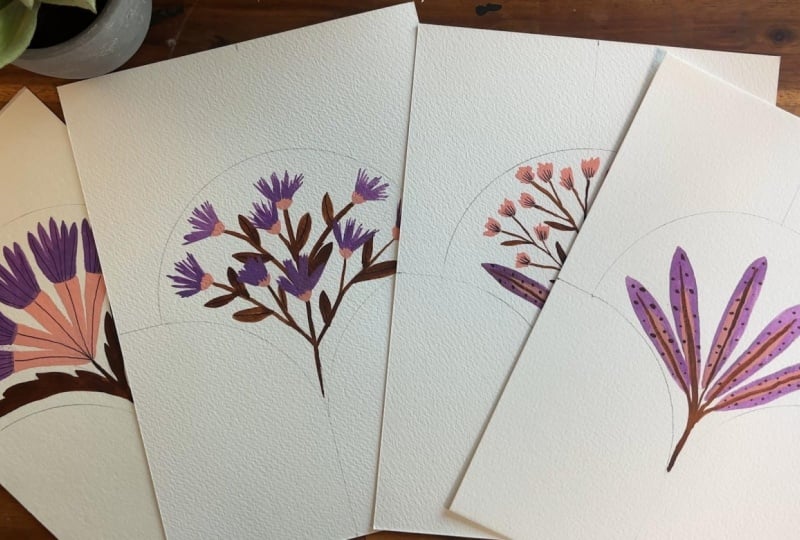
in the same collection. Then we paint four
floral motifs, and I'll share the little
techniques I like to use, such as layering petals
or painting leaves in just one confident stroke and adding tiny details
once the paint is dry. Next, we'll scan
in our paintings and bring them into Affinity, which is free to download. I'll show you how to remove
the paper background, keep your colors true to
the original painting, and separate each flower
so it's ready to use. Then comes my favorite part. Using a scallop template
I've provided for you, we'll arrange our flowers
into a repeat pattern. The scallop template is a lovely layout to
start with because each shape holds one motif and gives your pattern
a natural rhythm. I'll show you how to
check your seam so everything blinds up
and how to export it so you can put it onto your own fabric or any other
print on demand product. This class is for
anyone who loves to paint and is curious
about pattern design. You don't need any
Affinity experience. And if gouache isn't your thing, watercolor or acrylic
works beautifully, too. Let's grab our brushes
and get started.
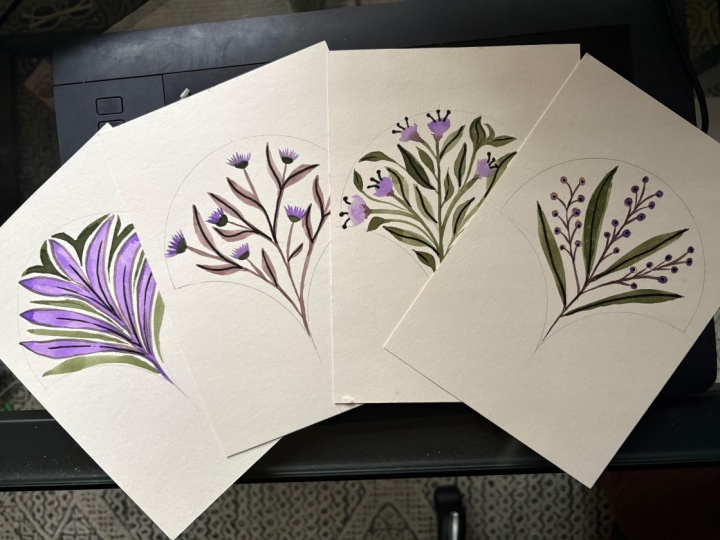
2. Your Project: For your project,
you'll be painting out four individual floral motifs. You will then take
these into Affinity, where you will clean them up and then create a repeating
pattern tile.
3. Tools and Materials: So for this class, you'll
be needing a few things. Firstly, you want some paint. I'm using gouache. I like to use this Windsor
and Newton designers gouache, and I also like the gouache. And then, but you can use
any gouache you like. You can also use watercolor if that's what you
prefer, as well. I also recommend a pencil
and a kneadable eraser. For sketching out
your floral motifs, if you want to sketch them. You will need a
paintbrush of some sort. I have a couple here. For this class, I'll probably
just use this one here, which is a number five
Davinci cosmtop spin. It's got a nice point on it, and it holds the
paint really well. You will need some paper. I am using this
watercolour paper, which is a 300 GM Canson. It's got a really
nice texture on it. But you can use
anything, just make sure it's thick enough
to hold the paint. Yeah. Will need a
palette of some sort. For this class, I'm just going
to use my paper palette. You will need some water. I recommend using two bowls. One will be clean and
one will get dirty. You might want some paper
towel to dry your paint. I also recommend a ruler because we will be drawing
out a template on our paper, and the roller will come
in really handy for that. And also, I like to
use a spray bottle to reactivate my
paint if it dries. I find that really handy, but you don't need that. It's only if you want to, you can always use
your brush with a bit of water just
to reactivate it. You will also need Affinity, which is free to download, and there is a link
in the resources for you to access that. I also recommend
either a scanner or you can use your phone to take a picture of
your artwork or scan in your artwork to transfer it over
to your computer.
4. Choosing a Limited Palette: In this lesson, I'm going to be mixing my colors
for this project. I have a mix of colors here. I've got a Windsor and
Newton designer squash, and this is a
permanent yellow deep. I have another Windsor
and Newton designer squash, burnt sienna. I have a Pabo Rouge vermilon, and I also have another one
here, which is a violet. And then I have my
trusty white and black, which I use to either
lighten or darken my colors. So I'm going to put them aside. And I have my paper
palette here. You can obviously use any
sort of palette you want, but this is the one I'm
going to use today. And I've also got a piece
of watercolour paper. This is actually something I've created some stuff on before. It's just a scrap piece that I can create my
colour palette on. So let's begin putting
down some black and white. And I'm going to start
with the burnt sienna, and I want to darken
this so just add a little bit of black to it. So I'm just going to
put that down here. And then using my brush, and then I give it one spray. I find that's just
the perfect amount. It depends on what your
spray bottles like. But for me, the one tends to be the exact amount I need to
get the right consistency. So then I'm just
gonna grab some of this black and put it
in here and mix it. You want a creamy texture. As that will give you
a nice opaque finish. You could also have
it quite watery if you wanted to be less opaque. Okay, that's looking
pretty good. Just add a touch more black. When you're happy with it, you can then put it
onto your paper. The reason I do
this is that I like to see what it looks
like when it dries. So after it dries, if I feel like it
needs to be darker, I can add a bit of black
or if it needs to be lighter and I can
add a bit of white. But for the most part, that looks pretty good
for the moment. Alright, I'll clean my brush
and we'll do the next color. So for my next color, I want to do a violet, sort of purple color,
but I want it a lot lighter than what
comes out of the tube. So I'm going to put
a bit down here. And for this one, I'm going
to add white to lighten it. And I need to spray it once. And then we can just
mix that in there. And it's looking
pretty nice, as well, and I'm just going to
add it to my paper, and we'll come back and
have a look when it dries. For my last color,
I want to create a peach color, very light one. So I'm going to
use a combination of the red and the yellow. I just need a little
bit of yellow and quite a bit of white to
make it quite light. So what I'm going to do is put a little bit
of yellow up here. And put some red down here. And then I'm going to grab
quite a bit of white. I may need to top
top that up and a little bit of yellow then mix that in a little
bit of water. So that's way too red for me, so I need a bit more white. Okay, I'm starting to light
this now when I put it onto my paper and wait for it to dry. These two colors together
look really nice. Okay. We'll just wait
for them to dry a bit. And if need be, I will add some more white or even a darker one
if I want it darker. But at the moment, they
are looking pretty good. So my colors have now dried, and I'm pretty happy with them. If anything, I might
add a little bit more to the peach just to make
it a little bit lighter, but at the moment, I'm quite liking the contrast
between these two. I've also gone ahead and
written down the colors that I've used to mix and
also the percentages. So if I do need to
recreate these colors, I can do so easily. Also got my colors
ready on my palette. If these happen to dry out, I just need to give
them a quick spray to reactivate them again. And so now we are ready to start painting
our first flower.
5. Drawing a fan template: In this lesson, I'm
going to show you how to set up a template on your paper to help guide you where to put
your flower motif. So I have the perfect round
circular object here. This is actually like
a case for a light. It just happens to fit nicely
on my piece of paper here. So I'm going to use that. I recommend trying to
find something about the same size same
width as your paper. And then firstly, I would like to actually find
out where the middle is. So I just measure the
width, which is 14.8. So I know that the middle
is going to be 7.4. So I'm just going to put
a little mark there, 7.4. And then the same at the top. And then I can draw a very
faint line down the middle. I'm going to do the
same for the other way. So it is 21. So I want to get 11 point sorry, 10.5 and put a mark there, and then the same
on the other side. And then once again, I will put a very faint
line across the middle. These will just get rubbed out. I just wanted to help guide where I'm going
to put my template. So I can then put that
roughly in the middle. I'm kind of eyeballing
it, to be honest, but I want to try and make
sure it is relatively scented. You could measure
it out, so I could sort of measure out
this say that way. But it doesn't have to
be completely perfect. It's really This
is just a guide. So there I'm going to draw a half circle just for the top. And then let me just move the eraser and then
using the outside edge, just place it so that it hits the line there in the middle, and
then the line there, and that will basically help
you create the bottom part of your fan and you
can draw that out like that and then do the
same on the other side. Okay, so now I have the fan diagram there
or template there. I can go ahead and just remove the line marks.
We don't need them. I'm not being too
particular about it because I could erase them
later when I digitize it. So that's basically it. So when we draw our motifs, they're going to be
inside these fans. If you don't have something that you can use to draw this, I have provided the actual template that
you could print out, and then you could trace it. You could put it up against
a window and then trace it. Or if you've got a light box, you could use that to
trace out the shape. You could just try
drawing it yourself. You basically just need a half circle and then the two quarter
circles on the bottom. So let's now jump in and start
our first painted flower.
6. Painting Flower 1: So we're going to get started
with the first flower, and I am going to paint a
sort of modified cornflower. So this one here it has
some really cool petals. They look like little
trumpets coming off. So I'm going to take inspiration from the sort of trumpet
look that they've got. I'm not going to do
these leaves, though. I am going to
create some sort of more daisy leaves
with ridges on them. So what I like to do is completely take pieces
of different flowers and construct my own modified
flower abstract, I guess. So it isn't a particular flower. It's just a mesh up
of different flowers, which I encourage you to do
because it's really fun. So I'm first going
to sketch this out and you don't
have to do this. You could go straight to paint. I just prefer to sketch it as that way I can ensure that it fits nicely
in the template. So I'm just going to roughly
sketch out a little stem and then maybe a leaf and then I'll try and do the
same leaf on the other side. I'm not being too particular
about it matching exactly, but I do want the
same sort of leaf. So I'm doing these really
cool jaggedy edges, but like a daisy leaf. And then I want to try and create these sort of
trumpet petal things. So I am going to create
a middle one first. So let's just do one
here in the middle. And then we'll have a few branching off if
we can fit them in. I kind of want two on each side. So this is why I like to sketch because I feel like I'm
going to run out of room, and I might need
to move my leaves down because it's not quite fitting as nicely
as I would have liked. But let's just try this. I might move that up So if I just jumped
in and painted this, I'd probably end up with
something I didn't really like. Like, quite often, I do just
go straight to painting if I've got a really good idea in my head about
what I want to do. So I'm just going to adjust
this leaf on the right, 'cause I want it to be
a little bit lower. Perhaps I should have
done the flower part first and then tried to fit
the leaf in, but it's okay. That kind of worked.
And then off these little trumpet things
that I'm calling trumpets. I don't know if they really
do look like trumpets, but I'm calling them that. I'm going to do
some little petals. Let's just make this
one a little bit wider. The paint will go over the
top of this pencil as well. I I don't I'm going a little
bit harder than what I would normally do because I want to make sure that you
can see it on the film, but generally, I do
it quite lightly. So then I'm going to
do these little petals coming out of these trumpets. I generally start
in the middle and then sort of move outwards,
just to make it even. And I'm not going all the
way to the edge because I do want these to float
inside the fan template. Okay, so that's my sketch done. I am going to just use my enable eraser to just lighten that pencil.
I want to rub it. By just dabbing it,
it just kind of lightens it for you
so you can see it, but it won't come
through the paint. Okay, now we're ready to
jump in and add some color. So I've got my palette here. It has dried up a bit, so
I'm just going to give the burnt sienna
one a little bit of a spray and activate it again. I'm using my number five brush DaVinci Cosmtop spin brush. It has a really
nice point to it. It holds the paint really well. It just seems to be the magic
size that I really like. So with that, I'm
going to start, um by drawing my
stem and leaves in. And I do like to twist my paper around to make it comfortable
for the angle that I like, so don't be afraid to do that. Do you get the
little pointy bits? I'm just holding the
brush down lightly and then moving it down further
to then fill it in. And then I will wait for that to dry before moving on as I don't want the pieces to
bleed into each other. So I'm gonna let that dry. I'm going to do these parts
here in the peach color. So I've just put a
bit on my brush, and I am going to
paint those out. B and lastly, I'm just going
to do the petals on the top. For this, I'm going to start lightly to create
the point at the top and then just push down
harder to create the base. And I don't mind if
they are uneven. I kind of want to have
a imperfect painting, so that doesn't
bother me at all. Now, I had a little bit of a bleed there with
the paint because that section wasn't completely
dry, but that's fine. I can actually paint over
it and it looks fine. Okay, so that is all
the base color down. Next up, I'm going to
add a little bit of detail to the petals and the leaves just to make
it a little bit more interesting before we move
on to the next flower. So I'm just going to
let that dry now, and then we're going
to add some detail. Okay, for some
finishing touches, I'm just going to add a little
bit of detail to my flour. I'm going to use these liners. You could also use Poskis If you've got really thin
ones, I really like them. But for this one,
I'm going to use a 0.3 and make some little marks. Now, protip make sure that your painting is completely
dry before you attempt this. You may have noticed
that I have now smudged it when I was testing
to see if it was dry, but it's actually a good thing because I'm now going to be able to show you
how to clean that up. Once we get it into Affinity. I'm not too worried about that. I can clean that up
once we digitize it. For my detail, I'm just
literally going to add some line to make it a
little bit more interesting. And that is all I'm gonna do. I am going to put that aside now and move on to
the next flower. I'll see you in the next lesson.
7. Painting Flower 2: Okay, for this
second flower motif, I am going to take inspiration
for my first flower, and I'm going to put it onto some branches to
fill that space. I've already drawn
out my template, so that's ready to go. But basically, I'm going to
create some branches and then paint some sort of more
simplified version of these flowers. So I'm just going to
put that aside a bit, and I'm roughly going to sketch where I'm going
to put these flowers. I'm not going to
really sketch it. Just want to make sure
that I have room, and I want to make sure
all the spaces are filled that I want to fill. So I might
put a flower there. So I'm basically
just indicating, I'm just going to
paint over this. Maybe have one there, there. And I'm also going to
do some little leaves, put one in the middle
here, maybe, one there. That is enough for me to know
that I can fill the space. I can then paint over that. So I'm going to get my paint
now and start painting. Okay, so I'm going to
start with the branches. Making sure I've got some
room for my flowers. I might sort of run out
a bit of room in here, but that's okay. We
can work around it. I could even do the
flowers on top. Once it's dry, just make
sure it's really dry. You can lay a guash
really nicely. Okay, I'm going to
leave that to dry and then we'll come back and
do the little flowers. Okay, I've gone
ahead and I've done the bases of my flowers, and I'm just going to
go over a couple of them that were over the
top of the branches, and I want them to be a bit more opaque and not show
those stems through. So they just needed
a couple of layers. And then we will go
on and do the tops. So I made these really simple. I don't want it as detailed
as the original flower. So I'm just doing the
bases as one little part, and then I'll do the top
petals as the trumpets, I guess, I like to call them. So I will just let that dry now and come back and do the
trumpet petals in purple. Okay, now, finally,
I'm going to add some little trumpets coming
out from my flowers. So I'm going to turn
it upside down. It just makes it a
little bit easier. And then I'm just going to do some little
bits coming out. Dragging my brush out. Okay, I'm going to wait
for that to dry it, and then I'm going to
come back in and just add a little bit to some of
these that are overlapping, just so they don't
look as muddy. When we take it
into the computer, I might have to modify a
little bit, clean it up. There's one here that's
kind of gone over, and I really wanted to
stay within the template. So we'll be able to fix that when we go onto the computer. And one last thing I want
to do before we move on to the next flower motif is to
add a little bit of detail, and I'm just going
to add some detail to the leaves, and
that will be it. Okay, and now we'll move
on to the next flower.
8. Painting Flower 3: Great, so for this flower motif, I am taking inspiration from this flower here.
It's a carnation. And I just love the
sort of papery kind of look to the petals. So I'm just going to do
sort of a take on this. I'm going to do
branches again, though, but I just really love
the shape of the petals, and so I'm going to create
something like that, just off some branches with maybe some
leaves at the bottom. So I'm going to put that
aside and jump right into it. So I'm just going to start by
drawing out some branches. We start with the middle one. I've decided I
want to make these leaves down the
bottom, some big ones. I'm going to make
them the violet color just to make it a
little bit more interesting. I'll probably use keep
the brown branch there, but I might have to
repaint over it later. But I just wanted to try
something different. Um, I'm not going
for realistic care. I want to create something
that's a little bit abstract. I'm not quite sure my paint was quite dry, but that's okay. I'm not going to add
some little flowers, and these are just going to be little paint strokes to create, like, texture little flowers. I'll probably add some
pin detail on top. Okay, I feel like I need another little one in here and I can add a little brown later
when I go back to the brown, maybe another one in here. Maybe in hair as well. Okay, I'm just
gonna let that dry, and then I'm going
to come back and add some more details. I'm going to add a bit of
the peach to the leaves just to make them a
little bit different. I'm just kind of going
out on a whim here. I might have to do a couple
of layers of the peach. My paint is starting to get
a little bit watered down, as well from reactivating it. I'm probably in the next motif, we'll take these leaves and
make something with them. And I'm just gonna add some
little marks to my flowers. I still need to
connect these up, but I'm gonna wait
till this dries completely and then get
my brown out again. And finally, I'll
just need to add in a few more branches. And I'm going to add some
details to these leaves. Okay, so now we can move on
to our last flower motif.
9. Painting flower 4: Okay for my final flower motif. I'm actually going to take
these leaves that I've created for this one and
place them onto my new one. So I'm just going to
paint a few of these in this space and go from there. So I'm going to start
with the purple leaves, and I want to create one
down the middle first. Let's get a little bit
more paint on my brush. And then I'm going
to fan them out. And then I'm just gonna add
some center pieces to these. This might need a
couple of layers. I'm just gonna let
that dry and then maybe come back and
do another layer. Okay, I'm just adding
another layer. And I'll just wait
for that to dry. And finally, I'm just going to add some branches for these. So I'm going to start
with the middle one. And then I want to add some little dots just to give it make it a little
bit more interesting. Okay, I'm just going to
wait for that to dry. And then in the next lesson, we are going to scan these and bring them into
the computer to clean up.
10. Scanning, Digitising and Cleaning up in Affinity: Okay, so we've now got all
our four flower motifs, and I want to scan them in and send them
over to my computer where I'm going to
digitising them in Affinity. So to do this, you can either scan them in using a scanner
if you've got one, and I recommend doing
that at 600 DPI. Um, or you could simply take a photo of
each of them also. But if you do that, I would recommend making sure you
have really good light, not too bright, you
just want, like, natural light and
make sure that it's flat and that your
camera is flat. So you're not on too
much of an angle. So I'm just going to
take a photo of each of these and send them
over to my computer. So I'm just using my
camera on my phone, and I'm just gonna zoom it in. I try and get as much
of it in there as possible and take a photo. I've got some natural light
coming in from my window, so it should be okay, but we can adjust some of that
when we get into Affinity. So I'm going to take
a photo of each of my motifs and send them over. Okay, so I am in Affinity, and I am going to bring in
the first of my floral motif. So I've just created
a new document. Doesn't matter
what size this is. I'm just creating one that I can bring my paintings
into and clean up. So I've just opened I
created a canvas that's, I think, 3,000 by 3,000 pixels. But honestly, this could
be any size you want. So then you need to bring
in one of your motifs. So I'm going to
go to File Place, and then I am going to select a motif and just
place it in here. And it's just coming sideways. So I'm just going to grab
this little nodule here, hold down my shift key, and rotate it to
fit on the canvas. So what I want to do is
get rid of the paper and just basically cut out my motif. So to do that, I use a tool called the selection Brush tool. Now, you might have
noticed I'm not in the vector or the pixel studio. I've created my own
just with some tools that I like to use
to clean up artwork. So if you don't have the selection brush
tool on your toolbar, say in the vector or
the Pixel studio, what you can do is right click and then click
on customized tools, and then you can search
for it and then add it. So here, I've already got it
on there, so it's great out. But if it wasn't could
grab it and say, pull it onto the
toolbar that way. So I'm just going to use it here and I'm going
to grab that tool and you can use the right and the left square bracket
to increase the size, and you basically just
click and drag to select your object and you just keep going over the
areas to select it. If it goes over,
you can hold down the command or option to undo. So if I went a little
bit too far here, if I hold down the
command, I can sorry, the option key, I can undo and bring it back to
that that motif. So I'm just going to click and drag and try and
get all of this. You can also hold down
the Shift to just add. So these little dots
weren't being picked up, so I'm holding down
the shift and then just dragging over them. So I'm just going to
continue around until I've got all of this selected. I'm gonna zoom in a bit and
then just lower the size of my brush just to get a couple of these little
pieces that were missed. And then once you're happy
with your selection, I want to refine this
a little bit more. So at the moment, you can see the little marching
ants right on the edge. Now, what I want to do is
actually bring them in a bit like about a pixel and
then smooth them out a bit. So to do that, I'm
going to go to pixel, pixel selection, and
then grow shrink. And then in here, I'm
going to enter minus one, and that will just
bring it in slightly. So it's just bring
it in slightly. And that means I won't
get this halo around it, and then click on apply. And then I'm going to
go back into that menu. So pixel, pixel selection. And then this time, I'm
going to go to feather. And for this one, I'm
going to put two pixels. And that should smooth
it out slightly. So if I drag that out, you can see it's gonna
pull it all the way out. I just want to have it
at about two pixels, maybe two or three pixels. And that will just smooth
out that edge a bit. So let's maybe go for
three and then click Apply and then I
can't see my layers. I'm just going to jump
back to the pixel. I haven't deselected this yet. Make sure that layer
is selected and then click on the mask layer. And then you can see
that it's removed, everything there, but it
is kind of still there. It's non destructive. So you can see that
in the layers panel, you can actually see
still the paper there. But I'm going to hit
Command D to deselect it. And then if I select
the actual mask, what I can do is actually
refine this a little bit more. So I'm going to go in
and hit the brush tool, so that's B on the keyboard. And you'll notice in the swatch, you've got a black and a white. When the black is on top
and I paint over it, it will remove the
part of your painting. If I hit X to toggle it, so now the white is on top, I can actually
bring that back in. So this is a really
a good way to clean it up without
destroying the original. You've still got that there,
but it's just masked. So I'm going to go
around and just tidy up a few of these edges. And then once I'm
happy with that, I'm going to create
another layer, which is going to be
an adjustments layer. So I'm going to click
on this adjustments here and go to levels. And I'm going to make
sure that that's inside my mask folder here, and then I'm going to adjust
the black and the white. So the black will bring out the blacks or the shaded areas, the dark areas, and the
white will just lighten it. So you can play
around with these just to see if you
can get it looking like it was when you painted it because quite often when you
scan it in or photograph it, it doesn't retain the
colors that you painted, and just adjusting the levels
can help you fix that. So I'm going to just leave that like that and
then clip Okay. And then when I'm all finished
and I like how it looks. I want to just right
click on that layer, that group, and
then merge visible. And so what that's done, it's
created a whole new layer. So I'm going to hide
that original one. And now we have just
the emerged layer, so we don't have the paper or anything
in the background here. It's just the actual painting. So that's our isolated
one that we're going to use when we
create our pattern. So I'm going to go
ahead and do that with all of my floral motifs. So I will end up
with four of those, and then I'm going
to bring them into a new document where we're
going to create the pattern.
11. Setting up the template: G Okay, in this lesson, I'm going to show you how to load the template that
I've provided for you and just show you the
different layers in there so that we can then
build our pattern. So to open the template
that I've provided for you, go to File then New, and then go to the
open folder here and locate on your computer where you have the
template stored. And I have it stored here. It's got a file name extension called AF Template and it's
called scallop Template. So I'm just going to open that and you can see that it's got the same shape that we started off with when we painted
our floral motifs. So if we have a look over
here in the layers panel. So in the layers panel, here, we've got three sections. We've got a background here. Now, this background
can be changed. You just need to unlock it, and then you can switch it to a different
color if you want. Just make trio we've
got the fill on, and then you can change
the background color. Um, but for the moment, I'm
just going to keep that one locked so that we don't
accidentally nut it. We've then got a folder
here called main pattern. And if I expand that, you can see in here,
I've got the scallops, which is the template, and then a layer here called
place your pattern here. So basically, you
can put anything in your pattern above
that scallop group. So anywhere in here, you can get rid of that layer
if you wanted to, but I just wanted to
make sure you knew where to put your motifs. Then lastly, is this
preview one here. This is basically containing a copy of what we've
got in this one, and we use symbols to make
it repeat like a preview. So it's just so that you can see your pattern
repeating and see it at a larger sort of grander scale than
just the actual tile. So I keep that one locked, as well so that you
don't accidentally lock it accidentally nudge it. Later on, when you go
to export your pattern, you will want to turn
off the scallop layer in this main pattern group so that you don't
export the template. You only export the art. So in the next lesson,
we are going to bring in our motifs and
create that pattern.
12. Creating the repeat pattern: Okay, in this lesson,
we are going to create the repeat pattern
using flower motifs. So I've got my motifs open, and I've also got
the template open. Make sure you're
on the layer title to place your pattern here. And then you can jump into your motifs and
just grab each one. I'm going to go Control or
Command C and then go back to the template and then Control or
Command V to paste it. And then we need to do is adjust the size by
grabbing the nodule and scaling it down
until it fits nicely into one of the scallops there. And you don't need
to hold shift. It will keep the dimensions. So do that with
each of your motif. So I'm just going to go
through and do with that. As you can see, you can see
it's repeating out here. If you can't see
that at the moment, you need to go up to view and then make sure that clip
to Canvas is not on. So if I have that on, it's
just going to clip it, and that's all you'll
see is the tile. But if you want to see it
repeating around that, you just need to turn that off and you can
see it repeating. So I'm just going to
grab the other ones, and I'm going to
put the one there, and then one more Okay, that is looking pretty good. That now is your repeat tile. Now if we turn off the
scallop layer here, we can remove that template now. And if I turn off the clip to cable turn on the
clip to Canvas, that is now our repeat tile. So that will infinitely repeat. In the next lesson,
I'm going to show you how you can test this. So for the moment, I'm
just going to save this. So command or Control S for save, and then
I'm going to save it.
13. Testing the repeat & exporting: In this lesson, I'm going
to show you how you can test your repeat pattern. So I've got my
pattern open here. I just want to export it first. I'm going to go to File, Export and then Export. And I'm going to
save this as a PNG. You could also
save it as a JPEG. And then I'm just going to keep all the settings as they are. At the moment, it's
3,000 by 3,000, as that's what my repeat
tile was set up as. So I'm just going to export
that and save it somewhere. And then once you've done that, I'm just going to
create a new file. And for this, I'm just going to go with a ten by ten inch. You could do pretty much
anything you like for this. It's just to test it out. I'm just going to grab
a rectangle tool and create a background that is
the same height and width. And then I'm going to go
to the vector studio. These are studios up here
and then select the fill. And then go up to
type and then Bitmap. And then it's going
to prompt you to bring in that file that
you just exported. So I'm going to click
on that. Bring it in. And then you can see
these handles here. They allow you to resize it. So if I drag it down, it will change the
scale, so it's smaller. You can also rotate it as well, but I don't really
want to do that. I just want to change it down so I can see the
full repeat there. And you can see that if
I click outside there, then it is repeating
really nicely. And that is just a
verification that your repeat is tiling perfectly. There's nothing you need to fix. If there was, say, a line, you might want to go
back and just check that the background hasn't bumped, which is normally the culprit. But otherwise, hopefully you will have the perfect repeat. So basically that repeat tile that you exported
as a PNG or a JPEG, you could use that to upload
it to spoon flour to create a pattern onto fabric or any other print
on demand website.
14. Final Thoughts: And that's it. You've done it. We started with four little floral motifs painted by hand, and now you have a
finished pattern. Along the way we mixed a soft palette,
painted our motifs, brought them into Affinity, and built a repeat that
flows. That's a lot. So take a moment
to celebrate it. The small winds really
do add up to big winds. I'd really love to
see what you created, so please do upload it
to the project gallery. And it's such a joy see how differently, everyone paints
the same four flowers. If you enjoy this class, you'll find many more
here on Skillshare, and you can follow me on Instagram to find out when
my next one comes out. Stay creative and
happy pattern making.
 Mel Armstrong, Illustrator, Pattern Addict & Teacher