Transcripts
1. AI Flow state Course Intro : Hi, my name is Greg Kong,
a Canadian creator, and welcome to the flow state Mastering Google's AI tools. So in this course, we're going to look at several
groundbreaking tools that Google has released either through their lab or
mainstream products. We're going to be
covering Google Flow, which has their
groundbreaking AI video model called Vo three that we're going to use to
learn how to create really cinematic and
believable video but with sound effects and
audio to complement it. And then we're going to
look at Notebook lm, one of the products of
the year created by Google to feed its sources on a specialized topic to use for a study guide for
groundbreaking research, study topics, and also to create audio podcasts and not
only an audio podcast, but an interactive podcast
that you can ask questions of the AI and the actual podcast
host. You can also use Google Gemini Ultra
plan to further enhance Notebook alm using discovered sources right
from the Internet, so we're going to be
covering that in the course. We're going to tie
in how you can use Notebook ALM to tie it
in with Google's flow. But some other tools that
we're going to cover in this course include WISC, which uses a groundbreaking
image model called Imagen to create not
only amazing images, but how to animate
them and to use images to reverse engineer
into a text prompt, which you can use to generate
and refine further images. We're also going to
look at music tools. So music effects to
create music using text prompts to generate beats
for your YouTube videos, for your online courses. So this course is going to
be really interesting for content creators, digital
marketers, entrepreneurs, creative professionals
who want to learn the cutting edge tools that are available on the market to
do things like research, create audio podcasts, to
create videos and images. To drive your business to new levels using
the help of AI to accelerate what you
would normally take a longer time to do just on your own or with a
video production team. Next step is to enroll and we'll see
you inside the course.
2. Accessing the apps: Okay, so let's get started. The main address, URL for accessing these applications is labs do Google fordslashFX. Labs dot Google fordslaFX. Login with your Google account, and you'll get access to
these four applications. No Book M is going to be
accessed from a different URL. So Notebook LM is access
from notebookmggle.com. But all the other applications
are at labsgooglelash FX. Alright, so let's just
go through one by one before we deep dive into
each of these applications. So WISC is the application
you use to create images and animate your images. All right. And I don't have a
subscription on this account, and you can tell that I can actually use it
without a paid plan. So you have zero AI
credits on this one. Okay, now Flo, this one does require a subscription to use it because it's saying you must be a Google AI
subscriber to generate. And if you want to subscribe, they do have a promotion
one month for free, and then becomes $27 Canadian. So that's good for
getting your feet wet. But if you want to deep dive, I recommend going to
the Google AI Ultra, but first use the Google EI Pro, and you'll quickly use up your credits if you're
really into it, like myself. And then you may
have to upgrade. So I think the Google
AI Ultra right now, 170 for three months
is a good deal. You get YouTube premium 30
terabytes of Gmail storage, Google Drive storage for
photos, which is great. Also on flow, the
filmmaking tool, you get access to VO three. And what they don't
tell you here is they remove the water
marking on the videos. And you also get
a lot of credits for use in flowing with 12,500. Okay, going back to our
dashboard, Image FX. We're not actually going
to go into image FX. We're going to use WIS
to generate images with their imaging or
imagine AI model. Okay, Music effac, this
is an exciting one. So we're going to use music
effac to generate tracks and music Ffcs DJ to generate
some beats on the fly. Alright, so that's how we access the applications that are gonna be covered in this course.
3. Prompting Best Practices Flow: What are some prompting
best practices for Google's flow with VO three? Well, it's basically
being creative and as detailed as you can be and experimenting in a nutshell. But what I would say
is there's a lot of different types of videos
that can be created. So at the beginning
of the course, you went through flow TV. That's obviously a very
good starting point to find the style video
that you like and reverse engineer it by getting
the prompt and then using that yourself or remixing the prompt to see
what you can create. I'll share some of my
video projects here, and then I'll show
you how you can actually use another
application by Google, Geminiz AI to create
the prompt for flow because the actual prompt within flow doesn't
have any well, a lot of AI intelligence, so you can actually enhance your existing prompt like you
can in some applications. So let's take a look
at this project here. This is the Yeti. So I'm just going
to share some of the prompts I've used
for my projects. So we have the Yadi here. So this is the
prompt self camera, Angleshaw from an extended arm, a white Yeti holding
up a golf ball in the course, dialogue. Welcome back to Uncle
Greg's Golf Adventures. Today, we're going
to learn how to play boogie golf with Kirkland balls. Let's play through
one of these videos, and I'll turn the sound on. Welcome back to Uncle
Greg's golf Adventures. Today, we're learning how to play bogie golf with
Kirkland balls. Welcome back to Uncle Greg. So you can see here
the important points are describing what
the character is, what color they are.
What is the angle? So self camera angle shot
from an extended arm. And then for dialogue, actually put dialogue semicolon. And then in the quotes, the actual dialogue that I
wanted the character to say. So being descriptive
with the prompt there, and I use the Video three model. So the actual model that
you use actually matters. So let's just go to
something else here. Let's look at the
pickleball video project. So if you're very broad
and not very descriptive, you're going to leave it up to the AI model to
create the videos. So you can see four
different outputs for a simple prompt, pick a wall coach explaining
what the kitchen zone is. So we have three different
characters here. Let's just give you an example. So this is the kitchen. It is a seven foot area from the
net back to this line. So this is the kitchen. It is a seven foot area
from the net back. Okay, now let's listen to another output for
the same prompt. So the kitchen, this front
area up here at the neck. You can't volley when your
feet are inside the kitchen. So the kitchen, this front area. So, completely
different character, slightly different message. So that's what
happens when you're very broad and general
with your prompt. The more specific, the better. Here. And let's go back
out to another project. Actually find for
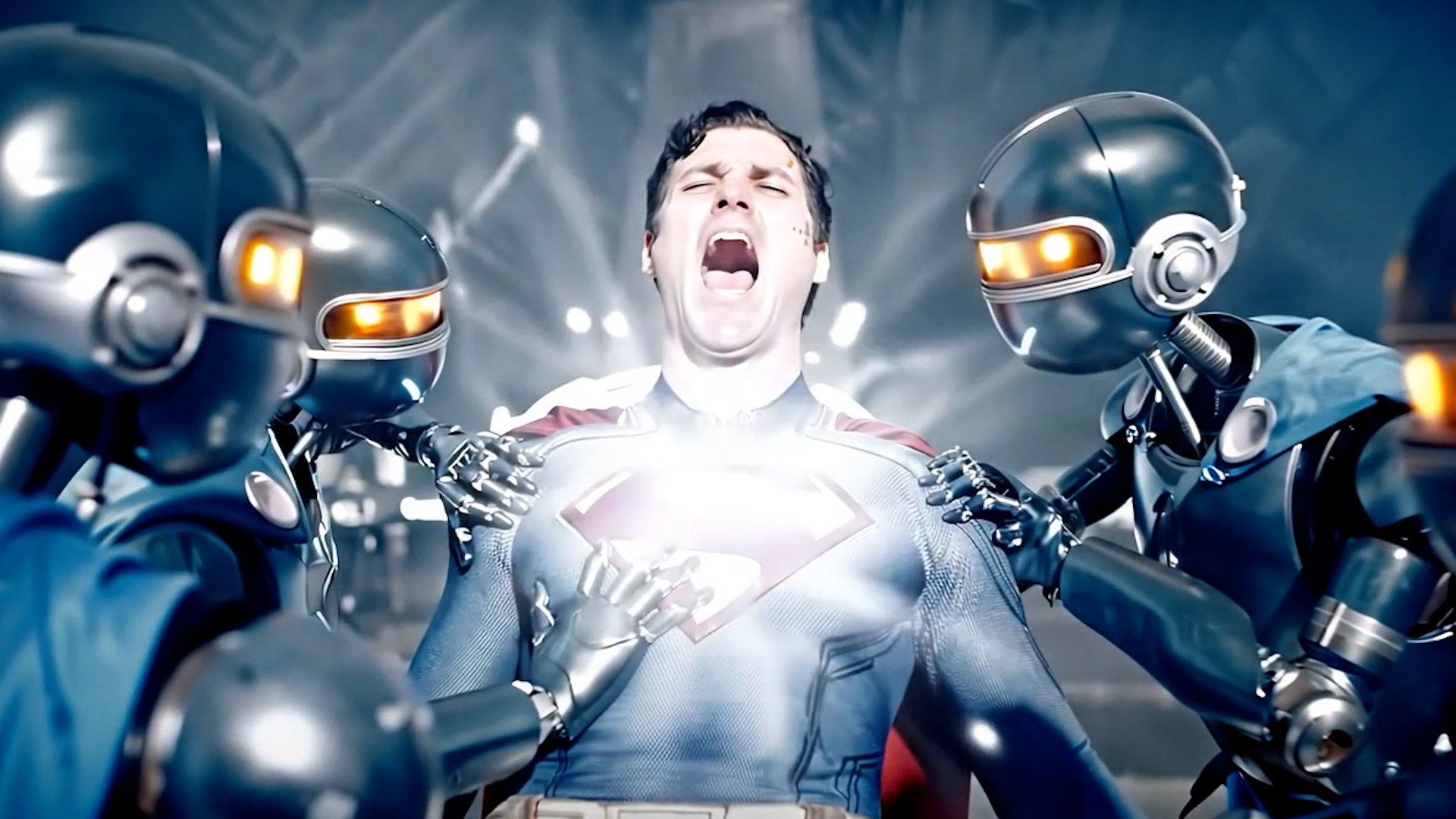
cinematic sci fi videos. It does a pretty good job here. Here's an example where I put several Jedi Mandalorians with dark sabers battling Neo from the matrix before
they fight the leader. And the leader says,
This is the way, and Neo says, I know Kung fu. So let's just take a look
at one of these outputs. This is the way. I know Kung fu. This is the way. I know
Kung Fu. This is the way. So that's an example of a prompt that's a
bit more specific. I describe the
type of character, some of the dialogue, and makes some assumptions
there, of course. As you can see, each output is slightly slightly different. This is the way. I know
Kung fu. This is the way. Alright, let me just
show you one more. So this project here actually put quite a lot of
work into the prompt. So I asked it to recreate the scene of operation
Midnight Hammer, a US military
operation that struck the Iranian nuclear
facilities with seven B two spirit bombers, show the BTs dropping a total of 14 massive buster bunker bombs. So let's watch this. So I was pretty happy with
that. That was pretty good. But let's just say if
you actually want to create a cinematic scene, you can just see how long
this prompt is here. It's basically
setting the scene. It's creating the characters, and it's actually specifying the dialogue for
these characters. And I'll just show
you an example of this eight second clip of
how detailed you can get. Spector one, this is Oracle. Target locked. Munitions armed. Ready for release
on your command. Inspector one, this is Oracle. Target locked. Munitions arm. Alright, so I didn't
use the I mean, I didn't create this by myself. I used the help of
AI, Google's Gemini, using one of the latest models, 2.5 to actually
create this script. So my original prompt was create a prompt to re enact the
scene of the US Army dropping the bombs over Iran's nuclear facility and
created this prompt here. So I had to modify it slightly. But, you know, this really helped me create
a super detailed prompt. And you can just
see the difference in the output. It's
very specific. The dialogue was
there. It actually created the characters
from the script. So yeah, there's different ways you
can create these videos, and your prompts can be super detailed like this with, like, a mini movie script to having your own detail prompt describing the characters,
what they say. Or you can be really broad and general and let the model
make the assumptions, or you can reverse engineer
using Google Flow TV. So those are some good
general best practices for prompts in Google's
flow with VO three.
4. Veo 3 walk through: Hi, my name is Greg, and I'm going to give you a
walk through of Google Flow. Which has their groundbreaking
AI model called Vo three, used to generate really
cinematic videos or any type of video you
can imagine, really. And the really cool feature
is not just the video, but the audio and sound effects that can complement the videos. So we're on Google's
lab site right now, labs do Google furlashFX. And this is where you can access their other creative
tools like Wisk, flow, image FX, music effecs. But we're going to take
a look at flow here. And this is not a free tool, but if you get the Gemini Pro
or the Gemini Ultra plans, you can access flow. So I'm going to give
you a tour of flow, and then we'll get through generating our very first video. So here's the main
page where you can see different projects
that you have and organize by date and
the way I like to do my projects is I just like to group them
by certain categories. For example, I've got more of my Star Wars types of videos, so I can just
rename those there, or we've got more of the comic books superhero
genre videos over here. And I've got a whole
lot of other videos. I've got war series
videos, sports. So once you click in, so I'm
actually just going to click into my Star Wars project area. And once you click
into a project, you'll see the
different variations that you've had with
different prompts. For example, over here, if I click in, I can
see the prompt here. Several Jedi Mandalorians with dark sabers battling
Neo from the matrix. Before they fight the
leader, Mandalorian says, This is the way, and Neo
says, I know Kung fu. So this prompt
that's highlighted, this has created four
different videos over here. And each of these videos, we have the ability
to download them. We can full screen it. We can add them to a scene which will cover in another
video in depth. And if you click the three
dots, you can delete it. You can flag the output. This is the way. And, of
course, you can play the video. I know Kung fu. To actually
see what it looks like. So on the project page, it defaults to a four
square grid view. But there's another
option here which will give you a
bigger overview of all the projects that you
have within a project or all the videos you've
created within a project. So let's
just back out. Let's go back to the main page. On the top right,
we have flow TV. So flow TV is basically an idea where you can watch
different videos that are already created
to generate inspiration. So these are different channels, and I'll go into it
in another video, but you can check out
these other channels, and you can actually reverse
engineer the prompt. You can show the prompt, and then you can
bring these prompts into your own video projects. So that's flow TV, and again, we'll cover
that in another video. So let's just go
back to flow here. And on the top right, another important area is
the plan that you're on. So you can see here I'm on the ultra plan on the top right, and you can see the
number of EI credits. So if you click onto
the EI credits, you can see your
current balance as well as how your
credits have been used. For example, I just created some videos today that
were worth 20 credits, and if I just change the page, I can see I created
some yesterday that were worth ten credits. So just know that
with certain plans, for example, I'm on
the Gemini Ultra plan. You get something like
12 to 13,000 credits, and then each video generation uses up a certain
amount of credits. For example, if you use
the VO three fast model, that'll use up 20 credits. If you use the VO
three regular model, that'll use up 100 credits. And I'll show you where you can see the cost of
the video generation. So I just wanted to
point that out to you. And you can manage your
membership over here. And you can see your plan. So I've got the Google AI Ultra and all the benefits that
comes along with it. So in addition to flow with
VO three, I've also got WIS, 12,500 monthly AI
credits, notebook um, with the highest
limits, et cetera, for currently $170
Canadian for three months. So these plans are going
to be constantly changing. So let's go back to flow, and let's look at creating
our very first video. I'll actually show you
how you can reverse engineer a quick
prompte from flow TV. So I'm going to flip through
the different channels. This one's called Fit Check. And I'm just going to
go into the grid view. So I'm basically looking for one that I find
pretty interesting. Okay, so I'll click in here. I can copy the prompt. And these are based on VO two. So if you put it in Vo three, you may get a different result. So I'm back on flow right now. I'm going to click New Project. And this is our
main prompt area. So by default, it goes
to text to video, but you can also go from frames to video
ingredients to video, which we'll cover in
a separate session. The default model is VOT fast that you can see
on the right side. But if you click settings, you have the ability to change
the outputs per prompt. So I like to do four because there's no additional cost
and you get more choices. See if I click two, it's still ten credits
to generate this. So I'm going to
leave it on four. It's currently at Vo two FAST, and it'll tell you
each generation uses ten credits based on
your current settings. If we change it
to Vo three FAST, that changes to 20 credits. View two quality. That's 100 credits, and Vo three quality is 100
credits as well. So we're just going
to go to Vo three, fast text video, which
costs 20 credits. I'm going to paste I'm going
to paste that prompt in high fashion editorial
address made of living jellyfish
underwater shot. Okay, I'm just going to click the prompt, generate our video. And because this
is the fast model, it's going to be a bit faster, and you'll see the percentage over here while it's
being generated. So you can actually go
somewhere else and come back. So I'll just continue to scroll through the
different channels here. Time to reflect. And you can see the different
channels and an overview. So you get an idea of
the really vast range of videos that you can
create with flow. Okay, let's go back here. Let's see how we're
doing. We're at 58%. Alright, so our
video has generated, and I'm actually just
going to go go to go back to the original original
video that inspired this. I think it was this
lady here with the jellyfish. So
take a look at this. This is generated on Video two. And I'm going to play this So it's pretty cool,
slightly different. So I have an eight second
video that has audio, and I've got four choices here. Okay. Notice that some of the videos are
longer than others. This one's 2 seconds.
This is eight. This is eight, or the
first one's five. All right, so if I want to
go ahead and download this, I can click on the
Download button, and then I have three options. I can download the
original size, 720 P. I can upscale it to ten ADP. Or do an animated Gift 270 P. So animated Gift maybe you want to share
that through WhatsApp. It's not going to take
up a lot of space. 720 P is just going to be
the video as you see it. It's not going to be
too big, upscale. If I click this, it's going
to bring it up to ten ADP, higher quality, larger file
size, slightly larger. But one thing I want to
note is that it doesn't cost any additional credits
to upscale your video. And then lastly, you can
add this to a scene, and we'll cover the Scene
Builder in another video. So we covered quite a bit. We've covered Google
Flow's product. We've covered flow TV. We did a quick reverse
prompt engineering, and we generated some videos. We upscaled it to ten ADP. And I've introduced you
to the Scene Builder. So the next set of lessons, we're going to drill
into the Scene Builder. I'll share a variety of projects more advanced
prompts to give you different ideas of how you
can create these videos. So those will be in
the next lessons. And lastly, once you finish upscaling the
project on the top right, it'll give you a download link that you can
download your video, and then you can use
it on social media, YouTube, wherever you want. And if you're on the
Gemini Ultra plan, it'll download the video
without a watermark. If you're on the pro plan, you're going to get that via
watermark on the top right. This is the video that I've
downloaded in ten ADP. So we'll end the video here.
5. Intro to Flow Tv & the scene builder: Okay, this is the flow
TV product from Google. So basically, this
is like television, except you're watching
videos created with flow. And the reason why
you would want to come here is to
get some inspiration. You could also reverse
engineer videos that you like. So for example, let's just
go to the main screen. So over here, it's like
your remote control, so you can see all the channels. So if we see category we like, we can click into Okay, this is like no one's watching. So from this view, we could
go onto the Next clip. We can full screen the videos. We can unmute you can see we got a variety
of different videos. So let's just say
we like that one. We can click this radio
button to show the prompt. I'm just going to mute
it right now just for ease of recording. So you can hear me properly. We have a grid view
here if this is easier just to look at a glance at
different types of videos. So I'm just taking
a look at some of these. They look cool. That's skeleton, so you can
change channels over here. So this is called
Time to reflect. And you can also just search
for a category, right? So let's just say we
like drone videos. So we can get a
nice filter here. Let's click on this hockey one. This looks pretty cool. So this is a drone
tracking video of people playing
hockey somewhere. So we can actually just go
back, click Show Prompt. And the magic sauce is this
prompt, so I can copy that. And let me just pause this. So that's how we
can use flow TV. So now I'm going to
show you how we can use that inspiration to
create something similar. So we're going to flow now. And while flow is loading, I'll just show you
another browser tab where I use the prompt to create a video and I'll just show you the
prompt right over here. So it's a really long
one, as you can see, I'm not going to
read it out for you, but I'll just leave
it on the screen. And what I may do is I'll just include
this in the prompt pack. Let's just play this. So that gives you
an idea of how we can use or reverse engineer from flow TV to creating
our own creation. Okay, here we are.
So this is my flow, and I've got my
different products. So when I create Krojax I like to try to
keep them together. Let's just say
I've got ones with drones or ones with pickleball or ones
that are golf related. I want to try to
keep them together. So this one I'm going to This is like my
reverse engineer area. So now we are in flow. Now I got to select
my model here. So V two FAST. See, this will use ten credits. If I go to Vo three, quality, this will use up the most
credits, 100 credits. So I'm going to
go Vo three Fast, which uses 20 credits,
five times less. So that's a good
way to start out. Maybe you want to experiment
with the lower models first. And then if you really
like something, you can change to
Vo three quality, which is the highest model. Now, things are
continually changing. You can see here that
if you use Vo three, the audio may not work. So I'm basically going
to just copy and paste that prompt from
flow TV into here. And because we're
using Vo three fast, it's going to be faster
than Vo three quality. So we get four different squares or variations that we
get to choose from. And if you click
the settings here, this is where you can
change not only the model, but outputs per prompt. We also have a
different view here. So this allows us to see multiple projects
on the same page, and we can see here on the top right which model or
which Gemini plan we have. I'm on the ultra plan right now, and I can see the
number of credits. Now, if you want to see how
your credits are doing, how they've been
spent, you can see here my credits have been spent. So this is just from today. And I actually had some
generations that didn't work because I use
popular characters. I use the US presidents and that got refunded because
they couldn't generate it. So if I go back from yesterday, you can see a lot use a lot of VO three FAST credits
because those are about 20. Okay, let's go back. We are at 90%. So we have one generation
here. Let's check it out. Okay. Interesting. So not exactly like
the flow TV one. Let's just go back here. And you can see this was
done with the VO two model. So maybe we got to
change the model to get something the same. Okay. So these are a bit
of a wider angle. They're not as close up
as the flow TV video, even though it's
the same prompt. So let's just say I like
this third one here. I have the option
to download it. I can upscale it to ten ADP, create a 720 P, which is what it is now. This is not DVD. It's higher quality than DVD, but it's not quite full HD, and the file size
will be smaller. So let me just upscale it. And then when it's
ready, it'll tell you on the top right and
you can download it. It doesn't use any
extra credits. So you might as well upscale it if there's a clip
that you really like. Okay, so let's just try the
prompt again except I'll do the same model as flow TV. So that's VO two. So VO two fast is ten credits, VO two, quality is 100 credits. So let's just do VO two fast. Let's just do two.
Actually, let's do four since it's
the same cost. And we'll just take a look at the difference
for the same prompt, but comparing Vo three
fast versus VO two fast. And you can see my upscaling
requests in the top right. That's still
happening. Okay. So we have our generation.
Let's take a look. So this angle, even though
it's the same prompt, it's pretty similar pretty similar to what we
saw on Flow TV. Alright, let's try to build a scene with this
VO two generation. So we're going to go in the top left of
the video we like, select Add to scene. And what are we going to
do is say frame as assets. So we can build a thumbnail. And then if we click
Plus, beside it, we can select jump to or extend. So what I want is
this to jump to a wider aerial angle
orbiting the game. And we'll use the
VO two FAST model. Alright, finish generating,
so let's play it. So we have a regular scene. Yeah, that didn't work too well. Let's try it with VO three. Might be better in Vo three. Let's go add to scene. Okay, so you can see it's added this different scene over to the Video three and the Vo two
clips to the same project. So I can arrange,
so I can delete the second one and then
move that in there. Now let's play it. Okay. And then we can actually
can highlight this one. And close up of the goalie saving a puck. Okay. Okay, it's done.
Let's play this back. Okay, so I asked it for a
close up of the goalie, and it's sort of, it's done it, but it's a completely
different scene. All right, so that's
the Scene Builder. Definitely is easier to
edit in Premiere Pro. But the Scene Builder, you
can do it right within flow. It's a little bit finicky, in my opinion. There we go. So we demonstrated creating
a video with flow, reverse engineering
flow TV into flow. And I also demonstrated
the Scene Builder. It doesn't work that
well from my experience, but that may change. And we also upscale the
video. We downloaded it. We compared doing VO
three FAST versus VO two. I demonstrated how many
credits are used between different models where you
can check your AI credits. So we cover quite a bit. A
6. Frames to video veo 3: All right, so text to video is the most
popular type of prompt. But there's also two
different ways that you can also use the prompt
to create video. So the second is called
frames to video, which is basically
screenshots that you use to create the video
in addition to a prompt. And ingredients to video, you can use different files, or you can actually generate an image with text
to create a video. So we're going to start
off with frames to video. And I've actually
already created a project using two
screenshots of pickleball, and I've used the VO two model. So let me just show you
how it did the job. There's no sound here.
It's a little bit choppy. But you know what? It actually did a
somewhat decent job. There's actually one where it actually changes
the camera angle, and I wanted to
show you this one. Okay, let's just expand this. I thought this was
very interesting. So it changes the
camera angle there. So it's basically taking
the two screenshots and making an assumption and
building its own video clip. Alright, here are some examples, other examples of how you
can use frame to video. I'm using an AI generated image with another platform,
Adobe Firefly. And what I've done here is I've fed a frames
to video with a still, and I've asked her to do
a flyover drone video at night over the Arce Triumph
to the Eiffel Tower. So you can see here
in the Scene Builder, which is covered
in another lesson, you can save any of the frames as an asset
for a future still and now I'm extending the
scene just a little bit longer to include
the Eiffel Tower. So this will give you a
slightly longer clip, but it uses the VO two model. So this is another example of how you can use the
frames to video. And this will also
allow you to use a consistent type of visual
or even a character. The frames to video
is very powerful in your arsenal to creating
videos using flow. So that's an idea of how you can use frames to video to use image stills to create a video using Google Flow
and the video model.
7. Advanced Google Veo 3 : Get acquired weapons armed. Confirming release sequence. Standby. Bombs away. This is a bit more of an advanced tutorial
on how I created the B two stealth bomber video. So the video was actually
created in Premiere Pro. I created several scenes. That I'm going to
share with you. But first, I'm gonna
play the video, and then I'm going
to show you how it was made from
beginning to end. Spector I, this is Oracle. Target locked. Munitions armed. Ready for release
on your command. Target acquired weapons armed. Confirming release sequence. Standby. Bombs away. Okay, so I actually used Gemini, Google Gemini to
create the prompt. So I started with in
Gemini 2.5 flash, create a prompt to re enact
the scene of the US Army dropping the bombs over
Iran's nuclear facility. So it came up with this quite
detailed prompt actually with a resembles a movie script with
different characters. And so it's got Major Thorn, which is the pilot,
Captain Lina, Sergeant first class, David, and actually has a
very detailed script. So I use the script in
flow to create the scene, which I'll show you
in this project. So it's this project here. You can just see how
long it is, right? I'll just cover it
off a little bit. It's a Mullis night over
the Iranian desert. You board a B two
Spirit stealth bomber, call sign Spector one, part of a small elite
strike package. You targets, the heavily fortified Natans
Enrichment facility. So it actually has the
dialogue of Pilot one. So I just want to
show you the amount of detail and a prompt you need to build
something like this. Spector one, this is
Oracle. Target locked. Munitions armed. Ready for
release on your command. Okay, I'll just
play another video. Target acquired weapons armed. Confirming release sequence. Standby. Bombs away. Target Acquired weapons armed. Confirming release
sequence. Standby. Okay, so what I did is I
upscaled these videos. I downloaded them, and then I put them into
Adobe Premiere, which you can use other video
editors like final Cap Pro. But basically, you just want
to create a video project, and you may need to trim it and just edit it so it runs
as a smooth video. Okay, so here we go. We
are in Premiere Pro. And let me just play this video. It's quite a short one. Spector one, this is Oracle. Target locked. Munitions armed. Ready for release
on your command. Target acquired weapons armed. Confirming release sequence. Standby. Bombs away. So I probably could
have tightened up the edit a little bit more. But the idea was to put all the generated
clips into the timeline, and basically that the
result is a 22nd video. And if we export it, it's not going to be too large because this is only full HD, so we end up with a file
that's 42 megabytes. So I just wanted to show
you what is behind creating a short cinematic
video using Video. So to summarize, we
use Gemini to help us with the prompt to basically
create a mini script. That script was used as the
first prompt in Vo flow, and we used the Vio three model to create the video clips. I upscaled the clips in
flow, downloaded them, and then I imported those
clips into Adobe Premiere Pro, where I put it into the timeline
to create a 22nd video.
8. Gemini Various use cases: Alright, Gemini 2.5 P. That's great for
all purpose things from creating apps
to asking questions. But one really useful use case is customizing a resume
based on a job poster. So I've uploaded
a current resume. Download it straight
from LinkedIn, which is this file
here, Profile 29 PDF. And I downloaded a job poster
straight from the website. I turned it into a PDF. And my prompt was adjust my
resume for this job poster. And what it did is it came up
with came up with a resume, but it gave me the option
to bring this to Canva. And then this is basically
the Canvas on the right. And it just gives you, like, a better editing experience. And from here, I can
basically copy and paste. I can turn this into a webpage, an infographic, a quiz. But I just pasted it to Google Docs and created
a PDF resume from it. Just quickly, some
prompts I've created in the pass on Google
Gemini Pro 2.5. I've looked for barbecue parts. Basically, taking a photo, asking what barbecue
model is this, and where can I find
the replacement screw for the lid and the leg? It did a great job
of identifying the barbecue, the parts, and potential website I can
I can contact to get it. Alright, I've asked it to do research on the
Pickleball algorithm, and it gave me a
really great answer. Here's an example of an
actual app to create beats. And if you highlight the canvas, it'll actually create
the app for you. In this case, I think
it didn't quite work. But let me just quickly
show you create a Pacman game in all pink. So I've highlighted Canvas. And, you know, this is basically
a vibe coding feature. It's not as advanced as
vibe coding platforms, but it's getting good, and it's only going
to get better. And you can actually use
the code that it generates. I'll show you the
code in the preview. And you can take that code. You can plug it in to a vibe coding platform to
create a more advanced version. But the code that Gemini creates
is a good starting point if you're looking
to create an app and need a bit of assistance. So it's still thinking through. So this is the code view. But once it's done, it's going to actually have a
playable version of the game. Well, that's the plan. There we go. Pink pack man,
there was a bit of an error, so I can just I can just
ask it to fix the game. Let's just create a new one. Create a tetris game. So Gemini Pro, you can
think of it as a hat GBT. It's basically your all purpose AI assistant that can
connect to the Internet. It's a powerful model. You can create games, you can ask questions, you can feed it photos, you can do deep research. You can even create videos. If you look down at the bottom, there's Canvas,
which we're on now. There's deep research.
There's the video. But if you want to create
a more advanced video, you can go to Flow
and you can add attachments if you hit
the plus icon here. So here's the playable
version of Tetris. And yeah, I can see it's buggy. It says GameOver and the play game button doesn't
work, but you can reiterate. You can get the code. You can put it into vibe
coding platform. And, of course, you can
change the models here. Yeah, and that's Gemini 2.5 Pro. A really quick example. You can see all
these prompts here, I've been using it
a lot, and it's become my all purpose assistant. Cha GBT is not the
only game in town.
9. Gemini pro more use cases pt 2: I'm going to show you a few
more different applications for Gemini. So remember, this is the all
purpose AI prompt AI system, so it's really limited
by your creativity. So over here, I'm looking
to actually create a similar beat to a
mainstream artist, Sabrina Carpenter, Bedkem. So I asked, How would
you describe this beat? So I got my first response, but the response wasn't what the actual AI
application prompt wanted. So in this case, I want to use Google's music
eft to create the prompt. So I did a second prompt. And you don't need to
put the link again because it understands
the context, which means it remembers
you sent the link earlier. So I just said, describe the
beat to a music prompter. So then it gave me exactly
what I wanted the tempo, beats per minutes,
time signature, genre and feel,
rhythmic breakdown, instrumentation and groove,
artists and era references. And so I plugged
that response in. I took out I took
out some references to mainstream artist
names because I think that was a trigger to
discontinue generating the beat. But this one worked. And here's an example. Actually, that wasn't from the exact track. I think
it's this one here. Pretty good, right? So I think that's
a creative way to create music with Gemini
using favorite artists. Let me give you
some other examples of how you can use Gemini. So you can feed it
YouTube videos. And because this is
a Google product, one of the key advantages
Gemini has over all the other AI applications
is it plays nice with Google's applications
like YouTube. So summarize the key
points of the video. So I got the key points
of this long video. And then I did a fall prompt, write a freestyle about the
mid 40 years midlife crisis. And so knows I'm in Vancouver. So it actually is
smart enough to localize this freestyle using the context of
that mid 40s video and I try to take
it a step further, create a short highlights
reel of that video. I can't do that. But what I did here I used the
canvas products down here to build an
application that can find the highlights of the
video for any YouTube video. So this is where Gemini
becomes powerful. So I can feed it a video, and it can analyze it. It can find the highlights.
So, I'll just show you here. Let's just use another video. Copy the link. Go to Gemini. Okay, so it's not working. So I'm going to try fix it. This app is not working for
different YouTube videos. Fix it, please. So yeah, this is all within Gemini. I just want to show
you an example, so you can use Gemini
for summarization, for analysis, for music, for building basic applications. And remember, Plays Nice
with Google's other apps. So Google Maps, Google Music EX. Even Vo three, you can
create videos from here, as well as YouTube videos. So yeah. So yeah, hopefully this
gives you some ideas. You can't cover the full
breadth of Gemini in one video. It's just too broad
of an application, but hopefully I've demonstrated some unique features that
Gemini can do over ChatBT, other AI apps as well as
the Canvas, the vibe coder. Let's try this again. Okay, I think this is better. So gave a short summary. And what I can do is
I got the code here, and I can actually share this. All right. So that's
it. Thank you.
10. Notebook LM Pro: All right. This is Greg here, and we're going to look
at Notebook M. This was one of the products
of the year by Google. This product allows you
to feed its sources, whether it's YouTube
videos, PDFs. It could be audio files. And basically, it takes all
these sources. It uses AI. And with this notebook, you can ask it questions. You can create study guides. You can share your notebook
with other friends. And the killer feature, which went viral was the
ability to create a podcast, but not only a podcast, a podcast that you can
customize to focus on a particular topic
in your notebook, and you can actually
interact with it now. You can ask questions
of the podcast host, and you can download
this podcast if you want to listen to your particular topic while
on the go or in your car. So in this lesson, we're going to cover the
pro version of Notebook LM. And the major difference
between the free version and the pro version is being able to not only add more sources
and get analytics, but you can also use the Discover source function
to search the Internet for some of the top articles and
add it to your notebook. The very cool thing about notebook lm is that if
you ask it an answer, it's not going to hallucinate. It's only going to use
the sources that you have approved for your notebook to come up with the answers. The answers are going to be linked to a citation which
linked to your source. So that in a nutshell
is notebook allem. Now, I'm just going to show
you a notebook that I've created for pickleball
paddles, actually. You can see one that
I have for VO three, but I've also created one
just for pickabllPaddles. So I've asked it to
find some sources. So if you click Discover, I asked it to find the top
pickabll paddles of 2025, and what are some best practices for customization
and maintenance? And after I submitted that, it came up with some
of the best sources using Google search technology to come up with blog articles, PDFs, videos, and I think I have close up
to a whole page of sources, 20 sources, in fact. And this is enough to
create a study guide. So I can click study guide, so it's generating one
based on the 20 sources. So these sources in some
cases are handbooks, so they're really
really in depth, long in depth topics
on a particular topic. But Notebook LM is able
to really synthesize this information and
become a knowledge base. I can ask questions right
here from the prompt, and you can see that
it actually comes up with some prompts
that I can ask it. What different
paddle materials and construction elements
influence paddle design, so I can click that. It's going to come up with
the answer using the sources. If you've actually used
Microsoft products, they're calling they're calling this technology,
their AI agents. Basically, you're creating
an AI specialist, and you're feeding
it the sources, so it becomes really good at this one topic that you can use it to ask questions at a prompt. So it came up with
the answer here. The overall design of
a pickleball paddle is significantly influenced
by its materials. I'm not going to read it
all, but and came up with a very detailed answer
with a lot of citations. And if I click one
of those citations, it goes to the
source guide, right? And that actually shows you
the source of that reply. On the right hand
side in the studio, this is where you can
create your podcast. And interactive mode is where you can actually join the podcast, ask it a question. So we can refresh the chat here. Let's go over to the studio. We can load the conversation. You can create an FAQ. But the podcast is probably my favorite feature
of Notebook alum. Some other things I wanted to note is you can share this out. So if you click Share
in the top right, you can share this to other
people with a Gmail address. You can share this publicly. And then once you share it to
a certain amount of people, you can actually get analytics
of your Notebook alum. So my podcast has generated. Welcome to the Deep Dive. If you've dipped even a
toe into the world of pickleball and I'll
just show you how I can join, it's really
become a phenomenon. Oh, absolutely. It's everywhere. I'm gonna click Interactime and join the pocas. Literally. Hello. Welcome to the Deep Dive. If you've dipped even a toe. No, hey, our listener wants
to join in. What's up? Hi, can you tell me what the top pickleball powder of 2025 is and the cost and why? That is a fantastic
question, and we love that you're
jumping right in with it. It's definitely on a
lot of people's minds. So when we were talking about
the top paddle for 2025, especially considering cost, it really depends on
what you're looking for. Right, because top can
mean different things. If you're eyeing
something under $100, the warping point paddle, which B Pickle Baller actually labeled the hashtag
one control paddle for 2025 is now so that's
the interactive mode. So that's a really
powerful feature. I can see podcasters
using this tool. I can see people
that want to study, so students if they want to study for an exam
or certification, this is a great resource. And also, as a creator, you can basically focus
on a particular topic, let's say, pickleball paddles, and you can actually create
a video out of this. So one idea is you can
download the audio. You can put some video footage
over it to create a video, but you can also use
your NOPA Calm to create prompts and
scripts that you can then feed into Google's
flow using VO three, to create some educational
videos using AI. So I'm just scratching the
surface of what's possible, but I wanted to make that link between Google's
different products. So Google Gemini is really good for general
purpose questions, but you can also use it to create prompts for
Google's flow. But Notebook LM, you can make it very specialized and
smart on a particular topic, like pickleball
paddles is example. And then also use this as a
script for your Google flow. So let's do an example, create a short prompt script for flow vio three on the top, pick a ball paddle
and Y in 8 seconds. All right, so I got a
short prompt script. I can then bring
it to Google Flow. Go to my Pickleball project. I'll just change this model to Vo three so we can
get some audio. This we'll use 20 credits. Okay, I'm basically just
going to paste this in. So that is a full
workflow for Notebook LM, how we can use it to discover
sources on the Internet, how we can feed it our own sources using
PDFs and YouTube videos, and then use that information to create study guides, FAQs, to ask questions
using the prompt, to generate an audio podcast, how to interact with
the podcasters, and also how we can
use NobookM to create a script for videos and
Google's flow using VO three. Discover the 60 double
Black Diamond control, the ultimate pickleball paddle. It delivers unrivaled power, control, and insane spin
to elevate your game.
11. Intro to Music FX: All right. Welcome to the
Google AI Test Kitchen. Let's go to Music effXs DJ. So here we're going to prompt. A tempo in the style of Scott of just trying to think of a rapper.
Oh, Kendrick Lamar. Turn down the Celtic folk. Add some kicks and drums. Okay, we can turn out
the bass. Speed it up. I like the orchestral score. Now we can share this. So I can download it and now I have the ability to remix it. That's cool. They've changed they've changed a little bit. Now I got a wayfle I can use. Let's try and add some guitar. Less hip hop. Will you add random
prompts? Less orchestral. Base seats. There we go. Speed it up. Let's just change the key. G Major. Very interesting. Add
some orchestral score. I like this. So we can share Download. Okay, let's just see what the downloaded
wayfle looks like. Let's see what we get. 28 seconds. Hopefully
you can hear that. Let's try the other one. Not bad. Not bad. Okay, so
this is the old one. You can actually use a prompt. Create a beat in the
style of Scott Storch. Generate of Drake. Call me on my cell phone. And for each generation, you get two different tracks. Okay, so we get another option. You can change the track
length. You can loop it. You can add more options here. Yeah, so there's Music
effac DJ and music effcs. So Music effac is more you
can create longer tracks. You can download them,
you can loop them. You can see I've used this
prompt in the style of Drake, but it's it's not very
similar to Drake's song. But it still is a hip hop
truck. Okay, I like this one. It's got good bass. Not bad. I like this one better. This
needs to be a bit faster. So let's put it to medium tempo. There we go. I like this
one. It's got a good bass. So you can see this is pretty fun, right?
And you can remix. So this is called Music
effets on Google Labs.
12. Music FX udpate: Alright, here's an update
on the music effects. It used to be able to accept
prompts like this where you create a beat similar to you would name the
artist and the song. But now it'll actually
prevent you from doing that. You can try one more here. Remember that time Yeah, so I got a message here. We couldn't create
what you asked for. Please review our FAQ. So yeah, there's a lot
of good information here about the creations, the quotas, content policies. So music AX and music FX
DJ features precautions, also known as guardrails to protect artists
voices and styles. So certain queries that mention specific artists or include
vocals will not be generated. So that's not all encompassing. I got away with using that one prompt mentioning Drake used to call me
on my cell phone, but generally, you won't be
able to get away with that. But on Google Flow, you'll be able to create mainstream characters like
Superman and Star Wars. So it's not super
consistent right now. Can I use these outputs for of these tools for
commercial purposes. Well, you have to go into
the terms of service, but some of the services
allow you to generate original content that Google
won't claim ownership of. So yeah, have a good
read over the FAQ, but I just wanted to mention an update to the music effects when you're trying to
mention mainstream artists. So here's an example of how I've mentioned a mainstream artist, but they're not as popular as
Drake and Michael Jackson. So the group is
Cannons fire for you. And I've literally
put in the prompt, create a beat in the style
of Cannons fire for you. And it didn't complain. Now, the beat's pretty good, but it doesn't
resemble the beat, but it's kind of
in the same genre, I would say, so very
loosely similar. So I can download that. That's an example.
13. How to use whisk to create and animate images: Here's a quick tour of WISC. So on the front page, you can enter the tool here. If you want to see your
existing creations, you can go to the My
Library on the top right. And from My library, you can actually switch
between different applications from music to flow,
and the images. And this is a project view. This is the Images view. And these are videos that
are created with WISC. And you can see here that I've got the project that
we went through. We're going to go through it, actually, how we created it. So let's go back. Now,
if we enter the tool, you can see you've got your
prompt here at the bottom. So this is your main prompt for entering what you want to
see using natural language. We've got a sample
prompt right over here. We can change our aspect
ratio from landscape, square, and portrait, and we
can change the model. So right now it's
using Image and four, and we can adjust the seating
to give more variety. On the left, this is where
we can describe the subject, the scene, and the style. So, for example, create a beautiful golf beautiful female golf player, and we'll just generate that. Okay, for the scene, I'm actually gonna upload an image from a golf
course that I played at. Let's just try this.
And the style. Keep it realistic. All right, so we can
create multiple subjects. All right, so we set up our
subject scene and our style. I'm actually just going
to delete this Okay. Have the woman golf player
hit a driver on the fairway. And we'll just do this
in a vertical style. So by default
crates, two outputs. There we go. You can see that
sky looks similar to the scene image
that I provided. So if we click in, so you
just click in the image, you get the prompt. You can see how detailed it is a wide angle eye
level outdoor shot that shows a beautiful
female golf player. Let's change it to
a close up angle. Close, Let's regenerate this. Okay, this looks good. I
like the one on the right. I'm gonna save it as a favorite. I could download this
or I could animate. So I'm going to animate this, and it says we can only
animate them on a landscape. So what we're going
to do is readjust it This looks good.
Let's animate this. Okay, so now I have to
describe the animation. You can see a 422 generations, I am on the Gemini ultraplne. Have her hit the ball and have it land
deep on the fairway. Okay, it is finished. You can see it's
watermark with VO, most likely using the VO
two model. There you go. We got a nice shot, and it's
actually tracking the ball. So from here, we can flag
it, we can delete it. We can download it and also
put this on full screen. So we have the option
for an animated gift, which is lower quality or we can download it as an MP four. So there we go. We've
created an image with whisk and we've animated it. Okay, let's just go back. So we just created that video. So on the top there, we can see our videos. We can see our images. And because I gave it a heart, it's also the filter helps me find my favorite
images a lot easier. You can also create
a variation by specifying the style
after the prompt. So in the style of
Gibli we'll create an animated Japanese look
with the same prompt. Just another idea to add a
twist to your creativity. H
14. Create a pickleball animated video using whisk: Alright. This is Imaging, Google's cutting
edge image model. And we're going
to try this model out using the
application called WISC, which is still experimental. So with this application, we can create images. We can create short videos that animate those images
from a text prompt. So we're just starting off
here with the basic image. Putting a prompt,
create beautiful, diverse pickabll
couples on the court, and you can see
that we can adjust the settings for quality. I'm going to get an output
here for two images. I'm also going to use
the same prompt in Google Gemini and
then compare it. Okay, back to MIS, you can see we've
got two images, and we have the
option to refine it. So with refine, we can actually adjust and
reiterate the image. And I'm looking to
create some images for a pickable dating app. So I want to adjust the images to reflect
a younger audience. So I'm just going to ask
to remove the ladies and add more younger people. So this is the image
that Gemini created. You can see it's very different. And we didn't specify the
style, but by default, you can see WISC is creating a very photo realistic
type of image. So I'm just downloading
the images just in case, and I'm further reiterating it. Replace the guy in the blue T shirt with
an Asian Chinese guy. You have to be very specific. Don't worry about being
politically correct here. People are just going
to be seeing the image. They're not going to be seeing the prompt behind it if
you're concerned about that. But only you have access
to view the prompt, and I'll show you later
on how detailed it can get after you get out of the
area that you can refine it. But right now I'm just
trying to refine my image, and then we'll get
into more detail. So that image didn't work out. So the download button
is on the top right, and you can see that we have a refine area on the top
left which we'll get to. The Google Gemini image, I'm also going to download Okay, so now I'm just going to click the Edit button on the top left. You can see how
detailed the prompt is. And you can also do this if you upload an existing
image and you want whisk to convert that
image to a detail prompt, which you can then edit the details if you want
to be super specific. Let's just say you want a specific type of
person in there, particular type of clothing, color clothing,
particular type of hair. The more detailed you are, the more specific whisk will be. So I'm trying to get
another Asian girl in there with a tennis
outfit. This is pickleball. And I want it to
reflect that vibe. So being very specific here, you can see I'm
adjusting the wording. And I would like an Asian guy in there to reflect the
potential audience, which could be in Asia, could be a North
American market. Okay, I'm just going
to skip ahead, and let's generate the image. It does take a
little bit of time. And the plan after
generating this image is to eventually animate it. And then I'll show you some other examples of
how we can use whisk. Okay, so for this image, we have two Asian guys there, but we've lost the diversity. So now I got to reiterate
the image again. Okay, so we're editing
the image again, and we're adding
additional details here. So I have a Caucasian and an African American
guy behind the court. And I want an audience
watching them from, like, a restaurant bar type of
background at the beach. Let's see what we get. Okay, a little bit better. Not quite the beach, but we're getting closer. I do like the characters
that are in the image. So now I'm just going
to focus on emphasizing the beach background
for the final image. I like that, so I'm
going to download it from the top right.
You can also share it. You can save it as a
favorite if you want to recall the image in
the future with Wisk. Alright, I'm going to try to animate some of the
images I created. So this one here on the beach, I'm going to click
Animate on the top left. Have the Asian guy in front hit a ball and
people laughing. Alright, here's the
finished video. As you can see, it
looks very realistic, but the animation
isn't that believable, but that's just the
category for pickleball. Here are some other
examples of how you can create images
and animate them. So here I'm refining an image of an attractive Asian golfer with a pickleball
cord on a power cart. And from here, I can download the image
on the bottom right. I can also animate it. And hopefully you
enjoyed this lesson, and it gives you some
inspiration to create your first image using whisk.
15. Nano banana AI Image Editing tutorial: Okay, we're going
to be giving you a tutorial of nano Banana. This is Google
Gemini's latest image editing AI powered program, and it's September 2025, so things will change depending
on when you see this. And you can see here I'm
at gemini doggle.com. Now you see there at the top, they've got the tr
image editing with their best image
model, nano Banana. You can see here with this icon. So you can either
prompt an image. Create a let's just see a future istic Kuala Lumpur, Malaysia, 3,000. So let's just try this. This is a prompt. And then what I'm going to do
is use existing images and show you some ideas that showcase the power
of this image model. As you can see here,
generated this image. It's got some spaceships. And we can download the
full size of this image. So it's got a watermark
at the bottom right. So people clearly know that
this is generated by Gemini. Okay, so let's just say we
want to use an existing image. I'll click the plus and
actually, let's just go back. Okay, this is more of
an image editing now. So we're going to we're
going to upload an image. So we're going to click
Plus, Upload Files. Now I've got a nano
Banana area here. So this is a blurry image
screenshot from Superman. Can you sharpen this
image up drastically. And use natural colors. So this is just a basic sample of you can do for any image. There we go. So
here's the first one. And there's the EI edited image, and it did exactly
what I wanted. So the cool thing about this,
once you have the image, you can actually create a video
from. I'll just show you. You can click Plus
or click Tools, create videos with VO. And then what you could do because you need
to start a new chat. Add that photo, and then you
can actually animate it. But I've used up all
my videos for today, so that's out of scope. But I just want to
point it out to you, once you've created this image, using nano Banana, you can actually create
a video from it. Okay, let's use another example. Okay. So we've got
this car here. Okay. So add a pretty long gal driving car in the car. Change the angle. So it's facing the car, but you can still
see those buildings. Okay. So I'm going
to add a girl, and we're going to
change the angle. There we go. Now, she's driving. Actually, it didn't help me. It made me less handsome. Make the guy a lot
more handsome. Just giving you ideas,
giving you ideas. See what we got. Alright. So let's look at the original. I think that actually
did a really good job because this building over here, you can't really see it, but it manages to just
make up the difference. Okay, let's do one
more example here. I want to illustrate the
character consistency. So let's put these two people on a pickle bowl bowl court in the appropriate
clothing near the beach. So this is what we call
character consistency. So it's taking the
same two people but put them in a
different scene. So yeah, more or less. Zoom in a bit. Because it's a bit of
a wide angle shot. Okay. And then we could, um, Zoom close to the lady. So you can you're
basically prompt editing here using prompts
to edit the image. There we go. Good response. Okay. So, yeah, that's an example of nano banana using Google Gemini
image editing.
16. Nano banana pro & flow: Alright, everyone, we're
at the end of 2025. We now have Nano Banana
Pro and Google Veo 3.1, which we can use
together to create some interesting image
to video possibilities. So I'll just show
you an example of a more or less
finished video that we've started from an image. So that was going from an indoor court to
an outdoor court. Here's another example. So I think it looks
pretty seamless. So I'm going to show you
how to do this today, and I have the pro
plan of Google Flow. So we're going to start
off with a new project. And we're going to start
off in the images, and this is going to
use the Nano Banana. So on the drop down here, we want to go to create image. So this is going to use
the Nano Banana Pro. So what I'm going to do
is I'm going to upload a I'm going to
upload a new image. What I'm going to do is I'm
going to ask Nano Banana to change the pickleball
setting to at the beach and wearing different
outfits to match the weather Play. All right. So first, we're going to
use our source image, and we're going to create
another scene using that image. So another image. And then what we're going to do
is use Google Flow, then create a before and
after or a transition scene. Okay, so this one
This one is good. Yeah, I like that one. We could also use a real pickleball court at the beach change to swimwear. Okay, so you can actually make additional changes
or alterations. But if the alteration
isn't what we like, we'll just go with this image. It's not too bad, actually. Let's go to Let's exit. We have our before
and after images, and now we're going to click the video section
on the top left, and we're going to
switch to frames video. And I'm going to leave
it on Veo 3.1 FAST. We're going to do four
outputs using Vertical, and now I'm going to
use my image before. And then I'm going to
add the new image. Now I'm going to work
on my video prompts. Okay. To finish their pickleball game and take a short
flight to Phuket, they end up playing pickleball at the beach. On the Bangkok rooftop. Okay, so let's see
how this goes. So we're trying to create
one scene to another. And we're using, again, we're using frames of video, Veo 3.1 FAS and four
vertical outputs, and we're using two images as
for the frames, the video. So before and after. And this all started
with one real image. But you can actually if
you want to be creative, you can actually use
AI generated images if that works out
better for you. Alright, we have finish the
videos. Let's check them out. Good game. Cheers. Next
stop the beach courts. Good game. Cheers. Next
stop the beach courts. That's pretty good. I like that. So I'm going to heart that and we can further edit
it if we want. We can download this. And once you do
download the video, you can upscale it. Let's just play this one here. Okay. Okay, interesting.
Double fister drinks and showed some
walking and voice. Okay, that was a weird hello. Okay, and that actually had an airplane seen,
so I like that. So yeah, you can download
this. You can edit it. You can change the
camera position. And then regenerate. But there's the idea before
we get a little carried away. So just to summarize, we've created a before
and after video scene, starting with an original image, and we use the powerful
Nano Banana Pro. To create the end image. We then use those
two images using the video section
of Google Flow, using the frames to video option to create a before
and after scene. And yeah, there's a lot
of possibilities here, but hopefully you can
use this technique to create something really cool.
17. Google ai summary summary: Congratulations on
finishing the course. You've learned some
cutting edge skills using Google's various tools from Google Gemini for all
purpose creation. You've used Google flows with the cutting edge Vo three
model to do text to video, image stills to video. And this is only going
to continue to improve, whether it's longer
video clips or better dialogue or even
higher resolution videos. We've also covered different
types of media forms like creating images with
whisk, animating those images. We've also covered how to create beats with music effects, and to create your
music from scratch with various instruments or from inspiration with
creative prompts. It's up to you how you want
to put this all together. One way I can think of applying all this is
towards YouTube videos or short form media for
Tik Tok or for Instagram, to find music beats
or even just creating your own short videos on
your Instagram reels. I've already started
experimenting with this on TikTok and have had some small wins that
I'll share with you. It's really up to
you how you want to use these cutting edge skills with these cutting edge tools. And the technology is out there, so I can only see other players coming into the space
and more improvements. I'm most excited about Google Flow because
I think video has the most power to catch
attention from audiences. And this is a big disruptor for other industries like film, stock footage, digital
animation, and a whole lot more. Thanks for taking the course, and I hope you will create your own project that you'll
share with the class.
 Greg Hung, Travel Videographer