Transcripts
1. Introduction: welcome to get started with Freddie and to the emissions with unity. This is a shot beginning close to help you get started to have animating in unity where it starts with Freddie Parts, where we set up a door with its controller so we can trigger the animations by pressing a key. Then we move to the to the part where were imported spreadsheet They made and set up a spec stop where you configure that space. Perhaps that can damage your prey. It just any additional units generated content. You'd like to learn President me knowing that might make a cross on that. Now let's go ahead and start learning.
2. Intro - 3D Animation: in this section, we're going to learn the basics of three D animations in unity and how to use animate O Will any made different components of the objects so you can see that we can animate everything and they will even make a simple script so we can learn how to trigger an animation. You'll have to exercise is to do so so you can parties and share your work. Let's get started and dive into the first listen.
3. Get started with a Basic Animation: in this lesson, we're going to create off us. Pretty an emission that's his started by creating an empty Freedy project. Then in that project we're going to create to food. Job checks were going too great a plane and the Cube. I'm just going to raise the Q safely above the ground, and now we're going to create two materials to apply under subjects. Well, let's create a new folder that we're going to name a tails. And in that folder, let's create a new material that I'm going to name Duck. Great. I'm going to change the albedo that matter your toe, a dog, Waco and apply it on the plane. Then I'm going to create another material. The thanking him. Talk right, changed your bidder. Who adequate Caro on upright, this one on the Cube? No, we have ready to get started with our animation. Let's select Cube on political toe window. Any mission animation on just going to put that new window near the project and with the cubes rated R. Nobody to create the animation sleep. So let's hit the button, create let's go back to assets and to keep a project organized, re going to create a new folder that we're going to name any mission and in the project, I'm going to name the admission Slight animal. Now, as you can see, I know have to turn in here. That appears we can sedate the current frame, and you can find that firm number here in the white box. I also have off those buttons that become available and a new bittern named Add Property. I'm going to show you two different way to create your own mission. So let's get started and hit the bitten We called here. Then we're going to go to 30 frames and we're going to slight or cube for units. Understand access? No, If I hit record again, and if I get to play, I know have my admission that it's playing and looking. No, The thing when we do it that way is that Ochi or initial initial position and final position are different. And so when the ammunition gets started again, then it doesn't look properly and you have kind off a jump from here to here. So to avoid that, you can always select the key here. Press controversy to could be the key go to Funston 60 frames. It's the same time to go one way to another and control V too plasticky. Now, if I hit the button, play again and you have my initiated displaying and breaks move Lee. The other way to create the admission would be Let me just that it does. It would be to click at property subject to transform. Which will you find here, inspector and click position? No, As you can see, I already have took Is that have been created that are identical with my initial position saved. So no, If I hit the button recalled, and they go to 30 and I move for units again hits we got again and I hit play. Then Manu Mission is already playing smoothly. Weight away.
4. Rotating an Object: we'll come back in this. Listen, we're going to create a simple any mission where we want our Cube. Troy Tate, Hal. If I then stuff for a bit of time, then do the other half of the rotation. Let's get started on Duplicating Cube and we're going to move towards here. You can duplicate it. We've controlled D and no, we're going to great the new emission. So that's clicks later. Name quite nuclear. And we're going to name into what, eight. I'm going to click at Properties Transform Rotation. I have the I nasha and final position that identical and I'm going to eat recalled. And I'm going to go to 30 frames, right? We're going to go to 28 I'm going to rotate so you can obviously irritate the same way we did the transition by moving with the rotating to different scents. But you can also, if you know exactly what it is you want, go into towns from off the object on principle, but his weight away. So I'm going to put minus 1 80 and I'm going to go to 32 they're going to pay to put my news 1 80 again. So that way out off the time here May May, audition is stopped, and then it starts again. No, there's a simple thing that is not going to work. And let me let me show you what it is. You can see that my mission is actually going one way here. So left, right, and then it stops. And then it goes back in the other way around. And that's for a simple reason. And that is because are zero. Here is a start, but the finish not be zero, but minus 3 60 because we're going to want to turn to unity, to keep turning on the same direction. So let's go back to 60 frames on instead of your hair that's put minus for 60. Now that being done, we can just play any mission, and you can see it's playing properly. But I feel like it's so it's going toe first, right? So we want to slow down on emissions now. You could simply go back on the time land here on school, done and moving off the skis here and take more time to do them on. It would work properly. Actually, we can do it. Why, no And for instance, I'm going to put this at two instead of one on our off that is going to go toe between one and two and then went to take a bit more time here. So if I play, my new mission is playing and it's store, so that's working. But there's actually a simpler way to do that and let me show you what it is. I'm just going to put this back as it waas. And no, if you heat the three points here, you can set a different of things for your timeline, and you can sit the sum per week. So basically ways Meanies for no on mission is playing 60 frames per second, right? But if I want the emission to be two times stronger than I can just play it 30 frames per second and is going to have the same effect. Another thing you can do to help you find the proper speed if you're an emission is go back on those footprints again and show the sample. Wait. I know it's here, and you can simply change it as it's playing. So for your sense, you were at 30 and you can simply go. Let's say I wanted to be two times trouble against what is going to be 15. You can see you any mission ship. Or maybe maybe you wanted to be, like, actually faster. And you wanted to be 1 20 instead of 60. It was initially so you can just play on with that and actually find the proper speed for your admission and just like that, have a smooth any mission that feels right to you.
5. Door opening & closing Animations: welcome back in Discern Worker in to create a simple door opening and closing an emission. Let's get started right away by creating Afridi Cube on, Let's place it safely above the ground and want you. I'm just going to resize it to so it can looks like it, though. Onda actually going to the other way around like this, and I'm going to rename it the No. If you go into the animations, they can no credit my animation. But before I do that, I want you to see something, which is that the center off? The addition off the object is at the center of the object. So if I try to rotate my door, so then you can see that it's not really behaving like a door, because this part off this part right here one of those two should not be moving on. Both are, so we need to do something about that that's great and empty, um, shaped, and we're just going to place it and see what's your and then going to other gizmo so we can see it and no, you can see it's hell, and I'm going to want my doll tow a pen from right to left. And so I'm going to press thesis under the bottom left corner. So let's just move it. Safety like so no, I can put my doors a child off this game object. And now if I rotate the game object instead of rotating the dough, you can see that they have a behavior that is similar to a door. This part is not moving anymore. So no, I can create my new mission. Let's he dip it and create. And let's name that the opening and him I'm going to re killed and I'm going to go from zero toe. Uh, 30? No, actually, I'm going to go to 60 friends and I'm going to go. I opened the door legs just like that. We have a door opening. Any mission Let's created are closing any mission which will be the opposite. So creating clip the closing my name and ah starting position will be, uh, the actually ending position off the door opening. Right. Our starting position is going to be this on our ending position is going to be back to zero. I know we are, although causing any mission, and that's it's part of the opening, including a mission. In the next session, we will learn how to connect those animation using Gen tomato.
6. Exercice - Create your own animation: we're come back before we keep going. Under number. De animate or immunity? I have a simple exercise that I want you to do, which is for you to take a simple object of your daily life and try to animate it in unity , for instance, we did a door, but you could also do a shading, though instead, off rotating the or you could do maybe a window, something simple, but something you can party sweep once you're done, Christian, your work so we can review it and talk about it.
7. Set up the Animator: in this lesson, we're going to set up Janu meto for the opening and closing and emissions. Let's get started right away by going toe window, an emission animate O. Make sure you off the door selected. And let's just move the states where So this window shows us the different states for the animations. You can see that the orange one is the initial state, meaning that this will be played as soon as the gaming is lunch. We don't want the door opening an emission to be played as soon as the game start, so let's create an empty state that will be our initial state. So you can right click here. The great States empty and we're going to win in the state initial state. No, we're going to say this initial state as the different states or white kick under the state and set us the year different state. Now you can see this is no deal wins one. We are going to make transitions from one state to another to do so right click on the initial state and click make transition and then go to door opening any mission. This means that we're going to set a convention here. And when that condition is true, then we're going to go from this initial empty state toe. Go to play the door, opening any mission, and we're going to go back and forth between the opening and closing. So let's make two more transitions. Oh, are we need is a condition. As you can see when you select a narrow, you don't have any transitions. Here, at least is empty. So let's go to Parliament as next to layer. Click the press on. Let's make a bull valuable that we're going to name Door opened. No, let's select the transition and click the press site under condition to other new condition . We run the condition they're open to be true, to go from the initial state to play the door opening any mission. Let's do the same thing for those two transitions. So let's go in the condition likely the press side and we want to pray to the crossing. Animation, when do open is false, and we want to go back to do opening window or penny stroke. Now we don't want animations, Toby looking, so let's double click on the door putting animation and here you have the loop time and we don't want that. So uncheck the box and do the same thing for the door closing any mission. Now we're going to sedate or transition here on next to as exit time, we're going to inject the books. This means that we won't wait until the end off the animation here to start playing the animation here. Let's do the same thing for the two orders. Transitions Anonima Tory's already or we need to do is make a script that will state us when the Open is true and went up and his first so that the transitions here can happen.
8. Control the Animator via Script: in this. Listen, we're going to create a script that is going to allow us to set the door open, viable here and this with allies to go from morning State to another. So let's get started then. That's great. A new folder and we're going to name its crypt. And in that for their that's great. And you see shops creep. That's we're going to name Dark Controller. Let's open that script. We are going to need to valuables. So that's make the 1st 1 private, animate O. And and we're so going to need a private boudin to determine whether at the door is open or not. And we're going to name it open that being done, we can, in the start set about two viable. So let's say I name equals to get component the tomato and the upend beak. Worst to first because we're going to start the game with the door closed. No, in the update metered. We're simply going to check if the user is pressing a key. So we're going to say input that get Kidan. He could that Oh, I'm sorry. Don't open equals Do not open. So this means that if the open is true. This is going to be set to force on left open its first This is going to be set through and they only need one more thing to do. And this is any that said pool. And we're going to say to the viable here. So we need the exact same name than immunity. So the parameter here to open. So we have a D upper case on the older per case. So it's a toe been and we're going to set it to the booty in, Off over uber here Soto open. And this is all we need now if we go back to unity, we only need to apply to although the script so that are controlled a script 100 me just put the window aside. And no, if I look, I have both the animator and on the game view infecting toe play. You can see here in the middle of what is happening so the initial state is slipping as we're not doing anything yet. I know if a preschool and green from the initial state to the opening state and you can see that the door on mission door opening any mission played a fair price again, the closing, any mission play and I'm staying here in the door, Cruising state.
9. Exercice - Animate other components: we're come back for this exercise. I want you to pray around on, try to any made different properties off your game. Object, for instance. You can see here that I'm also animating the material off making object by changing tr Beddoe. You could also try to do a blink effect by a playing a modification under mesh under. You could try to change the other things in the Metayer's, or you could even try to add other components on. Play around with those remember or you need to do is have fun and practice.
10. Intro - 2D Animation: in this section we're going to run about to. The animations were started by importing, especially I made that you can only use for the purpose of discourse. Then we'll set apart to the animation so it can play smoothly. We'll even see how to set up the trap that can damage prayer. Let's get started on diving to the first lesson.
11. Import and Setup a SpriteSheet: in this. Listen, we're going to import on, set up a spreadsheet to get started animating immunity to D Are you need to do to get started is create an empty to the project. Let's go ahead and create a new folder that we're going to name sprites on in that for the Let's Import despite sheet that is available for you select sports sheet and in the spiced Mother here, we're going to set it to multiple because there's several spite into sprechen it in the picture per unit. Since every spite is fugitive excels, we're going to say 32. No in the filter Mother, we're going to say point no filter and in the compression were going to say none. It's a pride modifications, and now we can appoint, despite it all by hitting the button here. No, that were in despite edit or are we need to do is slice a spreadsheet, so that's hit the button slice here and instead of type automatic. We're going to said goodbye so size, and you need to make sure that the exercise here is 32 by 32. The head of Britain's slice on You can check if the slicing has been done properly by selecting, it's bright and you can say that it's working perfectly. Are we need to do is applied identifications. So let's hit the button there. Play here and it's close. Despite editor, you can see in the folder here that we know of all of the sports we need to create an emission. That's what we're going to do into next Listen.
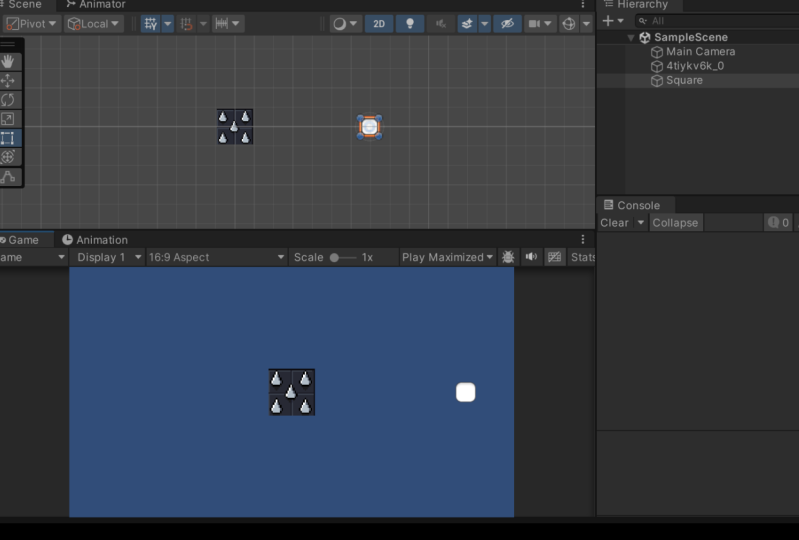
12. Create the Spikes Animation: in this lesson, we're going to create aspects and emission. So is go ahead and select or off the spice here, right click. Create an emission on Let's name these emissions spikes animal. And so we keep the particular organized. Let's go back to us Heads great in your folder that's willing to name any mission. Let's go back to sprays and go. I can drop the animation in that photo. We're going to select the first bright on Drug it and drop it in the euro. She so we have, despite to work with on, we're going to go into any mission for the Dragon Drop Generation on that Spite. No, let's go to the animation window and you can see here that my were animation is ready to be played. So if I hit the button play, you can see here that the animation is playing properly but isn't exactly what I want because it's going too fast or so. I would like this sprite to stay for longer and this one, too, so we can have a moment where the prayer can pass over the top of the moments where the prayer count. So let's just put for difference per second instead of 12. And let's elect or of the keys except the 1st 1 and then just going to move to him 2 28 for the first for the 1st 1 that's here. And then I'm going to say the two last one and move them toe 29 1 29 too. So know this mean that my first bite here will be staying there for about a second and then a smooth transition is going to happen. And then despite is going to stay for about a second to until you go back toe the initial spark. So let's see the result by hitting a bit and play and you can see the animation is working properly despite its staying for a bit with the spike certain than is going back inside. Forbid So the prayer as the time to come across Andi, that's are we needed to do to create an emission. Now we're going to go even further and we're going to add the box Kreider toe spikes. So that way we can activate the trigger. When respect out on Diz activated, the greater when they're not, and so we can have the spikes damage to player. So we're going to do that in the next listen
13. Damage the Player with the Spikes: in this. Listen, we're going to set up the specs so they can damage to prayer. So let's go ahead on that. Books Greater toothy are no spikes. And let's put it trigger working Green too great and your folder that re green to name a script and we're going to need great and you see shell script, that's where Green to name a specs. Let's open that script. Know that the script is open. We can simply they just emitters on. We're going to create a new viable that is going to be ain't is going to be damage which represent damage of the spate. When we're going to say on trigger Enter to D, we're going to check if the collision happens with the prayer using the tag. So if collision that tag equals equals the player, then we're going to get component. So collision that get competent and we're going to get the complete player, which is a script about two. Great. So let's go. Let's go and do that right away. Create a new social script, do you a little bit that script. No, we can erase the start of lived emitted again, and we're going to say public in life, and we're going to say public for it. Take them age. Intimate of the mission. Take and we're going to do life minus equals them age and simply print that using. Depict that lug and we're going to say Play your life, that prayer life, press life Let's go back on spikes on Dhere After the get component, we can simply add that take them age with damages apartment, which is the viable here that we're going to set in the Inspector. So, no, we're going to go back in unity and sedate the spike here, and we're going to add components banks. Are we going to set up the amount of damage to 15 for instance? And we're so green to create a new to the spreads and we're going to civic the same passports here like So, for instance, I'm going to scale it up a bit, so against you better let's add the books greater to T on a component on the rigid body to deal. Let's switch the body type from dynamic toe cinematic. Let's move to component here, and it's at the prayer component and said its life 200 There's only one less thing that we need to do, and we're going to go back on the Sprite here and the animation, and we're going to recalled, We want the books Grader to be is activated at the start of the admission because the spikes are in. So the Internet support damaged the player. And when you're wave about here, we're going to turn back the boats rider on. So from 0 to 28 frames the box, Crider will be off. And then it's going to be on until, let's say, until the latest firm, so until 60. Now, let's just go back to the project and make sure the time mission is sloping. So it's good to an emission space and him and set up the look tame. Now, if we hit the button play, select the new Sprite and move it in the triggers on. You can see here that the life is decreasing property only when the spikes are going out
 Geoffroy Calon, Unity / C# / Pixel Art