Transcripts
1. Introduction to Class: Hello and welcome to your
first day in Blender fo the perfect starting point
for Bigness in Blender. This course is aimed
at Complete Bigness, offering a comprehensive
overview of blenders, interface navigation,
and essential tools. Whether you are interested
in three D, modeling, animation, motion design,
or video game development. This course will give
you the foundational skills needed to get started. Throughout the course, we
will explore blenders, interface, going through each
and every step together, from navigating the
three D viewpoort to manipulating objects, applying materials
and much more. We will also cover
the basics of some of the complex topics
such as lighting, rendering materials, et cetera. To get you started,
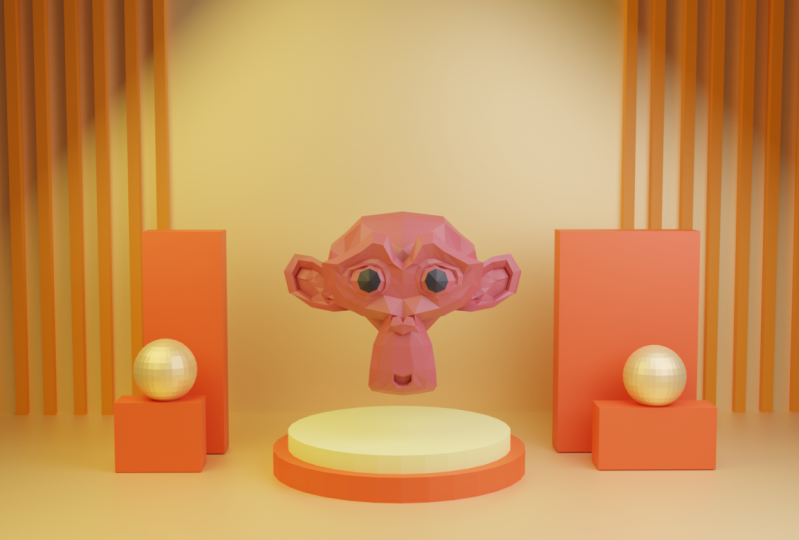
we will finish this class by creating a minimalistic and abstract
scene in blender. Using the things we learned
throughout the class, we'll play with
shapes, lighting, and composition to create
something visually striking. And end the class by taking some final renders
for our project. I hope to see you
there in the class. Thank you.
2. Downloading Blender: Hello and welcome guys. So in this lecture, we
will be going over how we can download and install
Blender in our computers. So let's get started right away. First, you have to open up
any of your browser and just search for Lender dog, hit Enter, and this
is the official blender website over here. You can go over to
download and you will find this button through which
you can download Blender. Currently, we are on the Blender 4.0 0.2 but according to
when you start the course, you might find a different
version over here. You'll also find this button
right here through which you can download Blender for
all the different platforms, like all the different
operating systems that you have if you're working on something
else other than Windows. But as I am on Windows only, I will be just
selecting this button. Also, if you will
scroll down over here, you can see this go
experimental, uh, column. You can click on Download
Blender Experimental. And over here, you will find the alpha and the beta releases
that you can download. As you can see, we have
the alpha release. These ones are all
the stable ones, but the Alpha one is the one
with all the new features. But the risk for that would be that it would be a
little bit unstable. If you want to have like
all the new features, you can definitely go for
this release over here. But I would suggest you
guys to go with this one. I think this is the
best option for us. So now let's just download
this one over here. As soon as you click it, it
will automatically start. It will ask where
you want to save it, So I will just hit Save over here and wait for the
download to finish. All right guys, after you
have downloaded the file, you can open it up and it will start with the installation
process of Blender. You will see something
like this appear up on your screen and you
just have to hit next, accept the agreements, hit next, next, everything
remains like that. You can also choose the location where
you want to save it. Just that, Make sure
to keep that in mind. But I will be going with
the default location. Only hit Next and hit Install
and wait for it to finish. All right guys, so now
the blender installation has completed. You
can hit Finish. And now just open a blender. All right, so whenever
you open a blender for the first time or you download
a new version of blender, we will be greeted with
this kind of splash screen. At the start, over here you will find this import
existing settings, which basically means if you are already working on an
older blender version, you can load those settings
in the new version as well. Like all your add ons settings, preferences will be loaded from that older version before
downloading this new version. As I was already
working on Blender 3.4 that's why I have this option
load Blender 3.4 settings. So generally, I would suggest
you guys to click over here only so that you can
load all your old settings. But for this course, as we are learning
everything from scratch, I will click on this
Save New Settings, so that I don't have any of my old settings already loaded. We also have a couple of these settings over
here, like the language. We also have the type of
shortcuts that we want to keep. We will be going with Blender. Only select with this. Basically, if you
want to select with the right click of your
mouse or the left click, then we have the
Spacebar command. Play means basically it will
start playing the animation, that is the default, so I
will be keeping this only. And then we also have
the different kind of themes for Blender
which you can go for. I definitely will be going with Blender Dark only as that
looks the best to me, but you can go with
anything you want. And then we can click
on Safe New Settings, and we are finally over here. Now we will be greeted every time with this kind
of splash screen, and not that old one, because we have saved all those settings so we
can create a new file, create animation file, all
these things over here. We also have recovered
last session, which basically means if, if your blender was closed due
to some unexpected reason, like a power outage
or a system failure, you can select non recover Last session for creating
a simple new file, we can just click on General. And now we will be greeted with a default blender
file with the cube, the light, and the camera also. One last thing, if you want to see that splash
screen once again, you can click over here and
select this splash screen, and it will appear back again if you want to do from
something over here. Just a quick little thing
that I wanted to tell. All right, so I think this is pretty good for this lecture. We will continue learning more about blender
in the next lecture. Thank you guys for watching.
I will see in the next one.
3. Learning Blender Interface: Hello and welcome guys. In this lecture,
we will be going a little bit over the
Blenders interface. Again, let's click
on General over here to create a
new blender file. And one thing that I want to mention before starting is that I've enabled an add on that
is called the screencast, that whenever I use
any of the shortcuts, as you can see over here, I'm pressing anything, it
is appearing up over here. The reason for this is
it will make it a lot easier for you guys to follow
me when I'm doing things. I will be mentioning each and every shortcut and
the thing I do. But again, it would be really easy to follow along with this appearing up over here whenever I perform like any
of the shortcuts. Let's just quickly
delete these things and we will go over the
blenders interface. Now right away when you open blender like
for the first time, it will look
something like this, with it being divided into
four different windows. The first window is called
the three D viewpoint, where we can view our scene. Three D models lights and
everything like that. We will be working the
most in this window as we will be using it to
model different objects. Then over here as you can see, we have the Outliner window, which basically has
all the objects that are currently present in
your scene right now. As you can see there are three. You can easily click
over here and select the particular
object in the scene. As you can see, when I
click on the camera, we can select the camera, the cube, and the light. Whenever you add a new object, let's say we want to
add a sphere over here. The shortcut to add
a new object is to press Shift plus A
on your keyboard. And you will see this menu
pop up where we can add a lot of different things which we will be
going over later on. But for now, let's just go
into Mesh and add a UV sphere. As you can see, the sphere is
currently added over here. It is overlapping with our que, but you can easily
selected from the menu. We can select the sphere
as well as the que. If you want, you can increase
the size of the sphere. You can just select the
sphere and press to scale it, and you will see
it will start to scale up in your
three D viewport. We will be going over all
these shortcuts later on when we will be covering the transform of all the
objects and everything. Let's just delete this for now. All right, I was going
over the outliner. Whenever we add a new object, it will appear over here and
we can easily select them. We can also do things
like turning them off, like making them invisible if you don't want to work
on them currently. We can also create
different collections. Collection is basically
a group of objects. You can just right click over here and create a
new collection. Let's say you want to move the light into the new collection, you can drag and
drop it over here. Yeah, this is just to make it a little bit more organized, so I will just undo it. And yeah, basically that was it right now for the outliner. Next we have the Properties
window over here. Properties window will
change according to the object that you have
currently selected. It will have all
the properties of the currently selected
active object. Let's say I've currently
selected the camera. Now if you will go
over here in the data, you can see we have all the
camera related settings, like the focal length, the type of the
camera, perspective, orthographic, and
all those things. If you select the
light, then we have all the properties
specific to the light, like the color of the light, the power of the light,
and so on and so forth. Also in the property tab, we have all these
small, different tabs, each one dedicated to
something different, like this one is for
the render engine. Then we have the output, like how we want to output
our animation or our render. Yeah, we will be
going over these a lot more in detail in
the upcoming lectures, but for now just know that the properties window
will be having different properties for
the selected object. All right, so the last one
is a timeline over here, which is not really of
that much use to us because over here you can create all the animations
and everything. Like you can add different key frames and things like that. Also another thing,
you can adjust these windows according to you by hovering over here on the edge and adjusting
them however you like. That's pretty handy. Now, a couple of more things
that I want to go over. The great thing about
blender is you can change any window to
whichever one you want. Let's say if you
click over here in the top left corner
over the editor type. So basically this window
is called the editor. And all these are different
types of editors, like the outline editor or the three D, Viewport
Editor, Properties editor. You can click over here and
you'll see that Plender has a lot of different editors
for different types of tasks. Currently you can see it is
set to three D Viewport. If you click over here,
it is set to Outliner, and this is set to Properties. But you can easily click over here and change this
to anything you want. Like let's say if I select
Outliner once again. Now both of these are
basically the same thing. You can easily change your
edit type from over here. If I set this to Properties, then we have the property stab over here as well as over here. As you can see, both of
them are the same thing. There are a lot of
different types of editor, like we have the image editor, then we have the UV editor
for editing the UV's. Then we also have the
geometry note editor or the shader editor for creating materials
and things like that. Yeah, we have a lot of
different editors which we will be going over at the
later on stage of the course. For now, I just wanted
to mention that you can change the editor
type from over here. Nothing too much to
worry about right now. We will be working the
most in these editors only like these three are the
main ones for us right now. All right, the next
thing that I want to go over is that you can also create Editor
Windows on your own. You need to hover over here on the corner of two editors
like this over here. And you will see this cursor appear like this,
crosshair cursor. And then you need to just click and drag to separate them out. Now you will see that
you've successfully created two different
three D Viewport editors. And you can do
this any number of times to create multiple
different editors. And you can see all of them are independent, you might think. What is the use for
this? Let's say we are currently in
the three D Viewpoort. We can open up like
an image editor over here to view the reference image or anything like that. We can also open up the
shader editor over here, so we can work on two or three different things
simultaneously. This becomes really
helpful when you get a little bit
advanced with Blender. Now I will just quickly
show you how we can collapse them back again. However, over here
and click and hold, you will see this arrow appear. And you can easily like collapse
them into a single one. Then you can go
over here as well. Again, click and hold, and you will see this arrow
and I will collapse it to the right side so that I have the complete
three D viewpoint. Alternatively, there is
another way to do this, and I think that
would be a little bit simpler rather than doing
this thing over here. For that, what you
have to do is you just need to go over here
at the edge of this window. Then hit right click, and you will see
this menu appear. Let's say we select
vertical split. And then we will see
this line and we can create a split Anyway
we want like this. Then you can hit
right click over here and create another split. Let's create a horizontal
split this time. Now you can create
it anyway you want. And then you can change all the editors to
whatever you like. You can also hit right
click and then swap them. Now this becomes
the image editor and this one becomes
the three D Viewport. You can also just hit right
click to join them as well. With joining, if you join
it like this at the bottom, then this complete window will become the three D
viewport like this. If you would have
joined the other way, then it would have
become the image editor. Pretty simple, let's
just collapse them Now This one is also
really easy to do. You can do whichever
one you like. Let's collapse it like
this on the right side so that this complete window becomes the three D viewpoint. Yeah, just keep that in mind. And with that,
basically we're done. The last thing that I want to go over is the
workspaces over here. Blender already has set defined workspaces
already made for you. So let's say you want
to sculpt something, you can go into the
sculpting workspace and then easily
scrubbed over there. You can also go over the UV
editing workspace and you'll see that the editors are already set up
by letter for you. Over here we have the UV editor, and over here we have
the three D viewports, so we can easily create a UV's. We will go over this later on. We also have the
texture paint workspace and yeah, so on and so forth. We have all these different
workspaces and we will be going over a lot of
them in our course later on. Let's just get back
to the layout tab, and basically this is pretty
much it for this lecture. I will suggest you guys to
not get too intimidated by all these commands
and options and everything that you see
right now in Blender. Because trust me,
Blende can do a lot of different things and it has like a lot of different options, commands, and things like
that that you can learn. But you don't have to know each one of them to be good at it. Yeah, this is pretty much
it for this lecture. Thank you guys for watching. I will see you in the next one.
4. Navigation through the 3D Scene: Hello and welcome guys. So in this lecture, we
will be going over how we can navigate around in a
three D scene in blender, it is extremely important
to get comfortable while navigating around in a three D program like Blender, because it will make
it a lot easier for you guys to easily move and
navigate around objects. We will be going
over how we can do basic navigation stuff
like rotate, Pan and zoo. We will also go over different types of
views like perspective, orthographic, and how we
can switch between them, along with all the related
hot keys for this. So let's get started. I will tick on general to
create a new Blendafile. All right guys, so now
let's go over three of the most basic
navigation commands that are the rotate, pan, and zoo. The great thing about
Blender is that all three of these commands are connected
to your middle mouse button. Only you can do all
three of them with your middle mouse button
or the scroll wheel. So to rotate your scene, you just need to click or hold down your
middle mouse button. And then you can rotate around your scene like
this very easily. The next is panning to pan, you need to hold down shift and then click on your
middle mouse button. You can pan around like this. You can move your three
D view like this, sideways and upwards
or downwards as well. The last one is zoom. Zoom is pretty simple, you
just need to scroll in or scroll out to zoom in or
zoom out like this again, let's quickly go over them. To rotate your scene,
just hold down your middle mouse button
and then to pan your scene. Hold down shift and then click
your middle mouse button. And you can pan
around like this. And to zoom in, zoom out. Just use your scroll wheel. You can move your
scroll wheel up to zoom in and down to zoom out. There is another way to
zoom in or zoom out. You can hold control and then click your
middle mouse button. This will make zooming in or zooming out a lot more smoother. Like if you just
scroll your wheel. It is zooming in in
increments like this. As you can see, it is
zooming in in increments. But if you hold down control and then click your
middle mouse button, it will zoom in or zoom
out a lot more smoother. Yeah, both of them are
pretty much the same thing. But I usually do this, I will just use
the scroll wheel. It is much simpler and faster. All right. These three were
the basic navigation tools. I suggest you guys to get
like comfortable with this. Spend some time, like
three or 4 minutes, moving around your scene, like just rotating around, then holding shift
to pan around. Then zoom in just to get a little more comfortable with navigation in blender. And now we will be covering the different types
of views in blender, like the front view,
side view, top view. But for that we have
to delete this cube. As a cube is equal
from all sides. We won't be able to tell the difference between
all the views, like the front view side view, because it will look the
same from all the sides. Just select this cube
by clicking on it. And then press delete
on your keyboard. To delete it, I will press Shift plus A
to add a new object. And when you go into Mesh, you will find this monkey. This is really helpful
for us because this monkey is like unequal. And it is different
from all the sides. Like the front
view is different, side view is different,
back view is different. So we can easily use it for
our demonstration purposes. All right, to go
into the front view, you need to press one
on your number pad, press one on your number
pad and you will see instantly blender will
switch to the front view. You can also see it over here. Front orthographic is written. We'll go over what is
orthographic right in a moment. But for now just focus on this. We are currently in the front orthographic view
when you press one. Now if you will press three, you will notice now we are in the right orthographic view. If you will press seven, now we are in the top
orthographic view, 13.7 These three are the
shortcuts for the front, the right, and the top
orthographic view. Let's say I want to see
it from the back side. Now press control plus one on your number pack to
see the back side. In a similar way,
if you press three, it is the right side view. But if you press
control plus three, then it is the left side view
as you can see over here. If you press seven,
it is the top view. And if you press
control plus seven, then it is the bottom
view. Pretty simple. A lot of these shortcuts are present in the
number pad as well, so you need to keep
remembering them or I will just suggest you guys
to write them down somewhere and then practice
them in your free time. One is for the front view, three is for right view, and seven is for top
orthographic view. And you can just hold
control to flip all of them for control. Plus one is back few control plus seven is bottom view
and control plus three. Right Now let's go over some of the other shortcuts
in your number pad. You can also rotate around your scene using the number pad. You can press four and
you'll see you can rotate around using 4.6
and 8.2 as well. Very handy. Not that useful in my opinion,
but yeah, definitely. You can use this if you want to. You can also zoom in or zoom out using plus and the minus con. One of the most important
shortcuts is the delete key, period key on your number pad. Let's say if I'm
placed somewhere like this and I select this monkey, and then I press
the delete key on my number pad or the period key. You will see it will instantly focus over this monkey model. It is really important
for us to remember this. Let's say I have a lot
of different objects. Press Shift and add a cube and just press G
to move it around. I will go over all these
transform shortcuts later on, but for now just
add them like this. It is really useful when you're working
with multiple objects. You can easily focus on
whichever one you want. Just select them and
then press Delete or the number pad period
key to focus on them. Yeah, really helpful. I will just quickly
delete these two. Now I will go over
another shortcut. Press one for the front view. You will see this front
orthographic written over here. If you press five
or the number pad, you will see it switches
to front perspective view. Basically, there are two
different types of view that are the orthographic and
the perspective view. Whenever we move around
in our sea, normally, like I'm normally rotating
around in my seat, we are currently in the
user perspective mode. If I press five, we switch to
the user orthographic mode. You can notice that the
orthographic view looks weird. Over here, you can see this
grid when I press five to move to the orthographic
view, it looks weird. The main difference between an orthographic and a
perspective view is let's press one for the
front orthographic view. The most important difference
between orthographic and perspective is that there is not really any sense of
depth in orthographic. That means you cannot really tell the distance
apart in objects. In an orthographic
view, for example, if you see the ears
of this monkey, they're looking like they're
parallel to the eyes. But as soon as you press
five to see the perspective, we can very well
tell that the ears are a lot far apart
from the eyes. But if I press one once again, they look like really flat. If you press 51 to like switch between the orthographic and the
perspective view, you can easily see the sense
of depth in perspective. It looks like really natural
how it could really look, but in orthographic it
looks like really flat. To make this even more apparent
or to explain you guys, I will just quickly
add two cubes. You don't have to
follow me for this, I'm just doing this
for explanation. I'm just quickly
moving them around. And I've placed these
cubes like this. One is at the front
of the monkey and the other one is
behind the monkey. Now if I will press one, you will notice that
we cannot really tell the distance apart
in both the cues, like all three of them are looking parallel to each other. But in reality, if you press five for the perspective view, we can easily see the sense of depth or the
distance between them, the monkey is between
these two cues. But we cannot
really tell that in the orthographic view as
in orthographic view, they all look flat
to each other. But in perspective view, we can really tell
the difference in all three of these objects. Yeah, now I will just delete them and basically
in orthographic, everything will look flat
and there is not really any sense of the while
in the perspective view, it will just look normal,
how it should appear. Yeah, I would suggest you guys, whenever you are like
normally modeling and moving around stuff to stay in
the perspective view only. And later on in the course, we will also learn
how we can model a three D object using
different orthographic views. Basically, we will be using a different two D blueprints or two D designs of an object from the front right or the top view and modulate
from all three angles. So yeah, that would be
really helpful for you guys to understand what is the
use of orthographic view. But yeah, for now this
much is pretty good. All right guys, the next
thing is the camera view. A camera view is basically, if you will notice, we also
have a camera in our scene. If you press zero
on your number bad, you will notice that we
switched to a camera view. Basically, now we are seeing through the eyes of the camera. You might think what
is the use for this? Whenever we render our image or render anything in Blender, it will always be rendered
through the eyes of the camera and not
really whatever you are viewing in the viewpot. Whatever you see
through the camera, which you can see after
pressing number pad zero, that is the thing that
would be rendered. We will learn a lot more about
the camera view as to how we can change the view or
change the camera settings, like the focal length
and things like that in a later
onstage in the course. But for now, just know that whenever we press zero
on your number pad, it will switch to a camera view to see through the
lens of the camera. And whatever you render
in your blend of file, it will be rendered
through a camera only. All right, now we are done with all the shortcuts on the
number pad, if you will. Notice we also have a
couple of keys over here. Basically, this
icon is for zooming in or zooming out
using this button, which I don't think that is of that much use because we can also do it using a scroll wheel. Then this one is
the same as panic. As I told you. This is the camera view,
you can see table. The camera view is
written over here and the shortcut is
number pad zero. When you click on it, you will be viewing
through the camera. The last one is to
basically switch the current view from
perspective to orthographic. Basically, this
shortcut is the same as number pad five there. These are all the shortcuts
that we went over. Also, we have this
thing over here. This is the same as switching
between different views. If you press one,
you will notice that currently we are
in the X, Z plane. And if you press X over here, now we are switched to
the right side view. If you press Y once again, now we are in the
back side view. You can switch between
different views over here also. But it is best to learn all the shortcuts rather
than switching between this. You can also like rotate around the scene with the
help of this gizmo, which is, I think,
a nice addition. But yeah, you should be
comfortable with moving around with your
mouse and switching the views using your
number pack. All right. One last thing. You will
notice that there is a key just above your tab key, which is also called, I
think the grave accent key. If you click on it, you
will see this menu appear. And you can also switch between different views using
this key over here. This is also pretty helpful. It also has this view selected. And view camera view selected is basically
the same as focusing. If I selected this over here, then clicked on the
grave accent key and then clicked
on View Selected, It will just focus over here, which is the same
as the delete key or the period key
on your number pad. We also have the view camera, which is the same as
the number pad zero, so that we can view
through the camera. All right, with that, we have basically covered
all the hot keys, the shortcuts, and the things related to navigation
in Blender. I will suggest you guys
to go through all of them and be comfortable with them so that you can move
around them quickly. That's pretty much
it for this lecture. Thank you for watching.
I will see you next one.
5. Adding Objects: Hello and welcome guys. So in this lecture, we
will discuss a little bit more about how we can
add objects in Blender. So we have already gone over this a couple
of times before. To add an object, you just
need to press Shift plus A. And this menu will appear. And you can search
through all the different objects that
are present over here, and you can easily add them. But there are a couple of
more ways to add objects. So I will just select this cue. To select an object,
just click on it and you can press delete to remove that. Another way to add
objects in your scene is to go over here on this menu. Basically, this is the
same menu as a Shift Plus, but this is just a
different way to do it. You can see all those options, You can add maybe UV, Sphere or something else. You can also access that
menu from over here. Also, we can do
it through Shift. And another command you can
press three on your keyboard. And basically this is a
search menu for Blender, which has all the commands
and tools that are presented Blender and you can search over
here for anything. Let's say search for add a, Q. You can see add mesh is written and I
can easily add that. All right, let's
move further Now, I will delete this
cube once again. Again, press Shift plus A, and you can see
there is a search menu present over here as well. If you click on it, that will
bring you to the same menu as the one that we just
did by clicking three. Yeah. All right. Now if we add maybe
something like a cylinder, press shift and add a cylinder, You will see there is a
small little menu that appears up over here that
is also really important. You can click on it and over here you will notice
that there are a lot of different settings and options
that you can edit through which are different according to the thing you have added. For now, let's say we have added a cylinder so we can
change the vertices. You will notice if I
reduce the vertices, it is like really low poly. And if I increase it, it
becomes smoother and smoother. Another thing that you can
control is the radius. Basically the radius of this. Then we also have the depth, that is basically the height. We can also change
the position of it and all those things. Let's delete this and look at this menu for all
these different objects. For Q, we have something
else, we just have the size. If we increase the size, it will basically
increase in size. That is the only
command that we can change besides the
position and rotation. Then for maybe a UV sphere, we have the segments. Basically, segments also is how much smooth it will
get with each segment. If you increase it too much, it will have a lot
of more polygons. As you can see, the rings is
basically the same thing, but on the z axis, make sure do not increase
it too much because it can lag your computer
just like it did mine. I will again set this back
to something like 32. We also have the radius
over here as well. Let's delete this now. You can try adding different objects and see how they react. Also another thing that
I want to mention, if you don't see all
these extra options that are present in the
mesh and the curve, I've mentioned this in
my last lecture as well. We have to enable a
special add on for this. Go over to Edit Preferences
and search for extra objects. If you enable them both. Let's say if you
disable them both, you will see none of those options are not
present over here. And we just have a simple
mesion curve if you want, you can keep it like this also. But I just like to keep
them enabled because they do use a certain objects
from these things as well. As soon as I enable them, you can see all
these extra options are now present over here. Yeah, we can go
through them as well. Yeah, I will just
suggest you guys to add some more things and play around with them to see and to get the feel
for it. All right. The next thing that
I will be going over is that whenever
you add a new object, you will notice that it gets added at the center of the uh, five basically it gets added
over this three cursor. So we can change the position
of this three cursor to add the objects wherever we got to change the position
of this three D cursor, you need to shift, then
click your right click. And you can see
wherever you click, the position of this
three cursor will change. It is a little difficult
to manage because it will get placed anywhere
in the three D space. But yeah, you can
basically change the position of
this three D cursor like this by holding shift and then using your right click. And now whenever you
press Shift plus A, let's say I add a UV sphere. You'll see it will
get added over here. Now will shift and right click. Click over here, then
let's add maybe a plate. This way you can add
all these objects to different positions. Let's click Shift plus
right click again over here. Let's add a cone. So you can see basically you can press Shift plus right
click and change the location of the
three D cursor to add these new objects
wherever you want. If you want to reset the
position of this three D cursor, the shortcut for
that is press Shift plus S. This menu will appear. Basically, this menu is related all to the three cursor itself. All these are
different commands for the three D cursor
and you just need to select cursor to world origin. This will set it back
to the world origin. I will go over this three D
cursor a lot more in detail. In the upcoming
lectures, we will discuss all of these options. But for now we don't
want to get too much confused with all these
options, just know this much. Whenever you add a new object, it will be added to
the three cursor. And you can change
the location of this three de cursor by pressing
Shift plus right click. And you can reset it
by pressing Shift plus S and then selecting
cursor to world origin. All right, let's just
delete all these objects. You can select them all
like this by making a box. Make sure this tool is
selected over here, select box, select them all. Pres, delete and select this
sphere and press delete. Also, sometimes when
you add object, let's say we add a plane, press shift plus
and add a plate. It might get overlapped
with other objects and right now we can see
the outline of this object. But let's say if I
click over here now we don't really know if there are two objects present over here. You can select them from
the outliner like this, and you can select it as G
and move it right over here. That's why we also, we change the location of
the three case so that all the objects don't get spawned in the
same position. Only the shift plus
cursor to world origin. Another thing about
the three D cursor. Whenever you click
it on an object, you'll see it will
get stick to it. It will get stick on
the surface of it. That is also a nice
thing to know, but if you click it anywhere
on the three D space, it will just get added anywhere like floating
around the space only. But if you click over here, it will snap to the
surface of the object. A shift and cursor
to world origin. All right, till now we were only adding meshes
into our scene. You can also see there are a lot of different objects
present in plan. Like let's say we
also have a curve. We cannot really go
too much in detail about them because it
might get confusing. But yeah, we also have
curves over here. We also have different
type of lights, like to light up your scene. Then we have camera
and we can also add like different images for our reference
and background. Of course, I will discuss all of these options whenever there is like the right time for it. We will also use different
reference images to create our models. And obviously we will use
lights to light up our scene. Then we also have
things like text. If you add a text, you
can basically create your own three text just to show you a little bit of
example what you can do. I'm not really discussing
anything right now, but you can basically
create your three text. You can press Tab
to edit this and let's say type my
name very simply. I've created my name
in three D. You can also change the
font from over here. And a lot of different
things that you can do. Yeah, we will be discussing
all those things. Let's just ad for now shift, Let's look at some
other things as well. We also have this
metabol which is really fun to play with If you go over to Metabol and add a ball. Let's say press Shift once
again and let's add a capsule. Now you can press
to move it around. And you will see Metabol is like a different
type of structure. Or let's say three D model which joins together whenever they are close to each other. You can add like
multiple of them to create some weird shape
is really fun to play it. I think we might
use it to create some type of clouds because it gives it like a fluffy look. Let's just select all of
them and press Delete. Yeah, I would just suggest you guys to go
through this menu, add different types of objects, get a feel for blender. Yeah, thank you
for watching guys. I will see the next one.
6. Selection Tools: Hello and welcome guys. So in this lecture,
we will be going over the selection
tools in blender. To simply select an object, you just need to hover over it. And left click using your mouse. And as soon as you do that, you will notice that it has this yellow colored outline now, meaning that it is currently
the active selection. Now to deselect this object, you just need to click outside,
anywhere on the screen. And as soon as you do that,
it will be deselected. All right, now to select
multiple different objects, you need to hold down
Shift and then click on them one by one to select multiple different
objects at once. Now you must remember
that whichever object you select at last will be
your active selection. As you can see, this object has this yellow colored outline, while the rest of them
have orange colored. Whichever object you select at last will be the
active selection. At any given time, there can be multiple different
selected objects, but only one active selection
or an active object. This is important as
many tools and actions in Blender use active
object as the reference. So you should remember
this thing now. Let's say I hold Shift
and then click on this. Once again, you will see now this is the active selection. While now both of these
are just selected. You can still do things
like select all of them at once and then press
G to move them together. But yeah, you still
must remember that this thing is only the
active selection. All right. Now, to deselect the objects, when you have selected
multiple of them, you need to click on
them once or twice. What I mean by that is if
it is the active selection, you just need to click on it once and it will be de selected. But if it is not the
active selection, you need to click twice on
it to make it de selected. Because first you
have to make it the active selection and
then click on it once again. Basically when you have
multiple different objects, you need to hold
down Shift and then just double click like this
to remove the selection. And if it is the
active selection, you just need to click once. All right, with that
out of the way, these are some of
the basic tools for selection in Blender. We also have this thing
over here you can press to bring this tool bar up. By default this is selected, the select box tool. Using this, you can make
box selections like this. By dragging your left click and selecting the objects in a box, you can create a box selection. It works similar to Shift. You can just select multiple
different objects at once. But let's say I will
add a couple of more objects to make it
a little more apparent. Let's add a bunch of different objects by pressing Shift plus A and adding them. Whenever you use box
select like this, let's say I select
these three objects, Now you use once again
and select these two. This selection would be removed and a new selection
would be created. This is the thing
with box selection, but now if you want to
add on to the selection, you can select the two, then hold shift and use your box select once again to add
on to the selection. You can do that. Also, you can remove from a box
select using control. If I hold control and
then make a selection, it will be removed
from the selection. So hold shift to
add to selection and hold control to remove
from the selection. While you are using box select, another thing to select
all the objects at once. In Blender, you
can press a once. Just press a once, and all the
objects would be selected. You can press Alt plus A to remove the selection from
all of them at once. Another thing that you
can do is just press A. Now you've selected all
of them to deselect them. You can just press A twice, and now all of them
are de selected. I used double a lot
more than Alt plus a A to select them all and
double to deselect them. All right, with that, we have basically covered
all of the selection tools. If you hold down over here on this tool, on the select box, you will see there are
two more selection tools, the select circle and
the select lasso. Select lasso is pretty simple. Like with the box select tool, you can create boxes with lasso. What you can do is you can create free form
shapes like this. And you can select this way. Yeah, you can
basically select like this by creating these
free form shapes. I've never really used this
tool, but yeah, it is there. The last one is select circle, which I will not be
going over right now because it is not really
useful in this scenario. The select circle tool
is really useful when we are in edit mode working
with a lot of vertices. When we are modeling
and learning to model and we are in the edit mode with a lot of
different vertices. I will show you
how we can select a circle because it is a really
powerful and useful tool. For now, we will keep
this out of the way. Also, the select box tool is the default tool that is
always selected by default. That's why you can always make box selections without
really selecting it. Select box is always
the default tool you can press to turn
this toolbar off. And yeah, with that, we're done with the selection
tools in blender. Thank you. Watching. I
will see you the next one.
7. Transform Tools: Hello and welcome guys. In this lecture, we
will be going over the basic transform
tools in blender, which are move,
rotate, and scale. To move an object in Blender, you just need to select
it by clicking on it. Then press G on your keyboard to move it around like this. As you move it around,
you can use your left click to drop it
anywhere you want. You can also press right
click to cancel the movement. Let's say if I press to
move this object around, then if I hit my right click, it will be back at
its original location whenever you are moving
it around and you don't really like
the movement or for some reason you want to move it back to its original place, you can just hit
right click to cancel the entire movement and it will be back at its
original location. I will just undo it back
to the world origin. And if you will
notice over here in the Properties Editor in this
object property section, if you move your object around, press G to move it around, you will see the
location tab is being updated with values
in real time. So you can move
it around and you can see the values over here. You can also move the object around easily from
these sliders. You can just move them
around like this, or you can type in
any value you want. It has disappeared because I
put in a very large value. Let's just undo it back again. Another way to view
this would be if you just press N
on your keyboard. You will see this tab will
appear on your screen, which basically has all the transform information
of your object, like the location,
rotation, and the scale. It is basically the same
as this thing over here. Now when you press
G, you will see the location is being updated. All right, let's press once
again to turn this off, and I'll undo this back again. And right now, you just noticed
that whenever we press, we are moving our object in
all the three different axis, which is not really accurate. So let's say if I just want
to move it in a single axis. So how can we do that? If
I press, then I press Y. If I want to move
it in the Y axis, you can see the location has
been locked onto the Y axis, and I can only move
it on the Y axis. You can see it
over here as well. The location on the Y axis
is only being updated, and the rest are at zero. You can also press then Z and move it on the
z axis like this. This shortcut is pretty handy. Make sure to remember this
first press to move it around, and then press any
of the axis, x, y, or z, to lock its movement
over there like this. Let's do this back again. Another thing if you want to be really accurate
with your movements when you press G. And then
let's say if I press Y, you will see the values
are being updated. Over here, you can
see how much you are actually moving your cube. Currently it is at minus nine, or when you move it over here, then it is at positive of 6.6 You can type in the
values in number pads. Let's say I just
want to move it by 2 meters, I will type two. And you can see now it is
fixed over here at 2 meters. You can see over here, if I
press then Y and type in two, it has been locked to 2 meters. This is the way of
being really accurate. You can just move it
around anywhere and then type in a value on
your number pad like three. And it will be locked out 3 meters from the origin or from wherever
you have moved it. You can also view this
over here as well. As you can see it
has been moved by 3 meters on the z axis. You can also make changes
over here in this bar as well by typing in values, which is really nice addition. All right, so let's
undo this back. And now we can finally
move over to the rotation. The shortcut for rotation is R and you can rotate
it around like this. You will notice the values
are being updated over here as well as over here as well if you press
the side bar view. Let's do this back and again, you will notice
whenever you press R, the rotations are
not really accurate. It is basically
rotating anywhere on all three different axis and you cannot
really control it. The way to control it
would be to press R, then type in any of the
axis like let's say Z, and then just rotate
it around the z axis. Similarly, over here you can
see the values are being written to whichever angle you are currently
rotating, the cube. You can also type in let's say 90 or let's type in like 45. It has been rotated
by 45 degree angles. You can also change the values over here. It is
basically the same. All the things and shortcuts
that we just learned for the move command also
apply to rotation as well. Another thing that you can
do with rotation is you can press R two times and it will give you
trackball like rotation, which is a little bit
more accurate than just pressing R. If
you press R two times, it gives you much
better control. And you can rotate it
like this as well. You can also rotate it by pressing R then typing
any of the axis. Another nice way to move or rotate things would
be to just go into the orthographic views that we learned in the earlier video. Let's say if you want to move something from
the front view, I will just press one for
the front orthographic view. Then when I press first
select this object and then press R. And you can see I'm rotating it from the
front view only. And we can move it
around like this. It will only move
in this plane only. That is from the front view. If you press seven
for the top view, you can move it around or
rotate it around like this. And it will only rotate
around the z axis. Because you first aligned it with the top view
and then rotated it, that is also a nice
way to go about it. All right, The last one
is to scale things. The shortcut for scaling
in blender is to press S and then you can scale
them around like this, basically increase
the size of them. And similarly, you can
press then z and along the scaling on any
of the axis that you want to just scale it on
that particular axis. Again, all those things
work over here as well. You can move around the
values from the slider here. Also, you can just type in the value if you
want to press than x and type in like five to scale it five times
on the x axis. All right, one last thing that I want to go over is
that when you move around or do any
transformation on your object, let's say if I press it is
moving around pretty quick. Sometimes it gets a little bit difficult to place
around objects when you hold shift while moving or rotating or
scaling your objects, it will get really slow and you can make precise movements, which is easier to place them around if you
move them around like this. As soon as you hold shift, you will see the move
around pretty slowly. This works for all
the three things. Let's say if I rotate
it on the that axis, it is rotating pretty quickly. As soon as I hold shift, it will rotate like really
precise and slowly. You can make small,
little precise movements. Similarly with scaling as well, you can hold shift
to make it slow. Let's just undo it back
to the world origin. Now guys, the one last thing
that I want to go over is a little bit about this
yellow colored origin point. Every object whenever you
shift and let's say I add, let's say a UVsphere, it will have this origin point. Every object in Blender will
have this origin point. It will be at the
center of the object. We can also change this origin
point to wherever we want, but more about that later on. Whenever you create
a new object, the origin point will always be at the center of
them, like this. The use of this
origin point is that all the transforms
take place from this. Let's say if I press one
to go into the front view, then press R to rotate My cue, you will see this line is being connected to your
mouse over here, basically showing you
that it is being rotated from this origin
point like this. Also, if you scale your objects, it will be scaling from
the origin point itself. Just to make it clear, I will be changing the location
of this origin point. You don't really have
to follow me for this because it is a
little bit advanced. Let's say I have changed the
origin point of the Q Two. Overheare again, as I said, I'm doing this just for
demonstration purposes. We will learn about
this later on. But now if I press
harder than Z, you can see it is being
rotated over from this point. That is basically the
use of origin point. It is used as a reference point for rotation, scale,
and movement. If I rotated on the
X axis like this, you can see the cube is now rotating in a completely different way as it was earlier. Because now the location of the origin point
has been changed. Make sure you understand
this concept, Don't worry. We will learn about all these things a lot more in detail. How we can change the location
of the origin points to, however we want to control the transform of the object
and all these other things. Thank you guys, watching. I
will see you in the next one.
8. Global and Local Axis Transform: Hello and welcome guys. So in this lecture we
will be discussing about global and local axis and how we can transform our objects
along those axis. In the last lecture, we already discussed a little bit
about global axis. So basically,
whenever you select an object and let's say
you move it around. And now if I press Z, then I'm moving it along
the global z. So I'm currently moving it
along the global z axis. Similarly, if I press G, then y and move it like this, then I'm moving it around
the global y axis. So basically this
is global axis. It is same for all
of the objects, but when you have a local axis, it can be different or it will be different for all
the different objects. Like every single
object in your scene, we'll have a
different local axis. Let's say I delete this
and press Shift and add a cube currently
for this object. The global and the
local axis are the same because we haven't
made any changes yet. Well, let's say if
I press R, then x. Now the global and local axis of this object are different. The global axis will
always remain the same. That is the x, y, and
the z that we all know. But to visualize the local
axis a little bit better, you can select this object. Go over here in
object properties and in the viewpoint
display enable access. You can see this x, y, z is written over here. And you can see as we have
rotated this a little bit, whenever we rotate
this, the axis of this particular object
are changing accordingly. This is like the local
axis of this object. All right, before we
move over to local axis, first what I will
do is we will go over a little bit more
about global axis. Let's add a be once again. All right, so now we
know that when we press just to move
this object around, we are currently moving it on all three axis, right at once. If we press then x, then we are just moving
it on the x axis. We know how we can
move an object on all three axis at once, and only on one axis at once. But we can also
do it in a plane, so that means we can move
it around two axis at once. So let's say I just want
to move this object in the xy plane and
not in the z axis. The xy plane is
basically our ground, the x and the Y plane. If I press, then
press shift plus z, because I want to exclude
z axis, shift plus z. And now you can see I'm
moving it along two axis, that is the X and Y axis.
It is the xy plane. Similarly, you can
place then shift plus x and now you are moving
in the y axis like this. Similarly, you can do it
for all different things. Let's say if you
press to scale it up, you are currently scaling
it on all three axes. But if you press shift plus z, now you are just scaling
it in the x, y plane. This shortcut is
also really handy. So make sure you remember this. All right, now we can
move over to local axis, press shift plus A.
Let's add a cube. For this, I will enable
the axis from over here. Let's press then Y and
move this one over here. Press shift A, and
let's add another cube. I will enable the axis
for this as well. All right, you can
select them both at once by holding shift
and select them like this. Then press then Z. Let's scale them
up by three times. Currently, I'm scaling
on the global z axis. I will just type three
on my number pad, and I've scaled them
up by three times. I will just show you how we can now scale along the local axis. Currently the local axis of them is same as the global axis. Now what I will do is I will just rotate
them a little bit differently so that the local and the global axis
are different. I will press R, then X,
and rotate like this. Let's move it over here.
Then I can select this one, press R, then Y, and
rotate this one like this. All right, so now you
will see the difference between the global
and the local axis. Earlier when we used to
scale along the z axis, it worked really well because the local and the
global axis were same. But now as they are different, you can press than z
and you will see it will scale very weirdly
and not how you want it. You want to scale it like this along the z axis of the object. If you zoom out a
little bit, press then, and you can see it
is scaling up very weirdly to scale
along the local axis. You can press S, then z, and z once again, and you will see it will align it with the z axis
of the object. That is the local local
z axis of the object. And scale it this way.
This is really helpful. You can do it over here as well. Press S, then z, and z once again. Now you can scale along
the local z axis. I have hit right click to
undo my operation. All right. Another thing is you can also rotate very easily, press R, then currently you're
rotating along the z axis or the global
z axis to be precise. Now if you press R, then
Z and Z once again, now you're rotating
along the local z axis. This is really handy. You should always keep
this in mind that the global axis
and the local axis of an object would be different. All the objects in the scene would have different local axis. Yeah, it's really helpful
for us that we can scale, rotate, and move them around
their local axis as well. Press S, then z and z. To scale it like
this, press z and z to move it along
the local z axis, or pres, then x and x to move
it along the local x axis. With this, you now know
two different ways to transform your objects. One is along the global axis and the other one is the local axis. It's really useful
to know both of them as according to the situations, you have
to use both of them. Sometimes you have
to move the object along the local axis
because you have to keep the rotation like this
or you have to rotate it along the global
axis like this. And sometimes you
also have to move or rotate it along the
global axis as well. Yeah, definitely make sure to
keep this concept in mind. Also, another thing, you can
enable x ray from over here, so this is like togal x ray. When you enable this, you can see through your
objects and you will be better able to visualize
the axis as you can see. They now appear properly when you enable x ray from over here. So you can enable
or disable x ray to see through your objects. And yeah, when you enable this, you can properly see the
local axis of the object. Let's say if I
press Shift and add maybe some other
objects like a UV spare enable access for
this or like a cone. You will see all of them
have their own local axis. You can rotate and move them around to see them
properly with the cone. Like you can visualize
even better when you move or rotate
along the z axis. Let's say if I press
G, then Z and Z. Once again, you can
see I'm now currently moving along the local
z axis of the cone. If I just press and z one time, I'm moving currently
along the global axis. Yeah, same thing you can do
with all three transforms. I have gone over this a lot
of times now. All right guys. So with this, I have
discussed everything that I wanted to about global
and local access. For now, I will go over them a little bit more in detail
in the future lectures. Thank you as watching. I will
see you in the next one.
9. Edit Mode: Hello and welcome guys. So in this lecture we will be discussing about the edit mode, where we can actually model our objects and change
the shape of them. Till now, we were only working in the object mode
where we can just select all these objects
and move them around and basically do all sorts
of transform operations. Like we can scale
them, rotate them, but we cannot
actually model them. All right, so to go into the edit mode,
it's really simple. You can just select any
object and then press Tab on your keyboard
to go into the edit. You can then again press Tab
to come out of it and go back into the object mode as you can see
over here as well. Currently we are in
the object mode. As soon as we press Tab, we are now in the edit mode. And you can also change it
from over here as well. From here you can change between
all the different modes. In Blender, earlier we
were in object mode, we can move it around,
and now we can just press Tab to go
into the edit mode. As soon as you do
that, you will see all the toolbars and the
menus over here change. They will have basically added functionality and options
for the edit mode. If you cannot see this tool bar, you can just press
to bring this up. So we have added
tools over here for edit mode which will help us in modeling our object better. All right, the next thing is, as soon as you go
into the edit mode, you will see that your cube is n divided into different vertices, which you can select
individually as well. The great thing
about this is you can select all these vertices and do the transform
operations that we just learned in
the last lectures. Basically, you can select them and you can see you
can move them around. You can change the shape of
the cube however you want. A shortcuts we
learned like pressing G and then pressing to
lock it on the z axis, all those things we can do. You will notice that when
you select a vertice and try to rotate
it around or scale, it nothing will really happen. And that's because it's
just a single vertice. You can, you can
scale or rotate it. You can move it around,
but you cannot really scale just a single
vertice. Hold shift. And by holding shift you can select multiple
vertices at once. As you can see, if I just select these two vertices and then
press to scale them up, you can now scale this edge. Basically the line connecting between two vertices is a edge. This thing, if you select
four vertices like this, now basically you've
selected a complete phase. I will press Tab to come
out of the edit mode, and you can see you
have edited the object. And you can now again scale
it or move it around. In the object mode, I will delete this cube. So press delete on your keyboard and press Shift and let Sadden, new as I was mentioning, you can press Air and
then you can just hold Shift and select multiple
vertices at once. Now you have selected
an entire phase. You can now easily
rotate it around and you can press R then X to just
rotate it on the X axis. All those shortcuts
would definitely work. Press to scale it up. Or scale it down? Yeah. As I was going over earlier, you can basically
select a single vertice and if you select two of them, you have basically
selected an edge. As you can see, the
vertices are not connected to show that
the edge is selected. And if you select all four
of them, you selected. Now a complete face as the
whole face is highlighted. Similar way you can select
two faces at a time. This is difficult to select the faces by selecting
all four of vertices. That's why you will
see over here we have three different modes
for the edit mode. Currently we are in the
vertice select mode where we can just
select single vertices. If you go over here
and select this one, this is the edge selection mode. Now you can select
complete edges as I was selecting earlier. So basically selecting an edge is the equal to
selecting two vertices. Like if you go back
in the vertice mode, you will see now the
two vertices are selected if I go over here, now this edge is selected. If you go over here
in the last mode, that is the face selection mode, where you can basically select
entire phases like this. You can also hold shift to select multiple
phases at a time. Similarly, you can go into
the edge mode and select multiple edges while
holding shift. We will also learn
some shortcuts later on in the next lecture, where we can efficiently
select faces and edges. Also, another thing that
I want to mention is, let's say if you have selected two faces like this
while holding shift. If you change into
the edge mode, you will notice now all
of the edges that were corresponding to those
two faces are selected. If you go into the
vertice select mode, all of those vertices
will be selected. Yeah, just a nice
little thing to know. All right, so
basically you can also switch between these
like selection modes. You don't have to
go up over here. You can press 12 or
three on your keyboard. Number, not the number pad, but the ones that
are at the top. You can just press one
for the word select, two for the select, and three for the face select. All right guys, Now
I will just suggest you guys to practice
this a little bit. Press 12 or three and go through all the selection modes and select all different vertices. Try to move them around and try to like scale them up,
create some shape. Then you can press Tab to
come out of the edit mode. And now you can
easily move around this object that you've just scale it up or rotate
it however you like. But to actually change
the shape of the object, you have to press
Tab and then go into the edit mode to move the individual faces,
edges or vertices. Let's press Delete. Press Shift, and let's add something else. Let's say you can add
a cylinder as well. Another thing, you can adjust the settings of the
cylinder from over here. So let's reduce the vertices to maybe 16. Now
you can press Tab. You can see it has
these individual faces. We have these two
faces at the top. At the bottom, we have all
these faces on the side. You can select them like this, scale them up, do whatever you want to create, all
sorts of shapes. Similarly, all these
different objects will have different geometries. You can press tab
to go inside them, just try them out a little bit, move things around and
play around with it. To get the feel
of the edit mode, I will delete everything. And let's press shift A once
again and add a simple cube. All right, so now one
another thing that I want to discuss is let's say
if I select this cube, press R and then rotate it on the y axis. A little
bit like this. Then I press Tab, and let's press Three to go into
the phase select mode. I select this phase,
press G, then z. You will see again
it will move in the global axis, global z axis. To make it move in
the local z axis, you need to press Z and Z. Once again, all these
transform operations work on the individual faces and even the vertices as well. If you press and Z, it will only move on
the global z axis. If you press Z once again, now it will move
on the local axis. All right, let's undo this. Next thing is in
the last lecture, we learned about
the X ray modes. Here X ray modes would be really helpful as when you're working, let's say like this, you cannot really see
the vertices behind. You can enable either
the wireframe mode so that you can select all
of the vertices at once, or you can just select
the x ray mode as well, because that also
works pretty good. So this way you can
select the vertices over here and over here as well. This object is really simple, that's why it is not
looking that much. But when you have a
very complex object with a lot of
different vertices, these modes come like, really in handy when
you can look at the back of it also and
just select these vertices. Another thing is like when, let's say make a box select. When you make a
selection like this, you will notice that all of the vertices are being selected, that are currently
in the selection. The ones at the behind as well. But let's say if I turn this off and try to
select it like this, you will see only the
ones at the front would be selected and these two
would be not selected. This might be useful
sometimes, but again, if you want to select all
of the vertices at once, make sure you have always x
ray or wireframe enabled. Then only you can select all
of these vertices at once, at the ones at the
behind as well. Also like when you're
working in let's say orthographic modes 13
or seven, anything, if I press one and disable
x ray and then select this, only the front two vertices
would be selected. This can sometimes
mess up your modeling. Make sure if you want to
select all of the vertices, the ones at the behind as well enable x ray and
then select them. And now you will see this
works in orthographic as well. All of the vertices
would be selected. Let's say if I was
in the top mode, press seven for the top mode. Now if I select like this, everything would be
selected because I'm in the top mode and
I'm selecting like this, everything would be selected. You can select like this to only select this
side of the faces. Yeah, you get my point. Basically, whenever you
have to select everything, the vertices at
the behind as well just enable x ray or wire frame. When you don't have to select them, you can just
turn them off. All right, with this, basically these were
all the things that I want to discuss about
the edit mode right now. Obviously there are
a lot more things that you can do
in the edit mode, but we will get
into them slowly, step by step for
the basics of it. This was pretty good. Thank you guys watching. I
will see you in the next one.
10. Types of Shading in Blender: Hello and welcome guys. So in this lecture we will be
discussing smooth shading, flat shading, and
auto smooth shading. By default, whenever we add a new object in
blender, it is flat. Shaded means that all of
the edges would look sharp, making it look very faceted, and giving it a flat look. Basically, if you
add a U sphere, it would be much more visible. Yeah, as you can see,
all of the edges on this U sphere of the faces
are very much visible. Basically, that is flat shading. If you just hit right click
now and shade smooth this, you can see now the U
sphere looks completely smooth as all of the
edges are now even out. Whereas if we do
shade flat to it, all of the faces
are individually visible and all of the
edges are like sharp. That is basically shade flat. And you can right click and hit shade smooth and that
is smooth shading. And now let's learn
about auto smooth, which we will be using most of the times because it is
the most applicable. So basically, when you
want your object to have both flat shading
and smooth shading, we can use auto smooth shading. It is in cases like, let's
say we have a cylinder. You can see all the edges
are visible over here. And we can just hit right
click and shade smooth this. But as soon as we do that, now the objects
look really weird. Because the edges over here on the top face do not really
need to be smooth shaded. If we hit shade
smooth once again, you can see the shading of
the object looks very weird. We can now hit right click
and select shade auto smooth. You can see as soon as we
use shade auto smooth, it fixed all of the shading. And now you can see that all of the faces that were over here look smooth shaded
while the faces over the top and the
bottom are flat shaded. Basically that happened
because we used auto smooth. We can also do this
one another way. If we just right
way can shade flat. This we first can right
click and hit Shade Smooth. And now the shading
is again all weird. We can go over here
in the object data. Properties under the normal
section enable auto smooth. This was the old way to do this. You first need to
hit Shade Smooth and then select auto smooth. But now with blender, like I think four point only, we can just hit right
click and select Shade Auto Smooth directly
from over here only. Which is really nice I think. But yeah, you need to make sure that before you
use auto smooth, you first need to shade, smooth it and then
enable it from here. I'm talking about whenever
you enable it from over here. If you just directly use it from over here, then
it does not matter. You can directly do it
on a new object as well. Let's say if I add a monkey
and you want to auto smooth, shade this right click and
just select shade Auto Smooth, and everything would be fine. As you can see, auto smooth was automatically
enabled over here. I was just talking
about the old method in which we used
to first like add an object and then we had to hit shade Smooth and then enable
to smooth from over here. There were two steps
now we can just directly hit shade
or smooth from here. Yeah, we will be mainly using auto smooth only because
it works the best. As it can incorporate both smooth shading as
well as flat shading. Basically, you can see this
30 degrees written over here. What auto smooth is doing
is that it is smoothing the faces that have an angle
of 30 degrees or below. You can see over here, some
of the faces are flat shaded. And now if you just
increase this value, you will see all of those
faces that were greater than 30 degree angles slowly
get to smooth out as well. If you keep on
increasing it slowly, all the faces would be
smooth out like this. But yeah, I never really
had to change this value. I think the default 30
value works pretty good. Another thing that
I want to show you is let's just delete this. We can press Shift. Let's
add a U's fare, let's say. Let's press one
for the front view and we can go into
the edit mode. Let's enable x ray. Now let's just
select the vertices over here on the right side. And then press three
for face select. You can just hit right click
and select Shade Smooth. When you press Tab, now
you'll see that half of the sphere is smooth shaded while the other
half is flat shaded. You can do that as well, like individually selecting the faces and choosing them to be smooth shaded or flat shaded
if you want to. Yeah, this is all
the things that I wanted to discuss
about smooth shading, flat shading, and to smooth. Thank you guys watching. I
will see you in the next one.
11. Lights: Hello and welcome guys. So in this lecture, we will be going over the
lights in Blender. So if you will, notice whenever you create a new pleno file, there is a light and a camera, by default, added
into your scene. But you will notice that
this light does not really do anything you
can like move it around, pres G, move it around, and you will see nothing really happens when
you move it around. It is not casting any light. And the reason for that
is because we are not in currently the right mode
of viewpoint shading. So you can change viewpoint
shading from over here, and we are right now in the
solid viewpoint shading, which is normally used for light modeling and stuff which
we were doing until now. To view the lights working, you need to go into the
rendered view mode. If you will click over
here, you can do that. As soon as you click over here, you can see the view
changes a little bit. And this light, which was
not really reacting earlier, if you select it and
press to move it around, you can see it is
reacting with a Q and it is like casting light
wherever we move it. So this is the
rendered view mode. You can understand
of this mode as where everything finally
comes to action. You will see your final
product over here. Like all the lights, materials, everything, you
will see overheam. Whereas in the solid view mode, you will only see the model. Not the material or
the lights, anything. You will just see the model. So the rendered view mode is for viewing your final product. Now let's learn about the
light a little bit more. You can access the
properties of a light by clicking over this
object data property. And now you will see you
have all the properties related to it over here. First what I will
do is I'll press Shift it and add a plane. Through this plane, we can see the effect of the light
a little bit more. Let's press S to scale it up, and then we can press the
Z to move it downwards. As you can see, this
light is casting the shadow of this
cube onto the plane. And the effect of the light is much more apparent this way. All right, so let's go
over the properties now. The first one is very simple. We can change the
color of the light. So click on the
color value and you can change it around
very easily. Like this. Pretty simple. We
have this color wheel over here and we can play
around with the light. I will just undo this now. Next is the power. Power is again the intensity
of the light. You can increase it, let's say we said
this to a big number, like 5,000 You will see the power of the
light increases now, Discsting much more light, and everything in our scene
is much more brighter. Let's again turn it back down. Now, the next three properties I don't think are that
important right now. For the bignerfhase,
the last one, that is radius, that
is also pretty nice. If you increase it, you
will see the radius of this light increases
and the size of it will increase the effect that
it creates on your light. If decrease it back to 0.1 you can see that your shadow over here
is like really sharp. Because it is being cast
it from a small point. If decrease it even more, you can see it is
even sharper now. But if I keep increasing it, you can see now the
shadow is much smoother. That is, the effect
your light creates on your shadows, the
size of the light. If you increase the radius, basically it will have
this smooth shadow instead of having
like a sharp one. If you set this back to 0.1 you can see we have
this sharp shadow. All right, now you
must have noticed that we have these four types
of lights over here, like point, sun, spot, and area. If you press Shift, you can also add the lights
from over this menu. In the light section,
you can add point, sun, spot, area, and you can
change it from over here. Also, it is pretty
much the same. The point light is
basically pretty simple. It is like an
omnidirectional light. What it means is it will cast the light in
all directions. It is a point source of light. And it will cast the light
in all of the directions. If you select Sun, you will notice that it
is really bright. You can decrease the
strength to maybe 100 or even less like one. Yeah, now it is much better. The sunlight is a little bit different from all of
the light sources at It will cast constant light
on all of the area at once. What it means is, let's say I change my light back
to point light. And increase the power
to maybe back to 1,000 Let's place it over here. Increase the size of this. And we can select the
cube pressure plus, due to duplicate it, press
Y. Let's move it around. Over here you can see because the point light
is close to this cube, it is only casting
the light over here. And the light is not really reaching to this cube
because it is far away. If I move the point
light over here, it will start to cast
the light on this cube. But it won't cast
on this cube now. But the thing is if I change
my point light to Sun, it will basically cast light in constant intensity on
all of your scene. From one single
direction like this, you can change that
direction from over here, you can change the angle or you can just press R and
you can move it around. And you can see the shadow is moving with your like
rotation of the sunlight. That is basically the sunlight. You can also change the color
and the strength for this. Also, next spot, light. Spot light is
similar to a torch. You can see the effect of this. The difference between
point and the spotlight is that point will cast the
light in all directions. As you can see, it is casting
light in all directions. But a spotlight will cast
it in a form of a spot. And you can see that spot, it is pointing in
this direction. Therefore, we can see
the light over here. Obviously, you can change
the power color for this. Also, you can increase the
radius of the spotlight. And now you will notice that the shadow is much
more smoother. You can also increase the
size of the spot like this. You can increase or
decrease the blend, which is quite self explanatory. You can see the
falloff over here. If you increase the blend, that falloff will
basically increase. You can move the angle of the spot by just
rotating the light. You can press R once
and you can rotate it. You can press R two
times to rotate it a little bit
freely like this. The last is area light. And basically area light will
cast light in the form of a square if you press N to bring up the side
of our view and set the rotation on all the axis to zero so that we can
see it properly. Now what I will do is I will increase the size of the x and the y to 5 meters, 5 meters. Now, because the size of
the light is quite large, you can see it in the
form of a rectangle. And that is basically
the area light. It will cast this light in
form of this rectangle. You can increase or degrees the size of this
rectangle and you can change the size of the
x or the y independently. Like you can make the x axis bigger or the y bigger.
That is up to you. You can change the shape from rectangle to square to
keep the all sides equal. Basically, when
you have a square, only one size will be there, that would be the
size of the side. Then we have disc and
we also have ellipse. The shape of the light
is totally up to you. Whatever is the requirement
for your scene. And that is basically for the lights. Thank
you as watching. I will see the next one.
12. Rendering: Hello and welcome guys. So in the last lecture
we learned about lights, and in this lecture
we will learn a little bit about
rendering inplender. You know by now that to
view the lights properly, we need to go into the
rendered view mode of the Viewport shading. So you can click over here and we are in the
rendered view mode. So basically what
rendering is that it will take all of your models, material, lights,
everything, and it will compile it into a scene
and show you how it is. So that would be
your final output, or final result, or
whatever you have done. We already discussed this. So you can go over to the
rendered property stab. So the first thing
that you will see over here is Render Engine. Render Engine is
basically the one that is responsible behind all the
rendering that is done. Blender, it will take all
the calculations, lightings, and everything, and
compile everything, and then show you
the final output. So Blender has three
types of render engines, Eve, work bench, and cycles. But the two important
ones are Eve and cycles only that you
will be using the most. Work bench is really
not that important. I've never used it in my
life, so yeah, it is there. Like it has some
specific use case, but I've only used
Eve and cycles only. All right. So rendered engines can be of different types
as you've just seen. So what is the
difference between them? You can think of it this way, that some of the render engines like let's say are
like very slow, but they will give you like really realistic results which are physically accurate and
would look like real life. But whereas some of them
would be not as fast, would be like really quick, but won't give you as
good of results visually. They would be really fast
like they would give you real time results as
is Evie in Blender. Eve is the real
time renderer which will give you basically
real time results. What it means by that is that you can move
around this slide and you're instantly seeing it update over
here in the scene. Like anything you do, everything
is like instantaneous. All of the thing is real
time, It is really fast. But the drawback
is that it is not as physically
accurate as cycles. And it won't give you,
like realistic results. You can just press Shift and
let's add a plane again. I will scale it up and you can see when I
move around the light, it gives me
instantaneous results. But let's say I will once again select the light and
increase the radius of it. Let's set this to five. And you can see the shadow over here. It is not really calculated properly and it is looking
like really weird. What we can do now is let's see how we can improve
this a little bit. If we will come back to
the render properties, you will see that we have
sampling tab over here. It is the number of samples that your render engine is taking
per pixel for rendering. Basically, the more
the number of samples, the better your
renders will look. So it is divided
into two values, the Render and Viewpoint. Viewport is currently what we see in our viewpoint
in the three D. Viewport and Render is the final output that we will
be building from over here. Like we go to Render and
select Render Image, that would be the samples that could be taken at that time. Right now we are just
seeing the viewpot. If I decrease it even more, you can see now the
shadows look even better because now we
just have three samples. Basically, it's calculating
only three times in a sense. If we decrease it like to one, maybe, then it is just a single
shadow only because it is calculating only one time. As we keep on increasing it, now you can see it's 23 and
we keep on increasing it. The calculations will increase as the number of
samples increase. And it would look better and better if I keep increasing it. Let's set this to maybe 54. And you can see now
the shadows look much, much better compared to
what we had earlier. But compared to all these, cycles would still look better. Let's try cycles. Now we can select
this and set cycles, and you will instantly notice that everything is a little bit slower when we move around or see everything is
like buffering, because cycles is a physically
accurate render engine. But you can see how accurate and how realistic
everything looks. But you will notice that we have this noisiness
going on over here. The reason for that is
because it is like not being able to calculate everything properly
in the viewpoint, that's why it is so
noisy over here. Let's see how we
can fix this first. If you have a P, you
can select GP and now everything would be a lot more faster as compared to CP. Another thing you can
do is you can go to Edit Preferences in the system. You can select optics
from over here. If you have a Nvidia
graphics card and enable both
of these options, this will basically make
your renders a lot faster. But if you have
maybe a AMD card, you can select the Hip, and if you have Intel, then
you can select one API. Just enable everything
you have under over here. But as I have NVDia card, I will just enable
these two options. Next is, as you can see, it is a little bit noisy
over here in the viewport. So you can enable noise, you do not need to
do anything else. You can just enable
noise from over here. And you can see it is a lot better if you move
around your scene. It will be still like
very laggy compared to V, like it is still
laggy and choppy. But it looks a lot better. Obviously, the main thing
is with the shadows. If you decrease the size of
the light now to maybe two, you can see how good the
shadows mesh with your scene. If you quickly set
this back to V, we can just see the
difference between these two. Obviously V is a lot faster, but with cycles, we have
this realisticnessh. The basic getaway from
this is that if you want your renders to look as realistic as
possible, use cycles. But if you're doing
a large animation, very long animation with a
lot of different frames, then obviously go for
V because it will be a lot quicker with cycles. Also, you can play
around with the samples. This is for the Viewpoints,
so currently Viewpoint has 1024 samples for render. The max samples are 4096. You can definitely decrease
it to a lot lower number, like maybe 500,000 if you want
the renders to be quicker. Obviously, there are lots and lots of settings in
both cycles and V, which will take a lot of time
if you go over all of them. But yeah, I think
this is a good start for knowing about the
render engines in Blender. I will just tell you
one little setting in EV that I really like a lot. And you might also, if you enable Bloom
from over here. Open this setting up, you will see when you bring
your light close to this cube of yours and you can maybe like increase
the intensity of blue. Also increase the
light intensity, light power to 1,500 You will
see with Bloom activated, your light is now
glowing up a little bit. If you disable it, you can
see the difference it adds. It is nice. It looks visually
nice when you have bloom enabled in your lighting. Definitely, there are a
lot of settings which you can do to make even
look really good. Like it won't look
as good as cycles. But there are a lot of different things that we can do over here. Maybe that is for
some another time. Thank you as watching. I
will see the next one.
13. Materials: Hello and welcome guys. In this lecture, we will be discussing about
materials in Blender. Materials define how your object would appear visually
in your render. And if you now go over
into the rendered cube, you can see that your cube is appearing in this
default gray color. And you can click on this
Material tab over here, and you will see
that the default material is already added. So if you want to
remove this material, we can just select the
material like this. And then click on
this minus icon to remove the Material slot. Then we can click
on this plus icon to add a new Material slot. And right now, the
Material Slot is empty, so we can create a new material
in this material slot. We can rename this
material to cube. And then we can go over
some of the settings. First, I will just shift
and let's add a plane. By adding a plane,
we can just see the shadow and it reflects
light much better. So it's a little bit
better to look at. I will select the
cube once again, and the first property
is the base color. You can just click on
that and it can change the color of your material
to whatever you like. Next we have is metallic. I will be going over some of the properties only
and I won't be covering all of them as some of them are eligible at once. I will just be going over
some of the basic ones. Metallic is basically when
you set metallic to one, your cube would start
to appear like a metal. If you set this to zero, it would appear non metal. It would look a little
bit better when you have selected cycles because it
is much more realistic. So we can change this to cycles. Also, I will switch to GP, compute and enable
Noise All right guys, let's come back to
the material tab now. And if we now increase the
metallic value to one, you can see how your
material reacts to the light and behaves
like a metal now, while if you set zero, it behaves like a not metal, this property would
be much more visible when we are using the
roughness as well with it. I will also select this light. Let's say we just
duplicate this and place, it may like this over here
just so we have two lights. And then we can just
select this cube. And now let's try
the roughness value. What roughness does is
it will basically decide how much light your
object is reflecting. If you set this to one, it is basically reflecting
no light right now, if you set this to zero, it is basically
completely reflective. If you now add a cube to it, we scale this cube down, you can clearly see the
reflection of this cube, like this small cube appear over here in this
pink colored cube. Because right now, the
roughness is set to zero, all the light is
being reflected. Therefore, we can
see this white cube appear in the reflection
of this pink cube. Deprecate this, and
see how it works as it is reflecting
everything around it. Let's delete this now. And we can also see how metallic is reacting
to roughness, because right now
metallic is set to one. If you set this zero, roughness looks a lot different. If you will go close, it is still
reflecting this cube, but we cannot really see
it. It is really faint. If you want to see it properly, you can select this cube and maybe set the color to black. Then you can still see
that it's still very reflective and reflecting
the cube over here. But because the metallic
value is set to zero, we cannot really see it if
you set the color to black. If you set the color back to
like what it was earlier, like this pinkish color, I will undo this
instead of yeah, this was the earlier color. And you can see, we
cannot see the reflection of the small cube even
though it is there. We can see it like very faint. But if we increase
the metallic value, it is much more visible
as you can see. Yeah, now you can see the
metallic value properly. If you said this to one,
it looks like a metal. If you said this to zero, it looks like a non metal. Next we also have
is alpha over here. Basically, alpha decides the
transparency of your object. If you decrease the alpha, you will see slowly, your object will
become see through. As you can see, we can see
through the plane over here. This plane through this cube. If you keep decreasing
it and set this zero, it will be completely invisible. But basically the alpha
values for transparency, it's used to create stuff like glass and things like that. You can select this and maybe
set the color to white, make it look more like glass. Or maybe even if we set the
color completely to black, it would still look like
glass in my opinion. Yeah, The alpha values used
to create things like that, that have like translucent
or transparent properties. Let's undo this back to
the pink color only. Yeah. Next what we have is first I will set the
alpha value to one, and we also have
emission over here. If you increase emission, basically your cube will
start to emit light. If I select the two lights over here and delete them
from our scene, you can still see our cube is emitting light because we
have given it emission. If you set to zero, right now, there is no
light in our scene. But if we keep increasing the emission strength
from over here, we can now use this
cube as a light source. It is really cool. Emission can be used
when there is like some material which you
want to emit light, like maybe a lamp material
or something like that. You can also change
the color for it. As you can see, it will change
the color of the light. Basically, emission is a type of light only. Let's undo this. The next thing to discuss
is that right now we only have a single material
in our object, but it can also give one
object multiple materials. Let's see how we can do that. First, I will set the
emission back to zero quick. Let's add the light so that
we can see our things. We can set the power 2000
maybe duplicated over here. Also, I will just quickly switch back to V because it is a lot faster and it won't like
lag or chop up the audio. Let's set the metallic to zero. Now to basically add multiple
materials to your object. You can select the object, click on this plus
icon over here, and we have created
a new material slot. In that slot we can
add a new material. And let's rename
this two cube two. We can now give this
a different color. Let's see, blue right now. As you can see, the whole object has this pink cube material. But we can go into the edit
mode, if you remember, by pressing Tab to go
into the edit mode, we can press three
for face select. And we can select any of the faces to give the
blue material to, let's select this side
face or the top face. And we can select the
blue material and click on a sign While
this is selected, as you can see, as
soon as we did that. Now this top phase has a different material from
the rest of the cube. This way we can maybe
add a new material. Hit on this new, and
now let's a cube three. Maybe give it a green color. And now we can press staff
to go into edit mode. Select this face, this time, select cube three
and hit a sign. This is like really powerful, that you can add
multiple materials to a single object and give them according to the faces or the
geometry in that object. You can select whatever
geometry you want to and then assign a
particular material to it. You can also now once again, like select the
blue material face, go back to the cube material
and hit a sign once again. And now once again it will
have that pink material again, pretty simple, can give this
back the blue material. This way you can add any
number of materials to your object and you can give them different properties like make one of the metallic, make another non metallic. You can make some like very tough and another one can
be like not very tough. So yeah, so yeah, this much was pretty much it for
materials in Blenda. Thank you guys, watching.
I will see the next one.
14. Camera: Hello and welcome guys. In this lecture, we
will be going over Camera in Blender and how we can use it to take
our final renders. Now when we create
a new Blender file, we are given a
camera and a light. As you all know, you need to understand that
whatever the camera sees through its lens is what will be rendered in
your final render. To see what the camera view is, you need to press zero on your number pad, we
already know this. Press zero on your number pad and you can see
this is currently the camera view if we go over here in the rendered
view and press zero. So we can see, we see
something like this. Now if I go over to red
and render this image, right now, I'm creating the
final output of our project. In a sense, I render this out and you can see we
have something like this, because this is what the
camera sees right now. If let's say I
select the camera, and let's say I press you
to move it around and I rotate it like
this on the z axis, press zero once again to
view the camera view. Now we have something
like this over here. Now if I will press
Render and render an image you can see, now we have something like this. Because this is what the
camera sees right now. You need to understand
that whatever you like move around in your
scene does not matter. You need to place
your camera where you want the final
render to look like. We will learn how
we can move around the camera properly and
place it like how we want. What you can do is
instead of like pressing G to move the camera
around the rotate it, there is a very
nice way to do it. You can just set up your
view like how you want it, like let's say I want the camera to look over here like this. Also, let's add a
material to it. Or we can just create a new
material for this cube. We name this to Fume and change the color
of it like this. Maybe we can create another
object just so we know. We place it over
here like this is a material is a green color. Let's say we can right click
and shade or to smooth this. All right guys, Now let's say I want my camera to
look over here. I can set the three Dvi to however I like by moving
around normally, like I move. Then you need to press
control Alt and zero. As soon as you do that, you
can see the camera will automatically line itself
up with this view. Now for the fine tuning like you have to move
it a little bit around. You can press N to open up the sidebar view and select
view from over here. And then enable lock
camera to view like now if you move
around normally how you would navigate in Blender, like using your middle bounce
button to move around, you can see the camera
is logged to the view. Wherever I move my view, the camera will move with it. That is also pretty cool, and now I can properly
place it however I like. Then when it is done,
I can just disable this so that now it does not
move when I move my view. Now if I press zero,
you can see this is the camera view and I can
move it around, perfect. If I press 12 now, which is the shortcut
for rendering, then you will see that we are rendering like this. Once again. To go over this, if you want
to change this once again, you can just enable this. Now press zero and then move
around however you like. Let's say place it over here. Disable this, and
then press F 12. This is what will be rendered. The shortcut to move your camera around is to press
Control all 100. This will also move your camera to whatever your
current view is. Then you can enable this
camera to view and move it around to perfection. Perfect. Now we know how we
can move our camera around. You can also select the camera. And there are a couple of
more things that you can do. You can go in the
object data properties and you can change things
like the focal length. You can increase or decrease the focal
length of the camera. You can also change it from
perspective to orthographic. But orthographic looks
like really weird, everything looks really flat. I will change it
back to perspective. Only another thing that you can do is you can set
the depth of field. Basically, whatever you set in focus will stay in focus
and rest of the things will get slightly blurry to keep the thing you
selected in focus, let's try that. You
can enable this. Let's select the focus
object as the cube. We can duplicate this cube and place this one
behind over here, so that we can see if the depth of field is working or not. And then if you select the camera and decrease
the F stop slightly, you'll see as you do that, you can see if you set
it to completely like 0.1 everything gets
a little bit blurry. But as you keep on
increasing it, uh, the thing you selected in
focus will stay in focus, while the thing that is like
far behind in your camera, we'll get a little bit blurry. We can set this to
maybe 0.4 and if you press 12 now
to render it out, you can see these two
things are in focus while the camera behind
over here is blurry. All right, that is
depth of field. And with that, we are
pretty much done with this. In this lecture, we
learned how we can set up our cameras
to take our render. In the next video, we will be creating our final project
for this C. Thank you. As watching. I'll
see in the next one.
15. Final Project: Hello, I'm welcome guys. So in this lecture, we will be creating our final
project for discourse. So we will be going with
something minimalistic and simple so that everyone can
follow and replicate it. I will start by
just pressing A and then delete to start fresh
and delete everything. Then we can press Shift plus A. And let's add a simple
plane so that we can, again, set up our background. I will press N for
the sidebar view so that you can see my
dimensions over here. And I will press to
scale up my plane. And I will scale it up
around 15 meters like this. You can also type
in the values over here that it is accurate, but we can just scale
it roughly as well. Then I will select this plane, Press Shift plus D
to duplicate it. And then press X to
lock it on the X axis. Like this. We can just press R, then Y to rotate it like this. On the Y axis, I will type
in 90 in my number pad, so that it is exactly
rotated by 90 degrees. And you can type
in here as well. Press then X and move it
a little bit forwards. Something like this. All right, now in the last lecture, we learned how we can
set up our camera. Let's just do that quickly. If you press shift A now
and let's add a camera, you will see that the camera is like added in a beard rotation. What you can do is you
can just delete this. You can press three for the
right side orthographic view, so that we have this
thing in the front. Because we want to set
up the camera like this. If we press three, this thing is in the front of us like this. Then we can just press
shift A and add a camera. Now you will see it is added
exactly in that direction. Now just press then X and
move it backwards like this. Over here, I will just
press seven for top view. And place it right
about here roughly. You can press zero on your number pad to
see the camera view. Right now it is a little weird, so you can just press in Ad and move it a little
bit upwards like this. Perfect. Now it is exactly straight and at the
center of our screen. Obviously what we learned in the last lecture by
setting up our view, then pressing control
Alt and zero. You can do that as
well, but we will be setting up a little bit
more precisely like this. Now you can just press N, enable camera to view and you can zoom in or zoom out like however you like
into your scene. Then we can just disable this. I think this is pretty
good to start off. I will go into the
rendered view now obviously we cannot really see anything because
there are no lights. We will start by
pressing shifting. And let's just add a simple area light you can press and Z, move this area
light over here at the top above our camera. Go into the object data
properties of the light. And obviously we want to
increase the power of this. We can set this to something
like 1,000 And as you can see now we have a
very simple basic set up with a background and
our lighting as well. You can quickly just go into cycles to see how
everything looks over there. Obviously, it will look a
little bit better in cycles. You guys, I'll come back to V because it is a little
bit more snappy and fast. And we can just work quickly in that the final render
would be in cycles only. So we'll just switch
it at the last moment. We can press zero
for a camera view. And let's just select
our background now. And we can add a new material to this and rename
this to Background. Select this one as well and give this the background
material as well. I will be going
with something like light bluish,
something like this. I think you can just
place it over here. Then you can click
and play around with the hue, saturation and value. Basically, if you
increase the saturation, you will see it
moves over there, it will have more
blue color in this. As you keep increasing
the saturation, you will change the
color completely. You can see it will rotate
around the color wheel and the saturation will increase the amount of color in
that particular color. Currently, we are at blue. If I keep increasing the saturation, now it is very much
blue and it is now completely white value. If you decrease the value, your color will get darker. And if you increase the
value, it will get brighter. You can control the
value from over here. We can keep the
value at full only. I think we can decrease
it a little bit. Saturation. Obviously,
I don't want it too saturated because then
it would look weird. Yeah, obviously you can go
for any color you like. I'm just trying to get something nice and I
think this is pretty good. I'm happy with this. Yeah, let's just go ahead with this and
we can later on change it. I will now let's at a cube. As I said, I will be going with somewhat like
minimalistic scene. We can just basically add a couple of objects
here and there, scale them up a little bit and create like a basic
set up for our scene. I will just press then x, scale this cube
down on the x axis. You can constantly press zero to check your
camera view and how everything looks
in your camera and you can just switch back
to your normal view. This is how it works
so that you can see how is everything looking
in your final vendor zero. Once again, I will scale it up on the set
axis a little bit. Yeah, that's
particular, I think. Then I will just
duplicate this cube. Bring it out over here in the
front. Scale it down a lot. Scale it down on the
art axis like this. And create like a
smaller version of this. Then we can just select
them both. Duplicate them. Press then Y, lock on the Y axis and place
them over here like this. Now over here you can
switch up the size, you can make this one. All I'm doing is
I'm just pressing then scaling them up
on different axes. We can also weekly just
check between cycles. Another thing that we can do is we can select our area light. And you can see
these shadows over here if you feel like
they're too harsh. There are a couple of ways
you can counter this. You can increase the power
of the light to maybe like 15 so that they are lighter. Or you can make
them a little bit softer by increasing
the size of your area. Light like this, 3 meters. And you'll see now it is a
lot more softer than earlier. If you undo this quickly, you can see there
really harsh over here. If you increase it even
more like five now, they are really, really soft. In minimalistic scenes, we definitely go for
like softer shadows. We don't want like
anything harsh like this. I will be going with
somewhere around 5 meters for the size of the elite. Then, uh, now we can maybe add a sphere
on top of these. Let's come back to
the layout over here. One little trick
I will show you. I think I've already
mentioned this, but whenever you
add a new object, it is added to this
three D cursor. If whatever is added over here, you can change the
location of this to make your life a
little bit easier. Let's say select this
and you can press Shift plus And cursor to select this will bring
the cursor over here. Then you can press Shift
and just add a UV sphere, so that it is exactly
added over here. You can easily now place it
at the center of this que. This is like to make your
task a little bit easier. Right click and
shade outer smooth. I will just duplicate this. Press G, then Y, and place it over here as well. Now to reset back this
position of the three cursor, you can again press Shift plus
and cursor to bold origin. And it will again come
back to the bold origin. What I will do is I
will give these two spheres the same
background material. Again, select them both
and Tss join them. Suppress control J to join them. Then go over here and give the background material
to them like this. I will also go over here
in the output region. In the output section of
our properties enable render region that it
only renders this part. Basically what this will do
is it will help us focus on what we are rending currently
and not anything else. Let's come back over here. This is like very simple set up. Now we can add like a
couple more things. Let's say we can
add a cylinder ten. Scale this cylinder down. Seven for top view. Let's place it over here. Scale it up a little bit. You can create like
a simple podium like thing if you like, go on to Google and search
for like minimalistic scenes. You can just type in
minimalistic scenes. In Google search, you'll
find like loads and loads of different minimalistic
scenes will like different color compositions and objects with this
type of look only. And you can try creating
some of them on your own. You can also create
a new material and give this a little bit
like light beach color. Now I want to copy this material
to all of these objects. Again, you can just select them all one by one and
select from here. But there is like a
nice shortcut to do it. You can select all of the
objects that you want to add, The material to hold
shift and Cleepon. Clicking on them,
select them all. Then at last, you
can select this one, because this one has the
material that we want to copy. Then you can press Control plus L and it will
open the link. Transfer data, Basically, you can link
materials like this. If you select it,
you can see all of the materials are now
linked like this. We can now control
them however we want. As I said, a light
beach type of color. We can definitely decrease the saturation on
it a little bit. I want it to be like really faint and decrease a little bit
of value as well. Something like
this. If you want, you can select your area, light, and decrease
the power of it a little bit that you're
seeing a little bit contrasty. Not too much though.
Let's go with 850. Now we can just
try rendering it. A couple of things that you want to go over before rendering. Go into the render
property section and you can check the
samples over here. Currently, the samples are 4096. Basically, it will calculate 4096 samples before
rendering it. Sometimes it might
take a long while. You can decrease this 1,000 and also make sure to enable
noise from over here. You don't need to do
anything else with the settings just
enable denoise. Basically, if you
enable it all the noisiness that you basically
see in your renders, it would be removed
at the end of it. That's a pretty good feature,
you can just enable this. Another thing that
you need to check is the output properties. Over here we have
the resolution. Resolution is currently 1920
by 108, which is like TenTP. If you want, you can
increase it from over here and you can
decrease it also. You can also give the weird resolutions like
this as you can see. But yeah, I will just keep
it 1920 by ten ATP only. And then you can go over to
render and render image. You can see guys, the render
has started at the start. It will be like really
noisy but slowly. It will fix as the
samples increase. Over here you can see it
will calculate all 1,000 samples that we had
entered earlier. It was 4096, so you
can guess it will take a long while to
get 4096 samples, but you can just reduce the number of samples
because after a while, it gets pretty redundant. All right guys,
the render is done now you can see it
from over here. You can go to Image
and hit Save, and you can save
the render as well. You can choose the file
format like Jpeg or PNG. Make sure to increase
the quality of 200. And you can save it
wherever you want. Let's cancel this,
close this up. Also go back to layout. Yeah, as I said, I will be creating something very simple. This is really,
really simple stuff. You can definitely
experiment around with this. You can change the
things like material, like all of the objects, add different objects
as well to create something of your own, a
different composition. You can also like switch
up to the materials, like making them like reflective or maybe
metallic. You can see. You can make them reflective by reducing the
roughness to zero. This thing that you
see over here is basically the reflection
of your area light. It is being reflected as
like this white square. You can make the
metallic like this. You can see how that reacts. Obviously you can switch
up the colors as well. This color is a little bit better as it is,
like really light. Yeah, it looks like a little bit more minimalistic
in my opinion. As I said, you can keep
on at different objects, play around with them, play
with different compositions. You can maybe like add a cube, place it over here, Let's see, scale
it down like this. *** back into the layout. We can just create
something like this. Press S, then X. Then we can just duplicate
it. Press G, then Y. Move it over here. Shift press Pain, shift D. Place it over here. Let's select all four of
them. Press control J. We join them together. Psht plus D, and again, press Y and place
this over here. Yeah, I think
that's pretty good. As I said, you can
play around with the composition, colors,
lighting lighting. You can switch, just
for an example, you can change the color
of the lighting as well. And you can see it gives
totally different results. You can also play around with the positioning
of the lighting. If you just select the
lighting to rotate it, you can play around with
the angle of the lighting. And you can see even this
gives us different looks. You can also create like
multiple different lights. Create a set up. Rotate, this one. Press our, then Z and rotate on the z axis. Yeah, you can press
seven for top view. Come back over here
and this way it is easier to place
around the lightings. You can create like a set up. You can create two
different lightings with different colors. You can see how this gives you a totally different result. You can play around
with the power of them. You can also add like
multiple types of lighting like we have
definitely not sun, but point spot in area will do pretty good in
these type of scenes. I will undo this so that I
have my basic lighting back. But I just want you to mention that you can
play around with this. Yeah, that would
be the project for discourse like
experiment with this. To change up the lighting, to change up the
composition of the scene, add more objects, you can play around with the materials and play around with the colors. Yeah, basically, get
creative with it and post your renders onto the project
panel for this class. Let's give this a final render. You can check the samples from over here for
your final renders, you can maybe increase
the samples if you want to and then just hit 12. All right guys, once
again the render is done. You can go to the image and save your render if you want
to from over here. And yeah, with this, we are basically done
with this course. Thank you guys for watching. I will see you in the next one.
 Aniket Rawat, 3D Artist