Transcripts
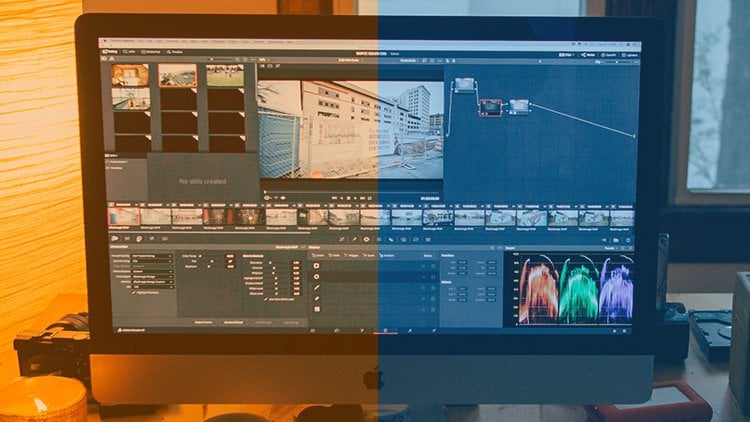
1. Class Introduction: Hi, my name is vector is, I welcome you all
for this course. Essential training
on video editing with light works. Two dozen 22. It was a free video
editor which has simple user interface to do hatch the video
editing works. In this class, you're
going to see how to download and install light
works from the browser. How to set up a project
for light works. How to use user-interface
off the software. How to manage a
timeline content, how to do audio as well
as video editing works. How to do a color correction using this light
works video editor. How to do Greenstone removal, how to play video transitions, how to use different
video filters for videos using
Lightbox video editor. How to do a text manipulation, how to do audio editing, how to create output of our
project in the video format. The end of this course,
you can able to 80 to her own videos for YouTube, social media, and
other all-purpose has had seen our classes.
2. 01 Download the Software: In this lesson, we are
going to see how to download and install this
lightbox video editor. Here you can see we
have the set of file. If you want to download
the set of file first, we had to go to the
official website. I'm going to show you how to
go to the official website. I opened my web browser. In my web browser I'm going to type light works, video editor. Type light took video editing
software or light works. You can see being a
lot of displays here. Here I'm going to
choose this website. You can see that LW KSL.com. I'm going to click
the welcome page. In this welcome page, you can able to
see the text video editing software to help you change the way people
you see the world. And I had to click this button, start to read it, it's
free. So I click here. When I click here,
here we can able to see it shows me sign-up screen. Here you have to enter
your e-mail ID and you have to enter your
password to register. After getting
registered only you can able to download
the software. Otherwise you cannot download. So simply you are going
to add your e-mail ID and password and you are
going to choose sign up, then you will get the software. So this is the way
you can download this video editor using
this web browser.
3. 02 Install the Lightworks 2022 Video Editor: In this lesson, we
are going to see how to install this light
works video editor. Here you can see after login the website and you can
download the software. You can able to get
the software EXE file. It shows you the name
which is light torques, and the year 2012. It shows you the version and
it was 30 Verbit software. We can able to see that
and it's a set of file. Now if I choose the properties, we can able to see this is this particular file
has 81.2 a and B only. I'm going to double-click
this particular software. I just double-click here. And I'm going to
choose the English. It's okay. If you want to
choose other languages, you can choose
your own language. But I'm going to keep
that English I choose. Okay. And it shows
you the welcome page. I'm going to click Next. You do. For each and every free
download software, we can choose all answers here
I'm going to choose Next. And it shows you the license agreement you have to choose. I accept, I choose Next here. Going to install in
your default location. If you want, you can change, but I suggest you do not
change the default location. It shows you how much
space it requires. The trigger is only 350 MB. The bottom it shows
how much space I have. Now I choose Next. And it shows me where I
want to keep that software. Of course I want to keep
that software separately. I choose Install Now. Choose Install Now
you can able to see the installation
process was started. You can see it shows me
all those processes. What are the files
are installed? What are the files are extracted
from that set of file? We know the set of,
well, it's there. It has around 81 MB. It will finish in a few seconds. Based on your system
configuration, it may take some time. If you have very
good configuration, it will take only a few seconds. And if you have a basic
configuration may take one or two minutes,
not more than that. Here you can see
it was completer. It shows you the message, complete, and it shows
you got grant access. Now I'm going to choose next. You choose Next. And here
it got the confirmation like light works has been
installed on your computer. I'm going to choose
this button finish. In this way, we can install this light talks
software, a newer PC. Again, use this set of file to install the
particular software.
4. 03 System Settings of Lightworks: In this lesson, we
are going to see the user interface of this
light works video editor. You can see after
launching the software, you will have this
appearance on your screen. It has lots of rectangles here. You can see that all those
things, sorry, we're projects. When you are launching your
software for very first time, it asks you to login
with your account. So you have to log in
with your account, what you are given when you
are downloading the software. So after that, I will get sink. And you will have the screen. In this screen at
the right-hand side, you can able to see we have
a system settings option. I come to this place. In this system settings
option you can able to see we have all those
software controls. We don't have any separate
menu bar in this slide works. Here we have the basic controls. What we can do
with the software. You can able to make the
full screen on or off. I can see that it wasn't a
full-screen window mode. Based on worried it can enable or disable
all those functions, will have a detailed view about this system settings
in upcoming lessons, it has many important futures. You can see it shows
you the user interface. What are all the user
interface controls we have with this tab. Here you can see we have KI assignments
using this key SMS, you can assign your own key for doing different functions. After this key assignment, we have the appearance. It can say what kind
of appearance you want for different functions. It has a default values here. If you want, you can change all those values
based on your needs. It can do this. No, I was living this
in a default value. After that, I have the
language here also. I can able to change
the language. If you want to change,
you can do that. As I told you, we had
a full-screen window. If you don't want
this, the softwares, that icon bar, you
can disable that. They'll pop this
full-screen window. I can disable that also. It shows you one more
option which is show chins. If it isn't enabled mode, if you are launching
the software for the very first time, it will guide you
where you have, what option, what it will do. If you want, you
can enable this. If you already used
this software. If you know all those things about the user interface
and everything, we can simply disabled that. So right now I'm going
to enable this after the show tooltip texts. If you want to keep
the tooltip texts, you can use this fast or slow. And if you don't want tooltip texts, you
can choose never. Then we have project layout. It was fixed. And
if I don't want to keep that in a fixed
way, I want to change. It means we can choose flexible. These are the major options we have with this user-interface. After that, we have a hardware, we have licensing, and we have
information about credits. So here we have the
major information, whatever you record after
this system settings, we have this user interface. Next lesson, we are going
to see how to create a new project we're using this
light Talks video editor.
5. 04 Project Setup in Lightworks: In this lesson, we are
going to see how to create a new project with
light works video editor. Here I come to this place, a tooth, create a new project. When I choose
Create New Project, I have the detail here. I'm going to give a
name for the project. I'm going to give a name. Painting. If you want, give a simple detail, you can give the name like this. And if you want to kill some
details about this project, you can type there. After that I can choose new. But here we have only
the name of the project and the particular
disaggregation of the project. If you want to do
advanced settings for this new project work, come to this tab
which is advanced. I choose here. Here
you can able to see I have to upgrade my software
from free to premium, then only I can do those things. But right now I'm
going to keep this, the name itself.
I choose Create. You can see we are
in a project mode. In left-hand side,
you can see we have all those tools,
what we are using. In next lesson, we are going
to see the detail view about this project
window user-interface.
6. 05 User Interface of the Project: Here you can see we
have all those options. I click this button and you
can see we regard controls. I click here it shows you how to import our content
from our desktop. It shows you how to
create a new sequence. We already how
accessing sequences. When you choose a
flexible user interface, you will have this kind of
flexible user interface. You can place them
wherever you want. You can keep the search
and been windows. This is because of flexible
user interface setting. I'm going to change that. I choose. These projects, come to
the system settings. The project layout. You can see we have flexible. I want to change
the tint to fix. By default it will be fixed. I was changed that and again, I was make the dean to default. Now again, going back to this
project which is finding, I click there. I
double-click there. Here you can able to see we have the user interface of this
lightbox video editor. You can see lots of areas here. We have a most important part of any video editing
software, which is timeline. Here you can able to
see the timeline. We have a separate track
for video and audio. You can able to say that after this timeline here you can able to see we have two windows. We have preview window and
we have output window. If you want, you can keep otherwise you can
close anyone window. It was close to that. And here you can able to see we have the current sequence, one, that display here. Right now we don't
have any footage here, any videos here. That's why it was empty. And in left-hand side you
can able to see we have The been from this
particular place. We can able to extract all of our videos and photos and
other multimedia elements. What you record
for your project. Here I'm going to show you
how to import our content. I'm going to choose my videos, whatever is required to use within this
particular software. Here, you can choose
from your local files. Choose here. And it shows you what are all the different folders
we have with your computer. And I can go to this place. You can see it shows
me all those drives, what I have with my system. I'm going to navigate
from displays. Here I have all
those video files. I had Twenty-five video files. You can see that
it was click here. You can able to see,
I can able to select the particular file with
the help of these options. I can able to load a video files into my
project after that, at the top, you can see we
have four different options. We have the log. So here we are going to log in all those files and edit tab. With the help of
this Edit tab view, you can able to do your video as well as audio editing works. After completing your videos
list audio editing works, we are going to
choose this VFX and p of x if you want to
do any visual effects, to do a color corrections, to do changes, whatever
you are required. If you want to add some titles, if you want to add some text, you can do all those things in this area, which is v of x. After this we have x, I have
audio I choose are due. So here you can able to do
all those audio settings. You can do audio processing with the help of this audio tab. After completing all
those logging editing, visual effects and audio works. Finally, we are going
to export our project. So these are all the
user interface controls we have with this, it works. Remember, when you are
choosing a project setting, it should be in a project
layout fixed the mode. Otherwise you will
have flexible mode. You can arrange
your all those tabs according to reversal. But as a beginner, you
should keep that in a fixed remote that you will
get this particular screen. This is the user interface of this light works video editor.
7. 06 Project Contents: In this lesson, we are
going to see what are all the things we have with our light Works
Project Explorer. Here you can able to see
we had a lot of options. I have filters. In filters we have
clips, sub flips, sequences, and other all
options can see right now, we don't have any bins. If you want to create,
you can create it. I can't. I take inside you
can choose make. Ben is a kind of a folder. Keep different files
in the separate bins. Here I'm going to
choose empty group. You can see the name
which is group one. Going to give a name video. We have different color
variation for this bin. And if we wanted to
keep all those images in a separate bin
which is folder, I can create ONE more,
which is images. If you have audio files, green mad footage, you can keep all those things
in a separate folders. Let's go this bin here. After this bin, you can see at the bottom we have libraries. Library has multiple access. You can access your local files. You can access from different platforms like using
this Amazon music tracks. You can access the files using this Audio
Network you can access, you can this bond five from this platform also you can
able to access those files. We want. You can
use these options. If you want to load the
content from your local disk, you can choose this local disk. Here we can able to see where you are going to
load from your local. Like if you wanted to
load from your desktop, you can choose desktop. If you want load from your
pictures, folder or documents. You can choose the
particular path. Based on the need. You can
choose which one you record. And after choosing that, you can able to see
all those elements. You can see it shows you the particular filename
and it shows you the different details
like what kind of dimension we have for the
particular video file, what kind of frame that we
have when it was modified. So we have all
those details here. You can able to say that I'm going to import all those files. As we see if we wanted
to select a file, I can just click there. If I wanted to select
countries multiple files, I can use Eliquis. I can select continuous
multiple files. And if we wanted to select multiple files by
giving some space, I can use control. You can see how I were
selected those files, that they help off
the control key. You can just specify
the control. You can choose the files in
between the other files. So in this way, you can choose all those files using
this Project Explorer. Now I want to move all
those selected files inside my project work. Farther. I just select those files. I click and drag and
place inside this project condense when he plays
there In this clip. So you can able to see, I
have all those video files. And at the top it
shows videos only. If you have audios also can show what are
the audios we have. But right now, I have
only video files. In this way, you
can load all kinds of video content inside
of our project work. You can see I right-click here. After imported that
particular document, it shows you a lot of options. Shows you where you have to mark and where you are
to mark in as well as mark out where you can do a sequence how to export this particular
document or other documents. So we have all those options here. You can able to see that. I can also create a new bin
by selecting those files. Our selected the
first 23 video files. I right-click here
and I choose Add to hearing unable to see
that it shows new bin. I click new bin and hearing
enabled to see that bin one. Here. Those three videos, clips, we have all those videos
you can able to see that in this way, you can load over multimedia content inside
this project work. And we have all those options
in this project contents.
8. 07 Working with Timeline: In this lesson, we are
going to see how to load a video files
into our timeline. We're also going to see what
are all the features we have with this light works
video editor timeline. First I'm going to
import on video. I choose the very first one. I just click and drag. You can able to say I can
able to drag the video. Now I moved towards my timeline place in
this particular track, which is video one, I can place wherever I want. It earliest my mouse. Here I'm going to release when I release my mouse here in this timeline
video one track. In this sequence, we can
able to see the preview. The video of review. I play here. I can use a space to
control play and pause. With the help of
this play head also, you can able to move
forward as well as rewind to check what you have
with this video content. Here we have only one video. Now, I'm going to
import a second video. In this particular first video segment you
can able to see we had the preview of
the thumbnail witches and we have on
background color how I import the second
video, replace here. In the second video we have
different background colors. You can able to see that. And I was going to
import the third video. Here also, we have a
different background color. For each video segment, we will have different background colors
in this timeline, which indicates each
and every segment or videos has a different
color values. After placed all those videos, you can see when I was moving each video segments
towards the another one, it was snapping with
the existing one. Now I move this
third video segment on right-hand side and
the second on the middle. Let me show you how to
process those video segments. Come to this very
first video clip. When I move my most
towards the clip, it shows you icon. You can able to see that when I roll over my mouse,
over the clipboard, nearby the clip, it
shows you those icons. This icon, even
able to see that, which has the direction
towards the inside. I can just click and drag to trim the
particular video segment. I can able to see the play head was moving
towards the left-hand side, the right-hand
side. With my most. When you want to know
Tim particular video, I can come to inside this
particular video segment. And after getting this
particular white colored icon, I can just click and
track that I can able to trim the
particular video segment. It was placing another
video segment here. If you wanted to join
both video segments, you can see here we
have the central point. I move my mouse
versus central point. You can able to see the
white colored appearance on both video clips. By this time I'm just
going to click only once. When I click once
you can able to see, I can able to join both
video segments into single. Now, I know this particular
segment was fixed. And if I want to unlock, I just wanted to come to
the center point again. And I just want to click again. Now you can able
to see if you want to join two video clips, you can use that way. Otherwise, you can
go again until the central portion and you can choose on the
yellow-colored icon. You can break the link. These are all different options. We have video editing work. Now I place my video
segments here. When he was placing
this video segment, I just click and more
towards left-hand side. It can able to see, I can able to trim the area of the
previous video segment. It will adjust automatically. Here I'm going to play, I'm going to press space bar. You can able to see a
place where I want. I'm going to play here. You can able to trim those video
segments by default. If you want, you can
use those options. Otherwise, you can keep
those video segments. After placing this
video segment, now we come to this
place here you can able to see we have two icons. We can able to zoom
in and zoom out. We have the shortcut
key for that. We can able to see that
we have plus and minus. If I press plus iconic,
unable to zoom in. If I press Minus, I
can able to zoom out. I can also do that with
the help of my mouse. I just press Control
on my keyboard. Click and drag that. I can do the same function. I can zoom in and zoom
out that timeline. Now, I come in between
this particular segment, the very first video segment. We want to create the cut
in-between this play head, you can use the shortcut, which is C. To use the
shortcut first-year hard to select the
particular video segment and you had to press C. Now you can see I can able
to cut the video segment. You can create any
number of cuts. You can see we have
so many cuts here. You can delete which
segment you don't want. You can select it and
you're going to edit it. You can select it and you can right-click and
I can choose the rich. You can delete all those
segments what you don't want. Finally, we are going to place where we need are
those segments. When he plays all
those segments, if you have multiple spaces, you can right-click
over any one space. You can choose Close gap. So you can able to see this is the easiest way to
do those functions. And here we have
the edited video. With the help of
this shortcut C, you can able to cut
all those segments and it can create your
own order as you record. After that, I come to this area, we have audio and video
video segment of video one. Here we have audio
one on audio too. If you want to disable
this video track, you can just click in
front of the track. You can able to disable the track in the same way I
can click for audio also. If you want to enable, you're going to click on more time. You can able to enable that. This timeline. At the end you can
able to see we have a show Settings menu. When you click
that, it shows you all those details
about that settings. What we have with this software, settings for drags,
markers, mark. If you want to remove,
you have the option here. Can choose gaps. If you want
to remove all those gaps. Can see that we have
media, we have export. We're going to use
this option Export at the end to export your
project as a video. And we have Render Settings. We have all those options
with this timeline minimum. So these are the
options we have with our timeline in this
light works video editor.
9. 08 Manage the Timeline Content: In this lesson, we are
going to see how to learn multiple video
files in our timeline. I'm going to choose
multiple video files. First. It was using Shift Tab key to select multiple video files. I was already arranged all those videos in
the proper order. I just click and drag. Now I come to this timeline and I'm going to release here. You can able to see
what is the duration. We have six minutes. We can able to see that
it has 15 seconds. Each and every color shows. We have loaded a
different video files. Select all those
videos segments. Right-click. Here, it shows you the
sequence commands. In sequence commands
you can able to see we have a playback format. I choose this icon. It shows you what are the different
playback options we have with this
lightbox video editor? We have pal, indifferent
aspect ratio. We have four is 316 is nine. So these are the
two options we can use for standard video editing. If you want, keep a
standard quality, the standard definition, you
can use these two options. After that, we have a
derivation display size. We have 700 tp to100 interlaced with just
an ATI antenna TP, which is standard
the property lines. If you want to create
this work for filling, you can choose
either to care for k. It's up to you based
on need. You can choose. If you want to create this
further social media, you can use these options. You can use a
square displace ice for 25 frames as less large. We have portrait view. Based on your needs,
you are going to choose which one you want. I'm going to use this playback format into this ten ATP 25
frames per second. This cell we have playing here. You can able to see
how we have this feed. I want to speed up this
particular playback. For each video clip. You can able to see
we dos no slow. You want to speed up, to
speed up the video segment. I'm going to rightly there. And after that, you can see we have the option
which is speed. Here. We can set what kind
of speed you want. It chooses speed I
and I mentioned, I know I want value
which is 200%. When I choose two. And the person you
can able to see, we can have a faster
moments on the video. After setup the speed
of your video after editor all those segments
using this shortcut key, which is C, and delete
the unwanted segments. After setting up
all those values. Over this particular timeline. Here we have the option
which is settings. My two settings here you can
see we had three options. We have appearance,
behavior and actions. Choose appearance. Here you can see we have our
different segment colors. If you want to choose
different segments colors, you can use the options here. It shows you what are
the different formats we have for those colors. Also, it can set the saturation as well as luminance value. Can able to see that we have the text over this
particular video document. I can adjust the size of
the particular texts. I can choose what kind
of segments I want. I can set that segment text. You can use all those
options as you record. And we have the behavior can enable and disable
all these options. I have actions. With the help of these option, I can do all those necessary
settings for mouse. So let's keep, these are all the timeline
settings we have with this light
torques video editor. After completing all
those functions. Next lesson we are
going to see how to add audio background for
this particular video.
10. 09 Insert and Manage Audio File: In this lesson, we are
going to see how to add audio track for
this video segments. First, I'm going to
choose my audio track. I come to my Project Explorer. Here you can see I
have my audio file. We can see the name here,
images of tomorrow. I just drag and drop
inside this timeline. We can able to see that. Now I'm going to play music until this area. After that I don't need a music. I come to this place, IS with trim, a video file. We can do the same
process for audio also. I can able to trim
up to this area. You can able to do
all those changes. You can able to add audio
track using your explorer. You can just drag and
drop from outside. Also, you can just drag and
drop inside this timeline. And it will work. Now when I take inside, it shows you what
are the options we have with this audio. And here we have one important
option which is skin. Right now it was
a 0. If you want, you can adjust this. We can increase or decrease. You can see the change
on my timeline. Based on your need. You can adjust this option. Going to play this. In this way. You can able to add your audio track for over video. You can also adjust
the gain of the audio. Next lesson, we are
going to see how to do a special video effects
for our video segments.
11. 10 Video Effects Color Corrections: In this lesson, we are
going to see how to add different video
effects for our videos. I'm going to choose the
third tab in the top, you can see that which is VFX, which is also called
a visual effects. I chose this VFX. Here you can able to see we have the timeline in a very
short appearance. And in left-hand side we have
all those video effects. I choose these settings to settings drops
and this routing, you will have all
those values here. I choose this plus icon, and it shows you what
all the different values we have with this
particular video of x. You can able to see Vienna
started with the color. If you want to do any
color adjustments, color based corrections, you
can use all those effects. And we have a DV. The help of this
dv enable to add all those different
flip as well as cropping and transformations
for our video segments. Third, we have key. If you want to do masking key like can you build
to use a color mask? You can able to do a image mask. You can able to
use this Luma Key and chromo key blues
green, green screen. You can able to use
all those options with this key values. Here I have Matt. If you want a different
mat you can use, you can create a solid mats. I can use a gradient matte. We can able to create
all those maps with the help of this option. We have mixed, so to
mix different values, we can use this option. We use this to create a
different transitions. We have stylish, do final, different adjustments
for the videos. The end, we have the
option which is text. Now I'm going to do
a color correction. So I come to this area here, you can able to see
in this timeline, I can able to select
a different segments. If you have selected segments, by selecting
in-between the area, I can able to continuously
select those videos segments. You can able to see that
selecting all those segments. I'm going to apply the effect. But if I selected
all those weapons and it will take lot
of time to process. So I'm going to choose
any one segment. Would use this segment. Here. I'm going to use
different effects. We are going to do a
color I just went, I'm going to choose
this color corrections. When I choose color correction, I just double-click
it, double-click here. I will have the selection
of this option. And if I go to the settings
now we can able to see how the particular
option here, I can adjust the shadows colors, which means dark colors. I can adjust the mid tones. I can adjust highlights. I can do all those adjustments
using the bottom options. I can able to see that you can adjust the
saturation values. For overall video. We can adjust the gamma values. We can adjust the
contrast, brightness. And finally, you can
adjust the gain. You can do all those things
for RGB values also. You can adjust different
channels like red, green, blue. For gamma. You can adjust
different channels for contrast, brightness gain. For all those things, we can use this
different channels. We have hue saturation values. I can use Hue and Saturation,
do color corrections. Curves to can use to
cover adjustment. And we help balance
the Hale-Bopp. This balance, again, able to
balance the entire video. You can choose the
most dark area. I'm going to choose that I have. I'm going to click
here. I'm going to choose most white area. The picture we know will get automatically balanced
with the color. You can use all those options with the help of this V of X. We have used only this
option which is colors. Here we are how we used
to only one option. Right now I was selected
only this in settings you can able to see I can have a green colored
appearance here. If I don't want that
particular effect, I can disable that. This is the original video. And if I want to keep
that particular effect, I can enable that. After the basic
color correction, we have several more options. You can see that we have 3D LET we have
color temperature, going to remove the
basic color correction. First, I go to the settings. Here, I'm going to choose this. You can see we have the
particular name of that effect. And here I have the Meno. With the help of this
menu, I can able to replicate a
particular effect, can duplicate a default effect. So based on your needs, you can choose
which one you want. I can replace that with a
different effects also. And I can reset all those
options are how I adjust. You can able to see
that again, please, at the particular
option alone or I can raise it all
those options. Finally, I have the
option of just removed. I choose remote. And you can see this
is the original video. Now I go to this, again, the same option, the effects. And you can see we have
a lot more options. We have the gray scale, and it shows any
particular effect. After choosing the effect,
I come to the bottom. Here we have an option
which is apply effect. I choose Apply effect. If you choose Apply effect, you will get the
same effect here. Always you have to double-click. When I choose this gray scale, it can able to adjust red,
green, blue channels. Individually. You cannot just
all those options. Also you can able to adjust the contrast of each channel
so you can see that. So this is how we can
use all those effects, because so many effects here, you can see we
have negative two, we have two tones. I choose two tours
and I apply here. You can see we have
only two tones here and we can set
the threshold value. What do you regret? We held the effects. If you need, you can
use all those effects. It was removing that too. And we have so many options here you can see
we have this API. We have warmer bit, don't. We have instance
70s like videos. So you can see all
those options. We have all those
adjustments here. The gradient blend also. You can set the different values for the gradient here you can able to see that I can select the color,
what I record. These are the options we have with this color corrections, the basic color corrections in this lightbox video editor.
12. 11 DVE Video Transformation Effects: In this lesson, we are
going to see how to use a DV components
for our videos. These are the list
of Video Effects. Let me show you how
to use those things. Here you can able to see we
have to read Devi and 3D dv. I'm going to apply this 2D DVD. I choose that, that
choose a play effect. Now you can able to see, now you can able to see we have a position of this
particular frame. This is 0.5 right now. I can able to adjust
that in x-axis. I can do that in
y-axis L. So if you want to do these kind of
positioning, it changes. It can do this master
adjustment also can do all those adjustments
in x-axis and y-axis. The major category indicates that the different
colors you can see that here I have the master scaling as well as x
and y scaling values. Here I had the opacity. I can adjust the opacity. Here I have the cropping areas. I can graph from left, top, right, bottom two. And based on your needs, you can use those options. I had a shadow also. I can set the shadow
transparency subset and we accept NOE upset. If you have a node two footages may allow the view of
the particular shadows. How I removed this video effects the original
flip options. So if you want to
flip your picture, you can use this option. I applied this flip.
I can able to see, I can able to flip the
picture. I press Control Z. Again, you have so
many options here. You can see that no angle from
left can use this option. You can adjust all those
positions as we did previously. Can I just say just
softness also? You can see that
anymore that effect, we are so many more
here you can see we have a default location
for this video. If you are going to
show a multiple videos, you can use this bottom
center or bottom left, which is the default position. For example, if
I'm going to place this video of the person
on any one corner. And for the rest of
the background area, I'm going to show the
complete painting video. I can use this option C. I'm going to choose this
one. I choose a play. Here we will have
this person video, and in this background I
will have another video which has the
painting appearance. I can use these options to turn the video into
different effects. We are so many effects
you can see this. You can use all these
when you request. These are the basic
transform options. The video of x we have with this light works video editor.
13. 12 Green Screen Removal: In this lesson, we are
going to see how to do a chroma key using this
light works video editor. We can do video editing. We can do green
screen as well as blue screen color
correction using this lightbox video data. Let me show you with an example. I go to this Edit. Here. I'm going to choose one video with the
green color screen. This particular video. Just drag and drop from
my project content. No, it was at the end.
You can see that. Now I am going to place this in a different video track by default in this light
works video editor, you will have only
one video track. If you want to add more tracks, had to come to this menu. Here we have the tracks. Using this option
you can able to add video or audio tracks. So I was added on video track. This is the audio track. You can able to see that. Now I choose this
particular video tag. Now I choose, I will choose
this particular video. I just drag and drop over
the particular segment. Here I have the video. For this video, I'm going
to upload this chromo key. The bottom, we have a painting. So let me show you
how to do that. First, I chose this video, like come to this VFX. The cursor was in this particular green
screen appearance. In this video of
x, I choose key. You can able to see
different keying effects. I'm going to choose
this green screen. I just click here,
choose Apply effect. When you choose a play effect, by default, you will
have these values. We can adjust more. I'm going to show you how I'm going to adjust those values. Here you can see we have hue,
saturation and luminance. We can adjust all those
values according to our need. We also have key
softness, removed spill. If you want to invert
or reveal the content, I can use these two options. Here. I'm going to do
all those adjustments. Here. I'm going to adjust
the remorseful help up this, I can able to remove
that particular values. You can see here it is 100. I was on a person's
removed that value. And here I have a 0. You can use this option
according to your need. And here we have
the key softness. You can set what kind of
values you need for that. Here we have the luminance, saturation and hue values. Here I'm going to increase that. I'm going to adjust here. You can see I can able
to adjust these points. I want to adjust more. Can see that this spill value into a 100%. And you can see how we have
the look perfectly removed. The particular
green glass screen. If you want to do any
hue value changes. Here we can do was
doing those changes. Here you can see how
we had this look. Still if you want to
adjust, I can do that. This is perfect. You can see that removed all
those green screen. With the help of this light
works video editor itself. It's a free video detail. We know we have
the pro mode also, which is premium more. But this is free mode. Here itself. We can able to
do all those video editing. We can able to perform a perfect king with the help
of this latex video editor. We can able to see we
have few more options. If you want, you can
use those options also. We have blue screen, we have imaged key, we have luma Key, and we have chromo key. Based on your requirements
you are going to use which kind of key you need. The most important thing
is you are going to do the perfect adjustment that will give you a perfect
result for river output.
14. 13 Matte Video Effects: In this lesson, we are
going to see how to use different maps for
our video purpose. After this key tab, you can see we have four
more video effects. I choose this Matt. Matt has a default phi options. We have a color bus. With the help of color bars. You can able to add
more color bars here. You can able to see, I was just dragging
and dropping here. I can able to add
those colored bars. Here I was, I added,
I was delete that. And I'm going to place the
color bar at the beginning. Just zoom in and
drag and drop here. Can able to see how it
looks. It looks really good. At the beginning. It
can able to add this, not only at the beginning, wherever you want, you can add. It shows you what kind
of person did we have? The opacity. It was an audio file. If you want, you can
use it on under. This is only I just want to
have with this color boss. After this color board,
we have a color gradient. I just choose this. I'm going to apply here.
I just apply here. Here I want to drag and drop. Just drag and drop here. We can see if we
have the gradient. Choose the gradient. In settings. You can able to see
what are the options. We have. The gradient position, how
you want from top to bottom, left to right, or
radial gradient. So this is up to
you how you want. You can change both colors. Here I have a color
one and color to color the color values. I can choose which color I want. I can adjust red, green, blue values also. Here, I can also adjust
the alpha value, which is also called a
transparency. I can adjust here. After choosing the color one. I can use this color too. And in colored one also, you can see that we
have the external, we can able to
extend the gradient. In particular amount. We have this extern, I choose color to. Here I'm going to
choose another color. I'm going to increase the value. Here. I'm going to adjust
extreme value. We can able to see I
can able to extend or reduce the particular
gradient point values. After setting both values. We know we also have the
option which is alpha. I can able to
adjust alpha values during this time process. Also, in this way, you can able to add
the color gradient using this video effects. And we have the color matt. If you want any
particular solid color, you can use this color mat. You can able to see that I
can use any one single color. I choose the color
what I write here. That's it. This is color matte. After this color map B,
how corner gradients. If you want a multiple
gradients on a single frame, you can use this option. I'm going to place that here. Just drag and drop here. You can see we have four
different gradients here. We have yellow,
red, blue, this zn. You can see we have
Settings values. We have top-left, top-right, and bottom left
and bottom right. You can change all those
colors based on your need. If you want, you can
use this color picker. So I can also know bound. The left, bottom
values are right, adopt values based
on your needs. You can set all those things. This is a color gradient. After this color gradient, we have one more option here. Simple to reshape. I just drag and drop here. You can able to see what
are all the options we have. Settings here. I can see the shape. It can choose either
ellipse, rectangle. Next version with a
default 50% value. You can change the version of the X and you can change
the position of the way. I can change the width
as well as hate. On those corners. You can able to see
we have soft edges. If you want, you can adjust
the softness as you record. So by default we
have one percentage. Change that to 0. Can set if you want. I can also change the
color for the object. These are all the
basic options we have for Matt category
in video effects.
15. 14 Apply Video Transitions: In this lesson, we are
going to see what are all the mics video of
x we have light works. We also call that as
transitions in gender. Here we have a mixed
category after this mat. You can see we have limited
amount of transitions, but all those transitions
are essential. Those transitions have a
subcategory inside the settings. Let me show you on by one. Here you can able to see
that we have the timeline. This is the first video. This is the second video. To apply this particular mix. Had to choose the particular
mix, whatever is required. I'm going to choose this wife. Let us see. I just
drag and drop. When he was dropping this mouse, had to come to this middle
place in-between both videos. Here I want to release my mouse. Release the mouse here you
can able to see I'm going to play that. The wipe here. You can able to see that. Let us see how to do the
settings for this wife. Go to Settings. Here we have WIP settings. We have the pattern
which is bar one, can set whatever you need. You have the clockwise. We have Irish. You can choose
whichever you want. You can also use this also. If you want to create any
particular why we can use this option based
on your needs you can use which only want. I was applying this one. After this, we come to the
second one, which is softness. Here you can able to see we
have the softness value. I can adjust the softness value. We have the progress. Can able to see that if I want the same transition
in reverse order, I can enable this option. Repeats, borders and position. So I can do all those
repeated values. If I want. I can do that
both across and down. I can do the border if I want. Here you can see
we have a border. By default it will be 0. But if you require you
can add the border, you can change the color
of the borders to we had a position where you want in a horizontal
or vertical. We can see where I want. Based on that, you will
have the transition. Can see that in this way, if you want to apply any
particular transition, you can use this
option which is mixed. You also have different
transitions here. Each and every transition
has its own features. Let me show you, let me
show you one more thing. Here. I'm going
to add pulley up. Here. I'm going to apply
on more transition. I choose this, dissolves, drag and drop in
between. Second, third. Here I'm going to play. Can able to see that
we have that dissolve. I just zoom that area. You can able to see
that transition. Choose that and let
us see the settings. Here we have the amount only, we don't have anything else. In this way. If you want, you can apply all those
transition epochs, blend diesel, luma masks
blend, push, squash. And by using this light
works video editor.
16. 15 Video Filter Effects: In this lesson, we are
going to see how to use different filter effects, also called stylized in
this lightbox video editor. Here I'm going to choose stylus. You can able to see a lot of
different filter effects. We have the blur, fast blur glow mostly. We have so many
different effects here. Let me show you going to use
a particular option here. Going to choose this person. I'm going to use this mosaic. Just drag and drop here. You can able to see how
we have the result. I can able to adjust
the size as a regular. I'm going to just know
the video segment. Here. I'm going to choose Blur. I choose Apply effect, or I can drag and drop. Now we come to the settings. You can able to say that I can able to set the
values for the blur. I'm going to select one
more video segment. Here. I'm going to apply the effect. Going to choose
this sharpen edge. Choose a play. You can able to see the
difference going through. No, I had more values. I'm going to increase
the strength. When he was increased
the strength, it was the result and
it disabled the effect. You can able to
see the difference how the sharpened was
effectively worked. So for different videos, I was applying
different effects. Going to add radial blur. You can able to
see how it looks. I go to the settings. I'm going to adjust
those x-axis. Now I'm going to choose
on more video segment. Going to apply some
different stylistic effects. Going to choose this
glow I apply here. You can able to see we have
different values here. We have different
components, here. We have vintage components. If you record, you can
use those options too. In this way, you can
use all those stylists, video filters for our videos. Using this light
works video editor.
17. 16 Text and Text Effects in Lightworks: This doesn't, we're
going to see how to use text in light works, how to use different tax
effects in late torques to one way to do both things. I come to this VFX text tab. Here you can able to see we have three different components. We have curl, roll, and titling. With help of these options
only you can able to add text in this light works. After this three converts. Lawyer thirds. You can able to see what are the different options we
have with the Luther's. Let us start with this
first three components. Got to sys call. I just drag and drop here. I'm going to place it here. When I place here, you can able to see we have
different options. Here. We have sample text, V2, and we have
different font options. Here I'm going to type the text. So I was added my text here. You can able to see that
after I added the text, I come to this phase, you can see we have
the different font. We can choose what kind
of font family want. And you can choose
the font style. You record bold, italic. We can set the size. You can set the opacity, which is also transparency. So we can see the face color, the position, the shadows, the outline, all the
thing, what you require. The V2, which is also, you know, the current
we are in question two. I can do the changes
according to my need. After done all those things. You can see that
here I had a baby. It was too fast, as you can see. Too fast. Here you can able to see that we have the Cloud texts.
In the same way. You can add different effects. I can add alt text. As I record. I can see the template shows how we have the text,
rolling appearance. You can do all
those changes here. I can add titles
using these titles. I come to the beginning. Here, I'm going to add titles. Just drag and drop off here. You can able to say I
can able to move that. Here. You can add the size. The size of the radius. Can add a title text.
What do you want? We have different effects here. We can see that for title. In this way, you can add
all those texts content. If you want, you can add the lawyer thirds
also. Thank you. If you want to add this kind of texts to frame,
you can add that. You can do all those changes. I can use all those options. I asked my record. You
can see that in this way. You can able to use all
those videos styles, the text effects using this light works video
editing software.
18. 17 Audio Editing and Effects in Lightworks: In this lesson, we
are going to see how to use audio values, audio settings in this light works video imaging software. I choose Audio tab at the top. You can able to see
only this Audio tab. This is focused. You can able to see we have a
video layer 12 and effects. Those effects are
in a single layer, not on the video or not to. In this tab audio, the software Ross focused
only this audio, tab1, tab2, which is also
called track one and track TO YOU CAN
able to see we have left and right tracks. So we have different options here we can able to see that we have we have EQ presets
and we have components. You can EPA to see what are
the components we have. These are the comments we
have with this software. Here I'm going to play. If I want, I can
use those values. I just drag and drop here. You can see we have
different graphs to adjust the values. We can do the adjustments here. We have different values here. The help of these options, you can able to adjust all
those values here also, you can able to see
if we have values, we can have the points here. As you can see that I
can increase or decrease the volume with the
help of two points. I can able to reduce the volume. Here you can able to see
I was reduced the volume. We have our those video effects. The help of those points, we can able to adjust the
volume as your record. You can able to see that at the beginning also you can
able to adjust that point. And in-between if you want, you can add more points. Can I just ask you record the right-hand side graphs, shows you what kind of
audio volume you have. Make sure you had not caused. They are low. Then lot
of noises on your audio. In this way, you can apply any audio values, those
different effects. You can adjust those
settings here. You can also adjust the
volume using those points. We can do all those things in this audio tab in light
works video editor.
19. 18 Export the Project as Video File: In this lesson, we're
going to see how to do final video output using
this lightbox video editor, who have done all those things. We have inputted
different video files. We also use green met as well
as sounds for this project. We have used to this Edit tab. We have sorted all those videos. We have added the audio tracks. They have added
different video effects using this VFX tab, we have used color effects, we have used keying ethics. We have used a mixed style, this text, all those
options using this VFX. And finally, we have
used this audio effects. After done all those things. Now we are going to
export this project. We are going to
export this project using this particular tab. Here you can able
to see the show System Settings
menu I choose here. And here we have
different options. I'm going to choose
this export rollover, my mouse over this export, it shows me different
categories here. So those gray areas are
only for premium maxes. It cannot use those options. Here I have U2, which will give you
the compressed as well as the optimized
video format. Definitely, you can go
further if you need, if you're going to use this
video for commercial purpose, you can use this option
which is H264, MP4. I choose this YouTube first. I choose YouTube here you
can able to see that. It shows me the frame
rate, which is 25. If you want to increase,
you can choose study. You can use only 25. You can able to see we
can set up to 60 FPS. After this frame rate, we have the option
which is size. See with the help of this
free lightbox video editor, you can able to create the
video output up to hatch t, which is 1280 into 720 pixels. The video will have the
width of 1280 pixels, and the height of 720 pixels, can access those full HD. And the Duke with the help of
the premium upgrades only. But this is good. You can hide the you
can get the HD video, which is also good for a social media as well
as the program usage. I choose this sound 20, and we have regions. So if you want, you can ignore all those options
I choose to ignore. If you are logged in, you will
not have this appearance. So in this YouTube we
have all those options. This on the media file hatch 26, which is the composite of armor. You can able to see what are
the options I have here. We have the format. What you have here also, you can choose
YouTube if you want. But if you choose YouTube, you can directly publish your content on your
YouTube account. I just want to store this
video in my local disk only. I choose this and I
can choose a frame. As I mentioned you, you can choose a size. And I was, I ignore
those regions. And here I'm going to choose where I want to save
my final video. I was trust my desktop. So after choosing this here, I can give you the name
for that particular file. I'm going to give a
name which is painting. Finally, I'm going to
choose this start. If you want to
store in the Cloud, you can have the
upgraded values. But I was having only
the free software, which is also enough for me. I'm going to choose this chart. The printing process
was started. Here you can able
to see it shows you how much amount
video was rendered. Shows you all those details. The video, do your Meta a task. Those what are the task
was currently going on. And it shows you
all those details. The work is going on. After the process completed. You can able to see we
have this task lock. It shows you how much time it
tooks and I can able to see that took only females
thirty-seconds. Based on your system
configuration delivery differ. And it shows you what
kind of profile you have to and where you have
that particular file. If you click here itself,
we can able to see. You can able to see we have added a different video effects. Have used reno on the
gradient transparent. We have, we have all those values here you can see we have used two
different texts. We are not editor, but you have used, used filter effects
like blur we have used, we have used to sharpen. You can see the result. We know different effects. We'll see this pixelate, which is another filter
that we have used. And we have this
glow, can see that we have added different
effects here. Finally, he was able jump. Celebrating this moment. We have used the speed of
200 percentage for this. Here we have used the green mat. You can see the result. This is really brilliant. You can able to see those
outlines are really good. For free video editor. This is really good. You can able to see
that. The another important point about
this free video editors, we don't have any
watermark on this result. You can able to see
that in this way. You can able to do a complete video editing project
from beginning to end in the form of Hajj t. Using this lightbox
video editor.
 Venkatesh B, Professional Instructor