Easy 3D Mockups for Graphic Designers with Substance 3D Stager | Eveling Salazar | Skillshare

Playback Speed


1.0x


  • 0.5x
  • 0.75x
  • 1x (Normal)
  • 1.25x
  • 1.5x
  • 1.75x
  • 2x

Easy 3D Mockups for Graphic Designers with Substance 3D Stager

teacher avatar Eveling Salazar, 3D Designer - Graphic Designer

Watch this class and thousands more

Get unlimited access to every class
Taught by industry leaders & working professionals
Topics include illustration, design, photography, and more

Watch this class and thousands more

Get unlimited access to every class
Taught by industry leaders & working professionals
Topics include illustration, design, photography, and more

Lessons in This Class

    • 1.

      Intro

      2:19

    • 2.

      Class Project

      2:09

    • 3.

      Easy Navigation in Stager

      2:59

    • 4.

      Import and Place Your Design

      5:37

    • 5.

      Lighting and Simple Materials

      3:55

    • 6.

      Render & Export to Photoshop

      3:13

    • 7.

      Convert Your Render into a Mockup

      4:23

    • 8.

      Final Lesson – Conclusion

      1:47

  • --
  • Beginner level
  • Intermediate level
  • Advanced level
  • All levels

Community Generated

The level is determined by a majority opinion of students who have reviewed this class. The teacher's recommendation is shown until at least 5 student responses are collected.

19

Students

1

Project

About This Class

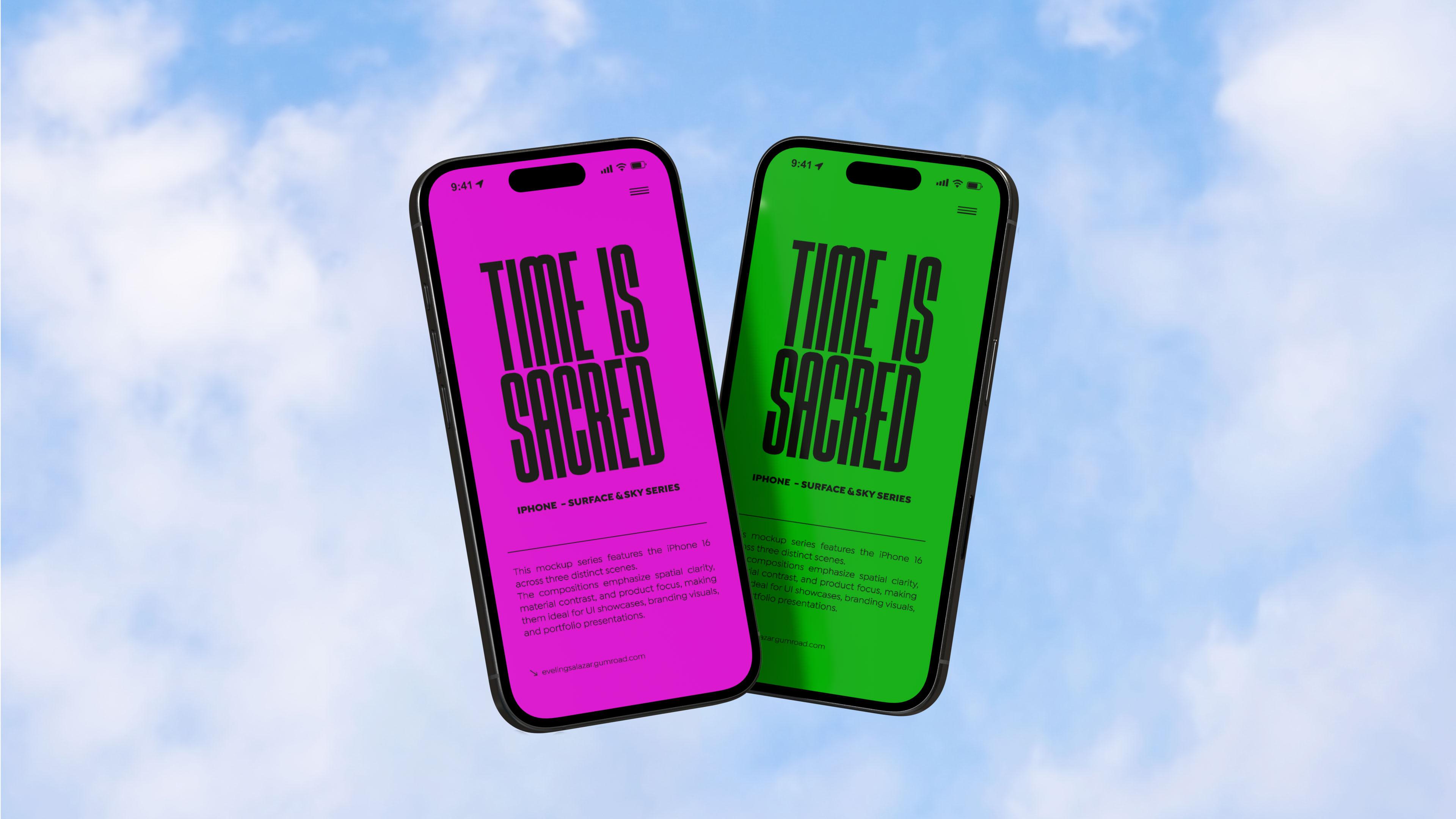
Want to create stunning mockups without learning complex 3D software? In this class, you’ll learn how to use Substance 3D Stager to design premium-looking mockups—no modeling, rendering, or prior 3D experience required.

Whether you're a graphic designer, brand strategist, or exploring new ways to present your ideas visually, this course will help you.
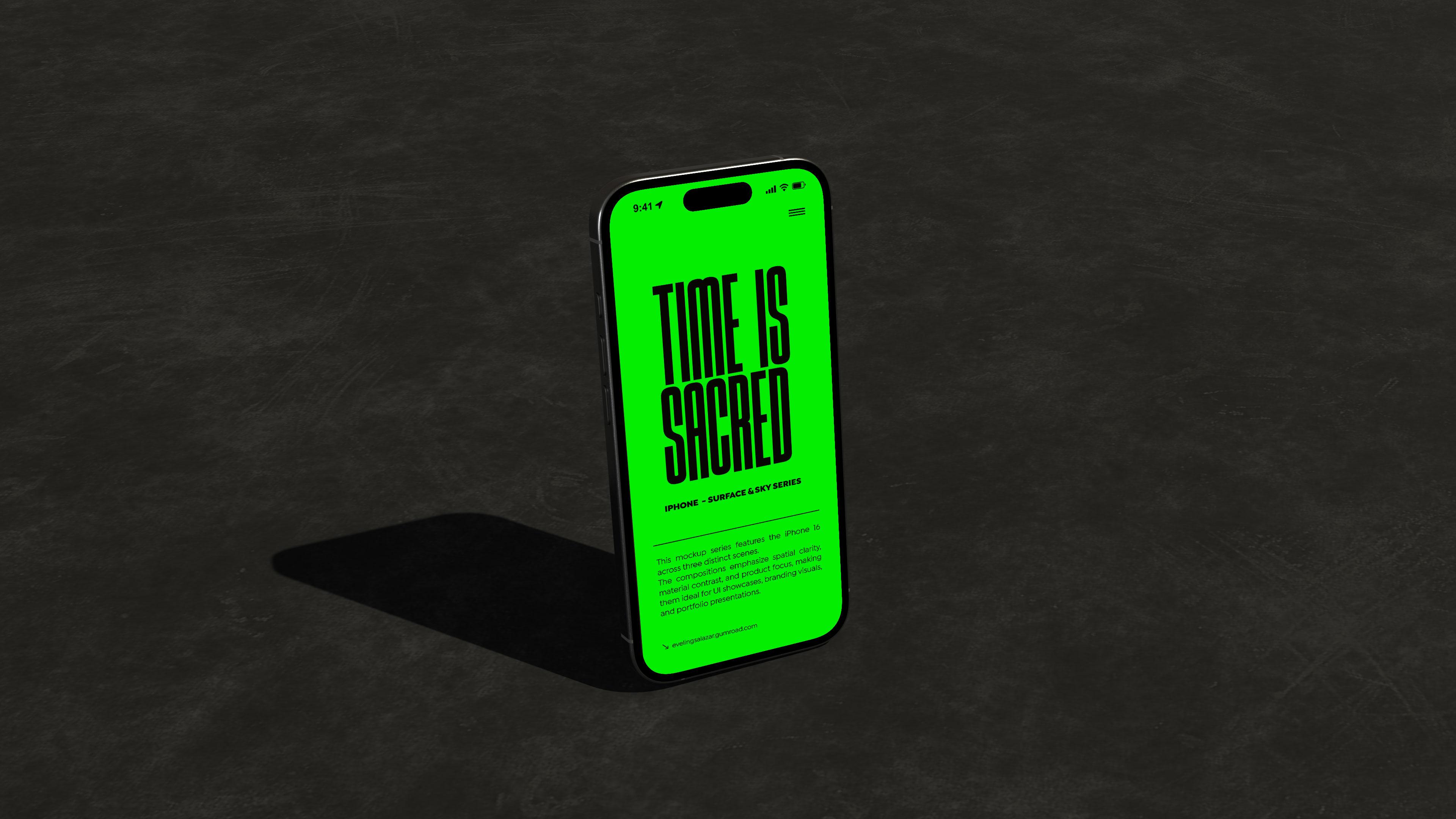
By the end of this class, you’ll be able to:

  • Build realistic mockups using Substance 3D Stager
  • Import and position assets like magazines, books, and packaging
  • Apply lighting and materials to create polished, professional scenes
  • Export high-quality images for portfolios, presentations, or social media
  • Work confidently in a 3D space—even if you’ve never used 3D tools before

Why You Should Take This Class:

If you're tired of flat mockups that don’t reflect the quality of your design work, this class is for you. You’ll learn how to create dimensional visuals that impress clients and elevate your brand. The best part? You don’t need to be a 3D artist. I’ll guide you using a simple, intuitive workflow that’s perfect for designers who want results fast.


This class is designed for:

  • Graphic designers and brand creatives
  • Content creators and visual storytellers
  • Anyone curious about 3D but intimidated by technical software

Materials/Resources

To take this class, you’ll need:

  • Access to Substance 3D Stager (free trial or subscription)
  • Basic design assets (PSD, images, or branding materials)
  • Optional: Templates provided in the class
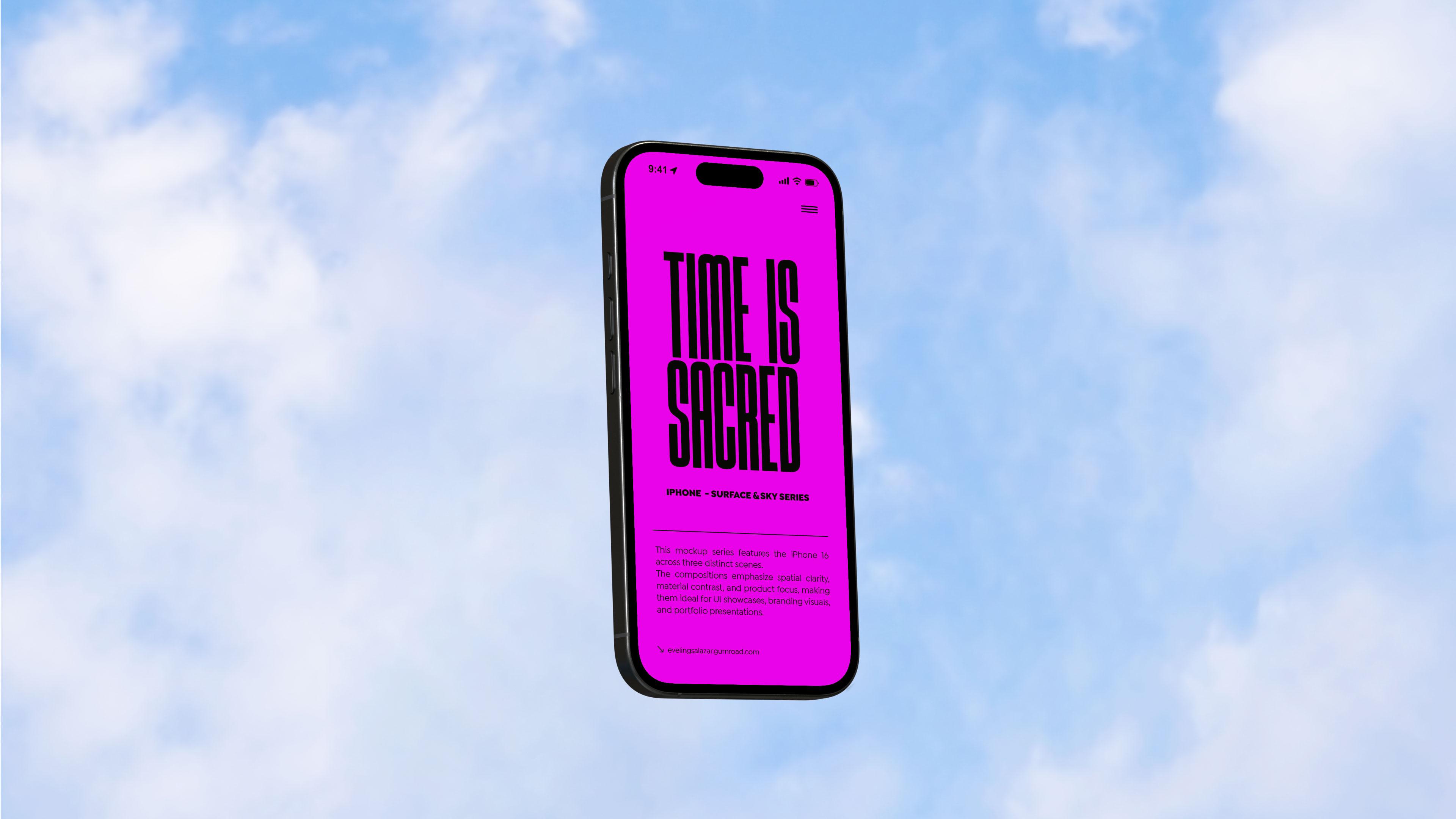
This class builds on the skills covered in Design Your First 3D Abstract Composition: A Beginner’s Guide to Adobe Dimension and Advanced Techniques in Adobe Dimension: How to Create a 3D Scene. Those courses introduced Adobe Dimension as an intuitive 3D tool for creating realistic scenes without technical complexity. Substance 3D Stager follows the same user‑friendly interface, making the transition seamless, while adding more advanced capabilities such as a modern rendering engine, enhanced material controls, and professional lighting options for high‑quality results.

  • With this continuity, learners familiar with Dimension can apply their knowledge immediately and take advantage of more powerful features without starting from scratch.
  • New users starting with Substance 3D Stager will find it clear, accessible, and results‑driven—perfect for creating impactful mockups and images in less time, without the steep learning curve of traditional 3D software.

Stay Connected + Access Resources:

Want to keep learning and stay inspired? You can follow me and explore more content here:

You’ll also find Free exclusive resources—like mockup scenes, lighting presets, and procedural materials—available on my Gumroad store:
🔗 gumroad.com/evelingsalazar

Meet Your Teacher

Teacher Profile Image

Eveling Salazar

3D Designer - Graphic Designer

Teacher

My name is Eveling Salazar. I'm a Peruvian 3D Designer and professional Graphic Designer.

I love to create and reflect everything I love through abstract shapes in 3D and experiment with new design methods. The inspiration for my work centers around emotions, music, and Peruvian culture :).

Currently 3D designer at &Walsh

Watch the classes completely free! Here for sign-up for 30 days free trial.

Visit my new web! www.evelingsalazar.com

Let's be friends on: Instagram - Youtube - Tiktok - Tumblr - Twitter

Free C4D Files: Project files & Assets
Free Mockups: PSD Mockups
Free Images: Abstract renders images

Work inquiries: hello@evelingsalazar.com

New 3D C... See full profile

Level: Beginner

Class Ratings

Expectations Met?
    Exceeded!
  • 0%
  • Yes
  • 0%
  • Somewhat
  • 0%
  • Not really
  • 0%

Why Join Skillshare?

Take award-winning Skillshare Original Classes

Each class has short lessons, hands-on projects

Your membership supports Skillshare teachers

Learn From Anywhere

Take classes on the go with the Skillshare app. Stream or download to watch on the plane, the subway, or wherever you learn best.

Transcripts

1. Intro : Do you want to create high quality images to elevate your branding without relying on complex tools? In this class, I tell you how to build editorial M caps using sustanTRD Segre into tool that doesn't require any prior TRD experience. Hi, my name is Even Alfa. I am a graphic designer, and dress d designer from Lima Peru. I also an educator specialized inter D design focuses on teaching accessible and professional work flops. I work with several randi studios in Lima and also spend time working at Jessica Quest Studio and Wash. I used to like Cinema for D, blunder, fatti, brash, and substandard stagger, blending technique, nding and artistic creation. This class is designed for graphic designers, visual creative, and anyone curious about learning how to create compelling visuals using TRSDTols. All you need is a laptop with sustan studier inset. No prior TZ experiencing is accurate. If you don't have sustan studier Jet, you can dolo it for free from A Dove's website as part of their TRD Suite. In this class we work through a complete and accessible workflopPerfect for anyone new to throu its. We start with editorial composition principles, then dive into suits and studier, easy to use interpass, you're learning how to viel your own through des, apply lighting, textures and materials, and render the final image. The last step, we're bringing the render into Photoshop to create an editable mockup ready for presentation, portfolios or client deliverables. By the end of the class, you'll have a professional piece ready to showcase on social media in your portfolio as a part of client project. I'm excited to share this methodology with you and help you present your IDs with more clarity, intention, and insight. Let's start with singing the first lesson. 2. Class Project: Hi, I'm Evelyn. In this class project, you create a premium dim calf that tells the physical story of a brand, real or imaginated with your own cretic signature. The goal is to replicate what I do, but to use the tools you'll learn here to develop a unique piece that expresses the identity and values of the brand you choose. I want you to sing like a soteic designer. Every color, every texture, and every friend should be intentional. By the end, you'll have an editable PSD and high resolution render ready to present to a client ITU portfolio or are on social media. I choose this play because it pushes your don technique. It's not just about learning how to texture, it's about thinking how a product communicates and connects. This is where creativity and brand identity meet. Steps are sample. Define the brand first main concept equipped with palette antiporaphy. To apply the identity to the Z model Steger. Lower three S lighting on framing to reinforce your brand's personality. Four, render a high quality and bring the file into Photoshop to create an editable mockup. And five, export and present your final piece with a short explanation of your concept in the class project section, please. You first step is to definite the bond, give your opening Stager, create a minimuor and write one sentence about what you want into express. What we got you row interpret? Once you're done, I let your project to the class project, please. I love to see how to apply the brand vision. I give you personalized feedback to help rethins even more if you want. I love the project, so other students can get inspired by your approach. 3. Easy Navigation in Stager: Let's start with the basics. Moving cogenty steer a hurry of death without stress. Just a few control gives you complete freedom. First, interface overview. On the center, this is your viewpor where you see your scene. On the right, the purpet spaniels, where you adjust tias, lighting, and details. On the left, the asset and SIM panel where you find your models, environments, and a list of N elements. You can select and manipulate objects here without touching them in the viewport. Next, basic camera tartat. First, orbit, right click and drag to orbit. Next, PE, middle click or hole space bar and drag. Soon, only mouse will press F to frame the objects in view. Now navigating your manipulating object. Select Object directly in the left side in panel. Just a two where icon, rotate to move or scale extra chat cut four three, I'm fine. You're coming from other sti tools, this will feel familiar. And they were both from the scene panel and directly in the Vufort. Quick practice. Try it now. Press through to scale. F to move, fight rotate. Combine that with the camera tar cuts, and you got total navigation control in under a minute. As you can see, navigating steadier is surprisingly dizzy. You're already in control, see you in the next lesson. 4. Import and Place Your Design: Now that we are comfortable moving around Steger, let's so our scene. Really bring an iPhone 16 out of background and create a surface so it feels like a real photos. Before we start importing anything, let's talk about composition. This is where we decide how all the elements, product, background, and surface. We work together to guide the viewer eyes and tell the story. Think about balance, rhythm space, and the mood you want to create. That's the foundation of our setup. Now, the one for import and pleasure design. Import the TRS D model, F. I'm bringing in the iPhone 16 model I got. Just go to file, por TD model and select it from your folder. You can also drag the file straight into the viewpor super quick. Step two, add a background. To avoid having todo floating in an empty space, and adding a backdrop. In this case, I use Sky Image to create a more contextual scene, but feel free to choose a background that fits your class pet. You have two main options for adding a backdrop. First image background and two physical backdrop object. Image background. Select a camera from the SM panel in the property panel scroll to background section. Choose image, then lop the file you want to use. This is ideal for quick composition or stylus Mup. Next, physical backdrop object. From the side panel, go to at object backdrop or simple at a large clan behind your model. This method give you more control over lighting, shallow and depth, especially if you are working with a studio style. Step three, add a cube as a serve or table. Now I add a cube to whereas or table. Go to add Object, cube, stretch it in X and C to the side of a table. And lower it. So the iPhone rests naturally on top. With a table and the ground set and shaking the phone's proportions. Just the move two k three, and scale to align everything perfectly. Apply your design. Select the fun screen material, go to properties, replace, and insert your artwork. If it doesn't fit perfectly, tweak the fill or it stings until it looks just right. You can add your design are here much simpler than in other try software where you need to unwrap UVs or manually adjust textures. Just select the material, click replace, and choose your image. That's it. In my case, I leave it blank for now because I'll be adding the design leader in Photoshop, where I show you how to build the former cap. We to find remade three D models. If you don't have an iPhone 16 or other products, here are some red sides Sketchfab, CGTrader tub squid, and fab As check the sign before using any model interpret. Now, we got our product background, answer for free. Let's well the scene, so it turns like a professional editorial shot. See you on the next lesson. 5. Lighting and Simple Materials: With our composition ready, iPhone background and surface, we are now going to bring it to live using just two light sources. Sunlight GRI environment, plus a few quick notarial twigs. Adding sunlight. Let's start with sunlight. Go to add Object light. Sunlight. This gives us clean shadows and natural highlights. Selecting the in panel in the propital panel, you can control intensity, angle and softness. Adding RI environment light. Now I write this scene with angel light from DRI and GRI light tres this scene with real world reflection and shadows. In environment picture DR in properties adjust brightness, rotation and blue reflection. This soften the sunlight shadows while keeping direction clear. Applying clean concrete to the surface. For the table cube, I using the clean concrete material found in the left material span. Drag it straight onto the cube. It's maecture keeps attention on the foam. Material for the phone. If I spam the iPhone model in the SIM panel, C is split into parts. This lets me apply material individually. For the frame, I use metro preset to give it a subtle premium tin. For the screen, I keep in the deform material, so my design remains scrap. Shanding a materials color. To shine a materials color, just select the objects or part. Then in the property panel, find the base color option. Click the color squash and pick any tone you like. You see it update instantly in the viewport. Balanced and materials. Qui materials and color set high over the DRI intensity slightly, so the sunlight shades, the sin and keep reflection elegant. The set sunlight, SRI, fruitful materials and costume color for a clean editorial look. To. They have all this o in material integer, but you can also spur thousands more in the Adobes Suntrust community Asset Brewery for extra textures, material, finishes and creative options. Seb in the next lesson. 6. Render & Export to Photoshop: Or sine is now fully set. Composition, lighting, and materials are ready. Let's create a high quality rendering in four k and prepare it for the chop. Set your camera view. First, I make sure my camera angle is exactly where I want it. This lock the framing. So the final image matches our composition. Once I happy, I set the view from the camera menu, so I can return to it anytime. Open render settings. Next, I owe it to the render workpace. Here we can choose output format background and resolution. For this pen, I render in four k, which gives us a superstar image perfect for close up or large displays. You can hit format and background. I using PNG for maximum quality. If I want a solid background, I see the color here for Taco background, I enable the Alpha channel. This is idea if I recomposite in in Photoshop. Quality setting for portfolio of client work, I choose high or very high quality. Higher settings means longer render times, but the detail is worried, especially at four K. Now render unsafe. Once everything set, I hit render and choose the safe location. I name my file quickly, so I can't find it later for editing. In part two Photoshop. I open the PNG in Photoshop, where we find two colors update or integrate graphic elements. I part to Photochop. Now we have the render and I open the PNG in Phototop where we find tune colors at depth or integrate graphic elements. If you plan to create multiple shots, you can set different common angles integer and render them or in other dimension. Just keep your series consistence ready for a pool shot presentation. That's it. Fk, high quality ready ready for post production. See you in the next lesson. H 7. Convert Your Render into a Mockup: One of the best things about Adobe Steger is how easy it is to generate materials and all just mask. Unlike other Triton, stroder does it automatically when exporting. No need to set up. I Mnality. This makes it super fast to turn the render into Photochop mockup. Let's do it. Open an organizing layer. Even with a single render keeping clean hot leather when adding overlays or edits. Now, select by color. I use select color range and click with the eye dropper on the area. I want to change like the foam, frame or screen. If needed, I refine the selection using selet and Max adjusting edge shift for smoother bowers. Then I create a new color layer above and that's it. The chain is isolated and clean. Now apply your design. Now I place my design on the screen, I right click and choose the store to match the perspective. When it fits, I cleave it to her the color max layer we created earlier. Top tip, use the front for CV surface. If this surface isn't flat like a bottle or cove screen, you can use the front icon at the top right. Joe a chip that matches your model. Bugar a cylinder rejection that natural and adapt to the t Zifer. Now, repeat for other parts. Repeat the same process for any other part you want to change. Select with color wrench, refine with selet and max. Add a color layer and start the design if needed. Sport as editable Map. Save your file as a PSD to keep everything editable. Then export a PNG or GPG version for sharing or portfols. With exterior and Photochop turning the render into flexible Map is fast professional, perfect for rounding, clean presentation or showing design variation. Now see you in the last lesson. 8. Final Lesson – Conclusion: In this course, you learn how to turn RZ render into editable mocaps ready to present. You're building in substances to projecting Photochov so that creating mocaps in Z is fast, flexible, and professional. Steer makes the process much easier than other Trey software. You don't need to manually set up. It is material export with automatic mask and everything flows smoothly. It's perfect for a designer who want premiest without tenia. This word fall lets you keep your visual style, control every detail and deliver premium asset to your clients. Jermacap can adapt to flavor brand format and say through to your design voice. If you want to keep learning, check out my social channels. The two futorias and war flows. TikTok, quick, peaceful tips, gum wrapped mockups, Mtrallas and free resources. Anna Webb Evelyn Salazar. These are spaces from designer who won carting inspiration and professional tours. Thank you for taking this course. See you in the next class.