Transcripts
1. Introduction: Hi, everyone. I'm Alia
a fashion Illustrator, and welcome to my
class dedicated to drawing structured
tailored coats. In this class, you will learn how to draw such type of coats. How does a rigid wool behave? What type of creases and folds do we have
in such garments? You will also learn
how to render wool, how to show realistically
looking shadows and highlights. I will show you how you can
add a pattern to your coat. I hope that you'll find
this class helpful, and let's get started.
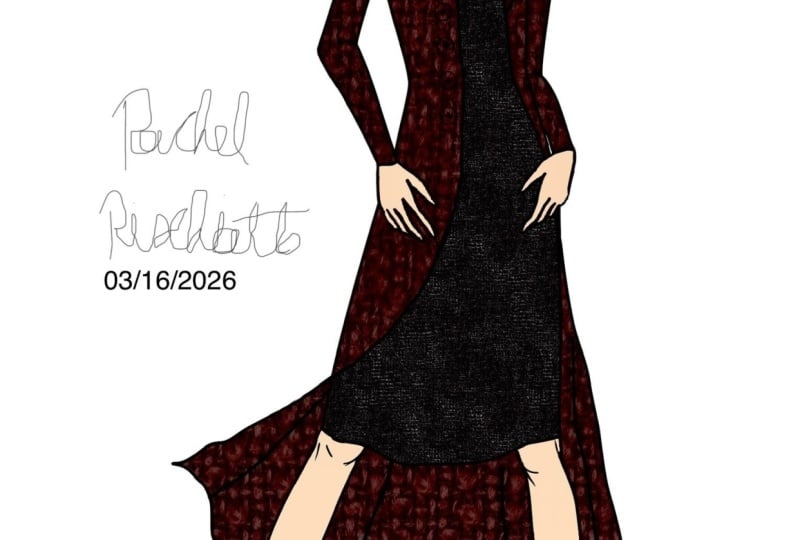
2. Drawing straight structured coat: Okay. First, let's take a
look at the body shape. We can see that the left side is stretched and the right
side is compressed. This will affect our coat because where the
body is compressed, there is a force pushing
against the fabric. I already have my sketch ready. You can download this file
from the project section. I'm deactivating the rendering
of the body and decreasing the opacity of the sketch so you can clearly see the
code that I'm drawing. I'm creating an extra layer and we'll start with the color. First, I draw this line that
curves behind the neck. Then I draw the color line
at a small distance from it. This distance implies the
thickness of the coat. The color shape can be different
depending on the design. Next, I draw the lapel. I'm placing it at about
a 90 degree angle. And then finishing the color. Again, the color shape depends
entirely on the design. For example, if I want
the color to be narrower, I can simply change the angle of this line by selecting
it and adjusting it. Then I finish drawing it. I continue this line down to the waist and finish the lapel. If you want the lapel
to start a bit lower, you can select it independently, use free transform tool, move it down slightly and then redraw the
color connection. Here it is. But I'll return to my previous version like this. You can also create a
notch lapel by drawing this small opening
between the color and the lapel, like this. Let's keep it this way for now. Next, I select everything, go to the actions menu, choose Add, then
press copy, paste. I flip it to the other
side and position it so it follows the shape
of the upper body nicely. Then don't forget to
merge this copied layer, merge it down, we have
the sketch on one layer. Next, I draw the shoulder. We have a structured coat. If it was a soft wool, we would draw it this way. But because it's a rigid wool, we draw it as a line that curves a little bit
beyond your arms. It's important to draw the
shoulders beyond the arm line. Because if you stop at
the shoulder point, then it will look
like a silk rope. Even if it's a fitted coat, attach the sleeves
beyond the arm point. This bump is very typical
in tailored codes. It can be intentionally bigger or you can
make it a bit flat, but it's important to make it. Another important point is the resistance of a
tailored coat to movement. Structured garments
don't fold very easily. Our low body, the hips
are inclined to the left, so the low part of the jacket
will follow that direction. The upper body is
inclined to the right, just like the shoulders. This creates a clash between these two parts
at the waistline. So the location of this
clash is not random. The waistline is where we
have the most compression, where the force is strongest. As a result, we get these
shadows and this fault here. The shadows, they look like
they are more triangular. Let's draw the other half. So I'm redrawing this hemline so it flows nicely from
the left to the right. Let's change it here a bit. As you remember,
from the beginning, the left side of the
body is stretched. So here I draw the jacket as if it were hanging naturally. Almost like it's on a
hanger without compression. The only adjustment
I want to make is to make it slightly wider. I select it and then just
stretch it a bit to the left. Since the foot on the left side is bent
while she's walking, the arm on that side moves
forward for balance. So the sleeve here
is not compressed, it's in the front. I simply draw it
as a tube position slightly on the front plane
relative to the jacket. I can draw the sleeve and then erase side of the jacket
that's behind it. The right arm is
moving backwards, so we don't see the whole sleep. When you pull your arm
back while walking, the part of the body that moves
the most is the shoulder. The folds comes from the shoulder area and we
have some folds there. You see that the
sleep is like a tube in the low pad and
above the elbow, we have these folds. Look at how triangular
and sharp these folds and shadows are very typical
for the rigid wool. I want to widen this part. I'm selecting the leave separately and just stretching
it a bit to the side. To avoid too much symmetry
between the two sides, I slightly changed the
outline of this side and also changing
the lapel a bit. Now we can add details like
buttons and the pocket flaps. A When I draw the pocket flap, the low line goes slightly beyond the outline
of the jacket. This shows that it's
not flat against the jacket but
slightly protruding. Because the left
arm is in front, it creates shadows on the
jacket underneath it. There can also be
some compression at the top where the sleeve
presses against the jacket. We can add shadows
there as well. I add these shadows
early because it will make the rendering
stage easier later. If you want to draw a
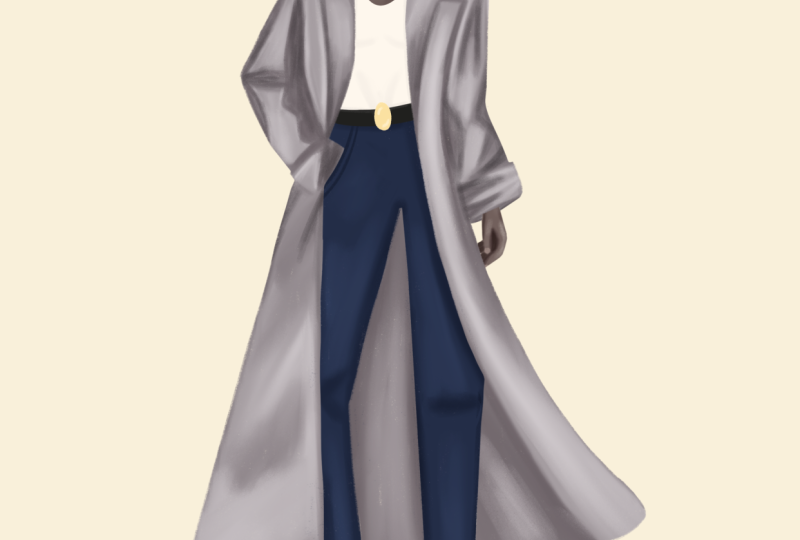
long structured code, the process is exactly the same. You simply extend the length
following the same lines. On the right side, you
just decrease the ankle slightly so the code
doesn't become a shaped. You can increase the
size of the jacket, especially if you're
drawing oversized coat. You can use transformation
tool and stretch it. You can also use a warp tool to adjust shoulders or
other parts of the coat. So here it is. In
the next video, we learn how to draw
belted structured coat.
3. Drawing belted structured coat: In this coat, I also
start from the color. I draw a line that begins behind your neck and extend
it down to the waist. Then at a small distance, I draw a second line to imply the thickness
of the fabric. The angle of the color
and the distance between the lines depend on the
shape of the color itself. Now, I draw the lapel. This is a very similar
process to the color and lapel drawing that we
did in the previous coat. Next, select everything and
then go to Actions menu, copy and paste and
flip it horizontally. Then I position it so
it looks balanced. After that, I erase the
part of the lapel that sits underneath and merge the layers down so everything is
on a single layer. Here I want to soften the
outline of the color a bit because it's quite wide and it should
bend slightly inward. Now I draw the shoulders and I extend the sleeve slightly
beyond the level of the arms. As you remember, I do
this even when I draw a fitted coat and I go even further if the
coat is oversized. The volume is intentional. Then I draw these sleeve bumps. Next, I add the belt. Notice how the shape of the
coat barely changes until the waist and then it suddenly turns toward
the belt line. It's not a gradual
change of direction. Codes as it normally
goes downwards and then we change the
direction to the belt line. At the belt, we get
faults that I call leaf faults because they
look a little like leaps. Rigid fabrics do not create many soft folds
around the waist, the way soft wool does. Instead, they react to compression in this
very specific way. Below the belt, we also see
the stretched leaf shapes. Overall, the
silhouette begins to resemble a little
bit of an hourglass. The fabric becomes
narrow very suddenly at the center and then it returns
to its original shape. Rigid fabrics
resist deformation, so they keep their shape
as much as possible. The main change happens
only at the waist. At the bottom, let's just make the hemline a bit different because the position
of legs is different. Now I add the pockets. So let's move them slightly
higher, the right side one. Just repositioning it. Next, let's try
drawing a bent arm. When the arm is bent, the elbow moves toward the
back rather than to the side. Because of that we get an
like shape below the elbow. It looks a bit like
a small mountain. Then we see another very
common fault pattern for long coat sleeves. I call these X faults. They look like X, the metal part of the X. What happens here is that
the small section of the sleeve remains straight where the sleeve
meets the pocket. So here we have
these shaped shadows that correspond to
those shaped faults. Hopefully, this makes sense. Sometimes I like to name fault patterns because they
resemble familiar shapes. Of course, you will see
many different faults and shadows in clothing, but certain patterns
repeat again and again. Now I erase the arm construction so you can see the
folds more clearly. The elbow would be around here. You can see that
above the elbow, the sleep is relatively
smooth and most of the wrinkles appear below
it in these shaped folds. In the previous example, we had a very still sleep
with almost no wrinkles. Here I want to
show a sleeve that is longer and slightly wider. So we can push your
arm more forward. So it's bent a little
bit at the elbow so we can get some wrinkles
below the elbow. For example, if she's
holding some back like this, moving that back back and forth. Another very common
wrinkle appears above the elbow when
the arm is bent. I call these Mercedes
bends wrinkles because they resemble the three
pointed shape of the logo. They stretch from above the
elbow toward the shoulder. With that, our coat is ready. Our belted coat is complete.
4. Flapping edge and hand in pocket: All right. In this example, I
want to show you the gesture when the hand
goes into the trouser pocket. Let's start by drawing the
trousers, the upper part. When the hand goes
into the pocket, the arm pulls the entire
hem of the coat backward. I want to show how this
looks and how we can draw it convincingly. Here's the arm. Again, you can see
that the elbow is positioned toward the
back, not on the side. I'm not drawing it
like this because that would be a
very uncomfortable position for the model. We have this basic scheme. I don't need to draw everything very precisely at this stage. Now I will use a copy of the code that we drew
in the first example. I copied the color and Lapel. I deactivate the copy, create a new layer for
the sketch of the code. Please ignore the large number of layers that you see here. I somehow decided to
draw everything in one document just
in one project. So this is how the inner
line of the coat will go. It moves downward, and then it turns slightly
above the hand. Next, I activate the layer
with the color and lapel, and I position everything
along that line. Of course, I need to
adjust the bottom so it bends along
the same direction. And now I merge the Lapel
layer with my sketch layer, so everything is on one layer. Okay. Next, I draw the shoulder line extending
it slightly beyond your arms. Then the coat will more or less follow the direction
of the central line. I want to deactivate
the sketch of the body. I don't need it
right now so you can see everything more clearly. Also let's erase the
arm construction lines, especially at the elbow. The low part of the coat follows the direction of the low
line of the lapel like this. Here we see a clash between
the two halves of the coat. Each side tries to follow its own direction and
because the fabric is rigid, this tension creates a
visible break between them. If this were a fitted coat, you would simply draw
these lines a bit closer to the body
in the same way. But you would still
see this clash between the two shapes, which resembles the
letter Y. I will keep the loose aversion
because I want the coat to feel
slightly oversized. I'm drawing everything
at the distance. Next, we continue the hemline. It is pulled downward,
as you can see. We can simply continue the
inner line of the coat and the line that comes from that point of tension
between the two halves. Let me erise your arm here very typical
this indentation at the elbow when
the arm is bent. Here we also see the faults that I call Mercedes
Benz faults, just above that
indentation at the elbow, very common fault, and I stretch it upward
toward the shoulder. On the both sides of that
Mercedes Benz fault, you can add shadows. And the central ridge
is erased part. Now, let's draw the pocket of the trousers and I erase the palm because we already
know that the hand is inside. At the entrance of the pocket, I draw again that small
tube like fragment, the X shape or x fault. And here we have those
mountain like faults or shape. This sharp falls. If you see an
awkward empty space, you can always add
another small triangle to make the rhythm more natural. Next, I create an
extra layer above my sketch because I want to test the shape
of the coat opening. I pick the bright blue. This opening is too wide. Since the code is
heavy and structure, it doesn't need such
a large opening. This shape works better. Now I return to my sketch layer. I reduce the opacity
of this triangle and simply follow its outline
on my sketch layer. Now we can delete or
deactivate that layer. But you can delete it. You
don't need it anymore. Then I add an extra line here. Because our code is revealing
its inside and there we have this woolen part and
then there is a lining. Then I draw the ham line. A next, I copy the color and
lapel from the left side, flip them horizontally
and position them. If something doesn't
fit perfectly, you can simply erase the part that doesn't
work and redraw it. Now I merge everything
that belongs to the coat. Here we have a small fold so we don't need
a thick outline. Instead, I add subtle
shadows along the lapel. Okay. I add some
shadows at the back. Now I copy the
shoulder on the left, then paste it, flip
it horizontally, and position it the
way that I like. I copy and paste to make more
because of the dimensions. Here again, we see a soft clash between the two
parts of the coat. The low pod tends to follow the direction of the fabric
plane toward the side, so we get some shadows there. Now, let's draw the sleeve because she's stepping
toward this side and her leg on the side is
straight and at the front. This arm will naturally
be pulled backward. I add a few wrinkles
about the elbow. Wrinkles here and your hand will also be closer to her body. Since the coat is
stretched to the side, the arm tends to stay as close
to the body as possible. That's it. This is how you
can draw a flapping coat.
5. Straight coat rendering: base & shadows: We have our coat ready and I create a new layer
and call it base. This layer will hold
the base color. Then I create another layer above it and activate
clipping mask. I change the blending
mode to multiply. And call this layer shadows. Next, I create one more layer above it and set
it to screen mode. I also activate clipping mask, so it's clipped to the
base layer as well. I call this layer highlights. These are the layers
we usually work with when rendering skin or textile. Now I reduce the opacity
of the outline layer, then I pick a light
brown color and choose the choke brush from the calligraphy set of brushes. With the brush size around
ten or slightly smaller, I start coloring the coat. I like using the chalk brush
because of its texture. It gives a nice
hand drawn effect. Next, I move the outline
layer to the top so I can clearly see it and
avoid painting over it. I stay on the base layer and simply color
the entire coat. All right. Now our coat
is ready for shadows. I switch to the shadows layer
and pick out shadow brush. In the tools and setup video, I show how to create this brush, but you can also
download it from the project section.
The link is there. I begin by adding shadows along the sides of the sleeves
and on the shoulders. I also want to reduce the opacity of the coat
outline to a minimum, so the shadows remain the focus. Now on the shadows layer, I start drawing shadows
inside the faults. Usually, whenever we have a
highlighted or elevated area, there will also be shadows
on both sides of it. I add shadows along the sleeves. Here we have the intersection between the top and
bottom parts of the coat. So inside that area, I add a shadow as well. And Okay, with lower
opacity and wider brush, I softly add some
shadows on the lapel. Then I increase the opacity and reduce the brush size to add stronger shadows under the lapel and under the color
where we have the notch. Next, I add shadows
under the pocket flaps. If any shadows appear where they shouldn't be on
the pocket flaps, you can just erase them. Then I add shadows
under the buttons. After that, I
reduce the opacity, increase the brush size, and add a soft shadow
on the shoulder. Sometimes while
drawing, I feel that the fabric could naturally
increase in certain places. In those areas, I add very soft elongated shadows so the coat doesn't
look too flat. So for example, here,
she's stepping, she's pushing the coat forward. So maybe we might have
some shadows that are more or less
parallel to your leg. This understanding
comes from observation. I recommend looking at many different codes that
you like and drawing them, but you have to be very present while drawing
because you have to analyze and think about why
shadows are here, what shape. Now, I pick a slightly
darker tone and reduce the brush size to add deeper shadows under the
color and under the lapel. This area usually has
a very dark shadow. I also add more shadow
under the lapel. Add the same dark shadows
on the pocket flaps. A next, I pick the six B pencil brush. I use it to partially
outline the buttons and also add small shadows
inside the thread lines. Where these pocket flaps are attached to the
body of the coat. Then I switch back
to the shadow brush, increase the brush size, and reduce the opacity. In the deepest
parts of the folds, I add slightly dark shadows
to create more depth. So I extend some
shadows here as well. Here, also, we can deepen the shadows on the
sides of the coat. Often where the sleeve
meets the body of the coat, the fabric creates
a small indentation because this is a thick fabric, the seam sits slightly
inside the surface, and this indentation
creates deeper shadows. We have the shadows along that line where sleeve
is attached to the coat. Okay, so I'm adding more
shadows on the sides. I'll always zoom out to see where you feel like
adding more shadows. You can always use
Smudge tool to soften the shadows to
stretch them as well. If you feel like some area
with shadows too dark, you can select that area and in adjustments, reduce
its brightness. Overall, I'm happy
with the shadows. In the next video, we'll add
highlights and the details.
6. Straight coat rendering: highlights: Okay. Now I go to the
highlights layer. From my skin tone palette, I pick a light yellowish color and you can download
that palette in the download section or just
pick some very light yellow. With high opacity
and a thin brush, I start adding highlights along the edge of the
color and the lapel. I'm using the shadow brush. These areas catch the
light because the fabric bends there and the raised
edges reflect the light. Then I use a smudge tool
to soften the highlights. Then I add highlights
along the lapel. Even along the seam
lines where the fabric is slightly indented
by the stitching, the raised edges catch light. I add thin highlights
there as well. Here, the fabric is folded, so the top edge of that
fold receives light. Here we also have another fold, the top of that fault
is illuminated. So here as well. Okay, here we have
stitching as well, so we add reflection on
those elevated parts. And whenever you have the
corner, like the corner, the pocket flap, you can make
it a little bit brighter. Then I add highlights
on your shoulders. Then I increase
the brush size and begin adding broader
softer highlights. Whenever the highlights
start to look too noisy, simply use the smudge
tool to soften them. In general, when you
have shadow shape, you can often place
highlights around it. Here we have deep shadows
and just on the side, we have highlights and I just
in some ways surround it, but very softly with highlights. Now, I use the smudge
tool again to soften most of these highlights
so they blend smoothly. The coat fabric is
quite smooth and mat. It's not silk, the highlights
should be soft and subtle. If you feel that
it's too strong, you can either reduce its
brightness or smudge it. Next, I take the
coat outline layer and reduce its opacity. Then I create a new
layer above it. I'm using six B pencil and one of the darkest
browns from this coat, and I'm going to draw
a clean outline. On this layer, I can also
draw the details such as any stitching that is
visible or buttons. In the light areas, especially where the fabric
is strongly highlighted, I use a lighter tone
for the outline. This keeps the line
soft and more natural. I work with two
different pencil tones, a darker one and a lighter one. In some highlighted areas, you can even break the outline slightly instead of drawing
one continuous line. You can add some
shadows with strokes. Next, I draw the
button holes. Okay. Then the hemline And then I add the seam line with
a very soft thin stroke. Finally, I return to
the highlights layer and add a few highlights
along the edges of the coat. Along the opening, the hemline, and the bottom bottoms
of the sleeves. Now on the details layer, I add highlights to
the buttons by drawing small white strokes on the top
and bottom of each button. Let's complete this look. I want to add the closing
underneath the coat. I pick some dark gray
and I just create a layer below the base
layer and just color. I'm going to draw a simple
jersey turtleneck dress. For now I simply color the entire area underneath
the coat with dark gray. Normally, you would draw the closing properly
layer by layer, but here I just want to quickly complete
the overall look. I draw the hemline of the dress. And just fill the
rest with dark gray. Then I create another layer
on the very top to draw the neck part of the dress so
it appears above the coat. All right. Now we have
the overall shape. To make it look more natural, I pick some even dark
gray and add shadows. After that, I draw the boots. They are made of soft leather, so I add a few folds around the ankles and fill
everything with black. Normally, I would work with
separate base shadow and highlights layer as we usually do for each piece of clothing. But here I'm working a bit faster just to
complete the look. I use the Jasinski pen and
white and add highlights. And on the other boot, then I use the smudge tool
to soften these highlights. You can simply tap or press the smudge tool
several times and the highlight will blend nicely without needing to drag the
brush across the surface. I just tap and I get this
nice smudging effect. When I work traditionally, I often smudge the white
ink with a fingertip. Next, I add a few
stronger highlights in certain areas with
the same just sinkipN and that's it. Now we have a complete look, and you can apply
the same approach when rendering other
codes as well.
7. Belted coat rendering: base & shadows: Next, I move to the
highlights layer and choose a very light yellow
for this yellow coat. I pick the shadow brush with 100 opacity and a
small brush size. Then I start adding highlights
along the color here, then on your shoulder. And then on this elevated
part of the sleeve. You can just connect
these highlights on the shoulder and that part. Then I'm adding highlights along the collar and the lapel. Any sharp corner
like the corner of the lapel can catch
a bit more light, so you can make those
areas slightly brighter. I do the same on the side. Inside this leaf fault, one side is in shadow and
the other side is lid. Playing with shadows
and highlights, I can suggest the overall
shape of the fault. Adding highlights on
any elevated parts. Working with other leaf shape. Okay. And we have
one more leaf below, adding highlights along
the shadows inside, doing the same on
the other side. Because this coat
is light in color, I can add fairly
strong highlights. If the coat were dark red, for example, the highlights
would need to be softer. Here with a wide brush, I'm adding some highlights
on the lapel and color. For the darker coats, you would need
softer highlights. Otherwise, it would
look too shiny. So I add highlights
along the faults, placing them close
to the shadows. When highlights sit right
next to the shadows, the contrast helps
emphasize the form. I'm adding highlights on
these elevated parts. Then I add highlights
along the coat opening. Okay, then along the
hemline here as well. And finally, some wide
highlights on the sleeve. Finally, I create a new
layer on the very top and draw a clean outline
using the six B pencil. I'm outlining the code. My original draft sketch
is at very low opacity. Usually, I don't delete
that layer because I like these strokes of
a draft drawing. It adds extra texture. On this layer on the very top, I'm adding details like buttons. You can just copy
this button and paste and locate wherever you want. But whenever you copy
something and paste, don't forget to merge it
down to the previous layer. So everything stays
on one layer. Then I add small
highlights to the buttons. Finally, I draw the
stitching lines wherever the coat has seems, and with that, our
coat is finished.
8. Belted coat rendering: highlights: All right, I picked buttercup
yellow as the base color, and for the shadows, I choose a slightly desaturated
version of that color. So some light gray. I select my shadow brush and start working on
the shadows layer. This video is a
bit longer because I wanted to explain
more details. So here we have the
leaf shaped folds. And so let's reduce the
opacity of the sketch layer. So we define these
shapes with shadows. Next, I add shadows under the
lapel and along the sleeve. Leaving the edge
along the seam line uncolored where the sleeve
is attached to the coat, and then adding shadows
on the shoulders. Again, on the other side, I leave this elevated part
of the sleeve uncolored. And Next, I'm adding shadows
under your belt. Under the belt, we also have these leaf shaped folds which
are narrower and longer. They usually have a slight
upside down V shape. Since this is a
light colour code, we need to be careful not
to add too many shadows. Otherwise, it can
start to look dirty, we should carefully layer starting from the
lightest shadows. Okay, let's work on the sleeve. The sleeve is relatively
straight until the elbow. So here you remember this
Mercedes bend shaped fault. On its sides, we add shadows. So I also add shadows
along the sides of the sleeve and inside
of this indentation, where the elbow is bent. When the arm is bent, there is often a duck fold in
that area, quite deep one. Here we have this empty space let's just add some shadows. This part of the sleeve forms
what I call an ax fold. So on this side, this sleeve is fairly colm. But since she slightly
pushes your arm forward, we have a very soft
bend at the elbow. We get a few folds
below the elbow. I also add shadows
along the sides of the sleeve and between the sleeve and the
body of the coat. Next, I add shadows along the coat opening and along
the sides of the sleeve. Here near the hemline, the shadows can
become a bit wider because the two sides of the coat touch each
other at the waist, but the distance between them increases
toward the bottom. That's why because
of this distance, the shadows become wider. Now, I switch to a larger
brush with lower opacity. Just like in the
previous example, since your leg is slightly
pushing against the coat, there might be a soft
shadow forming here. It's still a fabric, even
if it's a rigid fabric, it's not a metal plate. It still creases. So you see here,
because of the hemline, the center of the side
is pushed forward, so we can have some
shadows here as well on both sides
of this pushed part. Next, I pick a dark gray to
strengthen some shadows. I reduce the brush size and deepen the shadows
under the lapel. Okay. Here let's soften this edge because
the fabric folds. And with this doceton let's deepen some shadows. Along the belt itself, the shadow should stay
very thin because the belt is tight and sits
very close to the coat. There we have less distance. Here the upside down V shapes. I also a darker shadows. On the other side along the lapel and inside this area between the
sleep and the body, there is less light, so it
naturally becomes darker. The seam line can also have deeper shadows because
in structured coats, the seam sits slightly
deeper in the fabric. A Sometimes you can very softly outline
the shape of a shadow. For example, here we have a
triangular stretched shadows. I lightly suggest that shape. However, if the shadow
is very subtle, for example, here, there
is no need to outline it. You can add a stroke
and that's it. This technique works best for real indentations,
not soft shading. Here I deepen the shadows again. And I can add a bit
deeper shadows here. Here I can softly suggest the
shape of this res as well. Try to draw more
coats after finishing this class because if you draw 20 coats seriously carefully
observing each one, looking at where the shadows
appear, how dark they are, which brush works best, where to press had, where to soften with a smudgtol, your progress will
be significant. Now I'm adding shadows inside the color with a smaller brush, I'm just showing
the thread lines. As you can see, I'm now adding extra depth to the tops
of some shadowed areas. Here the fabric is pushed, we may get some
folds here as well. And now I'm adding the shadows along the
center opening of the code. And as you remember, we widened this dock
area near the bottom. Okay, next, I pick
an even dark gray. I use this tone carefully
to build deeper shadows, layering daca tones only
where they are really needed. I also sometimes
add some outlines or details on this step. Whenever we have a
fabric indentation, we can show its shape with
shadows and highlights. Here we have a leaf shaped fold, and by placing shadows
along the sides, we show that the fabric dips inward and that it has
this particular shape. Okay, so here we can
add deeper shadows. I also like to zoom out
and zoom in while working. When I scale the drawing down, it helps me see the
overall balance and decide where additional
shadows might be needed. So here the top of
the shadowed areas, Daca Okay, so this is a bigger picture. So now we have mostly
we are working with the darkest shadows inside the folds under the
overlapping elements. So here, the top of this shape. I'm making it dark. Okay, so now bigger brush, less opacity, and I'm adding softer shadows
in certain places. Sometimes I add the
shadows first and then smudge or stretch them
to make them softer. Now I'm picking a bit on the
color disc changing to blue. So my gray is coolor. It builds a contrast
with the yellow base. But you can just keep this step. I add a few shadows along the sides because otherwise
the coat can look too flat. So here as well, I
add shadows along the side of this
leaf shaped fold, which help create more volume. Next, I add a few
strokes on the color, and then I smudge it. I really enjoy working with the brush and smudge
tool together, especially when
rendering lighter coats. So I draw a few strokes and then gently stretch them
with the smudge tool. This allows us to create many very subtle
shadows on the coat. Here I leave the
highlighted edge along the seam line untouched and then softly blend the
shadows around it. For the smudge tool,
I actually use the same shadow brush
because in Procreate, you can choose brushes
for smudging as well. I add a few strokes and
then carefully soften them. This area, your
hand in the pocket, that area where your
hand is inside, I'm keeping it lit,
so it's elevated. An area around your hand, I add the strokes
and smudge them. I don't smudge everything. It gives this effect of
smudging pencil with eraser. Now we can see that wow
your hand is inside, you suggested with the strokes. Finally, I add a
few more shadows. Here we might have some
shadows because this is a side of your leg. Now the shadows are finished. In the next video, we will add the highlights
and the details.
9. Final project: And Congratulations. You've reached the final step of our class and you can guess
what it's going to be. Yes, it's going to be a code. You can use a reference photo
and draw an existing code, or you can make it up. The complete look is encouraged. You can draw something
simple below the code, or you can draw something
more complicated. I'm looking forward
to see your works. And if you have any questions, please share them and also
share your suggestions. Thank you for taking this
class and have a nice day. Oh
 Aliya Uten, teaches fashion drawing