Transcripts
1. Promo Video: Hello everybody and welcome to this amazing illustration course where you will learn all you need to know to create beautiful illustrations in Adobe Illustrator. The picnics that you will learn in this course will help you to make your own illustrations for this and any other project that you work in the future. I will start by teaching you the basic concepts of the illustration, where you will learn which are the characteristics that make the great digital illustration. Then you will learn how to use the most important Adobe Illustrator tools, like the pen tool, the Pathfinder, and the shape builder, and the width tool. Then you will learn how to create the color base for the different elements that create our illustration. After that, I will teach you how to add volume by adding shadows and highlights to our illustration. And finally, I will teach you how to easily create different variants of our work. In summary, in this course, you will learn how to plan, sketch to utilize and create a full professional digital illustration in Adobe Illustrator. In this course, we will create the illustration that you can see in your screen right now. But you will be able to use all the techniques that you will learn in this course in any other illustration that you decide to make in the future, I am 100% confident that by the end of this course, you will have a solid understanding of the process of creating a professional digital illustration in Adobe Illustrator. And not only that, you will also have the confidence and motivation to create your own professional digital illustrations. Thanks a lot for your time. And I will see you inside.
2. Introduction: Hello class and welcome back. This is your instructor, My says Perez. And in this class, we're going to learn how to create digital illustrations in Adobe Illustrator. I have created this course for beginner students. So you're going to learn from the very basics, all the way to creating a beautiful illustration. Now, to begin the class, we're going to start by learning the basic concepts of digital illustration. Then you're going to learn how to use some of the most important tools in Illustrator, which are the pen tool, the Pathfinder, the shape builder, and the width tool. Then we are going to start creating our illustration. And we're going to begin by creating the base colors using the tools that we previously learned how to use. After that, we're going to add shadows and highlights to add volume to our illustration. And to finish, I'm going to show you how to create different color variants of our illustration. So by the end of this class, you will have all the knowledge that you need to create the image that you're seeing in your screen right now, but also to create any other illustration that you want. So we have a lot of information to cover. So get ready. And let's begin.
3. Basic vector illustration concepts: Hello class and welcome back. In this lesson, we're going to discuss the basic concepts for digital illustration. So let's start. When we talk about digital illustration, we can talk about two main kinds of illustrations. On the one hand, we have bitmap illustrations, which are the illustrations that are made out of pixels. In this kind of illustrations, the dimensions of the illustration are really important. This kind of illustrations will lose a lot of quality if we tried to enlarge them or make them bigger than their original size. Now, on the other hand, we have vectorial illustrations. And this kind of illustrations are made out of vectors, not pixels. Now, vectors are different from pixels. Vectors are made out of formulas and mathematical sequences, which are the ones that define the shape, the color, and many other attributes of every single component within our illustration. But don't worry, we will not have to use any kind of formulas or mathematics in order to create our illustrations. Of those processes are going to be done in the background by our program. The most important thing here is that vectorial illustrations can be enlarged without losing any quality. And in this course, we're going to focus on vectorial illustrations. Now, the first thing that we're going to need to create a vectorial illustrations is of course, a vectorial software application like Adobe Illustrator, affinity designer, or coral draw. In this course, we're going to work with Adobe Illustrator, which is the industry standard for vectorial illustrations. Now, vectorial illustrations have a lot of different users from Buster design, logo design, character design, and animation, icon design, book illustrations, and even video game production, among many other applications. Now, when we talk about vectorial illustrations, we can find different styles. But the techniques and the tools that we're going to use to create those different styles are usually the same. And the tool that we're going to use the most in this and any other project in Illustrator is going to be the Pen tool. This tool is going to help us to create the different shapes that will make our final illustration. Unfortunately, most people think that the pen tool is really hard to use. And that's the main reason why many people don't like working vectorial illustrations. However, the pen tool is actually very easy to use if you know how to use it properly. And that's why in this course, I have included a whole lesson where I teach you how to properly use this tool. And I'm going to show you different tricks that are going to make your life as a digital illustrator really, really easy. And I have also included other lessons where I teach you how to use other tools that are going to help you to create beautiful illustrations in Adobe Illustrator. So you have nothing to worry about. In this course. I will teach you how to use all of those tools. And I will answer, teach you the techniques that you need to create beautiful illustrations. And that's all for this lesson. I hope you liked it. And I'll see you in the next lesson.
4. Interface and basic Adobe Illustrator tools: Hello class and welcome back. In this lesson, we're going to go over Adobe Illustrator's basic interface and tools. So let's start. Okay, So as you can see, I have illustrator open now to make things easier and be able to show you Adobe Illustrator's interface. We're going to make a new document. So I'm going to go to file and select new. And as you can see in this window, I have different options. Now, this window may look a little bit different depending on the version of Adobe Illustrator that you have. Some of the previous versions done have all of those different options. They only have something similar to what we have here on the right. But this new options that we have here are really important because here we can access different presets that are going to make our job easier according to what we want to create. For example, if we want to make graphics for mobile devices, we can come to this tab right here. And here you can see that we have different options from different mobile devices that we can access very easily. And each of these different options already have the proper dimensions and other settings that we can use depending on the mobile device that we want to make those graphics for. Now, if we go to the web tab, here, we can find different presets for web design projects. The same. If we go to the print tab. Here we will find different presets for print oriented projects. Now, if we go to their Film and Video tab, here, we will find a lot of different formats that are going to help us to create graphics for film and video. However, the actions that we're going to use most of the time are the ones from the last tab, the art and illustration tab. And as you can see here, we have different options, like postcards, posters, letter, A4, tabloid, and many other sizes. So these are the options that we're going to use most of the time. Now here on the right, we're going to see the information of the file that we selected from the left. So if I select this one, you can see that the document dimensions change. If I select this other one, you can see that they changed again. So let's let this one. And here we can change other options. For example, we can select a portrait or landscape orientation. We can also change the units that we want to use to measure our document. And this time we will have points selected. So we're going to leave it like that. And here we can change the color mode that we want to use. We will usually work with RGB. And we can also change other details, but we're not going to cover them for now. So I'm just going to click on Create. And now we have a new document with the dimensions and the specification that we selected in the previous step. So now I'm going to explain a little bit about illustrator and its interface. So here in the middle we have the Canvas. So the dimensions and the orientation of this canvas is going to change according to the characteristics that we select when we create our document. Now on the left, we have the toolbar. And this is where we can select the different tools that we're going to use to create our illustrations. And I'm going to show you how to use some of these different tools in future lessons. But for now, just keep in mind where the toolbar is. Now. Here at the top, we have the control panel. And this panel is going to show us different options. These options will depend on the tool that we have selected or depending on the objects that we have selected in our Canvas. For example, if I select this tool, you can see that I have some options. But if I change this tool for the text tool, now, I have additional options. If I select a different tool. Now you can see that I don't have those actions anymore. So the control panel is going to give us a lot of information and it's going to help us to control some of the options of the tools or objects that we have selected in our document. Another really good thing about Illustrator is that as you can see, if I place the cursor over the tools, the name of the tool and the respective shortcut is going to appear for a few seconds. So you can see the name and the shortcut for each of these tools. Now, at the very top, we have the menus. And in these menus We will have access to different commands and different tools that will help us to create our illustrations in Adobe Illustrator. And we're going to go over some of these different menus in future lessons. Now, if we go all the way down to the bottom, you can see that we have a number as a percentage here. So this is where we can change the zoom of our document. So if I click here and I change it to 100%, we will be able to visualize our document at a 100 percent of its size. If I change it to 50 percent, we're going to visualize it at half of its size. So this is where we change the zoom within our document. Now, another important thing of this status bar is that dry here I have the tool that I have selected right now. So at this moment I have the line segment tool selected. But if I change this two to the type tool for example, you can see that these changed as well. So this is useful just in case you want to know which tool you are using currently. Now, let's go to the right. And here we have the floating panels. And the reason these are called the floating panels is the following. As you can see if I, on any of these icons, a new panel is going to appear. In this case, this is the color panel. Now if I click on a different icon, the previous panel is going to disappear and the new panel is going to appear. And that's why they are called the floating pounds because they are kinda floating. So it is going to show you the one that you're selecting and the other ones are going to disappear. Now, if at this moment you cannot see all of these icons, you can go to the Window menu. And here you can activate all of those different panels that I have on the right. For example, I can activate the Stroke panel. And as you can see now, it appears on the right on our floating panels. Now, working this way is very useful because we will not have all of those different panels open at the same time as we would if we were using another application. Now, the only disadvantage of this is that the panels that we want to keep open all the time, like the layers panel will answer close when we select another panel. But we can fix that very easily. And I'm going to show you how. So. The first thing that I'm going to do is to open up the Layers panel. And I'm going to come here and I'm going to select these windows. I'm going to move it and drag it to the left. Now as you can see, this window is independent from these other windows. So now if I select some of these different panels, you can see that the Layers window is going to stay there. So now we can select this bundle and move it back over here. Now, the disadvantage of doing this is that if I now want to open some of these other panels, they will get in the way of the visibility of our layers panel and we don't want that. So what I'm going to do is to move all of these floating panels to the left. Like so. And now I can take the Layers panel and move it all the way to the right. And now all we have to do is to move back these different floating panels. So this way, our Layers panel is going to be open all the time. And if we open some of these other different panels, they will not get in the view of our layers panel. And that's the way I work usually. Now, there is another planner that I always have visible at all times. And it is the Pathfinder tool. So I'm going to go to Window and I'm going to look for the Pathfinder and open it up. As you can see. I have it always on the left side. So it may appear here at the beginning for you, but I always have it on the left. And those are some of the most important elements of Adobe Illustrator's interface. And that's all for this lesson. I hope that you liked it and that you learned something useful. And I will see you in the following lesson.
5. How to use the Pathfinder tool: Hello class and welcome back. In this lesson, I'm going to show you how to use the Pathfinder tool, which is one of the most important tools in Adobe Illustrator. So let's start. Okay, as you can see, I have a new and empty document. And right here I have the blood Finder tool, which has multiple options. Now, if right now you cannot see this tool right here. You can go to window. And right here, you can select the bad finder option. Or you can use this shortcut that you can see here on the right. And now we have these pathfinder panel here. So I'm going to open it up. And we have all of these different options. So to be able to use this tool, I have to have some shapes. So for this example, I'm going to use really simple shapes. I'm going to use the marquee tool. And I'm going to create a rectangle. And I'm going to change the color. I'm going to use yellow. Okay? And I'm going to deactivate the stroke. So I'm going to select the stroke option and click here to the activated. And now I'm going to make a circle. So I'm going to use the Ellipse tool and I'm going to click and drag. Perfect. Now I'm going to select the two of these different shapes and I'm going to make them smaller because I'm going to use different sets of these shapes. So I'm going to copy and paste these shapes. And I'm going to move him to the right. I'm going to do it again. And this time I'm going to move them down. So now we have eight different sets. So now we can start exploring the different options of the Pathfinder tool. I'm just going to zoom in a little bit. Now, to use the Pathfinder tool, we have to select more than one shape. So in this case, we're going to select those two shapes, which are the ones that we want to modify with the Pathfinder tool. So I'm just going to select them like so. Now I'm going to use the first option here, which is going to help us to join two or more shapes together. So as you can see right now before doing it, I have two different shapes. I have a circle and a rectangle. So if I select them both, and I click right here on the first option, they are going to be weld together. They will be combined and they will be only one shape. Now, let's try with this second option. So again, I'm going to select those two different shapes. And I'm going to use the second option, which is going to help me to use one of these shapes to cut the other shape. So let me show you what I mean. And as you can see now, this circle cat the rectangle. So now we have the rectangle, but without the area where this circle was. Perfect. Now let's continue with the third option. So again, we have to select the two of these different shapes. And I'm going to use this option here. Now, this is going to help us to keep the areas where the two different shapes are overlapping. So these areas where the shapes are overlapping are going to stay. And the areas where the shapes are not overlapping are going to go away. And this is the result. Now let's go with the next option, and that's going to help us to do the exact opposite. This time we're going to keep all the areas where the shapes are not overlapping and the areas where the shapes are overlapping are going to go away. So I'm going to select those two shapes. And I'm going to use this option here. And as you can see, we kept everything except for the areas where the shapes were overlapping. So now I'm going to use the selection tool. And I'm going to select these two different shapes. And as you can see, they are still separate shapes. The only thing that changed is that the areas where the shapes were overlapping, these appeared perfect. Now let's go to these options at the bottom. So we're going to start with the first one. So while this option is going to do is to divide these different shapes according to the areas where these shapes. Connected. So once I have them selected, I'm going to use this option. So at this point, it looks like nothing happened. But if I use the selection tool, you will see that I can select those three different shapes. Now, if I try to do the same with these other shapes that I still haven't modified. You can see that I only have a rectangle and a circle. So I have only two shapes. And over here I have this shape, which is the same as this other one. I have this other shape here in the middle, which is similar to this other one. And I have this other shape, which is similar to this other one. So now, instead of having only two shapes, we have three different shapes. And again, these shapes were divided according to the areas where the original shapes where overlapping. So now let's try with this other option. So I'm going to select those two shapes. And I'm going to use this option. And as you can see with this option, we're going to keep the shape that is on top, which in this case is the circle. But at the same time, this shape is going to get the shape that we have at the bottom. So this action is very similar to this other one, which is the same as this one over here. But it will not only cut the shape, but it's going to keep this shape on top. If I move this shape, you can see that at the bottom we have nothing. Now, the next two options are very similar to other options that we have already used. In this case, this one over here is really similar to this other one over here. It's going to have basically the same attributes. And as you may remember, this assumption is going to help us to merge different shapes together. Now, the next option is going to be very similar. This one right here. So with this action, we're going to get a similar result as if we were using this other one. So let's keep those and let's continue with this one, which is the Outline option. So I'm going to select those shapes. And I'm going to use this option. And as you can see, we have the same shapes, but this time they are strokes. If I go to my layers, I can open this one app and as you can see, I have these different strokes. So I'm going to select them one by one. You can see that we have this line here, this other part of the circle and those other shapes that made rectangle. So this action is very similar to this other one. But instead of using shapes, it is going to use strokes. So now we have the different strokes that made these different shapes. And again, they work at according to where the shapes were overlapping. And now let's try with the last option. So I'm going to select those shapes. And I'm going to use this last option. And as you can see, this option is exactly the opposite of this one. And you can see this difference even in the icon. These icons are the opposite. So while with this option, we're going to be able to eliminate the shape that we have on top. With this other option, we're going to eliminate the shape that we have behind. Here you can see that the shape that was on top was the circle. And this circle was used to cat this rectangle. On the other hand, over here, the shape that was behind, which is the rectangle, was used to cut the shape that was on top, which is the circle. So as you can see, the pathfinder is a really powerful tool that has a lot of different options that we can use. Cat different shapes in almost any way we went. So I really encourage you to practice with this tool and all of its options. That's going to help you to improve your illustration skills our lot. And it's going to make your job as an illustrator really easy. And that's all for this lesson. I hope that you learn something useful. And I will see you in the following lesson.
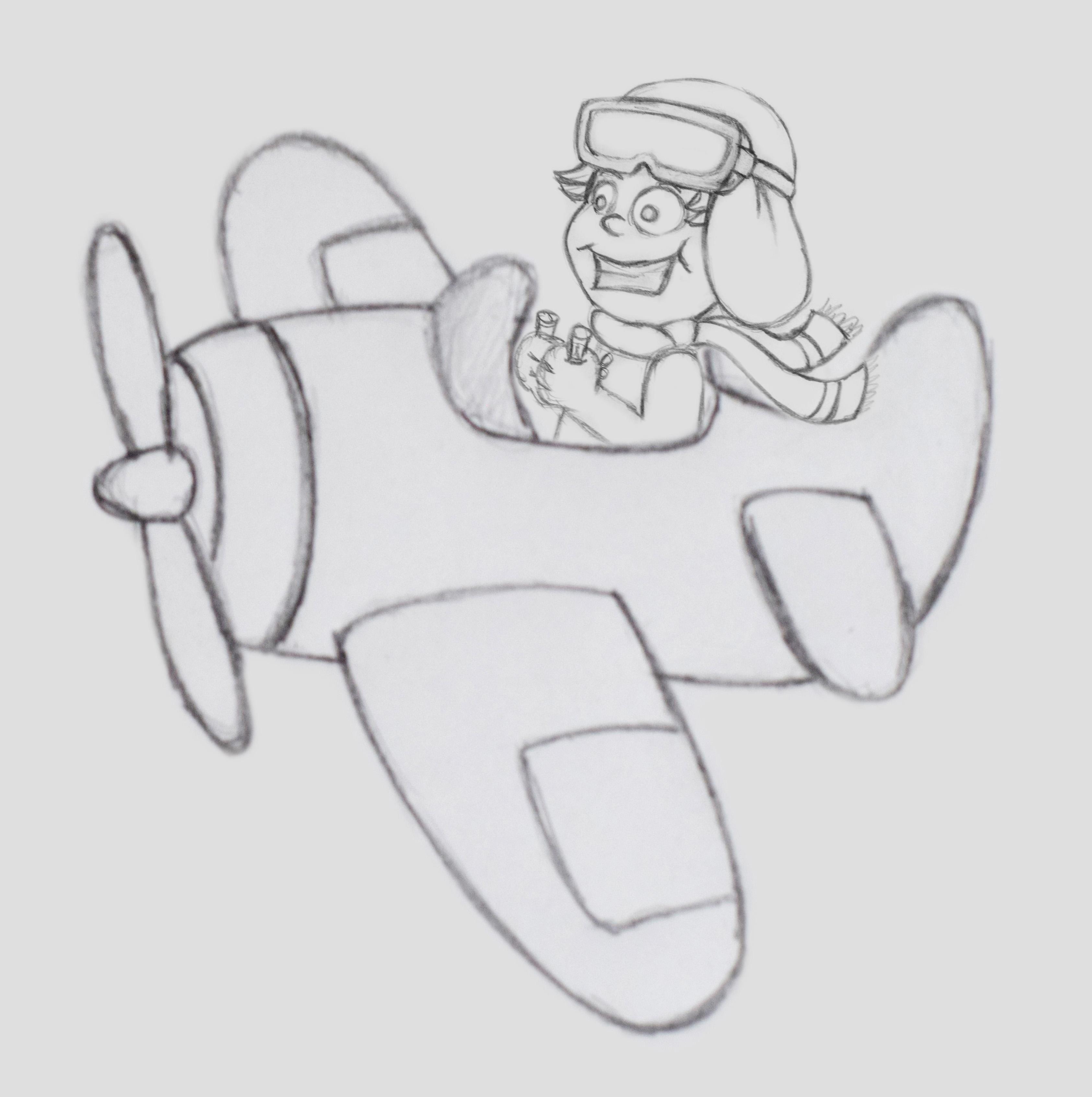
6. Sketching the reference images: Hello class and welcome back. In this lesson, we're going to be sketching the reference images that we're going to use for our illustration. So let's start. Okay. As you can see, I have a few different pencils, but this time I'm going to use only one because these sketches are going to be really simple. Now, I'm going to start by drawing the front side of this airplane. And then I'm going to continue by drawing the rest of the body for display. Now, as you will be able to see, I'm going to make a really simple shapes because our illustration is going to have also really simple shapes. Now I'm going to create their wings. And as you can see, I'm giving it a little bit of an angle. So the other wing is going to have to come from the same direction and has to follow the same flow as the other wing. Now let's complete the propeller. And again, as you can see, I'm making really simple lines. So don't worry, if you don't know how to draw. We're going to use a really simple drawings. Now let's continue with the windshield this way. And as you can see, I'm using a really small notebook. And it doesn't really matter where you make your drawings. The important thing is that you make the sketches. And you can use a notebook or just a simple piece of office paper, doesn't really matter. And now I'm going to continue by drawing the rear wings. And I'm going to make him, in a similar way in which I made the front wings. I'm going to continue with the tail. And I'm going to give it a different shape. So I'm going to erase the tail. And here it's very important to notice that we're going to use this catches only as a reference. So they don't have to be perfect drawings. We're just going to use them as a reference. Are we want to do is to get the basic details that we want to place in our illustration. Bad, we're going to make most of the details in Illustrator. So don't worry too much if your drawing is not perfect. So as you can see, this drawing is complete. Now let's go to the next page. And here we're going to make our character. So I'm going to start by creating the face. So I'm going to start with a circle. Now. I'm going to create the cap this way. And I'm going to continue by creating some goggles. Okay, that's good. I like it. Now. I'm going to create the middle part of the girls. And I'm going to continue to create the face of the character. Now here I don't have enough space, so I'm just going to erase this bottom line. And I'm going to create the silhouette of these character. I'm going to make the nose. And now I can place the eyes. And since this is a cartoon drawing, we can make the eyes a little bit bigger than normal. Perfect. Now, again, I'm making really basic shapes and really basic drawings. So I'm just using circles and semi-circles. Now let's create the mouth. Let's give it a smile. And again, I'm going to have to erase a little bit of these right here so we can make the face a little bit bigger. So now that we have these basic shapes, we can give him a little bit more definition and we can erase the lines that we don't need anymore. Now, let's continue by giving a little bit more definition to these goggles. So our main goal here isn't to make the best drawing possible. Our main goal is just to make a simple drawing with all of the basic elements that we want to create in our illustration. So all we want is to have a nice reference that we can use to create our digital illustration in Adobe Illustrator. So don't worry, if your drawing is not as good as you may want it to be. Okay now let's continue. And I'm going to continue giving it a little bit more definition. Now, I'm going to make the hair for this character. And for this character, I'm just one little bit of hair coming out of the hat. And I'm going to make a little bit more definition to this mile. And now we can continue creating the body for these character. Now, again, since this is a cartoon character, we can make the characters by a little bit smaller than usual. Now, I'm going to continue with the hands just like that and good to make them as a fist. Perfect. I'm going to continue with the arm. And now I'm going to continue with the rest of this character. So I'm going to do the other hand like that. And I'm going to finish creating the body for this character. And to make it a little bit more interesting, I'm going to give it a scarf. So this is going to help us to get a little bit of movement into our drawing. So we want to have some movement on this curve. And that's why I'm making it in the shape. Because the wind is going to be moving with this curve. And we want to show that in our drawing. And now I'm going to make the buttons and the back for the character. And now I'm just going to give it the final touches. And as you can see now, our character is complete. And that's all for this lesson. I hope that you enjoyed it, and I hope that you learned something useful. And I'll see you in the following lesson.
7. Preparing our Illustrator file: Hello class and welcome back. In this lesson, we're going to prepare our file and we're going to use the drawing that we created in our previous lesson. So let's start. All right, As you can see here at my desktop, I have a new folder. So I'm going to open it up. And here I have three different files. So the first image is the plane, the second one is our character. And here in the third one, I have the two images together. And this is the image that we're going to use to create our illustration. Now, remember that you can also have this image if you downloaded from the resources of this course. Okay, so now let's go to Illustrator and let's make a new file. So let's go to File New. And from all of these different options, I'm going to go to the art and illustration options. Now from all of these different sizes, I'm going to select 1920 by 1080. And I'm going to make sure that the orientation is a horizontal orientation. And I'm also going to make sure that the color mode is set to RGB. If we have CMYK, we have to change it back to RGB. And now that everything is okay, I'm going to create these new file. And now the only thing that I have to do is to bring the image that we created before into this file. So I'm going to rename this layer. Now, as you will notice along this course, I love giving my files really clean. And that's why I named the different layers on my project. That's going to help me to keep everything really, really organized. And that's a good practice that I recommend you to do as well. Okay, so now let's bring our reference image. And to do that, I'm going to go to my desktop. I'm going to select this image. I'm going to drag it and drop it inside of this document. I'm going to make it a little bigger and I'm going to place it in the center of this document. And I'm just going to make sure that a VCS right here, okay? And now I'm going to give it a little bit of transparency. And that's going to help us to create our illustration much, much easier. So I'm going to select this layer and I'm going to go to the transparency options. Now if I click on the Gradient options, I can also select the transparency options. Or you can select this icon here. Now, if you don't have this icon here, all you have to do is to go to the Window menu. And here you can select either the gradient option or the Transparency option. Or if you are like me and love shortcuts, you can see their respective shortcut to the right of each option. Okay, now let's go to the transparency options. And here we are going to reduce the opacity of our layer. I'm going to use something around 30 percent. And this way it's going to be easier to create our illustration. Now, I'm going to lock this layer. And this way I'm not going to be able to modify it by accident. I'm going to make a new layer and I'm going to rename it. Perfect. Now our file is ready. So I'm going to use the pen tool and I'm going to make sure that the fill is blocked. Okay? Now, all I have to do is to save this file. So I'm going to go to File and Save. And I'm going to select the folder where I want to save this file. So I'm going to use our illustration folder and I'm going to rename this file. Now, you can use the name that you want for this one, I'm going to use blame scene, and I'm going to click on save. And Okay. And now our document is ready. And that's all for this lesson. I hope that you enjoyed it. And I'll see you in the following lesson.
8. Illustrating the base for the plane's body: Hello class and welcome back. In this lesson, we're going to illustrate the basic shapes for the planes body, including the front and rear wings. So let's start. Okay, So I'm going to start by renaming this layer. And now using the pen tool, I'm going to start creating these blame. But before I'm going to change the color, and I'm going to use a yellow color, something like that. So now we can continue. And I think that I'm going to start with these wing because this one is going to be really easy to make. Now remember that in order to break this handle and that the second part of the stroke goes to the other direction. We have to press the Alt key on our keyboard. Then we can continue creating the different points to create our shape. And as you can see, I'm using very few points. And that's going to help us to create really smooth shapes. And I'm going to close it where we started. Okay? Now I'm going to use the direct selection tool. And I'm going to select this point. And I'm going to give it a little bit of roundness using this point here. So all I have to do is click and drag it. I'm going to do the same on this other side. And as you can see, now, this wing is complete. Now I'm going to select this stroke and I'm going to click here. So instead of a stroke, we're going to have a shape. And now I'm going to turn on the outline mode for this layer. So remember that to do that, all we have to do is to hold control and click on the icon on this layer here. And that's going to turn this layer to the outline mode. So use Control, click on the icon on any layer, and that's going to turn on the outline mode for that particular layer. And we're going to be able to see what we have behind our layers. Now, I'm going to use the pen tool to make these rear wing here. And I'm going to do it in the same way that we did the front wing. Now, all I have to do is to select this point and give it a little bit of roundness. The same with this other one. Now, all I have to do is to duplicate the objects that we created. So I'm going to use the selection tool and I'm going to cap it with command C. I'm going to paste it using Command V. Now, I'm going to right-click and I'm going to go to transform. And I'm going to select the option reflect. And here I'm going to use the horizontal axis. Okay? Now, all I have to do is to resize these wing. I'm going to rotate it as well and place it into position. As you can see, these loops are really well. Now I'm going to do the same thing, but this time with these other wing. So I'm going to copy it and paste it. I'm going to right-click, go to Transform and Reflect. I'm going to click Okay. And all I have to do now is to place these wing where it has to go. I'm just going to shrink it down and place it where it belongs and rotate it a bit. I'm going to zoom out to see how it looks. And I think I'm going to have to modify this one a little bit. I'm going to move this point just a tiny little bit. I'm going to do the same with these other points. Just a little bit. Perfect. Now I'm going to continue by creating the rest of the body of this plane. And to do that, I'm going to use the pen tool again. Now, if for some reason you still don't understand exactly how to use the pen tool. You can go back to the first section of this course where I explain in detail how to use this tool. And I also explained the different components of the different shapes that we create. Now, I'm going to finish here. I'm going to move this one back to its original position. I'm going to modify this one a little bit just to make it a little bit more rounded on the bottom side. And now to be able to see the corners of these different shapes, we have to turn off the outline mode. And we're going to do it in the same way that we turn it on. So I'm just going to Control click on the icon to the left of this layer. And as you can see now, we can visualize the colors for the different shapes within this layer. And now that we have the colors back, we can continue creating our illustration. So let's continue. And I want to change the color for the wings. So I'm going to select all of the wings and I'm going to change the color. Okay, So now it is. How good? The only thing is that this wing is an add on top. It should be on top. So I'm going to right-click on it. I'm going to go to arrange and select the option Bring to Front. And as you can see to the right, we have the command that we can use to use this option. And now this shape went all the way up to the very top of the layer hierarchy. So now we can see it fully because it is top of all of the layers. We have to do the same with this other one. But this time we're going to use the shark get perfect. Now I'm going to cut these two different wings because as you can see, they are a little bit too big. So again, we're going to use the Pathfinder to cut the shapes. So a using the pen tool, I'm going to make this shape here just following the lines. I'm going to close it here. I'm going to go to my layers. And to make things easier, I'm going to hide the visibility for all of the layers except for the wings. I'm going to select this shape and I'm going to change the color just to be able to tell it apart from the other shapes. And now we're going to use the same technique that I showed you when I told you how to use the Pathfinder tool. So I'm going to select this one here and I'm going to duplicate it. Okay? Now I'm going to select those to differentiate. I'm going to go to the Pathfinder. And remember that if you cannot see it right now, you can go to window. And here you can select the Pathfinder. Now, with those two different shapes selected, I'm going to use this option here, which is going to help me to cat the wing. Now, if I turn off the visibility for this one, you can see that the wing has been cat. I'm going to do the same with this other one. So I'm going to select both of these and using this option, what I'm going to cut it. And as you can see now, these shapes are much more easier to manage. So I'm going to select them both. And this ones have to go all the way back to the bottom of the hierarchy. So I'm going to right-click go to Arrange. But this time we're going to use the Send to Back command. And now we have him at the very bottom of the hierarchy. So they will be covered by the planes body, which is exactly what we wanted to do. And that's all for this lesson. I hope that you enjoyed it. Thanks a lot for watching. And I'll see you in the following lesson.
9. Adding details to the plane's body: Hello class and welcome back. In this lesson, we're going to be adding some details to the planes body, including the propeller and the windshield. So let's start. Okay, So I'm going to start by turning on the outline mode for this layer so we can see what we have behind. And now you're using the pen tool. I'm going to create the cabin for this plane. And this carbon is where our character is going to be. Like so. And I'm going to finish this over here. Okay? Now I'm going to select this other shape here. I'm going to copy it and paste it in place. And I'm going to use it to cut this shape that we just created. So I'm going to select them both. And I'm going to use this option from the Pathfinder to cut off the excess. Now I'm going to turn off the outline mode so we can see the colors. And I'm going to change the color for this cabin. Okay. I'm going to turn on the outline mode again and I'm going to create the windshield. So to do that, I'm going to use the same shape. So I'm going to select it and I'm going to duplicate it. Now. I'm going to select the copy and I'm going to modify it. I'm going to start by moving this point up. And we can delete it. And we're going to have to delete other points as well. So I'm going to create another point here. Then I can select and those other points and delete them. And now with this point, I'm going to add some new point. I'm going to give these the shape of these windshield. And I'm going to end right here. Like so. I'm just going to modify it a little bit like that. And now I'm going to select the windshield and I'm going to change the color. I'm going to use a blue color. Okay. I like how it looks. So now we have the basic shape for the windshield, and now we're going to continue creating the propeller. So I'm going to come over here. And I'm going to start by creating a small triangle, just like so. And I'm going to select this point, and I'm going to round it. Now I can select those two points and move them back into position. And we're going to do the same on these other points. So I'm going to select those two and run them. Perfect. Now, I'm just going to make this a little bigger. And I'm going to move it to the right just a little bit. Okay? I like it. And as you can see, our illustration is coming up really well. Okay, so now I'm going to start adding some details, the wings. And to do that, I'm going to use the pen tool. And remember that the shortcut for the pen tool is the letter P. And I'm going to create this small detail that we have here like that. And I'm going to finish right there. Now. I'm going to select the wing and I'm going to make a copy. I'm going to select the copy and the shape that we just created. And I'm going to use the Pathfinder with this option to delete the x's. Now, I'm going to change the color for this detail. I'm just going to make it a little bit darker. Now. We can do the same with this other wing. Okay, so it's going to be really easy. Like that. Perfect. Now I'm going to make a copy of this other window. And I'm going to select the wing and the shape that we just created. And I'm going to use the Pathfinder to cut off the excess. And let's copy the color using the eyedropper tool like that. And now let's select this shape and let's send it to the back into the hierarchy. So let's right-click. Let's go to arrange. And we're going to select the option Send backward. And please take a note of this command here because we're going to be using it a lot. So please write it down. And let's select this option. All right, and let's use this command multiple times until we see that this layer is where we wanted. And what we want is to this layer to be covered by the body of the plane. Now, I'm going to get a little bit closer to the front side of this plane. And I'm going to use the pen tool. And I'm going to create this curve here. I'm going to continue this other side. And I'm going to end it right here where we started. We're going to modify it a little bit. So the thickness BCE about the same. Okay. Now I'm going to select this one and I'm going to duplicate it. And I'm going to use the Pathfinder again to delete the x's from this other shape. Just click there. And as you can see, now, this shape is good. I'm just going to change the color. And you can see that this looks really good. Perfect. Now, let's go to the front side of the plane again. And we're going to continue creating the propeller. So I'm just going to create one of these and then I'm going to duplicate it and reflect it to the other side. So that's going to make our job much easier. So now that we have it, I'm going to change the color. I'm going to use a gray color. I'm going to select it and I'm going to copy it and paste it. I'm going to select it again. And I'm going to rotate it. I'm going to move it down. And now I'm going to select this shape here. And I'm going to use the shark had to bring it forward. So that way, this shape is going to be on top of the other two shapes. And I'm just going to modify the position a little bit just to make sure that they are centered. And now we can see the difference between our sketch and our illustration. And as you can see, this illustration is coming out really well. And that's all for this lesson. I hope that you enjoyed it, and I hope that you learned something useful. And I will see you in the following lesson.
10. Backing up our project: Hello class and welcome back. In this lesson, we're going to talk about backing up our project. So let's start. Okay? So whenever a work, any project, whether it is a digital illustration project or a 3D design project. Usually I make different backups at different stages of my project. And this is because we have to keep in mind that in the end we are working with computers. And sometimes computers or computer software applications fail. So when this happens, sometimes the file that we were working on before it crashed gets corrupted. And that means that the file is not going to open anymore. So if your file gets damaged, you will not be able to open it anymore. If you had been working on this project for one or two weeks, you will lose all of that work and you're going to have to start it all over again from the beginning. Now, this is not something that happens every day. However, it does happen from time to time. So the best thing you can do is to be prepared just in case this ever happens to you. So first of all, I'm going to save my file. And now I'm going to close it down. And now I'm going to go to my desktop. And here you can see that I have my file. And I'm going to make a new folder here. And I'm going to name it backups. And inside of this folder, I'm going to place the different copies that I'm going to make a long the illustration process. So I'm going to select this file. I'm going to copy it. Now. I'm going to get inside of this folder and I'm going to paste it in here. Okay? And now the only thing that I have to do is to rename this file so we can tell it apart from the other backups that I'm going to be placing in this folder. So now that I made the copy, I can go back to the previous folder. And here I have my original file. So I'm going to open it up. And now I can continue working on this file. But now I'm sure that if anything ever happens to this file, now, I have a backup file and I can continue my work from that security copy and I will not have to do everything from the very beginning. So usually I would do different backups at different stages of the illustration process. And the process is always the same. I copy the original file and pasted inside of my backups folder and rename that backup. And again, this is not something that happens very often. But like the saying goes, It's better to be safe than sorry. And that's all for this lesson. I hope that you learned something useful. And I will see you in the following lesson.
11. Adjusting the base colors: Hello class and welcome back. In this lesson, we're going to adjust the base colors for our illustration. So let's start. All right, so this is where we left in our previous lesson. So we're going to continue here. So now we have the basic shapes that are going to make our plain bad. I don't like some of these colors. So I'm going to select the body and I'm going to change the color. I'm just going to make it a little bit brighter. And now I'm going to select the wings. I'm going to select a brighter color as well. And as you can see, by adding brighter colors, this airplane looks much better. So now I'm going to continue modifying these colors like so. And for this one, I'm going to use an orange color. All right, now let's go to the propeller and let's make it a little bit brighter. And also the tip of this propeller. For this one, I'm going to make it darker. Are right? Now for this part, I'm going to use a similar color to this orange here. I'm just going to make it a little bit darker. And I like these colors much, much better. So I'm going to create a little bit more detail here. So I'm going to use the pen tool. I'm going to make a new stroke here. I'm going to make sure that I'm using only the stroke. So I'm going to cancel the field. And I'm going to modify it a little bit. I'm going to select it. And I'm going to go to the stroke menu. And remember that if you don't have this window here, you can go to the Window menu and select this stroke window right here. And we're going to modify all of the different components of this stroke from these window. So I'm going to make it a little bit thicker that way. And now I'm going to use the width tool. And this tool is actually really easy to use. All we have to do is to place it on top of one of the anchor points. And we have to click and drag. And as you can see, that is going to allow us to change the width of our stroke. So I'm going to make it a bit wider. On the left side. I'm going to make it a little bit narrower on the right side. And I'm just going to change the color for the stroke. And I'm going to use a color that goes well with the rest of the colors. Now, I'm going to duplicate this stroke. And I'm going to move it up. I'm going to modify it and just a little bit to make sure that this goes well together with the other stroke. And as you can see now they look much, much better. I like how they look. Perfect. I'm just going to move. These points are little bit hard right? Now. All we have to do is to convert these different strokes to shapes. So I'm going to select them both. And I'm going to go to Object. I'm going to select the option Expand Appearance. And now using the eyedropper tool, I'm going to select this other color that we have, our here. Okay, so now I'm going to cut off the part that we don't need. So I'm going to select this shape here and the one at the bottom. And I'm going to duplicate it. And I'm going to use it to cut the other piece. So I'm going to select them both. And I'm going to use the Pathfinder. And I'm going to use this option to cut the parcel will need. Now as you can see, we have two different parts. I'm going to delete this one because we don't need it anymore. And I'm going to do the same process again. I'm going to duplicate this one over here. I'm going to select the other one as well. And I'm going to cut it with the Pathfinder and delete these other part. Now, I'm going to select those two different shapes and I'm going to move them down on the layer hierarchy. That way they are going to be under the wing. Now, I'm going to delete the excess parts on the right side. And to do that, I'm going to duplicate this layer here. I'm going to select those two different shapes. And I'm going to use the Pathfinder. I'm going to use this option to cut the axes. But as you can see, the color changed. So I'm going to select the eye dropper tool and copy the color from this other shape. Now, I'm going to do the same process again, but this time with the other shape. And I have to copy the color again. And as you can see now these shapes are again on top of the rear wing, and we don't want that. So I'm going to select them both. And I'm going to move them down on the layer heirarchy. Perfect. I like how it looks. Now. I'm going to change the color for these different shapes. And I'm going to change also the color for the rear wings. Okay? Now I'm going to select this shape here and I'm going to change the color as well. Now for this one, I'm going to use color that is a little bit more saturated like that. And as you can see, those colors go really well together. Now, I'm going to make this area here a little bit darker. So I'm going to select the body and I'm going to make a copy. And using the pen tool, I'm going to make the front part like that. And I'm going to use the bud finder to cut off the excess. Okay? I'm going to move it down on the hierarchy and I'm going to change the color. I'm going to use a really dark color. And I'm going to move it down on the hierarchy again. Now, I'm going to select this shape and I'm going to change the color as well. Okay, that's going to look much, much better. As you can see, this looks really nice. Now I'm going to change the color for the windshield. And I like these colors a lot. They look much, much better than the ones that we had before. Okay. I'm just going to modify the wing a little bit. And as you can see, now, the base of our plane is complete. And that's all for this lesson. I hope that you enjoyed it, and I hope that you'll learn a lot. And I'll see you in the following lesson.
12. Creating volume using highlights and shadows: Hello class and welcome back. In this lesson, you're going to learn how to give volume to your illustrations using highlights and shadows. So let's start. Okay. So let's start by creating the shadows. So first we have to create a shadow at the bottom of this plane. So I'm going to use the pen tool to make that shadow. And this is going to be a really simple shape. So we have to follow the shape that we have at the bottom of this blame. So we're just following that bottom part. And I'm just going to continue it over here and close it here. Like that. Perfect. I'm just going to modify it a little bit so it looks better. And I'm going to move this point as well. And also this one. Perfect, that's going to look better. And now I'm going to select this shape here. And I'm going to make a copy. Like so. I'm going to select this one and I'm going to convert it into a shape. I'm going to select them both. And I'm going to use this option from the Pathfinder to cut off the excess. So that one is going to be our shadow. So that's going to be black. And I'm going to use the shortcut to move these backwards because I don't want the shadows to be affecting their wings. That's going to look better. Now, I want to reduce the opacity for this layer. And to do that, I'm just going to select this shape. And I'm going to go to the transparency options. And I'm going to reduce the opacity. Something around 10 percent is going to work, or maybe a little bit less. And as you can see, now we have the shadow. Now, the advantage of doing it this way is that we can modify this shadow whenever we want to. So now I'm going to select this shadow and I'm going to reduce the opacity even more. So this is going to be a little bit more transparent. Now, we have to do the same process on the wings. So I'm going to start by creating a new shape here. And this time it is not going to be a shadow, it is going to be a highlight. But the process is the same. So I'm going to duplicate that layer. I'm going to select them both. And I'm going to use the Pathfinder to cut off the excess. Now, let's select that shape and let's change the color to white. Let's go to the transparency options and let's reduce the opacity for this. 20% is going to work. And again, I can still modify these shapes. So I'm just going to modify this a little bit. That's going to look better. Okay, so now we can go to the other wing and we have to do the same. So let's create this shape like so. And let's duplicate this layer here. Let's select them both and use the Pathfinder to cut off the excess. And now we can select this shape and we can use the eyedropper tool to copy the parameters of these other shape. So the color and the transparency are going to be copied to our new shape. And I'm just going to delete that shape that I don't need. And I'm going to move it down. And as you can see, by simply adding highlights and shadows, we can add volume to our illustrations. So I'm going to continue adding shadows and highlights to this illustration. So I'm going to use the pen tool again. And I'm going to create this shape. Now. I'm going to use the same technique to cut the x's. And now I can use the eyedropper tool to copy the color and transparency of these other shadow. Now, this time I'm going to increase the opacity a little bit. So this shadow is going to be a little bit stronger. I'm going to move it backwards, like so. And now I'm going to work on the tip of the propeller. So I'm going to use the pen tool to make another shape here. I'm going to go around it. And I'm going to use the same technique that we use before to cut off the excess. So I'm going to use this other shape 2 carrot. I'm going to use the eyedropper tool to copy the color and transparency of these other shadow. Okay. As you can see now, we have added a little bit of volume to this object here. Now I'm going to use the pen tool again, but this time I'm going to use it to add some highlights at the top of this plane. So I'm just going to make another shape following the top of the plane. And I'm going to close it there. And I'm going to modify it a little bit. So I wanted to be a little bit more rounded. And now I can select the planes body and duplicate it. And we're going to use the Pathfinder again, cap off the axis. Now I'm going to use the eyedropper tool to copy the color and transparency of these other highlight. Now I'm going to select the windshield and I'm going to move it forward using the shortcut. And now this looks much, much better. And as you can see, it is really easy to add volume to our illustrations just by adding highlights and shadows. And that's why highlights and shadows really important when it comes to the illustration. So it is going to be really important for you to learn how to use these techniques. So in the future, you can use them in your own illustrations. And now let's continue working on the propeller. So I'm going to create some shadows. And I'm going to do that using the pen tool. I'm going to make a new shape. And we're going to use the same technique that we use before to cut off the axis. And now I'm going to bring that backwards. So it's going to be behind the tip of the propeller. And I'm going to change the color. Okay? Now, only have to do is to do the same on the bottom part. So I'm going to use the pen tool again. And I'm going to do it in a similar way in which I did the one on top. I'm going to move it a little bit to make it a little bit thicker. Now, I'm going to duplicate this shape, and I'm going to use it to cut off the axis on our new shape. And I'm going to use the eyedropper tool to copy the color of the other one. And I'm going to move it backwards in the layer hierarchy. And as you can see now, this propeller looks much, much better. And to finish, I'm just going to add some highlights here. So I'm going to make a circle. And I'm going to use the Bot finder to cut off the excess. And I'm going to change the color. And as you can see, now, our plane looks much, much better with the volume that we added using highlights and shadows. And that's all for this lesson. I hope that you liked it and I hope that you learned something useful. And I will see you in the following lesson.
13. Adding more details: Hello class and welcome back. In this lesson, we're going to add a few more details to the plane. So let's start. Okay. So I want to start this lesson by letting you know that at this point, I believe that you have already learned how to use the Pathfinder tool to cut one shape using another shape. So from now on in this course, I will not tell in detail the process that I'm doing when we use that technique. Now, if for some reason you still don't get completely that technique, you can go back to the second section of this course where I teach you in detail how to use the Pathfinder tool and how to use this technique that I'm talking about. So with that being said, let's continue adding more details to our plane. And I'm going to start by creating some shadows on this wing. So I'm going to use the pen tool and I'm going to make a new shape like so. And this is going to be a really simple shape. I'm just going to close it here. And I'm going to use the Pathfinder technique to cut off the excess. Now I'm going to move this shape down in the layer hierarchy. I'm going to use the eyedropper tool to copy the color and transparency of these other shadow. Like so. Now it looks good. The only thing that I'm going to do here is to modify these highlight. So it is not going to be overlapping with the shadow. So I'm going to use the Pathfinder technique to cut off the axis. Like so. And as you can see now the shadow and the highlight are not overlapping anymore. That way, we are going to get a much cleaner illustration. And I like how it looks. But I'm just going to reduce the opacity a little bit so it doesn't look too dark. Perhaps a little bit more. And I think that now it looks better. And I'm going to do the same on this other wing like that. And I'm going to use the Pathfinder to cut off the excess. Now we can use the eyedropper tool to copy the color and the transparency of these other shadow. And now we have to move this one down in the layer hierarchy. Like so. Perfect. And I think that I'm going to increase the opacity just a little bit. Okay, I like how it looks. So now let's continue with the same process. But this time we're going to work on the rear wings. So I'm going to start with this one here. And I'm going to give it a little bit of volume. On this frontal side. I'm going to use the bud Finder. And I'm going to try it with different colors to see which one is the best. Now, I'm going to modify this one a little bit just to make it look better in general. And I'm going to reduce the opacity a little bit. So this shadow doesn't look too hard. Okay, I like it better. Now I'm going to use the pen tool again and I'm going to create another shadow, but on this other side. And I'm going to use the same process to cut off the excess. And I'm going to copy the color and the transparency of the shadow. Like so. I'm going to reduce the opacity a little bit. Okay, I like it. And now we're going to do the same on this other wing. So again, I'm going to use the pen tool to make this shadow here. I'm going to cut it off. And I'm going to use the eyedropper tool to copy the color and transparency of these other layer. And I'm going to move it down on the layer hierarchy. Okay? I'm going to modify the shape a little bit. Something like that. It's going to work. And now I'm going to add the other shadow. So again, with the pen tool, I'm going to create a simple shape. And I'm going to cut it off using the Pathfinder. I'm going to copy the color and transparency using the eyedropper tool. And I'm going to modify some of the anchor points to make it look better. And I'm going to move it backwards in the layer hierarchy. Like so. And I really like how it looks. But I'm going to make a few modifications. So I'm going to change the color just a little bit. And I'm going to change the opacity a tiny little bit. Perfect. So now that that is done, we can continue adding some details on the front side of this plane. So to do that, I'm going to use a gray color. And I'm going to use the pencil to add two different strokes here. So as you can see, these are really simple strokes. I'm just giving them a little bit of curvature like that. And it looks like IE, move something here. So I'm just going to select that one and inverted by clicking here. And I'm going to change the color to white. Okay, now it's back to normal. And now I'm going to select those two different strokes. And I'm going to go to the Stroke panel. I'm going to increase the weight. Something like that. Perfect. Okay, So now I'm going to select this stroke and I'm going to go to the menu Object. And I'm going to select the Expand option. I'm going to click Okay. As you can see now, we have a shape instead of a stroke. So I'm going to do the same with these other stroke. I'm going to go to Object and Expand. Now we can use the bud finder technique to cut off the excess of those two different shapes. I'm going to cut this 1 first. I'm going to use the eyedropper tool to copy the transparency and color of that other one. And I'm going to do the same with this other shape. Like that. Very good. I'm going to select the two of these different layers and I'm going to move him down on the layer hierarchy. And now as you can see, that this one is a little bit too short, so I'm just going to modify it. I'm going to make it bigger. I'm going to make it the same size as the other ones. Like that. Okay, Now that looks much, much better. Now I'm going to create two more strokes. I'm going to do another one right over here. And as you can see, those strokes are too thin. So I'm just going to select them both. And I'm going to increase the weight. I'm just going to modify these anchor points are a little bit. And also these other ones here. I'm going to do the same process that we did before. So before that I'm going to increase the weight a little bit. And I'm going to go to Object and Expand. And I'm going to use the Pathfinder tool to cut off the excess. And I'm going to use the eyedropper tool to copy the transparency and the color of the other ones. And I'm going to move those shapes backwards on the layer hierarchy, like so. And to finish, I'm going to add some highlights to these windshield. So I'm going to use the same technique. I'm just going to make a new shape here. And I'm going to use the Pathfinder technique to cut off the excess. Like so. And now all I have to do is to change the color for a brighter color. And now this plane is complete. And that's all for this lesson. I hope that you liked it and that you learned something useful. And I will see you in the following lesson.
14. Cleaning up and organizing our file: Hello class and welcome back. In this lesson, we're going to clean up and organize our file. So let's start. Okay. So as you can remember, this is the illustration that we just created in the previous lessons and it is complete. So what we have to do now is to organize the different layers that make this illustration. And that's because we want to have a really clean and really organized document. So I'm going to use the selection tool. And I'm going to select all of those different layers. I'm going to right-click and I'm going to select the option group. Now, here on the right, we can see the group that we just created. And what I'm going to do now is to rename this group. That way is going to be easier to tell it apart from the other groups. Now, I'm going to do the same with this other one. I'm going to select them all right-click and group. And I'm going to rename this new group. But as you can see, this group has to be at the very bottom of the layer hierarchy. So I'm just going to move it down. Okay, Now, let's continue with this other one. I'm going to select them all and group them together. And now we can rename this group. Perfect. So now I'm going to do the same with this other one. I'm going to group all of those layers together and rename that group. Nice. Now, I'm going to do the same with the windshield. I'm going to select all of the elements and group them together and rename the new group. Now, to make this process a little bit easier, I'm going to turn off the visibility of the groups that we just created. So now we can use the same process to group the propeller together. And we can rename this group. Let's turn it off. And now we can select the rest of the body, group it together and rename it. Now, we can turn back on the visibility of all of the groups. And we have to move some of these groups on the hierarchy. So they are where they have to be. Like. So let's move this up. And as you can see it now this looks much, much better. Now, I'm going to select, these are different components here. And I'm going to move him to the left just a little bit. As you can see, that looks much better now. Okay? Now, I'm just going to make sure that all of the groups are okay by turning them on and off. And as you can see, it is all looking good. So to finish, I'm just going to select this layer and duplicate it. And I'm going to cut it using the Pathfinder. I'm going to use this one to cut it. And I'm going to move this new shape. Instead of this other group. I'm going to change the color. Like so. I like how it looks. Okay. Now I'll have to do is to save this file. So I'm just going to go to File and Save. And I'm going to close it down. And I'm going to go to my desktop. I'm going to select the file. I'm going to cap it. I'm going to go to my backups folder. And as you can see, I have already a few different versions of this file because I have been saving them along this process. So I'm just going to paste the file that we just captured inside here. I'm going to copy the name of this one. And I'm going to paste it in here and just change the last number. Now, I'm going to go back to my previous folder and I'm going to open again our original file. So at this point now we have a backup of our file. And as you saw, I have backed it up a few times along the process. And I'm going to continue doing that until the illustration is complete. And that's all for this lesson. I hope that you liked it and I'll see you in the following lesson.
15. Illustrating the goggles: Hello class and welcome back. In this lesson, we're going to illustrate the goggles for our character. So let's start. Okay. So I'm going to start by creating a new layer. And I'm going to rename it. Now. In this layer, I'm going to illustrate the character. So I'm going to turn on the visibility for our reference image. And I'm going to turn off the visibility for the plane. Now using the pen tool, I'm going to start creating the goggles. So I'm going to use a brown color. I'm going to start with this part over here. And I'm just going to follow the silhouette of these goggles. And as you can see, I am not rounding the corners because I'm going to round them later on. And now I'm going to select the corners. And I'm going to run them using that clc older. And I'm going to do the same with these other two. Perfect. I'm going to continue with this other tool. And now the corners are rounded. Now I'm going to modify this corner a little bit. That's going to look better. I like how it looks. So I'm going to select it and I'm going to duplicate it. And I'm going to click right here. So we can change from a stroke to a field. So now we have two layers, one with the stroke and the other one with the field. Now I'm going to select the one with the field, and I'm going to change the color. I'm going to use blue. Perfect. And now I'm going to select this stroke and I'm going to increase the width. Perfect. I'm going to increase it a little bit more. And then I'm going to go to Object and Expand. And now I'm going to use the Pathfinder tool to cut off the excess. So I'm going to select this one. I'm going to make a copy. And I'm going to use the Pathfinder to cut off the axis. I'm going to have to change back and the color to brown. Perfect. Now it looks much better. And I'm going to select this layer. And I'm going to change the color again. I'm going to use a desaturated color, and I like that one better. Perfect. Now let's continue creating the side of these goggles. And as you can see, I'm using really simple shapes. So there's no need to complicate these shapes. I'm going to copy the color. I'm going to make it darker. And I'm going to send it backwards in the layer hierarchy. And as you can see, that shadow is going to give a lot of volume to these cargos. I like how it looks. I'm just going to make this darker and these brighter, so we have more contrast. Now, it is important to mention that you can use the colors that you like the most. So you don't have to follow exactly the same that I'm doing. You can use the colors that you like the most and apply them in your own illustration. And as you can see, I'm creating this other part that is going to connect the goggles with the strap. Perfect. I'm going to round the corners. And I'm going to make a copy of this one like so. And I'm going to change the color to a brighter color. And I'm going to move it just a little bit. And I'm going to modify this anchor point just a little bit. And now I'm going to make a copy of this one. I'm going to use it to cut off the axis of this other one. And I'm going to select the one at the bottom. And I'm going to use a darker color. And I like how it looks, but I want to make it to look lag. It is made out of metal. So I'm going to use a gray color or maybe a desaturated blue. And I'm going to use the same color. And I'm just going to make it a little bit darker. And I'm going to make this other one a little bit brighter. I like that better. So that looks really nice. Now I'm going to move it up just a little bit. And I'm going to make it a little bit bigger too. Perfect. Now, using the pencil, I'm going to make the strap. And again, as you can see, I'm using really simple shapes. I'm going to break this handle here and connect it. Perfect. Now I'm going to change the color for this one. And I'm going to move it backwards in the layer hierarchy. I'm going to modify this handle here. Now it looks better. And now I'm going to use the pen tool again. I'm going to make another small shape. I'm going to use the bud finder to cut off the excess. And I'm going to apply this other color. And I'm going to move it down in the layer hierarchy. And I really like how it's coming out. Now, let's add some reflections to these goggles. So I'm going to use the pen tool and I'm going to make some shapes like that. I'm going to copy the color of this one and I'm going to make it brighter. Perfect. I'm going to make a copy and I'm going to move it to the right. And I'm going to make it a little bit thinner. I'm going to select them both and make a copy. And I'm going to move him to the right. I'm going to select them all. And moving down in the layer hierarchy. So as you can see, they look really good. Now, all we have to do is cut off the excess. So we're going to use again the Pathfinder technique. And I'm going to apply the same technique to all of these different shapes. And as you can see, I have to copy the color again and move him back in the layer hierarchy. And I'm going to finish with this other one. Like so. And as you can see, this looks awesome. So now all I have to do is to organize all of these different layers. So I'm going to select them all. And I'm going to make sure that they are right on top of these goggles. I think that so far we have done an excellent job. And it looks like this layer has nothing inside of it. So I'm just going to delete. It. Just gave my document clean. And now the goggles are complete. And I love how they look. I think that we did an excellent job. Again. Now, I'm going to select all of those layers. I'm going to right-click and group them together. And I'm going to rename this group. And that's all for this lesson. I hope that you liked it and I hope that you learned something useful. And I will see you in the following lesson.
16. Illustrating the character's hat and hair: Hello class and welcome back. In this lesson, we're going to illustrate the characters had and hair. So let's start. Okay, so this is where we left in our previous lesson. So I'm going to start by locking these layer so we can modify it by accident. I'm going to make a new one. I'm going to put it inside of this group and rename it. Now using the pen tool, I'm going to create these hat. And as you can see, I'm using really simple shapes and I'm using very few anchor points. So that's going to make our job easier. Perfect. I'm just going to continue creating these hat. And I'm going to turn on the outline mode so we can see all of these details better. And I'm going to continue over here. And I'm going to close it here. Perfect. I'm going to move this layer. And I like how it looks. I'm just going to modify the color so we can tell it apart from the other elements. Now it looks much better. We can see now where each of these different elements begins and ends. So I'm going to go back to the outline mode. And I'm going to continue creating these shadows here. And I'm just going to make really simple lines. Like so. I'm going to turn off the outline mode and select those layers. And I'm going to click here to change from a fill to a stroke. And I'm going to make the color a little bit darker. Now, I'm going to increase the thickness for these strokes. And I don't like it that much. So I'm going to use the width tool. And I'm going to make them really thin on the end and very thick at the beginning. And I'm going to do the same with this other one. I'm going to make this a little bit thinner. And I'm going to select them both. And I'm going to round the crabs. Perfect. Now I'm going to select them again. I'm going to make this one a little bit wider at the beginning. And now I'm going to go to object and expand appearance. Perfect. Now they look really good. But I'm just going to change the color for the whole hat. Now. It looks better. Okay, so now as you can see, we are missing a shape here. So we have made a shadow for this one. I'm going to look for it. And I'm going to move it up so we can see it. Perfect. I'm going to make it darker. Not so much like so. And that looks much better now. Now let's continue. I'm going to lock this layer again. And let's use the pen tool. And let's make the shadow. For this cap. I'm going to come over here. And I'm going to go all around the hat and finish right there. And now I'm going to use the bud finder to cut off all of the x's. I'm going to move this down here. And I'm going to modify the transparency a little bit. Perfect. Now, it looks way, way better. Now, let's continue and I'm going to make some highlights here at the top. So I'm going to make a simple shape. And I'm going to make this a little bit brighter. Like so. And let's use the Pathfinder again. Like so. Perfect. I like it. But I'm going to modify this shadow just a little bit. I'm going to modify the transparency. Like so. Perfect. Now let's start with the hair. And this is going to be also really easy. So again, we're using really simple shapes. So I'm going to use the pen tool to make these hair. And I'm going to modify it a little bit. Just modifying these handles and this anchor point. Like so. Now I'm going to choose the color. Perfect. Now I'm going to add some volume. And to do that, I'm going to use the pen tool. And I'm going to create another shape. And I'm going to cut it off using the Pathfinder. So now we can change the color of this shape. So I'm going to go and select a darker color, like so. And I like it back. I think that we can add another one at the top. So let's use the same technique. And let's carried off using the Pathfinder. Perfect. As you can see, this looks really good. But now I'm going to show you a different technique. So to do that, I'm going to select both of these shapes. And I'm going to copy this color with the eyedropper tool. But this time I'm going to go to the transparency options and I'm going to reduce the opacity. And as you can see, now we have a darker yellow. So if instead of using a brown color, we use white, but with the same transparency, you can see that now we have a brighter yellow. So that's the way we're going to do it. The first one is going to be white and the one at the bottom is going to be a dark color. So I'm going to select this one. I'm going to increase the opacity. So we can see this better. And that's another, is a way in which you can create different color variants. Now we're going to select them all. And I'm going to make a copy. I'm going to move him down. And I'm going to modify the size. So they look different from the ones on top. So now we have the first set of hairs and I'm going to make a copy. But since we're working with different layers, I'm going to undo that. And I'm going to group them together first. I'm going to rename the group. And now I can duplicate the whole group and move it to the other side. Okay? Now I'm going to select those ones and I'm going to modify it a little bit. I'm going to select the other set and I'm going to move them up in the layer hierarchy. And now we have completed the hat and hair for our character. And that's all for this lesson. I hope that you liked it and I hope that you'll learn something useful. And I will see you in the following lesson.
17. Illustrating the character's face: Hello class and welcome back. In this lesson, we're going to illustrate the character's face. So let's start. Okay, so this is where we left in our previous lesson. So I'm going to start creating a new layer and I'm going to rename it. And I'm going to use the pen tool. I'm going to make the face. And it's going to be a really simple shape. I'm just following the image that we have below. And I'm going to go over the hat. And I'm going to close there. Now. I'm going to change the color and I'm going to use something like that. I'm going to desaturate it a little bit. Perfect. And now I'm going to rearrange all of those different layers. So the phase has to go below the other layers. And I'm going to move this phase all the way down like that. But as you can see, those hairs have to be below the face. Perfect. Now that looks much better. I'm going to lock those layers and I'm going to turn off the visibility for the plane. Now, I'm going to rename this layer, so everything is more organized. And I'm going to make a new layer. And I'm also going to change the name for this one. Now I'm going to use this layer and I'm going to make the eyebrows here. And again we're going to use the Pen tool like so. And I'm going to change the color. I'm going to use brown and I'm going to make them strokes. So I'm going to select those strokes. And I'm going to modify the color just a little bit like so. And I'm going to make, the strokes are a little bit thicker and I'm going to round the caps. And now with the width tool, I'm going to add some thickness in the middle. And as you can see, they look really nice. So let's continue. I'm going to move this layer up in the layer hierarchy. And now we can create the character's eyes. So I'm going to go and turn on the outline mode so I can see what I have behind. And using the ellipse tool, I'm going to create a circle. I'm going to modify it a little bit. And I'm going to use the same tool and create a smaller circle. Perfect. I'm going to rotate it a bit. And now this eye is almost complete. So now I'm going to make the stroke a little bit thinner. And I'm going to change the color. I'm going to use something like that. That's going to work. And for the fill, I'm going to use white. Now, let's modify this other one. This is going to be the I. I'm going to use blue for this one. Now. I'm going to select the eyebrows and I'm going to move him up in the layer hierarchy. Now I'm going to go to Object and Expand Appearance. I'm going to do the same with this other one. Okay? Now I'm going to change the color just to see how it looks. Okay. That could work. Maybe a little bit darker. Okay. We're going to leave it like that. For now. I'm going to move them up a little bit. And now I'm going to come back to the eye. And I'm going to use the width tool to add some thickness to the stroke. Maybe a little bit less. Perfect. So now let's create the other parts of the eye. So let's make a copy of this one. And let's change the color. I'm going to shrink it down and place it over there. This is going to be a small reflection. I'm going to make another copy of this one. I'm going to make it a darker blue. And as you can see, now, the eye is complete. I like it. I'm just going to move it. So now we have to select all of those elements and make them bigger. So here, it's going to depend on the style of cartoons that you want to create. So you can make these characters in a different style. And these kind of elements may change. But for this kind of illustrations, we're going to use these really big eyes. Now I'm going to select the eyebrows and move them up in Delhi or heirarchy. Now, I'm going to make a copy of all of those layers that create the eye. And I'm going to select them all. And I'm going to move him to the left. So this is going to be the other. I am just going to shrink it down. So it doesn't look the same as the other one. And I'm going to shrink it down. Like so. So it looks different. Perfect. Now let's see how it looks. And I think that I missed some of these different elements. So I'm going to select it and move it to the left. I'm going to resize it. And I'm going to place it into position. I think we have to make it a little bit bigger. So I'm just going to make it bigger. And now the eyes are. Now, let's continue creating the nose. So again, I'm going to use the pen tool and I'm going to make a really simple stroke. Perfect. Now, I'm going to use the eyedropper tool to copy the characteristics of this other one. And I'm going to deactivate the field. And with the width tool, I'm going to change the thickness, like so. And I'm going to change the color as well. Now, I'm going to go to the stroke options and I'm going to round the caps. Okay? Now let's make a highlight on this face. So I'm going to unlock those layers. And I'm going to make these highlight. And this is going to be really similar to what we did with the plain. Perfect. I'm going to modify it a little bit. And I'm going to click here to make this a shape. And I'm going to use the Pathfinder to eliminate the x's. And all we have to do is to make this a brighter color. Maybe not so bright. Now I'm going to do the same, but this time I'm going to make a shadow on the other side. So I'm going to do the same process. And I'm going to use the Pathfinder to cut off the excess. And let's make this darker. Like so. And now the phase is complete, except for the nose, which we are going to make in the following lesson. And that's all for this lesson. I hope that you liked it. And I will see you in the following lesson.
18. Illustrating the character's mouth: Hello class and welcome back. In this lesson, we're going to illustrate the character's mouth. So let's start. As you may remember, we completed illustrating the character's face. So now we have to create the mouth. So we're going to start using the pen tool to create this semicircle here. And I'm going to the same over here. That was easy. And I'm going to use the eyedropper tool to copy the attributes and the style. These other stroke. I'm going to reduce the width just a little bit. And I'm going to use the width tool to add some width in the middle. Okay? Now what I'm going to the same bad with the rest of the mouth. So again, with the pencil, I'm going to make this lens here. And I'm just following the sketch that we have at the bottom. And as you can see, the strokes are really easy. They are really simple. And now let's see how it looks. I like it. And I'm going to go to the stroke options, and I'm going to select this option to round these corner. Perfect. Now I'm going to modify this stroke just a little bit. And I'm going to use the width tool to add some width in the middle. And also here. Okay, I like it. Now, I'm going to make a copy of this one. And I'm going to invert it. So we have a fill and I'm going to change it to white. And I'm going to move it down in the layer hierarchy. So now we have to create a small line here. These are going to be the teeth. And I'm going to switch this one to a stroke. And I'm going to change the style of the stroke and also the color. And now I'm going to increase the weight just a little bit. Okay. Let's see how it looks. Like it. I'm just going to modify it. So I'm going to go to object and expand appearance. Perfect. And I'm going to do the same with the mouth. Okay? And now I'm going to modify this one. I'm going to add two points and delete those other ones. And I'm going to close it here. And I'm going to send it backwards in the layer hierarchy. Okay? And I like how it looks. Now, remember that you can change the character's expression. You can use any other expression you like. For this illustration, I made him smile, but you can use a different expression if you want to. Now, I'm going to select all of those strokes. I'm going to go to Object and Expand Appearance. I'm going to do the same with the rest of those strokes. Like so. And now it is already. Now let's see how it looks. And I really like the result. Now, I'm going to begin rearranging these different layers so everything is properly organized. So I'm going to place all of the layers of the mouth in this group. So now everything is inside of this layer. And remember that keeping your files properly organized is going to help you to work faster and much more efficiently. Now, I'm going to make a new layer, and I'm going to put inside of this new layer, all of the layers of these character. And that's all for this lesson. I hope that you liked it and I hope that you learned something useful. And I will see you in the following lesson.
19. Illustrating the scarf: Hello class and welcome back. In this lesson, we're going to illustrate this curve for our character. So let's start. Okay. I'm going to start by creating a new layer. And we're going to place the scarf in here. So I'm going to rename it. And I'm going to turn off the visibility for those layers. I'm just going to turn on the one for the reference image. Now using the pen tool, I'm going to start creating the scarf. And as you can see, I'm using really simple shapes. Now, if for some reason you don't remember exactly how to use the pen tool or some of its functions. You can go back to the second section of this course where I teach you in detail how to use these powerful tool. So go back to the second section, just in case you don't remember how to use it. Now, I'm going to change the color of these shapes. I'm going to use green, but you can use the color that you like the most. I'm going to make this one a little bit darker. Like so. Now let's continue with the same pen tool and we're going to make the rest of this curve. And as you can remember, usually I use as few points as possible. And that way the illustration process becomes really easy. Okay, now I'm going to modify the color of this one just a little bit. Perfect. Now I'm going to use the pen tool again. And I'm going to create this other part of the scarf. And again, please note that I'm using as few anchor points as possible. I'm going to continue over here. And I'm going to finish right here. I'm going to copy this color and move it backwards in the layer hierarchy. And now we have the base for these curve. But I want to add a few more details. So this looks much better. So I'm going to make a stroke right there. And another one right here. Perfect. And now I'm going to convert this one's into strokes. And I'm going to change the color so we can see them better. I'm going to increase the width. Like so. I'm going to use the width tool to change the thickness on one of the sides. I'm going to modify this one as well. Perfect. Now, I'm going to select them both. And I'm going to go to object and select the option Expand Appearance. I'm going to use the Pathfinder technique to cut off the excess of those lines and copy this yellow color back. And I'm going to the same on this other one. And copy the color back. And as you can see, this looks really good already. And I'm going to add a few more details. But if you want, you can leave it like it is right now. So I'm going to show you how easy it is to add extra details that are going to add a lot of value to your illustrations. So all I'm doing here is adding a few strokes. And you can see that I'm following the basic shape that we have behind the stroke. And I'm going to make a copy of this one and move it up. I'm going to modify it a little bit. So it doesn't look exactly the same. I'm going to make another copy and place it right here. Perfect. Now I'm going to select them all. I'm going to go to Object. I'm going to select Expand. Perfect. And now we can use the butt final technique to eliminate the x's from each of these different shapes. Now, I'm going to play around with the transparency and see how it looks. Now, I'm going to do the same with the rest of these shapes. And as you can see, those small details really give a lot of power to your illustrations. And they are really easy to do and they will take you just a few seconds. So now I'm going to continue on this other side. But as you can see this time, the directions that the lines follow is different. Now I'm going to make a copy of this one, and I'm going to move it to the right. I'm going to select them both. I'm going to go to Object and Expand. Now, I'm going to use the Pathfinder to cut him off. And this time I'm going to change the color so it doesn't look the same. I'm going to make it a little bit later. And I'm going to cut off the excess of the other one. And I'm going to copy the color of this one. Okay? I like it. All right. So now we have to do the same on this other parts. So I'm going to make another stroke here. And as you can see, I'm following the same flow of the shape that we have behind. Okay? I'm going to modify it. So it follows the one that we have in the background. It doesn't have to be perfect, but it's going to be good if it does follow the same shape. Now, I'm going to do the same, but this time with another line. So I'm just using the pencil to create another stroke. So this stroke is going to be really thin on the left. And it's going to get bigger and bigger as it goes to the other side. Like so. Okay. And now I'm going to modify those strokes so the spaces between them are about the same. And for this I am taking into account their yellow lines as well as degree in lines. So now we're going to select those strokes. I'm going to go to object and select Expand Appearance. I'm going to use the Bot finder to cut off the excess and I'm going to copy the color of the other lines. Like so. Okay. As you can see now, this looks much, much better than before. Now to make it better, I'm going to round the corners. Like so. All right. As you can see now, this looks much, much better. Okay, So all we have to do is to do the same on the other shape. So I'm going to do the same. I'm going to start with a simple stroke. And again, make sure that it follows the same flow as the shape that we have behind. Again, I'm going to use the width tool to change the width of the stroke. And now I'm going to modify the stroke again just to make sure that the spaces are properly distributed. As you can see now, this looks much better. And I'm going to do the same. This is going to be the last one. So I'm going to do the same process. And again with the width tool, I'm going to increase the width of the stroke and I'm going to modify it so the spaces are equal. Perfect. I like how it looks. So now what we have to do is to cut off the excess. But first I'm going to select these ones and I'm going to go to Object and Expand Appearance. And now we can cut off the excess using the Pathfinder. I'm going to do the same with this other one. And again, I'm just going to copy the color and transparency of the other ones. And now this curve is complete. But I want to try with different colors on these small details here. So I'm going to select them and change the color. Okay. I didn't like it. I'm going to change it back. And as you can see, that looks really nice. I like it. And now I'm going to modify the head because as you can see, between this curve and the head, we have an empty space. This doesn't look really good. So I'm just going to create a new shape with the pen tool. And as you can see, I'm going to round these head, so it looks better. Perfect. Now I'm going to lock this layer and I'm going to turn on the visibility for the rest of these layers. And I like how this looks. I think we did an excellent job. And that's all for this lesson. Thanks a lot for watching. And I hope that you learned something useful. And I will see you in the following lesson.
20. Illustrating the character's body: Hello class and welcome back. In this lesson, we're going to illustrate the character's body. So let's start. Okay, so this is where we left in our previous lesson. So I'm going to start by making a new layer and I'm going to rename it. And here we are going to create the character's body. So I'm going to start with the pen tool. And I'm going to start creating the character's body. And we're not going to make the full body. We're just going to illustrate the part that we can see in the illustration. And remember that when you are creating your own illustrations, you can use the colors that you want. So for now, I'm using a yellow color, but I'm going to change this color, re-listen. So I want to match it with the hat. So I'm going to copy that color and I'm going to make it a little bit brighter. Perfect. That looks much better. Now, I'm going to make a new shape here. And that's going to be the highlight. So I'm just going to use the pencil to create a simple highlight. Perfect. And now I'm going to change the color of these highlight. I'm going to use a brighter color. Perfect. And now I'm going to use the Pathfinder technique to erase the x's. I'm going to make it brighter again. Now we have to make some shadows here. So I'm just going to use the same technique. And we are going to get rid of the excess again with the Pathfinder tool. And now we have to make this a little bit darker. Okay, I like it. Perfect. I am going to modify the color for this one. That's going to look better. And I'm going to use the pen tool again. And I'm going to make this area a little bit darker. I'm going to cut it with the bad Finder. And I'm going to copy this color here using the eyedropper tool. And I'm going to modify the highlight again because I think we can select a color that looks better. Okay, that's going to work. Okay, so now what we have to do is to make the character's body. So I'm going to use the pen tool and I'm going to create a really simple shape like that. And as I said before, we're not going to create the whole body, just what we need. So now I'm going to create a new layer and I'm going to rename it. And I'm going to place inside this new layer, this shape. And I'm going to move this down. Okay, perfect. Now I'm going to modify this one. Now it looks better. I'm just going to modify the color so we can tell it apart from the arm. And now it's ready. I'm going to move this point to the right just a little bit. And now we're going to make the buttons. So I'm going to use the Ellipse tool. I'm going to create a small circle. I'm going to duplicate it. And I'm going to move it down. I'm going to make another copy and move it down as well. And I'm going to place all of those shapes inside these other group. Salton. Now that part is complete. Okay, So now let's start making the character's hand. So I'm going to get closer. And using the pen tool, I'm going to start creating these hand like that. I'm going to continue over here. And I'm going to close right there. Okay. And now I'm going to use the eyedropper tool to copy the color of the face. And now I'm going to add a stroke to this hand. But this time I'm going to do it in a separate layer. So I'm going to duplicate it. I'm going to copy the color of the mouth. And I'm going to apply a stroke. And I'm going to move the order of these layers. So the hand is below the characters arm. And now I'm going to increase the weight of the stroke. And now it looks much, much better. And now I'm going to create these fingers. And all I'm doing here is creating new non-simple lines. And I will do the same here. Now, I'm going to select all of those strokes and I'm going to round the caps. Okay? And I'm going to use the width tool to change the thickness of these different strokes. I'm going to reduce it for this one. Okay? That's going to look better. I like it. Okay, so now this one is complete. And now we're going to continue by creating the other hand. So I'm going to use the pen tool again. And I'm going to create these other hand. And again, as you can see, I'm using really simple shapes. And I'm going to add a color like that. And I'm going to move it down in the layer hierarchy. And now all we have to do is to create the fingers. So I'm going to use the pen tool to create those fingers there. And I'm going to increase the thickness for these ones. And I'm going to move him down in the layer hierarchy like that. Perfect. And now I'm just going to make this other part here. Okay? I like it. And I'm going to modify it a bit. Okay? It's coming out pretty well. So now all we have to do is to cut this character. So it will look like it is inside of this plane. So to do that, I'm going to use the bad finder again. So I'm going to select this layer here. I'm going to duplicate it. I'm going to move it inside of this group. And I'm going to change the color. And I'm going to modify it so it covers the whole character. I'm just going to invert it that way. And now we're going to use it to cut off the excess from this character. So we're going to use the same technique that we have been using in this course. So I'm just going to be carrying the different elements using the Pathfinder technique. As you can see, I am duplicating this layer and using it to cap off the excess from the other elements. And then they have to do now is to rearrange these different layers. So we have them in the same order that we hadn't before. Okay. I'm going to make sure that all of these different layers are in the same order like that. And I'm going to move the hand like so. And this ones have to go behind. Perfect. So as you can see, now, we have finished our character. And that's all for this lesson. I hope that you liked it and I hope that you learned something useful. And I will see you in the following lesson.
21. Illustrating the plane's push lever: Hello class and welcome back. In this lesson, we're going to illustrate the planes. Push a lever. So let's start. Okay? So what we have to do is to illustrate the push lever. So before doing that, I'm going to change the color for their shirt. So I'm going to use a darker color. And I'm going to change the color for the buttons as well. Okay, Now we can continue. So to start, I'm going to create a new layer. And I'm going to place it inside of this group. And I'm going to rename it. Okay? Now I'm going to use the Ellipse tool and I'm going to create a small circle. And I'm going to change the color. I'm going to use a brighter color. Okay? And I'm going to modify it a little bit. Like so. Now I'm going to make a copy and I'm going to place it over here. And now all we have to do is to use the pen tool to create the rest of the bush lever. I'm going to change the color. And I'm going to start creating this lever. And as you can see, this is going to be really easy. I'm just going to close over here. And I'm going to modify this point. And I'm going to send this backwards. So we can see the circular tub better. Perfect. Now we're going to the same on this other side. And to make things easier, we can make a copy of this one and move it over here. And now all we have to do is to move those two points and put them into position. Like that. That's going to work. Perfect. And I'm going to move these down in the layer hierarchy. Okay, now I'm going to select those two different shapes and I'm going to rotate them a little bit. So now I have to modify this bottom part. And that's going to be really easy. Okay? I like it. And now we have to do the bottom part. So I'm going to get closer and I'm going to make a copy of this shape and I'm going to place it right here. I'm going to select those points and move them down. Okay? I like it, but I'm going to add another shape here. So I'm going to use the pen tool and I'm going to create a semicircle. I'm going to select them both, and I'm going to weld them together using the Pathfinder. So now this is complete, but I have to move it down in the layer hierarchy. So to make it easier, I'm going to make a new layer and I'm going to rename it. And I'm going to place these inside here. And I'm going to move it down. But as you can see, we still have to cut off some part of this lever. So I'm going to have to modify this one. So I'm going to add a few points here using the pen tool. And I'm going to move this one right over here. And I'm going to use the bud finder to cut off the excess. Like so. Perfect. I like how it looks. And as you can see, now, this bush labor looks really good. And that's all for this lesson. I hope that you liked it and that you learned something useful. And I will see you in the following lesson.
22. Making different variants: Hello class and welcome back. In this lesson, we're going to create different variants of the illustration that we created in the previous lessons. So let's start. Okay, let's start by preparing our illustration. So I'm going to select all of these different elements that we haven't expanded. I'm going to go to Object and Expand. I'm going to click Okay. And I'm going to do the same process with these other strokes. Let's go to object. And in this case we're going to use Expand Appearance. And I'm going to do the same for the rest of the elements that we have to expand. All right? I think that it is all expanded now. And I'm going to change the colors for this curve. So I'm going to change the yellow for the green and I'm going to make it darker. Okay. I like it better. Okay, So now it is ready. And all I have to do is to make sure that we don't have any more strokes. And it looks like we're ready to go. And now we can continue with the next step. So all they have to do now is to make sure that the plane is all okay. So I'm going to change the colors for these shapes just a little bit. I think it looks much better now. Okay. So now I'm going to make a new layer and I'm going to rename it. And I'm going to place both of these groups inside of these new layer. Perfect. Now, to make things easier, I'm going to create a new artboard. So I'm going to go to the artboards panel. And if you don't have it here, you can go to window. And here you can select the art boards. Okay, I'm going to make a new one. And this way we are going to have two different artboards and they are going to be in the same document. So I'm going to make a copy of this group here. And I'm going to move all of its contents to these other Arab board. As you can see, now we have the same illustration in each of these different artboards. So I'm going to get closer here. And this is the one that we're going to modify. So it's going to be really easy. All I have to do is to change the colors of these airplane. So I'm going to start with the body, and I'm going to use a green color. Perfect. I'm going to change the color for these other shapes. Like so. And I'm going to do the same with these wing. So I'm going to select a green color and make it darker. And I'm going to do the same with the shadow. Like so. Okay, I like it. Now. I'm going to do the same with this other one, which is going to be easier. And also with the cabin and the shadow here. Okay, It looks nice. I like it. So now let's work on the front wings. Perfect. And I'm going to copy the color of these one like that. And now I'm going to modify the color of this one. I'm going to use a light green. And I'm going to use the same color on this other one. Perfect. Now I'm going to modify the propeller. And keep in mind that all we're doing here is to modify the colors. So we're not going to modify any shapes, only the colors. So I'm going to continue modifying the colors of this propeller. And as you can see, it looks very nice. Okay? I like it. As you can see now they look different. But I still need to modify these character. So I'm going to start with the hat and also the highlights and shadows. I'm going to use the same color as the base, and I'm just going to make it either lighter or darker depending on what I'm doing. So for shadows, I'm using a darker color. And for the highlights, I'm using a lighter color. Perfect. Now let's continue with the character's body. And for this one I'm going to use a blue color. I'm going to use the same for the highlights, and I'm just going to make it lighter. The same for the shadows, but I'm going to make them darker. And also the buttons. Perfect. Okay, as you can see now, this looks really nice. Let's modify the bush liver. And also with these ones here. And as you can see, now, this looks really good. But I'm going to go ahead and modify the color of the skin for this one. So I'm going to make it a little bit darker. And let's work with the shadow. Perfect. It looks nice. So now let's change the color of the eyes. I'm going to use green for this one. Bad. Keep in mind that you can use the color that you want. Now the iris. Great. Now we can continue with the hair. So I'm going to select the hair. I'm going to change the color for a brown color. The same with this one. And I'm going to do the same with the hairs on the other side. I'm just changing the color. So are the shapes stay the same. And I'm just modifying the color. Now let's go ahead and modify the colors for the scarf. And for this one I'm going to use a red color, like so. And we're going to change the color for the details as well. As you can see, I'm selecting all of them to make it easier. Perfect. Now we have to modify this one. I'm going to make it darker. And as you can see now, this looks really good. Now you know how to make different variants of the same illustration. So you can use this technique on your personal illustrations and you can make as many variants as you want. And personally, I liked a lot the result that we got. So I would like to see your own illustrations. So feel free to post them in the Q&A section of this course. And that's all for this lesson. Thanks a lot for watching. And I will see you in the following lesson.
23. Illustrating the background: Hello class and welcome back. In this lesson, we're going to create a simple background for our illustration. So let's start. Okay, so this is where we left in our previous lesson. So the first thing that I'm going to do is to make a copy of those two different groups. I'm going to hide the visibility for those two. And I'm going to move this one to the left. So it is on the same canvas as the other one. I'm going to unlock this one, and I'm going to place them both in the same canvas. Perfect. Now I'm going to turn off the visibility and lock him. And I'm going to move them down. I think we can delete this one because we don't need it anymore. And now I'm going to make a new layer, which is going to be our background. So I'm going to use the Marquee Tool. And I'm going to make a new rectangle. And I'm going to cover the whole canvas. Now, I'm going to change the color. And since this is going to be this k, I'm going to use a blue color. Like so. Now I have to change from a stroke to a field, like so. And I'm going to change the color a little bit. Okay, that's going to look better. I'm going to lock it and I'm going to unlock those other layers. Now. I'm going to select them both and shrink him down. And I'm going to make sure that they are both inside of these other canvas. I'm going to have to move this one here. I'm going to right-click on it. Go to Transform and Reflect. I'm going to click Okay. And I'm going to rotate it a little bit. So it looks like it is going up. Like that. Perfect. I'm going to select them both and shrink him down even more. Okay, I like it. I'm going to move this one to the left. Okay. And now I'm going to work in the background, so I'm going to unlock it. And I'm going to lock the other two groups. So I'm going to start creating some clouds. And I'm going to use the pen tool to make them. And as you can see, I'm using really simple shapes the other way. And I'm just going to continue creating these cloud. I'm going to finish our here. Now I'm going to move this point to the left, like so. And remember that you can select the points and move them using the arrow keys on your keyboard. I'm going to change the color so we can see these cloud even better. I'm going to select the point here. I'm going to make it a little bit rounded. And we're going to do the same with this other corner. And as you can see now we have a really simple Cloud, but it looks really nice. And now I'm going to modify some of these points. I'm going to make this curve a little bit more pronounced. Okay, so I'm going to move this one on this side, like so. And now I'm going to make sure that it is selected. And I'm going to go to the transparency options and reduce the opacity. Perfect. I'm going to make it a bit smaller. And I'm going to make a copy and move it on this other side. And I can right-click, go to Transform and Reflect. So it is pointing to the other side. Okay, I like it. Now. I'm going to make another copy of this one. I'm going to make it smaller. And I'm going to put it right here. And I'm going to change the opacity to make it look different. And it's in series are a little bit more transparent. I'm going to make it bigger. And I'm going to move it. I'm going to make a copy and move it over here. And I really like how it looks. As you can see. Now, our illustration is complete. And that's all for this lesson. I hope that you liked it and I hope that you learned something useful. And I will see you in the following lesson.
24. Exporting the final image: Hello class and welcome back. In this lesson, we're going to export our final image. So let's start. Okay, so now we have our final illustration. And the only thing that we have to do now is to export it in a format that we can share, something like a JPEG. So the first thing that I'm going to do is to export these two different images at the same time. So I'm going to go to File Export and Export As. And here I'm going to select the name that I want to give to this file. Over here, I can select the file format that I want to use. And as you can see, we have different options that I'm going to use a JPEG file. I'm going to click Okay, and here I'm going to increase the quality. I'm going to use the maximum one, which is ten. And right here, we can change the resolution. So this time I'm going to use other and I'm going to type 600 pixels per inch. I'm going to click Okay. And I'm going to go to my desktop. And as you can see here, we have our file. And as you can see, this file has the two illustrations. So I'm going to go back to Illustrator, and I'm going to turn off the visibility for the images on the left. Now, I'm going to export it again. And I'm going to change the name so we can tell it apart from the other one. And I'm going to increase again the quality. And I'm going to click, Okay. And now I can go to my desktop. And as you can see, I have the other image which only has the final illustration. I'm going to zoom in. And you can see that we have a lot of resolution on this image. So I'm going to get closer. And you can see that we don't get any deformations because this image has really good resolution. So this is our final illustration. And I like the end result. I think that we did an excellent job. And that's all for this lesson. I hope that you enjoyed it and I hope that you learned a lot from it. Thanks alot, and I will see you in the following lesson.
 Moy Lobito