Transcripts
1. Class Introduction: Who doesn't love a royal
wedding or an opulent period. With the popularity of recent royal weddings
and lush period dramas, we've been experiencing
a radical swing in online wedding
invitation design trends. Moving from it, this to this, I couldn't be happier. Hi, I'm Alma, a wedding
invitations shop owner, operator from 2008 to 2017, as I've continued
to consult with brides now as a wedding
invitation designer, one of the most recent trends
my brides are requesting is one version or other of
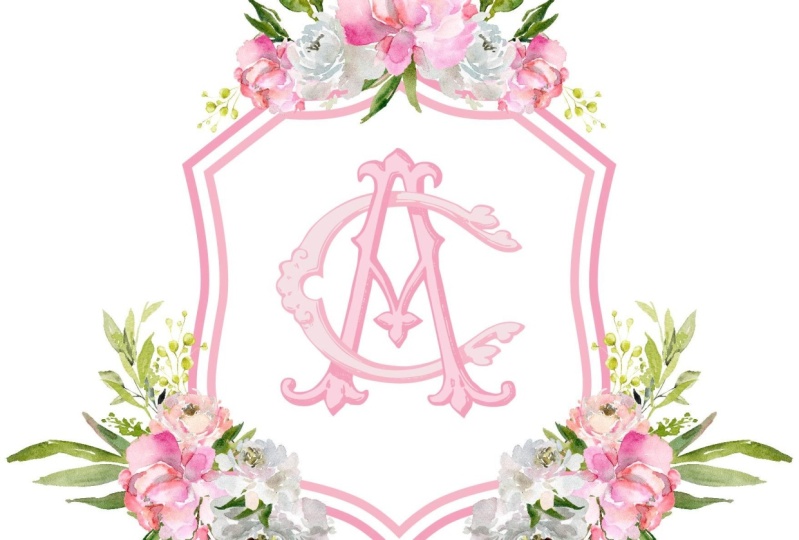
the Victorian monogram style. In this class, you will
learn how to create your own authentic
Victorian monogram, even if you have no artistic
abilities whatsoever. We will be working in
Adobe Illustrator. Illustrator can be a
daunting app to master. Believe me, I know
you'll be introduced to tips and techniques that
will have you moving around. Illustrator like a seasoned pro, even if you have little or no previous experience
of your own, this class is perfect for anyone looking to
break out of the, but I have no talent box. Whether you're a
graphic designer with some familiarity with
Adobe Illustrator, or even if you have 0 art or
graphic design experience, and you're just ready
to challenge the box. By the end of this class, you will have created
a one-of-a-kind, authentic Victorian monogram
and have the toolset and confidence to be able to offer one-of-a-kind monogram designs
to your clients as well. So what are you waiting for? Let's go make
something beautiful.
2. Why Adobe Illustrator?: Hey, welcome to my class, design and authentic
Victorian monogram in Adobe Illustrator. The inspiration for this
class came from one of my brides who
recently requested that I designed her
wedding invitation around an authentic style
Victorian monogram. Now, if you've ever seen my class design wedding
invitations, that cell, you'll know that I
do not profess to be an artist and graphic design
is not my background. I came into what, an
invitation design, VMI direct daily
interaction with brides as a wedding
invitation retailer. In fact, I did everything I could to try to
get everyone else I knew interested in designing for me anything to keep from having to learn that dreaded
design software myself, but it didn't work. I had to learn the most
intricate software ever laid eyes on mine. I've been using computers since. This is what you saw when you signed into one of
your computer apps, which we call
programs back then. Little by little,
asking questions, watching videos and
spending hours asking Google how to do
something that I didn't even know what the
name of it was. I taught myself to use
Adobe Illustrator. That it's now my go-to
program for anything I create and don't
tell InDesign. But I've even designed all of these purely on Illustrator. But given all that, I am still by no means
an expert in this class, I won't be teaching you the
only way to do something, or even the best way
to do something. I'm merely teaching you the way that I've learned
to use Illustrator and what has worked
really great for me as an invitation designer. If you type in invitation design into YouTube search window, the first selection
that pops up, and therefore the most popular, is in Photoshop,
not in Illustrator. So why is it that I, a wedding invitation
retailer come designer choose to design in
Illustrator and Photoshop. Well, it goes back to the phenomena I discussed in
design wedding invitations. One of the online universe being inundated with
graphic designers throwing their hats
into the ROI of invitation design in the wedding invitation
design marketplace. Just because one has professional grade software and can design beautiful
artwork and then surrounded with wedding invitation
wording sounding words does not make one a wedding
invitation designer or an invitation designer
for that matter. If you are a designer serious about a career in
wedding invitation design, you must be able to
create artwork that can be professionally printed on
an actual printing press. Not just your really
good desktop printers. You're printing fulfillment
partner will need to take your rendered
artwork and create printing plates with
whether the process be thermography or engraving or letterpress or foil stamping, even professional grade
digital printing must be about wallets and resolution. And that clarity can never
achieved in Photoshop. In this Photoshop example here, I've opened a 300 dpi document and typed in sample wording. Look at what happens to my
text as I zoom in on it. A printer would never
be able to make clear plates using artwork
rendered this way. Yet on the other hand, opening up the same
size document in Illustrator and creating
the exact same artwork. This is what happens when
you zoom into your text. Beautiful printer plates
would come from this, which in turn would create beautiful Chris,
invitation products. And not only that, should you find your
fulfillment printer needs aren't rendered at a higher DPI, you can easily increase your resolution at
the last minute. Why? Because Illustrator
renders vector artwork. The raster art that's
created through Photoshop, which helps you
understand that all of these Photoshop
invitation designers have never had their invitations
professionally reproduced, let alone do they? No proper wedding
invitation protocol. But instead are likely non-professionals who just
really know their way around a graphic design program and are just trying to be really helpful with
what they know. But that's not to say I
never used Photoshop. I actually use it
often to render or recolor my digital art when I'm doing a
digital print design. But then again, I import
it back into Illustrator and render my preprocessor
output from there. For this class, we'll begin with the simple premise that our
newest brighter client has requested an invitation with vintage style monogram as it's designed
elements authentic. You remember that I did say
I'm not an artist, right? So there's no way that I have the skill to produce
something like this for her. Right. Or like they say, I wasn't born yesterday. I had been at this
business since 2008. And if there is
something that I know, It's fonts or things
that act like bonds. From my recollection, there's a boundary that does
a fantastic job of curating heraldic and
Victorian style monograms and turning them into fonts. So when I got this request, I went straight to my browser
and typed in intellect. And sure enough,
there they were. Collected designs has a
great page on my fonts. They've accumulated a huge
amount of original monograms and turn them into a font that you can buy
for a nominal price, which I would simply
just conclude in my production cost if I
needed to purchase one. I'm a GP, so I always
look for a way around it. And lo and behold, on the font.com,
intellect ahead, multiple miscellaneous
font selections available free for personal use. The Ladies and
gentlemen just found a treasure trove of authentic monograms to use
as our foundation base. Our re-creation of an
authentic style month gram, which is why we say
we are creating an authentic Victorian monogram. What we will be
doing is creating a new original
monogram by taking one initial from one
intellect a monogram, and merging that with another initial from another intellect, a monogram and buy this
creating our own unique, yet still authentic
Victorian monograph. So the first step for a
project is for you to choose the two initials that you will be
wanting to merge. For the single monogram, my brides initials were H and C. So those are the initials that I'll be using for this tutorial. Steps for creating
the monogram will be the same regardless of the
initial set you choose. Once you've selected the
initials for your monogram, step two is to go through the
different collections and find your first initial in
the available monogram. And more importantly,
to find the letter in that style that you or
your bride likes the most. There are plenty of
different styles for each letter of the alphabet. So take your time and finding the one that works best for you. Once you find it, make note of the
collection it came from. And most importantly, the
letter or number that will render that initial from
within that font collection. Then do the same with
your second initial, making sure that the
two letters will pair nicely with each other
and becoming a whole. Now that you have your
initial selective download the particular collection
or collections that contained the initials
you chose and install your downloaded fonts
in your project area. Let us know what to do, since we'll be working with
and also let us see which to monograms you've selected that you will be verging
into your unified. If you don't yet have a subscription to
Adobe Illustrator, I've placed a link for a free seven-day trial within the project
description area. So make sure to download
and install that. As well. As I mentioned before, my brides initials
were see an H and these are the
options that I gave to her for her to choose from. Meet me in our following lesson. And I'll show you
just switch one. She chose to you there.
3. Our Monogram Begins!: Hey, welcome back. By now, you should have decided on the two initials
you're going to be using for your final monogram. Found those particular initials in the style that you want it, and downloaded those
fonts to your system. So if you've got all that
done, let's get going. Let's begin by creating
a new document. And since we'll be working in
vector and placing our art later into our invitation
or into another project. We won't need a specific size, so we'll just use
the first one here, but we will be creating
this for print. So we'll want to make sure
our raster effects is at a 300 DPI or higher because
we will be printing this. And right now we're going
to keep our colors RGB, because we'll be sending proofs back-and-forth to our bride. And if we're working
with any sort of color, will want to make
sure it's showing up correctly for her on her
screen or her monitor. And then once you're
ready to go to Print, will want to remember to change our document
color settings to a CMYK because that's
what our printers will print it and you want your
colors to print properly. Okay, so let's click Create. Now as I plan to work with our monogrammed
initials side-by-side. I'm going to go in and change my art board settings
here to horizontal. Now this is a layout that I generally use when
working in Illustrator. So for the rest of the project, the panels that you'll
want to make sure you have available to
you, or of course, your layers panel,
your Pathfinder panel, and your appearance panel. Now if you don't have those
showing up on your workspace, what you'll wanna do is
simply go here to the windows drop-down menu in the toolbar and just select those from here. Okay, our next step
will be to pull in the two monograms
with the initial selected that we're
going to merge. And these were the
two initials at my bride settled on for
her age and her see, my initials will be coming from the intellect or monograms, random samples five set, and going through
their character map, I have located that
those initials are the lowercase g
and the lowercase j. Back in our document. Let's grab the text tool, click anywhere on
your art board, and then change the text
to our first initial. Highlight, your initial and your character window
on the menu bar, again, typing in the intellect of fonts that you
installed and select it. Next, grab your Selection tool and holding down the Shift key, pull out one of the corners
of your initials bounding box until it's the size you'd feel comfortable
working with. And while it's still selected, holding down your Alt key, your command key
on a Mac click and drag to create a
duplicate initial, grab your text tool and type
in your second initial. I'm gonna go back into my selection tool to get
out of my type tool. And the reason that
I don't just use the V shortcut is because if
you go right into your V, When you're in your type tool, you'll pull up whatever the V is in the font
you've been using. Which is the main reason I keep my selection tool really
close to me on my workspace, since I'm always
working with type and I go back-and-forth
with my type tool so often I need it as close to me as possible
so I can get to the actual menu item
as quickly as I can because I can't
use a shortcut for it. Now as opposed to Photoshop, where you're told over and
over again not to work destructively because we're
working with vectors. I do work destructively. So because of that,
I always make an additional copy of the
elements I'm working with. And I set them aside by
holding my Alt and clicking on them and pulling them
off in case I need to go back and pull them back
up there already here. And since we are
working with layers, what I like to do is
put these on a layer of their own at the bottom
and disappear them. So I do that by first cutting and then making
sure I highlight the layer I want this
on and pasting in front and then disappearing
them while I work on my art board here. Now fortunately
for this monogram that my brightest selected, her C has the same style k within it that she is
wanting for her age. So what I am going to do
is size these equally so that in the end this H will
be the size of this case. So to do that, I'm
going to pull up my rulers and pull
down guides to let me know how tall I want my h.
So this will be my top, my bottom of my age. I now call my h over here
and size it accordingly. And I'm holding down the
Shift key as I do it. And there I am satisfied with the size of this age and
the size of the sea. Now that I have my h size, I'm going to disappear
it and work on my seat. Now, the next thing
I'm going to do is I'm going to disappear the k. I'm going to cut the K out
of my C So that what I'm left with only my C and
I'll do the same with my h. And we will then merge
the two together. In order to do this,
I'm going to go to my type menu and select
Create Outlines and turn this monogram now into a vector
shapes so that we can use our various tools
that Illustrator has in order to
modify our artwork. And one of my favorite
tools is the Eraser tool. Let me enlarge the size of my eraser by pressing
my right bracket. And now I can go in and
just wipe all of this out. And this is the reason why I make sure that I keep a copy. Now I'm gonna go in
deeper it by hitting Control plus and
cool the art board much closer to me so
that I can get in with a finer detail
on the eraser. Now, at this point, we're not trying to perfect
our artwork just yet. We're just trying to clean
it up as much as possible. And I'm wanting to review
my two original monograms. There are some shadow pieces that I might want
to preserve in case I'd like to add them back into the design and make it look
as authentic as possible. So if I go back to my original, I can see that the
original K had an over, under, under over pattern. And I'm going to want to repeat that same pattern with my age. So I definitely want to
preserve this shadow here under the sea
in case I want to use that when filling in my age. So let's zoom in to get
closer to our artwork and we're going to use another one of my favorite
illustrator tools, which is the knife tool. We're going to slice off
a shadow right here. But before we do, will have to
activate our artwork with our direct selection tool. Then grab our knife
tool and slice cleanly over each of the blue
anchor points in our path. Then de-select to our artwork by clicking on the
selection tool, then deactivating your
artwork by clicking on your workspace and then using
the direct selection tool, again, select only the shadow and pull that away
from the artwork. Hit Control X to cut
it from your layer, create a new sub layer. Paste it onto your new layer, disappearing it, and
shifting it to the bottom. Then grab all your bits
and bobs is Lisa glands called them that are left behind and delete them off
your workspace. Now we're going to disappear
RC and rearrange our age. Make it visible, move
it to the center. And now it's time
to work on our H. So again, as before, we're going to turn our
text into outlines, grab our eraser tool, and start erasing everything
that is not the age. And of course I'm going
in super-fast moment as I'm demonstrating
this for you. And as I get closer
to the edges, I'm going a little bit slower. I think I bought my speedup
about four times. Four times. You're looking good.
Let's resize it a little bit to make
sure it's saying between those guys
pretty evenly. I'm going to pull up my C
position, turn a little bit. Alright, so the very
first thing that I want to evaluate is where my H falls in
relation to my thing. Looking at it this way, we've sized it so that the H
was equal in high the two, the k that we took
away from the sea. But now, if I take
a look at this, I've got this area here, this dimple that I want to keep. I really do like this
part of the artwork, but it's a little too close
for comfort to the age. It doesn't quite work. There's just some perspective
that's off a bit. So what I'm thinking
I'm going to do is I think I'm
going to balance the see a little better by increasing the size of just the sea while
maintaining the age. So let's go ahead and
see how that would look. I'm going to just highlight
my C by clicking it and then grabbing one of the handles and
holding down Shift, I'm going to pull out my
C so that it will grow in proper perspective and use my arrow keys to bump
it up a little bit. I'm checking this area here
to see if I need to go up one notch higher or two. I think that's good. I might try. Let me try one notch lower. I like the spacing here
and this spacing is good. So I think that's where
I'm going to keep it. Evaluating. Evaluating. Yeah, I think I'm good
with this new size. Now, my next step
is taking a look at these particular
elements that I'm going to want to do
something about. We've even got a little bit
of a hook here missing. And of course we've got
wonderful empty spaces here that we're going to show
you how to fill those out. Now, one thing I had in
mind that I thought would alleviate those problems,
really, really easily. Swapping them out with
the little serifs from the original monogram
or the case tariffs. But pulling up that monogram by making that layer visible. And I'm going to zoom out
of my art board and I'm going to pull my K onto my art board so I can
see it a little better. Zoom back in with control 0. And sure enough, we've got some beautiful
little serifs here, but they're not the same shape. So scratch that idea. But now the other thing that I wanted to take
note of right now, and you should be doing
the same also with your pairs is looking
at the intertwining. The design on the
right-hand side are lower. Right-hand side is an under. So we're going to make
this Sarah will go under and we're going to keep this
part of the age as an over, make our serif here, go under and keep our
H here as and over. And in our next lesson, we're going to clean
up RC and figure out what to do about
these empty spots here. And we're going to show
you how to clean up these areas that
we might not want so that we get pristine initials and perfect principle artwork. Come on, let's go.
4. Our First Initial!: Welcome back to lesson two. In our previous lesson, we isolated R2 desired initials, and we clean them up somewhat. We took time to settle on our initial placement,
one to the other, and look to see if
we could borrow any additional pieces
and might help in filling up somebody empty spaces that we've
been left with. In this lesson, we're
going to go a little bit further into cleaning
up our first initial. Now, I don't want you to stress
over really perfecting it at this moment because we're
going to have plenty of time for doing that later. Once we start seeing
how everything is falling together and we start seeing what really needs to be cleaned up and what we
really don't need to spend all of our emotional
energy and sometimes feels with filling up those things that don't seem to want to work
for, use them die. But I digress. Anyways. Let's get going. All righty. So now that
I have my initials place pretty much
where I like them, I'm setting up some guides so that should anything
be moved out of place, I'll be able to
refer back to them. And so evaluating our C
in reference to our h, We're going to start working on these various areas to make sure that they're functionally properly with that under over, under, over under pattern
that the age has. So let's get started
by disappearing are h and zooming into RC. So the first area we're
going to begin cleaning up is this upper
right-hand area here. So let's grab that
eraser tool and get to work with that down a bit. So you can see this
is just awesome. It's just created a whole
path right through. All right, let's take a
look at this. Beautiful. The h and k. Hide my guides. So we can see
through this again. I think we can get rid
of something here. And then we want to get
rid of these lines here. It's high my age. I'm going to take
my pencil tool, actually my smooth tool. And I'm just going
to keep join over all these points until
they finally smooth out. There you go. Now I'm going to grab my
Delete Anchor Point tool. Delete you. You, you delete you. Now working with the
direct selection tool, I'm going to start working with my handles to fix
my curve shapes and also move my
end points around some here to try to get
a nice brown curve. Let's see. Like just move this
up a little bit here. Here. This guy. I'm going to premium and
not so awkward there. Okay, I am liking that. I think I can go here. Let's smooth it out. Okay. Liking that. Chill. Okay, let's keep working
on cleaning up our scene. Julian days to make circles. Okay, Let's do this. I don't want to leave these alone instead of
changing their style. This is not connected here. Show what I'm going to do
is pull mission to here. Okay, since these aren't
really seen in the foreground, I'm going to leave those as is. I just want some continuity. I could use my Pathfinder
to merge these two shapes, but there's a possibility that will merge all kinds
of other stuff. And since this is not
going to be seen, I'm just going to go
with it as it is. Alright, I'm liking what I see. Okay, So I'll say
our RC is finished. This is imperfect, but
it gets covered up by her age because
this one isn't over, this isn't under. This isn't over. And this is our first initial
is looking pretty good. So join me in our next lesson where we'll start working
on that second one.
5. Our Second Initial!: Hey, welcome back. If you're a second initial
is anything like mine. We've got our work
cut out for us. So let's get going. Alright, so we're gonna start by focusing on the
right leg of our h. Let me see how this art work
is for staying together. The copy you paste. Okay, I'm kinda nice
piece going to transform. We can just reflect
this horizontally. We go, okay? And look what we have using the service from our
K didn't quite work, but this is turning out to be an even better method
for filling out our h. I'm going to change my coloring
on this so that I can get a good grasp of where I
want to place my age. And let's see how
we can do that. Though. I want to grab this part of it, and I want to grab
these parts of it. So what I'm gonna do
then is go back in with my awesome eraser
tool, right bracket. And I'm going to erase
some of this stuff. Okay, great. So I've gotten rid of all
those little blockages and you better believe from here above, I want to maintain as is. So let's right bracket and
get rid of all of you. You, again. Alright. I'm gonna delete this in
here and pull these off. So I'm gonna go into
my Appearance now. Let's pull this down to 50% so I can see what's
going on underneath. Let me work here
with my black layer. Eliminate what's
showing the red. Then Walker Black,
unblock her red. And let's move this change to
our Direct Selection Tool. And I'm going to just move now un little tip here that
we need to work with. Un. Un. We're going to have to look
at what we've got here. Where's my on my handles? Pull this baby. Of course, we'll see
what that looks like. Okay, get rid of this. Again. New season. It's connecting to see this baby. So much. Alrighty. Got some issues here. I think we've done. I'm going to go back and
erase on my black layer. Okay, We're not quite there. Okay. Now let's turn this into black and take a look
at what we have here. Let's give it some shape there. Alright. So what
we're going to do now is activate our two pieces and
using the Pathfinder tool, select the Unite icon. Okay, got one piece here. Okay, so let's take
a look at what we've got in relation to our C over under grabbed
my selection tool. Let's pull this up. Again, lower the opacity. 15, positioned in
the right location. You can go lower on that. Now we have it. Soon then. Grab my eraser tool. Erase this piece. I think I'll erase that piece. All right, Then let's switch to erasing
the black portions. This is sticking out. I want my lines to be
my red portion now. So whatever is taking out, blocking out the red, I want to eliminate. Okay. I think we're good. Just in case this
is overlapping. Okay. Let's merge them. Bring that back up,
change my color. And let's merge them. And now our bottom piece
with our top piece. And we got one piece. Okay, now we've got a full
working side of the H. Let's go get working
on the other side.
6. Our Second Initial Continues: Welcome back. Lucky for me. I now have a full
working part of my age. You know, what I'm going to
do is simply duplicate it and use that to fill in the missing parts
of my second side. Let me show you how. So now that I have the one
side of my initial complete, I'm going to duplicate, transform it vertically,
and then let's place it here so we can
use a little serifs. Again, pulling the
opacity down to 50. Looks good. And this
does not look good. So I have to do
this one at a time. So I'm losing visibility
of what software. So what I'm going to do is
cut this from this layer, add a new layer, and paste in front.
Raise your tool. I'm going to want to be under. Make sure that all of
this gets in the line. So here is our national one. Okay. About one portion there. Here. Okay. Race. But it's
showing through and read just lemonade and my black. It's showing through my red. Okay. Again, so we made sometimes when you're in the middle
of working on something, you don't realize there could be a real simple
way of doing it. It took me awhile, but it violates Lincoln. Just realized. That eliminate the whole thing. Yeah. Okay. So there we have it. A little bit here. We've got our syllabus tariff. Okay, so my next
step is going to be erasing all over portion. So serifs first. Okay, that's seems
to be well in place. Then what I want
to erase is going to be the dark portion here. Now, I want to go
back to this portion, can eliminate everything
that is not needed for it. Grab it, and change my opacity. And it's merging. Okay, that's not connected. Let's see what happens
with my Pathfinder. Okay, that's gonna be hidden
by the outlet of the sea. So I'm just going
to leave it as it. Okay, so now we're going to
work on the tricky part, joining the two pieces. This was a bit more
challenging than I expected, because as you'll
be able to see, being that these are hand-drawn
initials to begin with. The sides were not symmetrical
and yet they're beautiful. So that goes to show you that your art doesn't
have to be perfect. To be perfect. Let's create this
center portion here. Transform, Reflect. We go change the color
of this portion. Easy just to distinguish, red. Okay, so we've got quite
a bit different here. So I want this bridge. I'm gonna need a taller bridge. That interesting. They look really, really symmetrical and we're
just seeing that. But then again, okay, So we need to make
a call on this. Where's our center? This is a little
fun thing I like to do in situations like this. Pretty much. This is center, bottom is wider and neither of them are centered. Interesting. Okay, what I want
to do first then is you erase this portion here. Let me review or okay, so now I'm
going to begin using various processes and
tools included in Illustrator in order
to begin to merge these three pieces into
my intended a whole. I'll be erasing pass. I'll be moving endpoints. I'll be changing my curves. Anything that I need to do
to molded into my endless. It's what you end up, not the process that matters. I want to eliminate all of you. Oops. Here I'm trying to
create some uniformity between the horizontal lines and somehow work these through. Change are passing again. It's portion here. Okay, Let's see what we've done. I'm going to deal with this
little puppy after we merge everything portion to go. Okay, So we looked like a little bit too
much going on here. Let's eliminate some of that. Where is it coming from? We have here. So now I'm going to
start my clean-up by zooming in and out
of my art work to be able to see
what's hollering at me and telling me it really
needs to be cleaned up. When you zoom out, you can get a better idea
What's just not working. A little bit of an issue here. Good. All right. We'll clean this up kind of bet. Now let's see what we have. We've still got to do, but I think it is time. Oh, yay. Okay. One didn't work. I used another. And there it is. One solid piece. We have filled up all
of our empty spaces, fixture wonky serifs
and RH is complete. But our monogram is
not quite just yet. So let's keep going.
7. Final Clean Up!: We completed our API. But as I've said many times, we have an over, under, under over pattern
on the monogram. So we still got to go in and finish that
last under portion. We'll also be looking at
the final monogram that we created and cleaning
it up a bit more. Now, this portion is totally subjective and completely
up to your preferences. You can go in and absolutely perfect every line
and every dot. Or you can maintain the rustic and hand-drawn
elements of it. Either way is your preference and there is no
right way to do it. This is your monogram. After all. Now, you'll see me use
all sorts of tools and methods in order to
get my monogram complete. So like I said before, the way you get there
is totally up to you. There is no correct
way to do it. Dave Krause always
says in his tutorials, necessarily the process used to get there that matters
as much as it is. What you end up with. That matters. Let's begin by eliminating
our last under portion of grab my eraser tool to screw up here through my outline to have it change this to, okay. Noticing this little
portion here. Let's see. Let's get rid of it. And I will leave except
for this portion. Rural. Ready to go? Now let's go in and edit all these
extra points individually. Review Sakai. All right. Actually let's make
or rounded curve. Looks like. Okay, So, so, so essentially we can spend a little bit more
time tweaking some of these areas here we'll
use our Smooth Tool, my collection, my smooth tool. Just work on these little places and I'm telling you I have to bring it up. So I'm going to
pull this out here. Since there's no shortcut this baby out. And essentially
you just work at. We're happy. Just cleaner piece here. Got it. I'm not
your work on this, but the meantime, I don't
want to get rid of this guy is going to move this up here. And any good point here. Now, we're going to get this weaker. Alrighty, ladies and
gentlemen, who we are, our very own Victorian,
authentic Victorian monogram. Before sending this to my bride, I'm going to eliminate all
these additional layers. So my C, we will merge as one. Those are our paths there, which are separate from the rest of the shape, right? Age. Plenty of paths here, but let's give them one last
merge to unite what we can. And you can either group
these or keep them separate, whichever works for you. And that's ready
to go to my bride. And the next thing I'll do
is size of my art board. And save my file. And then save this as a PDF. And smallest file size since I'm sending
it to my customer, I want to make sure that
it fits in via e-mail. Now, this is a really
crucial step for me. Whenever I feel like my
artwork is getting near completion or I might
be finalizing my work. I always save it to a
PDF so that I can see it without all the distraction that Illustrator's
interface adds to it. And sure enough, whenever I do, something always pops up that needs a little
bit of adjusting. And sure enough, like it usually happens when
I look at a PDF, there's always something
that I'm just not happy with. This area here. So I'm going to go ahead
and zoom into that area, see if maybe eliminating that
will do it. She'd been off. I'm going to pull it into words. There we go. I think
that's much better. Okay, so always
remember you are in a PDF generally when
you save to PDF. So what I like to do is
go and save this again as an Illustrator file so
that all the changes that I make Don't
drop off my original. Now I'm going to save this
new one again as a PDF. Same name, again,
smallest file size. There it is, our
completed monogram. Now, you can either
stop there or go into more detail by adding shadows to all those intersecting pieces, like the original monogram hat. To be honest, I simply added
blocks of transparency, should have finished
monogram that I printed for my bride, knowing how the print
medium would translate it. So if this is where
you will be finishing, makes sure to post your final monogram
into your project area. We're all going to love seeing all the different pairings
that everyone comes up with. But for those purists that believe in doing something
completely authentic, join me in our bonus lesson, where we will tackle
those shadows.
8. Bonus Lesson: Alright guys, here's
our bonus lesson. Let's go and pieces some
authentic login shadows. In our last lesson, we ended with our two initials adjusted just to our
tastes that you could have gone a little bit further
if you want it and just really perfected
every single line or did something similar to
what I did where I left a few imperfections that
really didn't drive me crazy, but just kept the
hand-drawn look. Now, let me show you the
exact artwork that I sent into the printer with
the shading that I added, what I did was simply add these areas here with
additional elements of shading. So let me show you what's
behind those areas. Simply sum squares that I may and skewed
off a little bit. And it's simply a
transparency of about 50% and that's what I was able to sent
into production. However, we're
going to take it up a notch and make
it as authentic as possible by borrowing
the shading from the first element
that we originally isolated our initials
front. So let's begin. Once again. Let's begin by taking a
look at our original. Fortunately for me,
my original K is super similar to my H in that it has these four intersecting
areas that I can easily borrow to use for
the shading of my h. So let's go ahead and pull
my C onto my art board. I'm just going to
force it on over here. Looking at this, you can see major imperfections here
that we already cleaned up. But this is what I
want to take a look at these particular pieces. And I think what I'm
gonna do is simply steal those and work them
into my final product. Let's take a look at
these items that I had originally set aside. Thinking, again, we
were going to be using these for our serifs, which we did not. So let's just eliminate
you and eliminate u. And we only had this
one piece left, but no worries
because we still have the original pieces that we started with and we can
pull things off of that. Let's pull this down
a bit out of the way. And this would have
been apportioned here, which essentially belongs about right here on our final h. So let's take a look at
a couple of things here. We've got a kind
of like an angle going here because there is
an angle coming off this way. But our H's in a 90 degree
angle to our baseline. So we wouldn't necessarily
be using this at an angle. And so what I had
originally envisioned was rotating this segment just slightly to make it
parallel with the H's base. But when I did that, I realized that the shadow lines we're now going diagonally to. So that wasn't going to work, but it suddenly dawned
on me that I already had perfectly bearable bull
shadows that I could use from my original H. Let's move this guy
back to my art board. I've got shadows here and here. So let's get rid of
this guy and disappear. Let's move my c and k
of trouble as well. And now we'll resize this. So that is equal
to our final age. Right? First we're going
to go up to this guy here. So what's the drill
merch outline? Let's grab our knife tool and borrow this piece right here. And we've got to cut off
those edges where it's attached to the rest
of the artwork. The artwork, and
click back on with the tool so they're only
that piece gets activated. Go back to your V tool so that you can move
the entire peat. Change the contrast and color. Take your transparency down. And we begin. I'm trying to find a size it I think it's going
to work the best. Okay, let's put this
on its own layer. Okay, that didn't go anywhere because it's still
attached as a group. So grab the direct selection
tool and let's try again. I want to be able to use
this area right here. Let's try it. And trim this down. Okay, Let's lock our black layer so it doesn't go right through. So the only whitespaces
that I want showing are the ones
from the red element. So I want to clear out anything in the black
showing through. So now we'll lock the red
layer, unlocked the black, and grab our eraser tool. No block showing. Let's get rid of this. Change this back to black. Grab our selection tool. Select our new shadow. Are Sarah. And let's do tonight. Okay, let's merge. And there it is. Okay, let's get going on shadow number two. How about we still have
this shadow right here? Okay, my demarcation line, I've got a bit too many
layers selected here, so I try to eat
something that work better for being here. Okay, We've got a
few little things here I want to keep working on. Oh, oh boy, this time I'm seeing
even more things. I want to adjust. No telling where this rabbit
hole is about to lead me. And here I'm using
the pencil tool and serve the smooth tool. And I'm just redrawing. Surprisingly looks decent. Which is why sometimes if you
say to me things are going, you can start to step
up when it starts again and again, because now
I'm trying to figure out There's our second shadow. Alrighty, In this portion, we're going to work
on the shadows for our c. And the first
thing we're gonna do is resize the original C with
the K to fit the size with the H so that the shadows
that we're going to be borrowing will be
proportioned to the size. For now, we've got a real mess up here. Okay. Looks like I'm going
to have to come back once I get this
all cleaned up. Our whole ride. Let's
try this again. We're going to resize our C, but to maintain your sanity,
we've changed colors. Okay, so now we're going to
borrow this guy and this guy. Let's put these nucleuses
on a layer of their own. Japan. Japan, then a pull up
the cage you as a writer. So now the biggest
challenge here was finding the right fit and
angle to you in order to be able to use this piece and merge it as the shadow
Odyssey of my mind. I kind of went
counter-intuitively. I think I'm going to
add a few more of those white spaces here. I'm going to try to
sharpen my edges here by moving my points around and
converting them somewhat. Thank you for your time. I want to compare
these two and see what the shadow looks
like on the original. Good. Good. Right? That looks better. I am calling it a day. I am saying I'm Brandon. Yeah, I'm here. Okay. Okay. I think I'm much better. Okay. I'm back. I quite almost lost my sanity. They're thinking I had finally
finished this project. And lo and behold, I still had another part
of the sea to clear up, and I still had the bottom
line and the sea to clear up. To spare you any more time. You know the drill
here it is real quick. And let's get this party
on the road and done with and as if that wasn't enough, let's go ahead and merge
the C and the H together. Since we haven't
really done that yet. There that is. All
these extra pieces are individual
pieces that aren't connected here or there. And it looks like it worked
and it looks like we're done. I am so proud. I actually completed
this project myself because as I said
before, I didn't do it. I've run. But I had so much
fun doing this. I hope you have been to, but make sure that you post that completed project
in your project area. Or you post that completed monogram in your
project area and let us know that you did add your authentic shadow
details to it. Okay. I hope you enjoyed this how-to tutorial as it was my first and it was kind of
challenging, venturing into it. But you live, you learned
and you have to see all of these challenges
as learning experiences. I hope to see you next time. And more importantly, I hope to see you in
the project area. Buh-bye, though.
 Alma Vasquez, Wedding Invitation Pro