Transcripts
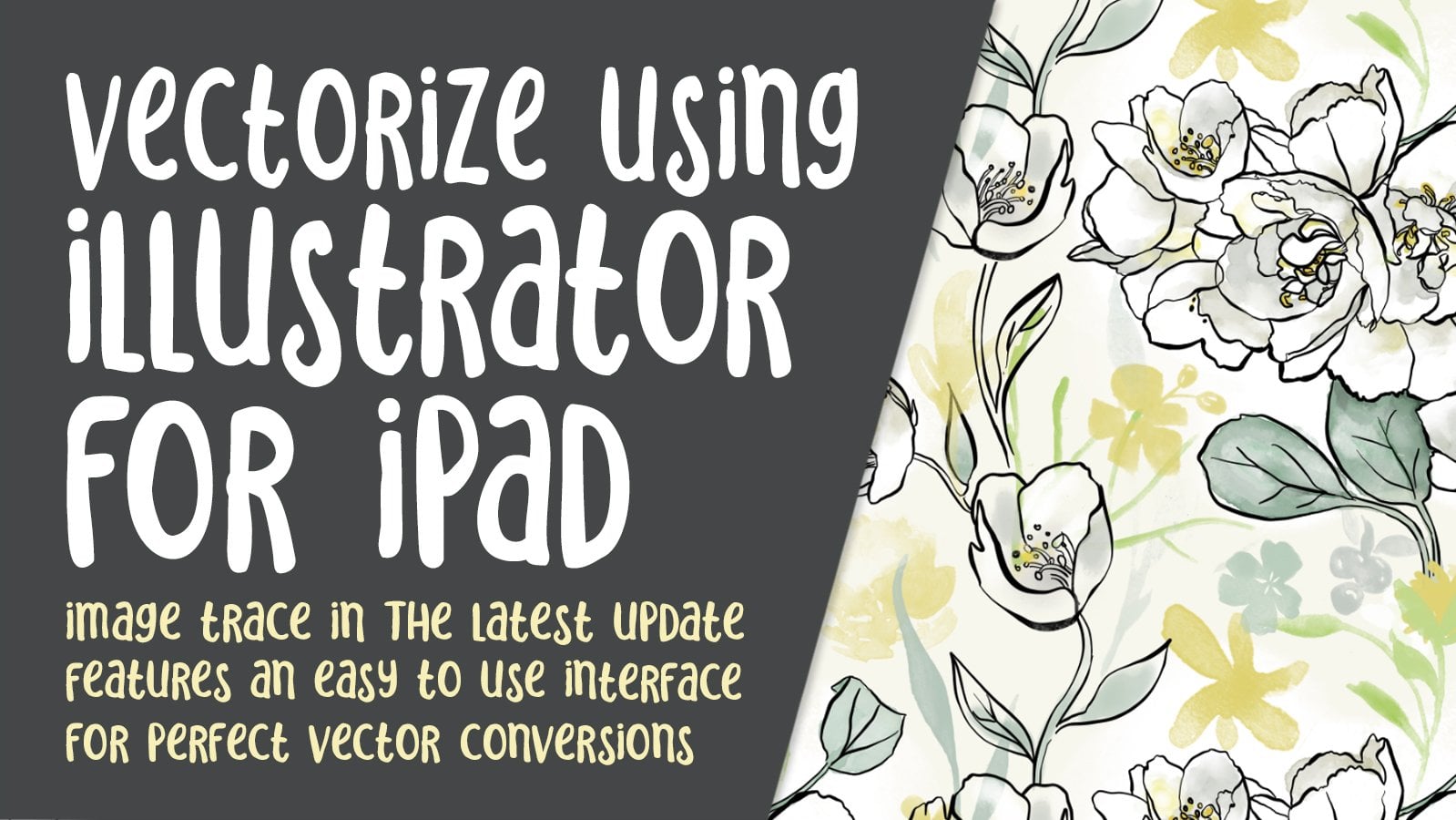
1. Intro Illustrator Image Trace: Hi guys. Welcome. My name is to learn master, and I'm coming to you from sunny, Manitoba, Canada. Today I'm bringing you a course on illustrator image trays. I'm going to take you through the process from start to finish. We're going to start with a raw scan. We're gonna fix that up in Photoshop. Then we're gonna take it in Illustrator and we're going to completely trace it out and get it ready for use in any sort of artwork. In my case, I'm going to be using the motifs that I create for power design. But you can apply all of these skills to pretty much any sort of illustration project. With the image trees feature, you can take roster or bitmap artwork and automatically trace it to convert into vector artwork. This means that you can take scans of sketches, illustrations, and even photographs and convert them into vector artwork that can be edited in Illustrator. Since you'll be taking a look at the results in a really live way. You can make all sorts of corrections before you actually do the image trace. Playing with these settings is a way to get used to what effect they have. And that's what we'll be doing. I'll help you to be successful with his project. And there was so much to be taken into consideration. Cleaning up the image is important in order to be able to get a really good tracing in Illustrator, there are a number of techniques to get rid of unwanted imperfections. And we're gonna be going through each of the ones that I know of anyway. One of the downfalls of the illustrator trace is that it often adds extraneous points that we don't need. So I'm gonna be showing you a ton of strategies for dealing with those. Some of my favorite and most indispensable tools will be introduced in this class. My suggestion to you is to have a black and white drawing. Even if you just do a quick set of doodles, try to have some corner points, try to have a lot of curves, and then scan it. And then you can go through the steps with B as we go through each of the different strategies that I employ in these lessons. As far as prerequisite skills, really, I've tried to gear this towards beginners so that I can give you each step right from start to finish. A little bit of experience with Illustrator and Photoshop is definitely helpful, but it's not a 100% necessary. If you think that imaged trace is something that you really need to learn and this is the class for you. I suggest that if there are areas that are going a little bit too fast, that you slow down the speed you can do that both in your browser and on your phone. Step-by-step. Stop and practice whenever necessary before you go on to the next lessons. Lessons one through five focused on the whole process of the scan and then the tracing. And then Lesson six through nine, I will take you through my process of taking the motifs and creating a pattern design. By the end of it, we'll even do some experimentation with color absorbed. It can't help myself. Pretty much everything I'm doing these days centers around pad InDesign. So of course, that is always my ulterior motive when I'm working on something. Are you ready to get into it? Alright, let's get started.
2. Scanning and Clean Up of the Image: Hi guys. Welcome to lesson one. So I'm sorry, but this is a really long well has then this is less than where we do all of the touch-up in Photoshop. Us get started. So first of all, we'll start with scanning my document. So the most important thing to note is that what you wanna do is scan at the highest possible resolution. So generally, when I'm scanning something that I'm going to be imaged tracing an illustrator, I have the motifs at a fairly large size to start out with. So this document is bigger than 8.5 by 11, and I'm going to scan it at that size and at 600 pixels per inch, this is going to give me a really clean and sharp scan that I can work with at an enlarged size to do all of my touch up and fixing before I go into Illustrator to do the scan, The other thing I do is I scan it as a TIF. I find that a TIF has less loss of detail. It's got something that jpeg doesn't have GPA has something called a lossy compression. So when you are scanning or using a jpeg format, the compression model that it uses tends to put in more gray pixels or pixel east at more than a tiff format would. So tip stands for a tagged image file format, and it is just a better way of interpolating between blacks and grays. And it'll, that's kinda technical. Batch is good information to know. So if you can scan as ETF now once I have this scanned, I will take it into Photoshop and we will do a whole bunch of touch up on it. So that's why this lesson is fairly long because we do a bunch of different techniques for accomplishing a nice clean scan. So here's the final scan, and you can see that it's going to need a bit of work to get it cleaned up for tracing. The first thing I always start with is a levels. So Command L will get you the levels palette. And then what I do is take the white eyedropper and I look into the white or what's supposed to be white on the document. I start with just the main white, just to take a look. And I can see here that there are some darker areas in here. And of course my pencil lines or whatever those were kind of showing through. So I'm going to actually click on the darkest thing that I can find, even if it means really enlarging to find that exact spot. So I've gotten rid of 90% of the white and those pencil lines. But look what that's done to my blah. So my next step is to grab my black eye dropper. And usually for that, I go into the lightest part. And sometimes that means enlarging again and I've gotten some really nice dark darks in there. If that makes sense, you can still play around with these sliders. And you'll see that depending on where I slide this over at times, let me just counsel out here and do it again. I could instead of using the eyedropper, could have hold my Indicators here over to also affect. Light and dark areas. And maybe sometimes that's good for if you've got a really clean tracing by because I've got such a dirty tracing because this was on tracing paper and I believe that, you know, extra light comes in. I should have been pressing down harder on the lid of my scatter, for example, when I was scanning to make sure that there was no kind of shadow areas created here. Let me try this again. I'm going to take that white now. Oops, that's why you see me enlarging so that I can hit that area really well. So I think I'm going to do it this way. You can also tell here that I've got different black markers that I was using evidently. So while ago since I did this cancel or this side drawing, so I don't quite remember, but I can see that there was a darker pigment on one of these markers and it has given me a much darker black. But what I wanna do is get this black so I'll click on it and maybe I'll go a little bit later. A lot of these things, I can repair it other ways, but it's good for you to experiment with your settings. Your scanner will probably scan completely differently than mine. We count all possibly have the same scanners for this to be absolutely the exact same settings that you would use, but you get the idea. So I'm going to settle at this. I'm gonna do a couple more things here. I'm going to go to image mode and change it to grayscale. That gets rid of any of the little colored pixels you probably saw when I was enlarged. You Segal, the next Li, color bits there, I'm going to get rid of those by hitting grayscale. So we'll, they'll turn into just a straight grain. And the other thing I'll do is go into my filter, go down to noise, and I'm gonna go to Dustin scratches. And you can see my setting for last time was at four and it got rid of a lot of those little bits that were within the lines. So I'm gonna say okay to this. And generally it's a good dark tracing. I can see a few little things here that maybe I could just Prussia and real quick, I don't have to be too, too, too picky here because I'm going to be tracing this in Illustrator. A lot of these little problems are going to be dealt with when we're there by I, you should take the time to really check here. For example, if you have something like this, I definitely want to erase it. I don't usually use the eraser tool. I use the brush tool and I've got it set here on one of the legacy brushes, basic photoshop, hard round brush. So you can see that a stroke that I would get. So that's very similar to what I've got here. So I set my two swatches here at black and white. And that way, when I want to do some touch up in white, I'll have to do is hit the X on my keyboard and I get the white swatch so I can go in and do some erase saying, Like I said, I don't have to be too terribly picky because a lot of, let's say this bumpiness is going to be resolved in the trace that we do in Illustrator. But something like this might be something that you choose to touch up. You're going to learn your own kind of settings and what works based on what your originals are. So something like this in here, I would definitely want to get rid of hit exomic keyboards get white, but I would definitely want to get rid of some of these kind of shadow areas within so that when I do get my Tracing done, that it's not going to trace and cut off that gray. I want it to be nice and clean so, you know, a little bit of time spent at this stage can make a big difference to the amount of time you spend in Illustrator. So just like everything else in graphic design, you're always balancing the amount of time is going to take you to do something. If I could do this faster in Illustrator with my paths or with my Simplifying, then I would choose to do it in Illustrator. I find a little bit of touch up here in Photoshop makes a big difference. You went, I'm tracing and then fixing my paths in Illustrator alas path, I have to fix the less time it will take me in there. Sometimes for an area like this, I would go a little bit further with my wife, then hit X on my keyboard and see how nice of a point I can make it there as compared to this. So white, black, nicer point, whites flock. And remember that you can rotate your canvas. You are on your keyboard, you'll get this little icon. And as you pull, you can change your direction completely so you see there, that's what I'm doing right now is just turning it. Was this someone who was working on and if you remember, yes. So go through with your weight and your black and fix any of those little things that really bother you. I want to make this petal as big as these other ones, so you could select and copy and paste one of those other petals. Let's try that 1 first. So we'll just select this one, copy, paste, transform Command T, and you can get your rotation. And in this case, because cut and paste, I've got it on a separate layer as you can see here. So once I have it in position, command E will merge it. And then I can use b brush and touch up that little spot. So that's probably the fastest way to do it. In a case like this, where I want to shade a little bit off of that really evenly. That's where I would use the pen tool. So P on your keyboard gives you the pen tool, then you just pull. When you are rotated, your arrow keys don't exactly go in the direction that you think they're going to go. I'm going to reset my view and then the arrow keys will move away. I want them to, I'm gonna keep that slightly rounded at the bottom here so that it matches the insights of all of these AI on your keyboard will give you your direct selects. And remember that when you're using your vector tools, the pen, the type, any of those tools are actually made with paths. You need to use the Path Selection Tool or the direct selection tool here to affect that path using your regular selection methods in Photoshop won't work. You have to use that particular tool. So I'm gonna just actually go around and straighten up site of it at the same time. So p back to P For my pen tool. And you can see by the little icon beside the pan that get that little slash. But shows me that I am connected. And then I can go down here and you'll see a circle again there. And that means that I'm connected. So this is now all one path on my keyboard gives me my direct select so I can make adjustments if necessary, unless a smooth that down a little bit. And then you go to your paths palette and write up down at the bottom here that makes it into a selection. So changes the path to a selection and then hit Delete. And yes, I do you want it to fill it with white? And say, okay, now if I don't wanna see that message again, I can actually double-click on this background layer and it takes it off of the actual canvas and makes it into a layer, so I won't get that message again. So that did a beautiful job of shaping that particular Pell. So I would possibly go through and use that to do a lot of the other touch-up. So here I'm just pulling. You don't even have to close the shape here. You can make a selection and hit to lead. And it's going to eliminate the black where you don't want it. Ok. I usually keep this open while I'm doing this so that I only have to come over here and hit the bottom to make it into a selection. It's probably a shortcut for that I should find out. But you can see how I can just go and nicely shape. And again, I don't have to close the shape. I can make this into a selection and delete, though that's one of the methods to go through and do your clean up and the other method with the rush. So you've got two different methods for cleaning your scan. I went through and did a lot of the clean up on these off camera. And this is my finished touched up scan. Okay. So you can see that it still has its bumps and dips and valleys and that sort of thing. On some of these, you can see with the circles, I simply used my Elliptical Marquee, went to the approximate center. I held down shift and auction at the same time and then delete and I was able to get some really nice interior circles here. If you wanted to touch up the outside circle, you could do the same thing. If I was to brush here, I would be brushing within the circle, right? So I select inverse. I use this somewhat like a mask or any racing shield switch to my white. And then just simply draw around the outside edge. And I can see there, There's a little gap there on the inside. So I inverted again Command Shift, I switch back to my block. And that was a good way to touch up the circles. Now you could just duplicate that and put it into the different spots I would erase first. So use your last few maybe and just select. I'm going to cut, I'm going to paste in place, which is Command Shift v in Photoshop. So I've got though was on a different layer that's reducing opacity and go back to our main layer last sue this. And the reason I've done this a so that I've got a guide to the placement. So I'm holding down option and shift while I'm dragging making a duplicate in. I know I can get rid of this. You can go in and do whatever touch ups here. I should have touched up that before I did all the duplicates. But one of the good things about that is it kind of loops will make my circles at least a little bit different. So they're not just totally perfect and totally identical. So I've got that done. I would use SAM sorting technique here where I would grab a circle option and shift makes a perfect circle drawn from the center, hit delete. And then in a case like this, what I might do is take this, cut it from this layer, paste in place, which is Command Shift v. I can hide this other layer so you can see what I'm doing. Elliptical Marquee again, select from the center I'm pulling and once you let go, you can, as long as you're still on the One of the marquee tools, the marquis or the last Sou. You can move your selection around as long as you grab it by the edges there. And because now it's on its own where I could do mass shift. I wishes Select Inverse and deletes to straighten up the outside there. And here I would flux adverse again, go back to my brush and thrush in anything that didn't quite make it to the edges a little bit to get my angle comfortable for my particular swing of my arm and then just rotate around until you can touch up all of them if that's what you wanna do. Remember that if it's taking you more time to do this than you think you could do it illustrator than skip the steps here and save that for illustrator. Personally, I find doing this saves me time when I get to illustrate her. So I'm I'm okay with spending half an hour to an hour touching up my scan are again, will allow me to reset my view than I can show my layers. And Command E will merge that back down. So yeah, I just went through, did a bunch of that Eddie spots like this that I found. And you can see here at quite dirty I which touches up because they're definitely going to be something that would pick up when we're doing our auto trace. Remember X to switch to your block, or if you're on your block X and we'll switch you back to your white. So my scan, my original scan, this wasn't cut-off, so that was just when I did this little scan for you. I hadn't moved my paper over properly in the scanner, so my version of that was perfectly okay. But I did go over around the outside edge with the pen tool to fix it up a little bit. And then I want to show you this one here. You can see here that my lines are a lot thinner on this. And the way I dealt with that was to, first of all, I brushed in white here. So when I'm working on stuff like this, I basically keep my hand, my one of my fingers poised right over the X key because I'm switching back and forth so much. And then when I have my middle finger on that key, it's really easy to put my index finger down on my spacebar to just move my document around. So you can see when I hold down the spacebar key, I get that little hand. They, So what I had wanted to do was to lighten up these inner lines here. So in this case, I use my magic wand. So W on your keyboard, select all of these white areas real quick. I'm holding my shift key so that they are all included in the selection. And then I use my expand under select, modify, expand. And you can see I have a shortcut here. It's something I use a lot. Command comma, I'm going to expand my selection by three pixels. Let's just see how that looks. And none of my lines are breaking here, which is great, but the are going to thin out. So that's exactly what I want. So here I would hit delete. And you can see that that n-doped my lions considerably and that's what I want for this particular look on this particular flower. Now here again, I've rotated by an also holding down my shift and now command key to be able to enlarge on that area really quick. So many of the things that I'm doing are using command or auction x spacebar to do all these different things that I'm doing on the keyboard right now. B for brush. So everything is in that lower left-hand corner. So that's really great because my hand is basically resting there all the time. I'm at the point now where I really don't even have to look at my keyboard. At least not that much. If I'm taping words than I might have to look, a lot of this attack that I'm doing is actually going to save me considerable time in Illustrator. So I think we're pretty much ready to take this scan into Illustrator and do our next step. So we'll do that in the next lesson. I'll see you there.
3. Image Trace Settings in Illustrator: Hi guys, welcome to lesson two. We made it through that one. So now we're ready to bring this image into Illustrator and start doing some of our image trace will be doing a lot of review of the industry's panel. Let's get into it. So in this lesson, I want to show you how I arrived at this beautiful clean tracing that you see here in front of you. We're gonna import that touch-up scan that we just had. So I'm going to make a new document doesn't really matter the size and I'm going to use the place command. I have a shortcut for that, and I'm going to place my scan. That was the original. And we're gonna go into Photoshop here. And I'm going to save this as well. Remember this is the one that we want to import, so I'm going to call it flowers cleaned up. I am going to flatten the image now it's stolen that layers manage shift f, which flatten it, puts it back on the background, can hit Save. And then we're going to place it. This is the one place. And like I said, it doesn't matter. I'm going to actually hide the art board, but what I'm gonna do is pull a pretty large copy of it. My original art board there is ten by ten, so this is obviously over 20 inches, so that's perfect. So now that I have imported here, you can see that my image trace controls have come up here, but I am going to open my actual panel. If you don't have it here in your list of pallets, then go to window and go down to image trace, and it'll pop up. I'm actually going to drag it over here just so that you can get a better look at it. So we're gonna do a few things here to help us get a better tracing. So I'm going to enlarge this so you can get a good look at it. As you can see, it's coming in really nice and black, thanks to that touch-up that we did with the levels. And you can see that, I mean, it's still pretty bumpy but it's better than it was. We did that little bit of touch up in a few places and I wanted to show you how those things will have helped to get us to that tracing that we want. And that will give us the least amount of work once we haven't traced. Ok, so if your exposure, if you hadn't had your levels in the other software in Photoshop, In my case, then you could adjust the threshold here, what the threshold does is it gives you pixels even darker or lighter than what you have. So in my case, because it's not a grayscale anymore really, it's a black and white slowly disagree scale because you get this little bit of junk happening where a missed the touch-up. But because I had already really increased the block on that and the grey, it's really not necessary for me to do this step. So I'm basically going to just ignore this threshold setting. And then what I wanna do is just mess around a little bit with these settings here. So with the paths, the higher the number you put in here is, the more exact the tracing will be. So by that, I mean that every little bump here is likely to show, and I don't want that. I'm going to hit preview here so that we can watch what's going on is going to give me this warning because of course we do have a really large file size, but I've already tested this. I know it's going to work and, and take that long. So I'm gonna hit OK here. And you can see that already just by the settings that we're here, some adjustments have happened. Let's try that threshold again actually. Ok, so how to just ignore everything I said about threshold at the beginning because this actually does nicely fix up some of the little problems that I was having with the lines touching and so on. So I can make some changes here and you can see that it kind of opens up some of the areas. And I like that also in these settings I had last time for whatever last project I did, did actually smooth that out quite a bit. So like I said, the higher you go, the more all of your little bumps are going to show. You. See, let's try about mid-range and you can see that's smooth at quite a bit, will do the same thing with these corner settings. Now what this does, keep an eye on those little bits where the things come to a point, something like that. So it takes a little bit of initial experimentation. Your scans gonna be completely different than minds. So definitely make some changes here until you see what you're looking for. Now Noise is probably the one that I won't need to worry about too much because I did not have a whole bunch of noise on my document. Thanks for that level set of stuff that I was doing in Photoshop. Try this lower sea there it kinda pick up a tiny little speckle there. It's gone again. I think I'm going to go even lower with these two. And it seems like I'm getting very little change now when I do this. So that means that I'm getting pretty close to the best settings of I could have. Now another important thing in my case, I want to do is to ignore white. Now what that does is it does not trace these white areas. So basically everything that is black is being traced. But I don't get any of this background stuff, which is exactly what I want. So I have done as much as I can here, as far as the settings, I'm going to hit expand up here and my image is now in full shapes and paths. Now you can see there's like a bajillion points here. We're gonna do a bunch of things to simplify our motifs even more. So we'll probably go through these. I'll pick a few of them to show you a pick those that have sort of key things I want to explain amble, go through them in kind of a step-by-step way so that I can show you how I go about actually cleaning up something like this so that it ends up looking more like this. Alright, so we've got quite a few different techniques that we can review. And yeah, so I'll do that with you in the next lesson. I'll see you there.
4. Cleaning Up the Tracing: Hi guys, welcome to lesson three. So now it's time to do some of the really complex things to really get our motifs looking good. So I thought a good way to start this lesson would be to show you the differences between the raw tracing here that we've just done and the final document. This is where I have actually gone through already and done all of the corrections on my file. So for example here with that area, if you take a look at it over here, you can see that there are a lot more anchor points. Let's take a look at this one. Select this area, and go back into this document and select this one. I just want to show you the difference how many anchor points that I have removed in my process simplification and just overall how much cleaner it makes my file looks. So I'm going to start with, let's just start with a pretty simple one. Let's actually start with this one here. So I would select it here. And I'm going to use the simplification to help me get rid of some of those anchor points. So I have a shortcut for that. My shortcut is Command period. But if you're looking for it in going to the Object menu and down to the path sub-menu. Down to simplify here, click on the ellipsis here. So these three dots, the entire panel will come up. So I've got previous selected and these are probably the last settings that I use. And you can see that here, I've gone from a 197 points to 98 points. So already that's a good start. Now i'm going to experimental little bit with these settings and watch these points here, the number of points. And you can see these settings or reducing the amount of anchor points. And in this case, this one really has no corners. So putting it down to smooth also continues to reduce the amount of points. And I basically just play with my adjustments until I see something that I'm happy with and okay. So you can see that there are a lot less anchor points to have to deal with here, and that will make my job a lot easier. So for example, if I needed to adjust this curve here so that I could get a smoother transition between the thicknesses. I just have 1 to move instead of what I had originally, which was probably six points to move in that area. So then I would just go through and take a look at things like this and make whatever Christians were necessary. So in this case, this is one where we don't want a corner point and that's what's there. You can use this widget to give you more of a curve there or like smooth the point. Or you can use this little Setting up here. Sometimes this is faster and just click on it as opposed to the widget. It doesn't add any additional points, which is nice. We can move that down a little and I would just go around and wherever I saw something like that, I would either click there or I would use something called the smooth tool. Now if you've never used this, oh my gosh, this thing is a lifesaver. I use it so much that I have added ES as my shortcut for it. And I would really suggest that you put a shortcut in for this because you're going to be using this a lot, especially when you're doing clean up of these kind of files. So the cool thing about it is that you can like I've just got a selected, I don't have to do anything with the points at all. I just have to run this like run a line around the area and you see how it smooths it out. So this is before and then this. After, and you can see that has done a beautiful job of smoothing out that spot. So I do the same thing here, and it just does all of the work for me. I love this tool so much. I just could not do this kinda clean up if I didn't have it. And what I really like about it is it often eliminates points. So it even goes further into helping me get rid of anchor points that I don't need. So this is an absolute must for doing any of this kind of cleanup work. So that's what I would do in a case like this. I would just use it to smooth things out. And I mean, honestly that's already almost completely usable. I would do a little bit of work in here. And this heart I would do with my selection tool, also A0, my keyboard gives you my selection tool. And to make this point and this point look like these other ones here, I would grab that little widget and just pull it in so that I get kind of a rounded end. So that took very little work, doesn't it? And we've got pretty much usable motif here. Now if ever you wanted just physically manually take out a point minus on your keyboard will give you the minus c0. And sometimes to do a really smooth curve like that, it's easier to just take out a bunch of the extra points. Sometimes you have to help that little smooth tool out a little bit. So that's an almost usable shape rate there. Let's see which one do you want to do next? Well, this one is almost the same, so I won't do that one out, but if we try this one out here, so again, I would start by selecting the shapes that I want to simplify. Command period gives me the simplification. A lot of times, once I've done the settings for a document, it will work for almost all of the motifs in that document. This is the same as the other one in the sense that it had no corners. So I was able to bring this down quite a bit. And you can see that I've reduced from 600 points to 29 points. And it really has not affected my overall shape from a hit OK there, get my smooth tool again. So you see you have to have your shape selected in order to use this MOOC tool. This is almost making my job look too easy. What I'm showing you this stuff, isn't it? And of course, I have picked two of the easiest shapes to start out with. So in a case like that at no if you could see that, but as I was working on it, I'm trying to get rid of some of those points there to make it smoother. Instead of having three, it probably could end up with just one mixture that I have the whole path selected. So when I, if it was de-selected, when I click on it, you see I only get the 1, but if I commanded option click, I get the whole thing selected. So let's give that a try again. Didn't seem to be getting rid of the points, but it is smoothing it. This one's got a little bit of a bump, so I'll do the same thing here, and that's reduced a little bit. And so here you just make a choice. I could use smooth, smooth tool, or I could go in and just click on this point up here. So I guess a smooth slope looks like it would be faster, especially with S on my keyboard to get me into that tool, one-click and I'm in it. And I'm happy with that. That's doing a great job. So in the next lesson, maybe we'll choose one of these, has a little bit more work to be done to it. This one here for example, or one of these where I want to really work on some of these corners and things here, you can see that this one's going to take a little bit more work, so I'm gonna save that one until the next lesson. Alright, I'll see you there.
5. Complex Corrections on Motifs: Hi guys, welcome to lesson four. So now you've really learned a lot and we're going to continue doing some of this complex kind of correction. Just to have a really good challenge. I think we're going to work on this flower here. And I know that there, we did a lot of clean up, So we've fixed a lot of the areas that would have given us trouble. For example, right here, there was a trouble area. And I thought that just as a challenge, it might be better to have a really bad scan to work with. So something that I haven't really done a lot of touch up on. You remember that line here was kind of broken. So when I did the tracing, of course, it picked up on the little bits of white area that were in that original scan. This is an example of what happens if you don't clean up an area between where there might have been some gray pixels and therefore it filled in that spot. So those are two challenges that especially when you're first starting out, it's, it's easy to have happened. It's one of those things that you might not have thought of touching up on your original scan. So we're going to work with this one and somehow we're going to make it look like this when we're done. So you can see we have quite a challenge ahead of us in order to get it there. My first plan here is to simplify. So I'm selecting the whole thing. I'm drag selecting over it. And actually I have a here on another document and I think I might just use this document just so that I can keep everything organized and I'm not accidentally selecting or messing around with my other icons on that other documents. So I'm going to lecture you will just be easier for me to get rid of that, hide the art board, paste it. And so I've got the bad scan here that we're going to work with. Okay. So I'm gonna save my other documents because I find that when I'm working on screen captures like this screen recordings for my video was that my fan kicks on very, very soon into working on this. And when I hear that fan running, it means that my processor is working extra hard, so I want to save frequently and I don't want to disturb those two documents. This is the one that has all my really nice clean motifs on it. And I definitely don't want anything to happen to that. We're going to work on this one here. Alright, so we know our step one is always going to be to simplify. So I'm selecting, wow, holy cow. Now if I had all of these points and then I tried to make a pattern out of this Illustrator with and literally stop here would just be like, I am not doing that. So I am going to hit my shortcut, which is Command period. The original was 878 points at the moment, I have it at 372. Let's try simplifying. I'm going to bring it up to about 90% from going to bring this down to be really smooth. And let's see how I'm just going to keep experimenting with reducing the amount of points. So I'm down to 352. Now when I go smoother, let's go right down to the bottom. Stain at 350 there. So this is the only other control that I have. Let me That doesn't look bad and I'd know it depends on what you are actually doing. As far as your motif scope, but I have a lot of curves here. So this is not a problem for me. You may find that you lose some of the points here, but that's something we can deal with later if we want. So I'm going to actually land here at a 198 points. Let's go a little bit higher and see. The only thing I'm watching here is these little points that doesn't seem to have made much of a difference, but I'm going to say, okay, so I'm down to 211 points. And that actually has already helped to really smooth out my curves because this is the after. So just check that out, you know, four or five points on each petal that go back to that before. And let's look at one petal and look at all the points there and you can see how that made it super, super bumpy. I'm going to redo that simplify and say OK to that. I mean, that has solved like 90% of my problems right there. So we'll go through and we'll do these other little corrections. And we got a few little bumps here. We've gotta fix this part here within the path, and we have to open this up here. So, you know, I've already taken off like an hour of work just by doing this simplification. Like I said, it might not work for all motifs, but it has worked just fine for this one. Peso step-2. Let's take a look at this and maybe we'll deal with that first. So what we have here is a problem with this brushstroke. If you want to call it that kind of bleeding into the other one. And you know, it illustrator course we're dealing with shapes, with outlines rates. So it's not like we can just erase that area or can we? When I was going to explain, is a kinda complicated process of adding points and then eliminating the line that is in-between and then joining these two points. And these two points, I'll just do it real quick so you can see, so this delete, delete, and you see that in Preview mode, which is command y, you can see that these paths are now not connected. Then I would connect them, average those two points on top of each other first, then joined, smooth out that spot. Okay, so that would be a way to do it. I'm going to undo all that and go back to where it's connected. And I just want to show you something that's rarely talked about. I just don't see it in a lot of videos, but the erase tool. So remember all those steps, how many without like six or eight steps instead, how about this? We just use the eraser tool and we smooth it out and we let goal. And today we have a beautifully smooth and open area here and It's no longer connected. So that's one quick time-saver there when you have that kind of a problem. Okay, again, F's for my smooth tool and I can go through and correct anything that I don't like there. Now the other thing was this problem here, but maybe we can try the erase tool. Let's see if that works. Probably not because I think it's going to do the opposite of what we want yet. So in this case, what I wanna do is use the blob brush. And what the blob brush does. If you've ever seen it in action, it looks like you're brushing, but technically what you're doing is producing shapes. So you can see that as opposed to a brush, if I use the actual brush tool and selected, it is still a path. But in this case. It's actually drawn a closed shape. Shift B is a shortcut for that. We're just going to run over that area and that spot has been fixed. So I probably scared you at the beginning of this lesson telling you this is a lot more complex, a lot more work made it sound like it was going to be a huge deal to fix that on. It turns out it just isn't. Everything was actually fairly easy. So now what I did in order to get this beautifully and smooth and clean motif is I went through and mainly worked with my smooth tool and got rid of any problems in the paths that I didn't like. So when I am on my smooth tool, so S giving my smooth tool and I want to just temporarily switched to the selection tool, one of the selection tools. Any tool that I'm on, I can just press the command key and it gives me my selection tool so that I can easily select an area. For example, right now when I want to switch to that path to work on select the path and then just use the smooth tool. I find that I don't really want to go in and correct absolutely everything. One of the reasons I don't want to go in and correct everything is that I still want these two look like they're hand drawn, so I don't want to make them so perfect and so symmetrical that they don't look like they've been drawn by hand. I wanna kinda keep some of that sort of casual luck to it. You know, if you know what I mean, I don't want it to be clinical. I don't want it to be mechanical. I like the fact that there are some variations in the line thickness and that it's not necessarily that all of the petals are exactly identical. I don't want to look like that. I still want it to look like it's hand-drawn. So as I'm correcting here, I'm making sure to naught over correct and simplify it too much. Now, one of the things I might change here, so you can just take a look at some of these other ones here, but some of these in-between the petals are kind of inconsistent. And in that case, I went through and I did kind of opened them up a little bit. So I'll show you how I went about doing that. So in a case like this, this is a perfect opportunity to use my eraser again. And when I'm on my eraser tool, I can make it bigger or smaller by using the right or left bracket. I'm going to go in fairly small here. I'm following the line and that's probably still to being, so I'll go a little bit smaller and I've opened that up a little bit there. Again, smooth, smooth tool S is my shortcut. That's improved, that Spock considerably. I'm going to go in and actually physically move some of these points. And that's something you can do. And I see here a little notch has been formed. I'm going to use minus on my keyboard. I'm going to use the widget in that case and smooth it out. What I like about the smooth to L2 is that it doesn't move all of the points around it. Where if I used this to correct it, it might move these lines a lot more. So you see that line has moved quite a bit by using that. But when I use the smooth tool, those lines basically stated position, it's only the area around that point that really gets selected and changed. I don't know how it works. So right now I've got my fingers poised on shift with my ring finger command with my index finger. And then I can move my index finger over a little bit to the right, yet my move tool to move around. So that's how I'm managing to get around my document and check all of these things out. So you can see that even with that really bad scan or what I called a really bad scan, I was able to get a tracing that really isn't taking me that long to touch up. And it's probably taken me a bit longer because I'm explaining things as I go along. But overall, when I was doing this yesterday and I did that other, a whole set of motifs. Entire document probably only took me a couple of hours to do drum scan to finish arch. Now here's a case where I'm trying to use my smooth tool and it's not getting rid of this kind of hump in the middle of that. I don't want to hear, I would hit my minus c0 and take that point out entirely. And actually this is a really good time to show you another shortcut that I use my keyboard. I'm going to take that point out, but while I'm at it, I might take a couple of these other ones over here as well. So I'm holding my shift key and I'm able to kinda just select some of the points. And then my shortcut to remove points is command comma, but you can go under object again to pass and remove anchor points that gets rid of a bunch in there. And then I would just, in this case, use my direct select tutorials points and fix them up a little bit in a good spot to have showed you that because you can see I went from looks like 33 or four points down to 1. So this also helps to solve the other problem of too many anchor points for a pattern to handle. So now in this case, there's a lot more points than I need here. So again, I can just go in to simplify with just that set of points selected. So if you see what I did there, I drag selected and got this whole end area, and I'm going to include that one there and then Command period to get my simplify. And that has super simplified that. So it was originally seven points down to, to smooth this one. If it doesn't smooth, use the widget and so on and so forth. So you can see that that has helped me to create an almost perfect motif here. Now in my case, I think what I did also is I increase the width of the outside line because I felt like I wanted that to be a little bit heavier. And the way I did that was to select just the outside. So I'm option and clicking with my selection tool just to click the whole outside of the path. I'm going to enlarge it here so you can see, and I'm going to go into object path and offset path. And I'm going to set this to two points, 2 bigger of a line and see that it's created that for me automatically. So you can put your measurements in here, which, whichever way you want, you can push one millimetre if that's what you want. Click on the preview so that you can see what that distance is. That looks fine to me. So I would click OK here. And now the miter limit, just before I say, okay, the miter limit would be what would, I don't think it's going to work here because we have mostly curves. But if it was a straight line, you would see that what the miter would do is dictate how sharp of a point there is on the end if this was a corner. So that's not an issue for me. So I'm going to I'm just gonna leave it at what I had which was four and to say, okay, so if you look at your preview, it's going to go 1. This is before and this is the after. So I've got just a little bit heavier. The reason I'm doing that, I'm going to then have a kind of a boulder and have your flour. And then in my pattern, I'll be able to make that flower is smaller than the original. So we'll have both of them to work with when we're actually creating the pattern. I wanted to show you to that. If you look at it in the preview, you actually see the outline there. And what I'm gonna do is go in here and merge so that when you look at it again, you'll see that it is all in one shape. Okay? So that was our probably most complicated motif to work with. And in the next lesson, I'm going to show you just a couple of more on perhaps the leaves, these kind of furniture leaves. And then I think I'll have showed you pretty much everything there is to know about touching up your scan and you're tracing, your image trace. And we'll have enough finished motifs that we can go into producing our pattern. And to get rid of this one here, select all copy this one here, paste it. And I'm gonna make this one smaller just so that you can see that we can go a little bit smaller with that motif. And it's gonna look a little bit different than that. And yet still being pretty much heavy enough to work with our other motifs. So that's one of the things that we will definitely be thinking about when we're doing our pattern is how heavy we want some of those outliers to be based on the finished size of each of the motifs in our pattern. This one, for example, will be one that we can make quite small because it is soul fold, right? I'm going to just bring that over to show to you smaller. And you'll see that now, with it reduced in size is still going to work with some of our other motifs. Okay, so just want to quickly point that out and I think we're ready to close off this lesson and I'll see you in the next one. We're going to do some work on those leaves. See you there.
6. Leafy Branch Touch Up Tricks: Hi guys, welcome to lesson five. So in this lesson we're going to focus on that little leafy branch. So you'll learn all about fixing up something and really simplifying. So in this lesson, I want to show you how to get from this leaf here and we selected so you can see how many points there are to this leaf here. So if we use a simplified tool to tell us how many points where r, This one has 34 total points. This one here has 56 total points. So it's not the worst, Not the most points that I've ever seen on something trace, but it can definitely be cleaned up. And I find that one of these sort of sets of leaves, I don't feel too bad about spending a bit of time fixing up because I think it's something that I will use more than once. So I could use these in another pattern in a different kind of format. And so it's worth a little bit of time spent in cleaning it up. So I'm going to select it first. Use a simplified to do my initial smoothing and reducing of anchor points. Let's bring that down to smooth here. Now, this is one thing I want to point out to you. So in a case like this, where I want to keep those little inner corners, this is how I want it to look when it's done. It is really important what I choose when I'm doing my simplify. It's going to be really important how I choose to smooth because I want to make sure that I keep those corners in there. Okay, so in this case, I'm probably gonna wanna go more into the sharp here. So I'm okay when I'm about there, and as I go down, you're going to see pretty soon that some of those become just too smooth. And pick a middle landed about here. And then let's check this out here. That's way to simplify it and we're losing so much of the shape here. It's going to be way too much work to fix that. Let's go vote here and click. Okay, so I've taken a lot of the points off already. I like it when I have just maybe 1 on a big leaf like this or even better, nothing in the middle of it, and just a point at both ends of a leaf. That's how you get your smoothest curves because you see you can just easily select and adjust loops, adjusts the whole curve. When you have something like this, you're having to change two or three anchor points to get the curve that you want. And then you've got all kinds of issues there. I'm going to actually eliminate that point just to show you something here, I'm going to use my direct select. I'm going to hold down, if I don't hold down the option key, this is going to help in raising both sides of the curve are being affected. I'm going to get it approximately the way I want it on this longer side. And now to change this part, I'm going to hold down the option key when I grab that handle. And then you can see it'll move independently. So that's one of the things I would go around and do. It's probably get rid of some of the extra points. Fastest way to do that, chew on my keyboard gives me my last Sue and I'm going to select, I'm going to hold down my shift key. And this is going to allow me to select points kind of anywhere that I want to get rid of them. I think will carry that one to this one. No need for that one. No need for these two. And What I should've done before this, just to make it easier, select my entire leaf here, copy it, paste it in back, and then do command F5, which will make it into a guide. You can go under view to guide and you'll see here meet guides as command five, So command F5. And you'll see now that I have that originally or as a guide. So that'll help me as I'm doing this, I'm going to go through and select all those points again. Having that duplicate in the background will help me because as soon as I get rid of these points, all these leaves are going to look super weird and I've selected all the ones I want to get rid of my shortcut remember is Command period, but you can go under object to path and remove anchor points. And just like I said, beard, I got a few more. I think I'm going to get rid of C that I could get rid of some men comma, to get rid the points earth's suggests you put in some of those shortcuts that you're going to be using when you're doing this clean up. And now I can go in and reshape the leaves. I don't have to go exactly to shape I had before, but that's just there to kind of help me get them to the approximate size that they need to be. Now this one you can see over here, what I did is I decided to just make that not have a stem. You can see how much easier it is to have less points when you're doing something like this, you can see that getting those curves is a whole lot easier. And you can see as I'm doing this, my points are trying to snap to that line. So I would also go under View here and make sure that none of my snapping is on because it isn't must just be my imagination was definitely snapping a so let's go up to this. Yes, all of this napping is on. So I'm going to de-select all about snapping and OK, why are you still snapping? Malkin figured out, well, in this case I'm going to then use shifts c, which gives me my anchor point to all. Select that here as well. This one here, shift c. And now it is actually a corner point. Now I'm really roughly moving those. Then I'm going to show you a trick that I use to get a really nice straight stem. Pretty much what I'm doing here is just making it smaller than what I want the stem to be. And we're going to draw a shape following our guide. So I could, there's, again, I'll be 20 different ways I can do this stem. We could go in and move all those points which I really don't want to do. Or we could draw a shape with the pen tool. So I would go and just do is not the way that I would choose to do it because it is a little bit more time-consuming, but I could do it this way. I just wanted to show you all of different options adjusted to where I want it. I'm actually going to hide those guides for a sec and close my shape. When read here, maybe a little bit easier. And once I'm satisfied with the shape and the positioning, than I would select all of it and use my Pathfinder here to merge them or unite them all into one. Okay, so that's one of the options. And get rid of that one. The other option is using the blob brush, which would be my personal preference. Now, the biggest problem with the blob brush is being unsteady because it's pretty easy to get kind of a crooked line are not perfect line. I can try to do it, but you can see I was a little bit shaky there. I can double-click on that blob brush tool and I can get these settings. And what I would do here is I would move it right up to the smoothest and I don't know if you saw it there, but there are some other options. You can keep it selected. You can merge with the selection experiment with these, I'm going to say just merge only with the selection in this case. And then I would have a really nice smooth, smooth stem in the middle. They're not perfect. But I'm just showing you. That's actually how I did this one here. And part of it is knowing your, your own curvature, like how your hand tends to draw a curve with your stylus. And that's kinda why I have an angled like this. This whole branch is because this is sort of my comfortable curve is doing it this way. It would be easier if these points were all averaged and put on top of each other like this. So what I did is I dragged over them. Command Shift J brings them right on top of each other, so that makes the stem narrower. Or I could drag those points in even further than I did when I was originally doing that. Get rid of some of these extras here, and then go back to that blob brush and see all those extra points for having there. I always find it interesting to select an object that I'm working on before I even start and see how many points there are. I don't remember what there was when we first looked at this, but even right now there's 44 points. Let's see what happens after we use the blog brush and it's going to get rid of some of these points in here. Probably not that many, but and as I'm drawing, I'm trying to go down the center. And that has given me a really nice inner scam. Somebody happy without, I mean, really, you know, I could go crazy here, but like I said, I like to keep these looking a little bit hand-on looking in a case like this where we've got this curve happening, you can decide whether you want to just get rid of a point and readjust the shape of the leaf or whatever, whichever way you prefer theirs that way that I just did, or I could just simply drag that point in here and readjust. Either way, you know, the more points we get rid of, the better. Because we know that in the end when we do our pattern out of this less points we have is the more efficiently illustrator would run. Okay, so in our next lesson, I think maybe that's what we should start doing, is playing with our pattern design ideas with these motifs that we've traced. Alright, ok, I will see you in the next lesson.
7. Playing with the Patterns Options: Hi guys, welcome to lesson six. So if you're not interested in patent design, you can definitely skip these last three lessons. At this point, we're going to be really doing some work on the actual layout of our pattern. But if you really want to learn a little bit more and you're just curious. Let's get started. Though. We're done all of our touch-up. We've got some beautiful clean motifs. We've got a whole bunch to choose from. So we're going to be able to have some fun with the pattern. Before we do an overall pattern using a bunch of the motifs, I'm going to show you a few things with just single motifs are one or two motifs. I'm gonna go through the same process that I did creating this other pattern that I just recently was working on and that I touched up in much the same way as we have just done for the other pattern. And this is what I've ended up doing with it. This is far from being done. Can tell you, I've done a bunch of changes already actually on the pattern tile. And with this color, I'm just doing a bunch of experimenting here. But basically this is the same idea of this was a scanned line drawing and I did all of the tracing and then clean up. And it's given me all of these icons to work with. And this is just arranged in a pleasing way to create a pattern. And that's what I wanna do with this one here that we've got. I'm going to do different experiments. Of course, it's typical of me to do that. But I can tell you that I did them both and did all the clean up on the scans in less than a day. So you know, whatever you consider a day's work eight hours an eight hour day. I easily did all of the clean-up on the scans and then did the image trace and have all of these usable icons. And I even obviously went through and did these experiments. Now I'm ready to do the same kind of experimentation with the front motifs that we have here. So for the fun of it, and just for you to experiment and learn a little bit more about the pattern tool, I would suggest that you start by just creating patterns just with one icon to start out with. So something like this, for example, I would go into the pattern maker tool, which I have. Usually I haven't read at the bottom here a pattern options I usually stored down here. Yeah, there it is. I would go into these pattern options, which I have a shortcut for minus command apostrophe. You'll see that it creates a pattern from that single icon. This is a fun way to create coordinates. By the way, then I would experiment with different layouts of those icons to try to figure out a really neat way to arrange them. Now when you are looking at overlaps and things like that, what you wanna do is play with these measurements here, the width and then the height. And I like to just get into the textbox there and just use my up and down arrows tab to the next box and experiment with the spacing on that. You'll see that when I escape out of here, it has created the pattern over here. And if I create a rectangle and put that pattern in there it is. That's a really fun way to go through and create coordinates. And it's just a really good way to practice the use of single icons first to create patterns before doing a multiple icon pattern. So for my first multiple icon pattern, I think I would then choose to do maybe your four motifs. So let's just quickly choose, smooth it over here, and I'll add one or two other motifs here. Maybe this one Option dragging so that I have a duplicate. I should've done that with this one swell, just like keeping all of my originals kinda together. Remember that trick I was showing you with thickening up your outside line. I'd rather have this as a really small motif in this pattern. And you can see that now the outline just looks way too thin in comparison to this one. So I would select it. In this case, it's so simple, you could probably just enlarge it slightly, yet probably that would work. But otherwise, if it wasn't going to work, you could definitely do that trick with the offset paths. See what else can we add here? Like maybe add something like this. When I am creating these initially, I'm doing them in black and white. But something like this would be definitely a motif that I, which eventually probably colour or make white. I might even borrow some of the icons from this one, kinda like these little circles. So that's something I would possibly do right now. I'm just Option Shift, selecting them, copy and paste them here. They're in white at the moment, agent to black. So these are all Nanoblock, so I can use them here, Option dragging so I can keep those originals. I'll probably throw those over there with my other set of originals. So what I do is I select them, I start dragging it and then I dropped my shift an option keys down and that helps me to make a duplicate. So these would be just kinda fillers and they're really great to have on hand when you're through some patterns. So I'm just gonna throw that over here. And then let's just select this grouping here. I'm going to just use my direct select and drag over command apostrophe gives me the pattern tool. And again here I can experiment with different pattern types. And I think I'll just add a couple of extra icons here. I'll just time lapses and move it a couple of things around. And then you see me here testing in different configurations and I am adjusting some of the settings here in the pattern options. And you can see how easy would be to just have fun and experiment to create some coordinates. I know that this would need a lot of work before it could be considered a usable pattern. But I want to show you how easy that is. And I think what I'm going to do now is start working on what I would consider one of my hero patterns. So I am going to time-lapse most a bit. If I come across some significant settings or things that I'm doing, I will definitely pause and explain those to you. So yeah, I'll see you in the next lesson where I'm going to play that timelapse for you and show you how I have constructed my first hero pattern from these icons.
8. Arranging Motifs and Pattern Play: Hi guys, welcome to lesson seven. So in this lesson we're going to really play without pattern design. So I've cleaned up my file here and I'm ready to get started trying to put just a pattern together. I made sure that each of my items was separately grouped and they're actually all on separate layers as well. That's not necessary really, but I thought I might as well be completely organized. I've stopped short of actually naming them. So the cool thing about having them grouped just in case you haven't done a lot of work with pattern design before, is that I can easily Select and Move the items without having to drag over them to get the entire thing selected. So I'll have to do is click on it and I can pull it into position. When I'm going to start formulating my pattern. I like to work with a document that I've created in my pattern design workflow class. So in this document, I have space for putting the whole collection. I've got a bunch of art boards created here. And what I do is paste my motifs here on this side. And this is kind of my working area for developing my pattern, is going to reduce that down, which is going to make my icons even nicer, cleaner and sharper. You can see here that they're all on one layer and that each icon is still an individual grouping. All of these are still exactly like there were the other document, but this gives me a place to work and it gives me a place to develop my whole collection. So I'm going to start creating a pattern here, and I'm going to time-lapse it as I'm going through the process just so this class doesn't get too terribly long, but I will pause if there's anything that I want to point out to you and you'll see what I'm doing is I am drag, selecting, So option command dragging so that I get a duplicate. And that way my original icons stay intact. And that's for a number of reasons. One of them being that this is always possible to use some of the icons again, I may not use them all. Also, an easier way to possibly sell the icons are the motifs as a set on something like Creative Market. But I diverge. Okay, I'm going to stop talking now and get to work on this pattern. So this part will be time-lapse so that you can watch as I proceed. As I go through my development process, I actually do a lot of tests. As you probably know from the other class that you've been seeing of mine. And I find that it's just a really good way to really develop the pattern. I experimental lodge at the beginning, even though I know it's not even close to being done, I just like taking a look at it in this format, give me a better idea of how it's going. I can always get rid of the swatches that are created and just realize that the last collection is in here still. So I will select all unused swatches and delete them. One of the things about at some point I will address is the thickness of these outlines on all of these at this stage. I don't worry about it. I just work on displacement and just trying to get an actual pattern that I liked before I go and mess around with some of that stuff. One of the things that I find to sometimes is getting this initial repeat kind of in my head, taking a look at what the measurement is here. And then sometimes what I do is create a workspace that is the right size. For example, now I know that I can work with obviously a square, and right now the repeat would be 12 by 12 approximately give or take a little bit. So I know that I can either create a working square of 12 by 12, or I can reduce the size of all my icons if I want it to work or a specific size like, let's say ten by ten, which is a really common one that I use. So at the moment, I think that's what I'm going to do. I'm going to reduce it down to fit ten by ten because it's just easier for me to remember from document to document that ten by ten is the size of that I use on my repeat. So I would create a ten by ten guide. So I'm gonna do that here, ten by ten traumatic to guide command F5. And then now I'm going to just reduce my icons. You can do the math if you want, but usually I find that this works well. So this is currently my swash that I'm working on. So that's what I'm working with so far. And I quite like the way that's looking already. So I think I can work with this kinda filling that space. The shape is correct. So I just have to resize some of my icons and move them around a little bit. Sometimes a really helpful thing once you've created the swatch is to create a rectangle with it right beside you so that you can work while looking at the example. And you can do that this way that I just did. Or you can create a screenshot that you can print. It's up to you. Whatever works the best you've seen me use both methods. See every time I make a new swatch, I update this rectangle here so I can get a better look at how what I'm doing is working. If ever you want to move the pattern within the square itself, you can hold down your tilde key and you can relocate it. So here I'm just kinda pulling it so that I get my full repeat here in the middle. So I'm looking for stuff like that. So that last move, this move that I'm making to deal with the fact that these two are touching. So just a rotation or on your keyboard would give you that curve in the right place to fit batch flower in better. And I think I'm just going to nudge that over a little bit. It can go quite a bit bigger with this flower here, which I wanted to do anyway, because I don't want this line that's forming with all these heavy looking motifs. So I'm notching these over a little bit so that, that straight line won't be there anymore. I always like working with the uncolored pattern. I know all designers are a little bit different there. Some people like to color it rate from the get-go so they can get an idea of how the color effects the wait of certain things. And I often create the whole pattern in black and white. But I'm always open to changing it once I do apply my colors. For example, some of these pieces like this could easily be bigger and they could be sent behind and that can be put in a lighter color in order to make them work. So these are things I'm always keeping in mind as I am creating. That's why and always take it's a process. Right? So at the moment I'm kinda questioning this little grouping here. So I'm going to do a test of it now. And then I'm gonna make sure gonna save. Oh my gosh, I haven't even saved. Yeah, didn't miss. So I'm going to save and then I'm going to make the changes that I want here and test it again. So what I've done there is just simplified that. So I can see if it will work for this particular idea. I do think I like that better than the notch. So you can see the differences in this little area here or here. So I've quite simplified that. And I think I can go ahead here and do need to make few more adjustments. I'll time-lapse this again. So I think I've landed on a pretty balanced in unfold sort of layout that I am ready to go to the next level with. So in the next lesson, we're going to do a little bit of work with maybe producing a couple of coordinates for a little mini collection. And then we'll do some work in color. A lot about work. I'll probably do off-camera. But overall, by the end of the next lesson, we should have a fully realized mini collection and perhaps even a look at a couple of them on mock-ups. Alright, so I will see you there.
9. Motif Color Play and Coordinates: Hi guys, welcome to lesson eight. So here we're gonna do a little bit more work with the pattern and coming up with some coordinate ideas. Also a little bit of work on the color. So as often happens, I have taken the night to reflect on my pattern and studied it quite closely on a printout that I did. And there are going to be a few quite major changes going on in my pattern here, but I'm gonna time-lapse at all because it's basically going to be all skills that you have already seen me explained. And I'm gonna make two changes here with these flowers. What I've done is I've copied them and the men back ditch man five to create a guide. And I'm going to be swapping out those flowers. So thats amongst the things that you'll see here. And if there is anything significant that I don't think I've explained before, I will definitely stop and explain it to you. So I think I'm going to stop all this experimenting and maybe start doing some color work. I know that there's a lot of stuff I would change here before I would even consider trying to sell this particular pattern. And there's going to be any major changes that go on. But you know, this has been fun experimenting regardless. And I think that my biggest complaint or problem with it right now is a lot of these small things just seem like they're too much now, but maybe when I'm working on the color, I will be able to still make it into something that I like. So I'm going to kind of move into that real quick. And again, all time-lapse it and show you just a couple of the results of my experiments so that we can, yeah, and this class at some point. Her eight year I go usually my first color experiment is doing something completely in white. So I'm going to just duplicate my motifs down here and I'm going to change them to wait. The bounding box shows that it's really just motifs in this area that I have selected. Then I can go in and change them to white. Couple of these weren't the exact same block. I don't know why, but I will just manually change that. So let's make that into a tile. I've got a colored square here. I'm going to copy and paste in front of the ship v, And then I'll just fill it with the white. And now it's kinda pretty, they've got some issue in here with this flower, so I'll have to check that out. Must not be a compound path there, so I'll check that out. Okay. Well, I think I've arrived at a couple of color kind of ideas that I'm fairly happy with. And so I'm going to actually use these, maybe even just this one on a mock up, just for the fun of edge. I might make one more change, make change this pink out to be the soft yellow. And yeah, you could do one more little fun thing and that's to use this recolor tool. I did another couple of quick patterns there so that I could fulfill my promise from the beginning of the lesson that I was gonna make a mini collections are now I'll actually go and get started on those mockups.
10. Mockups and Outro: Welcome to Lesson nine. So glad you made it to the end. I promised I would show you some of these mock-ups. So that's what we're gonna do. And then we're going to just wrap up. Let's get into it. Yeah. Okay. And to do this, learning how to properly image trace is a really great skill. And I'm hoping you're gonna get lots of great use of this knowledge. If you have a minute, leave a little bit of a review for this class. And then I want to invite you to check out my two Pinterest sites. One is called the Loris art alerts Nas grin, and the other one is called teacher Delors. Now scratch on those two sites, I share a ton of artists resources. And if you check out my surface pattern design board, you'll get a lot of ideas for pattern. I also want to invite you to take some of my other classes, check them out, see what you think. And if you feel like it, you can check out my store is I've got a store on Zenzele, went on red bubble when on societies. And I am just working on a new version of my website. Thanks so much for being with me today and I will see you soon. Bye for now.
 Delores Naskrent, Creative Explorer