Transcripts
1. Intro: Why Cut-Out?: Hi, hello, my name is [BLEEPED] also known as Tim The Enchanter on YouTube, creator of some of the most spectacular, epic masterpieces of YouTube history such as "A Police Officer", "The Vape Song", "Hulk Hogan: Booting Hyperspace" and "What Happens If You Rotate a Banana". So the reason I wanted to make course in Cut-Out animation is because I have a background in filmmaking, right? And that means, you know, writing and directing, short films, feature films, music videos, commercials, all that. And the thing with filmmaking is, let's say you have this crazy idea, right? So you have this idea of a man who has a piano for teeth and he takes a fork and he plays his teeth like a piano. And you see this in your mind and you want to see it done. But maybe you don't want to spend like a couple of months, you know, getting a producer together, pitching the idea of getting some money and then getting a crew and getting the gear together and spending all this time and all of this money in this crazy idea and you just want to see it made fast and cheap. And what Cut-Out Animation does, is it gives you freedom. It gives you the freedom to explore your craziest, most nonsensical ideas in a way that is fast, in a way that is cheap and in a way that, most importantly, only needs you and a computer, right? And maybe, maybe a microphone if you want to have some voice acting. But really all you need is you and your computer. And I think as a creator, that is kinda priceless. So what is cut-out animation? cut-out animation can be described like stop motion with pictures. That's the way I usually describe it. Originally, back in the sixties, they would grab a magazine and some pictures and blown them up and cut with scissors and then do a frame-by-frame animation with that. And one of the best advantages of cut-out animation, especially for a person like me, is you don't need to know how to draw in order to animate with this technique. And that is amazing because if you enjoy animation and you never thought you'd be able to do it. Now you can, and that is amazing. So in this course, I'm going to start by telling you where to get copyright free images and where to get the pictures that you can work with. And I think that's actually kind of cool because sometimes you wanna make an animation, but you're not really sure what you want to make. So you go into one of these, sites that I'm going to show you and you're you can just see the images download a few, prepare them and then see where they take you, right? So like I said, you don't need an idea to start. Then we're going to prepare the images in Photoshop. So you're gonna need Photoshop. And then we're going to finally animate them on after effects. Now, my style of teaching, it's very direct, it's very to the point and it's very fast. So if you have any doubts, just leave it in the discussion tab down below and I'll get to it. Now, this course is not designed to teach you how to animate properly Tthis course is designed to teach you the technique of cut-out animation, right? But I'm gonna talk a little bit about that later. Also, if we don't know anything about After Effects, you may want to check out another course just learn basics and then come back to this because I'm going to just push right through some of the basics like keyframing, pre-compositions, just really, really basic stuff. Nothing scary. So with all that said, I hope you're as excited as I am. I put a lot of hard work into this course in order to make it as short and as to the point as possible. And my hope, my ultimate hope with this course is that you leave with a technique that allows you to express your creativity in new and exciting ways. So what all that said, thanks for clicking on my course and I'll see you on the first question.
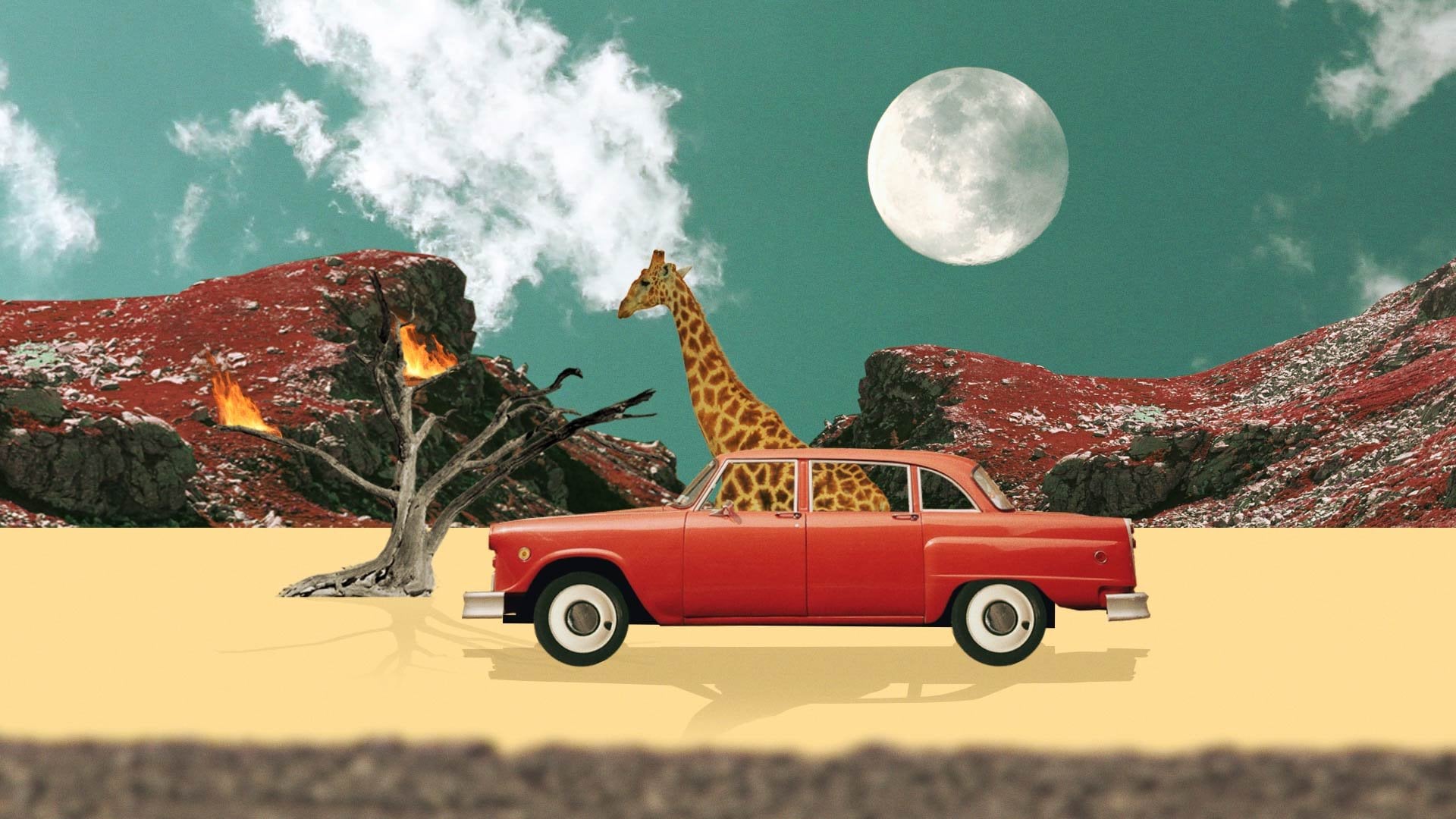
2. Getting Inspired: First of all, we need to get some images to animate. There are a multitude of ways you can get them, but I think they all fall into one of these four main categories. Number one, stock photos. You can get them on dedicated websites. Some of them are paid, like Shutterstock and Getty Images. But there are some websites where you can get stock photos fom free. My favorite is pexels.com. Just so you know, they also offer stock footage for your videos. At videos.pixels.com, Nº2: Creative Commons / Copyright Free Images. These works almost as an addendum to the first category, but I thought I should mention it. You can Google for copyright free images by searching for what you're looking for and then clicking on tools and selecting Creative Commons licenses on the "usage rights" tab. Always remember to check the terms and conditions of every photo you decide to use to see if they're really available. Nº3: Drawings. You can, of course, draw your own images and characters from scratch. This technique I'm going to teach you works beautifully with custom made images. You can draw them directly on your computer. You can free hand and then scan it. Or you can use a combination of both. Nº4, old magazines. This is a good one. The usage rights on these are kind of fuzzy and I'm no lawyer, So go check for yourself the lows of your countries and the images you want to use. There are two ways of getting old magazines. If you have some line around, you can either scan them with a scanner, which I don't have, or use your phone to take a clear picture and import that into your computer. If you like the idea, but you don't have many old magazines lying around, you can look for some on archive.org. Archive.org is a non-profit library of millions of free books, movies, software, music, websites and more. That includes magazines. For example, you can search through the collections to find all forgotten pulp magazines from the thirties and forties filled with images that will inspire you. Once you select one, you can check whether it's on the public domain or not on the description. Again, I'm no lawyer, but as far as I know, if the usage rights say public domain, you're good to go. There is way too much material out there waiting to be animated.
3. Cutting Out - Basics: So once we have the images, we need to prepare them in Photoshop. I'm going to show you a couple of examples on how to do this with different scenarios you might encounter. First of all, to teach you the basics, we're going to start with very simple image, a character without any discernible background. Just like myself. We begin by separating the character from the background. Click on the Quick Selection Tool and start clicking on your character and alt + clicking on your background until you have a rough selection. Most of the times, this is all you need to properly cut the character out. In case you need a little help, or you want to be a little more precise. You can always use the lasso tool or you can use a pen tool or make a selection out of it. Although to be fair, this is a faster method and it's quite reliable. So suit yourself. So then we're gonna go to selection... select and mask or press option common R. So now we're going to adjust the parameters until you're satisfied with the result. Now we copy that selection into a new layer by pressing common + j or control + j on Windows. Now select the original layer and move it towards the little folder icon on the bottom to create a new group. call this group extras and hide it. We're going to use this folder to store everything we are leaving behind just in case we need to retrace or go back a step if we mess up, this is not strictly necessary, but it's incredibly good practice to do this. I've seen many animators and designers lose time and be frustrated and angry because they deleted or destroyed or changed something they didn't want to change and now they have to do it all over again. Now I'm going to put a new more interesting background on. In this case, as our character is in black and white, all we need to do is to desaturate the background image. If you're doing an image in color, you might need to do some color work and I can't really help you that because your mileage may vary and every image is different. Now I'm testing the background by adding a temporary Gaussian blur just to see how it will look when it's all done. We don't need to do this right now. Now for the fun part, we're going to start by cutting the mouth. So we can make this guy say some things. Using the Lasso Tool, cut from the bottom lip all the way to the end of the chin. Just like I'm doing. The shape should resemble some sort of triangle or a trapezoid, I guess. Then press command + j to copy that selection into a new layer or create a new layer and pressing Command, click on the mouth layer. This will load up the selection you just made. Grab the Bucket Tool and paint the new layer black. That will be the mouth background: what we see when our characters starts talking. Now back to our character layer, grab the lasso tool again and repeat the process this time selecting and cutting both of his eyes. Don't select the white part, just the eye bit, the iris, to select both of his eyes at the same time after we selected the first one, press comment (HOLD) to add to the selection. I think in Windows it's Control. Now press common + j to copy the eyes into a new layer. Now hide the eyes and returned to your character layer, Usee a combination of the clone stamp tool, the regular brush and the spot healing brush to paint over the eye until it's completely white. If you want, before you start this process, you can duplicate the layer and work on the duplicate just for safety. We're done, so we're gonna save the image as a PSD.
4. Cutting Out - Filled Backgrounds: If you don't want to replace the background, there's a way to quickly paint order it. In this case, we have a British police officer that we have caught from the background into a new layer. We start by hiding the character layer and focusing on the background. We'd know the selection of the character might come and clicking on the character layer. Now we go to the Select a mass dwarf and we expand the selection and feather readout to cover a bit more than the original. Back in the main window, we're going to press shift five, or we're gonna go to Edit, Fill. Make sure it says Content Aware, fill, and press. Ok. This is going to fill up the background with what photoshop believes is the best rendition of it. It's not going to look amazing and you probably want it to be as covered as possible, but it will definitely work for what you need. If you want, you can clean up the border is a bit using a combination of the clone stamp tool and Spot Healing Brush. And let's move on to a much more complicated scenario. Okay.
5. Cutting Out - Complex Images: Today we are going to be preparing the next sheet had be vanadium by Sandro Botticelli's, also known as the birth of Venus. We start by doing everything I just taught you in the last video. Cutting her up and recreating background is in the content that we're fill and accommodation of the spot healing brush and the concept tool. Trust me, this is much easier than it looks. We're also going to cut this issue off because I feel it will be necessary to animate that, to distract her legs so we can animate them. First. We start by selecting the hand and heard that hovers over her leg, being careful not to select any of her leg in the process. Coming J to copy that into new layer. We're now going to roughly select her legs separately for we need to do is imagine her full leg up to where they connect to the hips and select that instead of just selecting what leg we seen. You'll see why this is important. Once we have both legs and separate layers, we're gonna use like always, a combination of the spot healing brush, the clone stamp tool and the regular brush to recreate her full leg. In order to do this properly, we're painting while still holding the selection loaded. This will allow us to paint without worrying about making a mess, because we were painting only in the selected area. Now we're going to divide each leg into three parts. The size, the cough, and the feet. Don't worry about being too precise or careful. Remember, this style of animation was done with actual paint and assessors. It's supposed to look rough and amateurish. That's the whole point. Now we can use our trusty old tools, the spot healing brush, the clone stamp, drill to make it look better if you wish, by extending the joints a little bit. So look at what you did. Isn't this amazing? That is so good. This so cool. You're going to have so many new followers. It is the people who stare you wondering, mind, gag, that person is powerful. You just turn the birth of Venus into the birth of our Sun. Anyway. So we're all done. Let's move on to our good old friend after effects so we can start this thing up.
6. Animating - Getting Ready: We start by importing the full PAC file by right-clicking on the project bin and selecting import. Make sure to select composition, retain layer sizes when importing, and then press open on the new window. Press okay. Start by hiding the layers you don't need by pressing the shy button and activating the shy toggle. This will ensure you keep an organized space. You might also want to rename the layers if you didn't do it in Photoshop. We're going to need to do one last step before starting to animate. As you can see, we'll move the eyes by key frame and the position of the ice layer, but they will hover over the face and we don't want that. We want them to stay in their place. In order to do this, we're going to create a new adjustment layer and put it on top of the ice layer. And then selecting the adjustment layer, we're going to use the pen tool to mask out the shape of the eyes into the Adjustment Layer. After we're done, go to the track math menu of the ice layer and select our format. What this does is make the isolator visible only wherever the Adjustment Layer is, quote unquote visible to. And that means the mass we just made. As you can see, we can now move the eyes and the illusion is complete. If you want to or need to compare it out the mass of the adjustment layer to make them look a little bit better. Finally, parent all the layers of the face, the eyes, the adjustment layer, the melted mouth background to the main character layer.
7. Animating - The Basics: And we're going to bring a little audio and to explain how to animate mouth. The basic movement of the mouth is done by keyframe the position vertically. This part is one of the most intuitive parts of the whole process and can't be properly explained with a reliable framework. Because what do you do in this stage is completely dependent on inflection of the voice actor, demands of the story, the emotional resonance of the line, et cetera, et cetera. That's why, although you may feel like it would be helpful, who actually make you worse animator, if I gave you something like a spreadsheet detailing all the letters and how much you need to move them out for each one or something like that. What I can do is tell you the basic concept of animating a mouth like this. But you need to do is abstract the movement of the mouth as it speaks and simplify it in just a vertical movement. For example, the letter a would be most of the time a very open mouth, while the letters p, f, m, let's say to be a more than closed mouth, almost like an overlap with the upper layer. There is, of course, depends on what your lines are in watcher animation is like. Now here's another tip for this process. Once you import the audio to the project and put it where it needs to be, Press comment or control in windows to scrub through the timeline to hear the audio. With it. What you hear is a portion of the audio that plays in the keyframe you're standing on. That makes the process much easier. In fact, I would argue it's nearly impossible to lip-sync without using this technique. So go through your audio and start differing in the position of the mouth vertically to make Tesla or your character talk. Now the eyes, as we previously said, are really easy to ski frame the position of them, move them around, to move them to the top to make an instant frustrated phase, aluminum to the side to make him look suspicious, et cetera. You can play around. This gives a lot of expression to his face. Finally, everything parented to the quote unquote barrier layer. We can keyframe that layer to make him move when he speaks or after speeding, even rotate the body to make him treble. If we feel like we can totally make a parallax animation out of this. First, we need to decompose her character. Then we make all of our layers 3D. We create a camera, in this case a 2-node camera. We take the background layer and move it away a ton to separate it from her character in a 3D space. This means moving the c-axis and the position property. We up the scale until it fills our screen. Now we can move the camera around. In this case, we're going to key frame the position throughout the c-axis. That means corps moving the camera forward. With regards to cameras and parallax and all that, try to make movements subtle. Don't go around rotating and moving the camera all around because it's going to look too crazy, going to oversell the effect and you don't want that. With that said, I'm just about to move the camera a lot and break my own rule. But try not to do this especially at first because you're just going to end up frustrated. I don't know what you're doing. Another thing we can do is open up the Camera options, turn-on, depth field option, and up the aperture by a lot to learn the background and sell the 3D effect on lot more. If we move the camera to closer too much, we might need to keyframe and adjust the focuses. And so our character is always in focus. So now we move on to the birth of Venus, which will teach us how to animate legs, which is the same technique we can use to animate arms. Hello, my name is Nikola Tesla.
8. Animating - Complex Images: So we begin by importing the PRC file just like before. Then we need to prepare it. The way to do this is by moving the anchor points to the place where the joins me and apparently layers in a specific way. So we're going to start with the Press Why or click on a pen behind tool. This tool allows us to move the anchor 0.4 layers. Move the anchor point of the feet to the ankle. Then will the anchor point of the call to the need. And finally, move the anchor point of the thigh to the hip. And repeat the process in the other leg. After you're done, you're gonna need parental left foot to the left half and the left column to the left thigh. Same thing with the right, right food to the right call and right off to the right thigh. Then parent both sides to the body. This is the result of the parenting and the anchor point adjustment. You can see why we do this so that every layer rotates precisely how it needs to can animate the rotation of these layers to make the Venus dance. Then remember to move the position of the body accordingly. Remember, this course is not about how to animate properly. It's about teaching you the techniques for you to do it yourself. Try to experiment and see where you go. In this case, for example, I wanted to make her jump. In order to make her jump. I needed to make her squat alone at first. And for that, I need the feed to stay in place in order to sell the illusion. So at first common are to bring up the rulers a marketplace with a feed originally where in order to keep them replace. Things like this, ideas like this, figuring out how to solve these kinds of problems in the most efficient way only come from experience and it would be way beyond the scope of one single course to teach you everything I know about animating aftereffects. However, stay tuned because I plan to keep on releasing courses such as this one. And the more you learn and the more you practice, the easier it will come free. Not claiming to be the best animator out there and are even claiming to be a particularly good one. But I have the years of experience and I can definitely tell you anyone that's trying to sell you a course that teaches you, quote unquote, everything you need to know about animation is basically scanning you. It's false advertising and description down below, I'm gonna link a few resources that helped me a lot. And if you're just starting, they will definitely help you chill.
9. Mastering - Lookin' Sharp: Now after we have our basic animation done, we can take two paths from here. The first one is the pristine won, a clean one, the Digital looking one. This, we might use parallax technique we saw earlier and pair it with some lighting effects. This is very simple and elevates your animation to the next level. You just create a new spotlight, position it in a way that looks good to you. You can animate its intensity to creative type that is turning on. You can also go to the materials options of 3D Layers and turn on casts, shadows that sells the effect of tn. But to be honest, that's not my favorite way of doing things. My favorite way is emulating the vintage look manual work of cut-out animation. We're gonna show me a simple and cool way to do this. First, start by creating a new adjustment layer. Apply the postulates time affect, and change the value to drought. This will render the video 12 frames per second, but it's going to play it a 24. That's pretty much how you slip back in day. Now we're gonna all click on a stopwatch for the position of the layers. In order to write an expression, the expression we're going to use is called wiggle. Its one of the most popular ones. White wiggle, open parenthese, 12 comma five, close parentheses. Okay, so what this does is it shifts by a maximum of five, the position of the layer in any direction, 12 times per second, right? So the first value of the expression is a frequency. We're going to move the property per second. The second value is the maximum amount of movement that probably we'll have. And of course we can apply this to any other frame bubble thing in After Effects. As you can see, both of these things combined. So the effect of manual cut-out animation to quite a bit.
10. Final Thoughts: Hi, nice to meet you. Sorry about the quality of the camera. I didn't wanna set up the whole thing. So final words, I hope you enjoyed this course. I hope I didn't go too fast for you. In case I did. You can leave it on the feedback fame or send me an email or something if you have any doubts or anything. Just like oh, hesitate. Like just send me an email on my online 24-7 slot down. I have no excuse. So like I said at the beginning, I hope that what you took away from this course is a new way to explore some aspect of your creativity that maybe was dormant in some way. And yeah, let's say it. If you liked the course and you can leave some feedback when prompts you. And if you didn't, then please don't. Any feedback is actually good to the planet making more courses. This one on any subject. Actually, your ideas would be fine if you have some ideas on subjects you'd like me to cover and like, like something out of the youtube channel or something out of aftereffects, You know, Brian making one on glitches, distortions, and the VHS look and all that. But yeah, that's an audit. Thank you for watching the course and I hope I'll see you next time.
 Space Cadet, Motion Designer